A 3,500-seat fintech keeps getting phished. Not the clumsy kind — the attackers run a real-time reverse proxy (Evilginx-style) that sits between the employee and the real Okta login, relays the password, relays the OTP, and replays the captured session cookie from their own infrastructure minutes later. Every “MFA” the company has — SMS, TOTP, push-with-number-matching — falls to it, because none of those factors are bound to the origin the user actually visited. The CISO’s mandate after the third incident is blunt: remove the password from the login entirely, make the only accepted factor one that is cryptographically tied to both the device and the real Okta domain, and refuse to authenticate any device that is not managed, encrypted, and running a healthy EDR agent. That is exactly what Okta FastPass plus Device Assurance deliver, and this guide is the step-by-step rollout — enrollment, policies, the Verify integration, the device-signal plumbing, validation, and a clean rollback — that gets you from “password + push” to phishing-resistant passwordless without locking anyone out on day one.
FastPass is Okta Verify acting as a local authenticator: it answers a WebAuthn/FIDO2-style challenge using a hardware-bound private key (Secure Enclave on macOS/iOS, TPM-backed keystore on Windows/Android) and verifies the request actually came from your real Okta org URL — so a proxied login from a look-alike domain simply fails. Device Assurance is the gate in front of it: a policy that inspects device posture (OS version, disk encryption, screen-lock, biometric, and third-party signals like a CrowdStrike Falcon Zero Trust Assessment score) and only lets a session proceed if the device meets the bar. Together they turn authentication from “something the user knows and can be tricked into relaying” into “something a healthy, enrolled device proves it possesses.” This guide assumes Okta is your primary workforce IdP, federated to Microsoft Entra ID so downstream Azure/Microsoft 365 resources accept the resulting token.
Prerequisites
- An Okta org with the Okta Identity Engine (OIE) — FastPass and Device Assurance do not exist on the legacy Classic Engine. Confirm under Settings → Account.
- Super Administrator (or a custom admin role with authenticator, policy, and device management permissions) in Okta.
- An MDM you can use to push the Okta Verify app and (on macOS/Windows) a device-management attestation so Device Assurance can trust “is this device actually managed” — e.g. Jamf for macOS, Microsoft Intune for Windows. Optional but recommended.
- CrowdStrike Falcon deployed on endpoints if you want to gate on EDR health (the Falcon Zero Trust Assessment integration feeds a device risk signal into Okta).
- A pilot group (start with IT — they will hit every edge case) and a clearly separated “everyone else” group, ideally driven by a rule, not hand-maintained.
- The Okta CLI / Terraform provider configured with a scoped API token if you intend to manage policies as code (recommended; pull the token from HashiCorp Vault rather than a
.tfvarsfile). - A break-glass admin account excluded from every new policy, with a FIDO2 security key (YubiKey) enrolled — so a misconfigured passwordless rollout can never lock you out of your own tenant.
Target topology
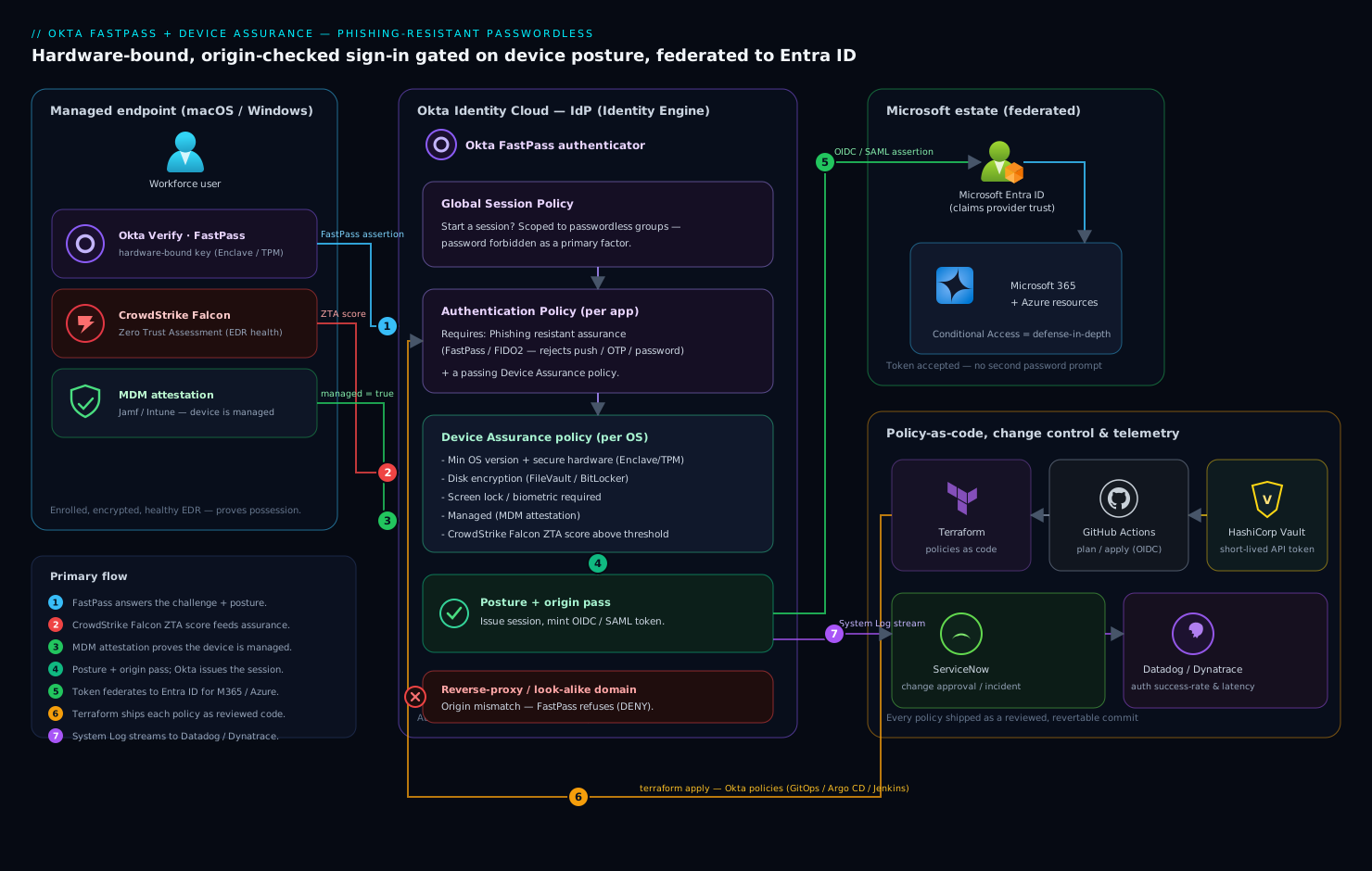
The flow is straightforward once you see the choke points. A user on a managed laptop opens an app — say the Akamai-fronted internal portal, or Microsoft 365. The app redirects to Okta for sign-in. Okta evaluates the Global Session Policy (do we even start a session for this user from this context) and then the app’s Authentication Policy (what does this app require). The authentication policy demands “Phishing resistant” assurance and a passing Device Assurance policy. Okta Verify / FastPass on the device answers the challenge with its hardware-bound key, signs an assertion scoped to the real Okta org URL, and supplies device-posture claims — OS version, disk encryption, management state, and the CrowdStrike Falcon ZTA score pulled via the device-signal integration. If posture passes and the cryptographic origin check passes, Okta issues the session and federates an OIDC/SAML token onward to Entra ID for the Microsoft estate. Everything that can be expressed as policy is managed as code through Terraform and shipped via GitHub Actions (or Jenkins, or promoted with Argo CD if you GitOps your config), with ServiceNow carrying the change approval and Dynatrace/Datadog watching the auth success-rate and latency so a bad policy push shows up as a graph, not a flood of help-desk tickets.
1. Confirm Identity Engine and enable the device-trust plumbing
First, verify you are on OIE and that the org can hold device context. You can do most of this in the Admin Console, but it is worth scripting the read so the state is captured in your runbook.
Pull org and authenticator state with the API (token sourced from Vault, never inlined):
# Fetch the short-lived Okta API token from HashiCorp Vault, not from disk
export OKTA_API_TOKEN=$(vault kv get -field=token secret/okta/admin-api)
export OKTA_ORG="https://kloudvin.okta.com"

# Confirm Okta Verify authenticator exists and is active
curl -s -H "Authorization: SSWS ${OKTA_API_TOKEN}" \
     -H "Accept: application/json" \
     "${OKTA_ORG}/api/v1/authenticators" \
  | jq '.[] | select(.key=="okta_verify") | {key, status, name}'
You want "status": "ACTIVE". In the Admin Console, go to Security → Authenticators, and on the Okta Verify authenticator open its settings:
- Set User verification to Required (forces a biometric or PIN on every FastPass challenge — this is what makes the factor user-present, not just device-present).
- Enable FastPass (the toggle is sometimes labeled “Okta FastPass”).
- Under Phishing resistance, ensure FastPass is allowed to satisfy phishing-resistant assurance.
Leave the policies themselves for later steps — right now you are only confirming the authenticator is on and capable.
2. Push Okta Verify and define enrollment
Passwordless dies on rollout if users have to self-enroll under pressure. Push the app silently through MDM so it is already installed when the policy flips.
A Jamf macOS deployment uses the Okta Verify pkg plus a managed-app-config profile that pre-fills the org URL so users do not type it:
<!-- Jamf / macOS managed app config payload (excerpt) -->
<dict>
  <key>OktaVerify.ManagementHint</key>
  <string>jamf</string>
  <key>OktaVerify.OrgUrl</key>
  <string>https://kloudvin.okta.com</string>
</dict>
For Windows via Intune, deploy the Okta Verify MSIX/Win32 app and a configuration that sets the same OrgUrl. On mobile, push from the managed app store (Intune Company Portal / Jamf).
Now control who can enroll and how with an Authenticator Enrollment Policy (Security → Authenticators → Enrollment). Create a policy targeting your pilot group:
- Okta Verify: Required
- Password: Disabled for the passwordless target groups (this is the lever that actually removes the password — but do it group-by-group, never org-wide on day one)
- FIDO2 (WebAuthn): Optional — keep it allowed as the recovery/break-glass factor
Bind the policy to the pilot group only. Order matters: Okta evaluates enrollment policies top-down and stops at the first match, so the pilot policy must sit above the catch-all default.
3. Build the Device Assurance policies
Device Assurance is per-OS — you create one policy per platform and reference them from authentication policies. Go to Security → Device Assurance Policies → Add a policy, and build one per OS. A macOS policy might require:
- Minimum OS version: e.g.
14.5(Sonoma) — pin to a version your fleet can actually meet, then ratchet up. - Disk encryption: FileVault required
- Screen lock / biometric: Required
- Secure hardware: Required (binds keys to the Secure Enclave)
- Third-party signal provider: CrowdStrike Falcon — require a passing Zero Trust Assessment (e.g. overall ZTA score ≥ a threshold you set with your security team).
If you manage Okta as code, express the same thing in Terraform so it is reviewable and revertable:
resource "okta_policy_device_assurance_macos" "corp_macos" {
  name                    = "Corp-macOS-Assurance"
  os_version              = "14.5.0"
  disk_encryption_type    = ["ALL_INTERNAL_VOLUMES"]
  secure_hardware_present = true
  screenlock_type         = ["BIOMETRIC"]

  # Bind device health to CrowdStrike Falcon's Zero Trust Assessment
  third_party_signal_providers = true
  tpsp_crowd_strike_agent_id   = "<falcon-customer-id>"
  tpsp_crowd_strike_customer_id = "<falcon-cid>"
}
Create the Windows equivalent (okta_policy_device_assurance_windows) requiring BitLocker, a minimum build, secure-boot/TPM, and the same Falcon signal. The CrowdStrike Falcon integration is configured once under Security → Device Integrations → Endpoint security software — you authorize Okta to read the Falcon ZTA signal, and from then on any Device Assurance policy can reference “CrowdStrike Falcon healthy” as a condition. This is the bridge that lets an identity decision depend on EDR posture: a laptop whose Falcon sensor is disabled or whose ZTA score has cratered stops satisfying assurance and is refused, even with a valid FastPass key.
4. Wire device-management attestation (so “managed” is provable)
Device Assurance can check “is this device managed by our MDM” — but only if Okta can verify the MDM’s attestation. Under Security → Device Integrations → Endpoint management, add your MDM as an attestation source: Jamf Pro for macOS, Intune / Entra ID for Windows. For the Windows/Entra path you register Okta as able to read device-compliance state from Entra, which closes the loop with Microsoft Entra ID: the same device object Entra trusts for Conditional Access is the one Okta trusts for Device Assurance, so the two platforms agree on “is this a corporate device” instead of each guessing.
Once attestation is live, you can add Registered/Managed as a hard requirement in the relevant Device Assurance policies. A device that is jailbroken, unmanaged, or has had Okta Verify side-loaded onto a personal machine then fails the managed check and never reaches the FastPass prompt.
5. Set the Global Session Policy and per-app Authentication Policies
This is where passwordless actually takes effect. Two layers:
Global Session Policy (Security → Global Session Policy) decides whether to establish an Okta session at all. Add a rule above the default, scoped to the passwordless groups, that requires the user to authenticate and forbids password as a primary factor. Keep the default rule untouched as the fall-through for everyone not yet migrated.
Authentication Policies (Security → Authentication Policies) are per-app and are where you demand phishing resistance and device posture. For each high-value app (start with the Okta Dashboard itself, then Microsoft 365, then your internal apps behind Akamai), edit the policy’s rule:
- User must authenticate with: Phishing resistant (this is the named assurance level — it accepts FastPass and FIDO2, and rejects push/OTP/password).
- Device assurance policy is: select your per-OS policy from step 3.
- Optionally tighten re-authentication frequency for sensitive apps.
Expressed in Terraform, an app authentication-policy rule that demands phishing-resistant + device assurance looks like:
resource "okta_app_signon_policy_rule" "m365_phish_resistant" {
  policy_id                   = okta_app_signon_policy.m365.id
  name                        = "M365-PhishResistant-ManagedDevice"
  priority                    = 1
  access                      = "ALLOW"

  factor_mode                 = "2FA"
  re_authentication_frequency = "PT8H"

  # Require the phishing-resistant assurance level (FastPass / FIDO2)
  constraints = [jsonencode({
    possession = {
      required             = true,
      phishingResistant    = "REQUIRED",
      hardwareProtection   = "REQUIRED",
      userVerification     = "REQUIRED"
    }
  })]

  # Gate on device posture
  device_assurance_included = [okta_policy_device_assurance_macos.corp_macos.id]
  device_is_managed         = true
  device_is_registered      = true
}
Ship this through your pipeline rather than clicking it in prod. Wire terraform plan into a GitHub Actions PR check (authenticating with an OIDC-issued, short-lived credential and the Okta token from Vault, never a stored secret) so a reviewer sees the policy diff before it merges; run terraform apply on merge. Teams already running GitOps can have Argo CD reconcile the rendered Okta config, or drive the same apply from a Jenkins stage. Whichever you use, attach a ServiceNow change record to the merge so there is an approved, auditable trail for “we removed the password from M365 for the Engineering group.”
6. Federate the session to Entra ID
So the Microsoft estate honors the passwordless login, Okta must be the SAML/OIDC IdP for Entra. In Entra, this is the WS-Fed/SAML federation where Okta is the claims provider; the practical effect is that once a user clears FastPass + Device Assurance at Okta, the resulting assertion flows to Entra ID and Microsoft 365 / Azure resources accept it without a second password prompt. Keep one detail straight: enforce phishing-resistance and device posture at Okta (the IdP), and let Entra Conditional Access act as defense-in-depth (e.g. “require compliant device”) rather than the primary control — otherwise you maintain two policy engines that can silently disagree. Because attestation (step 4) makes Okta and Entra share the same device-compliance truth, the two layers reinforce instead of fighting.
7. Pilot enrollment walkthrough
With policies bound to the pilot group only, walk a pilot user through it once and document it for the rollout guide:
- Okta Verify is already installed (pushed in step 2). User opens it and taps Add account; the org URL is pre-filled.
- User authenticates once with their existing factor to bootstrap enrollment, then enables FastPass and sets up biometric/PIN user-verification.
- The device generates a hardware-bound keypair (Secure Enclave / TPM) and registers the public key with Okta. The device now appears under Directory → Devices.
- User signs out and signs back in to the Okta Dashboard — they should get a silent or one-tap FastPass prompt and no password field.
Have the pilot group live with it for at least a week. IT first, precisely because they run the unmanaged VMs, the old OS versions, and the second laptops that will surface every Device Assurance edge case before a non-technical user hits them.
Validation
Prove it works and prove the failure cases fail. Do all of these before widening the rollout.
# 1. Confirm the device registered a FastPass (hardware-protected) key
curl -s -H "Authorization: SSWS ${OKTA_API_TOKEN}" \
     "${OKTA_ORG}/api/v1/users/${PILOT_USER_ID}/factors" \
  | jq '.[] | select(.factorType=="signed_nonce") | {factorType, provider, status}'

# 2. Pull the System Log and verify the sign-in used a phishing-resistant factor
curl -s -H "Authorization: SSWS ${OKTA_API_TOKEN}" \
     "${OKTA_ORG}/api/v1/logs?filter=eventType+eq+%22user.authentication.auth_via_mfa%22&limit=5" \
  | jq '.[] | {actor: .actor.alternateId, factor: .authenticationContext.credentialType, result: .outcome.result}'
Then the manual checks that matter most:
- Passwordless confirmed: sign in to a target app — there must be no password field, only a FastPass prompt with biometric/PIN.
- Phishing-resistance confirmed: in Okta’s System Log, the successful sign-in shows
credentialTypeof FastPass/WebAuthn and the authentication policy’s “phishing resistant” requirement as satisfied. Critically, attempt a sign-in through a reverse-proxy/look-alike host — FastPass refuses because the origin does not match your real org URL. - Device Assurance confirmed (negative test): on a pilot Mac, temporarily disable FileVault (or stop the CrowdStrike Falcon sensor) and attempt sign-in — Okta must deny with a device-assurance failure, and the System Log should name the failed condition.
- Telemetry confirmed: in Dynatrace or Datadog, watch the dashboard fed by Okta’s System Log (via the Okta log stream / API poller) — auth success rate should hold steady through the pilot, and a spike in
DENYoutcomes is your early warning that a policy is too tight.
Rollback / teardown
Because every change was scoped to groups and shipped as code, rollback is fast and surgical — which is the whole point of staging it this way.
- Immediate, per-app: in the app’s Authentication Policy rule, change the requirement from Phishing resistant back to your previous assurance (e.g. “Password / IdP + Any factor”) and detach the Device Assurance policy. Users can sign in with the old method within seconds. If you manage it in Terraform, revert the commit and
apply. - Restore the password factor: in the Authenticator Enrollment Policy for the affected group, set Password back to Required/Optional. Until you do, those users have no password to fall back to.
- Group-level kill switch: move users out of the passwordless group (or flip the group rule) so they fall through to the untouched default policies. This is the cleanest mass-rollback and the reason the default policies were never edited.
- Full teardown: delete the per-OS Device Assurance policies and the pilot enrollment policy, and disable FastPass on the Okta Verify authenticator. Leave Okta Verify installed — re-enrollment is then trivial when you retry.
Keep the break-glass FIDO2 admin excluded from all of this throughout; it is your guaranteed way back into the org if a rollback step itself goes wrong.
Common pitfalls
- Disabling Password org-wide on day one. This is the classic lockout. Always scope the “Password: Disabled” enrollment policy to a migrated group and keep the default intact.
- Editing default policies instead of adding rules above them. You lose your clean fall-through and your fast rollback. Add new, higher-priority rules; never mutate the catch-all.
- No break-glass key. If your only admin is subject to the new passwordless policy and something misconfigures, you are locked out of your own tenant. Enroll a YubiKey on an excluded admin first, before anything else.
- Device Assurance thresholds the fleet cannot meet. Pinning a minimum OS version newer than most laptops run, or a Falcon ZTA score most devices fail, mass-denies legitimate users. Baseline the fleet, set the bar at the current reality, then ratchet.
- Forgetting MDM attestation. Without it, “managed device” is unverifiable and Okta Verify side-loaded onto a personal machine can pass — silently defeating the device-bound guarantee.
- Two policy engines disagreeing. Enforcing the same control independently in both Okta and Entra Conditional Access leads to confusing, hard-to-debug denials. Make Okta authoritative for the auth decision; use Entra CA as defense-in-depth.
- No telemetry before rollout. Flipping policy without a Dynatrace/Datadog success-rate graph means your first signal is the help desk. Stand up the dashboard first.
Security notes
This rollout is Zero Trust at the front door: the only accepted factor is hardware-bound and origin-checked, so credential phishing, OTP relay, and session-cookie replay from look-alike domains all stop working — which was the threat that started the project. Posture is continuous, not one-time: tie the CrowdStrike Falcon ZTA signal in so a device whose EDR is unhealthy loses access regardless of a valid key, and require secure hardware so private keys never leave the Secure Enclave/TPM. Keep the Okta admin API token short-lived and pulled from HashiCorp Vault, never committed to the Terraform repo. Retain a FIDO2 break-glass path and exclude it from policy. Pipe every DENY and policy change to your SIEM, and route a sustained denial spike to a ServiceNow incident so security investigates a ticket, not a log line.
Cost notes
The licensing reality: FastPass and Device Assurance require Okta Adaptive MFA / Identity Engine tiers (Device Assurance is typically an add-on) — confirm entitlement before you design, because the policy controls above assume it. The non-license costs are mostly one-time: the MDM to push Okta Verify and provide attestation (you likely already run Jamf/Intune), the CrowdStrike Falcon integration (already deployed if EDR is in place — Okta consumes the existing signal at no extra agent cost), and the engineering time to template policies in Terraform. Against that, the savings compound: passwordless removes the single largest help-desk category — password resets — and phishing-resistant auth removes the incident-response and breach exposure that one successful credential-relay can cost. Run it through your GitHub Actions/CI as code rather than click-ops, and the ongoing operational cost is a code review per change, with Datadog/Dynatrace giving you the success-rate signal that keeps a bad push from becoming an outage.