The difference between an engineer who has been on call for two weeks and one who has done it for a decade is not that the senior person memorises more error messages. It is that they have a method. When a deployment fails, a VM refuses SSH, or a pod sits Pending at 2am, the experienced operator does not start clicking randomly through the Cloud Console; they reproduce the fault, isolate which layer owns it, compare the live configuration against what it should be, read the logs that the platform is practically shouting at them, form one hypothesis, change one thing, verify, and then write down what they found so the next person — often their future self — does not have to rediscover it. This lesson gives you that method on Google Cloud, and then turns it into concrete, copy-able playbooks for the five areas that generate the overwhelming majority of real support tickets: IAM, VPC and networking, Compute Engine, Cloud SQL, and GKE. Every playbook is a symptom → likely cause → diagnostic step → fix table, because that is exactly the shape your brain needs under pressure.
Learning objectives
By the end of this lesson you will be able to:
- Apply a repeatable, layer-by-layer troubleshooting method to any Google Cloud problem rather than guessing.
- Resolve “permission denied” errors quickly using the Policy Troubleshooter, allow/deny evaluation order, and Cloud Audit Logs to answer “who did what”.
- Diagnose VPC connectivity failures with Connectivity Tests, firewall-rule logging, route inspection, Cloud NAT and Private Google Access.
- Bring back a Compute Engine VM that will not boot or accept SSH using the serial console, metadata and the startup-script logs.
- Fix the common Cloud SQL connectivity traps (private IP, authorised networks, the proxy, IAM database authentication).
- Triage GKE workloads stuck in
Pending,ImagePullBackOff,CrashLoopBackOffor failing Workload Identity and Ingress.
Prerequisites
You should be comfortable navigating the Cloud Console and running gcloud, and you should understand the GCP resource hierarchy (Organisation → Folders → Projects → Resources) and the IAM allow-policy model covered in Google Cloud IAM Fundamentals: Roles, Service Accounts, Policy & Inheritance. Have the Cloud Logging, Cloud Monitoring, Compute Engine, Cloud SQL and Kubernetes Engine APIs enabled on a sandbox project, and the gke-gcloud-auth-plugin installed so kubectl can authenticate. This is the Troubleshooting module of the Zero-to-Hero course; it sits one rung below Advanced Google Cloud Troubleshooting: Complex Multi-Service Incidents & RCA, which handles incidents that span several services at once.
The troubleshooting method
A method matters because the failure modes change constantly but the process does not. Internalise these eight steps and you can debug a service you have never seen before.
| Step | What you do | Why it matters |
|---|---|---|
| 1. Reproduce | Get a reliable, minimal way to trigger the fault — exact command, request, or action. | A bug you cannot reproduce is a bug you cannot confirm you have fixed. |
| 2. Isolate the layer | Decide which layer owns it: identity/IAM, network, compute/host, application, data, or control plane. | Each layer has different tools; guessing the layer wastes the most time. |
| 3. Config vs desired | Compare the actual configuration (gcloud ... describe, kubectl get -o yaml) against what it should be. |
Most outages are a config drift or a recent change, not a platform fault. |
| 4. Inspect logs & metrics | Read Cloud Logging (Logs Explorer / Log Analytics) and Cloud Monitoring; the answer is usually already written there. | The platform tells you what it refused and why if you ask it. |
| 5. Form one hypothesis | State a single, testable theory: “the VM has no route to the internet because Cloud NAT is missing.” | One hypothesis at a time keeps cause and effect clean. |
| 6. Change one thing | Make the smallest possible change to test the hypothesis. | Changing several things at once means you never learn the real cause. |
| 7. Verify | Re-run the reproduction from step 1 and confirm it now succeeds. | “Should be fixed” is not “is fixed.” |
| 8. Prevent | Write it down; add an alert, a guardrail (Org Policy), an IaC change, or a runbook entry. | Turning an incident into a control is what stops the 3am repeat. |
Two cross-cutting tools underpin every step. Cloud Audit Logs answer who did what, where, and when — Admin Activity logs (always on, no charge) capture every configuration change, and Data Access logs (opt-in) capture reads. When something “suddenly broke,” step 0 is often “what changed?”, and the Activity log is where the culprit confesses. Cloud Logging’s Logs Explorer is your universal lens; learn its query language because a precise filter turns a needle-in-a-haystack search into a one-line answer:
# "Who changed the firewall in the last day?" — Admin Activity audit log
gcloud logging read \
  'logProtoPayload.methodName:"compute.firewalls" AND resource.type="gce_firewall_rule"' \
  --freshness=1d --project=my-project --format="table(timestamp, protoPayload.authenticationInfo.principalEmail, protoPayload.methodName)"
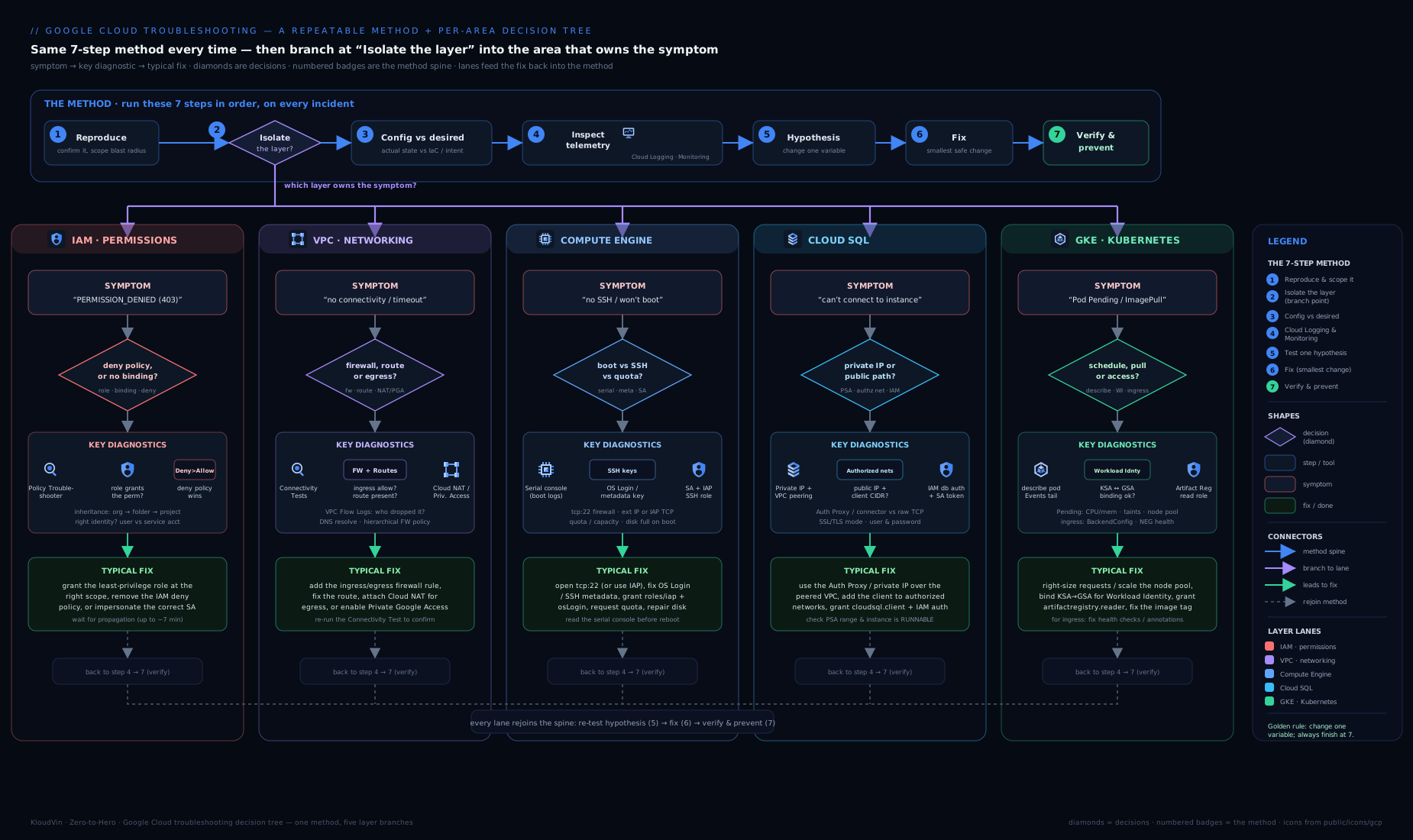
The decision tree above is the method in visual form: start at the symptom, ask “which layer?”, and follow the branch to the specific diagnostic tool — Policy Troubleshooter for identity, Connectivity Tests for the network, serial console for the host, and so on.
Playbook 1 — IAM: “permission denied”
Almost every IAM failure surfaces as PERMISSION_DENIED or HTTP 403 with a message naming the permission the caller lacked (for example compute.instances.start). The single most useful habit is to read the permission in the error and then ask three questions: does the right principal have a role containing it, is that grant reachable here through inheritance, and is something (a condition or a deny policy) blocking it? The Policy Troubleshooter answers all three at once — give it the principal, the resource, and the permission and it tells you whether access is granted and exactly which binding is (or is not) responsible.
| Symptom | Likely cause | Diagnostic step | Fix |
|---|---|---|---|
PERMISSION_DENIED naming a permission a user expected to have |
No role on this principal grants that permission at this resource | Policy Troubleshooter: gcloud policy-troubleshoot iam <resource> --principal-email=<user> --permission=<perm> |
Grant a predefined role containing the permission at the lowest sufficient node: gcloud projects add-iam-policy-binding |
| User has the role at the project but still denied on one resource | A deny policy at the resource/folder/org overrides the allow (deny wins) | gcloud iam policies list --attachment-point=... / Troubleshooter shows a denying rule |
Amend the deny policy to add an exception principal, or remove the rule |
| Grant exists but only works sometimes / from some IPs | An IAM Condition (CEL) limits the binding by time, IP, or resource tag | Inspect the binding’s condition in get-iam-policy --format=json |
Adjust or remove the condition; verify the request meets it |
| A service / app gets 403 although “the user” is an admin | The code runs as a service account, not the human; the SA lacks the role | Find the SA in the request log principalEmail; check its roles |
Grant the role to the service account, not the human |
cannot act as service account ... when deploying |
Caller lacks iam.serviceAccounts.actAs on the target SA |
Audit log shows the actAs denial |
Grant roles/iam.serviceAccountUser on that SA to the deployer |
| Recently working access broke today | Someone changed a binding or removed a role | Admin Activity audit log: filter methodName:"SetIamPolicy" |
Re-add the binding; consider IaC + Org Policy to prevent drift |
| New grant “not taking effect” | IAM propagation lag, or you edited the wrong node | Re-run Troubleshooter; confirm the resource path | Wait up to ~2 min; verify you edited the correct project/folder |
Remember the evaluation order that makes these traps predictable: deny policies are checked first and always win; allow policies are then unioned across the resource and every ancestor; a binding only grants access if its condition (if any) is true. So “I granted it at the project but it is denied” almost always means either a deny policy or a condition, and the Troubleshooter will name it.
Playbook 2 — VPC & networking: “no connectivity”
Networking failures feel mysterious because the packet dies silently somewhere between source and destination. The cure is to stop guessing and run a Connectivity Test (in Network Intelligence Center): you give it a source, a destination, a port and a protocol, and it simulates the path through your VPC config — firewall rules, routes, peering, Cloud NAT — and tells you the exact hop where the packet would be dropped and why. Pair it with firewall-rule logging (turn it on for the relevant rule and the logs show ALLOW/DENY per connection) and you rarely have to speculate.
| Symptom | Likely cause | Diagnostic step | Fix |
|---|---|---|---|
| Cannot reach a VM on a port (e.g. 443) within the VPC | No firewall rule allows that ingress; default-deny applies | Connectivity Test src→dst on the port; it flags “dropped by firewall” | Add an ingress allow rule with the right target tags/SA, source range and port |
| VM has no internet egress (apt/pip time out), no external IP | No Cloud NAT for the subnet, or a default route is missing | Check routes gcloud compute routes list; Connectivity Test to 8.8.8.8 |
Create a Cloud NAT on the region’s Cloud Router; confirm 0.0.0.0/0 route exists |
| VM cannot reach a Google API (Storage, etc.) with no public IP | Private Google Access is off on the subnet | gcloud compute networks subnets describe --format='value(privateIpGoogleAccess)' |
Enable Private Google Access on the subnet; ensure DNS resolves to private.googleapis.com |
| Two peered VPCs still cannot talk | Peering does not transit, or firewalls block the peer range | Connectivity Test across the peering; check both sides’ rules | Add firewall rules for the peer CIDR; remember peering is non-transitive |
| Traffic ignores your appliance/next hop | A more specific route or default route wins; UDR misconfigured | gcloud compute routes list sorted by priority/prefix |
Add a custom static route with correct priority and next-hop |
| Service in a Shared VPC service project has no network | Subnet not shared, or SA lacks compute.networkUser |
Check Shared VPC subnet IAM in the host project | Grant roles/compute.networkUser on the subnet to the service project SA |
| Intermittent drops / asymmetric routing | NAT port exhaustion, or return path differs from forward path | Cloud NAT logs + Monitoring nat allocation metrics |
Increase NAT ports/IPs (or enable dynamic port allocation); fix routing symmetry |
A useful mental shortcut: GCP firewall rules are stateful, so if the forward connection is allowed the return traffic is automatically permitted — which means a one-way failure is almost never “I forgot the return rule” and almost always a missing forward rule, a route, or NAT.
Playbook 3 — Compute Engine: VM won’t start or won’t SSH
When a VM misbehaves, separate two very different problems: the instance will not enter RUNNING (a control-plane / quota / config issue), versus the instance is running but you cannot reach it (network, OS, or key issue). For the second class, the serial console is your best friend — it shows the boot log and OS messages even when SSH is dead, and it never depends on the network path that SSH does.
| Symptom | Likely cause | Diagnostic step | Fix |
|---|---|---|---|
gcloud compute instances start fails immediately |
Resource/quota shortage in the zone, or stockout for that machine type | Read the operation error; check Quotas page / gcloud compute project-info describe |
Pick another zone/machine type, or request a quota increase |
| VM is RUNNING but SSH times out | No firewall rule allows TCP 22 from your source / IAP range | Connectivity Test to port 22; check ingress rules | Add an allow-22 rule (use IAP range 35.235.240.0/20 for IAP TCP forwarding) |
| SSH refused / “permission denied (publickey)” | Key not provisioned; OS Login vs metadata-key mismatch | Check instance/project metadata enable-oslogin; serial console |
Use OS Login + roles/compute.osLogin, or push a valid key to metadata |
| VM boots then becomes unreachable | A bad startup script or OS misconfig broke networking/sshd | Serial console (--serial-port-output) to read boot + script logs |
Fix the script via metadata; reset; for disk fixes, attach the disk to a rescue VM |
| App on the VM cannot call Google APIs | The attached service account lacks scopes/roles | Check the VM’s SA and access scopes; audit log of the API call | Stop VM, set correct SA/scopes, restart; grant the role to that SA |
| VM “running” but app down after maintenance | Live-migration or host event; app did not recover | Cloud Logging compute.instances system events; guest metrics |
Add auto-healing (MIG health checks); make the app restart-safe |
| Cannot create the VM at all | Org Policy constraint (e.g. shielded VM, allowed images) blocks it | Error names the constraint; check Org Policies on the project | Adjust the policy or choose a compliant image/config |
The single most common SSH mistake is forgetting that IAP-based SSH needs an ingress rule allowing the IAP forwarding range on port 22; gcloud compute ssh --tunnel-through-iap then works without any public IP, which is also the more secure pattern.
Playbook 4 — Cloud SQL: connectivity and authentication
Cloud SQL connectivity confuses people because there are three distinct paths — public IP with authorised networks, private IP via private services access, and the Cloud SQL Auth Proxy — and the failure looks identical (“can’t connect”) regardless of which one you misconfigured. Decide which path you intend to use first, then debug only that path.
| Symptom | Likely cause | Diagnostic step | Fix |
|---|---|---|---|
| App on a VM/GKE cannot reach the instance’s private IP | VPC lacks the private services access peering to Cloud SQL | Check gcloud services vpc-peerings list; Connectivity Test to the instance IP |
Allocate a range and create the servicenetworking peering; enable private IP |
| Connection from your laptop refused (public IP) | Your IP is not in Authorised networks | Cloud SQL → Connections shows allowed CIDRs | Add your IP/CIDR (prefer the Auth Proxy over opening public IP) |
| TLS / cert errors on public connections | “Require SSL/TLS” is on but client sent no cert | Instance flag requireSsl/SSL mode; client connection string |
Use the Auth Proxy (handles TLS) or provide client certs |
access denied for user despite a real account |
Wrong user/host grant, or you meant IAM database authentication | Check DB users; whether IAM auth is enabled on the instance | Use the correct DB user, or enable IAM auth and grant roles/cloudsql.instanceUser |
| Auth Proxy starts but cannot connect | Proxy’s identity lacks roles/cloudsql.client, or wrong instance string |
Proxy stderr logs; verify PROJECT:REGION:INSTANCE |
Grant roles/cloudsql.client to the SA; fix the connection name |
| GKE pod cannot reach Cloud SQL | Workload Identity SA lacks cloudsql.client, or no private path |
Pod logs; check the bound Google SA’s roles | Bind a Google SA with cloudsql.client via Workload Identity, use private IP or proxy sidecar |
| Connections randomly dropped / “too many connections” | Connection-limit flag reached or no pooling | Monitoring database/network/connections; instance flags |
Add connection pooling (or PgBouncer/Auth Proxy), raise max_connections |
A reliable rule of thumb: if you are unsure which path to use, use the Cloud SQL Auth Proxy — it gives you IAM-based authorisation and automatic TLS without opening any public IP, which sidesteps the authorised-networks and certificate categories of failure entirely.
Playbook 5 — GKE: pods that won’t run
Kubernetes adds its own layer on top of the cloud, so GKE troubleshooting is kubectl describe first, GCP second. The flow is almost always the same: kubectl get pods to see the phase, then kubectl describe pod <name> to read the Events at the bottom (they state the real reason in plain English), then kubectl logs for application crashes, and only then drop to Cloud Logging or the node.
| Symptom | Likely cause | Diagnostic step | Fix |
|---|---|---|---|
Pod stuck Pending |
No node has enough CPU/memory; autoscaler cannot add nodes | kubectl describe pod → “FailedScheduling”; check node pool/quota |
Lower requests, enable/expand cluster autoscaler, or add capacity |
ImagePullBackOff / ErrImagePull |
Wrong image name/tag, or no permission to the registry | kubectl describe pod events; check Artifact Registry path |
Fix the image ref; grant the node/Workload Identity SA roles/artifactregistry.reader |
CrashLoopBackOff |
App exits on start (bad config, missing env/secret, failing probe) | kubectl logs <pod> --previous; check liveness probe |
Fix the app/config; correct probe path, port and timing |
| Pod cannot call a Google API (e.g. Storage) | Workload Identity not configured or SA mapping wrong | Check KSA annotation + GSA IAM binding (roles/iam.workloadIdentityUser) |
Bind KSA↔GSA correctly and grant the GSA the API role |
| Service has no endpoints | Selector does not match pod labels | kubectl get endpoints <svc>; compare labels |
Align Service selector with pod labels |
| Ingress returns 404/502 or no IP | BackendConfig/health check failing, or cert not ready | kubectl describe ingress; check backend health in console |
Fix readiness probe/health check; wait for the managed cert to provision |
Node NotReady / pods evicted |
Node resource pressure, disk full, or networking issue | kubectl describe node; Cloud Logging node logs |
Free resources, resize node pool, or let autoscaler replace the node |
The recurring GKE gotcha is Workload Identity: the Kubernetes service account must be annotated with the Google service account, and that Google SA must have roles/iam.workloadIdentityUser granted to the KSA member, and the Google SA must hold the actual API role. Miss any one of the three and the pod gets a 403 that looks like an application bug but is pure IAM.
Hands-on lab
In this lab you will deliberately break two things, diagnose them with the right tools, and fix them — the muscle memory matters more than the specific bug. Use a sandbox project on the GCP Free Tier / $300 credit; everything here is small and short-lived.
1. Set up.
gcloud config set project YOUR_SANDBOX_PROJECT
gcloud services enable compute.googleapis.com logging.googleapis.com
gcloud compute networks create lab-vpc --subnet-mode=custom
gcloud compute networks subnets create lab-subnet \
  --network=lab-vpc --range=10.10.0.0/24 --region=us-central1
gcloud compute instances create lab-vm \
  --zone=us-central1-a --machine-type=e2-micro \
  --network=lab-vpc --subnet=lab-subnet --no-address
2. Break SSH (no firewall rule) and diagnose with a Connectivity Test. The VM has no firewall allowing port 22, so SSH will hang. Reproduce, then ask the network to explain itself:
gcloud compute ssh lab-vm --zone=us-central1-a --tunnel-through-iap   # will fail/time out
# Diagnose: simulate the path to port 22 from the IAP range
gcloud network-management connectivity-tests create ssh-test \
  --source-instance=lab-vm --destination-instance=lab-vm \
  --destination-port=22 --protocol=TCP
gcloud network-management connectivity-tests describe ssh-test \
  --format="value(reachabilityDetails.result)"
Expected: the test reports the packet is dropped by firewall. That is your diagnosis.
3. Fix and verify. Allow IAP to reach port 22, then re-run the exact reproduction:
gcloud compute firewall-rules create allow-iap-ssh \
  --network=lab-vpc --direction=INGRESS --action=ALLOW \
  --rules=tcp:22 --source-ranges=35.235.240.0/20
gcloud compute ssh lab-vm --zone=us-central1-a --tunnel-through-iap   # now succeeds
4. Practise the audit log. Confirm who created that firewall rule (it was you, but this is the query you will use in anger):
gcloud logging read \
  'resource.type="gce_firewall_rule" AND protoPayload.methodName:"firewalls.insert"' \
  --freshness=1h --format="table(timestamp, protoPayload.authenticationInfo.principalEmail)"
Validation. You ran a Connectivity Test that pinpointed a firewall drop, fixed exactly that, verified SSH works, and located the change in Cloud Audit Logs — the full method, end to end.
Cleanup.
gcloud network-management connectivity-tests delete ssh-test --quiet
gcloud compute instances delete lab-vm --zone=us-central1-a --quiet
gcloud compute firewall-rules delete allow-iap-ssh --quiet
gcloud compute networks subnets delete lab-subnet --region=us-central1 --quiet
gcloud compute networks delete lab-vpc --quiet
Cost note. An e2-micro is within the always-free allowance in eligible US regions; Connectivity Tests and reading audit logs are free. Even outside the free tier, an hour of this lab is a few rupees — but delete the VM so a forgotten instance does not quietly accrue.
Common mistakes & troubleshooting
| Mistake | Why it bites | Do this instead |
|---|---|---|
| Changing several settings at once | You fix it but never learn which change worked | One hypothesis, one change, verify |
| Reading only the app log | The platform reason is in Cloud Logging / kubectl describe, not stdout |
Always check audit + system logs and Events |
| Granting access to the human, not the service account | Code runs as the SA; the human’s roles are irrelevant | Find principalEmail in the log; grant the SA |
| Opening Cloud SQL public IP to fix a connection | Trades a connectivity bug for a security hole | Use the Auth Proxy / private IP instead |
| Assuming firewall return rules are needed | GCP firewalls are stateful; you waste time on the return path | Check the forward rule, route and NAT |
| Ignoring “what changed?” | Most “sudden” breakages are a recent config change | Start with the Admin Activity audit log |
Best practices
- Make logs and metrics the default first stop. Pin saved queries in Logs Explorer for your top failure modes and build a Cloud Monitoring dashboard for each critical service so you are reading, not guessing.
- Codify the fix. When you resolve something, turn it into prevention: an alerting policy, an Org Policy guardrail, a Terraform change, or a runbook entry. An incident you do not encode will recur.
- Reach for the simulators. Connectivity Tests and the Policy Troubleshooter answer in seconds what trial-and-error answers in hours — use them before you start changing config.
- Keep audit logging on. Admin Activity logs are free and always on; enable Data Access logs on sensitive services so “who read this?” is answerable.
- Prefer the secure path even under pressure. IAP for SSH, the Auth Proxy for databases, Workload Identity for pods — these eliminate whole categories of failure and are the hardened choice.
Security notes
Troubleshooting and security pull in the same direction more often than people expect. The insecure shortcut — a public Cloud SQL IP, an 0.0.0.0/0 SSH rule, a downloaded service-account key — is usually also the fragile one that causes the next incident. Two specifics: first, Cloud Audit Logs are evidence, so protect them with a log sink to a restricted bucket and tight IAM, and never grant broad logging.admin; an attacker who can delete logs can hide the very change you are trying to find. Second, when you grant a role to unblock someone, grant the narrowest predefined role at the lowest node and remove it when the task is done — temporary “just give them Editor” grants are how least privilege quietly dies. Use the Policy Troubleshooter to confirm you granted exactly what was needed and nothing more.
Interview & exam questions
- What is your general method for troubleshooting an unfamiliar Google Cloud problem? Reproduce, isolate the layer, compare config to desired, inspect Cloud Logging/Monitoring, form one hypothesis, change one thing, verify, then prevent. The method is constant even when the failure is new.
- A user has
roles/editoron the project but getsPERMISSION_DENIEDon one bucket. Why? A deny policy (deny wins over allow) or an IAM Condition on the binding is blocking it. The Policy Troubleshooter will name the responsible rule. - How do you find out who deleted a firewall rule yesterday? Query Cloud Audit Logs (Admin Activity) for the
firewalls.deletemethod;protoPayload.authenticationInfo.principalEmailis the actor. Admin Activity logging is always on and free. - A VM is RUNNING but you cannot SSH. Walk through the diagnosis. Run a Connectivity Test to port 22 to find a firewall drop; check ingress rules (port 22 from your source or the IAP range
35.235.240.0/20); if the network is fine, use the serial console to read boot/OS logs and check OS Login vs metadata keys. - A VM with no external IP cannot run
apt update. What is missing? Cloud NAT for that subnet’s region (for general internet egress) and/or a default route. For Google APIs specifically, you would enable Private Google Access. - Two VPCs are peered but still cannot communicate. Two reasons? Firewall rules do not allow the peer CIDR, or you expected peering to be transitive (it is not — A↔B and B↔C does not give A↔C).
- Name three ways an app can connect to Cloud SQL and the typical failure of each. Public IP (fails when your IP is not in authorised networks), private IP (fails without the private services access peering), and the Cloud SQL Auth Proxy (fails when its identity lacks
roles/cloudsql.client). - A GKE pod is in
ImagePullBackOff. How do you diagnose and fix it?kubectl describe podand read the Events: it is a wrong image reference or missing registry permission. Fix the image path or grantroles/artifactregistry.readerto the node/Workload Identity service account. - A pod gets a 403 calling Cloud Storage. Where do you look? Workload Identity: the KSA must be annotated with a GSA, the GSA must grant
roles/iam.workloadIdentityUserto that KSA member, and the GSA must hold the Storage role. Missing any one yields a 403 that looks like an app bug. - What is the difference between Cloud Logging and Cloud Audit Logs? Cloud Logging is the whole platform for ingesting and querying logs; Cloud Audit Logs are a category within it (Admin Activity, Data Access, System Event, Policy Denied) that record administrative and data operations — the “who did what” record.
- Why prefer the serial console over SSH when a VM is broken? It shows the boot and OS log directly and does not depend on the network/sshd path that SSH needs, so it works even when SSH is dead.
- GCP firewall rules are stateful — why does that change how you debug a one-way failure? Because return traffic for an allowed connection is automatically permitted, a one-way failure is almost never a missing return rule; look at the forward allow rule, the route, and NAT instead.
Quick check
- In IAM evaluation, which wins when both apply: an allow policy or a deny policy?
- Which tool simulates a packet’s path through your VPC to find where it is dropped?
- A VM with no external IP needs to reach
*.googleapis.comprivately — which subnet setting enables that? - What is the first
kubectlcommand to understand why a pod will not run? - Which always-on, free audit log category records configuration changes?
Answers: 1. The deny policy — deny always wins. 2. Connectivity Tests (Network Intelligence Center). 3. Private Google Access on the subnet. 4. kubectl describe pod <name> (read the Events). 5. Admin Activity audit logs.
Exercise
Deliberately reproduce and resolve a Cloud SQL connectivity failure to cement the method. Create a small Cloud SQL instance with only a private IP, then try to connect from a VM in a VPC that has no private services access peering. Confirm the failure, then: (1) state which connection path you are using; (2) run a Connectivity Test from the VM to the instance’s private IP and identify the dropped hop; (3) create the servicenetworking VPC peering and allocate a range; (4) re-test and connect; (5) write a three-line runbook entry describing the symptom, the diagnostic, and the fix. Finally, switch the same workload to use the Cloud SQL Auth Proxy and note which categories of failure that change eliminates. Tear everything down when finished.
Certification mapping
This lesson supports the Associate Cloud Engineer (ACE) exam, which expects you to operate and troubleshoot deployed resources — managing IAM, inspecting Cloud Logging/Monitoring, and diagnosing networking and compute issues with gcloud. It also feeds the Professional Cloud DevOps Engineer (PCDE) exam, whose service-operation and incident-response domains assume exactly this kind of structured diagnosis using Cloud Operations (Logging, Monitoring, audit logs). The method and the audit-log fluency here are the foundation for the advanced multi-service RCA covered next.
Glossary
- Cloud Audit Logs — the audit categories within Cloud Logging (Admin Activity, Data Access, System Event, Policy Denied) recording who did what, where and when.
- Policy Troubleshooter — an IAM tool that, given a principal, resource and permission, reports whether access is granted and which binding decides it.
- Connectivity Tests — a Network Intelligence Center tool that simulates a packet’s path through your VPC config to find where (and why) it would be dropped.
- Private Google Access — a subnet setting letting VMs without external IPs reach Google APIs over internal routing.
- Cloud SQL Auth Proxy — a connector that provides IAM-based authorisation and automatic TLS to Cloud SQL without exposing a public IP.
- Workload Identity — the GKE mechanism that lets a Kubernetes service account act as a Google service account to call Google APIs without keys.
- Serial console — direct access to a VM’s serial port output (boot and OS logs), usable even when SSH is unavailable.
- Deny policy — an IAM policy that denies permissions and is evaluated before (and overrides) allow policies.
Next steps
You now have a method and five playbooks for single-service faults. The next lesson, Advanced Google Cloud Troubleshooting: Complex Multi-Service Incidents & RCA (gcp-troubleshooting-complex-incidents-multi-service-rca), scales this up to incidents that span several services at once — correlating Cloud Monitoring, Logs, Trace and Error Reporting, working through cascading failures and outages, and running blameless postmortems. If any single playbook above felt thin on fundamentals, revisit Google Cloud IAM Fundamentals: Roles, Service Accounts, Policy & Inheritance (gcp-iam-fundamentals-roles-service-accounts-policy) for the identity model that underpins Playbook 1.