In a nutshell
Storage on AWS has a speed limit you can’t see, and it’s almost never the one printed on the volume. Think of it like water reaching a tap in a building. The volume is the pipe you rented — it has a maximum flow rate. The EC2 instance is the water main into the building from the street — no matter how wide a pipe you run inside, you only ever get as much water as the main delivers. And the application is the tap itself — it can only draw so fast. Whatever you actually get is set by the narrowest point in that chain, not the widest. That single idea — achieved performance = the minimum of (volume limit, instance limit, application limit) — is the whole lesson.
The expensive mistake this lesson exists to prevent is renting a fire-hose-width pipe (a volume provisioned for huge IOPS and throughput) and bolting it to a building with a garden-hose main (a small instance). You pay for the big pipe; the main throttles you; the volume’s dashboard cheerfully reports its full rated number while you receive a fraction of it, and nobody connects the two because the limit that bit you lives on the instance, not the volume. Fixing storage performance is almost always finding which of the three limits is actually binding and moving that one — and it’s usually the instance, not more volume.
The two services here are EBS (a block device — a virtual hard disk attached to one instance) and EFS (a shared file system many instances mount at once, like a network drive). EBS you tune with three independent dials: capacity, IOPS, and throughput. EFS you tune by picking the right throughput mode — Elastic is the safe default; Bursting quietly starves a near-empty file system. Almost everything else in this lesson is detail hung on those two frames.
Level: Advanced · Time: ~80 min
Before you start, you should know what an EC2 instance is, be able to run an aws CLI command and read its JSON output, and recognise the words IOPS, throughput, and latency. After this you’ll size a volume by its access pattern (not by capacity), read an instance’s hidden EBS ceiling before you provision, choose the right EFS mode, and diagnose a storage slowdown from two CloudWatch metrics and one fio run. The advanced sections further down assume nothing beyond this opener — read it once, then keep the tables open as a working reference.
Storage is where most “the database is slow” tickets actually end. Teams provision a volume by capacity, pick a type from muscle memory, and never look at the throughput ceiling the instance imposes underneath it. The result is a 16,000-IOPS volume bolted to an instance that can only push 4,750 — money spent on numbers the kernel can never reach. This is the most expensive misunderstanding in AWS storage, and it is invisible: the volume reports its full provisioned numbers, CloudWatch shows you well under them, and nobody connects the two because the limit that bit you lives on the instance, not the volume.
This guide is the mental model and the concrete knobs I use to size and tune block and file storage on AWS: what each EBS type is actually for, how gp3 and io2 Block Express decouple IOPS, throughput, and capacity, where the instance becomes the bottleneck, and how EFS throughput modes change the calculus for shared file workloads. The governing equation is one line — achieved performance = min(volume limit, instance limit, filesystem/app limit) — and everything in this article is an elaboration of where each of those three terms comes from and how to read it off a real system. Everything here is verifiable with fio and CloudWatch, and I show both. Because this is a reference you will return to while sizing a fleet or chasing a latency spike, the volume types, the limits, the throughput modes, and the failure modes are all laid out as scannable tables — read the prose once, then keep the tables open.
By the end you will stop sizing storage by capacity alone. When a workload is slow you will know whether you face a volume ceiling, an instance EBS-bandwidth cap, a near-empty EFS Bursting filesystem out of credits, a too-shallow queue depth hiding real headroom, or a snapshot that reads slow only because nobody enabled Fast Snapshot Restore. Knowing which in five minutes — from two CloudWatch metrics and one fio run — is what separates a right-sized fleet from a bill full of numbers the hardware can never deliver.
What problem this solves
EBS and EFS hide enormous machinery so you can attach a disk and run. That abstraction is a gift until performance matters, then the defaults and the muscle-memory choices cost you twice: once in latency users feel, once in spend on capacity and IOPS the instance can never consume. The pain is concrete — a reconciliation batch that flatlines at 600 MiB/s no matter how high you push the volume, a shared filesystem that crawls on a near-empty Bursting EFS, a restored DR volume that reads at a tenth of its rated speed for the first hour, a gp2 boot volume silently throttled because someone never migrated it to gp3.
What breaks without this knowledge: engineers “buy more IOPS” (no effect, because the instance was the cap), oversize volumes to chase performance the old gp2-era way (3 IOPS/GiB coupling that no longer applies), pick io2 Block Express for a workload that gp3 would serve at a quarter of the price, or mount EFS with the wrong throughput mode and watch a filesystem starve. Meanwhile the actual constraint — the instance’s published EBS baseline, an exhausted burst-credit bucket, a single-threaded I/O pattern that a deeper queue would saturate — sits there, perfectly measurable, ignored.
Who hits this: anyone running databases (random small-block, IOPS-bound), analytics and log pipelines (large sequential, throughput-bound), container fleets sharing EFS, and DR/golden-image workflows that restore from snapshots. It bites hardest on right-sizing reviews (where over-provisioned volumes hide in plain sight), on latency-sensitive OLTP under concurrency (where gp3’s ceiling or queueing shows up), and on cost audits (where the gap between provisioned and achieved is real money). The fix is almost never “a bigger volume” — it’s “find the term in min(volume, instance, app) that’s actually binding and move that one.”
To frame the whole field before the deep dive, here is every performance-limit class this article covers, the question it forces, and the one place to look first:
| Limit class | What it caps | First question to ask | First place to look | Most common single cause |
|---|---|---|---|---|
| Volume per-volume ceiling | One volume’s max IOPS / throughput | Am I at the volume’s rated max? | describe-volumes (Iops, Throughput) |
gp3 left at 3,000/125 defaults |
| Instance EBS bandwidth | All EBS traffic from the instance | Does the instance cap below the volume? | describe-instance-types EbsOptimizedInfo |
Big volume on a small instance |
| gp3 throughput-per-IOPS ratio | Throughput you can buy vs IOPS | Did I provision enough IOPS to buy the MiB/s? | Provisioned iops vs throughput | 1,000 MiB/s needs ≥4,000 IOPS |
| EFS throughput mode | Filesystem aggregate throughput | Bursting on a near-empty filesystem? | describe-file-systems ThroughputMode |
Bursting starves below ~1 TiB |
| Queue depth / parallelism | Achievable IOPS at the app | Is iodepth/numjobs deep enough? | fio iodepth vs achieved IOPS |
Single-threaded I/O, iodepth=1 |
| Snapshot lazy-load | First-touch read speed | Is this a fresh restore without FSR? | First-read latency vs steady state | Restore without Fast Snapshot Restore |
Learning objectives
By the end of this article you can:
- Choose the right EBS volume type (
gp3,io2 Block Express,st1,sc1) by access pattern — random small-block vs large sequential — and name what each one is actually for. - Provision IOPS, throughput, and capacity as three independent decisions on
gp3andio2, and respect the ratios that bound them (gp3’s 0.25 MiB/s per IOPS; io2’s 1,000 IOPS/GiB). - Look up an instance’s EBS-optimized baseline and burst limits and never provision a volume past the number the instance can actually consume for a sustained workload.
- Use Elastic Volumes to modify type/IOPS/throughput online, and work around the
optimizingstate and the 6-hour modification cooldown. - Pick the correct EFS performance mode (General Purpose vs Max I/O) and throughput mode (Elastic, Provisioned, Bursting), and explain why a near-empty Bursting filesystem is the most common EFS complaint.
- Benchmark the real path with
fio(O_DIRECT, workload-matched block sizes and queue depth) and read IOPS, bandwidth, and latency percentiles againstmin(volume, instance). - Diagnose a storage-performance incident — instance-bound, volume-bound, credit-starved, queue-starved, or lazy-load — from CloudWatch metrics and confirm the fix.
Prerequisites & where this fits
You should already understand the basics: an EBS volume is network-attached block storage bound to one Availability Zone and (normally) one EC2 instance; EFS is an NFSv4.1 file system reachable from many instances across AZs; and an EC2 instance is the compute that mounts them. You should be comfortable running aws CLI with --query, reading JSON output, and reading a Terraform resource block. Familiarity with Linux filesystems (mkfs, mount, /dev/nvme*), the page cache, and basic IOPS-vs-throughput-vs-latency vocabulary helps.
This sits in the Compute & Storage track. It assumes the EC2 fundamentals from Amazon EC2, In Depth: Instance Types, AMIs, EBS, User Data, IMDS & Every Launch Option, and it is the performance-and-tuning companion to the breadth survey in AWS Block & File Storage, In Depth: EBS, EFS, FSx & Instance Store. It pairs with AWS Observability, In Depth: CloudWatch, CloudTrail, Config & EventBridge because every limit here is read off a CloudWatch metric, and with Amazon RDS & Aurora, In Depth: Engines, Multi-AZ, Read Replicas, Backups & Every Option, whose managed storage abstracts the same physics you tune by hand here.
A quick map of who owns which limit during a sizing review or an incident, so you reason about the right layer:
| Layer | What lives here | Who usually owns it | Performance class it can cause |
|---|---|---|---|
| Application / DB engine | Block size, queue depth, fsync pattern | App / DBA | Queue-starved IOPS; fsync-bound latency |
| Filesystem / RAID | xfs/ext4, mdadm stripe, mount opts | Platform / SRE | Single-volume ceiling when stripe absent |
| EBS volume | Type, provisioned IOPS/throughput | Platform | Volume per-volume ceiling |
| EC2 instance | EBS-optimized baseline/burst | Platform | Instance EBS-bandwidth cap (the silent one) |
| EFS file system | Performance + throughput mode | Platform | Credit starvation; mode mismatch |
| Snapshot / DLM | FSR, lifecycle, incremental chain | Platform / Backup | Lazy-load slow first touch |
Core concepts
Five mental models make every later decision obvious.
Achieved performance is the minimum of several ceilings, not the volume’s number. The volume’s provisioned IOPS and throughput are a maximum the volume can do. The instance imposes its own EBS-optimized bandwidth and IOPS limit, and that is usually lower. The filesystem and application impose a third (block size, queue depth, fsync). What you actually get is min(volume, instance, app). Almost every “we paid for performance we don’t see” story is the volume number being the largest of the three while the instance or the app is the one binding.
IOPS, throughput, and capacity are three separate purchases on modern volumes. On the legacy gp2, IOPS scaled with size (3 IOPS/GiB), so you oversized a volume just to buy performance. gp3 and io2 break that coupling: you set capacity for how much data you store, IOPS for how many small operations per second, and throughput (MiB/s) for how much sequential bandwidth — independently, within ratios. Sizing storage is now three decisions, and conflating them is how you both overspend and under-provision at once.
Random-small is an IOPS problem; large-sequential is a throughput problem. Databases and busy filesystems do many tiny (4–16 KiB) random operations — that is an IOPS workload, and it wants SSD (gp3/io2). Log ingestion and analytics scans move large blocks sequentially — that is a throughput workload, where HDD st1 can be cost-effective, though a well-provisioned gp3 at 1,000 MiB/s often wins on latency. Naming the workload (random-small vs large-sequential) is the first fork in choosing a type.
EFS performance is governed by two orthogonal settings people routinely confuse. Performance mode (General Purpose vs Max I/O, immutable after creation) trades latency against aggregate ceiling. Throughput mode (Elastic, Provisioned, Bursting, changeable with a cooldown) governs how much aggregate throughput you get and how you pay. The classic EFS failure is a near-empty Bursting filesystem: throughput scales with stored data (50 KiB/s per GiB baseline), so a 100 GiB filesystem has a tiny baseline and starves once its burst credits run out.
Snapshots are incremental, and a fresh restore is lazy-loaded. EBS snapshots store only changed blocks since the last snapshot, so frequent snapshots are cheap and deleting an old one never breaks a newer one. But a volume restored from a snapshot loads each block from S3 on first touch, so the first read of every block is slow — that is lazy loading, not the steady-state number. Fast Snapshot Restore (FSR) pre-initializes the volume so it delivers full performance immediately. Benchmark a fresh restore without FSR and you measure S3 fetch latency, not the volume.
The vocabulary in one table
Before the deep sections, pin down every moving part. The glossary at the end repeats these for lookup; this table is the mental model side by side:
| Concept | One-line definition | Where it lives | Why it matters to performance |
|---|---|---|---|
| gp3 | General-purpose SSD; IOPS/throughput decoupled from size | EBS volume type | The default; cheaper than gp2, tunable |
| io2 Block Express | High-IOPS, sub-ms, durable SSD | EBS volume type | Only when gp3’s ceiling isn’t enough |
| st1 / sc1 | Throughput-optimized / cold HDD | EBS volume type | Large sequential, never random/boot |
| Provisioned IOPS | Small ops/sec you buy for the volume | Volume setting | Caps random-small performance |
| Provisioned throughput | MiB/s you buy for the volume | Volume setting | Caps sequential bandwidth |
| Instance EBS baseline | Sustained EBS bandwidth the instance allows | Instance attribute | The real cap nobody checks first |
| EBS-optimized burst | 30-min higher bandwidth on smaller sizes | Instance attribute | Misleads you if workload is sustained |
| Elastic Volumes | Online modify of type/IOPS/throughput | EBS feature | Change without downtime; 6 h cooldown |
| RAID 0 stripe | Aggregate N volumes’ ceilings | Filesystem (mdadm) | Beat single-volume ceiling; no redundancy |
| EFS performance mode | General Purpose vs Max I/O | EFS (immutable) | Latency vs aggregate ceiling |
| EFS throughput mode | Elastic / Provisioned / Bursting | EFS (cooldown) | How much throughput + how you pay |
| Burst credits | Earned headroom on st1 / EFS Bursting | Volume/FS state | Starve when exhausted → slow |
| FSR | Fast Snapshot Restore (pre-init) | Snapshot feature | Full speed on first touch after restore |
EBS volume types by workload
There are four types worth provisioning in 2026. Pick by access pattern, not by habit. The per-volume ceilings are the volume’s maximum — the instance ceiling (next section) is often what actually binds.
| Type | Media | Best for | Max IOPS / vol | Max throughput / vol | Boot? |
|---|---|---|---|---|---|
gp3 |
SSD | General purpose; boot, most apps, mid-tier DBs | 16,000 | 1,000 MiB/s | Yes |
io2 Block Express |
SSD | Latency-sensitive, high-IOPS DBs; sub-ms, durable | 256,000 | 4,000 MiB/s | Yes |
st1 |
HDD | Large sequential, throughput-bound (logs, big-data scans) | 500 | 500 MiB/s | No |
sc1 |
HDD | Cold, infrequently accessed, lowest cost | 250 | 250 MiB/s | No |
The full attribute grid — every type side by side on the dimensions that decide a pick, including the legacy gp2/io1 you’ll meet on existing fleets:
| Attribute | gp3 |
io2 Block Express |
gp2 (legacy) |
io1 (legacy) |
st1 |
sc1 |
|---|---|---|---|---|---|---|
| Media | SSD | SSD | SSD | SSD | HDD | HDD |
| Min / max size | 1 GiB – 16 TiB | 4 GiB – 64 TiB | 1 GiB – 16 TiB | 4 GiB – 16 TiB | 125 GiB – 16 TiB | 125 GiB – 16 TiB |
| Max IOPS / volume | 16,000 | 256,000 | 16,000 | 64,000 | 500 | 250 |
| Max throughput / volume | 1,000 MiB/s | 4,000 MiB/s | 250 MiB/s | 1,000 MiB/s | 500 MiB/s | 250 MiB/s |
| Baseline | 3,000 / 125 MiB/s | (you provision) | 3 IOPS/GiB (coupled) | (you provision) | credit-based | credit-based |
| IOPS:capacity ratio | ≤ 500 IOPS/GiB | ≤ 1,000 IOPS/GiB | 3 IOPS/GiB | ≤ 50 IOPS/GiB | n/a | n/a |
| Durability | 99.8–99.9% | 99.999% | 99.8–99.9% | 99.8–99.9% | 99.8–99.9% | 99.8–99.9% |
| Bootable | Yes | Yes | Yes | Yes | No | No |
| Multi-Attach | No | Yes (≤16) | No | Yes (≤16) | No | No |
| Best for | Default; most apps | Sub-ms / > 16k IOPS | (migrate to gp3) | (migrate to io2) | Sequential | Cold |
The decision rules I apply:
- Default to
gp3. It is cheaper than the legacygp2for the same baseline and lets you buy IOPS and throughput independently of size. There is almost no reason to provisiongp2on a new system. - Reach for
io2Block Express only when you need it: sustained IOPS above 16,000, single-digit-millisecond p99 latency under load, durability of 99.999%, or volumes larger than 16 TiB. Block Express is the substrate that unlocks the high ceilings and is available on Nitro instances. st1/sc1are HDD and throughput-optimized, not IOPS devices. They are excellent for streaming reads of large files and terrible for random small I/O or as a boot volume — you cannot boot from them.st1uses a throughput burst-credit model;sc1is the cold, cheapest tier.
Rule of thumb: if the workload is random and small-block (databases, busy filesystems), it is an IOPS problem -> SSD (
gp3/io2). If it is large and sequential (log ingestion, analytics scans), it is a throughput problem -> considerst1, but measure, because a well-provisionedgp3at 1,000 MiB/s often wins on latency.
Picking by the numbers — a decision table
When the workload is described in plain terms, this maps it to a type without debate:
| If the workload is… | It’s probably… | Provision | Why |
|---|---|---|---|
| Boot/root volume, mixed app I/O | General-purpose | gp3 (3,000/125 default) |
Cheapest sane default; bootable |
| OLTP DB, random 4–16 KiB, < 16,000 IOPS | IOPS-bound, moderate | gp3 with raised IOPS |
Decoupled IOPS, fraction of io2 cost |
| OLTP DB needing > 16,000 IOPS or sub-ms p99 | IOPS-bound, extreme | io2 Block Express |
Only type that exceeds gp3’s ceiling |
| Volume > 16 TiB with high IOPS | Large + high-IOPS | io2 Block Express |
gp3 caps at 16 TiB / 16,000 IOPS |
| Log/stream ingestion, large sequential writes | Throughput-bound | st1 (or gp3 @ 1,000) |
HDD cheap for sequential; measure latency |
| Cold archive on a block device, rare reads | Cost-floor | sc1 |
Lowest $/GiB block tier |
| Shared across many instances / AZs | File, not block | EFS (not EBS) | EBS is single-AZ, single-attach by default |
What each type costs you to get wrong
The mis-picks I see most, and what they cost:
| Mistake | Looks like | Actual cost | Correct move |
|---|---|---|---|
gp2 on a new system |
“It’s always worked” | Pays more for less; IOPS coupled to size | Migrate to gp3 (online) |
io2 for a gp3 workload |
Over-engineered DB volume | 3–5× the price for unused ceiling | Right-size to gp3 with provisioned IOPS |
st1/sc1 for random I/O |
Terrible DB latency | HDD seeks kill small random ops | SSD (gp3/io2) |
gp3 left at 3,000/125 default |
“Why is it slow?” | Throttled to baseline despite headroom | Raise provisioned IOPS/throughput |
| HDD as a boot volume | Won’t boot | Hard failure | gp3 for root |
Decoupling IOPS, throughput, and capacity
The single most useful property of gp3 and io2 is that the three dimensions are separately provisionable. On gp2, IOPS scaled with size (3 IOPS/GiB), so you used to oversize a volume just to buy performance. That coupling is gone.
gp3 baseline is 3,000 IOPS and 125 MiB/s at any size, and you provision above that up to 16,000 IOPS and 1,000 MiB/s. The throughput ceiling you can buy also scales with provisioned IOPS — you get up to 0.25 MiB/s per IOPS, so 1,000 MiB/s requires at least 4,000 provisioned IOPS.
resource "aws_ebs_volume" "data" {
  availability_zone = "us-east-1a"
  size              = 200    # GiB, sized for capacity only
  type              = "gp3"
  iops              = 8000   # decoupled from size
  throughput        = 500    # MiB/s, decoupled from size
  encrypted         = true
  kms_key_id        = aws_kms_key.ebs.arn
}
For io2, you provision IOPS directly, bounded by a ratio of IOPS to capacity (up to 1,000 IOPS/GiB), and Block Express raises the per-volume ceiling to 256,000 IOPS and 4,000 MiB/s:
resource "aws_ebs_volume" "oltp" {
  availability_zone = "us-east-1a"
  size              = 500
  type              = "io2"      # Block Express on supported Nitro instances
  iops              = 64000      # within the 1000 IOPS/GiB ratio (500 GiB -> up to 500k)
  encrypted         = true
}
The dimensions and their ratios, side by side
Every provisionable dimension, its range, its default, and the ratio that bounds it:
| Dimension | gp3 range | gp3 default | io2 range | Ratio / bound | Gotcha |
|---|---|---|---|---|---|
| Capacity (size) | 1 GiB – 16 TiB | (you set) | 4 GiB – 64 TiB | io2: IOPS ≤ 1,000 × GiB | Shrinking size is not supported online |
| Provisioned IOPS | 3,000 – 16,000 | 3,000 | 100 – 256,000 (Block Express) | gp3: ≤ 500 IOPS/GiB | Above 16,000 needs io2, not gp3 |
| Provisioned throughput | 125 – 1,000 MiB/s | 125 | up to 4,000 MiB/s (Block Express) | gp3: ≤ 0.25 MiB/s per IOPS | 1,000 MiB/s needs ≥ 4,000 IOPS |
| Throughput-per-IOPS | derived | derived | derived | gp3 hard rule | Buying MiB/s without IOPS is rejected |
| Durability | 99.8–99.9% | — | 99.999% | — | io2 is the durability tier |
The gp3 throughput-per-IOPS trap
This catches people who raise throughput without raising IOPS. To buy a given throughput on gp3, you need at least throughput / 0.25 provisioned IOPS:
| Target throughput | Minimum gp3 IOPS required | Why |
|---|---|---|
| 125 MiB/s (baseline) | 3,000 (baseline) | Free with baseline |
| 250 MiB/s | 1,000 (covered by 3,000 baseline) | Within baseline IOPS |
| 500 MiB/s | 2,000 (covered by 3,000 baseline) | Within baseline IOPS |
| 750 MiB/s | 3,000 | Exactly at baseline IOPS |
| 1,000 MiB/s | 4,000 | Must raise IOPS above baseline |
Modifying a volume online with Elastic Volumes
Modifying a volume in place is online via Elastic Volumes — no detach, no downtime:
aws ec2 modify-volume \
  --volume-id vol-0abc123 \
  --volume-type gp3 \
  --iops 10000 \
  --throughput 700

# Watch the modification progress; the volume stays attached and usable
aws ec2 describe-volumes-modifications --volume-id vol-0abc123 \
  --query 'VolumesModifications[0].[ModificationState,Progress]' --output text
Two operational caveats that bite people: after a modification completes the volume enters an optimizing state where performance is between old and new for a while, and a given volume can only be modified once every 6 hours. Plan changes; don’t thrash them. After a size increase you must also grow the partition and filesystem inside the OS — the block device is bigger, but the filesystem doesn’t know until you tell it:
sudo growpart /dev/nvme0n1 1      # extend the partition to fill the device
sudo xfs_growfs -d /             # xfs: grow to the partition
# (ext4 equivalent: sudo resize2fs /dev/nvme0n1p1)
The Elastic Volumes operations, what is online, and the constraints:
| Operation | Online? | Reversible? | Constraint | After-step required |
|---|---|---|---|---|
| Change type (gp2→gp3, gp3→io2) | Yes | Yes (with cooldown) | 6 h between modifications | None |
| Raise IOPS | Yes | Yes | 6 h cooldown; optimizing state |
None |
| Raise throughput (gp3) | Yes | Yes | Needs IOPS to back it | None |
| Grow size | Yes | No (cannot shrink) | 6 h cooldown | growpart + xfs_growfs/resize2fs |
| Shrink size | Not supported | — | Must create new + copy | Migrate data |
The instance bandwidth ceiling
This is the section that saves the most money. A volume’s provisioned numbers are a maximum the volume can do — the instance imposes its own EBS bandwidth and IOPS limits, and those are usually lower. AWS publishes per-instance “EBS-optimized” limits: a baseline and a 30-minute burst (on smaller sizes), measured at a 16 KiB block size.
Concretely: an m6i.large tops out around 10,000 IOPS and 4,750 Mbps (~594 MiB/s) of dedicated EBS bandwidth. Attaching a single gp3 provisioned for 16,000 IOPS and 1,000 MiB/s to that instance is wasted spend — the instance caps you at roughly 60% of the throughput and 62% of the IOPS you paid for. The fix is to size the instance to the storage need, or aggregate volumes when the instance has headroom.
Check the limits before you provision the volume:
aws ec2 describe-instance-types \
  --instance-types m6i.large m6i.4xlarge \
  --query 'InstanceTypes[].{type:InstanceType, \
     baseIOPS:EbsInfo.EbsOptimizedInfo.BaselineIops, \
     burstIOPS:EbsInfo.EbsOptimizedInfo.MaximumIops, \
     baseMBps:EbsInfo.EbsOptimizedInfo.BaselineThroughputInMBps, \
     burstMBps:EbsInfo.EbsOptimizedInfo.MaximumThroughputInMBps}' \
  --output table
Smaller instances get an unlimited-duration baseline plus a burst bucket; the larger sizes in a family deliver their maximum continuously. If your workload is sustained (a busy database), size against the baseline, not the burst, or you will fall off a cliff after 30 minutes. On modern instances EBS optimization is on by default and not billable; on older types you may still need --ebs-optimized.
Representative instance EBS limits (general-purpose families)
These are the published per-instance EBS-optimized numbers for common sizes. Use describe-instance-types for the authoritative value in your Region/family — these illustrate the shape (baseline scales with size; smaller sizes burst):
| Instance | EBS baseline (Mbps) | EBS baseline (MiB/s) | Baseline IOPS | Bursts? | What a 1,000 MiB/s volume gets |
|---|---|---|---|---|---|
m6i.large |
4,750 | ~594 | 10,000 | Yes (30 min) | ~594 MiB/s sustained (capped) |
m6i.xlarge |
6,000 | ~750 | 20,000 | Yes (30 min) | ~750 MiB/s sustained (capped) |
m6i.2xlarge |
10,000 | ~1,250 | 40,000 | Yes (30 min) | Full 1,000 MiB/s (headroom) |
m6i.4xlarge |
10,000 | ~1,250 | 40,000 | No (sustained) | Full 1,000 MiB/s (headroom) |
m6i.8xlarge |
10,000 | ~1,250 | 40,000 | No | Full 1,000 MiB/s |
m6i.16xlarge |
20,000 | ~2,500 | 80,000 | No | Full + room to stripe |
r6i.2xlarge |
10,000 | ~1,250 | 40,000 | No | Full 1,000 MiB/s |
r5.2xlarge |
4,750 | ~594 | up to 18,750 | Yes (30 min) | ~594 MiB/s (capped — the scenario) |
c6i.4xlarge |
10,000 | ~1,250 | 40,000 | No | Full 1,000 MiB/s |
m6i.metal / .32xlarge |
40,000 | ~5,000 | 100,000 | No | Stripe many volumes |
r6id.32xlarge |
80,000 | ~10,000 | 260,000 | No | io2 Block Express headroom |
A second reading of that table: the family sets the per-vCPU ratio, but the size sets whether you burst or run at the maximum continuously. Map a storage demand to the smallest instance that meets it on the baseline:
| Sustained storage demand | Smallest instance that meets baseline | Don’t pick | Why |
|---|---|---|---|
| ≤ 600 MiB/s, ≤ 10k IOPS | m6i.large (~594) — or one size up for margin |
smaller bursting size for a 24/7 DB | Burst ends after 30 min |
| ~750 MiB/s | m6i.xlarge (~750) |
m6i.large (caps ~594) |
Volume would be throttled |
| ~1,000 MiB/s | m6i.2xlarge / .4xlarge (~1,250) |
anything ≤ m6i.xlarge |
Need headroom above 1,000 |
| ~2,000+ MiB/s (striped) | m6i.16xlarge (~2,500) |
mid sizes | Stripe needs instance headroom |
| > 4,000 MiB/s, > 100k IOPS | .metal / r6id.32xlarge |
general sizes | Only big sizes + io2 reach this |
Baseline vs burst — the cliff that bites sustained workloads
The distinction that turns a passing benchmark into a 3am incident:
| Aspect | Baseline | Burst |
|---|---|---|
| Duration | Unlimited | ~30 minutes per 24 h (credit-based) |
| Which sizes get burst | Smaller sizes in a family | Larger sizes deliver max continuously |
| Sustained DB workload | Size against this | Ignore — you’ll fall off after 30 min |
| Short batch / spiky | Can lean on burst | Fine within the credit window |
| Symptom of relying on burst | Fast for 30 min, then throttled | Latency spike exactly at the half-hour mark |
Striping to beat the single-volume ceiling
When one instance has bandwidth headroom but a single volume’s per-volume ceiling is the limit, stripe. A RAID 0 across N gp3 volumes multiplies the volume ceilings — up to the instance limit:
# Two gp3 volumes, each provisioned for high throughput, striped
sudo mdadm --create /dev/md0 --level=0 --raid-devices=2 /dev/nvme1n1 /dev/nvme2n1
sudo mkfs.xfs /dev/md0
sudo mount /dev/md0 /data
RAID 0 gives no redundancy — rely on EBS’s own durability and snapshots, and know that a snapshot of a striped set is not crash-consistent across members unless you freeze the filesystem first. When striping helps and when it doesn’t:
| Situation | Stripe? | Why |
|---|---|---|
| Need > 1,000 MiB/s, instance allows > that | Yes | Aggregate N gp3 volumes to instance limit |
| Need > 16,000 IOPS, but io2 too costly | Sometimes | N gp3 volumes can exceed one gp3’s IOPS |
| Instance baseline already the cap | No | Striping can’t exceed the instance ceiling |
| Single volume already meets demand | No | Adds complexity + risk for nothing |
| Need redundancy at the volume layer | No (not RAID 0) | RAID 0 = zero redundancy; rely on snapshots |
Multi-Attach, Fast Snapshot Restore, and snapshot lifecycle
Multi-Attach lets a single io2 (or io1) volume attach to up to 16 Nitro instances in the same AZ concurrently. It is not a magic shared disk — it provides no coordination. You must run a cluster-aware filesystem (GFS2, OCFS2) or an application that arbitrates writes; mounting xfs/ext4 read-write on two instances corrupts the volume. Use it for clustered, fence-aware software, not as a poor man’s EFS.
Fast Snapshot Restore (FSR) removes the lazy-load penalty. Normally a volume restored from a snapshot loads blocks from S3 on first touch, so the first read of each block is slow. FSR pre-initializes the volume so it delivers full provisioned performance immediately — essential for golden-image boot volumes and for restoring large data volumes into service quickly. It is billed per AZ per hour while enabled.
aws ec2 enable-fast-snapshot-restores \
  --availability-zones us-east-1a us-east-1b \
  --source-snapshot-ids snap-0abc123
When to reach for each of these features
The three features here solve different problems and are mutually independent:
| Feature | Solves | Use when | Hard rule / limit | Cost shape |
|---|---|---|---|---|
| Multi-Attach (io2/io1) | One volume, many readers/writers | Clustered, fence-aware software | Up to 16 Nitro instances, same AZ; cluster FS only | Volume cost only |
| Fast Snapshot Restore | Slow first-touch after restore | Golden images, time-critical DR restores | Billed per AZ per hour while enabled | Hourly per AZ + per snapshot |
| Data Lifecycle Manager | Manual snapshot scripts | Any scheduled backup + retention | Policy-driven; tag-targeted | No charge for DLM itself |
Automating snapshots with Data Lifecycle Manager
Automate retention with Data Lifecycle Manager rather than cron jobs and Lambda glue. A policy that snapshots nightly, keeps 14, and copies to a DR Region:
{
  "ResourceTypes": ["VOLUME"],
  "TargetTags": [{ "Key": "Backup", "Value": "daily" }],
  "Schedules": [
    {
      "Name": "daily-14d",
      "CreateRule": { "Interval": 24, "IntervalUnit": "HOURS", "Times": ["03:00"] },
      "RetainRule": { "Count": 14 },
      "CopyTags": true,
      "CrossRegionCopyRules": [
        {
          "TargetRegion": "us-west-2",
          "Encrypted": true,
          "CmkArn": "arn:aws:kms:us-west-2:111122223333:key/abcd-1234",
          "RetainRule": { "Interval": 14, "IntervalUnit": "DAYS" }
        }
      ]
    }
  ]
}
EBS snapshots are incremental and block-level: only changed blocks since the last snapshot are stored, so frequent snapshots are cheap. Deleting an old snapshot never breaks a newer one — AWS re-references the blocks the newer snapshot still needs. The snapshot facts that govern cost and recovery:
| Property | Behaviour | Implication |
|---|---|---|
| Incremental | Only changed blocks since last snapshot stored | Frequent snapshots are cheap |
| Deletion safety | Newer snapshots keep blocks they need | Deleting an old snapshot never breaks a newer one |
| First restore (no FSR) | Blocks lazy-loaded from S3 on first touch | First read is slow; not the steady-state number |
| FSR enabled | Volume pre-initialized | Full performance on first touch |
| Cross-Region copy | Re-encrypts with target-Region CMK | DR copies need a key in the target Region |
| Crash consistency (striped set) | Not consistent across members unless frozen | Freeze the filesystem before snapshotting a RAID set |
EFS performance modes, throughput modes, and elastic throughput
EFS is NFSv4.1, multi-AZ, and grows automatically. Its performance is governed by two orthogonal settings that people routinely confuse.
Performance mode (set at creation, immutable):
- General Purpose — lowest per-operation latency. The right default; required for latency-sensitive and most interactive workloads. Use this unless proven otherwise.
- Max I/O — higher aggregate throughput and IOPS by trading away latency. AWS now steers nearly everyone to General Purpose with Elastic throughput; Max I/O is a legacy choice for massively parallel, latency-tolerant jobs.
Throughput mode (changeable, subject to a cooldown):
- Elastic — throughput scales automatically with demand, up to high regional limits (on the order of GiB/s for reads), and you pay only for the data transferred. This is the default I recommend for spiky or unpredictable workloads; no provisioning, no cliffs.
- Provisioned — you set a fixed throughput independent of stored size. Use it when you have a steady, known high throughput need on a small filesystem, where Elastic’s per-request pricing would cost more.
- Bursting — throughput scales with stored data (baseline 50 KiB/s per GiB) and earns burst credits. Cheap, but a small filesystem starves; this is why so many EFS performance complaints trace back to a near-empty Bursting filesystem that ran out of credits.
resource "aws_efs_file_system" "shared" {
  encrypted        = true
  performance_mode = "generalPurpose"
  throughput_mode  = "elastic"     # scales automatically, pay-per-use

  lifecycle_policy {
    transition_to_ia                    = "AFTER_30_DAYS"
    transition_to_primary_storage_class = "AFTER_1_ACCESS"
  }
}
Performance mode — the immutable choice
You set this once at creation and cannot change it later; choose deliberately:
| Performance mode | Latency | Aggregate ceiling | Choose when | Cannot change later |
|---|---|---|---|---|
| General Purpose | Lowest per-op | High (paired with Elastic) | Default; interactive, latency-sensitive, most workloads | Correct |
| Max I/O | Higher per-op | Highest aggregate IOPS | Legacy: massively parallel, latency-tolerant batch | Correct |
Throughput mode — the changeable choice
This you can change, but decreases and mode switches are rate-limited (roughly a day cooldown):
| Throughput mode | How throughput is set | You pay for | Best for | Failure mode |
|---|---|---|---|---|
| Elastic | Auto-scales with demand | Data transferred (per GB) | Spiky / unpredictable; the default | Per-request cost on steady very-high load |
| Provisioned | Fixed MiB/s you set | Provisioned MiB/s (whether used or not) | Steady, known high throughput on a small FS | Paying for headroom you don’t use |
| Bursting | Scales with stored data (50 KiB/s/GiB) + credits | Storage only | Large filesystems with bursty access | Near-empty FS starves when credits run out |
Choosing between the three modes is a function of size, access shape, and steadiness. This decision table resolves it:
| If the filesystem is… | And access is… | Choose | Why |
|---|---|---|---|
| Small (< 1 TiB) | Spiky / unpredictable | Elastic | No baseline cliff; pay per GB |
| Small (< 1 TiB) | Steady, known high throughput | Provisioned | Fixed MiB/s cheaper than per-GB at steady high load |
| Large (> 5 TiB) | Bursty | Bursting | Baseline (50 KiB/s/GiB) is already large; cheapest |
| Any size | Unknown / changing | Elastic | Safe default; auto-scales, no provisioning |
| Near-empty | Anything | Elastic (never Bursting) | Bursting starves with almost no baseline |
| Very large, steady max | Sustained ceiling | Provisioned (if cheaper than Elastic per-GB) | Compare metered Elastic cost vs flat Provisioned |
Switching to Provisioned for a steady high-throughput job:
aws efs update-file-system \
  --file-system-id fs-0abc123 \
  --throughput-mode provisioned \
  --provisioned-throughput-in-mibps 256
Throughput-mode changes and decreases in provisioned throughput are rate-limited (you can raise it, but reducing it or switching modes has a cooldown of roughly a day), so don’t treat it as an autoscaling knob.
Why Bursting starves — the math
Bursting baseline is 50 KiB/s per GiB stored. A small filesystem has a tiny baseline and survives only on credits; once they’re gone it crawls. This table is the single most useful EFS diagnostic:
| Stored data | Baseline throughput | Burst throughput (while credits last) | Verdict on Bursting |
|---|---|---|---|
| 100 GiB | ~5 MiB/s | ~100 MiB/s | Starves fast; use Elastic |
| 500 GiB | ~25 MiB/s | ~100 MiB/s | Marginal; Elastic safer |
| 1 TiB | ~50 MiB/s | ~100 MiB/s | Workable if access is bursty |
| 10 TiB | ~500 MiB/s | higher | Bursting genuinely cheap and adequate |
| Empty / near-empty | near zero | drains immediately | The classic “EFS is slow” ticket |
EFS storage classes, lifecycle, and access points
EFS has Standard and Infrequent Access (IA) classes (plus One Zone variants for single-AZ cost savings). Lifecycle management moves files between Standard and IA based on access age; the transition_to_primary_storage_class = "AFTER_1_ACCESS" rule above promotes a file back to Standard the moment it is read again, which avoids the IA per-access read charge punishing hot files that aged out. For most shared filesystems IA cuts storage cost substantially with negligible behavioral change, because access is Pareto-distributed.
The EFS storage classes side by side
| Storage class | Durability scope | $/GiB (relative) | Access charge | Use for |
|---|---|---|---|---|
| Standard | Multi-AZ | Baseline | None | Hot, frequently-read files |
| Standard-IA | Multi-AZ | ~Much lower | Per-GB read fee | Cold files in a multi-AZ FS |
| One Zone | Single-AZ | Lower than Standard | None | Reproducible / non-critical data |
| One Zone-IA | Single-AZ | Lowest | Per-GB read fee | Cold + reproducible |
Lifecycle transition rules
The transition knobs and what each does:
| Lifecycle setting | Values | Effect | When to use |
|---|---|---|---|
transition_to_ia |
AFTER_1/7/14/30/60/90_DAYS | Demote untouched files to IA after N days | Almost always; big storage savings |
transition_to_primary_storage_class |
AFTER_1_ACCESS | Promote a file back to Standard on read | Avoid repeated IA read fees on re-hot files |
| (no lifecycle) | — | Everything stays Standard | Only if all data is uniformly hot |
Access points are the right way to hand EFS to multiple applications or containers. Each enforces a POSIX identity and a root directory, so an app physically cannot see another tenant’s files:
resource "aws_efs_access_point" "app_a" {
  file_system_id = aws_efs_file_system.shared.id

  posix_user {
    uid = 1000
    gid = 1000
  }

  root_directory {
    path = "/app-a"
    creation_info {
      owner_uid   = 1000
      owner_gid   = 1000
      permissions = "0750"
    }
  }
}
Pair access points with a filesystem policy that requires TLS and IAM authorization, so a leaked mount target is useless without credentials:
{
  "Version": "2012-10-17",
  "Statement": [{
    "Effect": "Deny",
    "Principal": { "AWS": "*" },
    "Action": "*",
    "Resource": "*",
    "Condition": { "Bool": { "aws:SecureTransport": "false" } }
  }]
}
Mount with the EFS helper so encryption-in-transit and the access point are wired correctly:
sudo mount -t efs -o tls,accesspoint=fsap-0abc123 fs-0abc123:/ /mnt/app-a
EFS mount options that affect performance and safety
The mount flags that matter, and what each buys:
| Mount option | What it does | Default | When to set |
|---|---|---|---|
tls |
Encryption in transit via stunnel | Off (helper adds it) | Always in production |
accesspoint=fsap-... |
Enforce POSIX root + identity | None | Multi-tenant / per-app isolation |
iam |
Authenticate the mount with IAM | Off | When filesystem policy requires IAM |
nconnect=N |
Multiple TCP connections per mount | 1 | Throughput-bound clients (raises parallelism) |
noresvport |
Reconnect on a new port after a blip | On (helper) | Resilience across network events |
_netdev (fstab) |
Wait for network before mount | — | Boot-time mounts in /etc/fstab |
Benchmarking with fio and interpreting results
Never trust the spec sheet — measure the path you actually run. fio is the tool. Match the block size and pattern to your workload: 16 KiB random for database-like I/O, large sequential for streaming.
Random read IOPS (database-style), with O_DIRECT to bypass the page cache so you measure the device, not RAM:
sudo fio --name=randread --filename=/data/fiotest --direct=1 \
  --rw=randread --bs=16k --iodepth=64 --numjobs=4 --group_reporting \
  --size=10G --runtime=120 --time_based --ioengine=libaio
Sequential throughput (analytics/log-streaming style):
sudo fio --name=seqread --filename=/data/fiotest --direct=1 \
  --rw=read --bs=1M --iodepth=32 --numjobs=2 --group_reporting \
  --size=20G --runtime=120 --time_based --ioengine=libaio
Match the fio profile to your real workload
The number one benchmarking error is testing a pattern the application never runs. Map the workload to the right block size, pattern, and queue depth before you draw any conclusion:
| Workload | Pattern (--rw) |
Block size (--bs) |
iodepth | numjobs | Limit it stresses |
|---|---|---|---|---|---|
| OLTP database (random reads) | randread |
8k–16k | 32–64 | 4–8 | IOPS |
| OLTP database (mixed) | randrw (70/30) |
8k–16k | 32–64 | 4–8 | IOPS + fsync latency |
| Log / stream ingestion (writes) | write |
1M | 16–32 | 2–4 | Throughput |
| Analytics scan (sequential reads) | read |
1M | 32 | 2–4 | Throughput |
| Boot / small mixed | randrw |
4k | 16 | 1–2 | Latency |
| Latency probe (single op) | randread |
4k | 1 | 1 | p50/p99 latency |
The fio knobs and why each matters
Getting these wrong is how you “prove” a volume is slow when your test was the bottleneck:
| fio flag | What it controls | Set it to | If wrong you measure |
|---|---|---|---|
--direct=1 |
Bypass the OS page cache (O_DIRECT) | Always 1 for device tests | RAM, not the volume |
--bs |
Block size | 4–16k random (DB); 1M sequential | The wrong workload’s profile |
--rw |
Pattern | randread/randwrite/read/write/randrw |
A pattern your app never runs |
--iodepth |
Outstanding I/Os per job | Deep (32–64) to saturate | Under-driven device (looks slow) |
--numjobs |
Parallel worker threads | Match cores / concurrency | Single-threaded ceiling, not the volume’s |
--runtime + --time_based |
Duration | ≥ 120 s to ride past burst | A burst window, not steady state |
--ioengine |
I/O submission path | libaio on Linux |
A slower engine’s overhead |
Reading the output
- IOPS — compare against
min(volume provisioned IOPS, instance IOPS limit). If you fall short of both, the bottleneck is elsewhere (filesystem, single-threaded I/O, too-shallow queue depth). - bw (bandwidth) — compare against
min(volume throughput, instance EBS bandwidth). Hitting the instance number and not the volume’s confirms you are instance-bound; that’s your signal to resize the instance, not the volume. - clat / lat percentiles —
gp3typically lands around single-digit-millisecond latency;io2Block Express is sub-millisecond. A p99 far above the median under load means queueing — usually iodepth or numjobs higher than the device can absorb. Latency is the metric users feel; watch the percentiles, not the average.
What each fio number tells you and what to do next:
| fio metric | Compare against | If you hit the volume number | If you hit the instance number | If you hit neither |
|---|---|---|---|---|
IOPS |
min(vol IOPS, instance IOPS) |
Raise volume IOPS or stripe | Resize the instance | Deeper iodepth/numjobs; check FS/app |
bw (MiB/s) |
min(vol throughput, instance EBS bw) |
Raise volume throughput or stripe | Resize the instance | Larger block size; more parallel jobs |
clat/lat p50 |
gp3 ~single-digit ms; io2 sub-ms | Expected; healthy | n/a | Investigate FS / fsync / network |
clat/lat p99 |
Should track p50 under healthy load | Queueing — lower iodepth | Queueing at the instance cap | Outliers — noisy neighbour / GC |
A fresh volume restored from snapshot without FSR will read slow on first touch — that is lazy loading, not the steady-state number. Either enable FSR or pre-warm by reading every block before you benchmark.
Confirming the real limit end-to-end (CloudWatch)
Confirm the storage is performing to the limit that actually applies, end to end.
# 1. Confirm provisioned volume settings took effect
aws ec2 describe-volumes --volume-ids vol-0abc123 \
  --query 'Volumes[0].{type:VolumeType,size:Size,iops:Iops,throughput:Throughput,state:State}'

# 2. Confirm the instance's EBS ceiling (the real cap)
aws ec2 describe-instance-types --instance-types m6i.large \
  --query 'InstanceTypes[0].EbsInfo.EbsOptimizedInfo'

# 3. Measure actual achieved performance against CloudWatch
aws cloudwatch get-metric-statistics --namespace AWS/EBS \
  --metric-name VolumeReadOps --dimensions Name=VolumeId,Value=vol-0abc123 \
  --start-time "$(date -u -v-1H '+%Y-%m-%dT%H:%M:%SZ')" \
  --end-time "$(date -u '+%Y-%m-%dT%H:%M:%SZ')" \
  --period 300 --statistics Sum

# 4. Check whether the instance is throttling EBS (Nitro burst-balance / throughput)
#    A persistently low VolumeThroughputPercentage or exhausted BurstBalance == bottleneck found
aws cloudwatch get-metric-statistics --namespace AWS/EBS \
  --metric-name VolumeThroughputPercentage --dimensions Name=VolumeId,Value=vol-0abc123 \
  --start-time "$(date -u -v-1H '+%Y-%m-%dT%H:%M:%SZ')" \
  --end-time "$(date -u '+%Y-%m-%dT%H:%M:%SZ')" --period 300 --statistics Average
For EFS, confirm throughput mode and watch the burst/IO limit percentage:
aws efs describe-file-systems --file-system-id fs-0abc123 \
  --query 'FileSystems[0].{mode:ThroughputMode,prov:ProvisionedThroughputInMibps,perf:PerformanceMode}'

# PercentIOLimit near 100 on General Purpose means you should consider Elastic/Max I/O
aws cloudwatch get-metric-statistics --namespace AWS/EFS \
  --metric-name PercentIOLimit --dimensions Name=FileSystemId,Value=fs-0abc123 \
  --start-time "$(date -u -v-1H '+%Y-%m-%dT%H:%M:%SZ')" \
  --end-time "$(date -u '+%Y-%m-%dT%H:%M:%SZ')" --period 300 --statistics Maximum
The CloudWatch metrics that reveal each ceiling
This is the reference you keep open while diagnosing. Each metric points at exactly one limit:
| Metric | Namespace | Near its limit means | Confirms |
|---|---|---|---|
VolumeReadOps / VolumeWriteOps |
AWS/EBS | (rate) approaching provisioned IOPS | Volume IOPS ceiling |
VolumeThroughputPercentage |
AWS/EBS | Low % despite load = throttled | Instance EBS bandwidth cap |
VolumeQueueLength |
AWS/EBS | Persistently high = saturated/queued | Device saturation or shallow concurrency |
BurstBalance |
AWS/EBS | Draining toward 0 (st1/gp2) | Burst-credit starvation |
VolumeReadBytes / VolumeWriteBytes |
AWS/EBS | (rate) approaching provisioned throughput | Volume throughput ceiling |
PercentIOLimit |
AWS/EFS | Near 100 on General Purpose | EFS perf-mode ceiling → consider Elastic/Max I/O |
BurstCreditBalance |
AWS/EFS | Draining toward 0 | EFS Bursting starvation |
MeteredIOBytes |
AWS/EFS | Tracks billed throughput | EFS cost driver |
Architecture at a glance
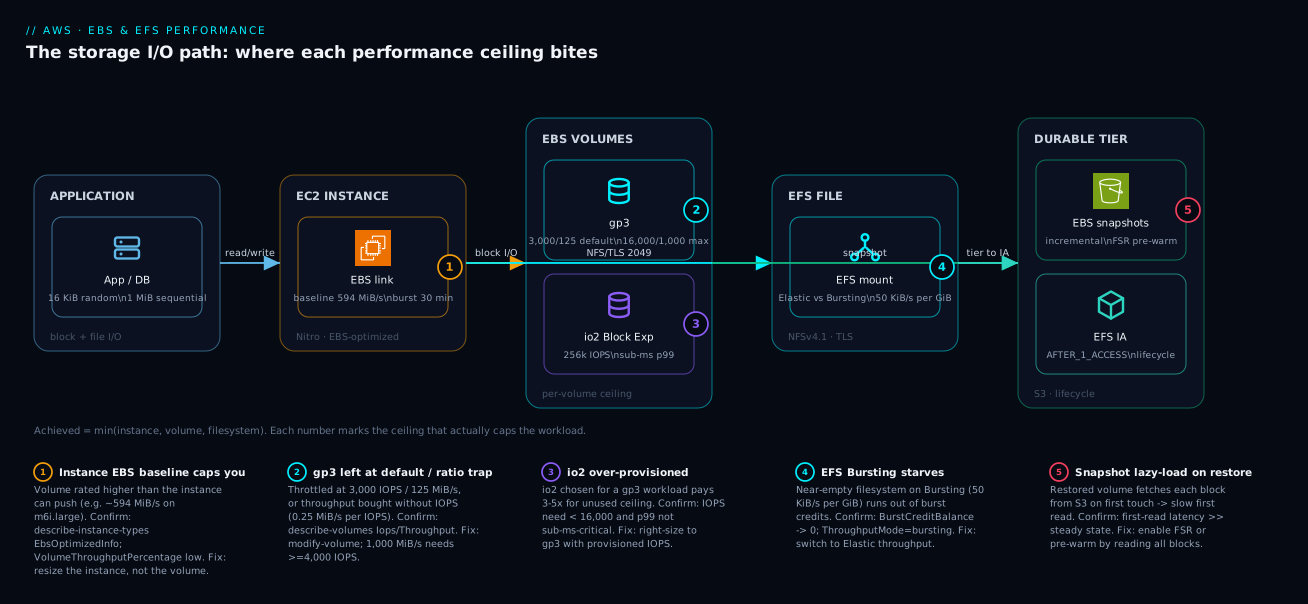
The diagram below traces a single I/O request from the application down to durable storage and shows where each ceiling sits. Read it left to right as the data path: the application issues reads and writes with a particular block size and queue depth; those land on the EC2 instance, whose Nitro EBS-optimized link has a published baseline and burst — the first ceiling, and the one nobody checks first. From the instance, block traffic crosses to the EBS volume (gp3 or io2 Block Express), which has its own per-volume IOPS and throughput ceiling, and file traffic goes to the EFS mount target over NFSv4.1/TLS, governed by the chosen throughput mode. Underneath, EBS snapshots in S3 and EFS lifecycle to IA form the durability and cost tier — and the snapshot path is where lazy-load latency hides on a fresh restore.
The badges mark the five places performance actually dies. Badge 1 sits on the instance link (instance EBS baseline caps you below the volume’s rated number); badge 2 on the gp3 volume (left at 3,000/125, or throughput bought without the IOPS to back it); badge 3 on io2 Block Express (the right call only above gp3’s ceiling); badge 4 on the EFS mount (Bursting on a near-empty filesystem starves); badge 5 on the snapshot restore (no FSR means the first read of every block fetches from S3). Follow the numbered legend to turn each badge into a symptom you can confirm with one CloudWatch metric and a fix you can apply with one CLI call. The governing rule the whole diagram teaches: achieved performance is min(instance, volume, filesystem), so the only move that helps is to raise the term that is actually binding.
Going deeper
The core of this lesson is the min(volume, instance, app) equation and the knobs on each of its terms. This section goes underneath it: what the Nitro card is actually doing when you “attach a volume,” the storage tier that sits above EBS and ignores the equation entirely, the two services (FSx and instance store) the picker so far has left out, the NFS-client knobs that decide a single EFS client’s ceiling, and the snapshot economics that surface on the bill and in a 3am recovery — none of which the sections above cover.
What the Nitro system is actually doing
“EBS is network-attached block storage” is true but hides where the work happens. On every current-generation (Nitro) instance, EBS and local disks are served by a dedicated Nitro card — purpose-built hardware on the host, separate from the vCPUs your workload runs on. Three consequences matter for performance and cost:
- EBS presents as NVMe. The Nitro card exposes each EBS volume to the OS as an NVMe block device, which is why volumes appear as
/dev/nvme0n1,/dev/nvme1n1, … rather than the old Xen/dev/xvdf. Device order is not guaranteed across reboots — map by the volume’s serial (as the lab does withlsblk -o NAME,SERIAL) or by a filesystem label/UUID in/etc/fstab, never by a fixed/dev/nvme*name. - The “EBS-optimized” bandwidth is a Nitro-card budget. The baseline and burst numbers you read from
EbsOptimizedInfoare the throughput and IOPS the Nitro card will move between the instance and the EBS backend. That is why the instance ceiling is real and separate from the volume’s — it is a distinct piece of hardware with its own rated capacity. On modern instances this optimization is on by default and not separately billed. - Encryption is offloaded and free. EBS and instance-store encryption runs on the Nitro card at line rate, so
encrypted = truecosts no measurable throughput or latency. That is the technical reason the lesson can flatly say there is no performance excuse to leave a volume unencrypted.
Instance store — the tier that sits above EBS
Every ceiling in this lesson is about network-attached storage. Instance store is different: it is NVMe SSD physically attached to the host your instance runs on, so it bypasses the EBS network path and the Nitro EBS budget entirely. Storage-optimised families (i4i, i3en, im4gn, is4gen) deliver millions of IOPS and tens of GiB/s — numbers no single EBS volume approaches.
The catch is durability: instance store is ephemeral. Stop, hibernate, or terminate the instance — or lose the underlying host — and the data is gone, permanently, with no snapshot to restore from (it survives only a reboot). So the min(volume, instance, app) equation doesn’t apply here at all; there is no volume ceiling and no EBS-optimized cap, and the only real question is “can I afford to lose this data on any instance lifecycle event?”
| Question | Instance store | EBS |
|---|---|---|
| Where the data lives | Local NVMe on the host | Network-attached, separate from host |
| Survives stop / terminate? | No (ephemeral) | Yes (independent lifecycle) |
| Peak performance | Highest available (local NVMe) | Capped by the volume and the instance |
| Snapshots / resize / re-attach | None | Yes |
| Right for | Scratch, cache, buffers, shuffle/spill, replicated stores | Databases, boot, anything that must persist |
Use instance store for data you can afford to lose or rebuild: local caches, scratch space, spill/shuffle files, or a distributed store (Cassandra, Kafka, Elasticsearch) that already replicates across nodes and treats a lost node as routine — the same disposable-capacity logic that lets you run those fleets on Spot and mixed instances. Everything else belongs on EBS.
EBS vs EFS vs FSx vs instance store — the whole picker
The lesson so far chooses between EBS and EFS. Two more services complete the map, and picking the wrong category is a more expensive error than mis-tuning within one. Amazon FSx is managed, high-performance or third-party file systems for the cases EFS’s plain NFS doesn’t serve — Lustre for HPC/ML at hundreds of GiB/s, NetApp ONTAP for multi-protocol (NFS + SMB + iSCSI) with dedup and SnapMirror, Windows File Server for Active-Directory-integrated SMB, and OpenZFS for low-latency NFS with cheap snapshots and clones.
| Service | Shape | AZ scope | Attach model | Reach for it when |
|---|---|---|---|---|
| EBS | Block | Single-AZ | One instance (io2 Multi-Attach ≤ 16) | A disk for one instance: boot, databases, most apps |
| Instance store | Block | Single host | The host only | Highest speed, data is disposable/replicated |
| EFS | File (NFSv4.1) | Multi-AZ | Many instances, many AZs | Shared POSIX files across a Linux fleet |
| FSx for Lustre | File | Single/Multi-AZ | Many clients | HPC/ML, S3-linked, hundreds of GiB/s |
| FSx for ONTAP / OpenZFS | File | Multi/Single-AZ | Many clients | Multi-protocol or ZFS features; NAS migration |
| FSx for Windows | File (SMB) | Single/Multi-AZ | Windows clients | AD-integrated Windows file shares |
First fork: block or file? Block (one writer, a disk) → EBS, or instance store if the data is disposable. File (many readers/writers, a shared tree) → EFS for plain Linux NFS, or FSx when you need Lustre’s throughput, SMB/Windows integration, or NetApp/ZFS features. Get this fork wrong and no amount of IOPS tuning saves you.
Tuning a single EFS client — the NFS knobs that decide the ceiling
EFS Elastic throughput scales to region-level aggregates (on the order of tens of GiB/s of read and several GiB/s of write per file system), but a single client on a single TCP connection hits a much lower ceiling first — so “EFS is slow” on one box is often a client-side NFS-tuning problem, not a file-system one. The EFS mount helper (amazon-efs-utils, the -t efs type) applies AWS’s recommended options for you; when you mount the NFS client directly, set them yourself:
# What the EFS mount helper effectively applies (NFSv4.1, 1 MiB payloads, resilient timeouts)
sudo mount -t nfs4 \
  -o nfsvers=4.1,rsize=1048576,wsize=1048576,hard,timeo=600,retrans=2,noresvport \
  fs-0123456789abcdef0.efs.us-east-1.amazonaws.com:/ /mnt/efs

# Preferred: the helper, which also wires TLS (stunnel) and the access point for you
sudo mount -t efs -o tls,accesspoint=fsap-0123456789abcdef0 fs-0123456789abcdef0:/ /mnt/app-a
| Option | Set to | Why it matters |
|---|---|---|
nfsvers |
4.1 |
The only version EFS supports; anything else fails to mount |
rsize / wsize |
1048576 (1 MiB) |
Max payload per RPC — smaller values throttle throughput badly |
hard |
(on) | Retry indefinitely rather than return I/O errors on a transient blip |
timeo / retrans |
600 / 2 |
Retransmit behaviour tuned for the EFS backend |
noresvport |
(on) | Reconnect on a new source port after a network event — survives failovers |
nconnect |
4–16 |
Multiple TCP flows per mount — the main lever to push one client past a single connection’s throughput bound |
The single most useful of these for a throughput-bound client is nconnect: one NFS mount uses one TCP connection by default, and one connection has a throughput ceiling well below what the file system can serve. Raising nconnect opens several connections in parallel, so a single client can drive far more bandwidth. (Whether nconnect works alongside the TLS mount helper depends on your amazon-efs-utils and kernel version — verify on your actual AMI.)
Snapshot economics — Archive, Recycle Bin, and initialization rate
The lesson covers incremental snapshots, FSR, and DLM. Three further features decide long-term cost and recoverability:
| Feature | What it does | Use it for | Watch-out |
|---|---|---|---|
| Snapshot Archive | Moves a full (de-referenced, non-incremental) copy to a cold tier | Compliance/retention snapshots kept for months, rarely read | 90-day minimum; restoring to standard takes 24–72 h before you can create a volume |
| Recycle Bin | Retention rules that hold deleted snapshots/AMIs for a set window | Undoing accidental or malicious snapshot/AMI deletion | Opt-in — set the rule before the mistake, never after |
| Volume initialization rate | Hydrates a snapshot-restored volume in the background at a chosen MiB/s, set at create-volume time |
A cheaper, predictable alternative to FSR for restores | Slower to full performance than FSR; you pick the rate/cost trade-off |
The distinction that saves you: Snapshot Archive is a cost lever (cold storage for snapshots you’ll almost never restore, paid back with a long restore), while FSR and the volume-initialization rate are speed levers (they remove or bound the lazy-load penalty on a restore you need fast). And Recycle Bin is a safety net — the only one of the three that helps after a delete has already happened, which is exactly the moment you’ll wish you’d turned it on. For org-wide retention, vaulting, and cross-Region recovery of these snapshots, see AWS Backup with vault lock.
Real-world scenario
A fintech platform team — call them Aarna Pay — ran a PostgreSQL fleet on r5.2xlarge instances, each with a single 4 TiB gp3 volume provisioned to the full 16,000 IOPS and 1,000 MiB/s. Their batch reconciliation job — a heavy nightly read-write pass over the day’s settlement data — consistently flatlined at roughly 600 MiB/s no matter how high they pushed the volume’s provisioned throughput, and p99 query latency spiked into the seconds during the window. The on-call instinct was “buy more IOPS,” and they had, twice, with no effect except the spend going up. The reconciliation window kept growing past its SLA, threatening the morning settlement cut-off.
The constraint was the instance, not the volume. An r5.2xlarge delivers a baseline of about 593.75 MiB/s (4,750 Mbps) of EBS throughput — almost exactly the ceiling they kept hitting. VolumeThroughputPercentage sat low even at peak, the tell-tale of an instance-side throttle rather than a volume that’s maxed. The volume was provisioned 68% beyond anything the instance could ever consume; they were paying for 1,000 MiB/s and physically capped at ~594. A two-minute describe-instance-types would have shown it on day one.
Two changes fixed it. They moved the database to r6i.4xlarge, which delivers a sustained ~1,187.5 MiB/s baseline (and, being a larger size, no 30-minute burst cliff), and they migrated the hottest volumes to io2 Block Express for the latency floor under concurrent load. They also right-sized the volume’s provisioned throughput down to match the new instance baseline, recovering the over-provisioning spend. They codified the rule so it can’t regress: provisioned volume throughput must never exceed the instance’s published EBS baseline.
# Guardrail: cap provisioned throughput at the instance's EBS baseline.
# Fetch the instance EBS baseline at plan time and clamp the volume to it.
data "aws_ec2_instance_type" "db" {
  instance_type = "r6i.4xlarge"
}

locals {
  instance_ebs_baseline_mibps = data.aws_ec2_instance_type.db.ebs_optimized_info[0].baseline_throughput_in_mbps
}

resource "aws_ebs_volume" "pg_data" {
  availability_zone = "us-east-1a"
  size              = 4096
  type              = "io2"
  iops              = 64000
  # Provisioning beyond the instance baseline is wasted money; clamp it.
  throughput        = min(1000, local.instance_ebs_baseline_mibps)
  encrypted         = true
}
The reconciliation window dropped from 50 minutes to 22, p99 latency fell back under 10 ms, and the monthly storage bill went down because the over-provisioned IOPS were trimmed. The lesson the team internalized: storage performance is min(volume, instance), and the instance limit is the one nobody checks first. The before/after, with the metric that proved each step:
| Phase | Instance | Volume config | Achieved throughput | p99 latency | Proof metric |
|---|---|---|---|---|---|
| Before | r5.2xlarge |
gp3 16,000/1,000 | ~600 MiB/s (capped) | seconds | VolumeThroughputPercentage low |
| “Buy more IOPS” | r5.2xlarge |
gp3 16,000/1,000 (again) | ~600 MiB/s (unchanged) | seconds | No change — wrong knob |
| Resize instance | r6i.4xlarge |
gp3 16,000/1,000 | ~1,000 MiB/s | < 50 ms | VolumeThroughputPercentage healthy |
| Migrate + right-size | r6i.4xlarge |
io2 64,000, throughput clamped | ~1,000 MiB/s | < 10 ms | p99 under SLA; bill down |
Advantages and disadvantages
The decoupled, software-defined storage model both enables precise tuning and invites the over-provisioning mistakes this article exists to prevent. Weigh it honestly:
| Advantages (why this model helps you) | Disadvantages (why it bites) |
|---|---|
| IOPS, throughput, and capacity are independent purchases — pay for exactly the shape you need | Three knobs means three ways to mis-size; conflating them overspends and under-provisions at once |
| Elastic Volumes change type/IOPS/throughput online — no downtime to tune | The 6-hour cooldown and optimizing state mean you can’t thrash changes during an incident |
The instance EBS limit is published and queryable (describe-instance-types) |
It’s invisible by default — the volume reports its full number while the instance silently caps you |
| EFS Elastic throughput removes provisioning and cliffs entirely | Bursting (the cheap mode) starves a near-empty filesystem — the #1 EFS complaint |
| Snapshots are incremental and cheap; DLM automates retention + DR copy | A fresh restore is lazy-loaded — slow first touch unless you pay for FSR |
| RAID 0 striping beats the single-volume ceiling up to the instance limit | RAID 0 has zero redundancy and breaks crash-consistency of snapshots unless you freeze the FS |
| io2 Block Express delivers sub-ms latency and huge ceilings | Easy to over-reach for — many gp3 workloads land on io2 at 3–5× the cost for unused headroom |
Everything is measurable with fio + CloudWatch |
A bad fio config (shallow iodepth, page cache on) “proves” a volume is slow when the test was the cap |
The model is right for any workload where you want to size storage to measured demand rather than buy a fixed appliance. It rewards teams who measure (fio + CloudWatch) and codify guardrails (clamp throughput to the instance baseline); it punishes muscle-memory sizing — picking io2 by reflex, leaving gp3 at defaults, mounting EFS on Bursting, or benchmarking a lazy-loaded restore. The disadvantages are all knowable and measurable — which is the entire point of treating storage as min(volume, instance, app) and finding the binding term before you spend.
Hands-on lab
Provision a gp3 volume, prove it’s throttled at the default, measure it with fio, raise the knobs online, and confirm the gain — all on one small instance you delete at the end. Run from a session on an Amazon Linux 2023 EC2 instance (a t3.large or m6i.large is fine and cheap).
Step 1 — Variables and a gp3 volume at the default (3,000 / 125).
AZ=$(curl -s http://169.254.169.254/latest/meta-data/placement/availability-zone)
IID=$(curl -s http://169.254.169.254/latest/meta-data/instance-id)
VOL=$(aws ec2 create-volume --availability-zone "$AZ" --size 100 \
  --volume-type gp3 --encrypted \
  --query VolumeId --output text)
echo "Volume: $VOL in $AZ on $IID"
Expected: a vol-... id. At this point IOPS=3,000 and throughput=125 MiB/s (the defaults).
Step 2 — Attach, format, mount.
aws ec2 wait volume-available --volume-ids "$VOL"
aws ec2 attach-volume --volume-id "$VOL" --instance-id "$IID" --device /dev/sdf
sleep 5
DEV=$(lsblk -o NAME,SERIAL | grep "${VOL#vol-}" | awk '{print "/dev/"$1}')
sudo mkfs.xfs "$DEV" && sudo mkdir -p /data && sudo mount "$DEV" /data
Expected: /data mounted on the new device. (On Nitro the device appears as /dev/nvme*, hence the serial lookup.)
Step 3 — Benchmark at the default and record the ceiling.
sudo fio --name=base --filename=/data/fiotest --direct=1 --rw=randread \
  --bs=16k --iodepth=64 --numjobs=4 --group_reporting \
  --size=5G --runtime=60 --time_based --ioengine=libaio | grep -E 'IOPS|BW'
Expected: IOPS pinned near 3,000 and bandwidth near 125 MiB/s — the gp3 baseline, regardless of how deep you drive it. This is the throttle the default imposes.
Step 4 — Raise IOPS and throughput online with Elastic Volumes.
aws ec2 modify-volume --volume-id "$VOL" --iops 8000 --throughput 500
# Wait until the modification leaves 'modifying'/'optimizing'
aws ec2 describe-volumes-modifications --volume-id "$VOL" \
  --query 'VolumesModifications[0].[ModificationState,Progress]' --output text
Expected: state progresses modifying → optimizing → completed. The volume stays mounted and usable throughout.
Step 5 — Re-benchmark and confirm the gain.
sudo fio --name=tuned --filename=/data/fiotest --direct=1 --rw=randread \
  --bs=16k --iodepth=64 --numjobs=4 --group_reporting \
  --size=5G --runtime=60 --time_based --ioengine=libaio | grep -E 'IOPS|BW'
Expected: IOPS now climbs toward 8,000 and bandwidth toward 500 MiB/s — provided the instance’s EBS limit allows it. On an m6i.large (~594 MiB/s baseline) you’ll see the throughput land near the volume number; on a smaller instance you’ll hit the instance cap first — which is exactly the lesson.
Step 6 — Prove the instance ceiling is real.
TYPE=$(curl -s http://169.254.169.254/latest/meta-data/instance-type)
aws ec2 describe-instance-types --instance-types "$TYPE" \
  --query 'InstanceTypes[0].EbsInfo.EbsOptimizedInfo.{baseMBps:BaselineThroughputInMBps,baseIOPS:BaselineIops}' \
  --output table
Expected: the baseline MiB/s and IOPS the instance allows. Compare to your fio bandwidth: if fio matched this number rather than the volume’s 500, you just observed min(volume, instance) with your own eyes.
Validation checklist. You provisioned gp3 at the default and saw it throttle at 3,000/125; raised IOPS/throughput online with zero downtime; re-measured a real gain; and confirmed the instance EBS baseline is a separate, often-lower ceiling. The steps mapped to what each proves:
| Step | What you did | What it proves | Real-world analogue |
|---|---|---|---|
| 3 | Benchmark gp3 at default | The 3,000/125 default is a real throttle | “Why is my new volume slow?” |
| 4 | modify-volume online |
Tuning needs no detach/downtime | Right-sizing a live production volume |
| 5 | Re-benchmark tuned | Raising the knobs actually helps | The fix after the diagnosis |
| 6 | describe-instance-types |
The instance is a separate ceiling | The bill full of unreachable numbers |
Cleanup (avoid lingering volume + snapshot charges).
sudo umount /data
aws ec2 detach-volume --volume-id "$VOL"
aws ec2 wait volume-available --volume-ids "$VOL"
aws ec2 delete-volume --volume-id "$VOL"
Cost note. A 100 GiB gp3 volume for an hour is a few rupees; the provisioned IOPS/throughput above baseline add a little more while modified. Deleting the volume stops all of it. (There is no free-tier gp3 with provisioned IOPS, but an hour of this lab is well under ₹50.)
Common mistakes & troubleshooting
Before the playbook, the error and status reference — the exact strings, states, and API errors you’ll see, what each means, and the immediate move. These are the messages that surface from the CLI, the volume state machine, and the OS when storage tuning goes wrong:
| String / state / error | Where it appears | Meaning | Immediate move |
|---|---|---|---|
VolumeModificationRateExceeded |
modify-volume API |
Modified within the last 6 hours | Wait for the 6-hour cooldown |
Volume state optimizing |
describe-volumes-modifications |
Modify applied; perf between old/new | Wait it out; do not re-modify |
InvalidParameterValue: throughput too high for iops |
modify-volume / create-volume |
gp3 0.25 MiB/s-per-IOPS rule violated | Raise IOPS first (1,000 MiB/s ⇒ ≥ 4,000) |
iops ... exceeds the ratio |
create-volume (io2) |
IOPS > 1,000 × GiB | Increase size or lower IOPS |
VolumeInUse |
delete-volume / attach-volume |
Still attached (or attaching elsewhere) | Detach first; check Multi-Attach |
IncorrectState: available |
detach-volume |
Already detached | No action; it’s free |
xfs ... corruption / EXT4-fs error (dmesg) |
OS kernel log | Single-writer FS on Multi-Attach, or bad RAID | Use a cluster FS; fsck offline |
No space left on device after grow |
OS | Grew volume, not the filesystem | growpart + xfs_growfs/resize2fs |
mount.nfs4: Connection timed out (EFS) |
OS mount | Security group / mount target / no tls helper |
Open 2049; use amazon-efs-utils |
BurstBalance at 0 (alarm) |
CloudWatch (EBS) | st1/gp2 burst credits exhausted | Size up; or provisioned gp3 |
BurstCreditBalance at 0 (alarm) |
CloudWatch (EFS) | EFS Bursting starved | Switch to Elastic throughput |
PercentIOLimit ≈ 100 (alarm) |
CloudWatch (EFS) | General Purpose IOPS ceiling hit | Move to Elastic (or Max I/O legacy) |
This is the playbook — the part you bookmark. First as a scannable table you can read mid-incident, then the same entries with the full confirm-command detail underneath.
| # | Symptom | Root cause | Confirm (exact cmd / metric) | Fix |
|---|---|---|---|---|
| 1 | Throughput flatlines well below the volume’s number | Instance EBS baseline is the cap | describe-instance-types ... EbsOptimizedInfo; VolumeThroughputPercentage low |
Resize instance to a larger size/family |
| 2 | New gp3 volume “slow” at 3,000 IOPS / 125 MiB/s | Left at the default; never provisioned up | describe-volumes Iops=3000, Throughput=125 |
modify-volume --iops --throughput |
| 3 | Raised throughput but it didn’t increase | Not enough provisioned IOPS to back it (gp3 0.25 MiB/s/IOPS) | Provisioned IOPS < throughput/0.25 | Raise IOPS first (1,000 MiB/s needs ≥ 4,000) |
| 4 | EFS crawls; small filesystem | Bursting mode + near-empty FS out of credits | BurstCreditBalance → 0; ThroughputMode=bursting |
Switch to Elastic throughput mode |
| 5 | Restored DR volume reads at a fraction of rated speed | Snapshot lazy-load (no FSR) | First-read latency >> steady state | Enable FSR or pre-warm by reading all blocks |
| 6 | fio shows low IOPS despite headroom |
iodepth/numjobs too shallow; single-threaded | Raise iodepth/numjobs → IOPS rises | Deepen queue; parallelize the workload |
| 7 | fio numbers absurdly high, then production slow |
Page cache not bypassed (no O_DIRECT) | --direct=1 collapses the number to real |
Always benchmark with --direct=1 |
| 8 | Modification “stuck”; performance between old/new | optimizing state after modify |
describe-volumes-modifications = optimizing |
Wait it out; don’t re-modify (6 h cooldown) |
| 9 | “Modify failed: too soon” | Modified within the last 6 hours | Last modification < 6 h ago | Wait for the 6-hour cooldown |
| 10 | Grew the volume but the filesystem is still small | Didn’t grow partition/FS inside the OS | lsblk device big, df -h FS small |
growpart + xfs_growfs/resize2fs |
| 11 | Two instances mounted one volume; corruption | Plain xfs/ext4 RW on a Multi-Attach volume | Filesystem errors in dmesg |
Use a cluster FS (GFS2/OCFS2) or don’t multi-attach |
| 12 | st1 fast then slow under sustained reads | Throughput burst credits exhausted | BurstBalance draining to 0 |
Size up; or move to provisioned gp3 |
| 13 | EFS PercentIOLimit pegged at ~100% |
General Purpose perf-mode IOPS ceiling | PercentIOLimit near 100 |
Move to Elastic throughput (or Max I/O legacy) |
| 14 | Latency p99 spikes at the 30-minute mark | Relied on instance EBS burst, not baseline | Throttle begins exactly after ~30 min | Size against the baseline, larger instance |
The expanded form, with the full reasoning for the entries that bite hardest:
1. Throughput flatlines well below the volume’s provisioned number.
Root cause: The instance EBS baseline is lower than the volume’s ceiling — the classic, most expensive mistake.
Confirm: aws ec2 describe-instance-types --instance-types <type> --query 'InstanceTypes[0].EbsInfo.EbsOptimizedInfo'; CloudWatch VolumeThroughputPercentage sits low even at peak (a volume that’s truly maxed reads ~100%).
Fix: Resize the instance to a larger size or family whose baseline ≥ your target; never provision volume throughput past the instance baseline for sustained work.
2. A brand-new gp3 volume is “slow” — capped at 3,000 IOPS / 125 MiB/s.
Root cause: gp3 ships at the baseline default; provisioning above it is opt-in and was never done.
Confirm: aws ec2 describe-volumes --volume-ids <vol> --query 'Volumes[0].{iops:Iops,tput:Throughput}' returns 3000 / 125.
Fix: aws ec2 modify-volume --volume-id <vol> --iops <n> --throughput <m> (online).
3. You raised throughput but achieved bandwidth didn’t move. Root cause: gp3 enforces ≤ 0.25 MiB/s per provisioned IOPS — you bought MiB/s without the IOPS to back it. Confirm: provisioned IOPS < target throughput / 0.25 (e.g. asking 1,000 MiB/s with only 3,000 IOPS). Fix: Raise IOPS first — 1,000 MiB/s requires ≥ 4,000 provisioned IOPS — then the throughput is allowed.
4. EFS crawls and it’s a small filesystem.
Root cause: Bursting throughput mode on a near-empty filesystem (50 KiB/s per GiB baseline) that has exhausted its burst credits.
Confirm: CloudWatch BurstCreditBalance trending to zero; aws efs describe-file-systems --query 'FileSystems[0].ThroughputMode' returns bursting.
Fix: aws efs update-file-system --throughput-mode elastic — throughput then scales with demand, no credit cliff.
5. A volume restored from a snapshot reads at a fraction of its rated speed.
Root cause: Lazy loading — blocks fetch from S3 on first touch; you’re measuring S3 latency, not the volume.
Confirm: the first read of each region is slow and the second is fast; steady-state matches the spec after a full pass.
Fix: Enable Fast Snapshot Restore on the snapshot in the target AZs, or pre-warm by reading every block (dd if=/dev/nvmeXn1 of=/dev/null bs=1M).
6. fio reports low IOPS even though the volume and instance have headroom.
Root cause: Too-shallow queue depth or single-threaded I/O — the device is under-driven, not slow.
Confirm: raising --iodepth and --numjobs increases IOPS; at iodepth=1 you measure latency-bound, not the device ceiling.
Fix: Drive a deeper queue (32–64) and more jobs that match real concurrency; fix single-threaded application I/O.
7. fio shows impossibly high numbers, but production is slow.
Root cause: The benchmark hit the page cache (RAM), not the device — --direct=1 was missing.
Confirm: adding --direct=1 drops the number to a believable device figure.
Fix: Always benchmark device performance with --direct=1 (O_DIRECT).
8 & 9. Modification seems stuck, or “modify failed: too soon.”
Root cause: After a modify the volume enters optimizing (performance between old and new); and a volume can be modified only once per 6 hours.
Confirm: aws ec2 describe-volumes-modifications --volume-id <vol> shows optimizing; a second modify inside 6 h is rejected.
Fix: Wait out optimizing; plan changes so you don’t need a second modify inside the 6-hour window.
10. You grew the volume but the filesystem is still the old size.
Root cause: Growing the EBS volume enlarges the block device, not the partition/filesystem inside the OS.
Confirm: lsblk shows the larger device; df -h shows the old filesystem size.
Fix: sudo growpart /dev/nvme0n1 1 then sudo xfs_growfs -d /mount (xfs) or sudo resize2fs /dev/nvme0n1p1 (ext4).
11. Two instances mounted one volume and it corrupted.
Root cause: A Multi-Attach io2 volume mounted xfs/ext4 read-write on more than one instance — those filesystems assume single-writer.
Confirm: filesystem inconsistency errors in dmesg/journal on both nodes.
Fix: Use a cluster-aware filesystem (GFS2/OCFS2) with proper fencing, or don’t multi-attach a single-writer filesystem.
12. st1 is fast initially, then slows under sustained reads.
Root cause: st1’s throughput burst credits are exhausted; you’ve dropped to the baseline.
Confirm: CloudWatch BurstBalance draining toward 0.
Fix: Size the st1 volume larger (baseline scales with size), or switch to a provisioned gp3 if latency matters.
13. EFS PercentIOLimit is pegged near 100%.
Root cause: You’ve hit the General Purpose performance-mode IOPS ceiling.
Confirm: CloudWatch PercentIOLimit at ~100 sustained.
Fix: Move to Elastic throughput (raises the effective ceiling for most workloads); Max I/O is the legacy alternative but costs latency and is immutable.
14. Latency p99 spikes right at the 30-minute mark. Root cause: The workload leaned on the instance’s EBS burst rather than the baseline; the burst window ended. Confirm: throttling begins ~30 minutes into sustained load; the instance is a smaller size that bursts. Fix: Size against the baseline — choose a larger instance whose baseline meets sustained demand.
Best practices
- Default new volumes to
gp3; reserveio2Block Express for sub-ms latency or > 16,000 IOPS needs. Picking io2 by reflex pays 3–5× for headroom most workloads never touch. - Size capacity, IOPS, and throughput as three independent decisions, not one. Capacity for data stored, IOPS for random-small, throughput for sequential.
- Look up the target instance’s EBS baseline/burst limits before provisioning the volume; never provision past the instance baseline for sustained workloads. Codify it as a Terraform guardrail that clamps throughput to the instance baseline.
- Size sustained workloads against the instance baseline, not the 30-minute burst. A workload that bursts fine in test falls off a cliff at the half-hour in production.
- Stripe (RAID 0) across volumes only when the instance has bandwidth headroom a single volume can’t fill; accept zero redundancy. Striping cannot exceed the instance ceiling.
- Use Elastic Volumes for online changes; respect the 6-hour modification cooldown and
optimizingstate. Plan changes; never thrash them during an incident. - After growing a volume, grow the partition and filesystem too (
growpart+xfs_growfs/resize2fs) — the bigger block device is invisible until you do. - Enable Fast Snapshot Restore for golden images and time-critical restores, or pre-warm; never measure a fresh restore and call it the steady-state number.
- Automate snapshot retention and cross-Region copy with Data Lifecycle Manager, not bespoke Lambdas — tag-target volumes and let DLM run.
- Treat Multi-Attach as cluster-filesystem-only; never mount
xfs/ext4RW on two instances. It corrupts the volume. - Default EFS to General Purpose + Elastic throughput; avoid Bursting on near-empty filesystems. Bursting starves below ~1 TiB.
- Enable EFS lifecycle to IA with
AFTER_1_ACCESSpromotion back to Standard so cold data is cheap without punishing files that go hot again. - Front EFS with access points (POSIX root + identity) and a TLS-required filesystem policy so a leaked mount target is useless without credentials.
- Benchmark with
fiousing--direct=1and workload-matched block sizes and queue depth; judge againstmin(volume, instance). A bad config “proves” the wrong thing. - Alarm on the leading indicators — EBS
VolumeThroughputPercentage/BurstBalance, EFSPercentIOLimit/BurstCreditBalance— to catch a ceiling before users feel it.
The alarms worth wiring before the next incident, and why each is leading rather than lagging:
| Alarm on | Namespace / metric | Threshold (starting point) | Why it’s leading |
|---|---|---|---|
| Instance EBS throttle | AWS/EBS VolumeThroughputPercentage |
< 100% while load is high, 10 min | Catches instance-bound before “it’s slow” tickets |
| EBS burst starvation | AWS/EBS BurstBalance |
< 20% and falling | Predicts the st1/gp2 throttle cliff |
| Volume saturation | AWS/EBS VolumeQueueLength |
Sustained high (> 1 per provisioned 500 IOPS) | I/O queuing before latency blows up |
| EFS credit starvation | AWS/EFS BurstCreditBalance |
Trending to 0 | The near-empty-Bursting failure, pre-emptively |
| EFS IOPS ceiling | AWS/EFS PercentIOLimit |
> 90% sustained | Perf-mode ceiling before throughput collapses |
| EFS cost creep | AWS/EFS MeteredIOBytes |
Above budget baseline | Elastic per-GB charges climbing |
Security notes
- Encrypt every volume and filesystem at rest with KMS. Set
encrypted = trueon EBS volumes and EFS filesystems; use a customer-managed KMS key (CMK) where you need key-policy control, audit, and rotation — see AWS KMS & Encryption, In Depth: Keys, Key Policies, Envelope Encryption, Grants & Rotation. Encryption is effectively free and there is no reason to leave a volume unencrypted in 2026. - Encrypt EFS in transit with TLS. Mount with the
tlsoption (the EFS helper wires stunnel) and back it with a filesystem policy that denies any access whereaws:SecureTransportisfalse, so a plaintext mount is rejected outright. - Isolate EFS with access points and least-privilege IAM. Each access point enforces a POSIX user and root directory; an app physically cannot traverse to another tenant’s files. Require IAM authorization (
iammount option) so a leaked mount target without credentials is inert. - Restrict EBS snapshot sharing deliberately. A snapshot shared publicly or with the wrong account leaks your data wholesale. Audit
CreateVolumePermission; for cross-account DR, share with specific account IDs and re-encrypt with a CMK the target account is granted use of. - Lock down who can detach/modify/delete volumes.
ec2:DetachVolume,ec2:ModifyVolume, andec2:DeleteVolumeare destructive; scope them with IAM conditions (e.g. resource tags) so a broad EC2 role can’t wipe a production data volume. - Use KMS key policies and grants for cross-Region snapshot copies. A DR copy re-encrypts with a target-Region key; the copy fails (or the data is unreadable) if the role lacks
kms:Encrypt/kms:Decrypton that key. - Keep the security and performance fixes aligned. A TLS-required EFS policy, an encrypted volume, and an access point cost essentially nothing in throughput — there is no performance excuse to skip them.
The controls that secure storage, what each defends against, and the performance cost:
| Control | Mechanism | Secures against | Performance cost |
|---|---|---|---|
| EBS encryption at rest | encrypted=true + KMS CMK |
Disk/snapshot data theft | Negligible (Nitro offload) |
| EFS encryption in transit | tls mount + deny non-TLS policy |
Network sniffing of NFS | Minimal (stunnel) |
| EFS access points | POSIX root + identity per app | Cross-tenant file access | None |
| EFS IAM auth | iam mount + filesystem policy |
Leaked mount target without creds | None |
| Snapshot sharing controls | CreateVolumePermission audit |
Public/wrong-account data leak | None |
| Destructive-action IAM scoping | Tag-conditioned Detach/Modify/Delete |
Accidental/malicious volume wipe | None |
| Cross-Region copy key grants | KMS key policy / grants | Unreadable or failed DR copies | None |
Cost & sizing
The bill drivers and how they interact with the tuning decisions:
- EBS capacity is billed per GiB-month regardless of how much you use. Provision for the data you store, not “round up for headroom” — a 4 TiB volume holding 800 GiB is paying for 3.2 TiB of air.
- gp3 provisioned IOPS and throughput above the free baseline (3,000 IOPS / 125 MiB/s) are billed separately. This is where over-provisioning hides: buying 16,000 IOPS / 1,000 MiB/s on an instance that caps at 594 MiB/s pays for numbers the hardware can’t deliver. Clamp to the instance baseline.
- io2 costs more per GiB and per provisioned IOPS than gp3 — justified only when you genuinely need its ceiling or sub-ms latency. Most “we put it on io2 to be safe” volumes are gp3 workloads paying a premium.
- EFS is billed per GiB-month by storage class, plus throughput. Bursting bills storage only (cheapest for large filesystems); Elastic bills per GB transferred (best for spiky); Provisioned bills the MiB/s you reserve whether or not you use it. Lifecycle to IA cuts storage cost sharply with negligible behavioural change.
- Snapshots bill for incremental stored blocks, so frequent snapshots are cheap; FSR bills per AZ per hour while enabled, so turn it on for golden images and DR rehearsals and off when idle. Cross-Region copy adds inter-Region transfer.
A rough monthly picture for a mid-tier production database volume and a shared filesystem: a 4 TiB gp3 at the default baseline is a few thousand rupees; raising it to 8,000 IOPS / 500 MiB/s adds a modest IOPS+throughput charge; the same workload on io2 at 64,000 IOPS is several times that. A 1 TiB EFS on Standard with lifecycle to IA can cut storage cost by more than half versus all-Standard. The cost drivers and what each one buys you:
| Cost driver | What you pay for | Rough INR / month (illustrative) | What it fixes | Watch-out |
|---|---|---|---|---|
| gp3 capacity (per GiB) | Storage, baseline 3,000/125 included | ~₹7–8 per GiB → 4 TiB ≈ ₹30,000 | Baseline performance for free | Capacity ≠ performance; size data, not air |
| gp3 provisioned IOPS | IOPS above 3,000 | Small per-IOPS-month above baseline | Random-small headroom | Buying IOPS the instance can’t consume |
| gp3 provisioned throughput | MiB/s above 125 | Small per-MiB/s-month above baseline | Sequential headroom | Needs IOPS to back it (0.25 rule) |
| io2 capacity + IOPS | Higher per-GiB + per-IOPS | Several× gp3 for the same shape | Sub-ms latency, > 16,000 IOPS | Over-reached for gp3 workloads |
| EFS Standard storage | Per-GiB-month, multi-AZ | Higher than EBS per-GiB | Shared, multi-AZ file access | All-Standard when IA would do |
| EFS lifecycle to IA | Cheaper per-GiB on cold files | Cuts storage cost > 50% typically | Cold-data cost | IA read fee on files that go hot |
| EFS Elastic throughput | Per-GB transferred | Scales with use | Spiky workloads, no cliffs | Steady very-high load can cost more |
| FSR | Per AZ per hour while enabled | Hourly per AZ | Fast first-touch restore | Leaving it on idle burns money |
Interview & exam questions
1. A volume is provisioned for 1,000 MiB/s but the workload flatlines at ~594 MiB/s. What’s happening and how do you confirm? The instance EBS baseline is the cap, not the volume. An m6i.large/r5.2xlarge delivers ~4,750 Mbps (~594 MiB/s) of EBS bandwidth; the volume’s number is unreachable on that instance. Confirm with describe-instance-types ... EbsOptimizedInfo and a low VolumeThroughputPercentage. Fix by resizing the instance, not buying more volume.
2. How do gp3 and io2 differ from gp2 in how you provision performance? On gp2, IOPS were coupled to size (3 IOPS/GiB), so you oversized to buy performance. gp3 and io2 decouple capacity, IOPS, and throughput into independent purchases. gp3 baseline is 3,000 IOPS / 125 MiB/s, tunable to 16,000 / 1,000; io2 Block Express reaches 256,000 IOPS / 4,000 MiB/s. You size three dimensions separately.
3. On gp3, you raise throughput to 1,000 MiB/s but it won’t take effect. Why? gp3 enforces a maximum of 0.25 MiB/s per provisioned IOPS, so 1,000 MiB/s requires at least 4,000 provisioned IOPS. If you’re still at the 3,000 baseline, the throughput request is bounded. Raise IOPS to ≥ 4,000 first, then the throughput is allowed.
4. When do you choose io2 Block Express over gp3? Only when you need what gp3 can’t give: sustained IOPS above 16,000, single-digit-millisecond (sub-ms) p99 latency under concurrency, 99.999% durability, or volumes larger than 16 TiB. Otherwise gp3 serves the same workload at a fraction of the cost — picking io2 by reflex pays 3–5× for unused headroom.
5. Why does an EFS filesystem with little data crawl, and how do you fix it? It’s on Bursting throughput mode, whose baseline is 50 KiB/s per GiB stored — a near-empty filesystem has almost no baseline and survives only on burst credits, which then run out. Confirm with BurstCreditBalance draining to zero. Fix by switching to Elastic throughput, which scales with demand and has no credit cliff.
6. What is Fast Snapshot Restore and when is it essential? Normally a volume restored from a snapshot lazy-loads blocks from S3 on first touch, so the first read of each block is slow. FSR pre-initializes the volume so it delivers full provisioned performance immediately. It’s essential for golden-image boot volumes and time-critical DR restores, and it’s billed per AZ per hour while enabled.
7. Difference between EFS performance mode and throughput mode? Performance mode (General Purpose vs Max I/O, set at creation, immutable) trades per-operation latency against aggregate IOPS ceiling. Throughput mode (Elastic, Provisioned, Bursting, changeable with a cooldown) governs how much aggregate throughput you get and how you pay. People confuse them; they’re orthogonal — one is latency-vs-ceiling, the other is throughput-vs-cost.
8. You restored a DR volume and it benchmarks at a tenth of its rated speed. Is the volume broken? No — you’re measuring lazy loading (S3 fetch on first touch), not steady state. The second read of each block is fast. Either enable FSR before relying on the volume, or pre-warm by reading every block (dd ... of=/dev/null) so the benchmark reflects the device, not S3 latency.
9. When does RAID 0 striping help EBS performance, and what’s the catch? Striping aggregates N volumes’ per-volume ceilings, useful when a single volume’s IOPS/throughput ceiling is the limit and the instance has bandwidth headroom above it. The catch: RAID 0 has zero redundancy (rely on EBS durability + snapshots), and striping cannot exceed the instance EBS limit — if the instance is already the cap, striping buys nothing.
10. Your fio test shows great numbers but production is slow. What’s the likely test error? The benchmark probably hit the page cache (RAM) instead of the device — --direct=1 (O_DIRECT) was missing. Or iodepth/numjobs were too shallow and under-drove the device. Re-run with --direct=1, a workload-matched block size, and a deep enough queue, then compare against min(volume, instance).
11. Why size a sustained workload against the instance baseline rather than the burst? Smaller instances get a higher EBS bandwidth for a 30-minute burst, then fall back to the baseline. A sustained database that leaned on burst is fast in a short test and throttles exactly at the half-hour mark in production. Size against the baseline; choose a larger size/family if the baseline doesn’t meet sustained demand.
12. You can only attach an io2 volume to one instance — except when? And what’s the constraint? Multi-Attach lets an io2/io1 volume attach to up to 16 Nitro instances in the same AZ. The hard constraint: it provides no write coordination, so you must run a cluster-aware filesystem (GFS2/OCFS2) or an application that arbitrates writes. Mounting plain xfs/ext4 read-write on two instances corrupts the volume.
These map to AWS Certified Solutions Architect – Associate (SAA-C03) — design cost-optimized and high-performing storage — and AWS Certified SysOps Administrator – Associate (SOA-C02) — monitor and tune EBS/EFS, CloudWatch storage metrics. The deep performance-tuning angle (instance limits, io2 Block Express, striping) also appears on the Solutions Architect – Professional (SAP-C02). A compact cert-mapping for revision:
| Question theme | Primary cert | Exam objective area |
|---|---|---|
| Volume type selection by workload | SAA-C03 | Design high-performing & cost-optimized storage |
| Instance EBS limit vs volume limit | SAP-C02 / SOA-C02 | Performance tuning; monitoring |
| gp3 decoupling + 0.25 ratio | SAA-C03 | Storage performance fundamentals |
| EFS performance/throughput modes | SAA-C03 | Design file storage solutions |
| Snapshots, FSR, DLM, DR copy | SOA-C02 | Backup, recovery, automation |
| CloudWatch storage metrics | SOA-C02 | Monitor, log, and remediate |
Quick check
- A gp3 volume is provisioned for 16,000 IOPS / 1,000 MiB/s, but the workload never exceeds ~594 MiB/s. Where is the bottleneck, and what one command confirms it?
- You raise a gp3 volume’s throughput to 1,000 MiB/s but it won’t apply while IOPS sits at 3,000. What rule are you hitting, and what do you change?
- True or false: switching an EFS filesystem from Bursting to Elastic throughput is the right fix for a small, near-empty filesystem that keeps running out of throughput.
- A volume restored from a snapshot benchmarks at a fraction of its rated speed. Name the cause and two ways to fix it.
- Your
fiorandom-read test reports numbers far above the volume’s provisioned IOPS. What single flag is almost certainly missing, and what were you actually measuring?
Answers
- The instance EBS baseline is the cap — a volume’s provisioned number is unreachable if the instance can’t push it (e.g. ~594 MiB/s on an
m6i.large/r5.2xlarge). Confirm withaws ec2 describe-instance-types --instance-types <type> --query 'InstanceTypes[0].EbsInfo.EbsOptimizedInfo', and noteVolumeThroughputPercentagesitting low. Fix by resizing the instance, not the volume. - The gp3 throughput-per-IOPS ratio — you can buy at most 0.25 MiB/s per provisioned IOPS, so 1,000 MiB/s needs ≥ 4,000 IOPS. Raise IOPS to at least 4,000 first; then the throughput change is allowed.
- True. Bursting’s baseline is 50 KiB/s per GiB stored, so a near-empty filesystem starves once burst credits run out. Elastic throughput scales with demand and removes the credit cliff — the correct fix.
- The cause is snapshot lazy loading — blocks fetch from S3 on first touch, so you’re measuring S3 latency, not the device. Fix by (a) enabling Fast Snapshot Restore on the snapshot in the target AZs, or (b) pre-warming by reading every block (
dd if=/dev/nvmeXn1 of=/dev/null bs=1M) before benchmarking. --direct=1(O_DIRECT) is missing — you were measuring the page cache (RAM), not the EBS device. Re-run with--direct=1(and a deep enoughiodepth/numjobs) to measure the real device, then compare againstmin(volume, instance).
Practice challenges
Work these in order — each builds the sizing reflex the lesson teaches. Reveal a solution only after you’ve committed to an answer. All IDs are placeholders (vol-0abc123, account 123456789012).
1. (Beginner) Read a volume’s real settings. You’ve been handed a “slow” gp3 volume. Before changing anything, print its type, size, provisioned IOPS, and throughput in one command.
<details> <summary>Show solution</summary>
aws ec2 describe-volumes --volume-ids vol-0abc123 \
  --query 'Volumes[0].{type:VolumeType,size:Size,iops:Iops,throughput:Throughput}'
If it returns iops: 3000, throughput: 125, the volume was never provisioned above the gp3 default — that is very likely the whole problem.
Why: You cannot diagnose a limit you haven’t measured, and the default gp3 numbers are the single most common “it’s slow” cause. </details>
2. (Beginner) The gp3 throughput-per-IOPS calc. An ETL job needs 900 MiB/s of sequential throughput on a gp3 volume. What is the minimum provisioned IOPS you must set, and does the 3,000 baseline cover it?
<details> <summary>Show solution</summary>
gp3 allows at most 0.25 MiB/s per provisioned IOPS, so minimum IOPS = 900 ÷ 0.25 = 3,600 IOPS. The 3,000 baseline is not enough — you must raise IOPS to at least 3,600 before the 900 MiB/s request will apply.
aws ec2 modify-volume --volume-id vol-0abc123 --iops 3600 --throughput 900
Why: On gp3 you buy throughput through IOPS; asking for MiB/s without the IOPS to back it is rejected. </details>
3. (Intermediate) Size the instance, not just the volume. A 24/7 database needs a sustained ~1,000 MiB/s. You’re choosing in the m6i family. Which is the smallest size that meets it on the baseline (not burst), and why is m6i.xlarge wrong?
<details> <summary>Show solution</summary>
m6i.xlarge delivers ~750 MiB/s baseline — below 1,000, so the volume would be throttled. The smallest size that clears 1,000 MiB/s on the baseline is m6i.2xlarge (~1,250 MiB/s). Confirm before provisioning:
aws ec2 describe-instance-types --instance-types m6i.xlarge m6i.2xlarge \
  --query 'InstanceTypes[].{t:InstanceType,baseMBps:EbsInfo.EbsOptimizedInfo.BaselineThroughputInMBps}' \
  --output table
Why: A sustained workload must be sized against the baseline; the 30-minute burst on smaller sizes passes a short test then throttles in production. </details>
4. (Intermediate) Prove why a small Bursting EFS starves. A 200 GiB EFS file system on Bursting mode “goes slow after a while.” Compute its baseline throughput, and give the one-line fix.
<details> <summary>Show solution</summary>
Bursting baseline is 50 KiB/s per GiB stored, so 200 GiB → 200 × 50 KiB/s = 10,000 KiB/s ≈ 10 MiB/s baseline. It runs faster only while burst credits last; once they drain it falls to ~10 MiB/s and crawls. Fix:
aws efs update-file-system --file-system-id fs-0abc123 --throughput-mode elastic
Why: Bursting throughput scales with stored data, so a near-empty file system has almost no baseline — Elastic scales with demand and has no credit cliff. </details>
5. (Advanced) Design past the single-volume ceiling. A workload needs a sustained 2,000 MiB/s from one instance. A single gp3 tops out at 1,000 MiB/s. Describe the volume layout and the instance constraint that make 2,000 MiB/s actually achievable.
<details> <summary>Show solution</summary>
Stripe two gp3 volumes, each provisioned at 1,000 MiB/s (each needs ≥ 4,000 IOPS to back that throughput), in a RAID 0 set — the aggregate ceiling is 2 × 1,000 = 2,000 MiB/s. But that only helps if the instance baseline is ≥ 2,000 MiB/s, so you need roughly an m6i.16xlarge (~2,500 MiB/s) or larger.
sudo mdadm --create /dev/md0 --level=0 --raid-devices=2 /dev/nvme1n1 /dev/nvme2n1
sudo mkfs.xfs /dev/md0 && sudo mount /dev/md0 /data
Why: Striping aggregates volume ceilings but can never exceed the instance’s EBS budget — and RAID 0 gives zero redundancy, so you lean on snapshots for durability. </details>
6. (Advanced) Diagnose an instance-bound incident from metrics. A volume provisioned for 1,000 MiB/s flatlines at ~594 MiB/s; buying more IOPS changed nothing. Name the binding limit, the two signals that confirm it, and the fix.
<details> <summary>Show solution</summary>
The instance EBS baseline is binding (an m6i.large/r5.2xlarge delivers ~594 MiB/s). Confirm with (a) EbsOptimizedInfo showing the instance baseline near 594, and (b) CloudWatch VolumeThroughputPercentage sitting low under load — a truly maxed volume reads near 100%.
aws ec2 describe-instance-types --instance-types r5.2xlarge \
  --query 'InstanceTypes[0].EbsInfo.EbsOptimizedInfo'
Fix: resize the instance to a larger size or family whose baseline ≥ target — not the volume.
Why: min(volume, instance, app) — when the instance is the smallest term, every dollar spent on the volume is wasted until you move the instance.
</details>
Common beginner mistakes
These are misconceptions about the model, not incident symptoms (those live in the troubleshooting playbook above). Each is a wrong mental picture and the right one to replace it with.
- “A bigger volume is a faster volume.” Capacity and performance were coupled on the old
gp2(3 IOPS/GiB); ongp3andio2they are separate purchases. Right model: size capacity for the data you store, and set IOPS and throughput independently for the speed you need. A 4 TiB volume holding 800 GiB is paying for 3.2 TiB of air and is no faster for it. - “The number on the volume is the speed I’ll get.” The volume’s provisioned figure is a ceiling the volume can do, not a promise the system will deliver. Right model: achieved =
min(volume, instance, app), and the instance’s EBS baseline is usually the smallest of the three and the one nobody checks first. - “IOPS and throughput are basically the same dial.” They measure different things: IOPS is small operations per second (random, database-shaped work), throughput is MiB/s of sequential bandwidth (scans, log streaming). Right model: name the workload first — random-small is an IOPS problem, large-sequential is a throughput problem — then buy the dial that matches.
- “io2 is the professional choice, so default to it.” io2 costs 3–5× gp3 for a ceiling most workloads never reach. Right model:
gp3is the default; reach for io2 only when you genuinely need more than 16,000 IOPS, sub-millisecond p99, volumes above 16 TiB, or 99.999% durability. - “EFS is just a shared EBS disk.” EFS is NFS over the network, multi-AZ, with higher per-operation latency and a completely different performance model (performance mode, throughput mode, burst credits). Right model: EFS is a shared file system for many clients; EBS is a block device for one — they are not interchangeable and you do not tune them the same way.
- “Bursting is the cheap EFS mode, so it’s the safe pick.” Bursting’s baseline is 50 KiB/s per GiB stored, so a small or near-empty file system starves the moment its credits run out — the single most common EFS complaint. Right model: Elastic is the safe default; choose Bursting only for large file systems whose stored-data baseline is already generous.
- “My
fioresult is the volume’s true speed.” Without--direct=1you measured the page cache (RAM) and got an impossibly high number; with too shallow an--iodepthyou under-drove the device and got a low one. Right model: a benchmark is only as honest as its flags — O_DIRECT on, workload-matched block size, a deep enough queue — and you judge the result againstmin(volume, instance), never in isolation.
Glossary
- gp3 — general-purpose SSD EBS volume; baseline 3,000 IOPS / 125 MiB/s, tunable to 16,000 / 1,000, with IOPS and throughput decoupled from capacity. The sensible default.
- io2 / io2 Block Express — high-performance SSD EBS volume; up to 256,000 IOPS / 4,000 MiB/s, sub-ms latency, 99.999% durability. For workloads gp3 can’t serve.
- st1 / sc1 — throughput-optimized and cold HDD EBS volume types; for large sequential reads (st1) and cold storage (sc1); not bootable, terrible at random I/O.
- Provisioned IOPS — the number of small (16 KiB) I/O operations per second you buy for a volume; caps random-small performance.
- Provisioned throughput — the MiB/s of sequential bandwidth you buy for a volume; on gp3, bounded to 0.25 MiB/s per provisioned IOPS.
- Instance EBS baseline — the sustained EBS bandwidth and IOPS an instance type allows, published in
EbsOptimizedInfo; usually lower than a big volume’s ceiling, and the cap nobody checks first. - EBS-optimized burst — a 30-minute higher EBS bandwidth that smaller instance sizes can sustain on credit; misleads sizing of sustained workloads.
- Elastic Volumes — the EBS feature to change a volume’s type, IOPS, throughput, or size online; constrained by a 6-hour modification cooldown and an
optimizingstate. optimizingstate — the period after a volume modification during which performance is between the old and new values.- RAID 0 / striping — combining N volumes at the OS (mdadm) to aggregate their ceilings up to the instance limit; zero redundancy.
- Multi-Attach — attaching one io2/io1 volume to up to 16 Nitro instances in an AZ; requires a cluster-aware filesystem because it has no write coordination.
- Fast Snapshot Restore (FSR) — pre-initializes a snapshot-restored volume so it delivers full performance on first touch instead of lazy-loading from S3; billed per AZ per hour.
- Lazy loading — the default behaviour where a snapshot-restored volume fetches each block from S3 on first read, making the first touch slow.
- Data Lifecycle Manager (DLM) — AWS-native, tag-targeted policies that create, retain, and cross-Region-copy EBS snapshots without custom scripts.
- EFS performance mode — General Purpose (lowest latency) vs Max I/O (highest aggregate, higher latency); set at creation and immutable.
- EFS throughput mode — Elastic (auto-scales, pay per GB), Provisioned (fixed MiB/s), or Bursting (scales with stored data + credits); changeable with a ~1-day cooldown.
- EFS burst credits /
BurstCreditBalance— headroom a Bursting filesystem earns; when it drains, a near-empty filesystem throttles to its tiny baseline. - EFS access point — an application-specific entry point enforcing a POSIX identity and root directory for multi-tenant isolation.
VolumeThroughputPercentage— the CloudWatch metric that, when low under load, reveals an instance-side EBS throttle (vs a volume that’s genuinely maxed).PercentIOLimit— the CloudWatch EFS metric that, near 100%, signals you’ve hit the General Purpose performance-mode ceiling.- Nitro system — AWS’s hardware-offload platform on current-generation instances; a dedicated Nitro card presents EBS and local disks as NVMe, delivers the EBS-optimized bandwidth budget, and runs encryption at line rate (so
encrypted=trueis effectively free). - Instance store — ephemeral NVMe SSD physically attached to the host; the highest performance available and outside the EBS ceiling entirely, but data is lost on stop, hibernate, terminate, or host failure. For scratch, cache, or replicated stores only.
- Amazon FSx — managed high-performance and third-party file systems (Lustre for HPC/ML, NetApp ONTAP and OpenZFS for multi-protocol and NAS features, Windows File Server for AD-integrated SMB) for shared-file cases EFS’s plain NFS doesn’t serve.
nconnect— an NFS mount option that opens multiple TCP connections per mount (up to 16), the main lever to push a single EFS client past one connection’s throughput ceiling.rsize/wsize— the NFS read/write payload size per RPC;1048576(1 MiB) is the EFS-recommended maximum, and smaller values throttle throughput badly.- EBS Snapshot Archive — a cold, low-cost tier storing a full (non-incremental) snapshot for rarely-accessed long retention; 90-day minimum, and restoring to the standard tier takes 24–72 hours before you can create a volume.
- Recycle Bin — retention rules that hold deleted EBS snapshots and AMIs for a defined window so an accidental or malicious deletion can be undone; must be enabled before the deletion happens.
- Volume initialization rate — a
create-volumeoption to hydrate a snapshot-restored volume in the background at a chosen MiB/s, a cheaper and predictable alternative to Fast Snapshot Restore. - Annual failure rate (AFR) — the durability figure behind the percentages: io2’s 99.999% is an AFR near 0.001%, versus roughly 0.1–0.2% for gp3/gp2/st1/sc1.
Next steps
You can now size block and file storage to the limit that actually binds, and confirm it with fio and CloudWatch. Build outward:
- Next: AWS Block & File Storage, In Depth: EBS, EFS, FSx & Instance Store — the breadth survey of every storage service, including FSx and instance store, that this tuning guide drills into.
- Related: Amazon EC2, In Depth: Instance Types, AMIs, EBS, User Data, IMDS & Every Launch Option — where the instance EBS-optimized limits come from and how to read them across families.
- Related: AWS Observability, In Depth: CloudWatch, CloudTrail, Config & EventBridge — build the dashboards and alarms on the storage metrics this article relies on.
- Related: Amazon RDS & Aurora, In Depth: Engines, Multi-AZ, Read Replicas, Backups & Every Option — how managed databases abstract the same storage physics you tune by hand here.
- Related: AWS KMS & Encryption, In Depth: Keys, Key Policies, Envelope Encryption, Grants & Rotation — the encryption layer for every volume, filesystem, and snapshot above.