In a nutshell
Level: Beginner · Time: ~70 min · Prerequisites: basic IT literacy (you know what a file, a network, and a terminal are) and, for the lab, a free Azure account.
Think of Azure as a city-scale utility company for computing. You don’t build your own power station to boil a kettle — you plug into the grid, use what you need, and pay for the metered units. Azure is that grid for servers, databases, storage, and networks: you rent capacity that appears in minutes, runs in someone else’s purpose-built data centres, and stops costing you the moment you switch it off. This lesson is about the address system and the meter of that utility — because once you’re renting from a global grid, four new questions appear that never existed when the computer sat under your desk: where does each thing physically live, who is allowed to switch it on, how is the bill added up, and whose job is it to lock the door.
Azure answers the “where does it go” question with a tidy set of nested folders — tenant → management group → subscription → resource group → resource — the way an address nests as nation → state → city → street → house. Knowing which “folder” a thing lives in instantly tells you who can manage it, where its cost lands, and which rules apply. Everything you create — whether you click in the portal, type a command, or run code — travels through one front door called Azure Resource Manager (ARM), which checks who you are, whether you’re allowed, and whether any house rules forbid it before building anything. And security is a shared job: Microsoft guards the building and the wiring; you guard your data, your keys, and who holds them.
By the end you’ll be able to name every layer of that hierarchy and say what it’s for, choose a region without getting caught by latency or compliance, read the eight steps ARM runs on every deployment, explain the bill, and create-then-delete your first resource group from the command line. If a term looks unfamiliar, it’s defined the first time it appears and again in the Glossary — nothing here assumes you’ve met the cloud before. The rest of the lesson is the same ideas in depth, laid out as tables you can keep open as a reference.
If you have never touched a cloud platform before, Azure can feel like an ocean of unfamiliar words — tenant, subscription, resource group, region, ARM. This lesson is the map. By the end you will understand what “the cloud” and Microsoft Azure actually are, how Azure organises everything you create into a clean nested hierarchy, where your resources physically live, who is responsible for what, and how the bill is calculated — and you will have run real commands and created (then deleted) your first piece of Azure infrastructure.
This is the first lesson in the Azure Zero-to-Hero course, so we assume zero prior cloud experience and define every term the first time it appears — but we go deeper than a typical intro. Where most introductions narrate, this one enumerates: every service model, every layer of the hierarchy, every region concept, every billing lever, every beginner failure mode is laid out as a scannable table you can return to. Everything here maps directly to the AZ-900: Azure Fundamentals certification, and lays groundwork for AZ-104 (Administrator).
A note on how to read this lesson: read the prose once to build the mental model, then keep the tables open as your reference. The single most valuable habit you can form on day one is knowing which layer a problem lives in — a billing surprise lives at the subscription, a “can’t reach the database” lives in the network (not the resource group), a “deploy was denied” lives in RBAC or Policy. The tables below are organised so you can find the right layer in seconds.
What problem this solves
Before the cloud, standing up a new application meant a procurement cycle: size the hardware, raise a purchase order, wait weeks for servers to arrive, rack them, cable them, install an operating system, and hope you sized it right — because if you under-provisioned you were stuck, and if you over-provisioned you had paid for idle metal. Scaling for a sale meant buying for the peak and wasting it the other 360 days. A failed disk at 3 a.m. was your problem. Disaster recovery meant a second data centre you also paid for and rarely tested.
Azure removes that entire category of pain. You rent computing on demand: ask for a server, a database, or storage; it appears in minutes; you pay only while you use it; you give it back when you are done. But trading hardware ownership for a rented global platform introduces a new set of things a beginner must understand or get burned by — where does a resource live and bill, who is allowed to create it, what keeps it running when a data centre fails, and whose job is security now. Get the mental model wrong and the classic beginner incidents follow: charges landing in the wrong place, a forgotten VM quietly running up a bill, a deploy denied with a cryptic AuthorizationFailed, or a storage account left open to the internet.
Who hits this: literally everyone starting on Azure. The hierarchy, regions, ARM and the shared-responsibility split are not optional trivia — they are the load-bearing concepts every later lesson assumes. This article exists so that when you create your first real resource, you know exactly which subscription it bills to, which region it sits in, why deleting a resource group is the cleanest way to stop charges, and which security duties just became yours.
To frame the whole field before the deep dive, here is every concept this article covers, the beginner question it answers, and where it sits:
| Concept area | The beginner question it answers | Where it lives | First lesson it unlocks |
|---|---|---|---|
| Cloud + service models | “What am I actually renting, and how much do I manage?” | Conceptual | Choosing IaaS vs PaaS vs SaaS |
| The hierarchy | “Where does everything I create go?” | Tenant → RG | Naming, governance, RBAC |
| Regions & zones | “Where does it physically run, and how does it stay up?” | Geography | High availability & DR design |
| ARM (control plane) | “What happens when I click Create?” | Azure-wide API | Infrastructure as code |
| Billing | “How is the bill calculated and how do I control it?” | Subscription | Cost management & FinOps |
| Shared responsibility | “Whose job is security now?” | Across the stack | Identity, network, data security |
Learning objectives
By the end of this lesson you can:
- Explain in plain English what cloud computing is, and tell the difference between IaaS, PaaS, and SaaS — and pick the right one for a given workload.
- Describe Azure’s organisational hierarchy: Microsoft Entra tenant → management groups → subscriptions → resource groups → resources — and say what each layer is for, what it bounds, and what it does not bound.
- Choose a region sensibly and explain how region pairs and availability zones protect your workloads against different kinds of failure.
- Explain what the Azure Resource Manager (ARM) control plane does on every deployment, and distinguish the control plane from the data plane.
- Read an Azure bill at a high level, name the levers that drive and reduce it, and state who is responsible for what under the shared responsibility model.
- Create, tag, query, and delete a resource group from Azure Cloud Shell using the
azCLI — and diagnose the five most common beginner errors.
Prerequisites & where this fits
You need only basic IT literacy — you know what a file, a network, and a terminal are. No prior cloud experience is required. For the hands-on lab you need a free Azure account (the free tier or trial credit is more than enough; the lab itself costs nothing). This lesson is Lesson 1 of Module 1 — Foundations in the Azure Zero-to-Hero course. It builds the vocabulary and mental model that every later lesson assumes, so it is worth getting comfortable here before moving on.
Here is exactly what you should already know, what this lesson teaches, and where each thread continues — so you can see the shape of the journey:
| Topic | Assumed before this lesson | Taught here | Goes deeper in |
|---|---|---|---|
| Terminals / CLI | You can type commands and read output | Running az in Cloud Shell |
Working with Azure: Portal, CLI, PowerShell & Cloud Shell |
| Identity | What a user account is | Tenant, Entra ID basics | Microsoft Entra ID Fundamentals |
| Networking | What an IP and a network are | RG is not a network boundary | Azure Virtual Network Basics |
| Regions / HA | Nothing | Regions, zones, region pairs | Azure Global Infrastructure: Regions, Zones, Fault & Update Domains |
| Governance | Nothing | Management groups, subscriptions | Azure RBAC & Governance Deep Dive |
| Cost | A monthly-bill intuition | Consumption pricing, tags, budgets | Azure Cloud Economics: Pricing, TCO, SLA & Support |
What is “the cloud”, and what is Azure?
“The cloud” is a marketing word for a simple idea: instead of buying, racking, and maintaining your own computers, you rent computing on demand from a provider who runs enormous data centres for you. You ask for a server, a database, or storage; it appears in minutes over the internet; you pay only while you use it; and you give it back when you are done. No purchase orders, no waiting weeks for hardware, no replacing failed disks at 3 a.m.
Microsoft Azure is one of the three big public-cloud providers (alongside Amazon Web Services and Google Cloud): a global collection of data centres plus a catalogue of services — virtual machines, databases, storage, networking, AI, and hundreds more — that you provision and control through a web portal, a command line, or code.
The cloud is described by a handful of essential characteristics that distinguish it from a rented server in a colocation cage. These are worth pinning down because each maps to a concrete benefit you will use:
| Characteristic | What it means | Concrete Azure example | Why a beginner cares |
|---|---|---|---|
| On-demand self-service | Provision without human intervention | az group create returns in seconds |
No tickets, no waiting on a vendor |
| Broad network access | Reach it over standard internet | Portal, CLI, REST from anywhere | Work from a laptop, no VPN to “the lab” |
| Resource pooling | Shared multi-tenant infrastructure | Many customers per physical host | Drives the low per-unit price |
| Rapid elasticity | Scale up/out and back in minutes | Autoscale a web app for a sale | Pay for peak only when peak happens |
| Measured service | Metered, pay-per-use billing | Per-second VM, per-GB storage | Delete it and the charge stops |
There are also three deployment models — where the cloud lives — which you should be able to name even though this course focuses on public cloud:
| Deployment model | Where it runs | Who operates it | Typical use |
|---|---|---|---|
| Public cloud | Microsoft data centres, shared | Microsoft | Most workloads; lowest cost, fastest start |
| Private cloud | Your own data centre (e.g. Azure Stack HCI) | You | Strict residency / latency / regulatory needs |
| Hybrid cloud | A mix, connected together | Both | Gradual migration; burst-to-cloud; on-prem ties |
The classic way to describe how much of the stack the provider manages for you is the three service models — how much of the meal you cook yourself versus how much the restaurant handles:
| Model | You manage | Provider manages | Everyday Azure example |
|---|---|---|---|
| IaaS (Infrastructure as a Service) | OS, runtime, your app, your data | Physical servers, storage, networking, virtualisation | Azure Virtual Machines |
| PaaS (Platform as a Service) | Just your app and data | OS, patching, scaling, runtime | Azure App Service, Azure SQL Database |
| SaaS (Software as a Service) | Only your configuration and data | The entire application | Microsoft 365, Outlook.com |
The trade-off is control vs. effort: IaaS gives you the most of both, SaaS the least, and most real systems mix all three. To make the choice concrete rather than abstract, here is the same spectrum read as a decision aid — what each model gives and takes:
| Dimension | IaaS | PaaS | SaaS |
|---|---|---|---|
| Control over OS / runtime | Full | Limited | None |
| Operational effort (patching, scaling) | High (yours) | Low | None |
| Time to first running app | Hours–days | Minutes | Instant (sign up) |
| Portability between clouds | High | Medium | Low (vendor-bound) |
| Typical cost per unit of work | Higher (you run idle capacity) | Lower | Subscription per seat |
| Best for | Lift-and-shift, special OS needs, full control | New apps, APIs, fast delivery | Buy don’t build (email, CRM) |
A useful instinct to build early: prefer the highest-level (most managed) option that still meets your requirements, because every layer you hand to Microsoft is a layer you no longer have to patch, scale, or page someone about. Concretely:
| If your situation is… | Lean toward | Because |
|---|---|---|
| A brand-new web app or API | PaaS (App Service) | No OS to patch; scaling and TLS built in |
| You need a specific OS kernel/driver or legacy software | IaaS (VM) | Full control of the machine |
| A capability that already exists as a product (email, ticketing) | SaaS | Don’t rebuild what you can rent |
| Event-driven, spiky, “only run on a request” | PaaS serverless (Functions) | Scale to zero; pay per execution |
| Strict data residency or air-gapped | Private/Hybrid | Keep data on infrastructure you control |
Core concepts
Five mental models make everything later in this lesson — and the whole course — fall into place. Read these once; the rest of the article is elaboration.
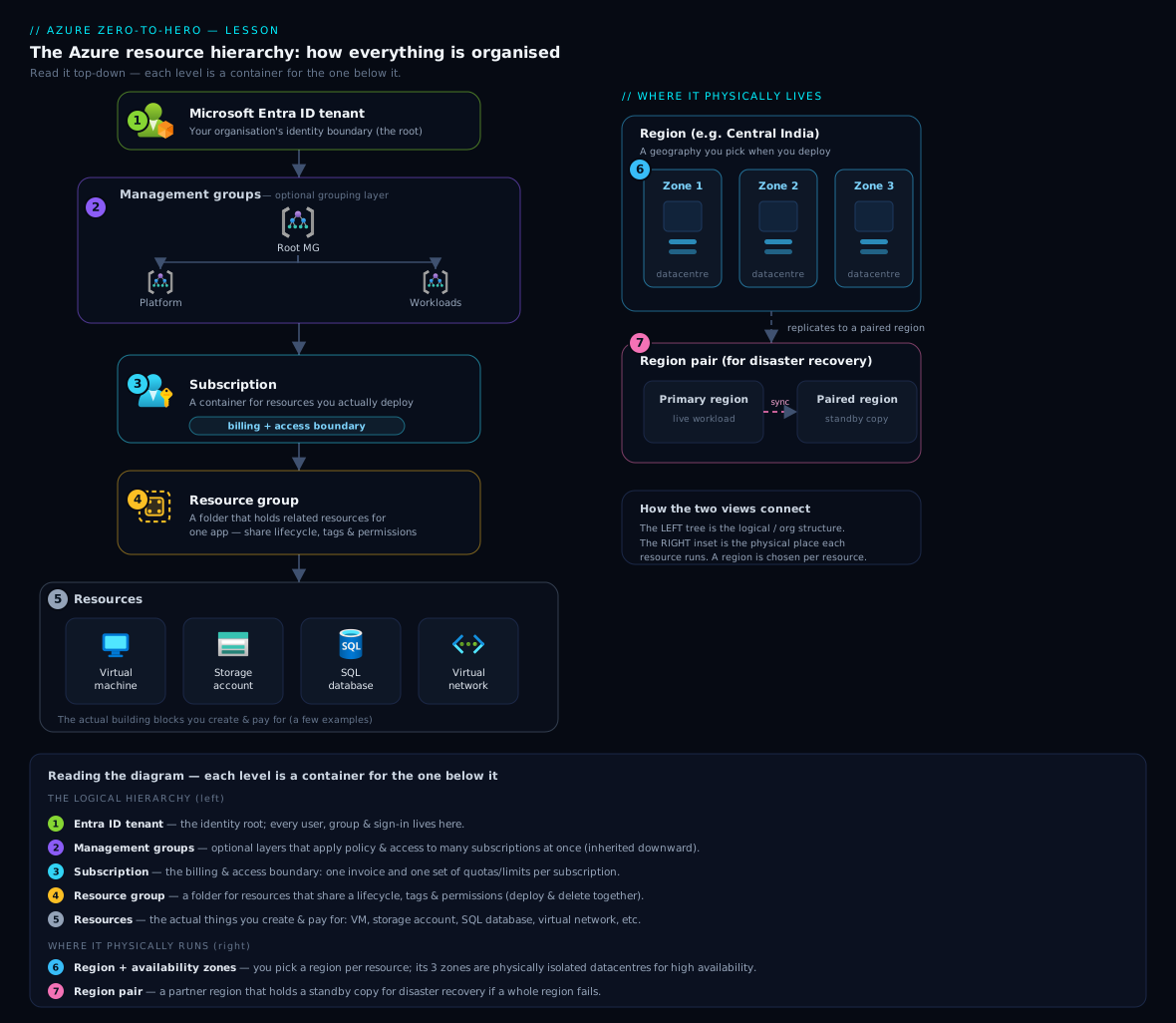
Azure is a hierarchy of nested scopes. Everything you create lives inside a clean ladder: tenant → management group → subscription → resource group → resource. Governance (policy, access) flows down this ladder by inheritance; billing rolls up it. Knowing which scope a thing belongs to tells you who can manage it, where it bills, and what rules apply.
A subscription is the billing-and-isolation boundary; a resource group is a lifecycle folder. These two are the most-used scopes and the most-confused. The subscription collects costs into one invoice and enforces quotas. The resource group is a logical folder for resources that share a lifecycle, so you deploy and delete them as a unit. Critically, a resource group is not a network or security boundary — a common beginner trap.
Every resource physically lives in a region, optionally spread across zones. A region is a geography with data centres; an availability zone is a physically separate building inside that region. Region choice drives latency, residency and cost; zones give you high availability; region pairs give you disaster recovery.
One control plane — ARM — fronts everything. Portal, CLI, PowerShell and code all call Azure Resource Manager. ARM authenticates you, authorises against your RBAC, enforces Azure Policy, routes to the right resource provider, and logs the action. Because they all funnel through ARM, the tools are interchangeable and deployments are declarative and idempotent.
Security is shared, and identity + data are always yours. Moving to the cloud does not make security entirely Microsoft’s problem. The split shifts with the service model, but your data, your identities and access, and your configuration are always on your side of the line — and that is where most cloud incidents actually happen.
The vocabulary in one table
Before the deep sections, pin down every moving part. The glossary at the end repeats these for lookup; this table is the mental model side by side:
| Concept | One-line definition | Where it sits | Bounds what | Does NOT bound |
|---|---|---|---|---|
| Entra tenant | One instance of the identity directory | Top of the ladder | Who can sign in (identity) | Billing, network |
| Management group | Container for subscriptions | Below tenant | Governance at scale (policy/RBAC) | Billing per-MG |
| Subscription | Billing + quota + management scope | Below MG | Cost, quotas, isolation | Network reachability |
| Resource group | Lifecycle folder for resources | Below subscription | Lifecycle, RBAC scope, cost roll-up | Network, security perimeter |
| Resource | One service instance (VM, DB, storage) | Inside an RG | The actual thing | — |
| Region | Geography with data centres | Physical | Latency, residency, price | (placement, not access) |
| Availability zone | Separate building within a region | Inside a region | Fault isolation (HA) | Cross-region failure |
| Region pair | Two regions in one geography | Across regions | Disaster recovery | Day-to-day latency |
| ARM | The control-plane API | Azure-wide | Create/read/update/delete | The data plane |
| Tag | Key–value label on a resource | On resources | Cost/ownership attribution | Access (tags aren’t security) |
How Azure organises everything: the hierarchy
The single most important mental model in this lesson is how Azure structures what you create. Everything you ever build sits inside a clean, nested hierarchy. From the top down:
- Microsoft Entra tenant — your organisation’s identity boundary. Microsoft Entra ID (formerly Azure Active Directory, or “Azure AD”) is Azure’s identity service: the directory of users, groups, and apps that can sign in. A tenant is one dedicated instance of that directory — effectively “your company’s account” in Azure. It is the trust anchor for everything below it, and one tenant can contain many subscriptions.
- Management groups — optional containers for organising subscriptions. If you have several (common in larger organisations), you arrange them in a tree so you can apply governance — policies (rules) and RBAC (access permissions) — to many subscriptions at once. Anything set on a management group is inherited beneath it. There is a single root management group at the top; you can nest up to 6 levels deep (excluding root and subscriptions). Small projects often skip this layer.
- Subscription — the billing boundary and the primary scope of management. A subscription holds resources, accumulates their costs into one invoice, and enforces quotas (limits, e.g. how many VMs of a family you may create). It is also a natural isolation boundary: many teams give each environment — production, development, test — its own subscription so billing, access, and quotas are cleanly separated. Every resource lives in exactly one subscription.
- Resource group — a logical folder for resources that share a lifecycle. You typically put everything for one application or environment into a single group — web app, database, storage — so you can deploy, manage, secure, and delete them as a unit. A resource group lives in exactly one subscription, every resource belongs to exactly one resource group, and resources can talk to each other across groups.
- Resource — the actual thing you use: a virtual machine, storage account, database, or virtual network. Each has a type (e.g.
Microsoft.Storage/storageAccounts) provided by a resource provider (e.g.Microsoft.Storage).
Here is the full ladder as a reference — what each layer is for, who typically owns it, and what governance you attach there:
| Layer | Primary purpose | What you attach here | Typical owner | Cardinality |
|---|---|---|---|---|
| Entra tenant | Identity / trust anchor | Users, groups, app registrations, Conditional Access | Identity team / org | 1 per organisation (usually) |
| Root management group | Org-wide guardrails | Baseline policies, break-glass RBAC | Platform / governance | Exactly 1 (auto-created) |
| Management group | Group subscriptions for scale | Policy, RBAC, initiative assignments | Platform team | 0…6 levels of nesting |
| Subscription | Billing, quota, isolation | Budgets, subscription-level RBAC, policies | App / platform owner | Many per tenant |
| Resource group | Lifecycle + cost roll-up | RBAC, tags, locks, deployment scope | App / project team | Many per subscription |
| Resource | Deliver the actual service | The config of that one thing | The app / dev team | Many per RG |
A crucial property of this ladder is inheritance: governance set high up flows down and is additive for access. The table below makes explicit what flows and what does not — this is where beginners build wrong intuitions:
| Thing set at a scope | Inherited downward? | Notes |
|---|---|---|
| RBAC role assignment | Yes (additive) | A role at the subscription applies to every RG and resource in it |
| Azure Policy assignment | Yes | A “allowed regions” policy on a MG constrains all subscriptions beneath |
Resource lock (CanNotDelete/ReadOnly) |
Yes | A lock on an RG protects every resource inside |
| Tags | No (by default) | Tags do not auto-inherit to children; use Azure Policy to enforce/append |
| Deny assignments | Yes | From Azure Blueprints / managed apps; override allow grants |
| Cost (charges) | Rolls up, not down | Resource → RG → subscription → MG (for reporting) |
The resource group deserves special emphasis because it is the scope you will touch most, and the one most misunderstood:
| Property of a resource group | True? | What beginners often assume |
|---|---|---|
| Holds resources that share a lifecycle | Yes | (correct) |
| Deleting it deletes all resources inside | Yes | Sometimes forgotten — it’s the cleanup superpower |
| Is a billing roll-up point | Yes | Useful for “what does this app cost?” |
| Is an RBAC assignment scope | Yes | Grant Contributor on an RG, not the whole subscription |
| Is a network boundary | No | Wrongly assumed — sharing an RG does not connect resources |
| Is a security boundary | No | Wrongly assumed — separate RGs do not isolate traffic |
| Can span regions | Yes (resources in different regions) | The RG has a metadata location; resources pick their own |
| Resources can reference across RGs | Yes | A VM in one RG can use a VNet in another |
One nuance beginners often miss, restated because it matters: a resource group is a management and lifecycle boundary, not a security or network boundary. Sharing a resource group does not let two resources reach each other on the network, and separate groups do not isolate them. Network reachability is controlled by virtual networks and firewalls (covered in Azure Virtual Network Basics), and access by RBAC.
Where your resources live: regions, region pairs, and availability zones
When you create a resource, you choose a region — a geographic location where Azure has data centres, such as Central India, West Europe, or East US. Region choice matters for several reasons, each of which becomes a design constraint later:
| Reason region choice matters | What it controls | Example consequence of getting it wrong |
|---|---|---|
| Latency | Round-trip time to your users | India users on a US region feel 200+ ms lag |
| Data residency | Which country/geo your data sits in | Regulated data in the wrong geography = compliance breach |
| Service availability | Not every service is in every region | The SKU you need isn’t offered there → redesign |
| Price | Prices vary slightly by region | The “cheap” region may lack the feature you need |
| Zone support | Some regions have availability zones, some don’t | No zones = no in-region HA option |
| Capacity | Popular regions can hit capacity limits | A VM family may be temporarily unavailable |
Within most regions, Azure offers availability zones (AZs): physically separate locations inside the same region, each with independent power, cooling, and networking, connected by a fast low-latency link. Spreading a workload across Zone 1, Zone 2, and Zone 3 means that if one zone has an outage — a power failure or flood in one building — your application keeps running in the others. This is the standard way to achieve high availability within a region.
Azure also groups most regions into region pairs — two regions in the same geography (for example Central India paired with South India) used for disaster recovery. Some services replicate data to the paired region, and Microsoft rolls planned platform updates out to one region of a pair at a time to reduce risk. The pairing gives you a far-away copy to fail over to if an entire region is lost.
A quick way to remember the difference — the two concepts protect against different scales of failure:
| Concept | Protects against | Distance | Typical use | What you do |
|---|---|---|---|---|
| Availability zone | One data centre / building failing | Same region, kilometres apart | High availability | Deploy across zones 1/2/3 |
| Region pair | An entire region failing | Hundreds of km, same geography | Disaster recovery | Replicate + plan a failover |
| Multi-region active | Region failure + global latency | Different geographies | Global apps, lowest latency | Front Door / Traffic Manager |
It also helps to name the related grouping concepts you will meet later, so the vocabulary is not new when it arrives:
| Term | Definition | Why it exists |
|---|---|---|
| Geography | A discrete market/area (e.g. India, Europe) containing ≥1 region | Data-residency and compliance boundary |
| Region | A set of data centres within a latency-defined perimeter | The thing you pick when deploying |
| Availability zone | One or more data centres with independent power/cooling/network | In-region fault isolation |
| Region pair | Two regions in the same geography, linked for DR | Sequential updates + replication target |
| Availability set (legacy, IaaS) | Fault + update domain grouping within one data centre | Pre-zone HA for VMs |
| Fault domain (IaaS) | A rack-level isolation unit within a data centre | Spread VMs across power/network failure units |
| Update domain (IaaS) | A maintenance-reboot grouping | Limit how many VMs reboot together during platform updates |
| Edge / PoP | Microsoft points of presence near users | CDN, Front Door, low-latency entry |
For your very first resources none of this costs extra to understand, but it shapes every serious design: zones for staying up, pairs for surviving a regional disaster. This is covered exhaustively in Azure Global Infrastructure: Regions, Zones, Fault & Update Domains.
The control plane: Azure Resource Manager (ARM)
Here is something that confuses many newcomers. When you click “Create” in the portal, run an az command, or apply infrastructure-as-code, all of those paths talk to the same service underneath: Azure Resource Manager (ARM). ARM is Azure’s control plane — the single front door for creating, reading, updating, and deleting resources.
Every request becomes a call to the ARM REST API. ARM then performs a fixed sequence of steps. Knowing this sequence tells you exactly where a failed deploy went wrong:
| Step | What ARM does | If it fails you see | Where to look |
|---|---|---|---|
| 1. Authenticate | Verifies your Entra identity / token | 401, sign-in prompt |
az login; token expiry |
| 2. Authorise | Checks your RBAC at the target scope | AuthorizationFailed (403) |
az role assignment list |
| 3. Validate | Schema-checks the request | InvalidTemplate / bad-parameter |
The error detail / template |
| 4. Policy | Enforces Azure Policy rules | RequestDisallowedByPolicy |
az policy state list |
| 5. Quota | Checks subscription limits | QuotaExceeded |
Usage + quotas blade |
| 6. Route | Hands off to the resource provider | MissingRegistrationForResourceProvider |
az provider register |
| 7. Provision | Provider builds the resource | Provider-specific error | Activity Log / deployment |
| 8. Log | Records to the Activity Log | (audit only) | az monitor activity-log list |
Two consequences matter from day one. First, because portal, CLI, PowerShell, and code all funnel through ARM, they are interchangeable — create something in the portal, then manage it from the CLI without issue. The table below shows the four ways to drive ARM and when each shines:
| Tool / path | What it is | Best for | Idempotent? |
|---|---|---|---|
| Azure Portal | Web GUI over ARM | Exploring, one-off tasks, learning | No (manual clicks) |
Azure CLI (az) |
Cross-platform command line | Scripts, automation, Linux/macOS | Per command (mostly create-or-update) |
Azure PowerShell (Az) |
PowerShell cmdlets | Windows-centric automation | Per cmdlet |
| ARM templates / Bicep | Declarative IaC | Repeatable, reviewed deployments | Yes (desired-state) |
| Terraform (third-party) | Declarative IaC, multi-cloud | Cross-cloud estates | Yes (state-tracked) |
| REST API / SDKs | Direct programmatic access | Apps, custom tooling | Depends on calls |
Second, with templates ARM is declarative and idempotent: you describe the desired end state, ARM converges to it, and re-running the same deployment is safe. That is the foundation of infrastructure as code, which the course returns to later.
It is also worth distinguishing the control plane (managing a resource — create/delete the database, via ARM) from the data plane (using it — run a query against the database, handled by the service directly). This distinction governs which permissions matter where:
| Aspect | Control plane | Data plane |
|---|---|---|
| Example action | Create / delete a storage account | Upload a blob to it |
| Fronted by | ARM (management.azure.com) |
The service endpoint (e.g. *.blob.core.windows.net) |
| Authorised by | Azure RBAC | Service auth (keys, SAS, or data-plane RBAC roles) |
| Logged in | Activity Log | Resource/diagnostic logs |
| Who typically uses it | Admins, IaC pipelines | The application / end users |
| A role like Owner grants… | Full control-plane rights | Not automatically data access (e.g. Owner ≠ blob data reader) |
That last row trips up almost everyone once: being Owner of a storage account lets you delete it, but does not by itself let you read its blobs — you need a data-plane role like Storage Blob Data Reader. Control plane and data plane are governed separately by design.
How billing works
Azure billing follows the rented-computing idea: you mostly pay consumption-based (pay-as-you-go) prices — per second, per hour, per gigabyte stored, per million requests, or per transaction, depending on the service. There is no upfront hardware cost; you pay for what you use and stop paying when you delete the resource.
Different services meter on different units. Knowing the unit tells you how to control the cost:
| Service | Billed per | Example unit price idea | Lever to reduce it |
|---|---|---|---|
| Virtual Machine | vCPU-second (rounded) | Per-hour of the SKU while running | Stop/deallocate; right-size; reserve |
| Blob storage | GB-month + transactions | Per-GB stored + per-10k ops | Lifecycle to cool/archive tiers |
| App Service | Instance-hour | Per plan instance, regardless of apps | Smaller SKU; scale in off-peak |
| Azure Functions (Consumption) | Executions + GB-seconds | Per-million executions | Scales to zero — pay per request |
| Azure SQL (DTU/vCore) | Compute-hour + storage | Per-vCore-hour | Serverless auto-pause; reserve |
| Managed disk | Provisioned GB + IOPS tier | Per-GB-month (size, not use) | Right-size; delete orphaned disks |
| Key Vault | Operations + (HSM) keys | Per-10k operations | Cache secrets; fewer reads |
| Bandwidth (egress) | GB out of Azure | Per-GB outbound (inbound free) | Keep traffic in-region; CDN cache |
| Public IP / NAT / gateways | Hourly + per-GB | Per-hour + data processed | Delete idle ones; consolidate |
The hierarchy maps neatly onto billing, and a small set of tools and constructs do the cost management:
| Construct | What it does | Where you set it | Beginner habit |
|---|---|---|---|
| Subscription | Accumulates charges into an invoice | Account / EA / MCA | Separate prod from dev |
| Resource group | Rolls up cost per app/environment | On creation | One RG per app per env |
| Tags | Key–value labels (env, owner, costCenter) |
Per resource (or via Policy) | Tag from day one |
| Cost Management | Analyse, forecast, export spend | Subscription blade | Check weekly |
| Budgets + alerts | Email when spend crosses a threshold | Cost Management | Set on day one |
| Reservations | 1–3 yr commit for big discount | Cost Management | For steady workloads only |
| Savings Plans | Hourly compute commit, flexible | Cost Management | Mixed/changing compute |
| Azure Hybrid Benefit | Reuse Windows/SQL licences | On the resource | If you own licences |
Beyond pay-as-you-go, the commitment and licensing levers below cut steady-state cost substantially — they are optimisation topics for later (see Azure Cost: Reservations, Savings Plans & Hybrid Benefit), but worth knowing they exist:
| Pricing option | Commitment | Typical saving | Best for |
|---|---|---|---|
| Pay-as-you-go | None | Baseline (0%) | Spiky, short-lived, experiments |
| Reservations | 1 or 3 years, specific family | Up to ~72% | Predictable, always-on VMs/DBs |
| Savings Plans | 1 or 3 years, $/hour compute | Up to ~65% | Steady but changing compute mix |
| Spot VMs | None (evictable) | Up to ~90% | Fault-tolerant, interruptible batch |
| Azure Hybrid Benefit | Own the licence | Up to ~85% (with reservations) | Existing Windows Server / SQL licences |
| Dev/Test pricing | Eligible subscriptions | Reduced rates | Non-production environments |
The key beginner habit is simpler than any of these: anything you create costs money until you delete it — which is exactly why every lab in this course ends with a cleanup step. Cost is explored in depth in Azure Cloud Economics: Pricing, TCO, SLA & Support and the FinOps cost-engineering guide.
The shared responsibility model
Moving to the cloud does not make security entirely Microsoft’s problem. Responsibility is shared, and the split depends on the service model:
- Microsoft is always responsible for the physical security of data centres, the host infrastructure, and the network backbone.
- You are always responsible for your data, your identities and access (who can sign in and what they can do), and how you configure what you deploy.
- The middle layers — operating system, patching, network controls, application code — shift between you and Microsoft depending on whether you chose IaaS, PaaS, or SaaS.
| Responsibility layer | On-prem | IaaS (e.g. VM) | PaaS (e.g. App Service) | SaaS (e.g. M365) |
|---|---|---|---|---|
| Data classification & accountability | You | You | You | You |
| Identity & access management | You | You | You | You (shared) |
| Endpoints / clients | You | You | You | You |
| Application code | You | You | You | Microsoft |
| Network controls | You | Shared | Shared | Microsoft |
| Operating system & patching | You | You | Microsoft | Microsoft |
| Virtualisation / host | You | Microsoft | Microsoft | Microsoft |
| Physical hosts, network, data centre | You | Microsoft | Microsoft | Microsoft |
The single biggest takeaway for beginners: identity and data are always yours to protect. The most common cloud incidents are not Microsoft’s data centre failing — they are configuration and identity mistakes that sit squarely on your side of the line. Here are the classic ones and where they live:
| Common cloud incident | Whose side | Root mistake | The right control |
|---|---|---|---|
| Public storage container leaks data | Yours | Misconfigured access level | Private by default; RBAC/SAS; firewall |
| Compromised admin via stolen password | Yours | No MFA | Enforce MFA / passwordless |
| Over-permissive role causes blast-radius damage | Yours | Owner granted broadly | Least privilege; scoped roles |
| Secret leaked in code / Git | Yours | Credentials in source | Key Vault + managed identity |
| Region-wide platform outage | Microsoft’s (mitigated by you) | Single-region design | Zones + region pair |
| Host hardware failure | Microsoft’s | (none — platform handles) | Microsoft replaces it |
Identity (Lesson 3, Microsoft Entra ID Fundamentals) gets heavy treatment in this course precisely because so much of the responsibility — and so many of the incidents — live there.
Architecture at a glance
Now put it together. The diagram below traces the life of a single deployment left to right, across the five layers this lesson has built up — and that is the most useful way to hold Azure in your head: not as a list of services, but as a path every az group create or portal click travels. Start at IDENTITY: you sign in (portal, CLI, or IaC) and Azure authenticates you against your Entra tenant, the one directory that says who you are. That identity then carries into GOVERNANCE, where your request is scoped by the management group → subscription hierarchy that decides where it bills, what quota it draws on, and which policies apply by inheritance.
The request lands at the CONTROL PLANE — Azure Resource Manager — which is the single front door for everything: it authorises you against RBAC, runs your request past Azure Policy (for example an “allowed regions” guardrail), records the action in the Activity Log, and only then routes the work to the right resource provider. ARM provisions into the WORKLOAD zone: your resource group (the lifecycle folder, e.g. rg-shop-prod) and the resources inside it. Finally those resources are placed into the PHYSICAL zone — a region like Central India, ideally spread across availability zones 1/2/3 for high availability, with a region pair standing by for disaster recovery. The five numbered badges mark exactly where a beginner’s first deployment tends to break — wrong tenant, charges in the wrong subscription, a policy/authorisation denial, the resource-group-is-not-a-network trap, and a single-zone deploy with no redundancy — each of which reappears in the troubleshooting section with the exact command to confirm and fix it.
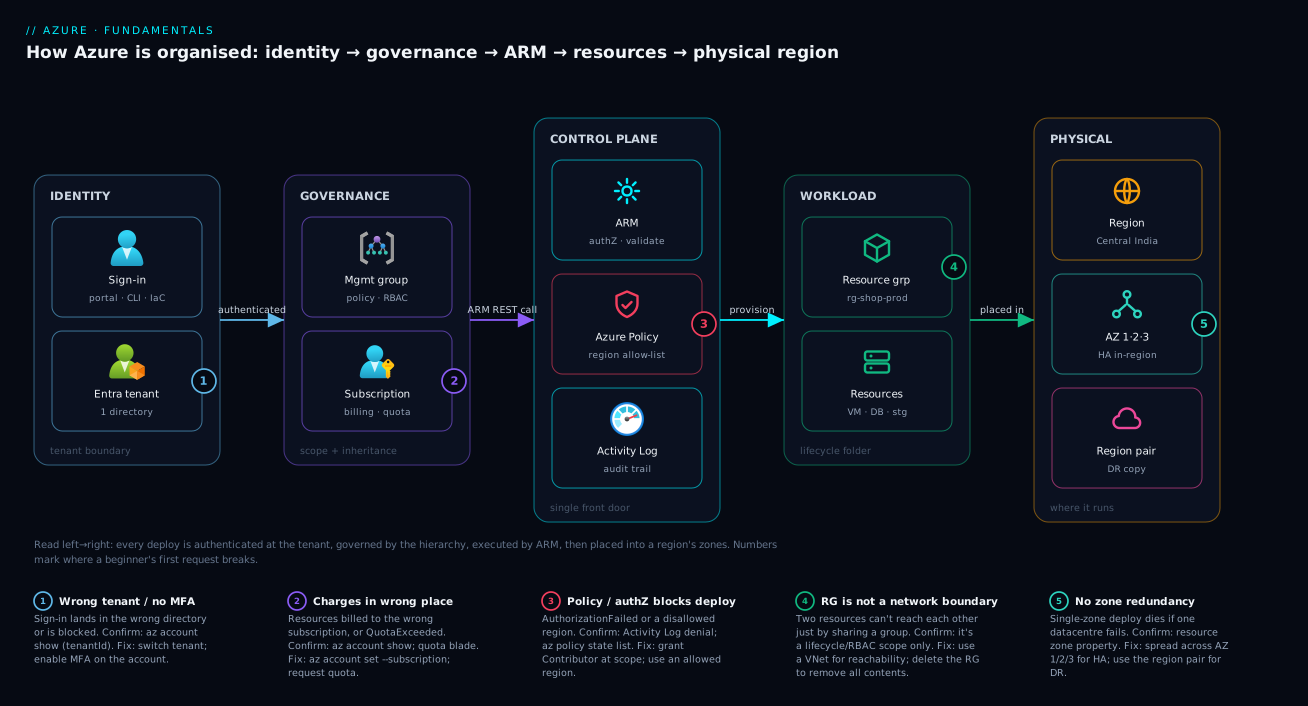
The whole method of operating Azure follows this picture: when something goes wrong, locate which zone it lives in. A billing surprise is a GOVERNANCE/subscription question; a denied deploy is a CONTROL-PLANE authorisation/policy question; a “can’t reach the database” is a WORKLOAD/network question (never the resource group itself); an outage that should have been survivable is a PHYSICAL/zone question. Naming the zone first is what turns a vague problem into a one-command diagnosis.
Real-world scenario
Saffron Mart, a fictional but representative mid-sized Indian retailer, is moving from a single on-prem server to Azure. Their first month is a perfect catalogue of the mistakes this lesson prevents — and how the right mental model fixes each.
The team is three developers and one ops engineer, no prior cloud experience, with a target of running their checkout web app and its SQL database in Azure within a quarter, under a ₹40,000/month budget. They sign up for a free account, get trial credit, and start clicking.
Week 1 — the “where did it go?” problem. A developer creates a VM to test the app. It works. A second developer creates a database — but in a different subscription, because the portal happened to default there. Now the app VM and the database are in separate subscriptions, billed separately, and nobody can find the database in the cost view they were watching. The fix was conceptual, not technical: they learned that every resource lives in exactly one subscription, ran az account show to see which one was active, standardised on a single Saffron-Prod subscription, and recreated the database there. Lesson: pin your subscription context before you create anything.
Week 2 — the “they can’t talk to each other” trap. With everything now in one subscription, they put the web app and database in the same resource group, assuming that would let them communicate. The app still couldn’t reach the database. They spent half a day convinced Azure was broken. The truth: a resource group is a lifecycle folder, not a network boundary. Reachability is a virtual network concern. Once they put both into a VNet (and opened the right rule), it worked. Lesson: the RG groups for management and billing; the VNet connects.
Week 3 — the denied deploy. A junior developer tried to create a resource and hit AuthorizationFailed. The ops engineer had given them Reader on the subscription. They learned that ARM authorises every request against RBAC, that Reader can look but not create, and that Contributor (scoped to the dev resource group, not the whole subscription) was the least-privilege fix. Lesson: errors like this live at the control plane, and the fix is a scoped role.
Week 4 — the forgotten VM. The Week-1 test VM was never deleted. It quietly ran for three weeks and ate ₹6,000 of credit. The ops engineer set a budget with an alert at ₹30,000 in Cost Management, tagged everything with owner and env, and adopted the rule that every experiment goes in a disposable resource group you delete in one command. Lesson: anything you create costs money until you delete it; budgets and a cleanup discipline are not optional.
By the end of the month Saffron Mart was running the checkout app on App Service (PaaS) rather than a self-managed VM (no OS to patch), the database on Azure SQL, both in one resource group inside the Saffron-Prod subscription in Central India with zone redundancy, fronted by a budget alert, at about ₹22,000/month — comfortably under target. Every one of their four early incidents maps to exactly one concept in this lesson. The incident log, because the pattern is the lesson:
| Week | Symptom | Wrong assumption | The concept that fixes it | The fix |
|---|---|---|---|---|
| 1 | DB and app billed separately, DB “missing” | “Everything I make is in one place” | Every resource lives in one subscription | az account set; standardise the subscription |
| 2 | App can’t reach DB in the same RG | “Same resource group = connected” | RG is not a network boundary | Put both in a VNet |
| 3 | AuthorizationFailed on create |
“I’m logged in, so I can deploy” | ARM authorises via RBAC | Grant scoped Contributor |
| 4 | ₹6,000 lost to an idle VM | “If I’m not using it, it’s free” | Charges accrue until deletion | Budget + alert; disposable RGs |
Advantages and disadvantages
The cloud model — and Azure’s particular shape of it — is overwhelmingly worth it for most workloads, but a beginner should weigh it honestly rather than treat it as magic:
| Advantages (why the cloud wins) | Disadvantages (why it bites) |
|---|---|
| No upfront hardware; pay only for what you use | Easy to forget a resource and bleak money continuously |
| Provision in minutes, not weeks | The hierarchy/region/RBAC model is a real learning curve |
| Elastic — scale up for a sale, back down after | Costs are variable, so a runaway can surprise you |
| Global reach: deploy near users in any geography | Data residency / sovereignty becomes your responsibility |
| Built-in HA (zones) and DR (region pairs) | You must design for them; defaults aren’t always HA |
| Managed services remove patching/ops toil | More managed = less control and more vendor lock-in |
| Microsoft secures the physical layer | Identity/data/config security is squarely yours |
| One control plane (ARM) → consistent automation | A misconfigured policy or role can block legitimate work |
When does each side matter? The advantages dominate for new applications, spiky or seasonal workloads, startups avoiding capital expense, and any team that would rather ship features than rack servers. The disadvantages bite hardest for teams that lift-and-shift without learning the model (they recreate on-prem habits and get surprised by the bill), for highly regulated data with strict residency, and for workloads needing absolute control of the OS/kernel. The honest summary: the downsides are all manageable with knowledge — which is precisely why this lesson exists.
Hands-on lab
You will open Azure Cloud Shell — a full command-line environment that runs in your browser, pre-authenticated, with the az CLI already installed (nothing to install locally) — and create, inspect, tag, and delete your first resource group. A resource group is the safest possible “hello world”: it is free, and deleting it cleanly removes everything inside it.
Prerequisite: a free Azure account. If you do not have one, go to https://azure.microsoft.com/free and sign up (you need a Microsoft account and a card for identity verification — the free tier and trial credit mean this lab costs nothing), then sign in at https://portal.azure.com.
Step 1 — Open Cloud Shell
In the portal, click the Cloud Shell icon (>_) in the top toolbar, or browse to https://shell.azure.com. When prompted, choose Bash. The first time, Azure offers to create a small storage account to persist your shell files — accept the default (a few pennies a month) or pick the ephemeral option for none. You will land at a prompt already signed in as you.
Step 2 — Confirm your context
Check which subscription you are working in. Everything you create lands here and is billed here. This single command prevents the Week-1 mistake from the scenario above.
az account show --output table
Expected output (your values will differ):
Name                  CloudName    SubscriptionId                        State    IsDefault
--------------------  -----------  ------------------------------------  -------  ----------
Azure subscription 1  AzureCloud   00000000-0000-0000-0000-000000000000  Enabled  True
If you have more than one subscription, list them and select the right one before continuing:
az account list --output table
az account set --subscription "<your-subscription-name-or-id>"
Step 3 — Pick a region (optional but instructive)
List the regions available to you and note one close to you (for example centralindia or westeurope):
az account list-locations --query "[].name" --output tsv | sort
Step 4 — Create a resource group
Create a resource group named rg-kloudvin-lab in your chosen region. This is the same operation the portal performs when you click Create a resource group — both go through ARM.
az group create --name rg-kloudvin-lab --location centralindia
The equivalent in Bicep (infrastructure as code) — note that a resource group is deployed at subscription scope:
targetScope = 'subscription'

param location string = 'centralindia'

resource rg 'Microsoft.Resources/resourceGroups@2024-03-01' = {
  name: 'rg-kloudvin-lab'
  location: location
  tags: {
    env: 'learning'
    owner: 'your-name'
  }
}
Expected output (trimmed JSON) from the az command:
{
  "id": "/subscriptions/00000000-0000-0000-0000-000000000000/resourceGroups/rg-kloudvin-lab",
  "location": "centralindia",
  "name": "rg-kloudvin-lab",
  "properties": {
    "provisioningState": "Succeeded"
  }
}
The id is the resource group’s resource ID — notice it literally encodes the hierarchy: subscriptions/<id>/resourceGroups/<name>. Every resource in Azure has an ID in this shape. Decoding that ID is a skill worth having on day one:
| Segment in a resource ID | Example value | What it tells you |
|---|---|---|
/subscriptions/<guid> |
00000000-...-000000000000 |
Which subscription bills it |
/resourceGroups/<name> |
rg-kloudvin-lab |
Which lifecycle folder it’s in |
/providers/<RP> |
Microsoft.Storage |
Which resource provider owns the type |
/<type>/<name> |
storageAccounts/stkv001 |
The resource type and its name |
"provisioningState": "Succeeded" confirms ARM completed the request.
Step 5 — Tag it for cost attribution
Add tags so this group can be sliced in Cost Management later — building the habit early:
az group update --name rg-kloudvin-lab \
  --set tags.env=learning tags.owner="$(az account show --query user.name -o tsv)"
Step 6 — Validate
Confirm the resource group exists and inspect it:
az group list --output table
az group show --name rg-kloudvin-lab --output table
You should see rg-kloudvin-lab with Location centralindia and ProvisioningState Succeeded. That is your validation: the resource group is real, in the region you chose, in your subscription. (It is empty — a resource group can exist with nothing inside it, which is perfectly normal.)
Step 7 — Cleanup
Always clean up. Deleting the resource group deletes everything inside it in one action — the core reason resource groups are so useful.
az group delete --name rg-kloudvin-lab --yes --no-wait
--yes skips the confirmation prompt; --no-wait returns immediately while Azure deletes in the background. Verify it is gone (it will briefly show Deleting, then disappear):
az group list --output table
The lab steps mapped to the concept each one proves:
| Step | What you did | Concept it proves | Real-world analogue |
|---|---|---|---|
| 2 | az account show |
Subscription context is explicit | Avoiding the Week-1 billing mistake |
| 4 | az group create |
The portal and CLI both call ARM | Any first deploy, any tool |
| 4 | Read the resource ID | The ID encodes the hierarchy | Reading any resource’s place in Azure |
| 5 | Tag the group | Tags drive cost attribution | Making the bill explainable |
| 7 | az group delete |
Deleting an RG removes all contents | The cleanup superpower; stopping charges |
Cost note: An empty resource group is free — you are charged for resources, not for the folder that holds them. This entire lab costs nothing beyond, at most, a few pennies for the optional Cloud Shell storage account (which you can also delete from the portal afterwards if you used it).
Common mistakes & troubleshooting
This is the part you bookmark. Every beginner hits some of these in their first week; each maps to exactly one of the concepts above, and each has a precise way to confirm the cause and fix it. First the scannable playbook table, then the expanded reasoning for the ones that bite hardest.
| # | Symptom | Root cause | Confirm (exact cmd / portal path) | Fix |
|---|---|---|---|---|
| 1 | az: command not found on your own laptop |
Azure CLI isn’t installed locally | which az returns nothing |
Use Cloud Shell (pre-installed), or install the CLI from Microsoft’s docs |
| 2 | Resources/charges appear in the “wrong place” | A different subscription is the active default | az account show --query name |
az account set --subscription "<name>" before creating anything |
| 3 | (LocationNotAvailableForResourceGroup) / region rejected |
Region name wrong or not enabled for you | az account list-locations --query "[].name" -o tsv |
Use exact lowercase names (e.g. centralindia, not Central India) |
| 4 | (AuthorizationFailed) when creating the group |
Your identity lacks rights at that scope | az role assignment list --assignee <you> -o table |
Get at least Contributor at the RG/subscription scope |
| 5 | (QuotaExceeded) creating a VM/resource |
The subscription’s quota for that family is reached | Portal → Subscription → Usage + quotas | Delete unused; request a quota increase |
| 6 | (MissingSubscriptionRegistration) for a provider |
The resource provider isn’t registered | az provider show -n Microsoft.X --query registrationState |
az provider register --namespace Microsoft.X |
| 7 | Two resources in one RG still can’t connect | Assuming RG = network boundary | Check VNet membership of each resource | Put both in a VNet; RG never grants reachability |
| 8 | Deleted the RG but a resource still lingers | --no-wait returns before deletion finishes |
Re-run az group list after a minute |
Wait; deletion of contents takes time |
| 9 | RequestDisallowedByPolicy on deploy |
An Azure Policy blocks it (e.g. region/SKU) | Activity Log denial; az policy state list |
Deploy within policy (allowed region/SKU) or ask owner |
| 10 | Owner of a storage account, still can’t read blobs | Conflating control plane with data plane | az role assignment list (no data role) |
Grant a data-plane role e.g. Storage Blob Data Reader |
| 11 | A forgotten resource keeps billing | “If I’m not using it, it’s free” | Cost Management → Cost analysis | Delete it; set a budget + alert |
| 12 | Can’t delete an RG — operation blocked | A resource lock (CanNotDelete) is set |
az lock list -g <rg> -o table |
Remove the lock (az lock delete) if appropriate |
| 13 | A specific service isn’t offered in your region | Service availability varies by region | Check the region availability page / az vm list-skus |
Choose a region that offers it |
| 14 | Free-account spend halts unexpectedly | Trial credit exhausted or spending cap hit | Portal → Subscriptions → spending cap | Upgrade to pay-as-you-go, or wait/reset |
The error-string reference — the exact codes you’ll see and what each means on Azure, since the message alone is often cryptic:
| Error code / string | What it means | Layer it lives in | First move |
|---|---|---|---|
AuthorizationFailed |
You lack RBAC for this action at this scope | Control plane (RBAC) | Check/assign a scoped role |
RequestDisallowedByPolicy |
An Azure Policy denied the request | Control plane (Policy) | Read the policy; comply or get an exemption |
QuotaExceeded / OperationNotAllowed |
A subscription quota/limit was hit | Subscription | Request quota increase; delete unused |
LocationNotAvailableForResourceGroup |
Bad/unavailable region name | Region | Use a valid lowercase region name |
MissingSubscriptionRegistration |
Resource provider not registered | Subscription / RP | az provider register |
ResourceGroupNotFound |
The RG doesn’t exist (typo or wrong sub) | Workload | Verify name + active subscription |
InvalidTemplateDeployment |
Bicep/ARM template failed validation | Control plane | Read the inner error; fix the template |
ScopeLocked |
A resource lock blocks the change | Workload | Remove or downgrade the lock |
SubscriptionNotFound |
Wrong/disabled subscription in context | Subscription | az account set to a valid sub |
And the decision table for “I see X, it’s probably Y, do Z” — the fastest path from a symptom to the right layer:
| If you see… | It’s probably… | Do this |
|---|---|---|
| Charges where you didn’t expect | Wrong active subscription | az account show → az account set |
AuthorizationFailed |
An RBAC gap | Assign a scoped role (Contributor) |
RequestDisallowedByPolicy |
An Azure Policy guardrail | Comply (region/SKU) or request exemption |
| Resources can’t reach each other | A network gap (not the RG) | Put them in a VNet; check NSGs |
| “Owner but can’t read the data” | Control vs data plane | Add the matching data-plane role |
| A bill creeping up | A forgotten/over-sized resource | Cost analysis; delete/right-size; budget |
| A region rejects a service | Service availability by region | Pick a supported region |
Expanded reasoning for the three that cause the most lost hours:
2. Resources or charges show up in the “wrong place.” Root cause: a different subscription is the active default in your CLI/portal session, so everything you create lands and bills there. Confirm: az account show --query "{name:name, id:id}" -o table. Fix: set the intended subscription before creating anything — az account set --subscription "<name-or-id>" — and make az account show the first command in any script. This is the single most common beginner billing mistake.
7. Two resources in the same resource group still can’t talk to each other. Root cause: the belief that a resource group is a network boundary. It is a lifecycle and management boundary only. Confirm: check whether each resource is in a virtual network (az network vnet list, and the resource’s networking blade). Fix: reachability comes from a virtual network (and the right NSG/firewall rules), never from co-locating in a resource group. Conversely, resources in different RGs can absolutely communicate if they share a VNet.
4 & 9. AuthorizationFailed vs RequestDisallowedByPolicy. Both block a deploy at the control plane, but they are different layers and have different fixes. AuthorizationFailed means RBAC — you don’t have permission; the fix is a scoped role (prefer Contributor on the resource group, not Owner on the subscription). RequestDisallowedByPolicy means Azure Policy — a governance rule forbids what you asked (an unapproved region, an oversized SKU, an untagged resource); the fix is to comply with the rule (deploy in an allowed region, add the required tag) or request an exemption from whoever owns the policy. Confuse the two and you’ll grant a broad role that still doesn’t unblock the deploy.
Common beginner mistakes
The troubleshooting table above is symptom-first: you have an error, you want the fix. This section is the opposite — it catches the mental models that quietly generate those errors in the first place. Each row is a belief a beginner arrives with, why it’s wrong, and the model to replace it with.
| The misconception | Why it’s wrong | The right mental model |
|---|---|---|
| “The cloud is just someone else’s server, so I still run everything myself.” | That’s only IaaS. PaaS and SaaS hand the OS, patching, and scaling to Microsoft. | Pick the most-managed option that fits; every layer you keep is a layer you must patch and page for. |
| “Management groups are how Azure bills me.” | Management groups carry governance (policy, RBAC), never invoices. | Cost rolls up resource → resource group → subscription → billing account; the MG tree is for rules, not money. |
| “Deleting is safe — there’s a recycle bin for everything.” | Most deletes are immediate and permanent; only some services (Key Vault, blobs, a VM’s disk if backed up) offer soft-delete, and only when enabled. | Treat delete as final. Protect what matters with a resource lock, not with hope. |
| “I’ll just pick the cheapest region.” | Price is a minor lever; the wrong region means high latency, a missing service or SKU, or a compliance breach on data residency. | Choose region for latency, residency, zone support, and service availability first; price last. |
| “My free account can’t possibly charge me.” | The spending cap only exists on a trial; once you convert to pay-as-you-go, a forgotten resource bills normally. | Free tier ≠ free forever. Set a budget + alert on day one and delete what you don’t use. |
| “I should design the full hierarchy — many subscriptions, a management-group tree — before I deploy anything.” | Over-engineering the scaffolding on day one slows you down and is easy to get wrong. | Start with one subscription and one resource group per app/env; add management groups only when you actually have many subscriptions to govern. |
| “I’m the Owner, so I can read the data too.” | Owner is a control-plane role; reading a blob or a secret is a data-plane action, governed separately. | Grant an explicit data-plane role (e.g. Storage Blob Data Reader) for data access — being able to delete a thing is not being able to read it. |
Three of these waste the most hours and deserve expanding:
“Deleting is reversible.” New users delete a resource group to “tidy up” and lose the database inside it. A resource-group delete is a cascade: it removes every resource in the group, and for most resource types that data does not come back. Soft-delete is opt-in and service-specific — a Key Vault can be recovered within its retention window, a storage blob can if soft-delete is on, but a deleted SQL database or an unbacked-up VM disk generally cannot. The right habit is reversible-by-design: keep throwaway experiments in a disposable resource group, and put a CanNotDelete lock on anything you’d cry over.
“Management groups are a billing thing.” Because both the hierarchy and the invoice “roll up”, beginners fuse the two. They are separate ladders. The resource ladder (tenant → MG → subscription → RG → resource) governs who can do what. The billing ladder (billing account → billing profile/enrolment → subscription → resource) decides who pays. A subscription is the one rung both ladders share — which is exactly why it is the boundary you split first when you want to separate either cost or blast radius.
“Pick the cheapest region.” Regions differ by a few percent on price but wildly on capability. A region may lack availability zones (so no in-region HA), may not offer the VM family or PaaS SKU you need, and — most seriously — places your data under a particular country’s jurisdiction. Choosing eastus for an Indian retailer’s customer data to save a rupee can breach data-residency rules and add 200 ms of latency. Decide residency and capability first; treat price as the tie-breaker.
Best practices
- Pin your subscription context first. Make
az account showthe first line of any session or script. Most beginner billing surprises start with creating in the wrong subscription. - Use resource groups per application and environment. Group resources that share a lifecycle (e.g.
rg-shop-prod,rg-shop-dev) so you can deploy and delete them as a unit and read per-app cost easily. - Adopt a naming convention from day one. A predictable scheme like
rg-<workload>-<env>-<region>makes resources self-documenting and scriptable. Inconsistent names are painful to fix later. - Tag everything. At minimum tag
owner,env, andcostCenter. Tags are how you make sense of the bill and find who owns a resource months later. Enforce them with Azure Policy once you’re comfortable. - Choose regions deliberately for latency, data residency, availability-zone support, and service availability — not just “whatever was default.”
- Design for availability explicitly. Use zones for high availability and the region pair for disaster recovery; the defaults are not always HA.
- Apply least privilege with scoped roles. Grant Contributor on a resource group, not Owner on a subscription, unless the job genuinely needs the wider scope.
- Set a budget and a cost alert early in Cost Management so a forgotten resource can never quietly run up a bill.
- Always include a cleanup path for anything experimental — ideally one resource group you can delete in a single command, exactly as in this lab.
- Prefer the highest-level managed service that fits — PaaS over IaaS where you can — to shed patching and scaling toil.
- Treat the subscription as a blast-radius boundary. Separate production into its own subscription to limit the damage of a mistake or compromise.
- Manage infrastructure as code (Bicep/Terraform) as you grow so deployments are repeatable, reviewed, and idempotent.
Security notes
- Identity is the perimeter. Your Microsoft Entra sign-ins and the RBAC roles you grant are your most important controls. Enable multi-factor authentication (MFA) on your account before anything else.
- Apply least privilege. Grant the narrowest role at the narrowest scope that gets the job done (a resource group, not the whole subscription). Covered in depth in Microsoft Entra ID Fundamentals.
- Treat the subscription as a blast-radius boundary. Separating production into its own subscription limits the damage a mistake or compromise can do.
- Remember the shared responsibility line. Misconfiguration — an open storage account, an over-broad role — is the most common cause of cloud incidents, and it sits on your side. Configure deliberately.
- Never put secrets in scripts, tags, or source control. Tags and command history are not secret stores; use Azure Key Vault with a managed identity (Key Vault: Secret Rotation & Managed Identity).
- Use resource locks on critical groups. A
CanNotDeletelock on a production resource group prevents an accidental one-command deletion of everything. - Distinguish control-plane from data-plane access. Being able to manage a resource (RBAC) is not the same as being able to read its data — grant data-plane roles explicitly and sparingly.
The security-control quick reference — what protects against what at this beginner stage:
| Control | What it does | Protects against | Where to set it |
|---|---|---|---|
| MFA / passwordless | Adds a second factor to sign-in | Stolen-password account takeover | Entra ID / Conditional Access |
| Least-privilege RBAC | Scoped roles, minimal rights | Blast-radius from over-permission | Resource / RG / subscription scope |
| Resource locks | Block delete/modify | Accidental deletion | On the RG or resource |
| Private storage + firewall | No anonymous public access | Data leaks from open containers | Storage account networking |
| Key Vault + managed identity | Centralised secret storage | Secrets in code/config | Key Vault + the resource’s identity |
| Budgets + alerts | Spend thresholds | Runaway cost (a security-adjacent risk) | Cost Management |
| Azure Policy | Enforce org rules at scale | Drift, ungoverned regions/SKUs | MG / subscription |
Cost & sizing
What drives the bill, and how a beginner keeps it under control:
- You pay for resources, not for the folders. Subscriptions, management groups, resource groups and tags are all free organising constructs. The charges come from the resources — compute, storage, networking, data transfer.
- Compute and egress dominate most early bills. A running VM bills per hour whether or not it’s doing work (stop/deallocate it when idle); outbound data transfer (egress out of Azure) is metered per GB while inbound is free.
- “Stopped” is not always “free.” A deallocated VM stops compute charges but you still pay for its disks and any reserved public IP. Deleting the resource group is the only way to stop all charges.
- Free tier and trial credit cover this course. New accounts get trial credit plus a set of always-free services; the labs here are designed to cost nothing.
The free-account essentials — what you get and the limits to watch:
| Free-account element | What you get | Watch-out |
|---|---|---|
| Trial credit | A starting credit for ~30 days | Expires; then upgrade to pay-as-you-go |
| Always-free services | A standing list (e.g. some compute hours, storage, DB) | Limits/quotas apply; over them you pay |
| 12-month free | Certain services free for the first year | Reverts to paid after 12 months |
| Spending cap (trial) | Stops resources at credit exhaustion | Can halt your apps; remove it consciously |
| Cloud Shell storage | Small persistent share | A few pennies/month; ephemeral option is free |
Rough monthly figures for a first real workload (INR/USD, illustrative — prices vary by region and change over time):
| Workload shape | Components | Rough INR / month | Rough USD / month |
|---|---|---|---|
| Pure learning / labs | Empty RGs, Cloud Shell | ~₹0–50 | ~$0–1 |
| Tiny always-on web app | 1× App Service B1 | ~₹4,000–5,000 | ~$50–60 |
| Small app + database | App Service S1 + Azure SQL (basic) | ~₹12,000–18,000 | ~$150–220 |
| HA small app | 2× App Service + zone-redundant DB | ~₹22,000–30,000 | ~$270–360 |
| Idle VM left running (the mistake) | 1× B-series VM forgotten | ~₹2,000–6,000 wasted | ~$25–75 wasted |
The right-sizing rules of thumb for a beginner — and the deeper treatment in Azure Cloud Economics:
| Lever | Rule of thumb | Saving potential |
|---|---|---|
| Delete idle resources | If nothing uses it, delete it today | 100% of that resource |
| Deallocate non-prod VMs off-hours | Stop dev/test nights & weekends | ~60–70% of VM compute |
| Prefer PaaS/serverless for spiky load | Scale-to-zero beats idle VMs | Large for bursty apps |
| Right-size before you reserve | Measure first, then commit | Avoids reserving the wrong size |
| Reserve steady workloads | 1–3 yr commit for always-on | Up to ~72% |
| Lifecycle storage tiers | Move cold data to cool/archive | Significant on large datasets |
Going deeper
Everything so far is the AZ-900 mental model. This section is for the reader who wants to know how the machinery actually works underneath the five ideas — the billing account behind a subscription, the resource providers behind a resource type, the global fabric behind a region, and the governance root behind a management group. None of it is required to pass the fundamentals exam, but all of it heads off the “why did that happen?” surprises later.
The billing account behind your subscription: PAYG, EA, MCA, CSP
A subscription accrues cost — but the invoice lives one level up, in a billing account, and which kind you have changes what a subscription even is. There are four common shapes:
| Billing relationship | Who you are | How subscriptions are created | Billing hierarchy above the subscription |
|---|---|---|---|
| Pay-As-You-Go (PAYG) | An individual or small team with a card | Self-service in the portal | Billing account → subscription |
| Microsoft Customer Agreement (MCA) | A direct commercial customer of Microsoft | You create them under a billing profile | Billing account → billing profile → invoice section → subscription |
| Enterprise Agreement (EA) | A large org with a negotiated enrolment | Created under an enrolment account | Enrolment (billing account) → department → enrolment account → subscription |
| Cloud Solution Provider (CSP) | A customer buying through a partner | The partner provisions them for you | Partner tenant → customer → subscription |
The practical upshots for a beginner: (1) an invoice section (MCA) or a department (EA) is how big organisations split one bill into cost centres without needing separate subscriptions — the subscription is still the isolation boundary, but the invoice can be carved finer. (2) The Azure Free account is just a PAYG billing account with a starting credit and a spending cap switched on; converting to “pay as you go” removes the cap. (3) You can move a subscription between billing scopes (say, to a different invoice section) without touching the resources inside it — because, as the misconceptions section noted, the billing ladder and the resource ladder are separate. At scale, organisations automate the whole “create a fresh subscription from a template” flow; that pattern is called subscription vending, and it is how landing zones hand each team a pre-governed subscription.
Resource providers: what actually builds a resource
You create a resource of a type like Microsoft.Storage/storageAccounts. The part before the slash — Microsoft.Storage — is a resource provider: the Azure service that implements that type and exposes it through ARM. Every resource type you will ever deploy is owned by a provider, and a provider must be registered in your subscription before it can build anything there.
| Provider concept | What it is | Why it bites a beginner |
|---|---|---|
| Namespace | The provider’s name, e.g. Microsoft.Storage, Microsoft.Compute, Microsoft.Network |
The prefix of every resource type and resource ID |
| Registration state | Registered / NotRegistered / Registering, per subscription |
An unregistered provider fails a deploy with MissingSubscriptionRegistration |
| API version | A dated contract for the type, e.g. 2023-05-01 |
IaC pins one; an old version may lack a newer property |
| Resource type | namespace/type, e.g. storageAccounts |
What you actually create |
Most providers auto-register the first time you use the portal, but scripted or infrastructure-as-code deployments in a fresh subscription regularly trip over an unregistered provider. The confirm-and-fix is two commands:
# Illustrative — check and register a provider in the current subscription
az provider show --namespace Microsoft.Network --query registrationState -o tsv
az provider register --namespace Microsoft.Network
The dated API version matters more than it looks: an ARM template or Bicep file names an exact version (Microsoft.Storage/storageAccounts@2023-05-01), and that version is the contract — a property added in a later version simply will not exist if you pin an older one. That is why “the docs show a setting I can’t find in my template” is almost always an api-version mismatch.
The global fabric: geographies, regions, zones — and sovereign clouds
The region you pick is one tile in a deliberately nested global fabric, and the nesting is the mental model that makes DR and residency design obvious:
Geography → Region → Availability Zone → data centre → rack. A geography (India, Europe, US) is a compliance and data-residency market containing one or more regions. A region is a set of data centres within a latency envelope. An availability zone is one or more physically separate data centres inside that region, each with independent power, cooling, and network. Below that, the classic IaaS fault and update domains isolate racks and maintenance waves within a single data centre. You design up this ladder: rack-level nothing (the platform handles it), zone-level for high availability, region-pair-level for disaster recovery, multi-geography for global reach plus residency.
There is also a fact the single-cloud view hides: AzureCloud (the global public cloud) is not the only Azure. Microsoft runs physically isolated “sovereign” clouds with their own regions, their own portal URLs, and separate Entra directories:
| Cloud | az cloud name |
Operated for | Note |
|---|---|---|---|
| Azure public | AzureCloud |
Everyone | The default; what this course targets |
| Azure Government | AzureUSGovernment |
US government & partners | Screened operators, separate endpoints |
| Microsoft Azure operated by 21Vianet | AzureChinaCloud |
Mainland China | Run by a local partner for data-sovereignty law |
(An isolated Azure Germany cloud also existed but was retired; Germany is now served by ordinary public-cloud regions such as Germany West Central.) You will almost certainly only ever touch AzureCloud, but knowing the others exist explains why some tooling asks which cloud to sign into, and why a truly global design has to respect that these clouds do not share a control plane.
Management groups: the root you can’t see, and the limits you can hit
Even if you never create one, a management group already governs you: every tenant has a Tenant Root Group (its ID equals the tenant ID), auto-created, and every new subscription lands under it by default. Anything assigned at the root — a policy, a role — is inherited by every subscription in the tenant, which is why the root is where platform teams put break-glass access and baseline guardrails, and why a careless assignment there can block deployments tenant-wide.
A few structural rules are worth knowing because they shape real designs (and appear on AZ-104):
| Rule | Value | Consequence |
|---|---|---|
| Management groups per tenant | up to ~10,000 | Plenty; the tree shape, not the count, is the constraint |
| Nesting depth | 6 levels (below root, above subscriptions) | Keep the tree shallow and meaningful |
| Parents per management group | exactly 1 | It is a strict tree, not a graph |
| Subscriptions under a management group | many | The MG is how you govern them together |
One more control-plane quirk that surprises new admins: a tenant’s Global Administrator can, by design, hold no access to Azure resources, because Entra roles and Azure RBAC are different systems. To manage resources across the whole tenant, a Global Admin performs a deliberate one-time “elevate access”, which grants them User Access Administrator at the root scope (/) — a reminder that identity (Entra) and resource authorisation (Azure RBAC) are two planes that meet, but are not the same plane.
Subscriptions as the unit of scale and limits
Finally, the reason real estates end up with many subscriptions is not tidiness — it is limits. A subscription carries quotas and caps, some soft (raise them with a support request) and some hard (you must split). Examples you will meet: a cap on resource groups per subscription (currently 980), regional vCPU quotas per VM family, and a ceiling on role assignments. When a workload outgrows a limit — or when you want a clean blast-radius boundary between production and everything else — the answer is another subscription, governed consistently from above by the management-group tree. That is the whole idea behind a landing zone: many small, uniformly-governed subscriptions instead of one crowded one.
Interview & exam questions
1. Explain the Azure resource hierarchy from top to bottom. An Entra tenant is the identity boundary (who can sign in); management groups organise subscriptions for governance at scale; a subscription is the billing/quota boundary and primary management scope; a resource group is a lifecycle container; resources are the individual services. Governance and access flow down via inheritance; cost rolls up.
2. Is a resource group a security or network boundary? No. It is a logical lifecycle container and an RBAC-assignment scope that lets you deploy, manage, delete, and cost-roll-up related resources as a unit — but not a network or implicit security boundary. Reachability is a virtual-network concern; access is configured explicitly via RBAC.
3. What is Azure Resource Manager and why does it matter? The control plane and single API front door. Portal, CLI, PowerShell, and IaC all call ARM, which authenticates, authorises via RBAC, validates, enforces Azure Policy, routes to resource providers, and logs to the Activity Log — enabling idempotent, declarative deployments and making the tools interchangeable.
4. Availability zones vs region pairs — which protects against what? Use availability zones to survive a single data-centre/building failure within a region (high availability). Use the region pair for disaster recovery — a distant copy in the same geography to fail over to if the whole region is lost.
5. How does shared responsibility change across IaaS, PaaS and SaaS? Moving IaaS → PaaS → SaaS, Microsoft takes on more (OS, patching, runtime, then the whole app) and you take on less — but data, identity/access, and configuration remain yours at every level, which is where most incidents occur.
6. Distinguish the control plane from the data plane with an example. The control plane (ARM, governed by RBAC) manages resources — create/delete a storage account. The data plane (the service endpoint, governed by keys/SAS/data-plane roles) uses them — read a blob. Being Owner (control plane) does not by itself grant data access; you need a data-plane role like Storage Blob Data Reader.
7. Name three things that are always your responsibility regardless of service model. Your data, your identities and access, and your configuration/endpoints. (Application code is also yours in IaaS and PaaS.)
8. How would a beginner keep cloud costs under control? Delete what you’re not using (charges accrue until deletion), tag resources for attribution, group them so per-app cost is visible, and set budgets and alerts in Cost Management. For steady workloads later, use Reservations or Savings Plans; prefer PaaS/serverless for spiky load.
9. What are IaaS, PaaS and SaaS, with an Azure example of each? IaaS = rent infrastructure, you manage the OS up (Azure Virtual Machines). PaaS = rent a managed platform, you bring just app + data (Azure App Service). SaaS = rent a finished application (Microsoft 365). The trade-off is control vs. operational effort; prefer the most-managed option that meets your needs.
10. A junior gets AuthorizationFailed deploying a VM. What’s wrong and how do you fix it least-privilege? ARM authorised the request against RBAC and they lacked rights at that scope. Grant the narrowest role that works — typically Contributor on the target resource group, not Owner on the subscription. Confirm with az role assignment list.
11. Why might a resource fail to deploy with RequestDisallowedByPolicy, and how is that different from an RBAC failure? An Azure Policy guardrail forbade the request (e.g. a disallowed region or SKU, or a missing required tag) — distinct from RBAC, which is about permission. The fix is to comply with the policy (allowed region/SKU/tag) or get an exemption, not to grant a broader role.
12. What is a region pair, and name one operational benefit beyond DR. Two regions in the same geography linked for disaster recovery. Beyond a replication target, Microsoft applies planned platform updates sequentially — one region of the pair at a time — reducing the risk that an update affects both halves of your DR posture at once.
These map primarily to AZ-900 (Azure Fundamentals) — cloud concepts, service models, regions/zones/pairs, the management hierarchy, ARM, and cost management — and lay groundwork for AZ-104 (Administrator). The compact cert mapping:
| Question theme | Primary cert | Exam objective area |
|---|---|---|
| Cloud concepts, IaaS/PaaS/SaaS | AZ-900 | Describe cloud concepts |
| Hierarchy (MG/sub/RG/resource) | AZ-900 / AZ-104 | Architecture & services; manage resources |
| Regions, zones, region pairs | AZ-900 | Describe Azure architecture |
| ARM / control plane | AZ-900 / AZ-104 | Management & governance |
| Shared responsibility | AZ-900 / AZ-500 | Security & cloud concepts |
| Cost (tags, budgets, reservations) | AZ-900 | Management & governance (cost) |
| RBAC, scoped roles | AZ-104 / AZ-500 | Manage identities & governance |
Quick check
- Put these in order from broadest to narrowest, and say what each is for: resource group, resource, subscription, management group, Entra tenant.
- What is the difference between an availability zone and a region pair, and which protects against which kind of failure?
- When you run
az group create, what service actually receives and processes that request, and name two checks it performs before the resource group is created. - Under the shared responsibility model, name two things that are always your responsibility regardless of the service model.
- True or false: deleting a resource group also deletes the resources inside it. Why does this matter for cost — and why is a resource group not a network boundary?
Answers
- Entra tenant (your identity/organisation boundary — who can sign in) → management group (groups subscriptions to apply governance at scale) → subscription (billing boundary, quotas, primary management scope) → resource group (lifecycle folder for related resources) → resource (the actual VM, database, etc.). Governance flows down by inheritance; cost rolls up.
- An availability zone is a physically separate location within one region; spreading across zones protects against a single data-centre/building failure (high availability). A region pair is two regions in the same geography; it protects against an entire region failing (disaster recovery).
- Azure Resource Manager (ARM), the control plane. Before creating the group it (any two of): authenticates you, authorises via RBAC at that scope, validates the request, enforces Azure Policy, checks quota, routes to the resource provider, and logs to the Activity Log.
- Any two of: your data, your identities and access, and your configuration/endpoints. (Application code is also yours in IaaS/PaaS.)
- True. It matters for cost because resources bill for as long as they exist, so deleting the resource group is the cleanest one-step way to stop all charges. It is not a network boundary because reachability is controlled by virtual networks and firewalls — co-locating in an RG does not connect two resources, and separate RGs do not isolate them.
Exercise
In Cloud Shell, create a resource group named rg-kloudvin-exercise in a region different from the one you used in the lab. Then:
- Attach two tags to it at creation time using
--tags, for example--tags env=learning owner=<your-name>. - Run
az group show --name rg-kloudvin-exercise --output jsonand find your tags in the output. - Run
az group list --query "[?tags.env=='learning'].name" --output tsvand confirm your group is returned — this is a first taste of filtering Azure output with JMESPath queries (covered fully in Lesson 2). - Delete the resource group when you are done.
If all four steps work, you have created, tagged, queried, and cleaned up Azure infrastructure entirely from the command line — a real, repeatable workflow.
Practice challenges
Six exercises that escalate from “confirm the basics” to “reason like an admin”. Every command is real and current, but nothing here is run for you — treat the outputs as representative, and use only placeholder names and IDs. Try each before opening its solution.
1 (Beginner) — Prove which subscription you’re about to bill. Print just the name and ID of your active subscription in a single command.
<details> <summary>Solution</summary>
az account show --query "{name:name, id:id}" -o table
Why: the active subscription is where everything you create lands and bills — making this the first line of any session is the single habit that prevents the most common beginner billing surprise. </details>
2 (Beginner) — Create a tagged resource group in one shot. Create rg-fund-practice in centralindia with two tags — env=learning and owner=<your-name> — at creation time, then show it.
<details> <summary>Solution</summary>
az group create --name rg-fund-practice --location centralindia \
  --tags env=learning owner=your-name
az group show --name rg-fund-practice -o table
Why: tagging at creation (not later) builds the day-one habit that makes a bill explainable; the resource group itself is free, so this costs nothing. </details>
3 (Intermediate) — Query the hierarchy with JMESPath. Without listing every group, return only the names of resource groups whose env tag equals learning.
<details> <summary>Solution</summary>
az group list --query "[?tags.env=='learning'].name" -o tsv
Why: --query uses JMESPath to filter Azure’s JSON server-side; the pattern [?tags.key=='value'].field is how you slice any resource list by tag.
</details>
4 (Intermediate) — Decode a resource ID. You are handed this ID. Name the subscription, resource group, resource provider, and resource type + name:
/subscriptions/00000000-0000-0000-0000-000000000000/resourceGroups/rg-shop-prod/providers/Microsoft.Storage/storageAccounts/stshopprod01
<details> <summary>Solution</summary>
| Segment | Value |
|---|---|
| Subscription (who bills it) | 00000000-0000-0000-0000-000000000000 |
| Resource group (lifecycle folder) | rg-shop-prod |
| Resource provider | Microsoft.Storage |
| Type / name | storageAccounts / stshopprod01 |
Why: every resource ID literally encodes its place in the hierarchy — reading one locates any resource’s subscription, group, and owning provider at a glance. </details>
5 (Advanced) — Two look-alike deploy failures. A colleague’s deploy fails once with AuthorizationFailed and, after a fix, again with RequestDisallowedByPolicy. For each: which control-plane layer is it, and what is the least-privilege or compliant fix? Give the confirm command for each.
<details> <summary>Solution</summary>
| Error | Layer | Confirm | Fix |
|---|---|---|---|
AuthorizationFailed |
RBAC (permission) | az role assignment list --assignee <you> -o table |
Grant Contributor scoped to the resource group, not Owner on the subscription |
RequestDisallowedByPolicy |
Azure Policy (governance) | az policy state list --query "[?complianceState=='NonCompliant']" -o table |
Comply (allowed region/SKU/required tag) or request an exemption from the policy owner |
Why: both stop you at ARM but for different reasons — one is can’t (permission), the other is not allowed (rule); granting a bigger role never fixes a policy denial. </details>
6 (Advanced) — Check region + SKU + zone support before you design HA. Before promising a zone-redundant VM in centralindia, verify that the region offers the Standard_D2s_v5 size and which availability zones list it there.
<details> <summary>Solution</summary>
# Does the SKU exist in the region, and which zones list it?
az vm list-skus --location centralindia --size Standard_D2s_v5 \
  --resource-type virtualMachines \
  --query "[].{name:name, zones:locationInfo[0].zones}" -o table
Why: region choice silently constrains design — a size may be absent, or present but with no zones (so no in-region HA); confirming availability before you architect avoids the “SKU not offered / no zones here” redesign. </details>
Stretch: rewrite challenge 2 as a subscription-scoped Bicep file (a resource group deploys at targetScope = 'subscription', exactly as the lab’s Bicep snippet shows) and describe how az deployment sub what-if would preview it — your first taste of declarative, idempotent infrastructure as code.
Glossary
- Cloud computing — renting computing resources on demand over the internet and paying only for what you use.
- IaaS / PaaS / SaaS — service models from most to least self-managed: rent infrastructure / rent a managed platform / rent a finished application.
- Public / private / hybrid cloud — deployment models: shared Microsoft data centres / your own infrastructure / a connected mix.
- Microsoft Entra ID — Azure’s cloud identity service (formerly Azure AD); the directory of users, groups, and apps that can sign in.
- Tenant — one dedicated instance of Microsoft Entra ID; effectively your organisation’s identity boundary in Azure.
- Management group — a container for organising multiple subscriptions so governance (policy, RBAC) can be applied and inherited at scale.
- Subscription — the billing boundary and primary management scope; a container that holds resources and accrues their cost and quotas.
- Resource group — a logical container for resources that share a lifecycle, so they can be managed and deleted as a unit (not a network/security boundary).
- Resource — an individual manageable Azure service instance (a VM, storage account, database, etc.).
- Resource ID — the path-shaped unique identifier encoding
subscriptions/<id>/resourceGroups/<name>/providers/<type>/<name>. - Region / availability zone / region pair — a geographic location with data centres / physically separate locations within a region (HA) / two paired regions used for disaster recovery.
- Geography — a discrete market/area (e.g. India, Europe) containing one or more regions; a data-residency boundary.
- Azure Resource Manager (ARM) — Azure’s control plane: the single API that authenticates, authorises, validates, enforces policy, and deploys every resource.
- Control plane vs data plane — managing a resource (via ARM, governed by RBAC) versus using it (via the service endpoint, governed by keys/SAS/data-plane roles).
- RBAC (role-based access control) — granting scoped roles (e.g. Contributor on a resource group) that ARM checks on every request.
- Azure Policy — governance rules enforced at deploy time (e.g. allowed regions/SKUs, required tags); denials show as
RequestDisallowedByPolicy. - Tag — a key–value label on a resource used to attribute cost and ownership (not a security control).
- Shared responsibility model — the division of security duties between Microsoft and you, which shifts with the service model; data, identity and configuration are always yours.
- Cost Management / budget — Azure’s built-in cost-analysis tool and the spending-threshold alerts you set within it.
- Reservation / Savings Plan / Hybrid Benefit — commitment- and licence-based discounts for steady workloads.
- Billing account — the top-level object that owns invoices; a subscription accrues cost, but the bill is issued at the billing account above it (PAYG, EA, MCA, or CSP).
- Pay-As-You-Go (PAYG) / Enterprise Agreement (EA) / Microsoft Customer Agreement (MCA) / CSP — the four common billing relationships with Microsoft: self-service by card / negotiated enterprise enrolment / direct commercial agreement / bought through a partner.
- Billing profile & invoice section (MCA) / department & enrolment account (EA) — sub-levels of a billing account that split one bill into cost centres without needing separate subscriptions.
- Resource provider — the Azure service (e.g.
Microsoft.Storage) that implements a resource type and exposes it through ARM; it must be registered in a subscription before it can create resources there. - API version — the dated contract of a resource type in ARM/Bicep (e.g.
@2023-05-01); pinning an older version hides properties added in newer ones. - Sovereign (national) cloud — a physically isolated Azure instance with its own regions and endpoints: Azure Government (
AzureUSGovernment) and Microsoft Azure operated by 21Vianet (AzureChinaCloud), separate from the publicAzureCloud. - Tenant Root Group — the auto-created top management group (its ID equals the tenant ID); every new subscription lands under it and inherits anything assigned there.
- Elevate access — the deliberate one-time action by which an Entra Global Administrator gains User Access Administrator at the root scope (
/), bridging Entra identity and Azure RBAC. - Soft vs hard limit — a subscription quota you can raise with a support request versus one you cannot; hitting a hard limit is a common reason to split into another subscription.
- Subscription vending / landing zone — automating the creation of new, pre-governed subscriptions from a template, so an estate scales as many uniformly-governed subscriptions rather than one crowded one.
- JMESPath — the query language behind the
az ... --queryflag, used to filter and reshape Azure’s JSON output server-side (e.g.[?tags.env=='learning'].name).
Next steps
You now have the vocabulary and the mental model for everything that follows. Next, learn the four ways to actually drive Azure — and when to use each:
Related reading to deepen what you have learned here:
- Microsoft Entra ID Fundamentals: Tenants, Users, Groups & RBAC — the identity layer at the top of the hierarchy, and the RBAC that ARM checks on every deploy.
- Azure Global Infrastructure: Regions, Zones, Fault & Update Domains — how regions, zones and pairs really work under the hood.
- Azure Virtual Network Basics: Subnets, NSGs & Peering — how resources reach each other on the network (the boundary a resource group is not).
- Azure Cloud Economics: Pricing, TCO, SLA & Support — read a bill, model TCO, and choose the right commitment.
- Your First Deploy: A Simple Serverless API on Azure — put a real workload into a resource group and watch ARM provision it.