Everything you ever do with Terraform, you do through one program: the terraform command-line interface. The HCL files describe what you want; the CLI is the engine that reads those files, talks to the cloud APIs, records what it built, and shows you the difference between what you asked for and what actually exists. Most engineers learn three or four of its subcommands — init, plan, apply, destroy — and stop there. That is enough to get going, but it leaves you helpless the day a state lock won’t release, a provider needs upgrading, a single resource must be replaced without touching the rest, or you need to read a value out of state for a script. This lesson is the complete tour: how to install the CLI properly (including version management, which you will need), the core workflow explained not as four magic words but in terms of exactly what each one does to your state file and to the real world, and then the entire command surface — every subcommand and its important flags, laid out in tables you can come back to.
I have written this to be the single page you keep open while you work. It is beginner-accessible — every term is defined the first time it appears — but it is deliberately exhaustive, because the whole point of a command reference is that nothing useful is missing. Where the open-source fork OpenTofu behaves identically (which is almost everywhere) I say so; you simply type tofu instead of terraform and everything below applies unchanged. By the end you will know how to get the tool onto any machine, pin its version so your team is reproducible, drive the full lifecycle of infrastructure, and reach for the right subcommand and flag in the moments — locks, upgrades, surgical replacements, imports — when knowing the CLI is the difference between a five-minute fix and a ruined afternoon.
In a nutshell
Level: Beginner · Time: ~41 min
Think of the Terraform CLI as the single control panel for your infrastructure. Your .tf files are the blueprint — they describe what the building should look like. The control panel is what you actually stand in front of and operate: one button previews the work (“here is what I would change”), another button does the work, another tears it all down, and a bank of smaller switches lets you inspect, repair and rewire things when something goes wrong. The blueprint never builds anything on its own. Every change to the real world passes through this one panel.
That panel has four buttons you press constantly. init gets the panel ready — it downloads the plug-in drivers for whichever cloud you are talking to and wires up where your records are kept. plan is the preview button: it compares your blueprint against what actually exists and prints the difference, changing nothing. apply is the commit button: it carries out that difference for real. destroy is the mirror of apply — it removes everything this configuration built. Beginners often assume plan is doing something dangerous; it is not. Preview and commit are deliberately separate switches, and that separation is the single safety property that made Terraform trustworthy in production.
The rest of the panel is the part most people never learn, and it is where this lesson earns its length. There are switches for reading your records (show, output, state list), for tidying and checking the blueprint before you commit (fmt, validate), for surgery when something is wrong (-replace, state mv, import, force-unlock), and for the plumbing underneath (providers lock, workspaces, the .terraform/ cache). You do not need to memorise them. You need to know they exist and roughly which drawer each one lives in — then this page becomes the drawer you open.
What you need first: a terminal, permission to install a program, and nothing else — the hands-on parts of this lesson run entirely on your own machine, with no cloud account and no cost. What you will be able to do afterwards: install and pin the CLI so your whole team runs the same binary, drive the full init → plan → apply → destroy loop while knowing exactly what each step reads and writes, extract values out of state for scripts, and reach confidently for the right subcommand when a lock sticks, a provider needs upgrading, or one resource must be rebuilt without touching the rest. If you are brand new, read straight through once and skip the flag tables — they are reference material you come back to, not homework.
Learning objectives
After working through this lesson you will be able to:
- Install the Terraform (or OpenTofu) CLI on macOS, Linux and Windows by package manager or manual download, and verify it.
- Use a version manager (
tfenv/tfswitch) to pin and switch Terraform versions per project, and explain why that matters for a team. - Describe the init → plan → apply → destroy loop precisely — what each command reads, what it writes to state, and what it changes in the real world.
- Reach for the right subcommand out of the full surface —
validate,fmt,show,output,console,graph,providers,state *,import,refresh,workspace *,force-unlock,login/logout— and know its key flags. - Use the global flags and environment variables (
-chdir,-no-color,TF_LOG,TF_VAR_*,TF_CLI_ARGS) that apply to every run. - Explain what lives in the
.terraform/directory and the.terraform.lock.hcldependency lock file, and which of them to commit. - Decide when to use CLI workspaces versus separate directories for managing multiple environments.
Prerequisites
You need very little: a terminal, administrative rights to install a program, and — for the parts that touch a cloud — a free-tier account or the entirely local providers we lean on first. No prior Terraform is assumed; if you have read Terraform Fundamentals: HCL, Providers, State & the Core Workflow you will already recognise the ideas of providers, state and the plan/apply model, and this lesson goes a level deeper on the tool that drives them. This is a Fundamentals lesson in the Terraform Zero-to-Hero ladder: the command muscle-memory you build here underpins every later lesson — HCL syntax, modules, state at scale, Terragrunt and CI pipelines all assume you can drive the CLI fluently.
Core concepts: what the CLI actually is
Before the commands, fix four mental models. They explain why the tool behaves the way it does and stop most beginner confusion at the source.
The CLI is a thin driver around three moving parts. When you run a command, Terraform loads your configuration (the .tf files in the working directory), reads your state (its private record of what it has already created), and uses providers (downloaded plugins that know how to call AWS, Azure, GCP, Kubernetes, and ~4,000 other APIs). Almost every subcommand is some combination of read config, read/refresh state, compute a difference, and act on the world. Once you see a command as “which of those four does it do?”, the whole surface becomes predictable.
A single binary, but version matters enormously. Terraform ships as one self-contained executable — no runtime to install, no dependencies. But the version of that binary is load-bearing: state files record the version that last wrote them and Terraform refuses to let an older binary operate on state written by a newer one, and HCL gains features over releases. That is why teams pin a version (via required_version in config and a version manager on each machine) — so everyone’s terraform is the same terraform. This is the single most common cause of “works on my laptop, breaks in CI”.
The working directory is the unit of operation. Terraform operates on the directory you are in (or the one named by -chdir). All .tf files in that directory are merged into one configuration; one state lives behind it; one .terraform/ cache sits inside it. There is no project file listing which files to include — the directory is the project. This is why “where am I running this?” is always the first debugging question.
Plan and apply are separate on purpose. Terraform never changes anything during plan; it only computes and shows the change. apply is what acts. This split — propose, review, then execute — is the safety property that made Terraform trustworthy in production, and it is why you can capture a plan to a file and apply exactly that, with no surprises between review and execution.
Key terms used throughout: configuration (your .tf files), state (Terraform’s record of reality, in terraform.tfstate or a remote backend), backend (where state is stored and locked), provider (a plugin for one API), resource address (how you name one object, e.g. aws_instance.web or module.net.aws_subnet.private[0]), and plan (the computed diff between desired and actual).
Installing the Terraform CLI
There is no single “installer” you must use — pick the route that fits your platform and how disciplined you need version control to be. The table below covers the mainstream options for Terraform; the OpenTofu equivalents follow.
| Platform / method | Command | Notes |
|---|---|---|
| macOS — Homebrew | brew tap hashicorp/tap && brew install hashicorp/tap/terraform |
The official tap; brew upgrade to update. Most common on Macs. |
| Windows — winget | winget install Hashicorp.Terraform |
Built into modern Windows. |
| Windows — Chocolatey | choco install terraform |
Popular community package manager. |
| Windows — Scoop | scoop install terraform |
User-scoped, no admin needed. |
| Linux — Debian/Ubuntu (apt) | Add the HashiCorp apt repo, then sudo apt-get install terraform |
Pin to the HashiCorp GPG-signed repo for updates. |
| Linux — RHEL/Fedora (dnf/yum) | Add the HashiCorp repo, then sudo dnf install terraform |
Same idea on the RPM side. |
| Any — manual download | Download the zip for your OS/arch from releases.hashicorp.com, unzip, put terraform on your PATH |
The most portable; exactly the binary you choose, no repo. |
| Any — version manager | tfenv or tfswitch (see below) |
Best for teams — pins and switches versions per project. |
After any method, verify:
terraform version
# Terraform v1.9.x
# on darwin_arm64
terraform version is also the command that warns you when a newer release is out and (after init) lists provider versions — more on it in the reference.
Tab completion is worth ten seconds: terraform -install-autocomplete adds completion to your shell profile (bash/zsh), so subcommands and flags tab-complete thereafter. terraform -uninstall-autocomplete removes it.
Version management with tfenv and tfswitch
A single globally-installed Terraform is fine for one person on one project. The moment you have several repos pinned to different versions — common in any real organisation — you need a version manager that installs many Terraform versions side by side and selects the right one per directory. Two dominate.
| Tool | What it does | Pin file it reads | Typical commands |
|---|---|---|---|
| tfenv | Installs and switches Terraform versions; auto-selects per directory | .terraform-version (a file containing e.g. 1.9.5) |
tfenv install 1.9.5, tfenv use 1.9.5, tfenv list, tfenv install latest, tfenv use latest |
| tfswitch | Interactive/CLI version switcher; can read constraints from config | .tfswitchrc, or the required_version in your .tf |
tfswitch (interactive menu), tfswitch 1.9.5, tfswitch -b ~/bin/terraform |
The pattern that makes a team reproducible: commit a .terraform-version file (for tfenv) at the repo root containing the exact version, and declare required_version in a terraform {} block in your config. Now anyone who cds into the repo with tfenv installed gets the right binary automatically, and Terraform itself errors if someone runs the wrong one. tfenv with tfenv install reading a .terraform-version of latest:^1.9 will resolve to the newest 1.9.x.
# tfenv: install and pin a project to an exact version
tfenv install 1.9.5
echo "1.9.5" > .terraform-version   # committed to the repo
tfenv use 1.9.5
terraform version                    # confirms 1.9.5
Installing OpenTofu (the open fork)
OpenTofu is the MPL-licensed community fork of Terraform under the Linux Foundation. It is a near-drop-in replacement: same HCL, same state format lineage, the same subcommands and flags described in this entire lesson — you type tofu instead of terraform. Install it the same ways:
| Method | Command |
|---|---|
| macOS — Homebrew | brew install opentofu |
| Windows — winget / Chocolatey / Scoop | winget install OpenTofu.Tofu · choco install opentofu · scoop install opentofu |
| Linux | OpenTofu’s official apt/dnf repos, or the standalone installer script |
| Version manager | tofuenv (the tfenv equivalent), or tenv (a unified manager for both Terraform and OpenTofu) |
Verify with tofu version. Everywhere below, mentally substitute tofu for terraform if that is your tool; I will flag the rare places they differ.
The core loop: init → plan → apply → destroy, in detail
These four commands are the heartbeat of Terraform. The trick to mastering them is to stop thinking “they do Terraform things” and start thinking precisely about what each one reads, what it writes to state, and what it changes in the real world. Here is that breakdown.
terraform init — prepare the working directory. This is always the first command in a new or freshly-cloned directory. It does not touch your infrastructure at all. It (1) reads your configuration to discover which providers and modules you need, (2) downloads those providers from the registry into the local .terraform/ directory, (3) downloads/gets modules, (4) configures the backend (where state lives — local file or remote), and (5) writes or verifies the dependency lock file .terraform.lock.hcl. Reads: config. Writes: .terraform/, the lock file, backend setup; not state contents. Real world: nothing. You re-run init whenever you add a provider/module or change the backend.
terraform plan — compute the difference, change nothing. Plan (1) reads your configuration, (2) refreshes state by querying the real provider APIs to see the current state of each tracked resource (unless told not to), (3) compares desired (config) against actual (refreshed state), and (4) prints a diff: resources to create (+), update in place (~), destroy (-), or replace (-/+). Reads: config + state + live APIs. Writes: nothing permanent (a refresh may update the in-memory state; with -refresh-only it can write refreshed values back). Real world: read-only. Plan is your safety net — always read it before applying.
terraform apply — make reality match the configuration. Apply (1) produces a plan (or loads a saved one), (2) — interactively — shows it and asks you to type yes, then (3) calls the provider APIs to create/update/destroy resources in dependency order, and (4) writes the new state recording exactly what now exists. Reads: config + state (or a saved plan). Writes: state — this is the command that mutates your state file. Real world: this is where things are actually created, changed and destroyed. Acquire a state lock for the duration so no one else applies at the same time.
terraform destroy — remove everything this configuration manages. Destroy is apply’s mirror image: it plans the deletion of every resource in state for this configuration and, after you confirm, deletes them via the APIs and empties them out of state. Reads: config + state. Writes: state (removing entries as resources are deleted). Real world: tears down infrastructure — irreversible, so it asks for confirmation. It is equivalent to terraform apply -destroy.
The table summarises the loop:
| Command | Reads | Writes to state? | Changes real infra? | Asks to confirm? | When you run it |
|---|---|---|---|---|---|
init |
config | No (sets up backend) | No | No | First time, and after adding providers/modules or changing backend |
validate |
config | No | No | No | Anytime, to check syntax/types (no creds needed) |
plan |
config + state + live APIs | No (refresh is in-memory) | No (read-only) | No | Before every apply, to preview |
apply |
config + state (or saved plan) | Yes | Yes | Yes (unless -auto-approve/saved plan) |
To make the change |
destroy |
config + state | Yes (empties) | Yes (deletes) | Yes (unless -auto-approve) |
To tear it all down |
A typical first session, end to end:
terraform init      # download providers, set up backend, write lock file
terraform fmt       # tidy your .tf files (optional but good habit)
terraform validate  # catch syntax/type errors early (no cloud calls)
terraform plan      # read the proposed changes
terraform apply     # type 'yes' to create it for real
# ... use your infrastructure ...
terraform destroy   # type 'yes' to remove it and stop paying
The complete command reference
Below is the full subcommand surface. Run terraform -help for the list and terraform <cmd> -help for any command’s flags — but this section is the curated, exhaustive reference with the flags that matter and what they do.
Lifecycle commands
These are the commands you run constantly.
terraform init
Prepares the directory. Important flags:
| Flag | What it does |
|---|---|
-upgrade |
Re-checks the registry and upgrades providers/modules to the newest versions allowed by your constraints, then updates .terraform.lock.hcl. Without it, init honours the existing lock. |
-backend=false |
Skip backend initialisation (e.g. when you only want to install providers/modules). |
-backend-config=KEY=VALUE / -backend-config=FILE |
Supply backend settings (bucket, key, region, etc.) on the command line or from a *.tfbackend file instead of hard-coding them in the backend block — the partial configuration pattern, ideal for keeping secrets and per-env values out of code. |
-reconfigure |
Reinitialise the backend from scratch, ignoring any saved backend state and without offering to migrate existing state. Use when you are pointing at a deliberately different/empty backend. |
-migrate-state |
Reinitialise and copy existing state to the newly-configured backend (e.g. local → S3, or one key → another). Terraform prompts before moving state. |
-get=false |
Do not download modules. |
-input=false |
Never prompt interactively (fail instead) — for automation. |
-lock=false / -lock-timeout=DURATION |
Disable state locking, or wait up to a duration (e.g. 60s) to acquire the lock. |
-json |
Machine-readable output. |
-no-color |
Strip ANSI colour (useful in logs/CI). |
The crucial distinction beginners trip on: -reconfigure discards backend state and does not migrate; -migrate-state moves your state to the new backend. Use -migrate-state when relocating state you want to keep; -reconfigure when you intend to start clean against a different backend.
terraform validate
Checks that the configuration is syntactically valid and internally consistent (correct types, references resolve, required arguments present). It needs no credentials and no backend — it does not touch state or any API — so it is the ideal first gate in CI. Flags: -json (structured results), -no-color. Run init first so providers are available for schema validation.
terraform fmt
Rewrites .tf and .tfvars files to the canonical HashiCorp style (consistent indentation, alignment, spacing). Flags:
| Flag | What it does |
|---|---|
| (no flags) | Format files in the current directory in place. |
-recursive |
Also format files in subdirectories. |
-check |
Do not write; exit non-zero if any file would change — the CI gate to enforce formatting. |
-diff |
Show the diffs of what would change. |
-list=false |
Don’t list the files that were formatted. |
-write=false |
Don’t write changes (combine with -diff/-check). |
A common CI step is terraform fmt -check -recursive to fail the build on unformatted code.
terraform plan
Computes and shows the diff. The most flag-rich command you use daily:
| Flag | What it does |
|---|---|
-out=FILE |
Save the plan to a file (e.g. plan.tfplan). You then apply that exact file — the gold-standard for reviewable, no-surprise changes in pipelines. |
-destroy |
Plan the destruction of everything (same as what destroy previews). |
-refresh-only |
Plan only the state refresh — show drift between state and reality without proposing config-driven changes. Apply it to write refreshed values back to state. |
-refresh=false |
Skip querying live APIs; plan against state as-is (faster, but may miss drift). |
-target=ADDRESS |
Restrict the plan to a specific resource/module and its dependencies. Repeatable. An escape hatch for recovery — not for routine use (it leads to partial, drifting state). |
-replace=ADDRESS |
Force this resource to be destroyed and recreated even though config didn’t change — the modern replacement for taint. Repeatable. |
-var 'NAME=VALUE' |
Set one input variable on the command line. Repeatable. |
-var-file=FILE |
Load variables from a .tfvars/.tfvars.json file. Repeatable; later files win. |
-input=false |
Don’t prompt for missing variables (fail instead) — automation. |
-lock=false / -lock-timeout=DURATION |
Disable or wait for the state lock. |
-parallelism=N |
Number of concurrent resource operations (default 10). Lower it to be gentle on rate-limited APIs. |
-compact-warnings |
Summarise warnings instead of printing them in full. |
-detailed-exitcode |
Exit 0 = no changes, 1 = error, 2 = changes present. Lets scripts detect drift. |
-json / -no-color |
Machine-readable / colourless output. |
terraform apply
Applies a plan. It accepts all the planning flags above (because, without a saved plan, it plans first), plus:
| Flag | What it does |
|---|---|
APPLY a saved plan |
terraform apply plan.tfplan — apply exactly the saved plan; Terraform does not re-plan or prompt, so review happened at plan time. |
-auto-approve |
Skip the interactive yes prompt. Safe in CI only when applying a reviewed saved plan or when you accept the risk; dangerous interactively. |
-target / -replace / -var / -var-file / -refresh=false / -parallelism / -lock* |
As for plan (ignored if you pass a saved plan, which already baked them in). |
-input=false |
No interactive prompts. |
-json / -no-color / -compact-warnings |
Output controls. |
The professional pattern is terraform plan -out=tfplan → human/PR review → terraform apply tfplan. Passing a saved plan to apply is the only way to guarantee what you reviewed is what runs.
terraform destroy
Convenience alias for terraform apply -destroy. Accepts the same flags as apply, including -target (destroy a subset — careful), -auto-approve, -var/-var-file, -lock*, -parallelism. It will list everything to be deleted and ask you to type yes.
Inspection & utility commands
These read information; most change nothing.
terraform show
Renders state or a saved plan in human-readable or JSON form. terraform show prints the current state; terraform show plan.tfplan prints a saved plan. Flags: -json (machine-readable — the canonical way to feed plan/state into policy tools like OPA/Conftest or scripts), -no-color.
terraform output
Prints the output values from the root module’s state — handy for feeding values into scripts or other tools.
| Flag | What it does |
|---|---|
| (no args) | Print all outputs in HCL-ish form. |
NAME |
Print just the named output. |
-json |
Print outputs as JSON (preserves types; the way to consume them programmatically). |
-raw NAME |
Print a single output as a raw string with no quotes/formatting — ideal for $(terraform output -raw db_endpoint) in shell. Only works for string-convertible values. |
-no-color |
Colourless. |
terraform console
Opens an interactive expression console bound to your config and state. Type any HCL expression — function calls, references to resources/outputs/variables — and see the result. Indispensable for learning functions and debugging expressions without an apply.
echo 'max(5, 12, 9)' | terraform console        # 12
echo 'cidrsubnet("10.0.0.0/16", 8, 2)' | terraform console   # 10.0.2.0/24
Flags: -var/-var-file (so variable references resolve), -state (point at a specific state file). It is read-only — it never changes state or infrastructure.
terraform graph
Emits the dependency graph in DOT format, which you can render with Graphviz to see the order Terraform will operate in. terraform graph | dot -Tsvg > graph.svg. Flags: -type=plan|apply|... (which graph), -draw-cycles (highlight dependency cycles — useful when Terraform complains about a cycle).
terraform providers
Inspects provider requirements and usage. Subcommands:
| Command | What it does |
|---|---|
terraform providers |
List the providers required by the configuration and where each requirement comes from. |
terraform providers schema -json |
Dump the full schema (every resource, data source and its attributes) of the configured providers as JSON — great for tooling and discovering attribute names. |
terraform providers lock |
Pre-populate or update .terraform.lock.hcl with hashes for multiple platforms (e.g. -platform=linux_amd64 -platform=darwin_arm64) so the lock works for everyone on the team regardless of OS/arch. |
terraform providers mirror DIR |
Copy the providers needed by the config into a local directory to serve from an offline/internal mirror. |
State management commands
The terraform state subcommands manipulate Terraform’s record of reality. They are powerful and occasionally dangerous — they change what Terraform thinks exists without (mostly) changing the cloud. Always have a backup; terraform state pull first is a good habit. (A deeper treatment lives in the dedicated state lesson; here is the command surface.)
| Command | What it does | Touches real infra? |
|---|---|---|
terraform state list |
List the resource addresses tracked in state (optionally filtered by address/-id). |
No |
terraform state show ADDRESS |
Print all attributes of one resource as recorded in state. | No |
terraform state mv SRC DST |
Rename/move an item in state — e.g. after refactoring aws_instance.a → aws_instance.b, or moving a resource into a module — so Terraform tracks it under the new address instead of destroying and recreating it. (Prefer moved blocks in config for the same effect, reviewably.) |
No |
terraform state rm ADDRESS |
Forget a resource — remove it from state so Terraform stops managing it. The real object is left running. Used to hand a resource to another config/module, or before re-importing it. | No (object survives) |
terraform state pull |
Fetch and print the raw state (JSON) from the backend — for backups or inspection. | No |
terraform state push FILE |
Overwrite the backend state with a local file. Last-resort surgery; mismatched lineage/serial can corrupt — push only when you know exactly why. | No |
terraform state replace-provider OLD NEW |
Rewrite the provider source for resources in state (e.g. registry.terraform.io/-/aws → registry.terraform.io/hashicorp/aws), used during provider migrations including Terraform→OpenTofu. |
No |
A worked example of the safe refactor pattern:
terraform state list                              # find the current address
terraform state mv aws_instance.web aws_instance.app   # rename without recreate
terraform plan                                    # should now show no changes
Resource-targeting & import commands
terraform taint and terraform untaint (deprecated)
terraform taint ADDRESS marks a resource as degraded so the next apply replaces it; terraform untaint ADDRESS reverses that. Both are deprecated. The modern, plan-visible way to force a replacement is the -replace flag, which shows the replacement in the plan before you apply it rather than mutating state out of band:
# Old way (deprecated):
terraform taint aws_instance.web

# Modern way — visible in the plan, no hidden state change:
terraform plan  -replace="aws_instance.web"
terraform apply -replace="aws_instance.web"
Prefer -replace everywhere; taint/untaint remain only for backward compatibility.
terraform import
Brings an existing real resource (one created outside Terraform, or by another stack) under management by writing it into state. You must already have a matching resource block in your config; import then binds the real object’s ID to that address.
terraform import aws_instance.web i-0abcd1234ef567890
| Flag | What it does |
|---|---|
ADDRESS ID |
The resource address in your config and the provider-specific object ID. |
-var / -var-file |
Provide variables the config needs to evaluate. |
-input=false |
No prompts. |
-lock / -lock-timeout |
State-lock controls. |
Import only writes state — it does not generate the HCL for you (though modern Terraform also supports declarative import {} blocks in config, which can generate configuration with -generate-config-out=FILE; that is covered in the refactoring lesson). After import, run plan and reconcile your HCL until it shows no changes.
terraform refresh (deprecated alias)
Updates state to match the real-world status of resources without changing config-driven settings. It is deprecated as a standalone command in favour of terraform apply -refresh-only (and plan -refresh-only to preview the drift first), which make the state write explicit and reviewable. Behaviour is otherwise the same: query the APIs, record current values into state.
Workspace commands
terraform workspace manages CLI workspaces — multiple, named, separate state instances behind the same configuration directory (covered in depth in its own section below).
| Command | What it does |
|---|---|
terraform workspace list |
List workspaces; a * marks the current one. |
terraform workspace show |
Print the current workspace name. |
terraform workspace new NAME |
Create and switch to a new workspace (a fresh, empty state). |
terraform workspace select NAME |
Switch to an existing workspace. |
terraform workspace delete NAME |
Delete a workspace (must be empty / not current). |
The active workspace is exposed in config as terraform.workspace, so you can vary names/sizes by environment.
Authentication & maintenance commands
terraform login / terraform logout
terraform login [HOST] obtains and stores an API token for HCP Terraform (formerly Terraform Cloud) or a private registry/host, saving it to the CLI config credentials file. terraform logout [HOST] removes it. You need these when using a remote backend/registry hosted on app.terraform.io or an enterprise host. (OpenTofu has equivalent tofu login/logout for its registries/hosts.)
terraform force-unlock
If an apply crashes or a network blip leaves the state lock stuck, no one else can run against that state. terraform force-unlock LOCK_ID releases it. Get the LOCK_ID from the error message Terraform printed when it failed to acquire the lock.
terraform force-unlock 1a2b3c4d-5e6f-7890-abcd-ef1234567890
| Flag | What it does |
|---|---|
LOCK_ID |
The lock identifier to release (from the lock error). |
-force |
Skip the confirmation prompt. |
Use with care: only force-unlock when you are certain no apply is actually running, otherwise two writers can corrupt state.
terraform version
Prints the CLI version, the platform, the versions of installed providers (after init), and whether a newer Terraform release is available. Flag: -json for machine-readable output. The first command to run when filing a bug or debugging version-skew.
Other utility commands
| Command | What it does |
|---|---|
terraform get |
Download/update the modules referenced by the config (a subset of what init does). -update refreshes to newest allowed. |
terraform test |
Run Terraform’s native test framework (*.tftest.hcl files) — spins up real or mocked resources to assert behaviour. |
terraform metadata functions -json |
Dump the signatures of all built-in functions as JSON (tooling/IDE support). |
terraform -install-autocomplete / -uninstall-autocomplete |
Add/remove shell tab-completion. |
terraform fmt / validate / console / graph |
(Covered above.) |
Global flags and environment variables
Some options apply to every command, set either as a flag or via an environment variable. These are the levers you reach for in CI, debugging and scripting.
| Flag / variable | What it does |
|---|---|
-chdir=DIR |
Run as if Terraform had been started in DIR (placed before the subcommand: terraform -chdir=envs/prod plan). The clean way to operate on another directory without cd. |
-help / -version |
Show help / print the version (top-level conveniences). |
-no-color |
Strip ANSI colour from output — set this in CI logs so they stay readable. |
-json |
(Per-command) machine-readable output, supported by init, validate, plan, apply, show, output, providers schema, version. |
The environment variables you will actually use:
| Variable | What it does |
|---|---|
TF_LOG |
Enable internal logging at a level: TRACE (most verbose), DEBUG, INFO, WARN, ERROR. TF_LOG=DEBUG terraform apply is the first move when something behaves mysteriously. |
TF_LOG_PATH |
Write the logs to a file instead of stderr (e.g. TF_LOG_PATH=./tf.log). Often paired with TF_LOG. |
TF_LOG_CORE / TF_LOG_PROVIDER |
Set log level separately for Terraform’s core vs the provider plugins, to isolate where a problem lives. |
TF_VAR_name |
Set input variable name from the environment (e.g. export TF_VAR_region=ap-south-1). The standard way to pass secrets/values to automation without -var on the command line. |
TF_CLI_ARGS |
Append default arguments to every Terraform command (e.g. TF_CLI_ARGS="-no-color"). |
TF_CLI_ARGS_name |
Append default arguments to one command only (e.g. TF_CLI_ARGS_plan="-refresh=false" adds that flag to every plan). |
TF_DATA_DIR |
Override the .terraform directory location (default .terraform) — useful in CI to relocate the cache. |
TF_INPUT |
Set to 0/false to disable all interactive prompts globally (equivalent to -input=false everywhere). |
TF_WORKSPACE |
Select the workspace via the environment instead of workspace select — handy in pipelines. |
TF_IN_AUTOMATION |
Any non-empty value tweaks output to be friendlier for CI (e.g. omits “run terraform plan next” hints). |
TF_PLUGIN_CACHE_DIR |
A shared directory where providers are cached across projects, so init doesn’t re-download the same provider for every repo — a big speed-up on CI and laptops. |
OpenTofu honours the same variable names with a TOFU_-prefixed alias in some cases, but the TF_-prefixed forms generally work for both; check the OpenTofu docs for the rare differences.
The .terraform/ directory and the lock file
After terraform init, two important things appear in your working directory. Knowing what they are — and which to commit to Git — prevents a whole class of confusion.
.terraform/ is a local cache and working area, not something you commit. Inside it you’ll find the downloaded provider plugins (under .terraform/providers/...), downloaded modules (.terraform/modules/), and a record of the backend configuration Terraform initialised (.terraform/terraform.tfstate is backend metadata, not your real state, when using a remote backend). It is machine- and platform-specific and can always be regenerated by re-running init, so it belongs in .gitignore.
.terraform.lock.hcl — the dependency lock file — is the opposite: you must commit it. It pins the exact provider versions and cryptographic hashes that init selected, so every teammate and every CI run uses byte-for-byte the same provider binaries. Its anatomy:
provider "registry.terraform.io/hashicorp/aws" {
  version     = "5.60.0"
  constraints = "~> 5.0"
  hashes = [
    "h1:abc123...",          # the trusted hash(es)
    "zh:def456...",
  ]
}
Key facts about the lock file, in a table:
| Aspect | Detail |
|---|---|
| Purpose | Pin exact provider versions + hashes for reproducibility and supply-chain integrity. |
| Created/updated by | terraform init (creates/respects it); terraform init -upgrade (bumps within constraints and rewrites it); terraform providers lock (adds hashes for more platforms). |
| Commit it? | Yes — to version control, always. It is part of your reproducible build. |
version vs constraints |
constraints is your stated range (from required_providers); version is the single version Terraform actually selected within it. |
hashes |
Checksums Terraform verifies on download; mismatches fail init (tamper/corruption protection). |
| Multi-platform gotcha | Hashes are platform-specific. If you lock on a Mac and CI runs Linux, run terraform providers lock -platform=linux_amd64 -platform=darwin_arm64 ... so the lock covers both, or CI’s init will error on a missing hash. |
A sensible .gitignore for a Terraform project:
# Local cache — regenerated by `terraform init`
.terraform/

# Local state and backups — never commit (secrets in plaintext)
*.tfstate
*.tfstate.*

# Crash logs and local var files that may hold secrets
crash.log
*.tfvars        # commit shared, non-secret tfvars deliberately if you want
override.tf
override.tf.json

# DO commit: .terraform.lock.hcl  (do NOT ignore it)
Workspaces: CLI workspaces vs separate directories
A workspace in the CLI sense is a named, separate instance of state sitting behind the same configuration. Switch workspace and you switch which state file you’re operating on, while the .tf code stays identical. The default workspace is called default.
terraform workspace new staging      # creates + switches to 'staging'
terraform workspace new prod
terraform workspace list             # default, staging, * prod
terraform apply                      # applies into the 'prod' state
terraform workspace select staging   # now operate on 'staging' state
You can read the current workspace in config and use it to vary names or sizes:
resource "aws_instance" "web" {
  tags = { Name = "web-${terraform.workspace}" }
  instance_type = terraform.workspace == "prod" ? "t3.large" : "t3.micro"
}
So when do you use CLI workspaces, and when do you use separate directories (a prod/ folder and a staging/ folder, each with its own backend/state)? This is a real architectural decision, and the honest answer is most production setups prefer separate directories. The trade-offs:
| Dimension | CLI workspaces | Separate directories |
|---|---|---|
| Code duplication | None — one set of .tf files |
Some — code/config per environment (mitigated by modules/Terragrunt) |
| State isolation | Same backend, different state keys | Fully separate backends/keys — strongest isolation |
| Blast radius / safety | One wrong select and you apply to prod — easy to mistake the active workspace |
Hard to confuse — prod is literally a different directory |
| Per-env differences | Awkward — must encode every difference via terraform.workspace conditionals |
Natural — each dir can differ freely (different backends, providers, versions) |
| Backend/provider config per env | Shared (can’t easily differ per workspace) | Independent per directory |
| Best for | Short-lived, near-identical parallel copies (feature/ephemeral test environments, per-developer sandboxes) | Long-lived prod/staging/dev with meaningful differences (the common case) |
The rule of thumb: use CLI workspaces for ephemeral, identical, throwaway copies (a quick test environment, a per-PR preview, a developer’s personal sandbox) and use separate directories for durable environments where prod and staging genuinely differ and where the safety of “you cannot accidentally point at prod” is worth a little duplication. Note that HCP Terraform / Terraform Cloud “workspaces” are a different, richer concept (each is effectively its own managed root with its own variables and runs) — don’t conflate them with these CLI workspaces.
Architecture at a glance
The diagram below traces a single command through the CLI: how terraform loads your configuration, consults the dependency lock file, pulls providers and modules into .terraform/, reads and locks state through the backend, refreshes against the live cloud APIs to compute a plan, and — on apply — calls those APIs and writes the new state back.
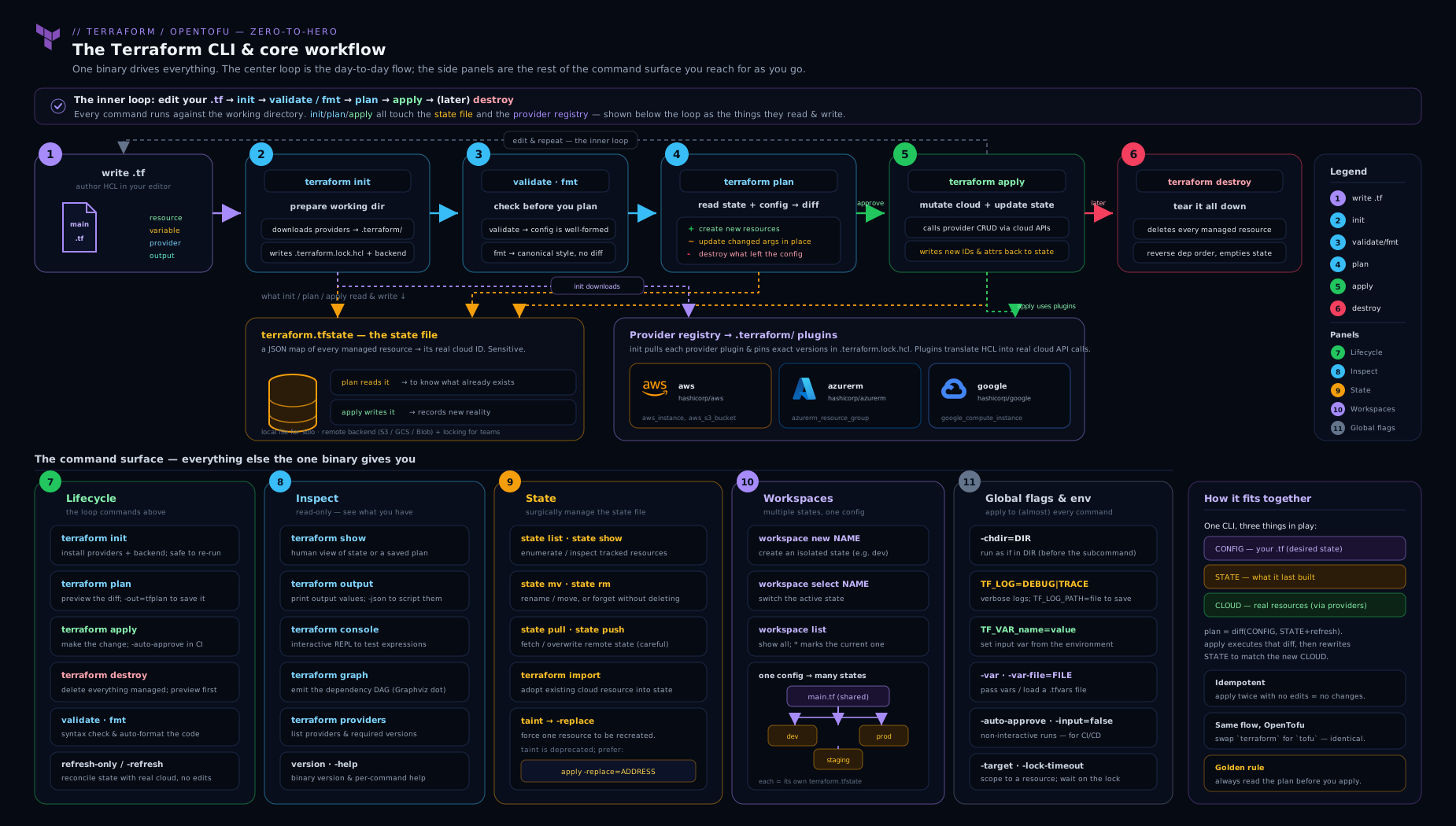
Keep this picture in mind: every subcommand is just a different path through these same boxes — config, lock file, .terraform/, state/backend, and the provider APIs.
Hands-on lab
This lab uses only local providers — no cloud account, no credentials, no cost — so you can exercise the entire CLI surface safely. You’ll install (or confirm) the CLI, scaffold a tiny configuration, and run init, fmt, validate, plan, apply, show, output, state, console, a forced replace, workspaces and destroy.
Step 0 — Confirm the CLI is installed.
terraform version # or: tofu version
If it’s missing, install it via the table above (e.g. brew install hashicorp/tap/terraform).
Step 1 — Create a working directory and a minimal config. We use the random and local providers — both run entirely on your machine.
mkdir tf-cli-lab && cd tf-cli-lab
cat > main.tf <<'EOF'
terraform {
  required_version = ">= 1.5"
  required_providers {
    random = { source = "hashicorp/random", version = "~> 3.6" }
    local  = { source = "hashicorp/local",  version = "~> 2.5" }
  }
}

variable "name" {
  type    = string
  default = "lab"
}

resource "random_pet" "this" {
  length = 2
}

resource "local_file" "greeting" {
  filename = "${path.module}/hello.txt"
  content  = "Hello from ${var.name} — id ${random_pet.this.id}\n"
}

output "pet_name" { value = random_pet.this.id }
output "file_path" { value = local_file.greeting.filename }
EOF
Step 2 — Initialise. Watch it download the two providers and write the lock file.
terraform init
ls -a            # note: .terraform/  .terraform.lock.hcl  main.tf
cat .terraform.lock.hcl   # see the pinned versions + hashes
Expected: “Terraform has been successfully initialized!” and a .terraform/ directory plus a .terraform.lock.hcl containing both providers.
Step 3 — Format and validate (no cloud, no state changes).
terraform fmt -diff      # tidies main.tf, shows the diff
terraform validate       # "Success! The configuration is valid."
Step 4 — Plan, saving the plan to a file.
terraform plan -out=tfplan
Expected: a plan showing 2 to add, 0 to change, 0 to destroy (the random_pet and the local_file).
Step 5 — Apply exactly the saved plan (no re-prompt).
terraform apply tfplan
cat hello.txt            # the file your config created
Expected: “Apply complete! Resources: 2 added” and a hello.txt containing a random pet name.
Step 6 — Inspect state and outputs.
terraform show           # full human-readable state
terraform state list     # random_pet.this  local_file.greeting
terraform output                       # all outputs
terraform output -raw pet_name         # just the pet id, unquoted
Step 7 — Use the console to evaluate expressions.
echo 'upper(random_pet.this.id)' | terraform console
echo 'length(var.name)' | terraform console
Expected: the uppercased pet name, then 3.
Step 8 — Force a replacement (modern, plan-visible).
terraform plan  -replace="random_pet.this"   # shows -/+ replace
terraform apply -replace="random_pet.this" -auto-approve
cat hello.txt                                 # new pet name, file rewritten
Step 9 — Try a workspace.
terraform workspace new sandbox     # fresh, empty state
terraform workspace list            # default  * sandbox
terraform apply -auto-approve       # creates a SECOND, separate set in 'sandbox' state
terraform workspace select default  # back to the original state
Step 10 — Validation checklist. You have: installed/verified the CLI, initialised a directory (seen .terraform/ + lock file), formatted and validated, produced and applied a saved plan, inspected state and outputs, evaluated expressions in the console, forced a replacement with -replace, and created a second workspace with its own state.
Cleanup. Destroy each workspace’s resources, then remove the directory.
terraform workspace select sandbox
terraform destroy -auto-approve
terraform workspace select default
terraform destroy -auto-approve
terraform workspace delete sandbox
cd .. && rm -rf tf-cli-lab
Cost note. Zero. The random and local providers create nothing in any cloud — everything happens on your machine, so there are no charges to worry about and nothing to leak.
Going deeper
The reference above is the what. This section is the mechanics underneath it — the parts that separate someone who types Terraform commands from someone who can automate, debug and migrate them.
Where a flag goes: global versus subcommand
This trips up almost everyone once. Terraform has two classes of option and they sit in different positions on the command line:
terraform -chdir=envs/prod plan -out=tfplan
#         └─ global ─┘          └─ subcommand flag ─┘
Global flags come before the subcommand; per-command flags come after it. -chdir, -help and -version are the global ones — everything else in this lesson belongs to a specific subcommand. Writing terraform plan -chdir=envs/prod fails with an unknown-flag error, because by that point Terraform is parsing options on behalf of plan, which has never heard of -chdir. The mental model: the leading slot configures the program, the trailing slot configures the operation.
-chdir deserves more credit than it usually gets. It makes Terraform behave as though it had been started inside DIR, so relative paths, .terraform/, state and the lock file all resolve there — without you actually changing directory. That matters in scripts and CI, where a stray cd is easy to get wrong and easy to forget to undo:
# One runner, three environments, no cd, no subshells:
for env in dev staging prod; do
  terraform -chdir="envs/$env" init -input=false
  terraform -chdir="envs/$env" plan -input=false -out="$env.tfplan"
done
Exit codes: how a script finds out what happened
Every Terraform command returns an exit code, and automation lives or dies on reading it correctly. The default contract is the ordinary Unix one, with one important opt-in exception on plan:
| Command / flag | Code | Meaning |
|---|---|---|
| Any command (default) | 0 |
Success |
| Any command (default) | non-zero | Error — the run failed |
plan -detailed-exitcode |
0 |
Succeeded, no changes — config and reality already agree |
plan -detailed-exitcode |
1 |
Error |
plan -detailed-exitcode |
2 |
Succeeded, changes pending (a non-empty diff) |
fmt -check |
non-zero | At least one file is not canonically formatted |
validate |
non-zero | The configuration is invalid |
The subtlety worth internalising: plain terraform plan exits 0 whether or not there are changes. Success means “I computed a plan”, not “there is nothing to do”. So a naive terraform plan && echo "all clear" cheerfully reports all-clear while twenty resources sit queued for replacement. -detailed-exitcode is what turns plan into a genuine drift detector:
#!/usr/bin/env bash
# Scheduled drift check — never applies anything.
terraform plan -detailed-exitcode -input=false -no-color -out=drift.tfplan
case $? in
  0) echo "No drift." ;;
  2) echo "DRIFT DETECTED — review drift.tfplan"; exit 1 ;;
  *) echo "Plan failed."; exit 1 ;;
esac
Capture $? explicitly, as above: under set -e an exit of 2 aborts the script before you get a chance to interpret it as “changes present” rather than “failure”.
terraform version -json: the machine-readable handshake
terraform version is written for humans; -json is what you parse in CI when you need to prove which binary and which providers ran. The shape (representative output):
{
  "terraform_version": "1.9.5",
  "platform": "darwin_arm64",
  "provider_selections": {
    "registry.terraform.io/hashicorp/local": "2.5.1",
    "registry.terraform.io/hashicorp/random": "3.6.2"
  },
  "terraform_outdated": false
}
provider_selections is populated only after init — before that, Terraform has not selected anything yet, and the map is empty. That makes terraform version -json an excellent first step in a pipeline: emit it as a build artefact and every future “which version produced this state?” question answers itself without archaeology.
Pinning, properly: .terraform-version, required_version and tenv
Version pinning is worth restating as a layered discipline, because the two mechanisms do genuinely different jobs and neither is sufficient alone:
| Layer | Mechanism | What it does | What it does not do |
|---|---|---|---|
| Config | required_version = "~> 1.9.0" in a terraform {} block |
Makes Terraform itself refuse to run on a mismatched binary | Install or select anything for you |
| Machine | .terraform-version (tfenv / tofuenv / tenv) |
Selects and installs the right binary automatically when you cd in |
Stop someone without a version manager from running the wrong binary |
required_version catches the mistake but leaves a human to fix it; .terraform-version fixes it silently but only for people who installed the manager. Commit both and CI inherits the same guarantee your laptop has.
Beyond the tfenv / tfswitch pair covered earlier, tenv is the consolidation worth knowing about. Where tfenv handles Terraform and tofuenv handles OpenTofu, tenv is a single Go binary that manages Terraform, OpenTofu, Terragrunt and Atmos together, reads the pin files each ecosystem already uses (.terraform-version, .opentofu-version, .terragrunt-version) and the required_version constraint out of your HCL, and verifies downloads against upstream signatures:
tenv tf install 1.9.5        # a Terraform version
tenv tofu install latest     # an OpenTofu version
tenv tf use 1.9.5            # select it for this project
tenv tf list                 # what is installed locally
If you are starting fresh — especially on a team that runs both terraform and tofu — tenv replaces two or three tools with one, and keeps the same committed pin files working.
terraform versus tofu: how drop-in is drop-in?
Everything in this lesson works under both binaries. That said, “near-drop-in” is not “identical”, and the differences that do exist are exactly the ones that bite during a migration:
| Aspect | Terraform | OpenTofu |
|---|---|---|
| Binary / invocation | terraform |
tofu — same subcommands, same flags |
| Licence | BUSL 1.1 (since 1.6) | MPL 2.0, under the Linux Foundation |
| Default registry | registry.terraform.io |
registry.opentofu.org |
| CLI config file | .terraformrc / terraform.rc |
.tofurc / tofu.rc (the Terraform names are still honoured) |
| State encryption | Rely on the backend to encrypt at rest | Built-in client-side state encryption as a first-class feature |
| Config file extensions | .tf / .tf.json |
Also reads .tofu / .tofu.json, which Terraform ignores — a clean way to keep tool-specific config side by side |
| Environment variables | TF_* |
TF_* works; TOFU_* aliases exist for several |
Two practical rules follow. First, pick one binary per project and stay on it — alternating terraform apply and tofu apply against the same state invites a lock-file and provider-source argument you did not need to have. Second, when migrating an existing stack, the provider source strings recorded in state may need rewriting with terraform state replace-provider (see the state commands above), and the lock file will be regenerated against the new registry — plan that as a deliberate commit, not a surprise mid-sprint.
The environment variables that earn their keep
Three of the variables tabulated earlier are the ones actually worth setting on a real machine, because each removes a specific recurring pain.
TF_PLUGIN_CACHE_DIR — stop re-downloading the same provider. By default every working directory downloads its own copy of every provider. Ten repos using the AWS provider means ten copies of a several-hundred-megabyte binary. Point them all at one cache:
# ~/.zshrc or ~/.bashrc
export TF_PLUGIN_CACHE_DIR="$HOME/.terraform.d/plugin-cache"
mkdir -p "$TF_PLUGIN_CACHE_DIR"
init then reuses the cached copy instead of hitting the network. On CI, persist that path between jobs and init times collapse. Note the cache does not weaken the lock file — hashes are still verified on use.
TF_DATA_DIR — put .terraform/ somewhere else. Useful when the working directory is read-only, when a container image mounts the code but wants scratch space elsewhere, or when a CI runner caches one path and not another:
TF_DATA_DIR=/var/cache/tf/$CI_JOB_NAME terraform init -input=false
Whatever you set it to must stay consistent across init, plan and apply within the same run — change it midway and the second command cannot find what the first downloaded.
TF_CLI_ARGS / TF_CLI_ARGS_<command> — defaults you would otherwise forget. These inject arguments into every invocation, which is how you make a runner globally non-interactive and log-friendly without editing every script line:
export TF_CLI_ARGS="-no-color"
export TF_CLI_ARGS_plan="-input=false -lock-timeout=120s"
export TF_CLI_ARGS_apply="-input=false -lock-timeout=120s"
Use them freely in automation and cautiously on a laptop: a forgotten TF_CLI_ARGS_apply="-auto-approve" sitting in your shell profile is a genuinely dangerous invisible default, because nothing on the command line reveals it.
Debugging with TF_LOG, in practice
When Terraform does something inexplicable — a provider hangs, an API call fails with an unhelpful message, an attribute is null that should not be — logging is the tool. The workflow is two commands deep:
# 1. Capture everything to a file rather than flooding the terminal.
TF_LOG=DEBUG TF_LOG_PATH=./tf-debug.log terraform plan

# 2. Is it Terraform's fault or the provider's? Split the levels.
TF_LOG_CORE=INFO TF_LOG_PROVIDER=TRACE TF_LOG_PATH=./provider.log terraform plan
That second command is the high-value move and the one most people never learn. TF_LOG_CORE covers graph construction, state handling and expression evaluation; TF_LOG_PROVIDER covers the plugin actually making HTTP calls to the cloud. If the interesting noise is all in the provider stream — request and response bodies, retries, 4xx codes — the problem is the API, the permissions or your credentials, not your HCL. If core is where things go sideways, look at dependencies, for_each keys and type mismatches instead.
Order the levels by cost: INFO first, DEBUG when that is not enough, TRACE only when you are genuinely stuck — trace output is enormous and slows the run appreciably. And the warning from the security notes matters most precisely here: debug and trace logs contain request bodies, and request bodies contain secrets. Write them to a path you control, read them, then delete them. Never attach a raw trace log to a public issue or a shared CI artefact.
Autocomplete and the small comforts
Two one-time setup steps repay themselves within a day. terraform -install-autocomplete writes a completion hook into your shell profile so subcommands and flags tab-complete thereafter — worth it for -replace="…" addresses alone, which are long, exact and typo-prone. Reload your shell afterwards for it to take effect; terraform -uninstall-autocomplete reverses it cleanly. If you also use OpenTofu, run the equivalent for the tofu binary — the two completions coexist without conflict, and having both means you never have to remember which project you are standing in.
Practice challenges
Six exercises, easiest first. Each is self-contained and costs nothing — the ones needing a configuration reuse the random/local setup from the lab. Try each before opening the solution; the why underneath the answer is the part that sticks.
1 · Beginner — Pin a project to an exact version. In a repo directory, make the project declare which Terraform version it expects twice: once so the tool refuses to run on the wrong binary, and once so a version manager selects the right binary automatically. Then prove it worked.
<details> <summary>Solution</summary>
echo "1.9.5" > .terraform-version    # machine layer — tfenv/tenv reads this
terraform version                    # should now report v1.9.5
terraform {
  required_version = "~> 1.9.0"      # config layer — Terraform enforces this
}
Why: the two layers do different jobs. .terraform-version selects the binary, but only for people who installed a version manager; required_version rejects a wrong binary for everyone, but without fixing it. Commit both and version skew between laptops and CI stops being a category of bug.
</details>
2 · Beginner — Sort what init creates into “commit” and “ignore”. Run terraform init in the lab directory, list everything new that appeared, and decide which items belong in Git and which in .gitignore — with a one-line reason for each.
<details> <summary>Solution</summary>
terraform init
ls -a          # .terraform/  .terraform.lock.hcl  main.tf
| Item | Git? | Reason |
|---|---|---|
.terraform.lock.hcl |
Commit | Pins exact provider versions + hashes — this is your reproducible build |
.terraform/ |
Ignore | Machine- and platform-specific cache; init regenerates it any time |
*.tfstate |
Ignore | Holds secrets in plaintext; belongs in a remote backend |
Why: beginners reliably get this backwards, reasoning that the big downloaded directory must be the important one. The opposite is true — the cache is disposable and the small text file is what makes the build reproducible. </details>
3 · Intermediate — Run Terraform against another directory without cd. From your repo root, produce a saved plan for the configuration in envs/prod/ without changing directory and without a subshell. Then explain why moving the flag one word to the right breaks it.
<details> <summary>Solution</summary>
terraform -chdir=envs/prod plan -out=prod.tfplan
terraform plan -chdir=envs/prod fails with an unknown-flag error.
Why: -chdir is a global flag — it configures the program before a subcommand is chosen, so it must appear before the subcommand. Once Terraform has read the word plan, it hands the remaining options to the plan command, which has no -chdir. Leading slot configures the program; trailing slot configures the operation.
</details>
4 · Intermediate — Get one output into a shell variable, two ways. Using the lab config, capture the pet_name output into a bash variable as a bare string. Then do the same via JSON, and say when you would prefer each.
<details> <summary>Solution</summary>
PET=$(terraform output -raw pet_name)                       # bare string
PET=$(terraform output -json | jq -r '.pet_name.value')     # via JSON
echo "$PET"
Why: -raw strips quotes and formatting, so it is the right tool for a single, string-convertible value being handed to another command. -json preserves types and structure, so it is right for lists, maps, objects, or when a script needs several outputs in one call. The mistake is plain terraform output pet_name in a variable — that keeps the surrounding quotes and silently poisons whatever consumes it.
</details>
5 · Advanced — Write a drift check that actually fails on drift. Write a script that plans without applying and exits non-zero only when changes are pending. Explain why the obvious version of this script is silently broken.
<details> <summary>Solution</summary>
#!/usr/bin/env bash
terraform plan -detailed-exitcode -input=false -no-color -out=drift.tfplan
case $? in
  0) echo "No drift." ;;
  2) echo "DRIFT DETECTED"; exit 1 ;;
  *) echo "Plan failed."; exit 1 ;;
esac
Why: plain terraform plan exits 0 whether or not changes are pending — “success” means it computed a plan, not that there is nothing to do. So terraform plan && echo "clean" reports clean while twenty resources are queued to change. -detailed-exitcode adds the third code (2 = changes pending) that makes the distinction visible. Capture $? explicitly: under set -e, an exit of 2 would otherwise abort the script before you can interpret it.
</details>
6 · Advanced — Make one committed lock file serve a Mac laptop and a Linux CI runner. Your teammates are on Apple Silicon, CI runs on Linux x86-64, and CI’s init fails complaining about the dependency lock file. Fix it at the source, and explain the failure.
<details> <summary>Solution</summary>
terraform providers lock \
  -platform=darwin_arm64 \
  -platform=linux_amd64
git add .terraform.lock.hcl && git commit -m "lock: add linux_amd64 hashes"
Why: the hashes in .terraform.lock.hcl are per-platform checksums of the actual provider binaries. Running init on a Mac records only darwin_arm64 hashes, so a Linux runner finds no hash it can verify and refuses to proceed — correctly, since skipping verification would defeat the supply-chain protection the lock file exists to provide. terraform providers lock -platform=… pre-computes hashes for every platform you name, so one committed file satisfies the whole team. Reaching for init -upgrade on CI “fixes” the symptom while quietly changing provider versions — do this instead.
</details>
Common beginner mistakes
These are not error messages — they are wrong mental models. Each one produces confident, incorrect behaviour, which costs far more than a crash does.
“terraform plan might change something, so I will be careful with it.” Plan is read-only. It queries your cloud’s APIs to read current state and prints a diff; it never creates, modifies or deletes. The right model: plan is the preview button and apply is the commit button, and they are separate switches precisely so that previewing is free and safe. Run plan as often as you like — the caution belongs on apply.
“I will commit .terraform/ so CI does not have to download providers again.” That cache is machine- and platform-specific, so committing it produces a bloated repo full of binaries that are wrong for half your team. The right model: commit the small file (.terraform.lock.hcl, which guarantees reproducibility) and ignore the large directory (which init regenerates on demand). If the real goal was speed, the actual answer is TF_PLUGIN_CACHE_DIR plus a persisted CI cache path.
“terraform.tfstate is just metadata, it is fine in Git.” State routinely contains database passwords, private keys and connection strings in plaintext, because providers record every attribute they manage. Committing it publishes those secrets to everyone with repo access, and to every clone, forever. The right model: state is a credential-bearing artefact — remote backend, encryption at rest, access control, and *.tfstate in .gitignore.
“-target is how you apply just the bit you changed.” It is an escape hatch for recovery, not a workflow. Targeting applies a subset while skipping parts of the dependency graph around it, so state and reality drift apart in ways the next full plan has to reconcile — and Terraform prints a warning saying exactly that. The right model: if plans are so slow or so broad that you want -target routinely, the configuration is too large and wants splitting into smaller root modules.
“Workspaces are how you separate dev, staging and prod.” CLI workspaces share one configuration, one backend and one set of provider settings, so every environment difference has to be squeezed through terraform.workspace conditionals — and one mistyped workspace select applies to prod. The right model: workspaces are for ephemeral, near-identical copies (PR previews, personal sandboxes); durable environments get separate directories. HCP Terraform “workspaces” are a different concept entirely, so do not reason about one from the other.
“-auto-approve just saves me typing yes.” It removes the last human checkpoint between a computed diff and an irreversible change. The right model: the safe way to skip the prompt is to move the review earlier — plan -out=tfplan, review that artefact, then apply tfplan, which does not prompt because you already approved exactly those changes. -auto-approve on a freshly-computed plan means nobody ever saw it.
“Terraform reads my whole project.” It reads the .tf files in one directory — not subdirectories, not the repo. A file under modules/ is involved only if something in the current directory calls it as a module. The right model: the working directory is the unit of operation, which is why “which directory am I in?” is always the first debugging question, and why -chdir exists at all.
Common mistakes & troubleshooting
| Symptom | Likely cause | Fix |
|---|---|---|
Error: Inconsistent dependency lock file / missing provider hash |
Lock file was generated on a different OS/arch than the runner (e.g. Mac → Linux CI) | terraform providers lock -platform=linux_amd64 -platform=darwin_arm64 <provider> and commit, or terraform init -upgrade |
Error acquiring the state lock that never clears |
A previous apply crashed and left the lock held |
Confirm nothing is running, then terraform force-unlock <LOCK_ID> (ID is in the error) |
| Providers re-download on every CI run (slow) | No shared plugin cache | Set TF_PLUGIN_CACHE_DIR to a persisted directory |
terraform plan shows changes you didn’t make |
Drift — something changed the resource outside Terraform | terraform plan -refresh-only to see it; reconcile config or apply -refresh-only |
| Ran the wrong environment | Wrong workspace selected, or wrong directory | terraform workspace show / check your path before applying; prefer separate dirs for prod |
state mv/rm then plan wants to recreate everything |
Moved/removed the wrong address, or address typo | Restore from terraform state pull backup; use exact addresses from state list |
Error: Backend initialization required |
Backend config changed since last init |
Re-run terraform init (add -reconfigure or -migrate-state as appropriate) |
terraform: command not found after install |
Binary not on PATH, or shell not reloaded |
Add the install dir to PATH; open a new shell; which terraform to confirm |
| Version error: “state was created by a newer version” | An older CLI is operating on state written by a newer one | Install the matching/newer version (use tfenv); honour required_version |
Best practices
- Pin the CLI version with
required_versionin config and a.terraform-version(tfenv) in the repo, so everyone — and CI — runs the same binary. - Always commit
.terraform.lock.hcland always git-ignore.terraform/and*.tfstate. - Plan to a file, review, then apply that file:
terraform plan -out=tfplan→ review →terraform apply tfplan. It’s the only way to guarantee what you reviewed is what runs. - Gate CI with
fmt -check -recursiveandvalidatebefore any plan — they’re fast and need no credentials. - Use
-replaceinstead oftaint/untaintso replacements are visible in the plan. - Prefer
moved/importblocks in config over imperativestate mv/terraform importwhen you can — they’re reviewable and reproducible. - Reserve
-targetfor recovery, not routine work — it produces partial state and hides drift. - Set a shared
TF_PLUGIN_CACHE_DIRto stop re-downloading providers across projects. - Use separate directories for durable environments (prod/staging) and CLI workspaces only for ephemeral, identical copies.
Security notes
- State is sensitive — treat the CLI’s state commands as privileged.
terraform state pull,showand the local*.tfstatecan contain secrets (passwords, keys) in plaintext. Never commit state; use a remote backend with encryption and access control. force-unlockis a footgun if misused — releasing a live lock lets two writers corrupt state. Only force-unlock when certain no apply is running.-auto-approveremoves your last human checkpoint — use it only against a reviewed saved plan, never as a habit for interactive applies.-var/command-line secrets leak into shell history and process listings. PreferTF_VAR_*environment variables or*.auto.tfvarsfiles excluded from Git, and mark variablessensitive.TF_LOG=TRACE/DEBUGlogs can contain request bodies with secrets. Don’t paste raw debug logs into tickets, and write them toTF_LOG_PATHyou control, not shared CI artefacts.- Verify provider integrity — the lock file’s hashes are a supply-chain control; don’t
-upgradeblindly, and considerterraform providers mirrorfor an audited internal source. terraform loginstores a real API token in the CLI credentials file — protect it like any credential andlogouton shared machines.
Interview & exam questions
1. What does terraform init do, and does it change any infrastructure? It prepares the working directory: downloads providers and modules into .terraform/, configures the backend, and writes/verifies .terraform.lock.hcl. It does not touch infrastructure or state contents — it’s safe to run anytime, and you must run it after cloning or after adding a provider/module/backend change.
2. Explain the difference between terraform plan and terraform apply. plan reads config, refreshes state against live APIs, and shows the diff — it changes nothing. apply executes that diff: it creates/updates/destroys resources via the APIs and writes the new state. The deliberate separation lets you review before acting; you can plan -out=file then apply file to run exactly what you reviewed.
3. How do you force one resource to be recreated, and why is taint discouraged? Use terraform apply -replace="ADDRESS". It’s preferred over the deprecated terraform taint because the replacement appears in the plan output before you apply, rather than mutating state out of band where it’s easy to forget.
4. -reconfigure vs -migrate-state on init — what’s the difference? Both reinitialise the backend. -migrate-state copies your existing state to the newly-configured backend (use when relocating state you want to keep). -reconfigure ignores saved backend state and does not migrate — use when intentionally pointing at a different/empty backend.
5. What is .terraform.lock.hcl, and do you commit it? It’s the dependency lock file, pinning the exact provider versions and cryptographic hashes init selected. Yes, commit it — it makes builds reproducible and protects against tampered/corrupt provider downloads. Update it deliberately with terraform init -upgrade.
6. What’s in the .terraform/ directory and should it be in Git? It’s a local cache: downloaded provider plugins, fetched modules, and backend metadata. No — git-ignore it. It’s machine-specific and fully regenerated by terraform init.
7. When would you use terraform state mv and terraform state rm? state mv renames/moves an item in state (e.g. after refactoring a resource’s address or moving it into a module) so Terraform tracks it under the new address without destroy/recreate. state rm makes Terraform forget a resource (the real object keeps running) — to hand it to another config or before re-importing. Prefer moved/import config blocks where possible.
8. How do you read an output value into a shell script? terraform output -raw NAME prints a single value with no quotes/formatting, e.g. EP=$(terraform output -raw db_endpoint). For structured data use terraform output -json and parse it.
9. A teammate’s apply crashed and now everyone gets “Error acquiring the state lock”. What do you do? Confirm no apply is actually running anywhere, then terraform force-unlock <LOCK_ID> using the ID from the error message. Be careful — force-unlocking a genuinely active lock can corrupt state.
10. CLI workspaces vs separate directories — when do you choose each? CLI workspaces give multiple separate states behind one config — good for ephemeral, near-identical copies (PR previews, dev sandboxes). Separate directories give full isolation (independent backends, providers, versions) and you can’t accidentally apply to prod — preferred for durable, differing environments like prod/staging.
11. How do you make a plan/apply non-interactive and safe in CI? Produce a saved plan (plan -out=tfplan -input=false), review it (often via a terraform show -json policy check), then apply tfplan (no re-prompt). Use -input=false to prevent hangs, -no-color for clean logs, and apply the saved plan rather than -auto-approve on a fresh plan.
12. How do you pin a Terraform version per project across a team? Declare required_version in a terraform {} block (Terraform errors on a mismatch) and commit a .terraform-version file read by tfenv so each machine auto-selects the right binary. This eliminates version-skew between laptops and CI.
13. What does terraform providers lock -platform=... solve? Provider hashes in the lock file are platform-specific. If you lock on macOS but CI runs Linux, init fails on a missing hash. terraform providers lock adds hashes for all the platforms you name, so one committed lock file works for the whole team.
14. Name three things TF_LOG and friends do. TF_LOG sets internal log verbosity (TRACE/DEBUG/INFO/WARN/ERROR) — the first debugging move; TF_LOG_PATH writes those logs to a file; TF_LOG_CORE/TF_LOG_PROVIDER split the level between Terraform’s core and the provider plugins to isolate the source of a problem.
Quick check
- You’ve just cloned a Terraform repo. Which command must you run first, and why — and does it change any cloud resources?
- You need to read one output as a plain unquoted string into a bash variable. Which command and flag?
- True or false: you should commit
.terraform/to Git but ignore.terraform.lock.hcl. - A resource must be recreated even though the config hasn’t changed. What’s the modern, plan-visible way to do it, and which older command does it replace?
- You want one set of
.tffiles but a separate, throwaway state for a per-PR preview environment. CLI workspace or separate directory — and what’s the safety risk of the option you didn’t choose?
Answers
terraform init. It downloads providers/modules, configures the backend, and writes/checks the lock file. It does not change cloud resources — it only prepares the working directory.terraform output -raw NAME(e.g.EP=$(terraform output -raw db_endpoint)). The-rawflag strips quotes/formatting for a single string-convertible value.- False — it’s the reverse. Commit
.terraform.lock.hcl(reproducibility + integrity) and git-ignore.terraform/(a regenerable local cache). - Use
terraform apply -replace="ADDRESS"(preview withterraform plan -replace=...). It replaces the deprecatedterraform taint, and is better because the replacement shows up in the plan before you apply. - CLI workspace — ideal for ephemeral, near-identical copies. The option you didn’t choose (separate directories) is safer against applying to prod by accident; the workspace risk is exactly that — one wrong
terraform workspace selectand you apply to the wrong state, so always checkterraform workspace show.
Exercise
In a fresh directory, write a config using the random and local providers (as in the lab). Then, without applying anything to a cloud: (a) pin the project with a .terraform-version file and a required_version constraint, and confirm terraform version matches; (b) run terraform init and open .terraform.lock.hcl — identify the version, constraints and hashes fields for each provider; © produce a saved plan with terraform plan -out=tfplan, inspect it with terraform show -json tfplan | head, then apply it with terraform apply tfplan; (d) rename one resource in your .tf and use terraform state mv so plan shows no changes afterwards; (e) create a staging workspace, apply into it, and prove with terraform state list that it has its own separate state from default; (f) clean up by destroying both workspaces and deleting the directory. Bonus: add terraform providers lock -platform=linux_amd64 -platform=darwin_arm64 and observe the lock file gain hashes for both platforms.
Certification mapping
- HashiCorp Certified: Terraform Associate (003) — this lesson maps directly to several exam objectives:
- Understand Terraform basics / use the CLI: install Terraform, the
init/plan/apply/destroyworkflow,fmt,validate,version. - Read, generate, and modify configuration:
console,output(-raw/-json),-var/-var-file. - Use Terraform outside the core workflow:
statesubcommands (list/show/mv/rm/pull/push),import,taintvs-replace,force-unlock. - Manage state: the state file, backends, locking,
-refresh-only, and the role of the lock file. - Navigate Terraform workflow: the dependency lock file (
.terraform.lock.hcl),.terraform/, provider installation, and CLI workspaces.
- Understand Terraform basics / use the CLI: install Terraform, the
- The same command fluency underpins OpenTofu’s equivalent objectives — the CLI surface is shared, so practising one prepares you for the other.
Glossary
- CLI — the
terraform(ortofu) command-line program through which you run everything. - Working directory — the directory Terraform operates on; all its
.tffiles form one configuration with one state behind it. - Configuration — your
.tf/.tf.jsonfiles describing desired infrastructure. - State — Terraform’s private record of what it has created, in
terraform.tfstateor a remote backend. - Backend — where state is stored and locked (local file, S3+DynamoDB, Azure blob, GCS, HCP Terraform, …).
- Provider — a downloadable plugin that knows how to call one API (AWS, Azure, random, local, …).
- Resource address — the unique name of a tracked object, e.g.
aws_instance.webormodule.net.aws_subnet.private[0]. - Plan — the computed difference between desired config and actual state; can be saved with
-out. - Apply — executing a plan to change real infrastructure and write new state.
init— prepare the directory: providers, modules, backend, lock file..terraform/— the local cache of providers/modules and backend metadata; git-ignored..terraform.lock.hcl— the dependency lock file pinning provider versions + hashes; committed.- State lock — a mutual-exclusion lock taken during writes so two applies can’t corrupt state.
force-unlock— manually release a stuck state lock (by lock ID).-replace— flag forcing destroy-and-recreate of a resource (modern replacement fortaint).taint/untaint— deprecated commands that flag/unflag a resource for recreation.import— bring an existing real resource under Terraform management by writing it into state.-refresh-only— plan/apply that only reconciles state with reality (detects/records drift).- CLI workspace — a named, separate state instance behind the same configuration (
terraform.workspace). - Version manager —
tfenv/tfswitch/tofuenv/tenv: install and select Terraform/OpenTofu versions per project. - OpenTofu — the MPL-licensed open fork of Terraform; same HCL/CLI, invoked as
tofu. - Global flag — an option that applies to any command (e.g.
-chdir,-no-color). TF_VAR_*/TF_LOG/TF_CLI_ARGS— environment variables that set variables, logging, and default arguments.- Drift — a difference between what state records and what actually exists, caused by a change made outside Terraform.
- Saved plan — a plan written to a file with
plan -out=FILEand later executed verbatim byapply FILE; the only way to guarantee that what you reviewed is what runs. - Exit code — the number a command returns to the shell:
0is success, non-zero an error. Scripts read it via$?. -detailed-exitcode— aplanflag adding a third code —0no changes,1error,2changes pending — which is what turnsplaninto a real drift detector.-chdir— the global flag that runs Terraform as if it had started in another directory, withoutcd.- Global flag position — global flags (
-chdir,-help,-version) go before the subcommand; every other flag goes after it. required_version— aterraform {}setting that makes Terraform refuse to run on a mismatched CLI version..terraform-version— a committed file naming the exact version, read bytfenv/tenvto select the binary automatically.tenv— a single version manager covering Terraform, OpenTofu, Terragrunt and Atmos, with signature verification on download.- Provider plugin cache — the shared directory named by
TF_PLUGIN_CACHE_DIR, where providers are reused across projects instead of re-downloaded per directory. TF_DATA_DIR— the environment variable that relocates the.terraform/working directory.TF_LOG_CORE/TF_LOG_PROVIDER— split log levels for Terraform’s own engine versus the provider plugin, used to work out which side a bug lives on.- Partial backend configuration — supplying backend settings at
inittime via-backend-configinstead of hard-coding them, keeping secrets and per-environment values out of code. - Platform hashes — the per-OS/arch checksums in the lock file;
terraform providers lock -platform=…adds more so one lock file serves the whole team. - HCP Terraform (formerly Terraform Cloud) — HashiCorp’s hosted service, whose “workspaces” are managed roots with their own variables and runs — not the same thing as CLI workspaces.
- Autocomplete — shell tab-completion for subcommands and flags, installed once with
terraform -install-autocomplete. - State encryption — OpenTofu’s built-in client-side encryption of state, distinct from relying on the backend to encrypt at rest.
Next steps
You can now install the CLI, pin its version, drive the full lifecycle, and reach for the right subcommand and flag in the moments that matter. The natural next move is to go deep on the language those commands operate on — the syntax of every block, expression and type in HCL: