When something goes wrong in AWS at three in the morning, three questions decide how quickly you recover. What is broken right now? — a metric is in alarm, a queue is backing up, latency has tripled. Who changed something? — somebody, or some automation, touched a resource and the timeline matters. When did the configuration drift away from what it should be? — a security group opened, an S3 bucket lost its encryption, an IAM policy widened. AWS answers those three questions with three different services, and the single most useful mental model in all of AWS observability is to keep them straight: CloudWatch tells you what is happening, CloudTrail tells you who did what, and AWS Config tells you what the configuration is and how it changed over time. Tie them together with EventBridge, which turns any of those signals into automated action, and you have a complete observability and governance loop.
This lesson is deliberately exhaustive. Observability is one of the most heavily examined and most operationally important areas of AWS, and it is also where engineers most often have a fuzzy, incomplete picture — they know CloudWatch shows graphs and CloudTrail shows API calls, but cannot explain a composite alarm, a metric filter, a Config conformance pack, or why CloudWatch Events and EventBridge are the same thing under two names. We go through each service with the same treatment used across this course: what it is · the choices · the default · when to use it · the trade-off · the limits · the cost impact · the gotcha. Every core operation comes with a real aws CLI command so you can reproduce it by hand.
By the end you will be able to instrument a workload with metrics, alarms, logs and dashboards; query logs at scale with Logs Insights; record an audit trail of every API call with CloudTrail; track and enforce configuration with AWS Config; wire it all into automated remediation with EventBridge; and add distributed tracing with X-Ray. Enough to ace an SOA-C02 or SAA-C03 question, hold your own in an interview, and run a production account you can actually see into.
Learning objectives
By the end of this lesson you can:
- Explain the who / what / when triad and map each question to CloudWatch, CloudTrail and AWS Config.
- Describe CloudWatch metrics end to end — namespaces, dimensions, statistics, standard vs high resolution, custom metrics, and the unified CloudWatch agent.
- Configure CloudWatch alarms — the three states, period/evaluation/datapoints-to-alarm, missing-data treatment, composite alarms, and alarm actions.
- Work with CloudWatch Logs — log groups and streams, retention, metric filters, subscription filters, and querying with Logs Insights.
- Build CloudWatch dashboards and explain widgets, cross-account/cross-Region views.
- Set up CloudTrail correctly — management vs data vs Insights events, multi-Region organisation trails, log-file validation, and the always-on Event history.
- Use AWS Config to record configuration history, evaluate rules, and deploy conformance packs for compliance.
- Use EventBridge rules and buses to automate responses to events, and explain how it relates to “CloudWatch Events”.
- Add basic distributed tracing with AWS X-Ray and know when to reach for it.
Prerequisites & where this fits
You should already be comfortable with the AWS basics — the Management Console and the aws CLI with a configured profile (covered in AWS Hands-On First Steps), Regions and IAM roles/policies, and at least one service you can generate signal from (an EC2 instance, a Lambda function, or an S3 bucket). No prior monitoring experience is assumed; every term is defined. This is the Observability lesson of the AWS Zero-to-Hero course’s Foundation/Intermediate track, and it is the anchor the operational lessons build on: troubleshooting playbooks, frontend SLO monitoring, and structured logging pipelines all reference the metrics, alarms, logs and trails introduced here.
Core concepts
Before any console blade, fix five mental models. They explain why these services are shaped the way they are.
Observability is signal plus the ability to ask new questions. Monitoring answers questions you decided to ask in advance (an alarm you pre-wired). Observability is being able to ask questions you did not anticipate — slicing logs by a field you did not pre-aggregate, correlating a latency spike with a deploy, tracing one slow request across five services. CloudWatch metrics and alarms are the monitoring half; Logs Insights, CloudTrail and X-Ray are what give you the observability half.
The three pillars: metrics, logs, traces. A metric is a number over time (CPU %, request count, queue depth) — cheap to store, fast to alarm on, but aggregated, so it tells you that something is wrong, not why. A log is a timestamped record of an event (a line of text or JSON) — rich and detailed, the why, but expensive at volume and slower to query. A trace follows a single request as it hops between services, showing where the time went. CloudWatch covers metrics and logs; X-Ray covers traces; all three live under the CloudWatch umbrella in the console today.
The who / what / when triad. Keep these three audit-and-observe questions separate because three different services answer them:
| Question | Service | What it records |
|---|---|---|
| What is happening / happened? | CloudWatch | Metrics, alarms, logs, dashboards — operational health |
| Who did what, and when? | CloudTrail | Every API call: identity, action, source IP, parameters, result |
| What is the config and how did it change? | AWS Config | Resource configuration snapshots + a timeline of changes + compliance |
An interviewer’s favourite trap is “I need to know who deleted this security group” (CloudTrail, not CloudWatch) versus “I need to know what my security group looked like last Tuesday and what changed” (AWS Config, not CloudTrail). CloudTrail tells you the event; Config tells you the state over time.
Everything is regional, with a few global exceptions. CloudWatch metrics, alarms, log groups, Config recorders and EventBridge buses are per-Region — a metric published in ap-south-1 does not appear in us-east-1. CloudTrail can be multi-Region (one trail captures all Regions) and some global services (IAM, CloudFront, Route 53) log only to us-east-1. This regionality is the single most common cause of “my alarm/dashboard is empty” — you are looking in the wrong Region.
Push vs pull, and the agent. AWS services push their own metrics to CloudWatch automatically (EC2 CPU, ELB request count, Lambda invocations) at no charge for the default set. But CloudWatch cannot see inside an EC2 instance — memory and disk usage are not default metrics because the hypervisor cannot see the guest OS. To get those, and to ship the instance’s log files, you install the CloudWatch agent inside the OS. This push model and the agent gap are exam-classic.
CloudWatch metrics, in depth
A metric is the fundamental CloudWatch concept: a time-ordered set of data points, each a number with a timestamp, identified by a namespace and zero or more dimensions.
Namespaces. What: a container that groups related metrics so names do not collide. AWS service metrics use the AWS/<service> convention (AWS/EC2, AWS/Lambda, AWS/ApplicationELB, AWS/RDS, AWS/SQS). Your custom metrics go in any namespace you choose (e.g. MyApp/Checkout). Gotcha: the AWS/ prefix is reserved — you cannot publish into it.
Dimensions. What: name/value pairs that scope a metric to a specific resource — e.g. the AWS/EC2 CPUUtilization metric carries an InstanceId dimension so each instance has its own line. Choices: up to 30 dimensions per metric; each unique combination of namespace + name + dimensions is a distinct metric (this is what you are billed for as a custom metric). Gotcha: dimensions are part of the metric’s identity — if you publish CPUUtilization with InstanceId=i-abc and also without any dimension, those are two different metrics, and CloudWatch does not auto-aggregate across dimensions for custom metrics.
Statistics. What: how data points in a period are aggregated for display/alarming. Choices: Average, Sum, Minimum, Maximum, SampleCount, and percentiles (p50, p90, p99, or any pNN.NN) and trimmed means. When: use Average for utilisation, Sum for counts (requests, errors), Maximum for “did it ever spike”, and percentiles for latency SLOs (a p99 latency alarm catches the slow tail an average hides). Gotcha: percentiles need raw samples — they do not work on metrics already pre-aggregated as statistic sets unless you publish the full distribution.
Resolution. What: how granular the data points are. Choices: standard resolution = 1-minute granularity (the default for AWS service metrics); high resolution = down to 1-second granularity for custom metrics. When: high resolution for fast-moving signals where a one-minute average smooths over a problem (e.g. a spiky request rate, autoscaling on sub-minute bursts). Cost/trade-off: high-resolution alarms can evaluate at 10-second periods but cost more and high-resolution data points cost more to publish. Gotcha: a high-resolution alarm period below 60 s costs more per alarm.
Retention (automatic, free, and you cannot change it). CloudWatch keeps metric data at decreasing granularity and discards it after 15 months:
| Original period | Retained as | For |
|---|---|---|
| < 60 s (high-res) | 1-second data points | 3 hours |
| 60 s (1 min) | 1-minute data points | 15 days |
| 5 min | 5-minute data points | 63 days |
| 1 hour | 1-hour data points | 15 months |
Gotcha: after 15 months metrics are gone — if you need longer retention for capacity planning or compliance, export to S3 (via metric streams) or store a copy yourself.
Custom metrics. What: numbers your own application or scripts push to CloudWatch with PutMetricData. When: business and in-app signals CloudWatch cannot see — orders per minute, cache hit ratio, queue processing lag, memory usage. Cost: billed per custom metric per month (per unique namespace+name+dimensions combination), plus per-API-request charges; this adds up fast if you publish a metric per user or per request — use dimensions thoughtfully. Gotcha: PutMetricData accepts timestamps up to two weeks in the past and up to two hours in the future; outside that the point is rejected.
# Publish a custom metric
aws cloudwatch put-metric-data \
  --namespace "MyApp/Checkout" \
  --metric-name OrdersProcessed \
  --unit Count --value 42 \
  --dimensions Environment=prod,Service=cart
Metric math and search expressions. What: compute new time series from existing ones — errors / requests * 100 for an error rate, SUM across instances, anomaly-detection bands. Search expressions (SEARCH('{AWS/EC2,InstanceId} CPUUtilization', 'Average')) match metrics dynamically so a graph or alarm auto-includes new instances. When: fleet-wide dashboards and ratio alarms. Gotcha: you cannot alarm directly on a raw search expression result unless wrapped appropriately; metric-math alarms are supported.
The CloudWatch agent. What: a single binary (amazon-cloudwatch-agent) you install on EC2 or on-premises servers to collect OS-level metrics CloudWatch cannot see (memory, disk space, disk/network I/O, swap, per-process stats) and to ship log files to CloudWatch Logs. Config: a JSON config file (built interactively with amazon-cloudwatch-agent-config-wizard, often stored in SSM Parameter Store) defines which metrics and logs to collect; it can also collect StatsD and collectd custom metrics. Permissions: the instance needs an IAM role with CloudWatchAgentServerPolicy. Gotcha: the old “CloudWatch Logs agent” and per-instance “detailed monitoring” are different things — detailed monitoring just changes EC2 metrics from 5-minute to 1-minute resolution (for a charge); it does not add memory/disk metrics. Only the agent does that.
CloudWatch alarms, in depth
An alarm watches a single metric (or a metric-math expression) and changes state when it breaches a threshold, optionally triggering actions.
The three states. What: OK (within threshold), ALARM (breaching), INSUFFICIENT_DATA (not enough data to decide — e.g. just created, or the metric stopped reporting). Gotcha: INSUFFICIENT_DATA is not failure; how you treat missing data (below) decides whether it becomes ALARM.
Threshold and comparison. What: the value and operator (GreaterThanThreshold, LessThanOrEqualToThreshold, etc.), or an anomaly-detection band instead of a static number. When: static thresholds for known limits (CPU > 80%); anomaly detection for metrics whose “normal” varies by time of day.
Period, evaluation periods, and datapoints to alarm. What: the period is the length of each data point (e.g. 60 s); evaluation periods is how many recent periods are considered; datapoints to alarm is how many of those must breach. Example: period 60 s, evaluation periods 5, datapoints to alarm 3 → “alarm if 3 of the last 5 minutes breach” — the M-out-of-N pattern that suppresses single-spike flapping. Default: datapoints = evaluation periods (all must breach). Gotcha: setting evaluation periods to 1 makes the alarm twitchy; M-out-of-N is the production-grade choice.
Missing data treatment. What: what to do when a period has no data. Choices: missing (default — treat as neither breaching nor OK), notBreaching (treat as OK), breaching (treat as ALARM), ignore (keep the current state). When: breaching for “this thing must always report” (a heartbeat); notBreaching to avoid false alarms on metrics that legitimately go quiet. Gotcha: a stopped EC2 instance stops publishing CPUUtilization, so an alarm on it may sit in INSUFFICIENT_DATA forever unless you set the treatment deliberately.
Alarm actions. What: what happens on state change. Choices: publish to an SNS topic (email/SMS/Lambda/chat), trigger EC2 Auto Scaling policies, perform EC2 actions (stop/terminate/reboot/recover), create OpsItems/incidents in Systems Manager. When: SNS for notification and fan-out; Auto Scaling for elastic capacity; EC2 recover for automatic recovery of an impaired instance onto new hardware. Gotcha: you can set different actions for entering ALARM, OK, and INSUFFICIENT_DATA states — wire an OK action so you get the “all clear” too.
Composite alarms. What: an alarm whose state is a boolean expression over other alarms — ALARM("HighCPU") AND ALARM("HighLatency"), or (A OR B) AND NOT C. When: to reduce alarm noise — page only when several signals agree (a real outage) rather than on every individual flap, and to model dependencies (“don’t page on the app alarm if the database alarm is already firing”). Limit: composite alarms can suppress child notifications via an actions-suppressor. Gotcha: composite alarms cannot perform EC2 or Auto Scaling actions — only notifications/SNS — because they have no single underlying metric.
# Alarm: CPU > 80% for 3 of the last 5 minutes, notify an SNS topic
aws cloudwatch put-metric-alarm \
  --alarm-name ec2-high-cpu \
  --namespace AWS/EC2 --metric-name CPUUtilization \
  --dimensions Name=InstanceId,Value=i-0123456789abcdef0 \
  --statistic Average --period 60 \
  --evaluation-periods 5 --datapoints-to-alarm 3 \
  --threshold 80 --comparison-operator GreaterThanThreshold \
  --treat-missing-data notBreaching \
  --alarm-actions arn:aws:sns:ap-south-1:111122223333:ops-alerts
CloudWatch Logs, in depth
CloudWatch Logs is the managed store for log data — from Lambda, the CloudWatch agent, ECS/EKS, API Gateway, VPC Flow Logs, Route 53, and your own apps.
Log groups and log streams. What: a log group is the top-level container (one per application/component, e.g. /aws/lambda/checkout); a log stream is a sequence of log events from a single source within that group (one stream per Lambda execution environment, per EC2 instance, per container). Gotcha: retention, encryption, metric filters and subscription filters are set on the group, not the stream.
Retention. What: how long events are kept before automatic deletion. Choices: 1 day up to 10 years, or Never expire (the default — and a classic cost trap). When: set a deliberate retention on every group; debug logs 7–30 days, audit logs longer. Gotcha: the default Never expire means logs accumulate and you pay storage forever — always set retention explicitly. New log groups created by some services still default to never-expire.
Encryption. What: log data is encrypted at rest by default; you can associate a KMS key for customer-managed encryption per log group.
Metric filters. What: a pattern that scans incoming log events and increments a CloudWatch metric when it matches — turning unstructured logs into a number you can alarm on. Example: count occurrences of ERROR or "statusCode": 500, or extract a numeric field (latency) from JSON and publish it. When: alarm on “more than N errors per minute” without parsing logs in real time yourself. Gotcha: metric filters only apply to new events after the filter is created — they do not back-fill existing logs; and the metric only emits data points when matches occur (mind missing-data treatment on the alarm). The classic exam example is the CIS-benchmark metric filters on CloudTrail logs that alarm on root-account usage or unauthorised API calls.
Subscription filters. What: stream matching log events in near real time to a destination — Kinesis Data Streams, Firehose (→ S3/OpenSearch/Redshift), or Lambda. When: central log aggregation, real-time processing, or shipping to a SIEM/OpenSearch. Limit: historically one subscription filter per log group; account-level subscription filters and up to two filters per group are now supported. Gotcha: this is the standard path for the structured-logging pipeline pattern — see Structured logging pipeline on AWS for the Firehose-to-OpenSearch build.
Logs Insights. What: an interactive, purpose-built query language to search and analyse log data across log groups without exporting it. Capabilities: fields, filter, parse (extract fields from text), stats (aggregate — count, avg, percentiles), sort, limit, and bin() for time-bucketing; auto-discovers fields in JSON logs. When: ad-hoc investigation — “show me the 20 slowest requests in the last hour”, “count 5xx by path”, “which user-agents hit this endpoint”. Cost: billed by the amount of data scanned per query, so narrow the time range and log groups. Gotcha: it queries, it does not alter; results can be saved and added to dashboards.
# Logs Insights: top 10 slowest requests from a JSON log
fields @timestamp, @message, duration
| filter status = 500
| sort duration desc
| limit 10
# Count errors per 5-minute bucket
filter @message like /ERROR/
| stats count(*) as errors by bin(5m)
Live Tail and other features. What: Live Tail streams matching log events in real time in the console (great during a deploy); log class offers a cheaper Infrequent Access tier for logs you rarely query; export to S3 for long-term archival; Logs anomaly detection flags unusual patterns automatically.
CloudWatch dashboards & alarms-at-a-glance
A dashboard is a customisable page of widgets (line/stacked-area/number/gauge/bar graphs, alarm-status widgets, logs-table widgets, text, and custom widgets backed by Lambda).
- What: visualise metrics, alarm states and Logs Insights results on one screen for an on-call view.
- Cross-account / cross-Region: dashboards (and alarms and Logs Insights) can pull from multiple accounts and Regions when you enable CloudWatch cross-account observability with a monitoring account — essential in multi-account organisations so on-call has one pane of glass.
- Cost: the first 3 dashboards (up to 50 metrics) are free; beyond that there is a small monthly charge per dashboard.
- Gotcha: dashboards are global in the console list but each widget targets a specific Region; mixed-Region dashboards must set the Region per widget. Dashboards are not auto-created — define them as code (the dashboard body is JSON; manage via CloudFormation/CDK/Terraform) so they are version-controlled.
CloudTrail, in depth — the “who did what”
CloudTrail records API activity in your account — who called which AWS API, when, from where, with what parameters, and whether it succeeded. It is your security and audit backbone, completely separate from CloudWatch’s operational metrics.
Event history (always on, free, 90 days). What: CloudTrail automatically keeps a 90-day, searchable history of management events in every Region with no setup and no charge. When: quick “who deleted this / who changed that” investigations. Limit: 90 days only, management events only, viewable/queryable but not delivered anywhere. Gotcha: for anything beyond 90 days, for data events, or for delivery to S3, you must create a trail.
Trails. What: a configuration that delivers events to an S3 bucket (and optionally CloudWatch Logs and EventBridge) for long-term retention and analysis. Choices: single-Region vs multi-Region (multi-Region is the recommended default — one trail captures all current and future Regions); organisation trail (created in the management account, captures every account in the AWS Organization, member accounts cannot disable it). Gotcha: global-service events (IAM, STS, CloudFront, Route 53) are logged via us-east-1 — if your trail is single-Region elsewhere you will miss them; multi-Region trails capture them correctly.
The three event categories:
| Event type | What it captures | Default | Cost note |
|---|---|---|---|
| Management events | Control-plane operations — RunInstances, CreateBucket, AttachRolePolicy, console sign-in, AssumeRole |
Logged by default (first copy of management events to a trail is free) | One free trail copy; additional trails charged per event |
| Data events | High-volume data-plane operations — S3 object GetObject/PutObject, Lambda Invoke, DynamoDB item ops |
Off by default (must opt in, can be very high volume) | Charged per data event delivered |
| Insights events | Detected unusual activity in management or data event volume (e.g. a spike in DeleteBucket or errors) |
Off by default (opt in) | Charged per Insights event analysed |
Gotcha (the exam favourite): “I enabled CloudTrail but I cannot see who read this S3 object.” Reads are data events and are off by default — management events do not include object-level S3/Lambda activity. You must enable S3 data events on the trail (and they cost money at scale, so scope them to the buckets that matter).
Read/write filter. What: you can log only Read, only Write, or All events per category — narrowing to Write cuts noise and cost while keeping the changes that matter for audit.
Log-file integrity validation. What: CloudTrail can produce digest files (hash-chained, signed) so you can prove logs were not tampered with after delivery — aws cloudtrail validate-logs. When: compliance and forensics. Gotcha: you must enable it on the trail; it is not on by default.
Where the logs go and how you query them. Delivered as gzipped JSON to S3 (partition by account/Region/date). Query options: Athena (point-and-click table creation from the console), send to CloudWatch Logs for metric filters/alarms (e.g. alarm on root login), or use CloudTrail Lake — a managed, SQL-queryable event data store with its own retention (up to years) that removes the S3+Athena plumbing. Gotcha: delivery to S3 is near real time but not instant (typically within ~15 minutes) — CloudTrail is for audit, not low-latency alerting; for real-time reaction, route CloudTrail events through EventBridge.
# Look up recent console sign-ins from the always-on Event history
aws cloudtrail lookup-events \
  --lookup-attributes AttributeKey=EventName,AttributeValue=ConsoleLogin \
  --max-results 10

# Create a multi-Region trail with log-file validation
aws cloudtrail create-trail \
  --name org-audit-trail \
  --s3-bucket-name my-cloudtrail-logs-111122223333 \
  --is-multi-region-trail --enable-log-file-validation
aws cloudtrail start-logging --name org-audit-trail
AWS Config, in depth — the “what is it, and how did it change”
AWS Config continuously records the configuration of your resources and keeps a timeline of every change, then evaluates that configuration against rules. Where CloudTrail records the event (“someone called AuthorizeSecurityGroupIngress”), Config records the resulting state (“this security group now allows 0.0.0.0/0 on port 22, and here is exactly what it looked like before and after, with the CloudTrail event that caused it”).
The configuration recorder & configuration items. What: the recorder captures, for each supported resource, a configuration item (CI) — a point-in-time snapshot of the resource’s attributes, relationships (this EC2 instance → this ENI → this security group), tags, and a link to the CloudTrail event that triggered the change. Choices: record all supported resource types (recommended) or a selected list; record global resources (IAM) in one Region to avoid duplication. Cost: charged per configuration item recorded and per rule evaluation, so high-churn resources cost more. Gotcha: Config must be turned on per Region and needs an S3 bucket for the configuration snapshots/history and (optionally) an SNS topic for change notifications.
Configuration history & snapshots. What: the full timeline lets you answer “what did this resource look like at 14:00 last Tuesday?” and “show me every change to this bucket policy this month”. Delivered to S3; queryable.
Config rules. What: desired-state checks that mark each resource COMPLIANT or NON_COMPLIANT. Choices: AWS managed rules (hundreds pre-built — s3-bucket-public-read-prohibited, encrypted-volumes, restricted-ssh, iam-password-policy) or custom rules backed by Lambda or Guard (policy-as-code). Trigger types: configuration-change-triggered (evaluate when a resource changes) or periodic (evaluate on a schedule). Gotcha: a rule reports compliance; it does not fix anything by itself.
Remediation. What: attach an SSM Automation document to a rule to auto-remediate non-compliant resources (e.g. re-enable bucket encryption, remove an open ingress rule) — automatic or on-approval. Gotcha: test remediation in non-prod; an over-eager auto-remediation can fight a legitimate change.
Conformance packs. What: a collection of Config rules + remediation packaged as a single deployable unit (a YAML template) — e.g. an operational best-practices for PCI-DSS pack, or your own internal baseline. When: deploy a whole compliance standard at once, and across an entire AWS Organization with one action. Gotcha: a conformance pack creates its own resources and has its own cost (per rule-evaluation); deleting the pack removes its rules.
Aggregators. What: a multi-account, multi-Region view that rolls compliance and configuration data from many accounts into one dashboard — essential at organisation scale.
# Turn on Config (recorder + delivery channel must be set up first), then deploy a managed rule
aws configservice put-config-rule --config-rule '{
  "ConfigRuleName": "s3-bucket-public-read-prohibited",
  "Source": { "Owner": "AWS", "SourceIdentifier": "S3_BUCKET_PUBLIC_READ_PROHIBITED" }
}'

# Check compliance
aws configservice describe-compliance-by-config-rule \
  --config-rule-names s3-bucket-public-read-prohibited
EventBridge, in depth — turning signals into automation
Amazon EventBridge is the serverless event bus that connects AWS service events, your own application events, and SaaS events to targets — the glue that turns observability signals into automated action. It is the evolution of CloudWatch Events: the two are the same underlying service, the APIs are compatible, and the console moved CloudWatch Events under the EventBridge name. If a question mentions “CloudWatch Events”, read it as EventBridge.
Event buses. What: the pipe events flow through. Choices: the default bus (receives events from AWS services automatically), custom buses (for your own application events, isolating domains), and partner/SaaS buses (events from integrated SaaS providers). Gotcha: AWS service events land on the default bus only — you cannot point them at a custom bus directly.
Rules and event patterns. What: a rule matches events with an event pattern (JSON matching on fields — source, detail-type, and any nested detail field) and routes matches to up to 5 targets. Example pattern: match every EC2 instance that enters stopped, or every CloudTrail-delivered DeleteBucket, or every Config NON_COMPLIANT finding. Alternative: a scheduled rule (cron/rate expression) for time-based triggers — the serverless replacement for cron. Gotcha: content-based filtering happens before delivery, so you only pay for and process matching events.
Targets. What: where matched events go — Lambda, SNS/SQS, Step Functions, Systems Manager Automation/Run Command, Kinesis/Firehose, ECS tasks, API destinations (any HTTP endpoint), another event bus, and more. Features: input transformer to reshape the event before delivery, dead-letter queues for failed deliveries, and automatic retries. When: the canonical auto-remediation loop — Config flags a non-compliant resource → EventBridge rule matches → Lambda or SSM Automation fixes it → SNS notifies the team.
EventBridge Pipes and Scheduler. What: Pipes is point-to-point source→(filter→enrich)→target plumbing (e.g. DynamoDB stream → Lambda enrichment → Step Functions) that replaces glue code; Scheduler is a dedicated, scalable cron/at-scale scheduling service (millions of schedules, one-time or recurring) that goes beyond scheduled rules. Gotcha: for high-volume fan-out and SaaS integration reach for EventBridge; these are covered in depth in the event-driven architecture lesson.
# Rule: when any EC2 instance enters "stopped", notify an SNS topic
aws events put-rule --name ec2-stopped \
  --event-pattern '{"source":["aws.ec2"],"detail-type":["EC2 Instance State-change Notification"],"detail":{"state":["stopped"]}}'

aws events put-targets --rule ec2-stopped \
  --targets "Id"="1","Arn"="arn:aws:sns:ap-south-1:111122223333:ops-alerts"
AWS X-Ray, in brief — the “where did the time go”
AWS X-Ray is the distributed tracing service: it follows a single request as it travels through your application — API Gateway → Lambda → DynamoDB → an external HTTP call — and shows a service map and a timeline (trace) of where the latency and errors occurred. Where a metric says “p99 latency is 2 s” and a log says “this request failed”, X-Ray says “the 2 seconds was spent in this DynamoDB call on this code path”.
- Segments and subsegments: a segment is the work done by one service for a request; subsegments break that into downstream calls (a query, an SDK call). A trace is all segments for one request, stitched by a trace ID propagated in headers.
- Instrumentation: enable on Lambda/API Gateway with a checkbox (Active tracing), or use the X-Ray SDK / OpenTelemetry (ADOT) in your code; the X-Ray daemon (or the CloudWatch agent / ADOT collector) buffers and ships segments.
- Sampling: to control cost, X-Ray samples (by default a small fixed number plus a percentage of additional requests) rather than tracing everything; configurable via sampling rules.
- When to use it: microservices and serverless where a request crosses several services and you need to find which hop is slow or erroring. For a single monolith, logs and metrics are usually enough.
- Gotcha: tracing is per-Region and sampled — do not expect every request in the map; raise sampling only with cost in mind. X-Ray is now surfaced under CloudWatch in the console as part of unified observability (CloudWatch Application Signals builds SLOs on top of these traces).
Architecture at a glance
The diagram below ties the four services into one loop. Your workloads emit metrics and logs to CloudWatch (alarms and dashboards on top); every API call is captured by CloudTrail (the who); AWS Config records the resulting resource state and evaluates rules (the what changed, against compliance); and EventBridge routes events from any of them to automated targets — notify via SNS, remediate via Lambda/SSM, orchestrate via Step Functions.
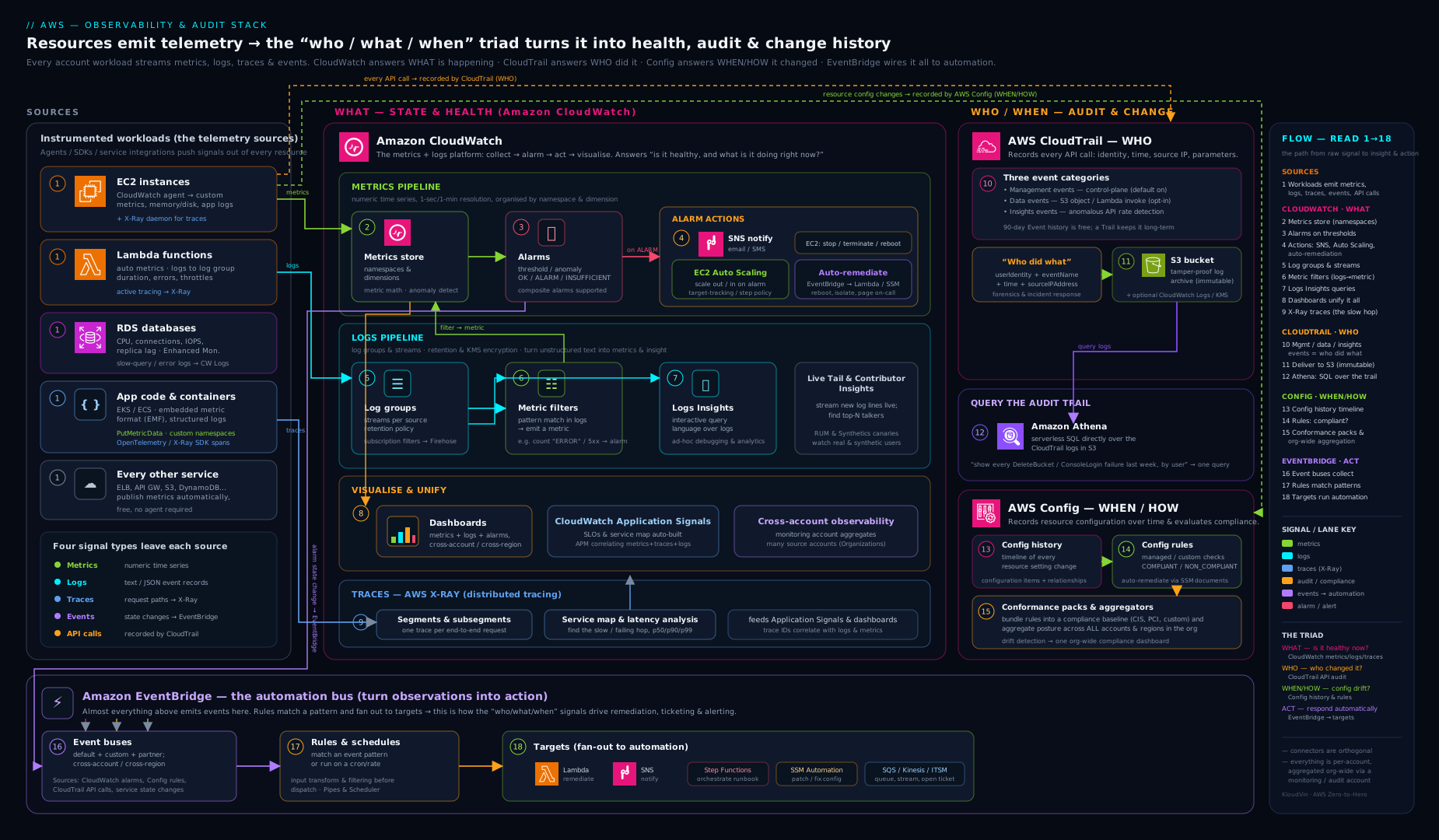
Keep this picture in mind: CloudWatch is what, CloudTrail is who, Config is the state over time, and EventBridge is how you turn any of those into action.
Hands-on lab
You will publish a custom metric, create an alarm on it, send the alarm to SNS, create a log group and query it with Logs Insights, and confirm the always-on CloudTrail event history — then clean everything up. Run this in CloudShell (the aws CLI is pre-installed and already authenticated) or any configured terminal. Everything here is Free Tier-friendly: CloudWatch gives 10 custom metrics, 10 alarms, 5 GB of logs and 1 million API requests free per month; CloudTrail’s management-event history is free; the costs at this scale are effectively zero. We delete the chargeable bits at the end.
Step 1 — Set variables.
REGION=ap-south-1
TOPIC=obs-lab-alerts
export AWS_DEFAULT_REGION=$REGION
Step 2 — Create an SNS topic and subscribe your email.
TOPIC_ARN=$(aws sns create-topic --name $TOPIC --query TopicArn --output text)
aws sns subscribe --topic-arn $TOPIC_ARN --protocol email \
  --notification-endpoint you@example.com
# Check your inbox and click "Confirm subscription"
echo "$TOPIC_ARN"
Expected: an ARN like arn:aws:sns:ap-south-1:111122223333:obs-lab-alerts, and a confirmation email.
Step 3 — Publish a custom metric.
aws cloudwatch put-metric-data \
  --namespace "ObsLab" --metric-name QueueDepth \
  --unit Count --value 5
Validation: aws cloudwatch list-metrics --namespace ObsLab should list QueueDepth within a minute or two (custom metrics can take a moment to appear).
Step 4 — Create an alarm that pages on a deep queue.
aws cloudwatch put-metric-alarm \
  --alarm-name obs-lab-queue-deep \
  --namespace ObsLab --metric-name QueueDepth \
  --statistic Maximum --period 60 \
  --evaluation-periods 1 --threshold 10 \
  --comparison-operator GreaterThanThreshold \
  --treat-missing-data notBreaching \
  --alarm-actions "$TOPIC_ARN"
Step 5 — Drive the metric over the threshold and watch it alarm.
aws cloudwatch put-metric-data --namespace ObsLab --metric-name QueueDepth --value 50
# wait a minute, then:
aws cloudwatch describe-alarms --alarm-names obs-lab-queue-deep \
  --query 'MetricAlarms[0].StateValue' --output text
Expected: the state moves to ALARM and you receive an SNS email. Push a low value (--value 1) to see it return to OK.
Step 6 — Create a log group, log an event, and query with Logs Insights.
aws logs create-log-group --log-group-name /obs-lab/app
aws logs put-retention-policy --log-group-name /obs-lab/app --retention-in-days 1
STREAM=run-1
aws logs create-log-stream --log-group-name /obs-lab/app --log-stream-name $STREAM
TS=$(($(date +%s)*1000))
aws logs put-log-events --log-group-name /obs-lab/app --log-stream-name $STREAM \
  --log-events timestamp=$TS,message='{"level":"ERROR","status":500,"path":"/checkout"}'
Now run a Logs Insights query (console: CloudWatch → Logs Insights → select /obs-lab/app), or from the CLI:
QID=$(aws logs start-query --log-group-name /obs-lab/app \
  --start-time $(($(date +%s)-3600)) --end-time $(date +%s) \
  --query-string 'fields @timestamp, status, path | filter status = 500 | sort @timestamp desc' \
  --query queryId --output text)
sleep 5
aws logs get-query-results --query-id "$QID"
Expected: the 500 event comes back with its status and path fields extracted from the JSON.
Step 7 — Confirm the CloudTrail event history (no trail needed).
aws cloudtrail lookup-events \
  --lookup-attributes AttributeKey=EventName,AttributeValue=PutMetricAlarm \
  --max-results 5 --query 'Events[].Username'
Expected: your identity appears as the user who created the alarm in Step 4 — the who did what, free and always on.
Cleanup.
aws cloudwatch delete-alarms --alarm-names obs-lab-queue-deep
aws logs delete-log-group --log-group-name /obs-lab/app
aws sns delete-topic --topic-arn "$TOPIC_ARN"
# custom metrics expire automatically (15 months) and cannot be deleted manually
Cost note. Within Free Tier this lab is effectively free. Outside it: custom metrics are billed per metric/month, alarms per alarm/month, logs per GB ingested and stored (set retention!), Logs Insights per GB scanned, and SNS email is free for the first 1,000 notifications. The single biggest real-world cost trap here is log groups left on “Never expire” — always set a retention policy.
Common mistakes & troubleshooting
| Symptom | Likely cause | Fix |
|---|---|---|
| Dashboard/alarm/metrics are empty | You are in the wrong Region (CloudWatch is regional) | Switch the console Region; check AWS_DEFAULT_REGION |
| No memory or disk metrics for EC2 | Those are not default metrics — the hypervisor can’t see the guest | Install the CloudWatch agent; “detailed monitoring” only changes resolution, not metric set |
| Alarm stuck in INSUFFICIENT_DATA | The metric stopped reporting (e.g. instance stopped) and missing-data = missing |
Set --treat-missing-data deliberately (breaching for heartbeats) |
| Alarm flaps on single spikes | Evaluation periods = 1 | Use M-out-of-N (e.g. 3 of 5 datapoints to alarm) |
| CloudTrail shows no S3 object reads | Object access is a data event, off by default | Enable S3 data events on the trail (mind the cost) |
| Missing IAM/CloudFront/Route 53 events | Global-service events log via us-east-1; your trail is single-Region elsewhere | Use a multi-Region trail |
| CloudWatch bill creeping up | High-cardinality custom metrics, never-expire logs, many dashboards | Cut metric dimensions, set log retention, prune dashboards |
| Config rule says NON_COMPLIANT but nothing fixes it | Config evaluates, it does not remediate | Attach an SSM Automation remediation, or wire EventBridge → Lambda |
Best practices
- Use the triad on purpose. CloudWatch for health, CloudTrail for audit, Config for state/compliance — don’t try to make one do another’s job.
- Set log retention on every log group. Never-expire is the default and the number-one observability cost trap.
- Alarm with M-out-of-N and sensible missing-data treatment. Reduce paging noise; use composite alarms so on-call is paged only when signals agree.
- Wire OK actions, not just ALARM actions. You want the all-clear too.
- Enable a multi-Region, organisation CloudTrail with log-file validation delivered to a locked-down, separate-account S3 bucket — your tamper-evident audit record.
- Turn on AWS Config across all accounts/Regions with an aggregator and a conformance pack for your baseline; add auto-remediation for the high-value rules.
- Automate remediation through EventBridge — Config/CloudTrail/CloudWatch event → EventBridge rule → Lambda/SSM → SNS.
- Manage dashboards, alarms, trails, rules and conformance packs as code (CloudFormation/CDK/Terraform) so they are reviewed and reproducible — don’t click-ops production observability.
- Publish business metrics and structured (JSON) logs so Logs Insights and metric filters can do real work; see CloudWatch RUM, Synthetics & Canaries for extending this to frontend SLOs.
Security notes
- Protect the audit trail. Deliver CloudTrail logs to a dedicated log-archive account S3 bucket with Block Public Access, bucket policy restricting deletion, Object Lock for immutability where required, and log-file validation enabled. An organisation trail cannot be disabled by member accounts — use it.
- Alarm on the security-relevant events. Route CloudTrail to CloudWatch Logs and add metric filters + alarms for root-account usage, console sign-in failures, IAM policy changes, security-group changes, and CloudTrail being stopped (the CIS-benchmark set).
- Least privilege on dangerous observability actions.
cloudwatch:PutMetricDatacan poison metrics;logs:DeleteLogGroupdestroys evidence; stopping CloudTrail (cloudtrail:StopLogging) blinds you — restrict these and alarm on them. - Encrypt logs and trails with KMS where data is sensitive; control who can read the log/CloudTrail buckets.
- Config + Security Hub give you continuous compliance posture; feed findings into EventBridge for automated response.
- CloudTrail is near real time, not instant (~15 min to S3) — for real-time security reaction, consume CloudTrail events via EventBridge, not the S3 delivery.
Cost & sizing — the levers that move the bill
The observability bill is driven by volume, and a few levers control it:
- Custom metrics — billed per unique namespace+name+dimensions per month. High-cardinality dimensions (per-user, per-request) explode this; aggregate instead.
- Detailed monitoring & high-resolution metrics — 1-minute and sub-minute resolution cost more than the default 5-minute EC2 metrics.
- CloudWatch Logs — charged for ingestion and storage; retention and the Infrequent Access log class are your main controls. Logs Insights is billed per GB scanned — narrow time ranges and groups.
- Dashboards — 3 free, then per dashboard/month.
- CloudTrail — management-event history is free; the first trail copy of management events is free; additional trails, data events, and Insights events cost money and data events at S3/Lambda scale can dominate the bill — scope them.
- AWS Config — billed per configuration item recorded and per rule evaluation (and conformance-pack evaluations). High-churn resources and broad recording raise it; record selectively where needed.
- X-Ray — billed per traces recorded and retrieved/scanned; control with sampling.
The pattern: turn on broad recording for security/audit (CloudTrail management events, Config) where it is cheap or required, and be deliberate about the high-volume items (data events, high-cardinality custom metrics, full-rate tracing).
Interview & exam questions
-
What is the difference between CloudTrail and CloudWatch? CloudTrail records API activity — who did what (audit/governance). CloudWatch records operational telemetry — metrics, logs, alarms, dashboards — what is happening with your resources (monitoring). Different jobs.
-
CloudTrail vs AWS Config — when do you use each? CloudTrail records the event (the API call that changed something). Config records the resulting configuration state and its history, and evaluates it against rules. “Who deleted the SG?” → CloudTrail. “What did the SG look like last week and is it compliant?” → Config.
-
Why don’t I see memory or disk-space metrics for my EC2 instance? They are not default metrics — the hypervisor cannot see inside the guest OS. Install the CloudWatch agent to collect them. Detailed monitoring only changes resolution (5 min → 1 min), it does not add memory/disk.
-
What is a composite alarm and why use one? An alarm whose state is a boolean expression over other alarms, used to cut alarm noise — page only when multiple signals agree, or suppress dependent alarms. It cannot perform EC2/Auto Scaling actions, only notifications.
-
Explain period, evaluation periods, and datapoints to alarm. Period = length of each data point; evaluation periods = how many recent periods to consider; datapoints to alarm = how many of those must breach. Together they give M-out-of-N (e.g. 3 of 5) to suppress single-spike flapping.
-
CloudTrail management vs data vs Insights events? Management = control-plane operations (logged by default, one free trail copy). Data = high-volume data-plane operations like S3
GetObject/ LambdaInvoke(off by default, charged). Insights = detected unusual activity in event volume (off by default, charged). -
I enabled CloudTrail but can’t see who read an S3 object — why? Object reads/writes are data events, which are off by default. Enable S3 data events on the trail (they cost money at scale).
-
How do you alarm on a pattern in your logs (e.g. “more than 5 errors a minute”)? Create a metric filter on the log group that increments a metric when the pattern matches, then put a CloudWatch alarm on that metric. (Metric filters only apply to new events.)
-
How do you query terabytes of logs ad-hoc without exporting them? CloudWatch Logs Insights — a query language (
fields/filter/parse/stats/sort) billed per GB scanned, so narrow the time range and log groups. -
What is the relationship between EventBridge and CloudWatch Events? They are the same service; EventBridge is the current name and superset (custom buses, SaaS partners, schema registry, Pipes, Scheduler). APIs are compatible.
-
How would you auto-remediate a non-compliant resource? AWS Config rule detects NON_COMPLIANT → attach an SSM Automation remediation, or route the Config event through EventBridge to a Lambda/SSM action, and notify via SNS.
-
You need a tamper-evident, multi-account audit log retained for years — what do you build? A multi-Region organisation CloudTrail with log-file validation, delivered to a dedicated log-archive account S3 bucket with Block Public Access and Object Lock; query with CloudTrail Lake or Athena.
Quick check
- Which service answers “who deleted this resource”?
- What does “datapoints to alarm = 3, evaluation periods = 5” mean?
- Are S3 object-level reads captured by CloudTrail by default?
- What is the default retention for a new CloudWatch log group?
- Which service records a timeline of a resource’s configuration and evaluates compliance rules?
Answers
- CloudTrail (the who did what; for the resulting state over time you’d use AWS Config).
- Alarm if 3 of the last 5 evaluation periods breach the threshold (the M-out-of-N pattern that suppresses single spikes).
- No — object-level access is a data event and is off by default; you must enable S3 data events on the trail.
- Never expire — which is why you should always set an explicit retention policy.
- AWS Config.
Exercise
In a sandbox account, build a small “secure-by-watch” baseline as code (CloudFormation, CDK or Terraform): (1) a multi-Region CloudTrail with log-file validation delivering to an S3 bucket with Block Public Access; (2) the trail also sending to CloudWatch Logs with a metric filter + alarm that pages an SNS topic on root-account console sign-in; (3) AWS Config turned on with the managed rules s3-bucket-public-read-prohibited and restricted-ssh, and an SSM Automation remediation on the SSH rule; (4) an EventBridge rule that fires a Lambda whenever a Config rule reports NON_COMPLIANT and posts to the same SNS topic; and (5) a CloudWatch dashboard showing the alarm states. Then test it: open a security group to 0.0.0.0/0 on port 22 and confirm Config flags it, EventBridge fires, and (optionally) remediation closes it. Tear it all down afterwards.
Certification mapping
- AWS Certified SysOps Administrator – Associate (SOA-C02): the heart of the Monitoring, Logging & Remediation domain — CloudWatch metrics/alarms/logs/dashboards, the agent, CloudTrail, AWS Config rules and remediation, and EventBridge-driven automation are all directly examined here.
- AWS Certified Solutions Architect – Associate (SAA-C03): choosing the right observability/audit service (CloudWatch vs CloudTrail vs Config), multi-Region trails, and event-driven remediation patterns.
- AWS Certified Developer – Associate (DVA-C02): custom metrics with
PutMetricData, structured logging, Logs Insights, X-Ray tracing of serverless apps, and EventBridge/CloudWatch Events triggers. - AWS Certified Security – Specialty (SCS-C02): CloudTrail as the audit backbone (data events, validation, organisation trails), Config conformance packs, and security-event alarms.
Glossary
- Metric — a time-ordered series of numeric data points, identified by namespace + dimensions.
- Namespace — a container that groups related metrics (
AWS/EC2,MyApp/Checkout). - Dimension — a name/value pair scoping a metric to a resource; part of the metric’s identity.
- High-resolution metric — a custom metric at 1-second granularity (vs standard 1-minute).
- Alarm — a watcher on a metric/expression with
OK/ALARM/INSUFFICIENT_DATAstates and actions. - Composite alarm — an alarm whose state is a boolean expression over other alarms (for noise reduction).
- Metric filter — a pattern that turns matching log events into a CloudWatch metric.
- Subscription filter — streams matching log events in near real time to Kinesis/Firehose/Lambda.
- Logs Insights — CloudWatch’s interactive query language over log data, billed per GB scanned.
- CloudWatch agent — an in-OS binary that collects memory/disk metrics and ships log files.
- CloudTrail trail — a config that delivers API-activity events to S3 (and optionally CloudWatch Logs/EventBridge).
- Management / data / Insights events — control-plane (default) / high-volume data-plane (opt-in) / anomaly (opt-in) CloudTrail event categories.
- Configuration item (CI) — AWS Config’s point-in-time snapshot of a resource’s state and relationships.
- Config rule — a desired-state check marking resources COMPLIANT or NON_COMPLIANT.
- Conformance pack — a deployable bundle of Config rules + remediation for a compliance standard.
- EventBridge — the serverless event bus (formerly CloudWatch Events) routing events to targets.
- Event pattern — the JSON matcher on an EventBridge rule.
- X-Ray segment/trace — the unit of work for one service / the full path of one request across services.
Next steps
- Extend monitoring to the frontend and SLOs — real-user monitoring, canaries and synthetic checks — in CloudWatch RUM, Synthetics & Canaries for frontend SLO monitoring.
- Build the central log pipeline — subscription filters to Firehose to OpenSearch — in Structured logging pipeline on AWS.
- Go deeper on event-driven automation in EventBridge event-driven architecture: buses, schema & Pipes.
- Put it to work under pressure with the AWS troubleshooting methodology for EC2, VPC, IAM, S3 & Lambda.