A single EC2 instance is a single point of failure and a fixed-size bet on demand: too small and it falls over under load, too big and you pay for headroom you rarely use. Amazon EC2 Auto Scaling fixes both problems at once. It keeps a defined number of instances running — replacing any that fail a health check — and it grows or shrinks that fleet automatically as load changes, so you run just enough capacity and never wake up to a dead box at 3 a.m. It is the backbone of virtually every resilient, cost-efficient workload on EC2, and it is one of the most reliably examined topics on the AWS Solutions Architect Associate and SysOps Administrator exams.
This is the deep, no-hand-waving treatment. By the end you will know what a launch template is and why launch configurations are dead, every meaningful setting on an Auto Scaling group (min/max/desired, subnets and Availability Zones, health-check type and grace period, termination policies), all five scaling-policy types and exactly when to reach for each, how lifecycle hooks let you run code at the precise moment an instance is born or about to die, and the operational features layered on top — warm pools, instance refresh, and maximum instance lifetime. We close with how an ASG integrates with ELB target groups so traffic only ever reaches healthy instances. This is the foundational companion to the advanced operational lesson on warm pools and instance refresh, cross-linked at the end — read this first.
Learning objectives
By the end of this lesson you can:
- Explain what a launch template is, how its versions work, and why it replaced launch configurations.
- Configure every core Auto Scaling group setting — minimum, maximum, and desired capacity, subnets and Availability Zones, health-check type and grace period, and termination policies — and explain the trade-off behind each.
- Choose between target-tracking, step, simple, scheduled, and predictive scaling policies for a given workload, and describe how each reacts to load.
- Use lifecycle hooks to run setup or drain logic at instance launch and termination, including the heartbeat timeout and default result.
- Describe warm pools, instance refresh, and maximum instance lifetime, and when each is worth turning on.
- Attach an ASG to ELB target groups so health and traffic are managed together.
- Create a working ASG with a launch template and a target-tracking policy using the
awsCLI, and tear it down cleanly.
Prerequisites & where this fits
You should already be comfortable with Amazon EC2 itself — instance types, AMIs, EBS volumes, key pairs, security groups, IAM instance profiles, and user data. If any of that is shaky, read the companion Amazon EC2, In Depth: Instance Types, AMIs, EBS, User Data, IMDS & Every Launch Option first; this lesson assumes that vocabulary and concentrates entirely on scaling and lifecycle. It also helps to know what an Elastic Load Balancer and a target group are, since the two services are designed to work together. This is a Compute module lesson in the AWS Zero-to-Hero course, sitting immediately after the EC2 deep-dive and before Lambda. For the hands-on lab you need an AWS account (everything fits comfortably in the Free Tier if you clean up promptly) and the AWS CLI configured with credentials that can create EC2 and Auto Scaling resources.
Core concepts: the ASG as a state machine
Before the settings, internalise the mental model the whole topic hangs on. People picture an Auto Scaling group as a thermostat — “CPU goes up, add servers” — but that undersells it. An ASG is a control loop that continuously drives the actual number of healthy instances towards a target number, and a state machine over each instance’s lifecycle. Two ideas follow from that.
First, desired capacity is the set-point, and the ASG’s whole job is to make reality match it. If you set desired capacity to 4 and only 3 instances are healthy — because one failed a health check, was terminated, or never launched — the ASG launches a replacement to get back to 4. If 5 are running, it terminates one. Scaling policies, scheduled actions, and manual changes all work by moving the desired capacity (within the min/max guard-rails); the control loop does the rest. This is why “the ASG replaced my instance” and “the ASG scaled out” are the same mechanism viewed two ways.
Second, every instance moves through a defined set of lifecycle states, and the interesting engineering lives in the transitions, not the steady state. An instance goes Pending → InService when it launches, and Terminating → Terminated when it leaves — and lifecycle hooks let you pause it in Pending:Wait or Terminating:Wait to run code (bootstrap configuration, register with a backend, or drain connections) before it starts taking traffic or disappears. Warm pools add a Stopped/Hibernated holding state for pre-initialised instances. Understanding the lifecycle is what separates someone who can click “create” from someone who can operate a fleet safely.
A few key terms used throughout:
| Term | Meaning |
|---|---|
| Launch template | The versioned blueprint (AMI, instance type, security groups, user data, etc.) the ASG uses to launch instances. |
| Auto Scaling group (ASG) | The managed group of instances, defined by min/max/desired capacity, subnets, and policies. |
| Desired capacity | The number of instances the ASG tries to keep running right now — the control-loop set-point. |
| Scaling policy | A rule that changes desired capacity automatically in response to metrics, a schedule, or a forecast. |
| Lifecycle hook | A pause point in the launch or terminate transition where you can run custom logic. |
| Health check | The test (EC2 status checks, ELB target health, or VPC reachability) that decides if an instance is healthy. |
Launch templates: the versioned blueprint
An ASG cannot launch an instance without knowing what to launch — which AMI, what instance type, which security groups, what user data, and so on. That blueprint is a launch template. It is a first-class, versioned EC2 resource that captures the full surface of an EC2 launch and is referenced by Auto Scaling groups, the RunInstances API, Spot Fleet, and EC2 Fleet alike.
Launch templates vs launch configurations
For years the equivalent object was a launch configuration — and you will still see it in old documentation, blog posts, and exam dumps, so you must know the relationship. Launch configurations are immutable (to change anything you create a whole new one), cannot be versioned, and support only a subset of modern EC2 features. AWS has deprecated launch configurations: you can no longer create new ones, and they do not support newer capabilities. Everything new uses launch templates.
| Aspect | Launch configuration (legacy) | Launch template (current) |
|---|---|---|
| Status | Deprecated — cannot create new ones | The standard; required for all new features |
| Versioning | None — immutable, recreate to change | Multiple versions, with a default and a $Latest |
| Feature coverage | Subset of EC2 features | Full EC2 surface (IMDSv2 enforcement, T-instance unlimited, mixed instances, placement, tags, Elastic GPU, etc.) |
| Mixed instance types | No | Yes (via the ASG’s mixed instances policy) |
| Reuse | ASG only | ASG, RunInstances, Spot Fleet, EC2 Fleet |
The practical rule: always use a launch template. If you inherit a launch configuration, migrate it — the console and CLI both offer a one-step conversion.
What a launch template contains
A launch template can specify essentially every parameter you would otherwise pass to RunInstances. The most important fields:
| Setting | What it does | Notes / gotcha |
|---|---|---|
AMI ID (ImageId) |
The image instances boot from | The unit instance refresh rolls forward when you bake a new image. |
| Instance type | Default size/family | Can be overridden per-instance by the ASG’s mixed instances policy; leave generic if using that. |
| Key pair | SSH/RDP key | Optional; prefer SSM Session Manager so you need no key at all. |
| Security groups | Firewall rules attached to the ENI | Reference by ID; the SG must exist in the same VPC as the ASG’s subnets. |
| IAM instance profile | The role instances assume | How instances get permissions (e.g. to read S3, write logs) without embedded keys. |
| User data | Boot-time script (cloud-init) | Runs on first boot; keep it idempotent and fast, or use a warm pool / golden AMI. |
| Block device mappings | EBS volumes (type, size, IOPS, throughput, encryption, delete-on-termination) | Prefer gp3; set delete_on_termination deliberately. |
| Instance metadata options | IMDS version and hop limit | Set http_tokens = required to enforce IMDSv2; set hop limit to 2 if containers must reach IMDS. |
| Detailed monitoring | 1-minute vs 5-minute CloudWatch metrics | Enable for responsive scaling; basic 5-minute metrics make policies sluggish. |
| Tags | Tags applied to instances/volumes at launch | Distinct from ASG tags; use TagSpecifications for instance-level tags. |
| Placement | Tenancy, placement group, host affinity | For cluster/spread placement or Dedicated Hosts. |
| Capacity / market options | On-Demand vs Spot at the template level | Usually leave market options to the ASG’s mixed instances policy instead. |
Versions, $Default and $Latest
The headline feature is versioning. Each time you change a launch template you create a new numbered version (1, 2, 3 …) — old versions remain, so you can roll back instantly by pointing the ASG at an earlier number. Two special aliases matter:
$Latest— always resolves to the highest version number.$Default— resolves to whichever version you have designated as default (not necessarily the newest).
An ASG references a launch template plus a version, and you should think carefully about which alias you pin to:
| Version reference | Behaviour | When to use |
|---|---|---|
A specific number (e.g. 3) |
The ASG always uses exactly that version | Recommended for production — changes are deliberate; pair with instance refresh to roll out. |
$Latest |
New launches automatically use the newest version | Convenient in dev; risky in prod (an unrelated template edit silently changes new instances). |
$Default |
New launches use the designated default version | A middle ground — you control the default explicitly. |
The clean production pattern: pin the ASG to a specific version number, create a new version when you change the AMI or config, then trigger an instance refresh to roll the fleet forward in a controlled, health-checked way. That gives you an auditable history and instant rollback.
Creating an Auto Scaling group: every core setting
With a launch template in hand, you create the ASG itself. The console walks you through a wizard; here is every load-bearing setting it presents, grouped as the wizard groups them.
Capacity: minimum, maximum, and desired
The three numbers at the heart of every ASG:
| Setting | What it does | Default / range | When to change | Gotcha |
|---|---|---|---|---|
| Minimum capacity | The floor — the ASG never goes below this many instances | You choose; ≥ 0 | Set to your redundancy floor (≥ 2 across AZs for HA) | A min of 1 means no redundancy; a min of 0 means the group can scale to nothing. |
| Maximum capacity | The ceiling — scaling never exceeds this | You choose; ≥ min | Set high enough for peak, but a real cap | This is your cost and blast-radius guard-rail — a runaway metric or attack cannot scale past it. |
| Desired capacity | The number the ASG tries to maintain right now | Between min and max | Scaling policies move this automatically | Setting it manually triggers immediate scaling; it is always clamped to [min, max]. |
The relationship is the single most important thing to get right: scaling policies and scheduled actions adjust desired capacity, but always within the [minimum, maximum] band. If a policy asks for 12 instances but the maximum is 10, you get 10. If it asks for 1 but the minimum is 2, you get 2. Set the minimum for resilience, the maximum for safety, and let policies move desired between them.
Network: VPC, subnets, and Availability Zones
| Setting | What it does | Notes / gotcha |
|---|---|---|
| VPC | The network the instances live in | Must match the launch template’s security groups’ VPC. |
| Subnets | One subnet per AZ you want instances in | Span at least two AZs for high availability — this is non-negotiable for production. |
| Availability Zone balancing | The ASG strives to keep instances evenly spread across the chosen AZs | Automatic; during scale-in it rebalances by terminating from the most-populated AZ. |
Choosing subnets across multiple Availability Zones is how an ASG survives the loss of a whole AZ: spread four instances across two AZs and an AZ outage leaves you with two healthy instances while the ASG launches replacements in the surviving AZ. The ASG actively works to keep AZs balanced — if one AZ ends up with more instances than another (say after a failed launch), it performs rebalancing, which can briefly run extra instances or terminate to even things out.
Load balancing and health checks
This is where the ASG connects to traffic and decides what “healthy” means.
| Setting | What it does | Choices / default | When to change | Gotcha |
|---|---|---|---|---|
| Load balancing | Attach the ASG to ELB target groups so new instances register and traffic flows | None, or one or more ALB/NLB target groups (or a classic ELB) | Whenever instances serve traffic | Register against target groups, not the load balancer directly, for ALB/NLB. |
| Health check type | What test decides instance health | EC2 (default) or ELB (also VPC reachability checks) | Turn on ELB when behind a load balancer | EC2-only checks miss app-level failures — see below. |
| Health check grace period | Seconds after launch before health checks count | Default 300s | Increase for slow-booting apps | Too short → the ASG kills healthy-but-still-booting instances in a loop. |
Health check type is one of the most consequential and most misconfigured settings. With the default EC2 type, the ASG only considers an instance unhealthy if EC2’s own status checks fail (the hypervisor or the instance’s networking/OS is broken). That misses the common case where the box is up but the application has crashed or is returning 500s — EC2 sees a healthy VM, so the ASG leaves a dead app in service. The moment your instances sit behind a load balancer, switch the health check type to ELB: now the ASG also honours the target group’s health check (e.g. an HTTP probe to /health), so an instance that fails the application check is replaced. (Modern ASGs can also enable additional health-check sources such as VPC reachability via EC2 instance health.)
The health check grace period is the classic source of crash-loops. It is a window after launch during which health-check failures are ignored, giving the instance time to boot, run user data, start the app, and pass its first probe. Set it shorter than your real boot time and the ASG will mark still-booting instances unhealthy, terminate them, launch replacements, and repeat forever. Measure your cold-boot-to-healthy time and set the grace period comfortably above it (warm pools, below, are the better fix for genuinely slow boots).
Termination policies: which instance dies on scale-in
When the ASG scales in (reduces desired capacity), it must choose which instance to terminate. Termination policies decide that, evaluated as an ordered list — the ASG applies the first policy; if a tie remains it applies the next; and so on.
| Termination policy | Picks the instance that… | Typical use |
|---|---|---|
| Default | Applies a sensible built-in sequence (balance AZs → oldest launch template/config → closest to the next billing hour) | The safe general default. |
| OldestInstance | Has been running longest | Rotate out old instances (e.g. after AMI updates). |
| NewestInstance | Was launched most recently | Roll back a bad deployment by killing the newest. |
| OldestLaunchConfiguration / OldestLaunchTemplate | Uses the oldest launch config/template (version) | Retire instances on stale blueprints first. |
| ClosestToNextInstanceHour | Is nearest the end of its billing hour | Squeeze the last value from per-hour billing (less relevant under per-second billing). |
| AllocationStrategy | Aligns the fleet with the configured Spot/On-Demand allocation strategy | With mixed instances policies. |
| Custom (Lambda) | Whatever your logic decides | Protect instances doing critical work; integrate with draining. |
The default policy is right for most fleets. Two related controls matter: instance scale-in protection lets you mark specific instances as “do not terminate on scale-in” (useful for instances holding long-running jobs), and instance termination via lifecycle hook lets you drain an instance before it is killed (next section). For most workloads, leave the default termination policy and reach for scale-in protection or a terminating lifecycle hook when you have work that must finish first.
Scaling policies: the five ways an ASG changes size
A static ASG (fixed desired capacity) already buys you self-healing. Scaling policies add elasticity — automatically moving desired capacity in response to load, a clock, or a forecast. There are five kinds, and choosing correctly is a frequent exam and interview question.
| Policy type | How it decides | Reacts to | Best for |
|---|---|---|---|
| Target tracking | Keeps a chosen metric at a target value (like a thermostat) | Live metric vs target | The default choice — most workloads (keep CPU at 50%, or requests-per-target steady). |
| Step scaling | Adjusts by different amounts based on alarm breach size | CloudWatch alarm breach magnitude | Fine-grained, graduated response to large swings. |
| Simple scaling | One adjustment per alarm, then a cooldown | A single CloudWatch alarm | Legacy / simple cases; largely superseded by the two above. |
| Scheduled | Changes capacity at set times | The clock / calendar | Predictable patterns (business hours, nightly batch, known events). |
| Predictive | Forecasts load from history and pre-scales | ML forecast of future demand | Cyclical loads with long boot times — provision ahead of demand. |
Target-tracking scaling
Target tracking is the modern default and what you should reach for first. You pick a metric and a target value, and Auto Scaling does the rest: it creates and manages the underlying CloudWatch alarms and adds or removes instances to keep the metric at the target — exactly like a thermostat keeps a room at the set temperature. Common metrics:
- Average CPU utilisation (the canonical example — “keep average CPU at 50%”).
- Average network in/out.
- ALB request count per target (
ALBRequestCountPerTarget) — scale on traffic per instance, often the best signal for web fleets. - A custom metric (e.g. queue depth per instance, or an app-level metric).
You set just the target value; AWS manages the alarms, the scale-out and scale-in thresholds, and a built-in cooldown. It scales out aggressively when the metric exceeds target and scales in conservatively to avoid flapping. You can enable disable scale-in on a target-tracking policy if you want it to only ever add instances (handy when another mechanism handles scale-in). For the great majority of workloads, a single target-tracking policy on CPU or request-count is all the scaling you need.
Step and simple scaling
Both step and simple scaling are driven by CloudWatch alarms you define, but they differ in granularity:
- Simple scaling makes one adjustment when an alarm fires (e.g. “add 1 instance”), then waits out a cooldown period before responding to anything else. It is blunt: a small breach and a massive breach get the same response, and during the cooldown it is deaf to further changes.
- Step scaling defines steps — different adjustments for different breach magnitudes. For example: CPU 60–70% → add 1; 70–85% → add 2; > 85% → add 4. It reacts proportionally to how bad things are and does not require a cooldown between steps (it continuously evaluates the alarm), so it handles large, fast spikes far better than simple scaling.
Step scaling is strictly more capable than simple scaling; AWS now recommends target tracking for most cases and step scaling when you need explicit graduated control. Simple scaling is essentially legacy — keep it only for the simplest existing setups. The cooldown period (default 300s) prevents simple-scaling policies from launching a flurry of instances before the first ones have had a chance to affect the metric; target tracking and step scaling manage this for you.
Scheduled scaling
Scheduled scaling changes capacity at specific times — you create scheduled actions that set minimum, maximum, and/or desired capacity on a one-off date-time or a recurring cron schedule. It is the right tool for predictable patterns the reactive policies would otherwise chase a step behind: scale to 10 instances at 08:00 on weekdays and back to 2 at 20:00; pre-scale before a known sale or product launch; spin up a batch fleet nightly and tear it down at dawn. Layer scheduled actions underneath a target-tracking policy — the schedule moves the floor with the clock while target tracking absorbs unexpected spikes on top. Each scheduled action specifies a time zone and can set any of the three capacity numbers.
Predictive scaling
Predictive scaling is the machine-learning option: it analyses at least one to two weeks of historical metric data, detects daily and weekly cyclicality, forecasts future demand, and pre-provisions capacity ahead of the predicted load so instances are already warm when traffic arrives. It targets the same kinds of metrics (CPU, network, ALB request count) but acts proactively rather than reactively. The killer use case is a cyclical workload with a long instance boot time: reactive policies react only after load rises, so by the time slow-booting instances are ready the spike may be over; predictive scaling provisions before the daily ramp. You typically run it alongside target tracking — predictive handles the known cyclical baseline, target tracking handles the surprises — and you can run it in forecast-only mode first to validate the predictions before letting it actually scale. It needs enough history to learn the pattern, so it is not useful for brand-new or non-cyclical workloads.
Lifecycle hooks: running code at birth and death
Scaling decides how many instances; lifecycle hooks give you control over what happens to each instance as it enters or leaves service. A lifecycle hook pauses an instance in a wait state during the launch or terminate transition and lets you run custom logic before the instance proceeds.
There are two hook types, mapping to the two transitions:
| Hook type | Pauses the instance at | Use it to… |
|---|---|---|
Launch (autoscaling:EC2_INSTANCE_LAUNCHING) |
Pending:Wait — after the instance boots, before it is marked InService |
Run bootstrap/config, pull secrets, register with a backend, warm caches — before it takes traffic. |
Terminate (autoscaling:EC2_INSTANCE_TERMINATING) |
Terminating:Wait — after termination is decided, before the instance is gone |
Drain connections, deregister from services, upload logs, finish in-flight work — before it dies. |
How a hook works, step by step
- The ASG decides to launch (or terminate) an instance and moves it into the corresponding wait state (
Pending:WaitorTerminating:Wait). - The instance stays paused there for up to the heartbeat timeout (default 3600 seconds, i.e. one hour; configurable from 30 s up to 48 hours).
- Your automation — typically an EventBridge rule firing a Lambda (or an SSM Automation, or a script on the instance using the metadata) — does its work.
- When done, it calls
CompleteLifecycleActionwithCONTINUE(proceed) orABANDON(give up — terminate a launching instance, or proceed straight to termination). You can also callRecordLifecycleActionHeartbeatto extend the timeout if the work needs longer. - If nothing responds before the timeout expires, the default result applies.
The two settings that bite people
| Setting | What it does | Default | Gotcha |
|---|---|---|---|
| Heartbeat timeout | How long the instance waits in the wait state | 3600 s | If your work runs long and you do not send heartbeats, the timeout fires and the default result kicks in mid-task. |
| Default result | What happens if the timeout expires with no CompleteLifecycleAction |
ABANDON |
For a launch hook, ABANDON terminates the new instance; for a terminate hook, it proceeds to terminate. CONTINUE lets the instance proceed instead. |
The two failure modes to remember: a launch hook whose default result is ABANDON will silently terminate every new instance if your bootstrap automation is broken — you will see instances cycling endlessly through Pending:Wait → Terminated. And a terminate hook with too short a timeout will kill instances mid-drain, dropping in-flight requests. Set the timeout above your real drain/bootstrap time, send heartbeats for variable-length work, and choose the default result deliberately. Lifecycle hooks are the foundation that warm pools and graceful instance refresh build on.
Warm pools, instance refresh, and maximum instance lifetime
Three operational features sit on top of the core ASG. They are covered exhaustively in the advanced companion lesson; here is what each is and when it earns its keep.
Warm pools
A warm pool is a pool of pre-initialised, stopped (or hibernated, or kept-running) instances the ASG holds in reserve so scale-out is near-instant. Normally a scale-out event boots a cold instance — pull the AMI, run user data, start the app — which can take minutes. With a warm pool, the ASG instead pulls an already-initialised instance from the pool (just starts the stopped instance, which is far faster than a cold boot) and only launches a fresh cold instance to refill the pool afterwards. The pool’s instances are typically stopped (you pay only for their EBS storage, not compute) or hibernated (RAM preserved on disk for the fastest possible resume). Warm pools are the right answer when instance boot time is the bottleneck for responsiveness — large AMIs, heavy bootstrap, or apps that need long warm-up — and where a plain longer health-check grace period only papers over slow scale-out.
Instance refresh
Instance refresh rolls out a new launch template version (typically a new AMI) across the ASG gradually and with health checks, replacing instances in batches rather than all at once. You set a minimum healthy percentage (how much capacity must stay in service during the roll — e.g. 90%) and an optional instance warmup time, and the ASG replaces a batch, waits for the new instances to pass health checks and warm up, then moves to the next batch. It can be paused, resumed, and rolled back, and it can integrate with CloudWatch alarms to auto-cancel if error rates spike. This is the safe, zero-downtime way to deploy a new AMI to a fleet — replacing the old “create a new ASG and swap” dance. Pin your ASG to a specific launch-template version, create a new version, and trigger an instance refresh to roll it out.
Maximum instance lifetime
Maximum instance lifetime forces the ASG to replace any instance older than a configured age (minimum 1 day, i.e. 86 400 seconds). It exists for compliance, patching, and avoiding configuration drift — “no instance runs more than 30 days” guarantees regular replacement with fresh, fully patched images and stops long-lived instances from accumulating manual changes or memory leaks. The ASG spreads the replacements out to avoid replacing everything at once. Turn it on where governance demands periodic instance rotation; leave it off where instance refresh already cycles your fleet on every deploy.
ELB target-group integration: health and traffic together
An ASG and an Elastic Load Balancer are designed as two halves of one pattern, and understanding the handshake is essential. You attach the ASG to one or more target groups (for an Application or Network Load Balancer); from then on:
- Registration is automatic. When the ASG launches an instance, it registers it with every attached target group; when it terminates one, it deregisters it. You never manage targets by hand.
- Health is shared. With health check type set to ELB, the ASG honours the target group’s health check — so an instance failing the application probe (not just EC2 status checks) is marked unhealthy and replaced. The load balancer and the ASG agree on what “healthy” means.
- Connection draining (deregistration delay). When an instance is being terminated, the target group’s deregistration delay (default 300 s) lets it finish in-flight requests before traffic stops — graceful drain, configured on the target group, complemented by a terminating lifecycle hook for app-level cleanup.
- Traffic only reaches healthy, registered instances. New instances take traffic only once they pass the target group’s health check; failing or draining instances are removed from rotation.
The result is a self-healing, self-balancing system: the ELB distributes traffic and reports health; the ASG maintains capacity, replaces unhealthy instances, and scales — and because they share the health signal and registration, a failed instance is detected, drained, replaced, and re-registered with no human in the loop.
Diagram: how the pieces fit
The diagram below ties the components together: a launch template (versioned) feeding an Auto Scaling group spanning two Availability Zones, with scaling policies moving desired capacity, lifecycle hooks pausing instances at launch and termination, a warm pool of pre-initialised instances feeding scale-out, and the ASG registered against an ELB target group that shares the health signal.
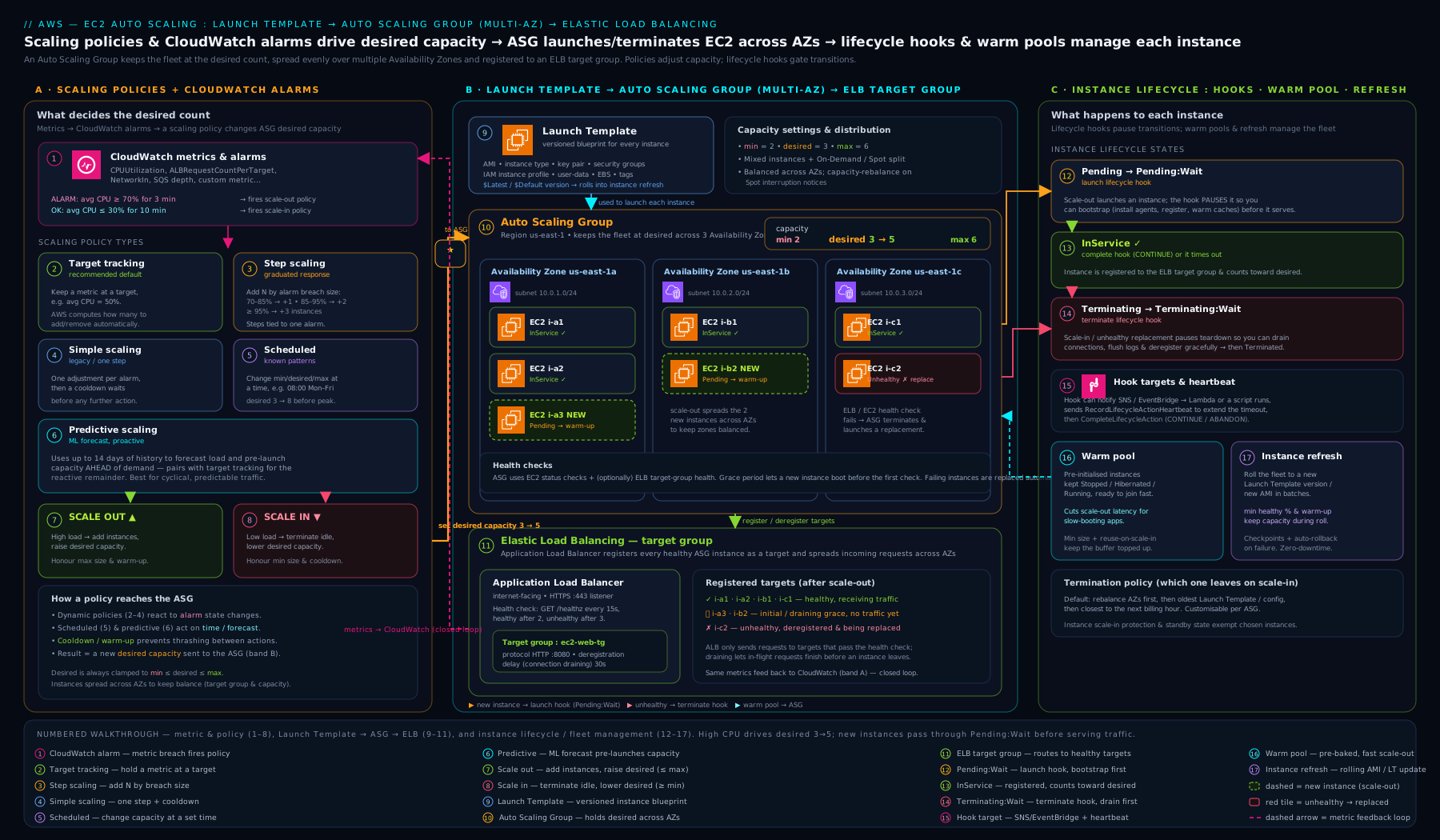
Read it as a control loop: the scaling policy moves the set-point (desired capacity), the ASG drives reality towards it by launching from the warm pool or cold, lifecycle hooks gate each transition, and the target group’s health check closes the loop by telling the ASG which instances are truly in service.
Hands-on lab: an ASG with a launch template and target tracking
You will create a launch template, build an Auto Scaling group spanning two subnets, attach a target-tracking policy on CPU, watch it maintain desired capacity, then tear everything down. Run everything with the AWS CLI where you are authenticated (aws sts get-caller-identity should succeed). Replace the placeholder IDs with values from your own account.
Step 1 — Gather your network and image IDs
REGION=us-east-1

# Latest Amazon Linux 2023 AMI from SSM Parameter Store
AMI_ID=$(aws ssm get-parameters \
  --names /aws/service/ami-amazon-linux-latest/al2023-ami-kernel-default-x86_64 \
  --query "Parameters[0].Value" --output text --region $REGION)

# Your default VPC and two subnets in different AZs
VPC_ID=$(aws ec2 describe-vpcs --filters Name=isDefault,Values=true \
  --query "Vpcs[0].VpcId" --output text --region $REGION)
read SUBNET_A SUBNET_B <<< $(aws ec2 describe-subnets \
  --filters Name=vpc-id,Values=$VPC_ID \
  --query "Subnets[0:2].SubnetId" --output text --region $REGION)

echo "AMI=$AMI_ID  VPC=$VPC_ID  SUBNETS=$SUBNET_A,$SUBNET_B"
Expected: a line printing a real ami-… ID, a vpc-… ID, and two subnet-… IDs in different AZs.
Step 2 — Create a launch template
aws ec2 create-launch-template \
  --launch-template-name lt-asg-lab \
  --version-description "v1 baseline" \
  --launch-template-data '{
    "ImageId":"'"$AMI_ID"'",
    "InstanceType":"t3.micro",
    "MetadataOptions":{"HttpTokens":"required","HttpPutResponseHopLimit":2},
    "Monitoring":{"Enabled":true},
    "TagSpecifications":[{"ResourceType":"instance","Tags":[{"Key":"Name","Value":"asg-lab"}]}]
  }' \
  --region $REGION --output table
Note HttpTokens=required enforces IMDSv2, and Monitoring.Enabled=true gives 1-minute metrics so scaling reacts quickly. This is version 1 of the template.
Step 3 — Create the Auto Scaling group
aws autoscaling create-auto-scaling-group \
  --auto-scaling-group-name asg-lab \
  --launch-template "LaunchTemplateName=lt-asg-lab,Version=1" \
  --min-size 2 --max-size 4 --desired-capacity 2 \
  --vpc-zone-identifier "$SUBNET_A,$SUBNET_B" \
  --health-check-type EC2 \
  --health-check-grace-period 300 \
  --region $REGION
This creates a group pinned to version 1 of the template, with a floor of 2 and a ceiling of 4, spread across two subnets in two AZs. The ASG immediately launches 2 instances to meet desired capacity.
Step 4 — Confirm it reached desired capacity
aws autoscaling describe-auto-scaling-groups \
  --auto-scaling-group-names asg-lab \
  --query "AutoScalingGroups[0].{Min:MinSize,Max:MaxSize,Desired:DesiredCapacity,
           Instances:Instances[].{Id:InstanceId,AZ:AvailabilityZone,State:LifecycleState,Health:HealthStatus}}" \
  --output json --region $REGION
Expected (after a minute or two): Desired is 2, and two instances appear with State of InService, Health of Healthy, in two different Availability Zones — confirming AZ balancing.
Step 5 — Attach a target-tracking scaling policy
aws autoscaling put-scaling-policy \
  --auto-scaling-group-name asg-lab \
  --policy-name cpu-target-50 \
  --policy-type TargetTrackingScaling \
  --target-tracking-configuration '{
    "PredefinedMetricSpecification":{"PredefinedMetricType":"ASGAverageCPUUtilization"},
    "TargetValue":50.0
  }' \
  --region $REGION --output table
Auto Scaling now manages the CloudWatch alarms automatically to keep average CPU at 50% — adding instances (up to max 4) if CPU climbs, removing them (down to min 2) if it falls.
Step 6 — Watch self-healing (optional)
Terminate one instance by hand and watch the ASG replace it to restore desired capacity:
ID=$(aws autoscaling describe-auto-scaling-groups --auto-scaling-group-names asg-lab \
  --query "AutoScalingGroups[0].Instances[0].InstanceId" --output text --region $REGION)
aws ec2 terminate-instances --instance-ids $ID --region $REGION --output text
# Re-run the Step 4 command after a minute — the ASG launches a replacement back to desired=2.
Cleanup
Delete in order — the ASG (which terminates its instances), then the launch template:
aws autoscaling delete-auto-scaling-group \
  --auto-scaling-group-name asg-lab --force-delete --region $REGION

aws ec2 delete-launch-template \
  --launch-template-name lt-asg-lab --region $REGION
--force-delete terminates the instances and removes the group in one step. Verify with aws autoscaling describe-auto-scaling-groups --region $REGION returning an empty list.
Cost note
Two t3.micro instances for the few minutes of this lab cost a handful of cents (and may fall under the EC2 Free Tier if you are within your first 12 months and 750 hours/month). Auto Scaling itself, launch templates, scaling policies, lifecycle hooks, and the CloudWatch alarms target tracking creates are free — you pay only for the EC2 instances and their EBS volumes. The biggest real-world cost surprise is a missing or too-high maximum capacity letting a runaway metric scale into a large bill — always set a sane --max-size. Delete the ASG promptly to stop instance charges.
Common mistakes & troubleshooting
| Symptom | Cause | Fix |
|---|---|---|
| App is dead but the ASG never replaces the instance | Health check type is EC2, which only checks the VM, not the app | Set health check type to ELB and give the target group an app-level health check (e.g. /health). |
| Instances launch, get killed, relaunch — an endless crash-loop | Health check grace period is shorter than the boot-to-healthy time | Increase the grace period above real boot time; consider a warm pool for slow boots. |
| New instances are silently terminated right after launch | A launch lifecycle hook is timing out with default result ABANDON (broken bootstrap automation) |
Fix the automation to call CompleteLifecycleAction CONTINUE; check the heartbeat timeout; review the default result. |
| In-flight requests are dropped when instances scale in | No deregistration delay / terminating hook — instances vanish mid-request | Set the target group’s deregistration delay; add a terminate lifecycle hook to drain. |
| Scaling reacts slowly or in big lurches | Basic (5-minute) monitoring, or simple scaling with cooldowns | Enable detailed monitoring (1-minute) in the launch template; switch to target tracking or step scaling. |
| Editing the launch template silently changed new instances | The ASG references $Latest |
Pin the ASG to a specific version number and roll out changes with instance refresh. |
| Costs spiked unexpectedly | Maximum capacity too high (or unset) and a runaway metric/attack | Set a realistic --max-size; alarm on instance count; review the scaling metric. |
| ASG won’t launch instances in one AZ | The chosen subnet/instance type combination isn’t available, or capacity is constrained | Span more AZs/subnets; use a mixed instances policy with multiple instance types for resilience. |
Best practices
- Always use launch templates, never launch configurations — they are versioned, fully featured, and configurations are deprecated.
- Pin the ASG to a specific launch-template version and roll changes out with instance refresh for an auditable, rollback-able deploy — avoid
$Latestin production. - Span at least two Availability Zones and set the minimum capacity to your redundancy floor (≥ 2) so an AZ or instance failure never takes the workload down.
- Set health check type to ELB behind a load balancer, with a meaningful application health check, so dead apps (not just dead VMs) get replaced.
- Tune the health-check grace period to your real boot time, and use a warm pool rather than an ever-larger grace period when boots are genuinely slow.
- Reach for target tracking first; add scheduled actions for known patterns and predictive scaling for cyclical loads with long boot times; keep simple scaling only for legacy cases.
- Always set a real maximum capacity as a cost and blast-radius guard-rail, and alarm on instance count.
- Use a terminating lifecycle hook plus deregistration delay to drain connections gracefully on scale-in.
- Enforce IMDSv2 (
http_tokens = required) and attach a least-privilege IAM instance profile in the launch template. - Consider maximum instance lifetime where compliance demands periodic instance rotation and instance refresh doesn’t already cycle the fleet.
Security notes
Auto Scaling is part of your security posture, not just your availability story. Availability is a security property — the “A” in the CIA triad — so an ASG that auto-replaces failed instances and absorbs traffic spikes is also a defence against denial-of-service. Bake security into the launch template so every instance inherits it: enforce IMDSv2 (http_tokens = required, hop limit set deliberately) to defend against SSRF-based credential theft, attach a least-privilege IAM instance profile so instances get only the permissions they need (and no long-lived keys), reference tight security groups, and enable EBS encryption in the block device mappings. Because the ASG launches and terminates instances constantly, treat them as immutable and disposable — never SSH in to patch by hand; bake a new AMI, create a new template version, and roll it out with instance refresh, optionally enforcing rotation with maximum instance lifetime so no instance accumulates drift or runs unpatched for long. Finally, scope the IAM permissions for Auto Scaling and lifecycle-hook automation (the Lambda/EventBridge that calls CompleteLifecycleAction) to least privilege, and use a hard maximum capacity so a compromised scaling signal cannot scale you into a denial-of-wallet.
Interview & exam questions
Practise saying these out loud — they recur constantly on SAA and SOA.
-
“Launch template vs launch configuration — what’s the difference and which should you use?” A launch configuration is the legacy, immutable, unversioned blueprint with a limited feature set; AWS has deprecated it (you can’t create new ones). A launch template is versioned, supports the full EC2 surface and features like mixed instances and IMDSv2 enforcement, and is reusable across
RunInstances, Spot/EC2 Fleet, and ASGs. Always use launch templates. -
“Explain minimum, maximum, and desired capacity.” Minimum is the floor the ASG never goes below; maximum is the ceiling it never exceeds (your cost guard-rail); desired is the number it actively maintains right now. Scaling policies move desired within the [min, max] band.
-
“EC2 vs ELB health check type — when does it matter?” The default EC2 type only checks the VM (hypervisor/OS/network status checks) — it misses a crashed application on a healthy VM. Behind a load balancer use ELB type so the ASG honours the target group’s application health check and replaces instances whose app has failed.
-
“What is the health check grace period and what goes wrong if it’s too short?” A window after launch during which health-check failures are ignored, letting the instance boot and pass its first probe. Too short and the ASG terminates still-booting instances and relaunches them forever — a crash-loop. Set it above real boot time (or use a warm pool).
-
“Name the scaling-policy types and when you’d use each.” Target tracking (default — keep a metric at a target, like a thermostat); step scaling (graduated adjustments by alarm breach size); simple scaling (one adjustment + cooldown, legacy); scheduled (capacity changes on a clock for predictable patterns); predictive (ML forecast that pre-scales ahead of cyclical demand).
-
“Target tracking vs step scaling?” Target tracking keeps a metric at a target value and manages the alarms for you — set it and forget it, best for most workloads. Step scaling lets you define different capacity adjustments for different breach magnitudes and reacts proportionally to spike size, with no cooldown between steps — choose it when you need explicit graduated control.
-
“When is predictive scaling the right choice?” For cyclical workloads (daily/weekly patterns) with long instance boot times, where reactive policies would scale up only after load rises and arrive too late. Predictive forecasts demand from 1–2 weeks of history and provisions ahead of it, usually run alongside target tracking; use forecast-only mode first to validate.
-
“What are lifecycle hooks and what are the two types?” Pause points that hold an instance in a wait state during a transition so you can run code. A launch hook (
Pending:Wait) runs setup before the instance takes traffic; a terminate hook (Terminating:Wait) drains connections/finishes work before the instance is gone. You callCompleteLifecycleAction(CONTINUE/ABANDON) when done. -
“What’s the lifecycle-hook heartbeat timeout and default result, and how do they bite you?” The heartbeat timeout (default 3600 s) is how long the instance waits; the default result (default ABANDON) is what happens if it expires with no response. A broken launch-hook automation makes the ASG terminate every new instance (ABANDON); a too-short terminate-hook timeout kills instances mid-drain. Send heartbeats for long work and choose the default result deliberately.
-
“How does instance refresh deploy a new AMI safely?” It replaces instances in batches with health checks, keeping a configurable minimum healthy percentage in service and warming up new instances before continuing. It can pause, resume, roll back, and auto-cancel on a CloudWatch alarm — the zero-downtime way to roll a new launch-template version across the fleet.
-
“What’s a warm pool and when do you need one?” A reserve of pre-initialised, stopped/hibernated instances so scale-out starts an already-booted instance instead of cold-booting one. Use it when boot time is the bottleneck for responsive scaling (large AMIs, heavy bootstrap). Stopped pool instances cost only EBS, not compute.
-
“How do an ASG and an ELB work together?” The ASG auto-registers new instances with the target group and deregisters terminating ones; with ELB health checks they share the health signal so failed instances are replaced; deregistration delay drains in-flight requests on scale-in; and traffic flows only to healthy, registered instances — a self-healing, self-balancing system.
Quick check
- Why are launch configurations no longer the right choice, and what one feature of launch templates makes safe, rollback-able deploys possible?
- You set min 2, max 6, desired 4, and a target-tracking policy asks for 8 instances. How many do you get, and why?
- Your instances sit behind an ALB but a crashed app is never replaced. What single setting is almost certainly wrong, and what do you change it to?
- Distinguish a launch lifecycle hook from a terminate lifecycle hook, and give one use for each.
- You have a web fleet with a sharp, predictable daily ramp and a 6-minute boot time. Which scaling policy (or combination) do you choose, and why?
Answers
- Launch configurations are deprecated, immutable, unversioned, and feature-limited. Launch templates support versions — so you pin a version, create a new one, roll it out with instance refresh, and roll back instantly by re-pinning the old version.
- You get 6 — the maximum. Scaling policies move desired capacity but it is always clamped to the [min, max] band, so the ceiling of 6 wins.
- The health check type is set to EC2 (which only checks the VM). Change it to ELB so the ASG honours the target group’s application health check and replaces the instance whose app has failed.
- A launch hook pauses the instance at
Pending:Waitbefore it takes traffic — use it to run bootstrap/config or register with a backend. A terminate hook pauses atTerminating:Waitbefore the instance dies — use it to drain connections or upload logs. - Predictive scaling alongside target tracking (you could add scheduled actions too). The ramp is predictable and the 6-minute boot means reactive-only scaling arrives too late; predictive provisions ahead of the daily ramp while target tracking absorbs surprises.
Exercise
Using the aws CLI, build a minimal but real elastic, self-healing web fleet and prove it works:
- Create a launch template (
lt-exercise) for at3.microrunning Amazon Linux 2023, withHttpTokens=requiredand detailed monitoring enabled, whose user data installs and starts a tiny web server returning “OK” on port 80. - Create an Application Load Balancer and a target group with a health check on
/. - Create an ASG (
asg-exercise) pinned to template version 1, min 2 / max 4 / desired 2, spanning two AZs, attached to the target group, with health check type ELB and a 120-second grace period. - Add a target-tracking policy keeping
ALBRequestCountPerTargetat a low number (e.g. 100), so a load test would scale you out. - Terminate one instance by hand and confirm the ASG launches a replacement and re-registers it with the target group (it should return to 2 healthy targets).
- Create version 2 of the template (e.g. a new tag or AMI) and run an instance refresh with a 90% minimum healthy percentage; watch instances roll in batches.
- Tear everything down: delete the ASG with
--force-delete, then the ALB, target group, and launch template.
If step 5 shows automatic replacement and re-registration and step 6 shows a batched, health-checked roll-out, you have hands-on proof of the self-healing control loop and a zero-downtime deploy.
Certification mapping
This lesson maps directly to several exams:
- SAA-C03 (Solutions Architect Associate): Design resilient and high-performing architectures — use Auto Scaling groups across multiple AZs for high availability and elasticity, choose the right scaling policy for a workload, and integrate ASGs with ELB. Expect scenarios giving a traffic pattern and asking which policy (target tracking vs scheduled vs predictive) fits.
- SOA-C02 (SysOps Administrator Associate): Reliability and business continuity and Deployment, provisioning, and automation — configure launch templates, health checks and grace periods, lifecycle hooks, instance refresh, and warm pools; troubleshoot crash-loops and unhealthy-instance replacement. The operational details here (health check type, grace period, lifecycle-hook timeouts) are prime SOA material.
- DVA-C02 (Developer Associate): touches on launch templates, lifecycle hooks, and instance refresh for deploying application updates.
- It also underpins the reliability and cost pillars of the AWS Well-Architected Framework.
Glossary
- Launch template — the versioned blueprint (AMI, instance type, security groups, user data, IMDS options, etc.) the ASG uses to launch instances; replaces the deprecated launch configuration.
- Launch template version — a numbered revision of a template; the ASG references a specific number,
$Latest, or$Default, enabling rollback. - Auto Scaling group (ASG) — the managed group of EC2 instances defined by min/max/desired capacity, subnets, health checks, and scaling policies.
- Minimum / maximum / desired capacity — the floor, ceiling, and current set-point for instance count; policies move desired within [min, max].
- Health check type — EC2 (VM status checks only) or ELB (also the target group’s application health check); use ELB behind a load balancer.
- Health check grace period — seconds after launch during which health-check failures are ignored, so instances can finish booting (default 300 s).
- Termination policy — the ordered rule deciding which instance is terminated on scale-in (default, oldest/newest instance, oldest template, etc.).
- Target-tracking scaling — keeps a chosen metric at a target value, managing the alarms automatically; the default scaling policy.
- Step scaling — adjusts capacity by different amounts based on the size of a CloudWatch alarm breach.
- Simple scaling — a single adjustment per alarm followed by a cooldown; largely legacy.
- Scheduled scaling — capacity changes at set times (one-off or cron) for predictable patterns.
- Predictive scaling — ML forecast of demand from history that pre-provisions capacity ahead of cyclical load.
- Lifecycle hook — a pause point (
Pending:WaitorTerminating:Wait) where custom logic runs before an instance enters or leaves service. - Heartbeat timeout — how long an instance stays in a lifecycle wait state (default 3600 s); extendable with a heartbeat.
- Warm pool — a reserve of pre-initialised, stopped/hibernated instances for near-instant scale-out.
- Instance refresh — a batched, health-checked, rollback-able roll-out of a new launch-template version across the ASG.
- Maximum instance lifetime — forces replacement of instances older than a set age (≥ 1 day) for patching/compliance.
- Target group — the ELB construct the ASG registers instances with; carries the application health check and deregistration delay.
- Deregistration delay — the connection-draining window letting an instance finish in-flight requests before traffic stops.
Next steps
You now understand every core part of EC2 Auto Scaling — launch templates and their versions, every ASG setting, all five scaling policies, lifecycle hooks, and the operational features layered on top — enough to build a resilient, elastic, cost-efficient fleet and to answer the exam’s Auto Scaling questions cold.
- Next lesson: AWS Lambda, In Depth: Runtimes, Triggers, Layers, Concurrency & Every Setting — the serverless compute model, where scaling and lifecycle are handled for you.
Related reading to go deeper:
- Advanced EC2 Auto Scaling: Warm Pools, Lifecycle Hooks, and Zero-Downtime Instance Refresh — the advanced operational companion to this lesson, going deep on warm pools, lifecycle-hook automation, and instance refresh with the production failure modes that justify each.
- Amazon EC2, In Depth: Instance Types, AMIs, EBS, User Data, IMDS & Every Launch Option — the instance itself, the foundation every ASG launches from.