Amazon EC2 (Elastic Compute Cloud) is the oldest and most fundamental compute service in AWS: a virtual server — vCPUs, memory, storage and network interfaces — that you rent by the second and control from the operating system up. It is the purest Infrastructure as a Service (IaaS) offering. AWS runs the physical host, the Nitro hypervisor, the data centre, the power and the cooling; you own the operating system, the patches, the software you install, and your data. If you have ever installed Ubuntu or Windows Server on a laptop, you already understand most of what an EC2 instance is. The remaining part — the part that interviewers and the SAA/DVA exams probe relentlessly — is the dozens of choices the Launch Instance wizard puts in front of you, and the operations you can (and cannot) perform afterwards.
This lesson is deliberately exhaustive. The EC2 launch experience asks you about an AMI, an instance type (chosen from a sprawling matrix of families, sizes and generations), a key pair, network settings (VPC, subnet, public IP, security group), storage (EBS volumes and/or instance store), and a long list of advanced details (IAM instance profile, user data, IMDS configuration, tenancy, placement, hibernation, termination protection, and more). Underpinning all of that is a purchasing model — On-Demand, Reserved Instances, Savings Plans, Spot, or Dedicated Hosts/Instances — that can swing the bill by 90%. We go through every one of these with the same treatment: what it is, the choices, the default, when to pick which, the trade-off, the limits, the cost impact, and the gotcha. Tables are used wherever an option has a set of choices. Every core operation comes with a real aws CLI command so you can do this by hand or as code.
By the end you will know EC2 end to end — enough to ace an SAA or DVA question, sail through an interview, and operate instances safely in production.
Learning objectives
By the end of this lesson you can:
- Choose the right instance family, size and generation (general purpose, compute, memory, storage, accelerated) for a workload, and explain when Graviton/Arm64 wins.
- Pick the correct purchasing option — On-Demand, Reserved Instances, Savings Plans, Spot, Dedicated Hosts or Dedicated Instances — and explain the trade-offs and commitment models.
- Select and build AMIs (EBS-backed vs instance-store-backed, marketplace vs golden images) and understand what an AMI does and does not contain.
- Configure storage correctly: EBS root and data volumes vs ephemeral instance store, and the “delete on termination” trap.
- Configure networking — ENIs, private/public/Elastic IPs, security groups, placement groups and tenancy.
- Use user data and cloud-init for first-boot bootstrap, and lock down the instance metadata service with IMDSv2 and a hop limit.
- Manage the full lifecycle — stop/start, hibernate, terminate, termination protection, and the difference between stop and terminate — and interpret status checks.
Prerequisites & where this fits
You should already understand the AWS basics — Regions and Availability Zones, the account/IAM model, and how to run aws commands from CloudShell or a configured CLI (covered in AWS Hands-On First Steps: Console, CLI, CloudShell, SDKs & Access Keys). A passing familiarity with what a VPC and subnet are helps but is not required; we define every term. This is the anchor compute lesson of the Core IaaS module in the AWS Zero-to-Hero course. The rest of the compute track builds directly on the settings introduced here: EC2 Auto Scaling reuses AMIs, instance types, user data and IMDS inside a launch template; the advanced lessons on warm pools and instance refresh and Spot at scale assume you know the per-instance options covered below.
Core concepts
Before the wizard, fix five mental models. They explain why the settings are shaped the way they are.
An instance is an assembly, not a single thing. When you “launch an instance” you actually create and wire together several resources: the instance itself, one or more EBS volumes (the root volume plus any data volumes), at least one elastic network interface (ENI) carrying private/public IPs, a security group attached to that ENI, an optional IAM instance profile, and an optional key pair for SSH/RDP. The console hides this behind one screen, but the CLI makes it explicit — and it matters for deletion: by default the root EBS volume is deleted with the instance, but additional volumes and any Elastic IP are not, which is a classic source of surprise charges.
Compute and storage are decoupled. The instance is the vCPU+RAM; EBS volumes are independent, network-attached, separately-priced resources that attach to it over the network. This is the single most important architectural idea in EC2: you can stop an instance (stop paying for compute) while keeping its EBS volumes (still paying a little for storage); you can change the instance type to a bigger one without touching the data; and you can detach a root volume and attach it to a rescue instance to fix a broken box. Instance store is the exception — it is physically-attached disk on the host, very fast but ephemeral: its data is lost on stop, hibernate, or any host migration.
The control plane vs the guest OS. The EC2 control plane (the AWS API, the console, aws ec2 ...) creates, starts, stops and terminates instances and reads their metadata. The guest OS is what runs inside. Several mechanisms — user data, the SSM Agent, EC2 Instance Connect — are how the control plane reaches into the guest. Knowing which plane you are in explains why, for example, a security group that blocks SSH (guest reachability) can still be bypassed for management by SSM Session Manager (control plane), which needs no inbound port at all.
Instance state vs billing. An instance has a state — pending, running, stopping, stopped, shutting-down, terminated. You are billed for compute only while it is running (and, with Nitro, billed per second after the first minute). A stopped instance costs nothing for compute but still costs for its EBS volumes and any Elastic IP. Hold onto that — it is the crux of the stop-vs-terminate section and a perennial exam point.
The AMI is the template, not the running machine. An Amazon Machine Image (AMI) is a frozen template: a root-volume snapshot plus metadata (architecture, virtualization type, default block-device mapping, launch permissions). Launching copies that template into new volumes. Changing a running instance does not change the AMI; to capture changes you create a new AMI from the instance. The AMI also pins architecture (x86_64 vs arm64) and AZ/Region scope (AMIs are Regional; copy them to use in another Region).
Key terms used throughout: vCPU (a virtual CPU thread), instance type (the named hardware shape, e.g. m7i.large = 2 vCPU, 8 GiB RAM), AMI (the OS template), EBS (Elastic Block Store, network-attached disks), instance store (ephemeral local disk), ENI (a virtual network card), security group (a stateful instance-level firewall), IMDS (the instance metadata service at 169.254.169.254), and Nitro (the modern AWS hypervisor/hardware platform underpinning current instance types).
Choosing an instance type: families, sizes, generations & Graviton
The instance type is the heart of the launch. A type name like m7g.xlarge encodes four things: the family (m = general purpose), the generation (7 = 7th gen), an optional processor/feature suffix (g = AWS Graviton/Arm; others below), and the size (xlarge). Decoding the name tells you almost everything about the hardware shape.
The instance families
Families are grouped by the ratio of vCPU to memory and by specialised hardware. The leading letter is the category.
| Category | Letters | Optimised for | vCPU:RAM feel | Example types | Typical use cases |
|---|---|---|---|---|---|
| General purpose | T (burstable) | Cheap baseline + bursts | Balanced, throttled baseline | t3.micro, t4g.small | Dev/test, low-traffic web, small services |
| General purpose | M | Balanced production | ~1:4 (e.g. 2 vCPU / 8 GiB) | m7i.large, m7g.xlarge | Web/app servers, most workloads, small/medium DBs |
| Compute optimised | C | CPU-heavy | ~1:2 | c7i.2xlarge, c7g.4xlarge | Batch, HPC front-ends, gaming, ad-serving, high-throughput web |
| Memory optimised | R | RAM-heavy | ~1:8 | r7i.2xlarge, r7g.4xlarge | In-memory caches, medium/large DBs, real-time analytics |
| Memory optimised | X / X2 | Extreme RAM | up to ~1:32, TiBs of RAM | x2idn.16xlarge | SAP HANA, huge in-memory databases |
| Memory optimised | High Memory (u-) | Multi-TB RAM bare metal | enormous | u-6tb1.metal | Large in-memory SAP HANA |
| Storage optimised | I / Im / Is | Local NVMe IOPS/throughput | high local disk per vCPU | i4i.2xlarge, im4gn.* | NoSQL (Cassandra/ScyllaDB), OLTP, search, data warehousing |
| Storage optimised | D / H | Dense HDD throughput | huge local HDD | d3.xlarge, h1.* | MapReduce/HDFS, log/data processing, distributed file systems |
| Accelerated | P | NVIDIA GPU (training) | varies | p5., p4d. | Deep-learning training, large-scale ML, HPC |
| Accelerated | G | NVIDIA GPU (inference/graphics) | varies | g6., g5. | ML inference, rendering, remote graphics workstations |
| Accelerated | Inf / Trn | AWS Inferentia / Trainium | varies | inf2., trn1. | Cost-efficient ML inference / training on AWS silicon |
| Accelerated | F / VT / DL | FPGA / video transcode / Gaudi | varies | f2., vt1. | Hardware acceleration, media, specialised ML |
| HPC | Hpc | Tightly-coupled MPI, EFA | high CPU/mem bandwidth | hpc7g., hpc6a. | CFD, weather, simulations with high-bandwidth interconnect |
Default: the console suggests a current general-purpose type (an M-class) or a Free-Tier-eligible t-class. Cost: the instance type is the single biggest lever on the bill — cost scales roughly linearly with vCPU/RAM within a family. Limits: each type caps maximum EBS bandwidth, network bandwidth, ENIs and the number of attachable IPs, and whether features like EBS-optimisation or enhanced networking are supported; regional vCPU service quotas (one per purchasing class, e.g. “Running On-Demand Standard instances”) can block large launches. Gotcha: not every type exists in every Region or AZ — check availability before you standardise on one.
Reading the size and the suffixes
Within a family, size scales the resources roughly linearly: large, xlarge, 2xlarge, 4xlarge, … up to 48xlarge and metal (bare metal — the whole physical server, no hypervisor, for licensing or nested virtualisation). A nano/micro/small/medium exists on the burstable T family. The suffix letters after the generation number tell you the processor and storage characteristics:
| Suffix | Meaning | Why it matters |
|---|---|---|
| i | Intel processors | Predictable x86, broad software compatibility |
| a | AMD processors | x86, usually a little cheaper than the Intel equivalent |
| g | AWS Graviton (Arm64) | Best price/performance and energy efficiency — if your stack has Arm builds |
| d | NVMe instance store included | Local ephemeral SSD attached to the instance |
| n | Network optimised (higher bandwidth) | High-throughput networking workloads |
| e | Extra capacity (more RAM or storage in that gen) | Memory/storage-dense variant |
| z | High frequency | Higher per-core clock for licence-bound or latency-sensitive code |
| b | EBS optimised (higher EBS bandwidth) | Storage-bandwidth-heavy workloads |
| q | Qualcomm (specialised) | Niche accelerated types |
| flex | “Flex” reduced sustained CPU (e.g. m7i-flex) | Cheaper than full M when you don’t need 100% CPU all the time |
So c7gn.4xlarge parses as: C (compute optimised), 7 (7th gen), g (Graviton/Arm), n (network optimised), 4xlarge (16 vCPU). Gotcha: the d suffix is the only reliable way to get instance store on most modern types — if you pick a non-d type you have EBS only.
Generations
The number is the generation (e.g. m5 → m6 → m7). Newer generations run on newer hardware and the Nitro System, and almost always give more performance per rupee, more EBS/network bandwidth, and better security isolation than the previous one at a similar price. Default: prefer the latest generation available in your Region unless you have a specific compatibility reason. Gotcha: very old generations (the m1/c1/t1 “previous generation” types) lack Nitro features, IMDSv2 enforcement niceties, and current network/EBS performance — avoid for new builds.
The T-family burstable credit model (exam favourite)
T-instances (T2/T3/T3a/T4g) run each vCPU at a baseline fraction (e.g. a t3.medium baseline might be ~20% per vCPU) and bank CPU credits while running below baseline. When load spikes they spend credits to burst toward 100% of a vCPU. If credits run out under sustained load the instance is throttled back to baseline — performance falls off a cliff. There are two modes:
| Mode | Behaviour | Cost | When |
|---|---|---|---|
| Standard (default) | Burst only while you have credits; throttle to baseline when exhausted | No extra charge | Spiky, mostly-idle workloads (dev boxes, low-traffic sites) |
| Unlimited | Burst above baseline even with no credits; AWS bills the surplus CPU | Pay-per-surplus if you sustain high CPU | Workloads that are usually spiky but occasionally sustain load and must not throttle |
When to pick T: spiky, low-average-CPU workloads. When NOT to: steady CPU-bound workloads — an m/c type of the same vCPU count will be faster and more predictable, and often cheaper once you account for Unlimited surplus charges. Gotcha: credits are not preserved across stop/start (they reset), and a forgotten Unlimited instance under sustained load can quietly run up a surprise bill.
Graviton / Arm64
The g suffix means the type runs on AWS Graviton processors, which are Arm64. Graviton routinely delivers the best price/performance in EC2 (often 20–40% better than comparable x86) and lower energy use. When: Linux workloads whose entire stack — runtime, libraries, and all agents and dependencies — has Arm64 builds: most modern languages (Go, Java, Node, Python, .NET) and container images now do. Limits: Windows support is limited; some commercial/native software ships x86 only; you must build (or pull) arm64 container images and AMIs. Gotcha: mixing x86 and Arm in one Auto Scaling group requires multi-arch images and care — see the dedicated Graviton/Arm64 migration lesson. Always benchmark before committing a large fleet.
Purchasing options: On-Demand, Reserved, Savings Plans, Spot & Dedicated
How you buy the same hardware can change the bill by up to 90%. This is one of the most heavily tested topics on SAA. The model is independent of the instance type — you pick a type, then choose how to pay for it.
| Option | What it is | Discount vs On-Demand | Commitment | Capacity guarantee | Can be interrupted? | Best for |
|---|---|---|---|---|---|---|
| On-Demand | Pay per second, no commitment | 0% (baseline) | None | No (best-effort) | No | Spiky/unpredictable, short-lived, dev/test, anything you can’t commit |
| Reserved Instances (Standard) | 1- or 3-year commitment to a specific config | Up to ~72% | 1 or 3 years | Zonal RIs reserve capacity; Regional RIs give a billing discount only | No | Steady-state, known instance family/Region for the term |
| Reserved Instances (Convertible) | 1- or 3-year, exchangeable for a different config | Up to ~54% | 1 or 3 years | Discount; exchangeable | No | Steady-state where you may change family/OS during the term |
| Savings Plans (Compute) | Commit to a $/hour spend across EC2/Fargate/Lambda, any Region/family | Up to ~66% | 1 or 3 years | No (billing discount) | No | Steady spend with flexibility across compute services |
| Savings Plans (EC2 Instance) | Commit $/hour within a specific family + Region | Up to ~72% | 1 or 3 years | No (billing discount) | No | Steady spend locked to a family/Region for the deepest discount |
| Spot Instances | Spare capacity sold cheap; reclaimed with a 2-minute notice | Up to ~90% | None | No | Yes — reclaimed any time | Fault-tolerant, stateless, checkpointed, interruptible work (batch, CI, rendering) |
| Dedicated Instances | Your instances on hardware not shared with other accounts | On-Demand price + per-instance premium | None (or RI) | No | No | Compliance requiring single-tenant hardware |
| Dedicated Hosts | A whole physical server allocated to you; you see sockets/cores | Pay for the host (BYOL) | On-Demand or reserved host | The host is yours | No | BYOL licensing tied to physical cores/sockets, strict compliance |
| Capacity Reservations | Reserve capacity in an AZ with no term commitment | None (you pay On-Demand) | None | Yes — guarantees capacity | No | Guaranteeing capacity for events/DR without a 1–3 yr commitment (combine with Savings Plans for the discount) |
Key distinctions interviewers probe:
- Reserved Instances vs Savings Plans. Both are 1/3-year commitments for a discount. RIs commit to a configuration (family/Region, optionally size-flexible within a family for Linux); Savings Plans commit to a dollar-per-hour and are far more flexible (Compute SPs even cover Fargate and Lambda). For most teams today, Savings Plans are the simpler choice; Standard RIs still edge out the deepest discount in a fixed config. Gotcha: only zonal Reserved Instances and Capacity Reservations actually reserve capacity; a Regional RI or any Savings Plan is purely a billing discount and does not guarantee a launch will succeed during a regional capacity crunch.
- Spot pricing. Spot prices float with supply/demand (no longer a bidding war); you can set a max price but usually leave it at the On-Demand cap. The price is not the risk — interruption is. You get a two-minute interruption notice (via instance metadata and an EventBridge event), and the interruption behaviour can be terminate (default), stop, or hibernate. Use Spot only for interruptible work and diversify across pools — covered in depth in Production Spot at scale.
- Dedicated Instances vs Dedicated Hosts. Both give single-tenant hardware. Dedicated Instances isolate at the account level but you don’t control placement and can’t see the physical sockets. Dedicated Hosts give you a named physical server with visibility into sockets/cores — required for bring-your-own-licence software licensed per physical core (e.g. some Windows/SQL/Oracle terms) and for tighter compliance. Gotcha: a Dedicated Host bills for the whole host whether or not it’s full.
A sensible default strategy: run baseline steady-state capacity under a Savings Plan (or Standard RI for a truly fixed config), absorb spikes with On-Demand, and run interruption-tolerant batch on Spot — exactly the pattern the Spot mixed-instances lesson automates.
AMIs: sources, EBS- vs instance-store-backed & golden images
An Amazon Machine Image (AMI) is the template an instance boots from. It bundles a root-volume image (the OS and any pre-installed software), a block-device mapping (which volumes to create and their default settings), and metadata: architecture (x86_64/arm64), virtualization type, owner, and launch permissions (who may launch it).
Where AMIs come from:
| Source | What it is | When to use | Gotcha |
|---|---|---|---|
| AWS / Quick Start | AMIs published by AWS (Amazon Linux 2023, Ubuntu, Windows Server, etc.) | The starting point for most builds | Patch level is frozen at publish time — re-bake or patch on boot |
| AWS Marketplace | Vendor-published appliances and pre-configured stacks | Buying a packaged product (firewalls, databases) | May carry a per-hour software charge on top of EC2; check the listing |
| Community AMIs | Shared by other AWS accounts | Niche/unsupported images | Trust risk — only use vetted publishers |
| My AMIs (custom / golden) | AMIs you create from a configured instance | Standardised, fast-booting fleet images | Regional and account-scoped; copy/share explicitly |
EBS-backed vs instance-store-backed AMIs is a classic exam contrast:
| EBS-backed AMI | Instance-store-backed AMI | |
|---|---|---|
| Root device | An EBS volume (from a snapshot) | An instance store volume staged from S3 |
| Can you stop/start? | Yes (data persists on the EBS root) | No — only reboot or terminate; stopping isn’t possible |
| Boot time | Fast | Slower (staged from S3) |
| Persistence | Root survives stop; can detach/snapshot | Root is ephemeral — lost on termination |
| Creating the AMI | create-image snapshots the volume(s) |
Bundle/upload to S3 (legacy, rarely used) |
| Today | The default and what you should use | Legacy; almost no modern type needs it |
Default: essentially every modern AMI is EBS-backed, which is why stop/start works and is the norm. Instance-store-backed AMIs are a legacy curiosity worth recognising for the exam.
Golden images. A golden image is a custom AMI you bake with your OS hardening, agents (SSM, CloudWatch, security tooling), runtime and sometimes the application already installed. Why: faster, more reliable boots than installing everything via user data at launch, and an immutable, version-pinned artefact for Auto Scaling. How: configure an instance, then aws ec2 create-image (which snapshots the root and any data volumes and registers an AMI). For a repeatable pipeline use EC2 Image Builder or HashiCorp Packer. Gotcha: AMIs are Regional — copy with aws ec2 copy-image to use in another Region — and creating an AMI can briefly reboot the instance unless you pass --no-reboot (which risks an inconsistent file-system snapshot).
# Bake a golden image from a configured instance (reboots for consistency by default)
aws ec2 create-image \
  --instance-id i-0123456789abcdef0 \
  --name "app-golden-2026-06-14" \
  --description "App base + agents, patched" \
  --tag-specifications 'ResourceType=image,Tags=[{Key=env,Value=base}]'

# Copy it to another Region for DR / multi-Region launch
aws ec2 copy-image --source-region ap-south-1 --source-image-id ami-0abc... \
  --region eu-west-1 --name "app-golden-2026-06-14"
Storage: EBS root & data volumes vs instance store
EC2 has two fundamentally different kinds of storage, and conflating them is a top mistake.
EBS (Elastic Block Store) volumes are network-attached, durable, independently-priced block devices. They persist independently of the instance lifecycle (subject to the delete-on-termination flag), can be snapshotted to S3, detached and re-attached, encrypted, and resized live. Every modern instance boots from an EBS root volume. The volume types (gp3, io2, st1, etc.), IOPS/throughput tuning and snapshots get their own full lesson — see AWS Block & File Storage deep dive and EBS/EFS performance tuning — but the EC2 launch wizard exposes these settings per volume:
| Volume setting (launch) | What it is | Choices / default | When / gotcha |
|---|---|---|---|
| Volume type | The EBS performance/cost class | gp3 (default), gp2, io2/io1, st1, sc1 | gp3 is the modern default; pick io2 only for high sustained IOPS/durability |
| Size (GiB) | Capacity | Root: AMI default (e.g. 8 GiB); raise as needed | You can grow later but not shrink; plan the root size |
| IOPS / throughput | Provisioned performance (gp3/io1/io2) | gp3 defaults 3,000 IOPS / 125 MiB/s, tunable | The whole point of gp3 — tune IOPS/throughput independently of size |
| Delete on termination | Whether the volume is deleted with the instance | Root: true by default; added data volumes: false | The storage trap — added volumes survive termination and keep billing unless you flip this or delete them |
| Encryption | Encrypt the volume with KMS | Off unless AMI/account default is on | Turn on account-level “encryption by default” so every new volume is encrypted; can’t un-encrypt in place |
| KMS key | Which key encrypts it | AWS-managed aws/ebs or a CMK |
Use a CMK for key-policy control/auditing |
Gotcha (the big one): the root volume defaults to delete-on-termination = true, but additional data volumes default to false. Terminate an instance and its extra volumes linger as billable, orphaned EBS — a frequent source of “why is my bill creeping up?”. Decide the flag per volume at launch.
Instance store is ephemeral, physically-attached disk (NVMe or SSD) on the host. It is extremely fast (no network hop) and free-with-the-type, but its data is lost when the instance stops, hibernates, terminates, or its host fails. You only get instance store if you pick a type that includes it (usually the d suffix, or storage-optimised I/D/H families). When: scratch space, caches, buffers, temp files, or replicated data stores (Cassandra/scratch HDFS) where the cluster tolerates node loss. Never: anything you need to keep. Gotcha: a reboot preserves instance-store data (the host doesn’t change), but a stop/start does not — stop/start can move the instance to a new host.
# Override the root volume to 30 GiB gp3 and force delete-on-termination for a data volume
aws ec2 run-instances --image-id ami-0abc... --instance-type m7g.large \
  --block-device-mappings \
    '[{"DeviceName":"/dev/xvda","Ebs":{"VolumeSize":30,"VolumeType":"gp3","DeleteOnTermination":true,"Encrypted":true}},
      {"DeviceName":"/dev/xvdb","Ebs":{"VolumeSize":100,"VolumeType":"gp3","DeleteOnTermination":true}}]' \
  --count 1
Networking: ENIs, IPs, Elastic IPs, placement groups & tenancy
EC2 networking lives inside a VPC (the VPC itself is its own deep-dive — see Amazon VPC deep dive). The launch wizard’s Network settings configure how this instance attaches.
VPC & subnet. What: the private network and the AZ-bound subnet the primary ENI joins. Default: the default VPC’s default subnet in some AZ. When: place the instance in the subnet (and therefore AZ) that matches your tier (public subnet for internet-facing, private subnet for back-ends). Gotcha: the subnet pins the Availability Zone — you cannot move a running instance to another AZ; you recreate (or launch from an AMI) there.
Elastic Network Interface (ENI). What: the virtual network card. Every instance has a primary ENI (eth0) that cannot be detached; some types support additional ENIs. Each ENI carries a primary private IP, optional secondary private IPs, a MAC address, and its own security groups. When: multiple ENIs for management/data separation, dual-homing, or moving an IP/identity between instances by detaching and re-attaching an ENI. Limits: the number of ENIs and IPs per ENI is capped by the instance type. Gotcha: secondary ENIs are not automatically configured inside the OS — you may need to add routing/config in the guest.
IP addressing. Three kinds:
| IP type | What it is | Lifetime | Cost | Gotcha |
|---|---|---|---|---|
| Private IPv4 | Address inside the VPC/subnet | Stable for the instance’s life (until terminated) | Free | Always present on the primary ENI |
| Public IPv4 (auto-assigned) | Internet-routable address from AWS’s pool | Released on stop/terminate; changes on stop/start | Public IPv4 is now charged per hour (even while attached) | Don’t rely on it as a stable endpoint; it changes across stop/start |
| Elastic IP (EIP) | A static public IPv4 you allocate and own | Persists until you release it | Charged hourly (and extra if allocated but not associated) | Remember to release unused EIPs — idle ones bill |
| IPv6 | Address from the VPC’s IPv6 block | Stable | No per-address IPv4 charge | Requires the VPC/subnet to have IPv6 enabled |
Default: auto-assign public IPv4 is on in a default/public subnet and off in private subnets. When: use an Elastic IP only when you truly need a fixed public address pinned to one instance (most fixed endpoints are better served by a load balancer or DNS). Cost gotcha: since 2024 all public IPv4 addresses carry a small hourly charge, and an allocated-but-unassociated EIP costs more — release EIPs you aren’t using.
Auto-assign public IP. What: a launch toggle that gives the primary ENI a temporary public IPv4. Gotcha: turning it off in a private subnet is correct; reaching such an instance for management is then done via SSM Session Manager, a bastion, or VPN.
Security groups. What: a stateful virtual firewall attached to the ENI, with allow-only rules (no explicit deny). Because it is stateful, return traffic for an allowed inbound request is automatically allowed (and vice-versa). Rule fields: protocol, port range, and source/destination as a CIDR or another security group ID (powerful — “allow from the web-tier SG”). Default: a new SG denies all inbound and allows all outbound. Limits: default 60 inbound + 60 outbound rules per SG, up to 5 SGs per ENI (raisable). Gotcha: never open SSH/RDP (22/3389) to 0.0.0.0/0 — it is the number-one attack vector; scope to your IP, a bastion SG, or skip inbound entirely and use SSM. Security groups vs network ACLs (stateless, subnet-level) is its own contrast — see Security Groups vs Network ACLs.
Placement groups. What: a hint that controls how instances are physically placed relative to each other:
| Placement strategy | What it does | When | Trade-off / gotcha |
|---|---|---|---|
| Cluster | Packs instances close in one AZ for lowest latency / highest throughput | HPC, tightly-coupled, high-network workloads | Concentrates blast radius; capacity for many large instances together can fail |
| Spread | Places each instance on distinct hardware (racks) | Small number of critical instances that must not share a failure domain | Limited to 7 instances per AZ per group |
| Partition | Groups instances into partitions on separate racks; you know which partition each is in | Large distributed/replicated systems (HDFS, Kafka, Cassandra) | Up to 7 partitions per AZ; topology-aware apps benefit most |
Default: none (AWS places freely). Gotcha: cluster groups want a single instance type and benefit from launching all members at once; spread groups cap at 7/AZ.
Tenancy. What: whether the instance shares hardware with other accounts:
| Tenancy | Meaning | When | Cost |
|---|---|---|---|
| Shared (default) | Multi-tenant hardware | Almost everything | Lowest |
| Dedicated Instance | Single-tenant hardware (account-isolated) | Compliance needing isolation | Premium per instance |
| Dedicated Host | A specific physical server you control | BYOL per-core licensing, strict compliance | Pay for the whole host |
Gotcha: tenancy is set at launch (and the VPC can default it); changing dedicated↔shared has constraints — decide up front.
Enhanced networking & EFA. What: modern types use ENA (Elastic Network Adapter) for high bandwidth/PPS via SR-IOV (on by default on supported types). HPC/ML types can use an Elastic Fabric Adapter (EFA) for low-latency MPI/NCCL collective communication. Gotcha: EFA must be enabled at launch and needs a supported type/AMI and usually a cluster placement group.
Key pairs & connecting to the instance
Key pairs. What: an asymmetric key pair for first login. AWS stores the public key and injects it into the instance (Linux: into ~/.ssh/authorized_keys; Windows: used to decrypt the auto-generated Administrator password). You hold the private key. Choices: create a new key pair (download the .pem/.ppk once — AWS never shows it again), use an existing one, or proceed without a key pair (relying on SSM for access). Formats: RSA or ED25519 (Linux). Gotcha: lose the private key and you lose key-based SSH — recovery means swapping the root volume to a rescue instance or using SSM/EC2 Instance Connect. Prefer not distributing long-lived keys at all and using SSM Session Manager (no key, no open port, full audit) or EC2 Instance Connect (push a one-time key for a 60-second window).
The three modern ways in:
| Method | How | Inbound port needed | Audit | When |
|---|---|---|---|---|
| SSH/RDP with key pair | Your private key over 22/3389 | Yes (22/3389) | Minimal | Classic; fine for tightly-scoped access |
| EC2 Instance Connect | AWS pushes a temporary key for ~60s | Yes (22, from the Instance Connect service or your IP) | IAM-audited | Browser/CLI SSH without managing long-lived keys |
| SSM Session Manager | Agent + IAM, tunnelled via SSM | None | Full (logged to CloudTrail/S3/CloudWatch) | The recommended default — no open ports, no keys |
IAM instance profile (role) & resource access
IAM instance profile. What: a container that attaches an IAM role to the instance so software inside it can call AWS APIs without stored credentials. The SDK/CLI inside the instance automatically retrieves temporary credentials from the instance metadata service. Default: none. When: attach a role whenever the instance must talk to AWS (read S3, write CloudWatch logs, pull from ECR, use SSM). It is the secretless best practice — never put long-lived access keys on an instance. Limits: one instance profile per instance (the role inside it can have many policies). Gotcha: attaching the profile grants nothing on its own — the role’s policies define what’s allowed; and the credentials are reachable via IMDS, which is exactly why you must lock IMDS down with IMDSv2 (next section). You can attach/replace the instance profile on a running instance.
# Attach an instance profile (role) to a running instance
aws ec2 associate-iam-instance-profile \
  --instance-id i-0123456789abcdef0 \
  --iam-instance-profile Name=app-instance-profile
User data & cloud-init: first-boot bootstrap
User data. What: a script or cloud-init config you pass at launch that the instance runs on first boot to bootstrap itself — install packages, write config, register with a cluster, start your app. On Linux the cloud-init subsystem consumes it: a #!/bin/bash script runs as root, or a #cloud-config YAML document declaratively installs packages, writes files and adds users. On Windows, <powershell>/<script> blocks (via EC2Launch v2) run at boot. Limits: the user-data payload is capped at 16 KB (base64-encoded). Default: runs once at first boot (you can force re-run with cloud-init directives or MIME multipart/#cloud-boothook). When: light-touch bootstrap on top of a base AMI; for heavy setup prefer baking a golden image so boots are fast and deterministic. Gotcha: user data is retrievable from inside the instance via IMDS and is not encrypted — never put secrets in user data; pull secrets at runtime from Secrets Manager/SSM Parameter Store using the instance role.
# Pass user data at launch (cloud-init runs it as root on first boot)
cat > userdata.sh <<'EOF'
#!/bin/bash
dnf -y update
dnf -y install nginx
systemctl enable --now nginx
echo "Hello from $(hostname) on $(curl -s http://169.254.169.254/latest/meta-data/instance-type)" > /usr/share/nginx/html/index.html
EOF

aws ec2 run-instances --image-id ami-0abc... --instance-type t3.micro \
  --user-data file://userdata.sh --count 1
IMDS: the instance metadata service & IMDSv2
The Instance Metadata Service (IMDS) is a special link-local endpoint at http://169.254.169.254/latest/ reachable only from inside the instance. It exposes instance metadata (instance ID, type, AZ, AMI, network info), the user data, and — critically — the temporary credentials of the attached IAM role. It is how the SDK/CLI inside the instance gets its credentials automatically.
Because the credential endpoint is so valuable, IMDS comes in two versions and you should enforce v2:
| IMDSv1 | IMDSv2 | |
|---|---|---|
| Request style | Simple GET to 169.254.169.254 |
Session-oriented: first PUT to get a token, then GET with the X-aws-ec2-metadata-token header |
| SSRF resilience | Weak — a server-side request forgery can trick a vulnerable app into fetching credentials | Strong — the required PUT+token defeats most SSRF/reverse-proxy exfiltration |
| Setting | HttpTokens=optional (allows v1) |
HttpTokens=required (forces v2) |
| Recommendation | Avoid | Use everywhere |
Key IMDS launch/runtime settings:
| Setting | What it does | Values / default | When to change | Gotcha |
|---|---|---|---|---|
| HttpTokens | Require IMDSv2 tokens | optional (default historically) / required |
Set required everywhere |
Set account/org-wide via SCP or AMI to enforce |
| HttpEndpoint | Enable/disable IMDS entirely | enabled (default) / disabled |
Disable only if nothing in the instance needs metadata/role creds | Disabling breaks role-credential retrieval |
| HttpPutResponseHopLimit | Max network hops the token response may travel | Default 1; raise to 2 for containers | Containers (e.g. ECS/EKS pods, Docker bridge) add a hop and need 2 | Too-low limit makes IMDS unreachable from containers; too-high widens exposure |
| InstanceMetadataTags | Expose instance tags via IMDS | disabled (default) / enabled |
When apps read their own tags at runtime | Off by default for least exposure |
# Enforce IMDSv2 (and a hop limit of 2 for containerised workloads) at launch...
aws ec2 run-instances --image-id ami-0abc... --instance-type t3.micro --count 1 \
  --metadata-options 'HttpTokens=required,HttpEndpoint=enabled,HttpPutResponseHopLimit=2'

# ...or retrofit a running instance
aws ec2 modify-instance-metadata-options \
  --instance-id i-0123456789abcdef0 --http-tokens required --http-endpoint enabled

# Correct IMDSv2 call from inside the instance (token first, then use it)
TOKEN=$(curl -sX PUT "http://169.254.169.254/latest/api/token" \
  -H "X-aws-ec2-metadata-token-ttl-seconds: 21600")
curl -s -H "X-aws-ec2-metadata-token: $TOKEN" \
  http://169.254.169.254/latest/meta-data/instance-id
Best practice: enforce HttpTokens=required on every instance (and via SCP across the org), keep the hop limit at 1 unless containers need 2, and never expose IMDS through a reverse proxy. This single control closes a whole class of credential-theft incidents.
The instance lifecycle: stop/start, hibernate, terminate & status checks
This is the day-2 half of the exam — what each lifecycle action does and what it costs.
The states. An instance moves through pending → running → (stopping → stopped) → (shutting-down → terminated), with rebooting as a transient in place. You pay for compute only in running (per second after the first minute on Nitro types).
| Action | What happens | Compute billing | EBS root/data | Instance store | Public IPv4 | Private IPv4 | Notes |
|---|---|---|---|---|---|---|---|
| Reboot | OS restart on the same host | Continues | Kept | Kept | Kept | Kept | Like rebooting a PC; nothing moves |
| Stop | Instance halted; host released | Stops | Kept (still billed for EBS) | Lost | Released (auto) | Kept | Only for EBS-backed; can start again, possibly on a new host |
| Start | Boots again, often on new hardware | Resumes | Kept | (was lost) | New auto public IP | Kept | T-credits reset; new public IPv4 unless using an EIP |
| Hibernate | RAM written to the encrypted EBS root, then stopped | Stops | Kept (root holds RAM image) | Lost | Released | Kept | Resume restores RAM/processes; must be enabled at launch |
| Terminate | Instance deleted permanently | Stops | Root deleted (by default); data volumes kept unless flagged | Lost | Released | Released | Irreversible; EIP detaches (not released) |
Stop vs terminate (the most-tested distinction). Stop is “switch it off but keep it” — compute billing stops, EBS volumes persist (and keep billing), and you can start it later. Terminate is “delete it” — the instance is gone for good, the root volume is deleted by default, and any Elastic IP is disassociated. Gotcha 1: stopping wipes instance store and resets T-credits, and a started instance gets a new auto-assigned public IPv4 (use an EIP if the address must persist). Gotcha 2: terminating leaves additional EBS volumes behind unless their delete-on-termination flag was set — orphaned-volume billing again.
Hibernate. What: saves the in-memory (RAM) state to the encrypted EBS root and then stops the instance, so a later start resumes exactly where you left off (processes intact, no cold boot). Requirements: must be enabled at launch, root volume encrypted and large enough to hold RAM, a supported instance family/size and AMI, and RAM under the supported cap. When: long-running in-memory state you want to pause/resume (a warmed cache, a dev box). Gotcha: you can’t enable it after launch, and it’s bounded by RAM size and supported configurations.
Shutdown behaviour. A launch setting that controls what an OS-level shutdown does: Stop (default) or Terminate. Gotcha: setting it to Terminate means a shutdown -h now inside the box destroys the instance — surprising if you didn’t set it deliberately.
Termination protection (and stop protection). What: a flag (DisableApiTermination) that makes the API refuse to terminate the instance until you turn it off — a guardrail against accidental deletion of important boxes. A separate stop protection flag (DisableApiStop) prevents accidental stops. When: on any pet/stateful instance. Gotcha: termination protection does not prevent an OS-level shutdown-terminate, nor termination via an Auto Scaling group; it only blocks the explicit terminate API.
Status checks. EC2 continuously runs health checks, surfaced as alarms you can automate on:
| Check | What it tests | A failure means | Typical fix |
|---|---|---|---|
| System status check | The underlying AWS host/network/power | AWS-side problem with the host | Stop/start to move to new hardware (or wait for AWS) |
| Instance status check | The instance’s OS/network config (reachability) | Misconfig inside the instance (bad network, full disk, kernel panic) | Fix inside the OS; reboot; check logs/console |
| EBS status check | Attached EBS volume reachability/health | Storage I/O problem | Investigate the volume; reattach/replace |
| Attached EBS status (newer) | I/O health of attached EBS | Degraded volume | Same as above |
Gotcha: a failed system check is AWS’s problem and a stop/start (which relocates the instance) usually fixes it; a failed instance check is your problem inside the OS and a relocate won’t help. Wire a CloudWatch alarm on StatusCheckFailed with an EC2 recover action (for system failures on supported types) or an Auto Scaling replacement.
# Lifecycle operations
aws ec2 stop-instances      --instance-ids i-0abc...      # stops compute billing; EBS persists
aws ec2 start-instances     --instance-ids i-0abc...      # new public IPv4 unless using an EIP
aws ec2 reboot-instances    --instance-ids i-0abc...      # same host; nothing moves
aws ec2 terminate-instances --instance-ids i-0abc...      # permanent; root volume deleted by default

# Guardrails
aws ec2 modify-instance-attribute --instance-id i-0abc... --disable-api-termination
aws ec2 modify-instance-attribute --instance-id i-0abc... --instance-initiated-shutdown-behavior stop
Architecture at a glance
The diagram below maps the whole anatomy of an EC2 instance — the compute instance and its separately-billed EBS volumes (root and data) versus ephemeral instance store, the ENIs carrying private/public/Elastic IPs with their security groups inside a VPC subnet, and the launch-time attachments (AMI, key pair, IAM instance profile, user data, IMDS) that the wizard configures — alongside the purchasing options that decide how you pay for it.
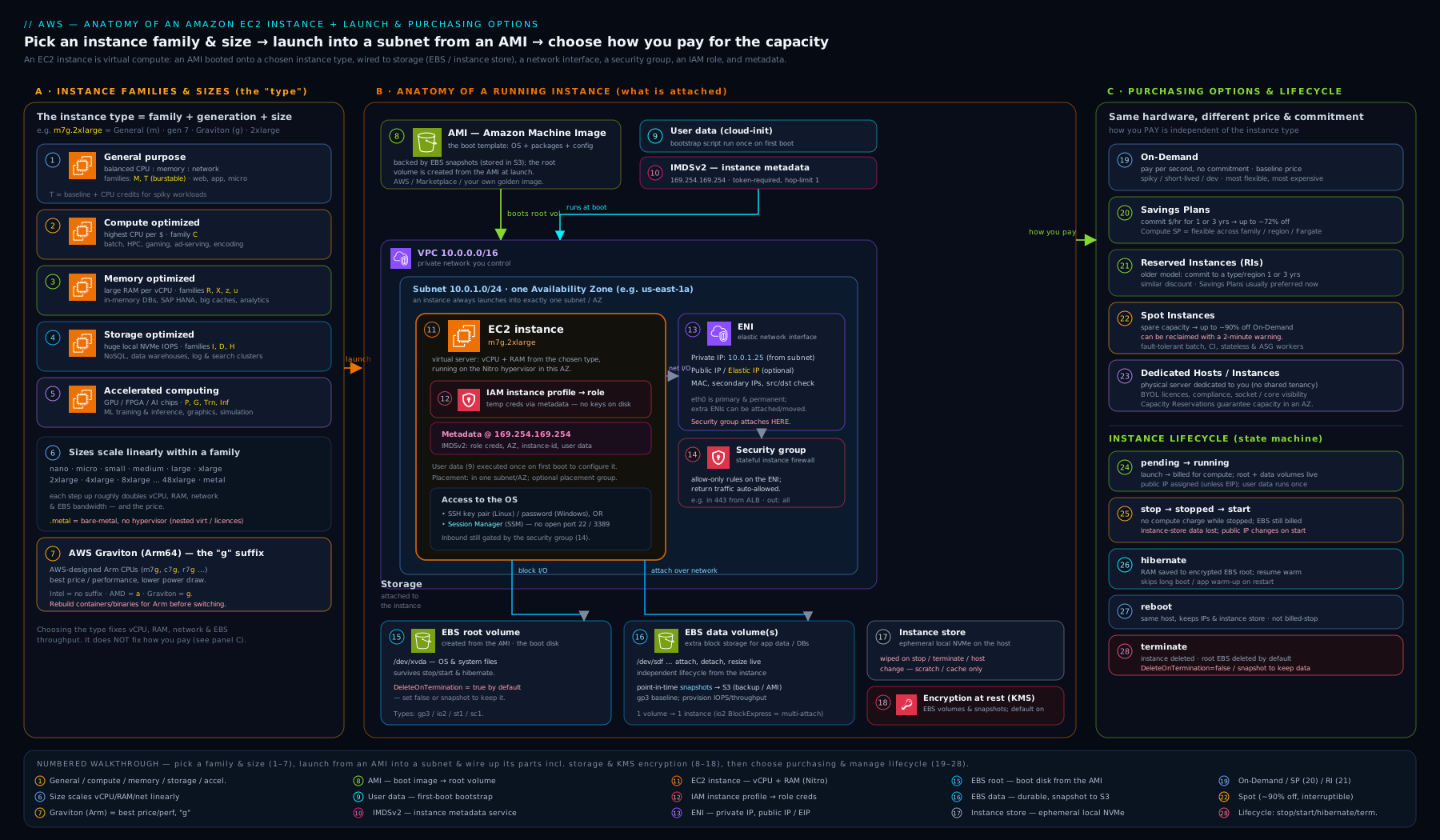
Keep this picture in mind whenever a setting confuses you — almost every option is configuring one of these boxes or the link between two of them.
Hands-on lab
Launch a small Free-Tier-eligible Linux instance with IMDSv2 enforced, bootstrap a web server with user data, connect with SSM Session Manager (no open SSH port), inspect it, stop it to halt compute billing, then terminate and clean up. Run the CLI commands in AWS CloudShell (Bash) — aws is pre-installed and already authenticated. A t3.micro (or t2.micro in older accounts) is Free-Tier-eligible for 750 hours/month for the first 12 months; outside that it costs only a rupee or two per hour, and we stop and terminate at the end.
Step 1 — Set variables and find the latest Amazon Linux 2023 AMI (from SSM public parameters).
REGION=ap-south-1
AMI=$(aws ssm get-parameters --region $REGION \
  --names /aws/service/ami-amazon-linux-latest/al2023-ami-kernel-default-x86_64 \
  --query 'Parameters[0].Value' --output text)
echo "Using AMI: $AMI"
Expected: an AMI ID like ami-0abc123... printed.
Step 2 — Create a role + instance profile for SSM (so we need no SSH key or open port).
aws iam create-role --role-name ec2-lab-ssm \
  --assume-role-policy-document '{"Version":"2012-10-17","Statement":[{"Effect":"Allow","Principal":{"Service":"ec2.amazonaws.com"},"Action":"sts:AssumeRole"}]}'
aws iam attach-role-policy --role-name ec2-lab-ssm \
  --policy-arn arn:aws:iam::aws:policy/AmazonSSMManagedInstanceCore
aws iam create-instance-profile --instance-profile-name ec2-lab-ssm
aws iam add-role-to-instance-profile --instance-profile-name ec2-lab-ssm --role-name ec2-lab-ssm
Expected: JSON confirming the role, attached policy, and instance profile.
Step 3 — Launch the instance: IMDSv2 enforced, user data installs nginx, no inbound SSH.
cat > userdata.sh <<'EOF'
#!/bin/bash
dnf -y install nginx
systemctl enable --now nginx
echo "Hello from $(hostname)" > /usr/share/nginx/html/index.html
EOF

INSTANCE=$(aws ec2 run-instances --region $REGION \
  --image-id $AMI --instance-type t3.micro --count 1 \
  --iam-instance-profile Name=ec2-lab-ssm \
  --metadata-options 'HttpTokens=required,HttpEndpoint=enabled,HttpPutResponseHopLimit=1' \
  --block-device-mappings '[{"DeviceName":"/dev/xvda","Ebs":{"VolumeSize":8,"VolumeType":"gp3","DeleteOnTermination":true,"Encrypted":true}}]' \
  --user-data file://userdata.sh \
  --tag-specifications 'ResourceType=instance,Tags=[{Key=Name,Value=ec2-lab},{Key=env,Value=lab}]' \
  --query 'Instances[0].InstanceId' --output text)
echo "Launched: $INSTANCE"
Expected: an instance ID. Note we set DeleteOnTermination=true and Encrypted=true on the root volume and enforced IMDSv2.
Step 4 — Wait for it, then inspect type, state and IMDS settings.
aws ec2 wait instance-running --region $REGION --instance-ids $INSTANCE

aws ec2 describe-instances --region $REGION --instance-ids $INSTANCE \
  --query 'Reservations[0].Instances[0].{type:InstanceType,state:State.Name,az:Placement.AvailabilityZone,imdsv2:MetadataOptions.HttpTokens}' \
  --output table
Expected: a table showing t3.micro, running, an AZ, and imdsv2 = required.
Step 5 — Connect with SSM Session Manager (no key, no open port) and verify user data ran.
# Give the SSM Agent a moment to register, then start a session
aws ssm start-session --region $REGION --target $INSTANCE
# Inside the session:
#   curl -s http://localhost/        # -> Hello from <hostname>  (proves user data ran)
#   TOKEN=$(curl -sX PUT http://169.254.169.254/latest/api/token -H "X-aws-ec2-metadata-token-ttl-seconds: 60")
#   curl -s -H "X-aws-ec2-metadata-token: $TOKEN" http://169.254.169.254/latest/meta-data/instance-type
#   exit
Expected: the nginx page text, then t3.micro from IMDSv2 (and an IMDSv1-style call without the token would be refused).
Step 6 — Stop to halt compute billing, confirm, then start again.
aws ec2 stop-instances --region $REGION --instance-ids $INSTANCE
aws ec2 wait instance-stopped --region $REGION --instance-ids $INSTANCE
aws ec2 describe-instances --region $REGION --instance-ids $INSTANCE \
  --query 'Reservations[0].Instances[0].State.Name' --output text   # -> stopped
Expected: stopped — compute charges stop here (the 8 GiB gp3 root still costs a few paise until terminated).
Validation checklist. You should have: a running Free-Tier instance with IMDSv2 enforced, connected via SSM with no open SSH port, seen the user-data nginx page, and stopped it to halt compute billing. If run-instances failed with VcpuLimitExceeded, request a quota increase or use a different Region.
Cleanup (do this — avoid lingering EBS/EIP charges).
aws ec2 terminate-instances --region $REGION --instance-ids $INSTANCE
aws ec2 wait instance-terminated --region $REGION --instance-ids $INSTANCE
# Root volume had DeleteOnTermination=true, so it's gone. Remove the IAM scaffolding:
aws iam remove-role-from-instance-profile --instance-profile-name ec2-lab-ssm --role-name ec2-lab-ssm
aws iam delete-instance-profile --instance-profile-name ec2-lab-ssm
aws iam detach-role-policy --role-name ec2-lab-ssm --policy-arn arn:aws:iam::aws:policy/AmazonSSMManagedInstanceCore
aws iam delete-role --role-name ec2-lab-ssm
Cost note. On the Free Tier this lab is effectively free: t3.micro hours are covered, the 8 GiB gp3 root sits within the 30 GiB/month free EBS allowance, and we used no public IPv4 (SSM tunnels out, avoiding the public-IPv4 hourly charge) and no Elastic IP. Off the Free Tier the cost is a rupee or two for the minutes it runs. Terminating deletes the root volume (we flagged it); double-check no stray volumes or EIPs remain with aws ec2 describe-volumes and aws ec2 describe-addresses.
Common mistakes & troubleshooting
| Symptom | Likely cause | Fix |
|---|---|---|
| Terminated an instance but EBS charges continue | Added data volumes default to DeleteOnTermination=false and were orphaned |
Delete stray volumes (describe-volumes then delete-volume); set the flag at launch next time |
| Public IP changed after a stop/start, breaking a hard-coded endpoint | Auto-assigned public IPv4 is released on stop and reassigned on start | Use an Elastic IP, or front the instance with a load balancer / DNS name |
| App on the instance can’t reach AWS APIs (“Unable to locate credentials”) | No IAM instance profile attached, or its role lacks the needed policy | Attach an instance profile and grant the role least-privilege permissions |
| Instance unreachable; system status check failing | Underlying AWS host fault | Stop/start to relocate to healthy hardware (or use the recover alarm action) |
| Instance unreachable; instance status check failing | OS/network misconfig, full disk, kernel issue inside the box | Check the system log / console output, fix in the OS, reboot |
| Can’t SSH after losing the private key | Key pair is the only access and the .pem is gone |
Use SSM/EC2 Instance Connect, or detach the root volume to a rescue instance |
| Containers can’t read IMDS / instance role | IMDS hop limit is 1; the container network adds a hop | Set HttpPutResponseHopLimit=2 (or use IRSA/Pod Identity on EKS) |
| Credentials stolen via a vulnerable web app (SSRF) | IMDSv1 allowed simple credential fetch | Enforce IMDSv2 (HttpTokens=required) everywhere |
| T-instance suddenly slow under sustained load | CPU credits exhausted, throttled to baseline | Switch to Unlimited mode, move to an M/C type, or right-size |
| Bill creeping up with no running instances | Elastic IPs allocated-but-unassociated, or orphaned volumes/snapshots | Release unused EIPs; delete orphaned volumes/snapshots |
Best practices
- Prefer the latest generation and Graviton (Arm64) where your stack supports it — best price/performance and security isolation.
- Right-size from data, not habit. Start modest, watch CloudWatch CPU/memory/network/EBS metrics, and resize; use T-family only for spiky loads, M/C for steady ones.
- No open SSH/RDP to the internet. Use SSM Session Manager (no key, no inbound port, fully audited) as the default; reserve key pairs / EC2 Instance Connect for narrow cases.
- Enforce IMDSv2 (
HttpTokens=required) on every instance and via an org SCP; keep the hop limit at 1 unless containers need 2. - Attach an IAM instance profile instead of storing access keys; pull secrets from Secrets Manager / SSM Parameter Store at runtime, never from user data.
- Keep state off the root volume and off instance store. Put durable data on dedicated EBS data volumes (so you can snapshot/detach), reserve instance store for scratch.
- Set delete-on-termination deliberately per volume, turn on account-level EBS encryption by default, and enable termination/stop protection on pets.
- Bake golden AMIs (Image Builder/Packer) for fast, deterministic boots; use user data only for light bootstrap.
- Buy the baseline with Savings Plans / Reserved Instances, absorb spikes with On-Demand, and run interruptible batch on Spot.
- Tag everything (owner, env, cost centre) and define instances as code (launch templates / Terraform / CloudFormation) so settings are reviewable and repeatable.
Security notes
- Lock down IMDS: enforce IMDSv2, disable IMDS entirely if nothing needs it, and never expose
169.254.169.254through a reverse proxy — this closes a whole class of credential-theft (SSRF) incidents. - Secretless access to AWS: use IAM roles via the instance profile; the SDK fetches short-lived, auto-rotating credentials. Never bake long-lived access keys into the AMI or user data.
- No secrets in user data — anything in the instance can read it via IMDS and it isn’t encrypted; fetch secrets at runtime from Secrets Manager / Parameter Store.
- Minimise the attack surface: no public IP where you can avoid it, tight security groups (no
0.0.0.0/0on management ports), and SSM instead of bastions where possible. - Encrypt EBS (turn on account-default encryption with a CMK) so root, data and snapshots are encrypted at rest; enable EBS-backed AMIs with encrypted snapshots.
- Patch and harden the guest: use Systems Manager Patch Manager and a hardened golden image; the platform secures the host, you secure the OS.
- Audit and detect: CloudTrail for control-plane API calls (who launched/terminated/modified), and Amazon Inspector + GuardDuty for vulnerability assessment and threat detection on instances.
- Guard powerful actions:
RunInstances,TerminateInstances, attaching instance profiles, andec2-instance-connect/ssm:StartSessionare privileged — scope them with least-privilege IAM and use termination protection on critical hosts.
Cost & sizing
The levers that actually move an EC2 bill, roughly in order of impact:
- Instance type & size — the dominant cost; scales with vCPU/RAM. Right-sizing (and moving to Graviton) is the biggest saving.
- Purchasing model — Savings Plans / Reserved Instances cut steady-state cost up to ~72%; Spot up to ~90% for interruptible work. Match the model to the workload.
- Running hours — you pay per second while running. Stop non-production instances when idle and use schedules/Auto Scaling; stopping from the OS does halt EC2 billing (unlike some other clouds), but the instance must reach the
stoppedstate. - EBS volumes — billed by provisioned size (and, for gp3/io2, provisioned IOPS/throughput) independently of the instance, and keep billing while the instance is stopped. Delete orphaned volumes; right-size; prefer gp3 over gp2.
- Snapshots — incremental but accumulate; lifecycle-expire old ones (Data Lifecycle Manager).
- Public IPv4 & data transfer — every public IPv4 now bills hourly; idle Elastic IPs bill extra. Cross-AZ and egress data transfer add up — keep chatty tiers in one AZ and use VPC endpoints/CloudFront where appropriate.
- Marketplace software & licensing — some AMIs add a per-hour software charge; use Dedicated Hosts + BYOL or Hybrid Benefit-style licensing to cut Windows/SQL costs.
A simple discipline: pick the smallest current-gen (ideally Graviton) type that meets measured demand, commit the steady baseline with a Savings Plan, run interruptible work on Spot, stop/schedule the rest, and clean up orphaned volumes, snapshots and EIPs.
Interview & exam questions
1. What is the difference between stopping and terminating an instance? Stopping halts compute billing while keeping the EBS volumes (still billed for storage) so you can start again later; instance store is wiped, T-credits reset, and the auto-assigned public IPv4 changes on next start. Terminating permanently deletes the instance, deletes the root volume by default (and any volume flagged delete-on-termination), and disassociates any Elastic IP. Stop = pause; terminate = delete.
2. EBS vs instance store — when would you use each, and what’s the persistence gotcha? EBS is network-attached, durable, snapshot-able and persists across stop/start; use it for the root volume and any data you must keep. Instance store is local, ephemeral and very fast; use it for scratch/cache/replicated data. The gotcha: instance-store data survives a reboot but is lost on stop, hibernate, terminate or host failure.
3. Reserved Instances vs Savings Plans vs Spot — how do you choose? Reserved Instances and Savings Plans are 1/3-year commitments for steady workloads (RIs lock a configuration; Savings Plans commit a $/hour and are more flexible, even covering Fargate/Lambda). Spot is for interruptible, fault-tolerant work at up to ~90% off but can be reclaimed with a two-minute notice. Run baseline on Savings Plans/RIs, spikes on On-Demand, batch on Spot.
4. Does a Reserved Instance guarantee capacity? Only a zonal RI (and a Capacity Reservation) reserves capacity. A Regional RI and any Savings Plan are billing discounts only — they do not guarantee a launch will succeed during a capacity shortage. For guaranteed capacity without a long commitment, use an On-Demand Capacity Reservation.
5. What is IMDSv2 and why enforce it? IMDSv2 makes metadata access session-oriented: you first PUT to obtain a token, then send it as a header on each GET. This defeats most SSRF and reverse-proxy attacks that, under IMDSv1, could trick a vulnerable app into fetching the instance role’s credentials. Enforce it with HttpTokens=required on every instance.
6. Why might a containerised app fail to read instance metadata or its IAM role? The default IMDS hop limit is 1, and a container’s bridge network adds a hop, so the token response can’t reach the container. Set HttpPutResponseHopLimit=2 (or, on EKS, use IRSA / Pod Identity instead of the instance role).
7. How do you give software on an instance permission to call AWS without storing keys? Attach an IAM role via an instance profile. The SDK/CLI automatically retrieves short-lived, auto-rotating credentials from IMDS. Never put long-lived access keys on the instance or in user data.
8. Explain the T-family burstable model and the two modes. T-instances run each vCPU at a baseline and bank CPU credits when below it, spending them to burst under load. Standard mode throttles to baseline when credits run out (no extra cost); Unlimited mode keeps bursting and bills the surplus CPU. Use T for spiky/idle workloads; switch to M/C (or Unlimited) for sustained load.
9. A system status check is failing but the instance status check is fine. What do you do? A failed system check is an AWS host/network/power problem. A stop/start relocates the instance to healthy hardware (or use the CloudWatch recover action). A failed instance check, by contrast, is an OS/config problem inside the box that relocating won’t fix.
10. What’s the difference between Dedicated Instances and Dedicated Hosts? Both give single-tenant hardware. Dedicated Instances isolate at the account level with no visibility into placement. Dedicated Hosts allocate a specific physical server with visibility into sockets/cores — required for bring-your-own-licence software licensed per physical core and for stricter compliance; you pay for the whole host.
11. Why might deleting an instance still leave you with a bill? Terminating deletes the root volume but not additional EBS volumes (default DeleteOnTermination=false), nor snapshots, nor Elastic IPs (idle EIPs bill, and all public IPv4 now bills hourly). Delete orphaned volumes/snapshots and release unused EIPs.
12. What does user data do, and what must you never put in it? User data is a script/cloud-config run by cloud-init on first boot to bootstrap the instance (install packages, write config). It is capped at 16 KB, runs once by default, and is retrievable via IMDS and unencrypted — so never put secrets in it; fetch them at runtime from Secrets Manager / Parameter Store.
13. What does a placement group’s spread vs cluster strategy do? Cluster packs instances close together in one AZ for lowest latency/highest throughput (HPC), concentrating the blast radius. Spread places each instance on distinct hardware (max 7 per AZ) so a single hardware failure can’t take out more than one. Partition groups instances into rack-isolated partitions for large distributed systems.
Quick check
- You terminate an instance to save money but notice EBS charges continue the next day. What happened and how do you prevent it?
- Which purchasing option gives the deepest discount but can be reclaimed at any time, and what workloads suit it?
- True or false: stopping and starting an instance keeps its auto-assigned public IPv4 address.
- Your web app was compromised by an SSRF attack that read the instance role’s credentials. Which single EC2 setting would have most likely prevented this?
- A
systemstatus check is failing on a production instance while theinstancestatus check passes. What is the correct first action?
Answers
- The instance’s additional EBS data volumes defaulted to
DeleteOnTermination=false, so they were left behind as billable, orphaned volumes. Set the flag totrueper volume at launch (or delete stray volumes afterward); the root volume is deleted by default. - Spot Instances — up to ~90% off — suited to fault-tolerant, stateless, checkpointed or otherwise interruptible work (batch, CI, rendering) that can absorb a two-minute reclaim notice.
- False. The auto-assigned public IPv4 is released on stop and a new one is assigned on start. Use an Elastic IP (or a load balancer/DNS) if you need a stable address.
- Enforcing IMDSv2 (
HttpTokens=required). The required token-PUTstep defeats most SSRF attempts to fetch the role credentials from169.254.169.254. - Stop and start the instance (or trigger the CloudWatch
recoveraction). A failed system check is an AWS host problem; stop/start relocates the instance to healthy hardware. A relocate would not help a failed instance check.
Exercise
In CloudShell, launch a Free-Tier t3.micro Amazon Linux 2023 instance with: IMDSv2 enforced (HttpTokens=required), no public IP (--no-associate-public-ip-address in a private-capable subnet, or simply rely on SSM), an encrypted gp3 root volume flagged DeleteOnTermination=true, an IAM instance profile granting AmazonSSMManagedInstanceCore, and user data that installs and starts nginx. Then: (a) connect with aws ssm start-session and curl localhost to prove user data ran; (b) from inside, perform a correct IMDSv2 token-then-GET call to read the instance type, and confirm a tokenless IMDSv1 call is refused; © attach a second 100 GiB gp3 data volume with DeleteOnTermination=true, observe it inside the OS (lsblk), then stop the instance and verify the state is stopped; (d) terminate and confirm with describe-volumes that no volumes remain. Bonus: rewrite the launch as an EC2 launch template (aws ec2 create-launch-template) so the same configuration can feed an Auto Scaling group in the next lesson.
Certification mapping
- SAA-C03 (Solutions Architect Associate) — Design cost-optimized, resilient, secure architectures: choosing instance families/sizes and Graviton for the workload; selecting purchasing options (On-Demand vs RI vs Savings Plans vs Spot vs Dedicated) and knowing which actually reserve capacity; EBS vs instance store persistence; placement groups and tenancy; security groups; IMDSv2 and IAM instance profiles for secure access; the stop vs terminate billing distinction.
- DVA-C02 (Developer Associate) — Deployment & security: user data / cloud-init bootstrapping, retrieving config/credentials via IMDS (and using IMDSv2 correctly in code), attaching IAM roles via instance profiles so the SDK gets temporary credentials, building/using AMIs, and lifecycle automation. The next lesson on launch templates and Auto Scaling continues the deployment story.
Glossary
- EC2 instance — a rented virtual server (vCPU, RAM, storage, NIC) you control from the OS up; AWS’s core IaaS compute.
- vCPU — a virtual CPU thread; the unit instance sizes are measured in.
- Instance type — the named hardware shape (e.g.
m7g.large): family, generation, suffix, size. - Instance family — group of types by CPU:RAM ratio or specialised hardware (T/M/C/R/X/I/D/P/G/Hpc…).
- Generation — the version number in the type name (
m6vsm7); newer = better price/performance and Nitro features. - Graviton — AWS’s Arm64 processors (the
gsuffix); best price/performance for compatible workloads. - Burstable (T-family) — instances that run at a throttled baseline and bank CPU credits to burst; Standard vs Unlimited mode.
- Nitro System — the modern AWS hypervisor/hardware platform underpinning current instance types.
- AMI (Amazon Machine Image) — the template (root snapshot + block mapping + metadata) an instance boots from; Regional and architecture-specific.
- EBS (Elastic Block Store) — network-attached, durable block volumes; persist independently of the instance and can be snapshotted.
- Instance store — fast, local, ephemeral disk on the host; lost on stop/hibernate/terminate/host failure.
- Delete on termination — per-volume flag deciding whether an EBS volume is deleted with the instance (root: true; data: false by default).
- ENI (Elastic Network Interface) — a virtual NIC carrying IPs, MAC and security groups; the primary one can’t be detached.
- Elastic IP (EIP) — a static public IPv4 you own and can move between instances; idle ones incur charges.
- Security group — a stateful, allow-only, instance-level firewall attached to an ENI.
- Placement group — a placement hint: cluster (close), spread (separate hardware), or partition (rack-isolated groups).
- Tenancy — shared (multi-tenant), Dedicated Instance, or Dedicated Host (single-tenant hardware).
- Key pair — an asymmetric key for first login (Linux SSH; decrypts the Windows admin password).
- IAM instance profile — a container attaching an IAM role to the instance so software gets temporary AWS credentials without stored keys.
- User data — a first-boot script/cloud-config consumed by cloud-init to bootstrap the instance (16 KB cap; not secret).
- IMDS — the instance metadata service at
169.254.169.254exposing metadata, user data and role credentials. - IMDSv2 — the session/token-based, SSRF-resistant version of IMDS; enforce with
HttpTokens=required. - Hop limit — the max network hops an IMDS token response may travel (default 1; 2 for containers).
- Hibernate — saves RAM to the encrypted EBS root and stops; resume restores in-memory state (enable at launch).
- Status checks — system (AWS host), instance (OS/config) and EBS health checks surfaced as alarms.
- Savings Plan / Reserved Instance — 1/3-year commitments that discount steady-state compute.
- Spot Instance — discounted spare-capacity instance that AWS can reclaim with a two-minute notice.
Next steps
You now know the EC2 instance itself end to end. The natural next topic is how to run many of them elastically and self-healingly behind a load balancer:
- Next: EC2 Auto Scaling, In Depth: Launch Templates, ASGs, Scaling Policies & Lifecycle Hooks
- Related: EC2 Auto Scaling Warm Pools, Lifecycle Hooks & Instance Refresh
- Related: Production Spot at Scale: Mixed Instances Policies, Capacity-Optimized Allocation & Interruption Handling
- Related: Graviton/Arm64 Migration: Multi-arch Builds & Benchmarking