You have learned what containers and Kubernetes are, and you know the core objects — Pods, Deployments, Services. Now you actually drive the thing. kubectl (say it “cube-control” or “cube-cuttle”; nobody agrees) is the command-line tool you use to talk to any Kubernetes cluster, anywhere. In this lesson you will install it, spin up a real cluster on your own laptop for free, write a Deployment and a Service as YAML, apply them, reach the running app from your browser, read its logs, and clean everything up.
By the end you will understand the single most important workflow in Kubernetes — the declarative kubectl apply loop — and you will be able to picture exactly what the cluster does in the half-second after you press Enter. That mental model is what separates someone who copies commands from someone who can debug a cluster.
Learning objectives
- Install
kubectland a free local cluster (kind, minikube, or k3d) and confirm they talk to each other. - Read a kubeconfig file and switch between contexts so you always know which cluster you are about to change.
- Tell the difference between the imperative style (
kubectl create,kubectl run) and the declarative style (YAML +kubectl apply), and explain when to use each. - Trace what happens when you
kubectl apply: API server → etcd → scheduler → kubelet → running Pod, and the reconciliation loop that keeps it that way. - Use
kubectl logs,kubectl exec, andkubectl port-forwardto inspect and reach a workload.
Prerequisites & where this fits
You need basic comfort with a terminal and Docker (or Podman) already installed and running — see Containers & Docker Basics if that part is new. You should also know what a Pod, Deployment, and Service are, because we deploy all three here. This is Lesson 4 of the Kubernetes Zero-to-Hero course (Fundamentals module) and the first one where you operate a cluster end to end with your own hands. Everything afterward — Helm, GitOps, autoscaling — is built on the apply loop you learn today.
kubectl and the cluster: two separate things
A common beginner trap is thinking kubectl is Kubernetes. It is not. kubectl is a small client program on your machine. The cluster is a separate set of machines (or, today, containers pretending to be machines) running the Kubernetes control plane and your workloads. kubectl turns your commands into HTTPS requests to the cluster’s API server and prints the responses. That is the whole relationship.
your laptop                          the cluster
┌─────────────┐   HTTPS (REST)   ┌──────────────────────┐
│  kubectl    │ ───────────────► │  kube-apiserver       │
│  (+kubeconfig)│ ◄─────────────── │  (the only front door)│
└─────────────┘    JSON           └──────────────────────┘
Because it is just a client, the same kubectl binary works against a tiny local cluster, a managed cloud cluster (EKS, AKS, GKE), or a customer’s air-gapped cluster. What changes is which cluster it points at — and that is decided entirely by the kubeconfig.
Install kubectl
Pick your platform. Verify with kubectl version --client.
# macOS (Homebrew)
brew install kubectl

# Linux (official binary)
curl -LO "https://dl.k8s.io/release/$(curl -L -s https://dl.k8s.io/release/stable.txt)/bin/linux/amd64/kubectl"
sudo install -o root -g root -m 0755 kubectl /usr/local/bin/kubectl

# Windows (winget) — run in PowerShell
winget install -e --id Kubernetes.kubectl

# Verify (works even with no cluster yet)
kubectl version --client
# Client Version: v1.30.x
Keep
kubectlwithin one minor version of your cluster (e.g. a v1.30 client against a v1.29–v1.31 server). A big skew can make commands behave oddly.
kubeconfig and contexts: which cluster am I about to change?
Every kubectl command answers one question first: which cluster, as which user, in which namespace? That answer lives in a YAML file called the kubeconfig, by default at ~/.kube/config. It has three lists stitched together by contexts:
| Section | What it holds |
|---|---|
clusters |
The API server URL + its CA certificate (how to find and trust the cluster) |
users |
Your credentials (a client cert, token, or an exec plugin that fetches one) |
contexts |
A named triple: which cluster + which user + which default namespace |
The current context is the one kubectl uses unless you say otherwise. These are the commands you will run constantly:
kubectl config get-contexts          # list all; the * marks the current one
kubectl config current-context       # just the name
kubectl config use-context kind-demo # switch clusters
kubectl config set-context --current --namespace=web   # stop typing -n every time
This sounds dull until the day you run kubectl delete against production thinking you were on staging. Before any change, glance at kubectl config current-context. Senior engineers bake the context name into their shell prompt for exactly this reason. Treat it as a seatbelt.
Imperative vs. declarative: two ways to tell Kubernetes what you want
There are two styles for creating things, and knowing which is which is a genuine interview topic.
Imperative = you issue a command that performs an action now. You describe the steps.
kubectl run web --image=nginx:1.27 --port=80   # create one Pod
kubectl create deployment web --image=nginx:1.27 --replicas=3
kubectl scale deployment web --replicas=5
kubectl delete pod web
Great for quick experiments, debugging, and one-off tasks. The downside: the desired state lives only in your shell history. There is no file to review, diff, or commit.
Declarative = you write a file describing the desired end state, and kubectl apply makes reality match it. You describe the destination, not the steps.
kubectl apply -f deployment.yaml     # create or update to match the file
kubectl diff  -f deployment.yaml     # preview the change first (do this!)
kubectl apply -f k8s/ --recursive    # a whole directory of manifests
Declarative is how real systems are run, because the YAML can live in Git, be reviewed in a pull request, and be re-applied identically a hundred times. apply is idempotent: apply the same file twice and the second run is a no-op. This is the foundation of GitOps, which you will meet later in the course.
| Imperative | Declarative | |
|---|---|---|
| You specify | The action / steps | The desired end state |
| Source of truth | Your shell history | A YAML file (in Git) |
| Repeatable? | No (you re-type) | Yes (apply is idempotent) |
| Best for | Debugging, learning, one-offs | Production, teams, GitOps |
A pro tip that bridges the two: generate YAML from an imperative command, then save and edit it. --dry-run=client builds the object without sending it to the cluster:
kubectl create deployment web --image=nginx:1.27 --dry-run=client -o yaml > deployment.yaml
That single trick — imperative to scaffold, declarative to keep — is also the fastest way to write correct YAML in the CKAD exam.
What actually happens when you run kubectl apply
This is the heart of the lesson. When you apply a Deployment, a precise relay race runs inside the cluster. Understanding it means you can debug any “my pod isn’t running” problem by asking which baton got dropped.
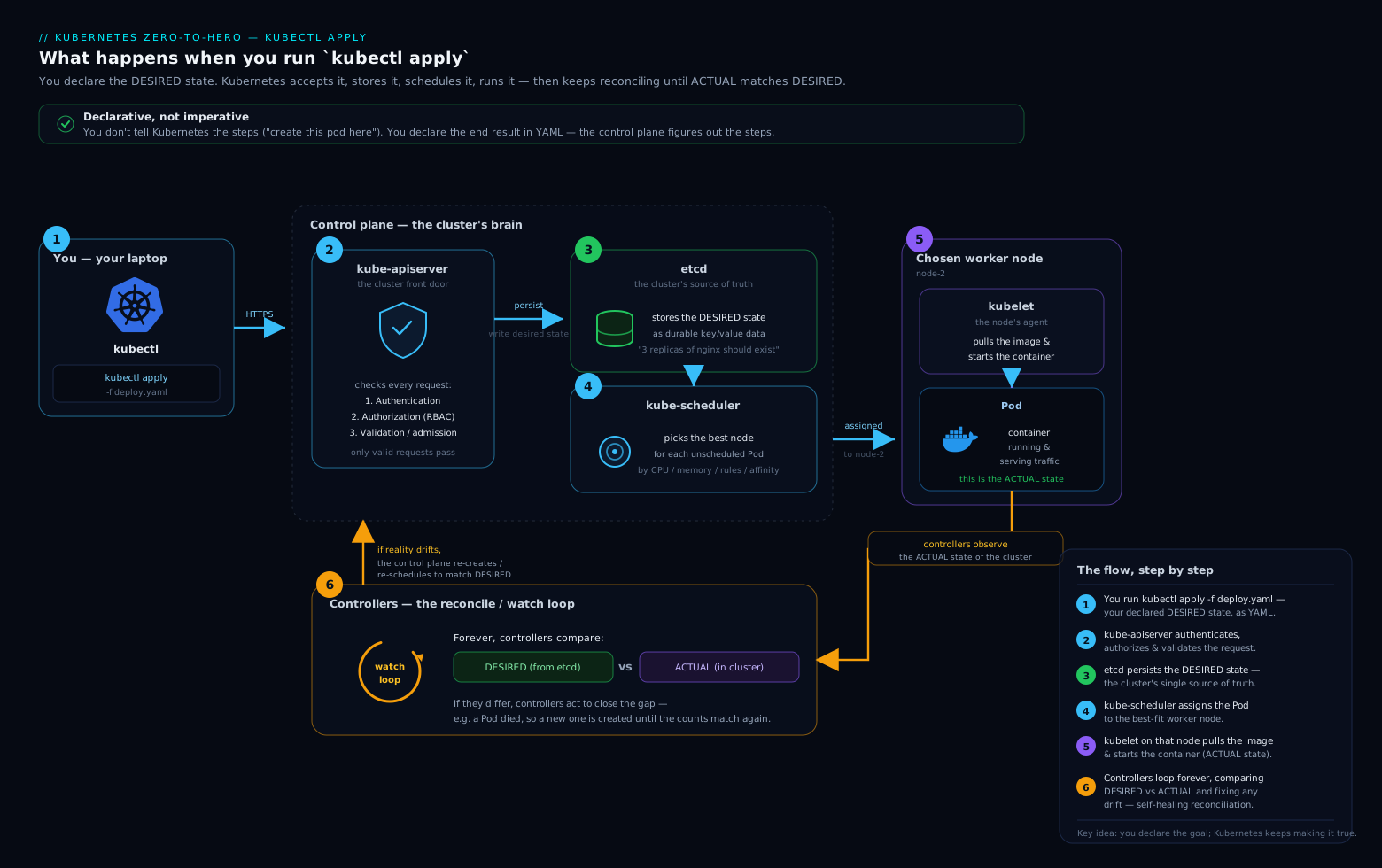
Walking the diagram, step by step:
- kubectl → API server.
kubectlreads your YAML, sends it as an HTTPS request to the kube-apiserver — the cluster’s only front door. The server authenticates you (who are you?), authorizes you (are you allowed? — that is RBAC), and validates the object (is this valid YAML for a Deployment?). - API server → etcd. The validated object is written to etcd, the cluster’s database — its single source of truth for desired state. At this instant the API call returns success and your prompt comes back. Note: the Pod does not exist yet. You have only recorded an intention.
- Controllers notice. The Deployment controller is watching the API server. It sees a new Deployment wanting 2 replicas, so it creates a ReplicaSet; the ReplicaSet controller sees that and creates 2 Pod objects — still just records in etcd, marked
Pending, with no node assigned. - Scheduler → assigns a node. The kube-scheduler watches for unscheduled Pods, picks a suitable node (enough CPU/memory, no blocking taints), and writes that choice back. The Pod now has a home but is still not running.
- kubelet → starts the container. The kubelet on the chosen node sees a Pod assigned to it, tells the container runtime (containerd) to pull the image and start the container, then reports the Pod’s status —
ContainerCreating, thenRunning— back to the API server, which records it in etcd. - Reconciliation never stops. This is the magic. Kubernetes constantly compares desired state (etcd: “2 replicas”) with actual state (“how many are running?”). Kill a Pod and the ReplicaSet controller notices the gap and creates a replacement within seconds. You declared what you want; the cluster’s job is to keep making it true. This control loop is the single idea that makes Kubernetes self-healing.
The practical payoff: when something is wrong, you debug by stage. Pod stuck Pending? The scheduler could not place it (step 4) — check node capacity and taints. ImagePullBackOff? The kubelet’s runtime cannot fetch the image (step 5) — check the image name and registry auth. CrashLoopBackOff? The container starts then dies (step 5) — read its logs. You are not guessing; you are asking which baton was dropped.
Hands-on lab: your first cluster and deployment (free, local)
We will create a local cluster with kind (Kubernetes IN Docker), apply a Deployment + Service, reach it from your browser, read its logs, and clean up. kind is free and runs entirely on your machine. If you prefer minikube or k3d, the only command that changes is cluster creation; everything from kubectl apply onward is identical.
1. Install kind and create a cluster
# Install kind (macOS). Linux/Windows: https://kind.sigs.k8s.io/docs/user/quick-start/
brew install kind

# Create a one-node cluster named "demo" (Docker must be running)
kind create cluster --name demo
Creating the cluster automatically adds a context named kind-demo to your kubeconfig and switches to it. Confirm the cluster is up and you are pointed at it:
kubectl config current-context
# kind-demo

kubectl get nodes
# NAME                 STATUS   ROLES           AGE   VERSION
# demo-control-plane   Ready    control-plane   40s   v1.30.x
Alternative:
minikube start(creates contextminikube) ork3d cluster create demo(contextk3d-demo). Pick one; the rest is the same.
2. Write the Deployment + Service YAML
Create a file app.yaml. It declares two objects separated by ---: a Deployment running 2 nginx replicas, and a Service that gives them one stable in-cluster address. The Service finds its Pods by label selector (app: web) — the same label set on the Pod template.
apiVersion: apps/v1
kind: Deployment
metadata:
  name: web
  labels:
    app: web
spec:
  replicas: 2
  selector:
    matchLabels:
      app: web          # the Deployment manages Pods with this label
  template:
    metadata:
      labels:
        app: web        # Pods are stamped with this label
    spec:
      containers:
        - name: nginx
          image: nginx:1.27
          ports:
            - containerPort: 80
---
apiVersion: v1
kind: Service
metadata:
  name: web
spec:
  selector:
    app: web            # routes to any Pod carrying app: web
  ports:
    - port: 80
      targetPort: 80
3. Apply it and watch the relay race happen
kubectl apply -f app.yaml
# deployment.apps/web created
# service/web created

# Watch the Pods march from Pending -> ContainerCreating -> Running
kubectl get pods -l app=web --watch
# NAME                   READY   STATUS    RESTARTS   AGE
# web-6f8c9d4b7-2xk9p    1/1     Running   0          8s
# web-6f8c9d4b7-q4m2t    1/1     Running   0          8s
# (press Ctrl+C to stop watching)
You just witnessed steps 2–5 from the diagram in real time. Inspect the whole set and read the Events — the bottom of describe is where Kubernetes tells you what it did and why:
kubectl get deploy,rs,pods,svc -l app=web
kubectl describe deployment web        # scroll to "Events:" at the bottom
4. Reach the app with port-forward and curl (the validation step)
A ClusterIP Service is only reachable inside the cluster. To hit it from your laptop without exposing anything publicly, use port-forward — kubectl opens a tunnel from a local port to the Service.
# Tunnel localhost:8080 -> the Service's port 80 (leave this running)
kubectl port-forward svc/web 8080:80
# Forwarding from 127.0.0.1:8080 -> 80
In a second terminal, validate that the app responds:
curl -s http://localhost:8080 | head -n 4
# <!DOCTYPE html>
# <html>
# <head>
# <title>Welcome to nginx!</title>
Seeing nginx’s welcome HTML is your proof the full chain works: Service → Pod → container, reachable through the tunnel. (Open http://localhost:8080 in a browser for the same page.) Press Ctrl+C in the first terminal to close the tunnel.
5. Logs and exec
# Logs from the Deployment's pods (-f follows; --previous shows a crashed container)
kubectl logs -l app=web --tail=20
# 127.0.0.1 - - [14/Jun/2026:...] "GET / HTTP/1.1" 200 ...   <- your curl

# Open a shell inside a running container
kubectl exec -it deploy/web -- sh
#  / # ls /usr/share/nginx/html
#  / # exit
logs, exec, and port-forward are your three everyday debugging tools — read output, look inside, and reach a service. You now have all three.
6. Cleanup
# Remove just the app
kubectl delete -f app.yaml
# deployment.apps "web" deleted
# service "web" deleted

# Delete the whole cluster (frees all Docker resources)
kind delete cluster --name demo
# (minikube: minikube delete   |   k3d: k3d cluster delete demo)
Cost note: Everything here is free and local — kind/minikube/k3d run as containers on your own machine, with no cloud account and nothing to pay for. Deleting the cluster reclaims the CPU and memory it used. Always tear down clusters you are done with so they are not idling in the background.
Common mistakes & troubleshooting
| Symptom | Likely cause | Fix |
|---|---|---|
The connection to the server localhost:8080 was refused |
No current context / no cluster running | kind create cluster (or start it), then kubectl config current-context |
| Changes hit the wrong cluster | You forgot which context was current | Always check kubectl config current-context before a change; put it in your prompt |
Pod stuck Pending |
Scheduler can’t place it (no capacity, a taint, an unbound PVC) | kubectl describe pod <name> → read Events; check node resources |
ImagePullBackOff |
Wrong image name/tag, or private registry needs auth | Fix the image: value; for private registries add an imagePullSecret |
CrashLoopBackOff |
Container starts then exits (bad command, missing config) | kubectl logs <pod> --previous; check the command/env/probes |
curl to port-forward fails |
Tunnel closed, or targetPort ≠ container port |
Keep the port-forward terminal open; confirm targetPort matches containerPort |
Best practices
- Manifests in Git, not in your head. Treat YAML as the source of truth and
kubectl applyas the only way you change long-lived resources. - Preview before you apply. Run
kubectl diff -f app.yamlto see exactly what will change. This habit prevents more incidents than any other. - Scaffold YAML with
--dry-run=client -o yamlinstead of memorizing field names — fast and correct. - Set your namespace once with
kubectl config set-context --current --namespace=<ns>rather than appending-nto every command. - Make the current context visible in your shell prompt (kube-ps1, Starship) so you never operate on the wrong cluster.
- Use labels deliberately —
kubectl logs -l app=webandkubectl delete -fare only as good as consistent labels.
Security notes
- kubeconfig is a credential.
~/.kube/configcan hold tokens and client keys that grant cluster access. Do not commit it to Git, paste it in chat, or email it. Treat it like an SSH private key. kubectl execis powerful. A shell inside a Pod can read mounted Secrets and the Pod’s service-account token. In shared clusters this access is gated by RBAC — you only get what your role allows. (Least-privilege RBAC is its own lesson; see related links below.)port-forwardonly binds to localhost by default, so this lab exposes nothing to your network. Be deliberate before changing that bind address.
Quick check
- What does
kubectl config current-contexttell you, and why glance at it before any change? - In one sentence each, contrast the imperative and declarative styles.
- Put these in order for a
kubectl applyof a Deployment: scheduler assigns a node · object written to etcd · kubelet starts the container · API server validates the request. - Your Pod is stuck in
Pending. Which stage failed, and which command shows you why? - Why can’t you
curlaClusterIPService directly from your laptop, and what bridges the gap in this lab?
Answers
- It prints the name of the cluster/user/namespace
kubectlwill act on. You check it so you don’t accidentally change the wrong cluster (e.g. prod instead of staging). - Imperative: you run a command that performs an action now (you specify the steps). Declarative: you write a file describing the desired end state and
kubectl applymakes reality match it (you specify the destination). - API server validates the request → object written to etcd → scheduler assigns a node → kubelet starts the container.
- Scheduling failed — the scheduler couldn’t place the Pod on any node.
kubectl describe pod <name>and read the Events section (usually insufficient resources or a taint). - A
ClusterIPService has an address that only exists inside the cluster.kubectl port-forward svc/web 8080:80opens a tunnel from your laptop’s port 8080 to the Service, socurl http://localhost:8080reaches it.
Exercise
Starting from a fresh local cluster, do the following without copying the lab’s app.yaml verbatim:
- Scaffold a Deployment for
httpd:2.4(Apache) namedsiteusingkubectl create deployment ... --dry-run=client -o yaml, redirect it tosite.yaml, and edit it to run 3 replicas oncontainerPort: 80. - Add a
Serviceto the same file (use---) selectingapp: siteon port 80. - Run
kubectl diff -f site.yaml(note it shows everything as new), thenkubectl apply -f site.yaml. - Port-forward and
curluntil you see Apache’sIt works!page. Confirm 3 Pods areRunning. - Edit the file to 5 replicas, run
kubectl diff -f site.yaml(see only the replica change), thenapplyand watch two new Pods appear. - Delete one Pod by name and watch the ReplicaSet recreate it — reconciliation in action. Clean up with
kubectl delete -f site.yamlandkind delete cluster.
Stretch: break it on purpose — set the image to httpd:does-not-exist, apply, and identify the failure stage from kubectl get pods and kubectl describe pod.
Interview questions
-
What happens, end to end, when you
kubectl applya Deployment? kubectl sends the YAML to the API server, which authenticates, authorizes, and validates it, then persists the object to etcd. The Deployment controller creates a ReplicaSet, which creates Pod objects; the scheduler assigns each Pod to a node; the kubelet on that node tells the container runtime to pull the image and start the container, reporting status back. Reconciliation then keeps actual state matching desired state. -
Imperative vs. declarative — when do you use each? Imperative (
kubectl run/create/scale) for quick experiments and debugging. Declarative (YAML +kubectl apply) for anything long-lived, because the desired state lives in Git, is reviewable, andapplyis idempotent. Most real systems are declarative; GitOps depends on it. -
What is a kubeconfig context, and why does it matter operationally? A context is a named triple of cluster + user + namespace, and the current context decides what every
kubectlcommand acts on. It matters because mixing up contexts is how people accidentally change the wrong cluster; checking the current context is a basic safety habit. -
A Pod is
Pending. How do you diagnose it?Pendingmeans the scheduler hasn’t placed it. Runkubectl describe podand read the Events — typical causes are insufficient CPU/memory on nodes, a taint with no matching toleration, node affinity that can’t be satisfied, or an unbound PersistentVolumeClaim. -
What does
kubectl applybeing idempotent mean in practice? Applying the same manifest repeatedly converges to the same state; the second apply is a no-op if nothing changed. This makes re-applies safe, enables drift correction, and is the basis for GitOps controllers that continuously re-apply from a repo. -
Why might
kubectl logsreturn nothing, and how do you get a crashed container’s output? The container may not have written to stdout/stderr, or it already restarted. Usekubectl logs <pod> --previousto see the previous (crashed) instance’s logs, and-c <container>to pick a specific container in a multi-container Pod.
Certification mapping
| Cert | How this lesson maps |
|---|---|
| KCNA | “Kubernetes Fundamentals” — kubectl basics, the declarative model, and the apply/reconcile flow are core knowledge-level topics. |
| CKAD | Directly exam-relevant. The whole exam is kubectl in a terminal: apply -f, --dry-run=client -o yaml to scaffold YAML fast, logs, exec, port-forward, and reading describe are everyday CKAD moves. |
| CKA | Administrator focus: managing kubeconfig/contexts and diagnosing by stage (Pending → scheduler, ImagePull → kubelet/runtime) is the foundation of the troubleshooting domain. |
| CKS | Builds on this: securing kubeconfig credentials and gating exec/access with RBAC are CKS concerns once the basics here are second nature. |
Glossary
- kubectl — the command-line client that turns your commands into API requests to a cluster.
- kubeconfig — the YAML file (default
~/.kube/config) listing clusters, users, and contexts; it is a credential. - Context — a named combination of cluster + user + namespace; the current context is what
kubectlacts on. - kube-apiserver — the cluster’s single front door; everything (including
kubectl) talks to it. - etcd — the cluster’s key-value database storing the desired state; the single source of truth.
- kube-scheduler — the control-plane component that decides which node an unscheduled Pod runs on.
- kubelet — the agent on each node that starts containers (via the runtime) and reports Pod status.
- Declarative /
kubectl apply— describing desired end state in a file and letting the cluster converge to it; idempotent. - Imperative — issuing a command that performs an action immediately (
kubectl run,create,scale). - Reconciliation — the control loop that continuously makes actual state match desired state (self-healing).
- port-forward — a local tunnel
kubectlopens from a port on your machine to a Pod/Service.
Next steps
You can now drive a cluster: write YAML, apply, observe, debug, clean up. The next leap is packaging many manifests into reusable, parameterized releases instead of hand-editing YAML per environment.
- Next lesson: Authoring Production-Grade Helm Charts: Library Charts, Values Schemas & CI Testing — turn raw YAML into versioned, validated charts.
- Docker, kubectl & Helm: The Practical Command Reference — keep this open in a second tab as you practice.
- Pods, ReplicaSets, Deployments & Services: The Core Objects — revisit the objects you just deployed.
- Kubernetes Autoscaling: HPA, KEDA & Karpenter — once you can deploy, make it scale.