A user’s phone buzzes at 3 a.m. with a Microsoft sign-in approval. Half-asleep, they tap Approve to make it stop, and just handed an attacker — who already had the password — a fully authenticated session. No malware, no clever exploit, just a notification tapped at the wrong moment. This is an MFA fatigue attack (also push bombing): the attacker has valid credentials, fires approval prompt after approval prompt, and waits for one tired or confused tap. It is one of the most successful identity attacks in production today precisely because it exploits the human, not the protocol.
This article is about the two defences Microsoft Entra ID ships to shut that down, and how they relate. The first is number matching with additional context in Microsoft Authenticator: instead of a tappable Approve/Deny, the sign-in screen shows a two-digit number the user must read and type into the app, alongside the app name and map location. A sleepy reflex tap no longer works. The second, stronger defence is passkeys — phishing-resistant FIDO2 credentials, now available inside Microsoft Authenticator itself (device-bound) as well as on security keys and platform authenticators. A passkey is cryptographically tied to the real Microsoft domain, so there is no number to leak, no push to spam, and nothing to approve by accident — the fatigue attack has no surface to land on.
By the end you will have a clear mental model of why a tap-to-approve push was always the weak link, what number matching fixes and what it deliberately does not, and where passkeys leapfrog the whole problem class — plus the exact Entra Authentication methods policy and az/Microsoft Graph calls, a Conditional Access authentication strength for phishing-resistant MFA, and a free-tier lab you can run without locking your only admin out. This is a Basic, concept-first read: mental models and decision tables first, with just enough hands-on to make it real.
What problem this solves
The classic second factor — a push you Approve or Deny — was a huge step up from SMS codes, but it carries a fatal usability flaw: approval is a single reflexive tap, decoupled from the thing being signed into. The prompt looks identical whether you started the sign-in or an attacker did, so under a barrage of prompts (or a single well-timed one) people approve. The 2022 wave of high-profile breaches that pivoted off a stolen password did exactly this: spray approvals until someone taps Approve, then ride the session.
What breaks without a fix: any account whose password has leaked — through reuse, phishing, an info-stealer, or a breach dump — is one careless tap from compromise, even though MFA is enabled. Teams check the “we have MFA” box and assume they are safe; they are not, if that MFA is tap-to-approve. The password is no longer the wall — the approval gesture is, and that wall is one tired human thick. It bites every org using Microsoft Authenticator push as a primary method (most of them), hardest where passwords are weak and users are trained to “just approve to log in”. Number matching raises the bar so an approval requires attention; passkeys remove the gesture entirely. The fix is not “add more MFA” — it is “make the factor one that a fatigue attack cannot trick.”
The attacker’s playbook is simple: get a password (from outside your tenant — a stuffing list, phishing kit, info-stealer log, or breach dump), trigger MFA, then spam pushes by volume, timing (3 a.m. or mid-meeting), a pretext call (“IT here, approve the prompt”), or a slow drip, until one tap lands. Here is the failure each control addresses and what it cannot help with:
| Control | Attack it stops | What it does NOT stop | Effort to enable |
|---|---|---|---|
| SMS / voice OTP | Bulk password-only login | SIM swap, OTP phishing, real-time relay | Low (legacy) |
| Push Approve/Deny | Password-only login | MFA fatigue (one tap approves) | Low |
| Number matching + context | MFA fatigue, accidental approval | Real-time phishing/relay of the number | Default-on now |
| Passkey (FIDO2) | Fatigue, phishing, relay, replay | Stolen unlocked device with biometric bypass | Medium (rollout) |
Learning objectives
By the end of this article you can:
- Explain in one sentence each how an MFA fatigue (push-bombing) attack works and why a tap-to-approve push is vulnerable to it.
- Describe what number matching with additional context changes on the sign-in screen and what it does and does not protect against.
- Define a passkey as a phishing-resistant FIDO2 credential, and explain why it is immune to fatigue, phishing, and replay.
- Compare device-bound passkeys in Microsoft Authenticator, security keys, and platform passkeys (Windows Hello / Apple / Google) and pick the right one for a user group.
- Read and change the Entra Authentication methods policy with
az/Microsoft Graph and enable passkeys in Authenticator safely. - Create a Conditional Access authentication strength that requires phishing-resistant MFA for high-value access, with a break-glass exclusion.
- Roll these out in a phased way (number matching → passkey pilot → CA enforcement) without locking your only admin out, and troubleshoot the common rollout failures.
Prerequisites & where this fits
You should understand the basics of Microsoft Entra ID (formerly Azure AD): a tenant is your directory, users sign in to it, and MFA adds a second proof beyond the password — background in Microsoft Entra ID Fundamentals: Tenants, Users, Groups & RBAC and the wider picture in Authentication in Azure: SSO, MFA, Passwordless & Conditional Access. Be comfortable running az in Cloud Shell and reading JSON; no coding required.
This sits in the Identity & access track, at the entry to phishing-resistant authentication. It is upstream of a full passwordless programme — once you understand why passkeys matter, the rollout mechanics are covered in Rolling Out FIDO2 Passwordless Authentication in Entra ID: Security Keys, Passkeys, and Windows Hello for Business and the break-glass-aware Rolling Out Phishing-Resistant Passwordless Auth: FIDO2, Passkeys, and Break-Glass Design. The enforcement layer is Conditional Access, designed at scale in Designing Conditional Access at Scale: A Persona-Based Policy Framework with Authentication Context and Filters.
Know which blade owns which decision: the Authentication methods policy (Entra → Authentication methods) decides which methods are allowed — this is where you enable passkeys and set number-matching context; Conditional Access (Entra → Conditional Access) decides when a strong method is required, via an authentication strength (a named set of methods that satisfy the grant); and the Microsoft Authenticator app on the user’s phone is where they approve a number-matched push or hold a device-bound passkey.
Core concepts
Five mental models make everything that follows obvious.
MFA is a factor, and factors differ in strength. “We have MFA” says nothing about which factor. An SMS code can be phished or SIM-swapped, a push approval can be fatigued, a passkey is bound to the real domain by cryptography. The strength ladder, weakest to strongest, is: SMS/voice → push Approve/Deny → push with number matching → passkey/FIDO2. Moving up it is the entire point.
A fatigue attack needs an approvable gesture. The chain — attacker has the password → triggers MFA → the user’s app lights up → repeat until they tap Approve — assumes the user can grant access with one low-attention action. Number matching breaks that link by demanding a high-attention action; passkeys delete the link, because there is no prompt the attacker can trigger.
Number matching couples the approval to the genuine screen. Instead of “Approve/Deny”, the sign-in page shows a two-digit number to type into Authenticator — and only the person who started the sign-in can see it, so a blind reflex tap fails. Additional context (app name and approximate location) adds a second check.
A passkey is phishing-resistant by construction. A passkey is a FIDO2/WebAuthn credential — a private key on a device plus a public key registered with Entra — that signs only for the origin it was registered to (login.microsoftonline.com). A look-alike domain gets no signature, which is why passkeys stop fatigue, phishing, and real-time relay, attack classes number matching cannot touch.
“Passkey in Authenticator” means the app is now a FIDO2 authenticator. The app that once only did push and TOTP can now hold a device-bound passkey — the same phishing-resistant credential a hardware key holds, in the phone’s secure hardware, unlocked by biometric or PIN. No hardware to buy, and device-bound (the key never leaves that phone) — exactly what you want for an assurance-grade credential.
The vocabulary in one table
Pin down every moving part before the deep sections. The glossary repeats these for lookup; this is the side-by-side mental model:
| Term | One-line definition | Why it matters here |
|---|---|---|
| MFA fatigue / push bombing | Spamming approval prompts until one is tapped | The attack all of this defends against |
| Number matching | User types a number from the sign-in screen into the app | Breaks the reflex-tap; default-on now |
| Additional context | App name + map location shown on the prompt | Lets users spot “I didn’t start this” |
| Passkey | A phishing-resistant FIDO2 credential (private key on a device) | Immune to fatigue, phishing, relay |
| FIDO2 / WebAuthn | The open standard behind passkeys | The protocol that binds auth to the origin |
| Device-bound passkey | A passkey whose key never leaves one device | What Authenticator holds; assurance-grade |
| Synced passkey | A passkey that syncs across a vendor cloud | Convenient; weaker assurance posture |
| Authentication strength | A named set of methods a CA policy can require | How you enforce “phishing-resistant only” |
| Authentication methods policy | Which methods are allowed + their settings | Where you turn passkeys on |
| Break-glass account | An excluded emergency admin account | Stops a policy from locking everyone out |
The defining weakness, whatever the tactic, is that the prompt is identical for a legitimate and a malicious sign-in, and approval is a single gesture — no reliable signal that this prompt is the attacker’s, and no friction to make the user check. Map each control onto the chain:
| Chain link | Push Approve/Deny | + Number matching & context | Passkey (FIDO2) |
|---|---|---|---|
| Attacker has password | Still true | Still true | Password not used for sign-in |
| Attacker triggers 2nd factor | Push fires | Push fires (with number) | No factor the attacker can trigger |
| User sees prompt | Approve/Deny | “Enter number” + app + location | No prompt to spam |
| User grants access | One tap | Must read & type the right number | Device signs an origin-bound challenge |
| Phishing/relay of the factor | Possible | Possible (number can be relayed) | Blocked — origin-bound |
That last row is why passkeys are the destination, not number matching: number matching defeats the blind approval, but a real-time adversary-in-the-middle page can still relay the number; a passkey’s signature is bound to the genuine origin, so a look-alike domain gets nothing.
Number matching and additional context, explained
This is the defence you almost certainly already have: Microsoft made number matching the default for all Authenticator push approvals tenant-wide, so you no longer turn it on — you confirm nothing suppresses it and that additional context is also on. The user-visible change: instead of tapping Approve/Deny, they read a two-digit number off the sign-in screen and type it in the app, which now also shows the requesting app name and approximate location, and a wrong number fails the sign-in. Two settings under Microsoft Authenticator control the context (number matching itself is platform-enforced):
| Setting | What it shows the user | Recommended | Notes |
|---|---|---|---|
| Show application name in push and passwordless | The app being signed into | Enabled | Helps users spot “I’m not opening that app” |
| Show geographic location | Approximate map location of the request | Enabled | Location is IP-based and approximate; treat as a hint |
| Number matching | The type-the-number challenge | Enabled / enforced | Microsoft-default; do not disable |
| Authentication mode (per group) | Push and passwordless, or push only | Per your rollout | Controls whether the app can be a passwordless sign-in too |
Know its honest limits so you do not over-trust it: the number can be socially engineered (a user talked into reading it aloud), a real-time AiTM proxy can relay it, it still depends on user attention, and the displayed location is approximate (IP-based, VPN-skewed — treat it as a hint). So number matching is a genuine, free, already-on win against the blind fatigue attack — confirm it is active and context is enabled — but it is a mitigation, not a cure. The cure is to move the high-value paths to passkeys, which close every one of those gaps.
Passkeys: the phishing-resistant destination
A passkey removes the entire approvable surface — no code to type, no push to spam, no decision to fatigue. The user proves possession of a device holding a private key, unlocked by biometric or PIN, which signs a challenge valid only for the genuine Microsoft origin. Three properties make it strong:
| Property | How a passkey achieves it | Attack it defeats |
|---|---|---|
| Origin-bound | The signature is scoped to login.microsoftonline.com |
Phishing on look-alike domains |
| No shared secret | Only a public key is stored server-side | Database leaks, replay, code theft |
| Local unlock | Biometric/PIN unlocks the key on-device | Remote use of a stolen credential |
The three places a passkey can live
Entra supports passkeys across three authenticator types; for a Basic rollout the choice is mostly “what do users already have?”
| Passkey type | Where the key lives | Best for | Cost | Trade-off |
|---|---|---|---|---|
| Device-bound in Microsoft Authenticator | Phone secure element | Most workforce users (already have the app) | Free | Tied to one phone; re-enrol on new phone |
| Security key (FIDO2) | Hardware key (USB/NFC) | High-assurance roles, shared workstations, admins | ~₹2,000–₹5,000/key | Procure + distribute hardware |
| Platform (Windows Hello / Apple / Google) | Device TPM / Secure Enclave | Users on a consistent managed device | Free (built-in) | Per-device enrolment; some sync as synced passkeys |
On device-bound vs synced: Authenticator and security keys give device-bound passkeys — the private key never leaves the device, the assurance-grade posture you want for workforce sign-in. Some platform passkeys sync across a vendor cloud for convenience — fine for consumers, weaker for privileged access. For most rollouts the device-bound passkey in Authenticator is the sweet spot: phishing-resistant, free, and on a device users already carry.
Both defend the fatigue attack, but they are not the same tier — the chain table earlier showed why: number matching still depends on user judgement and can be relayed, while a passkey needs only a biometric/PIN and is origin-bound. Read it as a ladder: number matching is the floor everyone should be standing on today; passkeys are where the valuable doors (admins, finance, code, production) belong.
Enabling passkeys in Microsoft Authenticator
In the Authentication methods policy you enable the Passkey (FIDO2) method, allow Microsoft Authenticator as a provider, and scope it to a pilot group — target a group, not “All users”, so a misconfiguration cannot strand the tenant. Read the current state via Graph (az rest uses your signed-in token):
# Read the FIDO2 (passkey) authentication method configuration
az rest --method GET \
  --url "https://graph.microsoft.com/v1.0/policies/authenticationMethodsPolicy/authenticationMethodConfigurations/Fido2"
Key fields and what they mean:
| Field | Meaning | Set it to |
|---|---|---|
state |
Whether passkeys are enabled at all | enabled |
isAttestationEnforced |
Require authenticator attestation (proof of make/model) | true for high assurance; false to ease pilots |
isSelfServiceRegistrationAllowed |
Users can self-enrol a passkey | true (with a registration CA policy guarding it) |
keyRestrictions.aaGuids |
Allow-list of specific authenticator models (AAGUIDs) | Add Authenticator + approved keys when locking down |
includeTargets |
Which group(s) the method applies to | Your pilot group, not All users |
Enable it scoped to a pilot group (replace the group object ID):
# Enable passkeys (FIDO2) for a pilot group, attestation off to ease the pilot
az rest --method PATCH \
  --url "https://graph.microsoft.com/v1.0/policies/authenticationMethodsPolicy/authenticationMethodConfigurations/Fido2" \
  --headers "Content-Type=application/json" \
  --body '{
    "@odata.type": "#microsoft.graph.fido2AuthenticationMethodConfiguration",
    "state": "enabled",
    "isAttestationEnforced": false,
    "isSelfServiceRegistrationAllowed": true,
    "includeTargets": [
      { "targetType": "group", "id": "<pilot-group-object-id>", "isRegistrationRequired": false }
    ]
  }'
No single Bicep resource fully models the Authentication methods policy today — manage it via Graph (above), Microsoft Graph PowerShell, or the portal. The complementary additional context for push lives on the MicrosoftAuthenticator config under featureSettings: set displayAppInformationRequiredState and displayLocationInformationRequiredState to enabled (the lab’s Step 1 reads them), alongside state: enabled on both MicrosoftAuthenticator and Fido2.
The user then enrols from My Security Info → Add sign-in method → Passkey in Microsoft Authenticator (see the lab). Self-service registration should sit behind a Conditional Access registration policy so a phished session cannot enrol a new credential — covered in the rollout articles above.
Enforcing phishing-resistant MFA with Conditional Access
Enabling passkeys lets users use them; requiring them is a separate step in Conditional Access via an authentication strength. Entra ships a built-in Phishing-resistant MFA strength (FIDO2 key, passkey in Authenticator, Windows Hello for Business, certificate-based auth) that you attach as a grant control. The strengths you can choose:
| Authentication strength | Methods that satisfy it | Use it for |
|---|---|---|
| MFA strength (built-in) | Password + any approved second factor (incl. push, OTP) | Baseline; the broad “require MFA” |
| Passwordless MFA (built-in) | Passwordless methods (passkey, WHfB, phone sign-in) | Move users off passwords |
| Phishing-resistant MFA (built-in) | FIDO2 key, passkey in Authenticator, WHfB, CBA | Admins, finance, prod — the high-value doors |
| Custom strength | Exactly the methods you list | Niche policy needs |
A safe pattern: require it for admin roles first (small blast radius, highest value), with break-glass excluded. Create the policy via Graph:
# Require phishing-resistant MFA for directory admins; EXCLUDE the break-glass group
az rest --method POST \
  --url "https://graph.microsoft.com/v1.0/identity/conditionalAccess/policies" \
  --headers "Content-Type=application/json" \
  --body '{
    "displayName": "Require phishing-resistant MFA for admins",
    "state": "enabledForReportingButNotEnforced",
    "conditions": {
      "users": {
        "includeRoles": ["62e90394-69f5-4237-9190-012177145e10"],
        "excludeGroups": ["<break-glass-group-object-id>"]
      },
      "applications": { "includeApplications": ["All"] }
    },
    "grantControls": {
      "operator": "OR",
      "authenticationStrength": { "id": "00000000-0000-0000-0000-000000000004" },
      "builtInControls": []
    }
  }'
Three deliberate choices: state is report-only (watch before enforcing), the Global Administrator role is the target (smallest, highest-value population), and the break-glass group is excluded so a mistake or outage cannot lock every admin out. The GUID ...0004 is the built-in Phishing-resistant MFA strength.
Terraform expresses the same with the azuread provider:
resource "azuread_conditional_access_policy" "phish_resistant_admins" {
  display_name = "Require phishing-resistant MFA for admins"
  state        = "enabledForReportingButNotEnforced"

  conditions {
    users {
      included_roles  = ["62e90394-69f5-4237-9190-012177145e10"] # Global Administrator
      excluded_groups = [var.break_glass_group_id]
    }
    applications { included_applications = ["All"] }
    client_app_types = ["all"]
  }

  grant_controls {
    operator                          = "OR"
    authentication_strength_policy_id = "00000000-0000-0000-0000-000000000004"
  }
}
Move state from report-only to enabled only after the What If tool and sign-in logs confirm the targeted admins all have a passkey and no legitimate sign-in breaks. The order matters: enable the method, enrol users, then enforce — never the reverse.
Architecture at a glance
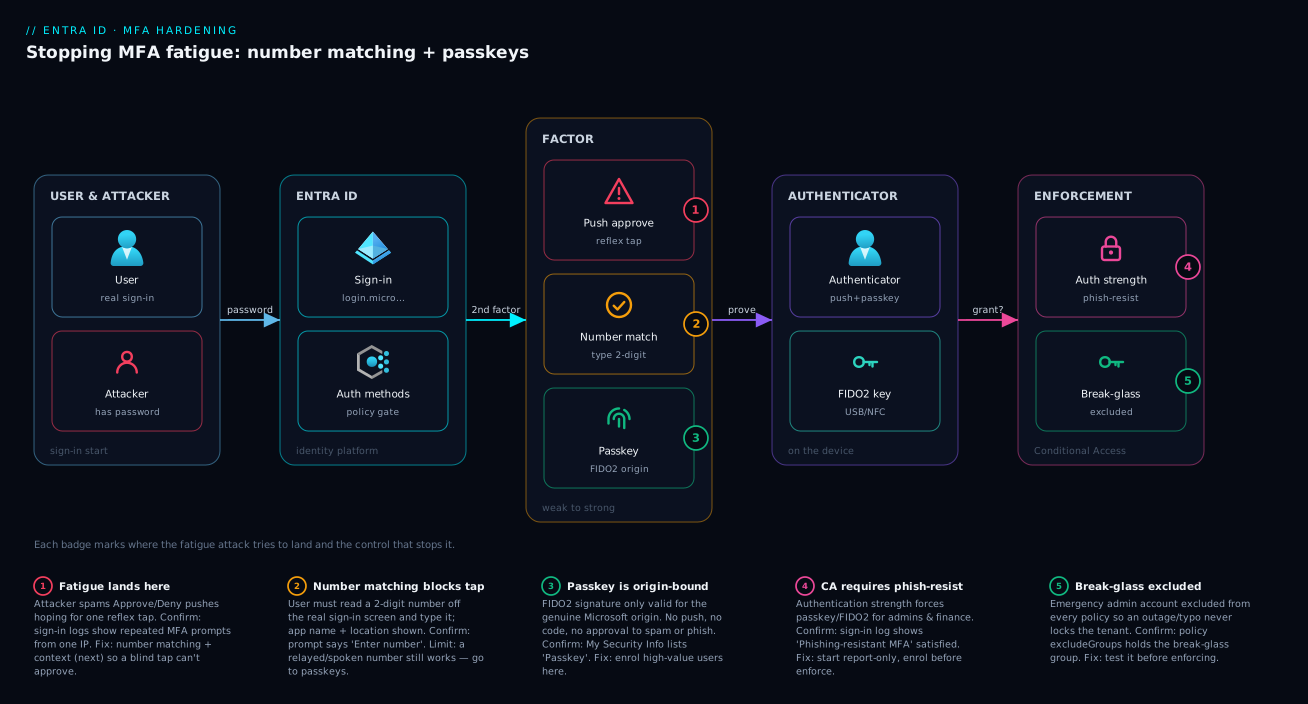
Walk the request left to right. A user starts a sign-in at the Microsoft identity platform. The legacy push path sends an Approve/Deny notification to Microsoft Authenticator — the link an MFA fatigue attacker spams. The number-matching upgrade keeps that push but makes the user read a two-digit number off the genuine sign-in screen and type it in (with app name and location for context), so a blind reflex tap no longer grants access. The passkey path bypasses approval entirely: the browser issues a WebAuthn challenge, the authenticator (the phone’s secure element, or a FIDO2 key) signs it only for the real Microsoft origin, and Entra verifies it against the stored public key. Because it is origin-bound, a phishing proxy on a look-alike domain gets nothing.
On the right sits the enforcement layer: Conditional Access evaluates an authentication strength and, for high-value apps and admin roles, requires the phishing-resistant path — while a break-glass account stays excluded so a failure never locks the tenant out. The badges below mark where the fatigue attack tries to land and where each control stops it.
Real-world scenario
Northwind Retail runs a 2,500-employee Microsoft 365 tenant. MFA was enabled tenant-wide using Microsoft Authenticator push — Approve/Deny — and the security team felt covered. Then, over one weekend, an attacker who had bought a credential-stuffing list targeting Northwind domains ran a quiet campaign: for forty accounts whose passwords matched leaked entries, they triggered Authenticator pushes in the small hours. Thirty-eight users ignored or denied them. Two — a warehouse supervisor and a junior accountant — tapped Approve to make the buzzing stop. The attacker rode the accountant’s session into the finance app and began reconnaissance on payment workflows before a behavioural alert fired.
The review found the obvious: the factor was tap-to-approve, passwords were reused, and nothing forced attention on the approval. Northwind’s response was staged. Week 1: confirm number matching is active (it was, by default) and turn on additional context, plus an internal note: we will never call and ask you to approve a prompt. Weeks 2–4: a passkey pilot for the 40 targeted users plus all finance and admin staff, using device-bound passkeys in Authenticator (no hardware), behind a registration CA policy. Week 5: a Conditional Access policy requiring phishing-resistant MFA for the finance app and all admin roles, deployed report-only first.
In report-only the What If tool and sign-in logs confirmed every targeted admin and finance user already had a passkey and zero legitimate sign-ins would break — so they flipped it to enabled. A repeat of the campaign two months later produced zero successful approvals: admins and finance had no push to approve, and everyone else’s pushes now demanded a number nobody could supply. The decisive guardrail, taken from this article rather than learned the hard way: a break-glass account excluded from every policy, passphrase in the vault, so the day the passkey service hiccupped the tenant was never one outage from lockout. Cost: zero for the Authenticator passkeys, a few hundred rupees each for a handful of FIDO2 keys, and about three weeks of part-time effort.
Advantages and disadvantages
| Advantages | Disadvantages |
|---|---|
| Number matching is free and already on — instant fatigue mitigation | Number matching is a mitigation, not a cure — relay still possible |
| Passkeys are phishing-, fatigue-, and relay-resistant | Passkeys need an enrolment step and user education |
| Device-bound passkey in Authenticator needs no hardware | A lost/replaced phone means re-enrolment |
| Additional context gives users a clear “I didn’t start this” signal | Location is approximate (IP-based, VPN-skewed) |
| Conditional Access lets you enforce only where it matters | Misconfigured CA can lock users (or admins) out |
| Moves you toward passwordless with the app users already have | Some legacy apps/protocols don’t honour modern strengths |
The disadvantages are operational, not security — rollout discipline (enrol before enforce) and break-glass hygiene, both solvable with the phased plan above. The one to take seriously is legacy: apps that only speak old protocols may ignore an authentication-strength grant, which is itself a reason to retire or front them.
Hands-on lab
This lab uses a free Microsoft 365 / Entra trial tenant (or your dev tenant) and is designed so you never lock yourself out. You confirm number matching/context, enable passkeys for a pilot group, enrol one, and create a report-only phishing-resistant CA policy — all reversible.
Step 0 — Prerequisites. A trial tenant where you are Global Administrator, a second admin set aside as break-glass (do this first — see Security notes), Microsoft Authenticator on a phone, and Cloud Shell.
Step 1 — Confirm number matching and enable additional context. Read the Authenticator method config:
az rest --method GET \
  --url "https://graph.microsoft.com/v1.0/policies/authenticationMethodsPolicy/authenticationMethodConfigurations/MicrosoftAuthenticator" \
  --query "{state:state, appName:featureSettings.displayAppInformationRequiredState.state, location:featureSettings.displayLocationInformationRequiredState.state}"
If appName or location is not enabled, turn them on in the portal: Entra → Authentication methods → Microsoft Authenticator → Configure, set both “Show application name” and “Show geographic location” to Enabled for All users (number matching itself is platform-enforced — no toggle to rely on). Expected: state: enabled and both context flags enabled.
Step 2 — Create a pilot group. A security group to scope the passkey method:
az ad group create --display-name "Passkey Pilot" --mail-nickname "passkey-pilot"
PILOT_ID=$(az ad group show --group "Passkey Pilot" --query id -o tsv)
# Add yourself (or a test user) to the pilot
az ad group member add --group "Passkey Pilot" --member-id "$(az ad signed-in-user show --query id -o tsv)"
echo "Pilot group: $PILOT_ID"
Step 3 — Enable passkeys (FIDO2) for the pilot. Scope the method to the pilot group, attestation off to keep the lab simple:
az rest --method PATCH \
  --url "https://graph.microsoft.com/v1.0/policies/authenticationMethodsPolicy/authenticationMethodConfigurations/Fido2" \
  --headers "Content-Type=application/json" \
  --body "{
    \"@odata.type\": \"#microsoft.graph.fido2AuthenticationMethodConfiguration\",
    \"state\": \"enabled\",
    \"isAttestationEnforced\": false,
    \"isSelfServiceRegistrationAllowed\": true,
    \"includeTargets\": [ { \"targetType\": \"group\", \"id\": \"$PILOT_ID\", \"isRegistrationRequired\": false } ]
  }"
Expected: 204 No Content. Re-run the Step 1 GET against Fido2 to confirm state: enabled.
Step 4 — Enrol a passkey in Authenticator. On the phone, go to https://aka.ms/mysecurityinfo → Add sign-in method → Passkey in Microsoft Authenticator and follow the prompts (it unlocks with your biometric/PIN to create the device-bound key). Expected: “Passkey (Microsoft Authenticator)” now listed as a sign-in method.
Step 5 — Create a report-only phishing-resistant CA policy. Target the pilot group only (not admins, not all users — this is a lab), excluding break-glass:
az rest --method POST \
  --url "https://graph.microsoft.com/v1.0/identity/conditionalAccess/policies" \
  --headers "Content-Type=application/json" \
  --body "{
    \"displayName\": \"LAB - phishing-resistant for pilot\",
    \"state\": \"enabledForReportingButNotEnforced\",
    \"conditions\": {
      \"users\": { \"includeGroups\": [\"$PILOT_ID\"], \"excludeGroups\": [\"<break-glass-group-id>\"] },
      \"applications\": { \"includeApplications\": [\"All\"] }
    },
    \"grantControls\": {
      \"operator\": \"OR\",
      \"authenticationStrength\": { \"id\": \"00000000-0000-0000-0000-000000000004\" }
    }
  }"
Step 6 — Test and read the result. Sign in as the pilot user in a private browser window. Because the policy is report-only, you are not blocked, but the sign-in log → Report-only tab shows whether your sign-in would have satisfied “Phishing-resistant MFA”. Sign in with the passkey and confirm it shows as satisfied; sign in with push and confirm it shows as “would be blocked”.
# List recent sign-ins and their applied CA policies (Graph; requires the right scope)
az rest --method GET \
  --url "https://graph.microsoft.com/v1.0/auditLogs/signIns?\$top=5&\$select=userPrincipalName,createdDateTime,authenticationRequirement,status"
Step 7 — Teardown. Delete the lab policy, revert the method scope, and remove the group:
# Find and delete the lab CA policy by name
POLICY_ID=$(az rest --method GET \
  --url "https://graph.microsoft.com/v1.0/identity/conditionalAccess/policies?\$filter=displayName eq 'LAB - phishing-resistant for pilot'" \
  --query "value[0].id" -o tsv)
az rest --method DELETE --url "https://graph.microsoft.com/v1.0/identity/conditionalAccess/policies/$POLICY_ID"

# Optionally disable the FIDO2 method again (or leave enabled for your tenant)
az rest --method PATCH \
  --url "https://graph.microsoft.com/v1.0/policies/authenticationMethodsPolicy/authenticationMethodConfigurations/Fido2" \
  --headers "Content-Type=application/json" \
  --body '{"@odata.type":"#microsoft.graph.fido2AuthenticationMethodConfiguration","state":"disabled"}'

az ad group delete --group "Passkey Pilot"
You now have the full loop — confirm context, enable passkeys, enrol, enforce in report-only, read the impact, tear down — exactly the shape of the production rollout, scaled up with admins and finance as the first real targets.
Common mistakes & troubleshooting
The failure modes that bite during a rollout — scan, confirm, fix:
| # | Symptom | Root cause | How to confirm | Fix |
|---|---|---|---|---|
| 1 | “Passkey” option missing in My Security Info | FIDO2 method disabled or user not in the targeted group | GET the Fido2 config; check state and includeTargets |
Enable the method; add the user to the targeted group |
| 2 | Enabled passkeys but enforcement blocks users | CA enforced before users enrolled | Sign-in logs show “phishing-resistant required”, user has no passkey | Set CA to report-only, enrol users, then enforce |
| 3 | Admins locked out after enforcing | No break-glass exclusion on the policy | Try break-glass account; check policy excludeGroups |
Exclude the break-glass group from the policy |
| 4 | Push still shows plain Approve/Deny | Looking at a cached/old client, or context not enabled | GET Authenticator config; check context flags | Enable app name + location; update the Authenticator app |
| 5 | Passkey enrolment fails on the phone | Phone OS/Authenticator too old, or no biometric/PIN set | Check app + OS version; check device lock is set | Update Authenticator/OS; set a device PIN/biometric |
| 6 | Self-service registration blocked | Registration is gated by a CA policy the user can’t satisfy | Check the registration CA policy conditions | Allow a secure enrolment path (e.g. compliant device) |
| 7 | Some app ignores the strength and lets push through | Legacy auth / protocol doesn’t honour authentication strength | Sign-in logs show legacy client app type | Block legacy auth; front or retire the app |
| 8 | Attestation errors when enrolling a key | isAttestationEnforced true but key/metadata not trusted |
GET config isAttestationEnforced; check AAGUID allow-list |
Add the AAGUID, or set attestation off for the pilot |
| 9 | Lost phone = user can’t sign in | Device-bound passkey lived only on that phone | User reports no other method | Have a second method registered; re-enrol on new phone |
Two distinctions save the most time. First, enabled ≠ required: the Authentication methods policy allows a method, Conditional Access requires it — if passkeys aren’t enforced, check both. Second, report-only never blocks: if “nothing changed”, you are in report-only — read the Report-only tab, then flip to enabled.
Best practices
- Confirm number matching is active and turn on additional context (app name + location) tenant-wide today — it is free, already the platform default, and the fastest fatigue mitigation you have.
- Create and test a break-glass account before any enforcement. Two emergency Global Admins, excluded from every CA policy, long passphrase in a vault, monitored for use. This is non-negotiable.
- Enrol before you enforce. Enable the method, get the highest-value users enrolled in a passkey, then turn on the Conditional Access requirement.
- Always start Conditional Access in report-only. Watch the Report-only tab and the What If tool until you are certain no legitimate sign-in breaks.
- Target high-value populations first — admins, finance, source control, production — not “All users” on day one. Smallest blast radius, highest payoff.
- Prefer device-bound passkeys (Authenticator or security keys) over synced passkeys for workforce and especially privileged access.
- Scope methods to groups while piloting, not the whole tenant, so a mistake cannot strand everyone.
- Block legacy authentication so an attacker cannot sidestep your strong-method requirement via an old protocol that ignores it.
- Educate users with one crisp rule: “We will never call and ask you to approve a prompt or read a number.” Social engineering is the residual risk number matching leaves.
- Issue FIDO2 security keys for shared workstations and break-glass, where a personal phone is not appropriate.
- Review the Authentication methods registration reports to track passkey adoption and spot users still on weak factors.
Security notes
- Break-glass is the whole game. Any policy that requires a method must exclude a tested emergency account, or a service outage / policy typo locks the tenant. Alert on break-glass sign-ins — they should be near-zero, every use investigated.
- Least privilege on who can change the policy. Restrict edit rights on the Authentication methods policy and Conditional Access to Authentication Policy Administrator / Conditional Access Administrator / Global Administrator, behind PIM.
- Guard self-service passkey registration. If a phished session can enrol a new passkey, the attacker gains persistence. Gate registration with a CA policy (compliant device or a temporary access pass).
- Device-bound > synced for assurance. The key never leaving the device is what makes a passkey trustworthy for privileged access; synced passkeys trade some of that for convenience. For the highest assurance, enable attestation with an AAGUID allow-list to restrict enrolment to approved models.
- Number matching does not stop real-time phishing. Treat it as the floor; the residual risk (a relayed or spoken number) is closed only by passkeys. Do not let “we have number matching” delay passkeys on the valuable doors.
- Layer risk-based policies on top to catch anomalous sign-ins that slip past, as covered in Operationalizing Entra ID Protection: Risk-Based Conditional Access, Detection Tuning, and Risk Investigation.
Cost & sizing
The controls are essentially free; the cost is licensing tier and a little hardware.
| Item | Cost | Notes |
|---|---|---|
| Number matching + additional context | Free | Platform default; works on any Entra tier |
| Device-bound passkey in Authenticator | Free | No hardware; uses the app users already have |
| Platform passkeys (Windows Hello / Apple / Google) | Free | Built into the OS/device |
| FIDO2 security keys (hardware) | ~₹2,000–₹5,000 / key (~$25–$60) | Only for shared workstations, admins, break-glass |
| Conditional Access (authentication strengths) | Entra ID P1 | P1 is required for Conditional Access policies |
| Identity Protection (risk-based policies) | Entra ID P2 | Optional layer; not required for passkeys/CA |
Sizing is just who gets a key, since everything else is per-tenant config with no per-user fee: general workforce and finance use the device-bound passkey in Authenticator (₹0); admins add a FIDO2 key as backup (~₹3,000 each); shared workstations with no personal phone need a key each; break-glass gets two keys (~₹6,000). So a 2,500-user tenant like Northwind spends a few thousand rupees total on keys, and the rollout for the other ~2,450 users costs nothing. The only meaningful recurring cost is Entra ID P1 for Conditional Access — and even without it, number matching, additional context, and allowing device-bound passkeys give a real uplift on any tier. CA-based enforcement needs P1.
Interview & exam questions
These map to SC-300 (Identity and Access Administrator) and SC-900 (Security Fundamentals).
-
What is an MFA fatigue attack, and why is a tap-to-approve push vulnerable? An attacker with the password triggers repeated push notifications until the user approves one out of annoyance or confusion. The push is vulnerable because approval is a single low-attention gesture and the prompt is identical for legitimate and malicious sign-ins.
-
What does number matching change, and what attack does it stop? Instead of Approve/Deny, the sign-in screen shows a two-digit number the user must type into Authenticator. It stops the blind fatigue attack — a user who did not start the sign-in has no number to enter.
-
What does additional context add, and why is it useful? It shows the requesting app’s name and the approximate map location, giving the user a second signal to recognise a request they did not initiate (“I’m not opening that app” / “that’s not my city”).
-
Define a passkey and explain why it is phishing-resistant. A FIDO2/WebAuthn credential — a private key on a device, public key registered to Entra. The device signs the challenge only for the genuine origin, so a look-alike phishing domain receives no valid signature.
-
How is a passkey in Authenticator different from a push approval? A push is a notification the user approves; a passkey is a cryptographic credential the device uses to sign an origin-bound challenge. The passkey has no approvable prompt to spam and is domain-bound, so it resists fatigue, phishing, and relay.
-
Device-bound vs synced passkey — which for privileged access, and why? Device-bound, because the private key never leaves the device, giving higher assurance. Synced passkeys roam across a vendor cloud — fine for consumers, weaker for privileged corporate access.
-
Where do you enable passkeys, and where do you require them? You enable them in the Authentication methods policy; you require them for specific access via a Conditional Access policy using an authentication strength (the built-in Phishing-resistant MFA strength).
-
What is an authentication strength, and name the three built-in ones. A named set of methods a Conditional Access policy can demand: MFA, Passwordless MFA, and Phishing-resistant MFA.
-
Why must you enrol users before enforcing phishing-resistant MFA? Requiring the method before users have a passkey locks every targeted user out at the next sign-in. Enable → enrol → enforce (starting report-only) is the safe order.
-
Why exclude a break-glass account from these policies? So a misconfiguration or a passkey-service outage cannot lock every admin out. The excluded emergency account is the last-resort recovery path and must be tested and monitored.
-
Number matching is on — do you still need passkeys? Yes. It stops the blind fatigue attack but not a real-time AiTM relay or a socially engineered user reading the number aloud; passkeys close those because the signature is origin-bound.
-
What licensing does CA enforcement of authentication strengths require? Entra ID P1. Number matching, additional context, and allowing passkeys work on any tier; CA-based enforcement needs P1.
Quick check
- In one sentence, why does an MFA fatigue attack succeed against a tap-to-approve push?
- What two pieces of “additional context” does a number-matching prompt show?
- Name the attack class passkeys stop that number matching does not.
- In which policy do you allow passkeys, and in which do you require them?
- What single account must you exclude from an enforcement policy, and why?
Answers
- Because approval is a single low-attention gesture and the malicious prompt is indistinguishable from a legitimate one, so a tired or distracted user taps Approve.
- The requesting application’s name and the approximate geographic (map) location of the sign-in request.
- Real-time phishing / adversary-in-the-middle relay (and look-alike-domain phishing generally) — passkeys are origin-bound, so a fake domain gets no valid signature.
- You allow passkeys in the Authentication methods policy; you require them via a Conditional Access policy using the Phishing-resistant MFA authentication strength.
- A tested break-glass (emergency admin) account, so a policy mistake or passkey-service outage cannot lock every admin out of the tenant.
Glossary
- MFA fatigue / push bombing — Attack where someone with the password spams MFA approval prompts until the user approves one.
- Number matching — Authenticator prompt that requires the user to type a number shown on the genuine sign-in screen, defeating reflex approvals.
- Additional context — Showing the requesting app’s name and the sign-in’s approximate location on the approval prompt.
- Passkey — A phishing-resistant FIDO2/WebAuthn credential: a private key on a device plus a public key registered to Entra.
- FIDO2 / WebAuthn — The open standards that bind authentication to the legitimate origin using public-key cryptography.
- Device-bound passkey — A passkey whose private key never leaves a single device (e.g. Authenticator, a security key); higher assurance.
- Synced passkey — A passkey that syncs across a vendor’s cloud for use on multiple devices; convenient, lower assurance.
- Microsoft Authenticator — Microsoft’s app for push approvals, TOTP codes, passwordless phone sign-in, and now device-bound passkeys.
- Authentication methods policy — The Entra policy that defines which methods are allowed and their settings (where you enable passkeys).
- Authentication strength — A named set of methods a Conditional Access policy can require (e.g. Phishing-resistant MFA).
- Conditional Access (CA) — Entra’s policy engine that decides when a strong method is required, based on user, app, risk, and device signals.
- Break-glass account — A tested emergency admin account excluded from policies, used only to recover from a lockout.
- AAGUID — An identifier for an authenticator model, used to allow-list specific keys/apps when attestation is enforced.
- Attestation — Cryptographic proof of an authenticator’s make/model, used to restrict enrolment to approved devices.
- Report-only (Conditional Access) — A policy mode that evaluates and logs impact without blocking, used to validate before enforcing.
Next steps
- Go deeper on the full passwordless programme in Rolling Out FIDO2 Passwordless Authentication in Entra ID: Security Keys, Passkeys, and Windows Hello for Business.
- Design enforcement at scale with Designing Conditional Access at Scale: A Persona-Based Policy Framework with Authentication Context and Filters.
- Build the safety net first with Engineering Break-Glass Emergency Access Accounts in Entra ID: Exclusions, Hardening, and Tamper-Evident Monitoring.
- Catch what slips through with Operationalizing Entra ID Protection: Risk-Based Conditional Access, Detection Tuning, and Risk Investigation.
- Stop session-token theft beyond sign-in with Stopping Token Theft: Conditional Access Token Protection and Authentication Context.