In a nutshell
Welcome — this is your first hands-on step in Google Cloud, and the goal is simple: to make sure that nothing you do later feels like magic. Everything on the platform — starting a server, creating a storage bucket, granting a permission — happens through one of a small number of front doors, and this lesson opens every one of them, gently, with every command explained.
Picture Google Cloud as an enormous building full of services. You can walk in through the Console — the point-and-click website — which is like wandering the corridors reading every door label: wonderful for exploring and learning, but slow if you visit daily. You can use the gcloud command line — like knowing the exact room numbers and taking the express lift: fast, repeatable, and easy to automate. And you can use Cloud Shell — a ready-made terminal that opens right in your browser, already signed in, so you can try commands with nothing at all to install. Beneath all three doors sits the one idea beginners trip over most: authentication — how you (a human) and how your code (a program) each prove who you are. Get that mental model straight now and the whole rest of the course flows easily.
Two reassurances before we start. You do not need to install anything to follow along — Cloud Shell already has every tool. And you do not need to memorise commands — you need to understand their shape, which is exactly what we build here. By the end, typing gcloud will feel like speaking a small, very regular language.
Level: Beginner · Time: ~45 min · You will need: a Google account and a sandbox project (free-tier friendly — every step in the lab is free).
Once you understand where your resources live and how the resource hierarchy is organised, the next question is intensely practical: how do you actually do anything? Google Cloud gives you several front doors — a point-and-click web Console, a scriptable command-line tool called gcloud, a browser-based terminal called Cloud Shell, and programmatic client libraries — and a professional moves fluidly between them. The Console is where you explore and learn; the CLI is where you become fast, repeatable and automatable; the client libraries are where your applications live; and underneath all of them sits the single most misunderstood topic for newcomers: authentication — how a human and how a program prove who they are to Google Cloud.
This lesson is the hands-on on-ramp. It assumes you have a Google account and have seen the Console once. By the end you will install and drive the gcloud CLI properly (not just memorise three commands), understand configurations and properties so you can juggle multiple projects and identities without confusion, master the --format and --filter flags that turn gcloud into a data tool, use Cloud Shell and its Editor as a zero-install workstation, call Google Cloud from code with the client libraries, and — most importantly — understand service accounts and Application Default Credentials (ADC), including why exporting service-account keys is discouraged and what to do instead. It maps directly to the Cloud Digital Leader (CDL) and Associate Cloud Engineer (ACE) exams, both of which probe exactly these tools and the authentication model behind them.
Learning objectives
By the end of this lesson you can:
- Choose the right interface — Console,
gcloudCLI, Cloud Shell, or client libraries — for a given task, and explain the trade-offs. - Read and write any
gcloudcommand by understanding its grammar (gcloud GROUP SUBGROUP COMMAND --flags). - Install the Cloud SDK, run
gcloud init, and manage named configurations and properties so you can switch projects, regions and identities cleanly. - Use the global flags
--project,--format,--filter(and--impersonate-service-account) to makegcloudprecise, scriptable and identity-aware. - Distinguish
gcloud auth login(your user identity) fromgcloud auth application-default login(credentials for code), and explain when each is used. - Explain service accounts, Application Default Credentials, the credential search order, service-account impersonation, and why downloaded keys are discouraged.
- Use Cloud Shell, the Cloud Shell Editor, and the dedicated tools
gsutil,bqandcbt. - Describe the path from interactive
gcloudto Infrastructure as Code (Terraform / Config Connector).
Prerequisites
You need a Google account, a browser, and a Google Cloud project you can use as a sandbox (creating one is covered in the Cloud Fundamentals lesson). No prior command-line experience is assumed — every command is explained, and you can run all of them inside Cloud Shell with nothing installed locally. This is an early lesson in the Google Cloud Zero-to-Hero course: everything downstream (IAM, networking, compute, data) is operated through the tools you learn here, so time spent now pays back constantly.
Core concept: the four ways you talk to Google Cloud
Every action on Google Cloud is, underneath, a call to a REST API (for example compute.googleapis.com). The interfaces are just different clients that make those calls on your behalf. Knowing this demystifies everything: the Console, gcloud, Cloud Shell and the client libraries are four doors into the same house.
| Interface | What it is | Best for | Strengths | Limitations |
|---|---|---|---|---|
| Cloud Console | The web UI at console.cloud.google.com |
Exploring, learning, dashboards, one-off changes, billing | Discoverable, visual, shows you what is possible | Not repeatable; slow at scale; easy to forget what you clicked |
gcloud CLI |
A command-line tool (part of the Cloud SDK) | Scripting, automation, fast repeatable changes, CI | Repeatable, scriptable, scriptable output, fast | A learning curve; you must know what to type |
| Cloud Shell | A browser terminal with the SDK pre-installed | Running gcloud/gsutil/bq with zero setup, quick edits |
No install, pre-authenticated, free, has an Editor | Ephemeral VM; 5 GB $HOME; idle timeout |
| Client libraries / REST | Language SDKs (Python, Go, Java, Node, …) | Your application code calling GCP services | Idiomatic, typed, retries built in, used in apps | Overkill for ad-hoc admin tasks |
The practical rule for this course: learn in the Console, operate with gcloud, build with Terraform, and integrate with the client libraries. A junior clicks the Console for everything; an architect reaches for the CLI the moment a task will be done more than once, and for IaC the moment it must be reproducible.
Core concept: the Cloud Console
The Cloud Console is the web interface to your entire Google Cloud estate. A few features repay learning early because they appear in every screenshot and every exam scenario:
- The project picker (top bar) — almost everything you see is scoped to the currently selected project. The single most common Console confusion is “my resource has vanished”; nine times out of ten you are simply in the wrong project. The picker also lets you search and pin projects.
- The search bar — searches products, resources and documentation. Typing “buckets” jumps you straight to Cloud Storage; this is faster than the navigation menu once you know what you want.
- The navigation menu (the “hamburger”, top-left) — every product, grouped by area (Compute, Storage, Databases, Networking, …). Pin frequently used products to the top.
- Activate Cloud Shell (the terminal icon, top-right) — opens a command line in the browser; covered below.
- Notifications, billing and IAM — the bell, the billing console, and IAM & Admin are the three administrative areas you will return to constantly.
- Cloud Shell “Equivalent command line” / “Equivalent REST” — many create wizards show, before you click Create, the exact
gcloudcommand or REST body that the form will execute. This is the single best way to learngcloud: build something in the form, then copy the command it generates.
The Console is unmatched for discovery and for visual tasks (dashboards, billing reports, IAM review). It is the wrong tool for anything repeatable — which is where the CLI comes in.
Core concept: the gcloud CLI and the Cloud SDK
The Cloud SDK (also called the Google Cloud CLI) is a downloadable bundle of command-line tools. Its flagship is gcloud, the unified CLI for managing almost every Google Cloud service. The bundle also includes specialised tools — historically gsutil (Cloud Storage), bq (BigQuery) and kubectl (Kubernetes) — and a package manager called gcloud components for installing and updating them.
The anatomy of a gcloud command
Before installing anything, learn to read gcloud. Almost every command follows one predictable pattern, and once you can parse it you can decode commands you have never seen — and often guess ones you have not learned yet:
gcloud GROUP [SUBGROUP …] COMMAND [POSITIONAL_ARGS] --FLAGS
gcloud— the tool itself; every “sentence” starts here.- GROUP — the broad service or area:
compute,storage,iam,projects,config,services. Think of it as which product. - SUBGROUP (optional, and there can be several, nesting as deeply as the service needs) — narrows the area:
compute→instances,iam→service-accounts. - COMMAND — the action, almost always a verb:
list,describe,create,delete,add-iam-policy-binding,get-value. - POSITIONAL_ARGS — the specific thing you are acting on, e.g. the instance name in
gcloud compute instances describe web-1. --FLAGS— options that modify the command:--zone,--project,--format,--quiet. Flags begin with--; many are optional and take a value with=or a space.
Read it left-to-right as a sentence. gcloud compute instances list --zones=europe-west2-a is literally “gcloud, in compute, for instances, list them, in this zone”. A handful of verbs recur across almost every service, so learning them once pays off everywhere:
| Verb | Meaning | Example |
|---|---|---|
list |
Show many resources (a table by default) | gcloud compute instances list |
describe |
Show one resource in full detail | gcloud compute instances describe web-1 --zone=europe-west2-a |
create |
Make a resource | gcloud storage buckets create gs://my-unique-name |
delete |
Remove a resource | gcloud compute instances delete web-1 --zone=europe-west2-a |
update |
Change an existing resource | gcloud compute instances update web-1 --update-labels=env=dev |
get-value / set |
Read / write a config property | gcloud config get-value project |
add-iam-policy-binding |
Grant a role on a resource | gcloud projects add-iam-policy-binding … |
Because the grammar is so regular, --help works at every level: gcloud --help, gcloud compute --help, gcloud compute instances --help and gcloud compute instances create --help each narrow the documentation to exactly where you are. When you are unsure what exists, append --help — or press Tab for completion — rather than guessing.
Installing the SDK
You have three good options:
| Method | How | When to use | Notes |
|---|---|---|---|
| Cloud Shell | Nothing to install — it is pre-installed and pre-authenticated | Quick tasks, learning, no local setup | Always the latest version; resets on the ephemeral VM |
| Interactive installer | Download the archive/installer for macOS, Windows or Linux from the install page and run it | A persistent local workstation | Adds gcloud to your PATH; can update via gcloud components update |
| Package manager | apt/yum/dnf repos (Linux), Homebrew (brew install --cask google-cloud-sdk) on macOS, or Chocolatey on Windows |
Reproducible/managed workstations | Updates come from the package manager; components update may be disabled |
The SDK requires Python (a compatible interpreter is bundled by the installers). Two release tracks exist: the stable track (default) and gcloud alpha / gcloud beta command groups for pre-GA features — install those component groups when a command you need is not yet GA.
Initialising: gcloud init
After installing, run:
gcloud init
This interactive command walks you through the essential first-time setup:
- Log in — opens a browser to authenticate your user account (Google account). This establishes your identity for
gcloudcommands. - Pick a project — sets the default project for subsequent commands.
- Pick a default region/zone (optional) — saves you from typing
--zoneconstantly.
gcloud init creates (or updates) a configuration behind the scenes. Understanding configurations is the difference between a calm CLI experience and a confusing one.
Configurations: juggling projects and identities cleanly
A configuration is a named set of properties — your active account, default project, region, zone and many others. The default configuration is called default. The power of configurations is that you can keep several and switch between them instantly, which is exactly what you need when you work across, say, a dev project as yourself and a prod project under a different identity.
| Command | What it does |
|---|---|
gcloud config configurations list |
List all configurations and show which is ACTIVE |
gcloud config configurations create prod |
Create a new configuration named prod |
gcloud config configurations activate prod |
Switch the active configuration to prod |
gcloud config configurations describe prod |
Show the properties stored in prod |
gcloud config configurations delete dev |
Delete a configuration |
You can also force a single command to use a specific configuration without switching, via the --configuration flag or the CLOUDSDK_ACTIVE_CONFIG_NAME environment variable — handy in scripts and CI.
Properties: the settings inside a configuration
A property is one setting within a configuration, organised into sections (core, compute, auth, …). The commands:
gcloud config set project my-sandbox-123      # core/project
gcloud config set compute/region europe-west2 # compute/region
gcloud config set compute/zone europe-west2-a # compute/zone
gcloud config set account me@example.com      # core/account
gcloud config get-value project               # read one back
gcloud config list                            # show the active config's properties
gcloud config unset compute/zone              # remove a property
The most useful properties to know:
| Property | Section | What it controls |
|---|---|---|
project |
core |
Default project for commands (overridable per-command with --project) |
account |
core |
The active credentialed identity |
region / zone |
compute |
Default location for Compute Engine and related commands |
disable_prompts |
core |
Set true for non-interactive scripts (same as --quiet) |
verbosity |
core |
debug/info/warning/error log level |
impersonate_service_account |
auth |
Run all commands as a service account (see impersonation, below) |
Precedence (highest wins): a flag on the command (e.g. --project) overrides an environment variable (e.g. CLOUDSDK_CORE_PROJECT), which overrides the active configuration’s stored property. Internalise this order — it explains almost every “but I set the project!” surprise.
The three global flags that matter most
These flags work on virtually every gcloud command and turn the CLI from a clicker-replacement into a precise data tool.
--project — run one command against a specific project without changing your active configuration:
gcloud compute instances list --project=other-project-456
--format — control the output shape. The default is human-readable tables; for scripting you want machine-readable output or a single value:
| Format | Output | Typical use |
|---|---|---|
--format="value(name)" |
Bare values, one per line | Feeding a shell loop or another command |
--format=json |
Full JSON | Piping to jq, programmatic parsing |
--format=yaml |
YAML | Human-readable full detail |
--format="table(name, zone, status)" |
A chosen-column table | Custom human reports |
--format="csv(name,status)" |
CSV | Spreadsheets |
--format="flattened" |
Key/value lines | Reading every field of one resource |
# Get just the external IP of one VM — perfect for scripting
gcloud compute instances describe web-1 --zone=europe-west2-a \
  --format="value(networkInterfaces[0].accessConfigs[0].natIP)"
--filter — server- or client-side filtering using a simple expression language, so you fetch only what you want:
gcloud compute instances list --filter="status=RUNNING AND zone:europe-west2-a"
gcloud compute instances list --filter="name~^web-"   # regex: names starting "web-"
gcloud projects list --filter="labels.env=prod"
--filter supports =, !=, <, >, : (“contains”), ~ (regex), and boolean AND/OR/NOT. Combine --filter to choose which rows and --format to choose which columns and you can answer almost any “what do I have?” question in one line. Two more helpers: --sort-by orders results, and --limit caps the count.
Piping to jq for advanced JSON work. --format is powerful, but when you need to reshape, compute over, or combine JSON, pipe --format=json into jq, the standard command-line JSON processor (pre-installed in Cloud Shell):
# Names of all RUNNING instances, extracted with jq:
gcloud compute instances list --format=json \
  | jq -r '.[] | select(.status=="RUNNING") | .name'

# Count instances per zone:
gcloud compute instances list --format=json \
  | jq -r 'group_by(.zone)[] | "\(.[0].zone): \(length)"'
Rule of thumb: prefer --filter/--format for the common cases (no extra tool, and they compose with --sort-by/--limit), and reach for jq when you need real data manipulation the format language cannot express.
Components: managing the toolset
gcloud components is the SDK’s package manager (available when you installed via the interactive installer, not always via OS package managers):
gcloud components list                  # see installed/available components
gcloud components install kubectl       # add a component (e.g. kubectl, gke-gcloud-auth-plugin)
gcloud components update                 # update everything to the latest release
gcloud components remove <name>          # remove a component
Common components to install: kubectl and gke-gcloud-auth-plugin (for GKE), alpha/beta (pre-GA commands), cbt (Cloud Bigtable) and cloud-sql-proxy. Run gcloud version to see the installed SDK and component versions.
Discoverability and ergonomics
gcloud is highly discoverable from the command line itself:
gcloud --helpandgcloud <group> <command> --helpdocument every flag.gcloud help <command>opens the full man-style help.gcloud cheat-sheetprints a one-page reference.gcloud topiclists guides on cross-cutting topics (e.g.gcloud topic filters,gcloud topic formats).gcloud interactive(from thegcloud-interactive-shell/alpha) gives auto-completion and inline help as you type.- Enable tab-completion in your shell (the installer offers to add it) so you rarely mistype a command.
Core concept: authentication — gcloud auth login vs application-default
This is the topic that trips up nearly every newcomer, so we slow down. There are two distinct kinds of credentials, and using the wrong one is the cause of most “permission denied” and “could not find default credentials” errors.
gcloud auth login — credentials for you (the human using the CLI)
gcloud auth login
This authenticates your user identity for use by the gcloud, gsutil and bq command-line tools. It opens a browser, you consent, and gcloud stores a token so your subsequent CLI commands run as you. Manage these with:
gcloud auth list                       # show credentialed accounts and the ACTIVE one
gcloud config set account me@you.com   # switch the active account
gcloud auth revoke me@you.com          # remove stored credentials
Crucially, gcloud auth login credentials are used by the CLI tools only. Your application code (a Python script using the client libraries) does not automatically use them.
gcloud auth application-default login — credentials for code
gcloud auth application-default login
This creates Application Default Credentials (ADC) — a credential file on your machine (in your config directory) that the client libraries automatically discover and use when you run code locally during development. So:
| Command | Who uses the credential | When |
|---|---|---|
gcloud auth login |
The gcloud/gsutil/bq CLI tools |
Running CLI commands as yourself |
gcloud auth application-default login |
The client libraries (your code) | Local development, so your app can call GCP APIs as you |
The classic beginner trap: you run gcloud auth login, then run a Python script with the client library, and it fails with “Could not automatically determine credentials.” The fix is gcloud auth application-default login — because the library looks for ADC, not for the CLI’s login. Revoke ADC with gcloud auth application-default revoke.
Core concept: service accounts and Application Default Credentials (ADC)
Humans use user accounts; workloads (a VM, a Cloud Run service, a CI pipeline, a script in production) use service accounts.
What a service account is
A service account is a special, non-human Google identity that applications use to authenticate and to be authorised (via IAM roles) to call Google Cloud APIs. It is identified by an email like my-app@my-project.iam.gserviceaccount.com. You grant it IAM roles exactly as you would a user, and your workload then acts with that account’s permissions. (Service-account creation and IAM are covered in depth in the IAM lesson; here we focus on how the tools use them to authenticate.)
Application Default Credentials and the credential search order
Application Default Credentials (ADC) is a strategy the Google client libraries (and gcloud when impersonating) use to find credentials automatically, without you hard-coding anything. The library searches, in this fixed order, and uses the first source it finds:
| Order | Source | Typical context |
|---|---|---|
| 1 | GOOGLE_APPLICATION_CREDENTIALS env var pointing at a credential JSON file |
Explicit override; legacy key files or workload-identity-federation config |
| 2 | User credentials from gcloud auth application-default login |
Local development on your laptop |
| 3 | The attached service account via the metadata server | Code running on GCP — Compute Engine, GKE, Cloud Run, Cloud Functions, App Engine |
The beauty of ADC is write once, run anywhere: the same application code authenticates correctly on your laptop (via step 2) and in production on Cloud Run (via step 3) with no code change — only the environment differs. This is why you should never see credentials hard-coded in well-written GCP code; the library finds them through ADC.
The third source deserves emphasis. Every VM, GKE node, Cloud Run instance and Cloud Function has a metadata server at http://metadata.google.internal that vends short-lived OAuth tokens for the resource’s attached service account. Because these tokens are minted on demand and expire quickly, there is no long-lived secret to leak — which is exactly why running on GCP is the gold standard for authentication.
Service-account impersonation — the modern alternative to keys
You often want to act as a service account from your own authenticated session — to test what that account can do, or to run an admin task with a tightly scoped identity — without ever creating a key. Impersonation does this:
# One command, run as the service account:
gcloud storage buckets list \
  --impersonate-service-account=deployer@my-project.iam.gserviceaccount.com

# Or make every gcloud command impersonate, via a property:
gcloud config set auth/impersonate_service_account deployer@my-project.iam.gserviceaccount.com

# Generate ADC that impersonate an SA (so local *code* runs as that SA):
gcloud auth application-default login \
  --impersonate-service-account=deployer@my-project.iam.gserviceaccount.com
To impersonate, your user needs the Service Account Token Creator role (roles/iam.serviceAccountTokenCreator) on the target service account. Behind the scenes Google mints a short-lived token for the service account — again, no downloadable secret exists. Impersonation is the recommended way to “become” a service account for local work and scripts.
Why downloaded service-account keys are discouraged
A service-account key is a downloadable JSON file containing a private key that authenticates as the service account. It works, but it is the highest-risk credential on Google Cloud, and Google now actively discourages it:
- It is a long-lived secret in a file — if it leaks (committed to git, pasted in a ticket, left in a Docker image), anyone holding it has that account’s permissions until the key is found and disabled. (This is exactly the class of incident behind leaked-credentials post-mortems.)
- It does not rotate automatically; you must manage rotation yourself.
- It encourages bad patterns — keys copied between laptops, baked into images, emailed around.
The alternatives, in order of preference:
- Run on GCP and use the attached service account via the metadata server — no key at all.
- For external/CI systems (GitHub Actions, on-prem, other clouds), use Workload Identity Federation — exchange the external system’s own token for short-lived Google credentials, again with no key.
- For “become this SA” locally, use impersonation (above).
- Only as a genuine last resort, create a key — and then guard it, rotate it, and prefer an Organisation Policy (
iam.disableServiceAccountKeyCreation) that blocks key creation entirely except where justified.
The one-line rule for the exam and for life: prefer keyless authentication; treat a service-account key as a liability, not a convenience.
Core concept: Cloud Shell and the Cloud Shell Editor
Cloud Shell is a free, browser-based Linux command line, pre-loaded with the Cloud SDK (gcloud, gsutil, bq, kubectl), Docker, Python, Go, Java, Node and the major build tools — and pre-authenticated as your user account, so you can run gcloud immediately with nothing to install. Activate it from the terminal icon in the top bar of the Console.
Key facts to know (several are examinable):
| Property | Detail |
|---|---|
| Compute | A small ephemeral VM provisioned per session, at no cost |
| Persistent storage | A 5 GB $HOME directory that persists between sessions; everything outside $HOME is wiped |
| Authentication | Pre-authenticated as your Console identity; gcloud “just works” |
| Idle timeout | Disconnects after ~20 minutes idle; the VM is recycled if unused for a period |
| Session limit | A weekly usage quota applies |
| Web Preview | Preview a web app on ports 8080+ via a proxied URL, without opening firewalls |
| Boost / extra tools | Temporary “Boost Mode” for more CPU/RAM; tmux, git, language runtimes preinstalled |
The Cloud Shell Editor is a full browser-based code editor (based on the same technology as VS Code) launched with cloudshell edit <file> or the Open Editor button. It gives you a file tree, syntax highlighting, an integrated terminal, source control and even debugging — a genuine cloud workstation for editing Terraform, scripts and app code without anything installed locally. Because the home directory persists, your repo and dotfiles survive between sessions; because the VM does not, treat anything outside $HOME as disposable.
Cloud Shell is ideal for: following this course, quick admin tasks, demos, and any time you are on a machine where you cannot (or do not want to) install the SDK.
Core concept: the client libraries
When your application needs to call Google Cloud — read a Cloud Storage object, publish to Pub/Sub, query BigQuery — you use the Cloud Client Libraries: idiomatic, officially supported SDKs for Python, Go, Java, Node.js, C#, Ruby, PHP and more. They are preferred over hand-rolling REST calls because they provide language-native objects, automatic retries with back-off, pagination helpers, and — crucially — automatic ADC-based authentication.
A minimal Python example shows how little authentication code you write (none):
from google.cloud import storage

# No credentials in code — the library finds them via ADC:
# locally → your `application-default login`; on GCP → the attached SA.
client = storage.Client()
for bucket in client.list_buckets():
    print(bucket.name)
Install with the language’s package manager (pip install google-cloud-storage, go get cloud.google.com/go/storage, etc.). The same binary runs unchanged on your laptop and on Cloud Run because ADC resolves credentials from the environment. (An older generation, the Google API Client Libraries, still exists for some APIs; prefer the Cloud Client Libraries where available.)
Core concept: the specialised tools — gsutil, bq and cbt
A few product-specific CLIs ship with (or install into) the SDK and appear constantly:
-
gsutil— the long-standing CLI for Cloud Storage: copy, move, sync, set ACLs and lifecycle, manage buckets.gsutil mb -l europe-west2 gs://my-unique-bucket-name # make bucket gsutil cp ./report.csv gs://my-unique-bucket-name/ # upload gsutil ls gs://my-unique-bucket-name/ # list gsutil rsync -r ./site gs://my-unique-bucket-name/site # sync a treeNote: Google now also offers
gcloud storage, a newer, often faster unified interface to Cloud Storage built intogcloud(e.g.gcloud storage cp …). For new work prefergcloud storage;gsutilremains widely used and fully supported. -
bq— the CLI for BigQuery: run queries, load and export data, manage datasets and tables.bq query --use_legacy_sql=false 'SELECT COUNT(*) FROM `bigquery-public-data.samples.shakespeare`' bq ls # list datasets bq mk my_dataset # make a dataset bq load ... # load data into a table -
cbt— a small, purpose-built CLI for Cloud Bigtable, Google’s wide-column NoSQL database. Unlikegsutilandbq,cbtis a separate component you install on demand:gcloud components install cbt # install the tool cbt -project=my-proj -instance=my-inst ls # list tables cbt -project=my-proj -instance=my-inst createtable my-table # create a table cbt -project=my-proj -instance=my-inst read my-table count=5 # read a few rowsYou can store the project and instance in a
~/.cbtrcfile so you stop repeating them.cbtis the quick, interactive way to poke at Bigtable; production access goes through the client libraries.
All of these honour your active gcloud configuration and authentication, so once you have run gcloud init they are ready to use.
From gcloud to Infrastructure as Code
gcloud is perfect for learning, exploring and one-off tasks — but typing commands (or, worse, clicking the Console) to build production infrastructure is not repeatable, reviewable or recoverable. The professional progression is:
- Console — to discover and understand a service.
gcloud— to do it quickly and to read the “equivalent command line” the Console offers.- Infrastructure as Code — to define infrastructure declaratively in version control, so it is reviewed in pull requests, applied consistently, and reproducible across environments.
For IaC on Google Cloud you have:
| Tool | What it is | When to choose |
|---|---|---|
| Terraform (with the Google provider) | The de-facto, cloud-agnostic IaC tool; HCL config, plan/apply, state |
Most teams; multi-cloud or large estates; the course standard |
| Config Connector | A GKE add-on that manages GCP resources as Kubernetes objects (GitOps) | Kubernetes-centric teams who want GCP resources reconciled like K8s |
| Cloud Foundation Toolkit / blueprints | Opinionated, Google-published Terraform modules (landing zones, etc.) | Bootstrapping a well-architected foundation fast |
A useful bridge: gcloud can emit a Terraform skeleton for some resources, and the Console’s “equivalent command line” plus --format=json make it easy to translate what you built by hand into code. The mindset shift to internalise: interactive tools for learning and break-glass; IaC for anything that must last. This course teaches gcloud so you understand the platform, then moves you to Terraform for everything you build to keep.
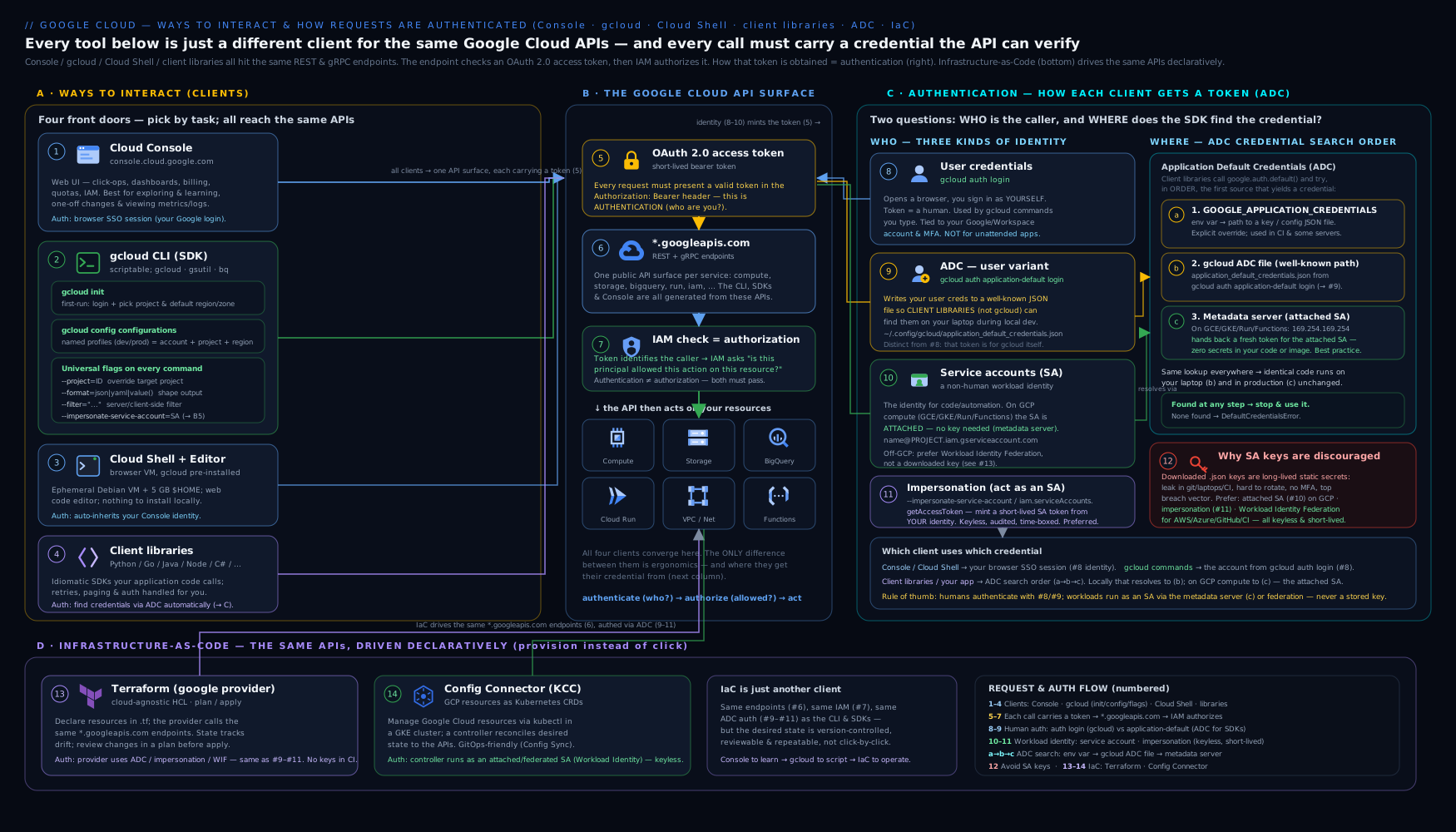
Read the diagram top-to-bottom: the four front doors — Console, gcloud CLI, Cloud Shell and the client libraries — all funnel into the same Google Cloud REST APIs, and every one of them is gated by the authentication layer beneath (user login, ADC, the metadata server’s attached service account, impersonation and federation), which is why authentication, not any single tool, is the concept to master first.
Hands-on lab: drive gcloud, switch configurations, and authenticate code
You will run everything in Cloud Shell (zero install) using the Free Tier / $300 credit. Every step here is free — you create no chargeable resources.
Step 1 — Open Cloud Shell and confirm you are authenticated
In the Console, click the Activate Cloud Shell icon (top bar). When it opens:
gcloud auth list          # shows your account as ACTIVE (Cloud Shell is pre-authenticated)
gcloud config list        # shows the active configuration's properties
gcloud version            # SDK and component versions
Step 2 — Set the project and a default region
export PROJECT_ID=$(gcloud config get-value project)   # or: gcloud projects list
gcloud config set project "$PROJECT_ID"
gcloud config set compute/region europe-west2
gcloud config set compute/zone europe-west2-a
gcloud config list                                     # confirm they are set
Step 3 — Create and switch a named configuration
gcloud config configurations create lab          # creates and activates "lab"
gcloud config configurations list                # see [lab] ACTIVE alongside [default]
gcloud config set project "$PROJECT_ID"          # set project inside "lab"
gcloud config configurations activate default    # switch back
gcloud config configurations activate lab        # and back to lab
You now have two independent profiles you can flip between — exactly how you would separate dev and prod, or two clients.
Step 4 — Use --format and --filter as a data tool
# List all enabled APIs as bare values (machine-readable):
gcloud services list --enabled --format="value(config.name)"

# List your projects filtered and as a custom table:
gcloud projects list --filter="lifecycleState=ACTIVE" \
  --format="table(projectId, name, projectNumber)" --sort-by=projectId

# Pull a single field as JSON, then with a value() projection:
gcloud projects describe "$PROJECT_ID" --format=json | head -20
gcloud projects describe "$PROJECT_ID" --format="value(projectNumber)"
Step 5 — Set up Application Default Credentials for code
# Create ADC so client libraries (your code) can authenticate as you:
gcloud auth application-default login    # follow the link/consent flow

# A tiny Python program that uses ADC — no credentials in the code:
python3 - <<'PY'
import google.auth
creds, project = google.auth.default()
print("ADC resolved. Active project:", project)
PY
This proves the ADC flow: the library found credentials automatically. (In Cloud Shell, ADC may already resolve via the environment; the explicit login makes the mechanism visible.)
Step 6 — Try impersonation (read-only, safe)
If you have (or create, per the IAM lesson) a service account you may impersonate, list buckets as it without any key:
# Replace with a real SA you have Token Creator on; otherwise skip this step.
gcloud storage buckets list \
  --impersonate-service-account=SA_EMAIL 2>&1 | head
A PERMISSION_DENIED here simply means you lack roles/iam.serviceAccountTokenCreator on that SA — which is the correct, secure default.
Step 7 — Validation
gcloud config configurations list          # two configurations exist; one ACTIVE
gcloud config get-value project            # your project
gcloud auth list                           # your account is ACTIVE
Step 8 — Cleanup
No chargeable resources were created, so cleanup is just tidying CLI state:
gcloud config configurations activate default   # leave default active
gcloud config configurations delete lab         # remove the practice configuration
gcloud auth application-default revoke           # optional: remove local ADC
Cost note: every step in this lab is free. Cloud Shell itself is free, and you created no billable resources (no VMs, disks or buckets with data). The only things to “clean up” are local CLI configurations and credentials. The lab leaves nothing billing.
Going deeper
Everything above gets you productive. This section is for when you want to understand the machinery — how gcloud stores state, how to script it safely, how tokens really flow, and how to run it keylessly in CI. None of it is needed to pass the ACE, but all of it separates someone who runs commands from someone who operates the platform.
Where gcloud actually keeps its state
Everything gcloud remembers lives under a single config directory — ~/.config/gcloud/ on Linux/macOS (%APPDATA%\gcloud\ on Windows). Knowing what is in it demystifies the tool and is invaluable when debugging:
| Path | Contents |
|---|---|
configurations/config_default, config_<name> |
Your named configurations, as plain INI files — you can read and diff them |
credentials.db |
Cached OAuth credentials for gcloud auth login accounts |
access_tokens.db |
Short-lived access tokens cached to avoid re-minting on every call |
application_default_credentials.json |
The ADC file written by gcloud auth application-default login |
active_config |
A one-line file naming the currently active configuration |
logs/ |
Per-invocation logs — priceless when a command misbehaves |
Point gcloud at a different directory with the CLOUDSDK_CONFIG environment variable — the standard trick for isolating identities in CI, or for running two automations that must not share state:
CLOUDSDK_CONFIG=/tmp/ci-gcloud gcloud auth activate-service-account --key-file=...
Every property has an environment variable
Any configuration property maps to an environment variable named CLOUDSDK_<SECTION>_<PROPERTY> (uppercased). So core/project → CLOUDSDK_CORE_PROJECT; compute/zone → CLOUDSDK_COMPUTE_ZONE; auth/impersonate_service_account → CLOUDSDK_AUTH_IMPERSONATE_SERVICE_ACCOUNT. This is how you parameterise gcloud in CI without touching stored config, and it sits at the middle of the precedence order:
Flag --project (highest) → CLOUDSDK_CORE_PROJECT env var → active configuration property (lowest).
Writing scripts that do not break
Human-readable tables are for humans; scripts must never parse them. The robust patterns:
set -euo pipefail                     # fail fast, catch unset vars, fail on pipe errors

# Grab a single value cleanly — never grep/awk a table:
IP=$(gcloud compute instances describe web-1 --zone="$ZONE" \
      --format='value(networkInterfaces[0].accessConfigs[0].natIP)')

# Loop over resources safely:
for name in $(gcloud compute instances list --format='value(name)'); do
  echo "Instance: $name"
done

gcloud ... --quiet                    # never block on a Y/N prompt in automation
gcloud sets a non-zero exit code on failure, so set -e and ordinary if checks work. When a command surprises you, --verbosity=debug shows the tool’s internal steps and --log-http prints the raw request/response to each *.googleapis.com endpoint — the fastest way to see what a command really does under the hood.
Tokens, on demand
Sometimes you need the raw credential — for a curl against an API, or to feed another tool:
gcloud auth print-access-token            # a short-lived OAuth2 access token (your identity)
gcloud auth print-identity-token          # an OIDC identity token (for IAP, authenticated Cloud Run)
gcloud auth print-access-token \
  --impersonate-service-account=SA_EMAIL  # a token for a service account, keylessly
These tokens are short-lived (about an hour) — which is the whole point: even if one leaks, it expires quickly. Impersonation and ADC use exactly this machinery under the hood, calling the IAM Credentials API (generateAccessToken) rather than any stored key.
The ADC quota project
A subtle but common snag: when you authenticate ADC with your user credentials, some API calls need a quota/billing project to attribute usage to. Set it once:
gcloud auth application-default set-quota-project my-sandbox-123
# or per-process:
export GOOGLE_CLOUD_QUOTA_PROJECT=my-sandbox-123
Without it you may see warnings like “Your application has authenticated using end user credentials … without a quota project.” Code running on GCP with an attached service account does not need this — the quota project is implied by where it runs.
Keyless CI with Workload Identity Federation
The modern way to run gcloud from GitHub Actions, GitLab, Jenkins or another cloud is Workload Identity Federation (WIF): the external system presents its own OIDC/SAML token, Google’s Security Token Service exchanges it for a short-lived Google credential, and no service-account key ever exists. In practice you generate a credential configuration file and point ADC at it:
gcloud iam workload-identity-pools create-cred-config \
  projects/PROJECT_NUMBER/locations/global/workloadIdentityPools/POOL/providers/PROVIDER \
  --service-account=SA_EMAIL \
  --output-file=adc.json \
  --credential-source-file=/path/to/external/token
export GOOGLE_APPLICATION_CREDENTIALS=adc.json   # ADC step 1 picks this up
The google-github-actions/auth action wraps all of this for GitHub. The legacy alternative — gcloud auth activate-service-account --key-file=key.json — still works but reintroduces the long-lived key you are trying to avoid.
Keeping the SDK healthy
- Pin or check versions in CI:
gcloud version, and for reproducibility install a specific SDK release rather than “latest”. - On package-manager installs (
apt,brew, Chocolatey)gcloud components updateis often disabled — update through the OS package manager instead. - Set
CLOUDSDK_PYTHONif the bundled or looked-up Python interpreter is wrong for your environment. gcloud config set core/disable_usage_reporting trueopts out of anonymous usage statistics if your policy requires it.
Common beginner mistakes
These are mindset traps — the wrong mental model — as opposed to the symptom-driven fixes in the troubleshooting table below.
-
“
gcloud auth loginlogs my code in too.” No. That login is only for the CLI tools (gcloud/gsutil/bq). Your application code authenticates through ADC, a completely separate mechanism. Right model: humans-at-a-terminal and code use two different front doors to identity —gcloud auth loginandgcloud auth application-default loginrespectively. -
“The project I see in the Console is the project
gclouduses.” They are independent. The Console’s project picker andgcloud’score/projectproperty are set separately; you can be looking at project A in the browser while your terminal acts on project B. Right model: always confirm withgcloud config get-value projectbefore any destructive command. -
“I’ll download a service-account key so my app can authenticate.” This is the single habit that causes the most security incidents. Right model: keys are a last resort, not a starting point — run on GCP (attached SA), federate from CI (WIF), or impersonate locally. Reach for a key only when nothing else is possible, and then treat it exactly like a password.
-
“I need to install the SDK before I can do anything.” You do not — Cloud Shell gives you a fully installed, pre-authenticated environment in the browser. Right model: install locally only when you want a persistent workstation; otherwise Cloud Shell is faster to start and always current.
-
“My files are safe anywhere in Cloud Shell.” Only your
$HOME(5 GB) survives. Anything you install system-wide, save under/tmp, or place outside$HOMEis wiped when the VM recycles. Right model: keep work under$HOME; treat the rest as scratch. -
“I’ll just
grepthegcloudtable output in my script.” Table columns and spacing are for human eyes and can change between releases. Right model: scripts use--format='value(...)'or--format=json | jq, nevergrep/awkover a table. -
“
--filterpicks the columns I see.” No —--filterchooses which rows (records) you get;--formatchooses which fields/columns are shown. Right model: filter selects records, format shapes output; you usually use the two together. -
“
gsutilis deprecated, I must switch everything togcloud storage.”gcloud storageis newer and often faster, and is preferred for new work, butgsutilis fully supported and everywhere in existing docs and scripts. Right model: learn to read both; adoptgcloud storagefor new work without rushing to rewrite the old.
Common mistakes & troubleshooting
| Symptom | Likely cause | Fix |
|---|---|---|
Could not automatically determine credentials from your code |
You ran gcloud auth login but not the ADC login |
Run gcloud auth application-default login (or run on GCP with an attached SA) |
gcloud acts on the wrong project |
Wrong active configuration, or a stale core/project |
gcloud config list; set with --project or gcloud config set project; remember flag > env > config precedence |
| “Resource not found” but it clearly exists | You are in the wrong project (Console picker or gcloud config) |
Switch the project picker / activate the right configuration |
PERMISSION_DENIED impersonating a service account |
Missing roles/iam.serviceAccountTokenCreator on the target SA |
Have an admin grant Token Creator on that SA to your user |
API [<name>] not enabled |
The service’s API is off for the project (default) | gcloud services enable <api>.googleapis.com and retry |
| Scripts hang waiting for a prompt | Interactive confirmation in a non-interactive context | Add --quiet (or set core/disable_prompts true) |
| Files vanish from Cloud Shell between sessions | They were outside the 5 GB $HOME |
Keep work under $HOME; treat the rest of the VM as ephemeral |
command not found: gcloud locally |
SDK not installed or not on PATH |
Reinstall and source the path file, or just use Cloud Shell |
| Warning about a missing quota project with ADC | User-credential ADC has no billing/quota project set | gcloud auth application-default set-quota-project <project> |
| A leaked SA key in a repo | A downloaded key was committed | Disable/delete the key immediately, rotate, and switch to keyless auth; consider iam.disableServiceAccountKeyCreation |
Best practices
- Use named configurations for each project/identity context and switch deliberately; never trust that the “current” project is what you assume — check
gcloud config list. - Prefer keyless authentication everywhere: attached service accounts on GCP, Workload Identity Federation for external/CI, and impersonation for local “become an SA” work. Treat downloaded keys as a last resort.
- Know your two logins:
gcloud auth loginfor the CLI,gcloud auth application-default loginfor code. Most “credentials” errors are using the wrong one. - Master
--formatand--filter— they makegcloudscriptable and turn ad-hoc questions into one-liners; use--quietin automation andjqwhen you outgrow the format language. - Learn from the Console’s “equivalent command line” when a service is new to you, then graduate the command into a script or Terraform.
- Keep the SDK current (
gcloud components update) so you have new flags and security fixes; installalpha/betaonly when you need pre-GA features. - Move durable infrastructure to IaC (Terraform / Config Connector) early; reserve interactive
gcloudfor learning and break-glass. - Use Cloud Shell for anything you would otherwise install locally just to try once — it is free, current and pre-authenticated.
Security notes
- Service-account keys are the highest-risk credential on the platform. Avoid them; if one exists, ensure it is rotated and tightly held, and prefer an Organisation Policy that disables key creation.
- ADC + the metadata server means no long-lived secret on GCP — short-lived tokens are minted per workload and expire quickly. This is why running on GCP is the most secure place for your code to authenticate.
- Impersonation requires Token Creator on the target SA — grant it narrowly and audit it; impersonation events are logged.
- Least privilege applies to service accounts too: grant a workload’s SA only the roles it needs, and never reuse the over-powered default service accounts for real workloads.
gcloud auth loginstores a token on the machine — on shared or untrusted machines, prefer Cloud Shell and revoke credentials when done (gcloud auth revoke).- Cloud Audit Logs record admin and (optionally) data-access activity performed via any interface; ensure they are retained so CLI and API actions are attributable.
- Never commit credentials. ADC and impersonation exist precisely so that well-written code and scripts contain no secrets.
Practice challenges
Work these in Cloud Shell (or a local SDK). They escalate from your first commands to production-grade patterns. Try each before opening the solution — the why line matters as much as the command.
Challenge 1 — Prove who and where you are (beginner)
In a fresh Cloud Shell, show (a) which account is active and (b) which project gcloud will act on.
<details> <summary>Solution</summary>
gcloud auth list                 # the ACTIVE row is your identity
gcloud config get-value project  # the project gcloud will use
Why: every command runs as the active account against the active project — always know both before you act. </details>
Challenge 2 — Two profiles you can flip between (beginner)
Create a configuration named sandbox, set its project, then switch back to default and prove which is active.
<details> <summary>Solution</summary>
gcloud config configurations create sandbox      # creates + activates it
gcloud config set project my-sandbox-123
gcloud config configurations activate default
gcloud config configurations list                # the IS_ACTIVE column shows the active one
Why: named configurations are how you keep dev and prod (or two clients) separate without hand-editing settings.
</details>
Challenge 3 — Answer a “what do I have?” question in one line (intermediate)
List every enabled API in your project as bare service names, sorted alphabetically.
<details> <summary>Solution</summary>
gcloud services list --enabled \
  --format='value(config.name)' --sort-by='config.name'
Why: --format='value(...)' gives machine-readable output and --sort-by orders it — the CLI as a data tool, not a clicker.
</details>
Challenge 4 — One field for a script, and jq for the rest (intermediate)
(a) Print only your project number. (b) Using JSON + jq, print each enabled API’s name prefixed with api:.
<details> <summary>Solution</summary>
# (a) a single value, perfect to capture in a variable:
gcloud projects describe "$(gcloud config get-value project)" \
  --format='value(projectNumber)'

# (b) JSON piped to jq for shaping the format language can't do as neatly:
gcloud services list --enabled --format=json \
  | jq -r '.[] | "api:\(.config.name)"'
Why: use value(...) for a single field; reach for jq when you must reshape or compute over JSON.
</details>
Challenge 5 — Authenticate code, not just the CLI (advanced)
Set up Application Default Credentials, set the ADC quota project, then run a short Python snippet that prints the project ADC resolved — with no credentials in the code.
<details> <summary>Solution</summary>
gcloud auth application-default login
gcloud auth application-default set-quota-project "$(gcloud config get-value project)"

python3 - <<'PY'
import google.auth
creds, project = google.auth.default()
print("ADC resolved project:", project)
PY
Why: the client library finds credentials through ADC automatically — the same code will authenticate unchanged on GCP via an attached service account. </details>
Challenge 6 — Become a service account with no key (advanced)
Assuming you hold roles/iam.serviceAccountTokenCreator on a service account, print a short-lived access token for that SA without downloading any key — and be ready to explain why this is safer than a key file.
<details> <summary>Solution</summary>
gcloud auth print-access-token \
  --impersonate-service-account=deployer@my-project.iam.gserviceaccount.com
Why: impersonation mints a token that expires in about an hour via the IAM Credentials API, so there is no long-lived secret to leak — unlike a downloaded JSON key, which stays valid until someone notices and disables it. </details>
Interview & exam questions
-
What is the difference between
gcloud auth loginandgcloud auth application-default login?gcloud auth loginauthenticates your user for thegcloud/gsutil/bqCLI tools.gcloud auth application-default logincreates Application Default Credentials that the client libraries (your code) discover automatically during local development. CLI tools use the first; application code uses the second. -
Explain Application Default Credentials and the credential search order. ADC is the strategy client libraries use to find credentials automatically. The order is: (1) the
GOOGLE_APPLICATION_CREDENTIALSenv var, (2) user credentials fromapplication-default login, (3) the attached service account via the metadata server. The first found is used — so the same code authenticates on a laptop and on GCP with no change. -
Why are downloaded service-account keys discouraged, and what are the alternatives? They are long-lived secrets in a file that do not auto-rotate and are easily leaked, granting the SA’s permissions to anyone who finds them. Prefer keyless options: the attached SA on GCP (metadata server), Workload Identity Federation for external/CI systems, and impersonation for local use.
-
What is service-account impersonation and what permission does it require? Impersonation lets your authenticated user (or another SA) obtain a short-lived token to act as a target service account, with no key. It requires
roles/iam.serviceAccountTokenCreatoron the target SA. Use--impersonate-service-accountor theauth/impersonate_service_accountproperty. -
What are gcloud configurations and properties, and what is the precedence between a flag, an env var and a config property? A configuration is a named set of properties (account, project, region, …); you keep several and switch with
gcloud config configurations activate. Precedence, highest first: a command-line flag (--project) > an environment variable (CLOUDSDK_CORE_PROJECT) > the active configuration’s stored property. -
How would you list only running VMs in one zone and output just their names? Combine
--filterand--format:gcloud compute instances list --filter="status=RUNNING AND zone:europe-west2-a" --format="value(name)". -
What is Cloud Shell, and what are its key limits? A free, pre-authenticated browser terminal with the SDK pre-installed. It runs on an ephemeral VM, persists only the 5 GB
$HOMEbetween sessions (everything else is wiped), times out when idle, and has a weekly usage quota. -
What is the metadata server and why does it matter for authentication? Every GCP compute resource has a metadata server (
metadata.google.internal) that vends short-lived OAuth tokens for the resource’s attached service account. Because tokens are minted on demand and expire, there is no long-lived secret to leak — the most secure way for on-GCP code to authenticate. -
A teammate’s Python script fails with “could not determine credentials,” though
gcloud compute instances listworks for them. What is wrong and how do you fix it? They have CLI credentials (gcloud auth login) but no ADC. The client library needs ADC, so rungcloud auth application-default login(locally) or run the code on GCP with an attached service account. -
When do you choose the Console vs
gcloudvs Terraform? Console for discovery, dashboards and one-off visual tasks;gcloudfor fast, scriptable, repeatable actions and learning via the “equivalent command line”; Terraform (IaC) for anything durable that must be reviewed, reproduced and version-controlled. -
What is the difference between a Cloud Client Library and the
gcloudCLI? ThegcloudCLI is for interactive/administrative tasks from a shell; the client libraries are language SDKs your application uses to call GCP APIs idiomatically, with retries and ADC-based auth built in. -
How do
gsutil,gcloud storageandbqrelate to the SDK? All ship with the Cloud SDK.gsutilis the established Cloud Storage CLI;gcloud storageis the newer, often faster unified Storage interface insidegcloud;bqis the BigQuery CLI. All honour your activegcloudconfiguration and authentication. -
Break down the anatomy of
gcloud compute instances describe web-1 --zone=europe-west2-a.gcloudis the tool;computeis the GROUP (product area);instancesis the SUBGROUP;describeis the COMMAND (show one resource in full);web-1is the positional argument (the resource);--zone=…is a flag scoping the lookup. Every gcloud command follows thisGROUP SUBGROUP COMMAND ARGS --FLAGSgrammar. -
How do you run
gcloudkeylessly in a CI system like GitHub Actions? Use Workload Identity Federation: the CI system presents its own OIDC token, Google’s Security Token Service exchanges it for a short-lived credential, and you point ADC at a credential-configuration file (or use thegoogle-github-actions/authaction) — no service-account key is downloaded or stored.
Quick check
- True or false: after
gcloud auth login, your Python client-library code is automatically authenticated. - Which command outputs only the value(s) of a field, ideal for scripts:
--format=json,--format="value(...)", or--filter? - In ADC’s search order, what is checked last — the
GOOGLE_APPLICATION_CREDENTIALSenv var, or the attached service account via the metadata server? - How much of Cloud Shell persists between sessions, and where?
- Which IAM role lets your user impersonate a service account?
- In
gcloud iam service-accounts list, which token is the GROUP and which is the SUBGROUP?
Answers: 1. False — that authenticates the CLI; code needs ADC via gcloud auth application-default login (or an attached SA on GCP). 2. --format="value(...)" prints bare field values; --filter selects rows, --format=json prints full JSON. 3. The attached service account via the metadata server is last (env var first, then user ADC, then metadata). 4. The 5 GB $HOME directory persists; everything outside it is wiped. 5. roles/iam.serviceAccountTokenCreator on the target service account. 6. iam is the GROUP (product area) and service-accounts is the SUBGROUP; list is the COMMAND.
Exercise
Using Cloud Shell and your sandbox project, do the following and write down the command for each (no chargeable resources needed):
- Create two configurations,
devandops, each with the same project but different default zones; switch between them and prove which is active. - With one
gcloudcommand, list all enabled APIs in the project as bare names, sorted. - With one
gcloudcommand, output only your project number. - Set up ADC and run a three-line Python snippet that prints the project ADC resolved.
- Explain, in two sentences each, when you would use (a) an attached service account, (b) Workload Identity Federation, and © a downloaded key — and why © should be rare.
Compare your answers against the precedence rule (flag > env > config) and the “prefer keyless authentication” principle.
Certification mapping
- Cloud Digital Leader (CDL): the value of the managed tooling and the basics of how you interact with Google Cloud (Console, CLI, Cloud Shell) and the principle of secure, identity-based access support the Infrastructure & application modernisation and trust & security areas.
- Associate Cloud Engineer (ACE): Setting up a cloud solution environment and Managing/operating resources — installing and configuring the Cloud SDK, using
gcloudconfigurations and properties, the Console and Cloud Shell, service accounts, ADC, impersonation and keyless authentication are core, hands-on ACE skills that appear directly on the exam.
Glossary
- Cloud SDK / Google Cloud CLI — the downloadable bundle containing
gcloud,gsutil,bqand thecomponentsmanager. gcloud— the unified command-line tool for managing Google Cloud services.- Command grammar — the predictable
gcloud GROUP [SUBGROUP…] COMMAND [ARGS] --FLAGSshape that (almost) everygcloudcommand follows. - Configuration — a named set of CLI properties (account, project, region, …) you can switch between.
- Property — one CLI setting within a configuration, e.g.
core/projectorcompute/zone. CLOUDSDK_CONFIG— environment variable that relocatesgcloud’s config directory, used to isolate identities/state in CI.- Cloud Shell — a free, pre-authenticated browser terminal with the SDK pre-installed and a persistent 5 GB home directory.
- Cloud Shell Editor — the browser-based code editor (VS Code-style) bundled with Cloud Shell.
- Client library — a language-native SDK (Python, Go, …) applications use to call GCP APIs, with ADC-based auth.
- Service account — a non-human Google identity that workloads use to authenticate and be authorised via IAM.
- Application Default Credentials (ADC) — the strategy client libraries use to find credentials automatically (env var → user ADC → metadata server).
- Quota project — the project that ADC user-credential API calls are billed and quota-attributed to; set with
gcloud auth application-default set-quota-project. - Metadata server — the per-resource endpoint (
metadata.google.internal) that vends short-lived tokens for an attached service account. - Access token / identity token — the short-lived OAuth2 / OIDC tokens
gcloudcan print (gcloud auth print-access-token/print-identity-token). - Impersonation — obtaining a short-lived token to act as a service account, requiring Token Creator; the keyless alternative to keys.
- Service-account key — a downloadable JSON private key authenticating as an SA; long-lived and high-risk, hence discouraged.
- Workload Identity Federation — exchanging an external system’s token for short-lived Google credentials, with no key.
- Security Token Service (STS) — the Google service that performs the token exchange at the heart of Workload Identity Federation.
gsutil/gcloud storage— the established and the newer CLI for Cloud Storage.bq— the BigQuery CLI.cbt— the Cloud Bigtable CLI (installed viagcloud components install cbt).jq— the standard command-line JSON processor, used to reshapegcloud --format=jsonoutput.- Infrastructure as Code (IaC) — defining infrastructure declaratively in version control (Terraform, Config Connector).
Next steps
With the tooling and authentication model in hand, you are ready to provision real infrastructure. Continue to Google Compute Engine, In Depth: Machine Types, Disks, Images, Metadata & Every Option, where you will use the gcloud skills from this lesson to create and configure virtual machines end to end. The authentication concepts here — service accounts, ADC, impersonation and keyless access — recur in every later lesson on IAM, GKE, Cloud Run and CI/CD.