If you have never touched Linux, this is the right place to start. Not with a command to memorise, but with a map. Almost every confusing thing a beginner meets — “why does apt work on my laptop but not on the server?”, “the tutorial says run bash but the box says bash: not found”, “what even is Ubuntu versus Linux?”, “the kernel is version 6 but the OS is called 22.04, which is right?” — every one of these dissolves the moment you hold the correct model of how the pieces fit.
There are only four pieces, and this lesson is about all four: the kernel (the core program that runs the machine), the GNU userland (the everyday tools you actually type), the distribution (the ready-made bundle of both, plus a package manager and sensible defaults), and the shell (the program that reads what you type and makes it happen). Get this map right and the rest of the course is detail. Get it wrong and you will spend months confused about which layer a problem lives in.
Read slowly. Where you see a command, type it on any Linux machine — a cloud VM, a Raspberry Pi, WSL on Windows, or a docker run -it ubuntu bash container. Seeing the ideas on a real system is what turns a diagram into knowledge.
Why this matters
An operating system is the software that sits between your programs and the raw hardware and shares that hardware out fairly. Without one, every program would have to know how to talk to your exact disk, your exact network card, your exact CPU — and no two programs could run at once without trampling each other’s memory. The OS solves this once, for everyone.
Linux is the most widely deployed operating system core on Earth. It runs the majority of the public cloud, nearly every container, all 500 of the world’s fastest supercomputers, most web servers, your Wi-Fi router, and — as the heart of Android — billions of phones. Learning Linux is not learning one product; it is learning the substrate the modern internet is built on.
Here is the single idea to anchor everything else. “Linux” is technically just the kernel — one program, started by Linus Torvalds in 1991. On its own the kernel is unusable; you cannot type a command at it. What you actually use is a distribution: the kernel wrapped together with a userland of tools (mostly from the GNU project), a package manager, an init system, and defaults — assembled by a team like Debian, Ubuntu, or Red Hat. When someone says “I use Linux,” they mean “I use a Linux distribution.” Keeping kernel, userland, and distribution as three separate words in your head is the first real skill of this course.
What an operating system does — and where Linux fits
Strip away the jargon and an OS has two jobs: it is a resource manager (it shares the CPU, memory, disks, and network among all the running programs) and an abstraction layer (it hides the messy details of specific hardware behind clean, uniform interfaces, so a program can just “open a file” without knowing whether the storage is an SSD, a spinning disk, or a network drive).
Everything an OS provides falls into a handful of buckets:
| The OS gives you | What that means in plain English | You’ll meet it as |
|---|---|---|
| Process management | Runs many programs “at once” by rapidly switching the CPU between them | ps, top, job control |
| Memory management | Gives each program its own private view of RAM; protects programs from each other | free -h, “out of memory” errors |
| A filesystem | A single tree of files and folders, wherever the bytes physically live | /, ls, cd, mounts |
| Device drivers | One uniform way to talk to thousands of different hardware devices | /dev/*, plugging in a USB stick |
| Networking | Turns “send this data to that server” into packets on the wire | ip, ss, sockets, ports |
| Security & users | Decides who may do what; keeps users and processes apart | users, groups, permissions, sudo |
Linux is not the only OS core, and it helps to see where it sits in the family:
| OS family | Kernel | Typical userland | Notes for a beginner |
|---|---|---|---|
| Linux | Linux (open source, monolithic) | GNU tools (or BusyBox/musl on small systems) | Open source, hugely varied, dominates servers/cloud/containers |
| Windows | Windows NT (closed source) | Win32 / PowerShell | Different design; WSL2 actually runs a real Linux kernel inside Windows |
| macOS | XNU (Darwin, partly open) | BSD + Apple tools | Unix-like, so many commands feel familiar, but it is not Linux |
| BSD | FreeBSD/OpenBSD/NetBSD | BSD userland | A separate Unix lineage; powers parts of Netflix, PlayStation, pfSense |
| Android | Linux kernel | Android runtime (not GNU) | Yes, Android is Linux at the core — with a totally different userland |
Linux, macOS, and BSD are all Unix-like: they descend from ideas in 1970s Unix (a tree of files, small composable tools, “everything is a file”, the shell). This is why skills transfer between them. Windows comes from a different tradition, though the gap has narrowed. The practical takeaway: the concepts you learn here apply, with small dialect changes, across a huge swath of computing — and exactly across every Linux distribution on the planet, because they all share the same kernel.
If this is your very first session at a Linux prompt, the companion lesson Getting Started: Terminal, First Login & Getting Help walks you through opening a terminal, logging in, and using man before you go further.
The kernel vs userland split
This is the most important concept in the whole lesson, so we will go slowly.
A running Linux system is split into two worlds. The kernel runs in a privileged CPU mode (on Intel/AMD chips this is called ring 0, or “kernel mode”). Code in ring 0 is trusted: it can talk directly to the CPU, RAM, disks, and network card. Everything else — your shell, your text editor, your web browser, the ls command — runs in an unprivileged mode (ring 3, or “user mode”), a world collectively called userland or user space. Code in user space cannot touch the hardware directly. It is walled off.
Why build the wall? Because it makes the system safe and multi-user. A buggy or malicious program in user space can crash itself, but it cannot scribble on another program’s memory, cannot corrupt the disk directly, and cannot take down the machine. The CPU hardware itself enforces the wall. This one design decision is why a Linux server can run hundreds of untrusted programs from different users at once without them destroying each other.
So what does the privileged kernel actually manage? Five big responsibilities:
| Kernel subsystem | What it does | Concrete example |
|---|---|---|
| Process scheduler | Decides which process runs on which CPU core, and for how long | Two programs “run at once” on one core by taking turns thousands of times a second |
| Memory manager | Hands each process a private virtual address space; maps it to real RAM | Your program sees a clean 0…N address range; the kernel maps it to scattered physical pages |
| Virtual File System (VFS) | One uniform file/folder interface over many different filesystems | ext4, xfs, btrfs, a USB stick, and a network share all look like the same tree |
| Device drivers | Translate generic requests into device-specific commands | “Write these bytes” becomes the exact signals your NVMe SSD understands |
| Network stack | Implements TCP/IP: turns data into packets and routes them | curl example.com becomes real Ethernet frames leaving eth0 |
Now the crucial part: the system-call boundary. If user-space code cannot touch hardware, how does cat file.txt ever read a file off the disk? It asks the kernel to do it, through a system call (syscall). A system call is a controlled, guarded doorway: the program sets up its request, executes a special CPU instruction that switches into ring 0, the trusted kernel code runs, and control switches back to ring 3 with the result. The hardware guarantees you can only enter the kernel through these official doors — you cannot sneak in.
There are only a few hundred system calls (run man 2 syscalls to see the list), and a handful account for almost everything:
| System call | What the program is asking the kernel to do | Shell thing that uses it |
|---|---|---|
open / openat |
“Give me a handle to this file” | Every command that reads or writes a file |
read / write |
“Move these bytes to/from that handle” | cat, cp, redirecting with > |
fork / clone |
“Make a copy of the current process” | The shell launching any command |
execve |
“Replace this process’s program with that binary” | ls becoming the actual /bin/ls code |
mmap |
“Map this file or memory into my address space” | Loading a program and its libraries |
socket / connect |
“Open a network connection” | curl, ssh, ping |
exit / exit_group |
“I’m done; here is my exit code” | Every command finishing, feeding $? |
Put the two worlds side by side and the differences become sharp:
| Kernel space (ring 0) | User space (ring 3) | |
|---|---|---|
| Privilege | Full: touches CPU, RAM, devices directly | None: must ask via syscalls |
| What lives here | Scheduler, drivers, VFS, network stack | Your shell, editors, ls, servers, browsers |
| A crash here… | …can take down the whole machine (kernel panic) | …kills only that one process |
| Started by | The bootloader loads the kernel once | The kernel starts init, which starts everything else |
| You customise it via | Kernel modules, /proc, /sys, sysctl |
Installing packages, editing configs, writing scripts |
Here is the whole stack as one picture. Read it left to right, from the hardware at the bottom of the stack up to you at the terminal. Notice that the syscall boundary is the only connection between the two halves — a single narrow door — and that swapping the userland on the right gives you a different distribution while the kernel and that door stay identical.
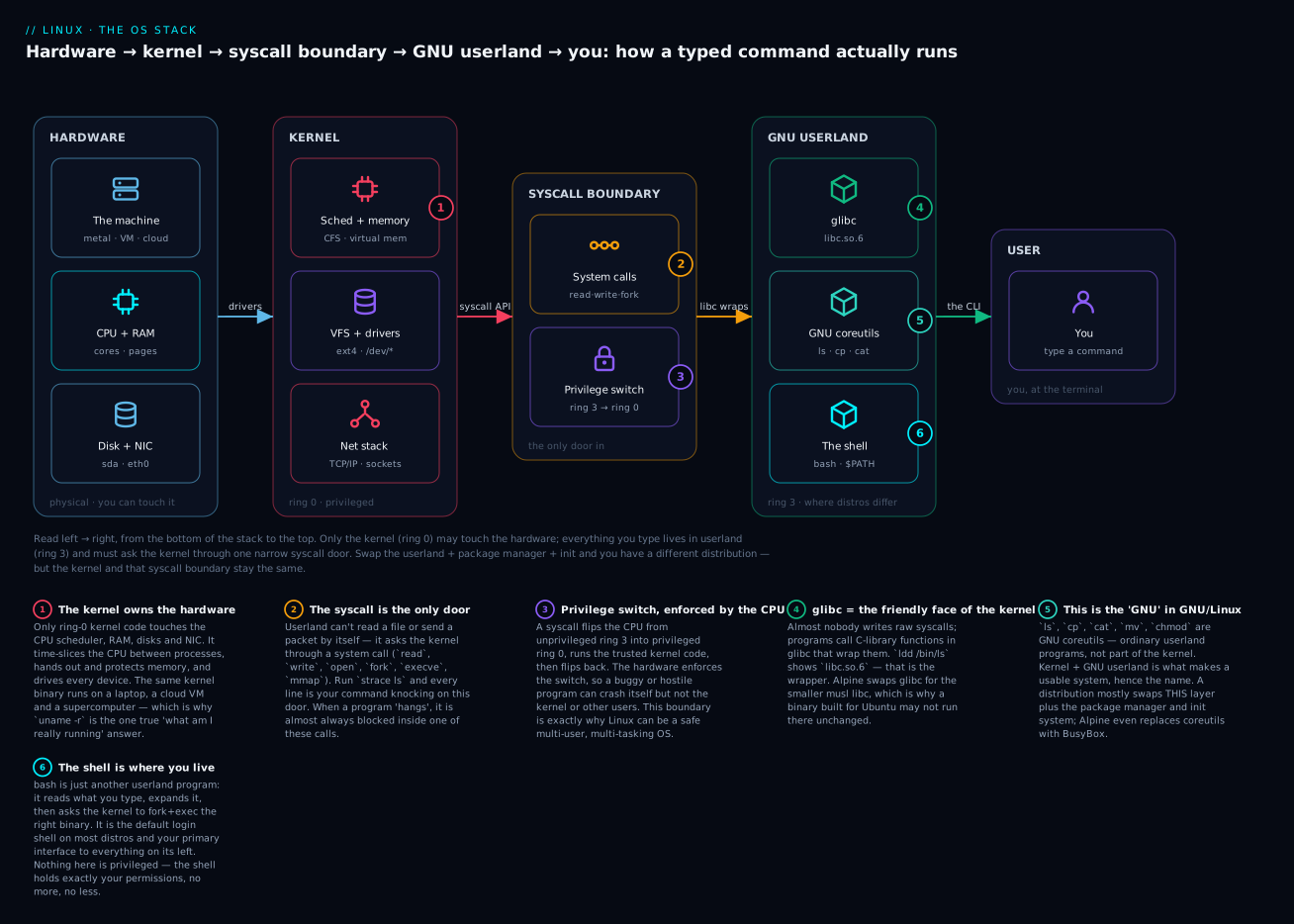
The badges mark the ideas worth tattooing on your brain: the kernel alone owns the hardware (1); the syscall is the only way in (2) and it flips the CPU’s privilege level (3); glibc is the friendly C-library wrapper most programs actually call (4); the everyday commands are GNU userland, not the kernel (5); and the shell is simply the userland program you type into (6). If you understand only this diagram from the whole lesson, you understand Linux better than most people who have used it for years.
Why it’s “GNU/Linux”: the kernel is not the OS
Here is a fact that surprises newcomers: when you type ls, cp, cat, grep, mkdir, or chmod, you are not running the kernel. You are running small, separate programs that live in user space. On a typical Linux desktop or server, those programs come from the GNU project — a free-software effort started by Richard Stallman in 1983, years before Linux existed, with the goal of building a complete Unix-compatible operating system out of free software.
By 1991 the GNU project had built almost everything an OS needs — the compiler (GCC), the C library (glibc), the shell (bash), the core commands (coreutils) — but its own kernel was not ready. Linus Torvalds’ new Linux kernel filled exactly that hole. GNU userland + Linux kernel = a complete, usable operating system. That is why many people (and the Debian project officially) call the whole thing GNU/Linux: the kernel is “Linux”, but most of what you touch is GNU.
It helps to sort the parts by where they come from:
| Component | Comes from | Runs in | What it is |
|---|---|---|---|
| The kernel | Linux (Torvalds et al.) | Kernel space | Scheduler, memory, drivers, filesystems, network |
| glibc | GNU | User space | The C library — wraps syscalls into friendly functions |
| coreutils | GNU | User space | ls, cp, mv, cat, rm, chmod, mkdir… |
| bash | GNU | User space | The default shell |
| GCC, make, binutils | GNU | User space | The toolchain that compiles programs |
| Most daemons (sshd, nginx) | Various open-source projects | User space | Long-running background services |
You can see this split yourself in the lab below with ldd /bin/ls, which reveals that the ls program is linked against libc.so.6 — glibc — the wrapper library that turns “list this directory” into the openat/getdents64 system calls the kernel understands. The chain is: your command → glibc → syscall → kernel → hardware, and back.
An important caveat for later: not every Linux system uses GNU userland. Tiny systems and most containers use BusyBox (a single small binary that provides slimmed-down versions of the common commands) and musl (a compact alternative to glibc). Alpine Linux — which you will meet constantly in Docker — is built this way. So Alpine is “Linux” (same kernel) but not “GNU/Linux” (no GNU userland). This is why a bash script written for Ubuntu can behave differently, or fail outright, on Alpine. Hold that thought; it explains a whole class of container bugs.
Open source and the GPL, in one paragraph. The Linux kernel and the GNU tools are free software, released mainly under the GNU General Public License (GPL). In plain English the GPL gives everyone four freedoms — to run, study, modify, and share the software — with one catch that makes it “copyleft”: if you distribute a modified version, you must pass those same freedoms (and the source code) on to whoever receives it. You cannot take GPL code, improve it, and lock the result away. This bargain is precisely why thousands of companies could collaborate on one kernel without any of them being able to privatise it, and it is the legal engine behind Linux’s improbable, decades-long dominance. (Not everything on a Linux system is GPL — plenty uses more permissive licences like MIT, BSD, or Apache — but the kernel and the core GNU tools are.)
What a distribution actually is
You now have the two halves — kernel and userland. A distribution (“distro”) is the product that bundles them into something you can actually install and boot. A team selects a kernel version, packages up a userland, chooses a package manager, picks an init system, sets sensible defaults, tests that it all works together, and ships it. That curation is the distribution.
Every distro is essentially these five decisions:
| Building block | What it is | Why it matters | Example |
|---|---|---|---|
| Kernel | Which Linux version, with which patches/config | Hardware support, features, stability | Debian 12 ships kernel 6.1 LTS |
| Package manager | The tool that installs/updates/removes software and tracks dependencies | This is the biggest day-to-day difference between distros | apt, dnf, zypper, pacman, apk |
| Init system | The first process (PID 1) that boots and supervises services | Controls how the system starts and how you manage services | systemd on almost all; OpenRC on Alpine |
| Userland | The set of core commands and libraries | Determines which commands and options you actually have | GNU coreutils + glibc, or BusyBox + musl |
| Defaults & policy | Filesystem layout, security stance, release schedule, desktop | The “personality” — how opinionated, how current, how stable | SELinux on by default (RHEL), rolling vs fixed |
The package manager deserves special emphasis because it is where beginners feel the difference first. Instead of hunting the web for installers (the Windows habit), on Linux you ask the package manager, which downloads vetted software from the distro’s repositories, resolves dependencies, and keeps everything updatable from one place. But the command differs by family — apt install nginx on Ubuntu, dnf install nginx on Rocky — which is the single most common source of “why doesn’t this tutorial work?” for beginners. The dedicated lesson Package Management: apt, dnf, rpm & dpkg covers this in depth; here you only need to know that the package manager is a defining trait of a distro.
The init system is the other big one. systemd is the first program the kernel starts (it becomes PID 1), and it then starts and supervises every background service. It is the default on virtually every mainstream distro today, which is why this course assumes systemd unless noted. The main exception you will meet is Alpine, which uses the lighter OpenRC — relevant mainly in containers.
One more distinction that clears up endless confusion: the kernel version and the distro version are different numbers. Ubuntu 24.04 (a distro version, meaning “released April 2024”) might ship Linux kernel 6.8. RHEL 9 might ship kernel 5.14. Neither number is “the version of Linux” in a single sense — one names the distribution release, the other names the kernel. When someone asks “what version of Linux are you on?”, the honest answer is two facts: the distro release (from /etc/os-release) and the kernel (uname -r).
The major distro families
There are hundreds of distributions, but they cluster into a few families, and family is what actually matters — everything in a family shares a package manager, a package format, and a heritage. Learn the five families below and you can find your feet on almost any Linux box in the world.
| Family (key members) | Package manager (high / low level) | Package format | Release model | Support window | Where you’ll meet it |
|---|---|---|---|---|---|
| Debian / Ubuntu, Linux Mint, Kali | apt / dpkg |
.deb |
Fixed; Debian ~2 yrs, Ubuntu LTS every 2 yrs + 6-mo interims | Debian ~3+2 yrs; Ubuntu LTS 5 yrs (10+ with Pro) | The most popular server & desktop base; huge on cloud |
| RHEL / Fedora, Rocky, AlmaLinux, CentOS Stream | dnf / rpm |
.rpm |
Fixed; RHEL ~3 yrs major, Fedora ~6 months | RHEL/Rocky/Alma 10 yrs; Fedora ~13 months | Enterprise servers, regulated industries, RHCSA exams |
| SUSE / openSUSE Leap & Tumbleweed | zypper / rpm |
.rpm |
Leap: fixed ~yearly; Tumbleweed: rolling; SLES enterprise | SLES up to ~13 yrs; Leap tracks SLE | Enterprise (esp. Europe), SAP shops, the YaST admin tool |
| Arch / Manjaro, EndeavourOS | pacman |
.pkg.tar.zst |
Rolling (no versions — always latest) | N/A (continuous) | Enthusiasts, latest software, the famous Arch Wiki |
| Alpine (independent) | apk |
.apk |
Fixed ~6 months | ~2 yrs per release | Containers and embedded — tiny (~5 MB base) |
A few things to read out of that table:
- Package format follows family. Debian family =
.debmanaged byapt/dpkg. RHEL and SUSE families both use.rpm, but with different front-ends (dnfvszypper). Arch and Alpine each have their own. - Release model is a philosophy. A fixed (or “point”) release freezes versions and only ships security fixes for years — boring on purpose, ideal for servers (Debian, RHEL). A rolling release always gives you the newest everything with no big-bang upgrades — exciting and current, but you update continuously (Arch, openSUSE Tumbleweed). LTS (Long-Term Support) is a fixed release a vendor promises to support for an unusually long window (Ubuntu LTS, RHEL).
- The RHEL story, briefly, because it confuses everyone: Fedora is the fast-moving upstream where features are proven; RHEL is the stable, paid, enterprise product Red Hat builds from it; CentOS Stream sits just ahead of RHEL; and Rocky Linux and AlmaLinux are free, community rebuilds that are binary-compatible with RHEL — they exist because the old free “CentOS Linux” was discontinued at the end of 2021. For learning enterprise Linux, Rocky or AlmaLinux behave like RHEL at no cost.
- Alpine is the odd one out on purpose: musl + BusyBox instead of glibc + GNU coreutils, OpenRC instead of systemd, minuscule size. Perfect for a container image, occasionally surprising when a GNU-only command or option is missing.
So which should a beginner actually install? Match the goal to the distro:
| Your goal | Install this | Why |
|---|---|---|
| General learning / follow most tutorials | Ubuntu LTS | Biggest community, most tutorials assume it, gentle defaults |
| Learn enterprise / RHCSA / RHCE certification | Rocky Linux or AlmaLinux | Free and behaves exactly like RHEL, the industry standard |
| Rock-solid home server, minimal fuss | Debian Stable | Legendary stability, huge package set, no vendor account needed |
| Understand Linux deeply, build it up yourself | Arch Linux | You assemble it piece by piece; the Wiki is the best docs anywhere |
| Small container images / CI | Alpine | Tiny and fast — but expect musl/BusyBox quirks |
| Windows user who just wants to try Linux | Ubuntu on WSL2 | A real Linux kernel inside Windows, zero dual-boot risk |
There is no “best” distro — there is the right tool for the job. Because the kernel and syscall boundary are identical across all of them, the skills in this course transfer everywhere; only the packaging conventions and defaults change.
The shell: your primary interface
The last piece of the map is the one you will spend the most time with. The shell is a userland program that reads the commands you type, interprets them, and asks the kernel to run the corresponding programs. It is your primary interface to the machine — a “command-line interpreter.” Every time you type ls and press Enter, the shell finds the ls binary, uses fork+execve to run it, waits, and shows you the result.
The default shell on almost every Linux distribution is bash (the Bourne Again SHell, a GNU program). You will meet a few others:
| Shell | Where it’s the default | Note |
|---|---|---|
| bash | Most Linux distros (login shell) | The de-facto standard for scripts and interactive use |
| dash | Debian/Ubuntu /bin/sh |
Tiny and POSIX-strict; runs system scripts fast |
| ash (BusyBox) | Alpine | Why bash-specific scripts can fail in Alpine containers |
| zsh | macOS (and many power users) | bash-compatible-ish with nicer interactive features |
| fish | Personal choice | Friendly, but not POSIX — never use as /bin/sh |
When you look at a prompt, it is telling you things. Learn to read it:
| You see | It means |
|---|---|
vinod@web01:~$ |
user vinod, host web01, current dir ~ (your home), $ = ordinary user |
root@web01:/etc# |
you are root (the all-powerful admin) — the # is your warning light |
~ |
shorthand for your home directory, e.g. /home/vinod |
$ vs # |
$ = normal user, # = root. If you see #, every command can break the system |
That $ versus # distinction is your most important early safety signal: a normal user ($) is fenced in by permissions and can mostly only hurt their own files; root (#) can delete anything on the machine. You become root deliberately, usually with sudo, and you spend as little time there as possible.
This lesson is only the shell’s introduction. Two companion lessons go deep: Shell Basics: Pipes, Redirection & Environment teaches how to combine commands into powerful chains, and The Filesystem Hierarchy & Navigation teaches the tree of files the shell moves you around in.
Where Linux runs today — so you know why this map is worth your time:
| Domain | Example | Why Linux won here |
|---|---|---|
| Servers & web | Most of the internet’s web/app/database servers | Free, stable, scriptable, no per-seat licence |
| Public cloud | The majority of AWS/Azure/GCP instances | The default OS for virtually all cloud compute |
| Containers | Docker & Kubernetes images | Containers are a Linux kernel feature (namespaces + cgroups) |
| Mobile & embedded | Android phones, routers, smart TVs, cars | Free, tiny footprint possible, fully customisable |
| Supercomputing | All of the TOP500 fastest supercomputers | Tunable, open, scales to hundreds of thousands of cores |
| Desktop / dev | Developer laptops, WSL2 on Windows | Native toolchains; matches the servers you deploy to |
That is the entire map: hardware, kernel, syscall boundary, GNU userland, shell — packaged by a distribution, driven by you. Everything else in this course is filling in detail on one of those boxes.
Hands-on lab
Time to make the abstract concrete. This lab works on any Linux system: a cloud VM, a Raspberry Pi, WSL2, or a throwaway container (docker run -it ubuntu bash, then apt update && apt install -y strace file inside it). Each step shows the command, roughly what you’ll see, and what just happened. Nothing here changes your system — it is all read-only inspection.
Step 1 — Meet the kernel.
uname -a
# Linux web01 6.8.0-40-generic #40-Ubuntu SMP ... x86_64 GNU/Linux
uname -r   # just the kernel release
# 6.8.0-40-generic
What just happened: uname reports the running kernel. That 6.8.0 is Linux itself — the one program in charge of the machine. Note the string even ends in GNU/Linux: the kernel is Linux, the userland is GNU.
Step 2 — See the kernel image on disk.
ls -lh /boot/vmlinuz-*
# -rw------- 1 root root 14M ... /boot/vmlinuz-6.8.0-40-generic
What just happened: vmlinuz is the compressed kernel file the bootloader loads at startup. The whole kernel — scheduler, drivers, everything — is that single ~14 MB file. (On some minimal containers /boot is empty because the container shares the host’s kernel; that itself is a great lesson.)
Step 3 — Identify your distribution.
cat /etc/os-release
# NAME="Ubuntu"
# VERSION="24.04.1 LTS (Noble Numbat)"
# ID=ubuntu
# ID_LIKE=debian
# ...
What just happened: This standard file names your distribution, not the kernel. Compare its version to Step 1’s — two different numbers, exactly as discussed. ID_LIKE=debian tells you the family, which is how you know apt is the package manager here.
Step 4 — Find your package manager (the family fingerprint).
command -v apt dnf zypper pacman apk 2>/dev/null
# /usr/bin/apt        <- present => Debian/Ubuntu family
What just happened: Only one of these usually exists on a given box. Whichever one prints a path tells you the family and therefore how you install software. This is exactly how an admin orients themselves on an unfamiliar server.
Step 5 — Which shell are you in?
echo "$SHELL"      # your configured login shell
# /bin/bash
ps -p $$ -o comm=  # the shell process running RIGHT NOW
# bash
What just happened: $SHELL is your default; ps -p $$ shows the actual current shell process ($$ is its process ID). Usually both say bash — the GNU shell, sitting in userland.
Step 6 — Prove that userland uses the C library.
file /bin/ls
# /bin/ls: ELF 64-bit ... dynamically linked, interpreter /lib64/ld-linux-x86-64.so.2 ...
ldd /bin/ls
#   linux-vdso.so.1
#   libc.so.6 => /lib/x86_64-linux-gnu/libc.so.6   <-- glibc!
#   ...
What just happened: ls is an ordinary userland program, and ldd shows it is linked against libc.so.6 — glibc. This is the “friendly face of the kernel” from the diagram: ls calls glibc functions, glibc makes the syscalls.
Step 7 — Watch the system-call boundary in action. (Install first if needed: sudo apt install -y strace or sudo dnf install -y strace.)
strace -c ls /etc >/dev/null
# % time  seconds   calls  syscall
#  ...    ...        1      execve
#  ...    ...        3      openat
#  ...    ...        1      getdents64   <- the actual "list directory" syscall
#  ...    ...        ...    write
What just happened: strace shows every system call ls makes. You are literally watching a userland program knock on the kernel’s door: execve to become ls, openat to open /etc, getdents64 to read the directory entries, write to print them. The syscall boundary is no longer a theory — it is a list on your screen.
⚠️ On some locked-down containers
stracefails with “Operation not permitted” because tracing (ptrace) is blocked by the security profile. Run it on a normal VM/WSL, or add--cap-add=SYS_PTRACEto yourdocker run. This is not an error in your command.
Step 8 — See the kernel exposing hardware through files.
grep -m1 'model name' /proc/cpuinfo   # CPU, as the kernel sees it
free -h                                # RAM usage
ls /lib/modules/$(uname -r)/kernel/drivers | head   # device drivers
What just happened: /proc is a “virtual filesystem” — those are not real files on disk; the kernel generates them on the fly to expose live hardware and system state. The drivers directory holds the kernel modules (drivers) that talk to your actual devices. This is the kernel’s “abstraction layer” job, made visible.
Step 9 — Builtin vs external: where a command lives.
type cd      # cd is a shell builtin
type ls      # ls is /usr/bin/ls   (or "aliased to ls --color=auto")
type -a echo # may show BOTH a builtin and a binary
What just happened: cd is inside the shell itself (it has to be — it changes the shell’s own directory). ls is a separate userland program the shell fork+execs. That is the kernel/userland/shell split showing up in a single one-line command. If you can explain why cd must be a builtin, you’ve understood the process model.
You have now, in nine short steps, touched every layer of the map: the kernel (uname, /boot, /proc, drivers), the distribution (/etc/os-release, the package manager), the GNU userland (ldd → glibc, ls), the syscall boundary (strace), and the shell ($SHELL, type). Re-run any step whenever the concept feels fuzzy.
Common mistakes and troubleshooting
Beginners get stuck in the same handful of places, and every one traces back to confusing the layers. Keep this table close.
| Symptom | Likely cause | Fix |
|---|---|---|
apt: command not found on a server |
You’re on the RHEL/SUSE family, not Debian/Ubuntu — wrong package manager | Check cat /etc/os-release; use dnf/zypper/pacman/apk as appropriate |
Tutorial says apt install X but nothing installs |
Package name differs across distros/families | Search first: apt search X / dnf search X; names aren’t universal |
bash: not found inside a container |
It’s Alpine — BusyBox ash, no bash by default |
apk add bash, or write POSIX sh scripts, or use a debian/ubuntu base image |
Script with [[ ... ]] or arrays fails on /bin/sh |
/bin/sh is dash/ash, not bash; those are bash-only features |
Use #!/bin/bash as the shebang, or stick to POSIX syntax |
| “Kernel is 6.8 but the OS says 22.04 — which is right?” | Kernel version ≠ distro version; both are correct | uname -r = kernel; /etc/os-release = distribution — they’re different facts |
sudo: command not found / Permission denied |
You’re a normal user ($) and the action needs root, or sudo isn’t installed |
Prefix with sudo; in a root container you’re already # and don’t need it |
systemctl: command not found |
Non-systemd system (Alpine/OpenRC) or a container with no init running | Use the distro’s init (rc-service on Alpine); in containers, run the process directly |
| A binary “works on my machine” but not on the server | Different libc (glibc vs musl) or missing shared library | ldd ./binary to see unmet deps; build for the target, or use a matching base image |
Three gotchas deserve extra words, because they cost beginners the most hours:
1. “It’s all just Linux, so any command should work.” No — the kernel is common, but the userland and package manager are not. apt is Debian-family; dnf is RHEL-family; Alpine has neither. Before you copy a command from a tutorial, know which family your box is (/etc/os-release, or the command -v trick from the lab). Ninety percent of “the tutorial is broken” moments are really “the tutorial assumed a different distro.”
2. The Alpine/container trap. Alpine uses musl + BusyBox to stay tiny, so it deliberately lacks bash and ships slimmed-down commands with fewer options than their GNU cousins. A script that runs perfectly on Ubuntu can fail on Alpine because a flag doesn’t exist or /bin/sh isn’t bash. When a container behaves strangely, check the base image first (cat /etc/os-release) — the answer is often “oh, it’s Alpine.”
3. Confusing “root” with “your account.” The # prompt and sudo exist because of the kernel’s user/permission wall. As a normal user you’re safely fenced in. The instant you’re root, that fence is gone and a single mistyped rm -rf can erase the system. Treat every # prompt as a lit stove: do the one privileged thing you came to do, then step back to $.
Cheat-sheet
Bookmark this. It answers “what am I actually running, and how do I orient myself on a strange box?”
| Command | What it tells you |
|---|---|
uname -r |
Kernel version (the real “Linux” version) |
uname -a |
Kernel + host + architecture, all at once |
cat /etc/os-release |
Distribution name, version, and family (ID, ID_LIKE) |
hostnamectl |
Distro + kernel + hardware summary (systemd systems) |
lsb_release -a |
Distro name/release (if lsb-release is installed) |
command -v apt dnf zypper pacman apk |
Which package manager exists → which family you’re on |
echo "$SHELL" |
Your configured login shell |
ps -p $$ -o comm= |
The shell process running right now |
type <cmd> |
Whether <cmd> is a builtin, alias, function, or a file |
which <cmd> / command -v <cmd> |
The path of the external program that would run |
ldd /bin/ls |
Shared libraries a program uses (e.g. libc.so.6 = glibc) |
file /bin/ls |
What kind of file it is (ELF binary, script, etc.) |
strace -c <cmd> |
Count the system calls a command makes (the syscall boundary) |
ltrace <cmd> |
Trace library calls (e.g. into glibc) instead of syscalls |
lsmod |
Loaded kernel modules (drivers currently in the kernel) |
modinfo <module> |
Details about a specific kernel module |
cat /proc/cpuinfo / free -h |
Live CPU / memory info the kernel exposes via /proc |
man 2 syscalls |
The full list of Linux system calls |
Distro-to-package-manager quick map (so you never guess wrong):
If /etc/os-release family is… |
Install with | Search with |
|---|---|---|
| Debian / Ubuntu | sudo apt install <pkg> |
apt search <pkg> |
| RHEL / Fedora / Rocky / Alma | sudo dnf install <pkg> |
dnf search <pkg> |
| openSUSE / SUSE | sudo zypper install <pkg> |
zypper search <pkg> |
| Arch | sudo pacman -S <pkg> |
pacman -Ss <pkg> |
| Alpine | sudo apk add <pkg> |
apk search <pkg> |
Interview and exam questions
Q: What is the difference between the Linux kernel and a Linux distribution? A: The kernel is a single program — the core that manages CPU, memory, devices, filesystems, and networking, and it’s the only part technically called “Linux.” A distribution is a complete, installable product that bundles a kernel with a userland (usually GNU tools), a package manager, an init system, and defaults. Ubuntu and Rocky are distributions; both run the same kind of kernel.
Q: Why do people call it “GNU/Linux”?
A: The commands you actually use — ls, cp, bash, the C library glibc, the GCC compiler — come from the GNU project, which predates Linux. GNU had built almost a whole OS but lacked a finished kernel; Linux supplied it. Kernel (Linux) + userland (GNU) = the working system, so “GNU/Linux” credits both halves.
Q: What is a system call, and why can’t a program just talk to the hardware directly?
A: A system call is the controlled doorway a user-space program uses to ask the kernel to do something privileged — read a file, send a packet, start a process. Programs can’t touch hardware directly because they run in unprivileged CPU mode (ring 3); only the kernel (ring 0) may, and the CPU enforces this. That wall is what keeps a buggy or malicious program from crashing the whole machine. Examples: read, write, open, fork, execve, mmap.
Q: What’s the difference between kernel space and user space? A: Kernel space is the privileged world where the kernel runs with full hardware access; a crash there can panic the whole system. User space is where everything else — your shell, editors, servers — runs, fenced off from the hardware and from each other, reaching the kernel only through system calls. A crash in user space kills just that one process.
Q: Name the package manager and package format for the Debian, RHEL, SUSE, Arch, and Alpine families.
A: Debian/Ubuntu → apt/dpkg, .deb. RHEL/Fedora/Rocky → dnf, .rpm. SUSE/openSUSE → zypper, .rpm. Arch → pacman, .pkg.tar.zst. Alpine → apk, .apk.
Q: What’s the difference between a rolling release and a fixed (point) release? Give an example of each. A: A fixed release freezes package versions at release time and ships mostly security fixes for a defined support window — stable and predictable (Debian, RHEL, Ubuntu LTS). A rolling release continuously delivers the newest versions with no big version jumps — always current, updated bit by bit (Arch Linux, openSUSE Tumbleweed).
Q: What does the shell do, and what is the default on Linux? A: The shell is a userland program that reads your typed commands, interprets them (expanding variables, wildcards, pipes), and asks the kernel to run the corresponding programs via fork+exec. The default on almost every Linux distribution is bash.
Q: Is Android “Linux”? A: Yes at the core — Android runs the Linux kernel. But its userland is entirely its own (no GNU tools, no bash by default), so it’s “Linux” but not “GNU/Linux.” It shows that the same kernel can carry radically different userlands.
Q: Explain the GPL in one sentence. A: The GNU General Public License lets anyone run, study, modify, and share the software, on the condition that any distributed modifications carry the same freedoms and source code forward — so the code (and its improvements) can never be locked away.
Q (RHCSA-style): On an unfamiliar server, how do you determine the kernel version and the exact distribution/release?
A: uname -r for the kernel version; cat /etc/os-release (or hostnamectl) for the distribution name and release. They are two separate facts and you should report both.
Q (LFCS-style): You’re dropped onto a host and must install a package but don’t know the distro. How do you find the right package manager?
A: Read /etc/os-release (check ID and ID_LIKE), or probe with command -v apt dnf zypper pacman apk — whichever returns a path is the family’s manager. Then install accordingly (apt install, dnf install, etc.).
Q: Why must cd be a shell builtin rather than an external program like ls?
A: cd has to change the current shell’s working directory. An external program runs in a forked child process; anything it changes (including its directory) vanishes when it exits, leaving the parent shell unchanged. So cd is implemented inside the shell itself, whereas ls can safely be a separate userland binary the shell fork+execs.
Key takeaways
- “Linux” is precisely the kernel — one program that manages the CPU, memory, filesystems, drivers, and networking. Everything else you touch is userland software layered on top.
- Kernel space (ring 0) and user space (ring 3) are walled apart, and the wall is crossed only through system calls. That boundary is what makes Linux a safe, multi-user, multi-tasking system — see it live with
strace. - It’s “GNU/Linux” because the everyday commands (
ls,cp,bash), the C library (glibc), and the compiler come from GNU, not the kernel. Tiny/container systems swap these for BusyBox + musl (that’s Alpine). - A distribution bundles five choices: kernel, package manager, init system, userland, and defaults. The package manager and family (
.deb/aptvs.rpm/dnf/zyppervspacmanvsapk) are the differences you feel first. - Kernel version ≠ distro version.
uname -rgives one;/etc/os-releasegives the other. Always report both. - Pick a distro by goal: Ubuntu LTS to learn and follow tutorials, Rocky/AlmaLinux for enterprise/RHCSA, Debian for a stable server, Arch to learn deeply, Alpine for containers.
- The shell (bash) is your interface — a userland program that reads your commands and asks the kernel to run them. Watch the prompt:
$is a fenced-in normal user,#is all-powerful root. - Because the kernel and syscall boundary are identical across every distribution, the skills in this course transfer everywhere — only the packaging and defaults change.