Somewhere in your week there is a task that a computer should be doing. You download twelve billing exports and rename them by hand. You drag last month’s PDFs into a folder named after last month. You open Excel, retype numbers into a summary sheet, save it, attach it to an email, and send it to the same three people you sent it to in June. It is not hard. It is just tedious, and tedious work done by a tired human at 5 p.m. on a Friday is exactly where the wrong file gets attached and the wrong folder gets overwritten.
This lesson is about handing that work to Python. A cloud or DevOps engineer’s laptop is full of these little chores — organising logs, summarising cost exports, stitching invoices together, mailing a weekly report — and the standard library plus two or three small packages turn every one of them into a script you run once and then schedule to run forever. That is the good news. The rest of the lesson is the caution that has to come with it: automation does not get tired, so it does not hesitate before doing the wrong thing to a thousand files. A human who mistypes a path renames one file wrong; a script that mistypes a path renames them all wrong, at 02:00, while you sleep.
So two disciplines run through everything here, and they are not optional extras. The first is --dry-run first: any script that moves, renames, overwrites or deletes must be able to print exactly what it would do and change nothing, so you read the plan before you arm it. The second is secrets from the environment, never the code: the moment your automation logs into a mail server, its password stops being a convenience and becomes a liability that is one git push away from being public. Get those two right and automation is pure profit. Get them wrong and you have written a very efficient machine for causing incidents.
Everything runs on Python 3.12+. The file and email work is pure standard library; Excel and PDF need a virtual environment and a few pip installs, which we set up in the lab.
Why this matters
The shape of almost every automation is the same three verbs: gather, transform, deliver. You gather inputs (files on disk, rows from an export, pages from a PDF), you transform them (rename, filter, summarise, format), and you deliver a result (a tidy folder, a report, an email, a ticket). Learn the shape once and every specific tool — pathlib, openpyxl, pypdf, smtplib — is just a way to fill in one of the three slots.
Here is the mental model to carry through the lesson, because it is where the danger lives. A manual chore has a human in the loop on every single item; an automated chore has a human in the loop zero times. That is the entire value proposition and the entire risk. The human you removed was also your validation step — the one who noticed “wait, that’s the wrong quarter” before hitting send. When you automate, you have to put that judgement back into the code: as a dry-run you actually read, as an assertion that fails loud on a bad row, as an email that gets captured and inspected before a real server is ever involved.
| The manual chore | The automated version | The discipline it needs |
|---|---|---|
| Rename/sort 200 exports into folders | pathlib walk + shutil.move |
⚠️ --dry-run first — print every move |
| Retype figures into a summary sheet | pandas + openpyxl styling |
Idempotent write — regenerate, don’t append |
| Merge a stack of invoice PDFs | pypdf merge |
Work on copies; PDFs are binary |
| Attach the report and email it | EmailMessage + smtplib |
⚠️ App password from env; capture before send |
| “Do it again next Monday” | cron / systemd timer / schedule |
Log the run; return a real exit code |
Notice the right-hand column. The tools are easy — you will learn them in an afternoon. The disciplines are what separate a script that helps from a script that, three weeks from now, quietly files every 2026 invoice under 1970-01 because a timestamp came back as zero and nobody was watching. This lesson teaches both, but it weights the disciplines, because that is where real automation is won or lost.
Walking the filesystem with pathlib
Every file automation starts by finding the files, and modern Python finds files with pathlib. If you have met pathlib for reading and writing single files, this is the same object doing a bigger job: describing, filtering and walking whole trees. (For the open() mechanics, encodings and the "w"-truncates trap, see the File I/O lesson.)
There are three ways to enumerate a directory, and choosing the wrong one is a common first bug — you glob the top level, get nothing, and conclude the files aren’t there when they are simply one folder deeper.
| Call | What it yields | Recurses? | Returns |
|---|---|---|---|
p.iterdir() |
every entry in p (files and dirs) |
❌ one level | generator |
p.glob("*.pdf") |
entries in p matching a pattern |
❌ one level (unless **) |
generator |
p.rglob("*.pdf") |
matches anywhere under p |
✅ whole subtree | generator |
p.walk() (3.12+) |
(dir, subdirs, files) per directory |
✅ whole subtree | generator of tuples |
The one to reach for by default is rglob — “recursive glob” — because real inboxes have subfolders. Watch the difference on a folder whose PDFs live in dated subdirectories:
from pathlib import Path

base = Path("organised")

print("iterdir (one level):", sorted(p.name for p in base.iterdir()))
print("glob   *.pdf (one level):", sorted(p.name for p in base.glob("*.pdf")))
print("rglob  *.pdf (recursive):", sorted(p.name for p in base.rglob("*.pdf")))
iterdir (one level): ['2026-03', '2026-04', '2026-05', '2026-06', '2026-07']
glob   *.pdf (one level): []
rglob  *.pdf (recursive): ['bank_statement.pdf', 'invoice_apr.pdf', 'invoice_may.pdf']
iterdir saw only the month folders. glob("*.pdf") at the top level found nothing — the PDFs are one level down. rglob("*.pdf") walked the whole tree and found all three. That empty glob result is the bug beginners stare at; the fix is almost always an r in front of glob or a **/ in the pattern.
All three return generators, not lists — they are lazy, so they scale to a directory with a million files and you can break out early. list() them only when you truly need every path at once (to sort, count, or index).
g = base.rglob("*.log")
print(type(g).__name__)   # => generator
print(next(g).name)       # => app_20260601.log   (pulled lazily, on demand)
The glob pattern language
glob patterns are shell-style wildcards, not regular expressions — a frequent mix-up. Keep this small table nearby:
| Pattern | Matches | Note |
|---|---|---|
* |
any run of characters, within one path segment | *.csv — won’t cross / |
** |
any number of directories | needs rglob, or glob("**/*.csv") |
? |
exactly one character | log_?.txt |
[0-9] |
one character in the set/range | report_[0-9].pdf |
[!0-9] |
one character not in the set | negation uses !, not ^ |
*.[co] |
ends in .c or .o |
set inside the pattern |
Filtering: extension, size, and modified time
Finding files is half the job; filtering them is the other half, and it is where stat() earns its keep. p.stat() makes one system call and hands back size, timestamps and mode. Filter with plain Python — a comprehension with a predicate reads better than any special API:
from pathlib import Path
from datetime import datetime

files = [p for p in Path("organised").rglob("*") if p.is_file()]

# by extension — normalise case, and prefer a SET for "one of these"
wanted = {".csv", ".xlsx"}
tabular = [p for p in files if p.suffix.lower() in wanted]
print("tabular:", sorted(p.name for p in tabular))

# by size — bytes; use _ separators for readable thresholds
big = [p for p in files if p.stat().st_size > 40_000]
print("big    :", sorted(p.name for p in big))

# by modified time — group into a YYYY-MM bucket
june = [p for p in files
        if datetime.fromtimestamp(p.stat().st_mtime).strftime("%Y-%m") == "2026-06"]
print("june   :", sorted(p.name for p in june))
tabular: ['costs_export.csv', 'headcount.xlsx', 'q1_report.xlsx', 'usage_export.csv']
big    : ['backup.tar.gz', 'bank_statement.pdf', 'diagram.png', 'screenshot.png']
june   : ['app_20260601.log', 'costs_export.csv', 'headcount.xlsx', 'meeting_notes.txt', 'usage_export.csv']
Property (via p.stat()) |
Attribute | Meaning | Watch out |
|---|---|---|---|
| Size | .st_size |
bytes | it’s bytes — /1024 for KB, /1_000_000 for MB |
| Modified | .st_mtime |
epoch seconds (float) | wrap in datetime.fromtimestamp(...) to read/bucket |
| Created / metadata-changed | .st_ctime |
not creation time on Linux — it’s inode-change | use .st_birthtime for creation where the OS has it |
| Accessed | .st_atime |
last read | often disabled (noatime mounts) — unreliable |
| Suffix | p.suffix |
.csv (pure string, no disk hit) |
includes the dot; .suffixes for .tar.gz |
Two traps in that table bite constantly. First, st_size is bytes, and a beginner who forgets that reports files as “500000” and panics; divide. Second, st_ctime is not “creation time” on Linux and macOS — it is the inode change time — so a script that sorts “by creation date” using st_ctime is quietly wrong. Use st_mtime for “when the content last changed” (what you almost always mean) and st_birthtime where you truly need creation and the platform provides it.
The --dry-run discipline (and shutil)
Now we move files, and this is the section the whole lesson is built around. The operations themselves are trivial — shutil is a handful of well-named functions — but the ordering is a discipline: plan, print, then (only then) apply.
shutil (“shell utilities”) is the high-level file-operations module. pathlib moves and deletes single files; shutil copies with metadata, moves across filesystems, copies whole trees, and makes archives.
shutil call |
Does | ⚠️ Danger |
|---|---|---|
shutil.copy(src, dst) |
copy file contents + permission bits | — |
shutil.copy2(src, dst) |
copy + metadata (mtime, etc.) | — |
shutil.copytree(src, dst) |
copy a whole directory tree | dst must not exist (or dirs_exist_ok=True) |
shutil.move(src, dst) |
move/rename, across filesystems | overwrites an existing file silently |
shutil.make_archive(base, "zip", root) |
zip/tar a folder | writes base.zip |
shutil.unpack_archive(a, dst) |
extract an archive | trust the source — zip-slip is real |
shutil.disk_usage(p) |
(total, used, free) bytes |
check before a big write |
shutil.rmtree(p) |
⚠️⚠️ delete a whole tree | no prompt, no recycle bin, no undo |
shutil.which("cmd") |
find an executable on PATH |
returns None if not found |
Two of those calls are genuinely dangerous and deserve their own reflexes:
⚠️ shutil.rmtree(p) deletes an entire directory tree recursively with no confirmation and no recycle bin. There is no undo. Never point it at a path built from a variable you haven’t just printed. print(p.resolve()) on the line above costs two seconds; a wrong rmtree costs an afternoon and an apology.
⚠️ shutil.move onto an existing file destroys that file silently. This is not hypothetical — it is the single most common way an “organise my files” script eats data:
import shutil
from pathlib import Path

keep = Path("b.txt"); keep.write_text("KEEP ME")
shutil.move("a.txt", "b.txt")          # a.txt lands on top of b.txt
print(keep.read_text())                # => 'hi'   ('KEEP ME' is gone, no warning)
The other same-path cases are worth knowing precisely, because their behaviours differ and the exceptions are ones you’ll actually see:
shutil.copy("a.txt", "a.txt")   # -> shutil.SameFileError: '...' and '...' are the same file
shutil.move("a.txt", "a.txt")   # -> silent no-op, returns the path (NOT an error)
shutil.move("a.txt", "dir/")    # a.txt already in dir/ -> shutil.Error: Destination path 'dir/a.txt' already exists
Dry-run: the pattern
Here is the pattern that makes all of the above safe. Build the complete list of intended operations first, as (source, destination) pairs, touching nothing. Then either print them (dry-run) or perform them (apply). The choice is a single boolean, and — this is the important design decision — dry-run is the default; the destructive path is opt-in.
from pathlib import Path
from datetime import datetime
import shutil

def plan_moves(src_dir: Path, dst_dir: Path) -> list[tuple[Path, Path]]:
    """Pure planning: no side effects. Return (src, dst) for each real file."""
    moves = []
    for p in sorted(src_dir.rglob("*")):
        if not p.is_file() or p.name.startswith("."):   # skip dirs + hidden
            continue
        bucket = datetime.fromtimestamp(p.stat().st_mtime).strftime("%Y-%m")
        moves.append((p, dst_dir / bucket / p.name))
    return moves

def apply_or_preview(moves, apply: bool) -> None:
    for src, dst in moves:
        if dst.exists():                       # idempotent: never clobber
            print(f"SKIP (exists): {dst}")
            continue
        if apply:
            dst.parent.mkdir(parents=True, exist_ok=True)
            shutil.move(str(src), str(dst))
            print(f"moved      {src.name} -> {dst}")
        else:
            print(f"WOULD move {src.name:22} -> {dst}")
The reason dry-run is the default and not the flag is psychological as much as technical: a tired operator types the short command. If the short command is safe and the dangerous one needs an extra --apply, then the failure mode of a half-remembered invocation is “it printed a plan,” not “it moved everything.” Design so the lazy path is the safe path.
| Design choice | Safe? | Why |
|---|---|---|
Default = dry-run, --apply commits |
✅ | forgetting a flag = a harmless preview |
Default = apply, --dry-run previews |
❌ | forgetting a flag = you already moved everything |
| No dry-run at all | ⚠️⚠️ | one wrong glob and there is no undo |
| Separate “plan” and “apply” functions | ✅ | planning has no side effects; it’s testable and printable |
Temporary files, and the atomic-write trick
When your automation builds an output file, don’t write it in place — a crash halfway leaves a truncated, corrupt file where the good one used to be. Write to a temporary file, then atomically replace. tempfile gives you safe scratch space that cleans itself up:
import tempfile, os
from pathlib import Path

# self-cleaning scratch directory
with tempfile.TemporaryDirectory(prefix="report-") as td:
    scratch = Path(td) / "wip.xlsx"
    scratch.write_bytes(b"...building...")
    print("exists inside :", scratch.exists())    # => True
print("exists after  :", Path(td).exists())        # => False (auto-removed)

# atomic replace: write .tmp, then os.replace() (atomic on one filesystem)
final = Path("report.xlsx"); tmp = final.with_suffix(".xlsx.tmp")
tmp.write_bytes(b"the finished report")
os.replace(tmp, final)   # readers see either the OLD file or the NEW one, never half
os.replace is the hero: on a single filesystem it swaps the name in one indivisible step, so a reader (or a crash) never catches the file half-written. That is how a nightly report never gets served empty.
Excel: openpyxl for cells, pandas for tables
Sooner or later automation meets a spreadsheet, because spreadsheets are how the rest of the company consumes data. Python has two doors into .xlsx, and picking the right one saves hours.
pandasis for tabular data — rows and columns you want to read, filter, join, aggregate, and write back.pd.read_excel/df.to_excelare one line each. This is the common case.openpyxlis for cell-level control — styling, merged cells, formulas, multiple sheets laid out just so, charts, freeze panes. When you need the output to look like a report, not just hold data.
They are not rivals; the professional pattern uses both: pandas writes the data, openpyxl styles it. That works because pandas uses openpyxl as its .xlsx engine under the hood, so you can hand pandas a writer and then reach through to the same workbook.
| You need to… | Reach for | Why |
|---|---|---|
| Read a sheet into rows/columns | pandas.read_excel |
typed columns, one call |
| Write a DataFrame to a sheet | df.to_excel |
one call; index=False usually |
| Aggregate/join then export | pandas |
it’s what pandas is for |
| Bold headers, colours, widths | openpyxl |
cell-level styling |
| Formulas, merged cells, charts | openpyxl |
pandas can’t express these |
| Multiple styled sheets in one file | pandas + openpyxl together |
data by pandas, polish by openpyxl |
The engine, and why it bites
pandas doesn’t parse Excel itself — it delegates to an engine, and the wrong (or missing) engine is a classic ImportError. Modern pandas defaults are sensible, but pin the engine explicitly in automation so it never depends on what happens to be installed:
| File | Read engine | Write engine | Install |
|---|---|---|---|
.xlsx |
openpyxl |
openpyxl |
pip install openpyxl |
.xlsx (faster writes) |
— | xlsxwriter |
pip install xlsxwriter |
.xls (old) |
xlrd |
❌ can’t write | pip install xlrd |
.ods |
odf |
odf |
pip install odfpy |
import pandas as pd

df = pd.DataFrame({"service": ["compute", "storage", "network"],
                   "inr": [1240, 380, 210]})
df.to_excel("costs.xlsx", index=False, engine="openpyxl")     # write

got = pd.read_excel("costs.xlsx", engine="openpyxl")          # read back
print(got.to_string(index=False))
print(got.dtypes.to_string())
service  inr
compute 1240
storage  380
network  210
service    str
inr      int64
That service str line is a pandas 3.0 detail worth a note: pandas 3.0 made str the default dtype for text columns, where pandas 2.x showed object. Same data, different label — don’t be thrown if your machine prints object. For the CSV/JSON side of serialization, see the JSON, CSV & serialization lesson.
openpyxl from scratch, and formulas
When you need real control, drive openpyxl directly. A workbook has sheets; a sheet has cells addressed like "B5" or (row, col); you assign values and styles to cells and save().
from openpyxl import Workbook, load_workbook

wb = Workbook()
ws = wb.active
ws.title = "Costs"
ws["A1"] = "service"; ws["B1"] = "inr"
ws.append(["compute", 1240])            # append a whole row
ws.append(["storage", 380])
ws["A4"] = "total"
ws["B4"] = "=SUM(B2:B3)"                 # a FORMULA — note the leading '='
wb.save("costs.xlsx")
Now the single most surprising thing about openpyxl, and a guaranteed support ticket if you don’t know it:
wb_f = load_workbook("costs.xlsx")                 # formulas
wb_v = load_workbook("costs.xlsx", data_only=True) # cached VALUES
print("formula :", wb_f["Costs"]["B4"].value)   # => =SUM(B2:B3)
print("value   :", wb_v["Costs"]["B4"].value)   # => None  (!)
formula : =SUM(B2:B3)
value   : None
⚠️ openpyxl does not calculate formulas. It writes the formula string and reads it back, but it is not Excel — it never evaluates anything. data_only=True returns the last value Excel cached the last time a human opened and saved the file; on a file openpyxl created and Excel never touched, that cache is empty, so you get None. If your automation needs the computed number, either compute it in Python (you have the data — why round-trip through a formula?) or open the file in Excel/LibreOffice once to populate the cache. This one behaviour accounts for a huge share of “why is my cell empty” questions.
A close cousin is the formula-written-as-text trap. A leading ' (apostrophe) forces Excel to store a cell as literal text, so a formula never runs:
ws["A3"] = "'=A1+A2"   # leading apostrophe -> stored as the TEXT "=A1+A2"
ws["A4"] = "=A1+A2"    # correct -> a live formula
If your “formulas” show up in the sheet as visible text starting with =, an apostrophe (or a cell formatted as Text) is why.
Styling a report sheet
The styling API is a set of small objects — Font, PatternFill, Alignment, Border — that you assign to cell.font, cell.fill, and so on.
| Style object | Sets | Example |
|---|---|---|
Font(bold=True, color="FFFFFF") |
weight, colour, size, italic | cell.font = Font(bold=True) |
PatternFill("solid", fgColor="1F4E78") |
background colour | cell.fill = PatternFill(...) |
Alignment(horizontal="center") |
text alignment, wrap | cell.alignment = ... |
Border(bottom=Side(style="thin")) |
cell borders | cell.border = ... |
cell.number_format = "#,##0.0" |
how numbers display | "0.0%", "yyyy-mm-dd" |
ws.column_dimensions["A"].width = 22 |
column width | in character units |
ws.freeze_panes = "A2" |
keep header row visible | freezes above/left |
ws.auto_filter.ref = "A1:F16" |
filter dropdowns | on the header range |
One colour gotcha: openpyxl stores colours as ARGB (8 hex digits — alpha first). Pass fgColor="1F4E78" and it is stored as "001F4E78"; solid fills render correctly regardless, but don’t be confused reading the value back. We put the whole styling pass together in the lab.
CSV in bulk (a note, and a pointer)
CSV is the lingua franca of exports, and automation usually meets it in bulk — a folder of them to concatenate, or one giant one to stream. The two idioms:
import pandas as pd
from pathlib import Path

# many small CSVs -> one DataFrame (when they share a schema)
frames = [pd.read_csv(p) for p in Path("exports").rglob("*.csv")]
combined = pd.concat(frames, ignore_index=True)

# one HUGE CSV -> stream in chunks, never load it whole
import csv
with open("huge.csv", newline="", encoding="utf-8") as f:
    for row in csv.DictReader(f):         # one row in memory at a time
        ...                               # process row["amount"], etc.
The newline="" on that open is not optional — it is the documented way to stop the csv module producing blank lines between rows on Windows. The full story of the csv module, DictReader/DictWriter, dialects, and when to prefer JSON is the JSON, CSV & serialization lesson; here we just note that “loop a folder of CSVs” and “stream one big CSV” are the two bulk patterns you’ll write most.
PDF: read, merge, split — and generate
PDFs are the format finance and legal live in, so automation ends up reading and assembling them. The mainstream library for manipulating existing PDFs is pypdf (pure Python, pip install pypdf). It reads text and metadata, merges, splits, rotates, and encrypts — everything except creating rich new documents, which is a separate job.
| Task | pypdf |
Note |
|---|---|---|
| Read text from a page | PdfReader(p).pages[0].extract_text() |
returns "" on image-only pages |
| Count pages | len(PdfReader(p).pages) |
— |
| Read metadata | PdfReader(p).metadata |
may be None |
| Merge files | PdfWriter().append(a); .append(b) |
then .write(f) to a binary file |
| Split / extract pages | PdfWriter().add_page(reader.pages[i]) |
select the pages you want |
| Rotate | page.rotate(90) |
degrees, multiples of 90 |
| Encrypt | writer.encrypt("pw") |
password-protect output |
from pypdf import PdfReader, PdfWriter

# extract text
reader = PdfReader("invoice.pdf")
print("pages:", len(reader.pages))
print(reader.pages[0].extract_text())

# merge two into one
writer = PdfWriter()
writer.append("cover.pdf")
writer.append("invoice.pdf")
with open("bundle.pdf", "wb") as f:      # PDFs are BINARY -> "wb"
    writer.write(f)
print("merged pages:", len(PdfReader("bundle.pdf").pages))   # => 2

# split: pull page 0 into its own file
first = PdfWriter()
first.add_page(PdfReader("bundle.pdf").pages[0])
with open("cover_only.pdf", "wb") as f:
    first.write(f)
pages: 1
Invoice INV-2026-06
Compute: INR 1240
Storage: INR 380
Total: INR 1620
merged pages: 2
⚠️ The scanned-PDF trap. extract_text() returns text only if the PDF has a text layer. A scan, a photographed receipt, or an image-only export has no text — just pixels — so extraction returns an empty string and your script silently processes nothing:
got = PdfReader("scanned.pdf").pages[0].extract_text()
print(repr(got))    # => ''   <- not broken: there is simply no text to extract
That empty string is not a bug in pypdf; it is telling you the page is an image. To read it you need OCR — optical character recognition — via a library like pytesseract (a wrapper around Google’s Tesseract engine) or a cloud vision API. The tell is an extract_text() that returns "" on a PDF that clearly has words when you look at it: the words are a picture.
For generating new PDFs (an invoice, a certificate, a formatted report), pypdf is the wrong tool — reach for a layout library:
| Library | Best for | Feel |
|---|---|---|
reportlab |
pixel-precise, complex layouts, charts | powerful, verbose, the industry standard |
fpdf2 |
simple documents, quick tables | small, friendly, fast to learn |
HTML → PDF (weasyprint) |
you already have HTML/CSS | style with CSS you know |
from fpdf import FPDF                      # pip install fpdf2

pdf = FPDF()
pdf.add_page()
pdf.set_font("Helvetica", "B", 16)
pdf.cell(0, 10, "Monthly Report", new_x="LMARGIN", new_y="NEXT")
pdf.set_font("Helvetica", size=12)
pdf.cell(0, 8, "Period: 2026-06", new_x="LMARGIN", new_y="NEXT")
pdf.output("report.pdf")
Email, done safely: build, capture, then send
Delivery is where automation most often means email, and email is where a careless script does the most damage — leaked credentials, or a loop that mails a thousand people. So we do this in the safe order: build the message, capture it locally, and only then wire a real server — with the credentials coming from outside the code.
Rule zero: credentials never live in the code
Read this before a single line of smtplib, because it is the part that ends careers:
⚠️ Never hard-code a password. Never commit a credential. Never use your real account password for automation.
- Use an app password or an OAuth token, issued specifically for this script and revocable without touching your main login. Gmail, Microsoft 365 and most providers mint these; many now require them because plain-password SMTP login is disabled.
- Read secrets from outside the source tree — an environment variable, the OS keyring, or a secrets manager — so the value is never in a file that git can see.
- If the secret is missing, fail loud. A script that silently sends unauthenticated (or, worse, falls back to a hard-coded default) is worse than one that crashes.
| Where to keep the secret | How | Good for |
|---|---|---|
| Environment variable | os.environ["SMTP_PASSWORD"] |
servers, CI, containers, cron |
| OS keyring | keyring.get_password("smtp", user) |
a developer’s own machine |
| Secrets manager | Vault / AWS Secrets Manager / Key Vault | production, teams, rotation |
.env file (git-ignored) |
python-dotenv loads it |
local dev — must be in .gitignore |
❌ In the .py file |
PASSWORD = "hunter2" |
never — one push from public |
import os

# reads from the environment; raises KeyError LOUDLY if unset (that's good)
password = os.environ["SMTP_PASSWORD"]        # never a literal here
# a safe optional with a clear failure:
sender = os.environ.get("REPORT_FROM")
if not sender:
    raise SystemExit("set REPORT_FROM in the environment")
Build the message with EmailMessage
The modern API is email.message.EmailMessage (stdlib — the old MIMEMultipart/MIMEText dance is legacy). You set headers like a dict, set the body with set_content, and add files with add_attachment.
| Piece | Call | Note |
|---|---|---|
| Headers | msg["From"] = ..., msg["To"] = ..., msg["Subject"] = ... |
dict-style; To can be comma-separated |
| Plain body | msg.set_content("...") |
text/plain |
| HTML alternative | msg.add_alternative(html, subtype="html") |
after set_content |
| Attachment | msg.add_attachment(data, maintype, subtype, filename) |
data is bytes |
| Inspect structure | for part in msg.walk(): ... |
walks the MIME tree |
| Serialize | bytes(msg) |
the on-the-wire form |
The one detail that trips people is the attachment’s MIME type — get it wrong and the recipient’s mail client won’t recognise the file. For an .xlsx, the type is application/vnd.openxmlformats-officedocument.spreadsheetml.sheet:
from email.message import EmailMessage
from pathlib import Path
import os

msg = EmailMessage()
msg["From"] = os.environ["REPORT_FROM"]
msg["To"] = os.environ["REPORT_TO"]
msg["Subject"] = "Nightly file report - 2026-07"
msg.set_content("Hi team,\n\nAttached is tonight's automated file summary.\n\n-- automation bot")

xlsx = Path("file_report.xlsx")
msg.add_attachment(
    xlsx.read_bytes(),                    # bytes, not a path
    maintype="application",
    subtype="vnd.openxmlformats-officedocument.spreadsheetml.sheet",   # the .xlsx MIME
    filename=xlsx.name,
)

for part in msg.walk():
    print(f"{part.get_content_type():65} filename={part.get_filename()}")
print("serialized:", len(bytes(msg)), "bytes")
multipart/mixed                                                   filename=None
text/plain                                                        filename=None
application/vnd.openxmlformats-officedocument.spreadsheetml.sheet filename=file_report.xlsx
serialized: 9928 bytes
The message is a multipart/mixed tree: a text/plain body part and the spreadsheet attachment, exactly as a mail client expects.
| Common attachment | maintype / subtype |
|---|---|
.xlsx |
application / vnd.openxmlformats-officedocument.spreadsheetml.sheet |
.pdf |
application / pdf |
.csv |
text / csv |
.png |
image / png |
.zip |
application / zip |
| unknown | application / octet-stream |
Capture it locally before touching a real server
Here is the discipline that keeps development from spamming anyone: point smtplib at a local capture server, send, and inspect what arrived. Nothing leaves the machine. (Note: Python’s old smtpd module and python -m smtpd --debug were removed in 3.12 — import smtpd now raises ModuleNotFoundError. The modern replacement is the third-party aiosmtpd.)
import smtplib
from aiosmtpd.controller import Controller     # pip install aiosmtpd

class Capture:
    def __init__(self): self.envelopes = []
    async def handle_DATA(self, server, session, envelope):
        self.envelopes.append(envelope)
        return "250 Message accepted for delivery"

handler = Capture()
controller = Controller(handler, hostname="127.0.0.1", port=8025)
controller.start()
try:
    with smtplib.SMTP("127.0.0.1", 8025) as s:   # LOCAL — no internet, no auth
        s.send_message(msg)                       # the REAL send_message() path
finally:
    controller.stop()

env = handler.envelopes[0]
print("mail_from:", env.mail_from)
print("rcpt_tos :", env.rcpt_tos)
print("bytes    :", len(env.content))
mail_from: automation@kloudvin.example
rcpt_tos : ['platform-team@kloudvin.example']
bytes    : 10072
That exercised smtplib.send_message() — the exact call a real send uses — but the message went to a server on 127.0.0.1 that just printed it. Zero real emails. A loop bug at this stage annoys nobody.
The real send: ports and TLS
Only once the message is right do you swap the local server for a real one. There are two correct ways to encrypt SMTP, and one plaintext way you should never use:
| Port | Method | How | Verdict |
|---|---|---|---|
| 587 | STARTTLS | connect plain, then .starttls() upgrades |
✅ the modern default |
| 465 | SMTPS (implicit TLS) | smtplib.SMTP_SSL(...) — encrypted from byte one |
✅ also fine |
| 25 | plaintext / relay | no encryption | ❌ never for auth; blocked by most ISPs |
import os, smtplib

# STARTTLS (port 587) — connect, upgrade to TLS, THEN authenticate
with smtplib.SMTP("smtp.example.com", 587) as s:
    s.starttls()                                   # encrypt before login!
    s.login(os.environ["SMTP_USER"], os.environ["SMTP_PASSWORD"])   # app password
    s.send_message(msg)

# SMTPS (port 465) — TLS from the first byte
with smtplib.SMTP_SSL("smtp.example.com", 465) as s:
    s.login(os.environ["SMTP_USER"], os.environ["SMTP_PASSWORD"])
    s.send_message(msg)
The ordering matters: on 587 you must call .starttls() before .login(), or you send your password in the clear. If login raises smtplib.SMTPAuthenticationError, the near-certain cause in 2026 is that the provider wants an app password, not your normal one — plain-password login is switched off on most major providers.
Reading mail is the mirror image, via imaplib — briefly, because automation reads mail far less than it sends:
import imaplib, os
with imaplib.IMAP4_SSL("imap.example.com") as m:   # always the SSL variant
    m.login(os.environ["IMAP_USER"], os.environ["IMAP_PASSWORD"])
    m.select("INBOX")
    _, ids = m.search(None, "UNSEEN")              # message numbers of unread mail
    print("unread:", len(ids[0].split()))
Scheduling: cron, systemd timers, and friends
A script you run by hand is a tool; a script that runs itself on a clock is automation. Four common ways to schedule it, and they are not interchangeable — pick by where the job lives.
| Scheduler | Where | Best when | Watch out |
|---|---|---|---|
| cron | Linux/macOS, per-user | simple recurring jobs on one box | minimal PATH, starts in $HOME, silent by default |
| systemd timer | modern Linux | you want logs, retries, dependencies | more setup (a .timer + .service) |
| Task Scheduler | Windows | jobs on a Windows host | GUI or schtasks; its own quirks |
schedule library |
inside a long-running Python process | a worker already running 24/7 | it’s not a system service — dies with the process |
The schedule library keeps the timing inside Python — useful when you already have a daemon running and want it to do something every N minutes without touching the OS scheduler:
import schedule, time                    # pip install schedule

def job():
    print("running the report...")

schedule.every().day.at("02:00").do(job)
schedule.every(10).minutes.do(job)

while True:                              # this process must stay alive
    schedule.run_pending()
    time.sleep(30)
⚠️ The cron gotchas are legendary, and they are all about environment. cron does not run with your interactive shell’s setup:
PATHis tiny. Your shell findspythonandpandas; cron may not. Fix: use the absolute path to the venv’s interpreter —/srv/app/.venv/bin/python /srv/app/report.py.- The working directory is
$HOME, not the script’s folder. A relative"inbox/"resolves against the wrong place. Fix:Path(__file__).resolve().parentfor every path (the “runs in my IDE, not from cron” bug, same root cause as the cwd trap in the File I/O lesson). - Output is discarded. cron mails stdout to a mailbox nobody reads. Fix: log to a file and redirect:
>> /var/log/report.log 2>&1.
A crontab line that avoids all three:
# m h dom mon dow   command
0 2 * * *  cd /srv/app && /srv/app/.venv/bin/python report.py --apply >> /var/log/report.log 2>&1
Building a robust internal tool
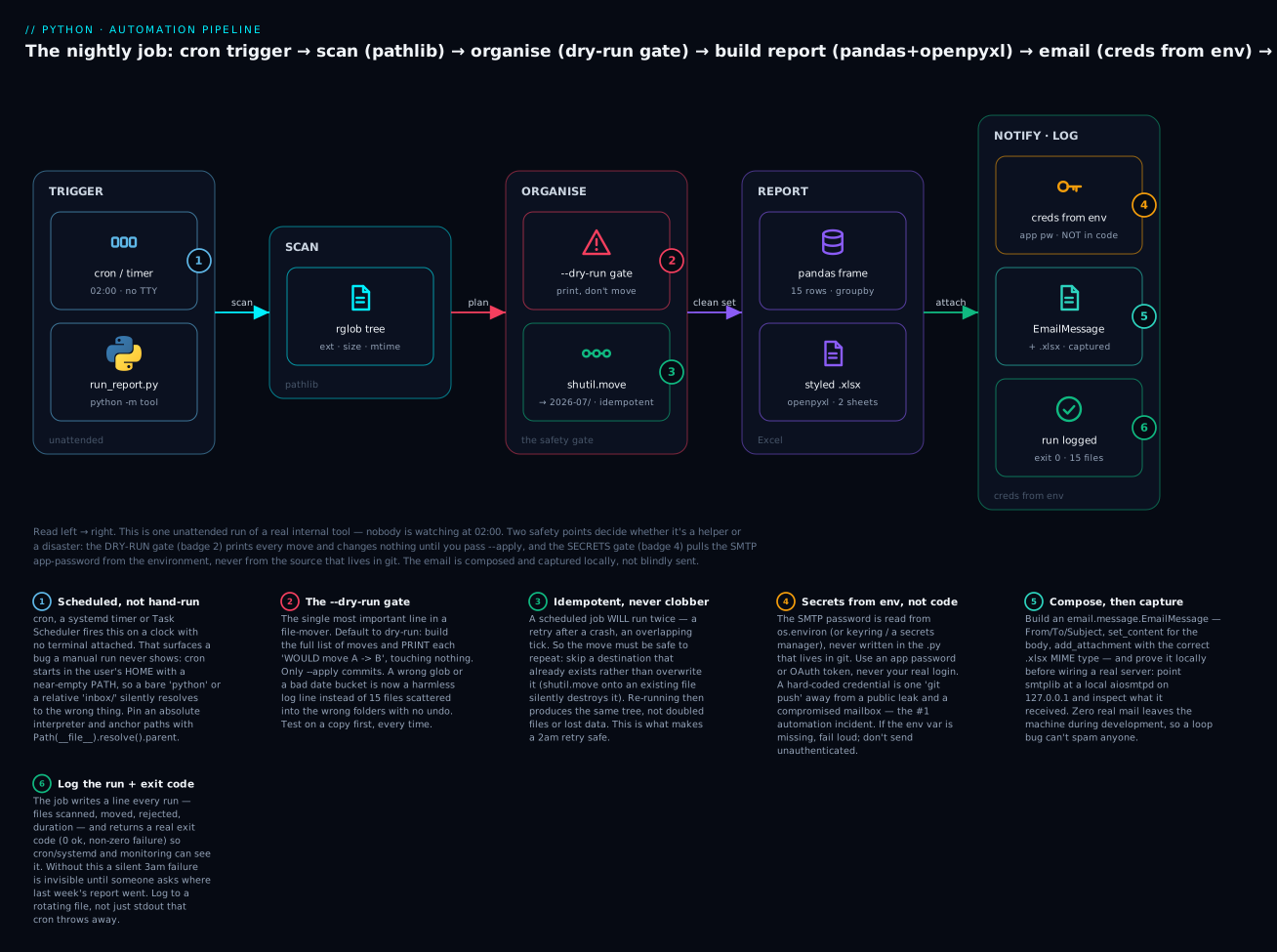
Put the pieces together and you have a real internal tool — the kind that lives in a repo, runs on a schedule, and that a teammate can trust. “Robust” is not extra features; it is a small set of properties that turn a script into something safe to leave running unattended. The diagram traces one nightly run through all of them.
Read it left to right: a cron trigger wakes an unattended python process (badge 1 — the environment traps live here); it scans the tree with pathlib; it reaches the organise step, where the --dry-run gate (badge 2) prints every move and the idempotent shutil.move (badge 3) refuses to clobber; it builds a report with pandas and openpyxl; and it notifies + logs, pulling the SMTP credential from the environment (badge 4 — never from code), composing and capturing the email (badge 5), and writing a run log with a real exit code (badge 6). The two red-and-amber safety points — dry-run and secrets-from-env — are the difference between a helper and an incident.
| Property | What it means | How |
|---|---|---|
| Dry-run | can preview without acting | plan/apply split; dry-run is the default |
| Idempotent | safe to run twice | skip existing destinations; overwrite-in-place, don’t append |
| Logged | leaves a trace of every run | the logging module to a rotating file, not print |
| Handles errors | one bad file doesn’t kill the run | try/except per item; count failures |
| Exit codes | tells the scheduler success/failure | raise SystemExit(0/1); non-zero = failure |
| Configurable | paths/flags from args, not hard-coded | argparse / click |
| Secrets external | no credentials in the source | env var / keyring / secrets manager |
Two of these lean on other lessons, and it’s worth wiring them in properly rather than reinventing them. Logging — not print — is how an unattended job tells you what it did; a RotatingFileHandler keeps a bounded history so a silent 3 a.m. failure leaves evidence. That machinery (levels, handlers, why print is the wrong tool for a service) is the logging & debugging lesson. Exit codes and argument parsing — --apply, --dry-run, -v, and returning 0/non-zero so cron and monitoring can tell success from failure — are the CLI tools lesson. An internal tool that logs properly and exits with a real code is one a scheduler and a monitor can actually supervise.
The ethics and safety of automation
A last word, because it is the part that no library enforces for you. Automation scales your intent — including your mistakes — so treat it with the respect you’d give any power tool:
- Test on copies. Point the first real run at a copy of the folder, or a temp directory, never the only copy of the data. Back up before any bulk edit.
- Dry-run, always. Read the plan before you arm it. Every time, not just the first time.
- Respect rate limits and don’t spam. A loop that emails, hits an API, or logs in has a volume. Add delays, batch, and cap it. “Send one summary email” is fine; “email every row” is how you get your account suspended.
- Fail loud, log everything. Silent success on a job that did nothing is the worst outcome — it hides the failure until someone notices the missing report days later.
Hands-on lab
You will build the end-to-end automation from the diagram: take a messy inbox, file it into date folders (dry-run first), summarise it into a styled Excel report, and compose an email with that report attached — captured locally, never sent. About 20 minutes.
Step 1 — Set up a venv and install the packages. Excel/PDF/email-capture need third-party libraries, so we isolate them in a virtual environment (a per-project sandbox for dependencies) — here we just use it.
mkdir ~/aut-lab && cd ~/aut-lab
python3.12 -m venv .venv
source .venv/bin/activate            # Windows: .venv\Scripts\activate
python -V                            # Python 3.12.x
pip install openpyxl pandas pypdf aiosmtpd
What just happened: a clean environment with the four packages the lab needs. Everything else is standard library.
Step 2 — Create a messy inbox (make_inbox.py). Reproducible, with deliberately varied modified-times so the organiser has several date buckets to build.
# make_inbox.py — build a messy inbox with controlled mtimes
import os, shutil
from pathlib import Path
from datetime import datetime

INBOX = Path("inbox")
if INBOX.exists(): shutil.rmtree(INBOX)
INBOX.mkdir()

def ts(s): return datetime.strptime(s, "%Y-%m-%d %H:%M").timestamp()

files = [
    ("invoice_apr.pdf", 18_450, "2026-04-19 10:02"),
    ("invoice_may.pdf", 19_980, "2026-05-06 09:15"),
    ("bank_statement.pdf", 42_100, "2026-05-28 18:40"),
    ("q1_report.xlsx", 12_300, "2026-04-30 16:22"),
    ("headcount.xlsx", 8_700, "2026-06-02 11:05"),
    ("costs_export.csv", 3_120, "2026-06-11 08:44"),
    ("usage_export.csv", 6_540, "2026-06-11 08:45"),
    ("meeting_notes.txt", 820, "2026-06-20 13:30"),
    ("todo.txt", 240, "2026-07-01 07:10"),
    ("diagram.png", 96_400, "2026-05-14 15:00"),
    ("screenshot.png", 140_200, "2026-07-08 22:12"),
    ("backup.tar.gz", 512_000, "2026-04-02 03:00"),
    ("app_20260601.log", 27_800, "2026-06-01 23:59"),
    ("app_20260701.log", 31_450, "2026-07-01 23:59"),
    (".hidden_cache", 128, "2026-07-05 05:05"),      # hidden -> should be skipped
]
for name, size, when in files:
    p = INBOX / name
    p.write_bytes(b"x" * size)
    os.utime(p, (ts(when), ts(when)))

# a nested stray to prove rglob walks the whole tree
(INBOX / "old").mkdir()
strayp = INBOX / "old" / "legacy_notes.txt"
strayp.write_bytes(b"y" * 410)
os.utime(strayp, (ts("2026-03-11 12:00"), ts("2026-03-11 12:00")))
print("built", sum(1 for _ in INBOX.rglob("*") if _.is_file()), "files in", INBOX)
$ python make_inbox.py
built 16 files in inbox
What just happened: 16 files — 15 real ones plus .hidden_cache — spread across five months, one buried in a subfolder. That nested file is the test that our walk uses rglob, not glob.
Step 3 — The organiser, with a dry-run gate (organise.py). This is the centerpiece: plan, print, then (only with --apply) move.
# organise.py — file the inbox into YYYY-MM folders by mtime. Dry-run by default.
from __future__ import annotations
import argparse, logging, shutil
from datetime import datetime
from pathlib import Path

log = logging.getLogger("organise")

def plan_moves(src_dir: Path, dst_dir: Path) -> list[tuple[Path, Path]]:
    moves = []
    for p in sorted(src_dir.rglob("*")):            # rglob = walk the whole tree
        if not p.is_file() or p.name.startswith("."):   # skip dirs + hidden files
            continue
        bucket = datetime.fromtimestamp(p.stat().st_mtime).strftime("%Y-%m")
        moves.append((p, dst_dir / bucket / p.name))
    return moves

def run(src_dir: Path, dst_dir: Path, apply: bool) -> int:
    moves = plan_moves(src_dir, dst_dir)
    for src, dst in moves:
        if dst.exists():                            # idempotent: never clobber
            log.warning("SKIP (exists): %s", dst); continue
        if apply:
            dst.parent.mkdir(parents=True, exist_ok=True)
            shutil.move(str(src), str(dst))
            log.info("moved  %s -> %s", src.name, dst)
        else:
            log.info("WOULD move  %-22s -> %s", src.name, dst)
    log.info("%d files %s", len(moves), "moved" if apply else "planned")
    return 0

def main() -> int:
    ap = argparse.ArgumentParser(description="file an inbox into date folders")
    ap.add_argument("src", type=Path); ap.add_argument("dst", type=Path)
    ap.add_argument("--apply", action="store_true", help="actually move (default: dry-run)")
    args = ap.parse_args()
    logging.basicConfig(level=logging.INFO, format="%(levelname)-7s %(message)s")
    if not args.apply:
        log.warning("DRY-RUN - nothing will be moved. Re-run with --apply to commit.")
    return run(args.src, args.dst, args.apply)

if __name__ == "__main__":
    raise SystemExit(main())
Run the dry-run first — no flag needed, because safe is the default:
$ python organise.py inbox organised
WARNING DRY-RUN - nothing will be moved. Re-run with --apply to commit.
INFO    WOULD move  backup.tar.gz          -> organised/2026-04/backup.tar.gz
INFO    WOULD move  bank_statement.pdf     -> organised/2026-05/bank_statement.pdf
INFO    WOULD move  legacy_notes.txt       -> organised/2026-03/legacy_notes.txt
INFO    WOULD move  screenshot.png         -> organised/2026-07/screenshot.png
...
INFO    15 files planned
What just happened: the tool printed exactly what it would do and touched nothing. Note legacy_notes.txt from the nested old/ folder is in the plan (rglob found it) and .hidden_cache is not (we skipped it) — 15 files, not 16. Read the plan; it’s correct. Now arm it:
$ python organise.py inbox organised --apply
INFO    moved  backup.tar.gz -> organised/2026-04/backup.tar.gz
...
INFO    15 files moved
$ python organise.py inbox organised --apply
INFO    0 files planned         # <- idempotent: inbox is now empty, nothing to do
What just happened: 15 files filed into organised/YYYY-MM/. The second --apply moved zero files — the job is safe to re-run, which is exactly what a scheduled job must be.
Step 4 — Summarise into a styled Excel report (report.py). pandas gathers the metadata; openpyxl makes it look like a report.
# report.py — scan the organised tree, write a styled two-sheet .xlsx
from datetime import datetime
from pathlib import Path
import pandas as pd
from openpyxl.styles import Font, PatternFill, Alignment
from openpyxl.utils import get_column_letter

CATEGORY = {".pdf":"Documents", ".xlsx":"Data", ".csv":"Data", ".png":"Images",
            ".txt":"Notes", ".log":"Logs", ".gz":"Archives"}

def scan(root: Path) -> pd.DataFrame:
    rows = []
    for p in sorted(root.rglob("*")):
        if not p.is_file(): continue
        st = p.stat()
        rows.append({"name": p.name, "folder": p.parent.name, "type": p.suffix.lower(),
                     "category": CATEGORY.get(p.suffix.lower(), "Other"),
                     "size_kb": round(st.st_size/1024, 1),
                     "modified": datetime.fromtimestamp(st.st_mtime)})
    return pd.DataFrame(rows)

df = scan(Path("organised"))
summary = (df.groupby("category")
             .agg(files=("name","count"), total_kb=("size_kb","sum"))
             .reset_index().sort_values("total_kb", ascending=False))
print(summary.to_string(index=False))
print(f"total: {len(df)} files, {df['size_kb'].sum():.1f} KB")

with pd.ExcelWriter("file_report.xlsx", engine="openpyxl",
                    datetime_format="yyyy-mm-dd") as xl:
    df.to_excel(xl, sheet_name="Files", index=False)          # pandas writes data
    summary.to_excel(xl, sheet_name="Summary", index=False)
    for sheet, frame in (("Files", df), ("Summary", summary)):  # openpyxl styles it
        ws = xl.sheets[sheet]
        for c in range(1, frame.shape[1] + 1):                # header row
            cell = ws.cell(row=1, column=c)
            cell.fill = PatternFill("solid", fgColor="1F4E78")
            cell.font = Font(bold=True, color="FFFFFF")
            cell.alignment = Alignment(horizontal="center")
        ws.freeze_panes = "A2"                                # keep header visible
        ws.auto_filter.ref = f"A1:{get_column_letter(frame.shape[1])}{ws.max_row}"
        for i, col in enumerate(frame.columns, 1):            # widen columns
            width = max(len(str(col)), *(len(str(v)) for v in frame[col])) + 2
            ws.column_dimensions[get_column_letter(i)].width = width
print("wrote file_report.xlsx")
$ python report.py
 category  files  total_kb
 Archives      1     500.0
   Images      2     231.0
Documents      3      78.6
     Logs      2      57.8
     Data      4      29.9
    Notes      3       1.4
total: 15 files, 898.7 KB
wrote file_report.xlsx
What just happened: one groupby turned 15 files into a six-row summary; pandas wrote both sheets and openpyxl styled the headers (dark-blue fill, white bold), froze the header row, added filter dropdowns, and sized the columns. Open file_report.xlsx — it looks like something you’d send a manager, not a raw dump.
Step 5 — Compose the email, capture it locally (email_report.py). Build the message with the .xlsx attached, send it to a local capture server, and confirm nothing left the machine.
# email_report.py — build EmailMessage with the report attached; CAPTURE, don't send
import os, smtplib
from email.message import EmailMessage
from pathlib import Path
from aiosmtpd.controller import Controller

os.environ.setdefault("REPORT_FROM", "automation@kloudvin.example")  # demo defaults;
os.environ.setdefault("REPORT_TO", "platform-team@kloudvin.example") # real: set in env

msg = EmailMessage()
msg["From"] = os.environ["REPORT_FROM"]
msg["To"] = os.environ["REPORT_TO"]
msg["Subject"] = "Nightly file report - 2026-07"
msg.set_content("Hi team,\n\nAttached is tonight's file summary (15 files, 898.7 KB).\n\n-- bot")

xlsx = Path("file_report.xlsx")
msg.add_attachment(xlsx.read_bytes(), maintype="application",
                   subtype="vnd.openxmlformats-officedocument.spreadsheetml.sheet",
                   filename=xlsx.name)

for part in msg.walk():
    print(f"{part.get_content_type():65} filename={part.get_filename()}")

class Capture:
    def __init__(self): self.env = []
    async def handle_DATA(self, server, session, envelope):
        self.env.append(envelope); return "250 OK"

h = Capture()
c = Controller(h, hostname="127.0.0.1", port=8025); c.start()
try:
    with smtplib.SMTP("127.0.0.1", 8025) as s:    # LOCAL capture — no internet
        s.send_message(msg)
finally:
    c.stop()
print("captured from:", h.env[0].mail_from, "->", h.env[0].rcpt_tos)
print("DRY-RUN COMPLETE - zero real emails sent.")
$ python email_report.py
multipart/mixed                                                   filename=None
text/plain                                                        filename=None
application/vnd.openxmlformats-officedocument.spreadsheetml.sheet filename=file_report.xlsx
captured from: automation@kloudvin.example -> ['platform-team@kloudvin.example']
DRY-RUN COMPLETE - zero real emails sent.
What just happened: a real multipart/mixed email with the spreadsheet attached, pushed through the genuine smtplib.send_message() path — but the “server” was 127.0.0.1, so it went nowhere. To send for real, you’d swap in smtplib.SMTP("smtp.example.com", 587), call .starttls(), and .login() with an app password read from os.environ — the same code, one line different, and never a credential in the file.
Step 6 — Schedule it (the one-liner). On Linux/macOS, crontab -e and add a line that dodges every cron trap — absolute interpreter, cd into the folder, log the output:
0 2 * * * cd ~/aut-lab && ~/aut-lab/.venv/bin/python organise.py inbox organised --apply >> report.log 2>&1
What just happened: the pipeline now runs itself at 02:00 nightly, with output captured to report.log instead of vanishing.
⚠️ Cleanup.
rm -rf ~/aut-labremoves the whole lab. Check the path before you press Enter —rm -rfandshutil.rmtreehave no undo.
Common mistakes and troubleshooting
| Symptom / traceback | Cause | Fix |
|---|---|---|
| Files scattered / renamed wrong, no undo | A destructive op ran with no dry-run | Default to dry-run; print the plan; --apply to commit. ⚠️ Test on a copy |
| Data silently gone after “organise” | shutil.move overwrote an existing file |
Check dst.exists() and skip/rename; move clobbers silently |
shutil.SameFileError: '...' and '...' are the same file |
shutil.copy(x, x) — src and dst identical |
Different destination; or skip when they’re the same path |
shutil.Error: Destination path '...' already exists |
shutil.move(f, dir) where dir already holds f |
Skip, or move to a new name |
glob("*.pdf") returns [] but files exist |
Files are in subfolders; glob is one level |
Use rglob("*.pdf") or glob("**/*.pdf") |
Path built wrong: '/var/logapp.log' |
String-glued paths (base + name) instead of pathlib |
Path(base) / name — correct separator, every OS |
ModuleNotFoundError: No module named 'openpyxl' |
pandas Excel engine not installed | pip install openpyxl (or xlsxwriter) |
openpyxl formula cell reads back as None |
data_only=True — openpyxl never calculates |
Open once in Excel to cache, or compute the value in Python |
“Formula” shows as text =A1+A2 in the sheet |
Leading apostrophe / cell formatted as Text | Remove the '; write a real string starting with = |
pd.read_excel gives one column of junk |
It’s actually a CSV, not xlsx (or wrong sheet_name) |
pd.read_csv; or pass the right sheet_name |
extract_text() returns '' on a PDF with visible words |
Scanned/image-only page — no text layer | OCR it (pytesseract + Tesseract) or a vision API |
| PDF write fails / corrupt output | Opened the file in text mode | PDFs are binary — open(p, "wb") |
SMTPAuthenticationError on login |
Provider wants an app password, not your real one | Create an app password / OAuth token; put it in an env var |
| Credential leaked / repo flagged | Password hard-coded and committed | Rotate it now; move the secret to env/keyring/secrets manager |
| Attachment won’t open in the mail client | Wrong maintype/subtype on add_attachment |
Use the file’s real MIME (.xlsx → application/vnd...sheet) |
ModuleNotFoundError: No module named 'smtpd' |
smtpd was removed in Python 3.12 |
Use aiosmtpd for a local capture server |
| Cron job “does nothing” / can’t find python | cron’s tiny PATH, wrong cwd, discarded output |
Absolute venv interpreter, cd into the dir, >> log 2>&1 |
| A silent 3 a.m. failure nobody noticed | No logging, no exit code, output thrown away | logging to a rotating file; raise SystemExit(1) on failure |
Three of these are worth more than a row.
1. No dry-run is the original sin. Every “my script deleted/scattered/renamed everything” story starts the same way: the author trusted a glob pattern or a date-bucketing rule they had never actually seen the output of. A dry-run is not a nicety; it is the moment you discover that strftime("%Y-%m") on a file whose mtime is 0 returns 1970-01, or that your *.log glob also matched changelog.txt. Build the plan, print it, read it with your own eyes, and only then pass --apply. And point the first real run at a copy — the cost of being wrong on a copy is nothing.
2. A hard-coded credential is a security incident waiting for a git push. The password in your script is not just visible to you — it is in the repo history forever, readable by everyone with clone access, and scraped by bots within minutes of hitting a public remote. (This project has already lived that lesson once.) The rule has no exceptions: secrets come from the environment, a keyring, or a secrets manager; the code contains the name of the secret, never its value. Use an app password so that when — not if — a credential leaks, you revoke that one token instead of changing your actual account password everywhere.
3. openpyxl is not Excel, and that surprises everyone once. It reads and writes the file format; it does not run the spreadsheet engine. So a formula you write is stored verbatim and never computed, and data_only=True gives you None for any cell Excel hasn’t cached. If your automation needs the number, compute it in Python — you already have the data in a DataFrame; there is rarely a reason to make Excel do arithmetic your code can do directly and verify.
Cheat-sheet
Filesystem (pathlib + shutil) |
Does |
|---|---|
p.rglob("*.pdf") |
recursive match → generator (the default walk) |
p.glob("*.csv") / p.iterdir() |
one-level match / all entries |
p.walk() (3.12+) |
(dir, subdirs, files) per directory |
p.stat().st_size / .st_mtime |
bytes / modified epoch — fromtimestamp to read |
p.suffix .stem .name .parent |
.pdf · base · full · folder (no disk hit) |
Path(a) / b |
join — correct separator, every OS |
shutil.copy2(src, dst) |
copy + metadata |
shutil.move(src, dst) |
⚠️ move — overwrites silently |
shutil.make_archive(base,"zip",root) |
zip a folder |
shutil.rmtree(p) |
⚠️⚠️ delete a tree — no undo |
tempfile.TemporaryDirectory() |
self-cleaning scratch dir |
os.replace(tmp, final) |
atomic rename — no half-written file |
| Excel / PDF | Does |
|---|---|
pd.read_excel(p, sheet_name=None, engine="openpyxl") |
read (all sheets → dict) |
df.to_excel(p, index=False, engine="openpyxl") |
write a DataFrame |
pd.ExcelWriter(p, engine="openpyxl") |
multi-sheet + styling handle |
Workbook() / ws["A1"] = v / wb.save(p) |
openpyxl from scratch |
load_workbook(p, data_only=True) |
cached values (⚠️ None if uncached) |
Font(bold=True) PatternFill("solid",fgColor=...) |
cell styling |
ws.freeze_panes / ws.auto_filter.ref |
freeze header / add filters |
PdfReader(p).pages[i].extract_text() |
read text (⚠️ "" if scanned) |
PdfWriter().append(a); .write(open(o,"wb")) |
merge → binary file |
Email (email + smtplib) |
Does |
|---|---|
msg = EmailMessage() |
the modern message object |
msg["From"]/["To"]/["Subject"] = ... |
headers, dict-style |
msg.set_content(text) |
plain-text body |
msg.add_attachment(data, maintype, subtype, filename) |
attach bytes |
bytes(msg) / msg.walk() |
serialize / inspect MIME tree |
smtplib.SMTP(host,587) + .starttls() + .login() |
STARTTLS send |
smtplib.SMTP_SSL(host,465) + .login() |
implicit-TLS send |
os.environ["SMTP_PASSWORD"] |
✅ secret from env — never a literal |
aiosmtpd.controller.Controller |
local capture server (dev) |
Interview and exam questions
Q: What does --dry-run mean, and how should it be wired into a file-moving tool?
A: A dry-run builds the complete list of operations it would perform and prints them, changing nothing — so you can read the plan before acting. The robust design makes dry-run the default and requires an explicit --apply (or --execute) to commit, so a forgotten flag produces a harmless preview instead of an irreversible action. Structurally, split a pure plan_moves() (no side effects, testable, printable) from an apply() that performs them.
Q: Why is shutil.move dangerous, and what are the same-path edge cases?
A: shutil.move(src, dst) silently overwrites an existing dst file — the most common way an organise script eats data — so guard with if dst.exists(): skip. Edge cases: shutil.copy(x, x) raises SameFileError; shutil.move(x, x) is a silent no-op that returns the path; and shutil.move(f, dir) where dir already contains f raises shutil.Error: Destination path ... already exists.
Q: When do you use pandas for Excel, and when openpyxl?
A: pandas for tabular data — reading, filtering, joining, aggregating, and to_excel. openpyxl for cell-level control — styling, formulas, merged cells, charts, freeze panes. The professional pattern uses both: pandas writes the data via a pd.ExcelWriter(engine="openpyxl"), then you reach through writer.sheets[...] to style with openpyxl. pandas uses openpyxl as its .xlsx engine anyway.
Q: You write =SUM(B2:B3) into a cell with openpyxl, then read it back with data_only=True and get None. Why?
A: openpyxl is not Excel — it reads and writes the file format but never evaluates formulas. data_only=True returns the value Excel cached the last time the file was opened and saved; on a file openpyxl just created and Excel never touched, that cache is empty, so you get None. Fix: compute the value in Python (you have the data), or open the file once in Excel/LibreOffice to populate the cache.
Q: extract_text() on a PDF returns an empty string, but the PDF clearly has words. What’s wrong and how do you fix it?
A: The page has no text layer — it’s an image (a scan or a photo), so there is nothing to extract. It’s not a bug in pypdf. To read the words you need OCR (optical character recognition), e.g. pytesseract wrapping Tesseract, or a cloud vision API, which turns the picture of text back into characters.
Q: What are the three cardinal rules for handling email credentials in automation? A: (1) Never hard-code or commit a credential — the code holds the name of the secret, never its value. (2) Read it from outside the source — an environment variable, the OS keyring, or a secrets manager. (3) Use an app password or OAuth token, never your real account password, so a leak is revoked by killing one token rather than changing your primary login. And if the secret is missing, fail loud rather than send unauthenticated.
Q: On SMTP port 587, what must happen before login(), and what does SMTPAuthenticationError usually mean in 2026?
A: You must call .starttls() first — port 587 starts as a plaintext connection and STARTTLS upgrades it to TLS; logging in before that sends your password in the clear. A SMTPAuthenticationError today almost always means the provider requires an app password (or OAuth), because plain-password SMTP login is disabled on most major providers.
Q: How do you develop and test email-sending code without spamming anyone?
A: Point smtplib at a local capture server on 127.0.0.1 and inspect what it receives — nothing leaves the machine. In Python 3.12+, the stdlib smtpd module was removed, so use aiosmtpd (Controller + a handler with handle_DATA). You exercise the real send_message() path but capture the message locally; swap the host/port for a real server only once the message is correct.
Q: Why does a script that “works when I run it” fail from cron, and how do you fix all three causes?
A: cron runs with a minimal PATH (so a bare python/imports may not resolve — use the absolute venv interpreter), starts in $HOME not the script’s folder (so relative paths break — cd into the dir and/or use Path(__file__).resolve().parent), and discards stdout (so failures are invisible — redirect >> log 2>&1 and use the logging module). Same root cause as the “runs in my IDE, not the terminal” cwd bug.
Q (coding): Write a function that returns [(src, dst)] filing every file under a directory into dest/YYYY-MM/ by modified time, skipping hidden files — with no side effects.
A:
from pathlib import Path
from datetime import datetime

def plan_moves(src_dir: Path, dst_dir: Path) -> list[tuple[Path, Path]]:
    moves = []
    for p in sorted(src_dir.rglob("*")):
        if not p.is_file() or p.name.startswith("."):
            continue
        bucket = datetime.fromtimestamp(p.stat().st_mtime).strftime("%Y-%m")
        moves.append((p, dst_dir / bucket / p.name))
    return moves
The points being tested: rglob (walks the tree, not one level), the hidden-file skip, st_mtime bucketed with strftime, Path / ... joining, and — crucially — that it is pure (returns a plan, moves nothing), so it can be printed as a dry-run and unit-tested.
Q (coding): Build an EmailMessage with a plain body and a .pdf attached, and show how you’d send it over STARTTLS with the password from the environment.
A:
import os, smtplib
from email.message import EmailMessage
from pathlib import Path

msg = EmailMessage()
msg["From"] = os.environ["MAIL_FROM"]; msg["To"] = "team@example.com"
msg["Subject"] = "Report"
msg.set_content("See attached.")
pdf = Path("report.pdf")
msg.add_attachment(pdf.read_bytes(), maintype="application", subtype="pdf",
                   filename=pdf.name)

with smtplib.SMTP("smtp.example.com", 587) as s:
    s.starttls()                                        # encrypt BEFORE login
    s.login(os.environ["SMTP_USER"], os.environ["SMTP_PASSWORD"])  # app password
    s.send_message(msg)
Tested: add_attachment with the correct MIME (application/pdf) and bytes, .starttls() before .login(), and the credential read from os.environ — never a literal in the source.
Q: What makes a scheduled script “robust” versus just “working”? A: A working script does the task once, by hand. A robust one is safe to leave running unattended: it has a dry-run, it is idempotent (running twice does no extra harm), it logs every run to a rotating file, it handles per-item errors without aborting the batch, it returns a real exit code so the scheduler and monitoring can tell success from failure, it is configurable via arguments, and it keeps secrets external. Those properties, not features, are what let a teammate trust it at 2 a.m.
Key takeaways
- Automation is gather → transform → deliver, minus the human. The person you removed was also the validation step; put that judgement back into the code as a dry-run, an assertion, and a captured (not blindly sent) email.
--dry-runfirst, always. Build the full plan as(src, dst)pairs, print it, read it, then--apply. Make dry-run the default so the lazy path is the safe path — and test the first real run on a copy.pathlibwalks;shutilmoves — andshutil.moveoverwrites silently. Userglob(notglob) to walk trees, guard destinations withdst.exists(), and remembershutil.rmtreehas no undo. Write outputs via a temp file +os.replacefor atomicity.- pandas for tables, openpyxl for cells — together for reports. pandas writes the data through the openpyxl engine; openpyxl styles it. And openpyxl never calculates formulas —
data_only=TruereturnsNonefor uncached cells, so compute values in Python. pypdfreads/merges/splits; a layout library generates.extract_text()returning""means an image-only page that needs OCR, not a bug — and PDFs are binary ("wb").- Email safely: build with
EmailMessage, capture withaiosmtpd, send with TLS. Attachments are bytes with the right MIME type; port 587 needs.starttls()before.login();smtpdis gone in 3.12. - Secrets from the environment, never the code. App password or OAuth, read from
os.environ/keyring/secrets manager, failing loud if absent. A committed credential is agit pushfrom public. - “Robust” is properties, not features: dry-run, idempotent, logged (rotating file, not
print), per-item error handling, real exit codes, configurable, secrets external — and scheduled with cron/systemd/schedule, mindful that cron has a tinyPATH, the wrong cwd, and discards output.