In a nutshell
A shell script and a shell tool are the same file — the difference is whether it runs anywhere but your own laptop. Packaging is the discipline that closes that gap: making sure the first line finds a real interpreter, the script proves its dependencies exist before it does any damage, its files land where every Unix expects them, and someone on Debian, Red Hat, alpine, or a MacBook can install it with a single command.
Think of it like shipping a physical appliance abroad. The plug — the shebang — has to fit the socket in the destination country; a US plug (#!/bin/bash pointing at macOS’s ancient bash) won’t work in Europe. The manual has to state the voltage it needs (dependency checks) so nobody fries it on arrival. It has to be boxed in standard packaging (FHS layout: bin/, lib/, share/) so any warehouse can stock it. And it needs a courier who speaks the local language — apt, dnf, brew — to get it onto the shelf (your $PATH). Skip any of these and the appliance is “works in my house”: useless to everyone else.
Everything in this lesson serves that one goal — turning a .sh file that works here into a tool that installs cleanly there.
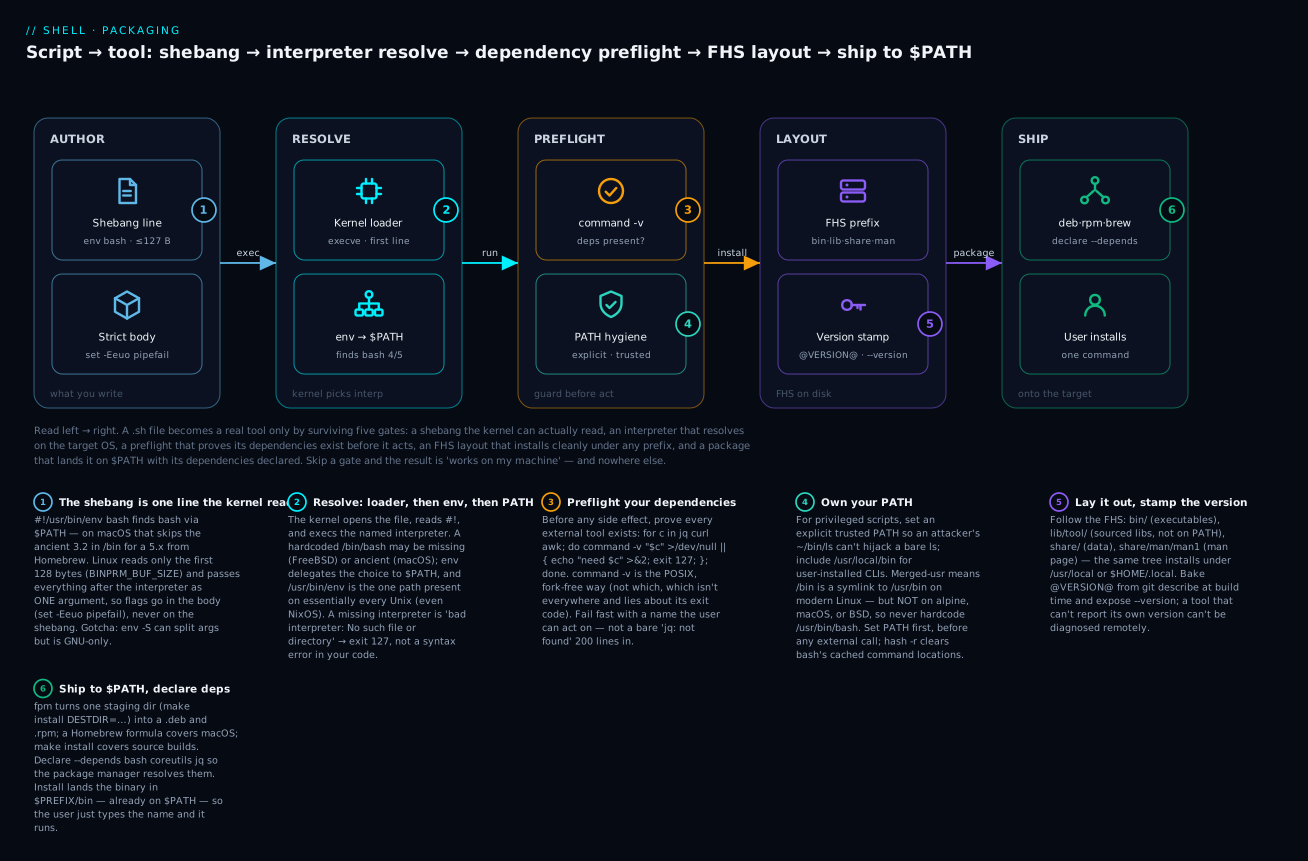
The diagram traces the five gates a .sh file passes to become an installable tool — a shebang the kernel can read, an interpreter that resolves on the target OS, a preflight that proves its dependencies exist, an FHS layout that installs under any prefix, and a package that lands it on $PATH with its dependencies declared. The rest of the lesson is those five gates in detail.
Level: Advanced (with a beginner on-ramp) · Time: ~35 min
Prerequisites: You’ll get the most from this if you’re already comfortable with strict mode and ShellCheck (Defensive scripting), how different interpreters behave (Shell anatomy: bash/zsh/dash/busybox), and the GNU-vs-BSD split covered in POSIX portability vs bashisms. A little make and Unix file-permission knowledge helps, but the essentials are explained inline.
After this lesson you’ll be able to:
- Pick the right shebang for Linux, macOS, and BSD — and explain the 127-byte and one-argument limits that drive the choice.
- Write a
command -vdependency preflight that fails fast with a message users can act on. - Lay a tool out to the Filesystem Hierarchy Standard so it installs cleanly under
/usr/localor$HOME/.local. - Stamp a real version at build time and expose a
--versionflag. - Build
.deb/.rpmpackages withfpmand a Homebrew formula — and ship a single self-contained file when packages aren’t an option.
A shell script that lives in ~/bin on one developer’s laptop is not a tool. It’s a script. The transition from “script that works on my machine” to “tool we can deploy” requires:
- A reliable shebang that picks the right interpreter on every target system.
- Clean separation of bin (executables) from lib (shared functions) from share (static data).
- Some way to discover library files relative to the script’s installed location.
- A version string that’s embedded at build time, not faked.
- An installer that’s repeatable, uninstallable, and works for both
--prefix=/usr/localand--prefix=$HOME/.local. - Distribution:
apt install,brew install,dnf install— depending on who your users are.
This lesson is the operator’s manual for that transition. By the end, you’ll be able to release a shell tool that installs cleanly on Debian, Red Hat, macOS, and alpine, with a single command.
1. The shebang — your first portability decision
The first line of every executable script is the shebang (#!). It tells the kernel which interpreter to invoke. The choice has real consequences.
1.1 The four candidates
#!/bin/sh                  # POSIX shell. Often dash on Debian, ash on alpine, zsh on macOS sonoma+.
#!/bin/bash                # bash, fixed path. Reliable on Linux. Doesn't exist on some BSDs.
#!/usr/bin/env bash        # bash, found via PATH. Reliable on macOS (where /bin/bash is 3.2 ancient).
#!/usr/bin/env -S bash -e  # As above, with extra flags (Linux-only env -S).
1.2 The recommended default: #!/usr/bin/env bash
Use this everywhere unless you have a specific reason not to. Why:
- macOS ships bash 3.2 in
/bin/bash(last updated in 2007 — Apple won’t ship newer due to GPL3). Modern bash is in/usr/local/bin/bash(Intel) or/opt/homebrew/bin/bash(Apple Silicon).#!/usr/bin/env bashfinds whichever is on the user’sPATH. - Linux has bash in
/bin/bashand inPATH, both work.envadds no overhead. - BSDs sometimes have bash in
/usr/local/bin/bash(FreeBSD) or/usr/pkg/bin/bash(NetBSD).envfinds it. - alpine is
/bin/bashif youapk add bash, but the default user shell is ash.envworks.
The trade-off: env adds a tiny startup cost (one extra exec). For batch scripts this is invisible.
1.3 When #!/bin/sh is correct
If your script is genuinely POSIX-compliant — no arrays, no [[ ]], no $(()) shortcuts beyond POSIX, no local, no <() process substitution — then #!/bin/sh is the most portable choice and runs on the smallest interpreters (dash, ash, busybox sh).
This is rare. Most “shell scripts” use bash-isms within five lines. If you’re unsure: shellcheck -s sh yourscript checks against POSIX. If it complains about anything, you’re using bash, not sh.
1.4 Shebang flags — and why env -S matters
You might want strict mode in the shebang:
#!/bin/bash -Eeuo pipefail # Linux only — kernel passes the whole thing as one arg.
This does not work with env:
#!/usr/bin/env bash -Eeuo pipefail # Broken — env interprets "bash -Eeuo pipefail" as one arg
GNU env has a workaround flag, -S, which splits the argument:
#!/usr/bin/env -S bash -Eeuo pipefail # GNU coreutils 8.30+, Linux only.
But env -S doesn’t exist on macOS or BSD. The cross-platform-safe pattern is to use the simple shebang and put strict mode in the body:
#!/usr/bin/env bash
set -Eeuo pipefail
IFS=$'\n\t'
Always do it this way. It works everywhere and the strict-mode line is more visible to readers anyway.
1.5 Which bash version?
If you require bash 4+ features (associative arrays, mapfile, ${var,,} lowercasing, coproc), you have a problem on macOS where /bin/bash is 3.2.
The fix is one of:
-
Document the dependency: tell users to
brew install bashand ensure/usr/local/bin/bash(or/opt/homebrew/bin/bash) is in their PATH before/bin/bash. -
Detect and bail with a useful error:
if (( BASH_VERSINFO[0] < 4 )); then echo "$0 requires bash 4+; you have $BASH_VERSION." >&2 echo "On macOS: brew install bash, then ensure it's first in PATH." >&2 exit 1 fi -
Stick to bash 3.2: don’t use bash 4 features. Restrictive but maximally portable.
For internal tools at most companies, “users have brew bash” is a fine assumption. For widely-distributed tools, bash 3.2 compat is worth keeping.
2. PATH discipline — the executable’s view of the world
Once your script is installed somewhere, it has to find its dependencies (other scripts, library files, external binaries). This is where most “works locally, breaks in production” bugs come from.
2.1 Setting PATH explicitly
A script should never inherit PATH from the user’s environment for security-critical operations. Set it explicitly at the top:
#!/usr/bin/env bash
set -Eeuo pipefail
export PATH=/usr/local/sbin:/usr/local/bin:/usr/sbin:/usr/bin:/sbin:/bin
This:
- Stops a malicious user from putting
~/bin/lsin their PATH that doesrm -rf /and waiting for your script to callls. - Ensures you find the system
awk,sed, etc., not a custom one. - Removes “but it works in my shell” — the script behaves the same regardless of how it’s invoked.
For scripts that need user-installed tools (kubectl, aws, terraform), include /usr/local/bin and trust the system installer to put them there. Don’t randomly inherit the user’s PATH.
2.2 Finding the script’s own directory
Many scripts need to source library files relative to their own location. The canonical way:
#!/usr/bin/env bash
set -Eeuo pipefail

SCRIPT_DIR=$(cd -- "$(dirname -- "${BASH_SOURCE[0]}")" && pwd)
LIB_DIR="$SCRIPT_DIR/../lib"
source "$LIB_DIR/log.sh"
Why this dance:
${BASH_SOURCE[0]}is the script’s own path (works inside sourced files too —$0doesn’t).dirnamegives the directory.cd -- "$DIR" && pwdresolves it to an absolute path, even if the user invoked the script via a relative path.- The
--stopscdfrom interpreting a leading-as a flag.
This works for both ./bin/myscript and /usr/local/bin/myscript — SCRIPT_DIR is always the absolute directory of the actual script file.
2.3 The “is the script symlinked?” wrinkle
If your script is symlinked from /usr/local/bin/myscript → /opt/myapp/bin/myscript, ${BASH_SOURCE[0]} is /usr/local/bin/myscript (the symlink), not the target. If your lib/ is at /opt/myapp/lib, the relative path is wrong.
The fix uses readlink to resolve symlinks:
SCRIPT_PATH=$(readlink -f "${BASH_SOURCE[0]}" 2>/dev/null || python3 -c "import os; print(os.path.realpath('${BASH_SOURCE[0]}'))")
SCRIPT_DIR=$(dirname "$SCRIPT_PATH")
readlink -f is GNU. BSD’s readlink doesn’t have -f. The fallback to python3 -c "..." is a reliable cross-platform escape hatch — but it adds a Python dependency.
Pragmatic alternative: install your script and its lib in the same prefix and walk relatively from BASH_SOURCE[0]:
/opt/myapp/
├── bin/myscript      # real file, not a symlink
└── lib/log.sh

/usr/local/bin/myscript -> /opt/myapp/bin/myscript     # symlink
If you ${BASH_SOURCE[0]} from the real file, it’s already at /opt/myapp/bin/myscript and ../lib resolves correctly. The fix is to ensure the script discovers itself via its real location, which is exactly what readlink -f does.
For most internal tools, just install non-symlinked. Symlinks are a packaging convenience that introduces this edge case.
2.4 The Filesystem Hierarchy Standard (FHS) layout
When packaging for Linux, follow the Filesystem Hierarchy Standard:
/usr/local/                            # Manually-installed software (the default --prefix)
├── bin/myapp                          # Executables (in PATH by default)
├── sbin/myapp-admin                   # Admin executables (in PATH for root)
├── lib/myapp/                         # Per-app libraries (NOT in PATH)
│   ├── log.sh
│   └── time.sh
├── share/myapp/                       # Static data (templates, fixtures)
│   └── default.conf
├── share/man/man1/myapp.1             # Man pages
└── etc/myapp/                         # Config (overrideable by /etc/myapp/)

/etc/myapp/myapp.conf                  # System-wide config
For per-user installs, mirror this under $HOME/.local/:
$HOME/.local/
├── bin/
├── lib/myapp/
└── share/myapp/
Following FHS makes your tool feel native, plays well with packaging tools, and lets sysadmins find what they expect where they expect it.
3. Portability across GNU vs BSD vs busybox
You’ve seen the GNU vs BSD date distinction in L19. The same gulf exists for almost every common utility. A short list of commands where flag behaviour differs:
| Command | GNU has | BSD lacks (or differs) | Workaround |
|---|---|---|---|
sed -i |
sed -i 's/a/b/' file |
sed -i '' 's/a/b/' file |
perl -i -pe 's/a/b/' is portable |
readlink |
readlink -f |
No -f (use realpath or python3) |
See §2.3 |
stat |
stat -c %Y file |
stat -f %m file |
Wrap |
date |
date -d 'yesterday' |
date -v -1d |
Wrap (L19) |
ls --color |
yes | yes (different default) | ls -G on BSD |
tar -xzf |
yes | yes | Same |
grep -P (PCRE) |
yes | not on macOS | Use ERE or install GNU grep |
getopt (long opts) |
yes | very old, broken | Use getopts (POSIX), see L14 |
sort -V (version sort) |
yes | yes (recent macOS) | Avoid on old BSD |
head -c N (bytes) |
yes | yes | Same |
cp --reflink (copy-on-write) |
yes (Linux btrfs/xfs/apfs) | macOS cp -c |
Use direct call |
mktemp -d |
yes | yes | Same — but mktemp -d -t foo.XXXX syntax differs |
The two strategies:
-
Detect and branch: write thin wrappers that pick GNU or BSD flags based on detection (the L19 pattern).
-
Require GNU: document that the tool requires GNU coreutils. On macOS, this means
brew install coreutilsand usinggsed,gdate, etc.
For tools targeting both platforms, strategy 1 is friendlier. For server-only tools, strategy 2 is fine.
3.1 The “BSD compatibility shim”
If your tool needs to work cross-platform but you don’t want detection clutter throughout the code, write a shim library:
# lib/bsd-compat.sh — set up GNU-like aliases on BSD systems.
# Source this near the top of every script. Falls back to GNU on Linux.

if date --version >/dev/null 2>&1; then
  # GNU; nothing to do.
  :
else
  # BSD-style; install wrappers as functions.

  date_iso_n_days_ago() {
    date -u -v "-${1}d" '+%Y-%m-%d'
  }
  sed_inplace() { sed -i '' "$@"; }
  stat_mtime() { stat -f %m "$1"; }
  readlink_f() {
    perl -MCwd -le 'print Cwd::abs_path(shift)' "$1"
  }
fi
Then use the function names everywhere in your tool. Cross-platform without the if/else everywhere.
4. Version embedding
Every release of a shell tool should know its own version. Three approaches:
4.1 Hardcoded constant
#!/usr/bin/env bash
readonly VERSION="1.4.2"

print_version() {
  printf '%s version %s\n' "$(basename "$0")" "$VERSION"
}
Fine for slow-moving tools. The downside: you have to remember to bump it before releasing.
4.2 Replaced at build time
Maintain a template with a placeholder and have your build replace it:
# bin/myapp.in
#!/usr/bin/env bash
readonly VERSION="@VERSION@"
# Makefile
VERSION := $(shell git describe --tags --dirty --always)

bin/myapp: bin/myapp.in
	sed 's/@VERSION@/$(VERSION)/' < $< > $@
	chmod +x $@
Now make produces bin/myapp with the real version stamped in. The user never edits bin/myapp directly — only bin/myapp.in.
4.3 Read git from runtime
detect_version() {
  if command -v git >/dev/null && [[ -d "$SCRIPT_DIR/../.git" ]]; then
    git -C "$SCRIPT_DIR/.." describe --tags --dirty --always
  else
    echo "${VERSION:-unknown}"
  fi
}
Useful in development; not useful once installed (no .git in /usr/local/bin/). Combine with build-time replacement: dev mode reads git, installed mode reads the baked-in constant.
4.4 The --version flag — non-negotiable
Every CLI tool should support --version:
case ${1:-} in
  -V|--version)
    print_version
    exit 0
    ;;
esac
It’s the first thing users type when trying to debug (“what version do you have?”). Without it, you can’t even diagnose remotely.
5. The Makefile pattern — install, uninstall, test, clean
A Makefile is the lowest-friction way to install/uninstall a shell tool. Every Unix has make; no extra tooling required.
5.1 Minimal install Makefile
PREFIX ?= /usr/local
BINDIR  = $(PREFIX)/bin
LIBDIR  = $(PREFIX)/lib/myapp
SHAREDIR = $(PREFIX)/share/myapp
MANDIR  = $(PREFIX)/share/man/man1

VERSION := $(shell git describe --tags --dirty --always 2>/dev/null || echo dev)

.PHONY: all install uninstall test clean

all: bin/myapp

bin/myapp: bin/myapp.in
	@mkdir -p bin
	sed 's/@VERSION@/$(VERSION)/g' < $< > $@
	chmod +x $@

install: all
	install -d $(DESTDIR)$(BINDIR)
	install -d $(DESTDIR)$(LIBDIR)
	install -d $(DESTDIR)$(SHAREDIR)
	install -d $(DESTDIR)$(MANDIR)
	install -m 0755 bin/myapp     $(DESTDIR)$(BINDIR)/
	install -m 0644 lib/*.sh      $(DESTDIR)$(LIBDIR)/
	install -m 0644 share/*.conf  $(DESTDIR)$(SHAREDIR)/
	install -m 0644 man/myapp.1   $(DESTDIR)$(MANDIR)/

uninstall:
	rm -f  $(DESTDIR)$(BINDIR)/myapp
	rm -rf $(DESTDIR)$(LIBDIR)
	rm -rf $(DESTDIR)$(SHAREDIR)
	rm -f  $(DESTDIR)$(MANDIR)/myapp.1

test:
	bats test/

clean:
	rm -rf bin/myapp
Now:
make                                    # Build (stamp version)
sudo make install                       # System-wide install
sudo make uninstall                     # Reverse it
make install PREFIX=$HOME/.local        # Per-user install
make test                               # Run the test suite
The DESTDIR variable is for packagers: make install DESTDIR=/tmp/pkgroot installs into a staging directory rather than the live filesystem — exactly what dpkg-buildpackage and rpmbuild need.
5.2 The install command vs cp
Use install, not cp. It:
- Creates parent directories with
-d. - Sets permissions atomically (
-m 0755). - Sets ownership when given (
-o root -g root). - Replaces the target safely (atomic rename, like
mv).
install is the right primitive for installing files. Memorise it.
5.3 What’s in lib/myapp/ after install?
Following the lib pattern from §2.2, your installed script /usr/local/bin/myapp finds its libraries via:
SCRIPT_DIR=$(cd -- "$(dirname -- "${BASH_SOURCE[0]}")" && pwd)
# /usr/local/bin → /usr/local/lib/myapp
LIB_DIR="$SCRIPT_DIR/../lib/myapp"
source "$LIB_DIR/log.sh"
If the user installed to $HOME/.local, SCRIPT_DIR is $HOME/.local/bin and $LIB_DIR is $HOME/.local/lib/myapp. Same code path, both prefixes.
6. deb and rpm packages
For wide distribution on Linux, native packages are the right answer. Users do apt install myapp or dnf install myapp and they’re done.
6.1 The easy way: fpm
fpm (Effing Package Management) wraps deb and rpm building behind a single command. Build once, ship to any Linux:
# Install fpm:
sudo apt install ruby ruby-dev rubygems build-essential
sudo gem install fpm

# Stage the install via DESTDIR:
make install DESTDIR=/tmp/pkgroot PREFIX=/usr

# Build a deb from the staging dir:
fpm \
  -s dir \
  -t deb \
  -n myapp \
  -v "$(git describe --tags --dirty)" \
  --description "My amazing shell tool" \
  --maintainer "you@example.com" \
  --license "MIT" \
  --architecture all \
  --depends bash \
  --depends 'coreutils >= 8.30' \
  --depends jq \
  -C /tmp/pkgroot \
  .

# Build an rpm:
fpm -s dir -t rpm  -n myapp ... -C /tmp/pkgroot .
Output: myapp_1.4.2_all.deb and myapp-1.4.2.noarch.rpm. Distribute these to a repo or directly to users.
6.2 Inside the deb — what fpm produces
$ dpkg -c myapp_1.4.2_all.deb
drwxr-xr-x root/root         0 ./usr/
drwxr-xr-x root/root         0 ./usr/bin/
-rwxr-xr-x root/root      4321 ./usr/bin/myapp
drwxr-xr-x root/root         0 ./usr/lib/
drwxr-xr-x root/root         0 ./usr/lib/myapp/
-rw-r--r-- root/root      2048 ./usr/lib/myapp/log.sh
-rw-r--r-- root/root       512 ./usr/lib/myapp/time.sh
drwxr-xr-x root/root         0 ./usr/share/
drwxr-xr-x root/root         0 ./usr/share/myapp/
-rw-r--r-- root/root      1024 ./usr/share/myapp/default.conf
drwxr-xr-x root/root         0 ./usr/share/man/man1/
-rw-r--r-- root/root      4096 ./usr/share/man/man1/myapp.1
A clean FHS layout, dependencies declared so apt resolves them, and version embedded so apt list myapp shows 1.4.2.
6.3 Pre/post-install scripts
For tools that need setup beyond just dropping files (creating users, enabling services, migrating config), fpm accepts hook scripts:
fpm -s dir -t deb \
  --before-install ./packaging/preinst.sh \
  --after-install  ./packaging/postinst.sh \
  --before-remove  ./packaging/prerm.sh \
  --after-remove   ./packaging/postrm.sh \
  ...
Example postinst.sh:
#!/bin/sh
set -e
# Create system user if it doesn't exist.
if ! getent passwd myapp >/dev/null; then
  useradd --system --shell /usr/sbin/nologin --home-dir /var/lib/myapp myapp
fi
# Enable the systemd timer.
systemctl daemon-reload || true
systemctl enable --now myapp.timer || true
Use these sparingly. Every hook is a debugging surface. For most tools, no hooks are needed — just files in their FHS locations.
6.4 apt repository or releases?
Two distribution models:
-
GitHub releases: upload the .deb/.rpm to a release. Users
wgetanddpkg -i. Simple, no infrastructure. -
APT/YUM repository: host the packages with proper metadata so users
apt install myappafter adding your repo. Requires GPG signing,apt-get updateintegration. More work but smoother UX.
For internal tools, releases are fine. For external/community tools, run a real repo (or use a service like packagecloud.io / Cloudsmith / Gemfury).
7. Homebrew — packaging for macOS
For macOS users, Homebrew is the de facto package manager. A formula is a Ruby file:
# my-tap/Formula/myapp.rb
class Myapp < Formula
  desc "My amazing shell tool"
  homepage "https://github.com/me/myapp"
  url "https://github.com/me/myapp/archive/v1.4.2.tar.gz"
  sha256 "abc123def456..."
  license "MIT"

  depends_on "bash"
  depends_on "coreutils"
  depends_on "jq"

  def install
    system "make", "install", "PREFIX=#{prefix}"
  end

  test do
    assert_match "version 1.4.2", shell_output("#{bin}/myapp --version")
  end
end
Now users add your tap and install:
brew tap me/tap
brew install myapp
Or, if you publish to homebrew-core (after acceptance), they just do brew install myapp. Getting accepted into homebrew-core requires real popularity (>30 GitHub stars and >50 forks at last reading); for early-stage tools, run your own tap.
7.1 Auto-bumping the formula on release
The brew bump-formula-pr command updates the URL and sha256 from a new tarball:
brew bump-formula-pr myapp \
  --url "https://github.com/me/myapp/archive/v1.5.0.tar.gz"
Hook this into your release workflow (GitHub Actions can run it on a tag push) and your Homebrew users get updates automatically.
8. Single-file distribution — when to use, when not to
A common request: “can the whole thing be a single file?” Yes — concatenate all the lib/*.sh files into the script:
# scripts/build-single-file.sh
#!/usr/bin/env bash
set -euo pipefail

OUT=dist/myapp
mkdir -p dist

cat > "$OUT" <<'HEADER'
#!/usr/bin/env bash
set -Eeuo pipefail
HEADER

# Embed all libs (in dependency order):
cat lib/log.sh      >> "$OUT"
cat lib/time.sh     >> "$OUT"
cat lib/http.sh     >> "$OUT"

# Strip shebang and main from bin/myapp, append:
tail -n +2 bin/myapp >> "$OUT"      # skip the #!/usr/bin/env bash line in bin/myapp

chmod +x "$OUT"
Now dist/myapp is a single self-contained executable. Drop it anywhere. curl -L https://example.com/myapp -o /usr/local/bin/myapp && chmod +x is the install command.
8.1 Pros and cons
Single-file pros:
- Zero install — copy the file, done.
- No PATH-finding magic needed.
- Works in places where you can’t install packages (locked-down jump hosts).
Single-file cons:
- Hides the lib structure — debugging means reading a 2000-line file.
- Recompiling every change.
- No man page, no shell completion, no config file structure.
For small utilities (~ 500 lines total), single-file is great. For real tools, prefer the FHS layout.
8.2 The “self-extracting installer” trick
A middle ground: ship a single file that, when run with --install, expands itself into FHS layout:
#!/usr/bin/env bash
# Self-extracting installer for myapp.

case ${1:-} in
  --install)
    PREFIX=${PREFIX:-/usr/local}
    cd "$(dirname "$0")"
    # Extract the embedded tarball at the marker:
    sed -e '1,/^__ARCHIVE__$/d' "$0" | tar xz -C "$PREFIX"
    echo "Installed to $PREFIX"
    exit 0
    ;;
  *)
    echo "Usage: $0 --install [PREFIX=/usr/local]" >&2
    exit 1
    ;;
esac

__ARCHIVE__
<binary tar.gz appended after this line by the build>
Pattern is fancy but rarely necessary unless you have constrained-network installs.
9. Shell completion — the polish that users notice
Bash, zsh, and fish each have their own completion formats. The minimum: a bash completion that tab-completes flags and subcommands.
# share/myapp/completions/myapp.bash
_myapp() {
  local cur prev
  cur="${COMP_WORDS[COMP_CWORD]}"
  prev="${COMP_WORDS[COMP_CWORD-1]}"

  case ${prev} in
    --config)
      COMPREPLY=( $(compgen -f -- "$cur") )
      return 0
      ;;
    --user)
      COMPREPLY=( $(compgen -W "alice bob carol" -- "$cur") )
      return 0
      ;;
  esac

  if [[ ${cur} == -* ]]; then
    COMPREPLY=( $(compgen -W "--help --version --config --user --verbose" -- "$cur") )
    return 0
  fi

  # Subcommands:
  COMPREPLY=( $(compgen -W "deploy rollback status logs" -- "$cur") )
}
complete -F _myapp myapp
Install this to /usr/share/bash-completion/completions/myapp (system-wide) or $HOME/.local/share/bash-completion/completions/myapp (per-user). Both are picked up by bash-completion automatically.
In your Makefile:
COMPDIR = $(PREFIX)/share/bash-completion/completions

install: all
	...
	install -m 0644 share/myapp/completions/myapp.bash $(DESTDIR)$(COMPDIR)/myapp
For zsh and fish, add separate files. argc and complgen are tools that generate completions for all three shells from one DSL — useful if you have many subcommands and don’t want to write three completion files by hand.
10. Man pages
A man page is a 30-minute investment that pays off forever. The format:
.TH MYAPP 1 "2024-03-10" "myapp 1.4.2" "User Commands"
.SH NAME
myapp \- amazing shell tool
.SH SYNOPSIS
.B myapp
.RI [ options ]
.I command
.SH DESCRIPTION
\fBmyapp\fR does X, Y, and Z.
.SH OPTIONS
.TP
.B \-V, \-\-version
Print version and exit.
.TP
.BI \-c " FILE\fR, " "\-\-config" " FILE"
Path to config file.
.SH ENVIRONMENT
.TP
.B MYAPP_HOME
Base directory for state files.
.SH FILES
.TP
.I /etc/myapp/myapp.conf
System-wide configuration.
.SH SEE ALSO
.BR cron (8),
.BR systemd.timer (5)
.SH AUTHOR
You <you@example.com>
Save as man/myapp.1. Install to $PREFIX/share/man/man1/myapp.1. The mandb cron job picks it up; man myapp works.
If hand-writing roff is intolerable (it is), use pandoc to convert from Markdown:
pandoc -s -t man docs/myapp.md -o man/myapp.1
# docs/myapp.md
% MYAPP(1) myapp 1.4.2 | User Commands
% You
% March 2024

# NAME

myapp - amazing shell tool

# SYNOPSIS

**myapp** [_options_] _command_

# DESCRIPTION

**myapp** does X, Y, and Z.

# OPTIONS

**-V**, **--version**
:   Print version and exit.
Pandoc’s man-page mode is the right ergonomics: write Markdown, get a real man page.
11. Config file convention
For tools that need configuration, the convention is:
- Defaults baked into the script.
- System-wide config at
/etc/myapp/myapp.confoverrides defaults. - User config at
~/.config/myapp/configoverrides system. - Environment variables override config.
- Command-line flags override everything.
In code:
# Defaults:
CONFIG_LEVEL=info
CONFIG_HOST=localhost

# System-wide:
[[ -f /etc/myapp/myapp.conf ]] && source /etc/myapp/myapp.conf

# User:
[[ -f "${XDG_CONFIG_HOME:-$HOME/.config}/myapp/config" ]] && \
  source "${XDG_CONFIG_HOME:-$HOME/.config}/myapp/config"

# Env vars:
CONFIG_LEVEL="${MYAPP_LOG_LEVEL:-$CONFIG_LEVEL}"
CONFIG_HOST="${MYAPP_HOST:-$CONFIG_HOST}"

# Flags processed by getopts (overrides above, see L14).
This 5-level cascade is the universal convention in Unix tools. Users expect it. Following it makes your tool feel native; ignoring it makes it feel weird.
XDG paths: $XDG_CONFIG_HOME defaults to $HOME/.config. Honor it — users who relocate their config dir expect tools to follow.
12. The release checklist
Before tagging v1.0:
☐ Shebang: #!/usr/bin/env bash, strict mode in body
☐ Version embedded at build time, --version flag works
☐ shellcheck clean on bin/* and lib/*.sh (no warnings)
☐ bats test suite passes (parallel, multiple OS in CI)
☐ Code coverage measured (kcov)
☐ Cross-platform tested: Linux + macOS + alpine if applicable
☐ FHS layout: bin/, lib/myapp/, share/myapp/, man/man1/
☐ Makefile with: all, install, uninstall, test, clean targets
☐ DESTDIR support in install target (for packagers)
☐ deb and rpm built via fpm
☐ Homebrew formula in tap (or PR to homebrew-core)
☐ Bash completion for flags and subcommands
☐ Man page (myapp.1) checked-in and installed
☐ Config-file cascade: defaults → /etc → $HOME/.config → env → flags
☐ README with: install instructions, quickstart, common operations
☐ CHANGELOG with semver-tagged entries
☐ LICENSE file (MIT, Apache-2.0, GPL — pick one and stick to it)
☐ CI runs: shellcheck, bats, kcov, build .deb, build .rpm, build single-file
☐ Tags pushed: vX.Y.Z annotated tags with `git tag -s` (signed)
That’s the full template. Few projects do all of these on day one — but checking them off over time turns a “script someone wrote” into “a shell tool that’s actually adopted.”
13. End-to-end: a real packaged shell tool
Pulling it all together, a real project’s tree looks like this:
myapp/
├── README.md
├── LICENSE
├── CHANGELOG.md
├── Makefile
├── bin/
│   ├── myapp.in                       # template with @VERSION@
│   └── myapp                          # generated by `make`
├── lib/
│   ├── log.sh
│   ├── time.sh
│   ├── http.sh
│   └── bsd-compat.sh
├── share/
│   ├── default.conf
│   └── completions/
│       ├── myapp.bash
│       ├── myapp.zsh
│       └── myapp.fish
├── docs/
│   └── myapp.md                       # pandoc source for man page
├── man/
│   └── myapp.1                        # generated by `make`
├── packaging/
│   ├── postinst.sh
│   └── homebrew-formula.rb
├── test/
│   ├── lib/
│   │   ├── log.bats
│   │   ├── time.bats
│   │   └── http.bats
│   ├── integration/
│   │   └── myapp.bats
│   ├── fixtures/
│   └── test_helper/
│       ├── bats-support/
│       ├── bats-assert/
│       └── mock.sh
├── .github/workflows/
│   ├── ci.yml                         # shellcheck + bats + kcov
│   └── release.yml                    # build .deb/.rpm + bump homebrew
├── .gitignore
└── shellcheckrc
Build commands a maintainer types:
make                                    # Build (just stamps version)
make test                               # Run bats tests
make install PREFIX=$HOME/.local        # Install for self-testing
git tag -s v1.4.2 -m 'release v1.4.2'
git push origin v1.4.2                  # Triggers release workflow
Install commands a user types:
# Linux:
curl -L https://github.com/me/myapp/releases/v1.4.2/myapp_1.4.2_all.deb -o /tmp/myapp.deb
sudo dpkg -i /tmp/myapp.deb

# macOS:
brew install me/tap/myapp

# Source build:
git clone https://github.com/me/myapp; cd myapp
make && sudo make install
That’s the full life-cycle from “script in ~/bin” to “tool I distribute.”
Going deeper: shebang mechanics, merged-usr, and dependency preflight
The sections above are the what. Here is the why underneath — the kernel and filesystem details that explain the rules, plus the two things thin packaging most often forgets: a real dependency preflight, and an honest view of where /bin actually points.
The shebang is parsed by the kernel, not the shell
When you run ./myscript, the shell calls execve(2). The kernel opens the file, reads the first line into a fixed-size buffer (128 bytes on Linux — BINPRM_BUF_SIZE), and if it begins with #! treats the rest as interpreter + one optional argument. Three consequences fall straight out of that one buffer:
-
The ~127-character limit. Linux reads only those first 128 bytes, so a shebang line longer than about 127 characters is silently truncated — the interpreter path gets cut off and you get a cryptic “bad interpreter” or, worse, the wrong binary. This bites people with deeply-nested paths: Nix store paths, layered Python virtualenvs, long CI checkout directories. It’s the strongest argument for a short
#!/usr/bin/env bashover#!/some/very/long/build/path/to/bash. macOS and the BSDs allow longer shebang lines, so a script that runs on your Mac can be truncated on Linux — always test on the target. -
The one-argument rule (and why it differs by OS). On Linux, everything after the interpreter is passed as a single argument. So
#!/usr/bin/env bash -ehandsenvone argument — the literal string"bash -e"— which is not a program, givingenv: 'bash -e': No such file or directory. On macOS/Darwin and some BSDs, the kernel splits on whitespace, so the exact same line happens to work. Relying on either behaviour is a portability trap. GNU coreutils addedenv -S(8.30+, 2018) to request splitting explicitly, but-Sis GNU-only. The portable answer never changes: bare#!/usr/bin/env bash, with flags in the body viaset -Eeuo pipefail. (This is why §1.4 insists on it — now you know the mechanism.) -
A missing interpreter is a 127, not a syntax error. If the interpreter path doesn’t exist,
execvefails withENOENT; the shell printsbad interpreter: No such file or directoryand exits 127 — the command-not-found family. If the script file exists but isn’tchmod +x, you get a permission error and 126 before the shebang is even consulted. Knowing 126 vs 127 tells you instantly whether the problem is the interpreter line or the file’s mode — not a bug in your code. (Verified on this build host: a#!/no/such/interpscript exits 127.)
/bin vs /usr/bin, and the merged-usr era
Old Unix split the binaries: /bin and /sbin held the essentials needed to boot and repair the system (back when /usr lived on a separate disk that mounted later); /usr/bin and /usr/sbin held everything else. That history is why #!/bin/sh was chosen for boot scripts and why env lives under /usr.
Most modern Linux distributions have since done merged-usr (usrmerge): /bin, /sbin, and /lib are now symlinks into /usr. On Debian 10+, Fedora, Arch, RHEL 8+, and openSUSE, /bin/bash and /usr/bin/bash are the same inode. So on those systems the /bin vs /usr/bin choice is purely cosmetic.
It is not cosmetic everywhere:
| System | /bin/bash |
/usr/bin/bash |
/usr/bin/env |
|---|---|---|---|
| Merged-usr Linux (Debian 10+, Fedora, Arch) | yes (→ /usr/bin) | yes | yes |
| alpine (busybox) | only after apk add bash |
no (bash is at /bin/bash) |
yes |
| macOS | yes — but bash 3.2 | absent | yes |
| FreeBSD | absent | absent (bash in /usr/local/bin) |
yes |
Two lessons drop out: (1) #!/usr/bin/bash is not portable — it’s absent on macOS and FreeBSD, so never hardcode it. (2) The one path that exists almost everywhere is /usr/bin/env; even NixOS, which has virtually nothing else under /usr, deliberately keeps /usr/bin/env. That is the real reason #!/usr/bin/env bash wins — it’s the lowest common denominator across every row of that table.
Preflight: prove your dependencies before you touch anything
A packaged tool declares its runtime deps to the package manager (--depends jq), but that only helps users who installed via the package. Anyone running the script directly — from a tarball, a curl | bash, a CI checkout — gets nothing. So check inside the script too, at the top, before any side effects:
require() {
  local missing=0 cmd
  for cmd in "$@"; do
    if ! command -v -- "$cmd" >/dev/null 2>&1; then
      printf 'error: required command not found: %s\n' "$cmd" >&2
      missing=1
    fi
  done
  (( missing )) && { printf 'install the missing tools and re-run.\n' >&2; exit 127; }
}

require bash awk sed jq curl
Why command -v and not which:
command -vis a POSIX shell builtin — it exists in every shell, needs no external binary, and is fast (no fork).whichis an external program that isn’t installed everywhere (minimal containers, alpine), behaves differently across distros, and — the classic bug — prints “not found” while still returning exit 0 on some systems. Usingwhichto detect a missing command is circular:whichitself might be missing.
Fail with 127 (the command-not-found convention) and a message that names the missing tool. The alternative — discovering the dependency is absent 200 lines in, mid-transaction, with a bare jq: command not found — is how a packaged tool earns one-star reviews. (The require loop above is verified on this host: it returns 0 when all present and 127 when one is missing.)
For version requirements, go one step further and compare:
need_bash_4() {
  if (( BASH_VERSINFO[0] < 4 )); then
    printf '%s needs bash 4+, found %s. On macOS: brew install bash.\n' \
      "${0##*/}" "${BASH_VERSION}" >&2
    exit 1
  fi
}
BASH_VERSINFO[0] is the major version as an integer, so the numeric guard runs before any bash-4-only syntax (declare -A, mapfile) is reached at runtime — you fail with a fixable message, not a cryptic declare: -A: invalid option.
One more PATH subtlety: resolution is cached
bash remembers where it found each command in a hash table you can inspect with hash. If your script sets PATH after it has already called a command, or a tool is installed/moved mid-run, bash may keep using the stale location until you hash -r. So set PATH first, before any external call; and if you install something and immediately invoke it in the same script, run hash -r to clear the cache. It’s a rare bug, but a maddening one: “the binary is right there and it still says not found.”
Practice challenges
Work top to bottom — each builds on the last. Try each before opening the solution. On a Linux + bash 5 box you can run every one as written; on macOS, note where bash 3.2 changes the answer (that’s the point of a couple of them).
1. Fix a broken shebang (beginner)
A teammate’s script starts with #!/bin/bash -euo pipefail. It works on their Linux box but on a Mac it either runs ancient bash 3.2 or ignores the flags. Rewrite the first two lines so it finds modern bash on Linux, macOS, and BSD, and still runs in strict mode.
<details> <summary>Solution</summary>
#!/usr/bin/env bash
set -Eeuo pipefail
Why: env finds whichever bash is first on $PATH (a 5.x from Homebrew on macOS, not the 3.2 in /bin); moving the flags into the body sidesteps the one-argument shebang rule that would break env bash -euo on Linux.
</details>
2. Preflight your dependencies (beginner)
Write a snippet that requires jq, curl, and git to be present, prints a clear message naming any that are missing, and exits with the command-not-found status if so.
<details> <summary>Solution</summary>
missing=0
for cmd in jq curl git; do
  command -v -- "$cmd" >/dev/null 2>&1 || { echo "error: need $cmd" >&2; missing=1; }
done
(( missing )) && exit 127
Why: command -v is the POSIX, fork-free way to test for a command; exiting 127 matches the shell’s own “command not found” convention so callers can branch on it.
</details>
3. Find your own lib/ (intermediate)
Make a script that lives in bin/ source ../lib/log.sh correctly whether it’s run as ./bin/tool, from another directory, or installed at /usr/local/bin/tool with libs at /usr/local/lib/tool/.
<details> <summary>Solution</summary>
SCRIPT_DIR=$(cd -- "$(dirname -- "${BASH_SOURCE[0]}")" && pwd)
source "$SCRIPT_DIR/../lib/log.sh"        # or ../lib/tool/log.sh for the FHS layout
Why: ${BASH_SOURCE[0]} is the script’s own path (unlike $0, it’s still correct inside sourced files), and cd … && pwd turns any relative invocation into an absolute directory — so ../lib resolves the same from anywhere.
</details>
4. Guard a bash-4 feature (intermediate)
Your script uses associative arrays (declare -A), which need bash 4+. Add a guard that bails with an actionable message on macOS’s bash 3.2 instead of failing later with a confusing declare: -A: invalid option.
<details> <summary>Solution</summary>
if (( BASH_VERSINFO[0] < 4 )); then
  echo "${0##*/} needs bash 4+ (have $BASH_VERSION). macOS: brew install bash." >&2
  exit 1
fi
declare -A seen
Why: BASH_VERSINFO[0] is the major version as an integer, so the numeric test fires before any bash-4 syntax is parsed at runtime — you get a fixable message instead of a cryptic builtin error.
</details>
5. A real install/uninstall Makefile (advanced)
Write install and uninstall targets that honor both PREFIX (default /usr/local) and DESTDIR (staging root for packagers), installing bin/tool mode 0755 and lib/*.sh mode 0644 under the FHS layout.
<details> <summary>Solution</summary>
PREFIX  ?= /usr/local
BINDIR   = $(PREFIX)/bin
LIBDIR   = $(PREFIX)/lib/tool

install:
	install -d $(DESTDIR)$(BINDIR) $(DESTDIR)$(LIBDIR)
	install -m 0755 bin/tool  $(DESTDIR)$(BINDIR)/
	install -m 0644 lib/*.sh  $(DESTDIR)$(LIBDIR)/

uninstall:
	rm -f  $(DESTDIR)$(BINDIR)/tool
	rm -rf $(DESTDIR)$(LIBDIR)
Why: install creates directories, sets modes, and replaces atomically in one command; keeping PREFIX and DESTDIR separate lets the same target serve both sudo make install and make install DESTDIR=/tmp/pkgroot for fpm.
</details>
6. Stamp the version at build time (advanced)
Ship bin/tool.in containing readonly VERSION="@VERSION@". Write the build rule that replaces @VERSION@ with git describe output, and add a --version flag to the tool. Verify the built file reports the real tag.
<details> <summary>Solution</summary>
VERSION := $(shell git describe --tags --dirty --always 2>/dev/null || echo dev)

bin/tool: bin/tool.in
	sed 's/@VERSION@/$(VERSION)/g' < $< > $@
	chmod +x $@
# inside tool, early:
case ${1:-} in -V|--version) echo "tool $VERSION"; exit 0 ;; esac
Why: the placeholder is substituted once at build time, so the installed file carries a real, immutable version (no .git needed at runtime); --version is the first thing anyone types to diagnose a tool remotely.
</details>
Common beginner mistakes
-
“
#!/bin/bashis fine — bash is always there.” On macOS/bin/bashis 3.2 from 2007, and on FreeBSD it doesn’t exist at all. The mistake is treating a path as a guarantee. Right model: the shebang names a file path, and paths differ per OS —#!/usr/bin/env bashasks$PATH“where is bash here?” instead of betting on one fixed location. -
“I’ll put the flags on the shebang:
#!/usr/bin/env bash -euo pipefail.” It appears to work on a Mac and then mysteriously fails on Linux withbash -euo pipefail: No such file or directory. Right model: Linux passes everything after the interpreter as one argument; strict mode belongs in the body (set -Eeuo pipefail), where it’s portable and more visible. -
“
which jqtells me whether jq is installed.”whichis an external binary that isn’t everywhere and lies about its exit code on some systems. Right model: use the POSIX builtincommand -v jq >/dev/null— no fork, present in every shell, honest exit status. -
“The script works, so it’ll work once installed.” It sources
lib/log.shwith a relative path that only resolves from the repo root. Once installed to/usr/local/bin, the working directory is wherever the user happens to be. Right model: resolve libraries relative to${BASH_SOURCE[0]}, never relative to$PWD. -
“
cpis good enough to install a file.”cpwon’t create parent directories, set modes atomically, or replace a busy target safely. Right model:install -d+install -m 0755is the purpose-built primitive — packagers and Makefiles expect it. -
“Hardcoding
/usr/bin/bashis the modern, correct path.” It’s absent on macOS and FreeBSD, so the script dies immediately there. Merged-usr made/binand/usr/binthe same on modern Linux only;envis the one form that survives all platforms. -
“I’ll bump the
VERSION=constant by hand before each release.” You’ll forget, and users will file bugs against a version string that lies. Right model: stamp it fromgit describeat build time via a.intemplate, so the version can’t drift from the tag. -
“Setting
PATHinside the script is just paranoia.” A privileged script that calls a barelswill happily run an attacker’s~/bin/lsif it comes first in$PATH. Right model: for anything security-sensitive, set an explicit trustedPATHat the top so the script behaves identically no matter how it was invoked.
Glossary
- Shebang (
#!) — the first line of a script; tells the kernel which interpreter to run the file with.#!/usr/bin/env bashis the portable default. env//usr/bin/env— a tiny program that looks up another program on$PATHand runs it.#!/usr/bin/env bashuses it to find whichever bash is first on the user’s$PATH.env -S— a GNU-coreutils flag (8.30+) that lets a shebang pass multiple arguments by splitting the string; not available on macOS/BSD.$PATH— the colon-separated list of directories the shell searches for commands. Order matters: earlier directories win.command -v— POSIX builtin that reports whether (and where) a command exists; the correct tool for a dependency preflight, replacingwhich.BASH_SOURCE— an array whose[0]element is the path of the currently-running script/source file; used to locate a script relative to itself.BASH_VERSINFO— an array of the running bash’s version parts;[0]is the major version, handy for a numeric “needs bash 4+” guard.- FHS (Filesystem Hierarchy Standard) — the Linux convention for where files go:
bin/(executables),lib/(libraries),share/(static data),share/man/(man pages),etc/(config). - merged-usr / usrmerge — the modern layout where
/bin,/sbin,/libare symlinks into/usr; makes/bin/bashand/usr/bin/bashthe same file on recent Linux (but not on macOS/BSD/alpine). BINPRM_BUF_SIZE— the 128-byte Linux kernel buffer that holds the shebang line; the source of the ~127-character shebang limit.--prefix/PREFIX— the root a tool installs under:/usr/localfor system-wide,$HOME/.localfor per-user. The install layout is identical under either.DESTDIR— a staging root prepended to install paths so packagers can install into a temporary tree (/tmp/pkgroot) instead of the live system.install(1)— the command that copies files while creating directories, setting permissions, and replacing atomically; the right primitive for installers.- GNU vs BSD coreutils — the two families of core Unix tools; the same command name (
sed,date,readlink,stat) often takes different flags. Linux ships GNU; macOS/BSD ship BSD. - busybox — a single binary providing minimal versions of many Unix tools, common in alpine and embedded systems; supports fewer flags than GNU.
fpm— “Effing Package Management”; builds.deband.rpmpackages from a staging directory with one command..deb/.rpm— the native package formats for Debian/Ubuntu (apt) and Red Hat/Fedora (dnf/yum).- Homebrew formula — a Ruby file describing how to install a tool on macOS via
brew. - Semantic versioning (semver) — the
MAJOR.MINOR.PATCHversion scheme (e.g.1.4.2);git describe --tagsderives it from your git tags. - Exit 126 / 127 — 126 = file found but not executable (a permission/mode problem); 127 = command (or interpreter) not found. A bad shebang surfaces as 127.
- Man page — Unix’s built-in manual, viewed with
man tool; written in roff or generated from Markdown via pandoc. - Self-contained / single-file script — a tool whose libraries are concatenated into one executable file, so it installs by copying alone (no package manager).
14. Quick reference card
Shebang
#!/usr/bin/env bash
set -Eeuo pipefail
IFS=$'\n\t'
Find the script’s directory
SCRIPT_DIR=$(cd -- "$(dirname -- "${BASH_SOURCE[0]}")" && pwd)
LIB_DIR="$SCRIPT_DIR/../lib/myapp"
source "$LIB_DIR/log.sh"
FHS layout
$PREFIX/bin/myapp
$PREFIX/lib/myapp/{log.sh,time.sh}
$PREFIX/share/myapp/default.conf
$PREFIX/share/man/man1/myapp.1
$PREFIX/share/bash-completion/completions/myapp
Makefile core
PREFIX ?= /usr/local
install: all
	install -d $(DESTDIR)$(PREFIX)/bin
	install -m 0755 bin/myapp $(DESTDIR)$(PREFIX)/bin/
fpm one-liner
fpm -s dir -t deb -n myapp -v 1.4.2 -C /tmp/pkgroot \
  --depends bash --depends jq .
The 7 must-haves to ship
#!/usr/bin/env bash+ strict mode--versionflag- shellcheck-clean
- bats test suite
- Makefile with install/uninstall
- FHS layout (bin/, lib/, share/, man/)
- README with install instructions
15. Wrap-up & Tier 3 conclusion
This is the last lesson of Wave 2 (Tier 3 Advanced). Over the past 10 lessons we’ve built up the skills that distinguish a script from a real shell tool:
- L13 — Defensive scripting: strict mode, ShellCheck, the safety belt that makes everything else viable.
- L14 — Argument parsing:
getopts, long-options, --help-as-first-class-feature. - L15 — Logging: levels, structured JSON, journald integration.
- L16 — Concurrency:
flock,xargs -P,parallel, FIFOs. - L17 — Network operations:
curlmastery, retry-with-backoff, idempotent HTTP. - L18 — File operations:
rsync,find -print0, atomic writes, parallel-safe trees. - L19 — Date/time: ISO 8601, GNU vs BSD, DST-immunity, cron-safe UTC.
- L20 — Scheduling: cron vs systemd vs anacron, idempotency, drift avoidance.
- L21 — Testing: bats-core, mocking, fixtures, CI integration.
- L22 — Packaging: this lesson — shipping shell as software.
After Tier 3, you should be able to take a working shell idea and turn it into a tool that:
- Won’t crash on weird input.
- Handles network failures and retries cleanly.
- Logs in a way ops people can actually grep.
- Doesn’t double-run, doesn’t drift, doesn’t break on DST.
- Has tests that run in CI.
- Installs cleanly on Linux and macOS.
- Looks and feels like real software.
That’s the Tier 3 Advanced bar. It’s where the real difference between “I write shell” and “I’m a shell engineer” shows up — not in clever one-liners, but in the discipline of treating a .sh file as production code.
Next: Tier 4 Expert (Wave 3). We’ll cover advanced subjects: writing your own shell-callable services, performance profiling under bash, integrating with systemd at the unit-file level, building reusable bash libraries (bash_library_*), debugging production outages from postmortems, and the subtleties of process groups, sessions, and PID-1 patterns in containers. Tier 4 is where shell becomes a real systems-programming tool.