In a nutshell
Think of typing a command as handing a note to a very literal assistant. Before doing anything you asked, the assistant rewrites your note through a fixed series of find-and-replace passes: it swaps every $NAME for that name’s value, runs anything inside $(...) and pastes the output in its place, then — and this is the part that surprises everyone — it chops the rewritten note into separate words wherever it sees a space, and turns any *.txt into the list of matching filenames. Only after all that rewriting does it actually run the final words as a command.
Quotes are how you tell the assistant “leave this part exactly as I wrote it — don’t chop it, don’t expand it.” That’s the entire idea. Almost every shell bug you will ever hit is the assistant chopping or expanding something you didn’t mean to touch, because you forgot the quotes around it.
This lesson walks that rewriting pipeline step by step: how variables are assigned and read, what each kind of quote actually does, the full catalogue of ${...} transformations, and the one variable — IFS — that controls the chopping. Get this into your reflexes and you will write shell that survives spaces in filenames, empty inputs, embedded newlines, and the pathological data that quietly corrupts careless scripts in production.
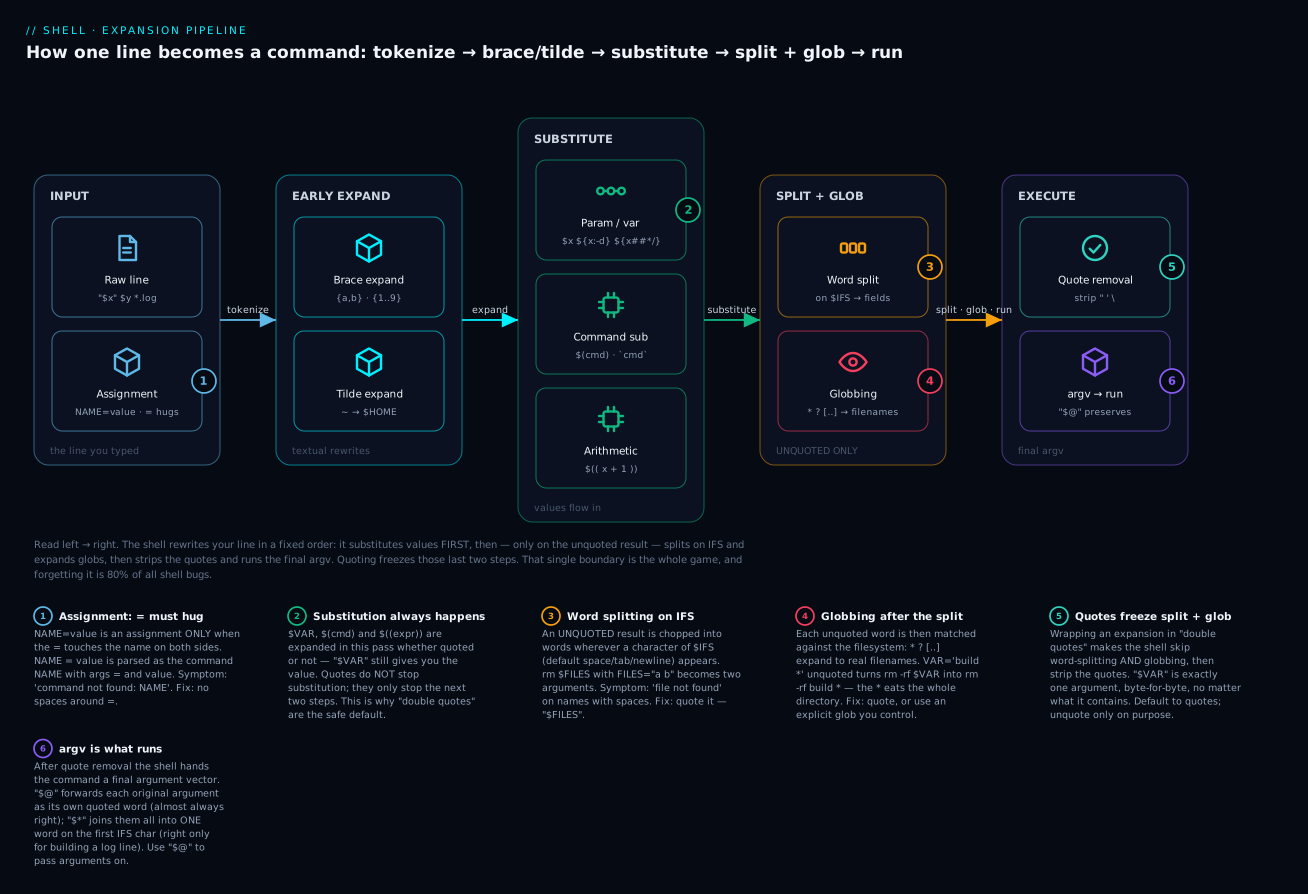
The diagram is the whole lesson in one picture. Read it left to right and burn in the single most important boundary — substitution always happens, but word-splitting and globbing happen only on unquoted results — because every section below is just a detailed look at one of those stages.
Level: Beginner on-ramp, advanced second half · Time: ~45 min — read slowly and type every example; this is the lesson the whole course stands on.
Prerequisites & what you’ll be able to do
Assumed: you can open a terminal and run a basic command, and you’ve met the idea from Lesson 1 — the shell as a process that a “command” is really a program the shell launches with a list of string arguments. Nothing else. If you’ve never assigned a variable in bash, you are in exactly the right place — start at the top and don’t skip the examples.
After this lesson you will be able to:
- Assign and read variables correctly, and explain why
NAME = valuefails butNAME=valueworks. - Choose the right quotes on purpose — single, double, or none — and predict exactly what each one produces.
- Reach for the right parameter expansion (
${x:-default},${x##*/},${x//a/b},${x:off:len},${x^^}) instead of shelling out tosed/awk. - Explain what
IFSis, trace how an unquoted$VARgets word-split and then glob-expanded, and stop the classicrm $FILES/for f in $(ls)disasters cold. - Forward arguments safely with
"$@", and open every production script with the strict-mode preamble. - Move on to conditionals & exit codes and defensive scripting without the quoting confusion that trips up everyone who skipped this material.
If lesson 1 was “the shell is a process,” this lesson is “the shell is a string-rewriting machine.” The shell takes a line of input, performs a tightly-specified sequence of substitutions and splittings on it, and then executes the result as a command. Every confusing shell bug — every single one of them — is the result of misunderstanding one specific step in that rewriting pipeline. Most often it’s the step called word splitting, which is governed by a variable called IFS that almost no one understands properly until they get burned by it twice.
This lesson is long. Read it slowly. Type every example. By the time you finish, you will write shell that handles spaces in filenames, embedded newlines, empty arguments, and all the other pathological inputs that destroy careless scripts in production.
1. Variable assignment: the rule that catches every beginner
In bash, you assign a variable like this:
NAME=value
That’s it. No spaces around the = sign. This is the single most common bug in every beginner’s first shell script:
NAME = "Alice"     # WRONG — bash tries to run a command called NAME with arguments = and "Alice"
NAME ="Alice"      # WRONG — same reason
NAME= "Alice"      # WRONG-ISH — sets NAME to empty string for the duration of running the command "Alice"
NAME="Alice"       # CORRECT
Why is the rule so strict? Because the shell parses commands first, and NAME = "Alice" looks exactly like command arg1 arg2 to the parser — the same way ls -la /tmp does. The shell can only tell you wanted an assignment if there’s no space before the =. The rule is: an assignment word is a token that begins with a valid variable name followed immediately by =.
The third form — NAME= "Alice" — is subtle and worth understanding. It’s actually valid syntax, but it doesn’t do what you think. It says: “set the environment variable NAME to the empty string only for the duration of the command "Alice", then run that command.” This is the same syntax you use to inject environment variables into one specific invocation:
LOG_LEVEL=debug ./run-tests.sh
That sets LOG_LEVEL=debug only inside the ./run-tests.sh process. The current shell’s LOG_LEVEL is unchanged. This is enormously useful and we’ll come back to it in lesson 7. But it is not what you wanted when you typed NAME= "Alice".
Reading a variable
Once you’ve assigned a variable, you read it by prefixing the name with $:
NAME="Alice"
echo $NAME       # Alice
echo "$NAME"     # Alice
echo ${NAME}     # Alice
echo "${NAME}"   # Alice — the canonical form
The first form (unquoted $NAME) is dangerous and we’ll discuss why in section 4. The braces in ${NAME} are required when you want to follow the variable name with a character that could otherwise extend it:
echo $NAME_suffix   # bash looks for a variable called NAME_suffix — empty
echo ${NAME}_suffix # bash expands NAME, then appends literal "_suffix" → Alice_suffix
This rule will save you hours of debugging once you internalise it. When in doubt, use braces. The cost is two characters; the benefit is unambiguous semantics.
Names you cannot use
Variable names must match [A-Za-z_][A-Za-z0-9_]*. They are case-sensitive (name and NAME are different variables). By long-standing convention:
UPPER_CASEfor environment variables and “global” or exported state.lower_casefor local variables inside scripts and functions.- Avoid names that collide with shell built-ins:
PATH,HOME,USER,SHELL,IFS,PS1,PS2,PS4,PWD,OLDPWD,RANDOM,LINENO,BASH_*,EUID,UID,GROUPS,HOSTNAME,SECONDS— these are all reserved or auto-managed. OverwritingPATHby accident is a classic way to break a script silently.
2. The four kinds of quoting and exactly what each one does
This is the single most leveraged section of this lesson. There are four ways to quote in bash, and they do four different things. Confusing them is the single biggest source of shell bugs in the world. Memorise this table.
| Form | Variable expansion ($VAR) |
Command substitution ($(...)) |
Glob expansion (*, ?) |
Backslash escaping | Embedded newlines | Word splitting on result |
|---|---|---|---|---|---|---|
'single quotes' |
NO — literal | NO — literal | NO — literal | NO — literal | YES — preserved | NO |
"double quotes" |
YES | YES | NO — literal | YES (limited) | YES — preserved | NO |
no quotes |
YES | YES | YES | YES | (treated as space) | YES — splits on $IFS |
`backticks` |
YES (deprecated form of $(...)) |
(this is command substitution, old-style) | NO | YES (extra-confusing rules) | YES | depends on context |
Let’s walk each one with concrete examples.
Single quotes — “I mean exactly this, character for character”
Single-quoted strings are the most literal thing in shell. Nothing inside them is interpreted. Not $VAR, not $(date), not \n, not \\. The only character you cannot put inside single quotes is a single quote — there is no escape mechanism for it inside single quotes.
echo 'Hello, $USER, today is $(date)'
# Output: Hello, $USER, today is $(date)
Use single quotes for: literal regular expressions, literal awk/sed programs, JSON literals you want to preserve, anything you want to send through a pipe untouched.
If you need a literal apostrophe inside a single-quoted string, you have to close the single quote, escape the apostrophe, and reopen:
echo 'it'\''s a beautiful day'
# Output: it's a beautiful day
That’s 'it' then \' (a literal backslash-apostrophe outside any quotes, which shell interprets as an escaped apostrophe) then 's a beautiful day'. This pattern shows up constantly in shell scripts and once you’ve seen it twice you’ll recognise it forever.
Double quotes — “expand variables, but don’t split on whitespace”
Double quotes do interpolation — they expand $VAR, $(cmd), and ${var:-default} — but they suppress word splitting and globbing on the result. This is the mode you want 90% of the time.
NAME="Alice Smith"
echo "Hello, $NAME, today is $(date)"
# Output: Hello, Alice Smith, today is Mon Jun 22 14:30:00 UTC 2026
Inside double quotes, the only characters with special meaning are $, `, \, and ". To get a literal $, write \$. To get a literal backtick, write \`. To get a literal ", write \". To get a literal \, write \\. Every other backslash is preserved as-is, which is sometimes surprising:
echo "a\nb"     # Output: a\nb  (the \n is NOT a newline — bash echo doesn't interpret \n)
printf "a\nb\n" # Output: a<newline>b   (printf does)
echo -e "a\nb"  # Output: a<newline>b   (with -e flag, but echo behaviour varies between systems)
The lesson here: never use echo -e or backslash escapes in echo for portability — use printf instead. This will save you when your script runs under dash (Debian’s /bin/sh) which does not support -e.
No quotes — the dangerous default
When you write $VAR without quotes, the shell expands it and then performs word splitting and pathname expansion (globbing) on the result. This is the source of most catastrophic shell bugs.
FILES="report 1.txt report 2.txt"
rm $FILES                # rm sees FOUR arguments: report  1.txt  report  2.txt
                         # — all four files get rm'd, even though we only meant two
rm "$FILES"              # rm sees ONE argument: "report 1.txt report 2.txt"
                         # — fails because no single file has that name
                         # (still wrong, but at least no data loss)
The classic real-world disaster is:
DIR="/tmp/cache/build *"     # accidentally trailing space and glob
rm -rf $DIR                  # expands to: rm -rf /tmp/cache/build *
                             # — the * matches every file in current directory
                             # — every one of them gets recursively deleted
This bug, almost word for word, has destroyed production systems. The mitigation is to always quote variable expansions unless you have a specific, deliberate reason not to. We’ll come back to this in section 5 with the strict-mode preamble.
Backticks — the old syntax for command substitution
Backticks (`command`) do command substitution — they run the command and substitute its output. This is the old POSIX syntax and you’ll see it in legacy scripts:
TODAY=`date +%Y-%m-%d`
The modern form is $(...):
TODAY=$(date +%Y-%m-%d)
Always prefer $(...) over backticks. Backticks have weird escaping rules (you have to double-escape backslashes inside them, and they don’t nest cleanly), they look identical to single quotes in many fonts, and the parsing rules are a nightmare. The only reason to ever use backticks is if you’re writing for a shell so old it doesn’t support $(...) — and that shell does not exist on any system you will work on this decade.
3. Parameter expansion — the Swiss Army knife of shell
This is where shell becomes a real text-processing language. Bash supports a rich set of parameter expansion operators that let you transform variables inline without invoking external tools like sed or awk. They are dramatically faster (no fork, no exec) and they’re guaranteed to be available wherever bash is, so use them aggressively.
Default values
${VAR:-default}   # if VAR is unset or empty, expand to "default"; do NOT assign
${VAR:=default}   # if VAR is unset or empty, expand to "default" AND assign default to VAR
${VAR:+alt}       # if VAR is set and non-empty, expand to "alt"; otherwise expand to empty
${VAR:?error}     # if VAR is unset or empty, print "error" to stderr and EXIT THE SHELL
The :- form is your best friend for command-line argument defaulting:
LOG_FILE="${1:-/var/log/myapp.log}"
TIMEOUT="${TIMEOUT:-30}"
The := form is rarely used because it modifies the variable, which is usually surprising.
The :+ form is excellent for “include this flag only if the variable is set”:
EXTRA_FLAG="${VERBOSE:+-v}"
my-tool $EXTRA_FLAG ./input    # only adds -v when VERBOSE is set
The :? form is critical for hard-required variables in production scripts:
DATABASE_URL="${DATABASE_URL:?DATABASE_URL must be set}"
If DATABASE_URL is unset, bash prints bash: DATABASE_URL: DATABASE_URL must be set and exits — immediately, before your script tries to do anything with an empty DSN. Use this at the top of any script that depends on environment variables.
Note the colon: ${VAR-default} (without the colon) expands to the default only if VAR is unset. With the colon, it expands the default if VAR is unset or set-but-empty. Almost always you want the colon form.
Prefix and suffix stripping
These are used constantly for filename manipulation:
FILE="/var/log/myapp/access.log.2026-06-22.gz"

${FILE#*/}        # strip shortest match of "*/" from start: "var/log/myapp/access.log.2026-06-22.gz"
${FILE##*/}       # strip longest match of "*/" from start: "access.log.2026-06-22.gz" (basename!)
${FILE%/*}        # strip shortest match of "/*" from end: "/var/log/myapp" (dirname!)
${FILE%%/*}       # strip longest match of "/*" from end: "" (everything after the first /)

${FILE%.gz}       # strip literal ".gz" from end: "/var/log/myapp/access.log.2026-06-22"
${FILE%.*}        # strip "." then anything from end: "/var/log/myapp/access.log.2026-06-22"
${FILE##*.}       # strip everything up to the last ".": "gz" (extension!)
These four operators (#, ##, %, %%) are the single most useful set of expansions in bash. Memorise them by the rule:
#removes from the front (think of#as the “front comment”)%removes from the back (think of%as a “back comment”)- Doubling the operator (
##,%%) means “remove the longest match” instead of the shortest
You will use these dozens of times per day once they’re in your reflexes.
Pattern replacement
PATH_VAR="/usr/local/bin:/usr/bin:/bin"

${PATH_VAR/bin/sbin}     # replace FIRST occurrence: "/usr/local/sbin:/usr/bin:/bin"
${PATH_VAR//bin/sbin}    # replace ALL occurrences: "/usr/local/sbin:/usr/sbin:/sbin"
${PATH_VAR/#\/usr/X}     # replace match at the START only (anchored): "X/local/bin:/usr/bin:/bin"
${PATH_VAR/%bin/X}       # replace match at the END only (anchored): "/usr/local/bin:/usr/bin:/X"
The / form does one replacement; // does all. The /# and /% forms anchor to start and end respectively.
Case modification (bash 4+)
NAME="alice smith"
echo "${NAME^}"          # "Alice smith" — uppercase first character
echo "${NAME^^}"         # "ALICE SMITH" — uppercase all
echo "${NAME,}"          # "alice smith" — lowercase first character (no-op here)
echo "${NAME,,}"         # "alice smith" — lowercase all
echo "${NAME~}"          # toggle case of first character
echo "${NAME~~}"         # toggle case of all
You can also use a pattern: ${NAME^^[aeiou]} would uppercase only vowels.
Length and substring
STR="Hello, World!"
echo "${#STR}"           # 13 — length in characters

echo "${STR:7}"          # "World!" — substring from index 7 to end
echo "${STR:7:5}"        # "World" — substring from index 7, 5 characters long
echo "${STR: -6}"        # "World!" — last 6 characters (note the SPACE before -6, required)
echo "${STR: -6:5}"      # "World" — last 6 chars, take 5
The leading space in ${STR: -6} is required — without it, ${STR:-6} would mean “default to 6 if STR is unset,” which is the entirely different operator we covered above.
Indirect expansion
NAME="USER"
echo "${!NAME}"          # expands USER — equivalent to ${USER}, prints "alice"
Useful when you have the name of a variable in another variable. Used sparingly; abused frequently.
Length-based and array operations
We’ll cover arrays in lesson 6, but for completeness:
ARR=(one two three four)
echo "${#ARR[@]}"        # 4 — number of elements
echo "${ARR[@]:1:2}"     # "two three" — slice from index 1, 2 elements
echo "${!ARR[@]}"        # "0 1 2 3" — list of indices
4. IFS, word splitting, and the most subtle bug in shell
Now we get to the deepest part of this lesson — the part nobody really teaches and the part that, once you understand, will make you a different shell programmer.
When the shell expands an unquoted $VAR, it doesn’t just substitute the value. It performs word splitting on the result, breaking the value into multiple tokens. The character (or characters) used to split is held in a special variable called IFS — Internal Field Separator.
By default, IFS is set to space, tab, and newline (in that order). You can see it with:
printf '%q\n' "$IFS"
# Output: $' \t\n'
Here’s what word splitting does, mechanically:
IFS=$' \t\n'             # default
GREETING="hello world"
my-tool $GREETING        # bash expands: hello world (two arguments)
                         # my-tool sees: argv = ["my-tool", "hello", "world"]
my-tool "$GREETING"      # bash expands: "hello world" (one argument, quoted = no splitting)
                         # my-tool sees: argv = ["my-tool", "hello world"]
This is why quoting matters. Word splitting only happens on unquoted expansions. As soon as you wrap the expansion in double quotes, splitting is suppressed and you get exactly one argument no matter what’s in the variable.
The reason this is the source of bugs is that the value of IFS itself is also a string, and its contents matter. If you ever change IFS, you change how every subsequent unquoted expansion behaves until you change it back.
A real example: parsing CSV without an external tool
Suppose you have a comma-separated string and you want to iterate its fields:
LINE="alice,30,engineer"

# Naive — doesn't work
for field in $LINE; do
  echo "$field"
done
# Output: alice,30,engineer    (one line — IFS is whitespace, no split happens)

# Correct — temporarily change IFS to comma
IFS=',' read -ra FIELDS <<< "$LINE"
for field in "${FIELDS[@]}"; do
  echo "$field"
done
# Output:
# alice
# 30
# engineer
The IFS=',' read -ra FIELDS <<< "$LINE" is one of the most useful idioms in bash. It says: “set IFS to comma for this one command only, run read with -r (raw, don’t process backslashes) and -a FIELDS (read into array FIELDS), and feed it the value of LINE as input via a here-string.” After the command finishes, IFS reverts to its previous value. Lesson 6 covers arrays and read in depth.
The classic for f in $(ls) antipattern
Every beginner writes this once:
for f in $(ls); do
  rm "$f"
done
This works until you have a filename with a space in it. Then ls outputs My Document.pdf and word splitting on whitespace gives you two “files”: My and Document.pdf. Both deletions fail. Worse, if you have a filename with a glob character (*, ?), pathname expansion happens after word splitting and you get a different file.
The right way is:
for f in *; do
  [ -e "$f" ] || continue        # handle the no-match case (lesson 11)
  rm -- "$f"
done
Or use find -print0 and xargs -0 for a fully NUL-separated pipeline (lesson 11 again). The general principle: never parse the output of ls in scripts. Use globs or find -print0.
"$@" vs $@ vs "$*" vs $*
These four forms look almost identical and behave very differently. They expand the positional parameters of a script (the arguments to the script).
Suppose your script is called with: ./myscript "hello world" foo bar. Then:
| Form | Expands to | When you’d use it |
|---|---|---|
$@ |
hello world foo bar (4 tokens after split) |
Almost never. Subject to word splitting. |
"$@" |
"hello world" "foo" "bar" (3 args) |
Almost always. Forwards args correctly. |
$* |
hello world foo bar (4 tokens after split) |
Almost never. Same problem as $@. |
"$*" |
"hello world foo bar" (1 arg, IFS-joined) |
Logging, generating a single-string summary. |
The rule: when forwarding arguments to another command, always use "$@":
#!/bin/bash
exec my-real-binary "$@"     # correct — preserves argument boundaries
exec my-real-binary $@       # WRONG — splits arguments on IFS
exec my-real-binary "$*"     # WRONG — joins all arguments into one string
This is the single most common bug in script wrappers, init scripts, and entrypoint.sh files in Docker images.
5. The strict-mode preamble — start every script with this
After everything above, you should be convinced that bash’s defaults are dangerous. The good news: you can opt into stricter behaviour with a three-line preamble at the top of every script. Memorise it:
#!/usr/bin/env bash
set -euo pipefail
IFS=$'\n\t'
Let’s break it down.
#!/usr/bin/env bash
The shebang. Says “interpret this script with whatever bash is on the user’s PATH.” Better than #!/bin/bash because on some systems (notably newer macOS, BSDs, and stripped containers) bash is not at /bin/bash. We covered this in lesson 1.
set -e — exit on error
Without -e, bash continues executing after a command fails. So this:
cd /var/important
rm -rf *
If cd fails (the directory doesn’t exist), without -e the rm -rf * runs in your current directory and deletes everything. With -e, the script exits immediately when cd fails.
set -e is not a panacea — it has surprising exceptions (it doesn’t trigger inside if conditions, inside &&/|| chains, inside subshells in some bash versions, etc.) — but it dramatically reduces the blast radius of bugs. Use it.
set -u — treat unset variables as errors
set -u
echo "Hello, $NMAE"      # typo — exits with: bash: NMAE: unbound variable
Without -u, $NMAE silently expands to empty string and your script keeps going. With -u, you catch typos immediately. Combine with the ${VAR:?} and ${VAR:-default} patterns above for variables that may legitimately be unset.
set -o pipefail — fail if any pipe stage fails
By default, the exit code of a pipeline is the exit code of the last command. So this succeeds even though curl failed:
curl https://example.invalid | grep important
echo $?                   # 1 (because grep found nothing) — but the real failure was curl
With pipefail, the pipeline returns the exit code of the leftmost command that failed (or zero if none did):
set -o pipefail
curl https://example.invalid | grep important
echo $?                   # 6 (curl's "couldn't resolve host")
This is essential for any script that uses pipes. Lesson 8 covers pipes and pipefail in depth.
IFS=$'\n\t'
Sets IFS to newline and tab only — removes space. This means unquoted expansions still split on lines and tabs (useful for parsing tab-separated data and line-oriented output), but no longer split on spaces. If you forget to quote a variable that contains spaces, your script breaks loudly instead of silently.
This is controversial. Some shell experts argue against it because it changes the behaviour of every command that depends on default IFS. The pragmatic answer: if you write quoting-correct shell from the start, the IFS change has no effect on correct code, and it acts as a guard rail against incorrect code. Use it on new scripts; be cautious about adding it to old scripts that may not be quoting-correct.
Putting it together
#!/usr/bin/env bash
set -euo pipefail
IFS=$'\n\t'

# Required environment
DATABASE_URL="${DATABASE_URL:?DATABASE_URL must be set}"
LOG_LEVEL="${LOG_LEVEL:-info}"

# Real script starts here
echo "Connecting to database..."
psql "$DATABASE_URL" -c 'SELECT 1' >/dev/null
echo "OK"
This is the floor. Every shell script you ship in production should start with at least this much. Lesson 10 (signal handling and trap) adds a fifth and sixth line that handle Ctrl+C and cleanup; lesson 8 (pipes) discusses when pipefail interacts strangely with grep and head.
6. Command substitution and arithmetic expansion
Two more expansions to cover, then we’re done.
Command substitution: $(...)
Run a command and substitute its output:
TODAY=$(date +%Y-%m-%d)
COUNT=$(grep -c ERROR /var/log/app.log)
HOSTNAME_SHORT=$(hostname -s)
The output has its trailing newlines stripped (only the trailing ones — newlines in the middle are preserved). This is mostly what you want.
Command substitution can be nested:
LATEST_LOG=$(ls -t "$(find /var/log -name '*.log' -type f)" | head -1)
Inside double quotes, command substitution still happens:
echo "Today is $(date +%A)"
Inside single quotes, it does not — you get the literal string $(date +%A).
Arithmetic expansion: $((...))
COUNT=5
TOTAL=$((COUNT * 2 + 3))
echo "$TOTAL"            # 13
Inside $((...)), you can omit the $ on variable names — $((COUNT)) and $((COUNT * 2)) both work. The arithmetic is integer-only — there is no floating-point in pure bash. For floating-point you need bc, awk, or python (lesson 12 covers awk).
You can do all the usual operators: + - * / % ** & | ^ ~ << >> && || ! == != < > <= >=. Bitwise and logical work as in C. The expression returns 0 if true, 1 if false (this is the opposite of arithmetic — be careful when using $((expr)) as an exit-status proxy).
Increment and decrement work too:
i=0
while ((i < 10)); do
  echo "$i"
  ((i++))
done
The ((...)) form (no $) is the arithmetic command — it evaluates the expression and returns 0 if non-zero, 1 if zero. We’ll use this throughout the loops lesson (lesson 4).
Process substitution: <(...) and >(...)
Bonus — bash supports a fourth substitution form that beginners rarely see but that is enormously useful:
diff <(ls /var/log) <(ls /backup/var/log)
<(cmd) expands to a filename (typically /dev/fd/63) that the calling command can read from, and bash arranges for cmd to write to it. This lets you pass command output where a file is expected. We’ll come back to this in lesson 8.
7. export, local, readonly, declare — the lifecycle modifiers
Variables come with attributes. The four most important attribute-setting commands:
export
Marks a variable for inheritance by child processes. Without export, a variable is “local to the current shell” — child processes (like commands you run) don’t see it.
NAME="Alice"             # local to this shell
my-tool                  # my-tool does NOT see NAME

export NAME="Alice"      # exported
my-tool                  # my-tool DOES see NAME in its environment
You can also export an already-set variable:
NAME="Alice"
export NAME              # now exported
Or do the assignment inline:
export NAME="Alice"
local
Used inside functions only. Restricts the scope of a variable to the function:
greet() {
  local name="$1"        # this `name` does not leak outside greet()
  echo "Hello, $name"
}
Without local, every function variable is global, and you’ll have functions stomping on each other’s state. Always use local for function variables. We’ll cover this thoroughly in lesson 5 (functions).
readonly
Marks a variable as immutable for the rest of the script:
readonly MAX_RETRIES=3
MAX_RETRIES=5            # error: MAX_RETRIES: readonly variable
Useful for constants and sentinel values.
declare / typeset
declare is the general form. It can set attributes:
declare -i COUNT=0       # integer (arithmetic)
declare -a FRUITS=()     # indexed array (lesson 6)
declare -A USER=()       # associative array (lesson 6)
declare -r MAX=10        # readonly
declare -x EXPORTED=     # exported (same as export)
declare -l LOWER=        # auto-lowercase on assignment
declare -u UPPER=        # auto-uppercase on assignment
typeset is an old synonym for declare — they’re identical in bash. Use declare in new code.
8. The 14 quoting and parameter-expansion idioms you should know cold
This list is what separates a shell beginner from a shell professional. If any of these don’t make sense, re-read the relevant section above.
# 1. Default value
PORT="${PORT:-8080}"

# 2. Required value (exit if unset)
DATABASE_URL="${DATABASE_URL:?DATABASE_URL must be set}"

# 3. Conditional flag
EXTRA="${VERBOSE:+--verbose}"

# 4. Basename and dirname without forking
FILE="/var/log/myapp/access.log"
BASE="${FILE##*/}"               # access.log
DIR="${FILE%/*}"                 # /var/log/myapp
EXT="${FILE##*.}"                # log
NAME="${BASE%.*}"                # access

# 5. Replace all in path
PATH_NEW="${PATH//bin/sbin}"

# 6. Lowercase / uppercase
LOWER="${INPUT,,}"
UPPER="${INPUT^^}"

# 7. Length
LEN="${#STR}"

# 8. Substring
FIRST_8="${TOKEN:0:8}"

# 9. Strict-mode preamble
set -euo pipefail
IFS=$'\n\t'

# 10. Always quote variable expansions
mv "$src" "$dst"

# 11. Always use "$@" to forward arguments
exec real-binary "$@"

# 12. Always use $(...) over backticks
NOW=$(date +%s)

# 13. Read CSV with IFS
IFS=',' read -ra FIELDS <<< "$LINE"

# 14. Trap-friendly cleanup variable
TMPDIR="$(mktemp -d)"
trap 'rm -rf -- "$TMPDIR"' EXIT
The trap form in (14) we’ll cover thoroughly in lesson 10. The mktemp -d returns a path to a fresh, empty directory in /tmp whose name is unguessable, and the trap on EXIT ensures it gets cleaned up no matter how the script exits. This is the right pattern for any temporary file usage in shell.
9. Putting it all together: a real, robust script
Here’s a script that exercises everything above. Read it, type it out, and run it. Every line is a deliberate use of one of the principles in this lesson.
#!/usr/bin/env bash
# Usage: ./greet.sh [USER_NAME] [GREETING]
# Greets USER_NAME (default: $USER) with GREETING (default: "Hello").
# Logs the greeting to ./greet.log with a timestamp.
set -euo pipefail
IFS=$'\n\t'

# Defaults via parameter expansion
USER_NAME="${1:-${USER:-stranger}}"
GREETING="${2:-Hello}"

# Required environment with a sensible default
LOG_FILE="${GREET_LOG:-./greet.log}"

# Validate USER_NAME contains only safe characters
if [[ ! "$USER_NAME" =~ ^[A-Za-z][A-Za-z0-9._-]*$ ]]; then
  printf 'Error: invalid USER_NAME: %q\n' "$USER_NAME" >&2
  exit 2
fi

# Compose the greeting (string concatenation is just adjacency)
MESSAGE="${GREETING}, ${USER_NAME}!"

# Print to stdout (quoted, to suppress IFS / glob)
printf '%s\n' "$MESSAGE"

# Log with timestamp; >> appends, never truncates
TIMESTAMP="$(date '+%Y-%m-%dT%H:%M:%S%z')"
printf '[%s] %s\n' "$TIMESTAMP" "$MESSAGE" >> "$LOG_FILE"

# Exit explicitly with success
exit 0
Things to notice:
- Shebang is
env bash. - Strict-mode preamble.
- All parameter expansions use braces and quoting.
- Defaults are nested:
${1:-${USER:-stranger}}— if$1is unset, fall back to$USER; if$USERis also unset, fall back to literal"stranger". - The regex check uses
[[ ... =~ ]](lesson 3) to validate input — never trust unvalidated input in shell. printf '%s\n'is used instead ofechofor portability and predictable behaviour.- Errors go to stderr (
>&2) — lesson 7 covers redirection. - Exit codes are explicit and meaningful (
exit 2for usage error,exit 0for success).
This is the standard you should hold yourself to in every shell script you ever write.
Going deeper
Everything above is the working knowledge. This section is the why underneath — the model that turns “I quote things because the lesson said to” into “I can predict what any line does before I run it.” Read it once now; come back to it after you’ve written a few scripts and it will land harder.
The exact expansion order (the mental model that makes everything click)
The shell doesn’t rewrite your line all at once. It runs a fixed pipeline of passes, in this exact order, on every command line:
- Brace expansion —
{a,b}→a b,{1..3}→1 2 3. Purely textual, happens before anything else, and does not look at any variable or file. - Tilde expansion — a leading
~→$HOME,~alice→ alice’s home directory. - Parameter/variable expansion, arithmetic expansion
$((…)), command substitution$(…), and process substitution<(…)— all in one left-to-right pass. This is where values pour in. - Word splitting — the result of step 3 is chopped into words on
IFS— but only the parts that were unquoted. - Pathname expansion (globbing) — each unquoted word is matched against the filesystem;
*.txtbecomes the list of matching files. - Quote removal — the quotes themselves are stripped, and whatever survives becomes the final
argvhanded to the command.
Two consequences fall straight out of this ordering and explain almost every “wait, why did that happen”:
- Substitution (step 3) happens before splitting/globbing (steps 4–5). That’s why
rm $FILESis dangerous:$FILESbecomes its value first, and only then is that value chopped into words and glob-matched. The variable’s value is data, but by step 4 the shell has forgotten it came from a variable — it’s just text on the line now. - A
*that comes out of a variable still globs, because the variable is expanded in step 3 and globbing is step 5. But a*that was inside quotes is protected, because quoting removes that word from steps 4 and 5. This is the entire reason the diagram at the top draws quoting as a wall in front of the last two stages.
Type this to watch the order with your own eyes (run it in a scratch directory):
mkdir /tmp/exp && cd /tmp/exp && touch a.txt b.txt
VAR="a.txt *.txt"
set -- $VAR          # UNQUOTED: split into 2 words, then *.txt globs
echo "unquoted -> $# args"; printf '  [%s]\n' "$@"
set -- "$VAR"        # QUOTED: one word, no split, no glob
echo "quoted   -> $# args"; printf '  [%s]\n' "$@"
Representative output — the unquoted form splits into a.txt and *.txt, and the *.txt word then matches both files, so you get three arguments; the quoted form is a single argument:
unquoted -> 3 args
  [a.txt]
  [a.txt]
  [b.txt]
quoted   -> 1 args
  [a.txt *.txt]
Once you can predict that output, you understand quoting.
set -e has sharp edges — the local x=$(...) trap
set -e is a guard rail, not a seatbelt. The exception that bites hardest in real scripts: local, declare, export, and readonly are commands in their own right, and their exit status is the status of the builtin (almost always success) — which masks the exit status of any command substitution on the right-hand side.
set -e
fetch() {
  local body="$(curl -fsS "$1")"   # curl FAILS, but `local` returns 0 → set -e does NOT fire
  echo "got: $body"                # runs anyway, with an empty body
}
The fix is to separate the declaration from the assignment so the command substitution’s status is the statement’s status:
set -e
fetch() {
  local body
  body="$(curl -fsS "$1")"         # now a failed curl aborts the function
  echo "got: $body"
}
Other set -e blind spots worth knowing: it does not fire for a command whose failure is tested (if cmd, cmd && …, cmd || …, ! cmd), nor for a failing command in the middle of a pipeline unless pipefail is on (only the last command’s status counts otherwise). set -e reduces blast radius; it does not remove the need to check the errors that matter. The defensive-scripting lesson drills these edges with shellcheck.
IFS in full: whitespace vs non-whitespace, and empty fields
IFS has two behaviours depending on whether its characters are whitespace, and beginners are surprised by the asymmetry:
- Whitespace IFS characters (space/tab/newline) collapse: a run of them counts as one separator, and leading/trailing runs are trimmed. So
" x y "word-splits to exactly two fields,xandy, never an empty one. - Non-whitespace IFS characters (like
,) do not collapse: each one delimits a field, so adjacent delimiters produce empty fields.a,,bis three fields —a, empty,b.
Watch both (representative output shown):
IFS=, read -ra a <<< "x,,z,"    # non-whitespace
printf 'n=%d ' "${#a[@]}"; printf '[%s]' "${a[@]}"; echo
# n=3 [x][][z]     <- internal empty field kept; the single trailing "" is dropped

read -ra b <<< "  x   y  z  "   # default whitespace IFS
printf 'n=%d ' "${#b[@]}"; printf '[%s]' "${b[@]}"; echo
# n=3 [x][y][z]    <- runs collapsed, ends trimmed
Note the two subtleties in the first line: an internal empty field is preserved, but a single trailing delimiter does not add a trailing empty field. This matters the day you parse a CSV where “no value” is meaningful (a missing middle column) versus cosmetic (a trailing comma). When empty fields carry meaning, IFS=, read -ra is the right tool; when you’re splitting human text on spaces, the collapsing behaviour is usually what you want.
Quoting a value so it can be safely reused: printf %q and ${var@Q}
Sometimes you need to take a value that may contain spaces, quotes, or newlines and turn it back into something the shell can re-parse as that exact value — for logging a reproducible command, or building an ssh remote-host '<command>' string. Two tools:
printf '%q\n' "a b'c" # -> a\ b\'c (portable, works on bash 3.2+)
Bash 4.4+ adds a parameter-expansion form that does the same thing without a subshell:
val="a b'c"
echo "${val@Q}"           # -> 'a b'\''c'   (bash 4.4+; TEACH this, but guard the version)
${var@Q} is one of the transformation operators (${var@…}): @Q quotes for reuse, @U/@L upper/lowercase the whole value (bash 5.1+), @E interprets $'…'-style escapes, @A prints an assignment that would recreate the variable. They’re clean and fork-free, but they are bash-4.4-or-newer only — this build host runs bash 3.2, so the @Q output above is shown representative, not captured. On any target where you can’t guarantee bash 4.4, reach for printf %q.
Shell variables cannot hold a NUL byte — the find -print0 gotcha
A C string ends at the first NUL (\0), and shell variables are C strings. So command substitution silently drops NUL bytes:
v=$(printf 'a\0b'); printf 'len=%d val=[%s]\n' "${#v}" "$v"
# representative: len=2 val=[ab]   (the \0 vanished; bash 5+ also prints a warning)
This is why you can safely do find … -print0 | xargs -0 (NUL travels through a pipe fine) but you cannot do list=$(find … -print0) and expect the NULs to survive in list — they’re gone, and your “NUL-separated” data is now unseparated mush. When you need filenames that may contain any character, keep them in a NUL-delimited stream or a bash array (mapfile -d '' arr < <(find … -print0) on bash 4.4+), never in a plain string.
Globbing options that quietly change the rules
Pathname expansion (step 5) is configurable with shopt. The defaults surprise people; know these four:
nullglob— by default a glob that matches nothing expands to itself literally (for f in *.mdin an empty dir gives you one iteration withfliterally*.md).shopt -s nullglobmakes a no-match glob expand to nothing instead — usually what you want in a loop.failglob— makes a no-match glob an error instead. Useful in strict scripts.dotglob— include dotfiles (.bashrc) in*, which normally skips them.nocaseglob— case-insensitive matching.globstar(bash 4+) — enables**to match across directory levels recursively.
shopt -s nullglob extglob globstar at the top of a script (bash 4+) is a common, deliberate choice. The reason the naive for f in *.log loop can misbehave in an empty directory is precisely the default (non-null) glob behaviour — nullglob is the fix, and it’s cleaner than the [ -e "$f" ] || continue guard shown earlier.
Performance: expansions don’t fork; sed/awk do
Parameter expansion feels like a micro-optimisation until you put it in a loop over 100,000 lines. ${FILE##*/} is done inside the shell process — no new process. basename "$FILE" forks and execs a separate program every single call. On a tight loop that’s the difference between milliseconds and minutes:
# Slow: two forks per iteration
for f in "${files[@]}"; do
  b=$(basename "$f"); d=$(dirname "$f")
done

# Fast: zero forks
for f in "${files[@]}"; do
  b=${f##*/}; d=${f%/*}
done
The rule of thumb: stay inside the shell for string surgery on individual values; drop to awk/sed when you’re streaming a whole file (one awk process over a million lines beats a million parameter expansions in a bash loop). Knowing which side of that line you’re on is a senior-level instinct; the performance-profiling lesson measures it directly.
Security: word-splitting is an injection surface
The word-splitting trap isn’t only about your own filenames — it’s a genuine injection vector when the value comes from outside. If an attacker controls $USER_INPUT and you write an unquoted expansion into a command, they can inject extra arguments (via spaces) or extra filenames (via globs). The defence is exactly what this lesson teaches, applied paranoidly:
- Quote every expansion of untrusted data, always.
- Never build a command string and
evalit with interpolated input —evalre-runs the entire expansion pipeline on your data, so a value like; rm -rf ~becomes a command. If you think you needeval, you almost always want an array instead. - Validate before use — the
[[ "$x" =~ ^[A-Za-z0-9._-]+$ ]]allowlist from section 9 is the pattern. - Use
--to end options (rm -- "$f") so a filename that starts with-can’t be read as a flag.
The dedicated injection & input-validation lesson treats this as its whole subject; recognise here that “quote your variables” and “don’t get shell-injected” are the same rule.
Portability: what’s bash-4+/5+ only, and what’s POSIX
The course targets Linux + bash 4/5, but you will meet older or leaner shells (macOS ships bash 3.2; Alpine containers ship busybox ash; Debian’s /bin/sh is dash). Keep a mental map of what is not portable:
| Feature | Needs | POSIX sh / dash? |
|---|---|---|
${x^^} ${x,,} case mod |
bash 4+ | No — use tr '[:lower:]' '[:upper:]' |
${x@Q} ${x@U} transforms |
bash 4.4 / 5.1+ | No — use printf %q |
declare -A associative arrays |
bash 4+ | No |
mapfile / readarray |
bash 4+ | No — use a while read loop |
** recursive glob (globstar) |
bash 4+ | No — use find |
local |
bash/most shells | Not in strict POSIX (widely supported anyway) |
[[ … ]], <<< here-strings |
bash | No — use [ … ] and a heredoc |
${x:-default}, ${x#pat}, $(( )), "$@" |
POSIX | Yes — safe everywhere |
The parameter-defaulting, prefix/suffix stripping, arithmetic, and "$@" idioms — the load-bearing ones — are POSIX and safe in every shell. The convenience features (case modification, associative arrays, mapfile, globstar, transformation operators) are the ones to guard behind a bash-version check or avoid when you’re writing a /bin/sh script. When in doubt, put #!/usr/bin/env bash at the top and mean it — don’t claim #!/bin/sh and then use [[.
Practice challenges
Six graded exercises, escalating from “predict the output” to production-grade defensive scripting. Try each yourself first — type it, run it, be wrong, then open the solution. The italic line under each answer tells you the one idea it’s really testing.
Challenge 1 — Assignment: which one works? (beginner)
Without running them, decide which of these four lines correctly sets greeting to the string Hello there, and say what each of the wrong ones actually does:
greeting = "Hello there"
greeting ="Hello there"
greeting= "Hello there"
greeting="Hello there"
Then print it back with braces.
<details> <summary>Solution</summary>
Only the fourth line works. The others:
greeting = "Hello there"— three tokens; bash tries to run a command literally namedgreetingwith args=andHello there→command not found: greeting.greeting ="Hello there"— two tokens; runs a command namedgreetingwith arg=Hello there→ samecommand not found.greeting= "Hello there"— setsgreetingto empty only for the commandHello there, then tries to runHello there→command not found: Hello there.greeting="Hello there"— correct;=hugs the name on both sides.
greeting="Hello there"
echo "${greeting}"     # Hello there
</details>
Testing: that assignment is a single token — the = must touch the name, and spaces turn it into a command.
Challenge 2 — Predict the three quotings (beginner)
Given x="a b" (three spaces between a and b), predict the exact output of each line, then run them:
echo $x
echo "$x"
echo '$x'
<details> <summary>Solution</summary>
a b        # unquoted: word-split into words "a" and "b" (whitespace runs collapse),
           #           then echo rejoins its args with a single space
a   b      # double-quoted: no splitting — the three spaces are preserved verbatim
$x         # single-quoted: no expansion at all — literal dollar-x
The unquoted line losing the extra spaces is the tell that word splitting happened and discarded the original spacing — the value a b was destroyed and rebuilt as two arguments.
</details>
Testing: unquoted expansion goes through word splitting (which collapses whitespace runs); double quotes preserve the value byte-for-byte; single quotes suppress expansion entirely.
Challenge 3 — Filename surgery with no forks (intermediate)
Given f="/var/log/app/db.sql.gz", produce all four of these using only parameter expansion — no basename, dirname, sed, awk, or cut:
- the basename →
db.sql.gz - the directory →
/var/log/app - the final extension →
gz - the stem with all extensions removed →
db
<details> <summary>Solution</summary>
f="/var/log/app/db.sql.gz"
echo "${f##*/}"          # db.sql.gz   — strip longest */ from front
echo "${f%/*}"           # /var/log/app — strip shortest /* from back
echo "${f##*.}"          # gz          — strip longest *. from front
base="${f##*/}"; echo "${base%%.*}"   # db — from the basename, strip longest .* from back
The trap in #4: ${f%%.*} on the full path gives /var/log/app/db (the . in db.sql is the first dot), so you must first take the basename, then strip. Order matters.
</details>
Testing: the #/##/%/%% family, longest-vs-shortest match, and the habit of reaching for these instead of forking a coreutil.
Challenge 4 — Defuse the unquoted-expansion trap (intermediate)
In a scratch directory containing files named report 1.txt, report 2.txt, and notes.txt, this code is meant to delete the two reports but is dangerous:
files="report 1.txt report 2.txt"
rm $files
(a) Explain exactly what rm receives and why it’s wrong. (b) Rewrite the whole thing to delete every .txt file whose name starts with report, correctly, even with the spaces.
<details> <summary>Solution</summary>
(a) Unquoted $files is word-split on spaces into four arguments — report, 1.txt, report, 2.txt — so rm tries to delete four files that don’t exist and misses the two that do. (Quoting it as rm "$files" is also wrong: now it’s one argument, a file literally named report 1.txt report 2.txt, which also doesn’t exist.)
(b) Iterate a glob — no variable, no splitting — and quote the loop variable:
shopt -s nullglob            # bash 4+: a no-match glob expands to nothing
for f in report*.txt; do
  rm -- "$f"                 # quoted: each real filename, spaces and all, is one arg
done
Portable equivalent without nullglob: for f in report*.txt; do [ -e "$f" ] || continue; rm -- "$f"; done.
</details>
Testing: the split-then-glob pipeline, why “just quote it” isn’t enough when the wrong data is in the variable, and that a glob loop never word-splits.
Challenge 5 — CSV with a hole, plus a safe wrapper (advanced)
(a) Parse line="alice,,engineer" into fields so the empty middle field is preserved, and print each field on its own line bracketed like [alice]. (b) Write a two-line wrapper script run that execs /usr/bin/real-tool, passing along all of its own arguments unchanged — including any that contain spaces.
<details> <summary>Solution</summary>
(a) Use IFS=, with read -ra — non-whitespace IFS keeps the internal empty field:
line="alice,,engineer"
IFS=, read -ra fields <<< "$line"
printf '[%s]\n' "${fields[@]}"
# [alice]
# []
# [engineer]
(b) "$@" forwards each argument as its own quoted word:
#!/usr/bin/env bash
exec /usr/bin/real-tool "$@"
Using $@ (unquoted) or "$*" would re-split or flatten the arguments — a wrapper written with either is the classic broken entrypoint.sh.
</details>
Testing: non-whitespace IFS preserving empty fields, the read -ra idiom, and "$@" as the one correct argument-forwarding form.
Challenge 6 — A production preamble that actually fails safely (advanced)
Write the top of a script that: (1) uses strict mode and a safe IFS; (2) requires API_URL (die with a message if unset); (3) defaults TIMEOUT to 30; (4) creates a temp directory that is removed no matter how the script exits; and (5) fetches "$API_URL" into a variable such that a failed fetch aborts the script. Point out the one-line trap in step 5.
<details> <summary>Solution</summary>
#!/usr/bin/env bash
set -euo pipefail
IFS=$'\n\t'

API_URL="${API_URL:?API_URL must be set}"     # (2) die if unset/empty
TIMEOUT="${TIMEOUT:-30}"                       # (3) default

workdir="$(mktemp -d)"                         # (4) fresh temp dir…
trap 'rm -rf -- "$workdir"' EXIT               #     …cleaned on ANY exit

# (5) THE TRAP: `local`/`declare`/assignment-with-substitution can hide failure.
# At top level there's no `local`, but if this were in a function you MUST split:
resp=""
resp="$(curl -fsS --max-time "$TIMEOUT" "$API_URL")"   # a failed curl aborts (set -e + no masking)
printf '%s\n' "$resp"
The trap: had you written local resp="$(curl …)" inside a function, the local builtin’s success status would mask curl’s failure and set -e would not fire. The safe form is always local resp; resp="$(curl …)" on two lines.
</details>
Testing: the whole defensive toolkit at once — :? / :-, mktemp -d + trap … EXIT, and the local x=$(cmd) masking bug that silently defeats set -e.
Common beginner mistakes
These are misconceptions, not typos — the wrong mental model that produces a whole family of bugs. Fix the model and the bugs stop.
- “Spaces around
=are fine, like in Python or JS.” They are not.x = 5runs a command namedx. Right model: an assignment is a single token — the=must touch the name on both sides, with no spaces. - “Quotes are cosmetic / optional.” Quotes are semantic — they switch off word splitting and globbing.
rm $fandrm "$f"can delete different files. Right model: quote every expansion by default; unquote only when you want splitting or globbing and have thought about it. - “Single and double quotes are interchangeable.” Single quotes suppress all expansion; double quotes still expand
$VARand$(…).'$HOME'is the literal text$HOME;"$HOME"is your home directory. Right model: double = “expand but don’t split”; single = “exactly these characters.” - “
$@and$*are the same, and quoting them doesn’t matter.” Only"$@"preserves each argument as a separate word;"$*"joins them into one, and the unquoted forms re-split everything. Right model:"$@"to forward arguments,"$*"only to display them as one string. - “
${VAR:-default}setsVAR.” No —:-only expands to the default; it leavesVARuntouched. The one that assigns is:=. Right model::-= “use this if empty,”:== “use and remember this if empty.” - “
echo -eis a reliable way to print a newline.”echo’s flags and escape handling vary across shells and platforms; underdash,-eis printed literally. Right model: useprintf '…\n'— its behaviour is specified and portable. - “
for f in $(ls)is how you loop over files.” It word-splits filenames on spaces and then glob-expands them — wrong on any name with a space or a*. Right model: loop over a glob (for f in *) or a NUL-delimitedfind -print0stream; never parsels. - “
set -emeans every error stops the script.” It has real blind spots — tested commands (if,&&,||), non-final pipeline stages withoutpipefail, andlocal x=$(failing-cmd). Right model:set -eshrinks the blast radius; you still handle the errors that matter, and you splitlocalfrom its command substitution. - “A
*inside a variable is just text, so it’s safe.” It’s text until the variable is expanded — then globbing (step 5) runs on it.rm -rf $DIRwith a stray*inDIRis a directory-eater. Right model: the value re-enters the expansion pipeline; quote it to keep the*literal.
Glossary
- Assignment word — a token of the form
name=valuewith the=touching the name; the shell recognises it as setting a variable rather than running a command. - Expansion — any of the rewrites the shell performs on a line before executing it (brace, tilde, parameter, arithmetic, command substitution, word splitting, globbing).
- Parameter expansion — the
${…}family that reads and transforms a variable’s value inline (${x:-d},${x##*/},${x//a/b},${x:off:len},${x^^}), without launching an external program. - Command substitution —
$(cmd)(or legacy`cmd`): runcmd, capture its stdout, and paste it onto the line with trailing newlines stripped. - Arithmetic expansion —
$(( … )): evaluate an integer expression (C-like operators) and substitute the numeric result. - Word splitting — the pass that chops an unquoted expansion into separate words wherever a character of
IFSappears. - IFS (Internal Field Separator) — the variable holding the characters used for word splitting; default is space, tab, newline.
- Globbing / pathname expansion — the pass that turns unquoted patterns (
*,?,[…]) into the list of matching filenames. - Brace expansion — purely textual generation of strings:
{a,b}→a b,{1..5}→1 2 3 4 5; happens first and ignores variables and files. - Tilde expansion — a leading
~becomes$HOME;~userbecomes that user’s home directory. - Quote removal — the final pass that strips the quote characters
",',\after all other expansions, leaving the literalargv. - Positional parameters — a script or function’s arguments:
$1,$2, …, with"$@"and"$*"referring to all of them. - Here-string (
<<<) — feeds a single string to a command’s stdin, e.g.read -ra a <<< "$line". - Shebang — the
#!/usr/bin/env bashfirst line that tells the OS which interpreter runs the script. - Strict mode — the conventional
set -euo pipefail(often with a tightenedIFS) preamble that makes bash fail fast on errors, unset variables, and broken pipelines. - Indirect expansion —
${!name}: use the value ofnameas the name of the variable to expand. - Process substitution —
<(cmd)/>(cmd): present a command’s output (or input) as a filename (/dev/fd/…) so it can be passed where a file is expected. - Transformation operators —
${var@Q},${var@U},${var@L},${var@E}(bash 4.4/5.1+): quote-for-reuse, upper/lowercase, and escape-interpret a value without forking. - Subshell — a child copy of the shell (created by
(...), a pipeline stage, or$(...)) whose variable changes don’t affect the parent. - Exit status — the integer a command returns:
0means success, non-zero means failure; it drivesset -e,&&/||, and every conditional.
10. What you must internalise before lesson 3
This was the longest lesson in the course because everything depends on it. Before you move on, make sure you can answer all of these without thinking:
- Why is
NAME = "Alice"wrong? (Spaces around=mean it’s parsed as a command.) - What’s the difference between
'single'and"double"quotes? (Single = literal; double = expand variables and command substitution but no word splitting.) - What is
IFSand what are its default values? (Internal Field Separator; defaultspace,tab,newline.) - Why is
for f in $(ls)wrong? (Word splitting on whitespace breaks filenames with spaces.) - What’s the difference between
"$@"and"$*"? ("$@"preserves each argument as a separate quoted token;"$*"joins them into one.) - What does
${VAR:-default}do, vs${VAR:=default}, vs${VAR:?error}? (Default-only-expand; default-and-assign; required-or-die.) - What does
${FILE##*/}give you? (The basename — strip longest match of*/from the front.) - What does the strict-mode preamble do? (
set -eexit on error;set -uerror on unset variable;set -o pipefailpropagate pipe failures;IFS=$'\n\t'remove space from word-splitting.) - Why prefer
$(...)over backticks? (Better escaping rules, nest cleanly, easier to read.) - Why prefer
printfoverecho? (Portable behaviour acrossdash,bash,zsh;echo -eis non-portable.)
If any of those felt fuzzy, re-read the relevant section. Lesson 3 (conditionals and exit codes) builds directly on this, and lesson 4 (loops and substitution) builds on both. Get this foundation right and you’ll write production-grade shell from week one.
What’s next
Lesson 3 covers conditionals (if, [, [[, test), exit codes, the difference between &&/|| chaining and if blocks, regex matching with [[ =~ ]], and the precise semantics of 0 = success, non-zero = failure that drives every control-flow decision in shell. Bring everything you learned here — every if condition is fundamentally a quoting and word-splitting decision.