You can read about Kubernetes for a month and still freeze the first time you have to create a cluster — the create command alone has thirty flags, the portal has six tabs, and every tutorial assumes you already know what a node pool, a kubeconfig, and a LoadBalancer service are. Azure Kubernetes Service (AKS) is Azure’s managed Kubernetes: Microsoft runs the control plane (the API server, scheduler, and etcd) for free, and you run a pool of worker VMs (the nodes) where your containers live. The promise is production-grade Kubernetes without operating the hard part. The reality, on day one, is a wall of choices.
This article cuts that wall down to a repeatable path. We create one small cluster three ways — in the Azure portal, with the az CLI, and with Bicep — so you learn not just which buttons to press but what each option means and why it defaults the way it does. Then we deploy a real container, expose it to the internet with a public IP, prove it works with kubectl, and tear it all down so you are not billed for an idle cluster. Every step has the exact command, the expected output, and a validation check.
By the end you will have a mental model of how the pieces connect — subscription, resource group, cluster, node pool, kubeconfig, pods, and a service — and the muscle memory to spin a cluster up and down on demand. Once you can reliably create and destroy clusters, the deeper topics (networking models, autoscaling, ingress, GitOps) become changes to a thing you already own rather than mysteries. If you have only ever read about Kubernetes, this is the article that gets your hands on it.
What problem this solves
Running containers yourself means running the orchestration: scheduling them onto machines, restarting them when they die, load-balancing across replicas, rolling out new versions without downtime, and keeping the cluster’s brain (the API server and etcd) healthy and patched. That brain — the control plane — is the genuinely hard, genuinely dangerous part to operate. Get etcd wrong and you lose the entire cluster’s state.
AKS solves exactly that: Microsoft operates the control plane, monitors and patches it, and (on the Standard tier) backs it with an uptime SLA — and it is free on the Free tier. You are left with the easy job of choosing how many worker nodes you want and how big, then deploying your apps. Without this you face either months of learning Kubernetes the hard way, or a fragile single-VM Docker setup with no self-healing, rolling updates, or horizontal scaling.
Who hits this: every engineer moving from “I can run a container locally” to “I need this to run reliably for real users.” The first cluster is a rite of passage, and the friction is almost never Kubernetes concepts — it is the creation mechanics: which resource group, which network model, how to get kubectl talking to the cluster, why the external IP says <pending>, and how to stop paying afterwards. This article removes that friction.
Learning objectives
By the end of this article you can:
- Explain what AKS manages (the control plane) versus what you manage (the node pool and your workloads).
- Create a small cluster three ways — Azure portal,
az aks create, and Bicep — and explain the create options that matter on day one. - Connect
kubectlwithaz aks get-credentialsand read cluster state (nodes, pods, services). - Deploy a container as a Deployment and expose it to the internet with a LoadBalancer service that gets a real public IP.
- Validate at every step with the exact command and expected output — and recognise when something is wrong.
- Diagnose the beginner mistakes (quota,
<pending>IP, kubeconfig, wrong subscription, image pull) and fix each. - Tear the cluster down completely so an idle learning cluster never costs you money.
Prerequisites & where this fits
You need an Azure subscription (a free trial works), the Azure CLI (az) installed locally or just a browser for Azure Cloud Shell, and kubectl (az aks install-cli fetches it). You should know what a container image is and be comfortable copy-pasting shell commands. You do not need prior Kubernetes operations experience — that is the point.
Where this sits: this is the hands-on on-ramp to the Azure containers track. The conceptual companion is AKS Architecture Explained: Managed Control Plane, Node Pools, and the Azure Integrations That Make It Tick — read it alongside this for the why behind the control-plane/data-plane split you build here. Still deciding whether AKS is even the right compute choice? Start with Azure App Service vs Container Apps vs AKS: Choose the Right Compute. The cluster lives inside a resource group and subscription, so the Azure Resource Hierarchy Explained: Subscriptions, Resource Groups and Resources is useful background.
A quick map of the parts you are about to touch, and who owns each:
| Layer | What it is | Who runs it | You configure it via |
|---|---|---|---|
| Subscription | Billing + isolation boundary | You (Azure account) | az account set |
| Resource group | Container for related resources | You | az group create / portal |
| Control plane | API server, scheduler, etcd | Microsoft (managed) | Tier + version only |
| Node pool | The worker VMs that run pods | You (own the VMs) | VM size + node count |
| kubeconfig | Credentials kubectl uses |
You (downloaded) | az aks get-credentials |
| Workloads | Your pods, deployments, services | You | kubectl apply |
Core concepts
Six ideas make every step below obvious.
A cluster is a control plane plus one or more node pools. The control plane is the cluster’s brain — the API server (kubectl talks to this), the scheduler (places pods on nodes), and etcd (the cluster-state database). Microsoft runs all of it; you never SSH into it. A node pool is a group of identical worker VMs (the nodes) that run your containers. Every cluster starts with one system node pool for critical add-ons; you add user node pools for your apps later.
A node is a VM; a pod is the smallest deployable unit. Each node is a Linux (or Windows) VM with a container runtime and the kubelet agent. A pod wraps one (usually) container plus its networking and storage — what Kubernetes schedules onto a node. You rarely create pods directly; you create a Deployment that keeps a desired number of pod replicas running and self-heals when one dies.
You reach the cluster through kubeconfig. kubectl doesn’t magically know your cluster. az aks get-credentials downloads a kubeconfig entry — API server address plus credentials — into ~/.kube/config, and kubectl uses the current context there. Most “kubectl can’t connect” problems are a missing or wrong context, not a broken cluster.
A Service gives pods a stable address. Pods are ephemeral and get new IPs on restart, so you never point users at a pod. A Service is a stable front for a set of pods, in three types: ClusterIP (internal-only, the default), NodePort (a port on every node), and LoadBalancer (provisions an Azure Standard Load Balancer with a real public IP). To expose an app on day one you create a LoadBalancer service — watching its EXTERNAL-IP go from <pending> to a real address is the moment your app is live.
Networking comes in two models, and the default changed. AKS offers two CNI (Container Network Interface) plugins: kubenet (legacy — overlay IP NAT’d behind the node) and Azure CNI (real VNet IPs). The modern default, Azure CNI Overlay, gives Azure CNI’s features with overlay-style IP efficiency. Accept the default for a first cluster — but it is hard to change later, so it matters more than it looks.
The control plane is free; you pay for the nodes. The Free tier control plane costs nothing; you pay only for the worker-node VMs (plus disks and any load balancer / egress). Three small nodes you forgot to delete still bill you around the clock — “delete the cluster when you’re done” isn’t housekeeping advice, it is the whole cost-control strategy for a learning cluster.
The create options that actually matter
az aks create exposes dozens of flags and the portal has six tabs, but only a handful of decisions change anything you will notice on a first cluster — the short list, with the sensible default and trade-off:
| Option | What it controls | Sensible first default | When to change | Gotcha |
|---|---|---|---|---|
| Cluster name | The AKS resource name | aks-learn |
Always (your choice) | DNS-name rules; lowercase, hyphens |
| Region | Where nodes + control plane live | A region near you with quota | Latency / data residency | Some regions lack certain VM sizes |
| Kubernetes version | API + node version | Default (a recent supported minor) | Match an app requirement | Don’t pick the newest blindly; N-2 is safer |
| Node size (VM SKU) | vCPU/RAM per node | Standard_D2s_v5 (2 vCPU/8 GB) |
Bigger workloads | Too small (B-series) starves system pods |
| Node count | Nodes in the system pool | 1–2 for learning |
HA needs ≥3 | 1 node = no resilience; fine for a lab |
| Tier | Control-plane SLA | Free (learning) | Prod wants Standard | Free has no financially-backed SLA |
| Network plugin | Pod networking (CNI) | Azure CNI Overlay (modern default) | Advanced VNet needs | Hard to change after create |
| Authentication | Cluster identity model | Managed identity + Azure RBAC | Enterprise AAD needs | Local accounts can be disabled later |
Two are worth a sentence of why. Node size is what beginners get wrong most: a burstable Standard_B2s gets starved by the system add-ons, so make Standard_D2s_v5 (2 vCPU, 8 GB) your floor. And the network plugin is near-permanent — you can’t flip a running cluster between kubenet and Azure CNI, so accept the default Azure CNI Overlay unless you have a reason not to:
| Network model | Pod IP source | VNet IPs consumed | Best for | Note |
|---|---|---|---|---|
| kubenet | Overlay, NAT’d via node | 1 per node | Legacy / very simple | Being phased out; route-table limits |
| Azure CNI (classic) | Real VNet IP per pod | 1 per pod (can exhaust) | Direct pod-VNet routing | Plan the subnet CIDR carefully |
| Azure CNI Overlay | Overlay pod CIDR | 1 per node | Most new clusters | The modern default; IP-efficient |
Setting up your tools
Azure Cloud Shell (the >_ icon in the portal) is a browser terminal with az, kubectl, and Bicep pre-installed and signed in — zero setup. A local terminal needs the Azure CLI; sign in, set the subscription you intend to bill (the wrong-subscription mistake is a classic), and pull kubectl:
az login                                              # local only — Cloud Shell is signed in
az account set --subscription "<sub-name-or-id>"      # bill the right subscription
az aks install-cli                                    # installs kubectl + kubelogin (skip on Cloud Shell)
Three tools do all the work — az manages Azure, kubectl manages inside the cluster, and Bicep declares the cluster as code for the third create path:
| Tool | Purpose | Get it with |
|---|---|---|
Azure CLI (az) |
Manage Azure; create the cluster | Installer / Cloud Shell |
kubectl |
Deploy + inspect workloads | az aks install-cli |
| Bicep | Declarative IaC for the cluster | az bicep install |
Architecture at a glance
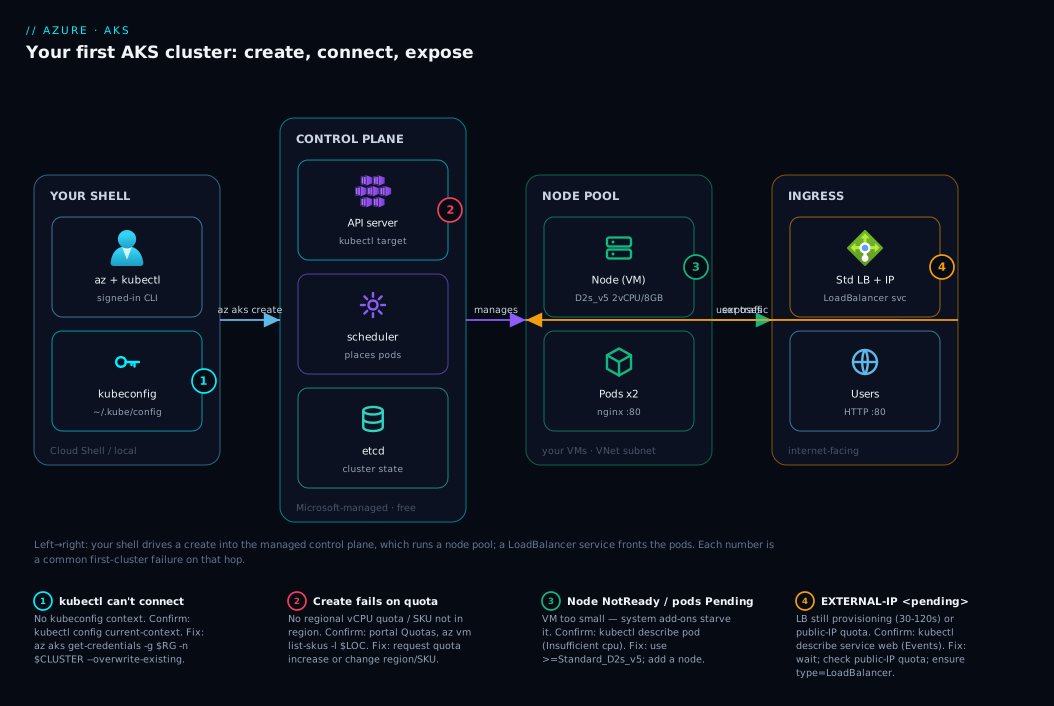
Read the diagram left to right and it tells the whole story. On the far left you sit at your shell — Cloud Shell or local — driving everything through az and kubectl. Your az aks create call (or the portal, or Bicep) lands in the control-plane zone, where Microsoft stands up the managed API server (your kubectl target) plus the scheduler and etcd you never see. That control plane manages the node pool zone — worker VMs in your subscription, inside a VNet subnet, where the kubelet schedules your pods. To make the app reachable, a Kubernetes LoadBalancer service provisions an Azure Standard Load Balancer with a public IP in the ingress zone, and user traffic flows from the internet through it to the pods.
The numbered badges mark where a first cluster commonly goes wrong: getting credentials onto your shell, the create that can fail on quota, the node VM-size that must be large enough to schedule pods, and the EXTERNAL-IP that sits at <pending> while the load balancer provisions. The troubleshooting section maps one-to-one onto this path — every failure is a specific hop refusing to hand off to the next.
Real-world scenario
Tindle Books is a small online bookseller — eight engineers, one platform person named Asha, and a Node.js storefront that had outgrown a single App Service instance. They wanted container orchestration for the storefront and a few background workers, with room to scale during seasonal sales. Asha knew Azure but had never operated Kubernetes; the team’s anxiety was entirely about getting started safely without torching the budget or production.
Asha did exactly what this article describes, in order. She first spent twenty minutes in the portal, clicking through the create wizard once just to see every option — region, node size, network plugin, tier. She chose Central India, the Free tier, a single Standard_D2s_v5 node, and accepted Azure CNI Overlay. The “Review + create” validation flagged that her subscription was short on regional vCPU quota for that VM family — a five-minute quota-increase request fixed it, and she had learned the lesson before it could bite a real deployment.
Having seen the shape of it, she rebuilt the same cluster with az aks create so it was scriptable, then deployed nginx as a two-replica Deployment with a LoadBalancer service. The EXTERNAL-IP sat at <pending> for about ninety seconds — long enough to nearly file a bug — before resolving to a real public IP. That wait, she noted in the wiki, was “normal, not broken: the load balancer is provisioning.”
The payoff came two weeks later. With the create captured as a reviewed Bicep file, a teammate stood up an identical staging cluster with one az deployment group create, tested a change, and tore it down the same evening — resource group deleted, bill back to zero. The team’s Kubernetes confidence rested on one repeatable, destroyable cluster rather than a precious hand-clicked one nobody dared touch. Asha’s wiki summary: “Learn it in the portal, script it in the CLI, commit it in Bicep, and always be able to delete it.” The storefront migration that followed was almost boring — for a first production Kubernetes rollout, the highest praise.
Advantages and disadvantages
Standing up your first cluster on AKS (versus self-managed Kubernetes or a simpler container service) is a clear win for beginners, but it has real edges:
| Advantages (why AKS for a first cluster) | Disadvantages (what to watch) |
|---|---|
| Control plane is managed and free — no etcd to operate | Kubernetes itself is still complex; the learning curve is real |
| Three create paths (portal/CLI/Bicep) suit learning → automation | More moving parts than App Service or Container Apps |
| Deep Azure integration (identity, monitoring, load balancer, ACR) | Easy to leave nodes running and get a surprise bill |
kubectl skills transfer to any Kubernetes, anywhere |
Some create choices (CNI, region) are hard to change later |
| Scales from a 1-node lab to thousands of nodes — same tooling | You still own node patching, sizing, and capacity |
| Free tier + delete-when-done makes experimentation nearly free | A 1-node Free cluster has no HA — fine to learn, not to ship |
The model is right when you genuinely want Kubernetes — portable orchestration, fine-grained control, a rich ecosystem — and will own the worker nodes. It is overkill if all you need is “run my container and scale it,” where Container Apps or App Service is simpler. For a first cluster meant to learn Kubernetes on Azure, the advantages dominate.
Hands-on lab
This is the centrepiece. You will create the same small cluster three ways, deploy and expose a real app, validate at every step, and tear it all down. It is free-tier-friendly: a single small node for a short session costs a few rupees, and the teardown returns your bill to zero. Run in Cloud Shell (Bash) or a signed-in local terminal.
Pick one create path (A, B, or C) for your first run, then do Part 2 (deploy) and Part 3 (teardown). All three produce an equivalent cluster, so deploy and teardown are identical whichever you chose.
Part 0 — Shared variables and resource group
Set these once; every path below reuses them.
RG=rg-aks-lab
LOC=centralindia
CLUSTER=aks-learn
NODE_SIZE=Standard_D2s_v5
az group create -n $RG -l $LOC -o table
Expected output: a table row with ProvisioningState = Succeeded. If you get a quota or auth error here, fix it now (see Common mistakes) — nothing downstream works until the group exists.
Part 1A — Create with the az CLI (the scriptable path)
This is the path you will use most. One command creates the whole cluster.
Step 1 — Register the provider (first time per subscription only).
az provider register --namespace Microsoft.ContainerService --wait
Step 2 — Create the cluster. A single-node Free-tier cluster with managed identity and a generated SSH key:
az aks create \
  --resource-group $RG \
  --name $CLUSTER \
  --location $LOC \
  --tier free \
  --node-count 1 \
  --node-vm-size $NODE_SIZE \
  --network-plugin azure \
  --network-plugin-mode overlay \
  --generate-ssh-keys \
  -o table
Expected output: runs for 5–10 minutes (creating a control plane plus a VM is not instant), then a table with provisioningState = Succeeded and a fqdn for the API server.
Step 3 — Validate the cluster is running:
az aks show -n $CLUSTER -g $RG --query "{name:name, status:provisioningState, k8s:kubernetesVersion, nodes:agentPoolProfiles[0].count}" -o table
Expect status = Succeeded and nodes = 1. Skip ahead to Part 1-Connect.
Part 1B — Create in the Azure portal (the see-everything path)
Do this once even if you prefer the CLI — the wizard builds intuition for every flag.
| Step | Where in the portal | What to enter |
|---|---|---|
| 1 | Search bar → Kubernetes services → Create → Create a Kubernetes cluster | Opens the wizard |
| 2 | Basics → Subscription / Resource group | Pick your sub; Create new → rg-aks-lab |
| 3 | Basics → Cluster preset config | Choose Dev/Test (cheapest sensible preset) |
| 4 | Basics → Cluster name / Region | aks-learn / your region (e.g. Central India) |
| 5 | Basics → Pricing tier | Free |
| 6 | Basics → Kubernetes version | Leave the default |
| 7 | Node pools → (default pool) → Node size | Change size → Standard_D2s_v5 |
| 8 | Node pools → Scale method / Node count | Manual, count 1 |
| 9 | Networking → Network configuration | Azure CNI Overlay (default) |
| 10 | Integrations → Container monitoring | Disabled for the lab (saves cost) |
| 11 | Review + create | Wait for Validation passed, then Create |
Expected: Review + create runs a validation — a green Validation passed means your selections are coherent (a quota shortfall shows here as a red error; fix it before creating). After Create, deployment takes 5–10 minutes and the notification bell shows Deployment succeeded. Continue to Part 1-Connect.
Part 1C — Create with Bicep (the repeatable path)
Bicep captures the cluster as code you can review in a pull request and redeploy identically. Save this as aks.bicep:
@description('Cluster name')
param clusterName string = 'aks-learn'

@description('Location for all resources')
param location string = resourceGroup().location

@description('DNS prefix for the API server')
param dnsPrefix string = 'akslearn'

@description('Worker node VM size')
param nodeVmSize string = 'Standard_D2s_v5'

@description('Number of nodes in the system pool')
@minValue(1)
@maxValue(5)
param nodeCount int = 1

resource aks 'Microsoft.ContainerService/managedClusters@2024-09-01' = {
  name: clusterName
  location: location
  sku: {
    name: 'Base'
    tier: 'Free'          // Standard adds the uptime SLA; Free is fine to learn
  }
  identity: {
    type: 'SystemAssigned' // managed identity — no service principal to rotate
  }
  properties: {
    dnsPrefix: dnsPrefix
    agentPoolProfiles: [
      {
        name: 'systempool'
        mode: 'System'
        count: nodeCount
        vmSize: nodeVmSize
        osType: 'Linux'
        type: 'VirtualMachineScaleSets'
      }
    ]
    networkProfile: {
      networkPlugin: 'azure'
      networkPluginMode: 'overlay' // Azure CNI Overlay — the modern default
    }
  }
}

output controlPlaneFqdn string = aks.properties.fqdn
output clusterNameOut string = aks.name
Step 1 — (optional) preview what will be created:
az deployment group what-if -g $RG --template-file aks.bicep
Step 2 — deploy the template:
az deployment group create -g $RG --template-file aks.bicep -o table
Expected output: runs 5–10 minutes, then provisioningState = Succeeded and the controlPlaneFqdn output. Re-running the same file is idempotent — it converges the cluster to the declared state rather than creating a duplicate. Continue to Part 1-Connect.
Part 1-Connect — Point kubectl at the cluster
Whichever path you used, you now need credentials so kubectl can talk to your cluster.
Step 1 — Download the kubeconfig:
az aks get-credentials --resource-group $RG --name $CLUSTER --overwrite-existing
Expected output: Merged "aks-learn" as current context in /home/<user>/.kube/config. --overwrite-existing avoids a stale duplicate if you created a cluster of this name before.
Step 2 — Verify the nodes are Ready (the single best proof the cluster works):
kubectl get nodes -o wide
Expected output: one line per node with STATUS = Ready, plus its Kubernetes version and internal IP. If STATUS is NotReady for more than a couple of minutes, the node is still joining or the VM size is too small (see Common mistakes).
NAME                                STATUS   ROLES   AGE   VERSION
aks-systempool-12345678-vmss000000  Ready    <none>  3m    v1.30.x
Step 3 — See what the cluster runs by default (system add-ons live in kube-system):
kubectl get pods -n kube-system
Expect CoreDNS, metrics-server, and CSI driver pods all Running — proof the system pool is healthy, and why a too-small node fails: these add-ons need real CPU and memory.
Part 2 — Deploy and expose a real app
Step 4 — Create a Deployment (two replicas of nginx, a tiny public image needing no registry):
kubectl create deployment web --image=nginx --replicas=2
Step 5 — Watch the pods come up:
kubectl get pods -l app=web --watch
Expected output: two pods go ContainerCreating → Running within seconds; press Ctrl-C once both are Running. A pod stuck in ImagePullBackOff means a wrong image name or unreachable registry (see Common mistakes).
Step 6 — Expose it with a LoadBalancer service (provisions an Azure public IP):
kubectl expose deployment web --type=LoadBalancer --port=80 --target-port=80
Step 7 — Wait for the public IP — the famous <pending> step:
kubectl get service web --watch
Expected output: EXTERNAL-IP shows <pending> for 30–120 seconds while Azure provisions the load balancer, then flips to a real public IP. <pending> is normal, not an error. Press Ctrl-C once you see an IP.
NAME   TYPE           CLUSTER-IP     EXTERNAL-IP     PORT(S)        AGE
web    LoadBalancer   10.0.123.45    20.40.50.60     80:31000/TCP   90s
Step 8 — Prove the app is live from the public internet:
EXTERNAL_IP=$(kubectl get service web -o jsonpath='{.status.loadBalancer.ingress[0].ip}')
echo "App is at: http://$EXTERNAL_IP"
curl -s http://$EXTERNAL_IP | grep -o "<title>.*</title>"
Expected output: <title>Welcome to nginx!</title>. You just served a request from a container, through a Kubernetes service, through an Azure load balancer, from the public internet — the full path in your diagram. Open the URL in a browser for the visual confirmation.
A quick reference for the kubectl verbs you just used — these five cover most day-one work:
| Command | What it does | You used it to… |
|---|---|---|
kubectl get <kind> |
List resources (nodes/pods/services) | Verify state at each step |
kubectl create deployment |
Run an app as N self-healing replicas | Launch nginx |
kubectl expose |
Create a Service in front of pods | Get a public IP |
kubectl describe <kind> <name> |
Show full detail + events | Diagnose a stuck pod |
kubectl logs <pod> |
Print a container’s stdout/stderr | See why an app crashed |
Part 3 — Teardown (do not skip this)
An idle cluster bills you for its node VMs around the clock. Deleting the resource group removes the cluster, the node VMs, the disks, and the auto-created load balancer and public IP in one shot:
az group delete -n $RG --yes --no-wait
Expected output: the command returns immediately (--no-wait) and deletion proceeds in the background. Confirm it actually started:
az group show -n $RG --query "properties.provisioningState" -o tsv
# "Deleting" → it's tearing down. A later "not found" error means it's gone.
Cost note. A single Standard_D2s_v5 node for a one-hour lab is a few rupees; the Free-tier control plane and load balancer add little over such a short run, and deleting the resource group stops all of it. The only mistake that costs real money is walking away with the cluster still running — so make teardown a habit. In one session you proved the full path: a reproducible cluster (portal→CLI→IaC), a Ready node wired to your kubectl, a self-healing Deployment, a public-IP Service, a real request served from the internet, and a clean return to a zero bill.
Common mistakes & troubleshooting
The eight things that snag nearly every first-time AKS user. Scan the table when something breaks, then read the matching detail.
| # | Symptom | Root cause | Confirm (exact cmd / portal path) | Fix |
|---|---|---|---|---|
| 1 | az aks create fails: quota / not available in location |
Subscription has no regional vCPU quota for that VM family, or the SKU isn’t in that region | az vm list-skus -l $LOC --size Standard_D2s --query "[].restrictions" ; portal → Quotas |
Request a quota increase; pick another region or a smaller-but-valid SKU |
| 2 | kubectl → Unable to connect to the server / connection refused |
No kubeconfig context (never ran get-credentials, or wrong context) | kubectl config current-context ; kubectl config get-contexts |
az aks get-credentials -g $RG -n $CLUSTER --overwrite-existing |
| 3 | EXTERNAL-IP stuck <pending> for many minutes |
LB still provisioning, or Basic LB / public-IP quota / wrong service type | kubectl describe service web (read Events) |
Wait 2 min; check public-IP quota; ensure Standard LB; verify --type=LoadBalancer |
| 4 | Pod stuck ImagePullBackOff / ErrImagePull |
Wrong image name/tag, or node can’t reach a private registry | kubectl describe pod <pod> → Events show the pull error |
Fix image name; for ACR run az aks update --attach-acr <acr> |
| 5 | Node NotReady, or pods stuck Pending (no node fits) |
VM size too small for system pods, or node still joining | kubectl get nodes ; kubectl describe node <node> ; kubectl describe pod <pod> (Events: Insufficient cpu) |
Use ≥Standard_D2s_v5; add a node; wait for join |
| 6 | Created in the wrong subscription | Active subscription wasn’t set before create | az account show --query name -o tsv |
az account set --subscription <id> ; delete the stray RG |
| 7 | az aks create fails: provider not registered |
Microsoft.ContainerService not registered on the sub |
az provider show -n Microsoft.ContainerService --query registrationState |
az provider register --namespace Microsoft.ContainerService --wait |
| 8 | Deleted the cluster but still billed | Node VMs / LB / disks left behind (deleted only the cluster object, not the RG) | az resource list -g $RG -o table (anything left?) |
az group delete -n $RG --yes to remove everything |
The detail for the two that waste the most time:
az aks create fails on quota or VM availability (#1). A new subscription often has a low default regional vCPU quota for the VM family, or the SKU isn’t offered in that region — the error reads “exceeding approved quota” or “the requested VM size is not available.” Confirm in Subscriptions → Usage + quotas (filter by region + VM family), or az vm list-skus -l $LOC --size Standard_D2s -o table and read restrictions. Fix by requesting a quota increase (usually granted in minutes for small amounts), switching to a region with quota, or picking another valid SKU of the right size — never a tiny B-series.
EXTERNAL-IP stays <pending> (#3). Most often nothing is wrong — the load balancer takes 30–120 seconds to provision. If it persists, run kubectl describe service web and read the Events: a real failure (e.g. “…PublicIPQuota”) shows there, while an empty list means it is still provisioning. Fix by checking your public-IP quota, confirming type: LoadBalancer, and that the cluster uses the Standard load balancer (the AKS default).
Best practices
- Set the subscription explicitly with
az account setbefore creating — the wrong-subscription mistake is silent and annoying to unwind. - Name resources predictably:
rg-aks-<env>,aks-<purpose>. Future-you grepping the portal will thank present-you. - Start on the Free tier for learning; move to Standard only when an app needs the uptime SLA. Node cost is identical, so it is purely an SLA decision.
- Use
Standard_D2s_v5or larger for the system pool — never burstableB-series; the add-ons need steady CPU and ≥4 GB RAM. - Accept Azure CNI Overlay unless you have a concrete reason not to — the network plugin is hard to change after create.
- Capture the cluster in Bicep once you like one, and create future clusters from the file — reviewable, repeatable, disposable.
- Use
--overwrite-existingwithaz aks get-credentialsto avoid stale kubeconfig contexts when recreating clusters of the same name. - Validate at every step (
kubectl get nodes, then pods, then service) — catching aNotReadynode early saves a confused hour. - Treat the cluster as disposable: safe to delete and recreate at will — anything precious lives in a manifest or Bicep file. Delete the resource group when you’re done for the day; it is the single most effective cost control for non-production clusters.
- Keep the Kubernetes version one or two minors behind newest (N-1/N-2) for stability, and prefer managed identity over a service principal — no credential to rotate or leak.
Security notes
Even a learning cluster deserves baseline habits that cost nothing:
- Use managed identity, not a service principal. The Bicep above uses
SystemAssignedidentity — no client secret to leak or rotate, and the AKS default for new clusters. - Prefer Azure RBAC + Entra ID for cluster access over long-lived local Kubernetes accounts. You can disable local accounts (
--disable-local-accounts) so everykubectlcall ties to a real Azure identity — for when you graduate past a solo lab. - Pull images from a trusted registry. For your own images, attach an Azure Container Registry with
az aks update --attach-acrso nodes authenticate via managed identity, not a stored password; see Securing Azure Container Registry: Private Endpoints, ACR Tasks, Content Trust, and Geo-Replication. - Don’t expose more than you mean to. A
LoadBalancerservice opens a public IP — fine for a demonginx, but for anything real put it behind an ingress controller with TLS, or use an internal load balancer. - Keep secrets out of manifests. Back connection strings and keys with Azure Key Vault and the CSI Secret Store driver, not pod specs; get the Key Vault side right via Azure Key Vault: Secrets, Keys and Certificates Done Right.
- Patch the nodes. Microsoft manages the control plane, but you own node OS and Kubernetes upgrades — enable automatic channel upgrades or run
az aks upgradeon a cadence. A production cluster belongs in a planned VNet/subnet with NSGs; the fundamentals are in Azure Virtual Network, Subnets and NSGs: Networking Fundamentals.
Cost & sizing
The bill is almost entirely the worker nodes — internalise that, and cost control is simple.
- Control plane: free on Free, flat hourly on Standard. The Free control plane is ₹0; Standard adds an uptime SLA for a small flat per-cluster hourly charge (a few hundred rupees a month) regardless of node count — chosen for the SLA, not any feature.
- Nodes dominate. You pay VM rates per node, around the clock, busy or not. A single
Standard_D2s_v5is roughly ₹6–8/hour (~₹4,500–6,000/month if left running); three for HA triples that — which is why an idle forgotten cluster is the real cost risk. - Disks and load balancer add a little. Each node has an OS disk, and a
LoadBalancerservice provisions a Standard Load Balancer + public IP (modest hourly + data-processing). Egress is billed separately. - The learning pattern: one small node, Free tier, monitoring disabled, used for a session and then deleted — a few rupees per session.
A rough monthly picture for common shapes (INR, if left running continuously — delete to avoid it):
| Shape | Nodes | Tier | Rough INR / month | Good for |
|---|---|---|---|---|
| Learning, deleted nightly | 1× D2s_v5 |
Free | a few ₹ per session | This article |
| Small dev cluster | 2× D2s_v5 |
Free | ~₹9,000–12,000 | Team dev/test |
| HA dev/stage | 3× D2s_v5 |
Standard | ~₹14,000–18,000 + SLA | Staging with resilience |
| Small production | 3× D4s_v5 |
Standard | ~₹28,000–36,000 + LB/egress | Real workloads, zones |
The day-one sizing rule: 1 node to learn, 2 for a shared dev cluster, ≥3 across availability zones for anything that must stay up. Scale node count for resilience and node size for per-pod CPU/RAM — and right-size down once you have measured real load.
Interview & exam questions
1. What does AKS manage for you, and what do you manage? Microsoft manages the control plane (API server, scheduler, etcd, including patching and availability), and it is free on the Free tier. You manage the node pools (worker VM size, count, OS/Kubernetes upgrades) and your workloads — “Microsoft runs the brain, you run the muscle.”
2. What is the difference between a node and a pod? A node is a worker VM providing CPU, memory, and a container runtime. A pod is the smallest deployable unit — typically one container plus its network and storage — and it is what the scheduler places onto a node. One node runs many pods.
3. How does kubectl know which cluster to talk to? Through the kubeconfig file (~/.kube/config) and its current context. az aks get-credentials writes the cluster’s API-server address and credentials there; a missing or wrong context is the usual cause of “unable to connect.”
4. Why might a LoadBalancer service show EXTERNAL-IP: <pending>? Azure is still provisioning the load balancer and public IP (30–120 seconds), so <pending> is expected at first. If it persists, suspect a public-IP quota limit or a misconfigured service; kubectl describe service Events reveal a genuine failure.
5. What’s the difference between the Free and Standard AKS tiers? Both give a fully functional cluster; only the control-plane SLA differs. Free has a service-level objective but no financially-backed SLA; Standard adds a 99.9%/99.95% uptime SLA for a flat hourly charge. Node cost is identical, so it is purely an SLA choice.
6. Which CNI network model is the modern default and why? Azure CNI Overlay — pods get their own overlay address space consuming only one VNet IP per node (not per pod), avoiding classic Azure CNI’s IP-exhaustion problem. The plugin is hard to change after creation, so the choice matters up front.
7. How do you let an AKS cluster pull from a private Azure Container Registry? Attach it with az aks update --attach-acr <acr-name>, granting the cluster’s managed identity the AcrPull role. Nodes then authenticate via managed identity with no stored credentials, eliminating ImagePullBackOff from auth failures.
8. You “deleted” the cluster but are still billed — why? You likely removed only the managed-cluster object while the node VMs, disks, load balancer, and public IP remained. Deleting the resource group (az group delete) removes everything; verify with az resource list -g <rg>.
These map to AZ-104 (Administrator) — deploy and manage Azure compute resources, including AKS basics, and to AZ-204 (Developer) — implement containerized solutions (deploying to AKS, configuring services). The Kubernetes fundamentals also align with the KCNA (Kubernetes and Cloud Native Associate) entry-level certification. A compact mapping for revision:
| Question theme | Primary cert | Objective area |
|---|---|---|
| Control plane vs node pool, tiers | AZ-104 | Deploy & manage compute (AKS) |
| Deploy app, Service types | AZ-204 | Implement containerized solutions |
| kubeconfig, kubectl basics | KCNA | Kubernetes fundamentals |
| CNI / networking model | AZ-104 / AZ-700 | Networking for AKS |
| ACR attach, managed identity | AZ-204 / AZ-500 | Secure container workloads |
Quick check
- Who runs the AKS control plane, and what does it cost on the Free tier?
kubectl get nodessays “unable to connect to the server.” What single command fixes this most of the time?- Your
LoadBalancerservice showsEXTERNAL-IP: <pending>. Is this necessarily an error? What do you do first? - Why is
Standard_B2sa poor choice for a first cluster’s only node pool? - You’re done experimenting. What one command stops you paying for the nodes, disks, and load balancer?
Answers
- Microsoft runs the control plane (API server, scheduler, etcd); it costs ₹0 on the Free tier — you pay only for the worker-node VMs.
az aks get-credentials --resource-group $RG --name $CLUSTER --overwrite-existing— this writes the cluster’s kubeconfig context into~/.kube/config.- Normally not an error — the load balancer takes 30–120 seconds to provision. Wait two minutes, then
kubectl describe service weband read the Events for any real failure (e.g. public-IP quota). B2sis burstable (2 vCPU / 4 GB); the system add-ons consume its limited CPU/RAM, leaving nothing schedulable so pods sitPending. UseStandard_D2s_v5or larger.az group delete -n $RG --yes— deleting the resource group removes the cluster, node VMs, disks, load balancer, and public IP together, returning the bill to zero.
Glossary
- AKS — Azure’s managed Kubernetes: Microsoft runs the control plane, you run the worker nodes and apps.
- Control plane — the cluster’s brain (API server, scheduler, etcd); managed and free on the Free tier.
- Node pool — a group of identical worker VMs; a system pool hosts add-ons, user pools host your apps.
- Node — one worker VM running the kubelet and a container runtime.
- Pod — the smallest deployable unit; usually one container plus its network and storage.
- Deployment — keeps a desired number of pod replicas running and self-heals when one dies.
- Service — a stable front for a set of pods; types ClusterIP (internal), NodePort, LoadBalancer (public IP).
- kubectl / kubeconfig — the Kubernetes CLI, and the file (
~/.kube/config) whose current context selects the active cluster. az aks get-credentials— writes a cluster’s kubeconfig entry sokubectlcan connect.- CNI plugin — the pod-networking model; Azure CNI Overlay is the modern default, kubenet is legacy.
- Free / Standard tier — the control-plane SLA choice: Free has no financially-backed SLA, Standard adds an uptime SLA.
- Managed identity — an Azure-managed credential the cluster uses (e.g. to pull from ACR) — no secret to rotate.
- Resource group — the Azure container for the cluster and its node resources; deleting it removes everything at once.
Next steps
You can now create, use, and destroy an AKS cluster on demand. Build outward:
- Next: AKS Architecture Explained: Managed Control Plane, Node Pools, and the Azure Integrations That Make It Tick — the deep “why” behind the split you just stood up.
- Related: Azure App Service vs Container Apps vs AKS: Choose the Right Compute — confirm AKS is the right tool, or when a simpler service wins.
- Related: Securing Azure Container Registry: Private Endpoints, ACR Tasks, Content Trust, and Geo-Replication — host your own images and attach the registry.
- Related: Azure Virtual Network, Subnets and NSGs: Networking Fundamentals — the network your nodes live in.
- Related: Azure Monitor and Application Insights: Full-Stack Observability — turn on Container Insights to see what your cluster is doing.