Every other resource in Azure assumes one thing has already been answered: who are you, and what are you allowed to do? That question is the entire first domain of the AZ-104 exam — “Manage Azure identities and governance” — and it is the part of the platform an administrator touches every single day. Get it right and the rest of Azure becomes safe to hand out; get it wrong and you either hand a contractor the keys to delete production, or you spend your week clicking “approve” on access requests that a five-line group rule should have handled automatically.
This is the deep, no-hand-waving treatment of that domain. It splits cleanly into two halves that beginners constantly conflate, so we will keep them rigorously separate. The first half is Microsoft Entra ID (formerly Azure Active Directory) — the identity plane: the users, groups, licences, guests, and self-service password reset that decide who exists. The second half is governance over your Azure subscriptions — the control plane: Azure RBAC decides who can do what to which resource, while Azure Policy, resource locks, tags, management groups, and Cost Management keep that estate compliant, protected, organised, and within budget. By the end you can explain the difference between an Entra role and an Azure role without hesitating (the single most common interview trip-up in this area), read an effective-permissions screen and predict the outcome, write a dynamic group rule and a custom RBAC role from scratch, and stand up a small governed environment — group, role, policy, lock, and tag — entirely from the az CLI.
Learning objectives
By the end of this lesson you can:
- Create and manage Entra users (member vs guest, individual vs bulk, the full property set) and groups (Security vs Microsoft 365, Assigned vs Dynamic membership), and write dynamic membership rules.
- Assign licences directly and — the scalable way — through group-based licensing, and reason about the override/conflict behaviour.
- Invite external (B2B) users and configure self-service password reset (SSPR) end to end (methods, registration, enablement scope).
- Explain Azure RBAC in depth: the role-assignment triad, built-in vs custom roles, scope inheritance from management group → subscription → resource group → resource, ABAC conditions, deny assignments, and how to interpret effective access.
- State precisely how Azure RBAC differs from Entra roles, and which one governs what.
- Govern an estate with Azure Policy (definitions, initiatives, the effect types, remediation, compliance), resource locks (CanNotDelete vs ReadOnly), tags (apply, inherit, enforce, and use for cost), management groups, and Cost Management (budgets, alerts, Advisor).
Prerequisites & where this fits
You should be comfortable with the Azure resource hierarchy — that resources live in resource groups, which live in subscriptions — and have used the portal or az CLI to create something. If the words “tenant” and “subscription” are still fuzzy, read Microsoft Entra ID Fundamentals: Tenants, Users, Groups & RBAC first; this lesson assumes that vocabulary and goes far deeper. This is the Identity & Governance capstone of the foundations track in the Azure Zero-to-Hero course, and it maps directly onto AZ-104 Domain 1, the largest scored domain on the exam. The concepts here underpin everything that follows — you cannot secure a VM, a storage account, or a Kubernetes cluster without them. For the lab you need a subscription where you hold Owner or User Access Administrator (to create role assignments) plus an Entra tenant where you can create groups; a free trial tenant is plenty.
Core concepts: the two planes, and the words everyone confuses
The single most important mental model in this entire topic is that Azure has two independent permission systems, layered on two different objects.
Microsoft Entra ID is the identity provider — the tenant. A tenant is one dedicated, isolated instance of Entra ID representing an organisation; it is created automatically when you sign up for any Microsoft cloud service (Azure, Microsoft 365, Intune). It holds your identities: users, groups, service principals, and managed identities. Entra ID is global — it is not “inside” a subscription; rather, one or more subscriptions trust a tenant for sign-in.
A subscription is a billing-and-deployment boundary inside Azure. Resources are created in subscriptions; costs roll up to subscriptions; and a subscription is associated with exactly one Entra tenant, which authenticates everyone who acts on it.
Now the two permission systems:
- Entra roles (also called directory roles or administrator roles) grant permission to manage Entra ID itself — create users, reset passwords, manage groups, configure Conditional Access, administer Microsoft 365. Their scope is the tenant (or, with administrative units, a slice of it). Example: User Administrator, Global Administrator.
- Azure roles (Azure RBAC) grant permission to manage Azure resources — start a VM, read a storage blob, deploy into a resource group. Their scope is the Azure resource hierarchy: management group, subscription, resource group, or individual resource. Example: Contributor, Virtual Machine Contributor, Reader.
The interview-defining distinction: Entra roles manage identities; Azure RBAC roles manage resources. Being a Global Administrator does not automatically let you manage Azure resources — by default it gives you no access to subscriptions at all. (A Global Admin can elevate themselves to gain User Access Administrator at the root scope to bootstrap access, but that is a deliberate, audited action, not an automatic grant.) Conversely, being Owner of a subscription lets you do anything to its resources but does not let you create users in Entra. They are separate systems with separate role catalogues, separate scopes, and separate assignment screens. Memorise this — it is asked constantly.
Three more load-bearing terms before we begin:
- Security principal — the who in any assignment: a user, a group, a service principal (an app’s identity), or a managed identity (an Azure-managed service principal for a resource). RBAC assignments can target any of these; assigning to a group is almost always the right move because membership is then the only thing you manage.
- Scope — the where an assignment applies, and the level at which it is inherited downward. This is the spine of governance and we devote a whole section to it.
- Least privilege — grant the narrowest role at the narrowest scope that still lets someone do their job. Every design decision below is in service of this principle.
Microsoft Entra ID: users
A user is the fundamental identity object — a person (or, occasionally, a non-interactive account) who can sign in. There are two kinds, and the distinction matters for both security and billing.
Member vs guest
| User type | What it is | userType |
Typical source | Sign-in identity |
|---|---|---|---|---|
| Member | An identity native to your tenant — an employee or internal account. | Member |
Created in your tenant, or synced from on-prem AD. | alice@yourtenant.com |
| Guest | An external person invited to collaborate — a partner, vendor, or contractor — whose identity lives in their home tenant or a consumer account. | Guest |
B2B invitation (covered below). | Their own email, e.g. bob@partner.com#EXT#@yourtenant.onmicrosoft.com |
Members are your organisation; guests are visitors you have let in. Guests have restricted default directory permissions (they can see far less of your tenant than members) and are the right model for any external collaboration — never create a full member account for an outsider. We cover invitations in the External / B2B section.
Creating a user: the property set
When you create a user (portal: Entra ID → Users → New user → Create new user), the blade groups properties into sections. Beginners create the bare minimum; an admin understands all of them because dynamic groups, licensing rules, and access reviews key off these fields.
| Property group | Key fields | What it controls / gotcha |
|---|---|---|
| Identity | User principal name (UPN), display name, mail nickname | The UPN is the sign-in name and must be globally unique within the tenant’s verified domains. Before you add a custom domain you only have the *.onmicrosoft.com domain. |
| Password | Auto-generate or set, “require change on next sign-in” | Auto-generate + require-change is best practice for new accounts. |
| Account status | Block sign-in (account enabled), usage location | Usage location is mandatory before assigning most licences (legal/regulatory requirement) — a classic gotcha when group licensing silently fails. |
| Job information | Job title, department, company name, manager, employee ID/type | These are the fields dynamic group rules most often query (e.g. user.department -eq "Finance"). Populate them deliberately. |
| Contact info | Street, city, state, country, business phones | Used by dynamic rules and the org directory. |
After creation you can edit nearly everything, reset the password, revoke sessions (force re-authentication everywhere — vital when an account is compromised), assign roles, add group memberships, assign licences, and configure per-user authentication methods. You can also delete a user; deleted users sit in a recoverable Deleted users bin for 30 days before permanent purge — a frequently tested fact.
Bulk operations
You rarely create users one at a time at scale. Entra supports bulk operations driven by CSV upload from the Users list: Bulk create, Bulk invite (guests), Bulk delete, and Download users. Download the provided CSV template, fill the required columns (UPN, display name, etc.), and upload. For repeatable automation, prefer az ad user create or Microsoft Graph PowerShell. The exam expects you to know that bulk create/invite/delete exist as portal operations driven by CSV.
# Create a member user from the CLI
az ad user create \
  --display-name "Alice Finance" \
  --user-principal-name alice@yourtenant.onmicrosoft.com \
  --password 'P@ssw0rd-Rotate-Me!' \
  --force-change-password-next-sign-in true \
  --department "Finance" \
  --job-title "Analyst"
Microsoft Entra ID: groups
Groups are how you stop managing access one user at a time. Assign a licence or a role to a group, and every member inherits it — add or remove a person and their access follows automatically. There are two orthogonal choices when you create one: the group type and the membership type.
Group type: Security vs Microsoft 365
| Group type | Purpose | Can be used for RBAC / licensing? | Has mailbox / Teams / SharePoint? | Membership types allowed |
|---|---|---|---|---|
| Security | Grant access — to Azure resources (RBAC), apps, and licences. | Yes — the workhorse for governance. | No. | Assigned or Dynamic (user). |
| Microsoft 365 | Collaboration — backs a shared mailbox, calendar, SharePoint site, and Teams team. | Yes for licensing and app access; can also be used for RBAC. | Yes. | Assigned or Dynamic (user only). |
For Azure administration you will overwhelmingly use Security groups. Microsoft 365 groups exist for collaboration scenarios and bring a whole productivity workload with them. A subtlety the exam likes: Microsoft 365 groups support only user dynamic membership, never device dynamic membership, whereas Security groups can be dynamic on either users or devices.
Membership type: Assigned vs Dynamic
This is the choice that separates manual from automated identity management.
- Assigned — you add and remove members manually. Full control, zero automation. Correct when membership doesn’t map to any attribute (e.g. “the incident bridge”).
- Dynamic User — membership is computed automatically from a membership rule evaluated against user attributes. Add a user to Finance with
department = "Finance"and they join the Finance dynamic group instantly; change their department and they leave it. The set is always correct by construction. - Dynamic Device — same idea, evaluated against device attributes (e.g. all Windows devices, all devices with a given OS version). Security groups only.
Licensing gotcha: Dynamic group membership is a premium feature requiring Microsoft Entra ID P1 (or higher) licences for the members. On a free tier you only get Assigned membership. This is exam-relevant and budget-relevant.
Dynamic membership rules
A dynamic rule is a small boolean expression over object properties. The syntax is specific and very testable.
| Element | Examples |
|---|---|
| Property prefix | user. for user rules, device. for device rules. |
| Operators | -eq, -ne, -startsWith, -notStartsWith, -contains, -notContains, -match (regex), -in, -notIn. |
| Logical | -and, -or, -not, with parentheses for grouping. |
| Multi-value | -any / -all for properties that hold collections (e.g. assignedPlans). |
Examples you should be able to read and write:
# All Finance department members
user.department -eq "Finance"

# India-based full-time employees, excluding guests
(user.country -eq "IN") -and (user.employeeType -eq "FullTime") -and (user.userType -eq "Member")

# Any user whose job title contains "Manager"
user.jobTitle -contains "Manager"

# All company-owned Windows devices (device rule)
(device.deviceOSType -eq "Windows") -and (device.deviceOwnership -eq "Company")
Gotchas worth committing to memory: rules evaluate asynchronously, so membership changes can take minutes (longer in very large tenants); a user can be a member of a dynamic group or be added manually to that same group, but not both — once a group is dynamic, its membership is exclusively rule-driven and manual edits are blocked; and a malformed rule simply yields an empty group rather than an error, so always validate.
# Create a dynamic security group from the CLI
az ad group create \
  --display-name "Finance-Dynamic" \
  --mail-nickname "finance-dynamic" \
  --group-types "DynamicMembership" \
  --membership-rule "user.department -eq \"Finance\"" \
  --membership-rule-processing-state "On"
Microsoft Entra ID: licences
Most Entra and Microsoft 365 capabilities — Conditional Access, dynamic groups, Intune, advanced SSPR — are gated behind licences (also called subscriptions/SKUs, e.g. Entra ID P1, Entra ID P2, Microsoft 365 E3/E5). A licence is a bundle of service plans; assigning it lights up those plans for a user. There are two assignment models.
| Model | How it works | When to use | Gotcha |
|---|---|---|---|
| Direct assignment | Assign the licence to an individual user. | One-off accounts, very small tenants. | Doesn’t scale; easy to forget on de-provisioning. |
| Group-based licensing | Assign the licence to a group; every member inherits it; leaving the group removes it. | The standard at any scale. Pairs beautifully with dynamic groups — “all Finance users automatically get E5”. | Requires Entra ID P1+. Needs a usage location on each user or the assignment errors. |
Group-based licensing is the AZ-104 answer for scalable entitlement. Two behaviours the exam probes: conflicts — if two licences a user receives include the same service plan, you can disable the overlapping plan on one assignment so it doesn’t double-consume; and errors — a user can show a licensing error (most commonly missing usage location, or an insufficient number of available licences in the tenant), surfaced on the group’s licensing blade for you to triage. A user can hold direct and group-inherited licences simultaneously; you can only remove the direct one directly — an inherited licence is removed by leaving the group.
Microsoft Entra ID: external identities (B2B)
B2B collaboration lets you invite people from outside your tenant — partners, vendors, contractors — to access your resources and apps using their own identity, without you creating or managing a password for them. They become guest users (userType = Guest); when they accept the invitation, authentication is delegated to their home tenant (or a self-service Microsoft/one-time-passcode identity for consumer emails).
The flow: Entra ID → Users → New user → Invite external user (or Bulk invite), enter their email, optionally add them to groups and assign a role, and Entra emails an invitation. On redemption a guest object is created in your directory. You can then treat the guest like any principal — add to groups, assign RBAC, run access reviews to periodically recertify that they still need access (a P2 feature, and a governance best practice for external accounts).
Key knobs (under External Identities → External collaboration settings): who in your org is allowed to invite guests (admins only, or members too), whether guest self-service sign-up is permitted, and allow/deny domain lists to restrict which external domains may be invited. Cross-tenant access settings add granular inbound/outbound trust (including trusting the partner’s MFA so guests aren’t double-prompted). Use guests for all external access; the anti-pattern is minting full member accounts (and consuming licences) for people who don’t work for you.
Microsoft Entra ID: self-service password reset (SSPR)
SSPR lets users reset or unblock their own account without calling the help desk, after proving identity through registered authentication methods. It slashes support tickets and is a baseline security feature. Three things must line up.
1. Enablement scope (Entra ID → Password reset → Properties): None, Selected (a pilot group — best practice for staged rollout), or All.
2. Authentication methods the user must satisfy, and how many are required (one or two). Available methods:
| Method | Notes |
|---|---|
| Mobile app notification / code (Microsoft Authenticator) | Strongest; push or TOTP. |
| Email (alternate, non-primary) | Cannot be the primary work account. |
| Mobile phone (SMS / call) | Common; SMS is weaker than app. |
| Office phone | Often disabled for remote workforces. |
| Security questions | Weakest; can be used as a secondary only, never alone for admins. |
You choose the number of methods required to reset (1 or 2 — two is the security-conscious default) and which methods are available.
3. Registration (Password reset → Registration): require users to register when they sign in (recommended) and set how often they must reconfirm their methods. Note the modern direction: SSPR registration is converging with MFA registration under the combined registration experience, so a user registers methods once for both.
Critical exam fact: Administrators always have SSPR enabled and cannot opt out, and admins are held to a stricter policy — they must use two non-question methods (security questions are not permitted for admin reset). Don’t confuse this with the user policy you configure.
Azure RBAC in depth
Now we cross from the identity plane to the resource plane. Azure role-based access control (RBAC) is the authorization system that decides who can perform which operations on which Azure resources. It is built on one simple triad.
The role-assignment triad
Role assignment = Security principal + Role definition + Scope.
- Security principal — who: a user, group, service principal, or managed identity.
- Role definition — what: a named collection of permissions (
Actions/NotActionsfor the management plane,DataActions/NotDataActionsfor the data plane). - Scope — where: a node in the resource hierarchy at which the role applies (and below).
Create that link and the principal gains the role’s permissions at that scope. RBAC is additive and allow-by-default-deny: you have no access until granted, and your effective permission is the union of every role you hold (directly or via groups) — there is no “most-specific-wins”. The only thing that overrides this union is a deny assignment (below).
Anatomy of a role definition
A role definition is JSON. Understanding it is the key to custom roles.
{
  "Name": "VM Operator (Custom)",
  "Description": "Start, restart, and deallocate VMs; read VM and disk info. No create/delete.",
  "Actions": [
    "Microsoft.Compute/virtualMachines/start/action",
    "Microsoft.Compute/virtualMachines/restart/action",
    "Microsoft.Compute/virtualMachines/deallocate/action",
    "Microsoft.Compute/virtualMachines/read",
    "Microsoft.Compute/disks/read",
    "Microsoft.Resources/subscriptions/resourceGroups/read"
  ],
  "NotActions": [],
  "DataActions": [],
  "NotDataActions": [],
  "AssignableScopes": [
    "/subscriptions/00000000-0000-0000-0000-000000000000"
  ]
}
| Field | Meaning |
|---|---|
| Actions | Management-plane operations allowed (control over the resource itself). Wildcards permitted, e.g. Microsoft.Compute/*. |
| NotActions | Operations subtracted from Actions — not a deny, just an exclusion from this role’s grant. Effective = Actions − NotActions. |
| DataActions | Data-plane operations (operating on data inside a resource, e.g. reading a blob, reading a Key Vault secret). |
| NotDataActions | Data operations subtracted from DataActions. |
| AssignableScopes | The scopes at which this custom role is allowed to be assigned (one or more management groups, subscriptions, or resource groups). Built-in roles are implicitly assignable everywhere. |
The management-plane vs data-plane split is heavily tested: Contributor grants full management of resources but not data access — a Contributor on a storage account can delete the account but cannot, by that role alone, read a blob’s contents (that needs a data role like Storage Blob Data Reader). This separation is deliberate and a favourite “gotcha” question.
Built-in roles
Azure ships 70+ built-in roles. Four “fundamental” roles apply across all resource types; the rest are service-specific. Know the fundamentals cold.
| Built-in role | Grants | Can manage access (assign roles)? | Classic use |
|---|---|---|---|
| Owner | Full access to everything, including granting access to others. | Yes | Subscription/RG owners; use sparingly. |
| Contributor | Create/manage all resource types, but cannot grant access and cannot manage data (no Microsoft.Authorization/*/write). |
No | The everyday “build things” role. |
| Reader | View everything; change nothing. | No | Auditors, read-only dashboards. |
| User Access Administrator | Manage user access (assign roles) only — no resource management. | Yes | Delegating access control without resource power. |
Examples of common service-specific roles: Virtual Machine Contributor, Network Contributor, Storage Blob Data Reader/Contributor/Owner, Key Vault Secrets User, Reader and Data Access, Cost Management Reader. The skill is choosing the narrowest built-in role that fits before reaching for a custom one.
# List the permissions a built-in role grants
az role definition list --name "Contributor" \
  --query "[0].permissions" --output json

# Assign a role to a group at resource-group scope
az role assignment create \
  --assignee-object-id <group-object-id> \
  --assignee-principal-type Group \
  --role "Virtual Machine Contributor" \
  --scope "/subscriptions/<sub-id>/resourceGroups/rg-app"
Custom roles
When no built-in role fits — almost always because you need less than the nearest built-in grants — create a custom role. You author the JSON (above), set AssignableScopes, and create it. Limits and rules worth memorising:
- A tenant can hold up to 5,000 custom roles (Azure-wide).
- Custom roles can be assigned only at or below a scope listed in their
AssignableScopes. - You cannot use
DataActionsand define the role only at management-group scope simultaneously in some legacy cases — modern guidance is to scope data roles at subscription or below. - Wildcards (
*) are allowed in Actions; Azure expands them at evaluation time. Prefer explicit actions for auditable least privilege.
# Create a custom role from a JSON file
az role definition create --role-definition vm-operator.json

# Update it later (edit the JSON, then)
az role definition update --role-definition vm-operator.json
Scope and inheritance: MG → subscription → RG → resource
This is the structural heart of governance. Azure scopes form a strict four-level hierarchy, and a role assigned at any level is inherited by every level beneath it.
Management group (can nest several levels, root = "Tenant Root Group")
        │  ← assign here → applies to ALL child subs/RGs/resources
        ▼
   Subscription
        │  ← assign here → applies to ALL RGs/resources in the sub
        ▼
  Resource group
        │  ← assign here → applies to ALL resources in the RG
        ▼
     Resource (a single VM, storage account, etc.) — narrowest scope
Three rules govern inheritance, and all three are tested:
- Downward inheritance. Grant Reader at the subscription and the principal can read every resource group and resource in that subscription. Grant Contributor on one resource group and they can manage only that group’s resources.
- Union, not override. Effective permissions are the sum of all assignments at all scopes that include the resource. A Reader at the subscription plus Contributor on one RG = Reader everywhere and Contributor on that RG. A narrower assignment never reduces a broader one — only a deny assignment can subtract.
- Assign at the broadest scope that is still correct, but no broader. Subscription-wide for platform teams; resource-group for app teams; individual-resource only for surgical exceptions. Broad-but-correct minimises assignment sprawl; too-broad violates least privilege.
Interview classic: “A user has Reader at the subscription and Owner on
rg-prod. What can they do inrg-dev?” Answer: Read only — the Owner grant is scoped torg-prodand does not reachrg-dev; the subscription Reader is what applies there. Reverse it — Owner at subscription, Reader onrg-dev— and they are Owner everywhere includingrg-dev, because the broad Owner grant is inherited and the narrower Reader cannot subtract from it.
ABAC: attribute-based access control conditions
ABAC layers an optional condition onto a role assignment, refining when the role’s permissions actually apply, based on attributes of the request, the resource, or the principal. It lets you express grants that RBAC alone cannot — without minting a custom role per case.
The flagship example is Storage blobs: assign Storage Blob Data Reader but add a condition so it only applies to blobs tagged a certain way, or with a certain path prefix, or named a certain way:
(
 (
  !(ActionMatches{'Microsoft.Storage/storageAccounts/blobServices/containers/blobs/read'})
 )
 OR
 (
  @Resource[Microsoft.Storage/storageAccounts/blobServices/containers/blobs/tags:Project<$key_case_sensitive$>]
  StringEquals 'Cascade'
 )
)
Read that as: “for blob read, the request is allowed only when the blob carries an index tag Project = Cascade; other actions are unaffected.” Conditions are authored in the portal’s visual condition builder or as the raw condition string. ABAC is currently strongest for Storage (blobs, queues) and a growing set of services. It is the modern, fine-grained alternative to a proliferation of custom roles and increasingly appears on AZ-104/AZ-500.
Deny assignments
A deny assignment blocks a principal from performing specified actions at a scope even if a role assignment would otherwise allow it. In the evaluation order, deny wins: Azure checks deny assignments first, and any matching deny short-circuits the allow.
The crucial fact: you cannot create deny assignments directly. They are created only by Azure on your behalf — principally by Azure Blueprints (deprecated) and by deny-settings on a deployment stack / managed resource group (e.g. a Managed Application locks its backing resources so even the subscription Owner cannot tamper with them). On the exam, “how do I block an Owner from deleting these specific resources?” is not answered by deny assignments you write — it is answered by resource locks (below). Deny assignments are read-only objects you may observe when interpreting effective access.
Interpreting effective access
A core admin skill — and an exam scenario type — is predicting what a principal can actually do. Work through it deterministically:
- Gather every role assignment that includes the target scope: assignments at the resource, its RG, its subscription, and any ancestor management groups — for the user and every group they belong to (including nested and dynamic groups). Tools: the resource’s/RG’s Access control (IAM) → Check access blade, or
az role assignment list --assignee <id> --scope <scope> --include-inherited --include-groups. - Union the permissions (
Actions/DataActions, minus each role’sNotActions/NotDataActions). - Subtract any deny assignment that matches.
- Apply ABAC conditions to the relevant assignments.
- The result is the effective permission. The portal’s Check access does steps 1–4 for a chosen user and tells you the answer directly — but you must be able to reason it by hand for the exam.
# Every assignment affecting a user at a scope, including inherited + group-based
az role assignment list \
  --assignee alice@yourtenant.onmicrosoft.com \
  --scope "/subscriptions/<sub-id>/resourceGroups/rg-app" \
  --include-inherited --include-groups --output table
RBAC vs Entra roles — the comparison
Bring the two planes side by side; this table is the answer to the most-asked conceptual question in the domain.
| Dimension | Azure RBAC roles | Entra (directory) roles |
|---|---|---|
| What they control | Azure resources (VMs, storage, networks…). | Entra ID (users, groups, CA, M365 admin). |
| Scope levels | Management group → subscription → RG → resource. | Tenant (or administrative unit). |
| Where assigned | Resource/RG/sub/MG → Access control (IAM). | Entra ID → Roles and administrators. |
| Example roles | Owner, Contributor, Reader, VM Contributor. | Global Admin, User Admin, Helpdesk Admin. |
| Custom roles | Yes (Actions/DataActions JSON). | Yes (Entra custom roles, different permission set). |
| Backing store | Azure Resource Manager. | Microsoft Entra ID. |
| Elevate / just-in-time | PIM for Azure resources. | PIM for Entra roles. |
They intersect in exactly one place: a Global Administrator can elevate to gain User Access Administrator at the root (/) scope, a one-time bootstrap to manage Azure RBAC across all subscriptions — after which best practice is to remove the elevation. For ongoing just-in-time elevation of either role type, the answer is Privileged Identity Management (PIM) — see PIM for Azure Resources & Groups: JIT Elevation.
Governance: Azure Policy
RBAC controls who can act; Azure Policy controls what the resources themselves are allowed to be. Policy continuously evaluates your resources against rules and either reports non-compliance, blocks non-conforming changes, or fixes them — enforcing standards like “only these regions”, “VMs must have this tag”, “storage must deny public access”, “only approved SKUs”.
RBAC vs Policy — don’t confuse them (exam favourite): RBAC is about identity and permissions (“can Alice create a VM?”). Policy is about resource properties and compliance (“if a VM is created, may it be a GPU SKU in West US?”). Alice might have Contributor (RBAC says yes) yet be blocked by a policy that denies that SKU. They are complementary layers, evaluated independently.
Definitions, initiatives, assignments
- A policy definition is a single rule, expressed in JSON, with a condition (an
ifover resource fields/aliases) and an effect (what to do when it matches). Azure ships hundreds of built-in definitions; you can also author custom ones. - An initiative (a.k.a. policy set) is a group of policy definitions bundled to achieve a goal — e.g. a regulatory baseline like CIS or Azure Security Benchmark contains dozens of definitions. You manage and assign the initiative as one unit.
- A policy assignment applies a definition or initiative to a scope (management group, subscription, or RG) — and, like RBAC, the assignment is inherited downward. Assignments take parameters (e.g. the list of allowed regions) and can carry exclusions (sub-scopes exempted) and exemptions (time-boxed, audited waivers).
The effects
The effect is the most-tested part of Policy — know each one and when it fires.
| Effect | What it does | Fires when |
|---|---|---|
| Audit | Logs a non-compliant marker; allows the action. Visibility only. | On create/update and on existing resources (periodic scan). |
| Deny | Blocks the create/update request outright. | On create/update. Does not delete existing non-compliant resources (they show non-compliant). |
| Append | Adds fields/values to the request (e.g. inject a tag) without blocking. | On create/update. |
| Modify | Adds, updates, or removes properties/tags on create/update and can remediate existing resources. | Create/update; remediable. Needs a managed identity. |
| DeployIfNotExists (DINE) | If a related resource is missing, deploys it (e.g. deploy a diagnostic setting, install an extension). | After create/update and via remediation on existing resources. Needs a managed identity + role. |
| AuditIfNotExists (AINE) | Audits when a related resource is missing (e.g. VM lacks an extension). | Evaluation/scan. |
| Disabled | Turns the rule off (useful to suspend without deleting). | Never. |
| DenyAction | Blocks a specific action (notably delete) — a policy-based delete guard. | On the targeted action. |
| Manual | Lets you attest compliance manually (for controls Azure can’t auto-check). | Manual attestation. |
Beginner gotcha: a Deny policy does not retroactively delete existing non-conforming resources — it only stops new violations and marks the old ones non-compliant. To fix what already exists you use Modify/DeployIfNotExists + remediation.
Remediation
For Modify and DeployIfNotExists effects, remediation tasks bring already-existing resources into compliance — applying the tag, deploying the missing diagnostic setting, installing the extension. Because remediation changes resources, the policy assignment needs a managed identity (system- or user-assigned) granted the least-privilege role the remediation requires (e.g. Contributor or a tighter role). You trigger remediation per assignment after evaluation; new/updated resources are handled inline by the effect.
Compliance
Azure Policy continuously evaluates and surfaces a compliance dashboard: each resource is Compliant, Non-compliant, or Exempt, rolled up per assignment and per scope into a compliance percentage. Evaluation triggers: on resource create/update (inline), and on a standard cycle roughly every 24 hours (and on demand via az policy state trigger-scan). The resource provider mode (the default) evaluates ARM resources; provider modes like Microsoft.Kubernetes.Data extend Policy onto AKS via the Gatekeeper/OPA add-on. For continuous-enforcement pipelines, see Azure Policy as Code.
# Assign a built-in policy: allowed locations, at subscription scope
az policy assignment create \
  --name "allowed-locations" \
  --display-name "Allowed locations (eastus, westeurope)" \
  --policy "e56962a6-4747-49cd-b67b-bf8b01975c4c" \
  --scope "/subscriptions/<sub-id>" \
  --params '{ "listOfAllowedLocations": { "value": ["eastus","westeurope"] } }'
Governance: resource locks
A resource lock protects a resource, resource group, or subscription from accidental change or deletion — and crucially, it overrides RBAC: a lock applies to everyone, even the subscription Owner. There are exactly two lock types.
| Lock type | Effect | Allows | Blocks |
|---|---|---|---|
| CanNotDelete (a.k.a. Delete) | Authorised users can read and modify the resource, but cannot delete it. | Read, update. | Delete. |
| ReadOnly | Authorised users can only read — no modify, no delete. | Read. | Update and delete. |
Rules and gotchas, all examinable:
- Inheritance: a lock at a parent scope is inherited by all children. A
CanNotDeleteon a resource group protects every resource in it. The most restrictive applicable lock wins (a childReadOnlyplus a parentCanNotDelete= effectively ReadOnly + can’t delete). - ReadOnly is sneaky: because some “read” operations are implemented as POST under the hood, ReadOnly can block actions you’d expect to work (e.g. listing storage account keys is a POST and is blocked) — and it can break management operations that need to write. Use
CanNotDeleteunless you genuinely need to freeze a resource. - To manage locks you need
Microsoft.Authorization/locks/*— present in Owner and User Access Administrator, not in Contributor. So a Contributor can’t remove a lock you set — exactly the guardrail you want. - A lock does not protect against data-plane operations (e.g. it stops deleting a storage account but not deleting blobs inside it).
# Prevent deletion of a resource group
az lock create \
  --name "no-delete-prod" \
  --lock-type CanNotDelete \
  --resource-group rg-prod

# Remove it later
az lock delete --name "no-delete-prod" --resource-group rg-prod
Governance: tags
A tag is a name = value metadata label you attach to resources, resource groups, and subscriptions. Tags don’t change behaviour — they make your estate queryable, attributable, and billable: cost reporting by CostCenter, lifecycle automation by Environment, ownership by Owner.
Essentials and limits (frequently tested):
| Aspect | Detail |
|---|---|
| Limit per resource | Up to 50 tag name/value pairs. |
| Name length | ≤ 512 characters (128 for storage). |
| Value length | ≤ 256 characters. |
| Inheritance | Tags are NOT inherited by default — a tag on a resource group does not automatically appear on its resources. (This surprises everyone.) |
| Case | Tag names are case-insensitive; values are case-sensitive. |
Because tags don’t inherit, you enforce them with Azure Policy:
Require a tag on resources(Deny) — block creation of any resource missing the required tag.Inherit a tag from the resource group(Modify) — copy the RG’s tag value down onto resources (the practical way to simulate inheritance), remediable for existing resources.Add or replace a tag(Modify) — standardise a value.
Then tags power cost reporting: in Cost Management → Cost analysis you group/filter by tag to see spend per CostCenter, Project, or Environment. This tag → policy → cost pipeline is the governance story the exam wants you to connect.
# Apply tags to a resource group
az group update --name rg-app \
  --set tags.Environment=Prod tags.CostCenter=CC-1042 tags.Owner=alice

# Apply tags to a resource
az resource tag --tags Environment=Prod Project=Cascade \
  --resource-group rg-app --name myvm --resource-type "Microsoft.Compute/virtualMachines"
Governance: management groups
A management group is a container above subscriptions for organising and governing many subscriptions at once. You build a tree — for example Tenant Root → Platform / Landing Zones → Corp / Online — and apply RBAC, Azure Policy, and Cost controls at a management-group node so they inherit to every subscription beneath it. Set “allowed regions” once at the top and it governs the whole tenant.
Facts to memorise:
- Every tenant has a built-in Tenant Root Group; all subscriptions ultimately roll up to it. (A Global Admin must elevate once to gain access to manage it.)
- The hierarchy supports up to 6 levels of depth (excluding the root and the subscription level).
- A management group can hold subscriptions and/or other management groups, but a child has exactly one parent.
- Up to 10,000 management groups per tenant.
- They are the foundation of the Cloud Adoption Framework landing-zone design — see Azure Landing Zones & the Cloud Adoption Framework.
# Create a management group and move a subscription under it
az account management-group create --name "platform" --display-name "Platform"
az account management-group subscription add \
  --name "platform" --subscription "<sub-id>"
Governance: Cost Management
Microsoft Cost Management is the toolset for monitoring, allocating, and optimising spend across the same scopes you govern. Four capabilities matter for AZ-104.
- Cost analysis — interactive exploration of accumulated and forecast cost; slice by scope, tag, resource group, service, or location. Where you see the bill.
- Budgets — a budget sets a spending threshold over a time grain (monthly/quarterly/annual) at a scope. Budgets are notification/automation triggers, not hard caps — Azure does not stop your resources when you exceed a budget (a critical, frequently-missed exam point; only specific offers like Azure for Students enforce hard limits). You set alert conditions at percentage thresholds of actual or forecast spend.
- Alerts — budget alerts email recipients and can invoke an action group to run automation (e.g. a Logic App that tags or shuts down resources) when a threshold trips.
- Advisor cost recommendations — Azure Advisor analyses usage and recommends savings: right-size or shut down underutilised VMs, buy Reserved Instances / Savings Plans, delete unattached public IPs / disks. Deeper treatment in Azure FinOps: Cost Engineering Guide and Reservations, Savings Plans & Hybrid Benefit.
# Create a monthly budget with an 80%-of-actual alert (CLI uses the consumption module)
az consumption budget create \
  --budget-name "monthly-prod" \
  --amount 1000 \
  --time-grain Monthly \
  --category Cost \
  --start-date 2026-06-01 --end-date 2027-06-01 \
  --resource-group rg-prod
Diagram: the governance scope picture
The diagram below ties the whole control plane together — the management-group → subscription → resource-group → resource hierarchy on the left, with RBAC assignments, Azure Policy assignments, resource locks, and tags attached at each level and inheriting downward, alongside the separate Entra ID identity plane (users, groups, licences) that authenticates the principals doing the acting.
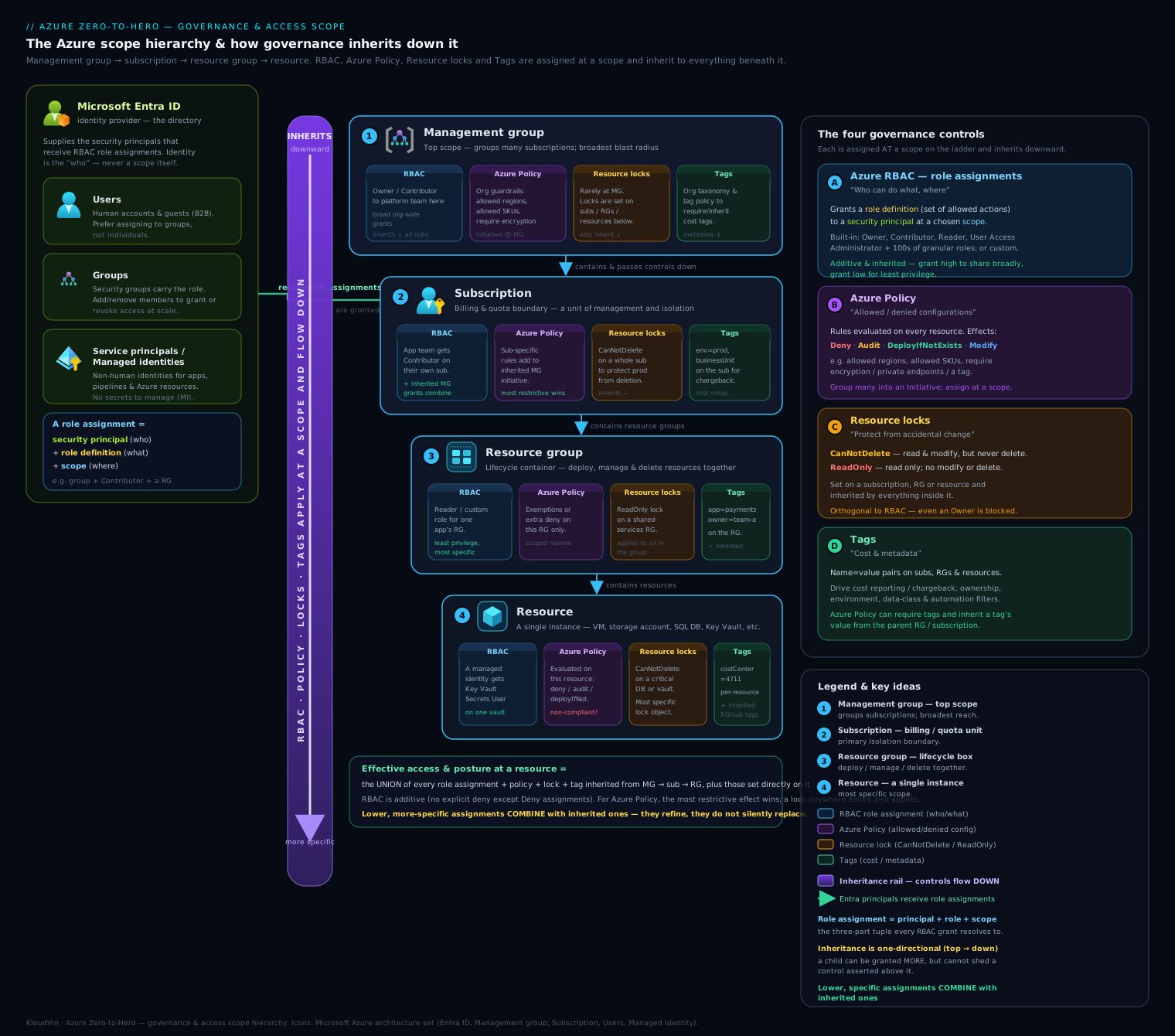
Reading it top to bottom is the mental model for every governance question: decide the right scope, attach the right control there, and let inheritance do the rest.
Hands-on lab: dynamic group, custom RBAC role, policy, lock, and tag
You will build a small governed environment end to end — a dynamic Entra group, a custom RBAC role assigned at resource-group scope, an Azure Policy assignment, a resource lock, and tags — then tear it all down. Run in Azure Cloud Shell or a local shell after az login, with rights to create groups and role assignments (Owner or User Access Administrator on the subscription). Note that dynamic groups require Entra ID P1; if your tenant lacks it, create an assigned group instead (the rest of the lab is unaffected).
Step 1 — Variables and a resource group
SUB=$(az account show --query id -o tsv)
LOC=eastus
RG=rg-governance-lab

az group create --name $RG --location $LOC \
  --tags Environment=Lab CostCenter=CC-0001 Owner=admin \
  --output table
Expected: a table showing rg-governance-lab, provisioningState = Succeeded, and the three tags applied at creation.
Step 2 — Create a dynamic security group
az ad group create \
  --display-name "Lab-Finance-Dynamic" \
  --mail-nickname "lab-finance-dynamic" \
  --group-types "DynamicMembership" \
  --membership-rule "user.department -eq \"Finance\"" \
  --membership-rule-processing-state "On" \
  --output table

GROUP_ID=$(az ad group show --group "Lab-Finance-Dynamic" --query id -o tsv)
echo "Group object id: $GROUP_ID"
Expected: the group is created and GROUP_ID prints a GUID. Any user whose department attribute equals Finance will join automatically within a few minutes. (No P1? Replace --group-types/--membership-rule* flags with a plain az ad group create --display-name ... --mail-nickname ... to make an assigned group.)
Step 3 — Create and assign a custom RBAC role at RG scope
Author the role definition (note AssignableScopes pinned to this resource group):
cat > vm-operator.json <<EOF
{
  "Name": "Lab VM Operator",
  "Description": "Start/restart/deallocate and read VMs. No create or delete.",
  "Actions": [
    "Microsoft.Compute/virtualMachines/start/action",
    "Microsoft.Compute/virtualMachines/restart/action",
    "Microsoft.Compute/virtualMachines/deallocate/action",
    "Microsoft.Compute/virtualMachines/read",
    "Microsoft.Resources/subscriptions/resourceGroups/read"
  ],
  "NotActions": [],
  "AssignableScopes": [
    "/subscriptions/$SUB/resourceGroups/$RG"
  ]
}
EOF

az role definition create --role-definition vm-operator.json --output table
Now assign the custom role to the dynamic group at the resource-group scope:
az role assignment create \
  --assignee-object-id "$GROUP_ID" \
  --assignee-principal-type Group \
  --role "Lab VM Operator" \
  --scope "/subscriptions/$SUB/resourceGroups/$RG" \
  --output table
Expected: the role definition is created (custom role, roleType = CustomRole), and the assignment returns a roleAssignmentId scoped to rg-governance-lab. Anyone in the Finance dynamic group can now operate — but not create or delete — VMs in this RG only.
Step 4 — Assign an Azure Policy (require a tag) at RG scope
# Built-in: "Require a tag on resources" (Deny) — definition id is well-known
az policy assignment create \
  --name "require-costcenter" \
  --display-name "Require CostCenter tag" \
  --policy "871b6d14-10aa-478d-b590-94f262ecfa99" \
  --scope "/subscriptions/$SUB/resourceGroups/$RG" \
  --params '{ "tagName": { "value": "CostCenter" } }' \
  --output table
Expected: an assignment object is returned. From now on, creating a resource in this RG without a CostCenter tag is denied by policy — RBAC permission notwithstanding.
Step 5 — Add a resource lock
az lock create \
  --name "lab-no-delete" \
  --lock-type CanNotDelete \
  --resource-group $RG \
  --notes "Prevent accidental RG deletion during the lab" \
  --output table
Expected: a lock object with level = CanNotDelete. The RG and its contents can now be modified but not deleted — by anyone, Owner included — until the lock is removed.
Step 6 — Validation
# 6a. Confirm the custom role assignment (inherited + group-aware view)
az role assignment list \
  --scope "/subscriptions/$SUB/resourceGroups/$RG" \
  --query "[?roleDefinitionName=='Lab VM Operator'].{principal:principalName, role:roleDefinitionName, scope:scope}" \
  --output table

# 6b. Confirm the policy assignment
az policy assignment list \
  --scope "/subscriptions/$SUB/resourceGroups/$RG" \
  --query "[].{name:name, policy:displayName}" --output table

# 6c. Confirm the lock
az lock list --resource-group $RG --output table

# 6d. Confirm the tags
az group show --name $RG --query tags --output json

# 6e. Prove the lock works (this SHOULD FAIL with a lock error)
az group delete --name $RG --yes --no-wait 2>&1 | head -3 || echo "Blocked by lock — as designed."
Expected: 6a shows the dynamic group holding Lab VM Operator; 6b lists Require CostCenter tag; 6c shows the CanNotDelete lock; 6d prints the three tags; and 6e is rejected with a message about the resource group being locked — confirming the lock overrides even your own delete.
Cleanup
Order matters: remove the lock first, then the policy and role, then the group and RG — a locked RG cannot be deleted.
# 1. Remove the lock (must be first)
az lock delete --name "lab-no-delete" --resource-group $RG

# 2. Remove the policy assignment
az policy assignment delete --name "require-costcenter" \
  --scope "/subscriptions/$SUB/resourceGroups/$RG"

# 3. Remove the role assignment, then the custom role definition
az role assignment delete \
  --assignee-object-id "$GROUP_ID" \
  --role "Lab VM Operator" \
  --scope "/subscriptions/$SUB/resourceGroups/$RG"
az role definition delete --name "Lab VM Operator"

# 4. Delete the dynamic group
az ad group delete --group "Lab-Finance-Dynamic"

# 5. Delete the resource group (now unlocked)
az group delete --name $RG --yes --no-wait

# 6. Tidy the local file
rm -f vm-operator.json
Cost note
This lab is effectively free: Entra groups, RBAC role definitions/assignments, Azure Policy assignments, resource locks, and tags carry no charge. The only thing that could cost money is a resource you place in the group — and we created none. Dynamic groups require an Entra ID P1 licence (free if your trial tenant includes it). Custom-role definitions and policy assignments do not expire, so the cleanup matters for tidiness, not billing.
Common mistakes & troubleshooting
| Symptom | Likely cause | Fix |
|---|---|---|
| “You don’t have permission to assign roles” | You hold Contributor, which cannot grant access. | Need Owner or User Access Administrator at that scope. |
| Global Admin can’t see/manage any subscription’s resources | Entra roles ≠ Azure RBAC; Global Admin grants no resource access by default. | Assign an Azure role (e.g. Owner) at sub scope, or elevate Global Admin to UAA at root to bootstrap. |
| Group-based licence assignment fails for some users | Missing usage location, or not enough licences in the tenant. | Set each user’s usage location; buy more licences; check the group’s licensing error blade. |
| Dynamic group is empty or wrong members | Malformed rule (returns empty silently), async delay, or wrong attribute populated. | Validate the rule, populate the user attribute, wait for evaluation; confirm P1 licensing. |
| A Deny policy didn’t remove existing bad resources | Deny only blocks new create/update; it never deletes. | Use Modify/DeployIfNotExists + a remediation task for existing resources. |
| Can’t delete a resource group even as Owner | A CanNotDelete lock (possibly inherited from a parent scope). | Remove the lock (needs Owner/UAA); check parent scopes for inherited locks. |
| Listing storage keys fails under expected permissions | A ReadOnly lock blocks the key-list POST operation. | Use CanNotDelete instead of ReadOnly, or remove the lock. |
| Tag on a resource group doesn’t appear on its resources | Tags are not inherited by default. | Apply the “Inherit a tag from the resource group” Modify policy + remediate. |
| Budget exceeded but resources kept running | Budgets are alerts, not hard caps. | Wire the budget alert to an action group that runs shutdown/automation. |
| Custom role “cannot be assigned at this scope” | The scope isn’t listed in the role’s AssignableScopes. | Add the scope to AssignableScopes and update the role definition. |
Best practices
- Assign roles to groups, not individuals. Membership becomes the only thing you manage, and access is auditable. Pair with dynamic groups so entitlement follows attributes automatically.
- Least privilege, narrowest scope. Prefer a built-in role that fits; reach for a custom role only to grant less. Assign at the broadest correct scope, never broader.
- Reserve Owner; minimise standing privilege. Use PIM for just-in-time elevation of both Azure and Entra roles; aim for zero standing Owners/Global Admins.
- Govern at management-group scope. Apply baseline Policy, RBAC, and budgets at MG level so new subscriptions inherit guardrails on day one (CAF landing zones).
- Enforce tags with Policy, don’t rely on goodwill —
Require a tag+Inherit a tag— and standardise a tag taxonomy (Environment,CostCenter,Owner,Project). - Lock production with
CanNotDelete(prefer it overReadOnly); treat locks as your real “block even the Owner” control, not deny assignments. - Use guests (B2B) for all external access; run access reviews to recertify them; never mint member accounts for outsiders.
- Roll out SSPR to a pilot group first, require registration, mandate two non-question methods (and remember admins are forced into the strict policy).
Security notes
Identity is the new perimeter, so this domain is your security baseline. Enforce MFA for all users (ideally via Conditional Access / Security Defaults) and phishing-resistant methods for admins. Keep Global Administrators to a tiny break-glass set with strong, monitored credentials, and govern every privileged role through PIM (approval, time-bound activation, justification, alerts). Apply least privilege ruthlessly — the union nature of RBAC means stray broad grants accumulate silently, so audit role assignments regularly with az role assignment list and access reviews. Remember the management-plane vs data-plane split: a Contributor cannot read your data, but the right data role can — assign data roles deliberately and consider ABAC conditions to constrain them. Use resource locks to stop accidental or malicious deletion of crown-jewel resources, and Azure Policy (Deny / DINE) to prevent misconfiguration (public storage, missing encryption, disallowed regions) rather than merely detecting it after the fact. Finally, treat deny assignments (from managed apps/deployment stacks) and locks as belt-and-braces: RBAC says who may act, these say what cannot be undone.
Cost & sizing
The governance objects themselves — users, groups, RBAC roles and assignments, policy definitions/assignments, locks, tags, management groups, budgets — are free. The cost levers in this domain are indirect but real:
- Entra licences (P1/P2) are per-user/month and gate the features you’ll actually want (dynamic groups, Conditional Access, PIM, access reviews, Identity Protection). Right-size who gets P1 vs P2; P2 only where you need PIM/Identity Protection/access reviews.
- Group-based licensing is itself a cost-control tool: attach licences to a dynamic group so de-provisioning (leaving the group) reclaims the licence automatically — no orphaned paid seats.
- Tags → Cost Management is the entire cost-allocation story: without a disciplined tag taxonomy you cannot attribute spend to teams or projects, and showback/chargeback collapses.
- Budgets + alerts + action groups catch overspend early; Advisor recommendations (right-size/shutdown VMs, buy reservations, delete unattached disks/IPs) are the concrete savings actions. Govern the behaviours that create cost — disallow expensive SKUs/regions with Policy — and you control the bill at the source.
Interview & exam questions
1. What is the difference between an Entra (directory) role and an Azure RBAC role? Entra roles manage Entra ID/Microsoft 365 (users, groups, Conditional Access) and are scoped to the tenant; Azure RBAC roles manage Azure resources and are scoped to management group / subscription / resource group / resource. They are separate systems — being Global Admin gives no automatic Azure resource access (only a one-time elevation to UAA at root).
2. A user has Reader at the subscription and Owner on rg-prod. What can they do in rg-dev?
Read only. RBAC is inherited downward and is the union of assignments; the Owner grant is scoped to rg-prod and doesn’t reach rg-dev, so only the subscription-level Reader applies there.
3. Can you create a deny assignment to stop an Owner deleting specific resources?
No — deny assignments are created only by Azure (managed apps / deployment-stack deny settings / former Blueprints). To block deletion (even by an Owner) you use a resource lock (CanNotDelete), which overrides RBAC for everyone.
4. What’s the difference between CanNotDelete and ReadOnly locks, and which would you usually choose?
CanNotDelete allows read + modify but blocks delete; ReadOnly blocks both modify and delete. Prefer CanNotDelete — ReadOnly is risky because some “read” calls are POSTs (e.g. listing storage keys) and get blocked, and it can break legitimate management writes.
5. Does a Deny Azure Policy delete existing non-compliant resources?
No. Deny only blocks new non-compliant create/update operations and marks existing ones non-compliant. To fix what already exists, use Modify or DeployIfNotExists with a remediation task (which needs a managed identity).
6. Contributor vs Owner — what exactly can’t a Contributor do?
A Contributor can create/manage all resource types but cannot grant access to others (no Microsoft.Authorization/*/write) and cannot manage data by that role alone. Owner adds access management. (Reader can only view.)
7. How do you give a team scalable access to many resource groups without per-user clicks? Create a (dynamic) security group, assign the appropriate RBAC role to that group at the right scope (often the subscription or a management group), and manage membership — manually or by attribute rule — instead of individual assignments.
8. What licence is required for dynamic group membership, and what’s the catch with member-vs-rule edits? Entra ID P1+. Once a group is dynamic, membership is exclusively rule-driven — you cannot also add members manually to that group; convert it to assigned if you need manual control.
9. Why might a Contributor on a storage account be unable to read a blob? Because Contributor is a management-plane role and grants no data-plane access. Reading blob contents requires a data role such as Storage Blob Data Reader (optionally narrowed further with an ABAC condition on tags/path).
10. Does exceeding an Azure budget stop your resources? No — budgets are notification/automation triggers, not hard caps. Azure keeps running the resources; to actually stop spend you wire the budget alert to an action group that runs shutdown automation (only special offers like Azure for Students enforce a hard limit).
11. How do you enforce that a tag set on a resource group flows to its resources? Tags are not inherited by default. Apply the “Inherit a tag from the resource group” (Modify) policy and run a remediation task to backfill existing resources; new resources get it inline.
12. What’s the purpose of management groups, and how deep can they nest? They group subscriptions to apply RBAC, Policy, and cost controls that inherit to all child subscriptions — the basis of CAF landing zones. The hierarchy supports up to 6 levels of depth below the (single) Tenant Root Group.
Quick check
- Which built-in role lets someone assign roles but not manage resources?
- True/false: a tag on a resource group is automatically inherited by every resource inside it.
- Which Azure Policy effect can both deploy a missing related resource and remediate existing resources?
- You need to invite an external partner to collaborate without managing their password. What user type and feature do you use?
- A subscription Owner can’t delete a resource group. Name the two things you’d check.
Answers
- User Access Administrator — it grants
Microsoft.Authorization/*(access management) with no resource-management rights. (Owner can also assign roles but additionally manages resources.) - False. Tags are not inherited by default; use the “Inherit a tag from the resource group” Modify policy to propagate them.
- DeployIfNotExists (DINE) — it deploys the missing related resource and supports remediation of existing resources (Modify also remediates but changes properties/tags rather than deploying a related resource).
- A guest user via B2B collaboration (invite external user) — authentication is delegated to their home tenant, so you never manage their credentials.
- (a) A resource lock of type CanNotDelete on the RG or inherited from a parent scope; and (b) whether the principal actually holds Owner/UAA (lock management needs
Microsoft.Authorization/locks/*, which Contributor lacks).
Exercise
In a non-production subscription or trial tenant, design and implement a minimal “Project Cascade” governance baseline:
- Create a dynamic security group
Cascade-Engineerswhose rule selects users wheredepartment = "Engineering"andcountry = "IN"(write the rule yourself). - Author a custom RBAC role “Cascade Reader+Restart” that allows reading all resources and restarting VMs, but nothing else; assign it to
Cascade-Engineersat a resource-group scope. - Assign the
Require a tag on resourcespolicy for tagProjectat that resource group, then prove it by trying to create a resource without the tag (expect denial) and again withProject=Cascade(expect success). - Apply the
Inherit a tag from the resource grouppolicy forProjectand run a remediation task; verify a pre-existing resource picks up the tag. - Put a CanNotDelete lock on the resource group, attempt to delete it (expect failure), then create a monthly budget of ₹1,000 with an 80% forecast alert.
- Use Access control (IAM) → Check access (or
az role assignment list --include-inherited --include-groups) to confirm exactly whatCascade-Engineerscan do — and write one sentence explaining why, referencing inheritance and union. - Tear everything down in the correct order (lock → policy → role assignment → role definition → group → RG).
Success means you can predict each Check access result before you click, and explain every denial in terms of RBAC vs Policy vs lock.
Certification mapping
This lesson covers the bulk of AZ-104 Domain 1 — “Manage Azure identities and governance” (the largest scored domain, ~20–25%):
| AZ-104 skill area | Covered here |
|---|---|
| Manage users and groups (member/guest, bulk, properties; Security/M365; assigned/dynamic; dynamic rules) | Users & Groups sections + dynamic-rule reference + lab Step 2 |
| Manage licences (direct + group-based) | Licences section |
| Manage external (B2B) identities | External / B2B section |
| Configure SSPR | SSPR section |
| Manage Azure RBAC (built-in/custom roles, scope, assignments, interpret effective access, RBAC vs Entra roles) | Azure RBAC in depth (all subsections) + lab Step 3 |
| Manage subscriptions & governance: Azure Policy, resource locks, tags, management groups | Policy, Locks, Tags, Management Groups sections + lab Steps 4–6 |
| Manage cost (Cost Management, budgets, alerts, Advisor) | Cost Management section + Cost & sizing |
For AZ-305 (Designing Infrastructure Solutions), the same building blocks recur at design altitude: designing an identity, governance, and monitoring strategy — management-group hierarchies and landing zones, organisation-wide Policy/initiative baselines, RBAC/PIM models for least privilege, and tag-driven cost governance. Treat this lesson as the operational foundation those design questions assume.
Glossary
- Tenant — a dedicated, isolated instance of Microsoft Entra ID representing one organisation.
- Entra (directory) role — a role granting permission to manage Entra ID/M365; tenant-scoped (e.g. Global Admin).
- Azure RBAC role — a role granting permission over Azure resources; scoped MG→sub→RG→resource (e.g. Contributor).
- Security principal — the who in an assignment: user, group, service principal, or managed identity.
- Role definition — the what: a JSON collection of
Actions/DataActions(minusNotActions/NotDataActions). - Scope — the where an assignment applies and inherits from: management group, subscription, resource group, or resource.
- Member / Guest — a native tenant user vs an invited external (B2B) user (
userTypeMember/Guest). - Assigned / Dynamic group — manual membership vs attribute-rule-computed membership.
- Group-based licensing — assigning licences to a group so members inherit (and lose) them automatically.
- B2B collaboration — inviting external users as guests authenticated by their home tenant.
- SSPR — self-service password reset via registered authentication methods.
- ABAC — attribute-based access control: a condition on a role assignment refining when it applies.
- Deny assignment — an Azure-created block that overrides allows; not user-creatable.
- Azure Policy — rules evaluating resource properties for compliance; effects include Audit/Deny/Modify/DINE.
- Initiative (policy set) — a bundle of policy definitions managed and assigned as one.
- Effect — what a policy does on match (Audit, Deny, Append, Modify, DeployIfNotExists, etc.).
- Remediation task — brings existing resources into compliance for Modify/DINE effects (needs a managed identity).
- Resource lock — CanNotDelete or ReadOnly protection that overrides RBAC for everyone, including Owners.
- Tag — a
name=valuemetadata label on resources/RGs/subscriptions; not inherited by default. - Management group — a container above subscriptions for applying inherited RBAC/Policy/cost controls.
- Budget — a Cost Management spending threshold that triggers alerts/automation (not a hard cap).
Next steps
You now own the identity and governance plane end to end. Continue the Zero-to-Hero journey with the IaaS deepening wave, starting at the compute layer those identities will manage:
- Azure Virtual Machines Deep Dive: Every Creation & Post-Creation Setting — the next lesson; put your RBAC and Policy knowledge to work governing real compute.
- PIM for Azure Resources & Groups: JIT Elevation — eliminate standing Owner/Global Admin with just-in-time, approved, time-bound activation.
- Azure Policy as Code Pipeline — manage definitions and assignments as version-controlled, CI/CD-deployed artefacts at scale.