Every action you take in Azure — clicking a button in the portal, running an az command, an app reading a secret — is answered by two questions before anything happens: who are you? and are you allowed to do this here? The first question is authentication, and it is answered by Microsoft Entra ID (Microsoft’s cloud identity service, formerly called Azure Active Directory). The second is authorization, and it is answered by Azure RBAC (role-based access control).
Get these two right and the rest of Azure becomes safe to explore: you can hand a teammate exactly the access they need and nothing more, and you can let an application authenticate without ever pasting a password into your code. This lesson explains the building blocks in plain terms and then has you grant a real permission with the CLI — and take it back again.
Learning objectives
By the end of this lesson you can:
- Explain what a Microsoft Entra tenant is and how it relates to an Azure subscription.
- Describe users, groups, service principals / app registrations, and managed identities, and say when each is used.
- Read an Azure RBAC assignment as the triple it really is: who + what role + which scope.
- Predict how access inherits down the scope ladder (management group → subscription → resource group → resource).
- Choose between built-in roles (Owner, Contributor, Reader) using least privilege.
- Tell the difference between Entra roles and Azure RBAC roles — the single most common beginner mix-up.
Prerequisites & where this fits
You need an Azure account with access to a subscription, and comfort opening Azure Cloud Shell (the browser-based shell with az pre-installed). If you have not met subscriptions and resource groups yet, read What Is Azure? first, and Working with Azure: Portal, CLI, PowerShell & Cloud Shell to get fluent with the CLI. This is Lesson 3 of the Identity module in the Azure Zero-to-Hero course — the foundation that the landing-zone and security lessons later build on.
Authentication vs authorization: the two doors
Keep these two words straight and everything else falls into place:
- Authentication (Entra ID) — proving who you are. You sign in; Entra checks your credentials (and, ideally, a second factor) and issues a token — a short-lived signed pass that says “this is Priya.”
- Authorization (Azure RBAC) — deciding what you may do. Azure Resource Manager looks at your token, checks your role assignments, and either allows or denies the operation.
A useful mental model: Entra ID is the front desk that checks your ID and prints a visitor badge. RBAC is the set of door locks inside the building that decide which rooms your badge opens. The badge alone gets you in the lobby; it does not unlock anything by itself.
Microsoft Entra ID: the identity directory
A tenant is your organization’s dedicated instance of Entra ID — a private directory of identities. It has a default domain like contoso.onmicrosoft.com and a globally unique Tenant ID (a GUID). Crucially, a tenant is not a subscription:
- A tenant holds identities (the people and apps).
- A subscription holds resources and the bill.
One tenant can trust many subscriptions; every subscription trusts exactly one tenant for sign-in. The directory contains a handful of object types you will use constantly.
Users
A user is a person (or a break-glass admin account). Two flavours matter early on:
- Member users — created in your tenant, e.g.
priya@contoso.com. - Guest users — people from another tenant you invite to collaborate (Entra B2B). Their identity lives elsewhere; you just grant them access to your resources.
Groups
A group is a named bucket of users (and sometimes other groups). You almost never assign access to individuals — you assign it to a group and manage membership. Two types you will meet:
| Group type | Membership | Typical use |
|---|---|---|
| Security group | People or apps | Granting Azure RBAC and app access |
| Microsoft 365 group | People | Shared mailbox, Teams, calendar |
Groups can be assigned (you add members by hand) or dynamic (membership is a rule, e.g. everyone in the Finance department). For RBAC, security groups are the workhorse.
Service principals & app registrations
People are not the only things that sign in — applications do too. The plumbing has two parts:
- An app registration is the definition of an application in your tenant: its name, its sign-in settings, and its Application (client) ID. Think of it as the app’s blueprint.
- A service principal is the local instance of that app in a tenant — the actual identity that gets tokens and gets RBAC role assignments. Think of it as the app’s “user account.”
So when a CI/CD pipeline or a script needs to deploy to Azure, it authenticates as a service principal and is authorized by the roles assigned to that principal. The catch: a classic service principal usually holds a secret or certificate — a credential you must store, rotate, and protect. Which leads to the better option.
Managed identities
A managed identity is a service principal that Azure creates and rotates for you — no secret to store anywhere. You turn it on for an Azure resource (a VM, a Function App, a Container App), grant that identity an RBAC role, and the resource’s code requests tokens from a local endpoint. There is nothing to leak because there is no credential in your config. Two kinds:
- System-assigned — tied 1:1 to a single resource; created and deleted with it.
- User-assigned — a standalone identity you create once and attach to many resources.
Rule of thumb: for anything running inside Azure, prefer a managed identity over an app-registration-plus-secret. Eliminating long-lived secrets is one of the highest-value habits you can build, covered in depth in Eliminating Secrets: Key Vault and Workload Identity Federation.
Azure RBAC: who can do what, where
With identities sorted, RBAC decides what they may do. Every grant of access in Azure is the same three-part sentence:
<security principal> is assigned <role> at <scope>.
That is a role assignment, and the three parts are:
- Security principal — who: a user, a group, a service principal, or a managed identity.
- Role definition — what: a named collection of permitted operations (
Actions/DataActionsit allows,NotActionsit excludes). “Reader” is a role definition. - Scope — where: the slice of Azure it applies to.
Read every assignment back as that sentence and RBAC stops being mysterious.
Scope and inheritance: the ladder
Azure resources live in a four-level hierarchy, and a role assigned at any level flows down to everything beneath it. Inheritance is the whole trick:
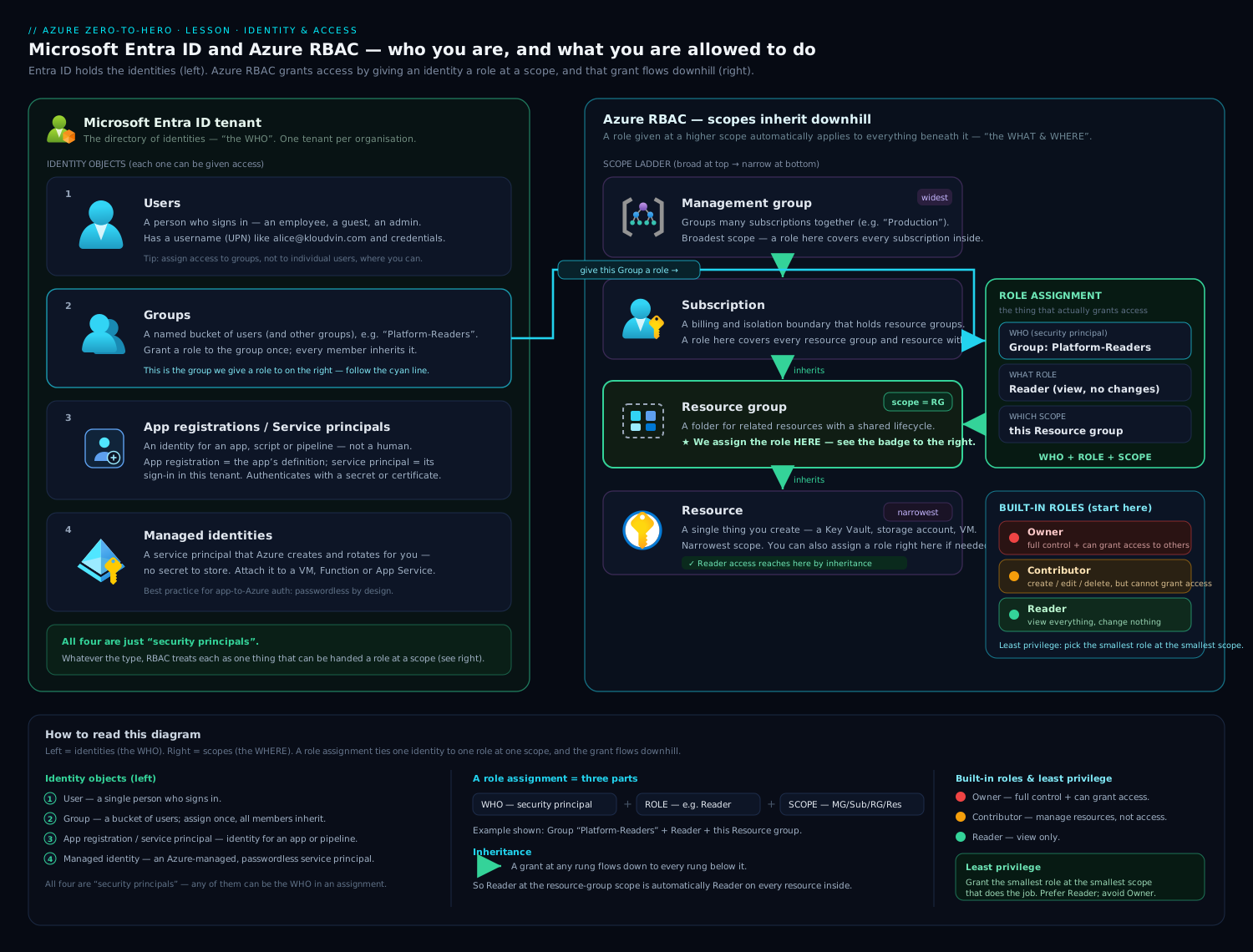
The diagram shows the Entra tenant objects (users, groups, service principals, managed identities) on one side and the RBAC scope ladder on the other. Reading the ladder top to bottom:
- Management group — a container for many subscriptions. Assign Reader here and a person can read every subscription, resource group, and resource underneath.
- Subscription — assign Contributor here and they can manage everything in that subscription.
- Resource group — the sweet spot for most grants: access to one project’s resources only.
- Resource — the narrowest scope, e.g. a single storage account.
Inheritance is additive and you cannot subtract with a deny by default — a role at a higher scope is added to whatever is granted lower down. Grant broadly and you have over-shared; grant at the lowest scope that does the job and you are practising least privilege. (Azure does support explicit deny assignments, but those are created by Azure-managed features like Blueprints/Managed Apps, not hand-authored in day-to-day work.)
The three built-in roles you must know
Azure ships dozens of built-in roles (and you can author custom ones), but three cover most situations:
| Role | Can it manage resources? | Can it grant access to others? | Use it for |
|---|---|---|---|
| Owner | Yes — full control | Yes | A small number of administrators |
| Contributor | Yes — create/change/delete | No | Engineers who build things |
| Reader | No — view only | No | Auditors, dashboards, on-call read access |
The decisive difference is the right to manage access (the Microsoft.Authorization/roleAssignments/write permission). Owner has it; Contributor does not. That single line is why you hand out Contributor, not Owner, by default — a Contributor can build your whole stack but cannot quietly grant themselves or others more power.
Least privilege in one sentence
Give each identity the least role at the smallest scope that still lets it do its job — and nothing more. A reporting dashboard gets Reader on one resource group, not Contributor on the subscription. When access needs are temporary or high-risk, don’t make a permanent assignment at all — elevate just in time, which is exactly what Just-in-Time Access: PIM for Azure Roles & Groups covers.
Entra roles vs Azure RBAC roles: the big mix-up
This trips up nearly everyone, so make it stick. They are two separate permission systems that govern two different things.
| Entra roles (directory roles) | Azure RBAC roles (resource roles) | |
|---|---|---|
| Control | The Entra directory — identities themselves | Azure resources — VMs, storage, networks |
| Examples | Global Administrator, User Administrator, Application Administrator | Owner, Contributor, Reader, Storage Blob Data Reader |
| Scope model | The tenant (with administrative units for narrower scope) | Management group → subscription → RG → resource |
| “Who can…” | …create users, reset passwords, register apps | …start a VM, read a blob, deploy a network |
| Managed in | Entra ID admin center | Each resource’s Access control (IAM) blade |
The classic gotcha: a Global Administrator (the most powerful Entra role) does not automatically have access to Azure resources. By default a Global Admin cannot even see your subscriptions. (There is one deliberate escape hatch — a Global Admin can toggle “access management for Azure resources” to grant themselves User Access Administrator at the root and bootstrap RBAC — but it is an explicit, audited action, not the default.) Likewise, Owner on a subscription lets you manage every resource but does not let you create users or reset passwords in the directory.
Hold the two apart: Entra roles manage identities and the directory; Azure RBAC roles manage resources.
MFA and Conditional Access (the next layer)
Issuing a token only after a correct password is no longer enough — passwords get phished and reused. Multi-factor authentication (MFA) requires a second proof of identity (an authenticator-app approval, a passkey, a hardware key) so a stolen password alone is useless. Conditional Access is the policy engine that decides when to demand that second factor and under what conditions to allow a sign-in at all — for example, “require MFA for admins,” “block sign-ins from outside our countries,” or “require a compliant device for the finance app.” Together they harden the authentication door before RBAC’s authorization locks ever come into play. We only name them here; they are explored in depth in Stopping Token Theft: Conditional Access Token Protection and across the security module.
Hands-on lab
You will create a security group, grant it the Reader role at a resource-group scope, verify the assignment, then remove everything. Everything here uses the az CLI in Azure Cloud Shell — no install required. Entra objects and role assignments are free; the empty resource group costs nothing.
Step 1 — Open Cloud Shell and confirm your context
In the Azure portal, click the Cloud Shell icon (>_) in the top bar and choose Bash. Confirm which subscription you are in:
az account show --output table
Expected output (your values will differ):
Name              CloudName    SubscriptionId                        State    IsDefault
----------------  -----------  ------------------------------------  -------  ---------
Visual Studio...  AzureCloud   00000000-0000-0000-0000-000000000000  Enabled  True
Capture your subscription ID into a variable — we will build scopes from it:
SUB_ID=$(az account show --query id --output tsv)
echo "$SUB_ID"
Step 2 — Create a resource group to scope the grant
az group create \
  --name rg-rbac-lab \
  --location eastus \
  --output table
Expected:
Location    Name
----------  -----------
eastus      rg-rbac-lab
Step 3 — Create a security group in Entra ID
az ad group create \
  --display-name "rbac-lab-readers" \
  --mail-nickname "rbac-lab-readers" \
  --output table
Grab the group’s object ID — this is the security principal we will assign the role to:
GROUP_ID=$(az ad group show --group "rbac-lab-readers" --query id --output tsv)
echo "$GROUP_ID"
If
az ad group createreturns Insufficient privileges or Authorization_RequestDenied, your tenant restricts who can create groups. See troubleshooting below — you can still do the role-assignment steps against your own user instead.
Step 4 — Assign Reader at the resource-group scope
This is the core command. Notice the three parts of the sentence — --assignee (who), --role (what), --scope (where):
az role assignment create \
  --assignee "$GROUP_ID" \
  --role "Reader" \
  --scope "/subscriptions/$SUB_ID/resourceGroups/rg-rbac-lab" \
  --output table
Expected (abridged):
Principal                             Role    Scope
------------------------------------  ------  ------------------------------------------------
xxxxxxxx-xxxx-xxxx-xxxx-xxxxxxxxxxxx  Reader  /subscriptions/.../resourceGroups/rg-rbac-lab
The group — and therefore every member you ever add to it — can now read everything in rg-rbac-lab, and nothing outside it. That is least privilege in action.
Step 5 — Verify the assignment
List role assignments scoped to the resource group and confirm Reader is there:
az role assignment list \
  --scope "/subscriptions/$SUB_ID/resourceGroups/rg-rbac-lab" \
  --query "[].{principal:principalName, role:roleDefinitionName, scope:scope}" \
  --output table
You should see a row with Reader for your group. The --query flag is JMESPath, trimming the verbose JSON to just the fields that matter.
Step 6 — Remove the role assignment
Take the permission back — same three coordinates, delete instead of create:
az role assignment delete \
  --assignee "$GROUP_ID" \
  --role "Reader" \
  --scope "/subscriptions/$SUB_ID/resourceGroups/rg-rbac-lab"
Re-run the Step 5 list command; the Reader row is gone. Removing an assignment does not delete the role definition (Reader still exists for everyone) or the group — it only severs the who-what-where link.
Cleanup
Delete the group and the resource group so nothing lingers:
az ad group delete --group "rbac-lab-readers"

az group delete --name rg-rbac-lab --yes --no-wait
--no-wait returns immediately; deletion finishes in the background.
Cost note: free. Entra groups and RBAC assignments carry no charge, and the resource group held no billable resources.
Common mistakes & troubleshooting
| Symptom | Likely cause | Fix |
|---|---|---|
az ad group create → Authorization_RequestDenied |
Your tenant blocks non-admins from creating groups, or your user lacks the Entra role | Ask an admin, or skip the group and assign the role to your own user: --assignee $(az ad signed-in-user show --query id -o tsv) |
az role assignment create → AuthorizationFailed |
You lack Owner / User Access Administrator at that scope (Contributor cannot grant access) | Have an Owner run it, or get User Access Administrator on the RG |
| Assignment “succeeds” but the user still cannot act | Token issued before the assignment; RBAC changes can take a few minutes to propagate | Sign out/in to refresh the token, or wait a few minutes |
--assignee errors with “directory object not found” |
You passed a display name where an object ID is expected, or hit replication lag | Use the object ID (GUID); for a fresh principal add --assignee-object-id with --assignee-principal-type |
| Granted Reader but the user can still change things | They also inherit Contributor/Owner from a higher scope (subscription or MG) | List assignments and check all inherited scopes — inheritance is additive |
| Global Admin cannot see any subscriptions | Entra roles ≠ Azure RBAC; directory power is not resource power | Grant an Azure RBAC role at the needed scope |
Best practices
- Assign roles to groups, not people. Manage access by changing membership, not by editing dozens of individual assignments.
- Grant at the lowest scope that works. Resource group beats subscription; subscription beats management group. Reserve broad scopes for genuinely broad needs.
- Default to Contributor, ration Owner. Keep the set of people who can grant access tiny and auditable.
- Prefer managed identities for workloads. No secret to store means no secret to leak.
- Name things predictably. A group called
rg-payments-prod-contributorsdocuments its own purpose;group1documents nothing. - Review access on a schedule. Use Entra access reviews so stale grants get removed, not just accumulated.
Security notes
Identity is the real perimeter of a cloud estate, so treat these as non-negotiable. Protect every privileged account with phishing-resistant MFA, and gate admin sign-ins with Conditional Access. Keep Owner and Global Administrator counts minimal, and maintain two break-glass (emergency access) accounts that are excluded from Conditional Access but heavily monitored. For sensitive roles, use just-in-time elevation (PIM) instead of standing access, so privilege is granted for a window and logged. Finally, eliminate long-lived secrets wherever you can — managed identities and federated credentials remove the credential that attackers most want to steal.
Quick check
- What is the difference between a tenant and a subscription?
- State the three parts of every Azure RBAC role assignment.
- A user has Contributor at the subscription scope and Reader at a resource group inside it. What can they do in that resource group?
- Which built-in role can manage resources but cannot grant access to others?
- Does a Global Administrator automatically have access to Azure resources? Why or why not?
Answers
- A tenant is your Entra ID directory of identities (users, groups, apps); a subscription is a container for resources and the billing boundary. One tenant can be trusted by many subscriptions.
- Security principal (who) + role definition (what) + scope (where).
- They can manage (create/change/delete) resources there — the subscription-level Contributor inherits down and is additive, so it outranks the narrower Reader.
- Contributor — it has full management rights but lacks the permission to write role assignments.
- No. Global Administrator is an Entra (directory) role; access to Azure resources requires an Azure RBAC role at the relevant scope. The two systems are separate.
Exercise
Imagine a small team: a data analyst who needs to read one project’s resources, and a developer who builds the same project. Create a resource group rg-team-lab, plus two security groups (team-readers, team-builders). Assign Reader to team-readers and Contributor to team-builders, both scoped to rg-team-lab. Verify with az role assignment list, then write one sentence explaining why neither group should be scoped at the subscription level. Tear it all down with the cleanup commands when done.
Interview questions
-
What is the difference between authentication and authorization in Azure, and which service handles each? Authentication proves who you are and is handled by Microsoft Entra ID, which issues a token. Authorization decides what you may do and is handled by Azure RBAC, which Azure Resource Manager evaluates against your role assignments.
-
Explain RBAC scope inheritance. Roles are assigned at management group, subscription, resource group, or resource scope, and a role assigned at a higher level flows down to everything beneath it. Inheritance is additive, so effective access is the sum of all assignments at and above a given scope.
-
Owner vs Contributor — what is the practical difference? Both can fully manage resources, but only Owner can manage access (write role assignments). You default to Contributor so engineers can build without being able to escalate privileges for themselves or others.
-
Entra roles vs Azure RBAC roles? Entra roles (e.g. Global Administrator) govern the directory — users, groups, app registrations. Azure RBAC roles (e.g. Owner, Reader) govern Azure resources. They are independent: directory power is not resource power.
-
Service principal vs managed identity — when would you use each? A service principal is an app’s identity that typically carries a secret/certificate you must manage. A managed identity is a service principal that Azure creates and rotates for you with no stored secret. For workloads running in Azure, prefer a managed identity; use an app registration with federated credentials for external systems like GitHub Actions.
-
How do you apply least privilege with RBAC? Assign the lowest-privilege role at the smallest scope that still gets the job done — for example Reader on one resource group instead of Contributor on the subscription — assign to groups for manageability, and use just-in-time (PIM) elevation for high-risk, occasional access.
Certification mapping
| Exam | Objective area this supports |
|---|---|
| AZ-900 (Azure Fundamentals) | Describe Azure identity, access, and security — Entra ID, MFA/Conditional Access concepts, and Azure RBAC. |
| AZ-104 (Azure Administrator) | Manage identities and governance — manage Entra users and groups, and manage access to Azure resources via built-in roles and role assignments at the correct scope. |
Glossary
- Microsoft Entra ID — Microsoft’s cloud identity service (formerly Azure Active Directory) that authenticates users and apps.
- Tenant — a single organization’s dedicated Entra ID directory instance, identified by a Tenant ID.
- User / Group — an identity for a person; a named bucket of identities used to grant access collectively.
- Service principal — an application’s identity in a tenant that can hold credentials and receive RBAC roles.
- App registration — the definition (blueprint) of an application in Entra ID, with its client ID and sign-in config.
- Managed identity — a service principal that Azure creates and rotates automatically, with no stored secret.
- Azure RBAC — role-based access control: authorization for Azure resources via role assignments.
- Role assignment — the binding of a security principal to a role at a scope.
- Scope — the level (management group, subscription, resource group, or resource) at which a role applies.
- Least privilege — granting the minimum role at the smallest scope needed for a task.
Next steps
Continue the Identity module with Identity & Access Management for an Azure Landing Zone — how these primitives become an enterprise identity baseline. Then go deeper with:
- Just-in-Time Access: PIM for Azure Roles & Groups — replace standing privilege with time-bound elevation.
- Stopping Token Theft: Conditional Access Token Protection — harden the authentication door.
- Eliminating Secrets: Key Vault and Workload Identity Federation — remove long-lived credentials from your estate.