If you have never touched a cloud platform before, Azure can feel like an ocean of unfamiliar words — tenant, subscription, resource group, region, ARM. This lesson is the map. By the end you will understand what “the cloud” and Azure actually are, how Azure organises everything you create, where your resources physically live, who is responsible for what, and how the bill is calculated.
This is the first lesson in the Azure Zero-to-Hero course, so we assume zero prior cloud experience and define every term the first time it appears — but we go deeper than a typical intro: you will also run real commands in your browser and create (then delete) your first piece of Azure infrastructure. Everything here maps directly to the AZ-900: Azure Fundamentals certification.
Learning objectives
By the end of this lesson you can:
- Explain in plain English what cloud computing is, and tell the difference between IaaS, PaaS, and SaaS.
- Describe Azure’s organisational hierarchy: Microsoft Entra tenant → management groups → subscriptions → resource groups → resources — and say what each layer is for.
- Choose a region sensibly and explain how region pairs and availability zones protect your workloads.
- Explain what the Azure Resource Manager (ARM) control plane does every time you deploy something.
- Read an Azure bill at a high level and state who is responsible for what under the shared responsibility model.
- Create, list, and delete a resource group from Azure Cloud Shell using the
azCLI.
Prerequisites & where this fits
You need only basic IT literacy — you know what a file, a network, and a terminal are. No prior cloud experience is required. For the hands-on lab you need a free Azure account (the free tier or trial credit is more than enough; the lab itself costs nothing). This lesson is Lesson 1 of Module 1 — Foundations in the Azure Zero-to-Hero course. It builds the vocabulary and mental model that every later lesson assumes, so it is worth getting comfortable here before moving on.
What is “the cloud”, and what is Azure?
“The cloud” is a marketing word for a simple idea: instead of buying, racking, and maintaining your own computers, you rent computing on demand from a provider who runs enormous data centres for you. You ask for a server, a database, or storage; it appears in minutes over the internet; you pay only while you use it; and you give it back when you are done. No purchase orders, no waiting weeks for hardware, no replacing failed disks at 3 a.m.
Microsoft Azure is one of the three big public-cloud providers (alongside Amazon Web Services and Google Cloud): a global collection of data centres plus a catalogue of services — virtual machines, databases, storage, networking, AI, and hundreds more — that you provision and control through a web portal, a command line, or code.
The classic way to describe how much of the stack the provider manages for you is the three service models — how much of the meal you cook yourself versus how much the restaurant handles:
| Model | You manage | Provider manages | Everyday example |
|---|---|---|---|
| IaaS (Infrastructure as a Service) | OS, runtime, your app, your data | Physical servers, storage, networking, virtualisation | Azure Virtual Machines |
| PaaS (Platform as a Service) | Just your app and data | Everything below: OS, patching, scaling, runtime | Azure App Service, Azure SQL Database |
| SaaS (Software as a Service) | Only your configuration and data | The entire application | Microsoft 365, Outlook.com |
The trade-off is control vs. effort: IaaS gives you the most of both, SaaS the least, and most real systems mix all three. A useful instinct to build early: prefer the highest-level (most managed) option that still meets your requirements, because every layer you hand to Microsoft is a layer you no longer have to patch, scale, or page someone about.
How Azure organises everything: the hierarchy
The single most important mental model in this lesson is how Azure structures what you create. Everything you ever build sits inside a clean, nested hierarchy. From the top down:
- Microsoft Entra tenant — your organisation’s identity boundary. Microsoft Entra ID (formerly Azure Active Directory, or “Azure AD”) is Azure’s identity service: the directory of users, groups, and apps that can sign in. A tenant is one dedicated instance of that directory — effectively “your company’s account” in Azure. It is the trust anchor for everything below it, and one tenant can contain many subscriptions.
- Management groups — optional containers for organising subscriptions. If you have several (common in larger organisations), you arrange them in a tree of management groups so you can apply governance — policies (rules) and RBAC (access permissions) — to many subscriptions at once. Anything set on a management group is inherited beneath it. Small projects often skip this layer.
- Subscription — the billing boundary and the primary scope of management. A subscription holds resources, accumulates their costs into one invoice, and enforces quotas (limits, e.g. how many VMs you may create). It is also a natural isolation boundary: many teams give each environment — production, development, test — its own subscription so billing, access, and quotas are cleanly separated. Every resource lives in exactly one subscription.
- Resource group — a logical folder for resources that share a lifecycle. You typically put everything for one application or environment into a single group — web app, database, storage — so you can deploy, manage, secure, and delete them as a unit. A resource group lives in exactly one subscription, every resource belongs to exactly one resource group, and resources can talk to each other across groups.
- Resource — the actual thing you use: a virtual machine, storage account, database, or virtual network. Each has a type (e.g.
Microsoft.Storage/storageAccounts) provided by a resource provider (e.g.Microsoft.Storage).
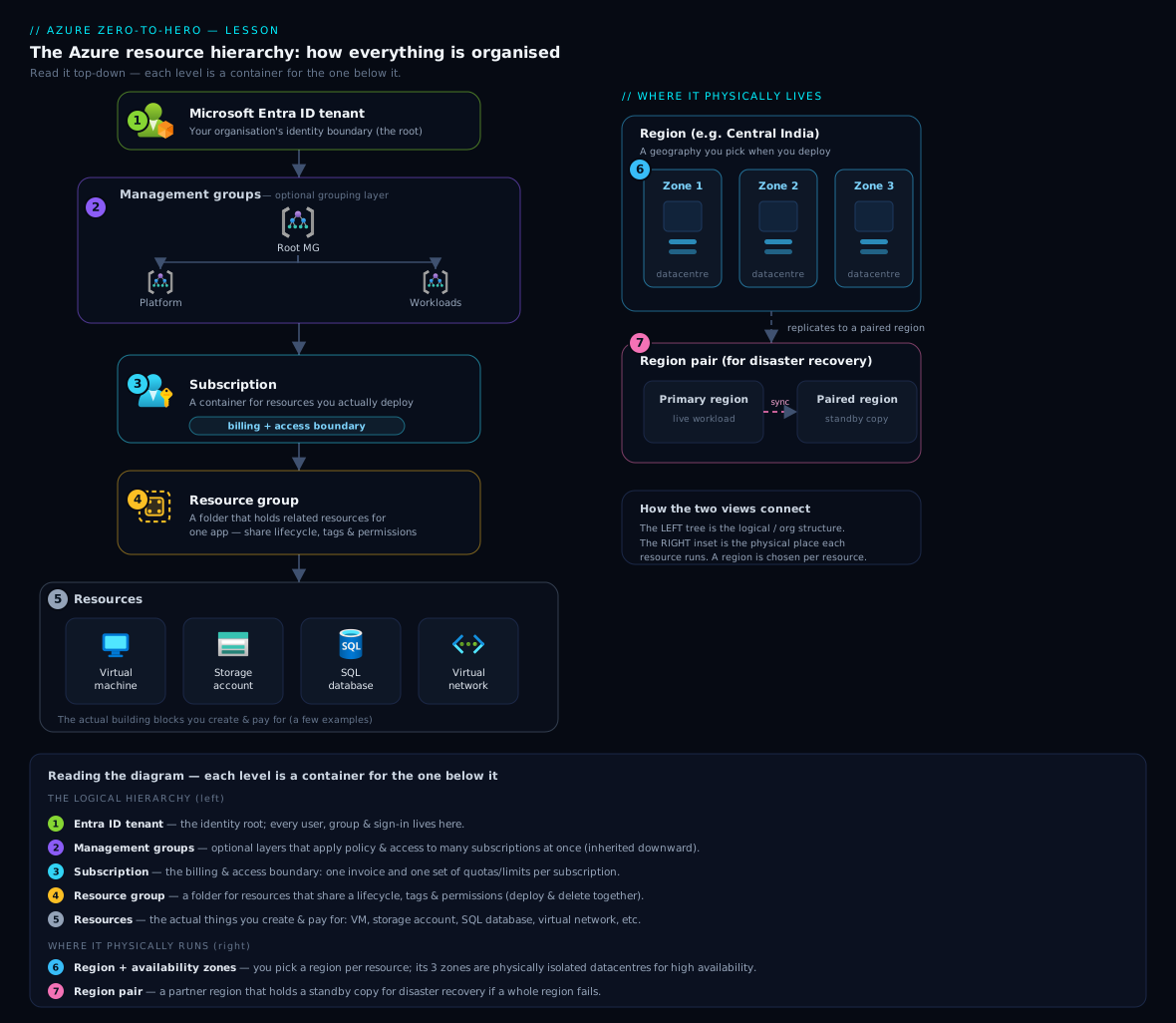
The diagram above shows the full ladder — tenant at the top, fanning down through management groups and subscriptions to resource groups and individual resources — and, on the right, how those resources are then placed into a region made up of multiple availability zones (covered next). Read it top-to-bottom for governance and billing and left-to-right for physical placement; almost everything in Azure is some combination of those two axes.
One nuance beginners often miss: a resource group is a management and lifecycle boundary, not a security or network boundary. Sharing a resource group does not let two resources reach each other on the network, and separate groups do not isolate them. Network reachability is controlled by virtual networks and firewalls, and access by RBAC — both later lessons.
Where your resources live: regions, region pairs, and availability zones
When you create a resource, you choose a region — a geographic location where Azure has data centres, such as Central India, West Europe, or East US. Region choice matters for three reasons: latency (pick a region close to your users), data residency (some data must legally stay within a country or area), and cost and availability (prices and the exact set of available services vary slightly by region).
Within most regions, Azure offers availability zones (AZs): physically separate locations inside the same region, each with independent power, cooling, and networking, connected by a fast low-latency link. Spreading a workload across Zone 1, Zone 2, and Zone 3 means that if one zone has an outage — a power failure or flood in one building — your application keeps running in the others. This is the standard way to achieve high availability within a region.
Azure also groups most regions into region pairs — two regions in the same geography (for example Central India paired with South India) used for disaster recovery. Some services replicate data to the paired region, and Microsoft rolls planned platform updates out to one region of a pair at a time to reduce risk. The pairing gives you a far-away copy to fail over to if an entire region is lost.
A quick way to remember the difference:
| Concept | Protects against | Distance | Typical use |
|---|---|---|---|
| Availability zone | One data centre / building failing | Same region, kilometres apart | High availability |
| Region pair | An entire region failing | Hundreds of kilometres | Disaster recovery |
For your very first resources none of this costs extra to understand, but it shapes every serious design: zones for staying up, pairs for surviving a regional disaster.
The control plane: Azure Resource Manager (ARM)
Here is something that confuses many newcomers. When you click “Create” in the portal, run an az command, or apply infrastructure-as-code, all of those paths talk to the same service underneath: Azure Resource Manager (ARM). ARM is Azure’s control plane — the single front door for creating, reading, updating, and deleting resources.
Every request becomes a call to the ARM REST API. ARM then:
- Authenticates you (via your Entra identity) and authorises the action (checks your RBAC permissions at the relevant scope).
- Validates the request and enforces any Azure Policy rules (governance guardrails, e.g. “only these regions are allowed”).
- Routes the work to the correct resource provider (the back-end that knows how to build a storage account, a VM, and so on).
- Records everything in the Activity Log for auditing.
Two consequences matter from day one. First, because portal, CLI, PowerShell, and code all funnel through ARM, they are interchangeable — create something in the portal, then manage it from the CLI without issue. Second, with templates ARM is declarative and idempotent: you describe the desired end state, ARM converges to it, and re-running the same deployment is safe. That is the foundation of infrastructure as code, which the course returns to later.
It is also worth distinguishing the control plane (managing a resource — create/delete the database, via ARM) from the data plane (using it — run a query against the database, handled by the service directly). RBAC governs the control plane; the resource’s own authentication often governs the data plane.
How billing works
Azure billing follows the rented-computing idea: you mostly pay consumption-based (pay-as-you-go) prices — per second, per hour, per gigabyte stored, per million requests, or per transaction, depending on the service. There is no upfront hardware cost; you pay for what you use and stop paying when you delete the resource.
The hierarchy maps neatly onto billing:
- A subscription accumulates charges into an invoice. Costs roll up resource → resource group → subscription, so resource groups conveniently answer “how much does this application cost?”
- Tags (key–value labels on resources, e.g.
costCenter=marketingorenv=prod) let you slice costs by team, project, or environment in Microsoft Cost Management, Azure’s built-in cost-analysis and budgeting tool. - Budgets and cost alerts email you when spending crosses a threshold — set one early so a forgotten resource never surprises you.
- Beyond pay-as-you-go, Reservations and Savings Plans (commit to one or three years of usage for a big discount) and the Azure Hybrid Benefit (reuse existing Windows/SQL licences) lower cost further. Those are optimisation topics for later; the key beginner habit is simpler: anything you create costs money until you delete it — which is exactly why every lab in this course ends with a cleanup step.
The shared responsibility model
Moving to the cloud does not make security entirely Microsoft’s problem. Responsibility is shared, and the split depends on the service model:
- Microsoft is always responsible for the physical security of data centres, the host infrastructure, and the network backbone.
- You are always responsible for your data, your identities and access (who can sign in and what they can do), and how you configure what you deploy.
- The middle layers — operating system, patching, network controls, application code — shift between you and Microsoft depending on whether you chose IaaS, PaaS, or SaaS.
| Responsibility | IaaS (e.g. VM) | PaaS (e.g. App Service) | SaaS (e.g. M365) |
|---|---|---|---|
| Data classification & accountability | You | You | You |
| Identity & access management | You | You | You (shared) |
| Application code | You | You | Microsoft |
| Operating system & patching | You | Microsoft | Microsoft |
| Network controls | Shared | Shared | Microsoft |
| Physical hosts, network, data centre | Microsoft | Microsoft | Microsoft |
The single biggest takeaway for beginners: identity and data are always yours to protect. The most common cloud incidents are not Microsoft’s data centre failing — they are a weak password, an over-permissive role, or a storage account accidentally left open to the internet. Those live squarely on your side of the line, which is why identity (Lesson 3) gets such heavy treatment in this course.
Hands-on lab
You will open Azure Cloud Shell — a full command-line environment that runs in your browser, pre-authenticated, with the az CLI already installed (nothing to install locally) — and create, inspect, and delete your first resource group. A resource group is the safest possible “hello world”: it is free, and deleting it cleanly removes everything inside it.
Prerequisite: a free Azure account. If you do not have one, go to https://azure.microsoft.com/free and sign up (you need a Microsoft account and a card for identity verification — the free tier and trial credit mean this lab costs nothing), then sign in at https://portal.azure.com.
Step 1 — Open Cloud Shell
In the portal, click the Cloud Shell icon (>_) in the top toolbar, or browse to https://shell.azure.com. When prompted, choose Bash. The first time, Azure offers to create a small storage account to persist your shell files — accept the default (a few pennies a month) or pick the ephemeral option for none. You will land at a prompt already signed in as you.
Step 2 — Confirm your context
Check which subscription you are working in. Everything you create lands here and is billed here.
az account show --output table
Expected output (your values will differ):
Name                  CloudName    SubscriptionId                        State    IsDefault
--------------------  -----------  ------------------------------------  -------  ----------
Azure subscription 1  AzureCloud   00000000-0000-0000-0000-000000000000  Enabled  True
If you have more than one subscription, list them and select the right one before continuing:
az account list --output table
az account set --subscription "<your-subscription-name-or-id>"
Step 3 — Pick a region (optional but instructive)
List the regions available to you and note one close to you (for example centralindia or westeurope):
az account list-locations --query "[].name" --output tsv | sort
Step 4 — Create a resource group
Create a resource group named rg-kloudvin-lab in your chosen region. This is the same operation the portal performs when you click Create a resource group — both go through ARM.
az group create --name rg-kloudvin-lab --location centralindia
Expected output (trimmed JSON):
{
  "id": "/subscriptions/00000000-0000-0000-0000-000000000000/resourceGroups/rg-kloudvin-lab",
  "location": "centralindia",
  "name": "rg-kloudvin-lab",
  "properties": {
    "provisioningState": "Succeeded"
  }
}
The id is the resource group’s resource ID — notice it literally encodes the hierarchy: subscriptions/<id>/resourceGroups/<name>. Every resource in Azure has an ID in this shape. "provisioningState": "Succeeded" confirms ARM completed the request.
Step 5 — Validate
Confirm the resource group exists and inspect it:
az group list --output table
az group show --name rg-kloudvin-lab --output table
You should see rg-kloudvin-lab with Location centralindia and ProvisioningState Succeeded. That is your validation: the resource group is real, in the region you chose, in your subscription. (It is empty — a resource group can exist with nothing inside it, which is perfectly normal.)
Step 6 — Cleanup
Always clean up. Deleting the resource group deletes everything inside it in one action — the core reason resource groups are so useful.
az group delete --name rg-kloudvin-lab --yes --no-wait
--yes skips the confirmation prompt; --no-wait returns immediately while Azure deletes in the background. Verify it is gone (it will briefly show Deleting, then disappear):
az group list --output table
Cost note: An empty resource group is free — you are charged for resources, not for the folder that holds them. This entire lab costs nothing beyond, at most, a few pennies for the optional Cloud Shell storage account (which you can also delete from the portal afterwards if you used it).
Common mistakes & troubleshooting
| Symptom | Likely cause | Fix |
|---|---|---|
az: command not found on your own laptop |
Azure CLI isn’t installed locally | Use Cloud Shell (it’s pre-installed), or install the CLI from Microsoft’s docs. This lab assumes Cloud Shell. |
| Resources/charges appear in the “wrong place” | A different subscription is set as default | Run az account show; switch with az account set --subscription "<name>" before creating anything. |
(LocationNotAvailableForResourceGroup) / region rejected |
The region name is wrong or not enabled for you | Use exact names from az account list-locations --query "[].name" -o tsv (e.g. centralindia, not Central India). |
(AuthorizationFailed) when creating the group |
Your identity lacks rights at that scope | You need at least Contributor on the subscription/resource group. Ask whoever owns the subscription, or use your own free account. |
(QuotaExceeded) later when creating resources |
The subscription’s quota/limit is reached | Delete unused resources or request a quota increase in the portal. (Empty resource groups don’t hit quotas.) |
| You deleted the resource group but a resource still seems to linger | --no-wait returns before deletion finishes |
Wait a minute and re-run az group list; deletion of contents can take time. |
Best practices
- Use resource groups per application and environment. Group resources that share a lifecycle (e.g.
rg-shop-prod,rg-shop-dev) so you can deploy and delete them as a unit and read per-app cost easily. - Adopt a naming convention from day one. A predictable scheme like
rg-<workload>-<env>-<region>makes resources self-documenting and scriptable. Inconsistent names are painful to fix later. - Tag everything. At minimum tag
owner,env, andcostCenter. Tags are how you make sense of the bill and find who owns a resource months later. - Choose regions deliberately for latency, data residency, and availability-zone support — not just “whatever was default”.
- Set a budget and a cost alert early in Cost Management so a forgotten resource can never quietly run up a bill.
- Always include a cleanup path for anything experimental — ideally one resource group you can delete in a single command, exactly as in this lab.
Security notes
- Identity is the perimeter. Your Microsoft Entra sign-ins and the RBAC roles you grant are your most important controls. Enable multi-factor authentication (MFA) on your account before anything else.
- Apply least privilege. Grant the narrowest role at the narrowest scope that gets the job done (a resource group, not the whole subscription). We cover roles in depth in Lesson 3.
- Treat the subscription as a blast-radius boundary. Separating production into its own subscription limits the damage a mistake or compromise can do.
- Remember the shared responsibility line. Misconfiguration — an open storage account, an over-broad role — is the most common cause of cloud incidents, and it sits on your side. Configure deliberately.
- Never put secrets in scripts or tags. Tags and command history are not secret stores; use Azure Key Vault for credentials (a later topic).
Quick check
- Put these in order from broadest to narrowest, and say what each is for: resource group, resource, subscription, management group, Entra tenant.
- What is the difference between an availability zone and a region pair, and which protects against which kind of failure?
- When you run
az group create, what service actually receives and processes that request, and what does it do before the resource group is created? - Under the shared responsibility model, name two things that are always your responsibility regardless of the service model.
- True or false: deleting a resource group also deletes the resources inside it. Why does this matter for cost?
Answers
- Entra tenant (your identity/organisation boundary — who can sign in) → management group (groups subscriptions to apply governance at scale) → subscription (billing boundary, quotas, primary management scope) → resource group (lifecycle folder for related resources) → resource (the actual VM, database, etc.).
- An availability zone is a physically separate location within one region; spreading across zones protects against a single data-centre/building failure (high availability). A region pair is two regions in the same geography; it protects against an entire region failing (disaster recovery).
- Azure Resource Manager (ARM), the control plane. It authenticates you, checks your RBAC authorisation at that scope, validates the request and applies any Azure Policy, then routes it to the correct resource provider and logs it in the Activity Log.
- Any two of: your data, your identities and access, and your configuration of what you deploy. (Application code is also yours in IaaS/PaaS.)
- True. It matters because resources cost money for as long as they exist, so deleting the resource group is the cleanest way to stop all charges for an experiment in one step.
Exercise
In Cloud Shell, create a resource group named rg-kloudvin-exercise in a region different from the one you used in the lab. Then:
- Attach two tags to it at creation time using
--tags, for example--tags env=learning owner=<your-name>. - Run
az group show --name rg-kloudvin-exercise --output jsonand find your tags in the output. - Run
az group list --query "[?tags.env=='learning'].name" --output tsvand confirm your group is returned — this is a first taste of filtering Azure output with JMESPath queries (covered fully in Lesson 2). - Delete the resource group when you are done.
If all four steps work, you have created, tagged, queried, and cleaned up Azure infrastructure entirely from the command line — a real, repeatable workflow.
Interview questions
- “Explain the Azure resource hierarchy.” Top-down: an Entra tenant is the identity boundary; management groups organise subscriptions for governance at scale; a subscription is the billing/quota boundary and primary management scope; a resource group is a lifecycle container; resources are the individual services. Governance and access flow down via inheritance.
- “Is a resource group a security boundary?” No. It is a logical lifecycle container and an RBAC-assignment scope that lets you deploy, manage, delete, and cost-roll-up related resources as a unit — but not a network or implicit security boundary. Reachability and access are configured explicitly.
- “What is Azure Resource Manager?” The control plane and single API front door. Portal, CLI, PowerShell, and IaC all call ARM, which handles authentication, RBAC authorisation, policy enforcement, routing to resource providers, and activity logging — enabling idempotent, declarative deployments.
- “Availability zones vs. region pairs?” Use availability zones to survive a single data-centre failure within a region (high availability); use the region pair for disaster recovery — a distant copy to fail over to if the whole region is lost.
- “How does shared responsibility change across IaaS/PaaS/SaaS?” Moving IaaS → PaaS → SaaS, Microsoft takes on more (OS, patching, runtime, then the whole app) and you take on less — but data, identity/access, and configuration remain yours at every level.
- “How would a beginner keep cloud costs under control?” Delete what you are not using (charges accrue until deletion), tag resources for attribution, group them so per-app cost is visible, and set budgets/alerts in Cost Management. Later, use Reservations/Savings Plans for steady workloads.
Certification mapping
This lesson maps to the AZ-900: Microsoft Azure Fundamentals exam, primarily:
- Describe cloud concepts — what cloud computing is; the IaaS / PaaS / SaaS service models and the responsibilities each implies; the shared responsibility model.
- Describe Azure architecture and services — regions, region pairs, and availability zones; the management hierarchy of management groups, subscriptions, resource groups, and resources; Azure Resource Manager (ARM) as the deployment/management layer.
- Describe Azure management and governance — cost management concepts (consumption pricing, tags, Cost Management, budgets) and the role of resource groups in organising and billing.
It also lays groundwork for AZ-104 (Azure Administrator), which goes deeper into managing subscriptions, resource groups, and RBAC.
Glossary
- Cloud computing — renting computing resources on demand over the internet and paying only for what you use.
- IaaS / PaaS / SaaS — service models from most to least self-managed: rent infrastructure / rent a managed platform / rent a finished application.
- Microsoft Entra ID — Azure’s cloud identity service (formerly Azure AD); the directory of users, groups, and apps that can sign in.
- Tenant — one dedicated instance of Microsoft Entra ID; effectively your organisation’s identity boundary in Azure.
- Management group — a container for organising multiple subscriptions so governance (policy, RBAC) can be applied and inherited at scale.
- Subscription — the billing boundary and primary management scope; a container that holds resources and accrues their cost and quotas.
- Resource group — a logical container for resources that share a lifecycle, so they can be managed and deleted as a unit.
- Resource — an individual manageable Azure service instance (a VM, storage account, database, etc.).
- Region / availability zone / region pair — a geographic location with data centres / physically separate locations within a region / two paired regions used for disaster recovery.
- Azure Resource Manager (ARM) — Azure’s control plane: the single API that authenticates, authorises, validates, and deploys every resource.
- Shared responsibility model — the division of security duties between Microsoft and you, which shifts with the service model.
Next steps
You now have the vocabulary and the mental model for everything that follows. Next, learn the four ways to actually drive Azure — and when to use each:
Related reading to deepen what you have learned here:
- Azure Virtual Network Basics: Subnets, NSGs & Peering — how resources reach each other on the network (the boundary a resource group is not).
- Your First Deploy: A Simple Serverless API on Azure — put a real workload into a resource group and watch ARM provision it.