Every action you take in Azure — clicking a button in the web portal, running an az command, or executing a PowerShell cmdlet — ends up as the same API call. Once you understand that, the four tools you’ll meet in this lesson stop feeling like four separate products and start feeling like four steering wheels bolted to one engine. Pick whichever suits the moment.
In this lesson you’ll learn what the Portal, Azure CLI, Azure PowerShell, and Cloud Shell each are, when to reach for which, and the small set of skills — signing in, setting your subscription, reading JSON output — that make you fast and confident in all of them. Then you’ll prove it in a hands-on lab using only your browser: no installs, nothing to configure on your laptop.
Learning objectives
By the end of this lesson you can:
- Explain the four ways to interact with Azure and choose the right one for a given task.
- Describe how the Portal, CLI, and PowerShell all call the same Azure Resource Manager (ARM) API.
- Sign in with
az loginand set the correct subscription context withaz account set. - Explain idempotency and why it makes scripted Azure commands safe to re-run.
- Shape command output with
--query(JMESPath) and pick the right-o(output) format. - Create, tag, query, and delete a resource group entirely from Azure Cloud Shell.
Prerequisites & where this fits
You need a Microsoft account with access to an Azure subscription (a billing-and-isolation boundary that holds your resources) — the free account from What Is Azure? Accounts, Subscriptions, Regions & Resource Groups is perfect. If “subscription” and “resource group” are new words, read that lesson first; this one assumes you know that resources live inside resource groups inside a subscription. This is Lesson 2 of the Fundamentals module of the Azure Zero-to-Hero course, and it gives you the tooling you’ll use in every lesson after it.
Four steering wheels, one engine
Azure gives you four front doors. They differ in ergonomics, not in power — almost anything you can do in one, you can do in the others.
| Tool | What it is | Best for | Trade-off |
|---|---|---|---|
| Portal | The web GUI at portal.azure.com |
Learning, exploring, one-off changes, dashboards, reading metrics | Manual; not repeatable; easy to forget what you clicked |
Azure CLI (az) |
Cross-platform command-line tool | Scripting, automation, CI/CD, day-to-day operations | You must learn command names; text in, text out |
Azure PowerShell (Az module) |
A set of PowerShell cmdlets | Windows-centric shops, scripts that pass rich objects between commands | Best inside PowerShell; verbose for quick one-liners |
| Cloud Shell | A browser-based shell with az and Az pre-installed |
Anything, from any device, with nothing installed | Needs internet; session is temporary |
A useful rule of thumb: the Portal is for understanding; the CLI/PowerShell are for repeating. If you’ll do something once, click it. If you’ll do it twice — or want a teammate to do it identically — script it. The Portal even helps you make that jump: many blades have a “Download a template for automation” link that hands you the equivalent infrastructure-as-code.
They all call the same API: Azure Resource Manager
Here’s the idea that ties the whole lesson together. Azure Resource Manager (ARM) is the single control plane — the management API and engine — in front of every Azure resource. When you click Create in the Portal, the Portal sends an HTTPS request to ARM. When you run az group create, the CLI sends the same kind of request to ARM. PowerShell’s New-AzResourceGroup does too. ARM authenticates you, checks your RBAC permissions (role-based access control — what you’re allowed to do), applies any Azure Policy rules, then carries out the change and records it.
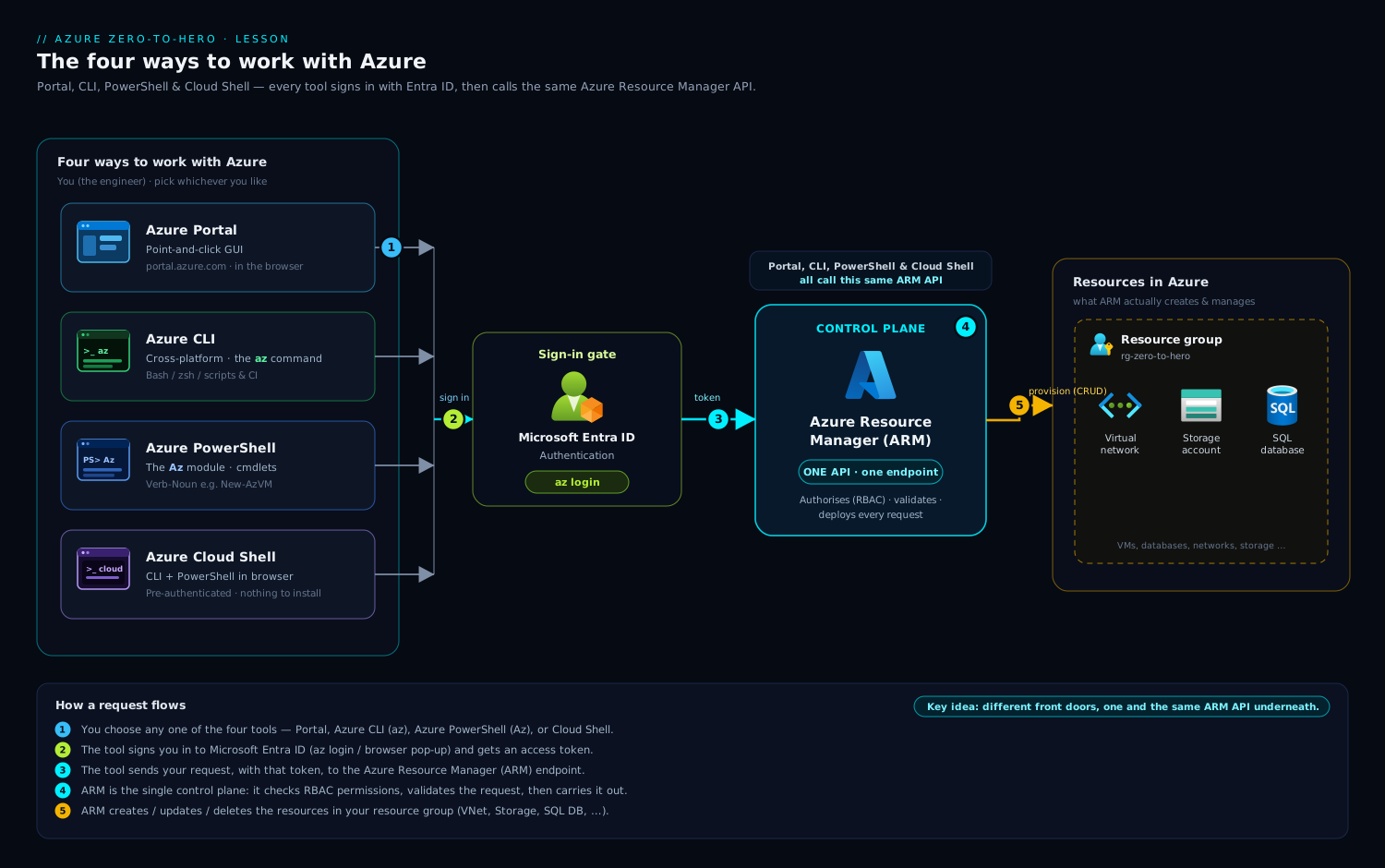
The diagram shows all four tools funnelling into ARM, which then talks to the actual resource providers (Compute, Storage, Network, and so on). Three consequences fall out of this, and they matter every day:
- Consistency. A resource group created in the Portal is identical to one created by the CLI — there’s no “CLI version” of a resource. They’re the same object in the same system.
- Permissions are uniform. If RBAC says you can’t delete a virtual machine, you can’t delete it from any tool. Locks and policies apply everywhere.
- Skills transfer. Learn the ARM mental model — resources, resource groups, subscriptions — once, and every tool becomes a different syntax over the same concepts.
Signing in and choosing your subscription
Before any tool can talk to ARM on your behalf, it has to know who you are (authentication) and which subscription you mean (context). In Microsoft Entra ID — Azure’s identity service, formerly Azure AD — your sign-in is what ARM checks permissions against.
With the CLI you authenticate once per session with az login. In Cloud Shell you’re already signed in, so you can usually skip it. After signing in, confirm your context:
# Who am I, and which subscription am I pointed at right now?
az account show -o table
Many people have access to more than one subscription (say, a personal sandbox and a work subscription). Commands act on whichever subscription is active, so always check before you create or delete anything:
# List every subscription you can see; the active one is marked IsDefault = True
az account list -o table

# Switch the active subscription (use the name or the subscription ID)
az account set --subscription "My Sandbox Subscription"
Forgetting to set the subscription is the single most common beginner mistake — you create a resource and then “can’t find it” because it landed in a different subscription. Make
az account showa reflex.
Idempotency: why re-running is safe
Idempotency means an operation produces the same end state no matter how many times you run it. Many Azure operations are declarative: you describe the state you want, and ARM makes reality match. Run az group create --name rg-demo --location eastus once and it creates the group; run it again and ARM sees the group already exists in that state and simply reports success — it does not create a second group or throw an error.
This is what makes scripts trustworthy. A deployment that half-failed can be re-run from the top without fear of duplicates, and infrastructure-as-code tools (Bicep, ARM templates, Terraform) lean entirely on this property. Not every command is idempotent — az group delete on an already-deleted group will tell you it can’t find it, and “create a new randomly-named key” is creative by design — but the declarative create/update pattern you’ll use most is. When you write automation, prefer the idempotent path so reruns are boring.
Reading the output: JSON, tables, and --query
By default the Azure CLI returns JSON — a structured, machine-readable format. JSON is perfect for scripts but noisy for humans, so the CLI gives you two levers: -o (or --output) to change the format, and --query to filter and reshape the data using JMESPath, a small query language for JSON.
The -o formats you’ll use most:
| Format | When to use |
|---|---|
-o json |
Default; feeding another tool, or you want every field |
-o table |
Quick, readable scan in the terminal |
-o tsv |
Capturing a single value into a shell variable (no quotes, no header) |
--query is where the CLI gets powerful. JMESPath lets you pluck one field, select several into a tidy shape, or filter a list:
# Pull a single value (great with -o tsv to drop it straight into a variable)
SUB_ID=$(az account show --query id -o tsv)
echo "Active subscription: $SUB_ID"

# Reshape a list: pick just name + location for every resource group, as a table
az group list --query "[].{Name:name, Location:location}" -o table

# Filter: only resource groups whose location is eastus
az group list --query "[?location=='eastus'].name" -o tsv
Read those queries as: [] means “for each item in the list”, {Name:name, ...} builds a new object with the fields you want, and [?...] keeps only items matching a condition. You don’t need to memorise JMESPath today — just know it exists, because once you do, you’ll stop copying values out of JSON by hand and start letting --query do it. (Azure PowerShell achieves the same with object pipelines: Get-AzResourceGroup | Select-Object ResourceGroupName, Location.)
Hands-on lab: drive Azure from Cloud Shell
You’ll create a tagged resource group, query it with --query, then delete it — using Azure Cloud Shell, so there’s nothing to install. A resource group is just a logical container, so this whole lab is free.
1. Open Cloud Shell
Go to portal.azure.com, sign in, and click the Cloud Shell icon (>_) in the top toolbar. If it’s your first time, choose Bash when prompted. Cloud Shell may ask to create a small storage account to persist files — for this lab you can pick No storage account required (ephemeral) if offered, or accept the default; either works.
2. Confirm who and where you are
az account show -o table
Expected output (your values will differ):
Name                     CloudName    SubscriptionId                        State    IsDefault
-----------------------  -----------  ------------------------------------  -------  -----------
My Sandbox Subscription  AzureCloud   00000000-0000-0000-0000-000000000000  Enabled  True
If IsDefault isn’t the subscription you want, switch with az account set --subscription "<name>".
3. Create a tagged resource group
Set a couple of variables so the commands are easy to read and re-run:
RG="rg-tooling-lab"
LOC="eastus"

az group create \
  --name "$RG" \
  --location "$LOC" \
  --tags course=azure-zero-to-hero lesson=L2 owner=learner
Expected output (trimmed):
{
  "id": "/subscriptions/0000.../resourceGroups/rg-tooling-lab",
  "location": "eastus",
  "name": "rg-tooling-lab",
  "properties": { "provisioningState": "Succeeded" },
  "tags": { "course": "azure-zero-to-hero", "lesson": "L2", "owner": "learner" }
}
See idempotency for yourself: run the exact same az group create command again. It succeeds with the same output — no duplicate, no error.
4. Validate with --query
Confirm the group exists and read just the fields you care about:
# Is it there, and did it provision cleanly?
az group show --name "$RG" --query "{Name:name, State:properties.provisioningState, Region:location}" -o table

# Read the tags as a clean key=value list
az group show --name "$RG" --query "tags" -o json
Expected:
Name            State      Region
--------------  ---------  --------
rg-tooling-lab  Succeeded  eastus
You just used the Portal-equivalent of opening the resource group blade — but in one repeatable line. To also see it in the GUI, search for rg-tooling-lab in the Portal search bar; remember, it’s the same ARM object.
5. Cleanup
Delete the resource group. Deleting a group deletes everything inside it, so this is the one-command way to clean up a lab:
az group delete --name "$RG" --yes --no-wait
--yes skips the confirmation prompt and --no-wait returns immediately while Azure deletes in the background. Verify it’s gone (the value will flip to false):
az group exists --name "$RG"
Cost note: an empty resource group is free, and Cloud Shell’s compute is free — this lab costs nothing. (The optional Cloud Shell storage account, if you created one, costs a few rupees a month for the small file share; delete that storage account too if you won’t use Cloud Shell again.)
Common mistakes & troubleshooting
| Symptom | Likely cause | Fix |
|---|---|---|
| Resource created but “missing” from the Portal | Wrong active subscription | az account show; if needed az account set --subscription "<name>", then recreate |
(AuthorizationFailed) error |
Your account lacks the RBAC role for that action at that scope | Ask an Owner to grant the right role; see the RBAC lesson (L3) |
az: command not found (local machine) |
Azure CLI not installed | Use Cloud Shell (nothing to install), or install the CLI locally |
--query returns null or nothing |
JMESPath path is wrong, or list vs object mismatch | Run the command with -o json first to see the real shape, then build the query |
az login opens no browser / hangs (remote box) |
No local browser available | Use az login --use-device-code and enter the code on another device |
| Re-running a script errors on “already exists” | A non-idempotent command, or a name collision | Prefer create/update commands; for globally-unique names (storage, etc.) add a random suffix |
Best practices
- Default to the right tool: Portal to learn and inspect, CLI/PowerShell to repeat and automate. Don’t hand-click things you’ll do more than once.
- Always confirm context before destructive or creative commands:
az account showis cheap insurance. - Tag as you create. Tags like
owner,env, andcost-centermake cleanup and billing sane later — apply them at creation, not as an afterthought. - Group lab work in a dedicated resource group so cleanup is a single
az group delete. - Use variables (
RG=,LOC=) in scripts so commands are readable and you change a value in one place. - Pick output deliberately:
-o tablefor eyes,-o tsvfor variables,-o jsonfor tools. - Keep the CLI current (
az upgrade) so command examples and new resource types behave as documented.
Security notes
- Cloud Shell is convenient and safe by default — it authenticates as you, so it can only do what your RBAC roles allow. It is not a backdoor around permissions.
- Never paste secrets into commands that get stored in shell history. Pull secrets from Azure Key Vault at runtime instead of hard-coding them.
- For automation that runs without a human, use a managed identity or service principal with the least privilege it needs — not your personal login.
- Treat
az logindevice codes like passwords: only enter a code you initiated yourself, on a sign-in page you opened. - Sign out of shared machines with
az logout, and remember the Portal and CLI share the same identity and the same audit trail in Azure.
Quick check
- You need to do the same setup across three subscriptions, identically. Portal or CLI — and why?
- True or false: a resource group created with
az group createbehaves differently from one created in the Portal. - Your
az group createsucceeded but you can’t see the group in the Portal. What’s the first thing to check? - What does idempotency mean, and why does it make scripts safe to re-run?
- Which
-oformat would you use to capture a single subscription ID into a shell variable, and why?
Answers
- CLI (or PowerShell). It’s repeatable and identical every time, and you can loop over the three subscriptions or run the same script with a different
az account set. The Portal would be three rounds of manual clicking, easy to get subtly wrong. - False. Both tools call the same ARM API and produce the same resource — there’s no per-tool variant.
- Your active subscription (
az account show). The group most likely landed in a different subscription than the one open in the Portal. - Idempotency means re-running an operation lands you in the same end state — no duplicates, no errors from “already exists”. It lets you safely re-run a half-finished script from the top.
-o tsv. It returns the raw value with no quotes, no JSON braces, and no header row, so it drops cleanly intoVAR=$(... -o tsv).
Exercise
In Cloud Shell, create a resource group named rg-tooling-exercise in a region of your choice, tagged purpose=practice. Then, using a single az command with --query, list all of your resource groups showing only their name and location as a table. Finally, use --query to print just the tags of rg-tooling-exercise, and clean up with az group delete. Bonus: write the create command using variables for the name and location, and run it twice to confirm it’s idempotent.
Interview questions
- How do the Portal, Azure CLI, and PowerShell relate to each other? They’re four interfaces over one control plane — Azure Resource Manager. Each sends requests to ARM, which enforces authentication, RBAC, and policy, then acts. So results are consistent and permissions are uniform regardless of tool.
- When would you choose the CLI over the Portal? For anything repeatable: automation, CI/CD, scripts, bulk changes, or work that must be identical across environments. The Portal is for learning, exploration, dashboards, and genuine one-offs.
- What is idempotency and why does it matter in cloud automation? An idempotent operation yields the same end state however many times it runs. It makes declarative deployments and retries safe — a failed run can be re-applied without creating duplicates, which is foundational to infrastructure-as-code.
- What does
--querydo, and what language does it use? It filters and reshapes the CLI’s JSON output using JMESPath, letting you pull single values, select specific fields, or filter lists — so you script against output instead of parsing it by hand. - A colleague says a resource “isn’t there” after their script ran successfully. How do you triage? Check the active subscription (
az account show) and the scope/region the script targeted — the resource almost certainly exists, just in a different subscription or resource group than they’re looking in. - CLI vs PowerShell — is there a wrong choice? Rarely. Use whichever fits the team and the task: PowerShell shines when you pass rich objects between cmdlets or work in a Windows-centric shop; the CLI is leaner for cross-platform one-liners and bash pipelines. Both hit the same ARM API.
Certification mapping
- AZ-900 (Azure Fundamentals) — Describe Azure management and governance tools: the Azure portal, Azure CLI, Azure PowerShell, Cloud Shell, and Azure Resource Manager as the unifying management layer.
- AZ-104 (Azure Administrator Associate) — Manage Azure identities and governance and general administration: using the CLI/PowerShell and Cloud Shell to administer resources, set subscription context, tag resources, and script repeatable operations against ARM.
Glossary
- Azure Resource Manager (ARM) — the single control-plane API and engine that every Azure tool calls to create, read, update, and delete resources.
- Azure CLI (
az) — cross-platform command-line tool for managing Azure from any shell. - Azure PowerShell (
Azmodule) — Azure management as PowerShell cmdlets, built around passing objects. - Cloud Shell — a browser-based shell with
azandAzpre-installed and you already signed in; nothing to install locally. - Subscription — a billing and isolation boundary that contains resource groups and resources; the “active” one is what commands target.
- Subscription context — which subscription your tool is currently pointed at (
az account show/az account set). - Idempotency — the property that re-running an operation produces the same end state, with no duplicates or errors.
- JMESPath — the JSON query language behind the CLI’s
--queryflag, used to filter and reshape output. - RBAC (role-based access control) — Azure’s permission system that determines what your identity can do, enforced by ARM across every tool.
- Tag — a key/value label on a resource (e.g.
owner=learner) used for organisation, cost tracking, and cleanup.
Next steps
Now that you can drive Azure from any tool, the next lesson covers who gets to do what — identity and permissions: