An Azure Virtual Machine (VM) is the most fundamental piece of compute you can rent in the cloud: a complete computer — CPU, memory, disks, network card — that you control from the operating system up. It is the purest form of Infrastructure as a Service (IaaS): Microsoft runs the physical server, the hypervisor, the building, the power and the cooling; you own the OS, the patches, the software you install, and your data. If you have ever installed Windows Server or Ubuntu on a laptop, you already understand 80% of what a VM is. The other 20% — the part interviewers and certification exams probe relentlessly — is the dozens of settings Azure asks you about when you create one, and the operations you can (and cannot) perform afterwards.
This lesson is deliberately exhaustive. The Azure portal’s “Create a virtual machine” wizard presents seven tabs — Basics, Disks, Networking, Management, Monitoring, Advanced, Tags — and behind each tab are choices that change your bill, your performance, your security posture and your blast radius. We go through every one with the same treatment: what it is · the choices · the default · when to pick which · the trade-off · the limits · the cost impact · the gotcha. Then we cover the full set of day-2 operations — resize, redeploy, reapply, capture-to-image, disk swaps, serial console, run-command, and the single most expensive misconception in all of Azure: stop vs deallocate. Every core operation comes with both an az CLI command and a Bicep snippet so you can do this by hand or as code.
By the end you will know the VM end to end — enough to ace an AZ-104 or AZ-305 question, sail through an interview, and operate VMs safely in production.
Learning objectives
By the end of this lesson you can:
- Walk through every blade of the VM creation wizard and explain what each field does, its default, and its trade-off.
- Choose the right VM size family (B, D, F, E/M, L, N) and SKU for a workload, and explain the B-series burstable credit model and Spot eviction.
- Configure OS and data disks, accelerated networking, managed identities, auto-shutdown and boot diagnostics correctly the first time.
- Perform every important post-creation operation — resize, redeploy, capture, attach/detach disks, serial console, run-command.
- Explain the difference between Stopped and Stopped (deallocated) and why it is the most important billing fact about VMs.
- Reproduce the core create/configure operations in both
azCLI and Bicep.
Prerequisites & where this fits
You should already understand Azure’s basic hierarchy — subscription → resource group → resource — regions and availability zones, and how to run az commands in Cloud Shell (covered in the Foundations module). No prior VM experience is assumed; we define every term. This is the opening lesson of Module — Core IaaS (Compute & Networking) in the Azure Zero-to-Hero course. It is the anchor lesson the rest of the IaaS track builds on: resilience (availability sets, zones, scale sets), managed disks, and virtual networking all reference settings introduced here.
Core concepts
Before the wizard, fix four mental models. They explain why the settings are shaped the way they are.
A VM is an assembly, not a single resource. When you “create a VM” you actually create several linked Azure resources: the virtual machine itself (Microsoft.Compute/virtualMachines), one or more managed disks (Microsoft.Compute/disks), a network interface / NIC (Microsoft.Network/networkInterfaces), usually a public IP (Microsoft.Network/publicIPAddresses), and it attaches to a virtual network/subnet and a network security group (NSG). The portal hides this behind one wizard, but az/Bicep make it explicit, and it matters for deletion: deleting a VM does not automatically delete its disks, NIC or public IP unless you tell it to — a classic source of “ghost” costs.
Compute and storage are decoupled. The VM is the CPU+RAM; the disks are separate resources that attach to it. This is the single most important architectural idea: you can deallocate the VM (stop paying for compute) while keeping the disks (still paying a little for storage), resize the VM to a bigger SKU without touching the disks, or detach the OS disk and boot it on a different VM for recovery. The temporary disk is the one exception — it is local SSD on the host, fast but ephemeral: its data is lost on deallocation or host migration.
Control plane vs data plane. Azure Resource Manager (ARM) is the control plane — it creates, resizes, starts and stops the VM. The guest OS is the data plane — what runs inside. Many operations (run-command, the VM agent, extensions) are how the control plane reaches into the data plane. Knowing which plane you are in explains why, for example, a network rule that blocks SSH (data plane) still lets you run a command via the Azure agent (control plane).
Provisioning state vs power state. A VM has a provisioning state (Succeeded/Failed — did ARM create it?) and a power state (Running, Stopped, Deallocated). Billing depends on the power state, not whether it is “created”. Hold onto that — it is the crux of the stop-vs-deallocate section.
Key terms used throughout: vCPU (a virtual CPU core), SKU/size (the named hardware shape, e.g. Standard_D2s_v5 = 2 vCPU, 8 GiB RAM), image (the OS template you boot from), generation (Gen1 BIOS vs Gen2 UEFI), extension (an agent-installed add-on), and deallocate (release the host and stop compute billing).
Creating a VM: every setting (Basics tab)
The Basics tab is where most of the consequential decisions live. Take it field by field.
Subscription & Resource group. What: the billing/isolation boundary and the lifecycle folder the VM lives in. Default: your default subscription; resource group must be chosen or created. When: put a VM with the disks, NIC and NSG that share its lifecycle into one resource group so you can delete them as a unit. Gotcha: a VM cannot move regions by editing it; choose carefully (region is set here too).
Virtual machine name. What: the Azure resource name and the default computer/host name inside the OS. Limits: 1–64 chars for the resource; the Windows computer name is capped at 15 characters, Linux at 64. Gotcha: the name is effectively immutable — renaming means recreate. Use a convention like vm-app-prod-01.
Region. What: the Azure datacentre geography. When: nearest to users for latency, and a region that has the VM sizes and zones you need (not every size exists in every region). Cost: prices vary by region — the same SKU can differ 20–40% between, say, East US and Australia East. Gotcha: immutable; some sizes/zones are region-gated.
Availability options. What: how Azure spreads the VM for resilience. Choices: No infrastructure redundancy (single VM), Availability zone (pin to zone 1/2/3, or spread across zones), Availability set (fault/update domains), Virtual machine scale set. Default: No redundancy. When: production single VMs → zone; legacy/zonal-unaware HA → availability set; elastic fleets → scale set. This is the interview-classic topic and gets its own full lesson — see the Azure VM Resilience deep dive. Gotcha: you cannot add a VM to an availability set after creation — it is create-time only. Zone can also not be changed live (requires redeploy/recreate).
Security type. What: the firmware/trust model of the VM. The choices:
| Security type | What it gives you | When to pick | Gotcha |
|---|---|---|---|
| Standard | Legacy BIOS or basic UEFI, no extra integrity checks | Old images, Gen1-only workloads | Fewer protections; being phased back as the non-default |
| Trusted Launch (default for most Gen2 images) | Secure Boot + vTPM + measured boot, defends against rootkits/bootkits | New Windows/Linux VMs — this should be your default | Requires a Gen2 image; some old extensions/drivers may not be signed |
| Confidential | Memory encrypted in use via AMD SEV-SNP; hardware-isolated from the host/hypervisor | Regulated data, “data-in-use” requirements | Limited to specific DC/EC-series sizes and regions; higher cost |
Default: Trusted Launch on supported Gen2 images. When: use Trusted Launch unless you have a concrete blocker. Gotcha: switching an existing VM from Standard to Trusted Launch is possible for some sizes but historically required care/recreate — decide at create time.
Image. What: the OS template you boot from — Windows Server, Ubuntu, RHEL, SLES, a marketplace appliance, or your own custom image / gallery version. Default: a recent Windows Server or Ubuntu LTS. Cost gotcha: some marketplace images carry a per-hour software charge on top of the VM (e.g. certain RHEL/SLES/appliance images). Bring-your-own-licence (Azure Hybrid Benefit) can remove the Windows/SQL licence portion.
VM architecture. What: the CPU instruction set — x64 or Arm64. Default: x64. When: Arm64 (e.g. Dpsv5/Epsv5 Ampere-based) for scale-out, price/performance-sensitive Linux workloads that have Arm builds. Gotcha: your software and all extensions must have Arm builds; not every size/region offers Arm.
Image generation (Gen1 vs Gen2). What: the VM’s virtual hardware generation. Gen1 = BIOS boot, MBR, up to 2 TB OS disk. Gen2 = UEFI boot, GPT, larger OS disks, and the prerequisite for Trusted Launch, Confidential VMs and some large memory sizes. Default: Gen2 for modern images. Gotcha: generation is fixed by the image and cannot be changed after creation (there is a one-way Gen1→Gen2 conversion tool for some OSes, but treat it as a recreate). Always prefer Gen2 unless an old image forces Gen1.
Size (the SKU/size family). This is the heart of the VM. The size is a named shape — vCPU count, RAM, max disks, NIC count, accelerated-networking support, temp disk size. Sizes are grouped into families by the ratio of CPU to memory and by specialised hardware:
| Family | Letter | Optimised for | vCPU:RAM feel | Typical sizes | Use cases |
|---|---|---|---|---|---|
| General purpose | B (burstable) | Cheap baseline + bursts | Balanced, throttled baseline | B1s, B2ms, B4ms | Dev/test, low-traffic web, small DBs |
| General purpose | D / Dv5 / Dsv5 | Balanced production | ~1:4 (e.g. 2 vCPU / 8 GiB) | D2s_v5, D8s_v5 | Web/app servers, most workloads |
| Compute optimised | F / Fsv2 | CPU-heavy | ~1:2 | F4s_v2, F16s_v2 | Batch, gaming, web at scale, analytics front-ends |
| Memory optimised | E / Esv5 | RAM-heavy | ~1:8 | E4s_v5, E32s_v5 | In-memory caches, medium DBs, SAP app tier |
| Memory optimised | M / Mv2 | Extreme RAM | up to ~1:28, TBs of RAM | M64s, M128ms | SAP HANA, huge in-memory DBs |
| Storage optimised | L / Lsv3 | Local NVMe throughput/IOPS | high local disk per vCPU | L8s_v3, L16s_v3 | NoSQL (Cassandra), big data, data warehousing |
| GPU | N (NC/ND/NV) | GPU compute/graphics | varies | NC-series (compute), ND (deep learning), NV (visualization/VDI) | AI training/inference, rendering, GPU desktops |
| HPC | H (HB/HC) | InfiniBand, high CPU/mem bandwidth | varies | HB176, HC44 | CFD, simulations, tightly-coupled MPI |
Decode a size name like Standard_D8s_v5: family D, 8 vCPU, s = premium-storage capable, v5 = 5th generation hardware. A trailing m often means extra memory (e.g. B2ms), a means AMD, p means Arm (Ampere). Default: the wizard suggests a small D-series. Cost: size is the single biggest lever on the bill — it scales roughly linearly with vCPU/RAM. Limits: each size caps max data disks, NICs, IOPS and whether accelerated networking is supported; regional vCPU quotas can block large sizes. Gotcha: picking a non-s size on a region/zone where you later want Premium SSD forces a resize.
The B-series burstable credit model (exam favourite). B-series VMs run at a fraction of the vCPU baseline (e.g. a B2s baseline might be ~40% per vCPU) and bank CPU credits while idle. When load spikes, they spend credits to burst up to 100% of a vCPU. If you exhaust credits under sustained load, the VM is throttled back to baseline — performance falls off a cliff. When to pick B: spiky, mostly-idle workloads (dev boxes, low-traffic sites). When NOT to: steady CPU-bound workloads — they will run out of credits and a D-series of the same vCPU count will be both faster and often comparable in cost once you account for throttling. Gotcha: credits reset to zero (or a low value) on stop/deallocate.
Spot instances + eviction. What: surplus Azure capacity sold at a steep discount (often 60–90% off) on the condition that Azure can evict the VM when it needs the capacity back or the price rises. Two settings: eviction type — Capacity only or Price or capacity — and eviction policy — Deallocate (keep disks, can restart later) or Delete (remove the VM). When: fault-tolerant, interruptible, stateless or checkpointed work — batch, CI agents, rendering, dev. Never: a stateful production database or anything that cannot tolerate a 30-second eviction notice. Limits: no SLA; can be evicted any time. Gotcha: with the Delete policy an eviction destroys the VM and (optionally) disks — use Deallocate unless you truly want it gone.
Administrator account. What: the first OS login. Windows uses username + password; Linux offers SSH public key (recommended) or password. Limits: avoid reserved usernames (admin, administrator, root, guest, etc. are blocked); Windows passwords must meet complexity (12–123 chars, 3 of 4 character classes). Security gotcha: prefer SSH keys over passwords on Linux; never reuse this credential, and pair it with just-in-time access (see Security notes).
Inbound port rules. What: a convenience that opens ports (RDP 3389 / SSH 22 / HTTP 80 / HTTPS 443) on the VM’s NSG straight from the wizard. Default: RDP or SSH open. Security gotcha: never leave RDP/SSH open to the internet (* / 0.0.0.0/0) — it is the number-one attack vector. Select None here and reach the VM via Azure Bastion, a VPN, or a just-in-time rule instead.
Licensing / Azure Hybrid Benefit. What: a checkbox to apply existing Windows Server / SQL Server / RHEL / SLES licences you already own, removing the licence portion of the hourly price. Cost: can cut Windows VM cost substantially. Gotcha: you must actually own eligible licences with Software Assurance — ticking it without entitlement is a compliance risk.
Basics in code
The az and Bicep below create the same small Linux VM the lab uses.
# Create a resource group, then a small B-series Linux VM with SSH keys
az group create -n rg-vm-lab -l eastus

az vm create \
  --resource-group rg-vm-lab \
  --name vm-lab-01 \
  --image Ubuntu2204 \
  --size Standard_B1s \
  --admin-username azureuser \
  --generate-ssh-keys \
  --public-ip-sku Standard \
  --security-type TrustedLaunch \
  --nsg-rule SSH
param location string = resourceGroup().location
@secure()
param adminPasswordOrKey string
param adminUsername string = 'azureuser'

resource vm 'Microsoft.Compute/virtualMachines@2024-07-01' = {
  name: 'vm-lab-01'
  location: location
  properties: {
    hardwareProfile: { vmSize: 'Standard_B1s' }
    storageProfile: {
      imageReference: {
        publisher: 'Canonical'
        offer: '0001-com-ubuntu-server-jammy'
        sku: '22_04-lts-gen2'
        version: 'latest'
      }
      osDisk: {
        createOption: 'FromImage'
        managedDisk: { storageAccountType: 'StandardSSD_LRS' }
      }
    }
    osProfile: {
      computerName: 'vm-lab-01'
      adminUsername: adminUsername
      linuxConfiguration: {
        disablePasswordAuthentication: true
        ssh: {
          publicKeys: [
            { path: '/home/${adminUsername}/.ssh/authorized_keys', keyData: adminPasswordOrKey }
          ]
        }
      }
    }
    securityProfile: {
      securityType: 'TrustedLaunch'
      uefiSettings: { secureBootEnabled: true, vTpmEnabled: true }
    }
    networkProfile: { networkInterfaces: [ { id: nic.id } ] }
  }
}
Creating a VM: every setting (Disks tab)
Disks are separate, independently-priced resources. The disk type deep dive (IOPS, throughput, tiers, snapshots) is its own lesson — see Azure Managed Disks deep dive — here we cover the settings the VM wizard exposes.
OS disk type. What: the managed-disk SKU backing the boot disk. Choices and the trade-off:
| OS disk type | Backing | IOPS/latency feel | When | Cost |
|---|---|---|---|---|
| Standard HDD (Standard_LRS) | Magnetic | Slow, variable | Dev/test, backups | Cheapest |
| Standard SSD (StandardSSD_LRS) | SSD, capped | Consistent, modest | Low-traffic prod, web | Low |
| Premium SSD (Premium_LRS) | SSD, high perf | Low latency, high IOPS | Production, DBs | Higher |
| Premium SSD v2 | SSD, decoupled perf | Tunable IOPS/throughput independent of size | Performance-sensitive prod | Pay for provisioned perf |
| Ultra Disk | NVMe-class | Sub-ms, huge IOPS | Top-tier DBs, SAP | Highest |
Default: Premium SSD on s-capable sizes. Gotcha: Premium/Ultra require an s (premium-storage-capable) size; pick the size accordingly.
Encryption at host. What: encrypts the VM’s temp disk and disk caches on the physical host — closing the gap that SSE (which encrypts data at rest in the storage service) leaves around cached/temp data. Default: off; must be enabled per subscription/feature first. When: compliance requiring all data encrypted including host caches. Trade-off: none functionally; not all sizes support it. Gotcha: enable the feature on the subscription before it appears.
Ephemeral OS disk. What: place the OS disk on the local host SSD / cache instead of remote managed storage. Pros: near-zero disk cost, very low read latency, fast reimage. Cons: the OS disk is not persisted — it is lost on deallocate/redeploy, and you cannot snapshot, backup, capture or resize-persist it. When: stateless, immutable workloads (scale sets, fleets reimaged from a golden image). Gotcha: requires a size with a big enough cache/temp; data must live elsewhere (data disks/external store).
Delete OS disk with VM. What: a checkbox that ties the OS disk’s lifecycle to the VM so deleting the VM removes the disk. Default: historically off (orphaned disks were a top cost leak); newer experiences default it on. Gotcha: if off, deleting the VM leaves a billable disk behind — clean up explicitly.
Data disks. What: additional managed disks you attach for application data — separate from the OS disk. Each has its own type, size, host caching (None / ReadOnly / ReadWrite), and LUN. Limits: the max number of data disks is set by the VM size (e.g. a small B-series allows 2–4; a large E/M-series dozens). When: always keep application/database data on data disks, not the OS disk, so you can resize, snapshot and detach independently. Caching gotcha: use ReadOnly caching for read-heavy DB data files, None for write-heavy logs; ReadWrite only when the app handles its own flush/consistency (wrong caching can cost performance or risk data).
# Attach a new 128 GiB Premium SSD data disk with ReadOnly caching
az vm disk attach \
  --resource-group rg-vm-lab --vm-name vm-lab-01 \
  --name datadisk-01 --new --size-gb 128 \
  --sku Premium_LRS --caching ReadOnly
Creating a VM: every setting (Networking tab)
Virtual network & subnet. What: the private network and IP range the NIC joins. Default: the wizard offers to create a VNet/subnet. Gotcha: the VM’s NIC subnet is chosen at create time; moving subnets later means detach/reconfigure the NIC. Full VNet/subnet detail is its own lesson — Azure Virtual Network deep dive (planned in the Networking module).
Network interface (NIC). What: the virtual NIC that carries the VM’s private (and optionally public) IP. A VM has at least one; some sizes allow several. Gotcha: the number of NICs is capped by VM size; you cannot add more NICs than the size allows.
Public IP. What: an optional internet-routable address. Choices: None, Basic (being retired) or Standard SKU; dynamic or static allocation. Default: a new Standard public IP. Security/cost gotcha: a public IP is an attack surface and Standard public IPs are billed; prefer no public IP and reach the VM via Bastion/VPN/private endpoints. Standard public IP is zone-redundant or zonal; Basic is neither and is deprecated.
NSG (network security group). What: the stateful firewall of allow/deny rules applied at the NIC or subnet. Choices: None, Basic (wizard-managed for the opened ports), or Advanced (select an existing NSG). Default: Basic, reflecting the inbound ports you chose. Gotcha: NSG rules are evaluated by priority (lowest number wins); a permissive low-priority rule overrides stricter higher-numbered ones.
Accelerated networking (interview/exam favourite). What: SR-IOV — the NIC bypasses the host’s virtual switch, giving the VM direct hardware access for lower latency, lower jitter, higher packets-per-second and lower host CPU. Default: enabled automatically on supported sizes. When: always, on any network-sensitive workload (it is free). Limits: requires a supported size (generally 2+ vCPU; not the smallest B-series) and a supported OS; both ends of a flow benefit only if both have it. Gotcha: toggling it on an existing VM requires the VM to be deallocated first.
IP forwarding. What: lets the NIC send/receive traffic not addressed to its own IP — required when the VM is a router/NVA/firewall forwarding others’ traffic. Default: off. When: only for NVAs/network appliances. Gotcha: enabling it on a normal app VM does nothing useful and can mask routing mistakes.
Load balancing. What: optionally place the VM behind an Azure Load Balancer or Application Gateway backend pool from the wizard. When: the VM is one of several behind a single front end. Gotcha: the wizard’s quick option is fine for labs; production LBs are usually defined separately as code.
Creating a VM: every setting (Management tab)
Managed identity (system- vs user-assigned). What: an Entra ID identity Azure manages for the VM so it can call Azure services (Key Vault, Storage, ACR) without storing secrets. Two kinds:
| Type | Lifecycle | Sharing | When |
|---|---|---|---|
| System-assigned | Created with the VM, deleted with it; 1:1 | Cannot be shared | A single VM that needs its own identity |
| User-assigned | Standalone resource you create once | Attach to many VMs/resources | A fleet that should share one identity/role assignment |
Default: off. When: turn one on whenever the VM must authenticate to Azure — it is the secretless best practice. Gotcha: the identity still needs an RBAC role assignment on the target resource; enabling the identity alone grants nothing.
Auto-shutdown. What: a scheduled daily power-off (with optional notification webhook/email) to save money on non-production VMs. Default: off. When: dev/test boxes — it can halve a monthly bill. Gotcha: auto-shutdown deallocates the VM (good — stops compute billing) but does not auto-start it; pair with a Logic App/automation if you want it back on a schedule.
Backup. What: enrol the VM into a Recovery Services vault for application-consistent backups with a retention policy. Default: off. When: any VM whose disks hold state you cannot recreate. Cost: backup storage + instances are billed. Gotcha: backup protects data, not availability — it is restore, not HA.
Patch orchestration (guest OS updates). What: how OS patches get applied. Modes: Manual, Automatic by OS (Windows AU), Azure-orchestrated (platform applies patches and reboots in maintenance windows, integrates with Azure Update Manager), or image-default. Default: image/platform default. When: Azure-orchestrated for hands-off, policy-driven patching across a fleet. Gotcha: enabling automatic guest patching requires the VM to support it and can reboot the VM — schedule windows.
Boot diagnostics. What: captures the serial/console output and a screenshot of the booting VM to a storage account (or a managed account), so you can diagnose a VM that won’t boot or is stuck at a login. Default: on, using a managed storage account. When: always — it is your lifeline when SSH/RDP fails. Gotcha: it is the prerequisite for serial console and the boot-screenshot; if you disabled it you lose both troubleshooting tools.
Creating a VM: every setting (Monitoring tab)
Alerts / recommended alert rules. What: opt-in metric alerts (CPU, disk, network) at creation. When: convenient for a quick safety net; production monitoring is usually defined centrally. Gotcha: these create alert rules that incur a tiny cost and need an action group to actually notify anyone.
Diagnostics — guest OS diagnostics & VM Insights. What: installs agents (the Azure Monitor Agent) to ship guest metrics and logs (perf counters, syslog/Windows event logs) into a Log Analytics workspace, and enables VM Insights (performance + dependency map). Default: off. When: any VM you must observe in production — without an agent you only get host-level platform metrics, not in-guest CPU/memory/disk-by-process. Cost: Log Analytics ingestion/retention is billed per GB. Gotcha: host metrics ≠ guest metrics; memory and per-process data need the agent.
Creating a VM: every setting (Advanced tab)
Extensions. What: small agents installed into the guest by the VM Agent to perform configuration or integration — e.g. Custom Script Extension (run a script post-deploy), DSC, Azure Monitor Agent, antimalware, dependency agent, key-vault cert sync. When: post-deploy bootstrapping and ongoing management. Limits: extensions run as the agent; failures surface in the VM’s Extensions blade. Gotcha: extensions need the VM Agent running and outbound connectivity; a locked-down NSG/UDR can silently break extension installs.
Custom data / cloud-init. What: a blob of data passed to the VM at first boot. On Linux, cloud-init consumes it to install packages, write files, add users and run commands on first boot — true declarative bootstrap. On Windows it is available to your own startup logic. When: image-light bootstrapping without baking a custom image. Limits: size cap (tens of KB, base64-encoded); runs once at first boot. Gotcha: cloud-init only works on cloud-init-enabled images; custom data is not re-run on later boots.
User data. What: like custom data but retrievable later by the guest from the instance metadata service (IMDS) — useful for passing config the app reads at runtime. Gotcha: it is not secret — anything in the VM can read it; never put credentials there.
Proximity placement group (PPG). What: a logical grouping that forces member VMs into the same datacentre/low-latency zone to minimise inter-VM network latency. When: chatty, latency-critical tiers (e.g. app↔DB in HPC or trading). Trade-off: tighter placement reduces resilience spread and can cause allocation failures if that exact location lacks capacity for your size. Gotcha: combining PPGs with availability zones constrains placement hard — create the most-constrained size first.
VM applications. What: application packages stored in an Azure Compute Gallery that you attach to a VM (versioned, deployed via the gallery rather than baked into the image). When: distribute and version app binaries to many VMs without rebuilding images. Gotcha: distinct from extensions; managed through the gallery.
Host group / Dedicated Host. What: run the VM on a physical server dedicated to you (no other tenants) for compliance or licensing (BYOL by core). Cost: you pay for the whole host. When: regulatory isolation or specific licensing. Gotcha: you manage host capacity and maintenance windows yourself.
Creating a VM: every setting (Tags tab)
Tags. What: key/value labels (e.g. owner=team-x, env=prod, costcenter=1234) applied to the VM and selectable child resources. When: always — tags drive cost reporting, automation, governance and cleanup. Limits: up to 50 tags per resource; some are inherited via policy. Gotcha: tags applied in the wizard can be pushed to the VM and its disk/NIC/IP — tag them all so cost reports are complete. Azure Policy can require certain tags.
# Tag the VM (and you would tag its disks/nic/pip similarly)
az resource tag --tags env=lab owner=learner costcenter=training \
  --ids $(az vm show -g rg-vm-lab -n vm-lab-01 --query id -o tsv)
After creation: what you can (and can’t) change
This is the day-2 half of the exam. Some things are live-editable, some need a deallocate, some need a recreate.
Resize (change SKU). What: move the VM to a larger/smaller size. How: if the target size is available on the current host cluster, you can resize while running (brief reboot). If not, you must deallocate, resize, then start — Azure then places it on a cluster that supports the new size. Constraints: you can only resize within sizes the region/zone offers; some family jumps (e.g. to/from certain specialised families, or changing premium-storage capability) may require deallocation. Gotcha: resizing reboots the VM; the temp disk is wiped; data/OS disks persist.
# List sizes available for THIS VM (on its current cluster), then resize
az vm list-vm-resize-options -g rg-vm-lab -n vm-lab-01 -o table
az vm resize -g rg-vm-lab -n vm-lab-01 --size Standard_B2s
Stop vs Deallocate (the billing fact everyone gets wrong). There are two ways a VM can be “off”:
| State | How you get there | Compute billing | Disks | Temp disk | Public/private IP |
|---|---|---|---|---|---|
| Stopped | Shutting down from inside the guest (shutdown, Start menu) |
Still charged (host reserved) | Persist | Persists | Kept |
| Stopped (deallocated) | Portal Stop, az vm deallocate, auto-shutdown |
Not charged for compute | Persist (still billed for storage) | Wiped | Dynamic IP released; static kept |
The rule: shutting down from inside the OS does not stop the compute bill — Azure still holds the host for you. To stop paying for the VM you must deallocate (release the host). Gotcha 1: deallocation wipes the temp disk and resets B-series credits. Gotcha 2: a dynamic public/private IP can change on deallocate; use a static IP if the address must persist. This single distinction is the most common interview and AZ-104 trap.
az vm deallocate -g rg-vm-lab -n vm-lab-01   # stops compute billing
az vm stop       -g rg-vm-lab -n vm-lab-01   # powers off but may keep host (use deallocate to save money)
az vm start      -g rg-vm-lab -n vm-lab-01
Redeploy. What: migrate the VM to a new Azure host (fresh hardware) — fixes problems caused by the underlying host (stuck VM, host networking glitch). Effect: the VM is deallocated and re-provisioned on new hardware; temp disk is lost, persistent disks keep their data. When: a VM is unreachable and you suspect the host. Command: az vm redeploy.
Reapply. What: re-runs the VM’s model against the platform without changing hardware — useful to clear a failed provisioning state or push the current model after a transient error. When: the VM shows a failed state but the host is fine. Command: az vm reapply.
Capture to image. What: turn a configured VM into a reusable image (specialised or generalised) — either a managed image or, preferably, a version in an Azure Compute Gallery for replication and versioning. Generalize first (Linux: waagent -deprovision+user; Windows: sysprep) if you want a template others can deploy from. Gotcha: a specialised capture keeps the machine identity (good for clone-this-exact-box recovery); a generalised one strips identity (good for golden images). Capturing a VM makes it unusable afterward if generalised — capture a copy or accept the source is spent.
# Generalize then capture into a gallery image version (abridged)
az vm deallocate -g rg-vm-lab -n vm-lab-01
az vm generalize -g rg-vm-lab -n vm-lab-01
az image create  -g rg-vm-lab -n img-lab-01 --source vm-lab-01
Attach / detach data disks (live). What: add or remove data disks while the VM runs. Gotcha: after attach you must still partition/format/mount inside the guest; before detach you must unmount in the guest to avoid corruption. The OS disk cannot be detached while it is the boot disk.
Change / swap the OS disk. What: point the VM at a different OS managed disk (e.g. boot from a restored copy, or from a fixed disk after troubleshooting). Requirement: the VM must be deallocated; the replacement must be an OS-type disk of compatible generation. When: disaster recovery, in-place OS fix. Command: az vm update --os-disk <disk-id>.
Add / change NICs and IPs. What: attach an additional NIC (within the size’s NIC limit) or change IP configuration. Gotcha: adding/removing a NIC requires the VM to be deallocated; you cannot exceed the size’s NIC cap. Changing the primary NIC has the same constraint.
Serial console. What: a text console straight to the VM’s serial port via the Azure agent — works even when the network, SSH/RDP, or NSG is broken, so you can fix boot/login/network problems from the OS prompt (GRUB, single-user mode, Windows SAC). Requirement: boot diagnostics must be enabled (managed storage is fine) and a local account/sudo to log in. When: the VM boots but you cannot reach it over the network. Gotcha: no boot diagnostics → no serial console.
Run-command. What: execute a script inside the guest via the control plane (the VM Agent), no SSH/RDP needed — great for break-glass fixes, resetting access, or one-off automation. Two flavours: the classic az vm run-command invoke and the newer managed run-command (az vm run-command create/update) which is async, supports longer scripts, output to storage, and multiple concurrent commands. Limits: classic run-command has a ~90-minute timeout and one at a time; output is truncated. Security gotcha: run-command runs as SYSTEM/root — anyone with the right RBAC can run arbitrary code in your VM, so guard the Microsoft.Compute/virtualMachines/runCommand/action permission.
# Break-glass: run a command in the guest without SSH
az vm run-command invoke -g rg-vm-lab -n vm-lab-01 \
  --command-id RunShellScript \
  --scripts "echo hello from inside; uname -a; df -h"
Reset access (the VMAccess extension). What: reset the admin password / SSH key or re-enable the account from outside the guest when you are locked out. Command: az vm user update / az vm user reset-ssh. Gotcha: relies on the VM Agent being healthy.
What you cannot change after creation (recreate required): the region, the availability set membership and (effectively) the zone, the image generation (Gen1↔Gen2), the VM name/computer name, and the OS type/architecture. Plan these at create time.
Architecture at a glance
The diagram below maps the whole anatomy of an Azure VM — the compute instance and its separately-billed disks (OS, data, temp), the NIC with its public/private IPs and NSG, the VNet/subnet it lives in, and the control-plane attachments (managed identity, agent/extensions, boot diagnostics) that the wizard’s blades configure.
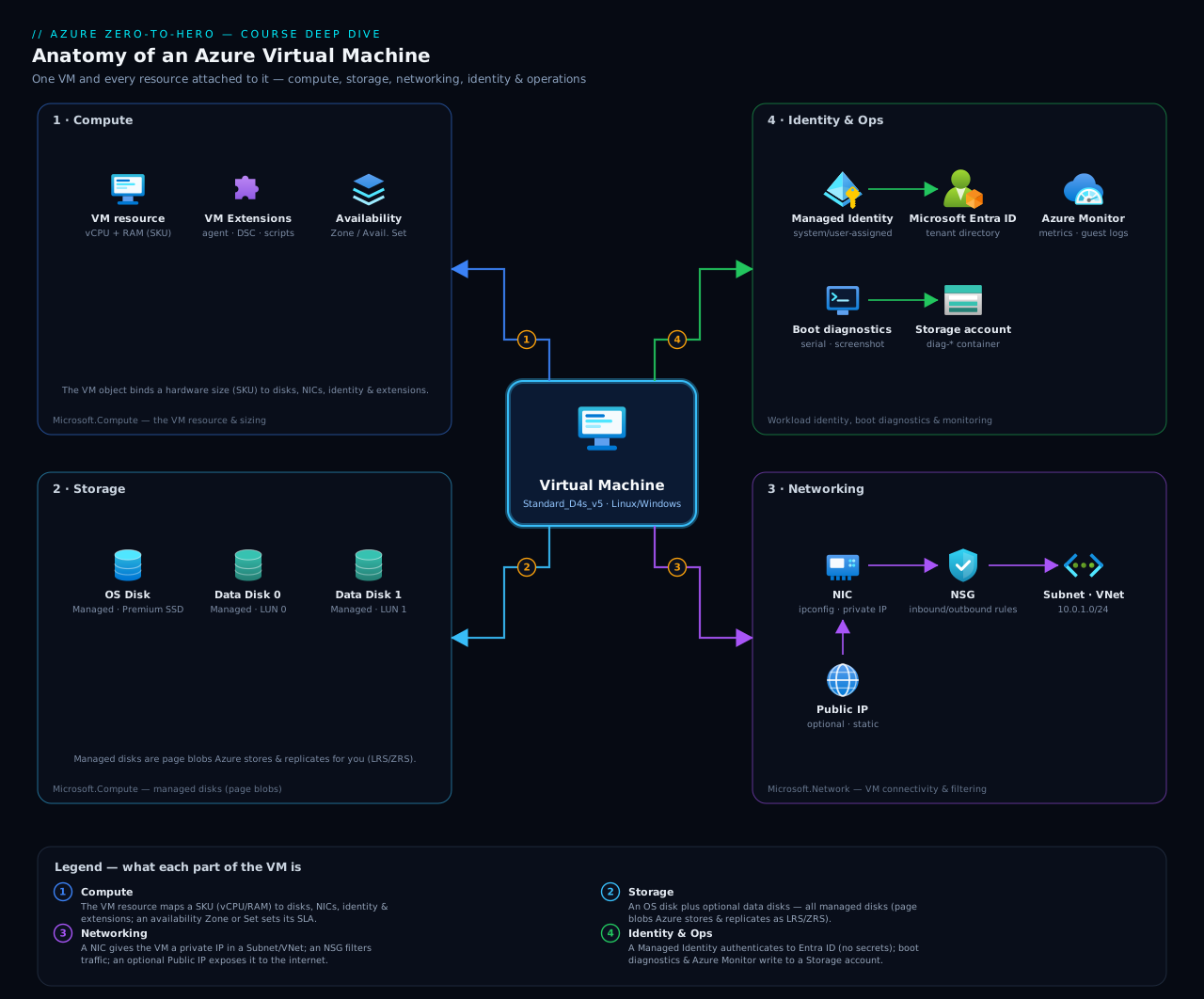
Keep this picture in mind whenever a setting confuses you — almost every blade is configuring one of these boxes or the link between two of them.
Hands-on lab
Create a small free-tier-friendly Linux VM, inspect it, resize it, deallocate it to stop billing, and delete everything. Run this in Azure Cloud Shell (Bash) — az is pre-installed and you are already signed in. The B1s size is eligible for the Azure free account’s 750 free hours/month for the first 12 months; outside that it costs only a few rupees per hour, and we deallocate and delete at the end.
Step 1 — Set variables and create a resource group.
RG=rg-vm-lab
LOC=eastus
VM=vm-lab-01
az group create -n $RG -l $LOC -o table
Expected: a table row showing the group Succeeded.
Step 2 — Create the VM (B1s, Ubuntu, SSH keys, no risky open ports beyond SSH).
az vm create \
  --resource-group $RG --name $VM \
  --image Ubuntu2204 --size Standard_B1s \
  --admin-username azureuser --generate-ssh-keys \
  --public-ip-sku Standard --nsg-rule SSH \
  --security-type TrustedLaunch \
  -o table
Expected: JSON/table output including a publicIpAddress and "powerState": "VM running" (a minute or two).
Step 3 — Inspect the VM.
az vm show -g $RG -n $VM -d \
  --query "{name:name, size:hardwareProfile.vmSize, power:powerState, ip:publicIps}" -o table

az vm list-vm-resize-options -g $RG -n $VM -o table   # sizes you can resize into now
Expected: one row with your VM, size Standard_B1s, power VM running, and a public IP; then a list of available sizes.
Step 4 — Run a command inside the guest without SSH (control-plane).
az vm run-command invoke -g $RG -n $VM \
  --command-id RunShellScript \
  --scripts "uname -a && df -h / && free -m"
Expected: the script’s stdout (kernel, disk usage, memory) in the JSON message.
Step 5 — Resize, then deallocate to stop compute billing.
az vm resize -g $RG -n $VM --size Standard_B2s -o table   # brief reboot
az vm deallocate -g $RG -n $VM                            # STOP compute billing
az vm show -g $RG -n $VM -d --query powerState -o tsv     # expect: VM deallocated
Expected: power state VM deallocated — compute charges stop here (the disk still costs a little until deleted).
Validation checklist. You should have: a running VM, confirmed its size and IP, run a guest command via the control plane, resized it, and deallocated it. If az vm create failed with a quota error, pick a different region or a smaller size.
Cleanup (do this — avoid lingering disk/IP charges).
az group delete -n $RG --yes --no-wait
Deleting the resource group removes the VM and its disk, NIC, public IP and NSG in one shot — the clean way to avoid orphaned, billable resources.
Cost note. With the free account, B1s hours are free for 12 months and this lab fits comfortably; the only possible tiny charge is the Standard public IP and the OS disk for the minutes they exist. Deallocating stops compute cost immediately; deleting the resource group stops everything. Net cost of this lab: effectively zero on a free account, a rupee or two otherwise.
Common mistakes & troubleshooting
| Symptom | Likely cause | Fix |
|---|---|---|
| Shut the VM down but the bill didn’t drop | Stopped from inside the OS (host still reserved), not deallocated | Deallocate (az vm deallocate / portal Stop); confirm power state deallocated |
| Cannot SSH/RDP after deallocate | Dynamic public IP changed on restart | Use a static public IP, or read the new IP with az vm show -d |
| “Operation could not be completed as it results in exceeding quota” | Regional vCPU quota for that size family is hit | Request a quota increase, choose a smaller size, or another region |
| Resize option missing for the size you want | Target size not available on the current host cluster | Deallocate, then resize (Azure replaces it onto a capable cluster) |
| Extension install stuck/failed | VM Agent not running, or NSG/UDR blocks outbound to Azure | Check the VM Agent status, allow required outbound, view the Extensions blade error |
| Can’t reach VM at all, suspect the host | Underlying host fault | Redeploy (az vm redeploy) to move to new hardware |
| New data disk not visible in OS | Attached at the platform but not partitioned/mounted in the guest | Partition, format and mount it inside the OS (then add to /etc/fstab) |
| Locked out of the OS / serial console empty | Boot diagnostics disabled | Enable boot diagnostics, then use serial console or reset access via VMAccess |
Best practices
- Default to Gen2 + Trusted Launch for every new VM unless an old image forces otherwise.
- No public IP, no open RDP/SSH to the internet. Reach VMs via Azure Bastion, VPN or private endpoints; gate management ports with just-in-time access.
- Right-size from data, not habit. Start modest, watch CPU/memory/disk metrics, and resize. Use B-series only for spiky loads; D-series for steady ones.
- Keep state off the OS disk — application/database data on data disks so you can snapshot, resize and detach independently.
- Turn on a managed identity instead of storing secrets, and grant it least-privilege RBAC.
- Auto-shutdown non-prod VMs and deallocate when idle — the cheapest performance tuning is “off”.
- Define VMs as code (Bicep/Terraform) so size, disks, networking and tags are reviewable and repeatable.
- Tag everything (owner, env, cost centre) including the disks/NIC/IP, and enable boot diagnostics so you can always get a console.
Security notes
- Trusted Launch (Secure Boot + vTPM) defends against boot-level malware; Confidential VMs add in-use memory encryption for regulated data.
- Encryption at rest is on by default (SSE); add encryption at host to also protect temp disk and caches, and Azure Disk Encryption for in-guest BitLocker/DM-Crypt where required.
- Managed identities + Key Vault eliminate secrets in code/config; never put credentials in user data (any process in the VM can read it).
- Lock down management access: NSGs deny-by-default, Bastion for RDP/SSH, and just-in-time VM access (Defender for Cloud) to open ports only on request, for minutes.
- Guard run-command and reset-access RBAC — both let a caller execute code as root/SYSTEM inside the guest. Treat
runCommand/actionas a privileged permission. - Patch the guest: enable Azure-orchestrated patching or Update Manager; the platform patches the host, you patch the OS.
- Audit with Defender for Servers for vulnerability assessment, EDR integration and posture recommendations.
Cost & sizing
The levers that actually move a VM’s monthly bill, roughly in order of impact:
- Size (SKU) — the dominant cost; scales with vCPU/RAM. Right-sizing is the biggest saving.
- Running hours — you pay per second the VM is allocated. Deallocate when idle; auto-shutdown non-prod. (Stopping from inside the OS does not save money.)
- Commitment discounts — 1- or 3-year Reserved Instances or a Savings Plan cut steady-state compute cost dramatically versus pay-as-you-go.
- Spot — up to ~90% off for interruptible workloads.
- Azure Hybrid Benefit — apply owned Windows/SQL/RHEL/SLES licences to drop the licence portion.
- Disks — type and provisioned size/performance are billed independently of the VM and keep billing while deallocated; delete orphaned disks. Premium SSD v2/Ultra bill for provisioned IOPS/throughput.
- Public IP & egress — Standard public IPs are billed; outbound data transfer (especially cross-region/internet) adds up.
- Backup, monitoring ingestion, marketplace software charges — each adds to the total beyond the raw compute.
A simple discipline: choose the smallest size that meets measured demand, commit (reservation/savings plan) for the steady baseline, deallocate or auto-shutdown the rest, and clean up disks/IPs you no longer need.
Interview & exam questions
1. What is the difference between Stopped and Stopped (deallocated)? Stopping from inside the guest powers the OS off but Azure keeps the host reserved, so compute is still billed. Deallocating releases the host — compute billing stops, the temp disk is wiped, dynamic IPs may change, and persistent disks remain (still billed for storage). To stop paying for the VM you must deallocate.
2. Explain the B-series burstable credit model and when you’d avoid it. B-series run at a throttled baseline and accrue CPU credits while idle, spending them to burst to 100% under load. They are ideal for spiky, mostly-idle workloads. Avoid them for sustained CPU-bound work: credits deplete and the VM is throttled to baseline, so a same-vCPU D-series performs better and more predictably.
3. What does accelerated networking do and what are its constraints? It enables SR-IOV so the NIC bypasses the host vSwitch, lowering latency/jitter and host CPU and raising packets-per-second. It needs a supported size (generally 2+ vCPU, not the smallest) and OS, it is free, and toggling it on an existing VM requires deallocation.
4. System-assigned vs user-assigned managed identity? System-assigned is created and deleted with the VM, 1:1, and cannot be shared; user-assigned is a standalone resource you can attach to many VMs/resources. Use system-assigned for a single VM’s own identity, user-assigned to share one identity and its role assignments across a fleet. Either way you still need an RBAC role assignment on the target.
5. When can you resize a VM live, and when must you deallocate? If the target size is supported on the current host cluster you can resize with a brief reboot. If not, you must deallocate so Azure can re-place the VM on a cluster that supports the new size. Some family/storage-capability changes also force a deallocation.
6. Gen1 vs Gen2 images — why does it matter and can you change it? Gen1 is BIOS/MBR; Gen2 is UEFI/GPT with larger OS disks and is required for Trusted Launch, Confidential VMs and some large sizes. Generation is fixed at creation by the image and effectively cannot be changed in place — treat it as a recreate. Prefer Gen2.
7. What is the temporary disk and what is the gotcha? It is local SSD on the physical host, fast and free-with-the-size, used for the page/swap file and scratch. Its data is ephemeral — lost on deallocate, redeploy or host migration — so never store anything you need to keep on it.
8. You’re locked out of a VM (SSH/RDP failing). What tools recover it without networking? Use serial console (requires boot diagnostics enabled) to reach the OS console over the serial port; use run-command to execute a fix script via the control-plane agent; use reset access (VMAccess) to reset the password/key; and redeploy if you suspect a bad host.
9. What does Trusted Launch protect against, and what’s the prerequisite? Secure Boot + vTPM + measured boot defend against bootkits/rootkits and unsigned boot components. It requires a Gen2 image (and a supported size). It should be the default for new VMs.
10. How do Spot VMs work and when should you not use them? They use surplus capacity at a steep discount but can be evicted when Azure needs the capacity or the price rises, with a Deallocate or Delete policy. Use them only for interruptible, fault-tolerant work (batch, CI, rendering); never for stateful production that can’t tolerate sudden eviction with no SLA.
11. Why might deleting a VM still leave you with a bill? Deleting the VM does not delete its managed disks, NIC, or public IP unless configured to. Orphaned disks and Standard public IPs keep billing. Delete the resource group (or enable delete-with-VM on the disk) to clean up fully.
12. What’s the difference between redeploy and reapply? Redeploy moves the VM to brand-new hardware (deallocate + re-provision, temp disk lost) to escape a faulty host. Reapply re-pushes the VM’s existing model to the same hardware to clear a failed provisioning state without migrating.
Quick check
- You shut down a production VM from the Windows Start menu over the weekend and are surprised the bill barely changed. Why, and what should you have done?
- Which VM size family would you start with for a steady, balanced web/app server: B, D, or F — and why not the others?
- True or false: you can add a VM to an availability set after it has been created.
- You need to attach a Premium SSD data disk. What must be true about the VM size, and what must you do inside the guest after attaching?
- SSH is failing and you cannot reach a VM at all. Name two recovery tools and the single setting one of them depends on.
Answers
- Shutting down from inside the OS leaves the VM allocated, so Azure still reserves and bills the host. You should deallocate it (portal Stop or
az vm deallocate) — or set auto-shutdown — to stop compute charges. - D-series. It is the balanced general-purpose family for steady production. B would run out of burst credits under sustained load and throttle; F is compute-optimised (less RAM per vCPU) and only worth it for CPU-bound work.
- False. Availability-set membership is create-time only; to put an existing VM in a set you must recreate it.
- The VM size must be an
s(premium-storage-capable) size and have an available data-disk slot. After attaching, you must partition, format and mount the disk inside the guest (and add it to/etc/fstabto persist across reboots). - Serial console (depends on boot diagnostics being enabled) and run-command (executes via the control-plane VM Agent). Redeploy and reset access are also valid recovery tools.
Exercise
In Cloud Shell, create a resource group rg-vm-exercise and a B1s Ubuntu VM with no public IP (--public-ip-address "") and a system-assigned managed identity (--assign-identity). Then: (a) use az vm run-command invoke to print the VM’s hostname and IP config from inside the guest (proving you can manage it with no public IP); (b) grant the VM’s identity the Reader role on its own resource group and confirm with az role assignment list; © deallocate the VM and verify the power state is VM deallocated; (d) clean up with az group delete. Bonus: rewrite the create step as a small Bicep file with a system-assigned identity and securityProfile set to Trusted Launch, and deploy it with az deployment group create.
Certification mapping
- AZ-104 (Azure Administrator Associate) — Deploy and manage Azure compute resources: create VMs (portal/CLI/Bicep), configure sizes, disks, networking and availability options; manage VM state (start/stop/deallocate), resize, redeploy; configure managed identities, boot diagnostics, extensions, and backup; troubleshoot with serial console and run-command.
- AZ-305 (Azure Solutions Architect Expert) — Design infrastructure solutions / Design compute solutions: choosing VM size families and Spot vs reserved for cost, selecting security type (Trusted Launch/Confidential), designing for resilience (zones/sets/scale sets, covered next), and weighing IaaS VMs against PaaS/containers. Cost levers (reservations, savings plans, Hybrid Benefit, deallocation) map to design cost-optimized solutions.
Glossary
- Virtual machine (VM) — a rented, full computer (CPU, RAM, disks, NIC) you control from the OS up; Azure’s core IaaS compute.
- vCPU — a virtual CPU core; the unit sizes are measured in.
- SKU / size — the named hardware shape (e.g.
Standard_D2s_v5): vCPU, RAM, max disks/NICs, features. - Size family — group of sizes by CPU:RAM ratio or specialised hardware (B/D/F/E/M/L/N/H).
- Burstable (B-series) — VMs that run at a throttled baseline and bank CPU credits to burst under load.
- Spot VM — discounted surplus-capacity VM that Azure can evict at any time.
- Generation (Gen1/Gen2) — virtual hardware version: BIOS/MBR vs UEFI/GPT; Gen2 needed for Trusted Launch/Confidential.
- Trusted Launch — Secure Boot + vTPM + measured boot for boot-level integrity.
- Confidential VM — VM with memory encrypted in use (hardware-isolated from the host).
- Managed disk — an Azure-managed block storage resource that attaches to a VM (OS or data disk).
- Temporary disk — fast local host SSD that is ephemeral (lost on deallocate/migration).
- Accelerated networking — SR-IOV NIC offload for lower latency and higher throughput.
- Managed identity — an Entra ID identity Azure manages for the VM so it can call services without stored secrets.
- Deallocate — release the host and stop compute billing (disks persist, temp disk wiped).
- Boot diagnostics — captured serial output + boot screenshot; prerequisite for serial console.
- Serial console — text console to the VM’s serial port via the agent, usable when networking is down.
- Run-command — execute a script inside the guest through the control-plane VM Agent.
- Extension — agent-installed add-on for configuration/integration (e.g. Custom Script, Azure Monitor Agent).
- Cloud-init / custom data — first-boot bootstrap data consumed (on Linux) by cloud-init.
- Proximity placement group (PPG) — forces member VMs into the same low-latency datacentre zone.
Next steps
You now know the VM itself end to end. The natural next topic is the one interviewers probe hardest — how to keep VMs available when hardware, racks, datacentres or whole regions fail: