Someone hands you a datacentre of 400 virtual machines and says “move it to Azure — and tell me what it’ll cost.” You can’t size what you can’t see, and you can’t quote a price for VMs whose CPU, RAM, disk and network you’re only guessing at. Azure Migrate exists for exactly this moment: it is Azure’s free hub for discovering your existing servers, databases and web apps, assessing their readiness and right-size for Azure, mapping the dependencies between them so you don’t migrate a database without the app that needs it, and finally migrating them. This article covers the first three — discover, assess, map — because a migration that skips them is how teams end up running an over-provisioned, broken-up estate that costs more in the cloud than it did on-premises.
The thing that confuses newcomers is that “Azure Migrate” is not one tool but a project (a container in your subscription) plus a small appliance (a lightweight VM you run in your own datacentre) that quietly collects inventory and performance data and ships it to that project. The appliance watches your servers for days or weeks, learns their real utilisation, and feeds an assessment engine that says: this VM should become a Standard_D4s_v5, this disk should be Premium SSD, here’s the monthly bill, here’s what’s not ready to move. Get those moving parts straight and the rest is clicking through a wizard with confidence.
By the end you will know what each piece does, the difference between as-on-premises sizing and performance-based right-sizing (the most valuable feature and the one beginners ignore), how dependency mapping turns a flat server list into application groups, and how to read the readiness, sizing and cost columns of your first assessment without being misled — and you’ll have walked the appliance-to-report flow end to end.
What problem this solves
Migration projects fail in the planning phase, not the cutover. The classic failure is lift-and-shift at the same size: someone reads an on-premises VM as 8 vCPU / 32 GB because that’s how it was provisioned in 2018 and picks the matching Azure size — but the VM averages 9% CPU and 6 GB working set, massively over-provisioned as on-prem VMs almost always are. Migrate it as-is and you pay for a D8s that should have been a D2s, multiplied across hundreds of servers; the bill lands, finance panics, and the cloud gets blamed for being “expensive” when the real fault was sizing from the spec sheet instead of the telemetry.
The second failure is migrating servers in isolation. You move the web tier on Saturday, leave its database for next sprint, and Monday the app is down because it’s now reaching across a half-built VPN to a database 200 ms away. Servers are a web of dependencies — app→DB, app→cache, app→domain controller — and you must migrate a whole application group together, in a planned wave, or accept an outage.
The third is discovering that something can’t move only after you’ve started — an OS too old to support, a disk too large for the target tier, an unsupported boot type. These readiness problems are a five-minute fix to the plan if the assessment surfaces them, and a war-room if you hit them mid-cutover. Azure Migrate surfaces all three classes — wrong size, hidden dependency, blocked readiness — before you touch production, for free. Who hits this: anyone moving a VMware or Hyper-V estate, physical servers, or even AWS/GCP VMs into Azure, at any scale.
| The planning failure | What it looks like in production | What Azure Migrate gives you instead |
|---|---|---|
| Size from the on-prem spec, not usage | A fleet of over-provisioned VMs; the bill is 2–3× what it should be | Performance-based right-sizing from collected CPU/RAM/disk telemetry |
| Migrate servers one at a time | App breaks Monday because its DB is still on-prem | Dependency mapping → migrate whole application groups together |
| Find blockers during cutover | A war-room when an OS or disk turns out unsupported | Readiness column flags every blocker before you move |
| Guess the Azure bill | Finance surprise; cloud blamed for being expensive | A monthly cost estimate per VM and for the whole project |
Learning objectives
By the end of this article you can:
- Explain the Azure Migrate project → appliance → assessment model and what data flows where.
- Distinguish discovery, assessment and dependency mapping — what each produces and when you do it.
- Choose between the VMware, Hyper-V and physical/other appliance flavours and list the prerequisites and ports for each.
- Deploy the appliance, register it to a project, and confirm discovery is flowing with the right
az/portal checks. - Explain as-on-premises vs performance-based sizing and pick the right one for a workload, including the comfort factor and percentile knobs.
- Read an assessment’s readiness, Azure VM size, monthly cost and confidence rating columns without being misled.
- Turn raw discovery into application groups using agentless and agent-based dependency mapping.
- Produce a defensible first right-sizing and cost report, and know what it does and does not promise.
Prerequisites & where this fits
You should be comfortable with the Azure basics: a subscription and resource group (the project lives in one — see the Azure resource hierarchy) and running az in Cloud Shell. On the source side you need access to the hypervisor — a vCenter Server account for VMware, the host(s)/SCVMM for Hyper-V, or per-machine credentials for physical/other-cloud servers. You deploy one appliance VM in that environment with outbound internet (or a private-endpoint path) to Azure; basic discovery needs no agents on the servers.
This sits at the very front of the migration journey, upstream of everything — discovery and assessment come before you provision a single Azure VM. The output feeds VM sizing, so understanding Azure VM series families and managed disk types makes the recommendations legible. The actual replication and cutover (which shares an appliance lineage with Azure Site Recovery) is the next phase, out of scope here; picking the destination region is its own decision — see Azure regions and availability zones.
A discovery-and-assessment engagement pulls in several teams: the cloud/platform team (needs Contributor + a few resource-provider rights to create the project), the virtualisation/infra team (provides the read-only vCenter/Hyper-V account and hosts the appliance VM), the network team (opens outbound TCP 443 or the private-endpoint path), and the application owners (supply optional guest credentials and validate the dependency map into real application groups). Knowing who owns which layer up front stops a firewall rule or a missing role from stalling the project on day one.
Core concepts
Four mental models make every screen in the portal obvious.
Azure Migrate is a project, and the project is a hub. The Azure Migrate project is a resource in your subscription that acts as a container and dashboard. Into it plug tools — Microsoft’s own discovery/assessment/migration tooling, plus first-party database and web-app tools and a few ISV partners. Everything the appliance collects lands in the project; every assessment reads from it. You create the project once per geography you’re assessing into and point all your appliances at it.
The appliance is your eyes inside the datacentre. The Azure Migrate appliance is a lightweight VM you deploy on-premises (OVA for VMware, VHD for Hyper-V, a PowerShell installer for physical servers). It connects to vCenter / Hyper-V / the servers with a read-only account, continuously pulls configuration data (cores, memory, disks, NICs, OS) and performance data (CPU %, memory, disk IOPS/throughput, network), and securely sends it to your project. It is agentless for this — nothing is installed on the guest VMs. It does not move any workload; it only observes.
Discovery, assessment and dependency mapping are three different verbs. Discovery builds an inventory — the servers, their specs and live utilisation. Assessment is an analysis you run on demand against that inventory: given these servers and this target region/pricing, what Azure size, disk, readiness and cost? You can run many assessments from one discovery, each with different assumptions. Dependency mapping discovers the connections between servers so you can group them into applications. Discovery is continuous; assessment is a point-in-time report you generate and re-generate as data accrues.
Sizing is either “same as on-prem” or “based on what it actually uses.” As-on-premises maps the allocated cores/RAM to the nearest Azure size — fast, conservative, usually over-provisioned. Performance-based sizes from collected utilisation (a chosen percentile × a comfort factor for headroom) and recommends the smallest size that fits. Performance-based is where the savings live, but needs enough collection time to be trustworthy — and that trust is quantified by a confidence rating of 1 to 5 stars, driven by how much performance data was collected over the assessment’s time range. A day of data against a 1-month window? Low stars, a guess. Several weeks? Five stars, trust it. A low-star performance-based report is not a finding — it’s a request for more time.
The vocabulary in one table
Pin down every moving part before the deep sections. The glossary repeats these for lookup; this is the mental model side by side:
| Concept | One-line definition | Where it lives | Why it matters |
|---|---|---|---|
| Migrate project | The hub/container + dashboard | Your subscription / resource group | Everything plugs into it |
| Appliance | On-prem VM that collects inventory + perf | Your datacentre (OVA/VHD/script) | Your eyes inside the estate; agentless |
| Discovery | The inventory the appliance builds | The project | What everything else reads from |
| Assessment | An on-demand sizing/cost/readiness report | Run from the project | The artefact you deliver |
| Dependency mapping | The connections between servers | The project (agentless/agent-based) | Turns servers into application groups |
| As-on-premises sizing | Map allocated specs to Azure | Assessment setting | Fast, safe, usually over-sized |
| Performance-based sizing | Size from real utilisation | Assessment setting | Where right-sizing savings live |
| Comfort factor | Headroom multiplier on utilisation | Assessment setting | Buffer for spikes/growth |
| Confidence rating | 1–5 stars on data sufficiency | On the assessment | How much to trust the sizing |
| Readiness | Ready / conditional / not-ready verdict | Assessment per-server | Flags blockers before you move |
Discovery: getting the appliance seeing your estate
Discovery is the foundation — no inventory, no assessment. The first decision is which appliance you deploy, because the collection method differs by source environment. Pick the row that matches your datacentre:
| Source environment | Appliance form | How it discovers | Account it needs | Agentless? |
|---|---|---|---|---|
| VMware vSphere | OVA template (one appliance) | Talks to vCenter Server API | Read-only vCenter account | Yes (inventory + perf + agentless deps) |
| Hyper-V | VHD template | Talks to Hyper-V host / cluster (WinRM) | Admin on the host(s) | Yes (inventory + perf) |
| Physical / bare-metal | PowerShell installer (Windows) | Connects to each server (SSH/WinRM) | Per-server credentials | Yes (inventory + perf) |
| AWS / GCP VMs | Treated as physical | Per-server credentials | Per-server credentials | Yes |
One VMware appliance scales to a large number of servers per vCenter; very large estates run several pointed at one project. It auto-updates its own components, so you deploy once and it stays current.
What the appliance actually collects
The appliance collects on two cadences, and the difference sets your expectations for when an assessment becomes trustworthy. Configuration/inventory (cores, RAM, disks and sizes, NICs, OS, boot type — used for readiness and as-on-prem sizing) is refreshed roughly hourly, so it shows up fast, in minutes to an hour. Performance counters (CPU %, memory, disk IOPS/throughput, network — used for performance-based right-sizing) are sampled continuously and rolled up, so good right-sizing needs days to weeks of accrued history. With guest credentials the appliance also gathers optional software inventory, SQL/web-app discovery (for those assessment types) and agentless dependencies. The beginner trap: deploy the appliance and immediately run a performance-based assessment and you’ll get a low confidence rating, because there’s barely any utilisation history. Plan for a collection window before you trust right-sizing.
Prerequisites and the network path
The appliance has to reach Azure — for most setups plain outbound HTTPS on TCP 443; locked-down networks route it through a private endpoint instead. The essentials:
| Requirement | VMware | Hyper-V | Physical |
|---|---|---|---|
| Outbound to Azure | TCP 443 to Azure Migrate + storage URLs (or private endpoint) | Same | Same |
| Source connection | vCenter API (usually 443) | WinRM 5985/5986 to hosts | SSH 22 (Linux) / WinRM 5985/5986 (Windows) |
| Appliance OS/resources | Windows Server VM, a few vCPU + ~16 GB RAM | Same | Same (or installed on a provided server) |
| Account privilege | Read-only vCenter role | Admin on Hyper-V host(s) | Per-server credentials (least privilege) |
| Project registration | Appliance key from the project | Same | Same |
Two gotchas that stall first-time deployments: a proxy without the right allow-list silently blocks registration (the appliance configuration manager surfaces a connectivity error you must read), and a vCenter account with too few privileges discovers inventory but can’t collect performance data for some objects, quietly capping your confidence rating. Grant the documented read-only role, not a hand-rolled subset.
Creating the project and registering the appliance
You create the project in the portal (Azure Migrate → create project, choosing subscription, resource group, name and the metadata geography), or as code — a minimal Bicep that stamps the resource:
// A Migrate project is a simple container resource; tools + appliances attach to it.
resource migrateProject 'Microsoft.Migrate/migrateProjects@2020-05-01' = {
  name: 'migrate-shop-prod'
  location: 'centralindia'   // where project metadata is stored
  properties: {}
}
The appliance itself is not an ARM/Bicep resource — you download the OVA/VHD or run the installer, then bind it to the project with a registration key from the portal. After it boots, its local configuration manager (a web app on the appliance) is where you supply source credentials and start discovery. To confirm the project exists, use az:
# Confirm the Migrate project exists in the resource group
az resource list --resource-group rg-migrate-prod \
  --resource-type Microsoft.Migrate/migrateProjects \
  --query "[].{name:name, location:location}" -o table
Discovery health then lives in the portal: Azure Migrate → Servers, databases and web apps → Discovery shows the appliance status (last-seen heartbeat) and a rising server count. When that count matches your datacentre and the heartbeat is green, discovery is working — let it gather performance data.
Assessment: turning inventory into a right-sizing report
An assessment is an on-demand report you create against a group of discovered servers — and you can run several from one discovery (a conservative as-on-prem one, a performance-based one for the savings story) and compare. The assessment type sets the target: Azure VM (IaaS lift-and-shift, the default), Azure VMware Solution (re-host onto AVS nodes), Azure SQL (SQL instances → SQL MI/DB/VM), or Azure App Service (ASP.NET/Java web apps).
We’ll focus on the Azure VM assessment — the one nearly everyone runs first. Its behaviour is governed by assessment properties you choose at creation — the knobs that decide whether the report is realistic or nonsense:
| Property | What it controls | Common choices | Beginner default | Effect on result |
|---|---|---|---|---|
| Sizing criteria | Spec-based vs usage-based | As-on-premises / Performance-based | Performance-based | The whole savings story |
| Performance history | Time range of perf data used | Day / Week / Month | Month (once you have data) | Longer = more representative |
| Percentile utilisation | Which percentile of usage to size to | 50 / 90 / 95 / 99 | 95th | Higher = more headroom, bigger size |
| Comfort factor | Multiplier on observed usage | 1.0–N (e.g. 1.3) | 1.3 | Buffer for spikes/growth |
| Target region | Where you’re migrating | Any Azure region | Your chosen region | Drives price + size availability |
| Pricing model | PAYG vs reservations | Pay-as-you-go / 1yr / 3yr RI | PAYG to start | Reservations cut cost 30–60% |
| Azure Hybrid Benefit | Reuse Windows/SQL licences | On / Off | On if you own licences | Big cost lever for Windows estates |
| VM series | Which families are eligible | D-series, E-series, etc. | All current gen | Constrains the recommended size |
| Storage type | Target disk tier | Premium / Standard SSD / auto | Premium for prod | Disk cost + performance |
| Currency | Report currency | INR / USD / etc. | Your billing currency | Cosmetic but get it right |
As-on-premises vs performance-based — the decision that defines your report
This is the fork that matters most. As-on-premises sizing reads each VM’s allocated cores/RAM and picks the nearest Azure size, ignoring utilisation — fast, never under-sizes, but (because on-prem VMs are chronically over-provisioned) over-sized and over-priced; use it only as a conservative bound or when you have no performance data. Performance-based sizing reads collected utilisation, takes your percentile (say 95th) × comfort factor (say 1.3), and recommends the smallest size that fits. An 8-vCPU VM averaging 9% CPU with 95th-percentile at 18% might size down to 2 vCPU — real money, repeated across the fleet. The catch: it’s only as good as the data — short collection or a bad percentile and the recommendation is unsafe.
| Dimension | As-on-premises | Performance-based |
|---|---|---|
| Sizes from | Allocated cores/RAM (the spec) | Collected CPU/RAM/disk/network |
| Collection time needed | None | Days to weeks for high confidence |
| Typical result | Over-provisioned, costs more | Right-sized, often much cheaper |
| Risk | Wastes money, never under-sizes | Under-sizes if data is thin or percentile too low |
| Confidence rating | Always high (no perf data needed) | 1–5 stars based on data collected |
| When to use | No perf data; ultra-conservative bound | The real plan, once data has accrued |
| Knobs that tune it | None | Percentile, comfort factor, history range |
Reading the assessment report without being fooled
Run the assessment and you get a summary (readiness donut, monthly cost, confidence stars) plus a per-server table. The columns that matter, and the trap in each:
| Report element | What it tells you | The trap | What to actually do |
|---|---|---|---|
| Azure readiness | Ready / Conditionally ready / Not ready / Unknown | “Unknown” often means missing data, not a blocker | Fix discovery (creds/perf), then re-assess |
| Recommended Azure VM size | The size the engine picked | Only as good as the sizing criteria + confidence | Check the confidence stars before trusting it |
| Monthly cost estimate | Compute + storage per VM and total | Defaults may be PAYG, no Hybrid Benefit | Set pricing model + AHB to match reality |
| Confidence rating (stars) | How much perf data backed the sizing | Low stars on a performance-based report = guess | Collect longer; don’t ship a 1-star report |
| Storage / disk recommendation | Target disk tier + monthly disk cost | Premium everywhere inflates cost | Right-tier non-critical disks to Standard SSD |
| Readiness issues / messages | The reason a server isn’t ready | Easy to skim past | Read each — it’s your remediation list |
Three reading rules save the most pain: a low-confidence performance-based assessment is a “come back later,” not a result; “not ready” almost always has a fixable reason in the issues column (unsupported OS, an over-cap disk, an unsupported boot type) that becomes a one-line plan change; and the cost is a PAYG/list estimate unless you said otherwise — turn on Hybrid Benefit and model reservations before you quote, or you’ll over-state the bill and lose the savings argument.
Dependency mapping: from a server list to application groups
A flat list of 400 servers doesn’t tell you what to migrate together. Dependency mapping observes the actual TCP connections between servers — which talks to which, on what port — so you can draw the boundary around an application (web → app → DB → cache → DC) and migrate the whole group in one wave. Skip it and you migrate a web tier whose database is still on-prem, and the app breaks. Two flavours:
| Mapping mode | How it works | Setup | Best for | Limitation |
|---|---|---|---|---|
| Agentless | Appliance polls each server (with guest creds) for active connections, periodically | Provide guest OS credentials; no install | Quick, broad mapping across many servers | Point-in-time polling — may miss short-lived connections |
| Agent-based | An agent on each server streams connection data continuously | Install dependency agents (and a workspace) | Deep, continuous, per-process detail on key apps | Agent rollout effort; doesn’t scale to the whole estate easily |
The pragmatic pattern: use agentless broadly to draw rough application boundaries, then reach for agent-based only on the few business-critical apps that need continuous, per-process certainty before a risky cutover. Either way you turn the observed connections into groups in the portal and assess each as a unit, so cost and readiness come out per-application — which is how a migration is sequenced into waves. Two notes: agentless mapping needs the same guest credentials as software inventory, and dependency data accrues over time — a few hours shows the busy connections; a week catches the once-a-night batch job that would otherwise surprise you at cutover.
Architecture at a glance
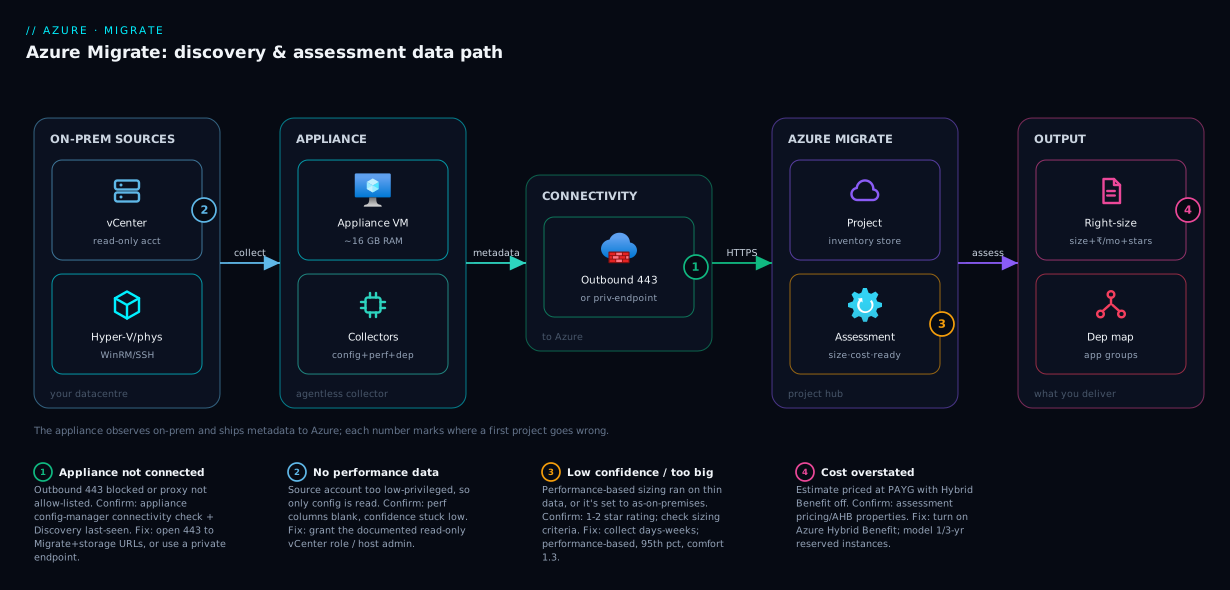
The flow runs strictly left to right. In your on-premises datacentre, the lightweight Azure Migrate appliance connects with a read-only account to vCenter (or Hyper-V hosts, or each physical server) and continuously pulls configuration/inventory and performance counters — plus, with guest credentials, software inventory and agentless dependency data. It touches no workload; it only observes, then ships everything over outbound TCP 443 (or a private-endpoint path) into your Azure Migrate project — the hub holding the discovered inventory. From there you run an assessment: the engine reads the collected specs and utilisation, applies your sizing criteria, and emits the right-sizing report (recommended VM size, disk tier, readiness, monthly cost, a 1–5-star confidence rating) alongside the dependency map that groups servers into applications. The numbered badges mark the four places a first project most often goes wrong: the appliance’s outbound path, the source credentials, the collection-time-versus-confidence trap, and the pricing assumptions baked into the cost number.
Real-world scenario
Meridian Logistics, a fictional but realistic mid-market freight company, ran 180 VMs on VMware vSphere: a customer portal, a fleet-tracking app, a data-warehouse, internal line-of-business apps, three domain controllers and the usual file servers. Their CFO had approved “a move to Azure” with a hard expectation: it must not cost more than the datacentre. The infra lead, new to Azure Migrate, made every classic beginner move first, then corrected them — which is why the story is instructive.
He deployed the VMware appliance OVA, pointed it at vCenter with a fresh read-only account, and within an hour saw 180 servers appear. Elated, he immediately ran a performance-based assessment for Central India at PAYG pricing, and got an estimate of roughly ₹14.8 lakh/month — higher than their datacentre run-rate. Three mistakes were buried in that number. The assessment carried a 2-star confidence rating (barely an hour of performance data, so the engine fell back to conservative, over-large sizes); Azure Hybrid Benefit was off, so every Windows VM was priced with a licence the company already owned; and pricing was PAYG with no reservations modelled.
He let the appliance collect for three weeks, then re-ran the same servers with corrected assumptions: history Month, 95th percentile, comfort factor 1.3, Hybrid Benefit on, 3-year reserved instances. Confidence climbed to 5 stars, and the right-sizing told a different story: dozens of 8-vCPU VMs averaging under 10% CPU collapsed to 2- and 4-vCPU sizes, and the estimate landed near ₹6.9 lakh/month — comfortably under the datacentre. The over-statement had been almost entirely bad assumptions on thin data, not a real cost problem.
Dependency mapping then changed the sequence. Agentless mapping revealed the portal reached not only its SQL database but also a shared authentication service and a nightly batch host nobody had documented — connections that only surfaced after a week of polling caught the 02:00 job. Had they migrated the portal alone on the planned weekend, Monday’s batch run would have failed reaching back on-prem. Instead they grouped all four into one application group and cut them over as a single wave, with no surprise outage. The lesson, and the one this article exists to teach: the appliance is cheap and fast, but the numbers only become trustworthy after collection time and correct pricing — and the plan only becomes safe after you’ve seen the dependencies.
Advantages and disadvantages
| Advantages | Disadvantages / limits |
|---|---|
| Free discovery and assessment (you pay only for what you migrate) | Trustworthy right-sizing needs days–weeks of collection, not minutes |
| Agentless inventory + performance — nothing on the guest VMs | Some depth (per-process deps, certain perf) needs guest creds / agents |
| Performance-based right-sizing turns over-provisioned VMs into real savings | A low-confidence report misleads if you ship it too early |
| One project hub for VMware, Hyper-V, physical, even AWS/GCP | First-party PaaS/web-app discovery has prerequisites beyond basic inventory |
| Dependency mapping groups servers into safe migration waves | Agentless deps are point-in-time polls — can miss short-lived connections |
| Cost estimates support Hybrid Benefit + reservations modelling | Cost is an estimate at the assumptions you set — not a binding quote |
| Re-run assessments cheaply as data and assumptions change | Appliance + network path setup has real prerequisites (ports, privileges) |
The advantages dominate when you have time to plan; the disadvantages bite when you rush — deploy on Monday, ship a performance-based report on Tuesday, and you’ve handed your CFO a 2-star guess. The discipline is simple: let it collect, set the assumptions honestly, and read the confidence rating before you believe the size.
Hands-on lab
You don’t need a datacentre to learn the workflow. This lab creates a project, deploys a tiny stand-in source VM, and walks the assessment flow — free-tier-friendly (a B1s VM, deleted at the end). Run in Cloud Shell (Bash).
Step 1 — Variables and resource group.
RG=rg-migrate-lab
LOC=centralindia
PROJ=migrate-lab-$RANDOM
az group create -n $RG -l $LOC -o table
Step 2 — Create an Azure Migrate project (the hub).
# Create the project via a tiny inline Bicep (the portal is the usual path)
az deployment group create -g $RG --template-uri \
  https://raw.githubusercontent.com/Azure/azure-quickstart-templates/master/quickstarts/microsoft.migrate/migrate-project/azuredeploy.json \
  --parameters migrateProjectName=$PROJ location=$LOC -o table 2>/dev/null \
  || echo "If the quickstart URL is unavailable, create the project in the portal: Azure Migrate -> Create project."
Expected: a project resource named like migrate-lab-1234 in $RG. Confirm it:
az resource list -g $RG --resource-type Microsoft.Migrate/migrateProjects \
  --query "[].{name:name, location:location}" -o table
Step 3 — Deploy a stand-in “source” VM. (In a real engagement the appliance discovers existing servers; here we just want one VM whose size we can reason about.)
az vm create -n vm-legacy-sim -g $RG --image Ubuntu2204 \
  --size Standard_B1s --admin-username azureuser --generate-ssh-keys -o table
Step 4 — Inspect the VM’s “spec sheet” — what as-on-premises sizing reads.
az vm show -n vm-legacy-sim -g $RG --query "hardwareProfile.vmSize" -o tsv
az vm list-sizes -l $LOC --query "[?name=='Standard_B1s'].{cores:numberOfCores, ramMB:memoryInMb}" -o table
This allocated size is what an as-on-premises assessment maps directly. Performance-based sizing would instead read real utilisation over weeks and likely recommend something smaller if it idles.
Step 5 — Read the utilisation performance-based sizing would use.
VMID=$(az vm show -n vm-legacy-sim -g $RG --query id -o tsv)
az monitor metrics list --resource "$VMID" --metric "Percentage CPU" \
  --interval PT1M --aggregation Average Maximum -o table | head -20
A nearly-idle VM is exactly the over-provisioned pattern right-sizing exploits: low average and 95th-percentile CPU → a smaller recommended size.
Step 6 — Tour the real assessment flow. Open Azure Migrate, select $PROJ, and walk Servers, databases and web apps. With no appliance you won’t have discovered servers, but you can open the Assessment creation flow and read every property — sizing criteria, percentile, comfort factor, target region, pricing model, Hybrid Benefit. That muscle memory is the point.
Validation. You created a project and saw the gap between a VM’s allocated spec (what as-on-premises reads) and its utilisation (what performance-based reads) — the gap right-sizing exploits.
Cleanup (avoid lingering charges).
az group delete -n $RG --yes --no-wait
Cost note. A B1s is a few rupees per hour; an hour of this lab is under ₹50, and deleting the group stops everything. The Migrate project itself is free.
Common mistakes & troubleshooting
The failure modes that stall first-time Azure Migrate projects — symptom, root cause, how to confirm, and the fix:
| # | Symptom | Root cause | Confirm (portal / command) | Fix |
|---|---|---|---|---|
| 1 | Appliance shows “not connected” / no heartbeat | Outbound 443 blocked, or proxy not allow-listed | Appliance configuration manager → connectivity check; Discovery blade last-seen | Open 443 to Azure Migrate + storage URLs, or set the proxy; consider private endpoint |
| 2 | Servers discovered but no performance data | vCenter/host account under-privileged | Discovery shows config but perf columns blank; confidence stays low | Grant the documented read-only vCenter role (or host admin) |
| 3 | Performance-based assessment is 1–2 stars | Not enough collection time | Assessment summary shows low confidence rating | Wait days–weeks; re-run the assessment after data accrues |
| 4 | Recommended sizes look too big | Sizing set to as-on-premises, or percentile/comfort too high | Open assessment properties | Switch to performance-based; 95th percentile, comfort ~1.3 |
| 5 | Monthly cost looks far too high | AHB off and/or PAYG pricing | Assessment properties → pricing/AHB | Turn on Azure Hybrid Benefit; model reserved instances |
| 6 | Many servers marked “not ready” | Unsupported OS, oversized disk, unsupported boot type | Per-server readiness issues column | Read each message; plan remediation (OS upgrade, disk split, Gen change) |
| 7 | Readiness shows “unknown” for many VMs | Missing/insufficient data, not a real blocker | Readiness reason = data/collection | Fix discovery (creds, time), then re-assess |
| 8 | Dependency map is empty / thin | Guest credentials not provided, or not enough polling time | Dependencies view sparse | Add guest creds for agentless; let it poll longer; agent-based for depth |
| 9 | Stale numbers in the report | Assessment is a point-in-time snapshot | Assessment “last assessed” date is old | Recalculate the assessment to pull latest discovery |
| 10 | Project can’t be created / wrong place | Missing RBAC or unregistered resource provider | az provider show -n Microsoft.Migrate not Registered; insufficient role |
az provider register -n Microsoft.Migrate; get Contributor on the RG |
The three that burn the most hours: #2 (under-privileged account → no perf data → permanently low confidence) is silent — fix the role and the stars climb; #5 (high cost from AHB-off/PAYG) has sunk more migration business cases than any technical blocker; and #3 vs #4 are opposite errors people conflate — a too-big size is a sizing-criteria problem (fixable now), while low confidence is a time problem (only fixable by waiting).
Best practices
- Let the appliance collect before you trust right-sizing. Inventory is instant; good performance-based sizing needs days to weeks. Don’t ship a 1-star report.
- Default to performance-based sizing. As-on-premises is a conservative upper bound; the savings story lives in usage-based right-sizing.
- Set the pricing assumptions honestly and early — Azure Hybrid Benefit on if you own Windows/SQL licences, and model 1- or 3-year reservations. A PAYG/no-AHB estimate over-states the bill badly.
- Pick a sane percentile and comfort factor. 95th percentile with a ~1.3 comfort factor is a reasonable starting point; tune per workload risk tolerance.
- Grant the documented read-only source role, not a hand-rolled subset — too few privileges silently caps your performance data and confidence.
- Always run dependency mapping before sequencing. Agentless broadly, agent-based for the few critical apps, then migrate whole application groups as waves.
- Re-run (recalculate) assessments as more data accrues and assumptions firm up — they’re cheap and a snapshot goes stale.
- Read the readiness issues column, not just the verdict. Each “not ready” carries a fixable reason that turns a blocker into a plan change.
- Right-tier disks — don’t put every disk on Premium; let non-critical volumes land on Standard SSD to cut the storage line.
- Plan the network path up front — outbound 443 or a private endpoint, and name the project per geography — so registration doesn’t stall on a firewall (or a soup of unlabelled resources) the day you deploy.
Security notes
- Least privilege at the source, and protect the appliance. The appliance needs only a read-only vCenter role (or host admin for Hyper-V) — never a write-capable or domain-admin account. And because it’s a real VM in your datacentre holding credentials to your hypervisor, treat it as a sensitive management host: restricted network, patched OS, limited console access.
- Guest credentials are sensitive — scope them tightly. Software inventory and agentless dependency mapping use per-server guest credentials. Store them in the appliance’s protected store, rotate them, and grant only what discovery needs.
- Prefer a private path for locked-down estates. The appliance can reach Azure over a private endpoint instead of the public internet, keeping discovery traffic off the open internet for regulated workloads.
- RBAC on the project. The project holds an inventory of your estate (names, specs, dependencies) — useful reconnaissance for an attacker. Restrict read/write with Azure RBAC; don’t leave it open to the whole subscription.
- Mind data residency. You choose the geography where project metadata is stored at creation — pick one that satisfies your obligations, because inventory and dependency data live there.
Cost & sizing
The good news dominates: Azure Migrate discovery and assessment are free — the project, appliance software, discovery, assessments and dependency mapping all cost nothing. The costs are indirect and modest, and the output is what controls your real Azure bill later:
| Cost element | What you pay | Rough magnitude | Notes |
|---|---|---|---|
| Migrate project + assessment | Free | ₹0 | Discovery, assessment, dependency mapping included |
| Appliance VM (on-prem) | Your own datacentre resources | Existing capacity | A few vCPU + ~16 GB RAM on your hypervisor |
| Egress to Azure | Outbound bandwidth for telemetry | Small | Inventory/perf metadata, not bulk data |
| Agent-based deps (optional) | Log Analytics workspace ingestion | Per-GB if used | Only if you choose agent-based mapping |
| The migrated estate (downstream) | The Azure VMs/disks you provision | The whole bill | This is what right-sizing controls |
The leverage is entirely in the assessment’s assumptions. Two settings move the downstream bill most: Azure Hybrid Benefit (reusing Windows/SQL licences you own cuts Windows compute ~40%) and reserved instances (1- or 3-year commitments cut 30–60% versus PAYG). A performance-based, 5-star assessment with both modelled is the difference between a migration that saves money and one finance cancels. Right-tiering disks and acting on the down-sizing recommendations are the next levers — free, because you choose them before provisioning anything. To keep right-sizing after cutover, pair this with Azure Advisor’s cost recommendations.
Interview & exam questions
1. What are the four core capabilities of Azure Migrate? Discover (inventory servers/DBs/apps), assess (size, readiness and cost for Azure), map dependencies (connections between servers), and migrate (replicate and cut over). Discovery and assessment are free.
2. What is the Azure Migrate appliance and where does it run? A lightweight VM deployed in your own datacentre (OVA for VMware, VHD for Hyper-V, script for physical) that connects with a read-only account, agentlessly collects configuration and performance data, and sends it to your project over TCP 443. It observes only — it doesn’t move workloads.
3. Explain as-on-premises vs performance-based sizing. As-on-premises maps the VM’s allocated cores/RAM to the nearest Azure size — fast, never under-sizes, but usually over-provisioned. Performance-based sizes from collected utilisation (a percentile × comfort factor) and recommends the smallest size that fits — where the savings come from, but only trustworthy with enough collection time.
4. What does the assessment’s confidence rating mean? A 1–5-star score on a performance-based assessment reflecting how much performance data was collected over its time range. Low stars mean thin data and an unreliable size — the fix is to collect longer and re-run, not to ship the report.
5. Why do dependency mapping before migrating? Because servers depend on each other (app→DB, app→auth, app→batch), and migrating one without its dependencies breaks the application. Mapping reveals the connections so you group servers into application groups and migrate each as a planned wave.
6. Agentless vs agent-based dependency mapping? Agentless polls each server (using guest credentials) periodically — quick and broad but point-in-time, so it can miss short-lived connections. Agent-based streams connection data continuously with per-process detail — deeper but more rollout effort; reserve it for critical apps.
7. An assessment estimates a higher cost than the on-prem datacentre. Name three things to check. (1) Confidence rating — thin data forces conservative, larger sizes; (2) Azure Hybrid Benefit off, so Windows VMs are priced with licences you already own; (3) PAYG pricing with no reservations modelled. Fix all three and the estimate usually drops sharply.
8. A server is marked “not ready.” What do you do? Read the readiness issues column for the reason — unsupported OS, a disk over the target tier’s size cap, an unsupported boot/generation type — and remediate in the plan (upgrade the OS, split the disk, change the VM generation). “Not ready” is almost always a fixable, documented reason, not a dead end.
9. Servers appear but the performance columns are blank. Why? The source account is under-privileged to read performance counters, so discovery sees configuration but not utilisation and confidence stays pinned low. Grant the documented read-only role and the data — and the stars — fill in.
10. What does the appliance need on the network, and what’s the private alternative? Outbound TCP 443 to Azure Migrate and storage endpoints, plus the source connection (vCenter API, or WinRM/SSH). For locked-down environments, route it over a private endpoint instead of the public internet.
11. Can Azure Migrate assess databases and web apps, not just VMs? Yes — with guest credentials it discovers SQL instances/databases and ASP.NET/Java web apps and runs Azure SQL and Azure App Service assessments, recommending PaaS targets (SQL MI/DB, App Service) rather than just lift-and-shift VMs.
12. Which exams cover this? Discovery/assessment maps to AZ-305 (Designing Infrastructure Solutions) for the migration-design objectives, AZ-104 (Administrator) for the operational mechanics (appliance, ports, sizing), and AZ-900 for the “how do I plan a migration” fundamentals. The right-sizing and TCO angle also touches FinOps fundamentals.
Quick check
- You deploy the appliance and 200 servers appear within the hour. Is it safe to run a performance-based assessment immediately and trust the sizes? Why or why not?
- An assessment shows a recommended size much larger than you expected for a clearly idle VM. What’s the single most likely setting to check?
- What does a 2-star confidence rating on a performance-based assessment actually tell you to do?
- Why must you map dependencies before deciding the migration order?
- Your cost estimate looks far too high for a Windows-heavy estate. Name the two pricing settings most likely responsible.
Answers
- No. Inventory appears in minutes, but performance-based sizing needs days to weeks of collected utilisation. Run it now and you’ll get a low confidence rating and conservative, over-large sizes. Let it collect first.
- The sizing criteria — it’s probably set to as-on-premises (which trusts the allocated spec and ignores that the VM is idle), or the percentile/comfort factor is too high. Switch to performance-based with a 95th percentile and ~1.3 comfort factor.
- It tells you the appliance didn’t collect enough performance data for the assessment’s time range, so the sizing is unreliable. The action is to wait for more collection and recalculate the assessment, not to ship it.
- Because servers depend on each other (app→DB, app→auth, app→batch). Migrating one without its dependencies breaks the application. Dependency mapping reveals the connections so you migrate whole application groups together.
- Azure Hybrid Benefit is off (so Windows VMs are priced with licences you already own) and pricing is PAYG with no reserved instances modelled. Turn AHB on and model reservations and the estimate typically drops sharply.
Glossary
- Azure Migrate — Azure’s free hub for discovering, assessing, mapping dependencies for, and migrating on-premises and other-cloud servers, databases and web apps to Azure.
- Migrate project — the resource in your subscription that acts as the hub/dashboard; appliances and assessments attach to it.
- Appliance — a lightweight VM run in your datacentre (OVA/VHD/script) that collects inventory and performance data agentlessly and sends it to the project.
- Discovery — the continuous inventory of servers (specs + utilisation) the appliance builds in the project.
- Assessment — an on-demand report sizing discovered servers for Azure, with readiness, recommended size, cost and a confidence rating.
- Dependency mapping — discovering the network connections between servers to group them into applications; agentless (polled) or agent-based (streamed).
- Application group — a set of inter-dependent servers assessed and migrated together as one wave.
- As-on-premises sizing — sizing from the VM’s allocated cores/RAM (the spec sheet); fast, conservative, usually over-provisioned.
- Performance-based sizing — sizing from collected utilisation (a percentile × comfort factor); where right-sizing savings come from.
- Comfort factor — a multiplier applied to observed utilisation to add headroom for spikes and growth.
- Percentile utilisation — which percentile of observed usage (e.g. 95th) the engine sizes to; higher = more headroom and a bigger size.
- Confidence rating — a 1–5-star score on how much performance data backed a performance-based assessment; low stars = unreliable sizing.
- Readiness — the per-server verdict (ready / conditionally ready / not ready / unknown) flagging Azure blockers before migration.
- Azure Hybrid Benefit (AHB) — reusing Windows/SQL licences you already own to cut Azure compute cost; a key assessment pricing lever.
- Reserved instance (RI) — a 1- or 3-year capacity commitment that cuts compute cost 30–60% versus pay-as-you-go.
Next steps
You can now stand up a Migrate project, deploy the appliance, run a high-confidence assessment, and read a defensible right-sizing report. Build outward:
- Next: Decoding Azure VM Series: D, E, F, L, N and M Families — make the assessment’s recommended sizes legible so you can sanity-check every one.
- Related: Azure VM Disk Types Demystified — right-tier the disks the storage recommendation suggests instead of blanket Premium.
- Related: Azure Regions and Availability Zones — choose the target region the assessment prices against.
- Related: Azure Backup and Site Recovery — the replication tooling that shares an appliance lineage with Migrate, and your protection plan after cutover.
- Related: Azure Advisor for Cost: Rightsizing and Idle Resources — keep right-sizing the estate continuously once it’s running in Azure.