Azure Monitor is the platform that answers the three questions every operator eventually has to answer at 2 a.m.: Is it up? Why is it slow? Who do I wake? It is not a single product but an umbrella over a collection of tightly-related services — a metrics database, a log analytics engine driven by the Kusto Query Language (KQL), a routing layer that decides where your telemetry goes, an alerting engine, and a set of curated experiences (“Insights”) for VMs, containers, networks and storage. Everything you deploy in Azure already emits telemetry into this platform by default; the skill — and the thing interviewers and the AZ-104/AZ-305 exams probe — is knowing which signal lives where, how to collect the ones that don’t flow automatically, how to query them, and how to turn a query into an alert that pages the right team without crying wolf.
This lesson is deliberately exhaustive. We go through the data model (and the crucial split between metrics and logs), every important control in Metrics Explorer, the full design surface of a Log Analytics workspace (access modes, the three table plans, retention and archive), the modern collection pipeline of Data Collection Rules (DCRs) and the Azure Monitor Agent (AMA), a teachable KQL mini-reference you can keep next to your keyboard, diagnostic settings and how they route resource logs, the four kinds of alert plus action groups and alert processing rules, the Insights solutions, Network Watcher and Connection Monitor, and the visualization stack — Workbooks, Dashboards and Azure Managed Grafana — with a pointer into Application Insights. Each option gets the same treatment: what it is · the choices · the default · when to pick which · the trade-off · the limits · the cost impact · the gotcha. Tables are used wherever there is a set of choices. Every core operation comes with an az command.
By the end you will understand Azure Monitor end to end — enough to instrument a workload, build an alert that fires for the right reason, keep the ingestion bill under control, and answer the classic “metrics vs logs” and “how do you alert on a log signal” questions cold.
Learning objectives
By the end of this lesson you will be able to:
- Explain the Azure Monitor data model and decide, for any signal, whether it belongs in the metrics store or in logs — and why.
- Use Metrics Explorer fluently: pick a namespace and metric, choose the right aggregation, apply splitting and filtering on dimensions, and pin a chart.
- Design a Log Analytics workspace: choose region, access control mode, the right table plan (Analytics / Basic / Auxiliary), and a retention + archive strategy that balances cost and compliance.
- Build a Data Collection Rule and associate the Azure Monitor Agent to collect performance counters and events from a VM.
- Write KQL that filters, aggregates, joins, time-bins and renders telemetry — enough to investigate an incident and to back a log alert.
- Configure diagnostic settings to route platform metrics and resource logs to Log Analytics, Storage and Event Hubs.
- Create metric, log, activity-log and smart-detection alerts, wire them to action groups, and shape noise with alert processing rules.
- Turn on VM / Container / Network / Storage Insights, use Network Watcher and Connection Monitor, and build a Workbook, a dashboard and a Managed Grafana view.
- Identify the cost levers (ingestion, table plan, retention, archive, sampling, basic logs, commitment tiers) that move the Azure Monitor bill.
Prerequisites & where this fits
You should be comfortable with Azure’s basic hierarchy — subscription → resource group → resource — with regions, and with running az commands in Cloud Shell (covered in the Foundations module). It helps to have created a VM, since the lab collects telemetry from one; if VMs are new, read the Azure Virtual Machines deep dive first. This lesson sits in the Operations part of the Azure Zero-to-Hero course — embedded module course-azure-monitor — alongside backup, DR and cost engineering. It is the observability anchor the rest of the operations track builds on: backup alerting, autoscale signals, and AKS monitoring all reference the metrics/logs/alerts machinery introduced here. A separate, applied companion lesson — Azure Monitor end to end: DCRs, Workbooks & alerting pipeline — builds a production pipeline; this lesson is the exhaustive reference behind it.
Core concepts
Before any blade or command, fix four mental models. Almost every Azure Monitor question reduces to one of them.
1. Two stores, two shapes of data. Azure Monitor keeps telemetry in two fundamentally different back-ends, and choosing the right one is the single most important conceptual skill:
- Metrics are numbers sampled over time — lightweight, pre-aggregated time-series with a timestamp, a value, and a small set of dimensions (key/value labels like
LUNorBackendPool). They land in a purpose-built time-series database (TSDB) optimized for fast charting and near-real-time alerting (latency typically under a minute). They are cheap-to-free, but low cardinality and fixed retention (platform metrics are retained 93 days). Think CPU %, request count, queue depth. - Logs are timestamped records with structure — events, traces, heartbeats, resource logs, results of queries — stored in a Log Analytics workspace backed by Azure Data Explorer (Kusto). They are rich, high-cardinality, queryable with KQL, and joinable across tables — but ingestion is billed per GB and queries take seconds, not milliseconds. Think audit events, application traces, syslog, NSG flow logs.
The exam-classic phrasing: metrics answer “how much / how many right now” cheaply; logs answer “what exactly happened and why” richly. A number you want to chart and alert on in real time → metric. A record you want to search, correlate and retain → log.
2. Telemetry doesn’t collect itself (mostly). Platform metrics and the Activity Log flow automatically and free. Everything else — resource logs (a.k.a. diagnostic logs), guest OS performance counters and events, custom logs — must be routed or collected. Two routing mechanisms exist: diagnostic settings (per Azure resource, “send this resource’s platform metrics and resource logs to LA/Storage/Event Hub”) and Data Collection Rules + the Azure Monitor Agent (for inside a VM/Arc machine — guest performance counters, Windows events, Linux syslog, text logs).
3. The Log Analytics workspace is the hub. It is the destination for logs, the home of KQL, the backing store for Insights and many alerts, and the unit of cost, retention and access control. Workspace design (how many, where, who can read what) is a recurring AZ-305 topic.
4. Alerts have a common shape. Every alert = a rule (a signal + logic + threshold + frequency) that, when it fires, creates an alert object in a state machine (New → Acknowledged → Closed) and triggers one or more action groups (the notification + automation targets). Alert processing rules sit on top to suppress, route or add actions in bulk. Learn this shape once and metric/log/activity-log alerts all look the same.
Key terms you’ll meet: namespace (a grouping of metrics, e.g. Microsoft.Compute/virtualMachines); dimension (a metric label you can split/filter by); aggregation (how samples in a time grain are combined); table (a log schema, e.g. Heartbeat, Perf, AzureActivity); DCR (Data Collection Rule); AMA (Azure Monitor Agent); DCE (Data Collection Endpoint); KQL (Kusto Query Language); action group (notification/automation target set); commitment tier (a discounted daily-volume capacity reservation).
The Azure Monitor data model: metrics vs logs
This is the spine of the whole platform; an interviewer who asks one Azure Monitor question usually asks this one. The table makes the trade-offs concrete.
| Aspect | Metrics | Logs |
|---|---|---|
| Shape | Numeric time-series (timestamp, value, dimensions) | Structured records (rows in typed tables) |
| Store | Time-series DB (Azure Monitor metrics) | Log Analytics workspace (Kusto / ADX) |
| Query | Metrics Explorer (point-and-click) / REST | KQL (full query language) |
| Latency | Near-real-time (seconds–under a minute) | Seconds–minutes (ingestion + query) |
| Cardinality | Low (limited dimensions/series) | High (rich, arbitrary fields) |
| Retention | 93 days (platform metrics), fixed | Configurable per table: 4–730 days interactive, up to 12 yrs archive |
| Cost | Platform metrics free; custom metrics per time-series | Per-GB ingestion + retention beyond free window |
| Alerting | Metric alerts (fast, cheap, stateful) | Log (scheduled query) alerts (flexible, slower, billed per evaluation) |
| Best for | Real-time health, autoscale signals, dashboards | Audit, troubleshooting, correlation, compliance |
| Examples | Percentage CPU, Transactions, Data Disk IOPS |
AzureActivity, Syslog, AppRequests, Heartbeat |
A few subtleties that separate a confident answer from a vague one:
- Some signals exist in both stores. Platform metrics are also exportable to a workspace via diagnostic settings (the
AzureMetricstable) so you can KQL them and join them to logs — useful when you need correlation that Metrics Explorer can’t do, at the cost of ingestion. - Custom metrics exist: applications and the Azure Monitor Agent can emit custom metrics into the TSDB (billed per time-series/dimension combination, with a free allotment). Don’t confuse “custom metrics” (numbers, TSDB) with “custom logs” (records, workspace).
- Multi-dimensional metrics are the modern norm: one metric like
Transactionscarries dimensions (ApiName,ResponseType,GeoType) you can split and filter — this is what makes Metrics Explorer powerful without going to logs.
Metrics Explorer: every control
Metrics Explorer is the point-and-click chart builder over the metrics TSDB. You reach it from Monitor → Metrics (all resources) or from any resource’s Metrics blade (scoped). Every option below changes what the chart means — getting aggregation wrong is the most common mistake.
Scope. What: which resource(s) the chart reads from. Choices: a single resource, or multiple resources of the same type in the same region/subscription. Gotcha: you cannot mix resource types in one chart scope; cross-type correlation belongs in logs.
Metric namespace. What: a grouping of metrics for the resource type (e.g. Virtual Machine Host, Virtual Machine Guest once the agent reports guest metrics, or microsoft.storage/storageaccounts/blobservices). When: pick the namespace before the metric; the same name (e.g. “Transactions”) can appear in different namespaces with different meaning.
Metric. What: the specific time-series, e.g. Percentage CPU, Available Memory Bytes, Data Disk IOPS Consumed Percentage, Transactions. Each metric has a default aggregation and a unit.
Aggregation. What: how the raw samples inside each time grain are combined into the plotted point. This is the option people get wrong.
| Aggregation | Meaning | Typical use | Gotcha |
|---|---|---|---|
| Avg | Mean of samples in the grain | CPU %, latency | Hides spikes — a 1-second 100% burst averages away |
| Min / Max | Smallest / largest sample | Spike detection, headroom | Max is your friend for “did we ever hit the ceiling?” |
| Sum | Total of samples | Counts (requests, transactions, bytes) | Using Avg on a count metric is almost always wrong |
| Count | Number of samples reported | Sanity-check that data is arriving | Not the sum of values — the number of measurements |
Default: each metric ships a sensible default (CPU → Avg, Transactions → Total/Sum). When to override: alert on Max CPU to catch saturation; chart Sum for throughput; watch Min available memory for the worst moment.
Time range & time granularity (grain). What: the window (last hour … last 30 days, or custom) and the bucket size (1 min, 5 min, 1 h, “Automatic”). Trade-off: finer grain = more detail but noisier and, for long ranges, may be unavailable (metrics roll up at coarser grains over longer windows). Default: last 24 h, automatic grain.
Filtering. What: restrict the series to specific dimension values (e.g. BlobType == BlockBlob, ResponseType == Success). When: narrow a noisy metric to the slice you care about.
Splitting (Apply splitting). What: break one line into one line per dimension value (e.g. split Data Disk IOPS by LUN, or Transactions by ApiName). Why it matters: this is how you turn an aggregate “total transactions” into “which API is driving the load” without touching logs. Limit: splitting is capped (commonly to the top N series, default 10) to keep charts readable; you can raise the limit and sort.
Chart type & secondary axis. Line / area / bar / scatter / grid; add multiple metrics to one chart and put one on a secondary Y axis when units differ (e.g. latency ms vs request count).
Pin & alert. Pin to dashboard puts the live chart on an Azure dashboard or a workbook; New alert rule lifts the exact metric+aggregation+filter into a metric alert (covered below) — the smoothest path from “I see a problem” to “alert me next time”.
az to read a metric (the CLI equivalent of building a chart):
# List available metric definitions for a resource
az monitor metrics list-definitions --resource "$VM_ID" --query "[].name.value" -o tsv

# Pull Percentage CPU, 5-minute grain, max + average, last 1 hour
az monitor metrics list \
  --resource "$VM_ID" \
  --metric "Percentage CPU" \
  --aggregation Maximum Average \
  --interval PT5M \
  --start-time "$(date -u -v-1H +%Y-%m-%dT%H:%M:%SZ 2>/dev/null || date -u -d '-1 hour' +%Y-%m-%dT%H:%M:%SZ)" \
  -o table
Log Analytics workspace: design, access modes, table plans, retention
The Log Analytics workspace (LAW) is the destination for logs and the engine for KQL. Its design choices recur on AZ-305 because they trade cost, access and sovereignty.
Creation: every setting
| Setting | What / choices | Default | When / trade-off / gotcha |
|---|---|---|---|
| Subscription / Resource group | Where the workspace lives for billing/RBAC | — | Put it in a shared “management”/observability RG, not buried under one app. |
| Name | 4–63 chars, unique in RG | — | Treat as long-lived; data doesn’t move between workspaces. |
| Region | The Azure region storing the data | — | Data residency lives here. Choose for sovereignty + to co-locate with sources (cross-region ingestion adds latency, sometimes egress). You can’t move a workspace’s region after creation. |
| Pricing tier (legacy) | New workspaces use Pay-as-you-go (Per-GB 2018); older “Per Node”/“Standalone” are legacy | Pay-as-you-go | Switch to a commitment tier later for volume discounts (see Cost). |
Workspace topology — how many?
The recurring design question: one big workspace or many small ones?
| Model | Pros | Cons | When |
|---|---|---|---|
| Centralized (one workspace) | Easiest cross-resource KQL & correlation; single retention/commitment tier; simplest RBAC if everyone may see everything | One blast radius for access; one region; per-table (not per-team) controls | Single team/sub, or strong central ops |
| Decentralized (per team/app/region) | Data residency per region; team-scoped access; isolated cost | Cross-workspace queries needed (workspace()/union); more to manage |
Multiple regions, strict isolation, chargeback by team |
| Hybrid (a few, by region/domain) | Balance of the two | Some cross-workspace queries | Most enterprises land here |
Gotcha: cross-workspace KQL works (union workspace("ws2").Perf, Perf) but is slower and needs read access to each; design to minimize it for hot paths.
Access control mode
What: who can read what, and whether table-/resource-level RBAC applies.
| Mode | Behavior | When |
|---|---|---|
| Workspace-context (“Require workspace permissions”) | Permissions granted at the workspace; a reader sees all tables | Central ops team that should see everything |
| Resource-context (“Use resource or workspace permissions”) | A user with read on a resource sees only that resource’s rows, even without workspace permission | The default and the right answer for least-privilege: app owners see only their resource’s logs |
Gotcha: resource-context only filters tables that carry a resource id (_ResourceId); some tables are workspace-only. Table-level RBAC layers on top to grant/deny specific tables (e.g. let a team read AppRequests but not SecurityEvent).
Table plans (the big cost/feature lever)
Every table in the workspace has a plan that sets price, query power and retention behavior. This is heavily tested and heavily mis-set in the wild.
| Plan | Query | Ingestion cost | Interactive retention | Alerts | Best for |
|---|---|---|---|---|---|
| Analytics | Full KQL, all operators, joins, fast | Highest (standard per-GB) | 30 days free, up to 730 days | Log alerts, dashboards, all | Hot operational data you query and alert on (Heartbeat, AppRequests, SecurityEvent) |
| Basic Logs | KQL subset (single-table filters, no joins/aggregations across the query for some ops), pay-per-query | Much lower per-GB | 30 days (then archive) | No scheduled log alerts (query-on-demand) | High-volume, low-value, occasionally-searched data (verbose app/debug logs, some firewall/CDN logs) |
| Auxiliary | KQL subset, pay-per-query, slower | Lowest per-GB | Up to 30 days interactive then long archive | No log alerts | Very high-volume, rarely-queried, mostly-for-compliance data (verbose audit/network logs) |
When to pick which: if you alert on it or dashboard it constantly, keep it Analytics. If you search it during incidents but don’t alert, Basic can cut ingestion cost dramatically. If you keep it only to satisfy auditors, Auxiliary + long archive is cheapest. Gotcha: you cannot run scheduled log alerts on Basic/Auxiliary tables — if a signal needs alerting, it must be Analytics. Switching a table to Basic is reversible but query semantics change; test your queries.
Retention & archive
Two knobs per table:
- Interactive retention — data is instantly queryable with full performance. Free for the first 30 days (or 90 days when a workspace has Microsoft Sentinel / certain Defender plans enabled on it), configurable up to 730 days (2 years); days beyond the free window are billed per-GB-month.
- Archive — after interactive retention, data moves to cheap archive for up to a total of 12 years (≈4,383 days). Archived data isn’t directly queryable; you access it via a search job (asynchronous, restores a result set to a new table) or a restore (rehydrates a time range into the hot store for a period). Both incur per-GB scan/restore charges.
az for workspace + retention:
RG=rg-monitor-lab; LOC=eastus; WS=law-monitor-lab

# Create the workspace
az monitor log-analytics workspace create \
  --resource-group "$RG" --workspace-name "$WS" --location "$LOC"

# Grab its resource id for later
WS_ID=$(az monitor log-analytics workspace show -g "$RG" -n "$WS" --query id -o tsv)

# Set default interactive retention to 90 days; archive a noisy table for compliance
az monitor log-analytics workspace update -g "$RG" -n "$WS" --retention-time 90

az monitor log-analytics workspace table update \
  --resource-group "$RG" --workspace-name "$WS" --name Syslog \
  --retention-time 30 --total-retention-time 730   # 30d hot + archive to 2 yrs
Data Collection Rules (DCRs) & the Azure Monitor Agent
Diagnostic settings cover the resource (control-plane) telemetry an Azure service emits. To get telemetry from inside a machine — guest OS performance counters, Windows events, Linux syslog, custom text logs — you need an agent plus a Data Collection Rule that tells it what to collect and where to send it. This pipeline replaces the legacy Log Analytics agent (MMA/OMS), which is retired; AMA + DCR is the modern, exam-correct answer.
The moving parts:
- Azure Monitor Agent (AMA) — a VM extension (
AzureMonitorWindowsAgent/AzureMonitorLinuxAgent) that runs on Azure VMs, VMSS, and Arc-enabled servers (on-prem/other-cloud). One agent, multiple DCRs. - Data Collection Rule (DCR) — the reusable definition of data sources (perf counters, events, syslog facilities, IIS logs, text logs) and destinations (one or more Log Analytics workspaces, and/or Azure Monitor metrics). DCRs are decoupled from machines so one rule serves a whole fleet.
- Data Collection Rule Association (DCRA) — the link that says “machine X is governed by DCR Y”. A machine with no association collects nothing.
- Data Collection Endpoint (DCE) — an ingestion endpoint needed for certain scenarios: private-link ingestion, custom logs/Logs Ingestion API, and network-isolated agents. Not required for the simple “AMA → public ingestion” path.
- Transformations (ingestion-time KQL) — a DCR can carry a KQL
transformKqlthat filters/reshapes/drops/redacts records before they’re billed and stored. This is both a cost lever (drop noise) and a security lever (mask PII at ingest).
Why AMA + DCR is better than the old agent: granular per-DCR scoping (collect different things from different machine groups), multi-destination, ingestion-time transforms, managed-identity auth, and Arc support — all things the single monolithic MMA config couldn’t do.
Gotchas: (1) AMA needs network egress to the ingestion endpoints (or a DCE for private link); (2) the VM needs a managed identity or appropriate auth; (3) deleting the association stops collection even though the DCR still exists; (4) Windows events use XPath queries, Linux uses syslog facility + minimum severity.
az to deploy AMA and a DCR (full version in the lab):
# Install the Azure Monitor Agent on a Linux VM
az vm extension set \
  --resource-group "$RG" --vm-name "$VM" \
  --name AzureMonitorLinuxAgent --publisher Microsoft.Azure.Monitor \
  --enable-auto-upgrade true

# Create a DCR from a JSON definition, then associate it to the VM
az monitor data-collection rule create -g "$RG" -n dcr-vm-perf --location "$LOC" \
  --rule-file ./dcr.json
az monitor data-collection rule association create \
  --name dcra-vm --rule-id "$DCR_ID" --resource "$VM_ID"
KQL: a teachable mini-reference
KQL (Kusto Query Language) is how you read logs. It reads top-to-bottom, left-to-right: start with a table, then pipe (|) through transformations. You don’t need to be a data scientist — ten operators cover the vast majority of operational queries. Learn this section and you can investigate almost any incident.
The shape of a query: TableName | operator | operator | .... Each | takes the rows from the left and feeds the operator on the right.
| Operator | Does | Example |
|---|---|---|
where |
Filter rows | `Heartbeat |
project / project-away |
Pick / drop columns | ` |
extend |
Add a computed column | ` |
summarize |
Aggregate (group by) | ` |
count |
Count rows | `Perf |
top / take |
Top-N (sorted) / sample-N | ` |
sort / order by |
Order rows | ` |
bin() |
Bucket time (or numbers) | summarize count() by bin(TimeGenerated, 5m) |
join |
Combine two tables | `T1 |
union |
Stack tables/workspaces | union Perf, Heartbeat |
render |
Draw a chart | ` |
parse / extract |
Pull fields from strings | ` |
let |
Name a value/subquery | let cutoff = ago(7d); |
make-series |
Dense time-series for ML/anomaly | make-series ... on TimeGenerated step 1h |
Time is special. TimeGenerated is the standard timestamp column. ago(1h), ago(7d), now(), startofday(), and between(datetime(...) .. datetime(...)) are your friends. Always filter time first — it’s the cheapest, most selective filter and Kusto is partitioned by time.
Five worked queries you’ll actually reuse:
// 1. Which VMs have stopped sending heartbeats in the last 15 minutes? (agent down)
Heartbeat
| where TimeGenerated > ago(1h)
| summarize LastSeen = max(TimeGenerated) by Computer
| where LastSeen < ago(15m)

// 2. Average and max CPU per VM over the last hour, as a chart
Perf
| where TimeGenerated > ago(1h)
| where ObjectName == "Processor" and CounterName == "% Processor Time"
| summarize avg(CounterValue), max(CounterValue) by bin(TimeGenerated, 5m), Computer
| render timechart

// 3. Who deleted or wrote what? (control-plane audit, last 24h)
AzureActivity
| where TimeGenerated > ago(24h)
| where OperationNameValue has_any ("delete", "write")
| project TimeGenerated, Caller, OperationNameValue, ActivityStatusValue, _ResourceId
| sort by TimeGenerated desc

// 4. Top 10 failed sign-ins / errors by source (pattern for any log table)
Syslog
| where TimeGenerated > ago(6h) and SeverityLevel == "err"
| summarize Errors = count() by HostName, Facility
| top 10 by Errors desc

// 5. Disk free % per VM, joining two performance counters
let used = Perf | where CounterName == "% Used Space"
  | summarize Used = avg(CounterValue) by Computer, InstanceName;
used
| extend FreePct = 100 - Used
| where FreePct < 15
| project Computer, InstanceName, FreePct
Operators worth knowing for incidents: has/has_any (fast token match — prefer over contains for performance), arg_max()/arg_min() (the row with the max/min value, e.g. latest status per machine), dcount() (distinct count), percentile() (e.g. P95 latency), and mv-expand (explode arrays).
You run KQL in Monitor → Logs, scoped to a workspace (or a resource for resource-context). Save useful queries; they become the bodies of log alerts and workbook tiles.
Diagnostic settings: routing platform metrics & resource logs
Diagnostic settings are the per-resource control that says “export this resource’s platform metrics and resource logs to one or more destinations.” They are how you get a Key Vault’s audit events, a storage account’s transaction logs, or an Application Gateway’s access logs out of the platform and somewhere you can use them.
Destinations (you can pick several at once):
| Destination | What you get | When |
|---|---|---|
| Log Analytics workspace | KQL-queryable tables; the basis for log alerts, workbooks, Insights | The default and most useful — anything you want to analyze |
| Storage account | Cheap long-term blob archive (JSON) | Cheap retention / compliance you rarely query |
| Event Hub | Stream to SIEM/third-party/custom consumers | Splunk, Datadog, custom pipelines |
| Partner solution | Direct to a Marketplace partner | Datadog/Elastic native integrations |
Per setting you choose: which log categories (e.g. AuditEvent, AllMetrics, category groups allLogs / audit) and whether to include AllMetrics. Defaults: none — a brand-new resource sends nothing to logs until you add a diagnostic setting (platform metrics still flow to the TSDB; this is about exporting them and resource logs). Limits: up to 5 diagnostic settings per resource; not every category exists for every resource type. Gotchas: (1) sending AllMetrics to a workspace bills as ingestion even though the same metrics are free in the TSDB — only do it when you need to KQL/join them; (2) category groups (allLogs, audit) auto-include new categories as Azure adds them — convenient but can quietly increase volume; (3) diagnostic settings are per resource — use Azure Policy (DeployIfNotExists) to enforce them at scale.
# Send a storage account's blob audit logs + all metrics to the workspace
az monitor diagnostic-settings create \
  --name to-law \
  --resource "$STORAGE_BLOB_ID" \
  --workspace "$WS_ID" \
  --logs    '[{"categoryGroup":"audit","enabled":true}]' \
  --metrics '[{"category":"AllMetrics","enabled":true}]'
Alerts: metric, log, activity-log & smart detection
An alert rule watches a signal and, when its condition holds, fires — creating a stateful alert and triggering action groups. There are four rule types; knowing which to use for a given signal is exam bread-and-butter.
Metric alerts
What: evaluate a metric against a threshold (static or dynamic) on a schedule. Strengths: fast (near-real-time), cheap, stateful (auto-resolves when the condition clears), and multi-dimensional (one rule can monitor every disk/instance via dimension splitting). Settings: signal (metric), aggregation type + granularity (aggregation window), operator + threshold, evaluation frequency, dimensions (split to alert per-instance), number of violations (e.g. “3 of last 5”), and severity (Sev0 critical → Sev4 verbose). Dynamic thresholds learn the metric’s normal pattern (seasonality) and alert on deviations — great when you don’t know a good static value. Gotcha: if a resource stops sending the metric, configure how to treat “missing data” (treat as breaching or not).
Log (scheduled query) alerts
What: run a KQL query on a schedule; alert when the result count / aggregated value crosses a threshold. Strengths: anything KQL can express — joins, multi-table correlation, text patterns, custom logs. Settings: the query, measure (table rows, or an aggregated column), aggregation granularity, alert logic (operator + threshold), evaluation frequency, dimensions (split by a column to alert per entity), and the lookback period. Trade-offs: slower than metric alerts (minutes), and billed per evaluation (frequency × number of rules adds up). Gotchas: (1) cannot run on Basic/Auxiliary tables; (2) very frequent evaluation of expensive queries is a real cost; (3) prefer a metric alert when an equivalent metric exists. Stateless vs stateful: log alerts can be configured to auto-resolve (stateful) — turn it on so they close themselves.
Activity-log alerts
What: alert on control-plane events in the Azure Activity Log — administrative operations, service health advisories (outages/maintenance in your regions), resource health, autoscale events, and security/policy events. Use: “tell me when someone deletes a resource group”, “page us when Azure declares an incident in East US”, “alert when a VM goes Unhealthy”. Free (no ingestion needed). Gotcha: these are events, not metrics — you can’t set a numeric threshold, only match event properties.
Smart detection (Application Insights)
What: machine-learning–based automatic anomaly detection that ships with Application Insights — it watches your app’s telemetry and proactively flags failure-rate spikes, performance degradation, memory leaks, and abnormal patterns without you writing a rule. When: you’ve instrumented an app with App Insights and want proactive, zero-config anomaly alerts. Gotcha: it’s App-Insights-specific (not a general resource alert) and is being progressively folded into newer detectors; tune which detections email you.
Putting the four together
| Signal you have | Use this alert |
|---|---|
| A platform/guest metric with a threshold (CPU, queue depth, latency) | Metric alert (fast, cheap, stateful) |
| A condition only expressible as a KQL query over logs (failed logins, error pattern, multi-table join) | Log (scheduled query) alert |
| An administrative/service-health/resource-health event | Activity-log alert |
| Automatic anomaly detection on an instrumented app | Smart detection (App Insights) |
# Metric alert: page when avg CPU > 80% over 5 min (3 of last 5 windows)
az monitor metrics alert create \
  -g "$RG" -n "vm-cpu-high" --scopes "$VM_ID" \
  --condition "avg Percentage CPU > 80" \
  --window-size 5m --evaluation-frequency 1m \
  --severity 2 --action "$AG_ID" \
  --description "VM CPU sustained above 80%"

# Activity-log alert: fire on any resource-group delete in the subscription
az monitor activity-log alert create \
  -g "$RG" -n "rg-delete-watch" \
  --scope "/subscriptions/$SUB_ID" \
  --condition category=Administrative and operationName=Microsoft.Resources/subscriptions/resourceGroups/delete \
  --action-group "$AG_ID"
Action groups & alert processing rules
Action groups (AG) are the who and what happens when an alert fires — a reusable bundle of notifications and automated actions referenced by many rules. Define them once, reuse everywhere.
Notification types: Email, SMS, push to the Azure mobile app, Voice call, and email to an Azure Resource Manager role (e.g. all Owners). Action types: Webhook (and secure webhook with Entra auth), Logic App, Azure Function, Automation Runbook, Event Hub, and ITSM connectors (ServiceNow etc. — auto-create incidents). Settings/limits: a short action group name plus a 12-char display name used in SMS/email; rate limits apply (no more than X SMS/voice per period per number) to prevent storms. Gotcha: notification preferences (which severities, do-not-disturb) increasingly live in action rules / notification settings; test an action group with the “Test” button before you rely on it.
Alert processing rules (APR) sit above alerts and modify what happens in bulk, by scope and filter, without editing every rule:
- Suppress notifications during a maintenance window (planned change at 2 a.m. Sunday — silence the whole subscription’s alerts) — one-time or recurring.
- Add or override an action group for many alerts at once (e.g. “for all Sev0/Sev1 alerts on production-tagged resources, also call the on-call AG”).
- Route by scope/tag/severity so the right team gets the right alerts.
Why it matters: without APRs you’d disable dozens of rules before a maintenance window and forget to re-enable them. Gotcha: a suppression APR silences notifications — the alerts still fire and appear in the portal; they just don’t page anyone.
# Action group: email + SMS the on-call
az monitor action-group create \
  -g "$RG" -n ag-oncall --short-name oncall \
  --email-receiver name=primary email=oncall@example.com \
  --sms-receiver name=primary country-code=1 phone-number=5551234567
AG_ID=$(az monitor action-group show -g "$RG" -n ag-oncall --query id -o tsv)
Insights: VM, Container, Network & Storage
Insights are curated, opinionated monitoring experiences layered on top of metrics, logs and workbooks — Microsoft pre-builds the DCR/queries/workbooks so you get a dashboard without assembling it yourself. They’re the fast on-ramp; you can always drop to raw KQL underneath.
| Insight | Watches | How it collects | Signature views | Gotchas / cost |
|---|---|---|---|---|
| VM Insights | VM/VMSS guest health, performance, and the Map (process & dependency topology) | AMA + a curated DCR (perf counters); the Map needs the Dependency Agent | Performance charts, Map of process-to-process connections | The Map/Dependency Agent ingests connection data → cost; enable per need |
| Container Insights | AKS / Arc-K8s node & pod CPU/memory, container logs, control-plane | AMA (container) DCR → workspace | Cluster/node/controller/pod drill-downs, live logs | ContainerLogV2/perf ingestion is a top AKS cost — tune namespaces & sampling |
| Network Insights | Health & metrics of network resources (LB, App Gw, VPN/ER gateways, Firewall, Public IPs) | Platform metrics + topology | Topology map, per-resource health, dependency view | Mostly free (platform metrics); flow logs cost separately |
| Storage Insights | Storage account availability, latency, capacity, transactions | Platform metrics + (optional) resource logs | Capacity/transaction/latency dashboards across accounts | Enabling resource logs to LA adds ingestion |
When to use: turn the relevant Insight on first for any new workload — it’s the quickest path to “can I see it?” — then add custom alerts/workbooks. Gotcha: Insights are not free in aggregate; their value comes from the data they ingest, so review what each is collecting.
# Enable VM Insights end to end on a VM (creates/uses a default DCR)
az vm install-patches  # (unrelated) — VM Insights is enabled via the portal "Insights" blade
# or via the monitor extension + DCR; the lab below does the DCR by hand.
Network Watcher & Connection Monitor
Network Watcher is the diagnostics suite for the network — a regional service (one instance per region, auto-enabled) of tools that answer “why can’t A reach B?”:
| Tool | Answers |
|---|---|
| Connection troubleshoot | Can VM A reach endpoint B right now? (one-shot reachability + hop latency) |
| IP flow verify | Is this specific packet (src/dst/port/proto) allowed or denied, and by which NSG rule? |
| NSG diagnostics / Effective security rules | The combined NSG rules actually applied to a NIC/subnet |
| Next hop | Where does traffic to a destination go (and which route decides)? |
| Packet capture | Capture packets on a VM to blob/local for offline analysis |
| NSG flow logs / VNet flow logs | Log allowed/denied flows to a storage account; analyze with Traffic Analytics |
| Topology | Visualize a VNet’s resources and relationships |
Connection Monitor is the continuous counterpart: it persistently tests reachability, latency and packet loss between sources (Azure VMs/VMSS, Arc machines, on-prem agents) and destinations (VMs, URLs, IPs, other clouds), records the results to a workspace, and alerts on threshold breaches. Use: prove an SLA between two tiers, catch a peering/route regression before users do, monitor hybrid links. Gotcha: it needs the Network Watcher Agent extension on source VMs; results land in the workspace (ingestion cost). VNet/NSG flow logs also bill for the storage and for Traffic Analytics processing.
Workbooks, Dashboards & Managed Grafana
Three ways to visualize — they overlap, and “which one?” is a common question.
| Tool | What it is | Strengths | When |
|---|---|---|---|
| Azure Workbooks | Interactive, parameterized reports combining KQL, metrics, text, charts and grids in one canvas | Drill-downs, parameters/dropdowns, mixes logs+metrics, ships as templates (Insights are workbooks); free authoring | Investigations, runbooks, sharable interactive reports — the most powerful native option |
| Azure Dashboards | A pinned, tile-based portal page | Quick at-a-glance “single pane”; pin charts from anywhere; shareable via RBAC | A lightweight status board for a team/NOC |
| Azure Managed Grafana | Fully-managed Grafana (a PaaS service) with Azure Monitor, Prometheus and many other data sources | Industry-standard dashboards, cross-cloud/multi-source, rich community panels, alerting | Teams standardized on Grafana, multi-cloud, or Managed Prometheus for AKS |
Trade-offs: Workbooks are the most flexible and free but Azure-only; Dashboards are simplest but least interactive; Managed Grafana is the most powerful/portable but is a paid service (per-instance). Gotcha: don’t rebuild what an Insight already gives you — start from its workbook template and customize.
Application Insights (pointer)
Application Insights is the Application Performance Monitoring (APM) member of the Azure Monitor family — for code-level telemetry: distributed traces, request/dependency maps, live metrics, failures/exceptions, availability tests, and the smart detection above. Modern App Insights is workspace-based (its data lives in a Log Analytics workspace, queryable with the same KQL via requests, dependencies, exceptions, traces). Instrument apps with the OpenTelemetry-based SDK/auto-instrumentation. We cover it in depth — including distributed tracing, OTel and sampling — in Application Insights: distributed tracing, OTel & sampling. For this lesson, know that App Insights is part of Azure Monitor, shares the workspace and KQL, and is where smart-detection alerts come from.
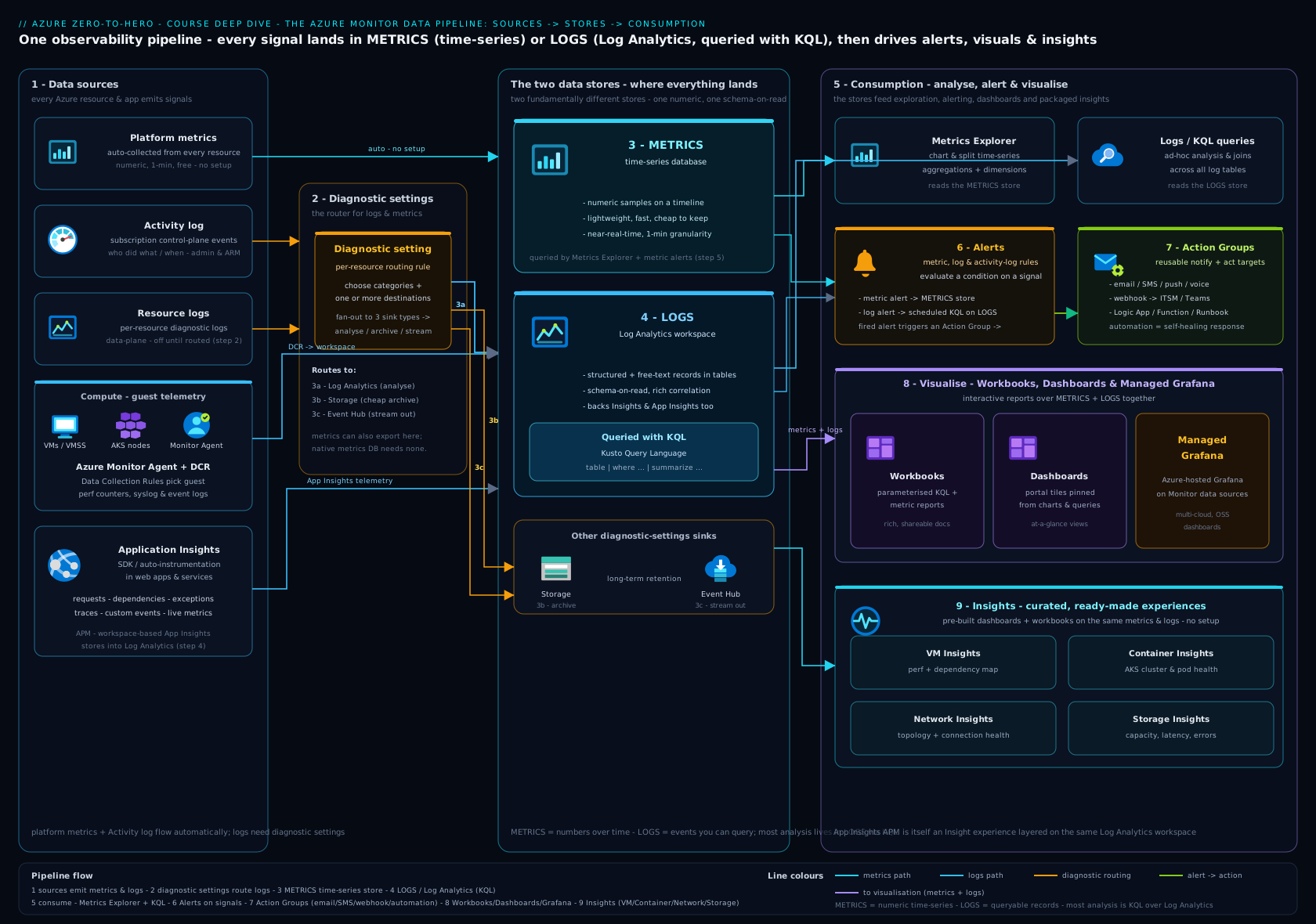
The diagram traces the whole platform left-to-right: sources (Azure resources, the guest OS via AMA + DCR, applications via App Insights, the Activity Log) → routing (diagnostic settings) → the two stores (metrics TSDB and the Log Analytics workspace with its three table plans) → consumption (Metrics Explorer, KQL/Logs, Workbooks/Dashboards/Grafana) → the alerting path (the four rule types → action groups → alert processing rules). If you can redraw this from memory, you understand Azure Monitor.
Hands-on lab
You will collect guest telemetry from a VM with a DCR + Azure Monitor Agent, run a KQL query, raise a metric alert wired to an action group, then clean everything up. Free-tier-friendly (a B1s VM and a small workspace; delete promptly). Run in Cloud Shell (Bash) or any shell with az logged in.
Step 0 — variables & resource group.
RG=rg-monitor-lab
LOC=eastus
WS=law-monitor-lab
VM=vm-mon-lab
ADMIN=azureuser
SUB_ID=$(az account show --query id -o tsv)

az group create -n "$RG" -l "$LOC"
Step 1 — create a workspace and a small Linux VM.
az monitor log-analytics workspace create -g "$RG" -n "$WS" -l "$LOC"
WS_ID=$(az monitor log-analytics workspace show -g "$RG" -n "$WS" --query id -o tsv)

az vm create -g "$RG" -n "$VM" --image Ubuntu2204 --size Standard_B1s \
  --admin-username "$ADMIN" --generate-ssh-keys --public-ip-sku Standard
VM_ID=$(az vm show -g "$RG" -n "$VM" --query id -o tsv)
Expected: the VM provisions and VM_ID is a long /subscriptions/.../virtualMachines/vm-mon-lab string.
Step 2 — install the Azure Monitor Agent.
az vm extension set -g "$RG" --vm-name "$VM" \
  --name AzureMonitorLinuxAgent --publisher Microsoft.Azure.Monitor \
  --enable-auto-upgrade true
Validation: az vm extension list -g "$RG" --vm-name "$VM" -o table shows AzureMonitorLinuxAgent with provisioning state Succeeded.
Step 3 — author a Data Collection Rule (perf counters → workspace).
cat > dcr.json <<JSON
{
  "location": "$LOC",
  "properties": {
    "dataSources": {
      "performanceCounters": [{
        "name": "linuxPerf",
        "streams": ["Microsoft-Perf"],
        "samplingFrequencyInSeconds": 60,
        "counterSpecifiers": [
          "Processor(*)/% Processor Time",
          "Memory(*)/% Used Memory",
          "Logical Disk(*)/% Used Space"
        ]
      }]
    },
    "destinations": {
      "logAnalytics": [{
        "name": "law-dest",
        "workspaceResourceId": "$WS_ID"
      }]
    },
    "dataFlows": [{
      "streams": ["Microsoft-Perf"],
      "destinations": ["law-dest"]
    }]
  }
}
JSON

az monitor data-collection rule create -g "$RG" -n dcr-vm-perf -l "$LOC" --rule-file dcr.json
DCR_ID=$(az monitor data-collection rule show -g "$RG" -n dcr-vm-perf --query id -o tsv)
Step 4 — associate the DCR with the VM (this is what starts collection).
az monitor data-collection rule association create \
  --name dcra-vm-perf --rule-id "$DCR_ID" --resource "$VM_ID"
Validation: within ~5–10 minutes, data appears. Query it:
az monitor log-analytics query -w "$WS_ID" \
  --analytics-query "Perf | where TimeGenerated > ago(15m) | summarize count() by CounterName" \
  -o table
Expected: rows for % Processor Time, % Used Memory, % Used Space. (First data can take up to ~10 min — re-run if empty.)
Step 5 — run an investigative KQL query.
az monitor log-analytics query -w "$WS_ID" --analytics-query '
Perf
| where TimeGenerated > ago(30m)
| where CounterName == "% Processor Time"
| summarize AvgCPU = avg(CounterValue), MaxCPU = max(CounterValue) by bin(TimeGenerated, 5m)
| sort by TimeGenerated asc' -o table
Step 6 — create an action group and a metric alert.
az monitor action-group create -g "$RG" -n ag-lab --short-name lab \
  --email-receiver name=me email=you@example.com
AG_ID=$(az monitor action-group show -g "$RG" -n ag-lab --query id -o tsv)

az monitor metrics alert create -g "$RG" -n vm-cpu-high \
  --scopes "$VM_ID" \
  --condition "avg Percentage CPU > 80" \
  --window-size 5m --evaluation-frequency 1m \
  --severity 2 --action "$AG_ID" \
  --description "Lab: VM CPU sustained above 80%"
Validation: az monitor metrics alert list -g "$RG" -o table shows vm-cpu-high enabled. To see it fire, SSH in and run sudo apt-get install -y stress-ng && stress-ng --cpu 1 --timeout 600s to drive CPU up; within a few minutes the alert moves to Fired and the action group emails you.
Cleanup (do this — billing runs while resources exist):
az group delete -n "$RG" --yes --no-wait
The metric alert, action group, DCR and association, the VM and its disks/NIC/IP, and the workspace are all in $RG, so deleting it removes everything. (A deleted workspace is soft-deleted for 14 days and can be recovered; it stops billing immediately.)
Cost note: a B1s VM is a few rupees/hour; the workspace bills only for the tiny perf volume you ingested (well within typical free allowances for an hour); the metric alert and action group are effectively free at this scale. Total for an hour is small — but delete the RG so the VM and any ingestion stop.
Common mistakes & troubleshooting
| Symptom | Likely cause | Fix |
|---|---|---|
| Created a DCR but no data in the workspace | No DCR association to the machine, or AMA not installed/healthy | Add the association (az monitor data-collection rule association create); confirm AzureMonitorLinuxAgent/WindowsAgent shows Succeeded |
| Metric chart looks wrong (counts look tiny, or spikes vanish) | Wrong aggregation — Avg on a count, or Avg hiding bursts |
Use Sum for counts, Max to catch spikes; check the metric’s intended aggregation |
| Log alert won’t save / “table not supported” | Target table is Basic/Auxiliary | Move the table to Analytics, or use a metric alert; Basic/Aux support query-on-demand only |
| Diagnostic logs missing for a resource | No diagnostic setting created (defaults send nothing) | Add a diagnostic setting routing the needed categories to the workspace; enforce with Policy DeployIfNotExists |
| Surprise ingestion bill | AllMetrics exported to LA, verbose Container/flow logs, or a high-volume table on Analytics |
Stop sending AllMetrics to LA (use the free TSDB), move noisy tables to Basic, add DCR transforms, tune namespaces |
| Alert “fires” but nobody is paged | Action group untested, suppressing alert processing rule active, or rate-limited | Use the AG Test button; check for an active suppression APR; verify SMS/voice rate limits |
| Resource-context user sees no logs | Table lacks _ResourceId, or workspace is in workspace-context mode |
Confirm resource-context access mode; some tables are workspace-only — grant table-level RBAC |
| Old MMA/OMS agent still in use; data inconsistent | Legacy Log Analytics agent (retired) | Migrate to AMA + DCR; remove the legacy agent to avoid double-collection/cost |
Best practices
- Decide store first, instrument second. For each signal, consciously choose metric vs log; don’t dump everything into logs “to be safe” — that’s where bills explode.
- One (or few) well-designed workspaces with resource-context access and table-level RBAC beats many ad-hoc ones; centralize for correlation, segment only for residency/isolation.
- Right-size table plans. Hot-and-alerted → Analytics; searched-not-alerted → Basic; compliance-only → Auxiliary + archive. Revisit quarterly as volumes grow.
- Collect with DCRs, enforce with Policy. Use
DeployIfNotExistspolicies to auto-attach DCRs and diagnostic settings to new resources so coverage doesn’t drift. - Prefer metric alerts when an equivalent metric exists (fast, cheap, stateful); reserve log alerts for things only KQL can express, and keep their evaluation frequency sane.
- Reuse action groups and govern noise with alert processing rules (maintenance suppression windows, severity-based routing) instead of toggling rules by hand.
- Start from Insights, then customize — don’t rebuild VM/Container/Network/Storage dashboards from scratch.
- Tag and template. Tag resources so APRs and workbooks can target by
environment/team; keep DCRs, alerts and action groups in Bicep/Terraform so they’re reproducible. - Set auto-resolve on log alerts and sensible “missing data” handling on metric alerts so alerts close themselves and don’t go stale.
Security notes
- Least privilege on the workspace. Use resource-context access mode plus table-level RBAC so app owners see only their resources’ logs and sensitive tables (
SecurityEvent, audit) are restricted. Roles: Log Analytics Reader (read), Log Analytics Contributor (manage); avoid handing out workspace Contributor broadly. - Protect log integrity for forensics. Route security-relevant logs (Activity Log, sign-ins, Key Vault audit) to the workspace and, for tamper-resistance, also to immutable storage; longer archive/retention preserves an audit trail. Microsoft Sentinel builds on the same workspace if you need SIEM.
- Redact at ingest. Use DCR transformations (
transformKql) to drop or mask sensitive fields (PII, secrets, tokens) before they’re stored and billed — security and cost win together. - Lock down ingestion paths. For sensitive or network-isolated environments, use Data Collection Endpoints + Private Link (Azure Monitor Private Link Scope / AMPLS) so agents send telemetry over the private network, and restrict workspace public network access.
- Secure the action path. Prefer secure webhooks (Entra-authenticated) and managed identities for Logic App/Function/Runbook actions; don’t put secrets in plain webhook URLs.
- Audit the monitor itself. Watch for changes to diagnostic settings/DCRs/alert rules (someone disabling logging is a red flag) via Activity-Log alerts.
Cost & sizing
Azure Monitor’s bill is dominated by logs ingestion; metrics are mostly free. These are the levers, biggest first:
| Lever | Effect | How |
|---|---|---|
| What you ingest (volume) | The #1 cost driver — you pay per GB ingested into the workspace | Collect only needed counters/categories; filter at source via DCR transforms; don’t export AllMetrics to LA (TSDB is free) |
| Table plan | Basic/Auxiliary ingest far cheaper than Analytics | Move searched-but-not-alerted tables to Basic; compliance-only to Auxiliary |
| Retention | Free window (30d, or 90d with Sentinel/Defender), then per-GB-month | Keep hot retention short; push older data to cheap archive (up to 12 yrs) |
| Commitment tiers | Reserve a daily volume (e.g. 100/200/…/5000 GB/day) for a discount vs pay-as-you-go | Switch from Per-GB to a commitment tier once steady daily volume justifies it; right-size as you grow |
| Sampling (App Insights) | Fewer telemetry items billed | Enable adaptive/ingestion sampling for high-traffic apps |
| Log-alert evaluation | Each scheduled query evaluation is billed | Lower frequency for non-critical rules; consolidate rules; prefer metric alerts |
| Flow logs / Connection Monitor / Insights data | Network and container telemetry can dominate | Scope NSG/VNet flow logs and Container Insights namespaces; review Traffic Analytics |
Sizing rule of thumb: estimate GB/day per source (a chatty VM with verbose logs can be hundreds of MB/day; a busy AKS cluster many GB/day), pick table plans accordingly, and set a daily cap on the workspace as a safety brake against runaway ingestion (with an alert before the cap so you don’t silently drop data). Use Cost Management + the workspace Usage and estimated costs blade to see the breakdown by table.
Interview & exam questions
-
What’s the difference between metrics and logs in Azure Monitor, and how do you choose? Metrics are lightweight numeric time-series in a TSDB — fast, cheap, low-cardinality, 93-day fixed retention, queried via Metrics Explorer, ideal for real-time health/autoscale/alerting. Logs are structured records in a Log Analytics workspace (Kusto), rich, high-cardinality, KQL-queryable and joinable, billed per GB, ideal for audit/troubleshooting/correlation/compliance. Choose metrics for “how much, now, cheaply”; logs for “what exactly happened and why.”
-
How do you alert on something that only appears in logs (e.g. five failed sign-ins in 10 minutes)? A log (scheduled query) alert: write KQL that counts the events, set the measure/threshold/frequency/lookback, optionally split by a dimension to alert per entity, wire it to an action group, and enable auto-resolve. Note it can’t run on Basic/Auxiliary tables and is billed per evaluation, so prefer a metric alert when an equivalent metric exists.
-
The legacy Log Analytics agent is retired — what replaces it, and what are the moving parts? The Azure Monitor Agent (AMA) driven by Data Collection Rules (DCRs). AMA is the extension on the VM/VMSS/Arc machine; a DCR defines what to collect and where to send it; a DCR association binds a machine to a DCR; a Data Collection Endpoint (DCE) is needed for private-link/custom-logs scenarios; transformations can filter/redact at ingest. Benefits: granular scoping, multi-destination, ingest-time transforms, managed identity, Arc support.
-
Explain Metrics Explorer aggregation and splitting. Why does aggregation matter? Aggregation is how samples in a time grain combine — Avg, Min, Max, Sum, Count. Using the wrong one misleads: Avg hides spikes (use Max to catch saturation), and Avg on a count metric is wrong (use Sum). Splitting breaks one line into one-per-dimension-value (e.g. IOPS per LUN, transactions per API) so you can see which instance/slice drives a metric without going to logs.
-
What are the three Log Analytics table plans and when do you use each? Analytics (full KQL, highest ingest cost, supports log alerts) for hot, queried-and-alerted data; Basic Logs (KQL subset, pay-per-query, much cheaper, no scheduled alerts) for high-volume data you search during incidents but don’t alert on; Auxiliary (cheapest, slow, pay-per-query, long archive) for compliance-only data. If a signal needs alerting it must be Analytics.
-
A teammate complains the monitoring bill doubled. Where do you look? Logs ingestion volume first:
AllMetricsexported to LA (free in the TSDB — stop it), verbose Container Insights / NSG flow logs, a high-volume table left on Analytics, or a new chatty source. Fixes: DCR transforms to drop noise, move tables to Basic/Auxiliary, shorten retention with archive, consider a commitment tier, and set a daily cap with a pre-cap alert. -
What does a diagnostic setting do, and what are the destinations? What’s a common gotcha? It exports a resource’s platform metrics and resource logs to Log Analytics (KQL/alerts), Storage (cheap archive), Event Hub (stream to SIEM), or a partner. Defaults send nothing, so without one you have no resource logs. Gotcha: sending
AllMetricsto a workspace bills as ingestion even though the same metrics are free in the TSDB; enforce settings at scale with PolicyDeployIfNotExists. -
Action groups vs alert processing rules — what’s the difference? An action group is the reusable who/what (email, SMS, push, voice, webhook, Logic App, Function, Runbook, ITSM) a rule triggers. An alert processing rule sits above many alerts to modify behavior in bulk by scope/filter — suppress notifications during a maintenance window, add/override an action group, or route by severity/tag — without editing each rule. Suppression silences notifications, not the alerts themselves.
-
When would you use a metric alert with dynamic thresholds vs a static threshold? Static when you know a meaningful absolute value (CPU > 80%, queue > 1000). Dynamic thresholds when you don’t — they learn the metric’s normal pattern and seasonality and alert on deviation, reducing tuning for metrics whose “normal” varies by time of day/week. Good for traffic-driven metrics; verify it has enough history to learn.
-
Workbooks vs Dashboards vs Managed Grafana — which when? Workbooks: interactive, parameterized, mix logs+metrics, free, Azure-native — best for investigations and shareable runbooks. Dashboards: simple pinned tiles for an at-a-glance NOC board. Managed Grafana: managed PaaS Grafana, multi-source/multi-cloud, industry-standard panels and Managed Prometheus for AKS — paid, best when standardized on Grafana.
-
How do you give an app team access to only their resources’ logs? Set the workspace access control mode to resource-context (“use resource or workspace permissions”) so a user with read on a resource sees only that resource’s rows; layer table-level RBAC to restrict sensitive tables. Avoid workspace-context (which shows all tables) for least privilege.
-
What’s the difference between Network Watcher’s Connection troubleshoot and Connection Monitor? Connection troubleshoot is a one-shot, on-demand reachability test (“can A reach B right now, and what’s the latency/route?”). Connection Monitor is the continuous version — it persistently probes latency/loss/reachability between sources and destinations, stores results in a workspace, and alerts on threshold breaches — for SLA proof and catching regressions over time.
Quick check
- You want to alert in near-real-time on a VM’s sustained CPU above 80%. Metric alert or log alert, and which aggregation?
- Which Log Analytics table plan supports scheduled log alerts?
- What single object must exist to make an installed Azure Monitor Agent actually start collecting?
- You export
AllMetricsfrom a storage account to your workspace and the bill rises. Why, and what’s the cheaper path for plain charting? - Which alert type fires when someone deletes a resource group or Azure declares a regional outage?
Answers
- Metric alert (fast, cheap, stateful) with Max (or Avg over a window with “3 of 5”) aggregation to catch sustained saturation rather than averaging spikes away.
- Analytics — Basic and Auxiliary support query-on-demand only, not scheduled log alerts.
- A Data Collection Rule association (DCRA) linking the machine to a DCR — without it, the agent collects nothing.
- Sending metrics to a workspace bills as ingestion (per GB), whereas the same platform metrics are free in the metrics TSDB; for plain charting use Metrics Explorer against the TSDB and skip the diagnostic-setting export.
- An activity-log alert — both are control-plane/service-health events in the Activity Log (and they’re free, no ingestion).
Exercise
In a throwaway resource group, build a small end-to-end monitoring slice and document your choices:
- Create a Log Analytics workspace and set its access control mode to resource-context and default retention to 90 days. Note why resource-context is the safer default.
- Deploy a Linux and a Windows VM, install AMA on both, and author one DCR that collects CPU/memory perf counters from both plus syslog (Linux) and a couple of Windows events (XPath). Associate it to both VMs.
- Add a DCR transformation that drops
Informational-severity syslog records before ingestion; confirm via KQL that they no longer appear, and note the cost rationale. - Write three KQL queries: (a) VMs with no heartbeat in 10 min, (b) P95 CPU per VM over the last hour, © a
joinofPerf(disk free %) withHeartbeat(last seen) to show only live VMs low on disk. - Create a metric alert (per-instance via dimension splitting) on CPU and a log alert on the syslog error pattern; wire both to one action group; add an alert processing rule that suppresses notifications on weekends. Verify each, then delete the resource group.
Write a short paragraph for each step explaining the trade-off you made (store choice, table plan, transform, alert type). The reasoning is the point — that’s what an interviewer probes.
Certification mapping
AZ-104 (Azure Administrator) — “Monitor and maintain Azure resources” domain:
- Configure and interpret Azure Monitor metrics → Metrics Explorer, namespaces, aggregation, splitting, multi-dimensional metrics.
- Configure Log Analytics / query logs with KQL → workspace design, access modes, table plans, retention/archive, the KQL mini-reference.
- Configure Data Collection Rules and the Azure Monitor Agent → DCR/AMA/DCRA/DCE, transformations (replaces the retired legacy agent — a known exam update).
- Configure diagnostic settings → routing platform metrics/resource logs to LA/Storage/Event Hub; enforcement with Policy.
- Configure alerts and action groups → metric/log/activity-log alerts, action groups, alert processing rules, dynamic thresholds.
- Use Network Watcher → IP flow verify, next hop, effective security rules, Connection Monitor, flow logs.
- Monitor virtual machines → VM Insights, the Map, guest metrics.
AZ-305 (Solutions Architect) — “Design monitoring”:
- Design a logging and monitoring solution → workspace topology (centralized vs decentralized vs hybrid), data residency/region, retention/archive strategy, cost design (table plans, commitment tiers).
- Design for cost optimization of monitoring → ingestion levers, sampling, Basic/Auxiliary, daily caps.
- Design alerting & operations → which alert type per signal, action-group/APR governance, Insights vs custom, Workbooks/Dashboards/Managed Grafana and App Insights for APM.
Glossary
- Azure Monitor — the umbrella platform for metrics, logs, alerts, Insights and visualization across Azure.
- Metric — a numeric time-series sample with dimensions, stored in the metrics TSDB.
- Log — a structured, timestamped record stored in a Log Analytics workspace and queried with KQL.
- Log Analytics workspace (LAW) — the Kusto-backed store for logs; the unit of cost, retention and access.
- KQL (Kusto Query Language) — the read-only query language for logs (and metrics exported to logs).
- Namespace — a grouping of related metrics for a resource type (e.g.
Microsoft.Compute/virtualMachines). - Dimension — a key/value label on a metric you can filter or split by.
- Aggregation — how samples in a time grain combine (Avg/Min/Max/Sum/Count).
- Splitting — drawing one metric line per dimension value in Metrics Explorer.
- Data Collection Rule (DCR) — reusable definition of what guest/custom telemetry to collect and where to send it.
- Azure Monitor Agent (AMA) — the VM/Arc extension that collects guest telemetry per its DCRs.
- DCR association (DCRA) — the binding that applies a DCR to a specific machine.
- Data Collection Endpoint (DCE) — ingestion endpoint for private-link/custom-logs scenarios.
- Transformation — ingest-time KQL in a DCR that filters/reshapes/redacts before storage.
- Diagnostic setting — per-resource export of platform metrics/resource logs to LA/Storage/Event Hub/partner.
- Table plan — a table’s tier: Analytics (full, alertable), Basic (cheaper, query-on-demand), Auxiliary (cheapest, archival).
- Interactive retention / archive — hot, instantly-queryable period vs cheap long-term storage (up to 12 yrs) accessed via search/restore.
- Metric / log / activity-log alert — alert rules over a metric / a KQL query / control-plane events.
- Smart detection — App-Insights ML-based automatic anomaly alerts.
- Action group — reusable bundle of notifications and automated actions an alert triggers.
- Alert processing rule (APR) — bulk modifier of alert behavior (suppress/route/add-action) by scope and filter.
- Insights — curated monitoring experiences (VM/Container/Network/Storage) layered on metrics/logs/workbooks.
- Network Watcher / Connection Monitor — network diagnostics suite / continuous reachability-and-latency monitoring.
- Workbook / Dashboard / Managed Grafana — interactive report / pinned tile board / managed Grafana PaaS for visualization.
- Application Insights — the APM member of Azure Monitor for code-level traces, requests, dependencies and exceptions.
- Commitment tier — a discounted daily-ingestion-volume reservation for a workspace.
Next steps
- Next in the course: Azure Backup & Site Recovery deep dive — protect and recover the workloads you can now see.
- Applied companion: Azure Monitor end to end: DCRs, Workbooks & the alerting/action-groups pipeline — build the production pipeline this lesson references.
- Go deeper on APM: Application Insights: distributed tracing, OpenTelemetry & sampling — the code-level half of observability.