Two questions decide whether your career survives the worst day in the data centre. How much data can you afford to lose? (your RPO) and how fast must you be back? (your RTO). Azure answers them with two complementary services that learners — and exam writers — constantly confuse. Azure Backup keeps point-in-time copies so you can recover data after deletion, corruption, or ransomware. Azure Site Recovery (ASR) continuously replicates whole machines so you can fail over and keep running when a region, zone, or on-prem site goes dark. Backup is your time machine; Site Recovery is your spare engine. You need both, and an interviewer will probe exactly where one ends and the other begins.
This is the exhaustive lesson. We go setting by setting through the two vault types and the workloads each protects, backup policies down to GFS retention and instant-restore snapshots, the full restore matrix for VMs (whole-machine and file-level), Azure Files and SQL-in-VM, then the hardening controls every production tenant needs — cross-region restore, soft delete, immutable vaults, and multi-user authorization. Then we switch to Site Recovery — replication policies, recovery plans, the A2A and on-prem-to-Azure scenarios, and the critical distinction between test failover, failover, and failback — before pulling the estate together in Backup Center. By the end you can design a backup-and-DR posture from memory and answer the follow-ups AZ-104 and AZ-305 will throw at you.
Learning objectives
- Choose correctly between a Recovery Services vault and a Backup vault, and name which workloads each one protects.
- Author backup policies with the right frequency, GFS retention (daily/weekly/monthly/yearly), and instant-restore snapshot tuning.
- Back up and restore Azure VMs (whole-VM, replace-disks, and file-level recovery), Azure Files (snapshot and vaulted), and SQL Server running in an Azure VM.
- Harden backups against ransomware and rogue admins with cross-region restore, soft delete, immutable vaults, and multi-user authorization (MUA).
- Configure Azure Site Recovery — replication policy, recovery plans, the Azure-to-Azure (A2A) and on-prem-to-Azure scenarios — and run a test failover, a real failover, and a failback, reasoning about RPO and RTO throughout.
- Operate the estate centrally with Backup Center, backup reports, jobs, and alerts.
Prerequisites & where this fits
You need an Azure subscription, a resource group or two, at least one VM you can protect, and the az CLI (Cloud Shell is fine) from the earlier Fundamentals and Compute lessons. This is the Operations deep-dive of the Azure Zero-to-Hero course — it builds directly on the compute and storage deep-dives (Azure Virtual Machines Deep Dive and Azure Managed Disks Deep Dive), because the things you back up here are exactly the VMs, disks, and file shares you created there, and uses the same monitoring pipeline as Azure Monitor Deep Dive for alerts. If “RPO” and “RTO” are brand new, this lesson defines them in full; if you want the ransomware-hardening angle in more depth afterwards, the companion lesson Azure Backup Hardening goes deeper still.
Core concepts
Backup and disaster recovery solve different problems, and the single most important mental model is why two services exist:
- Azure Backup = recover data to a point in time. It periodically copies data into a vault and keeps many historical recovery points (yesterday, last week, last quarter, last year). You use it when something was deleted, encrypted, or corrupted and you need a clean older copy. RPO is hours (one or a few backups a day, or every few hours for in-guest SQL logs); RTO is however long a restore takes.
- Azure Site Recovery = keep the machine running through a disaster. It continuously replicates a VM’s disks to another region (or zone, or to Azure from on-prem) so that within minutes you can boot an identical machine elsewhere. RPO is seconds to a couple of minutes; RTO is minutes. ASR is not a substitute for backup — it replicates corruption and ransomware just as faithfully as good data, and it keeps only a short window of recovery points.
Anchor terms you will see throughout:
- RPO (Recovery Point Objective) — the maximum data loss you can tolerate, measured in time. “RPO = 15 minutes” means you can lose at most the last 15 minutes of changes. Backup frequency and replication continuity set your RPO.
- RTO (Recovery Time Objective) — the maximum time you can be down. Restore speed and failover automation set your RTO.
- GFS (Grandfather-Father-Son) — the retention scheme where short-interval backups roll up into longer-lived ones (daily → weekly → monthly → yearly), so you keep granularity recently and sparse copies for years cheaply.
- Recovery point — a single restorable snapshot/backup taken at a moment in time.
- Instant restore (snapshot tier) — a local managed-disk snapshot taken before data is copied to the vault, giving near-instant restores for recent points without reading from vault storage.
- Vault — the Azure resource that holds backup data and/or replication configuration, governs redundancy, and is the unit for soft delete, immutability, and RBAC.
Recovery Services vault vs Backup vault: every workload
Azure has two vault resource types, and they are not interchangeable. Choosing the wrong one means re-onboarding workloads later, so this is a day-one decision and a guaranteed exam question.
| Capability | Recovery Services vault | Backup vault |
|---|---|---|
| Resource type | Microsoft.RecoveryServices/vaults |
Microsoft.DataProtection/backupVaults |
| Azure VMs | Yes (snapshot + vault) | No |
| SQL Server in Azure VM | Yes | No |
| SAP HANA in Azure VM | Yes | No |
| Azure Files | Yes (snapshot-based) | Yes (vaulted, off-site copy) |
| On-prem files/folders (MARS agent) | Yes | No |
| On-prem VMs / app workloads (MABS / DPM) | Yes | No |
| Azure Blobs (operational + vaulted) | No | Yes |
| Azure Managed Disks | No | Yes |
| Azure Database for PostgreSQL Flexible Server | No | Yes |
| AKS (cluster state + PVs) | No | Yes |
| Azure Site Recovery (DR replication) | Yes | No |
| Immutability | Yes | Yes |
| Soft delete | Yes (basic + enhanced) | Yes |
| MUA via Resource Guard | Yes | Yes |
| Cross-region restore | Yes | Yes (selected workloads) |
The rule of thumb:
- Recovery Services vault — the classic and broadest vault. Use it for Azure VMs, SQL/SAP-HANA-in-VM, Azure Files (snapshot), on-prem via MARS/MABS/DPM, and all of Azure Site Recovery. If you remember one thing: VMs and ASR live in a Recovery Services vault.
- Backup vault — the newer vault for managed-data-store workloads: Blobs, Disks, PostgreSQL Flexible Server, AKS, and vaulted Azure Files. It introduced the modern data-protection control plane (
Microsoft.DataProtection).
Many platform teams run both — that is expected and correct; they are governed the same way for redundancy, soft delete, immutability, and MUA. The seam is purely about which workloads each supports.
Creating a Recovery Services vault: every setting
When you create a Recovery Services vault the portal walks Basics → Networking → Tags → Review + create. After creation, two vault-wide Properties (redundancy and security) are the load-bearing settings.
| Setting | What it is | Choices / default | When / trade-off / gotcha |
|---|---|---|---|
| Subscription / Resource group | Billing + lifecycle container | Any you have rights to | A vault protects resources in the same region; you typically have one vault per region per environment. |
| Vault name | The resource name | 2–50 chars, unique in the RG | Renaming is not supported. Use rsv-<env>-<region> (e.g. rsv-prod-eastus). |
| Region | Where the vault (and its backup data) lives | Any region | The vault must be in the same region as the resources it backs up. A VM in East US cannot be backed up to a vault in West US. |
| Storage redundancy | Durability of backup data | LRS · ZRS · GRS (default for new vaults) | Changeable only while the vault has zero protected items — a true day-zero decision. GRS is required for cross-region restore. See the redundancy table below. |
| Cross Region Restore | Lets you restore in the geo-paired region on demand | Off by default; requires GRS | Enable it before onboarding if you want region-failure recovery without a Microsoft-declared outage. |
| Networking (public/private access) | How the vault is reached | Public endpoint (default) or Private Endpoint | Private endpoints lock the vault’s data plane to your VNet — recommended for production; configure before large-scale onboarding. |
| Tags | Cost/governance metadata | Free | env, owner, costcenter — FinOps and policy depend on these. |
Storage redundancy controls how durable your backup data is — and you cannot change it once items are protected:
| Redundancy | Copies / placement | Survives | Cost | When |
|---|---|---|---|---|
| LRS (Locally redundant) | 3 copies in one datacentre | Disk/rack failure | Lowest | Dev/test, or where data can be recreated. |
| ZRS (Zone redundant) | 3 copies across availability zones in the region | A full zone outage | Medium | Production needing in-region zone resilience. |
| GRS (Geo-redundant) | LRS locally + async copy to the paired region | Loss of the primary region | Higher | Production needing region-failure recovery; required for cross-region restore. |
Gotcha: GRS is the default for new vaults, but if you switch a vault to LRS to save money, you permanently forfeit cross-region restore and can’t switch back once items are protected. Decide based on your DR requirement, not the monthly bill.
# Recovery Services vault + redundancy (set redundancy BEFORE any backups)
az group create -n rg-backup-lab -l eastus

az backup vault create \
  --resource-group rg-backup-lab \
  --name rsv-lab-eastus \
  --location eastus

# Geo-redundant + cross-region restore enabled (prerequisite for CRR)
az backup vault backup-properties set \
  --resource-group rg-backup-lab \
  --name rsv-lab-eastus \
  --backup-storage-redundancy GeoRedundant \
  --cross-region-restore-flag true
resource rsv 'Microsoft.RecoveryServices/vaults@2024-04-01' = {
  name: 'rsv-lab-eastus'
  location: 'eastus'
  sku: { name: 'RS0', tier: 'Standard' }
  properties: {}
}

resource rsvConfig 'Microsoft.RecoveryServices/vaults/backupstorageconfig@2024-04-01' = {
  parent: rsv
  name: 'vaultstorageconfig'
  properties: {
    storageModelType: 'GeoRedundant'
    crossRegionRestoreFlag: true
  }
}
Creating a Backup vault
The Backup vault create flow is similar (Basics → Redundancy → Tags → Review + create), but redundancy values are named LocallyRedundant / ZoneRedundant / GeoRedundant, and you choose the soft-delete mode at creation. Use it only for the workloads in the table above.
az dataprotection backup-vault create \
  --resource-group rg-backup-lab \
  --vault-name bvault-lab-eastus \
  --location eastus \
  --storage-settings datastore-type="VaultStore" type="GeoRedundant" \
  --soft-delete-state On --retention-duration-in-days 14
Backup policies: frequency, GFS retention, instant restore
A backup policy answers two questions for a workload: how often do we back up, and how long do we keep each kind of recovery point. The same policy can protect many items.
Schedule (frequency)
| Workload | Schedule options | Default | Notes / gotcha |
|---|---|---|---|
| Azure VM (Standard policy) | Daily or Weekly | Daily | One backup per day; the simplest, most common policy. |
| Azure VM (Enhanced policy) | Hourly (every 4/6/8/12 h) or Daily | — | Required for Trusted Launch / Gen2 / Ultra-disk VMs and for multiple backups per day; can’t downgrade Enhanced→Standard on a protected item. |
| Azure Files | Daily (multiple times/day on snapshot) + vaulted | Daily | Snapshot tier is local to the share; vaulted tier copies off-site. |
| SQL in Azure VM | Full (daily/weekly) + Differential + Transaction log (as often as every 15 min) | — | Log backups drive a 15-minute RPO with log-chain point-in-time restore. |
GFS retention (Grandfather-Father-Son)
Retention is where GFS lives. You keep frequent points for a short window and progressively sparser points for longer — granular recently, cheap for years:
| Tier | Keeps | Typical retention | Purpose |
|---|---|---|---|
| Daily | Each day’s backup | 7–30 days | Day-to-day “oops I deleted it” recovery. |
| Weekly | One chosen day’s backup per week | 4–12 weeks | Roll-back across weeks without daily bloat. |
| Monthly | One chosen backup per month | 12–60 months | Month-end / reporting snapshots. |
| Yearly | One chosen backup per year | up to 99 years | Long-term compliance/legal hold. |
Gotcha: retention is per recovery point, and reducing retention in a policy shrinks existing points’ lifetimes at the next cleanup — which is exactly the destructive operation immutability and MUA (below) are designed to block. Lengthening retention is always safe.
Instant-restore snapshots
For Azure VMs, Azure Backup first takes a local managed-disk snapshot (the instant restore / snapshot tier), then copies the data into the vault. The snapshot tier gives near-instant restores of recent points (no vault read) and is configurable from 1 to 5 days (default 2).
| Lever | Effect | Trade-off |
|---|---|---|
| Snapshot retention 1–5 days (default 2) | More days = more recent points restore instantly | Snapshots are stored as managed disks → more days = more snapshot storage cost. |
# Show the default VM policy, then create a custom daily policy from JSON
az backup policy show -g rg-backup-lab -v rsv-lab-eastus -n DefaultPolicy -o json > vmpolicy.json
# (edit vmpolicy.json: schedule time, daily/weekly/monthly/yearly retention,
#  instantRpRetentionRangeInDays 1-5)
az backup policy set -g rg-backup-lab -v rsv-lab-eastus --policy @vmpolicy.json --name DailyGfsPolicy
Backing up & restoring Azure VMs
VM backup is agent-light: enabling protection installs the VM Backup extension (VMSnapshot) which coordinates an application-consistent snapshot (via VSS on Windows / pre-post scripts on Linux), then ships the snapshot to the vault.
Consistency levels (know these for the exam):
| Consistency | What it captures | When you get it |
|---|---|---|
| Application-consistent | In-memory/in-flight data flushed via VSS (Windows) or pre/post scripts (Linux) — best | The goal for running VMs; needs the extension + VSS/scripts. |
| File-system-consistent | On-disk files consistent, but app buffers not flushed | Fallback when VSS/scripts unavailable. |
| Crash-consistent | Equivalent to pulling the power cord | Last resort (e.g. VM stopped/deallocated). |
Enable and trigger a backup
# Enable VM backup against a policy
az backup protection enable-for-vm \
  --resource-group rg-backup-lab \
  --vault-name rsv-lab-eastus \
  --vm myVm \
  --policy-name DefaultPolicy

# On-demand backup with an explicit retention for this point
az backup protection backup-now \
  --resource-group rg-backup-lab \
  --vault-name rsv-lab-eastus \
  --container-name myVm --item-name myVm \
  --retain-until 15-07-2026 \
  --backup-management-type AzureIaasVM
Restore options for an Azure VM
| Restore type | What it does | When to use | Gotcha |
|---|---|---|---|
| Create new VM | Builds a brand-new VM from the recovery point | Fast full recovery without touching the original | Needs a staging storage account; new NIC/IP. |
| Replace existing (replace disks) | Swaps the original VM’s disks back to the recovery point | In-place rollback keeping name/IP/NIC | Original VM must exist; replaced disks are kept as a backup. |
| Restore disks | Restores managed disks only (and emits an ARM template) | Custom rebuilds, attach to a different VM | You assemble the VM yourself. |
| File recovery (item-level) | Mounts the recovery point as drives to copy individual files | You need a few files, not the whole VM | Uses an iSCSI mount via a downloaded script; unmount when done. |
| Cross-region restore | Any of the above in the paired region | Region outage or DR drill | Requires GRS + CRR enabled. |
# Restore disks from the latest recovery point to a staging account
RP=$(az backup recoverypoint list -g rg-backup-lab -v rsv-lab-eastus \
  --container-name myVm --item-name myVm \
  --backup-management-type AzureIaasVM --query "[0].name" -o tsv)

az backup restore restore-disks \
  --resource-group rg-backup-lab --vault-name rsv-lab-eastus \
  --container-name myVm --item-name myVm \
  --rp-name $RP --storage-account mystagingsa \
  --target-resource-group rg-restore-lab
File-level (item-level) recovery — the mechanism
File recovery is exam-favourite because the mechanism is unusual: you download a small executable script from the recovery point, run it on any machine with network line-of-sight, and it mounts the recovery point’s volumes locally over iSCSI. You then copy the files you need with normal file tools and unmount to release the mount.
# Generate the file-restore script + credentials for a recovery point
az backup restore files mount-rp \
  --resource-group rg-backup-lab --vault-name rsv-lab-eastus \
  --container-name myVm --item-name myVm --rp-name $RP
# -> download/run the returned script; it mounts the volumes locally.
# When finished:
az backup restore files unmount-rp \
  --resource-group rg-backup-lab --vault-name rsv-lab-eastus \
  --container-name myVm --item-name myVm --rp-name $RP
Gotcha: the file-restore mount has a 12-hour lifetime and you should always unmount when done — a forgotten mount holds the recovery point open. On Linux you may need the
open-iscsipackage; on Windows the script needs to run as administrator.
Backing up & restoring Azure Files
Azure Files has two protection tiers:
| Tier | Where copies live | Protects against | RPO/retention | Restore granularity |
|---|---|---|---|---|
| Snapshot (operational) | In the same storage account as the share | Accidental change/delete of files | Multiple/day; up to 200 snapshots | Whole share or individual files/folders |
| Vaulted (off-site) | In the vault (Backup vault) | Loss of the storage account itself | Daily; GFS retention | Whole share (point-in-time) |
Snapshot backup is fast and cheap and covers the common “someone deleted the folder” case; vaulted backup is the insurance for storage-account-level loss. Enable Azure Files backup from a Recovery Services vault (snapshot) and/or a Backup vault (vaulted).
# Snapshot-based Azure Files backup via Recovery Services vault
az backup protection enable-for-azurefileshare \
  --resource-group rg-backup-lab --vault-name rsv-lab-eastus \
  --storage-account mystorageacct --azure-file-share myshare \
  --policy-name DefaultPolicy

# Item-level restore of a single folder back to the original share
az backup restore restore-azurefileshare \
  --resource-group rg-backup-lab --vault-name rsv-lab-eastus \
  --container-name "StorageContainer;Storage;rg-backup-lab;mystorageacct" \
  --item-name myshare --rp-name <recovery-point> \
  --restore-mode OriginalLocation --resolve-conflict Overwrite
Backing up & restoring SQL Server in an Azure VM
For SQL running inside an Azure VM, Azure Backup is a workload-aware backup (not the same as VM-level backup). The Azure Backup workload extension runs inside the guest, discovers databases, and performs native SQL backups (Full, Differential, Transaction-log). This gives:
- 15-minute RPO through frequent transaction-log backups.
- Point-in-time restore to any moment within the log chain.
- Auto-protection of new databases on an instance.
| SQL backup type | Frequency | Purpose |
|---|---|---|
| Full | Daily or Weekly | Baseline restore point. |
| Differential | Daily (not same day as full) | Smaller, faster than full; reduces restore time. |
| Transaction log | As often as every 15 min | Drives the 15-minute RPO and point-in-time restore. |
# Register the SQL-in-VM instance with the vault, then enable protection
az backup container register \
  --resource-group rg-backup-lab --vault-name rsv-lab-eastus \
  --workload-type MSSQL --backup-management-type AzureWorkload \
  --resource-id $(az vm show -g rg-backup-lab -n sqlvm --query id -o tsv)
Gotcha: SQL-in-VM backup needs the VM to reach the Azure Backup service (network) and a SQL account/permissions for the extension. It backs up databases, so restore targets are databases (overwrite, alternate location, or as files) — not the whole VM. To protect the whole machine and the databases, run both VM backup and SQL backup.
Cross-region restore, soft delete, immutability & MUA
These four controls turn a backup vault from “a copy of your data” into “a copy an attacker or a rogue admin cannot destroy.” This is the ransomware-resilience core of AZ-104/AZ-305.
Cross-region restore (CRR)
CRR lets you restore in the geo-paired region on demand, without waiting for Microsoft to declare a regional outage — invaluable for DR drills and region-down recovery.
- Requires GRS storage redundancy and the Cross Region Restore flag enabled (set both before onboarding).
- Works for Azure VMs, SQL/SAP-HANA-in-VM, and selected Backup-vault workloads.
- You restore from the secondary region recovery points to resources in that region.
Soft delete
Soft delete keeps deleted backup data recoverable for a retention window even after someone stops protection and deletes backups — defeating the classic “delete the backups, then encrypt” ransomware play.
| Mode | Behaviour | Retention |
|---|---|---|
| Basic soft delete | Deleted backup items are kept and recoverable | 14 days, free |
| Enhanced soft delete | Adds always-on option (can be made non-disableable) + configurable window | 14–180 days (paid beyond the free window) |
# Inspect / set soft delete on a Recovery Services vault
az backup vault backup-properties show -g rg-backup-lab -n rsv-lab-eastus \
  --query "{soft:softDeleteFeatureState}"
az backup vault backup-properties set -g rg-backup-lab -n rsv-lab-eastus \
  --soft-delete-feature-state Enable
Immutable vault
Immutability blocks operations that would reduce protection of existing recovery points — deleting data before retention expires, shortening retention, or disabling soft delete. It does not block creating new backups or extending retention.
| State | Can an admin revert it? | Use |
|---|---|---|
| Immutability not locked | Yes — vault admin can disable | Soak/test period to validate nothing breaks. |
| Immutability locked | No — irreversible | Production compliance/ransomware posture; even Microsoft cannot unlock it. |
Gotcha: lock immutability only after a soak period. Once locked it is permanent for the life of the vault; if a policy genuinely needs shorter retention later, you cannot shorten it.
Multi-user authorization (MUA)
MUA puts destructive operations behind a second person’s approval using a Resource Guard — typically owned in a different subscription/tenant so the backup admin alone cannot both request and approve. Protected operations (disable soft delete, reduce retention, delete a protected item, disable MUA itself) require a Just-In-Time approval against the Resource Guard before they proceed.
The defence-in-depth order to enable these is: soft delete → cross-region restore → immutability (unlocked, then locked after soak) → MUA.
Azure Site Recovery: replication, plans & failover
Switch gears: Azure Site Recovery (ASR) continuously replicates whole machines so you can fail over and keep running. ASR config lives in a Recovery Services vault.
Scenarios
| Scenario | Source → Target | Replication mechanism |
|---|---|---|
| Azure-to-Azure (A2A) | Azure VM in region/zone A → region/zone B | Agentless (Site Recovery extension auto-installed); the headline cloud-DR pattern. |
| Zone-to-zone | Azure VM in zone 1 → zone 2 (same region) | A2A variant for in-region zone resilience. |
| VMware / Physical → Azure | On-prem VMware VMs or physical servers → Azure | Via the Azure Site Recovery replication appliance (modern) running on-prem. |
| Hyper-V → Azure | On-prem Hyper-V VMs → Azure | Via the Azure Site Recovery provider on the Hyper-V host/VMM. |
Replication policy (the RPO/retention knobs)
A replication policy controls how recovery points are generated and kept:
| Setting | What it is | Typical / default | Trade-off |
|---|---|---|---|
| RPO threshold | When ASR raises an alert if replication lags | e.g. 15 min (alert only) | Lower = noisier alerts; replication itself is continuous. |
| Recovery-point retention | How long crash/app-consistent points are kept | up to 24 hours (A2A) | Longer = more recovery points to fail back to. |
| App-consistent snapshot frequency | How often app-consistent (VSS) points are taken | e.g. every 1–4 hours, or off | More frequent = lower data loss for app-consistent recovery, slight guest overhead. |
| Multi-VM consistency | Groups VMs so they share a crash/app-consistent recovery point | Off by default | Essential for multi-tier apps (DB + app) that must fail over to the same moment; adds a replication group. |
ASR keeps only a short window (hours) of recovery points — it is not a backup. Use Azure Backup for long-term/point-in-time data recovery and ASR for keeping the machine running.
Recovery plans
A recovery plan orchestrates the failover of many VMs into an ordered, repeatable runbook:
- Groups and ordering — boot tier-1 (DB) before tier-2 (app) before tier-3 (web).
- Manual actions — pause for an operator step (e.g. validate DNS).
- Automation runbooks (Azure Automation) — script post-failover tasks (reassign public IPs, update DNS, open NSGs).
A recovery plan is what turns “fail over 30 VMs” from a frantic afternoon into one button with predictable ordering.
Test failover vs failover vs failback
This three-way distinction is the single most-asked ASR exam question:
| Operation | What it does | Impact on production | When |
|---|---|---|---|
| Test failover | Spins up the replicated VMs in an isolated network to validate DR | None — production keeps running and replicating | Regular non-disruptive DR drills; do this often. |
| Failover | Brings the VMs up in the target region/zone for real | Production source is now down/secondary; you’re running in the target | An actual disaster (or a planned, committed migration). |
| Failback | After the source is healthy, reverse-replicate and return to the original | Brief switch back to the source region | Once the primary region recovers; for on-prem you reprotect then failback. |
The full lifecycle is: enable replication → (let it reach a healthy RPO) → test failover (drill) → [disaster] → failover → commit → reprotect (reverse replication) → failback → re-enable original-direction replication.
# A2A is most reliably scripted via PowerShell/templates; the az CLI surface
# is limited. Validate replication health for a protected item:
az site-recovery replication-protected-item show \
  --resource-group rg-asr --vault-name rsv-asr \
  --fabric-name <primary-fabric> --protection-container-name <pc> \
  --replicated-protected-item-name myVm-asr \
  --query "{state:properties.protectionState, rpo:properties.providerSpecificDetails}"
Gotcha: A2A is most robustly configured via the portal, ARM/Bicep, or
Az.RecoveryServicesPowerShell; theazCLI coverage for ASR is partial. For exam answers, know the concepts and order; for production, drive ASR from templates/PowerShell and rehearse with test failover on a schedule.
Backup Center, reports & alerts
As the estate grows you stop managing vault-by-vault and move to Backup Center — a single pane across all vaults, subscriptions, and workload types:
- Overview & Backup instances — every protected item and its last-backup health in one list.
- Jobs — every backup/restore job, success/failure, durations (also
az backup job list). - Policies — author and govern policies centrally; spot items on weak policies.
- Backup reports — a Log-Analytics-backed workbook for storage consumed, retention, job trends, and optimization (e.g. items with excessive retention). Requires routing vault diagnostic settings to a Log Analytics workspace.
- Alerts — built-in Azure Monitor alerts for backup failures and security events (e.g. disable-soft-delete), surfaced via action groups to email/SMS/webhook/ITSM. Wire these to the same action groups you built in the Azure Monitor Deep Dive.
# Recent backup jobs across a vault (the Backup Center "Jobs" view, in CLI)
az backup job list -g rg-backup-lab -v rsv-lab-eastus \
  --query "[].{op:operation, status:status, start:startTime}" -o table

# Route vault diagnostics to Log Analytics so Backup Reports populate
az monitor diagnostic-settings create \
  --name to-law \
  --resource $(az backup vault show -g rg-backup-lab -n rsv-lab-eastus --query id -o tsv) \
  --workspace <log-analytics-workspace-id> \
  --logs '[{"categoryGroup":"allLogs","enabled":true}]'
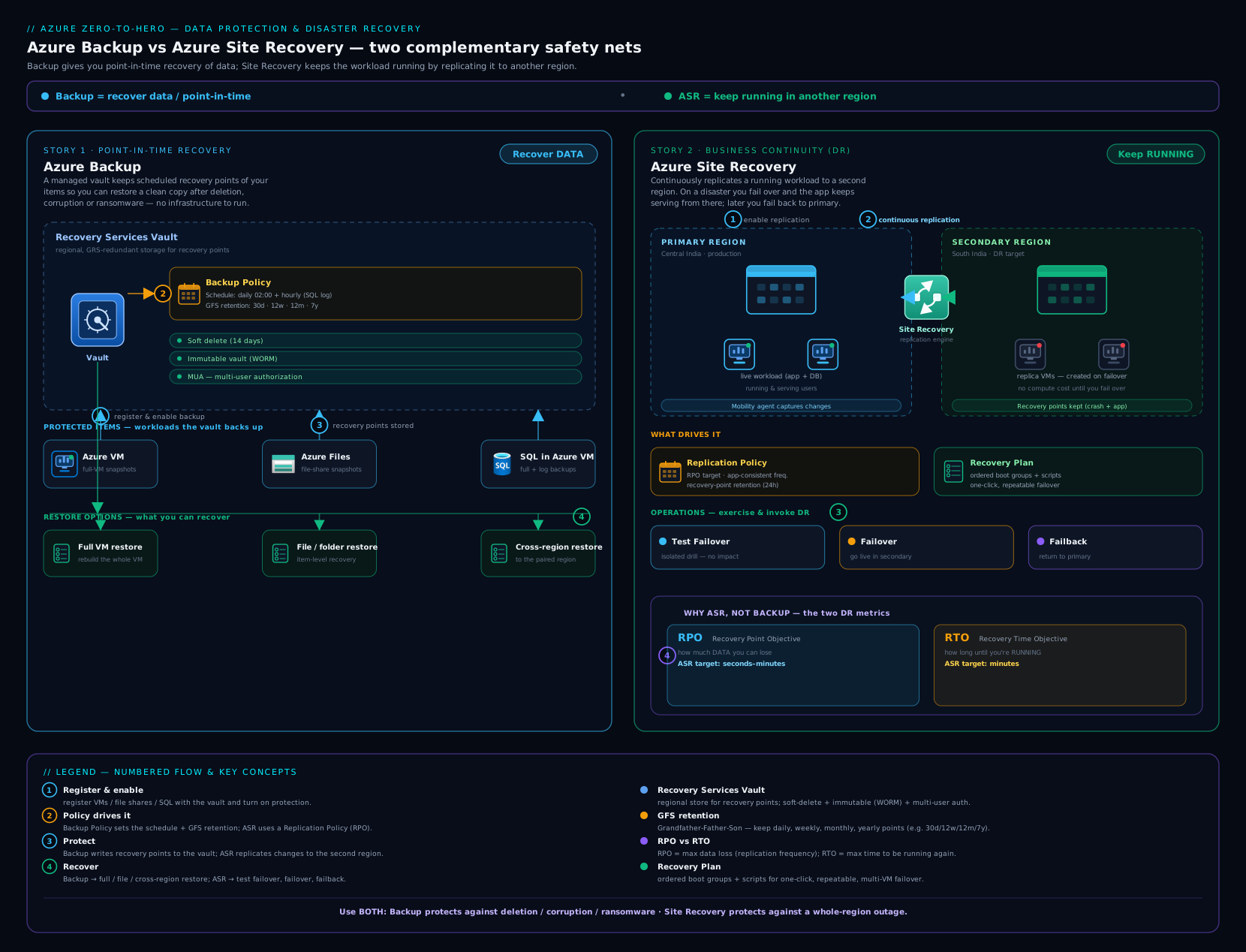
The diagram above ties the whole picture together: one Recovery Services vault feeding both the recover-data path (Backup, hardened by soft delete, immutability, and MUA) and the keep-running path (Site Recovery replication with its failover lifecycle), unified under Backup Center.
Hands-on lab
Enable backup on a small VM, take an on-demand backup, perform a file-level restore, then clean everything up. All az CLI; the only billable pieces are tiny and removed at the end.
1. Resource group, vault, and a small VM
LOC=eastus
RG=rg-backup-lab
az group create -n $RG -l $LOC

# Recovery Services vault (LRS for the lab to minimise cost)
az backup vault create -g $RG -n rsv-lab-eastus -l $LOC
az backup vault backup-properties set -g $RG -n rsv-lab-eastus \
  --backup-storage-redundancy LocallyRedundant

# Tiny Linux VM to protect
az vm create -g $RG -n bkpVm -l $LOC \
  --image Ubuntu2204 --size Standard_B1s \
  --admin-username azureuser --generate-ssh-keys
2. Enable backup and trigger an on-demand backup
az backup protection enable-for-vm \
  -g $RG -v rsv-lab-eastus --vm bkpVm --policy-name DefaultPolicy

# On-demand backup, retained ~30 days from today
az backup protection backup-now \
  -g $RG -v rsv-lab-eastus \
  --container-name bkpVm --item-name bkpVm \
  --backup-management-type AzureIaasVM \
  --retain-until $(date -v+30d +%d-%m-%Y 2>/dev/null || date -d "+30 days" +%d-%m-%Y)
3. Verify the job and list recovery points
# Wait for the backup job to complete (Status -> Completed)
az backup job list -g $RG -v rsv-lab-eastus -o table

# List recovery points and capture the newest
RP=$(az backup recoverypoint list -g $RG -v rsv-lab-eastus \
  --container-name bkpVm --item-name bkpVm \
  --backup-management-type AzureIaasVM --query "[0].name" -o tsv)
echo "Recovery point: $RP"
Expected: a Backup job with Status = Completed, and $RP populated with a recovery-point name.
4. File-level restore (mount the recovery point)
# Generate the file-restore script + iSCSI credentials
az backup restore files mount-rp \
  -g $RG -v rsv-lab-eastus \
  --container-name bkpVm --item-name bkpVm --rp-name $RP
Run the returned script on a machine with network access (it mounts the recovery point’s volumes locally over iSCSI). Browse the mounted volume, copy any file you need, then release the mount:
az backup restore files unmount-rp \
  -g $RG -v rsv-lab-eastus \
  --container-name bkpVm --item-name bkpVm --rp-name $RP
Read the result: you recovered individual files without restoring the whole VM — the everyday “I deleted one file” scenario, and a classic exam question.
Cleanup
# Stop protection AND delete backup data, then remove the RG
az backup protection disable -g $RG -v rsv-lab-eastus \
  --container-name bkpVm --item-name bkpVm \
  --backup-management-type AzureIaasVM --delete-backup-data true --yes

az group delete -n $RG --yes --no-wait
If
az group deletefails because the vault “contains backup items,” it’s because soft delete is holding deleted data. Undo/disable soft delete or wait out the soft-delete window, then delete — this is the soft-delete safety net doing its job.
Cost note
The vault and policies are free to define; you pay for protected-instance fees (per backed-up instance, by source size band) plus backup storage consumed (LRS in this lab). A single tiny B1s VM with one on-demand backup for an hour is a few rupees of storage plus a small instance fee — round to ₹5–₹30 if cleaned up promptly. The genuinely expensive accidents are GRS storage on large VMs with long retention and forgotten ASR replication (which bills continuously per replicated VM plus target-region storage). Always disable protection with --delete-backup-data and az group delete your labs.
Common mistakes & troubleshooting
| Symptom | Likely cause | Fix |
|---|---|---|
| Can’t change vault redundancy to GRS | The vault already has protected items | Redundancy is fixed once items exist — create a new vault with the right redundancy, or remove all items first. |
| “Cross-region restore not available” | Vault is LRS/ZRS, or CRR flag off | Set redundancy to GRS and enable the Cross Region Restore flag before onboarding. |
| VM backup is only crash-consistent | VSS (Windows) / pre-post scripts (Linux) failed, or VM was stopped | Ensure the VM Backup extension is healthy and VSS/scripts run; back up while running. |
az group delete fails on a vault with no visible items |
Soft delete is retaining deleted backups | Disable soft delete or wait the retention window, then delete. |
| Can’t reduce retention / delete a recovery point | Immutability locked or MUA is enforcing | This is by design — request approval via the Resource Guard (MUA) or accept that locked immutability is permanent. |
| Trusted Launch / Gen2 VM won’t take the Standard policy | Standard policy doesn’t support it | Use the Enhanced backup policy. |
| ASR shows a high RPO / replication lag | Network throughput between regions, or churn spikes | Check egress bandwidth and disk churn; raise the RPO threshold alert appropriately; consider larger cache. |
| Multi-tier app fails over to inconsistent state | No multi-VM consistency group | Put the interdependent VMs in a replication group so they share a recovery point. |
Best practices
- Pick the vault redundancy and CRR on day zero. GRS + cross-region restore for anything you’d need after a region outage — you cannot change redundancy once items are protected.
- Use GFS deliberately. Short daily retention for granularity, plus weekly/monthly/yearly only as compliance requires — over-long retention quietly dominates the bill.
- Match RPO to the workload. Daily VM backup for stateless tiers; Enhanced/hourly or SQL log backups (15-min RPO) for transactional data; ASR for “must keep running.”
- Back up the machine and the database. VM backup plus SQL-in-VM backup gives both whole-machine recovery and point-in-time database restore.
- Harden in order: soft delete → CRR → immutability (soak, then lock) → MUA. Treat the backup control plane as the highest-value ransomware target.
- Rehearse with test failover on a schedule. A DR plan you’ve never run is a hypothesis; isolated test failovers prove RTO without touching production.
- Centralize in Backup Center with diagnostics to Log Analytics so reports populate and you catch unprotected/weakly-protected items.
- Don’t treat ASR as backup. It replicates corruption too and keeps only hours of points — keep Azure Backup for long-term/point-in-time recovery.
Security notes
- Enable enhanced soft delete (always-on) so deleted backups survive an admin compromise — the core anti-ransomware control.
- Lock immutability on production vaults after a soak period; it stops retention-shortening and early deletion even by Microsoft.
- Turn on multi-user authorization (MUA) with a Resource Guard owned in a separate subscription/tenant so no single admin can both request and approve destructive operations.
- Scope RBAC tightly. Backup Contributor / Backup Operator are powerful — separate who can configure backups from who can delete them, and audit changes.
- Use private endpoints on the vault to keep the backup data plane off the public internet.
- Encrypt backups with customer-managed keys (CMK) where compliance requires control of the key; platform-managed keys protect data at rest by default.
- Alert on security events (disable-soft-delete, MUA changes) via action groups — early warning of a control-plane attack.
Cost & sizing
The levers that move a backup/DR bill, roughly in order of impact:
| Lever | Cost behaviour |
|---|---|
| Protected-instance fee | Charged per backed-up instance, banded by source data size (e.g. ≤50 GB, ≤500 GB, then per 500 GB). |
| Backup storage consumed | Per GB stored — multiplied by redundancy: GRS/GZRS > ZRS > LRS. Long GFS retention compounds this. |
| Instant-restore snapshots | Stored as managed disks; 1–5 days of snapshots = more disk storage. |
| Cross-region restore | GRS storage cost + restore egress when you actually do a CRR. |
| ASR replication (per VM) | A per-replicated-VM monthly fee plus target-region storage and any egress — bills continuously while enabled. |
| Enhanced soft delete beyond 14 days | Paid for retained-deleted data past the free window. |
| Log Analytics for Backup Reports | Ingestion + retention of vault diagnostic logs. |
Sizing rules of thumb: redundancy and retention are the big multipliers — GRS on large VMs with multi-year retention is where surprise bills come from. Right-size GFS to the actual compliance need, keep the snapshot tier at the default 2 days unless you need faster recent restores, and never leave ASR replication running on machines you no longer need to protect — it’s the most common forgotten recurring charge in this space.
Interview & exam questions
-
What’s the difference between Azure Backup and Azure Site Recovery? Backup keeps point-in-time copies so you can recover data after deletion/corruption/ransomware (RPO hours, many historical points). Site Recovery continuously replicates whole machines so you can fail over and keep running (RPO seconds-minutes, short retention). Backup is a time machine; ASR is a spare engine. You use both.
-
When do you use a Recovery Services vault vs a Backup vault? Recovery Services vault for Azure VMs, SQL/SAP-HANA-in-VM, Azure Files (snapshot), on-prem (MARS/MABS/DPM), and all of ASR. Backup vault for Blobs, Disks, PostgreSQL Flexible Server, AKS, and vaulted Azure Files. VMs and ASR ⇒ Recovery Services vault.
-
Explain GFS retention. Grandfather-Father-Son: keep daily points for a short window, roll up to weekly, monthly, and yearly (up to 99 years). Granular recently, sparse and cheap for long-term compliance.
-
What is instant restore / the snapshot tier? A local managed-disk snapshot taken before data is copied to the vault, giving near-instant restores of recent points without reading vault storage. Configurable 1–5 days (default 2); more days = more snapshot storage cost.
-
What are the consistency levels for VM backup, and which is best? Application-consistent (VSS/pre-post scripts flush app buffers — best), file-system-consistent (on-disk files consistent), crash-consistent (like pulling the power). Aim for application-consistent on running VMs.
-
How does file-level (item-level) restore work for an Azure VM? You download a script from the recovery point and run it; it mounts the recovery point’s volumes locally over iSCSI. You copy the files you need, then unmount. The mount has a ~12-hour lifetime.
-
How do you achieve a 15-minute RPO for SQL running in an Azure VM? Use SQL-in-VM (workload-aware) backup with transaction-log backups every 15 minutes, on top of Full + Differential — enabling point-in-time restore within the log chain.
-
What’s required for cross-region restore, and why would you use it? GRS redundancy and the Cross Region Restore flag, set before onboarding. It lets you restore in the paired region on demand — for DR drills or a region outage — without waiting for Microsoft to declare an outage.
-
How do the four ransomware controls fit together, and in what order? Soft delete keeps deleted backups recoverable; cross-region restore gives an out-of-region copy; immutable vault blocks retention-shortening/early-deletion; MUA (Resource Guard) gates destructive ops behind a second approver. Enable soft delete → CRR → immutability (soak then lock) → MUA.
-
What is the difference between an unlocked and a locked immutable vault? Unlocked: immutability is active but a vault admin can disable it (use as a soak period). Locked: irreversible — not even Microsoft can unlock it; retention can only be extended, never shortened.
-
Test failover vs failover vs failback — what’s the difference? Test failover spins the replica up in an isolated network with no impact on production (your DR drill). Failover brings the machines up in the target region for real during a disaster. Failback reverse-replicates and returns to the original site once it’s healthy.
-
What does a recovery plan add over failing over VMs individually, and what is multi-VM consistency? A recovery plan orders failover into groups (e.g. DB before app before web), adds manual actions and automation runbooks. Multi-VM consistency groups interdependent VMs so they share the same recovery point — essential for multi-tier apps that must come back to the same moment.
-
Why is ASR not a substitute for backup? ASR replicates everything faithfully — including corruption and ransomware — and keeps only a short window of recovery points (hours). For clean, long-term, point-in-time recovery you need Azure Backup.
Quick check
- Which vault type backs up Azure VMs and hosts Azure Site Recovery?
- What two things must be true for cross-region restore to work?
- What is the default (and max) instant-restore snapshot retention?
- Which backup type gives SQL-in-VM a 15-minute RPO?
- True or false: a test failover briefly takes your production VM offline.
Answers
- The Recovery Services vault (
Microsoft.RecoveryServices/vaults). - GRS storage redundancy and the Cross Region Restore flag enabled — both set before onboarding.
- Default 2 days, maximum 5 days.
- Transaction-log backups every 15 minutes (workload-aware SQL-in-VM backup).
- False — a test failover runs in an isolated network with no impact on production; it’s the non-disruptive DR drill.
Exercise
Design and build (in CLI) a hardened single-VM backup: create a GRS Recovery Services vault with the cross-region-restore flag enabled and enhanced soft delete on, protect one B-series VM with a custom policy (daily schedule, 14-day daily / 6-week weekly / 12-month monthly retention, instant-restore = 3 days), and trigger an on-demand backup. Then prove two things: (a) attempt to shorten retention or delete a recovery point and observe what soft delete / immutability would gate, and (b) confirm in az backup recoverypoint list that your point exists. Write one short paragraph explaining why you’d enable MUA with a Resource Guard in a separate subscription before considering this production-ready, and what destructive operation it would block. Clean up with az backup protection disable --delete-backup-data true then az group delete.
Certification mapping
| Exam | Skills this lesson covers |
|---|---|
| AZ-104 (Administrator) | Monitor and back up Azure resources: create and configure Recovery Services / Backup vaults, backup policies (GFS, instant restore), back up and restore VMs (incl. file-level), Azure Files, and SQL-in-VM; configure soft delete, cross-region restore; configure Azure Site Recovery for Azure VMs and perform failover/failback; use Backup Center, jobs, and alerts. The az lab mirrors the exam’s task-based items. |
| AZ-305 (Solutions Architect) | Design business continuity solutions: design a backup and recovery strategy from RPO/RTO requirements, choose vault redundancy and CRR, design ransomware-resilient posture (soft delete, immutability, MUA), and design site recovery / DR with replication policies, recovery plans, multi-VM consistency, and region/zone failover. |
Glossary
- Azure Backup — Service that takes and retains point-in-time copies of data for recovery after loss/corruption.
- Azure Site Recovery (ASR) — Service that continuously replicates whole machines to enable failover/DR.
- Recovery Services vault — Vault (
Microsoft.RecoveryServices) for VMs, SQL/SAP-HANA-in-VM, Azure Files, on-prem, and ASR. - Backup vault — Vault (
Microsoft.DataProtection) for Blobs, Disks, PostgreSQL Flexible Server, AKS, vaulted Files. - RPO (Recovery Point Objective) — Maximum tolerable data loss, measured in time.
- RTO (Recovery Time Objective) — Maximum tolerable downtime.
- GFS (Grandfather-Father-Son) — Retention rolling daily→weekly→monthly→yearly points.
- Recovery point — A single restorable snapshot/backup at a moment in time.
- Instant restore (snapshot tier) — Local managed-disk snapshot for near-instant recent restores (1–5 days, default 2).
- Application-consistent backup — Backup with app buffers flushed via VSS/pre-post scripts (best consistency).
- Cross-region restore (CRR) — On-demand restore in the geo-paired region; needs GRS + the CRR flag.
- Soft delete — Retention of deleted backup data (basic 14 days; enhanced 14–180, can be always-on).
- Immutable vault — Vault that blocks retention-reducing/early-deletion operations; can be locked (irreversible).
- Multi-user authorization (MUA) — Destructive operations gated by a second approver via a Resource Guard.
- Replication policy — ASR settings for recovery-point retention, app-consistent frequency, RPO threshold, multi-VM consistency.
- Recovery plan — Ordered ASR runbook grouping VMs with manual actions and automation.
- Test failover — Non-disruptive ASR drill in an isolated network.
- Failover / Failback — Real switch to the target region, and the reverse-replication return to the source.
- Backup Center — Single-pane management across all vaults, workloads, jobs, policies, reports, and alerts.
Next steps
- Microsoft Entra ID & Governance Admin Deep Dive — the natural sequel: lock down who can configure and delete backups with RBAC, policy, locks, and tags across the management-group hierarchy.
- Azure Backup Hardening: Immutable Vaults, MUA, Soft Delete & Cross-Region Restore — go deeper on the four ransomware controls and the exact order to wire them.
- Azure Site Recovery: Zone-to-Zone & Region Failover with Runbooks — the advanced ASR playbook: zone-to-zone DR, recovery-plan automation, and failover runbooks.
- Azure Monitor Deep Dive — wire backup and DR alerts into action groups and dashboards for end-to-end operational visibility.