You need a SQL database for your app and you do not want to patch an operating system, install SQL Server, or babysit backups. Azure SQL Database is the managed answer: a fully Platform-as-a-Service relational database that speaks the same T-SQL and the same TDS protocol your tools already know, but where Microsoft runs the engine, the OS, the patching, the high availability and the backups for you. You create a logical server as an addressing and security boundary, create one or more databases under it, open a firewall so the right clients can reach it, and connect with the exact same drivers you would use against a SQL Server you installed yourself. The catch that trips up almost every first-timer is the firewall: by default the server allows nothing, so your very first connection attempt fails with a precise, copy-pasteable error that tells you which IP to allow.
This article walks you through that whole path end to end, the way I would set it up the first time on a real project. You will create a logical server and a database in both the Azure portal and the az CLI, then again as Bicep so it is reproducible. You will learn the two firewall layers — server-level and database-level rules — and exactly when to use each, the special “Allow Azure services” toggle and why it is broader than people think, and how to connect securely from SQL Server Management Studio (SSMS), sqlcmd, Azure Data Studio and an application connection string. Every step states the expected output so you know it worked, and we finish by tearing the whole thing down so a learning lab costs you nothing. By the end, when a connection is refused you will read the error and know whether it is a firewall rule, a wrong server name, a login problem or a blocked port — and fix the right one, rather than guessing.
What problem this solves
Running your own SQL Server means you own everything below the data: a VM or physical host, the OS and its patches, the SQL Server install and its patches, storage layout, backup jobs you must test, and a failover cluster for high availability. That is weeks of setup and a permanent operational tax. For most applications — a web app’s database, a small line-of-business system, a project that needs a real relational store without a database team — that tax buys you nothing your app actually uses.
Azure SQL Database removes that entire lower stack. You get a database endpoint, an SLA, automatic backups with point-in-time restore, automatic patching, and built-in high availability, and you pay for capacity rather than for servers. What is left for you to get right is small but real: naming and placing the logical server, opening the firewall to exactly the clients that should reach it (and no one else), choosing how clients authenticate (SQL login vs Microsoft Entra), and picking a service tier that fits the workload and the budget. Those four things are the whole job for a first database, and they are what this guide drills.
Who hits the friction here: every beginner who creates the server, grabs the connection string, points SSMS at it, and is immediately blocked — because the firewall starts closed. That block is not a bug; it is the secure default. The skill is reading the error (Cannot open server '...' requested by the login. Client with IP address '...' is not allowed to access the server), adding the one rule it asks for, and understanding why you add a narrow rule rather than opening the database to the whole internet.
Learning objectives
By the end of this article you can:
- Explain what a logical server is, why it is separate from the database, and what the
database.windows.netendpoint actually addresses. - Create a logical server and an Azure SQL Database three ways: in the portal, with the az CLI, and as Bicep infrastructure-as-code.
- Distinguish server-level from database-level firewall rules and choose the right one for a given client.
- Read a connection-refused error and add exactly the firewall rule it asks for — no broader.
- Understand the “Allow Azure services and resources to access this server” setting and why it is far broader than it looks.
- Connect securely from SSMS, Azure Data Studio, sqlcmd and an application connection string over the TDS protocol on port 1433, with encryption on.
- Choose a starter service tier and purchasing model (DTU vs vCore, Basic/Serverless) and estimate the monthly cost.
- Tear the lab down completely so it costs nothing once you are done.
Prerequisites & where this fits
You need an Azure subscription (the free account works fine for this lab) and either the Azure portal in a browser or the az CLI. If you use the CLI locally, run az login first; Azure Cloud Shell has az and sqlcmd already installed and authenticated, which is the easiest way to follow along. For the connection section you will want one client tool: SSMS (Windows), Azure Data Studio (cross-platform), or just sqlcmd. Basic familiarity with SQL (a SELECT, a CREATE TABLE) helps but is not required to get connected.
This sits at the foundation of the data track. It assumes only the Azure Resource Hierarchy Explained: Subscriptions, Resource Groups and Resources — you will place the server in a resource group. Once you are connected, two topics build directly on this one: when the database needs to come off the public internet entirely, you move to a Azure Private Endpoint vs Service Endpoint: Secure PaaS Access; and when a connection fails in a way the firewall does not explain, the deep diagnostic playbook is Troubleshooting Azure SQL Database: Connectivity, Timeouts, Throttling & Blocking. If you store the connection string as a secret, that belongs in Azure Key Vault: Secrets, Keys and Certificates Done Right.
Core concepts
Five ideas make every step below obvious. Get these and the rest is mechanical.
The logical server is an address and a security boundary, not a machine. When you “create a SQL server” in Azure you are not renting a VM. A logical server (Microsoft.Sql/servers) is a container that provides a globally unique DNS endpoint (yourserver.database.windows.net), holds the server administrator login, and owns the firewall and authentication settings. Databases live inside it. You can put many databases under one server, and they share its firewall and admin but are billed and scaled independently. The server has no compute of its own — the database (or elastic pool) is where compute and storage are sized.
The database is the unit you size and pay for. An Azure SQL Database (Microsoft.Sql/servers/databases) is the actual relational database — schemas, tables, your data. Its service tier (Basic/Standard/Premium in the DTU model, or General Purpose/Business Critical/Hyperscale in the vCore model) sets its performance and price. Two databases on the same server can be completely different tiers.
The firewall is closed by default and has two layers. A brand-new server allows no inbound connections at all. To let a client in you add a firewall rule — an allowed IP range. There are two layers: server-level rules apply to every database on the server and are managed at the server, while database-level rules apply to one database and are created with T-SQL inside that database. Server-level is the common case for a beginner; database-level matters when you want one database reachable from an IP that the others are not.
Connections use TDS over TCP 1433, always encrypted. Clients talk to Azure SQL with the TDS (Tabular Data Stream) protocol over TCP port 1433 — the same port SQL Server uses. Your outbound network must allow 1433 (corporate firewalls sometimes block it). Azure SQL requires encryption in transit: connections are TLS-encrypted, and you should keep Encrypt=True and TrustServerCertificate=False in your connection string so the certificate is actually validated.
Authentication is either a SQL login or Microsoft Entra. Two ways to prove who you are: a SQL authentication login (a username/password stored in the database engine — you set the server admin login at creation) or Microsoft Entra authentication (formerly Azure AD — your Azure identity, with no password in a connection string). Entra is the more secure modern default; SQL auth is the simplest to start with and what most quickstarts use. You can have both.
Here is the whole vocabulary in one place before the steps:
| Concept | One-line definition | Where it lives | Why it matters to your first DB |
|---|---|---|---|
| Logical server | DNS endpoint + admin + firewall boundary | Microsoft.Sql/servers |
The thing you connect to; holds the firewall |
| Database | The actual relational DB you size and pay for | …/servers/databases |
What your app uses; sets performance/price |
| Server admin login | The SQL auth admin you set at creation | On the server | Your first way in; guard it like root |
| Server-level firewall rule | Allowed IP range for all DBs on the server | On the server | The rule you add first to connect |
| Database-level firewall rule | Allowed IP range for one database | Inside that DB (T-SQL) | Scope one DB more tightly than the rest |
| Allow Azure services | Toggle letting Azure-hosted resources connect | On the server | Convenient but broad — understand it |
| TDS / port 1433 | The wire protocol and port clients use | Network | Must be open outbound from your network |
| Connection string | Server, DB, auth and encryption settings | In your client/app | How every tool actually connects |
| Service tier | Performance/price level of the database | On the database | Drives the bill; pick a small one to learn |
| Microsoft Entra auth | Sign in with your Azure identity, no password | Server + Entra | More secure than a SQL login |
The logical server vs the database
The single most common point of confusion for newcomers is why there are two objects. You create a server, then a database, and they feel like they should be one thing. They are deliberately separate, and the separation is what makes the firewall, billing and scaling model work.
The server is cheap-to-free addressing and security. It costs nothing on its own — you are not billed for an empty logical server, only for databases under it. It gives you one DNS name, one admin login, one set of firewall and Entra settings. The database is where money and performance live: each database has its own tier, its own storage, its own backups, and is billed by the hour for whatever capacity you chose.
This is the relationship and the practical consequence of each property:
| Property | Logical server | Database | Practical consequence |
|---|---|---|---|
| Billed? | No (free container) | Yes (by tier/hour) | Delete databases to stop cost; the server is free to keep |
| DNS endpoint | name.database.windows.net |
Shares the server’s endpoint | One name reaches every DB on the server |
| Admin login | Set here, at creation | Inherits server admin | The server admin can access all its databases |
| Firewall | Owns server-level rules | Can add its own DB-level rules | Server rules cover all DBs; DB rules scope one |
| Service tier | n/a (no compute) | Set per database | Mix Basic and Premium DBs on one server |
| Region | Pinned at creation | Same region as server | Pick the region close to your app |
| Backups | n/a | Automatic, per database | Point-in-time restore is per database |
Two early decisions follow from this. First, put the server in the same region as the app that will use it — cross-region database calls add latency to every query and egress cost to your bill. Second, the server name is globally unique across all of Azure (it is public DNS), so sql-shop-prod may be taken; add a short suffix to make it yours (for example sql-shop-prod-vh7).
Firewall rules: server-level vs database-level
The firewall is the part you must understand to connect at all, so it gets its own walkthrough. The model is simple once you see it: a connection is allowed if the client’s public IP falls within any allowed range — checked first at the database level, then at the server level. If neither has a matching rule, the connection is refused with the IP-address error.
Server-level rules (the common case)
A server-level firewall rule is a named IP range stored on the server that applies to every database on it. You add these in the portal’s Networking blade, with az sql server firewall-rule create, or with T-SQL against the special master database. This is what you create first, and for a single-database learning project it is usually all you need.
There is one special server-level rule: “Allow Azure services and resources to access this server.” It is represented by a firewall rule with start and end IP both 0.0.0.0. When enabled it lets any resource inside Azure — including resources in other people’s subscriptions — reach your server (it still requires a valid login). It is convenient for letting an App Service connect without pinning its outbound IPs, but it is broader than most beginners realise, and for anything sensitive you should prefer a Azure Private Endpoint vs Service Endpoint: Secure PaaS Access or a VNet rule instead.
Database-level rules (when one DB differs)
A database-level firewall rule is created with T-SQL inside a specific database and applies only to that database. Use it when you want one database reachable from an IP that the server-level rules do not allow — for example, a database an external partner connects to, on a server whose other databases are internal-only. Database-level rules are checked before server-level rules, so a database-level allow can grant access even with no matching server rule.
This is the decision table for which layer to use:
| Situation | Use this layer | How you add it |
|---|---|---|
| Connect from your laptop to learn | Server-level rule (your IP) | Portal Networking, or az sql server firewall-rule create |
| One range should reach all databases | Server-level rule | Same as above |
| Let Azure-hosted apps connect (no fixed IP) | “Allow Azure services” (server) | Networking toggle / 0.0.0.0 rule |
| One database needs an IP the others must not | Database-level rule | sp_set_database_firewall_rule in that DB |
| Production, off the public internet | Private endpoint / VNet rule (not IP firewall) | Private Link; deny public network access |
And the two rule types side by side:
| Attribute | Server-level rule | Database-level rule |
|---|---|---|
| Scope | All databases on the server | One specific database |
| Stored in | master (server metadata) |
The individual database |
| Created with | Portal, az, or sp_set_firewall_rule |
T-SQL sp_set_database_firewall_rule |
| Checked | After database-level rules | First |
| Typical use | Your starter rule; broad allow | Tightly scope one DB |
| Survives DB copy/move | No (tied to the server) | Yes (travels with the database) |
A practical tip: the portal has a one-click “Add your client IPv4 address” button on the Networking blade that reads your current public IP and creates the rule for you. That is the fastest way to unblock yourself, but remember home and office IPs change — if your connection suddenly fails tomorrow with the IP error, your ISP rotated your address and you need to re-add it.
Connecting securely: tools, ports and the connection string
Once a firewall rule lets you in, connecting is the same TDS-over-1433 experience as any SQL Server, with encryption mandatory. The pieces you supply are always: the server name (yourserver.database.windows.net), the database name, an authentication method, and encryption settings.
The server name is the part people get wrong. It is the logical server name plus .database.windows.net, and you connect to it on port 1433. In SSMS you type it into “Server name”; in a connection string it is the Server= (or Data Source=) value, usually written tcp:yourserver.database.windows.net,1433.
Here are the four main ways to connect and what each needs:
| Client | Best for | Server field | Auth options |
|---|---|---|---|
| SSMS | Windows admins, rich querying | yourserver.database.windows.net |
SQL login or Entra (interactive/MFA) |
| Azure Data Studio | Cross-platform, notebooks | yourserver.database.windows.net |
SQL login or Entra |
| sqlcmd | Scripts, CI, Cloud Shell | -S yourserver.database.windows.net |
-U/-P (SQL) or -G (Entra) |
| App connection string | Your application | Server=tcp:…,1433 |
SQL login or Entra (managed identity) |
The connection string is worth getting exactly right, because the encryption flags are a security control, not boilerplate. A correct ADO.NET string for SQL authentication looks like this:
Server=tcp:sql-shop-prod-vh7.database.windows.net,1433;Initial Catalog=appdb;
User ID=shopadmin;Password=<your-strong-password>;
Encrypt=True;TrustServerCertificate=False;Connection Timeout=30;
These are the settings that matter and what each does:
| Setting | What it does | Recommended value | Why |
|---|---|---|---|
Server / Data Source |
The server endpoint and port | tcp:<server>.database.windows.net,1433 |
Names the logical server; 1433 is required |
Initial Catalog / Database |
Which database to open | your database name | Connects you straight into it |
User ID + Password |
SQL authentication credentials | the admin or an app login | The simplest auth to start with |
Encrypt |
Force TLS encryption in transit | True |
Azure SQL requires it; never set False |
TrustServerCertificate |
Skip certificate validation | False |
True defeats the point of encryption |
Connection Timeout |
Seconds to wait for a connection | 30 |
Enough for a cold/serverless resume |
Authentication (Entra) |
Use a Microsoft Entra method | Active Directory Default / Managed Identity |
No password in the string at all |
For a production app, the better pattern is to drop the password entirely and authenticate the app’s managed identity with Authentication=Active Directory Managed Identity — but for your first connection, a SQL login is the fastest way to see data, and you can adopt managed identity once the basics work.
Architecture at a glance
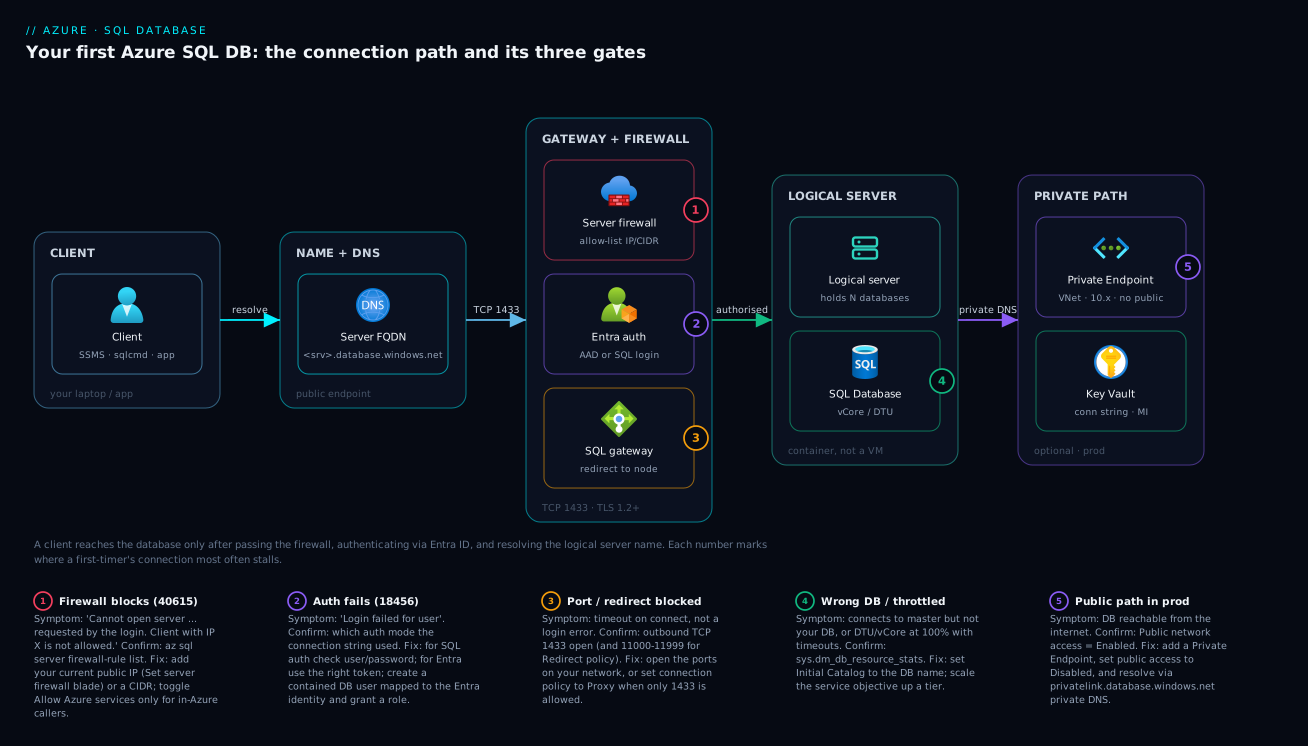
Trace the path of a single connection from left to right. Your client — SSMS, an app, or sqlcmd — resolves yourserver.database.windows.net to a public IP and opens a TDS connection on TCP 1433, encrypted with TLS. That request arrives at the Azure SQL gateway, the front door for the logical server, which first checks the firewall: does the client’s public IP match a database-level rule, or failing that a server-level rule, or is “Allow Azure services” enabled for an Azure-hosted caller? If no rule matches, the gateway refuses the connection with the IP-address error and the request never reaches your data. If a rule matches, the gateway authenticates the login (a SQL login’s password, or a Microsoft Entra token) and then routes the now-trusted session to the database that actually holds your tables.
The diagram below lays out exactly this path as zones you can follow: the client and its credentials, the gateway with the firewall and login checks (the two places a connection is most often rejected), and the database behind them — with an App Service shown as the typical second client whose access depends on either its outbound IP being allowed or the “Allow Azure services” toggle. The numbered badges mark the points where first connections fail most often, and the legend tells you the symptom, how to confirm it, and the fix for each.
Real-world scenario
Vellore Retail, a fictional mid-size e-commerce company, is moving its product-catalogue API from a self-managed SQL Server on a VM to Azure SQL Database. The team is small — two backend developers, no DBA — which is exactly why PaaS appeals to them. They want the catalogue database reachable by their App Service web API in production, by the two developers’ laptops during the build, and by nothing else.
On day one a developer creates the server sql-vellore-prod and finds the name is taken, so she uses sql-vellore-prod-in1 (the in1 for India, instance 1). She creates the catalog database on the cheapest General Purpose serverless tier so it can auto-pause overnight and cost almost nothing while they are still building. She grabs the connection string, points SSMS at it, and is immediately blocked: Client with IP address ‘49.205.x.x’ is not allowed to access the server. The secure default did its job. She clicks “Add your client IPv4 address”, the rule appears, and her next connection succeeds. The second developer does the same from his home network, adding a second narrow rule.
The first real lesson lands when they deploy the API to App Service and it cannot connect — even though both laptops can. App Service outbound traffic comes from a pool of Azure IP addresses, not the developers’ home IPs, so none of the existing firewall rules match. They have two clean options. The quick one is to enable “Allow Azure services and resources to access this server”, which immediately lets the App Service through. But during review they realise that toggle lets any Azure resource (in any subscription) attempt to connect, and for a catalogue with customer-adjacent data they want tighter scope. So they switch to a VNet integration on the App Service plus a virtual-network firewall rule on the SQL server, allowing only their own subnet — and later, for production hardening, a Azure Private Endpoint vs Service Endpoint: Secure PaaS Access so the database can stop accepting public connections entirely.
Three weeks later one developer’s connection fails again overnight with the same IP error, and he nearly opens a support ticket — until he remembers his ISP rotates his home IP. He re-runs the “add your client IP” step and is back in thirty seconds. The whole experience teaches the team the four things that matter for a first database: the server name and region, the closed-by-default firewall and how to open exactly the right rule, the difference between a laptop IP and an Azure-service caller, and a serverless tier that keeps a learning/early-stage database almost free. None of it required a DBA.
Advantages and disadvantages
Azure SQL Database is the right default for most new relational workloads, but it is worth being explicit about the trade-off you are accepting.
| Advantages | Disadvantages |
|---|---|
| No OS/SQL patching, no backup jobs to build | Less control: no OS access, no xp_cmdshell, some server-level features absent |
| Built-in HA and automatic point-in-time backups | You pay for capacity continuously (mitigated by serverless auto-pause) |
| Scales up/down with a setting, no migration | A few T-SQL features differ from box SQL Server (cross-DB queries, SQL Agent) |
| Secure by default (firewall closed, TLS forced) | The closed firewall surprises first-timers (this guide fixes that) |
| Connects with the same drivers/tools as SQL Server | Public endpoint by default — needs Private Link to fully isolate |
| Serverless and Basic tiers make learning nearly free | Cost can creep on higher tiers if you over-provision |
When the advantages dominate: greenfield apps, teams without a DBA, anything where you would rather ship features than run a database server. When the disadvantages bite: workloads that need OS-level control, SQL Server Agent jobs, cross-database transactions across many databases, or features only the full engine (or SQL Managed Instance) provides. For the overwhelming majority of “my app needs a database” cases, single-database Azure SQL is the correct starting point, and you can move to Managed Instance later if a real constraint appears.
Hands-on lab
This is the centerpiece: create a logical server and database, open the firewall, connect, run a query, and tear it all down. Do it once in the portal and once with the az CLI (they produce the same result — pick one to follow live, skim the other), then see the Bicep version for reproducibility. Everything here fits the free/serverless tiers and costs effectively nothing if you complete the teardown.
Lab prerequisites. An Azure subscription; the az CLI (az version to check) or Azure Cloud Shell; one client tool (SSMS, Azure Data Studio, or sqlcmd, which is pre-installed in Cloud Shell). Pick a region close to you (this lab uses centralindia). Choose a globally unique server name — the lab uses sql-lab-<your-initials><random>; replace vh7 below with your own suffix.
Part A — Create everything in the Azure portal
-
Sign in to the Azure portal. In the top search bar type SQL databases and select it, then click + Create.
- Expected: the “Create SQL Database” wizard opens on the Basics tab.
-
Resource group. Click Create new, name it
rg-sql-lab, and accept it. This is the container you will delete at the end to remove everything at once. -
Database name. Set Database name to
appdb. -
Create the logical server. Under Server, click Create new. In the panel:
- Server name:
sql-lab-vh7(must be globally unique; if it is taken you will see a red error — change the suffix). - Location:
(Asia Pacific) Central India(or your nearest region). - Authentication method: choose Use SQL authentication (simplest to start). Set Server admin login to
sqladminuserand a strong password (12+ chars, mixed case, number, symbol). Write the password down — there is no “show password” later. - Click OK.
- Expected: the panel closes and your new server name appears in the Server field.
- Server name:
-
Compute + storage (pick a cheap tier). Click Configure database. Choose the General Purpose tier, then the Serverless compute tier. Lower the Max vCores to 1 or 2 and leave Auto-pause enabled (e.g. pause after 1 hour idle). Click Apply.
- Why: serverless auto-pauses when idle so a learning database costs almost nothing. Expected: the wizard shows an estimated low monthly cost.
-
Networking tab. Click Next: Networking. Set Connectivity method to Public endpoint. Under Firewall rules, set Add current client IPv4 address to Yes — this creates a server-level rule for your laptop’s public IP. Leave Allow Azure services and resources to access this server at No for now (you will reason about it later).
- Expected: your current public IP is shown as the rule that will be created.
-
Review + create. Click Next through Security/Additional settings (defaults are fine for the lab), then Review + create, then Create.
- Expected: deployment runs for 2–5 minutes and finishes with “Your deployment is complete.” Click Go to resource.
-
Find your connection string. On the database blade, open Settings → Connection strings. Copy the ADO.NET string; it contains
Server=tcp:sql-lab-vh7.database.windows.net,1433andInitial Catalog=appdb. Replace{your_password}with the admin password.- Expected: you now have a complete connection string with the real server name.
-
Connect with the portal Query editor (no tools needed). On the database blade open Query editor (preview), sign in with
sqladminuserand the password, and run:
SELECT name, database_id, create_date FROM sys.databases;
- Expected: a result grid listing
masterandappdb. If you instead see a firewall error here, your IP changed between steps — use the Set server firewall link the editor offers.
You have a working database reachable from your IP. Skip to Part C to connect from a desktop tool, or read Part B to do all of the above from the CLI.
Part B — Create everything with the az CLI
Run these in Cloud Shell (already authenticated) or locally after az login. Set variables once, then each command builds on them.
- Set variables and log in.
RG=rg-sql-lab
LOC=centralindia
SERVER=sql-lab-vh7          # change the suffix to make it globally unique
DB=appdb
ADMIN=sqladminuser
PASSWORD='Ch4ng3-this-Now!' # use your own strong password
- Expected: no output; variables are set for this session.
- Create the resource group.
az group create --name $RG --location $LOC
- Expected: JSON with
"provisioningState": "Succeeded".
- Create the logical server (this sets the SQL admin login).
az sql server create \
  --name $SERVER --resource-group $RG --location $LOC \
  --admin-user $ADMIN --admin-password "$PASSWORD"
- Expected: JSON describing the server, including
"fullyQualifiedDomainName": "sql-lab-vh7.database.windows.net". If the name is taken you getName '…' is not available— changeSERVER.
- Add a server-level firewall rule for your current public IP. First get your IP, then create the rule:
MYIP=$(curl -s https://api.ipify.org)
az sql server firewall-rule create \
  --resource-group $RG --server $SERVER \
  --name AllowMyLaptop --start-ip-address $MYIP --end-ip-address $MYIP
- Expected: JSON with your IP as both
startIpAddressandendIpAddress. This is the rule that will let you connect.
- Create the database on a cheap serverless tier.
az sql db create \
  --resource-group $RG --server $SERVER --name $DB \
  --edition GeneralPurpose --compute-model Serverless \
  --family Gen5 --capacity 1 --auto-pause-delay 60 \
  --backup-storage-redundancy Local
- Expected: JSON with
"status": "Online"(it may briefly showCreating).--auto-pause-delay 60pauses after 60 minutes idle;--capacity 1caps it at 1 vCore.
- Validate the firewall rules you have.
az sql server firewall-rule list \
  --resource-group $RG --server $SERVER \
  --query "[].{name:name, start:startIpAddress, end:endIpAddress}" -o table
- Expected: a table listing
AllowMyLaptopwith your IP. (NoAllowAllAzureIpsshould appear — you have not enabled it.)
- Connect and query with sqlcmd. Cloud Shell has
sqlcmd; locally, install it or use Azure Data Studio.
sqlcmd -S tcp:$SERVER.database.windows.net,1433 -d $DB \
  -U $ADMIN -P "$PASSWORD" -N -C \
  -Q "SELECT DB_NAME() AS current_db, SUSER_SNAME() AS login_name;"
- Flags:
-Nencrypts the connection,-Ctrusts the server cert for this quick test (in apps prefer full validation). Expected: a one-row result showingcurrent_db = appdband yourlogin_name. If you see “Cannot open server … is not allowed to access the server”, your IP changed — re-run step 4.
- Create a table and insert a row (proves you can write):
sqlcmd -S tcp:$SERVER.database.windows.net,1433 -d $DB -U $ADMIN -P "$PASSWORD" -N -C -Q "
CREATE TABLE product (id INT IDENTITY PRIMARY KEY, name NVARCHAR(100), price DECIMAL(10,2));
INSERT INTO product (name, price) VALUES (N'Widget', 9.99);
SELECT * FROM product;"
- Expected: a result grid with one row:
1 Widget 9.99. Your database is fully working.
Part C — Connect from a desktop tool (SSMS or Azure Data Studio)
This works against the database you created in either Part A or Part B.
- Open the tool and choose Connect / New Connection.
- Server name:
sql-lab-vh7.database.windows.net(your server). Authentication: SQL Server Authentication. Login:sqladminuser. Password: your admin password. - In SSMS, click Options → Connection Properties, set Encrypt = Mandatory and leave Trust server certificate unchecked. Click Connect.
- Expected: Object Explorer shows the server and your
appdbdatabase. - If blocked: SSMS shows a firewall sign-in dialog offering to add your client IP — sign in with your Azure account and let it create the rule, then reconnect.
- Expected: Object Explorer shows the server and your
- Run a query. Open a new query window against
appdb:
SELECT TOP 5 name, price FROM product;
- Expected: your inserted row(s) appear.
Part D — The Bicep version (reproducible)
For infrastructure-as-code, this template creates the server, a firewall rule and a serverless database in one deployment. Save it as sqldb.bicep.
@description('Globally unique logical server name')
param serverName string = 'sql-lab-vh7'
param location string = resourceGroup().location
param adminLogin string = 'sqladminuser'
@secure()
param adminPassword string
@description('Your public IP to allow through the firewall')
param myClientIp string

resource sqlServer 'Microsoft.Sql/servers@2023-08-01-preview' = {
  name: serverName
  location: location
  properties: {
    administratorLogin: adminLogin
    administratorLoginPassword: adminPassword
    minimalTlsVersion: '1.2'              // enforce modern TLS
    publicNetworkAccess: 'Enabled'
  }
}

// Server-level firewall rule for your laptop's IP
resource fwMyIp 'Microsoft.Sql/servers/firewallRules@2023-08-01-preview' = {
  parent: sqlServer
  name: 'AllowMyLaptop'
  properties: {
    startIpAddress: myClientIp
    endIpAddress: myClientIp
  }
}

// Serverless General Purpose database, auto-pause after 60 min
resource appDb 'Microsoft.Sql/servers/databases@2023-08-01-preview' = {
  parent: sqlServer
  name: 'appdb'
  location: location
  sku: {
    name: 'GP_S_Gen5_1'                   // General Purpose, Serverless, Gen5, 1 vCore
    tier: 'GeneralPurpose'
  }
  properties: {
    autoPauseDelay: 60                     // minutes idle before pausing; -1 disables
    minCapacity: json('0.5')               // floor vCores while active
    zoneRedundant: false
  }
}
Deploy it (pass your IP and a password at deploy time so no secret is in the file):
az deployment group create \
  --resource-group rg-sql-lab \
  --template-file sqldb.bicep \
  --parameters serverName=sql-lab-vh7 \
               adminPassword='Ch4ng3-this-Now!' \
               myClientIp=$(curl -s https://api.ipify.org)
- Expected:
"provisioningState": "Succeeded". You now have the same server, firewall rule and serverless database, fully reproducible.
Part E — Teardown (so it costs nothing)
Deleting the resource group removes the server, the database, the firewall rules and everything else in one shot.
az group delete --name rg-sql-lab --yes --no-wait
- Expected: the command returns immediately; deletion proceeds in the background. Confirm with
az group exists --name rg-sql-lab(returnsfalseonce gone). In the portal, delete therg-sql-labresource group and confirm by typing its name.
Teardown checklist so nothing is left billing:
| Item | How to confirm it is gone |
|---|---|
Resource group rg-sql-lab |
az group exists -n rg-sql-lab → false |
| Logical server | No longer in SQL servers list |
| Database | No longer in SQL databases list |
| Firewall rules | Deleted with the server (no separate step) |
Common mistakes & troubleshooting
These are the failures every first-timer hits, with the exact signal and fix. Read the symptom, match it, fix the right thing — do not just “restart” or “open the firewall to everything.”
| # | Symptom | Root cause | How to confirm | Fix |
|---|---|---|---|---|
| 1 | Cannot open server '…' … Client with IP address '…' is not allowed |
No firewall rule matches your public IP | The error literally prints your IP | Add a server-level rule for that IP (portal “Add client IP” or az sql server firewall-rule create) |
| 2 | Worked yesterday, refused today, same IP error | Your ISP rotated your home/office public IP | Compare the IP in the error with the old rule | Re-add your current IP; for stable access use a VPN/fixed egress |
| 3 | App on App Service can’t connect, laptop can | App Service egresses from Azure IPs, not your IP | Firewall rules only list laptop IPs | Enable “Allow Azure services”, or add a VNet rule for the app’s subnet |
| 4 | A network-related or instance-specific error … server was not found |
Wrong/typo server name, or 1433 blocked outbound | nslookup yourserver.database.windows.net resolves? Test-NetConnection -Port 1433? |
Fix the FQDN; ask your network to allow outbound TCP 1433 |
| 5 | Login failed for user '…' |
Wrong password, or wrong login name | The error is auth, not firewall (you got past the gateway) | Re-enter the admin login/password; reset the admin password if lost |
| 6 | First query after idle takes 30–60s then works | Serverless database was auto-paused and is resuming | Tier is serverless; subsequent queries are fast | Expected behaviour; raise Connection Timeout, or disable auto-pause |
| 7 | Cannot connect … This server is configured to deny public network access |
Public network access is set to Disabled |
Server Networking shows public access off | Re-enable public access for the lab, or connect via private endpoint/VNet |
| 8 | Connection drops with Encrypt=False or cert errors |
Encryption misconfigured; Azure SQL requires TLS | Connection string has Encrypt=False or untrusted cert |
Set Encrypt=True; TrustServerCertificate=False |
| 9 | Entra login fails: Token … is not valid / not a member |
Entra auth attempted but no Entra admin set, or wrong identity | Server Microsoft Entra admin is unset | Set an Entra admin on the server, or use SQL auth for now |
| 10 | The server principal … is not able to access the database under context |
Connected to master, not your database |
Query SELECT DB_NAME() shows master |
Specify the database (-d appdb / Initial Catalog=appdb) |
The single most important diagnostic distinction: a firewall problem is rejected at the gateway (you never get a login prompt), while a login problem means you got through the firewall and failed auth. If the error mentions your IP address, it is the firewall (mistakes 1–3). If it says Login failed, the firewall already let you in and the credentials are wrong (mistake 5). That one fork saves most of the time people waste here. For anything deeper — timeouts under load, throttling, blocking — go to the Troubleshooting Azure SQL Database: Connectivity, Timeouts, Throttling & Blocking playbook.
Best practices
- Name the server for its place and role, with a unique suffix:
sql-<app>-<env>-<region/suffix>(e.g.sql-shop-prod-in1). The name is public DNS and permanent. - Put the server in the same region as the app that uses it; cross-region calls add latency to every query and egress to the bill.
- Add narrow firewall rules, not broad ones. Allow your specific IP, not
0.0.0.0–255.255.255.255. Never open the database to the whole internet. - Prefer Microsoft Entra authentication for humans and managed identity for apps, so there is no password in a connection string. Set an Entra admin on the server.
- Keep
Encrypt=TrueandTrustServerCertificate=Falseeverywhere. Encryption in transit is mandatory; do not defeat it. - Use serverless or Basic for non-production so idle databases auto-pause and cost almost nothing.
- For production, move off the public endpoint to a Azure Private Endpoint vs Service Endpoint: Secure PaaS Access and set public network access = Disabled.
- Store the connection string/secret in Key Vault, not in source or app settings in clear text — see Azure Key Vault: Secrets, Keys and Certificates Done Right.
- Use a least-privilege application login, not the server admin, for your app’s day-to-day queries.
- Define everything as Bicep so the server, firewall and database are reproducible and reviewable, not click-ops.
- Tear down learning labs by deleting the resource group; an empty server is free, but databases bill by the hour.
Security notes
Azure SQL Database is secure by default, and your job is to not weaken it. The firewall starts closed — keep it that way by adding only the specific IP ranges that need access, and remove rules when a developer leaves or a source IP changes. The “Allow Azure services and resources to access this server” toggle is the one to think twice about: it permits connections from any Azure resource in any subscription (still requiring a valid login), so for anything sensitive prefer a VNet firewall rule scoped to your own subnet, or a private endpoint so the database has no public exposure at all.
For authentication, Microsoft Entra beats SQL logins: central identity, conditional access and MFA, and no long-lived password in a connection string. Set an Entra admin on the server and have applications connect with a managed identity (Authentication=Active Directory Managed Identity). Keep the SQL admin login for break-glass only, with a strong vaulted password, and create least-privilege database users for everything else — your app should not run as the admin.
Encryption is on by default both in transit (TLS, kept on with Encrypt=True) and at rest (Transparent Data Encryption encrypts the database files and backups automatically). Enforce a minimum TLS version of 1.2 (minimalTlsVersion: '1.2' in Bicep). In production, turn on Microsoft Defender for SQL and auditing to catch anomalous logins and SQL-injection patterns — both are a setting away and worth it the moment the database holds anything real.
Cost & sizing
What you pay for is the database, not the server — an empty logical server is free. The bill is driven by the service tier (compute + storage) and, for serverless, by how many hours it is actually active rather than provisioned. So a serverless database that auto-pauses overnight bills only for the seconds you query it plus storage — genuinely cheap for learning or an early-stage app.
The starter tiers and rough monthly figures (list prices vary by region; treat as ballpark for sizing):
| Tier / model | What you get | Rough cost | Best for |
|---|---|---|---|
| Basic (DTU) | 5 DTU, up to 2 GB | ~₹400 / ~$5 per month | Tiny dev/test, fixed low cost |
| Standard S0 (DTU) | 10 DTU, up to 250 GB | ~₹1,200 / ~$15 per month | Small steady apps |
| General Purpose Serverless (vCore) | 0.5–N vCores, auto-pause | Pay per active vCore-second + storage; near-zero when paused | Learning, spiky/intermittent apps |
| General Purpose Provisioned (vCore) | Fixed vCores, always on | From a few thousand ₹ / ~$200+/mo at 2 vCores | Steady production |
| Hyperscale / Business Critical | Large scale / low-latency HA | Substantially higher | Big or latency-critical workloads |
How to size your first database sensibly:
| Driver | What increases it | How to control it |
|---|---|---|
| Compute (DTU/vCore) | More throughput/concurrency | Start small; scale up only when metrics demand |
| Active hours (serverless) | The DB being queried | Enable auto-pause; let it sleep when idle |
| Storage | Data + indexes growth | Right-size max storage; archive old data |
| Backups beyond retention | Long-term retention policies | Keep default 7-day PITR unless compliance needs more |
| Redundancy | Zone/geo-redundant backups | Use Local backup redundancy for non-prod |
For this lab specifically: a serverless database with auto-pause, deleted at teardown, costs effectively nothing (a few rupees of storage at most), and free Azure accounts include a small monthly Azure SQL credit. The rule of thumb for beginners: start serverless, watch the metrics, scale up only when a real workload proves it needs more — over-provisioning a fixed tier “just in case” is the most common way to waste money here.
Interview & exam questions
Q1. What is the difference between an Azure SQL logical server and an Azure SQL Database?
The logical server is a security and addressing boundary — it provides the database.windows.net endpoint, the admin login, and the firewall — but has no compute and is not billed. The database is the actual relational store with its own service tier, storage and backups, billed by capacity. Many databases share one server.
Q2. Why does my first connection to a new server fail, and how do you fix it? The server firewall allows nothing by default, so a client is refused with an error naming its public IP. Fix it by adding a firewall rule for that IP — a server-level rule for broad access, or a database-level rule for one database.
Q3. Server-level vs database-level firewall rules — when do you use each? Server-level rules apply to every database on the server; use them for the common case. Database-level rules are T-SQL rules inside one database and apply only to it; use them to scope a single database more tightly (e.g. an external partner). Database-level rules are checked first.
Q4. What does “Allow Azure services and resources to access this server” actually do?
It adds a firewall rule with start/end IP 0.0.0.0, permitting connections from any resource hosted in Azure — including other subscriptions — though a valid login is still required. It is convenient for App Service without fixed IPs but broad; prefer a VNet rule or private endpoint for sensitive data.
Q5. What protocol and port does Azure SQL use, and what must your network allow? The TDS protocol over TCP port 1433. Your network must allow outbound TCP 1433; corporate firewalls sometimes block it, surfacing as “server was not found” even when the name is correct.
Q6. How do you connect an app without putting a password in the connection string?
Use Microsoft Entra authentication with a managed identity: set an Entra admin, grant the app’s managed identity a database user, and use Authentication=Active Directory Managed Identity (no User ID/Password). The token is issued by Entra at runtime.
Q7. Your App Service cannot connect but your laptop can. Why? App Service egresses from a pool of Azure IP addresses, not your laptop’s IP, so the laptop firewall rules do not match. Enable “Allow Azure services”, or better, add a VNet rule scoped to the app’s integrated subnet (or use a private endpoint).
Q8. What is the serverless compute tier and why use it for learning? Serverless bills per active vCore-second and auto-pauses the database after a configurable idle period, so an idle learning database costs essentially nothing beyond storage. The trade-off is a resume delay (tens of seconds) on the first query after a pause.
Q9. Distinguish a firewall failure from a login failure by the error. A firewall failure is rejected at the gateway and names your IP address. A login failure means the gateway already let you through and authentication failed (“Login failed for user”). The error text tells you which layer to fix.
Q10. What encryption applies to Azure SQL Database by default?
In transit, TLS is required — keep Encrypt=True and TrustServerCertificate=False. At rest, Transparent Data Encryption (TDE) encrypts data files and backups automatically. Enforce a minimum TLS 1.2 on the server.
Q11. How do you make a learning database cost nothing after you finish?
Delete the resource group containing the server and database (az group delete). The empty server is free, but databases bill by the hour, so removing the group ensures nothing is left billing.
Q12. Which certifications cover this material? The fundamentals appear in AZ-900 (Azure Fundamentals) and DP-900 (Azure Data Fundamentals); deeper administration and security are in DP-300 (Azure Database Administrator Associate).
Quick check
- Are you billed for an empty logical SQL server with no databases?
- You get “Client with IP address ‘203.0.113.5’ is not allowed to access the server.” Which layer is rejecting you, and what is the fix?
- What port and protocol must your network allow outbound to reach Azure SQL?
- Your laptop connects but your App Service does not. What is the most likely reason?
- Which serverless feature keeps a learning database almost free, and what is its trade-off?
Answers
- No. The logical server is a free container; only databases (by tier/hour) are billed. Delete databases to stop cost.
- The firewall (gateway), not authentication — the error names your IP, so you never reached login. Fix it by adding a firewall rule for
203.0.113.5(server-level for general access). - TCP port 1433, TDS protocol. Outbound 1433 must be allowed; if it is blocked you see “server was not found” despite a correct name.
- App Service egresses from Azure IP addresses, not your laptop’s IP, so the firewall rules for your laptop do not match. Enable “Allow Azure services” or add a VNet rule for the app’s subnet.
- Auto-pause on the serverless tier suspends the database when idle so you pay almost nothing; the trade-off is a resume delay (tens of seconds) on the first query after it pauses.
Glossary
- Azure SQL Database — A fully managed (PaaS) relational database service running the SQL Server engine, with Microsoft handling patching, backups and HA.
- Logical server (
Microsoft.Sql/servers) — A non-compute container that provides thedatabase.windows.netendpoint, the admin login and the firewall; holds databases. - Database (
…/servers/databases) — The actual relational database, with its own service tier, storage and backups. - Server admin login — The SQL authentication administrator set when the server is created; treat it as break-glass.
- Firewall rule — An allowed IP range that lets a client connect; server-level rules cover all databases, database-level rules cover one.
- Allow Azure services — A setting (firewall rule
0.0.0.0) permitting any Azure-hosted resource to connect; broad, requires a valid login. - TDS (Tabular Data Stream) — The wire protocol clients use to talk to SQL Server / Azure SQL, over TCP 1433.
- Connection string — The server, database, authentication and encryption settings a client uses to connect.
- SQL authentication — A username/password login stored in the database engine.
- Microsoft Entra authentication — Signing in with your Azure (Entra) identity instead of a SQL password; supports MFA and managed identities.
- Service tier — The performance/price level of a database (Basic/Standard/Premium DTU, or General Purpose/Business Critical/Hyperscale vCore).
- Serverless — A vCore compute model that auto-scales and auto-pauses when idle, billing per active second.
- Transparent Data Encryption (TDE) — Automatic encryption of the database files and backups at rest, on by default.
- Private endpoint — A private IP in your VNet for the database so it needs no public internet exposure.
- DTU / vCore — The two purchasing models: a bundled “Database Transaction Unit” measure, or explicit virtual cores plus storage.
Next steps
- Take the database off the public internet for production with Azure Private Endpoint vs Service Endpoint: Secure PaaS Access.
- When a connection fails in a way the firewall does not explain — timeouts, throttling, blocking — work the Troubleshooting Azure SQL Database: Connectivity, Timeouts, Throttling & Blocking playbook.
- Store the connection string and credentials safely with Azure Key Vault: Secrets, Keys and Certificates Done Right.
- Understand where the server sits in your account structure via the Azure Resource Hierarchy Explained: Subscriptions, Resource Groups and Resources.
- Give the database a private network path with Azure Virtual Network, Subnets and NSGs: Networking Fundamentals.