You have spent two hours hardening a VM: patched the OS, installed the runtime, baked in your monitoring agent, dropped the CA certs, set the registry tweaks and the sysctl values your app needs. Now you need fifteen identical machines, and the last thing you want is to repeat those two hours fifteen times — or worse, do it slightly differently each time and spend next quarter debugging drift. The answer is a custom VM image: a frozen, reusable snapshot of that fully-configured OS disk that Azure can stamp out into any number of new VMs in seconds. This is the difference between building servers and building one server template and printing it.
The mechanical heart of the job is one word that trips up almost everyone the first time: generalize. A normal OS disk is specialized — it carries a machine identity: a hostname, a security identifier (SID on Windows), SSH host keys, a machine GUID, cached DHCP leases, the Azure Linux Agent’s provisioning state. Clone it raw and you get fifteen machines that all think they are the same computer, which breaks domain joins, confuses agents, and collides SIDs. Generalizing strips that identity back out so the image is a clean template, and the next boot re-provisions a fresh identity. On Windows that is Sysprep with /generalize /oobe; on Linux it is the Azure Linux Agent — waagent — run with -deprovision+user. Get this step wrong and you either capture a machine that won’t redeploy cleanly, or you accidentally capture a specialized disk and wonder why every clone has the same SSH key.
This is a step-by-step implementation guide. By the end you will prepare a source VM, generalize it correctly for your OS, deallocate it, flip its state to Generalized, and capture it into an Azure Compute Gallery (the successor to the standalone “managed image”) as a versioned, replicated image version — then deploy clones three ways: portal, az CLI, and Bicep. We cover the option surface (generalized vs specialized, gallery vs managed image, replication and zone-resilient storage, source-VM hygiene), the failure modes that actually happen, and what each piece costs. The lab is the centrepiece — copy-pasteable, with expected output at every step and a clean teardown.
What problem this solves
Without a golden image you build every server by hand or by a long post-boot script, and you pay three ways. Time: each new VM repeats the full install-and-configure cycle, so “give me ten workers” becomes an afternoon. Drift: hand-built or script-built machines are never quite identical — a patch level here, a package version there — and that variance is exactly where the 2 a.m. “works on box 3 but not box 7” incidents come from. Boot latency: push all config into a startup script (custom-script extension, cloud-init) and every VM boots slow downloading packages, with a mid-script failure leaving a half-built machine.
A captured image collapses all of that. The expensive work — patching, runtime install, agent baking, hardening — happens once, at bake time, and every clone inherits it done. New VMs come up in the time it takes to provision a disk, not install a stack. The fleet is bit-for-bit identical because all clones descend from the same image version, so drift drops to whatever you change after boot. And because gallery images are versioned and replicated, you get a clean rollout story: build 1.0.1, deploy to a canary, and if it misbehaves pin back to 1.0.0.
Who hits the need: anyone running more than a couple of like-for-like VMs. Scale-set workloads (web tiers, batch workers, build agents) practically require a golden image to scale predictably; regulated environments need a hardened, attested base signed off once; AVD and Windows 365 fleets are golden-image-driven by design. The failure mode this prevents is the snowflake: a production server nobody dares rebuild because no one is sure how it was assembled.
Learning objectives
By the end of this article you can:
- Explain the difference between a specialized and a generalized OS image, and what
GeneralizedvsSpecializedmeans as a VM property in Azure. - Run Sysprep on Windows with the correct
/generalize /oobe /shutdownflags, avoiding the appx/provisioned-package failures that abort it. - Deprovision a Linux source VM with
waagent -deprovision+user, knowing exactly what it removes and what it leaves. - Deallocate the source and set its state to
Generalizedwithaz vm deallocate+az vm generalizeso a capture is legal. - Create an Azure Compute Gallery, an image definition (right Hyper-V generation, OS type and OS state), and a versioned, replicated image version.
- Deploy new VMs from a gallery image version three ways — portal,
az vm create --image, and Bicep — and validate each clone has a fresh identity. - Choose between a Compute Gallery image and a legacy managed image, and decide replica count, target regions and storage SKU (LRS vs ZRS).
- Diagnose the classic capture failures: Sysprep appx aborts, “VM is not generalized,” duplicate-identity clones, replication-not-finished deploys, and Gen1/Gen2 mismatches.
Prerequisites & where this fits
You should be comfortable creating a single VM and connecting to it — the ground in Your First Azure Virtual Machine: A Step-by-Step Deployment in Portal, CLI and PowerShell. You should know that a VM’s OS lives on a managed disk and that VMs come in Generation 1 and Generation 2 (BIOS vs UEFI boot; see Azure VM Disk Types Demystified: Standard HDD, Standard/Premium SSD, Premium v2 and Ultra Disks). You need a subscription with rights to create resource groups, VMs and gallery resources, and either Cloud Shell or a local az CLI ≥ 2.50; the Bicep step uses the bundled az bicep tooling, no separate install.
This sits in the Compute track, above single-VM deployment and upstream of scale sets and AVD — a golden image is the unit a Virtual Machine Scale Set stamps out, making this the prerequisite for predictable autoscaling. It pairs with supply-chain concerns — bake agents or registry credentials in and the care you’d apply to a container base image in Securing Azure Container Registry: Private Endpoints, ACR Tasks, Content Trust, and Geo-Replication applies here — and the versioned-artifact lifecycle slots into the same deployment model as Deploy Your First Bicep File From Scratch: Author, Validate and Ship in 20 Minutes.
Where it sits, layer by layer:
| Layer | What it is | This article’s role |
|---|---|---|
| Source VM | A normal VM you configure by hand or script | The thing you bake from |
| Generalize step | Sysprep / waagent strips machine identity | The make-or-break preparation |
| Captured image | A frozen, reusable OS-disk template | The artifact you produce |
| Compute Gallery | Versioned, replicated store of images | Where the artifact lives and rolls out |
| New VMs / scale sets | Clones stamped from an image version | The thing you deploy downstream |
Core concepts
Five ideas make every later step obvious:
An OS disk carries a machine identity, and a template must not. A running OS personalises itself: Windows generates a SID (security identifier) and a machine GUID; Linux generates SSH host keys and a machine-id; both cache DHCP leases and hostname, and — on Azure — the Azure Linux Agent (waagent) records that this VM was already provisioned. Clone that disk byte-for-byte and every clone inherits the same identity, breaking anything that assumes machines are distinct: AD domain joins collide, SSH clients scream about changed host keys, agents double-register. A generalized image is one where that identity has been deliberately removed, so the first boot of each clone regenerates a fresh one.
Generalize is an OS-level operation; “Generalized” is also an Azure flag — and they must agree. Two things must line up. First, inside the guest you run the OS tool that strips identity: Sysprep on Windows (sysprep /generalize /oobe /shutdown), waagent on Linux (waagent -deprovision+user). Second, in the Azure control plane you tell the platform “this disk is now a generalized template” by running az vm generalize, which flips the VM’s OS state to Generalized. Set the Azure flag without running the in-guest tool and you capture a disk that still has identity baked in — clones come up as duplicates. Run the in-guest tool but capture as Specialized and the platform won’t re-run identity regeneration. Both halves are mandatory and order matters: generalize in-guest first, then deallocate, then mark Generalized, then capture.
Specialized vs generalized is a fork that changes what “clone” means. A specialized image keeps the machine identity intact; deploying from it gives you a VM that is the original machine — same hostname, same SID, no OOBE prompt, no fresh credentials. That is what you want when capturing a single unique server for backup/restore or migration, never for a fleet. A generalized image has identity stripped; each deployment is a new, distinct machine that runs first-boot setup (OOBE / cloud-init) and takes a fresh hostname and admin credentials you supply at create time. Fleets, scale sets and templates are always generalized. Choosing wrong is the most common conceptual error here.
The Azure Compute Gallery is the modern home for images; the standalone managed image is legacy. Historically you captured to a standalone managed image resource (Microsoft.Compute/images) — a single, unversioned, single-region object. Best practice now is the Azure Compute Gallery (formerly Shared Image Gallery), a three-level hierarchy: a gallery (container) holds image definitions (the “product” — e.g. “ubuntu-web-base”, carrying OS type, Hyper-V generation, publisher/offer/SKU metadata), and each definition holds image versions (1.0.0, 1.0.1, …) that are the actual deployable artifacts. Versions are replicated to the regions you choose, can be zone-redundant, support staged rollout/rollback, and can be shared across subscriptions and tenants. Unless you have a throwaway one-off, capture to a gallery.
Replication is asynchronous, and you can only deploy from a region a version has finished replicating to. When you create an image version you specify target regions and a replica count per region. The platform copies the image to each region in the background; a deploy from a region whose replication has not finished fails. This catches people who capture and immediately try to deploy in a second region. The version’s replicationStatus (via az sig image-version show) tells you when each region is Completed. Every term above is collected in the Glossary at the end for mid-task lookup.
Specialized vs generalized: the decision that frames everything
Before any commands, get this fork right — it determines the whole workflow. The two states are not interchangeable, and the platform treats them differently at every stage.
| Aspect | Generalized | Specialized |
|---|---|---|
| Machine identity (SID / host keys / machine-id) | Removed; regenerated per clone | Preserved; every clone shares it |
| In-guest prep | Sysprep /generalize or waagent -deprovision+user |
None (capture as-is) |
| First boot of a clone | Runs OOBE / cloud-init; new hostname + admin creds | Boots straight in as the original machine |
| Admin credentials at deploy | You supply new ones | Inherited from the source |
| Right for a fleet / scale set | Yes | No (collisions) |
| Right for backup / clone-this-exact-box | No | Yes |
Gallery definition osState |
Generalized |
Specialized |
| Common mistake | Forgetting the in-guest step → duplicate identity | Using it for a fleet → SID/host-key collisions |
The practical rule: if you intend to stamp out more than one independent machine, you want Generalized. Use Specialized only to snapshot one unique server as-is — e.g. cloning a hand-built legacy box into another region before retiring the original, where you genuinely want the same identity. This article’s main path is Generalized; the Specialized path is noted where it diverges.
One nuance to pin down: a Compute Gallery image definition carries an osState of Generalized or Specialized, set at creation and immutable — you cannot put a generalized version into a specialized definition or vice versa. The decision is made once, when you create the definition, and every version under it must match. Plan it before you create the definition.
Source-VM hygiene: what to do before you ever generalize
The quality of every clone is decided here. A captured image is exactly the source disk minus identity, so anything sloppy ships to the entire fleet. Treat the source VM as a build artifact, not a pet. The pre-bake checklist, with why each item matters:
| Step on the source VM | Why it matters to the image | Skip-it consequence |
|---|---|---|
| Fully patch the OS | Every clone inherits the patch level | Fleet ships with known CVEs |
| Install only what every clone needs | Image = lowest common denominator | Bloated image; per-clone removal later |
| Remove secrets, tokens, SSH authorized_keys you added by hand | They get baked in and copied everywhere | Credential sprawl across the fleet |
| Clear logs, temp, package caches, bash/PowerShell history | Smaller image; no stale or sensitive data | Larger replicas; leaked history |
| Stop and disable machine-specific services that pin identity | Clones must regenerate, not inherit | Duplicate state on every clone |
| Confirm the Azure agent is healthy (waagent / WindowsAzureGuestAgent) | The agent runs the deprovision/OOBE on clones | Clones never finish provisioning |
| Set services to start cleanly on a fresh boot | First boot of a clone must be self-sufficient | Half-built clones |
| Take a snapshot of the OS disk before generalizing | Sysprep/deprovision are destructive & one-way | No way back if capture fails |
That last row is the one experienced engineers never skip: generalizing is destructive and one-directional. Once you Sysprep or deprovision, the VM is consumed — don’t boot it again, and you cannot “un-generalize” it. Snapshot the OS disk first (az snapshot create --source <osDiskId>) so a failed capture is a five-minute retry, not a half-day rebuild.
On agents and extensions: the Azure VM Agent (WindowsAzureGuestAgent / waagent) must be present and healthy — it runs the re-provisioning logic on each clone’s first boot. Conversely, uninstall transient extensions you only needed during the build, because extension state can be captured and confuse clones. Keep the agent, drop the scaffolding.
Generalizing Windows with Sysprep
Sysprep (System Preparation Tool) ships in %WINDIR%\System32\Sysprep\sysprep.exe. For an Azure image you run it with /generalize (strip identity), /oobe (next boot enters the out-of-box experience to re-personalise), and /shutdown (power off cleanly — you want the machine stopped, not rebooted, so you can capture it); /mode:vm is recommended for VMs. The flags that matter:
| Sysprep flag | Effect | Use for an Azure image? |
|---|---|---|
/generalize |
Removes SID, machine GUID, event logs, restore points | Required — this is the whole point |
/oobe |
Next boot runs Out-Of-Box Experience (re-personalise) | Required — pairs with generalize |
/shutdown |
Powers the VM off after preparing | Required — capture needs it stopped, not rebooted |
/reboot |
Restarts instead of shutting down | No — it would re-specialise on reboot |
/quiet |
No interactive UI | Optional — useful for scripting |
/mode:vm |
Optimises generalize for a virtual machine | Recommended on Azure |
/unattend:<file> |
Apply an answer file during OOBE | Optional — for unattended first boot |
The canonical command, inside the Windows VM from an elevated prompt:
# Inside the source Windows VM, elevated. The VM powers off when done.
C:\Windows\System32\Sysprep\Sysprep.exe /generalize /oobe /mode:vm /shutdown
Sysprep’s most infamous failure is the provisioned-appx-package abort. On Windows client and recent Server builds, a per-user provisioned Microsoft Store app makes /generalize fail with SYSPRP Package <name> was installed for a user, but not provisioned for all users in C:\Windows\System32\Sysprep\Panther\setupact.log. The fix is to remove the offending package for the user and as a provisioned package, then re-run Sysprep:
# Find and remove the package that blocked /generalize (name from setupact.log)
Get-AppxPackage -AllUsers <PackageFullName> | Remove-AppxPackage
Get-AppxProvisionedPackage -Online |
  Where-Object DisplayName -eq '<PackageName>' |
  Remove-AppxProvisionedPackage -Online
More Windows gotchas worth knowing before you run it:
| Windows Sysprep gotcha | Symptom | Prevention / fix |
|---|---|---|
| Provisioned appx package | /generalize aborts; setupact.log names the package |
Remove the package (above), re-run |
| Sysprep run-count limit (≈3) | Sysprep was not able to validate your Windows installation |
Don’t re-Sysprep the same image repeatedly; bake from a fresh source |
| Domain-joined source | Generalize on a domain member is messy | Build the image on a workgroup machine, join at clone time |
| Pending Windows Update reboot | Sysprep refuses or behaves oddly | Complete updates and reboot before Sysprep |
| Antivirus / EDR locking files | Generalize hangs or fails | Pause/uninstall EDR for the bake, reinstall in image if needed |
After /shutdown the VM is stopped but still allocated; the capture flow needs it deallocated and marked Generalized — covered after the Linux section, since the Azure-side steps are identical for both OSes.
Generalizing Linux with waagent
On Linux the job is done by the Azure Linux Agent (waagent) — the daemon that handles provisioning and extensions. waagent -deprovision+user removes both the system-level provisioning state and the last provisioned user account, leaving a clean template. (Plain -deprovision keeps the user account; the +user variant also removes the user you created — usually what you want for a public template.) What it removes, so you’re not surprised:
Removed by -deprovision+user |
Why | Result on a clone |
|---|---|---|
SSH host keys (/etc/ssh/ssh_host_*) |
They identify this machine | Each clone regenerates unique host keys |
| The last provisioned user account + home + sudoers entry | It was machine-specific | You supply a fresh admin user at deploy |
| Cached DHCP leases, hostname | Machine-specific network identity | Clone gets its own hostname/lease |
| waagent provisioning state / resource-disk artifacts | Marks the machine “already provisioned” | Clone re-runs provisioning on first boot |
root and user bash history, some logs |
Hygiene / no leaked history | Clean clone |
/etc/resolv.conf (re-generated) |
Machine-specific DNS state | Regenerated per clone |
The canonical command, inside the Linux VM:
# Inside the source Linux VM. -deprovision+user also removes the admin user.
sudo waagent -deprovision+user -force

# Drop shell history and power off cleanly:
export HISTSIZE=0
sudo shutdown -h now
-force skips the interactive confirmation, which you want in a script. The agent prints what it will delete; without -force it asks Do you want to proceed (y/n).
A few Linux realities:
| Linux deprovision reality | Detail | Implication |
|---|---|---|
| It does not patch or harden | Deprovision only strips identity | Do your patching/hardening before this step |
| Cloud-init may also need clearing | On cloud-init images, stale state can persist | cloud-init clean --logs before deprovision if using cloud-init |
| The admin user is gone | +user removes it |
You must supply --admin-username/--ssh-key at clone time |
Some images need a fresh machine-id |
/etc/machine-id should regenerate |
Truncate it if your distro doesn’t auto-regenerate |
| waagent must be installed & enabled | It runs first-boot provisioning on clones | Endorsed Azure Linux images include it |
As with Windows, the VM is now stopped but still allocated. The next two Azure-side steps — deallocate and mark Generalized — are identical for both OSes.
Deallocate and mark Generalized (the Azure-side handshake)
In-guest generalize is half the job; now tell the Azure control plane. Two commands, in this exact order, against the stopped VM:
# 1) Deallocate: release compute (disks remain). Status → "VM deallocated".
az vm deallocate --resource-group rg-imagebuild --name vm-golden-src

# 2) Mark the OS state Generalized so a capture is legal.
az vm generalize --resource-group rg-imagebuild --name vm-golden-src
Why both, in this order:
| Command | What it does | Why it’s required |
|---|---|---|
az vm deallocate |
Stops the VM and releases the compute (state Deallocated) |
Capture requires the VM stopped-deallocated, not just “Stopped (from inside)” |
az vm generalize |
Sets osProfile/provisioning state to Generalized |
Tells the platform the disk is a template; without it, capture/version creation is rejected |
The VM moves through a fixed sequence of states; landing on the right one is the whole trick. Keep this in front of you:
| State | How you reach it | Billed for compute? | Can you capture? |
|---|---|---|---|
| Running | Normal operation | Yes | No |
| Stopped | Guest shutdown / Sysprep /shutdown |
Yes (still allocated) | No |
| Deallocated | az vm deallocate |
No (disks only) | Not yet (also need Generalized) |
| Generalized | az vm generalize (after deallocate) |
No | Yes — capture now |
| (Captured) | az sig image-version create |
n/a | Image exists; don’t boot the source |
Two subtleties bite here. First, “Stopped” is not “Deallocated.” Shutting down from inside the guest (or /shutdown in Sysprep) leaves the VM Stopped (allocated) — still billed for compute, and a capture may misbehave. az vm deallocate moves it to Deallocated. Confirm with:
az vm get-instance-view --resource-group rg-imagebuild --name vm-golden-src \
  --query "instanceView.statuses[?starts_with(code,'PowerState')].displayStatus" -o tsv
# Expect: VM deallocated
Second, once you run az vm generalize, do not start the VM again. Generalizing is a one-way door — booting a generalized Windows VM kicks off OOBE and re-specialises it. The only forward motion is capture.
Capturing into an Azure Compute Gallery
The gallery is a three-level hierarchy: create the gallery once, an image definition per “product” once, and an image version per build. Each level and the fields that matter:
Step A — Create the gallery
A gallery is just a container; the only choice is name and region.
az sig create \
  --resource-group rg-imagebuild \
  --gallery-name galKloudvinImages \
  --location centralindia
Gallery names allow letters, numbers and periods (no hyphens) — a surprise if you’re used to hyphenated names.
Step B — Create the image definition
The definition pins the unchangeable properties every version shares — get these right, several are immutable:
| Definition field | What it pins | Immutable? | Get-it-wrong consequence |
|---|---|---|---|
--os-type |
Windows or Linux |
Yes | Wrong OS type → deploys fail |
--os-state |
Generalized or Specialized |
Yes | Must match how you captured |
--hyper-v-generation |
V1 or V2 |
Yes | Must match the source VM’s generation |
--publisher / --offer / --sku |
Free-text identity triple | Defined once | Used to address the image; pick a stable scheme |
| Architecture | x64 (default) or Arm64 |
Yes | Must match source CPU arch |
| Features (e.g. TrustedLaunch, accelerated-networking) | Capabilities the version supports | Set here | Mismatch can block TrustedLaunch deploys |
az sig image-definition create \
  --resource-group rg-imagebuild \
  --gallery-name galKloudvinImages \
  --gallery-image-definition ubuntu-web-base \
  --publisher kloudvin --offer ubuntu-web --sku 22_04-lts \
  --os-type Linux --os-state Generalized \
  --hyper-v-generation V2
The --hyper-v-generation must equal the source VM’s generation. A Gen2 source (UEFI boot; required for Trusted Launch, larger memory, certain SKUs) into a V1 definition — or vice versa — produces deploys that fail or VMs that won’t boot. Check the source generation first:
az vm get-instance-view -g rg-imagebuild -n vm-golden-src \
  --query "instanceView.hyperVGeneration" -o tsv   # → V1 or V2
Step C — Create the image version from the generalized VM
The capture itself: point a new version at the generalized source VM and declare where to replicate it.
az sig image-version create \
  --resource-group rg-imagebuild \
  --gallery-name galKloudvinImages \
  --gallery-image-definition ubuntu-web-base \
  --gallery-image-version 1.0.0 \
  --virtual-machine $(az vm show -g rg-imagebuild -n vm-golden-src --query id -o tsv) \
  --target-regions centralindia=2 southindia=1 \
  --replica-count 2 \
  --storage-account-type Standard_ZRS
The options that shape cost, durability and rollout:
| Version option | What it controls | Default | When to change |
|---|---|---|---|
--gallery-image-version |
Semantic version (MAJOR.MINOR.PATCH) |
none (required) | Increment per build; enables rollback |
--target-regions |
Regions to replicate to (and per-region replica count) | source region only | Add every region you deploy in |
--replica-count |
Default replicas per region | 1 | Raise for high parallel-deploy throughput |
--storage-account-type |
Standard_LRS, Standard_ZRS, Premium_LRS |
Standard_LRS | ZRS for zone resilience; Premium for fast hydrate |
--exclude-from-latest |
Hide this version from “latest” selection | false | Set on a known-bad or pre-release build |
--end-of-life-date |
Informational EOL marker | none | Signal deprecation to consumers |
| Replication mode | Full vs shallow | Full | Shallow speeds creation, fewer replicas |
--target-regions centralindia=2 southindia=1 means two replicas in Central India and one in South India; more replicas = more parallel deploys, at linear storage cost. Standard_ZRS stores each replica zone-redundantly and is the safer default in a region with zones. The version is created synchronously, but replication continues in the background — see the next section before you deploy.
The legacy path: a standalone managed image
If you genuinely want the old single-region object (a throwaway, or a tool that only understands Microsoft.Compute/images), capture to a managed image instead — no versions, no replication, one region:
az image create \
  --resource-group rg-imagebuild --name img-ubuntu-web-v1 \
  --source vm-golden-src --hyper-v-generation V2
Gallery image vs standalone managed image, head to head:
| Capability | Compute Gallery image version | Standalone managed image |
|---|---|---|
Versioning (1.0.0, 1.0.1) |
Yes | No (one object = one build) |
| Multi-region replication | Yes (target regions) | No (single region; copy manually) |
| Zone-redundant storage | Yes (ZRS) | No |
| Staged rollout / rollback | Yes (pin a version) | No |
| Share across subs/tenants | Yes (RBAC / direct shared / community) | Limited |
| Scale-set best practice | Recommended | Discouraged |
| Deploy speed at scale | High (replicas) | Lower (single source) |
| Use it for | Everything modern | One-off / legacy tooling only |
The guidance is unambiguous: use a Compute Gallery unless a tool forces the legacy object.
Replication, regions and storage: getting versions to deploy fast and survive failure
A version only deploys from a region it has finished replicating to. Check before deploying cross-region:
az sig image-version show \
  --resource-group rg-imagebuild --gallery-name galKloudvinImages \
  --gallery-image-definition ubuntu-web-base --gallery-image-version 1.0.0 \
  --query "replicationStatus.summary" -o table
# Each target region shows Completed / Replicating + progress %
The version-options table above is the full knob set; storage is the choice to think hardest about — Standard_LRS (cheapest, three copies in one datacentre) for dev, Standard_ZRS (spread across zones) for production in a zone-enabled region, Premium_LRS (SSD-backed) when fast hydrate matters. Two facts that prevent real incidents. First, deploying from latest always picks the highest non-excluded version — convenient, but a new bad build instantly becomes everyone’s image; for production scale sets, pin an explicit version and promote deliberately. Second, replica count is a throughput control, not just durability: launch a 200-instance scale set off a single-replica region and the hydrate serialises; add replicas to parallelise.
Architecture at a glance
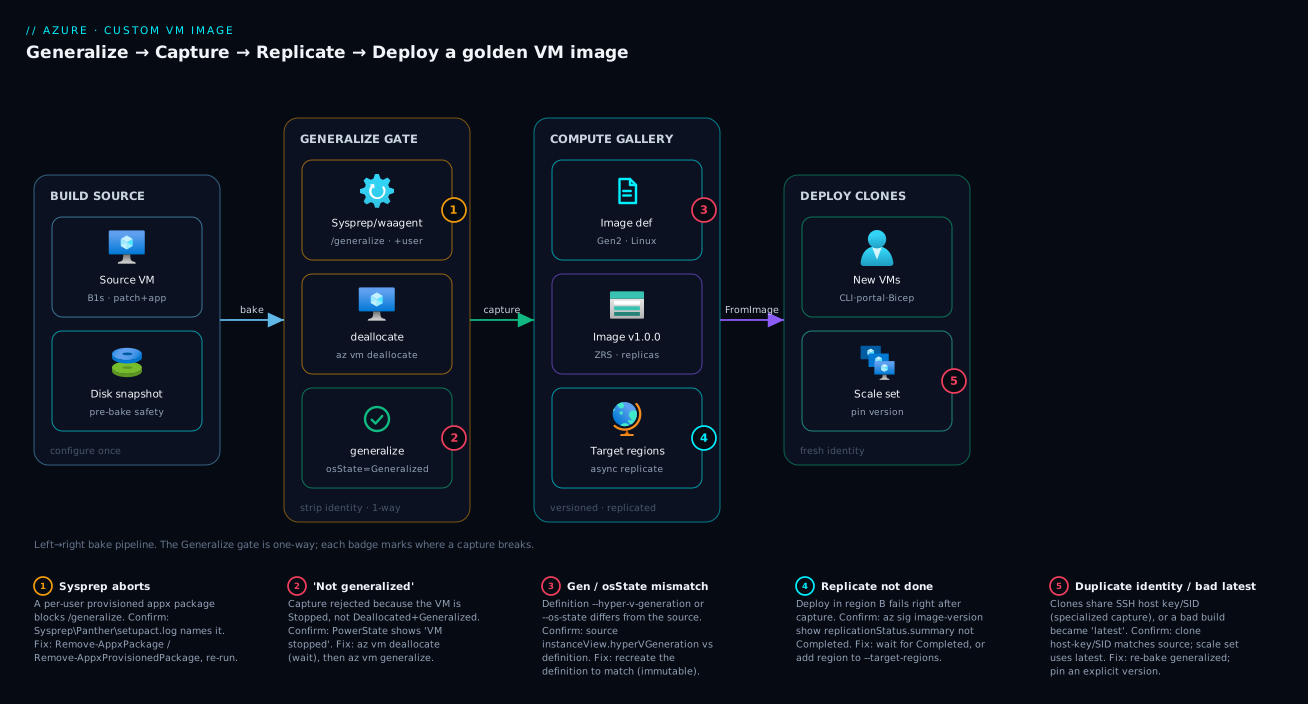
The end-to-end flow is a left-to-right pipeline with one make-or-break gate in the middle. On the left you build a source VM and configure it — patch, install, harden — then snapshot its OS disk as a safety net. The centre is the generalize gate: in-guest you run Sysprep (Windows) or waagent -deprovision+user (Linux) to strip identity, then on the Azure side you deallocate and generalize to flip the OS state. Skip or mis-order this gate and everything downstream is poisoned — you either can’t capture, or you capture a specialized disk that clones as duplicates. To the right you capture into the Compute Gallery: a gallery holds an image definition (pinning OS type, generation and osState), and you cut a versioned image version that replicates to your target regions on ZRS storage. On the far right you deploy clones — single VMs or a scale set — each booting through OOBE/cloud-init to regenerate a fresh identity.
Follow the arrows; the numbered badges mark the places a capture most often breaks — the Sysprep appx abort at the gate, the “not generalized / not deallocated” rejection at capture time, the Gen1/Gen2 or osState mismatch in the definition, and the replication-not-finished error when you deploy cross-region too soon. The legend turns each number into symptom, confirm, and fix.
Real-world scenario
Kloudvin Retail runs an e-commerce web tier on a Virtual Machine Scale Set in Central India — eight Ubuntu 22.04 instances behind a load balancer, scaling to thirty on sale days. For a year they built nodes with cloud-init: each instance booted, ran apt install, pulled the app runtime, installed the monitoring agent, dropped CA certs. On their first big sale, autoscale tried to add twelve instances at once; the package mirror throttled, three failed cloud-init mid-install, came up half-configured, and served 500s. Worse, the instances that did come up weren’t quite identical to the older ones — a minor agent bump had shipped silently between the original build and the sale — so a metrics dashboard went blank on a third of the fleet. The post-mortem verdict: “we are assembling production servers live, under load, off the internet.”
The fix was a golden image. The platform engineer, Aarthi, built one source VM, patched it, installed the exact runtime and agent versions, baked the CA certs and sysctl tuning, then — critically — snapshotted the OS disk before touching anything destructive. She ran cloud-init clean --logs, sudo waagent -deprovision+user -force, shutdown -h now, then from Cloud Shell az vm deallocate and az vm generalize. She created a Compute Gallery, an image definition ubuntu-web-base (Linux, Generalized, V2 to match the Gen2 source), and version 1.0.0 replicated to Central India with 3 replicas on Standard_ZRS — three so a thirty-instance scale-up could hydrate in parallel, ZRS so a zone outage couldn’t take the image offline.
The next sale scaled from eight to thirty in under four minutes with zero failed instances: every clone came up bit-identical — agent reporting, certs present — because all of it was already on the disk; the only first-boot work was cloud-init regenerating host keys and the hostname. Three weeks later a runtime upgrade shipped: Aarthi baked 1.0.1 from a fresh source (never re-generalizing the old one), pointed a canary scale set at it while production stayed pinned to 1.0.0, watched a day, then flipped. When a later 1.0.3 regressed, rollback was one line — repoint the scale set to 1.0.2 — because the prior version was still replicated. Both failure modes that had burned them — live assembly under load, and silent drift — were gone, traded for a fifteen-minute bake on a cadence. The one scar: their first capture failed with “VM is not generalized” because Aarthi had shut the VM down from inside the guest (Stopped) but forgotten az vm deallocate — the snapshot made recovery trivial, and cemented the runbook’s top rule: deallocate, then generalize, then capture — and snapshot first.
Advantages and disadvantages
| Advantages | Disadvantages |
|---|---|
| Clones boot in seconds — no install-on-boot | Bake step adds a build stage to maintain |
| Bit-for-bit identical fleet; drift collapses | Image goes stale; needs a re-bake cadence for patches |
| Versioned rollout + instant rollback (gallery) | Generalizing is destructive and one-way (snapshot first) |
| No live assembly off the internet under load | Sysprep/deprovision have real, easy-to-hit gotchas |
| Replicated + zone-redundant for resilience | Replicas cost storage per region per copy |
| Hardening signed off once, deployed everywhere | Secrets baked carelessly leak across the whole fleet |
| Foundation for scale sets / AVD / immutable infra | Gen1/Gen2 + osState mistakes block deploys |
When the advantages dominate: any fleet of two or more like-for-like VMs, anything autoscaling, anything regulated needing an attested base, any team chasing immutable infrastructure. The image is the unit of deployment, and identical-by-construction beats identical-by-hope.
When the disadvantages bite: a single bespoke server you’ll never clone gains little (the bake overhead isn’t repaid), and a fast-moving image tracking daily patches needs an automated re-bake (Azure VM Image Builder or a pipeline) or it rots — a six-month-old golden image is a fleet of six-month-old CVEs. The destructive generalize step punishes anyone who skips the source-disk snapshot, and replica cost, modest per GB, adds up across many regions and versions.
Hands-on lab
The centrepiece: bake an Ubuntu golden image end to end, capture it into a Compute Gallery, deploy a clone three ways — portal, CLI and Bicep — then validate and tear down. Everything uses small, cheap SKUs and is safe in a sandbox subscription. The Windows/Sysprep variant is a focused insert.
Estimated time: 30–45 minutes (mostly waiting on provisioning and replication). Cost if torn down same day: a few rupees of B1s compute plus negligible image storage.
Prerequisites for the lab
| Requirement | Check it |
|---|---|
| Azure CLI ≥ 2.50 (or Cloud Shell) | az version |
| Logged in to the right subscription | az account show --query name -o tsv |
| Rights to create RG, VM, gallery | Contributor on the subscription/RG |
| An SSH key pair (for Linux) | ls ~/.ssh/id_rsa.pub or use --generate-ssh-keys |
Set reusable variables:
export RG=rg-imagebuild-lab
export LOC=centralindia
export SRC=vm-golden-src
export GAL=galKloudvinLab
export IMGDEF=ubuntu-web-base
export IMGVER=1.0.0
Step 1 — Create the resource group
az group create --name $RG --location $LOC
Expected output: "provisioningState": "Succeeded".
Step 2 — Deploy the source VM
A small Gen2 Ubuntu VM to configure and bake.
az vm create \
  --resource-group $RG --name $SRC \
  --image Ubuntu2204 \
  --size Standard_B1s \
  --admin-username azureadmin \
  --generate-ssh-keys \
  --security-type Standard
az vm show -g $RG -n $SRC --query "{name:name, gen:instanceView.hyperVGeneration}" -d -o table
Expected output: the create returns a publicIpAddress; the second confirms the VM and its Hyper-V generation (note it — you match it in the definition). Grab the IP:
export IP=$(az vm show -g $RG -n $SRC -d --query publicIps -o tsv)
echo $IP
Step 3 — Configure the source (the “bake”)
SSH in and make this the golden state — an update, a package, and a marker file every clone should inherit.
ssh azureadmin@$IP

# --- inside the VM ---
sudo apt-get update -y && sudo apt-get upgrade -y
sudo apt-get install -y nginx
echo "kloudvin-golden-image v1.0.0 baked $(date -u)" | sudo tee /etc/kloudvin-image-marker
sudo systemctl enable nginx
Expected output: packages install; cat /etc/kloudvin-image-marker shows your marker. This is how you’ll prove a clone descended from the image.
Step 4 — Clean and generalize (in-guest, Linux)
Still inside the VM. Clean transient state, then deprovision. This consumes the VM — snapshot first if doing this for real (note below); in the lab we proceed directly.
# --- still inside the VM ---
sudo cloud-init clean --logs 2>/dev/null || true
sudo rm -rf /var/lib/waagent/history /var/log/*.gz
export HISTSIZE=0
sudo waagent -deprovision+user -force
# Agent prints what it removed, then returns. Leave; power off from the Azure side.
exit
Expected output: waagent lists what it removed (SSH host keys, user, leases) and exits. Your SSH session ends; you will not SSH back in — the user and host keys are gone.
Production note: before deprovisioning, snapshot the OS disk so a failed capture is recoverable:
OSDISK=$(az vm show -g $RG -n $SRC --query "storageProfile.osDisk.managedDisk.id" -o tsv)
az snapshot create -g $RG -n snap-$SRC-prebake --source $OSDISK
Step 5 — Deallocate and mark Generalized (Azure side)
az vm deallocate --resource-group $RG --name $SRC
az vm get-instance-view -g $RG -n $SRC \
  --query "instanceView.statuses[?starts_with(code,'PowerState')].displayStatus" -o tsv
az vm generalize --resource-group $RG --name $SRC
Expected output: the middle command prints VM deallocated; az vm generalize returns quietly on success. If it errors “not deallocated,” the deallocate hasn’t finished — wait and retry.
Step 6 — Create the gallery and image definition
az sig create --resource-group $RG --gallery-name $GAL --location $LOC

az sig image-definition create \
  --resource-group $RG --gallery-name $GAL \
  --gallery-image-definition $IMGDEF \
  --publisher kloudvin --offer ubuntu-web --sku 22_04-lts \
  --os-type Linux --os-state Generalized \
  --hyper-v-generation V2
Expected output: both return "provisioningState": "Succeeded". If your Step 2 VM reported V1, use --hyper-v-generation V1 here — they must match.
Step 7 — Capture the image version
az sig image-version create \
  --resource-group $RG --gallery-name $GAL \
  --gallery-image-definition $IMGDEF \
  --gallery-image-version $IMGVER \
  --virtual-machine $(az vm show -g $RG -n $SRC --query id -o tsv) \
  --target-regions $LOC=1 \
  --replica-count 1 \
  --storage-account-type Standard_ZRS
Expected output: JSON describing version 1.0.0; this takes a few minutes. Confirm replication finished before deploying:
az sig image-version show -g $RG --gallery-name $GAL \
  --gallery-image-definition $IMGDEF --gallery-image-version $IMGVER \
  --query "replicationStatus.summary" -o table
# Wait until State = Completed for your region
Step 8a — Deploy a clone with the CLI
Resolve the image version’s resource ID and create a new VM from it.
export IMGID=$(az sig image-version show -g $RG --gallery-name $GAL \
  --gallery-image-definition $IMGDEF --gallery-image-version $IMGVER \
  --query id -o tsv)

az vm create \
  --resource-group $RG --name vm-clone-cli \
  --image "$IMGID" \
  --size Standard_B1s \
  --admin-username cloneadmin \
  --generate-ssh-keys
Expected output: a normal VM create with a fresh publicIpAddress. You supplied a new admin user (cloneadmin) — the source’s was stripped by -deprovision+user.
Step 8b — Deploy a clone in the portal
- Portal → Virtual machines → Create → Azure virtual machine.
- Resource group:
rg-imagebuild-lab. - Image: click See all images → My Images (or Shared Images) tab → pick
ubuntu-web-baseversion1.0.0fromgalKloudvinLab. - Size:
Standard_B1s. Authentication: SSH public key, usernamecloneportal, paste your key. - Review + create → Create.
Expected result: the VM deploys; on the Overview blade its image reference shows your gallery version, not a marketplace one.
Step 8c — Deploy a clone with Bicep
Save clone.bicep:
@description('Location for the clone')
param location string = resourceGroup().location
@description('Resource ID of the gallery image version to deploy')
param imageVersionId string
@description('Admin username for the new clone')
param adminUsername string = 'clonebicep'
@description('SSH public key for the new clone')
@secure()
param adminPublicKey string

resource nic 'Microsoft.Network/networkInterfaces@2023-09-01' = {
  name: 'nic-clone-bicep'
  location: location
  properties: {
    ipConfigurations: [ {
      name: 'ipconfig1'
      properties: {
        subnet: { id: subnet.id }
        privateIPAllocationMethod: 'Dynamic'
      }
    } ]
  }
}

resource vnet 'Microsoft.Network/virtualNetworks@2023-09-01' = {
  name: 'vnet-clone-bicep'
  location: location
  properties: {
    addressSpace: { addressPrefixes: [ '10.50.0.0/24' ] }
    subnets: [ { name: 'default', properties: { addressPrefix: '10.50.0.0/25' } } ]
  }
}
resource subnet 'Microsoft.Network/virtualNetworks/subnets@2023-09-01' existing = {
  parent: vnet
  name: 'default'
}

resource vm 'Microsoft.Compute/virtualMachines@2023-09-01' = {
  name: 'vm-clone-bicep'
  location: location
  properties: {
    hardwareProfile: { vmSize: 'Standard_B1s' }
    storageProfile: {
      // The key line: source the OS disk from the gallery image version
      imageReference: { id: imageVersionId }
      osDisk: { createOption: 'FromImage', managedDisk: { storageAccountType: 'Standard_LRS' } }
    }
    osProfile: {
      computerName: 'vmclonebicep'
      adminUsername: adminUsername
      linuxConfiguration: {
        disablePasswordAuthentication: true
        ssh: { publicKeys: [ {
          path: '/home/${adminUsername}/.ssh/authorized_keys'
          keyData: adminPublicKey
        } ] }
      }
    }
    networkProfile: { networkInterfaces: [ { id: nic.id } ] }
  }
}
Deploy it with the same image-version ID:
az deployment group create \
  --resource-group $RG \
  --template-file clone.bicep \
  --parameters imageVersionId="$IMGID" \
               adminPublicKey="$(cat ~/.ssh/id_rsa.pub)"
Expected output: "provisioningState": "Succeeded". The imageReference.id pointing at the gallery version is the whole trick — createOption: 'FromImage' hydrates the OS disk from it.
Step 9 — Validate the clones have a fresh identity
SSH into the CLI clone and prove two things: the baked marker is present (descended from the image) and its host identity is fresh (generalize worked).
CLONEIP=$(az vm show -g $RG -n vm-clone-cli -d --query publicIps -o tsv)
ssh cloneadmin@$CLONEIP

# --- inside the clone ---
cat /etc/kloudvin-image-marker         # baked marker present → descended from image
hostnamectl | grep "Machine ID"        # a NEW machine-id, not the source's
sudo systemctl is-enabled nginx        # 'enabled' → your config survived
ls /etc/ssh/ssh_host_ed25519_key.pub   # fresh host key regenerated on first boot
exit
Expected output: the marker prints (the image carried your config), the machine-id differs from the source’s, nginx is enabled, and a fresh host key exists. That combination proves a generalized capture worked: config inherited, identity regenerated.
Windows / Sysprep variant (focused insert)
For Windows, Steps 3–5 change inside the guest. After configuring the Windows source, run Sysprep from an elevated PowerShell inside the VM:
C:\Windows\System32\Sysprep\Sysprep.exe /generalize /oobe /mode:vm /shutdown
The VM powers itself off. From Cloud Shell the Azure-side steps are identical — az vm deallocate, then az vm generalize — and the definition uses --os-type Windows. Validate a Windows clone by confirming it ran OOBE (you supplied a new admin password at deploy) and that whoami /user shows a SID different from the source’s.
Step 10 — Teardown
Delete the resource group — this removes the source VM, gallery, all versions, snapshots and every clone in one shot.
az group delete --name $RG --yes --no-wait
Expected output: returns immediately (--no-wait); deletion completes in the background. Verify with az group exists -n $RG → false.
Common mistakes & troubleshooting
The failures that actually happen, with the exact way to confirm and fix each one:
| # | Symptom | Root cause | How to confirm | Fix |
|---|---|---|---|---|
| 1 | Capture fails: “VM is not generalized” | Ran deallocate but not az vm generalize, or neither |
az vm show … --query "storageProfile.osDisk.osState" (portal shows state) |
Run az vm generalize after deallocate; capture |
| 2 | az vm generalize errors “not deallocated” |
VM is Stopped from inside the guest, not Deallocated |
…instanceView…PowerState shows VM stopped |
az vm deallocate, wait for VM deallocated, retry |
| 3 | Every clone has the same SSH host key / SID | Captured a specialized disk (skipped Sysprep/waagent) | New clones warn of unchanged host key; identical SIDs | Re-bake: run the in-guest generalize step, recapture |
| 4 | Sysprep aborts on /generalize |
A provisioned appx package installed per-user | C:\Windows\…\Sysprep\Panther\setupact.log names it |
Remove-AppxPackage / Remove-AppxProvisionedPackage, re-run |
| 5 | Deploy in region B fails right after capture | Replication to region B not finished | az sig image-version show … replicationStatus.summary not Completed |
Wait until Completed; or add region as a target |
| 6 | Deploy fails: generation / boot mismatch | Definition --hyper-v-generation ≠ source VM gen |
Source instanceView.hyperVGeneration vs definition |
Recreate the definition with matching V1/V2 |
| 7 | Clone won’t finish provisioning / no SSH | waagent/agent missing or unhealthy on source | Source /var/log/waagent.log; agent status |
Reinstall & enable waagent on source, re-bake |
| 8 | Sysprep: “not able to validate your Windows installation” | Sysprep run too many times (~3 limit) on same image | setuperr.log / run count |
Bake from a fresh source, not a re-Sysprepped one |
| 9 | New build instantly broke the whole fleet | Scale set deploys from latest; bad version became latest |
Scale set image ref uses latest |
Pin an explicit version; promote deliberately |
| 10 | Image storage cost creeping up | Many old versions × replicas × regions retained | az sig image-version list; replica counts |
Prune unused versions; trim replica count/regions |
| 11 | Clone missing something the source had | A transient/extension change wasn’t persisted before capture | Compare clone vs source; check extension state | Bake the change into the disk, not a runtime extension |
| 12 | TrustedLaunch clone fails to deploy | Definition lacks the security feature / source was Standard | Definition features; source securityType |
Match security type/features between source and definition |
A few deserve a sentence more. #1 and #2 are the same root confusion — “stopped” vs “deallocated” vs “generalized,” the most common first-capture failure: the VM passes through Running → Deallocated → Generalized, and a guest shutdown only reaches Stopped. #3 is silent until it bites — a specialized capture succeeds and deploys; the breakage appears only when two clones collide on identity, so validate a fresh clone (Step 9) before trusting an image. #5 has a variant: if --target-regions listed only region A, region B was never a target — the fix isn’t “wait longer,” it’s az sig image-version update --target-regions to add B.
Best practices
- Snapshot the source OS disk before you generalize. Generalizing is destructive and one-way; the snapshot turns a failed capture into a five-minute retry.
- Build on a workgroup (non-domain) machine. Generalizing a domain-joined Windows source is fragile; join clones to the domain at first boot, not in the image.
- Bake only the lowest common denominator. Hold what every clone needs; push per-role config to first-boot, or you ship bloat and per-clone cleanup.
- Strip secrets before capture. No hand-added SSH keys, tokens or credential files on the source — they replicate to the fleet. Use managed identity at runtime.
- Capture to a Compute Gallery and version semantically (
MAJOR.MINOR.PATCH, increment per build) — the previous version staying replicated is your rollback. - Pin explicit versions in production; never deploy
latestto a fleet. Promote through a canary, then flip — don’t let a fresh build silently become everyone’s image. - Match Hyper-V generation and
osStatebetween source and definition before you create the definition — they’re immutable, so a mistake means recreating it. - Size replicas for parallel deploys, not just durability (~1 per ~20 concurrent creations); use ZRS in zone-enabled regions.
- Automate the re-bake. A golden image rots; use Azure VM Image Builder or a pipeline on a patch cadence so the fleet isn’t running last quarter’s CVEs.
- Keep the Azure agent healthy and the source clean-booting, and clear logs/caches/history so nothing stale or sensitive ships.
- Prune old versions and replicas (storage is per copy per region per version); retire what you no longer deploy.
- Document the bake (base OS, patch date, packages, agents) so the artifact isn’t a new kind of snowflake.
Security notes
A golden image is a supply-chain artifact: whatever you bake in ships, unchanged, to every descendant machine — so it deserves the same scrutiny as a container base image.
- Never bake secrets. Connection strings, API tokens, private-key certificates, or hand-added SSH
authorized_keyson the source become fleet-wide secrets the moment you capture. Inject secrets at runtime via managed identity + Key Vault — the pattern in Managed Identities Demystified: System vs User-Assigned and When to Use Each and Azure Key Vault: Secrets, Keys and Certificates Done Right — not into the disk. - Generalize strips a lot, but verify.
-deprovision+userremoves SSH host keys and the admin user; Sysprep/generalizeremoves the SID and event logs. Neither scrubs application secrets written to arbitrary paths, shell history (clear it explicitly), or other users’ home directories. Audit the source before capture. - Lock down who can read the gallery. Image versions carry baked-in configuration an attacker would value (agent configs, internal hostnames). Use RBAC on the gallery; share via direct-shared/community galleries deliberately, not by over-granting reader at subscription scope.
- Bake hardened, attested bases. Apply your CIS/STIG baseline, EDR and patch level on the source so security signs off once — but reinstall any EDR you disabled for Sysprep, and confirm it’s present in a test clone.
- Prefer Trusted Launch (Gen2) for the base. A Gen2 + Trusted Launch source (secure boot, vTPM) carries those protections to clones; ensure the definition declares the matching security features or the deploy fails.
- Treat the snapshot as sensitive too. The pre-bake OS-disk snapshot is a full copy of the configured disk; secure and delete it on the same footing as the image.
Cost & sizing
A captured image has two cost centres: bake compute (a short-lived source VM) and image storage (replicas × regions × versions). Both are modest, but storage scales with how many you keep.
| Cost driver | What you pay for | Lever to control it | Rough scale |
|---|---|---|---|
| Source VM compute | The hours the source runs while you bake | Use a small SKU (B1s/B2s); deallocate/delete after |
A few ₹/USD for an afternoon |
| OS-disk snapshot (pre-bake) | Incremental snapshot storage | Delete after a successful capture | Cents while it exists |
| Image-version storage | Each replica is a stored copy of the OS image | Replica count, region count, prune old versions | Per-GB managed-disk-class storage × replicas |
| Replication egress | Cross-region copy on create | Replicate only where you deploy | One-time per region per version |
| Clone OS disks | Each deployed clone has its own managed disk | Right-size disk SKU; that’s normal VM cost | Standard VM-disk pricing |
Sizing the bake: the source VM only needs to be big enough to install and configure — a Standard_B1s/B2s is plenty even for an image you’ll later deploy on large SKUs, because image content is independent of source size (bake on a tiny box, deploy on a beefy one). There is no free tier specifically for images, but a single small Linux image with one or two replicas is a rounding error; cost only matters at scale (dozens of versions across regions with high replica counts) — exactly where pruning pays off.
Two traps: leaving the source VM allocated after the bake (you’re billed for idle compute — delete it, you have the image), and accumulating versions (every old 1.0.x is replicas-worth of storage per region). Keep the last N plus anything pinned in production, prune the rest. For catching this creep, see Azure Cost Management for Beginners: Budgets, Alerts and Cost Analysis in Your First 30 Days.
Interview & exam questions
Q1. What does “generalize” mean for a VM image, and why is it necessary? Generalizing removes the machine-specific identity — the SID and machine GUID on Windows, the SSH host keys, machine-id and provisioning state on Linux. A raw clone of a specialized disk inherits that identity, so every clone collides (same SID/host keys), breaking domain joins, SSH trust and agent registration. A generalized image regenerates a fresh identity on each clone’s first boot.
Q2. What’s the difference between a Specialized and a Generalized image, and when do you use each? Specialized keeps the machine identity, so a clone is the original machine (same hostname/SID, no OOBE) — use it to snapshot one unique server as-is (backup/migration). Generalized strips identity, so each clone is a new, distinct machine that runs first-boot setup with fresh credentials — use it for fleets, scale sets and any reusable template. Relevant to AZ-104/AZ-700 VM topics.
Q3. Which tool generalizes Windows, which Linux, and with what flags?
Windows uses Sysprep: sysprep /generalize /oobe /mode:vm /shutdown — generalize strips identity, oobe re-personalises on next boot, shutdown leaves it stopped for capture. Linux uses waagent: waagent -deprovision+user -force — deprovisions provisioning state and SSH host keys, and +user also removes the admin account.
Q4. After Sysprep/waagent, what two Azure-side commands precede a capture, and in what order?
az vm deallocate then az vm generalize. Deallocate releases compute and moves the VM to the Deallocated state (a capture prerequisite); generalize flips the OS state to Generalized so the platform treats the disk as a template. Order matters — generalize requires the VM deallocated first.
Q5. Why might az vm generalize fail even though you shut the VM down?
A guest shutdown leaves the VM Stopped (still allocated), not Deallocated, and generalize/capture require Deallocated. Run az vm deallocate and wait for VM deallocated before generalizing — the most common first-capture mistake.
Q6. What is an Azure Compute Gallery and how is its hierarchy structured?
It’s the modern, versioned, replicated store for custom images (formerly Shared Image Gallery). Three levels: a gallery (container) → image definitions (the “product,” pinning OS type, Hyper-V generation and osState) → image versions (1.0.0, deployable artifacts that replicate to target regions). It supports versioning, multi-region replication, ZRS, staged rollout and cross-subscription sharing.
Q7. Why prefer a Compute Gallery over a standalone managed image? The gallery gives versioning (rollback to a prior version), multi-region replication, zone-redundant storage, staged rollout, faster parallel deploys via replicas, and cross-sub/tenant sharing. A standalone managed image is single-region, unversioned and discouraged for scale-set workloads.
Q8. What does the replica count on an image version control, and what’s a sizing rule? It’s both a durability and a throughput control: each replica is a stored copy of the image in a region, and more replicas let that region hydrate more VMs in parallel. Rule of thumb: roughly one replica per ~20 concurrent VM creations; a 200-instance scale-up off a single replica serialises and crawls.
Q9. Why can a deploy fail immediately after you capture a new version in another region?
Replication is asynchronous. A version only deploys from a region it has finished replicating to; deploying from a still-Replicating region fails. Check az sig image-version show … replicationStatus.summary for Completed — or ensure the region was in --target-regions.
Q10. What’s the danger of deploying a scale set from the latest image alias?
latest always resolves to the highest non-excluded version, so the moment you publish a bad build it becomes everyone’s image with no warning. Production fleets should pin an explicit version and promote through a canary, keeping the prior version replicated for instant rollback.
Q11. Clones come up sharing the same SSH host key. What happened and how do you fix it?
You captured a specialized disk — the in-guest generalize step (waagent -deprovision+user) was skipped or ran after capture, so host keys were baked in. Fix by re-baking: deprovision the source, deallocate, generalize, recapture; then validate a fresh clone regenerates its host keys.
Q12. What must match between the source VM and the image definition, and why?
The Hyper-V generation (V1/V2), OS type, architecture (x64/Arm64) and osState must match — all immutable on the definition. A Gen2 source in a V1 definition (or an osState mismatch) produces deploys that fail or VMs that won’t boot, forcing you to recreate the definition.
Quick check
- You shut your source VM down from inside the guest, then run
az vm generalizeand it errors. What single command did you miss? - Which in-guest command generalizes a Linux VM, and what does the
+userpart add? - Your colleague wants fifteen independent web servers from one template. Specialized or Generalized image?
- You capture version
1.0.1and immediately try to deploy it in a second region; the deploy fails. Why? - Name the three-level hierarchy of an Azure Compute Gallery, top to bottom.
Answers
az vm deallocate. Generalize requires the VM in theDeallocatedstate; a guest shutdown only reachesStopped(still allocated).sudo waagent -deprovision+user -force.-deprovisionstrips provisioning state and SSH host keys;+useradditionally removes the last provisioned admin user account (so you supply a fresh one at deploy).- Generalized. Each clone must get a fresh identity (hostname, SID/host keys, credentials); Specialized would give all fifteen the same identity and they’d collide.
- Replication is asynchronous and hasn’t finished to that region (or it was never a
--target-region). CheckreplicationStatus.summaryand wait forCompleted, or add the region as a target. - Gallery → image definition → image version. The gallery is the container, the definition pins immutable metadata (OS type, generation, osState), and the version is the deployable, replicated artifact (
1.0.0).
Glossary
- Generalize — Removing machine identity (SID/host keys/machine-id/provisioning state) from an OS so the image is a reusable template; each clone regenerates a fresh identity on first boot.
- Specialized image — Retains machine identity; a clone is effectively the same machine. For one-off backup/migration, never fleets.
- Generalized image — Identity removed; each clone is a new, distinct machine. The fleet/scale-set default.
- Sysprep — Windows System Preparation Tool;
sysprep /generalize /oobe /shutdownstrips identity and prepares Windows for imaging. - waagent — Azure Linux Agent;
waagent -deprovision+userdeprovisions a Linux VM, removing host keys and the admin user. - OOBE — Out-Of-Box Experience; the Windows first-boot personalisation a generalized clone runs to take a fresh identity and credentials.
- Azure Compute Gallery — The modern, versioned, replicated store for custom images (formerly Shared Image Gallery).
- Image definition — The “product” inside a gallery; pins immutable metadata: OS type, Hyper-V generation, osState, publisher/offer/SKU.
- Image version — A deployable build (
1.0.0) under a definition; the artifact you deploy, replicated to target regions. - Managed image — Legacy standalone image object (
Microsoft.Compute/images): single-region, unversioned. Discouraged in favour of the gallery. - Replica — A stored copy of an image version in one region; controls durability and parallel-deploy throughput.
- Hyper-V generation — Gen1 (BIOS) vs Gen2 (UEFI, required for Trusted Launch and some SKUs); must match between source and definition.
- Deallocated — A VM state where compute is released (not just stopped); a prerequisite for generalize and capture.
- Trusted Launch — A Gen2 security feature (secure boot + vTPM); the definition must declare matching features to deploy.
- Golden image — A fully-configured, hardened base image that a fleet is stamped from.
Next steps
- Turn the image into a fleet: deploy from a Virtual Machine Scale Set and wire autoscale — size the clones with Decoding Azure VM Series: Picking the Right D, E, F, L, N and M Family for Your Workload.
- Automate the bake on a patch cadence, applying the immutable-artifact discipline from Deploy Your First Bicep File From Scratch: Author, Validate and Ship in 20 Minutes.
- Keep secrets out of the image, injecting them at runtime via Managed Identities Demystified: System vs User-Assigned and When to Use Each and Azure Key Vault: Secrets, Keys and Certificates Done Right.
- Protect the running clones with Protect Your First Azure VM with Azure Backup: A Guided Walkthrough.
- Govern image sprawl and cost with Azure Cost Management for Beginners: Budgets, Alerts and Cost Analysis in Your First 30 Days.