You pushed one firewall rule. Now the VM is gone — RDP times out, SSH hangs, the app is dark, and the only thing the portal will tell you is that the VM is “Running”. It is running. That is the cruel part. The machine is alive, the disk is fine, your data is intact; you simply locked yourself out of the front door, and the front door was the only way in you ever built. The instinct at this point is to redeploy, restore from backup, or open a Sev-A ticket and wait. All three are the wrong first move, because Azure gives you two side doors into a running guest that do not depend on RDP, SSH, the network stack, an open NSG, or even a working OS network configuration: Run Command, which pushes a script into the guest through the Azure VM agent over the Azure control plane, and the Serial Console, which connects you to the VM’s emulated COM1 serial port and drops you onto a real interactive terminal at the boot screen.
This article is the in-place recovery playbook. The mental model that makes everything else obvious: there are two completely independent paths into a running VM, and they fail for opposite reasons. Run Command travels the management plane — your az call → Azure Resource Manager → the VM agent inside the guest → your script runs as SYSTEM/root, output streamed back. It needs no inbound port, but it does need a healthy guest agent and an OS that boots far enough to start it. The Serial Console travels a hardware path — the hypervisor exposes a virtual serial port, boot diagnostics wires it to a relay, and you type into the guest’s console exactly as if you were at a crash cart. It needs no agent and no network inside the guest at all — it works while the box is stuck at GRUB or a Windows recovery prompt — but it does need boot diagnostics enabled and a getty/SAC console on the serial line. Knowing which tool fits which failure is the difference between a four-minute fix and a four-hour rebuild.
By the end you will reach for the right side door on reflex. A broken host firewall? Run Command pushes the rule that re-opens you. A boot loop, a botched /etc/fstab, a kernel panic, a full OS disk that won’t let the agent start? Serial Console, because nothing inside the guest is healthy enough to run a script. A forgotten password? Either, depending on whether the guest still boots. You will drive both with az, read the precise error each throws when it itself fails, and escalate cleanly to the offline last resort — detaching the OS disk and repairing it from a rescue VM — only when both in-place doors are genuinely shut.
What problem this solves
The defining trait of this failure is that the VM is running and healthy at the infrastructure layer but unreachable at the access layer. Every metric is green. Boot diagnostics shows a login prompt. The disk is attached, the NIC has an IP, the VM’s power state is “running”. And yet you cannot get a shell. The thing you broke is the one thing you were using to manage it: the inbound network path, the firewall, the SSH daemon, the password, the routing table — the control surface, not the machine.
What breaks without an in-place door: the on-call engineer treats every lockout as a total loss. They redeploy from a template (losing state that lived only on that box), restore last night’s backup (losing a day), or escalate to support and wait hours for someone to tell them to use the Serial Console — the tool that was one az command away the whole time. Each is slower, riskier, and more expensive than reaching through the side door and fixing the one rule, file, or service you broke.
Who hits this: everyone who runs IaaS VMs long enough. It bites hardest right after a change — a ufw/iptables/Windows Firewall edit applied over the very session you were connected on (you lock yourself out the instant you hit enter), a network change that drops the NIC, a disk that filled to 100%, a kernel update that won’t boot, or a password rotation gone wrong. None of those are “the VM is broken.” All are “I can’t get in to fix the VM,” and all have an in-place answer. If you can’t even reach the box to diagnose, the upstream read is Cannot RDP or SSH into your Azure VM; this article is what you do after you accept the front door is shut.
To frame the field before the deep dive, here is the recovery-tool landscape — every in-place option, the layer it travels, what it needs to work, and the failure class it is built for:
| Tool | Path it travels | Needs inside the guest | Best for | Cannot help when |
|---|---|---|---|---|
| Run Command | Management plane (ARM → VM agent) | Healthy VM agent + booting OS | Firewall/NSG self-lockout, service restart, config push | Agent dead, OS won’t boot |
| Serial Console | Emulated COM1 + boot diagnostics relay | Console on serial line (getty/SAC); no network | Boot loops, bad fstab, kernel panic, recovery shell | Boot diagnostics disabled; no serial console |
| Reset password / SSH (VMAccess) | Management plane (VM agent extension) | Healthy VM agent | Forgotten password, broken sshd_config, add SSH key |
Agent dead, OS won’t boot |
| Boot diagnostics screenshot | Hypervisor capture | Nothing (read-only) | Seeing why it’s stuck (read-only) | It only shows, never fixes |
| Offline disk repair (rescue VM) | Detach OS disk → attach to a helper VM | Nothing — disk is offline | Both in-place doors shut | Slower; needs a second VM + downtime |
Learning objectives
By the end of this article you can:
- Explain the two independent in-place recovery paths — Run Command (management plane, via the VM agent) and Serial Console (emulated serial port, via boot diagnostics) — and name which failure class each one fixes.
- Use Run Command from
azto push a script into a running guest with no inbound port open, and read its output, exit code, and theProvisioningStateit returns. - Distinguish the two Run Command flavours — the legacy action
az vm run-command invokeand the newer managed Run Command resource — and pick the right one for ad-hoc fixes versus durable, async, long-running scripts. - Enable boot diagnostics, capture a console screenshot to see why a VM is stuck, and connect to the Serial Console to land on an interactive boot-time terminal with no network and no agent.
- Reset a lost local-admin password, repair a broken
sshd_config, and re-open a self-inflicted firewall lockout — choosing Run Command or Serial Console based on whether the guest still boots. - Diagnose why Run Command itself fails (agent not ready, VM stopped, extension conflict, RBAC) and why the Serial Console itself fails (boot diagnostics off, no serial console configured, managed-boot-diagnostics storage issue) — with the exact command or blade to confirm each.
- Escalate cleanly to the offline last resort — detach the OS disk, attach it to a rescue VM, repair it, and reattach — and know the precise signal that says “both in-place doors are shut, go offline.”
Prerequisites & where this fits
You should already understand the Azure VM basics: a virtual machine is an IaaS guest with an OS disk and optional data disks, a network interface (NIC) carrying a private (maybe public) IP, on a subnet whose traffic a network security group (NSG) filters. You should know the Azure VM agent (the Windows Guest Agent / Linux waagent) is a small process Azure installs in the guest to broker extensions and management commands. You should run az in Cloud Shell, read JSON, and have at least Virtual Machine Contributor on the VM. Basic Linux (systemctl, iptables/ufw, /etc/fstab) and Windows (netsh advfirewall, net user) admin helps — the fix you push is plain OS administration; the Azure part is only how you get a shell to run it.
This sits in the Compute Troubleshooting track. It builds on Deploying your first Azure VM (portal + CLI) and pairs with Azure VM cannot RDP/SSH: connection troubleshooting — the layer above, which triages whether a lockout is NSG, routing, the OS firewall or the service; this article is how you reach in and fix whichever it is. Run Command is an extension, so when it won’t deploy, Azure VM extension provisioning failed: troubleshooting explains the machinery underneath. For the offline path, Azure VM disk types explained: Standard, Premium, Ultra tells you what you’re detaching, and a sound Azure backup: protect your first VM is the safety net behind an in-place repair.
A quick map of who owns each layer in an incident, so you call the right tool fast:
| Layer | What lives here | Failure it causes | In-place door that reaches it |
|---|---|---|---|
| NSG / routing (Azure) | Inbound rules, UDRs, public IP | “Connection timed out” — nothing answers | Fix from outside (portal/az); no door needed |
| Host firewall (guest OS) | iptables/ufw/Windows Firewall |
Timed out after a firewall edit | Run Command (agent still up) |
| Network config (guest OS) | NIC config, netplan, DNS, routes |
NIC dropped; agent may also be cut | Serial Console (no guest network) |
| Boot / OS disk | GRUB, kernel, /etc/fstab, full disk |
Boot loop, panic, stuck at startup | Serial Console (pre-network) |
| Auth (guest OS) | Local accounts, sshd_config, certs |
“Access denied” / “Permission denied” | Run Command or Serial Console |
| Agent / extensions | VM agent, extension handlers | Run Command itself won’t run | Serial Console (agent-independent) |
Core concepts
Five mental models make every later diagnosis obvious.
There are two planes, and they fail independently. The management plane is the Azure API surface — ARM, the VM agent, extensions. The data plane carries your application traffic — the NIC, the network, RDP/SSH, your firewall. When you “can’t reach the VM,” you’ve almost always broken the data plane while the management plane stayed perfectly healthy. Run Command rides the management plane: it never touches your inbound port, NSG, or host firewall, which is exactly why it can re-open a firewall you locked. The Serial Console rides a third path — emulated hardware — independent of both your guest network and the agent, which is why it works when even Run Command can’t.
Run Command is an extension that runs as SYSTEM/root. When you call az vm run-command invoke, Azure hands the script to the VM agent, which executes it with full privilege — SYSTEM on Windows, root on Linux — and streams stdout/stderr back through the control plane. No port to open, no credential beyond your Azure RBAC. The catch is the dependency chain: the OS must boot far enough to start the agent, and the agent must be healthy and not busy with another extension operation. If the box is stuck at GRUB, the agent never starts and Run Command has nothing to talk to.
The Serial Console is a crash cart, not a network connection. The hypervisor exposes the VM’s first serial port (COM1); with boot diagnostics enabled, that port is wired through a relay to your browser/CLI, and you land on whatever is listening on the serial line — a Linux getty login or the Windows Special Administration Console (SAC). Because this is the console, you see boot messages, interrupt GRUB, drop to single-user or a recovery shell — all before networking or the agent start. It needs zero guest network; it does need boot diagnostics on, a serial console configured in the OS, and your credentials at the prompt (not an auth bypass, except via the documented bootloader recovery flows).
Boot diagnostics is two things: a screenshot and the wire for the console. It captures a console screenshot (a literal picture of the screen — invaluable for seeing a kernel panic, a chkdsk, an fstab error) and a serial log, and it is the prerequisite that lights up the Serial Console. Modern VMs use managed boot diagnostics (Azure manages the storage); older configs used a custom storage account. If it’s off, the Serial Console is greyed out and you’re flying blind — enabling it is step zero of half this article.
The agent’s health is a status you read before you trust it. Before assuming Run Command will work, ask Azure whether the agent is Ready: az vm get-instance-view returns vmAgent.statuses. If it says not ready (or the VM is deallocated), Run Command will fail and the Serial Console is your path. This one check, run first, tells you which door is even open.
The vocabulary in one table
Before the deep sections, pin down every moving part. The glossary repeats these for lookup; this table is the mental model side by side:
| Concept | One-line definition | Where it lives | Why it matters to recovery |
|---|---|---|---|
| Management plane | The Azure API/control surface (ARM, agent) | Azure-side | Run Command rides it — no inbound port needed |
| Data plane | App traffic path (NIC, network, RDP/SSH) | Guest + network | The thing you usually broke |
| VM agent | Guest process brokering extensions/commands | Inside the guest | Run Command/VMAccess need it Ready |
| Run Command | Push a script via the agent, run as SYSTEM/root | Extension | Fixes lockouts while the OS boots |
| Serial Console | Interactive terminal on emulated COM1 | Hypervisor + boot diag | Works with no network and no agent |
| Boot diagnostics | Console screenshot + serial log capture | VM diagnostics setting | Prerequisite for Serial Console |
| SAC | Windows Special Administration Console | Windows serial console | Where you land on a Windows box |
| getty | Linux serial login process | Linux serial console | Where you land on a Linux box |
| VMAccess | Extension to reset password / SSH config | Extension (agent) | Recovers lost auth without the OS UI |
| Rescue VM | A helper VM you attach a broken OS disk to | Separate VM | The offline last resort |
The two doors, side by side
Everything in this article is a choice between two tools that overlap a little and differ a lot. Before driving either, internalise where they diverge — this single comparison decides your first move on every incident:
| Dimension | Run Command | Serial Console |
|---|---|---|
| Plane / path | Management plane via VM agent | Emulated COM1 via boot diagnostics |
| Needs inbound network port | No | No |
| Needs guest network at all | No (rides agent over control plane) | No (works pre-network) |
| Needs a healthy VM agent | Yes | No |
| Needs the OS to fully boot | Yes (far enough to start the agent) | No — works at GRUB/SAC |
| Needs boot diagnostics enabled | No | Yes |
| Interactive? | No — fire a script, read output | Yes — live terminal |
| Runs as | SYSTEM (Win) / root (Linux) | Whoever you log in as (or recovery flow) |
| Good for boot loops / panics | No | Yes |
| Good for firewall self-lockout | Yes | Yes |
| Scriptable / automatable | Yes (az, idempotent) |
No (human at a keyboard) |
The decision rule in one breath: if the OS boots and the agent is Ready, reach for Run Command — scriptable, idempotent, and it leaves an audit trail. If the box won’t boot, or the agent is dead, reach for the Serial Console — the only door that opens before the OS does. When you don’t know which, run the agent-status check first.
Run Command in depth
Run Command is the door you’ll use most, because most lockouts leave the OS booting and the agent healthy — you broke a rule, not the machine. It comes in two flavours that look similar and behave very differently.
The action command — az vm run-command invoke
The original, synchronous form. You invoke it, Azure runs your script through the agent, and the call blocks until the script finishes (up to a hard limit — historically around 90 minutes), then returns stdout/stderr. It is perfect for short, sharp fixes: re-open a firewall, restart a service, read a config file, reset something. It does not create a persistent resource — it’s a fire-and-read operation.
Re-open a Linux host firewall you just locked yourself out of (the classic: you enabled ufw over SSH and forgot to allow 22):
# Push a script via the agent — no inbound port needed, runs as root
az vm run-command invoke \
  --resource-group rg-app-prod --name vm-web-01 \
  --command-id RunShellScript \
  --scripts "ufw allow 22/tcp; ufw status verbose"
The output JSON carries the script’s stdout under value[0].message. On Windows, use the RunPowerShellScript command-id to, say, re-open RDP that a firewall change blocked:
az vm run-command invoke \
  --resource-group rg-app-prod --name vm-app-01 \
  --command-id RunPowerShellScript \
  --scripts "netsh advfirewall firewall set rule group='Remote Desktop' new enable=Yes; netsh advfirewall show allprofiles state"
For anything longer than a one-liner, pass a script file instead of an inline string (avoids quoting hell and lets you review it first):
az vm run-command invoke -g rg-app-prod -n vm-web-01 \
  --command-id RunShellScript --scripts @fix-firewall.sh
The built-in command-ids you’ll actually use, and what each is for:
--command-id |
OS | What it runs | Typical recovery use |
|---|---|---|---|
RunShellScript |
Linux | An arbitrary bash script (root) | Re-open ufw/iptables, fix config, restart service |
RunPowerShellScript |
Windows | An arbitrary PowerShell script (SYSTEM) | Re-enable RDP, restart a service, read event log |
EnableRemotePS |
Windows | Configures WinRM/remote PowerShell | Re-enable remoting after a lockout |
ifconfig |
Linux | Shows network interfaces | Confirm the NIC/IP from the inside |
RDPSettings |
Windows | Checks RDP registry/config | Diagnose why RDP is refused |
ResetRDPCert |
Windows | Regenerates the RDP self-signed cert | RDP fails on a TLS/cert error |
The managed Run Command resource
The newer model treats a Run Command as a first-class child resource of the VM (Microsoft.Compute/virtualMachines/runCommands) instead of a transient action. That unlocks what the action form can’t: asynchronous, long-running scripts (kick off and poll), persisted output to a blob (no truncation), parallel runs on one VM, run-as a specific user (--run-as-user), and sourcing the script from a URI. The full trade-off is in the comparison below.
Create a managed Run Command that streams output to a blob and runs asynchronously:
az vm run-command create \
  --resource-group rg-app-prod --vm-name vm-web-01 \
  --name fix-disk-cleanup \
  --script "journalctl --vacuum-size=200M; df -h /" \
  --output-blob-uri "https://stdiag.blob.core.windows.net/runcmd/cleanup.txt?<SAS>" \
  --async-execution true
Then list and read the managed Run Commands attached to the VM:
# What managed Run Commands exist on this VM and how did they end?
az vm run-command list --resource-group rg-app-prod --vm-name vm-web-01 -o table
az vm run-command show --resource-group rg-app-prod --vm-name vm-web-01 \
  --run-command-name fix-disk-cleanup --instance-view \
  --query "instanceView.{state:executionState, exit:exitCode, start:startTime, end:endTime}" -o json
The same as Bicep, for a repeatable break-glass script you keep in source control:
resource fixCmd 'Microsoft.Compute/virtualMachines/runCommands@2024-07-01' = {
  parent: vm
  name: 'reopen-ssh'
  location: location
  properties: {
    asyncExecution: false
    timeoutInSeconds: 600
    source: {
      script: 'ufw allow 22/tcp || true; systemctl restart sshd; ss -tlnp | grep :22'
    }
    // Optional: stream stdout/stderr to a blob you own
    outputBlobUri: '${storage.properties.primaryEndpoints.blob}runcmd/reopen-ssh-out.txt'
    errorBlobUri:  '${storage.properties.primaryEndpoints.blob}runcmd/reopen-ssh-err.txt'
  }
}
When to pick which flavour — they are not interchangeable:
| Need | Action (invoke) |
Managed resource |
|---|---|---|
| One-off ad-hoc fix, read result inline | Best | Overkill |
| Script longer than ~90 min | No | Yes (async) |
| Persist full output (no truncation) | Truncated in response | Yes (blob) |
| Multiple scripts at once on one VM | Serialised | Parallel |
| Run as a non-admin user | No (always SYSTEM/root) | Yes (--run-as-user) |
| Source script from a URI/blob | No (inline only) | Yes (scriptUri) |
| Keep it in IaC / source control | Awkward | Yes (Bicep resource) |
| Audit trail as a resource | No | Yes (visible on the VM) |
The limits and gotchas that bite
Run Command is not magic; it has hard edges. Know them before you depend on it mid-incident:
| Limit / behaviour | Value / detail | Why it matters |
|---|---|---|
| Action timeout | ~90 minutes (action form) | Long scripts get cut — use the managed resource (async) |
| Concurrency (action) | One at a time per VM | A stuck Run Command blocks the next; managed runs parallel |
| Privilege | SYSTEM (Win) / root (Linux) | Treat scripts as production change — they can break the box further |
| Requires VM agent Ready | Yes | Dead agent or deallocated VM → it cannot run (use Serial Console) |
| Output size (action) | Truncated in the API response | Use the managed resource’s blob output for full logs |
| Concurrent extension ops | One extension operation at a time | Another extension installing blocks it (OperationNotAllowed/conflict) |
| Working directory | A temp path, not your home dir | Don’t assume relative paths; use absolute |
| Idempotency | You must make it idempotent | A re-run firewall script should not double rules — guard with ` |
| No interactive prompts | Non-interactive shell | A script that waits for input hangs to the timeout |
The single most important discipline: write the script to be safe to run twice. A firewall “fix” that appends a rule each run turns a recovery into a second incident — ufw allow 22/tcp is naturally idempotent; an iptables -A is not (prefer iptables -C ... || iptables -A ...).
Serial Console in depth
When the OS won’t boot or the agent is dead, Run Command is useless — there’s nothing inside the guest to talk to. The Serial Console is the only door left, because it connects to hardware, not software: a genuine interactive terminal, and driving it confidently is what lets you fix a boot loop instead of rebuilding.
Prerequisite: boot diagnostics must be on
The Serial Console is wired through boot diagnostics — without it, the console is greyed out and the connect call fails. Enable it; modern managed boot diagnostics needs no storage account from you:
# Enable managed boot diagnostics (Azure manages the storage)
az vm boot-diagnostics enable --resource-group rg-app-prod --name vm-web-01
resource vm 'Microsoft.Compute/virtualMachines@2024-07-01' = {
  name: 'vm-web-01'
  location: location
  properties: {
    diagnosticsProfile: {
      bootDiagnostics: {
        enabled: true   // managed boot diagnostics — no storageUri needed
      }
    }
    // ...
  }
}
While you’re here, grab the console screenshot — it often tells you the cause before you even connect: a kernel panic, a Windows recovery prompt, a chkdsk in progress, a “no bootable device”. Capture it:
az vm boot-diagnostics get-boot-log --resource-group rg-app-prod --name vm-web-01
# (the serial log; the portal's "Boot diagnostics" blade shows the screenshot image)
Landing on the console: Linux vs Windows
What you land on differs by OS. On Linux you get a getty login on the serial line — log in with a local account for a root-capable shell (via sudo); the richer move is to interrupt GRUB (press Esc/Shift during boot) and add single or init=/bin/bash to boot into a no-password root shell, the documented recovery path for a forgotten password or a config that crashes normal boot. On Windows you land in SAC (Special Administration Console), a launcher — create a CMD channel to get a SYSTEM prompt:
SAC> cmd
SAC> ch -sn Cmd0001    # switch to the new channel — now at a SYSTEM CMD prompt
From that channel you run net user, netsh advfirewall, bcdedit, sfc, dism — exactly as at the console. The console you land on, by platform:
| Platform | You land on | To get a shell | Recovery escalation |
|---|---|---|---|
| Linux | getty serial login | Log in (local account) → sudo |
Interrupt GRUB → single / init=/bin/bash |
| Windows | SAC menu | cmd then ch -sn <channel> |
Recovery via bcdedit / WinRE from console |
Connecting and using it
Connecting is easiest in the portal (VM → Help → Serial console), but you can also drive it from az:
# Connect to the Serial Console (lands on COM1 — getty on Linux, SAC on Windows)
az serial-console connect --resource-group rg-app-prod --name vm-web-01
A few Serial Console facts that change how you use it:
| Aspect | Detail | Consequence |
|---|---|---|
| Works with no guest network | Yes — it’s the console, pre-network | The only door during a boot loop |
| Works with a dead VM agent | Yes — agent-independent | Use it when Run Command can’t run |
| Requires boot diagnostics | Yes | Enable it first or the console is greyed out |
| Requires a serial console in the OS | Yes (getty / SAC configured) | A custom image without it → no prompt appears |
| Auth | You still log in (or use boot recovery) | Not an auth bypass except via documented GRUB/WinRE flows |
| Access control | Gated by RBAC + a subscription-level toggle | Can be disabled org-wide; needs Virtual Machine Contributor+ |
| Sysrq (Linux) | Supported (e.g. force-sync, reboot) | Recover a wedged box without a hard stop |
| Single session | One serial console session at a time | A colleague connected blocks you |
The break-glass moves
The high-value Serial Console procedures — the ones that turn “rebuild the VM” into “fix it in five minutes”:
| Situation | Serial Console move |
|---|---|
| Forgot Linux root/sudo password | Interrupt GRUB → add init=/bin/bash → mount -o remount,rw / → passwd |
Boot fails on bad /etc/fstab |
Boot single-user / recovery → edit /etc/fstab → comment the bad mount |
| Kernel update won’t boot | At GRUB, pick the previous kernel entry → boot → fix/rollback |
| Linux NIC dropped (no network) | Log in at getty → fix netplan/ifcfg → netplan apply |
| Windows forgot admin password | SAC cmd channel → net user <admin> <newpass> (or WinRE flow) |
| Windows boot loop / BSOD | SAC → bcdedit to disable a bad driver / boot last known good |
| Disk full blocking boot/login | getty/SAC shell → delete logs/temp → free space → continue |
Resetting lost access: VMAccess and the recovery flows
A whole class of lockouts is credential loss — forgotten password, broken sshd_config, an SSH key you no longer hold. You don’t always need the Serial Console: the VMAccess extension (driven by az vm user) resets credentials through the agent, on the management plane, with no inbound port and no console.
Reset a Windows local-admin password (or create the account if it’s missing):
az vm user update --resource-group rg-app-prod --name vm-app-01 \
  --username azureadmin --password '<NewStrongP@ssw0rd!>'
Reset a Linux user’s password, or push a new SSH public key so you can get back in:
# Reset password
az vm user update -g rg-app-prod -n vm-web-01 -u azureuser -p '<NewStrongP@ssw0rd!>'

# Or add/replace an SSH public key (no password reset needed)
az vm user update -g rg-app-prod -n vm-web-01 -u azureuser \
  --ssh-key-value "$(cat ~/.ssh/recovery_key.pub)"
The crucial caveat: VMAccess rides the agent, so it has the same dependency as Run Command — a healthy agent and a booting OS. If the agent is dead or the box won’t boot, az vm user update fails, and the reset must happen via the Serial Console recovery flow (GRUB passwd on Linux, SAC net user on Windows) — agent up → VMAccess, agent down → Serial Console.
Which credential-recovery path fits which situation:
| Lost access | Agent up → use | Agent down / no boot → use |
|---|---|---|
| Forgot Windows admin password | az vm user update (VMAccess) |
Serial Console → SAC → net user |
| Forgot Linux password | az vm user update (VMAccess) |
Serial Console → GRUB → passwd |
| No longer hold the SSH key | az vm user update --ssh-key-value |
Serial Console → add key to authorized_keys |
Broken sshd_config (SSH refused) |
Run Command → fix + restart sshd |
Serial Console → fix sshd_config |
| RDP cert/TLS error | Run Command → ResetRDPCert |
Serial Console → regen cert |
| RDP disabled in registry | Run Command → re-enable RDP | Serial Console → reg add |
Architecture at a glance
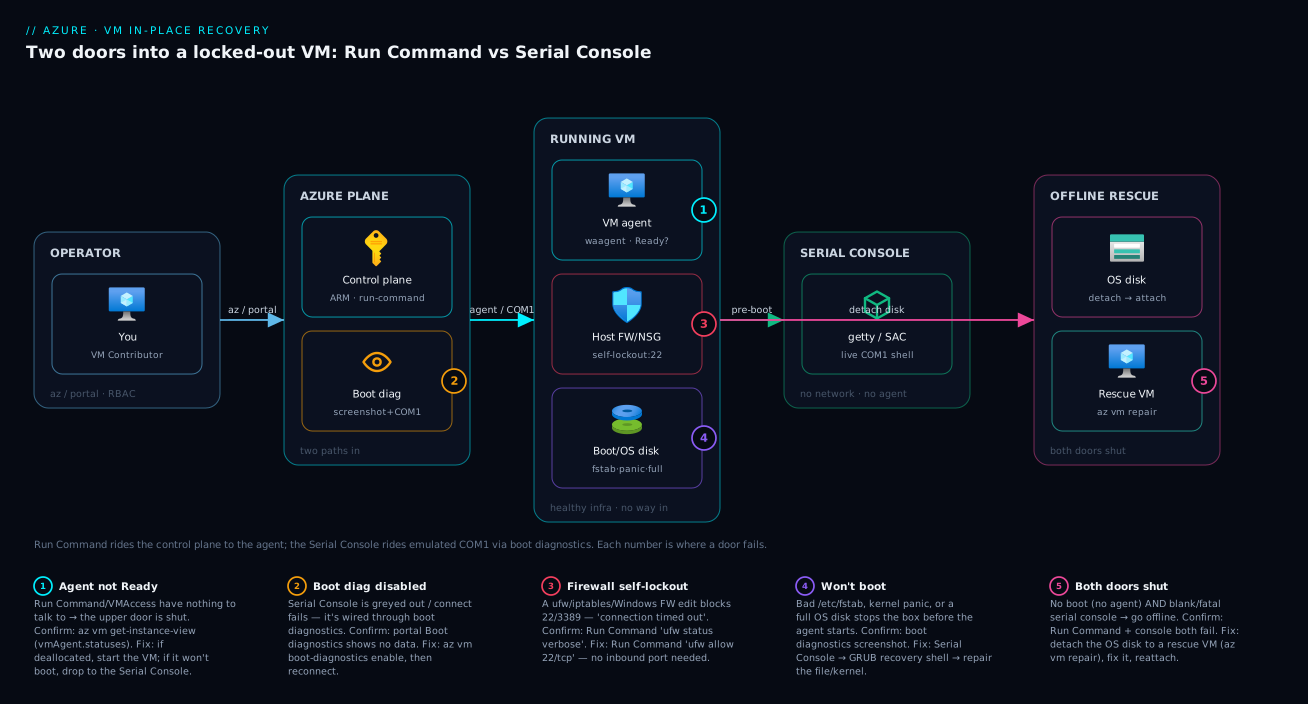
The diagram traces both in-place doors into a single running VM and marks where each one bites when it is the thing that fails. Read it left to right. On the far left is you — an operator with az/portal and the right RBAC. From there two completely separate paths fan into the guest. The upper path is Run Command + VMAccess: your call hits the Azure control plane (ARM), which speaks to the VM agent running inside the guest, which executes your script as SYSTEM/root and streams output back. This path crosses no inbound port and no NSG — that’s why badge 1 sits on the agent: if the agent isn’t Ready (or the VM is deallocated), this entire upper door is shut and you must drop to the lower one. The lower path is the Serial Console: it does not touch the agent or the guest network at all. It runs through boot diagnostics (badge 2 — if this is disabled, the console is greyed out and you see nothing) and connects to the VM’s emulated COM1 serial port, landing you on a live getty/SAC terminal at the boot screen.
Inside the guest the diagram shows why you got locked out: the host firewall / NSG layer (badge 3 — the self-inflicted rule that blocks RDP/SSH, reachable by Run Command because it sits above the agent) and the boot/OS-disk layer (badge 4 — a bad fstab, a panicking kernel, a full disk that stops the box before the agent starts, reachable only by the Serial Console). Off to the side is the offline last resort (badge 5): when both doors are genuinely shut, detach the OS disk onto a rescue VM. The legend narrates each number as symptom · confirm · which door fixes it. The whole method is in the picture: pick the door by whether the OS boots and the agent is alive, then read the badge that matches your symptom.
Real-world scenario
Halcyon Logistics runs its dispatch API on a single Standard_D4s_v5 Linux VM (Ubuntu 22.04) in Central India, fronted by a load balancer, with the database on a managed PaaS. The platform team is three engineers; the VM costs about ₹19,000/month. One Tuesday evening an engineer was tightening security ahead of an audit and decided to switch the host firewall from “allow all from the VNet” to an explicit allowlist. Over an SSH session, they ran a short ufw script that set the default to deny and added rules for the app port — and forgot to add a rule for port 22. The moment ufw enable took effect, their own SSH session froze. Reconnecting timed out. The dispatch API kept serving (the LB health probe and app port were allowed), but the box was now unmanageable: every metric green, power state “running”, and zero way in.
The first reflex was the wrong one. A second engineer assumed the VM had “crashed” and proposed redeploying from the golden image — which would have meant re-running config-management, re-registering the LB backend, and a maintenance window, all to fix a firewall rule. The on-call lead stopped that and asked the right question: does the OS still boot and is the agent alive? A quick az vm get-instance-view showed vmAgent status Ready and the VM running. That single check decided everything — the OS was fine, the agent was fine, only the data-plane port was blocked. This was a textbook Run Command job: the management-plane door was wide open.
The fix was one command — a Run Command to re-open 22 (--scripts "ufw allow 22/tcp; ufw status verbose") — whose output came back over the control plane showing port 22 now ALLOW. SSH reconnected within seconds. Total time from “I’m locked out” to “I’m back in”: under four minutes, no redeploy, no downtime, no ticket. The audit-firewall change was re-applied the next day from a reviewed script that included port 22 from the start, deployed as a managed Run Command resource in their Bicep repo so the break-glass step was itself version-controlled.
The post-incident note pinned a second lesson. What if the change had wedged the agent too? On a throwaway VM they confirmed that deallocating it makes az vm run-command invoke fail immediately — at which point only the Serial Console would have worked. So two standing changes followed: boot diagnostics enabled on every VM by policy (the fallback door always available), and a runbook that opens with the agent-status check. The wall-note version: “You almost never broke the machine. You broke the way in. There are two ways in, and they fail for opposite reasons — check the agent, then pick the door.”
The incident as a timeline, because the order of moves is the lesson:
| Time | State | Action taken | Effect | What it should have been |
|---|---|---|---|---|
| 19:02 | SSH froze after ufw enable |
(engineer locked out) | Box unmanageable, app still up | Don’t panic — the VM is fine |
| 19:05 | “VM crashed?” | Propose redeploy from image | Would lose an hour + window | Wrong: it’s a firewall rule |
| 19:07 | Lead intervenes | az vm get-instance-view (agent Ready?) |
Agent Ready, VM running | The decisive check |
| 19:08 | Door chosen | Run Command: ufw allow 22/tcp |
Port 22 → ALLOW | Correct first move |
| 19:09 | Back in | SSH reconnects | Fixed, zero downtime | — |
| +1 day | Hardening redo | Reviewed firewall script (incl. 22) via managed Run Command | Audit rule applied safely | Treat firewall as reviewed code |
| +1 week | Resilience | Boot diagnostics on every VM by policy | Serial Console always available | The standing fix |
Advantages and disadvantages
The in-place model — reaching a running guest through the management plane or the serial port — is what makes most lockouts a five-minute fix instead of a rebuild. Weigh it honestly:
| Advantages (why in-place recovery wins) | Disadvantages (where it bites) |
|---|---|
| Fixes the access problem without touching app state or data | Run Command needs a healthy agent — a dead agent shuts that door entirely |
| Run Command needs no inbound port — re-opens a firewall you locked | Serial Console needs boot diagnostics on — off by default on some images, so enable it before the incident |
| Serial Console works with no network and no agent — the only door during a boot loop | Serial Console is manual — a human at a keyboard, no automation, one session at a time |
| Both are scriptable/auditable (Run Command especially) — leaves a trail | Run Command runs as SYSTEM/root — a careless script can break the box further |
| Far faster and cheaper than redeploy/restore — no window, no data loss | Neither helps if the disk itself is corrupt — that’s the offline path |
| VMAccess resets passwords/keys without the OS UI | VMAccess shares the agent dependency — useless if the agent is down |
| Console screenshot lets you see a panic/chkdsk before connecting | The screenshot only shows — it never fixes anything by itself |
The model is right for almost every IaaS lockout where the machine is healthy and you broke the way in — which is the overwhelming majority. It bites when you let the prerequisites lapse (boot diagnostics disabled, so no Serial Console when you finally need it) or when the failure is genuinely below the OS (disk corruption), at which point the offline rescue-VM path is the honest answer. The disadvantages are all preventable — enable boot diagnostics everywhere, keep a break-glass account, and write idempotent recovery scripts — which is exactly the prep this article argues for.
Hands-on lab
Reproduce a self-inflicted firewall lockout, confirm you’re locked out, and fix it with Run Command — then enable boot diagnostics and connect the Serial Console — all free-tier-friendly (a B1s burstable VM; delete at the end). Run in Cloud Shell (Bash).
Step 1 — Variables and resource group.
RG=rg-recovery-lab
LOC=centralindia
VM=vm-recovery-lab
az group create -n $RG -l $LOC -o table
Step 2 — Create a small Linux VM with SSH and boot diagnostics on.
az vm create -g $RG -n $VM --image Ubuntu2204 --size Standard_B1s \
  --admin-username azureuser --generate-ssh-keys \
  --public-ip-sku Standard -o table
az vm boot-diagnostics enable -g $RG -n $VM   # so the Serial Console is available
Expected: a VM with a public IP. Confirm you can SSH in (this is the door you’re about to slam shut):
ssh azureuser@$(az vm show -d -g $RG -n $VM --query publicIps -o tsv)
Step 3 — Lock yourself out (reproduce the bug). From inside the VM (or via a Run Command), enable ufw denying everything but the app port — and “forget” port 22:
az vm run-command invoke -g $RG -n $VM --command-id RunShellScript \
  --scripts "ufw --force reset; ufw default deny incoming; ufw allow 8080/tcp; ufw --force enable; ufw status verbose"
Step 4 — Confirm the lockout. SSH now times out:
ssh -o ConnectTimeout=10 azureuser@$(az vm show -d -g $RG -n $VM --query publicIps -o tsv)
# → "Connection timed out" — the data-plane door is shut
Step 5 — Verify the management-plane door is still open. Check the agent before assuming anything:
az vm get-instance-view -g $RG -n $VM \
  --query "instanceView.vmAgent.statuses[].displayStatus" -o tsv
# → "Ready" — Run Command will work
Step 6 — Fix it with Run Command (no inbound port needed).
az vm run-command invoke -g $RG -n $VM --command-id RunShellScript \
  --scripts "ufw allow 22/tcp; ufw status verbose"
The returned JSON shows port 22 now ALLOW. SSH again — you’re back in within seconds.
Step 7 — Try the other door. Open the Serial Console to prove it works (portal: VM → Help → Serial console, or):
az serial-console connect -g $RG -n $VM
# You land at a getty login prompt — log in with azureuser. This door needed no network.
Step 8 — Capture a console screenshot (the read-only “see what’s wrong” tool):
az vm boot-diagnostics get-boot-log -g $RG -n $VM | head -40
Step 9 — Teardown.
az group delete -n $RG --yes --no-wait
You’ve now reproduced a real lockout, used the agent-status check to choose the right door, fixed it in-place with zero downtime, and confirmed both doors work.
Common mistakes & troubleshooting
This is the centerpiece. Lockouts and recovery failures span two categories: getting back in (you locked yourself out) and the recovery tool itself failing (Run Command or the Serial Console won’t run). The playbook below covers both — scan for your symptom, confirm with the exact command/blade, apply the fix. Read the per-symptom detail under the table for the trickier rows.
| # | Symptom | Root cause | Confirm (exact command / portal path) | Fix | Door |
|---|---|---|---|---|---|
| 1 | RDP/SSH “connection timed out” right after a firewall edit | Host firewall (ufw/iptables/Windows FW) now blocks the port |
az vm run-command invoke ... --scripts "ufw status verbose" (Linux) |
Run Command: ufw allow 22/tcp / re-enable RDP rule |
Run Command |
| 2 | “Connection timed out”, but the guest firewall is open | NSG inbound rule missing/blocking, or no public IP/route | Portal → VM → Networking → effective rules; az network nic show |
Add/repair the NSG rule from outside (no door needed) | Outside |
| 3 | VM “Running” but unreachable; agent Ready | Data-plane only broken (firewall/service); machine healthy | az vm get-instance-view --query "...vmAgent.statuses..." → Ready |
Use Run Command to fix the rule/service | Run Command |
| 4 | Boot loop / stuck at startup; never reaches login | Bad /etc/fstab, kernel panic, failed update, full disk |
Boot diagnostics screenshot (portal) shows the stuck screen | Serial Console → recovery shell → fix the file/kernel | Serial Console |
| 5 | az vm run-command invoke fails: agent unreachable |
VM deallocated/stopped, or agent not running | az vm get-instance-view → power state / agent not Ready |
Start the VM; if won’t boot → Serial Console | Serial Console |
| 6 | Run Command errors OperationNotAllowed / conflict |
Another extension operation in progress | az vm extension list -g .. --vm-name .. (a pending op) |
Wait for it to finish; retry; or remove the stuck extension | Either |
| 7 | Run Command “succeeds” but script did nothing | Script not idempotent / wrong path / non-interactive hang | Read value[0].message (stdout) + exit code |
Make script idempotent, use absolute paths, no prompts | Run Command |
| 8 | Serial Console greyed out / won’t connect | Boot diagnostics disabled | Portal → VM → Boot diagnostics (no data); az vm show ...diagnosticsProfile |
az vm boot-diagnostics enable; reconnect |
Serial Console |
| 9 | Serial Console connects but shows a blank/no prompt | No serial console configured in the OS (custom image) | Connect → nothing on COM1; check image build | Rebuild image with getty/SAC on serial; for now use offline path | Offline |
| 10 | Forgot the local-admin/root password | Credential loss; OS boots fine | Try login → “Access/Permission denied”; VM running | az vm user update (VMAccess) — agent up |
VMAccess |
| 11 | Forgot password and agent/boot broken | Credential loss + dead management plane | az vm user update fails; agent not Ready |
Serial Console → GRUB passwd / SAC net user |
Serial Console |
| 12 | SSH refused (not timeout): “Connection refused” | sshd crashed or sshd_config broken |
az vm run-command ... "systemctl status sshd; sshd -t" |
Run Command: fix config, systemctl restart sshd |
Run Command |
| 13 | RDP fails with a TLS/certificate error | Corrupt/expired RDP self-signed cert | Event Viewer / RDPSettings command-id |
Run Command: ResetRDPCert |
Run Command |
| 14 | Disk full — login hangs or services die | OS disk at 100%; can’t write temp/logs | Console screenshot or Run Command df -h |
Free space (logs/journal/temp); then resize disk | Either |
| 15 | Both doors shut: no boot, no agent, no serial prompt | OS disk corrupt / unbootable image | Screenshot shows fatal error; Run Command + console both fail | Offline: detach OS disk → attach to rescue VM → repair | Offline |
| 16 | Serial Console blocked org-wide | Subscription-level Serial Console disabled, or no RBAC | Connect → “disabled by policy”; check role | Enable at subscription scope; grant VM Contributor | Serial Console |
Detail on the rows that fool people
Row 2 — “timed out” but the guest firewall is open. A timeout (vs a refused) almost always means nothing is answering at all — usually the NSG or routing, not the guest. Don’t reach for a door yet: a missing inbound rule, a removed public IP, or a UDR black-holing traffic is fixed from outside the VM entirely. Confirm with the effective security rules and the NIC, and only conclude “it’s the guest” once the NSG path is proven open. The full triage lives in Debugging NSGs with effective rules and IP flow verify.
Row 5 — Run Command fails with the agent unreachable. This is the fork in the whole article. If az vm run-command invoke errors on the agent or times out, check the power state and agent status: a deallocated VM has no agent (start it); a VM that’s “running” but not Ready either needs the agent restarted (which you can’t do without a door) or won’t boot far enough to start it. Either way the management-plane door is shut — pivot to the Serial Console, which doesn’t need the agent.
az vm get-instance-view -g rg-app-prod -n vm-web-01 \
  --query "{power:instanceView.statuses[?starts_with(code,'PowerState')].displayStatus | [0], agent:instanceView.vmAgent.statuses[0].displayStatus}" -o json
Rows 6, 8, 9 — the three “tool itself fails” traps. OperationNotAllowed means another extension op is mid-flight (the agent serialises one at a time) — list extensions, wait or remove the stuck one; the handler mechanics are in Debugging VM extension provisioning failures. A greyed-out Serial Console almost always means boot diagnostics was never enabled — enable it and reconnect. A connected-but-silent console means the image removed the serial getty (Linux) or didn’t enable EMS/SAC (Windows): nothing is on COM1, so you drop to the offline path and fix the image pipeline.
Row 15 — both doors shut. When the OS won’t boot (no agent → no Run Command) and the Serial Console shows a fatal error or no prompt, the problem is below the OS surface — a corrupt OS disk, an unbootable image, a filesystem that won’t mount. This is the only case that genuinely needs the offline last resort, covered next.
The error/status-code reference
The exact strings and states you’ll see, what they mean, and the door they point you to:
| Error / status | Where you see it | Meaning | Door it points to |
|---|---|---|---|
Connection timed out |
RDP/SSH client | Nothing answered — firewall/NSG blocks, or service down | Guest FW → Run Command; NSG → outside |
Connection refused |
SSH client | Port reachable but no service listening (sshd down/wrong port) |
Run Command (restart sshd) |
VMAgentStatusCommunicationError |
az / instance view |
Agent not responding | Serial Console |
Agent displayStatus: Not Ready |
get-instance-view |
Agent unhealthy / not started | Serial Console |
PowerState/deallocated |
get-instance-view |
VM stopped (deallocated) — no agent | Start VM; else Serial Console |
OperationNotAllowed |
Run Command call | Another extension op in progress | Wait/clear, then Run Command |
RunCommandFailed / non-zero exit |
Run Command output | Your script failed (not the channel) | Fix the script; rerun |
| Serial Console “disabled” / greyed | Portal Serial console | Boot diagnostics off or org-disabled | Enable boot diag / subscription toggle |
BootDiagnostics ... not enabled |
az / portal |
Diagnostics never configured | az vm boot-diagnostics enable |
| Blank serial screen / no login | Serial Console | No getty/SAC on COM1 (image) | Offline disk repair |
0xc000000e / “no bootable device” |
Boot screenshot | OS disk/boot config unbootable | Offline disk repair |
chkdsk / fsck running on screen |
Boot screenshot | Filesystem repair in progress | Wait; if stuck → Serial Console |
The offline last resort: detach the OS disk
When both in-place doors are genuinely shut — the OS won’t boot (no agent → no Run Command) and the Serial Console shows a fatal error or no prompt — you repair the disk offline. The move: detach the broken VM’s OS disk, attach it as a data disk to a healthy rescue VM, fix the filesystem/config there, then reattach it to the original VM. Azure even automates the scaffolding with az vm repair.
The automated path creates a rescue VM, attaches a copy of the OS disk, and lets you run a fix script:
# Create a rescue VM with the broken VM's OS disk attached (copy), in one command
az vm repair create -g rg-app-prod -n vm-web-01 --verbose

# Run a repair script against the attached disk (e.g. fix fstab, chroot + grub)
az vm repair run -g rg-app-prod -n vm-web-01 --run-id linux-alar2 --verbose

# Swap the repaired disk back onto the original VM
az vm repair restore -g rg-app-prod -n vm-web-01 --verbose
The manual equivalent, when you want full control:
# 1) Stop/deallocate the broken VM and detach its OS disk (note the disk name first)
az vm deallocate -g rg-app-prod -n vm-web-01
OSDISK=$(az vm show -g rg-app-prod -n vm-web-01 --query "storageProfile.osDisk.name" -o tsv)

# 2) Attach that disk as a DATA disk to a healthy rescue VM
az vm disk attach -g rg-app-prod --vm-name vm-rescue --name "$OSDISK"
# 3) On the rescue VM, mount it, fix /etc/fstab or the boot config, unmount, detach
# 4) Reattach as the OS disk of the original VM and start it
When the offline path is the right call — and when it isn’t:
| Situation | In-place door | Offline disk repair |
|---|---|---|
| Locked-out firewall, OS healthy | Run Command | No (overkill) |
| Boot loop, console reachable | Serial Console | No (fix at the console) |
| Boot loop, console blank/no prompt | None work | Yes |
| Corrupt OS disk / unbootable image | None work | Yes |
| Need to inspect/extract data from a dead box | Maybe (if it boots) | Yes (mount read-only) |
| Forgot password, OS boots | VMAccess / Serial | No |
The offline path is slower (a second VM, downtime on the original, careful disk handling) and is precisely why you keep the in-place doors healthy: it’s the parachute, not the staircase. A good Azure backup: protect your first VM restore point is the other safety net — if the disk is beyond repair, restore beats rebuild.
Best practices
- Enable boot diagnostics on every VM, by policy. It costs nothing (managed) and is the prerequisite for the Serial Console — the one door that works during a boot loop. Off-by-default is the most common reason recovery fails when you need it. Enforce it with Azure Policy.
- Check the agent before choosing a door.
az vm get-instance-viewfirst: Ready → Run Command/VMAccess; not ready / deallocated / won’t boot → Serial Console. This single check routes the whole incident. - Never apply a firewall change over your own session without a rollback. Schedule an auto-revert before you
enable, or apply it via Run Command so the rule lands without risking your session. Most lockouts are self-inflicted firewall edits. - Make every recovery script idempotent — safe to run twice. Guard
iptables -Awith-C ... ||, prefer naturally-idempotent commands (ufw allow), use absolute paths, and never prompt for input. - Keep a break-glass local account with a known credential in Key Vault, separate from your normal admin, so the Serial Console always has a working login.
- Prefer the managed Run Command resource for anything you’d keep — blob output, async/long-running, and version-controlled in Bicep as a reviewed break-glass artifact. And bake serial-console support into your image pipeline (getty on Linux, EMS/SAC on Windows) so a hardened image doesn’t silently disable your last door.
- Restrict, but don’t disable, the Serial Console — gate it with RBAC, not a subscription-wide off switch; a disabled console is a removed parachute. Read the console screenshot first as a free diagnosis — it often names the cause (panic, chkdsk, recovery prompt) in one glance.
- Treat firewall/NSG config as reviewed code in Bicep/Terraform with the management port explicitly allowed, so the self-lockout class can’t recur.
- Rehearse recovery on a throwaway VM and know the offline path (
az vm repair) before you need it — so the runbook is muscle memory, not something you read for the first time at 02:00.
Security notes
In-place recovery hands you SYSTEM/root through the control plane, so it is a privileged surface that deserves real governance.
Gate both tools with RBAC. Run Command requires Microsoft.Compute/virtualMachines/runCommand/action (and the managed-resource write), included in Virtual Machine Contributor; the Serial Console requires VM/boot-diagnostics access plus the subscription-level toggle. Anyone who can Run Command runs arbitrary code as root — effectively admin-on-the-guest, so treat it that way in access reviews and prefer least-privilege custom roles. The identity trade-offs behind these grants are in Managed identities: system vs user-assigned.
Output can leak secrets — be deliberate about where it lands. Run Command stdout/stderr flows back through the API (action form) or to a blob (managed form), so a script that prints a connection string or /etc/shadow writes that secret there. Scope the output blob with a short-lived SAS, restrict who can read the result, never cat a secret you don’t need, and store recovery credentials in Key Vault rather than the script — see Azure Key Vault: secrets, keys and certificates.
The Serial Console is a real login path, and recovery must be audited. It’s gated by RBAC and your OS credentials (not an auth bypass except via the documented GRUB/WinRE flows, which themselves require control-plane access), but because it reaches the boot environment, ensure your image ships no passwordless recovery shortcut. Run Command invocations, VMAccess resets and Serial Console connections all land in the activity log — alert on them: a Run Command on a production VM outside a change window, or an unexpected az vm user update, is exactly the signal you want surfaced. Break-glass use should never be silent.
Cost & sizing
The recovery tools themselves are effectively free — the cost is in the prerequisites and the offline path.
| Item | What drives the bill | Rough cost | Notes |
|---|---|---|---|
| Run Command | Nothing (control-plane operation) | ₹0 | Free; you pay only for the VM you’re fixing |
| Serial Console | Nothing (the console itself) | ₹0 | Free; needs boot diagnostics on |
| Boot diagnostics (managed) | Azure-managed storage | ~₹0 (negligible) | Managed diag has no meaningful per-VM charge |
| Boot diagnostics (custom storage) | A storage account you own | Pennies/month | Screenshots/logs are tiny; legacy pattern |
| Offline rescue VM | A second VM for the repair window | ~₹15–25/hr (e.g. B-series) | Only while repairing; delete after — az vm repair cleans up |
| Snapshot before repair | A managed-disk snapshot | ~₹2–5/GB·month | Cheap insurance before any in-place disk edit |
| Backup restore (alternative) | Recovery Services vault storage | Per protected GB | The fallback if the disk is unrecoverable |
There’s almost nothing to size: turn managed boot diagnostics on everywhere (negligible cost, enormous recovery value), keep the offline rescue VM transient (spin it up only for the repair window — az vm repair deletes it for you), and snapshot the OS disk before any in-place repair so a botched fix is one restore away. The real “cost” of getting this wrong is the downtime and rebuild when a lockout you could have fixed in four minutes becomes a four-hour redeploy — the entire economic argument for keeping both doors healthy. For right-sizing the VM you’re recovering (and the rescue VM), see Azure VM series & families explained: D, E, F, L, N, M.
Interview & exam questions
Q1. A VM is “Running” but you can’t RDP or SSH after a firewall change. What’s your first diagnostic, and why?
Check the VM agent status via az vm get-instance-view (vmAgent.statuses). If it’s Ready, the management plane is healthy and only the data plane is broken — use Run Command to fix the firewall rule without any inbound port. The agent check decides which recovery door is even open. (Maps to AZ-104 compute troubleshooting.)
Q2. Explain the fundamental difference between Run Command and the Serial Console. Run Command rides the management plane — your script goes through ARM to the in-guest VM agent and runs as SYSTEM/root — so it needs a healthy agent and a booting OS but no network port. The Serial Console rides the emulated COM1 serial port via boot diagnostics, landing you on an interactive terminal before the OS networks or the agent starts — so it works during boot loops but needs boot diagnostics enabled.
Q3. The Serial Console is greyed out in the portal. Why, and how do you fix it?
Boot diagnostics is not enabled — the Serial Console is wired through it. Run az vm boot-diagnostics enable (managed diagnostics needs no storage account) and reconnect. Best practice is to enable boot diagnostics on every VM by policy so the console is always available.
Q4. When does Run Command fail, and what do you do instead? When the VM agent isn’t Ready — the VM is deallocated, the agent crashed, or the OS won’t boot far enough to start it. Run Command has nothing to talk to. Pivot to the Serial Console, which is agent-independent and works pre-boot.
Q5. You forgot the local-admin password on a VM that still boots fine. Two ways to recover?
(1) VMAccess via az vm user update — resets the password through the agent on the management plane, no console needed. (2) Serial Console — on Linux interrupt GRUB and passwd; on Windows use the SAC cmd channel and net user. Pick (1) if the agent is Ready; (2) if it isn’t.
Q6. What’s the difference between the action Run Command and the managed Run Command resource?
The action form (az vm run-command invoke) is synchronous, ad-hoc, one-at-a-time, truncated output — great for quick fixes. The managed resource form (Microsoft.Compute/...runCommands) is a persistent child resource supporting async/long-running scripts, blob output, parallel execution, and run-as-user — and it lives in IaC.
Q7. A Linux VM is stuck in a boot loop after editing /etc/fstab. Walk through the fix.
Look at the boot diagnostics screenshot to confirm it’s an fstab mount failure. Serial Console in, boot into a recovery/single-user shell (interrupt GRUB), remount root read-write, comment out the bad mount in /etc/fstab, reboot. Run Command can’t help — the OS never boots far enough to start the agent.
Q8. SSH gives “Connection refused” rather than “timed out.” What does that tell you?
Refused means the port is reachable but no service is listening — sshd crashed or sshd_config is broken (vs timed out, which means a firewall/NSG dropped the packet). Use Run Command to systemctl status sshd, validate config with sshd -t, fix it, and restart the service.
Q9. Run Command returns OperationNotAllowed. Cause and fix?
The VM agent processes one extension operation at a time; another extension (or a prior Run Command) is in progress or stuck. List extensions, wait for the pending operation, or remove the stuck extension, then retry.
Q10. When is detaching the OS disk to a rescue VM the right call?
Only when both in-place doors are shut: the OS won’t boot (no agent → no Run Command) and the Serial Console shows a fatal error or no prompt (corrupt disk, unbootable image, no serial console in the image). Use az vm repair or manually detach the OS disk, attach it to a healthy rescue VM, fix it, and reattach.
Q11. How do you keep Run Command from making an incident worse? Write idempotent scripts (safe to run twice), use absolute paths, avoid interactive prompts (they hang to the timeout), and remember it runs as root/SYSTEM — guard destructive commands and prefer the managed resource so output is captured to a blob for review.
Q12. What are the security risks of these recovery tools, and how do you govern them? Both grant effective admin-on-guest: Run Command runs arbitrary code as root, the Serial Console reaches the boot environment. Gate with least-privilege RBAC (Virtual Machine Contributor or tighter custom roles), keep the Serial Console enabled but access-controlled, scope Run Command output blobs with short-lived SAS (scripts can print secrets), store recovery credentials in Key Vault, and alert on every recovery action via the activity log.
Quick check
- A VM is “Running” but RDP times out after a firewall edit, and the agent shows Ready. Which door do you use, and why?
- The Serial Console is greyed out. What’s the single most likely cause?
az vm run-command invokefails with the agent unreachable. What’s your next move?- Name two ways to reset a forgotten Linux password — one for when the agent is up, one for when it isn’t.
- When is detaching the OS disk to a rescue VM the correct (not premature) choice?
Answers
- Run Command. The agent being Ready means the management plane is healthy; Run Command rides it and needs no inbound port, so you push
ufw allow 22/tcp(or re-enable the RDP rule) and you’re back in — no redeploy, no downtime. - Boot diagnostics is disabled. The Serial Console is wired through boot diagnostics; enable it with
az vm boot-diagnostics enableand reconnect. (Make it policy on every VM so this never blocks a real incident.) - Pivot to the Serial Console. The agent being unreachable (deallocated, crashed, or won’t boot) shuts the management-plane door; the Serial Console is agent-independent and works pre-boot. Confirm the power/agent state first with
az vm get-instance-view. - Agent up:
az vm user update(VMAccess) resets the password through the agent. Agent down: Serial Console → interrupt GRUB →init=/bin/bash(or single-user) → remount read-write →passwd. - Only when both in-place doors are shut — the OS won’t boot (so no agent, no Run Command) and the Serial Console shows a fatal error or no prompt (corrupt OS disk, unbootable image, or no serial console in the image). Then use
az vm repairor a manual detach/attach to a rescue VM.
Glossary
- Management plane — Azure’s API/control surface (ARM, the VM agent, extensions). Run Command and VMAccess travel it, so they need no inbound network port.
- Data plane — the path that carries application traffic (NIC, network, RDP/SSH, your host firewall). The layer you usually break when you “lose access.”
- Run Command — an extension-based mechanism to push a script into a running guest via the VM agent; runs as SYSTEM (Windows) or root (Linux) and streams output back.
- Action Run Command — the synchronous
az vm run-command invokeform: ad-hoc, one-at-a-time, output truncated in the response. Best for quick fixes. - Managed Run Command — the persistent
Microsoft.Compute/...runCommandsresource: async/long-running, blob output, parallel, run-as-user, IaC-friendly. - Serial Console — an interactive terminal on the VM’s emulated COM1 serial port, wired through boot diagnostics; works with no guest network and no agent, even at the boot screen.
- Boot diagnostics — captures a console screenshot and serial log, and is the prerequisite that enables the Serial Console. Managed boot diagnostics needs no storage account.
- VM agent — the in-guest process (Windows Guest Agent / Linux
waagent) that brokers extensions and management commands. Run Command and VMAccess require it to be Ready. - SAC — the Windows Special Administration Console, the text environment you land in on a Windows Serial Console; use
cmd+ch -snto get a CMD prompt. - getty — the Linux serial login process you land on in the Serial Console; log in with a local account, or interrupt GRUB for a recovery shell.
- VMAccess — the extension (driven by
az vm user) that resets passwords or SSH keys through the agent, without the OS UI. - GRUB — the Linux bootloader; interrupting it from the Serial Console lets you boot single-user /
init=/bin/bashfor password and config recovery. - Console screenshot — a literal image of the VM’s screen captured by boot diagnostics; the fastest read-only diagnosis of a stuck/panicking VM.
- Rescue VM — a healthy helper VM you attach a broken VM’s OS disk to (as a data disk) to repair it offline; the last resort when both in-place doors are shut.
az vm repair— the CLI that automates the rescue-VM workflow: create a rescue VM with the OS disk attached, run a repair script, and swap the disk back.
Next steps
- First, triage why you can’t connect at all with Azure VM cannot RDP/SSH: connection troubleshooting — it decides whether the lockout is NSG, routing, the host firewall or the service, before you pick a door.
- When Run Command itself won’t deploy, read Azure VM extension provisioning failed: troubleshooting — Run Command is an extension, and the agent/handler mechanics explain its failures.
- Master the NSG/routing layer with Azure NSG flow debugging: effective rules and IP flow verify — half of “timed out” lockouts are fixed from outside the VM.
- Build the safety net with Azure backup: protect your first VM — so an in-place repair you attempt has a restore point behind it, and a beyond-repair disk means restore, not rebuild.
- Right-size the VM (and your rescue VM) with Azure VM series & families explained: D, E, F, L, N, M and understand what you’re detaching with Azure VM disk types explained: Standard, Premium, Ultra.