You have an on-premises Active Directory, you have a Microsoft Entra tenant, and you need the users, groups and (sometimes) devices to exist in both. The moment you decide that, you face a fork you cannot un-pick cheaply: Entra Connect Sync (the heavyweight server you install, formerly “Azure AD Connect”) or Entra Cloud Sync (the lightweight agent that pushes the configuration into the cloud). Both read your AD and provision objects into Entra. They are not two skins over one engine — they are genuinely different products with different ceilings, and choosing the wrong one shows up six months later as “Cloud Sync can’t do device write-back” or “we have three Connect servers we could have collapsed into one agent group.”
This article is the decision, made carefully. We build the mental model first — what each engine is, where it runs, what moves the data — then lay the two side by side as a capability matrix, map each to the topology it actually fits (single forest, many disjoint forests, mergers, multi-forest with Exchange hybrid), and finish with a structured decision table you can run against your own estate. The goal is that by the end you can look at a real environment and say, with reasons, “Cloud Sync, two agents, group scoping” or “Connect Sync, because you need hybrid Entra join and Exchange hybrid write-back” — and defend it in a design review.
This is a concept and architecture article, not a troubleshooting playbook, but hybrid provisioning breaks in a handful of predictable ways, so there is a short troubleshooting section near the end. Everywhere a setting or limit has a real number — agent count, object ceilings, attribute scope, sync interval — it is stated. Where Microsoft genuinely does not publish a hard number, the mechanism is described rather than a figure invented. If you are coming from the full Connect Sync internals, the companion piece Microsoft Entra Connect Sync Deep Dive: Designing Hybrid Identity with PHS, PTA, and Seamless SSO goes deeper on the connector-space mechanics; this one sits one level up and answers which engine.
What problem this solves
Hybrid identity exists because most organisations are not cloud-only and will not be for years. Your authoritative source of truth for employees is still on-premises AD: HR provisions into it, your domain-joined machines authenticate against it, your legacy LOB apps bind to it. But your email, your SaaS single sign-on, your Conditional Access, your device compliance and your Microsoft 365 licensing all live in Entra. Something has to keep the two in step, continuously, without a human re-typing names. That something is a provisioning engine — it reads AD on a schedule, decides which objects belong in the cloud, transforms their attributes, and creates/updates/disables the matching Entra objects.
What breaks without a clear engine choice is rarely “sync doesn’t work at all” — both engines work. What breaks is fit. Teams reach for Connect Sync out of habit because it is what they have always run, then carry a Windows Server, a SQL/LocalDB instance, a staging-mode standby, an upgrade treadmill and a single-forest assumption that fights them the day a subsidiary is acquired. Or teams reach for Cloud Sync because it is “the new lightweight one,” then discover three weeks before an Exchange migration that Cloud Sync does not do the Exchange hybrid attribute write-back or the device sync that hybrid Entra join requires, and they are re-platforming under deadline.
Who hits this: anyone standing up hybrid identity for the first time, anyone consolidating after an acquisition (suddenly you have five forests with no trusts), anyone trying to retire an ageing Connect server, and anyone whose “temporary” Connect Sync install from 2018 is now the thing nobody dares touch. The decision matters because the two engines have different topology shapes — Connect Sync is one brain that must see every forest it syncs (via trusts or multiple connectors on one server), while Cloud Sync is many small agents reporting to one cloud-side configuration. Picking the shape that matches your org chart is the whole game.
To frame the field before the deep dive, here is the fork in one table — the question each engine answers and the headline reason you would reach for it:
| Engine | What it is, in one line | Lives where | Reach for it when | The thing it cannot do |
|---|---|---|---|---|
| Entra Connect Sync | A full sync server you install and run | Your Windows Server (+ LocalDB/SQL) | You need device sync, hybrid join, Exchange hybrid, custom rules, or write-back | Be lightweight; span disconnected forests without trusts easily |
| Entra Cloud Sync | A lightweight agent pushing config to the cloud | Light agent on a domain-joined box; config in Entra | You have many disconnected forests, want minimal on-prem footprint, or simple user/group sync | Device sync / hybrid join, Exchange hybrid write-back, broad custom transforms |
| Both together | Connect Sync for some objects, Cloud Sync for others | Both | A staged migration, or one forest needs Connect features and others do not | Sync the same objects from the same forest twice (don’t) |
Learning objectives
By the end of this article you can:
- Explain in plain terms what a hybrid provisioning engine does, and why the status quo (AD on-prem, Entra in the cloud) forces the choice.
- State precisely what Entra Connect Sync is, what Entra Cloud Sync is, and the architectural difference between a server that holds the brain and an agent that pushes config to a cloud brain.
- Read a capability matrix and name, for any required feature — device sync, hybrid Entra join, Exchange hybrid, group write-back, password hash sync, pass-through auth — whether each engine supports it.
- Map a topology (single forest, many disconnected forests, multi-forest with trusts, merger/acquisition, cloud-managed scoping) to the engine that fits, and justify it.
- Run a structured decision table against your own estate and emerge with an engine, an agent/server count, and a scoping strategy.
- Describe how the two engines can coexist during a migration, what “sync the same object twice” looks like, and how to avoid it.
- Identify the common provisioning failure modes (duplicate attributes, scoping mistakes, soft-match/hard-match anchor errors) and the exact place to confirm and fix each.
Prerequisites & where this fits
You should know the basics of Active Directory (forests, domains, organisational units, security groups, the userPrincipalName and the directory attributes that matter) and the basics of Microsoft Entra ID (tenants, users, groups, what a synced object versus a cloud-only object is). You should be comfortable that authentication and provisioning are different concerns: provisioning puts the object in the cloud; authentication (password hash sync, pass-through auth, or federation) decides how that user proves who they are. This article is mostly about provisioning, but the engines differ on which authentication methods they enable, so the two threads cross.
This sits at the front of the hybrid identity track — it is the engine-selection decision you make before you configure anything. Downstream of it sit the deep mechanics: the Microsoft Entra Connect Sync Deep Dive: Designing Hybrid Identity with PHS, PTA, and Seamless SSO covers connector spaces, sync rules and the authentication methods in depth; the Implementing Entra ID Cross-Tenant Synchronization for Multi-Tenant Organizations covers the tenant-to-tenant cousin of this problem. Once objects are synced, Entra ID Dynamic Groups: A Membership-Rule Cookbook That Actually Scales governs them by attribute, and Group-Based Licensing Errors in Entra ID: Fixing Conflicts and License Drift licenses them. If your forests live on Azure IaaS, Active Directory Domain Services Forest Design and Domain Controller Promotion on Azure IaaS is the layer beneath.
A quick map of the moving parts and who owns each, so a design review names the right team:
| Layer | What lives here | Who usually owns it | Why it matters to the engine choice |
|---|---|---|---|
| On-prem AD (forests/OUs) | Authoritative users, groups, devices | AD / infra team | Determines forest count and trust shape → engine topology |
| Provisioning engine | The sync server or agent | Identity team | This is the decision |
| Authentication method | PHS / PTA / federation | Identity + security | Cloud Sync ≠ all methods; affects sign-in design |
| Entra ID (target) | Synced + cloud-only objects | Identity team | Where objects land; attribute ceiling differs |
| Downstream (CA, licensing, devices) | Conditional Access, licenses, Intune | Security / EUC | Some need device sync → forces Connect Sync |
Core concepts
Five mental models make every later comparison obvious.
A provisioning engine is an ETL job for identity. Strip away the branding and both engines do the same three things on a loop: extract objects from AD (read a forest/OU set), transform them (filter which objects, map and shape attributes, decide the matching anchor), and load them into Entra (create, update, or disable the cloud object). The difference between Connect Sync and Cloud Sync is where the transform logic lives and how heavy the runtime is — not the fundamental job. Hold this and the rest is detail.
Connect Sync is a server that holds the brain; Cloud Sync is an agent that borrows a cloud brain. Entra Connect Sync installs a full application on a Windows Server you own, backed by a SQL Server LocalDB (or a full SQL instance for large directories), and that server holds the entire sync engine — the connector spaces, the metaverse, every sync rule. It is powerful and it is yours to patch, back up, monitor and upgrade. Entra Cloud Sync installs only the lightweight Entra provisioning agent on a domain-joined machine; that agent is a thin connector with no database and no rules of its own — the configuration (scope, attribute mappings, accidental-deletion threshold) is authored and stored in Entra, in the cloud, and the agent just executes it. One brain on your server versus one brain in the cloud driving thin agents is the architectural fork.
Topology shape follows from where the brain lives. Because Connect Sync’s brain must see every object it syncs, a single Connect server syncs multiple forests only if it can reach them — via forest trusts, or by running multiple AD connectors on the one server with credentials into each forest. That is doable but it couples your forests to one server. Because Cloud Sync’s brain is in the cloud and the agents are thin, you simply drop one or more lightweight agents into each forest (agents are grouped for high availability), and each agent group reports independently to the cloud config. The result: Cloud Sync is the natural fit for many disconnected forests with no trusts (classic after an acquisition), while Connect Sync is the natural fit for a single rich forest (or trusted multi-forest) that needs the full feature set.
A first-pass read of topology to engine, before any feature requirement enters the picture:
| Topology shape | Natural engine | Why the shape points there |
|---|---|---|
| One forest | Either (features decide) | Both reach one forest trivially |
| Multi-forest, full trusts | Connect Sync | One brain can reach all via trusts |
| Multi-forest, no trusts | Cloud Sync | Per-forest agents, no trust needed |
| Post-merger sprawl (N forests) | Cloud Sync | Drop agents per forest; one cloud config |
| Forest on Azure IaaS, simple objects | Cloud Sync | Minimal footprint, no SQL/standby |
The feature ceiling is the real differentiator, not “old vs new.” People frame this as “Connect Sync is the legacy heavy one, Cloud Sync is the modern light one, so use Cloud Sync.” That is wrong as a default. Cloud Sync deliberately trades capability for lightness: it does not do device synchronisation (so it cannot enable hybrid Entra join on its own), it does not do Exchange hybrid attribute write-back, it does not do pass-through authentication or federation as part of the agent (it supports password hash sync for the objects it provisions), and its attribute transformation and group write-back capabilities, while real and growing, are narrower than Connect Sync’s full custom-rule engine. If you need any of those ceiling features, the decision is made for you — Connect Sync — regardless of how new Cloud Sync is.
Scoping is by container, and getting it right prevents 90% of the pain. Both engines decide which objects to sync by scope: Connect Sync filters by domain and OU (and optionally attribute/group), while Cloud Sync scopes each configuration by OU or by group. Scope too wide and you provision service accounts, disabled objects and conference-room mailboxes into Entra (licensing and Conditional-Access noise). Scope too narrow and real users are missing. The single most common production incident in hybrid identity is not an engine bug — it is a scoping mistake or a duplicate proxyAddresses/userPrincipalName that blocks a soft-match. Decide scope deliberately, per engine, before you enable sync.
The vocabulary in one table
Before the deep sections, pin down every moving part. The glossary at the end repeats these for lookup; this table is the mental model side by side:
| Term | One-line definition | Connect Sync | Cloud Sync |
|---|---|---|---|
| Provisioning engine | Reads AD, writes Entra objects | The server you install | The cloud config + thin agents |
| Sync server / agent | The on-prem runtime | Full server + LocalDB/SQL | Lightweight provisioning agent (no DB) |
| Connector space / metaverse | Staging + merged view of objects | On your server | In the cloud (you don’t manage it) |
| Sync rule / mapping | How attributes transform | Full custom-rule engine | Cloud-side attribute mappings (narrower) |
| Scope | Which objects sync | Domain + OU (+ attr/group) | OU or group, per configuration |
| Source anchor (immutableId) | The stable join key AD↔Entra | ms-DS-ConsistencyGuid (default) |
Managed by the cloud config |
| PHS | Password hash sync (auth method) | Supported | Supported |
| PTA / federation | Pass-through / ADFS auth | Supported | Not via the agent |
| Device sync / hybrid join | Sync computer objects to Entra | Supported | Not supported |
| Write-back | Push cloud changes to AD | Group/Exchange/(password) | Group write-back (scoped); not Exchange hybrid |
| High availability | Surviving an agent/server loss | Staging-mode standby server | 3+ agents per group, auto-failover |
What each engine actually is
Before comparing, define each precisely so the matrix means something.
Entra Connect Sync — the full server
Entra Connect Sync (the product formerly and still widely called “Azure AD Connect”) is a Windows application you install on a server you own. On install it lays down a SQL Server LocalDB by default (suitable up to roughly 100,000 objects; beyond that you point it at a full SQL Server instance). It pulls a complete copy of the in-scope directory into a connector space per connected directory, merges everything into a metaverse, applies a rich, fully customisable sync rule pipeline, and provisions to Entra. Because the whole engine is local, you get the deepest feature set: device synchronisation (the prerequisite for hybrid Entra join), Exchange hybrid attribute write-back, group write-back, password write-back (with Entra ID P1), all three authentication methods (PHS, PTA, federation), and arbitrary attribute transformations through custom inbound/outbound rules.
The cost of that power is operational weight. The server is yours to patch and keep current — Microsoft retires old builds and the engine auto-upgrades for express installs, but you still own the host, its OS, its backup and its monitoring. High availability is a staging-mode second server: a fully configured standby that imports and stages but does not export until you promote it, which means failover is a deliberate manual switch, not automatic. One server is one brain, so a multi-forest deployment either relies on trusts or runs multiple AD connectors with per-forest service accounts on that single host.
Entra Cloud Sync — the lightweight agent
Entra Cloud Sync flips the architecture. You install only the Entra provisioning agent — a small Windows service — on one or more domain-joined machines, and that is the entire on-prem footprint. There is no database, no metaverse you manage, no local rule engine. The agent registers with Entra and then simply executes a configuration that lives in the cloud: you author the scope (OU or group), the attribute mappings, the accidental-deletion threshold and the provisioning-on-demand behaviour in the Entra admin centre or via the Microsoft Graph provisioning API. The agent polls and provisions on a roughly two-minute cycle (versus Connect Sync’s default 30-minute scheduler), so changes land faster.
The trade is the feature ceiling described above: no device sync (hence no hybrid join via Cloud Sync alone), no Exchange hybrid write-back, no PTA/federation in the agent, and a narrower (though steadily expanding) attribute and write-back surface. The wins are real: lightweight HA comes for free because you install three or more agents and the cloud config load-balances and auto-fails-over across them; you can drop agents into multiple disconnected forests with no trusts and have one cloud configuration fan out across all of them; and there is no SQL, no staging-mode dance, and no server you fear to touch. It is the right tool when your topology is “lots of forests, simple objects, minimal footprint.”
The headline contrast
The two architectures, summarised so the rest of the article has a spine:
| Dimension | Entra Connect Sync | Entra Cloud Sync |
|---|---|---|
| On-prem footprint | Full server + LocalDB/SQL | Lightweight agent(s), no DB |
| Where the config lives | On the server | In Entra (cloud) |
| Sync interval (default) | 30 minutes | ~2 minutes |
| Object scale (single instance) | Up to ~100k on LocalDB; more with full SQL | Tens of thousands per config (multiple configs scale out) |
| Multi-forest, no trust | Hard (one brain must reach all) | Native (drop agents per forest) |
| High availability | Staging-mode standby (manual promote) | 3+ agents, automatic failover |
| Feature ceiling | Highest (device, Exchange, custom rules) | Deliberately narrower |
| Upgrade burden | You own the host + auto-upgrade | Agent auto-updates; no host engine to patch |
The capability matrix — the heart of the decision
This is the table you scan first when a requirement lands. For each capability, whether each engine supports it, and the practical note that turns “supported” into “supported how.”
| Capability | Connect Sync | Cloud Sync | Note that matters |
|---|---|---|---|
| User provisioning | Yes | Yes | Both create/update/disable user objects |
| Group provisioning | Yes | Yes | Cloud Sync supports security + M365 groups within scope |
| Contact provisioning | Yes | Yes | Mail-enabled contacts |
| Password Hash Sync (PHS) | Yes | Yes | The recommended auth method for both |
| Pass-Through Authentication (PTA) | Yes | No (not via agent) | Need PTA → Connect Sync |
| Federation (ADFS) | Yes | No | Cloud Sync does not configure federation |
| Seamless SSO | Yes | Yes | Both can enable Seamless SSO |
| Device synchronisation | Yes | No | The big one — see hybrid join below |
| Hybrid Entra join | Yes (needs device sync) | No on its own | Cloud Sync cannot sync computer objects |
| Exchange hybrid write-back | Yes | No | Exchange hybrid coexistence requires Connect Sync |
| Group write-back | Yes (v2) | Yes (scoped) | Cloud Sync added group write-back; check object types in scope |
| Password write-back (SSPR) | Yes (P1) | Yes (P1) | Both support write-back of password resets |
| Custom attribute transforms | Yes (full rules) | Limited (cloud mappings) | Complex transforms → Connect Sync |
| Attribute filtering / scoping | Domain + OU + attr/group | OU or group per config | Cloud Sync scopes per configuration |
| Multiple disconnected forests | Hard (trusts/multi-connector) | Native | The classic Cloud Sync win |
| Accidental-deletion protection | Yes (threshold) | Yes (threshold) | Both guard against mass deletes |
| Provisioning on demand | No (next cycle) | Yes | Cloud Sync can provision a single user on demand to test scope |
Two rows decide most arguments. Device synchronisation is the one Cloud Sync does not do, and it cascades: hybrid Entra join — where a domain-joined Windows device also registers in Entra so Conditional Access and Intune can see it — depends on computer objects flowing to Entra, which only Connect Sync does. If your endpoint strategy is hybrid join (very common in estates that still domain-join laptops), Cloud Sync alone cannot deliver it, full stop. The second is Exchange hybrid: the bi-directional attribute write-back that Exchange hybrid coexistence needs (proxyAddresses, targetAddress and friends flowing back to AD) is a Connect Sync capability. Cloud Sync mail attributes flow out fine, but the hybrid write-back is not there.
A short way to read the matrix in a meeting — if any of these is a requirement, stop and pick Connect Sync:
| Hard requirement | Why it forces Connect Sync |
|---|---|
| Hybrid Entra join for domain-joined devices | Needs device/computer object sync (Cloud Sync has none) |
| Exchange hybrid coexistence | Needs Exchange hybrid attribute write-back |
| Pass-through authentication or ADFS federation | Cloud Sync agent supports PHS, not PTA/federation |
| Complex per-object attribute transformations | Needs the full custom sync-rule engine |
| A single forest with trusts and the full feature set | Connect Sync is the proven fit; nothing forces Cloud Sync |
And the mirror — if your estate looks like this and none of the above applies, Cloud Sync is the better fit:
| Estate characteristic | Why Cloud Sync fits |
|---|---|
| Many forests, no trusts (post-merger) | Drop agents per forest; one cloud config fans out |
| Minimal on-prem footprint desired | No server, no SQL, no staging standby |
| User + group sync with PHS only | Exactly Cloud Sync’s sweet spot |
| Want automatic HA without a standby server | 3+ agents auto-failover |
| Faster sync than 30 minutes | ~2-minute cycle by default |
Finally, the one-glance verdict grid — run each row against your estate and the rightmost column is your answer:
| If your situation is… | …then the engine is | Because |
|---|---|---|
| Single trusted forest + hybrid join + Exchange hybrid | Connect Sync | Only it does device sync + Exchange write-back |
| Many disconnected forests, simple user/group + PHS | Cloud Sync | Native multi-forest, auto-HA, no SQL |
| Need PTA or ADFS federation | Connect Sync | Cloud Sync agent does PHS only |
| Want to retire a heavy server, no Connect-only features used | Cloud Sync (migrate) | Lighter ops, config in the cloud |
| One feature-rich forest + several simple ones | Both | Connect on the rich forest, Cloud on the rest |
| Complex per-object attribute transforms | Connect Sync | Full custom sync-rule engine |
Scope and attribute flow — where projects actually go wrong
Both engines work; scoping is where deployments fail. Get this section right and you avoid the bulk of hybrid-identity incidents.
How each engine scopes
Connect Sync filters in three layers, evaluated together: domain-based (include/exclude whole domains in a forest), OU-based (the most common — tick the OUs that contain real users and groups), and attribute-based / group-based (sync only objects matching an attribute value, or members of a specific pilot group, useful for staged rollouts). You configure these in the Connect wizard or via the ADSyncTools/ADSync PowerShell module on the server.
Cloud Sync scopes per configuration: each configuration targets a forest and is scoped by OU or by group membership. Because configurations are independent, you can run several — one per business unit or per forest — each with its own scope, mappings and deletion threshold. This is the feature that makes “many forests, different rules” clean: you don’t cram everything into one filter, you author one configuration per shape.
A side-by-side of the scoping models, because the words “OU filtering” hide real differences:
| Scoping aspect | Connect Sync | Cloud Sync |
|---|---|---|
| Primary mechanism | OU + domain filtering | OU or group, per configuration |
| Group-based scoping | Yes (single group, for pilots) | Yes (group membership scope) |
| Multiple independent scopes | One filter set per server | Many configurations, each scoped |
| Where you set it | Connect wizard / PowerShell on server | Entra admin centre / Graph (cloud) |
| Test a single object | Full sync cycle | Provision on demand (instant) |
| Typical mistake | Forgot to exclude service-account OU | Two configs overlapping the same OU |
The source anchor — the join key you must not break
Every synced object needs a stable source anchor (the immutableId in Entra) so the engine can match an AD object to its cloud twin across renames and moves. Connect Sync defaults to ms-DS-ConsistencyGuid (an attribute it can write into AD so the anchor survives even a forest migration); Cloud Sync manages the anchor through its cloud configuration. Two failure modes dominate: a hard-match anchor that changes (object recreated, anchor attribute cleared) orphans the cloud object, and a soft-match that cannot land because the userPrincipalName or a proxyAddresses value already exists on a different cloud object. Both surface as “the user didn’t sync” or “a duplicate appeared.” The fix is always to clean the conflicting attribute or repair the anchor, never to delete and recreate blindly.
The attribute-flow rules of thumb, so you scope mappings sanely:
| Attribute concern | Guidance | Why |
|---|---|---|
userPrincipalName |
Must be unique and routable in Entra | Drives soft-match and sign-in |
proxyAddresses |
No duplicates across objects | Duplicate blocks provisioning / causes errors |
ms-DS-ConsistencyGuid |
Let Connect Sync manage as source anchor | Survives moves/migrations |
mail / mail attributes |
Flow out; Exchange hybrid write-back only on Connect Sync | Cloud Sync can’t do the hybrid write-back |
sAMAccountName-derived |
Don’t rely on it as the cloud key | Not stable/unique enough cross-forest |
| Disabled accounts | Scope them out or let them sync as disabled | Avoid licensing noise; be deliberate |
High availability and operations
The two engines have completely different operational lifecycles, and that difference is often the deciding factor for an ops-stretched team.
Connect Sync HA is a standby you operate. You install a second Connect server in staging mode: it connects to the same directories, imports and stages every change, but does not export to AD or Entra. If the active server dies, you switch staging off on the standby to promote it. This gives you a warm spare but the failover is a manual action and you are running and patching two servers. There is exactly one active export server at a time — you never run two active Connect servers against the same objects.
Cloud Sync HA is automatic and cheap. You install three or more agents (Microsoft recommends a minimum of three for production resiliency), and the cloud configuration load-balances provisioning across the healthy agents and fails over automatically if one goes down. There is no standby concept and no promotion step — losing an agent is a non-event as long as the group has survivors. This is genuinely less to operate.
The operational lifecycle side by side, because “who pages at 2 a.m.” depends on it:
| Operational concern | Connect Sync | Cloud Sync |
|---|---|---|
| HA model | Staging-mode standby server | 3+ agents, auto load-balance + failover |
| Failover | Manual (disable staging) | Automatic |
| Servers/agents to patch | The Windows host(s) + OS | Agents auto-update; no host engine |
| Database to back up | LocalDB/SQL (config + state) | None (config is in the cloud) |
| Upgrade treadmill | Engine auto-upgrade + you own the host | Agent auto-updates |
| Monitoring surface | Sync service, event log, Connect Health | Entra provisioning logs (cloud) |
| Disaster recovery | Rebuild server, re-import; or promote standby | Reinstall an agent; config persists in cloud |
| “Scary to touch” factor | High (single rich server) | Low (stateless agents) |
Coexistence — running both at once
You do not have to choose globally. Connect Sync and Cloud Sync can run side by side in the same tenant, and that is the supported pattern for two situations: a staged migration from Connect Sync to Cloud Sync, and a mixed estate where one forest needs Connect-only features (hybrid join, Exchange hybrid) while other forests are simple enough for Cloud Sync.
The one inviolable rule: never sync the same object from the same forest with both engines. Each object must have exactly one engine as its source of truth, partitioned cleanly — by forest, by OU, or by group. If two engines both try to own the same user, they fight over the anchor and attributes and you get flapping. The practical partition lines:
| Coexistence pattern | How you partition | Watch out for |
|---|---|---|
| Staged migration (Connect → Cloud) | Move groups/OUs cohort by cohort; verify, then cut over | The overlap window — ensure only one engine owns each object at a time |
| Forest-split (one forest each) | Connect Sync on the feature-rich forest; Cloud Sync on the others | Trusts/UPN routing so UPNs stay unique tenant-wide |
| OU-split within a forest | Connect Sync some OUs, Cloud Sync others | Make the OU scopes mutually exclusive — no overlap |
| Pilot before full migration | Cloud Sync a pilot group; Connect Sync everything else | Remove pilot users from the Connect Sync scope first |
Microsoft provides guidance and tooling to assess whether your Connect Sync deployment is a candidate to move to Cloud Sync; if you use only features Cloud Sync supports, the migration is a realistic project, and if you depend on a Connect-only feature, you keep Connect Sync for at least that object set.
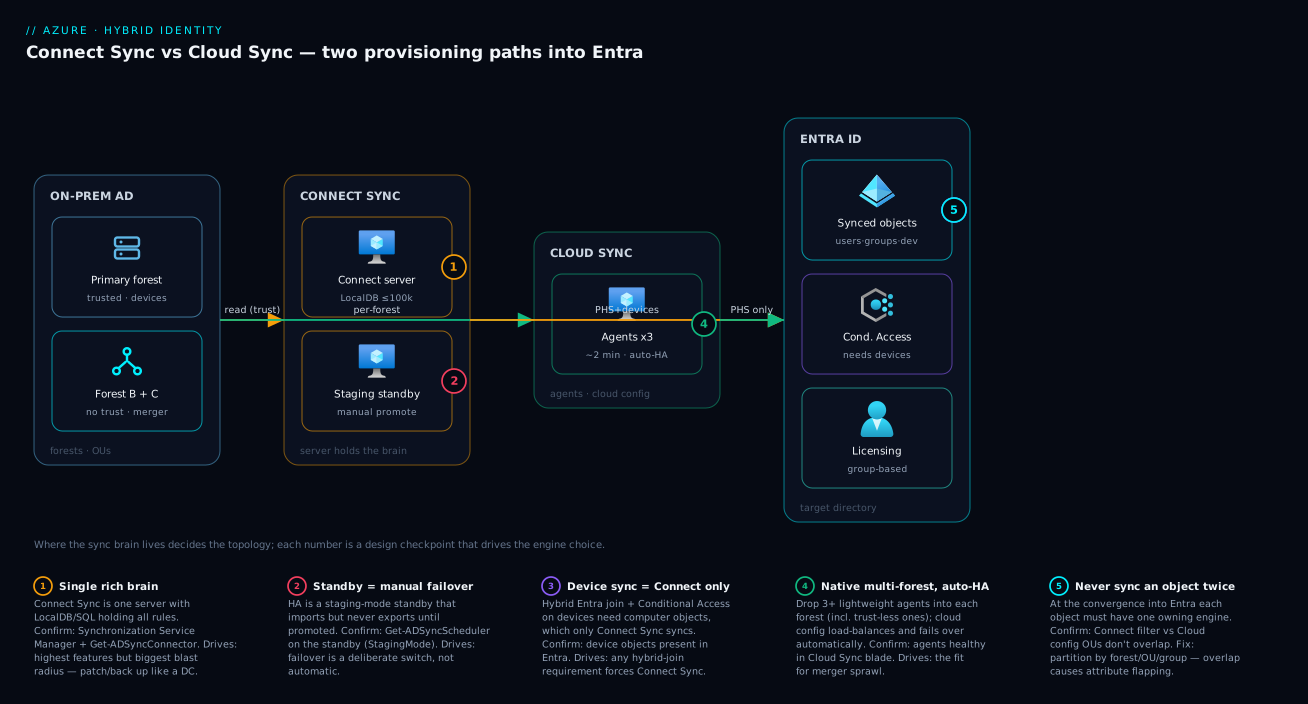
Architecture at a glance
Read the diagram left to right and the decision becomes spatial. On the left is the on-premises world: one or more Active Directory forests — the diagram shows a feature-rich primary forest plus two disconnected, trust-less forests of the kind you inherit after acquisitions. In the middle are the two engines drawn as the two paths they really are. The upper path is Entra Connect Sync: a single Windows server holding the engine and its LocalDB/SQL, with a staging-mode standby beside it, reaching into the primary forest (and into the others only via trusts or extra connectors). The lower path is Entra Cloud Sync: a cluster of lightweight agents — three or more for HA — dropped directly into each forest, including the disconnected ones, with no database and nothing to promote.
Both paths converge on the right into Microsoft Entra ID, which holds the synced users, groups and (only from the Connect path) device objects, and from there feeds the downstream consumers — Conditional Access, group-based licensing, and Intune/device compliance. The numbered badges mark the points where the choice bites: the Connect server is your single rich brain and single point of operational weight (1); the staging standby is manual failover, not automatic (2); device sync is the Connect-only capability that unlocks hybrid join (3); the Cloud Sync agents are the native multi-forest, auto-HA answer (4); and the convergence into Entra is where “never sync the same object twice” must hold (5). The legend narrates each as a design checkpoint — what it is, how to confirm it, and the decision it drives.
Real-world scenario
Northwind Logistics runs a 14,000-employee freight and warehousing business. Their identity estate grew the way most do: one well-run primary forest, corp.northwind.internal, with a clean OU structure, hybrid-joined Windows laptops for the office staff, and Exchange hybrid because they were mid-migration from on-prem Exchange to Exchange Online. They had a single Entra Connect Sync server (plus a staging standby) and it worked. Then Northwind acquired two regional carriers — Coastline Freight and Highland Haulage — each bringing its own AD forest, no trust to corp, and a combined ~3,500 users that HR needed in Microsoft 365 within a quarter for email and Teams.
The reflex from one engineer was “extend Connect Sync — add connectors for the two new forests on the existing server.” That technically works, but it meant putting service-account credentials for two freshly-acquired, not-yet-trusted forests onto the primary identity server, coupling three independent companies to one box, and inflating the blast radius of that single server right when it was already running Exchange hybrid and device sync for 10,500 users. The architect pushed back: the two new forests needed only user and group sync with password hash sync — no hybrid join (those carriers used a SaaS MDM, not domain-joined laptops tied to corp), no Exchange hybrid (their mail was already in a third-party cloud being migrated straight to Exchange Online as cloud-only mailboxes).
So they ran both engines, partitioned by forest. Connect Sync kept ownership of corp.northwind.internal — it had to, for the device sync that drove hybrid join and the Exchange hybrid write-back the live migration depended on. They stood up Entra Cloud Sync with three agents in each new forest (six agents total, auto-HA, no SQL, no standby), one cloud configuration per forest scoped to the “Active Employees” OU, deletion threshold set, and PHS enabled. Provision-on-demand let them validate scope on a handful of users in minutes instead of waiting a sync cycle. Within three weeks both carriers’ users were in Entra, licensed via group-based licensing on a dynamic group keyed off a company attribute, and signing in with PHS.
What went wrong, briefly: the first Cloud Sync configuration for Coastline initially overlapped an OU that also held twelve shared mailboxes and a block of disabled former-contractor accounts, which provisioned as noise and tripped a licensing alert. The fix was a scope correction — narrow the OU and exclude the disabled set — caught in the provisioning logs the same afternoon, not an engine fault. The lesson Northwind took away matched the thesis of this article: the decision is not “which engine is better” but “which engine fits this forest’s requirements and topology,” and the answer can legitimately be both, cleanly partitioned, with Connect Sync where its ceiling features are mandatory and Cloud Sync everywhere lightness wins.
Advantages and disadvantages
The explicit trade-off, engine by engine, then the prose on when each column matters.
| Entra Connect Sync | Entra Cloud Sync | |
|---|---|---|
| Advantages | Highest feature ceiling (device sync, hybrid join, Exchange hybrid, custom rules, all auth methods); proven at large scale; deep attribute control | Tiny footprint (no server/SQL); native multi-forest with no trusts; automatic HA across agents; ~2-min sync; config in the cloud; provision on demand |
| Disadvantages | Heavy footprint (server + DB); manual staging-mode HA; you own host patching/backup/DR; multi-forest is awkward; single rich box = big blast radius | Narrower features (no device sync/hybrid join, no Exchange hybrid, no PTA/federation in agent, limited transforms); per-config scoping needs discipline |
When the Connect Sync column matters: the instant any single requirement is hybrid Entra join, Exchange hybrid coexistence, pass-through authentication, ADFS federation, or a genuinely complex attribute transformation, the advantages are decisive and the disadvantages are simply the price of admission. There is no Cloud-Sync-only path to those features. Connect Sync also still wins when you have one large, well-run, trusted forest and an ops team that already operates the server competently — “if it isn’t broken and you need its features, don’t migrate for fashion.”
When the Cloud Sync column matters: the moment your topology is many disconnected forests, or your requirement is simple user/group sync with PHS and minimal footprint, the advantages dominate. Automatic HA, no SQL, no staging standby and no host to patch are real operational savings, and the per-forest agent model fits mergers and acquisitions far better than bolting connectors onto one server. The disadvantage — narrower features — only bites if you actually need the ceiling, and for a large fraction of forests you do not.
Hands-on lab
This lab is read-and-reason plus the exact commands and IaC you would run; standing up a real AD forest and tenant is beyond a free-tier walk-through, but every command below is the real one. The goal: be able to evaluate both engines and configure Cloud Sync, which is the lighter of the two to try.
1. Confirm your current sync state in the tenant. Whatever is syncing today, you can see it. Using Microsoft Graph PowerShell:
# See whether on-prem sync is enabled and when it last ran (Graph PowerShell)
Connect-MgGraph -Scopes "Organization.Read.All"
(Get-MgOrganization).OnPremisesSyncEnabled
Get-MgOrganization | Select-Object -ExpandProperty OnPremisesLastSyncDateTime
2. List which objects are synced vs cloud-only. Synced users carry an on-prem immutableId; cloud-only users do not:
# Count synced vs cloud-only users
Get-MgUser -All -Property OnPremisesSyncEnabled,UserPrincipalName |
  Group-Object OnPremisesSyncEnabled
3. Decide the engine with the decision table. Walk the matrix above against your requirements. Write down, explicitly: forest count and trusts; whether you need device sync/hybrid join; whether you need Exchange hybrid; your auth method (PHS/PTA/federation); and your footprint tolerance. That output is the decision.
4. (Cloud Sync path) Install a provisioning agent. On a domain-joined Windows server, download and run the Entra provisioning agent installer, then register it. The portal flow is Entra admin centre → Identity → Hybrid management → Microsoft Entra Connect → Cloud Sync → Agents → Download/Configure. After install you confirm the agent shows healthy in that blade. For HA you repeat on two more servers (three total).
5. (Cloud Sync path) Create a configuration scoped to one OU. In Cloud Sync → Configurations → New configuration, pick the forest, choose scope by OU, select a single test OU, set the accidental-deletion threshold, and save. Then use Provision on demand to push a single known user and watch it appear in Entra within seconds — this is the fast validation Connect Sync lacks.
6. (Cloud Sync path) Drive it from Graph instead of the portal. Cloud Sync configurations are provisioning jobs on the agent’s service principal, manageable via the provisioning API:
# List provisioning jobs (Cloud Sync configurations live here)
Connect-MgGraph -Scopes "Synchronization.Read.All"
$sp = Get-MgServicePrincipal -Filter "displayName eq 'Active Directory to Microsoft Entra ID Provisioning'"
Get-MgServicePrincipalSynchronizationJob -ServicePrincipalId $sp.Id |
  Select-Object Id, @{n='Status';e={$_.Status.Code}}, SchedulingState
7. (Connect Sync path) Inspect, don’t reconfigure, an existing server. If you are evaluating an existing Connect server, read its config safely on the server itself:
# On the Connect Sync server (PowerShell) — show the scheduler and connectors, read-only
Import-Module ADSync
Get-ADSyncScheduler | Select-Object SyncCycleEnabled, CurrentlyInProgress, AllowedSyncCycleInterval
Get-ADSyncConnector | Select-Object Name, Type
8. Tag what you learned, then tear down the lab safely. If you installed a Cloud Sync agent purely to test, you can disable the configuration (set it to off) before uninstalling the agent so no objects are left half-owned. Never delete synced objects directly in Entra to “clean up” — disable the source configuration and let the engine reconcile. There is no Azure spend to tear down here; Cloud Sync and Connect Sync are licensed by your Entra ID tier (P1 for write-back features), not billed hourly.
The reasoning checkpoints to capture from the lab:
| Step | What you confirm | Why it matters |
|---|---|---|
| 1–2 | What’s syncing today and how | Baseline before any change |
| 3 | The engine your requirements demand | The decision, made on evidence |
| 4–5 | Cloud Sync agent + scoped config | The light path, end to end |
| 6 | Same config via Graph | Automatable, reviewable as code |
| 7 | Existing Connect Sync state | Evaluate before you migrate |
| 8 | Safe teardown via disable-not-delete | Avoid orphaned cloud objects |
Common mistakes & troubleshooting
Hybrid provisioning fails in a small, predictable set of ways. Symptom → root cause → how to confirm → fix.
| # | Symptom | Likely root cause | How to confirm | Fix |
|---|---|---|---|---|
| 1 | A user never appears in Entra | Object out of scope (wrong OU/group) | Check the engine’s scope (Connect filter / Cloud config OU) | Add the OU/group to scope; provision on demand (Cloud) |
| 2 | “Unable to update… duplicate value” | Duplicate proxyAddresses or userPrincipalName |
Entra provisioning logs / Connect Health; search the dup | Remove the conflicting value from the other object |
| 3 | A synced user got orphaned/duplicated | Source anchor changed (object recreated, GUID cleared) | Compare immutableId/ms-DS-ConsistencyGuid |
Repair the anchor / hard-match; don’t delete-recreate |
| 4 | Devices not appearing for hybrid join | Using Cloud Sync (no device sync) | Confirm which engine owns the forest | Use Connect Sync for device sync on that forest |
| 5 | Exchange hybrid attributes not writing back | Cloud Sync can’t do Exchange hybrid write-back | Confirm engine; check write-back config | Move that object set to Connect Sync |
| 6 | Sudden mass-disable threatened | Accidental-deletion threshold tripped | Provisioning logs show the held delete batch | Investigate the source change; release/adjust threshold |
| 7 | Same user flapping attributes | Two engines syncing the same object | Check both Connect filter and Cloud config overlap | Partition cleanly; one engine per object |
| 8 | Cloud Sync config “quarantined” | Agent or credential problem; too many errors | Cloud Sync provisioning logs / job status | Fix the agent/creds; clear quarantine, restart job |
| 9 | Changes take 30 min on Connect Sync | That’s the default scheduler interval | Get-ADSyncScheduler |
Force a cycle for testing, or accept the interval |
| 10 | Disabled/test accounts cluttering Entra | Scope too wide; service-account OU included | Review what’s in scope vs what should be | Exclude those OUs; let disabled sync as disabled if needed |
| 11 | PTA/federation expected but sign-in fails on Cloud Sync forest | Cloud Sync agent doesn’t do PTA/federation | Confirm engine + auth method | Use PHS, or move to Connect Sync for PTA/federation |
The single highest-value debugging move for Cloud Sync is the provisioning logs in the Entra admin centre (also queryable via Graph) — they show, per object, whether it was skipped (out of scope), failed (duplicate/anchor), or succeeded. For Connect Sync, the equivalent first stop is Microsoft Entra Connect Health plus the Synchronization Service Manager on the server, which show the run profile results and any errored objects. Two reading rules save the most time:
| Distinction | The trap | How to tell them apart |
|---|---|---|
| “Not synced” = out of scope vs errored | Hours spent on the engine when the object simply isn’t in scope | Provisioning log says skipped (scope) vs failed (a real error) |
| Provisioning problem vs auth problem | “User can’t sign in” blamed on sync | If the user exists in Entra, provisioning worked — the issue is the auth method (PHS/PTA/federation) |
Best practices
- Choose by requirement and topology, not by “newest.” Run the decision table. If a Connect-only feature is mandatory, choose Connect Sync without apology; if it isn’t and you have disconnected forests, choose Cloud Sync.
- Default to Password Hash Sync as the authentication method on either engine unless a hard requirement (legacy on-prem MFA appliance, regulatory) forces PTA or federation — PHS is simplest and the most resilient to an on-prem outage.
- Scope tightly and explicitly. Sync only the OUs/groups that hold real, active objects. Exclude service-account and disabled-object containers deliberately. Most “noise in Entra” is a scope decision, not a bug.
- Protect the source anchor. Let Connect Sync manage
ms-DS-ConsistencyGuid; never clear or recreate it casually, because that orphans cloud objects. - Run real HA. Connect Sync: a staging-mode standby. Cloud Sync: at least three agents. Neither is optional in production.
- Never sync an object with both engines. Partition by forest, OU or group with mutually exclusive scopes. Overlap is the cause of flapping.
- Keep accidental-deletion protection on. Both engines guard against mass deletes via a threshold; leave it enabled and investigate any held batch rather than disabling the guard.
- Use provision-on-demand (Cloud Sync) to validate scope before turning on a full configuration — it catches scoping mistakes in seconds.
- Treat the configuration as code where you can. Cloud Sync configurations are reviewable/automatable via the Graph provisioning API; capture them so a rebuild is repeatable.
- Reassess Connect Sync deployments periodically against Cloud Sync’s growing feature set — if you no longer use a Connect-only feature, a migration may simplify your operations.
Security notes
Hybrid provisioning is a high-value target because it bridges your most authoritative directory to your cloud, so treat both engines as Tier-0 identity infrastructure.
- Least privilege for the sync account. The on-prem account the engine uses to read AD should have exactly the rights it needs (directory read, plus write-back permissions only where write-back is configured). Connect Sync’s setup creates scoped accounts; for Cloud Sync, the agent runs as a service with a constrained gMSA-style account where possible. Do not grant Domain Admin.
- Protect the host. A Connect Sync server is effectively a domain-trusted identity bridge — patch it, restrict logon, and treat it like a domain controller for security purposes. Cloud Sync agents are lighter but still domain-joined and still sensitive; the same hardening discipline applies.
- Guard the cloud configuration. Cloud Sync’s config lives in Entra; restrict who can edit provisioning configurations with role-based access, because changing scope or mappings changes who exists in your cloud. Just-in-time elevation via PIM is appropriate here — see PIM for Entra Roles: Just-in-Time Activation, Approvals, and Security Alerts.
- Prefer PHS for resilience. PHS keeps cloud sign-in working even if your on-prem environment is down; PTA and federation introduce an on-prem dependency in the sign-in path that is also an availability and attack-surface consideration.
- Watch the deletion threshold and the provisioning logs. An attacker (or a bad bulk change) that mass-disables or re-scopes objects is detectable in the provisioning/Connect Health logs; the accidental-deletion threshold is also a safety brake against a destructive change being mirrored straight into the cloud.
- Mind UPN routing across forests. When multiple forests feed one tenant, ensure userPrincipalNames are unique and routable so a soft-match never collides — a collision is both an outage and, potentially, an account-takeover-shaped confusion.
Cost & sizing
Neither engine has a per-hour Azure meter — both are included with Microsoft Entra ID, and the cost conversation is about licensing tier and infrastructure you supply, not a sync bill.
| Cost driver | Connect Sync | Cloud Sync | Notes |
|---|---|---|---|
| The engine itself | Free (included) | Free (included) | Provisioning is part of Entra |
| Entra ID tier for write-back / SSPR | P1 | P1 | Password write-back, group write-back need P1 |
| On-prem compute | A Windows Server (+ standby) | Light agent host(s) ×3 | Cloud Sync hosts are far smaller |
| Database | LocalDB free; full SQL if >100k objects | None | SQL licensing only at large scale on Connect |
| Operational effort | Higher (patch/backup/DR two servers) | Lower (stateless agents) | The real “cost” difference is staff time |
Sizing Connect Sync: LocalDB comfortably handles up to roughly 100,000 objects; beyond that, deploy a full SQL Server for the engine database. The server itself is modest CPU/RAM for typical directories, but plan for a staging-mode standby (double the hosts). Sizing Cloud Sync: plan three or more agents per HA group; a single configuration handles tens of thousands of objects, and you scale out by adding configurations (e.g., per forest or per business unit) rather than by scaling up a box. In rough INR terms, the Cloud Sync path typically lands lower because you avoid a beefy server pair and any SQL licensing — you are running small agents on existing domain-joined infrastructure. The dominant cost in both cases is engineer time, and that is exactly where Cloud Sync’s automatic HA and zero-database model pay back.
Interview & exam questions
Mapped to SC-300 (Identity and Access Administrator) and the hybrid-identity portions of AZ-305/SC-100.
-
What is the core architectural difference between Entra Connect Sync and Entra Cloud Sync? Connect Sync installs a full sync engine on a server you own (with a LocalDB/SQL database holding the connector spaces, metaverse and rules), so the “brain” is on-premises. Cloud Sync installs only a lightweight agent; the configuration and logic live in the cloud (Entra), and the agent just executes it. Server-holds-the-brain versus agent-borrows-a-cloud-brain.
-
Which engine supports hybrid Entra join, and why does the other not? Connect Sync, because hybrid Entra join requires device/computer objects to sync to Entra and only Connect Sync does device synchronisation. Cloud Sync has no device sync, so it cannot enable hybrid join on its own.
-
You have five AD forests with no trusts after a merger. Which engine fits and why? Cloud Sync. You drop lightweight agents into each forest and drive them from one cloud configuration set, with no need for trusts or for one server to reach every forest. Connect Sync would require trusts or multiple connectors on a single coupled server.
-
Does Cloud Sync support Exchange hybrid? No. Exchange hybrid coexistence needs Exchange hybrid attribute write-back, which is a Connect Sync capability. Mail attributes can flow out via Cloud Sync, but the hybrid write-back is not supported.
-
Which authentication methods does each engine support? Both support Password Hash Sync (PHS) and can enable Seamless SSO. Pass-Through Authentication (PTA) and ADFS federation are Connect Sync capabilities; the Cloud Sync agent does not configure PTA or federation.
-
What is the source anchor, what is the default, and why does it matter? The source anchor (
immutableIdin Entra) is the stable key matching an AD object to its cloud twin. Connect Sync defaults toms-DS-ConsistencyGuid, which it can write into AD so the anchor survives renames, moves and even forest migrations. If the anchor changes, the cloud object orphans. -
How does high availability differ between the two? Connect Sync uses a staging-mode standby server that imports/stages but doesn’t export until you manually promote it — a warm spare with manual failover. Cloud Sync installs three or more agents and the cloud config load-balances and fails over automatically across the healthy ones.
-
Can both engines run in the same tenant simultaneously, and what is the rule? Yes — it’s the supported pattern for staged migrations and mixed estates. The inviolable rule is that no single object from the same forest may be synced by both engines; partition cleanly by forest, OU or group with mutually exclusive scopes.
-
A synced user can’t sign in but exists in Entra. Provisioning or authentication problem? Authentication. If the object exists in Entra, provisioning succeeded; the sign-in failure is in the authentication method (PHS not enabled, PTA agent down, federation misconfigured), not the sync.
-
What scale ceiling pushes Connect Sync from LocalDB to full SQL? Roughly 100,000 objects. Below that, the default SQL Server LocalDB is fine; above it, you point Connect Sync at a full SQL Server instance for the engine database.
-
What is “provision on demand” and which engine has it? Cloud Sync. It provisions a single chosen object immediately to validate scope and mappings, instead of waiting for the next cycle — invaluable for testing a configuration. Connect Sync has no direct equivalent; you wait for or force a sync cycle.
-
Give one requirement that, by itself, forces Connect Sync, and one estate shape that favours Cloud Sync. Forces Connect Sync: hybrid Entra join (needs device sync) — or Exchange hybrid, PTA, or federation. Favours Cloud Sync: many disconnected forests with no trusts needing simple user/group sync with PHS and minimal on-prem footprint.
Quick check
- In one sentence, where does the “brain” (sync logic and state) live for Connect Sync versus Cloud Sync?
- Name the single capability whose absence in Cloud Sync blocks hybrid Entra join.
- You inherit four trust-less forests needing only user/group sync with PHS. Which engine, and why?
- What is the rule when running both engines in one tenant?
- Which authentication methods can the Cloud Sync agent not configure?
Answers
- Connect Sync: on a server you own (with its LocalDB/SQL database). Cloud Sync: in the cloud (Entra), with only a thin agent on-prem executing it.
- Device (computer object) synchronisation — Cloud Sync has none, and hybrid Entra join depends on it.
- Cloud Sync — drop a few lightweight agents per forest, drive them from one cloud configuration, no trusts or coupled server needed; the requirements stay inside Cloud Sync’s feature set.
- Never sync the same object from the same forest with both engines — partition cleanly by forest, OU or group so each object has exactly one owning engine.
- Pass-Through Authentication (PTA) and ADFS federation — the agent supports PHS (and Seamless SSO), not PTA/federation.
Glossary
- Entra Connect Sync — The full hybrid sync server (formerly Azure AD Connect) installed on a Windows host with a LocalDB/SQL database holding the engine; the highest-capability provisioning engine.
- Entra Cloud Sync — The lightweight hybrid provisioning model: thin on-prem agents executing a configuration stored in the cloud (Entra), with no local database.
- Provisioning engine — The component that reads on-prem AD and creates/updates/disables matching objects in Entra; the ETL-for-identity job.
- Provisioning agent — The small Windows service Cloud Sync installs on a domain-joined machine; it has no rules of its own and executes the cloud config.
- Connector space / metaverse — Connect Sync’s staging area per directory and the merged, transformed view of all objects; managed on the server (Cloud Sync hides this in the cloud).
- Sync rule / attribute mapping — The logic transforming AD attributes into Entra attributes; a full custom engine in Connect Sync, narrower cloud-side mappings in Cloud Sync.
- Scope — The set of objects an engine syncs, defined by domain/OU/attribute (Connect Sync) or by OU/group per configuration (Cloud Sync).
- Source anchor (immutableId) — The stable key matching an AD object to its Entra twin; Connect Sync defaults to
ms-DS-ConsistencyGuid. - Password Hash Sync (PHS) — Synchronising a hash of the password hash to Entra so users sign in against the cloud; supported by both engines and the recommended default.
- Pass-Through Authentication (PTA) — Validating sign-ins against on-prem AD via an agent without storing hashes in the cloud; Connect Sync only.
- Federation (ADFS) — Delegating authentication to an on-prem identity provider; Connect Sync only (Cloud Sync does not configure it).
- Device synchronisation — Syncing computer objects to Entra; the prerequisite for hybrid Entra join; Connect Sync only.
- Hybrid Entra join — A domain-joined device also registered in Entra so Conditional Access and Intune can see it; needs device sync, hence Connect Sync.
- Write-back — Pushing cloud changes back to AD (group, Exchange hybrid attributes, password reset); Connect Sync has the full set, Cloud Sync supports scoped group write-back and password write-back but not Exchange hybrid.
- Staging mode — A second Connect Sync server that imports/stages but does not export until manually promoted; the Connect Sync HA model.
- Accidental-deletion threshold — A safety limit that holds a sync run if more than N objects would be deleted/disabled at once; present on both engines.
- Provision on demand — A Cloud Sync feature that provisions one chosen object immediately to validate scope and mappings.
Next steps
- Go one level deeper on the Connect Sync internals and authentication design in Microsoft Entra Connect Sync Deep Dive: Designing Hybrid Identity with PHS, PTA, and Seamless SSO.
- For the tenant-to-tenant cousin of this problem (syncing identities between Entra tenants), read Implementing Entra ID Cross-Tenant Synchronization for Multi-Tenant Organizations.
- Govern your synced objects by attribute with Entra ID Dynamic Groups: A Membership-Rule Cookbook That Actually Scales, and license them cleanly via Group-Based Licensing Errors in Entra ID: Fixing Conflicts and License Drift.
- Automate the joiner-mover-leaver lifecycle on top of your synced identities with Automating Joiner-Mover-Leaver with Entra ID Lifecycle Workflows and Custom Extensions.
- If your forests live on Azure IaaS, design the layer beneath with Active Directory Domain Services Forest Design and Domain Controller Promotion on Azure IaaS.