Open your tenant’s role assignments today and count how many people are permanently a Global Administrator. If the answer is more than two, you are carrying a standing risk that no firewall, no Conditional Access policy, and no SOC can fully retire: an account that is always a tenant-wide admin is always one phished token away from owning your directory. Privileged Identity Management (PIM) is Microsoft Entra’s answer — it flips the model from standing access to just-in-time (JIT) access. Instead of being a Global Administrator, you are made eligible for the role; when you actually need it you activate it for a bounded window (say, 4 hours), passing multi-factor authentication, typing a justification, and — for the most sensitive roles — waiting for an approver to say yes. When the window expires, the privilege evaporates on its own.
This article is a step-by-step implementation guide, not a tour. By the end you will have taken the genuinely dangerous User Administrator and Global Administrator roles and converted them from permanent assignments into eligible, JIT-activated, MFA-gated, approval-gated, alert-monitored ones — three ways: in the Entra admin center portal, with the Microsoft Graph CLI (az rest), and as Bicep. PIM for Entra roles lives in roleManagementPolicy (the rules: duration, MFA, approval) and roleEligibilityScheduleRequest / roleAssignmentScheduleRequest (the who: eligible vs active). Those two halves are the whole mental model, and getting them straight is what separates a config that reduces risk from one that just adds friction.
PIM for Entra directory roles (Global Administrator, User Administrator, Helpdesk Administrator, and ~100 others) is distinct from PIM for Azure resource roles (Owner/Contributor on subscriptions and resource groups). They share the JIT idea and the same portal blade, but they are different control planes with different APIs, scopes, and limits. This guide is squarely the directory-role plane; for the resource side see the companion Just-in-Time Azure Resource Access: PIM for Azure Roles, Groups, and Approval Workflows. Get both right and you have closed the two largest standing-privilege holes in an Azure estate.
What problem this solves
The pain is standing privilege — accounts that hold high-impact roles 24/7 whether or not anyone is using them. A permanent Global Administrator can reset any user’s MFA, add a federated identity provider, grant app consent, or assign themselves any other role. That account is a permanent, high-value target. If its token is stolen (phishing, an OAuth consent grant, a stolen session cookie, malware on the admin’s laptop), the attacker inherits tenant ownership with no further step. The 2 a.m. version of this is worse: a contractor who left six months ago still shows up as eligible — actually permanent — because nobody runs an access review, and the role was assigned directly instead of through any lifecycle.
Without PIM, the usual “mitigations” are weak. Separate -adm accounts per person are good but still standing admins. Requiring MFA for admin sign-in via Conditional Access is necessary but does nothing about the blast radius of a token that already passed MFA. A runbook saying “only elevate when needed” is unenforceable and no audit accepts it. The structural fix is to make the privilege itself time-bound and conditional: you are eligible, you activate with MFA and a reason, an approver signs off for crown-jewel roles, every activation is logged, and access auto-expires. That is PIM.
Who hits this: every organization with Microsoft Entra ID P2 (the licence PIM requires, bundled in Entra ID Governance / Microsoft 365 E5). It bites hardest on tenants with many Global Administrators, on MSPs and consultancies whose staff need occasional high privilege across client tenants, and on any org facing an audit (SOC 2, ISO 27001, PCI-DSS) where “least standing privilege for administrative roles” is an explicit control. The shift PIM makes, role-archetype by archetype:
| Role archetype | Standing-access world (no PIM) | PIM (JIT) world | What PIM removes |
|---|---|---|---|
| Global Administrator | 2–10 permanent GAs, always targetable | 0–2 break-glass only; everyone else eligible, activates with approval | The always-on tenant-ownership target |
| User Administrator / Helpdesk Admin | Permanent, used a few times a week | Eligible; activate for 4 h with MFA + justification | Idle high privilege between tasks |
| Privileged Role Administrator | Permanent (can grant any role!) | Eligible + approval-gated, alerted on activation | The role that can undo your governance |
| Application Administrator | Permanent app-consent power | Eligible; activation tied to a change ticket | Silent, standing app-consent capability |
| Break-glass account | Permanent GA (correct!) | Stays permanent GA, excluded from CA, alert-monitored | Nothing — this one should be standing |
That last row matters: PIM is not “remove all standing access.” You deliberately keep two break-glass (emergency access) accounts as permanent Global Administrators so a PIM/MFA/Conditional-Access outage can never lock you out of your own tenant. See Engineering Break-Glass Emergency Access Accounts in Entra ID for how those are built and monitored.
Learning objectives
By the end of this article you can:
- Explain the PIM-for-Entra-roles object model — eligible vs active assignments, the role-management policy (rules), and the difference from PIM for Azure resources — and name the licence it needs.
- Convert a permanent Global Administrator / User Administrator into an eligible assignment and activate it just-in-time for a bounded window in the portal, with
az restagainst Microsoft Graph, and as Bicep. - Configure role settings end to end: activation maximum duration, require MFA, require justification, require ticket information, require approval, and approver lists — and pick sane values per role tier.
- Build an approval workflow for a sensitive role and walk a request through requestor → approver → activation, reading what each party sees.
- Enable and tune the four PIM security alerts for Entra roles (too many Global Administrators, roles activated too frequently, roles assigned outside PIM, stale/unused assignments) and route them to your SOC.
- Stand up a recurring access review of eligible privileged-role holders so eligibility itself expires, not just activations.
- Read the audit log for activations and approvals, validate that JIT is actually working, and tear the lab down cleanly.
Prerequisites & where this fits
You should already understand Entra fundamentals: a tenant is your directory; users and groups are principals; a directory role (Global Administrator, User Administrator, etc.) grants tenant-wide management permissions — distinct from Azure RBAC roles (Owner/Contributor) over Azure resources. If those blur, read Microsoft Entra ID Fundamentals: Tenants, Users, Groups & RBAC first. You need comfort running az in Cloud Shell, a tenant where you are a Global Administrator or Privileged Role Administrator (only those two can manage PIM), and Microsoft Entra ID P2 licensing.
This sits in the Identity & Access governance track, as the activation/lifecycle layer on top of role assignment. Azure RBAC Fundamentals and Microsoft Entra ID & Governance Admin Deep Dive define what a role does and where; PIM defines when and under what conditions. It pairs with Designing Conditional Access at Scale (activation can require an authentication context a CA policy enforces) and Building an Access Reviews Program (reviews keep eligibility honest). For the full picture, Zero Trust on Microsoft Entra: Conditional Access + PIM wires these together.
A quick map of who owns which knob, so you route decisions correctly:
| Concern | Object it lives in | Who owns it | Failure if wrong |
|---|---|---|---|
| Who can hold a role (eligibility) | roleEligibilityScheduleRequest |
Identity / IAM team | Too many eligible → wide attack surface |
| The rules (MFA, duration, approval) | roleManagementPolicy + policyAssignment |
Security / IAM lead | Weak rules → JIT without real gating |
| Who approves activations | Approval rule in the policy | Role/service owner | No approver → requests stall or auto-approve |
| Activation MFA strength | Conditional Access (auth context) | Security team | Phishable MFA → JIT doesn’t stop token theft |
| Eligibility expiry over time | Access review | Governance team | Eligibility never expires → drift returns |
| Alerting on misuse | PIM alerts + Sentinel | SOC | Misuse goes unnoticed |
Core concepts
Five models make every later step obvious.
Eligible versus active is the whole idea. An active assignment means you hold the role now — identical to a classic permanent assignment if it never expires. An eligible assignment means you are allowed to activate the role but hold nothing until you do; when you need it you activate, creating a time-bound active assignment that expires automatically. “Eligible” is the resting state for almost everyone; “active” should be momentary (activations) or reserved for break-glass.
The policy is the rulebook; the schedule requests are the people. Every Entra role has exactly one role-management policy defining its rules — activation duration, MFA/justification/ticket/approval requirements, approvers, notifications. Separately, schedule requests (roleEligibilityScheduleRequest, roleAssignmentScheduleRequest) say which principal gets which role. You configure the policy once per role and a request per person — confusing these is the most common PIM mistake, because changing an assignment doesn’t change the rules, and vice versa.
Activation is a fresh, governed transaction. When an eligible user activates, PIM runs the policy’s gates at that moment: an MFA challenge (or an authentication context evaluated by Conditional Access), a typed justification, maybe a ticket, and — if approval is on — a Pending hold until an approver acts. Only then does the active assignment exist. This is why JIT shrinks blast radius: a stolen token from yesterday’s session is not an activated role today.
Directory roles ≠ resource roles, even in the same blade. PIM shows both “Microsoft Entra roles” and “Azure resources.” They are different planes: directory roles are tenant- or administrative-unit-scoped and managed via Microsoft Graph roleManagement/directory; Azure resource roles are management-group/subscription/resource-group-scoped and managed via ARM (Microsoft.Authorization). Limits, APIs, and the meaning of “scope” all differ. This article is the directory plane only.
PIM does not replace least privilege — it time-bounds it. Making someone eligible for Global Administrator is still granting Global Administrator; PIM just ensures they hold it briefly and visibly. The discipline: assign the least role that works (Helpdesk Administrator, not Global Administrator), make it eligible not active, and review eligibility regularly. PIM is the time dimension on top of the scope and least-privilege dimensions from Azure RBAC.
The vocabulary in one table
Pin down every moving part before the deep sections. The glossary at the end repeats these for lookup; this is the model side by side:
| Term | One-line definition | Where it lives | Why it matters |
|---|---|---|---|
| Eligible assignment | Allowed to activate, but no privilege until you do | roleEligibilityScheduleRequest |
The safe resting state for admins |
| Active assignment | Holds the role now (permanent or time-bound) | roleAssignmentScheduleRequest |
Activations and break-glass live here |
| Activation | Turning eligibility into a time-bound active role | Self-service / approval flow | Where MFA + justification + approval bite |
| Role-management policy | The rulebook for one role (duration, MFA, approval) | roleManagementPolicy |
Defines how activation is gated |
| Policy assignment | Binds a policy to a role definition | roleManagementPolicyAssignment |
The link from rules to a role |
| Approver | Who must consent before activation | Approval rule in the policy | Gates crown-jewel roles |
| Authentication context | A CA-enforceable label (e.g. c1) |
Conditional Access + PIM | Lets CA add phishing-resistant MFA on activation |
| PIM alert | A built-in detection of risky PIM state | PIM → Alerts | Catches too-many-GAs, out-of-PIM grants |
| Access review | Recurring recertification of who keeps access | Identity Governance | Expires eligibility, not just activations |
| Break-glass account | A deliberately permanent GA for emergencies | Standing active assignment | The one account PIM should not touch |
The PIM object model for Entra roles
Everything in PIM for directory roles reduces to four objects, all under the Microsoft Graph base https://graph.microsoft.com/v1.0/roleManagement/directory:
| Object (Graph) | What it represents | You create/read it to… | Lifetime |
|---|---|---|---|
roleEligibilityScheduleRequest |
A request to make someone eligible | Grant/remove eligibility (the resting state) | Permanent or expiring (you choose) |
roleAssignmentScheduleRequest |
A request for an active assignment / activation | Activate a role, or grant standing active | Bounded (activation) or permanent (break-glass) |
roleManagementPolicy |
The rulebook for activation/assignment | Read/define MFA, duration, approval, notifications | Per role, long-lived |
roleManagementPolicyAssignment |
The binding of a policy to a role | Find which policy governs a given role | Per role |
Two read-only “schedule” objects query the current state (vs the requests that change it): roleEligibilitySchedule (who is eligible now) and roleAssignmentSchedule (who is active now, including live activations). To answer “who can become Global Administrator?” you read the eligibility schedule; to change it you POST a request.
The policy is a container of rules, each with a type. You rarely create one from scratch — every role already has a policy — you update its rules:
Rule type (@odata.type suffix) |
Controls | Key properties |
|---|---|---|
unifiedRoleManagementPolicyExpirationRule |
Max activation duration; max eligible/active age | maximumDuration (ISO 8601, e.g. PT8H), isExpirationRequired |
unifiedRoleManagementPolicyEnablementRule |
What activation enables (MFA, justification, ticket) | enabledRules: ["MultiFactorAuthentication","Justification","Ticketing"] |
unifiedRoleManagementPolicyApprovalRule |
Whether approval is required, and approvers | setting.isApprovalRequired, approvalStages |
unifiedRoleManagementPolicyNotificationRule |
Who gets emailed on eligibility/activation events | notificationType, recipients, notificationLevel |
unifiedRoleManagementPolicyAuthenticationContextRule |
Tie activation to a CA authentication context | isEnabled, claimValue (e.g. c1) |
Hold this in your head: policy = rules (the 5 rule types above); requests = people (eligible/active). Every step below is “edit a rule” or “create a request.”
Role settings, option by option
This is the heart of PIM gating. Each role’s policy carries role settings you tune — every one that matters for an Entra role, with its default, when to change it, and the gotcha:
| Setting | What it does | Typical default | When to change | Trade-off / gotcha |
|---|---|---|---|---|
| Activation max duration | How long an activated role lasts before auto-expiry | 8 hours | Lower to 1–4 h for crown-jewel roles | Too short → re-activation churn mid-task |
| Require MFA on activation | Forces an MFA challenge to activate | On | Keep on; strengthen via auth context | Plain MFA can be phishable — see auth context |
| Require justification | Free-text reason captured in the audit log | On for activation | Keep on everywhere | Quality varies; pair with ticketing for rigor |
| Require ticket information | Mandates a ticket number/system at activation | Off | On for change-controlled roles | No live ITSM validation — it’s recorded, not verified |
| Require approval to activate | Holds activation Pending until an approver acts | Off | On for GA, Privileged Role Admin, App Admin | No approver listed → falls back to GA/PRA approvers |
| Approvers | Who may approve (users or groups) | (none) | Set role-owning team | Approver can’t approve their own request |
| Authentication context | Binds activation to a CA context (e.g. c1) |
Off | On to require phishing-resistant MFA / compliant device | Requires a CA policy targeting that context |
| Eligible assignment max duration | How long eligibility itself can last | Permanent allowed | Cap at 6–12 months to force review | Permanent eligibility silently drifts |
| Active assignment max duration | How long a standing active assignment can last | Permanent allowed | Cap (except break-glass) | Permanent active = standing privilege returns |
| Require MFA on active assignment | MFA needed to create a permanent active grant | Off | On to harden direct grants | Doesn’t apply to break-glass exclusions |
| Notifications | Email on eligible-assigned / activated / approval | On (to admins) | Add SOC + role owners | Noisy if not routed; tune notificationLevel |
Two settings deserve a sharper look because they are where teams either get real security or just get friction.
Require approval — and who can approve
Approval turns activation into a two-party transaction. When require approval is on, the activation request sits Pending until a listed approver clicks Approve/Deny in PIM → Approve requests or the emailed link. Rules that bite:
- An approver cannot approve their own request — if the sole approver is also eligible, their own activations stall. List more approvers than requestors, or use a group.
- If approval is required but no approver is specified, PIM falls back to Privileged Role Administrators and Global Administrators — a safety net, not a design. Name explicit approvers.
- Approval is per activation, not per session — every activation is a fresh approval.
- Approvers see the justification, ticket, requestor, and role, and can approve for the requested duration or shorter.
Use approval where a wrong activation is catastrophic — Global Administrator, Privileged Role Administrator, Application Administrator, Conditional Access Administrator — and skip it for high-volume operational roles (Helpdesk Administrator), relying on MFA + justification + alerts there.
Authentication context — making activation MFA phishing-resistant
Plain “require MFA on activation” can be satisfied by phishable methods. To require phishing-resistant MFA (FIDO2, Windows Hello, certificate) or a compliant device specifically for a privileged activation, bind the role to a Conditional Access authentication context (a label like c1 — Privileged role activation): create the context, write a CA policy targeting it that demands the strong control, then set the role’s authentication-context rule to that claimValue. Activation then forces the strong control regardless of how the user signed in earlier — the single biggest upgrade to PIM’s anti-token-theft value. The CA side is in Stopping Token Theft: Conditional Access Token Protection and Authentication Context.
Recommended settings by role tier
Don’t tune every role the same way. Group roles into tiers with a consistent rulebook each — crown-jewel roles get the strictest gating, high-volume roles trade approval for tighter alerting. A sane starting matrix:
| Role tier (examples) | Max activation | MFA | Justification | Ticket | Approval | Auth context | Eligibility cap |
|---|---|---|---|---|---|---|---|
| Tier 0 — tenant owners (Global Admin, Privileged Role Admin) | 1 hour | Required | Required | Optional | Required | Yes (FIDO2) | 6 months + review |
| Tier 0 — security (Conditional Access Admin, Security Admin) | 2 hours | Required | Required | Optional | Required | Yes | 6 months + review |
| Tier 1 — app/identity (Application Admin, Auth Admin) | 4 hours | Required | Required | Recommended | Recommended | Recommended | 6–12 months |
| Tier 2 — operational (User Admin, Helpdesk Admin) | 4–8 hours | Required | Required | Optional | No | Optional | 12 months |
| Tier 3 — read/report (Global Reader, Reports Reader) | 8 hours | Required | Optional | Optional | No | No | 12 months |
| Break-glass (2 accounts) | n/a — permanent active | Excluded | n/a | n/a | n/a | Excluded | Permanent (monitored) |
Activation: the JIT flow end to end
Walk an activation as the eligible user experiences it, because every gate above shows up here:
| Step | What the user does | What PIM checks/does | What’s logged |
|---|---|---|---|
| 1 | PIM → My roles → Eligible → Activate on the role | Confirms an eligible assignment exists | Activation initiated |
| 2 | Completes MFA (or auth-context control) | Enforces the enablement/auth-context rules | MFA satisfied |
| 3 | Sets duration (≤ policy max) and types justification (+ ticket if required) | Validates against policy rules | Justification/ticket captured |
| 4 | Submits | If approval required → state Pending; else Provisioning | Request created |
| 5 | (If approval) Approver clicks Approve | Creates the time-bound active assignment | Approval + activation |
| 6 | Role becomes active for the chosen window | Starts the expiry timer; fires notifications | Role activated |
| 7 | Window expires | PIM removes the active assignment automatically | Deactivation |
Two things people get wrong: directory-role activation takes a short while to propagate (a freshly activated role may need a re-sign-in before a blade reflects it), and activation does not retroactively grant the role to existing tokens — only tokens issued after activation carry it. Plan runbooks around “activate, then sign in fresh.”
PIM security alerts
PIM ships built-in detections (PIM → Alerts) for risky privileged-access state — the half of PIM’s value that operates after JIT is set up. Each has a tunable threshold and should route to your SOC and Microsoft Sentinel. The ones that matter for Entra roles:
| Alert | Triggers when… | Default severity | How to confirm | Fix / response |
|---|---|---|---|---|
| Too many Global Administrators | GA count exceeds your set threshold (tunable, e.g. > 3) | High | PIM → Alerts; Roles & admins → Global Administrator count | Convert standing GAs to eligible; keep only break-glass permanent |
| Roles are being assigned outside of PIM | A role is granted directly (portal active grant / Graph roleAssignments POST) |
High | PIM → Alerts; Audit logs Add member to role not by PIM | Convert to eligible; find and stop the direct-grant source |
| Roles are being activated too frequently | A user activates the same role many times in a short window | Medium | Alert detail shows the user + activation count | Investigate misuse or churn; widen activation duration if legitimate |
| Roles don’t require MFA on activation | An active role’s policy has MFA disabled | Medium | PIM → Alerts; the role’s enablement rule | Enable MFA (and an auth context) on that role’s policy |
| Administrators aren’t using their privileged roles (stale) | An eligible/active holder hasn’t activated/used the role in N days | Low | Alert detail lists stale principals | Remove the unused eligibility (back it with access reviews) |
Tune thresholds to your tenant — the “too frequently” alert needs a baseline so it doesn’t fire on a busy operational role. Treat “assigned outside of PIM” as an incident: a grant bypassed every gate this article configures.
Architecture at a glance
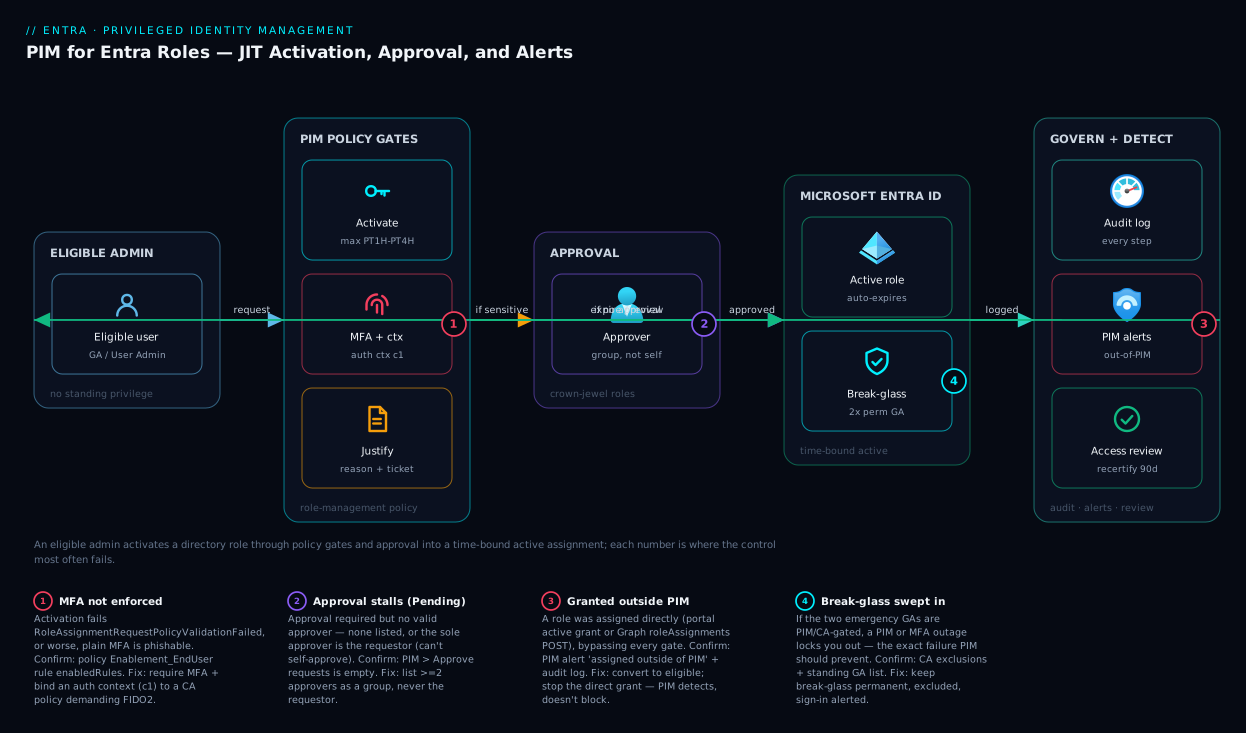
Read the diagram left to right. The eligible admin holds no standing privilege — only an eligible assignment for, say, Global Administrator. They begin an activation, which consults the role-management policy: it forces MFA (optionally escalated to phishing-resistant via a Conditional Access authentication context), demands justification and possibly a ticket, and — for crown-jewel roles — routes to the approval workflow. Only after an approver consents does PIM mint a time-bound active assignment, and the admin acts as Global Administrator for the bounded window.
What makes PIM defensible rather than merely restrictive is the right-hand side: every step writes to the Entra audit log, and PIM’s alert engine watches for risky patterns — too many GAs, over-frequent activations, grants made outside PIM — feeding Microsoft Sentinel, while a scheduled access review loops back so eligibility itself expires. The numbered badges mark the four most common failures: MFA not actually enforced (1), approval stalling with no valid approver (2), direct grants bypassing PIM (3), and break-glass swept into the same gating (4).
Real-world scenario
Northwind Logistics runs a single Entra tenant for 3,200 employees on Microsoft 365 E5. A penetration test flagged the trigger: eleven permanent Global Administrators — two service-desk leads who “needed it once,” a departed contractor’s account still active, and a shared breakglass@ that was sensibly permanent but indistinguishable in the report from the risky ten. The auditors scored it a high finding: no time-bound control on tenant-administrative roles. The three-person identity team had Entra ID P2 via E5 but had never turned PIM on.
They scoped a two-week rollout, and the order was the whole lesson. Week one was discovery and policy, not assignment changes: list every privileged-role holder, tag the two genuine break-glass accounts, treat the rest as candidates for eligible, then set rules before people. Global Administrator got 1-hour activation, MFA, justification, approval (the two-person identity-lead group), and an authentication context c1 demanding a FIDO2 key; User and Helpdesk Administrator got 4-hour activation with MFA + justification but no approval (too high-volume), backed by alerting. All four PIM alerts went on and logs connected to Microsoft Sentinel — detection ran during the rollout, not just after.
Week two was the cutover. For each of the nine risky GAs they created an eligible assignment, had the person prove an activation, then removed the permanent active one. Break-glass stayed permanent GA, excluded from CA, sign-in alerts paging on-call; the contractor’s eligibility was simply never created. A quarterly access review auto-removes anyone reviewers don’t reconfirm.
Month one surfaced one friction and one catch. Friction: 4-hour User Administrator activations expired mid-shift, so that role went to 8 hours (still bounded, still MFA-gated). The catch: a PIM alert fired “Roles are being assigned outside of PIM” — an automation account had been granted Directory Readers directly via Graph by an unowned script, bypassing every gate; they moved it to an eligible, app-scoped pattern. The retest recorded two Global Administrators (both break-glass, both monitored), zero standing privileged roles for humans, and a full audit trail. The lesson on the wall: “PIM’s value isn’t the activation prompt — it’s that ‘who has tenant admin right now’ finally has an honest, short answer.”
The rollout as a timeline, because the order is the lesson:
| Phase | Action | Why this order | Outcome |
|---|---|---|---|
| Day 1 | Inventory all privileged-role holders | Can’t gate what you haven’t found | 11 GAs, 6 other privileged holders listed |
| Day 1 | Tag the 2 genuine break-glass accounts | They must not be PIM-gated | Break-glass carved out |
| Day 2–3 | Set role policies (duration, MFA, approval, auth context) | Rules before people — no gap | Policies live, nobody affected yet |
| Day 3 | Enable 4 PIM alerts + Sentinel connection | Detect during and after rollout | Out-of-PIM grant caught later |
| Day 6–8 | Create eligible assignments; users test activation | Prove JIT works before removing standing | All 9 activate successfully |
| Day 9 | Remove permanent active assignments | The actual risk reduction | Standing GA count: 11 → 2 |
| Day 10 | Quarterly access review created | Eligibility must expire too | Drift prevented going forward |
Advantages and disadvantages
PIM both adds a step to every privileged action and removes the standing risk that step guards. Weigh it honestly:
| Advantages (why JIT helps) | Disadvantages (why it bites) |
|---|---|
| Standing privileged accounts drop toward zero — the always-on target disappears | Every privileged action gains an activation step (MFA, maybe approval, propagation delay) |
| Every activation is logged with justification and approver — instant audit trail | Requires Entra ID P2 licensing for every eligible/active PIM user — real cost |
| Approval gates crown-jewel roles so no single phished admin = tenant takeover | Approval can stall if approvers are unavailable; needs deputies and good routing |
| Auth context lets activation demand phishing-resistant MFA specifically | Misconfigured rules (MFA off, no approver) give the illusion of control without the substance |
| Built-in alerts catch too-many-GAs and out-of-PIM grants automatically | Alerts are noisy if unrouted; out-of-PIM grants still happen (PIM detects, doesn’t prevent) |
| Access reviews expire eligibility, closing the long-tail drift | Lock-yourself-out risk if break-glass isn’t excluded and tested |
| Same blade governs Entra and Azure resource roles for one mental model | The two planes have different APIs/limits — easy to conflate |
PIM is right for any tenant with high-impact directory roles and a mandate to bound them — most enterprises. It is least worth the friction on tiny tenants whose one or two admins are effectively break-glass. The disadvantages are all manageable: licence cost is the price of admission, approval routing is solved with deputy approvers and groups, and the “illusion of control” trap is avoided by validating — which the lab below does, proving MFA and approval actually fire rather than just that the checkboxes are ticked.
Hands-on lab
This is the centerpiece. You will convert a privileged role to JIT three ways — portal, az/Microsoft Graph CLI, and Bicep — then validate the gating works, then tear it down. We use User Administrator for assignment/activation (high-impact but safe to test) and configure the Global Administrator policy (rules only — no GA assignments) to show crown-jewel gating.
Prerequisites. A test/dev tenant where you are Global Administrator, Microsoft Entra ID P2 (PIM refuses otherwise), a second user you control (the requestor, e.g. alex@yourtenant.onmicrosoft.com), and Cloud Shell (Bash). Have two break-glass accounts already excluded from Conditional Access — never do PIM work without a tested emergency-access path.
Safety note: do this in a non-production tenant first. Removing your own permanent assignments before validating an activation path is how people lock themselves out — this lab keeps your access intact and operates on the requestor.
Part A — Portal: make a user eligible, set the policy, activate
Step 1 — Open PIM. In the Entra admin center, go to Identity governance → Privileged Identity Management → Microsoft Entra roles. (First visit may take a moment to initialize PIM for the tenant.)
Expected: the PIM blade lists Assignments, Settings, Alerts, Access reviews for directory roles.
Step 2 — Configure the User Administrator role policy. Select Settings, click User Administrator, then Edit. Set:
- Activation maximum duration:
4 hours. - On activation, require:
Microsoft Entra MFA. - Require justification on activation: checked.
- Require approval to activate: leave unchecked for this operational role.
Click Update.
Expected: the role’s settings now show 4-hour duration, MFA, justification. Validation: re-open Edit and confirm the values stuck.
Step 3 — Make the requestor eligible. Go to Assignments → Add assignments. Choose role User Administrator, select your requestor user (alex@…), click Next. Set assignment type Eligible, and either Permanently eligible or an end date (use a 6-month end date to model good hygiene). Click Assign.
Expected: under Assignments → Eligible, the requestor appears for User Administrator. Crucially, they are not yet a User Administrator — verify in Entra → Roles & admins → User Administrator that they are not listed as an active member.
Step 4 — Configure the Global Administrator policy (rules only). Back in Settings → Global Administrator → Edit, set:
- Activation maximum duration:
1 hour. - On activation, require:
Microsoft Entra MFA. - Require justification: checked.
- Require approval to activate: checked. Under Select approvers, add your identity-lead group (or a specific user who is not the typical requestor).
Click Update.
Expected: GA now requires approval. (We deliberately did not add any GA assignments — we only hardened the rulebook.)
Step 5 — Activate as the requestor. Sign in as the requestor (use a separate browser/incognito). Go to PIM → My roles → Microsoft Entra roles → Eligible assignments, find User Administrator, click Activate. Complete MFA, set duration 1 hour, type a justification (“Lab: testing PIM activation”), and Activate.
Expected: because User Administrator has no approval requirement, the role provisions within moments to a couple of minutes. Validation: in My roles → Active assignments the role shows with an expiry time; and in the admin tenant, Roles & admins → User Administrator now lists the requestor as an active member.
Step 6 — Confirm auto-expiry behavior. You do not need to wait an hour. To prove deactivation works, as the requestor go to My roles → Active assignments, select User Administrator, and Deactivate.
Expected: the active assignment disappears; the user reverts to eligible only. The audit log records the deactivation.
Part B — az / Microsoft Graph CLI: the same flow, scripted
az has no first-class pim command for directory roles, so you drive the Microsoft Graph PIM endpoints with az rest. Every change is a schedule-request whose action verb says what you’re doing — keep this reference open as you script:
action |
On object | Who runs it | What it does |
|---|---|---|---|
adminAssign |
roleEligibilityScheduleRequest |
Admin (GA/PRA) | Make a principal eligible for a role |
adminRemove |
roleEligibilityScheduleRequest |
Admin | Remove an eligibility |
adminUpdate |
either request | Admin | Change an existing assignment’s schedule |
adminAssign |
roleAssignmentScheduleRequest |
Admin | Grant a standing active assignment (e.g. break-glass) |
selfActivate |
roleAssignmentScheduleRequest |
The eligible user | Activate their eligible role (JIT) |
selfDeactivate |
roleAssignmentScheduleRequest |
The user | End an active assignment early |
adminRemove |
roleAssignmentScheduleRequest |
Admin | Revoke an active assignment |
Step 7 — Variables and look up IDs. In Cloud Shell:
GRAPH=https://graph.microsoft.com/v1.0
REQUESTOR_UPN="alex@yourtenant.onmicrosoft.com"

# Object ID of the requestor (the principal)
PRINCIPAL_ID=$(az ad user show --id "$REQUESTOR_UPN" --query id -o tsv)

# roleDefinitionId for "User Administrator" (the well-known template GUID)
ROLE_ID=$(az rest --method GET \
  --url "$GRAPH/roleManagement/directory/roleDefinitions?\$filter=displayName eq 'User Administrator'" \
  --query "value[0].id" -o tsv)

echo "principal=$PRINCIPAL_ID role=$ROLE_ID"
Expected: two GUIDs print. (User Administrator’s template ID is the well-known fe930be7-5e62-47db-91af-98c3a49a38b1, but resolving by name keeps the script portable.)
Step 8 — Make the requestor eligible via a schedule request. Create a roleEligibilityScheduleRequest:
az rest --method POST \
  --url "$GRAPH/roleManagement/directory/roleEligibilityScheduleRequests" \
  --headers "Content-Type=application/json" \
  --body "{
    \"action\": \"adminAssign\",
    \"principalId\": \"$PRINCIPAL_ID\",
    \"roleDefinitionId\": \"$ROLE_ID\",
    \"directoryScopeId\": \"/\",
    \"justification\": \"Lab: make eligible for User Administrator\",
    \"scheduleInfo\": {
      \"startDateTime\": \"$(date -u +%Y-%m-%dT%H:%M:%SZ)\",
      \"expiration\": { \"type\": \"noExpiration\" }
    }
  }"
Expected: JSON with "status": "Provisioned" (or Granted) and an id. Validation:
az rest --method GET \
  --url "$GRAPH/roleManagement/directory/roleEligibilitySchedules?\$filter=principalId eq '$PRINCIPAL_ID'" \
  --query "value[].{role:roleDefinitionId, scope:directoryScopeId, state:status}" -o table
You should see the User Administrator eligibility. directoryScopeId of / means tenant-wide; an administrative-unit scope would be /administrativeUnits/<id>.
Step 9 — Read the role-management policy and its rules. Find the policy bound to User Administrator, then read its rules:
# Policy assignment links a policy to a role (tenant scope = "/" )
POLICY_ID=$(az rest --method GET \
  --url "$GRAPH/policies/roleManagementPolicyAssignments?\$filter=scopeId eq '/' and scopeType eq 'Directory' and roleDefinitionId eq '$ROLE_ID'" \
  --query "value[0].policyId" -o tsv)

az rest --method GET \
  --url "$GRAPH/policies/roleManagementPolicies/$POLICY_ID/rules" \
  --query "value[].{id:id, type:'@odata.type'}" -o table
Expected: a list of rule objects including Expiration_EndUser_Assignment (activation duration), Enablement_EndUser_Assignment (MFA/justification), and Approval_EndUser_Assignment (approval). These rule IDs are stable strings you PATCH next.
Step 10 — Harden the policy: 4-hour cap + require MFA and justification. PATCH the enablement and expiration rules:
# Require MFA + Justification on activation
az rest --method PATCH \
  --url "$GRAPH/policies/roleManagementPolicies/$POLICY_ID/rules/Enablement_EndUser_Assignment" \
  --headers "Content-Type=application/json" \
  --body '{
    "@odata.type": "#microsoft.graph.unifiedRoleManagementPolicyEnablementRule",
    "id": "Enablement_EndUser_Assignment",
    "enabledRules": ["MultiFactorAuthentication", "Justification"],
    "target": { "caller": "EndUser", "operations": ["all"], "level": "Assignment" }
  }'

# Cap activation at 4 hours
az rest --method PATCH \
  --url "$GRAPH/policies/roleManagementPolicies/$POLICY_ID/rules/Expiration_EndUser_Assignment" \
  --headers "Content-Type=application/json" \
  --body '{
    "@odata.type": "#microsoft.graph.unifiedRoleManagementPolicyExpirationRule",
    "id": "Expiration_EndUser_Assignment",
    "isExpirationRequired": true,
    "maximumDuration": "PT4H",
    "target": { "caller": "EndUser", "operations": ["all"], "level": "Assignment" }
  }'
Expected: each PATCH returns 204 No Content. Validation: re-run the Step 9 GET on those rule IDs and confirm maximumDuration is PT4H and enabledRules includes MultiFactorAuthentication.
Step 11 — Activate the role as the requestor (self-activation). Activation is a roleAssignmentScheduleRequest with action: selfActivate, run in the requestor’s context (sign in as them, or use a token for that user — activation is self-service, an admin cannot activate for a user):
# Run this signed in AS the requestor account
az rest --method POST \
  --url "$GRAPH/roleManagement/directory/roleAssignmentScheduleRequests" \
  --headers "Content-Type=application/json" \
  --body "{
    \"action\": \"selfActivate\",
    \"principalId\": \"$PRINCIPAL_ID\",
    \"roleDefinitionId\": \"$ROLE_ID\",
    \"directoryScopeId\": \"/\",
    \"justification\": \"Lab: activating User Administrator for 1 hour\",
    \"scheduleInfo\": {
      \"startDateTime\": \"$(date -u +%Y-%m-%dT%H:%M:%SZ)\",
      \"expiration\": { \"type\": \"afterDuration\", \"duration\": \"PT1H\" }
    }
  }"
Expected: a request object with status of Provisioned (if no approval) or PendingApproval (if you had turned approval on). MFA is enforced interactively at sign-in for the requestor; if the token lacks the MFA claim the request is rejected with RoleAssignmentRequestPolicyValidationFailed. Validation — confirm the active assignment exists:
az rest --method GET \
  --url "$GRAPH/roleManagement/directory/roleAssignmentSchedules?\$filter=principalId eq '$PRINCIPAL_ID'" \
  --query "value[].{role:roleDefinitionId, end:scheduleInfo.expiration.endDateTime, state:assignmentType}" -o table
assignmentType: Activated with an endDateTime ~1 hour out confirms JIT worked.
Step 12 — Deactivate (or let it expire). To deactivate early, the requestor POSTs selfDeactivate:
az rest --method POST \
  --url "$GRAPH/roleManagement/directory/roleAssignmentScheduleRequests" \
  --headers "Content-Type=application/json" \
  --body "{
    \"action\": \"selfDeactivate\",
    \"principalId\": \"$PRINCIPAL_ID\",
    \"roleDefinitionId\": \"$ROLE_ID\",
    \"directoryScopeId\": \"/\"
  }"
Expected: status: Provisioned, and the active assignment from Step 11 is gone.
Part C — Bicep: policy rules and eligibility as code
Manage PIM policy rules and eligibility declaratively: eligibility via Microsoft.Authorization/roleEligibilityScheduleRequests (the ARM projection of the Graph object), rules via Microsoft.Authorization/roleManagementPolicies. Source control means a weak setting can’t sneak in unreviewed.
Step 13 — Eligibility as Bicep. This makes the requestor eligible for User Administrator tenant-wide:
// pim-eligibility.bicep — tenant scope
targetScope = 'tenant'

@description('Object ID of the principal to make eligible')
param principalId string

@description('User Administrator role definition (well-known template GUID)')
param roleDefinitionId string = 'fe930be7-5e62-47db-91af-98c3a49a38b1'

// A stable GUID for idempotent request naming
var requestName = guid(principalId, roleDefinitionId, 'eligible')

resource eligibility 'Microsoft.Authorization/roleEligibilityScheduleRequests@2022-04-01-preview' = {
  name: requestName
  properties: {
    principalId: principalId
    roleDefinitionId: tenantResourceId('Microsoft.Authorization/roleDefinitions', roleDefinitionId)
    requestType: 'AdminAssign'
    justification: 'IaC: eligible for User Administrator'
    scheduleInfo: {
      startDateTime: utcNow()
      expiration: {
        type: 'NoExpiration'
      }
    }
  }
}
Deploy:
az deployment tenant create \
  --location centralindia \
  --template-file pim-eligibility.bicep \
  --parameters principalId=$PRINCIPAL_ID
Expected: a successful tenant deployment; the eligibility appears exactly as in Step 8. (Re-running is idempotent because requestName is a deterministic GUID.)
Step 14 — Policy rules as Bicep. Encode the activation cap and MFA requirement so they are reviewed in PRs. Policy-rule resources are nested under the role-management policy:
// pim-policy-rules.bicep — tenant scope
targetScope = 'tenant'

@description('The roleManagementPolicy id governing the target role at tenant scope')
param policyId string

resource expirationRule 'Microsoft.Authorization/roleManagementPolicies/rules@2020-10-01-preview' = {
  name: '${policyId}/Expiration_EndUser_Assignment'
  properties: {
    ruleType: 'RoleManagementPolicyExpirationRule'
    isExpirationRequired: true
    maximumDuration: 'PT4H'
    target: { caller: 'EndUser', operations: [ 'All' ], level: 'Assignment' }
  }
}

resource enablementRule 'Microsoft.Authorization/roleManagementPolicies/rules@2020-10-01-preview' = {
  name: '${policyId}/Enablement_EndUser_Assignment'
  properties: {
    ruleType: 'RoleManagementPolicyEnablementRule'
    enabledRules: [ 'MultiFactorAuthentication', 'Justification' ]
    target: { caller: 'EndUser', operations: [ 'All' ], level: 'Assignment' }
  }
}
Expected: deploying this enforces the 4-hour cap and MFA from code. In practice you resolve policyId from the Step 9 lookup and pass it in. Keeping these rules in a repo means an audit can diff intended gating against live state.
Step 15 — Validation checklist and teardown
Prove the whole thing rather than trusting the checkboxes:
| Check | Command / path | Pass criteria |
|---|---|---|
| Requestor is eligible, not active | Roles & admins → User Administrator (no active member) + eligibility schedule GET | Eligible yes, active no |
| Activation forced MFA | Try activating with a non-MFA token | Rejected: policy validation failure |
| Activation is time-bound | roleAssignmentSchedules GET after activating |
endDateTime ≈ requested duration |
| GA requires approval | Inspect GA policy approval rule | isApprovalRequired: true, approvers listed |
| Audit trail exists | Entra → Audit logs → filter PIM | Activate/approve/deactivate events present |
| Out-of-PIM grant alert on | PIM → Alerts | Alert enabled, no unexpected fires |
Teardown — remove the lab eligibility and revert the policy if this was a shared tenant:
# Remove eligibility (adminRemove)
az rest --method POST \
  --url "$GRAPH/roleManagement/directory/roleEligibilityScheduleRequests" \
  --headers "Content-Type=application/json" \
  --body "{
    \"action\": \"adminRemove\",
    \"principalId\": \"$PRINCIPAL_ID\",
    \"roleDefinitionId\": \"$ROLE_ID\",
    \"directoryScopeId\": \"/\",
    \"justification\": \"Lab teardown\"
  }"
In the portal, Settings → User Administrator / Global Administrator → Edit and restore your org’s standard values (or delete the test eligibility under Assignments).
Cost note. PIM has no usage-based fee — it is included in Entra ID P2. The lab’s only lasting cost is the P2 licences you already pay for; there is no per-activation charge.
Common mistakes & troubleshooting
The failure modes that actually happen, as a scannable table first, then the worst offenders expanded:
| # | Symptom | Root cause | Confirm (exact cmd / portal path) | Fix |
|---|---|---|---|---|
| 1 | “You don’t have permission to manage PIM” | Not a Global Admin or Privileged Role Admin | Roles & admins → your roles | Only GA/PRA can manage PIM; get the role (via PIM) |
| 2 | PIM features greyed out / “requires P2” | Tenant/user lacks Entra ID P2 | Licenses blade; user’s assigned licences | Assign P2 to managing + eligible users |
| 3 | Activation fails: RoleAssignmentRequestPolicyValidationFailed |
MFA/justification/ticket required but not satisfied | Read the error detail; check policy enablement rule | Complete MFA; supply justification/ticket |
| 4 | Activation stuck Pending forever | Approval required but no valid approver (or approver = requestor) | PIM → Approve requests; policy approval rule | Add approvers ≠ requestor; use a group |
| 5 | Role “active” but portal still denies actions | Propagation delay / stale token | Sign out/in; check active assignment exists | Re-sign-in; wait a few minutes after activation |
| 6 | Alert: “Roles are assigned outside of PIM” | Someone granted a role directly via Graph/portal | PIM → Alerts; Audit logs for Add member to role | Move to eligible; investigate the direct grant |
| 7 | Eligibility silently expired; admin locked out of a task | Eligible-assignment end date passed, no review/renewal | Eligibility schedule endDateTime |
Renew eligibility; use access reviews to manage |
| 8 | Removed your own standing GA, now no admin can act | No break-glass / no one eligible+able to activate | Roles & admins → Global Administrator | Use break-glass account; never remove all paths |
| 9 | Auth-context activation loops or blocks | CA policy for the context misconfigured/missing | Conditional Access → policy targeting context | Fix/enable the CA policy for that auth context |
| 10 | Approver can’t approve a request | Approver is the requestor, or lacks the approver right | PIM → Approve requests (empty) | Different approver; check approval-rule recipients |
| 11 | Activation works but no one is notified | Notification rule recipients not set / wrong level | Policy notification rules | Add SOC + role owners; set notificationLevel |
| 12 | Bicep PIM deploy fails at tenant scope | Wrong targetScope or unsupported API version |
Deployment error detail | targetScope = 'tenant'; use a supported preview API |
The expanded reasoning for the ones that burn the most time:
3. Activation fails with RoleAssignmentRequestPolicyValidationFailed. The policy’s enablement rule requires something the activation didn’t supply — usually MFA (the token lacks the MFA claim) or a missing justification/ticket. The error body names the unmet requirement; cross-check Enablement_EndUser_Assignment (enabledRules). Fix: re-authenticate for an MFA token and include justification (and ticket fields if Ticketing is on).
4. Activation stuck Pending forever. Approval is required but there is no valid approver — none listed (and the GA/PRA fallback is empty/unreachable), or the only approver is the requestor (who can’t self-approve). Confirm: PIM → Approve requests is empty; inspect the Approval_EndUser_Assignment rule. Fix: list at least two approvers (a group) who are not typical requestors, with P2 and notifications.
6. Alert: “Roles are being assigned outside of PIM.” A role was granted directly (portal active/permanent assignment, or a Graph roleAssignments POST) instead of through PIM eligibility — bypassing every gate. Confirm: the alert plus an Audit logs Add member to role event not initiated by PIM. Fix: convert to an eligible assignment and stop the direct-grant source. Treat as a governance gap — PIM detects but does not prevent out-of-band grants.
8. You removed your own standing Global Administrator and now nobody can administer. The classic lock-out — all standing GAs removed before an eligible + activatable path was proven, and no working break-glass. Confirm: Roles & admins → Global Administrator lists only unusable accounts. Fix: sign in with a break-glass account (the reason you keep two, excluded from CA, never PIM-gated) and restore an eligible path. Prevention: never remove the last standing admin until someone has successfully activated GA.
Best practices
- Keep exactly two break-glass Global Administrators, permanent and excluded from PIM/CA, with a high-severity alert on every sign-in. They are your recovery path when PIM/MFA/CA misbehaves.
- Make everyone else eligible, not active — the target is zero standing privileged-role holders for humans, break-glass excepted.
- Require approval on crown-jewel roles (Global Administrator, Privileged Role Administrator, Application Administrator, Conditional Access Administrator); skip it on high-volume operational roles, relying on MFA + justification + alerts.
- Bind privileged activation to an authentication context so it demands phishing-resistant MFA or a compliant device — plain MFA isn’t enough against token theft.
- Cap activation duration tightly — 1 hour for GA/PRA, 4–8 for operational roles.
- Set an end date on eligibility (not permanent) and back it with access reviews so it expires unless reconfirmed.
- Name explicit approvers as a group, with deputies, so activations never stall on one unavailable human — and an approver can’t self-approve.
- Route all four PIM alerts to the SOC and connect PIM logs to Microsoft Sentinel; treat “assigned outside of PIM” as an incident.
- Assign the least role that works — Helpdesk over User over Global Administrator. PIM time-bounds privilege; least privilege decides how much.
- Manage policy rules as code (Bicep) so a weakened setting (MFA off, no expiry) is caught in review.
- Scope with administrative units where a role needs only a slice of the directory. See Entra ID Administrative Units.
- Run a quarterly recertification of eligible holders and remove anyone not reconfirmed.
Security notes
- Phishing-resistant MFA for activation is the point. An activated role obtained with phishable MFA partly reopens the standing-privilege risk PIM removes — bind privileged activation to an authentication context backed by a CA policy requiring FIDO2/Windows Hello/certificate.
- Break-glass must be excluded and tamper-evident. Permanent GA, password in a sealed vault, excluded from every CA/PIM gate, with a high-severity alert on any sign-in. If break-glass is itself PIM-gated, a PIM outage locks you out — the exact failure PIM should prevent. See Engineering Break-Glass Emergency Access Accounts.
- Approval is a control, not theater. Approvers must evaluate justification and ticket, not rubber-stamp — approvals granted within seconds, every time, are themselves a finding.
- PIM detects out-of-band grants but doesn’t block them. A GA can still grant a role directly; pair PIM with least-standing-GA, alerting, and process so direct grants are rare and caught.
- Combine least time, privilege, and scope. PIM controls when; Build Custom RBAC Roles controls how much; AU scoping controls where — together they minimize what a compromised activation can do.
- Audit everything to a SIEM. Ship PIM activation, approval, and alert events to Sentinel and retain per your compliance window — the audit trail is half of PIM’s value.
Cost & sizing
PIM itself has no metered cost — no charge per activation, approval, or alert. The entire cost is licensing: every user who is eligible for or assigned to a PIM-managed role (Entra or Azure resource) needs Microsoft Entra ID P2 (standalone, or bundled in Entra ID Governance, Microsoft 365 E5/A5/G5, EMS E5). License everyone in the privileged-access program.
Sizing is therefore a head-count exercise: count your privileged-role holders (humans who will be eligible), not your whole directory. A 3,000-person tenant might have only 25–60 — that’s your P2 count for PIM (and if you already own E5 for everyone, PIM is effectively free).
| Cost driver | What you pay for | Rough figure | Notes |
|---|---|---|---|
| Entra ID P2 (standalone) | Per eligible/assigned user/month | ~₹750–800 / user / mo (≈ $9) | Only privileged-role holders need it for PIM |
| Bundled in M365 E5 | Already included | ₹0 incremental | Most enterprises already have this |
| Activations / approvals / alerts | Usage | ₹0 | PIM has no usage-based charge |
| Sentinel ingestion (PIM logs) | Per-GB log ingestion | Small (low log volume) | PIM events are low-volume vs sign-in logs |
| Operational time | Approver + review effort | Staff time | The real ongoing “cost” is process |
A practical picture: 40 privileged-role holders not already on E5 cost roughly ₹30,000–32,000/month in P2 licences to run PIM across both planes — trivial against one tenant-takeover incident. Already on E5/A5/G5? PIM adds no licence cost and only modest Sentinel ingestion.
Interview & exam questions
1. What is the difference between an eligible and an active PIM assignment? An eligible assignment lets a user activate a role on demand but grants no privilege until they do; an active assignment means the user holds the role now (time-bound for activations, or permanent for break-glass). The goal of PIM is to move standing admins to eligible so they hold privilege only briefly and visibly.
2. Which licence does PIM require, and who needs it? Microsoft Entra ID P2 (or a bundle that includes it, like M365 E5 or Entra ID Governance). Every user who is eligible for or assigned to a PIM-managed role needs a P2 licence — you size by counting privileged-role holders, not the whole directory.
3. PIM for Entra roles vs PIM for Azure resources — how do they differ? Both provide JIT activation and share the portal blade, but they are different control planes: Entra (directory) roles (Global Administrator, etc.) are tenant- or administrative-unit-scoped and managed via Microsoft Graph roleManagement/directory; Azure resource roles (Owner/Contributor) are management-group/subscription/resource-group-scoped and managed via ARM Microsoft.Authorization. Limits and APIs differ.
4. How do you ensure activating a privileged role requires phishing-resistant MFA, not just any MFA? Create a Conditional Access authentication context (e.g. c1), write a CA policy targeting it that requires FIDO2/Windows Hello/certificate (or a compliant device), then set the role’s PIM policy authentication-context rule to that claimValue. Activation then forces the strong control regardless of how the user originally signed in.
5. An activation is stuck Pending. Name two likely causes. Approval is required but no valid approver exists (none listed, or the only approver is the requestor — who cannot self-approve), or the listed approvers aren’t receiving/acting on the request. Fix by listing at least two approvers (a group) who are not the typical requestors and confirming they have P2.
6. Why keep break-glass accounts as permanent Global Administrators when PIM exists? Because PIM, MFA, and Conditional Access can themselves fail or be misconfigured and lock everyone out. Two break-glass accounts kept as permanent GAs, excluded from PIM/CA and heavily monitored, guarantee a recovery path. PIM is “least standing privilege,” not “zero standing privilege.”
7. What does the PIM alert “Roles are being assigned outside of PIM” indicate, and why does it matter? That a role was granted directly (portal active assignment or a Graph roleAssignments POST) rather than as a PIM eligible assignment, bypassing MFA/justification/approval. It matters because PIM detects but does not prevent such grants — you must investigate and convert them, and pair PIM with process/guardrails.
8. What’s the role of an access review in a PIM program? Activations auto-expire, but eligibility can persist indefinitely and drift. A recurring access review recertifies who should remain eligible, auto-removing principals reviewers don’t reconfirm — closing the long-tail accumulation of stale privileged eligibility.
9. Which two roles can manage PIM settings and assignments for Entra roles? Only Global Administrator and Privileged Role Administrator. (Notably, a Privileged Role Administrator can manage assignments and approvals for other roles — itself a crown-jewel role worth gating with approval and alerts.)
10. Describe the objects you’d manipulate to make someone eligible and then have them activate, via Microsoft Graph. To make eligible, POST a roleEligibilityScheduleRequest with action: adminAssign. To activate, the user POSTs a roleAssignmentScheduleRequest with action: selfActivate and an afterDuration expiration. The rules (MFA, duration, approval) live in the role’s roleManagementPolicy rules, edited via PATCH.
11. Why might a freshly activated role still be denied in the portal, and what do you do? Directory-role activation needs a short propagation time and a fresh token — existing tokens don’t gain the role retroactively. Sign out and back in (or wait a few minutes) so a new token carries the activated role.
12. How do you reduce the blast radius of an activated role even further than time-bounding it? Scope it: assign the role at an administrative unit rather than tenant-wide where possible, and assign the least role that does the job. Time-bounding (PIM) plus scope-bounding (AU) plus privilege-bounding (least role / custom RBAC) together minimize what a compromised activation can do.
These map to AZ-500 (Security Engineer) — manage identity and access, configure PIM — and SC-300 (Identity and Access Administrator) — plan and implement privileged access, PIM for Entra roles and resources, access reviews. The break-glass and zero-trust angles touch SC-100 (Cybersecurity Architect). A compact cert map:
| Question theme | Primary cert | Objective area |
|---|---|---|
| Eligible vs active, activation flow | SC-300 | Implement privileged access (PIM) |
| Licensing (P2) and sizing | AZ-500 / SC-300 | Manage identity and access |
| Approval workflows, approvers | SC-300 | Configure PIM role settings |
| Auth context / phishing-resistant MFA | AZ-500 / SC-300 | Implement authentication & CA |
| PIM alerts, out-of-PIM detection | AZ-500 | Manage security operations / monitoring |
| Break-glass, least standing privilege | SC-100 | Design a privileged-access strategy |
| Graph/Bicep automation of PIM | SC-300 | Implement & automate access governance |
Quick check
- You make a user eligible for Global Administrator. Do they hold Global Administrator rights right now? Why or why not?
- An activation request for a sensitive role is stuck Pending. Give the single most likely cause and the first thing to check.
- True or false: scaling your tenant to “zero permanent Global Administrators, including break-glass” is the correct end state for a PIM rollout.
- Which object holds the rules (MFA, activation duration, approval) for a role — and which object makes a person eligible?
- Your activation fails with
RoleAssignmentRequestPolicyValidationFailed. Name the two most common unmet requirements.
Answers
- No. Eligibility only means they are allowed to activate; they hold no privilege until they activate (passing MFA, justification, and any approval). The whole point of eligible-over-active is that the resting state has zero standing privilege.
- Approval is required but there is no valid approver (none listed, or the only approver is the requestor, who cannot self-approve). First check PIM → Approve requests and the policy’s approval rule for listed approvers.
- False. Keep two break-glass accounts as permanent Global Administrators, excluded from PIM/CA and monitored — they are your recovery path if PIM/MFA/CA fail. The end state is “zero standing privileged roles for humans, break-glass excepted.”
- The role-management policy (
roleManagementPolicyand its rules) holds the rules; aroleEligibilityScheduleRequestmakes a person eligible. Policy = rules; schedule request = people. - MFA not satisfied (the token lacks the MFA claim) and missing justification (or ticket, if
Ticketingis enabled). Re-authenticate for an MFA token and supply the required justification/ticket.
Glossary
- Privileged Identity Management (PIM) — the Entra service that provides just-in-time, time-bound, approval-gated activation of privileged roles instead of standing assignments.
- Eligible assignment — a state where a user can activate a role but holds no privilege until they do; the safe resting state for admins.
- Active assignment — a state where the user holds the role now: time-bound (an activation) or permanent (break-glass).
- Activation — the act of turning an eligible assignment into a time-bound active one, subject to MFA, justification, ticketing, and approval per policy.
- Role-management policy — the rulebook for one role: activation duration, MFA/justification/ticket requirements, approval settings, and notifications.
- Policy assignment — the binding (
roleManagementPolicyAssignment) that links a role-management policy to a specific role definition at a scope. - roleEligibilityScheduleRequest / roleAssignmentScheduleRequest — the Microsoft Graph objects you POST to grant eligibility, or to activate/grant active assignments, respectively.
- Approver — the user or group that must consent before an activation completes for an approval-gated role; cannot approve their own request.
- Authentication context — a Conditional Access label (e.g.
c1) that a role’s activation can require, letting CA enforce phishing-resistant MFA or device compliance on activation. - Break-glass (emergency access) account — a deliberately permanent Global Administrator, excluded from PIM/Conditional Access and heavily monitored, kept as a lock-out recovery path.
- PIM alert — a built-in detection of risky PIM state (too many Global Administrators, roles activated too frequently, roles assigned outside PIM, stale assignments).
- Access review — a recurring recertification that expires eligibility unless a reviewer reconfirms it, preventing privileged-eligibility drift.
- Administrative unit (AU) — a directory container that scopes a role to a slice of the tenant, so even an activated role isn’t tenant-wide.
- Microsoft Entra ID P2 — the licence PIM requires; needed by every user eligible for or assigned to a PIM-managed role.
- Global Administrator / Privileged Role Administrator — the only two roles that can manage PIM role settings and assignments for Entra directory roles.
Next steps
You can now convert standing Entra-role privilege into governed, just-in-time access with approvals and alerts. Build outward:
- Next: Just-in-Time Azure Resource Access: PIM for Azure Roles, Groups, and Approval Workflows — apply the same JIT model to Owner/Contributor on subscriptions and resource groups (the other control plane).
- Related: Engineering Break-Glass Emergency Access Accounts in Entra ID — build and monitor the two accounts PIM deliberately leaves standing.
- Related: Building an Access Reviews Program in Entra ID — make eligibility expire, not just activations.
- Related: Designing Conditional Access at Scale — wire the authentication context that makes privileged activation phishing-resistant.
- Related: Zero Trust on Microsoft Entra: Conditional Access + PIM, Step by Step — see PIM in the full zero-trust picture.
- Related: Standing Up Microsoft Sentinel: Data Connectors, Analytics Rules, and SOAR Playbooks — route PIM alerts and activation logs to your SOC.