In a nutshell
Storage is where your data physically sits, and AWS gives you three shapes that are not interchangeable. The quickest way to feel the difference is a warehouse analogy:
- Block storage (Amazon EBS, instance store) is like an empty external hard drive you plug into one computer. You format it, it’s yours alone, it’s fast — but only that one machine can use it at a time. This is what your operating system boots from and what a database writes to.
- File storage (Amazon EFS, Amazon FSx) is like the shared network drive in an office. Many computers mount the same folders at once, all see each other’s files, and everyone works off the same tree of directories.
- Object storage (Amazon S3) is like a coat-check counter. You hand over a labelled item (an object with a key) and get it back by presenting the ticket over the web. You never “mount” it and never see a folder — you
PUTandGETby name. - Instance store is the scratch pad taped to the machine’s desk: blazing fast because it’s bolted to the host, but thrown in the bin the instant the machine is switched off.
One question decides almost every design: does more than one machine need the same data at the same time? If no, use block storage (EBS) — simplest and fastest. If yes, use file storage (EFS for Linux/NFS, FSx for Windows/HPC/NetApp/ZFS). And if you reach the data by a key over HTTP rather than a file path — backups, media, logs, a data lake — it belongs in object storage (S3), and you should not be mounting a file system for it at all.
A beginner who remembers only that decision, plus “EBS lives in one Availability Zone; instance store disappears when you stop the machine,” is already ahead of most people using AWS. Everything below fills in the numbers — IOPS, throughput, snapshots, encryption, throughput modes — so you can size and protect each shape correctly.
Level: Intermediate · Time: ~50 min · You need: an AWS account, basic EC2 and VPC familiarity (this lesson defines every storage term as it appears).
Compute gets the attention, but storage is where production systems live or die. A database is only as fast as the volume beneath it; a shared web farm is only as consistent as the file system every node mounts; a “lost” machine is only a disaster if the data went with it. AWS gives you three fundamentally different shapes of storage, and choosing the wrong one is one of the most expensive mistakes a team can make — not just in money, but in rewrites. Block storage (Amazon EBS, instance store) presents a raw disk you format and mount on a single machine. File storage (Amazon EFS, Amazon FSx) presents a shared file system many machines mount at once. Object storage (Amazon S3, covered in its own lesson) presents a flat namespace of objects you reach over HTTP. Each exists because the others cannot do its job.
This lesson is the exhaustive tour of AWS block and file storage. We will go through every EBS volume type with its real IOPS and throughput numbers and the workload each is for; how snapshots work (incremental, cross-Region copy, Fast Snapshot Restore); encryption and the encrypt-by-default switch; Multi-Attach for clustered applications; resizing and changing a live volume; the difference between the root volume and data volumes; the instance store that vanishes when you stop an instance; Amazon EFS end to end (elastic NFS, performance and throughput modes, lifecycle to Infrequent Access, access points, mount targets); the four FSx file systems (Windows File Server, Lustre, NetApp ONTAP, OpenZFS) and when each one is the answer; and finally a clear decision framework for block vs file vs object. By the end you will be able to size a volume correctly, protect it, share it when you must, and never again reach for the wrong storage shape.
A note on where this sits. This lesson is the foundation — what each service is and every option it exposes. When you need to squeeze maximum performance out of a volume — decoupling IOPS from throughput on gp3, matching EFS throughput modes to a workload, and finding the instance-level bandwidth ceiling that quietly caps everything — read the companion tuning lesson, Tuning Block and File Storage on AWS, linked at the end.
Learning objectives
By the end of this lesson you will be able to:
- Distinguish block, file, and object storage and pick the right shape for a given workload.
- Choose the correct EBS volume type (gp3, gp2, io2 Block Express, io1, st1, sc1) from IOPS, throughput, latency, durability, and cost.
- Explain EBS snapshots (incremental storage, cross-Region/cross-account copy, Fast Snapshot Restore, Recycle Bin) and use them for backup and migration.
- Configure EBS encryption, turn on encrypt-by-default, and reason about KMS keys; and explain Multi-Attach and its constraints.
- Resize and modify a live EBS volume, and tell the root volume apart from data volumes.
- Describe the instance store — when you get it, what it is for, and exactly when the data disappears.
- Set up Amazon EFS end to end: mount targets, performance and throughput modes, lifecycle management to Infrequent Access, and access points.
- Select the right Amazon FSx variant — Windows File Server, Lustre, NetApp ONTAP, or OpenZFS — for a given requirement.
Prerequisites & where this fits
You need an AWS account, a working grasp of Amazon EC2 (instances, AMIs, Availability Zones), and basic familiarity with the AWS CLI and VPC networking (subnets and security groups), because file systems live inside a VPC and are reached through mount targets in your subnets. No prior storage-administration background is assumed — every term is defined as it appears. This is the sixth lesson in the AWS Zero-to-Hero course, in the Storage module, following Amazon S3, In Depth. S3 taught you object storage; this lesson completes the storage picture with block and file. After this, the course moves on to databases with Amazon RDS & Aurora, In Depth.
Core concepts: the three shapes of storage
Before any service, fix the mental model. The three storage shapes differ in their unit, their access protocol, and how many machines can use them at once.
| Shape | Unit | How you reach it | Concurrency | AWS services |
|---|---|---|---|---|
| Block | Raw fixed-size blocks (a “disk”) | Attach to one instance, then format (ext4/XFS/NTFS) and mount as a drive | Single instance (one volume = one instance, except Multi-Attach) | EBS, instance store |
| File | Files and directories in a hierarchy | Mount over a network protocol (NFS for Linux, SMB for Windows) | Many instances simultaneously | EFS, FSx |
| Object | Whole objects with a key and metadata | HTTP API (GET/PUT) — no mounting |
Unlimited, any client | S3 |
The decisive question is “does more than one machine need the same data at the same time?” If no, block storage is simplest and fastest. If yes, you need file (mountable, POSIX-like) or object (HTTP, web-scale). And if you are storing backups, media, logs, or anything you reach by key rather than by path — that is object storage, S3, and you should not be reaching for a file system at all.
Two more foundational terms:
- IOPS (Input/Output Operations Per Second) — how many individual read/write operations the volume can do per second. Matters for databases and any workload doing many small random reads/writes.
- Throughput — how many megabytes per second the volume can move. Matters for sequential workloads: log processing, big-data scans, video.
A volume can be IOPS-bound, throughput-bound, or capacity-bound, and the type you pick should match which one your workload actually hits.
Amazon EBS: block storage for a single instance
Amazon Elastic Block Store (EBS) provides network-attached block volumes for EC2. An EBS volume behaves like a physical hard disk: you attach it to one instance, format it with a file system, and mount it. But unlike a physical disk, it is decoupled from the instance — it lives independently in an Availability Zone (AZ), persists when the instance stops, and can be detached from one instance and reattached to another (in the same AZ). It is replicated within its AZ for durability, so a single hardware failure does not lose your data.
Three facts to internalise before the options:
- An EBS volume is locked to one Availability Zone. You cannot attach a
us-east-1avolume to an instance inus-east-1b. To move it across AZs you take a snapshot (which lives in S3, Region-wide) and create a new volume from it in the target AZ. - Network-attached, not local. EBS traffic shares the instance’s network/EBS bandwidth. On modern Nitro instances EBS has its own dedicated bandwidth lane, but there is still a per-instance ceiling — the single most overlooked cap in AWS storage (covered in the tuning lesson).
- You pay for what you provision, not what you use. A 500 GiB gp3 volume costs the same whether it holds 5 GiB or 480 GiB. Provisioned IOPS and throughput above the free baseline cost extra.
EBS volume types: every option
There are two SSD families (optimised for IOPS / transactional work) and two HDD families (optimised for throughput / sequential work). Here is every current type with real numbers.
| Type | Media | Designed for | Max IOPS / volume | Max throughput / volume | Size range | Durability | Cost posture |
|---|---|---|---|---|---|---|---|
| gp3 | SSD | Default general purpose: boot, most apps, mid-tier DBs | 16,000 | 1,000 MiB/s | 1 GiB – 16 TiB | 99.8–99.9% | Cheapest SSD; baseline 3,000 IOPS + 125 MiB/s free, buy more independently |
| gp2 | SSD | Legacy general purpose (superseded by gp3) | 16,000 | 250 MiB/s | 1 GiB – 16 TiB | 99.8–99.9% | IOPS tied to size (3 IOPS/GiB); usually more expensive than gp3 |
| io2 Block Express | SSD | Latency-sensitive, high-IOPS DBs; sub-millisecond, mission-critical | 256,000 | 4,000 MiB/s | 4 GiB – 64 TiB | 99.999% | Most expensive; pay per provisioned IOPS |
| io1 | SSD | Legacy provisioned-IOPS (use io2 instead) | 64,000 | 1,000 MiB/s | 4 GiB – 16 TiB | 99.8–99.9% | Pay per provisioned IOPS |
| st1 | HDD | Big, sequential, throughput-bound: logs, data warehouse, streaming | 500 | 500 MiB/s | 125 GiB – 16 TiB | 99.8–99.9% | Low cost per GiB; throughput-optimised |
| sc1 | HDD | Cold, infrequently accessed; lowest cost block storage | 250 | 250 MiB/s | 125 GiB – 16 TiB | 99.8–99.9% | Cheapest EBS per GiB |
How to choose, the rules I actually apply:
- Default to gp3. It gives you a free baseline of 3,000 IOPS and 125 MiB/s regardless of size, and lets you buy IOPS (up to 16,000) and throughput (up to 1,000 MiB/s) independently of capacity. On gp2, IOPS were tethered to size (3 IOPS per GiB) — so you had to over-provision capacity just to get IOPS. There is almost no reason to choose gp2 on a new system; migrating gp2 → gp3 is a single online
modify-volumecall and usually cuts cost. - Reach for io2 Block Express only when you genuinely need it: sustained IOPS above 16,000, single-digit-millisecond p99 latency under heavy load, the 99.999% durability tier (10× the SSD/HDD types), volumes larger than 16 TiB (up to 64 TiB), or Multi-Attach. It is the substrate behind those high ceilings and runs on Nitro instances. io2 also supports a higher IOPS-to-GiB ratio (up to 1,000:1) than io1 (50:1).
- Use st1 for throughput-bound sequential workloads — Kafka, big-data scans, log processing — where you move large blocks and rarely seek. It is far cheaper per GiB than SSD and its throughput model (baseline + burst credits scaling with size) suits streaming reads.
- Use sc1 for cold data you must keep on a block device but rarely touch. It is the cheapest EBS option; if access is truly rare, ask first whether the data belongs in S3 instead.
- Do not provision IOPS the instance can’t deliver. A 64,000-IOPS io2 on an instance whose EBS lane tops out at 4,750 IOPS is money burned. Match the volume to the instance’s EBS bandwidth (the tuning lesson shows how to find it).
HDD types (st1, sc1) cannot be boot/root volumes — they are data-only. Boot volumes must be SSD (gp3/gp2/io2/io1).
gp3 vs gp2: why the decoupling matters
This is an interview favourite, so be precise. On gp2, performance is a function of size: 3 IOPS per provisioned GiB (so a 100 GiB volume gets 300 IOPS baseline), with small volumes able to burst to 3,000 IOPS using a credit bucket. To get 6,000 sustained IOPS on gp2 you had to provision 2,000 GiB — paying for capacity you didn’t need. On gp3, every volume starts at 3,000 IOPS and 125 MiB/s for free, and you dial IOPS and throughput up independently with sliders, decoupled from the 1 GiB–16 TiB capacity. The result: gp3 is typically ~20% cheaper than gp2 for the same baseline and far cheaper when you need IOPS without capacity. The migration is non-disruptive.
Worked example: sizing and pricing a gp3 volume (and when io2 wins)
The table above lists ceilings; the skill is choosing the cheapest type that meets the workload. Let’s size a real one, step by step. Suppose a PostgreSQL database needs 400 GiB of capacity, sustains ~8,000 IOPS with occasional bursts to 12,000, and moves about 250 MiB/s during checkpoints. (All prices below are representative us-east-1 figures to show the shape of the maths — always confirm current pricing; it varies by Region and over time.)
Step 1 — capacity. 400 GiB. On gp3 you pay for provisioned capacity regardless of how much you write, so that’s a flat 400 GiB.
Step 2 — IOPS. gp3 includes 3,000 IOPS free. You want ~8,000 sustained with burst headroom, so provision, say, 12,000 IOPS. Extra billable IOPS = 12,000 − 3,000 = 9,000. Two ratio rules to check: gp3 allows at most 500 IOPS per GiB (a 400 GiB volume could request up to 200,000, far above the 12,000 you need and above the 16,000 volume cap anyway), and reaching the 16,000 ceiling needs a volume of at least 32 GiB — both satisfied.
Step 3 — throughput. gp3 includes 125 MiB/s free. You want 250, so provision 250; extra = 125 MiB/s. Check the throughput-to-IOPS rule: gp3 delivers up to 0.25 MiB/s per provisioned IOPS, so 12,000 IOPS supports up to 3,000 MiB/s — 250 is comfortably inside it.
Step 4 — cost. Add the three independent levers:
| Lever | Amount billed | Representative rate | Monthly |
|---|---|---|---|
| Storage | 400 GiB | $0.08 / GiB-mo | $32.00 |
| Extra IOPS | 9,000 | $0.005 / IOPS-mo | $45.00 |
| Extra throughput | 125 MiB/s | $0.04 / MiB/s-mo | $5.00 |
| gp3 total | ≈ $82 / mo |
Now compare gp2. On gp2, IOPS = 3 × GiB, so to get 12,000 baseline IOPS you must provision 4,000 GiB (12,000 ÷ 3) — you’d pay for 3,600 GiB you don’t need. At $0.10/GiB-mo that’s $400/mo, nearly 5× the gp3 bill, for worse flexibility. This is the whole reason gp3 exists and why migrating gp2 → gp3 almost always saves money.
And io2 Block Express. io2 charges more for storage (~$0.125/GiB-mo) and prices provisioned IOPS in tiers (representative: ~$0.065/IOPS-mo for the first 32,000). 400 GiB × $0.125 = $50, plus 12,000 × $0.065 = $780, so ≈ $830/mo — roughly 10× the gp3 cost. You pay that premium only when you genuinely need what io2 alone provides: sub-millisecond p99 latency under sustained load, the 99.999% durability tier, more than 16,000 IOPS, volumes above 16 TiB, or Multi-Attach. For 12,000 IOPS at ordinary latency, gp3 is the correct, cheap answer.
The lesson to carry: gp3 decouples the three cost levers (capacity, IOPS, throughput) so you buy only the one your workload is bound on; gp2 chained IOPS to capacity; and io2 is a premium you buy for guarantees, not for ordinary IOPS. Nine times out of ten the right first move is “gp3, 3,000/125 baseline, dial up only what monitoring proves you need.”
EBS snapshots
A snapshot is a point-in-time backup of an EBS volume stored in Amazon S3 (in AWS-managed buckets you don’t see), making it Region-wide and highly durable — your escape hatch from the single-AZ confinement of the volume itself.
The properties that matter:
- Incremental. The first snapshot copies all used blocks; every subsequent snapshot stores only blocks that changed since the last one. You are billed only for unique changed blocks across the chain, so daily snapshots of a mostly-static volume are cheap. Deleting an intermediate snapshot does not corrupt later ones — AWS preserves the blocks newer snapshots still reference.
- Create a volume in any AZ. From a snapshot you can create a new volume in any AZ in the Region — this is exactly how you migrate a volume across AZs, and how you restore after failure.
- Copy across Regions and accounts.
copy-snapshotreplicates a snapshot to another Region (for DR or to launch in a new Region) or shares it with another account (the basis of cross-account AMI and backup distribution). A copy to a new Region can also re-encrypt with a different KMS key. - Fast Snapshot Restore (FSR). Normally a volume restored from a snapshot is lazily loaded — blocks are fetched from S3 on first access, so the first read of each block is slow (“initialisation latency”). FSR pre-warms a snapshot in chosen AZs so restored volumes deliver full provisioned performance immediately. It is billed per snapshot per AZ per hour — use it for snapshots you restore often (golden images, fleet launches), not everything.
- Archive tier. EBS Snapshots Archive moves a full (not incremental) snapshot to a low-cost cold tier for long retention (≥90 days); restoring takes 24–72 hours. Good for compliance copies you hope never to need.
- Recycle Bin. Retention rules can hold deleted snapshots (and AMIs) for a set period so an accidental or malicious deletion is recoverable.
- Automate with DLM or AWS Backup. Data Lifecycle Manager (DLM) schedules snapshot creation, retention, and cross-Region copy by tag; AWS Backup does the same centrally across services with vault lock for immutability. Don’t write cron jobs for this.
An AMI (Amazon Machine Image) for an EBS-backed instance is, under the hood, one or more EBS snapshots plus launch metadata — which is why creating an AMI creates snapshots.
Worked example: what an incremental snapshot chain actually costs
“Incremental” is easy to say and easy to mis-price, so let’s make it concrete. Take a 500 GiB gp3 volume on which the file system has actually written 200 GiB of blocks (file systems rarely touch every block). You take a daily snapshot, and about 5 GiB of blocks change per day. Snapshot storage is billed at a representative ~$0.05/GiB-month.
- Snapshot 1 (the first ever) copies all used blocks = 200 GiB.
- Snapshot 2 stores only blocks that changed since snapshot 1 = 5 GiB.
- Snapshots 3–30 each store ~5 GiB.
After 30 daily snapshots the unique stored data is not 30 × 200 = 6,000 GiB. It is 200 + 29 × 5 = 345 GiB. Monthly cost ≈ 345 × $0.05 = $17.25 — versus $300 if each snapshot were a full copy. That 17× difference is the entire point of incremental snapshots, and it is why a daily snapshot of a mostly-static volume is cheap enough to never think about.
Now the subtlety that trips people up: deleting a middle snapshot frees almost nothing. Delete snapshot 15, and AWS only reclaims the blocks that are unique to snapshot 15 — any block that snapshots 16–30 still reference is kept, because the chain must stay restorable. Deleting an intermediate snapshot therefore never corrupts later snapshots (a common fear) and rarely reclaims much space. To actually shrink the bill you prune from the oldest snapshots forward, or set a retention policy in Data Lifecycle Manager / AWS Backup and let it age them out.
One more gotcha hides in “used blocks.” If you fill the volume to 450 GiB, then delete files back down to 200 GiB, the file-system blocks stay allocated (deleting a file doesn’t zero its blocks), so the next snapshot can be far larger than df suggests. Enabling discard/TRIM on the mounted file system lets the guest tell the block layer which blocks are free, keeping snapshots lean.
Takeaway: you pay for unique changed blocks across the whole chain, not per snapshot — so frequent snapshots are cheap, and the lever that actually moves the bill is retention (how long you keep them) and TRIM hygiene, not snapshot frequency.
EBS encryption
EBS offers encryption at rest using AWS KMS keys, with AES-256. When a volume is encrypted, AWS transparently encrypts: data at rest on the volume, data in transit between the instance and the volume, all snapshots created from it, and all volumes created from those snapshots. There is no measurable performance penalty and nothing to manage inside the guest — encryption happens on the Nitro hardware.
| Encryption option | What it does | Note |
|---|---|---|
AWS managed key (aws/ebs) |
Default KMS key for EBS; zero setup | Can’t be shared cross-account; least control |
| Customer managed key (CMK) | Your own KMS key with a key policy you control, rotation, and grants | Required for cross-account snapshot sharing and key separation |
| Encrypt by default | Account-and-Region setting forcing every new volume and snapshot to be encrypted | Turn this on — it removes the chance of an unencrypted volume slipping through |
Key facts that trip people up:
- You cannot directly encrypt an existing unencrypted volume in place. The path is: snapshot it → copy the snapshot with encryption enabled → create a new (encrypted) volume from the encrypted copy → swap it in.
- Going the other way (decrypting) is similarly indirect and rarely wanted.
- Encrypt by default is per-Region — enable it in every Region you use.
- Sharing an encrypted snapshot with another account requires a CMK (you cannot share one encrypted with the default
aws/ebskey) and a grant on that key to the target account.
Multi-Attach
By default an EBS volume attaches to one instance. EBS Multi-Attach lets a single io2 (or io1) volume attach to up to 16 Nitro instances in the same Availability Zone simultaneously, all with read/write access. This exists for clustered applications that manage concurrent access themselves.
The constraints are strict and examinable:
- io1/io2 only, same AZ only, Nitro instances only, up to 16 instances.
- The file system or application must be cluster-aware — it needs its own coordination (a clustered file system such as GFS2 or an application that arbitrates writes). Mounting a standard single-writer file system like XFS or ext4 on multiple instances at once will corrupt the data, because those file systems assume they are the sole writer. Multi-Attach gives you a shared block device, not a shared file system.
- Multi-Attach volumes do not support I/O fencing with all configurations and have some feature limitations (e.g. you can’t resize while multi-attached). Persistent reservations (SCSI-3 PR) are supported on io2 for fencing.
- If you just want a shared file system, use EFS or FSx instead — that is the right tool 95% of the time. Multi-Attach is for specific clustered software (e.g. certain database clusters) that requires a shared block device.
Resizing and modifying a live volume — Elastic Volumes
With Elastic Volumes, you can increase size, change the volume type, and adjust provisioned IOPS/throughput on a live, attached volume with no downtime — no detach, no stop. After the volume modification completes (it enters an optimizing state, still usable), you must extend the file system inside the guest to use the new space (growpart + resize2fs for ext4, or xfs_growfs for XFS on Linux; Disk Management on Windows). Two limits: you can only grow, never shrink a volume, and after a modification you must wait at least 6 hours (and for the volume to leave optimizing) before modifying the same volume again.
Root volume vs data volumes
- The root (boot) volume holds the operating system; it is created from the AMI when the instance launches. By default it has DeleteOnTermination = true, so it is deleted when the instance terminates — you usually want this for the OS disk but it surprises people who stored data there.
- Data volumes are additional EBS volumes you attach for application data, databases, logs. Best practice: keep data on separate volumes from the root, set their DeleteOnTermination = false so terminating the instance doesn’t destroy your data, and snapshot them on a schedule. Separating data from OS also lets you grow, snapshot, and migrate data independently of the machine.
Instance store: ephemeral, blazing-fast, and gone when you stop
Some EC2 instance types include instance store volumes — block storage on disks physically attached to the host running your instance. Because the storage is local (often NVMe SSD), it offers very high IOPS and throughput and the lowest latency of any EC2 storage — there is no network hop. It is also included in the instance price (no separate charge).
The catch — and it is the whole point — is that instance store is ephemeral:
| Event | Instance store data |
|---|---|
| Reboot | Survives |
| Stop / start | Lost (the instance moves to a different host) |
| Hibernate | Lost |
| Terminate | Lost |
| Underlying host failure | Lost |
Use instance store for data you can afford to lose or can rebuild: scratch space, caches, temporary processing files, buffers, replicated data (e.g. a node in a cluster that re-replicates), or the spill/shuffle space of a big-data job. Never put a database’s only copy, or anything you cannot reconstruct, on instance store. Contrast with EBS, which is network-attached and persists across stop/start. Not every instance type has instance store — it is a property of the family (storage-optimised families like i4i, im4gn, d3 are built around it).
Amazon EFS: elastic, shared NFS file storage
Amazon Elastic File System (EFS) is a fully managed, elastic NFS file system for Linux. Many EC2 instances (and Lambda functions, ECS/EKS containers) across multiple Availability Zones can mount the same file system simultaneously and share files with standard POSIX semantics. It is serverless and elastic: it grows and shrinks automatically as you add and remove files — you never provision capacity — and you pay only for the storage you use (plus throughput, depending on mode). EFS is Regional: data is stored redundantly across multiple AZs (in Standard storage classes), so it survives the loss of an entire AZ.
EFS is the answer when multiple Linux instances need a shared file system: web content across an Auto Scaling fleet, shared home directories, content-management uploads, CI/CD artefacts, lift-and-shift apps that expect a POSIX file share, and ML training data shared across nodes.
Mount targets and access
You mount EFS over NFS v4.1 at a mount target — an endpoint with an IP address that EFS creates in a subnet of your VPC. Best practice is one mount target per Availability Zone, so instances mount the file system over a path that stays within their own AZ (lower latency, no cross-AZ data charges). A security group on the mount target controls access — it must allow inbound NFS (TCP 2049) from the instances’ security group. You mount with the EFS mount helper (mount -t efs), ideally with TLS (-o tls) to encrypt data in transit, or via standard NFS.
Storage classes and lifecycle management
| Storage class | Redundancy | Use for | Relative cost |
|---|---|---|---|
| Standard | Multi-AZ (Regional) | Active, frequently accessed data | Baseline |
| Standard-Infrequent Access (Standard-IA) | Multi-AZ | Files not accessed for N days | Much cheaper storage, small per-access fee |
| One Zone | Single-AZ | Cost-sensitive data that doesn’t need multi-AZ | ~47% cheaper than Standard |
| One Zone-IA | Single-AZ | Infrequent + single-AZ | Cheapest |
Lifecycle Management automatically moves files between the active class and the Infrequent Access (IA) class based on access patterns. You set a policy such as “transition to IA after 30 days without access” and “transition back to active on first access” (the Intelligent-Tiering behaviour). Because most file shares have a long tail of rarely touched files, lifecycle management can cut EFS storage cost dramatically with no code changes. Choose One Zone classes only when you accept that an AZ loss could make the file system unavailable/lost (cheaper for dev, scratch, or easily-reproduced data).
Performance modes and throughput modes
EFS has two independent knobs, and confusing them is the classic mistake.
Performance mode (set at creation, affects latency vs parallelism):
| Performance mode | What it optimises | Use when |
|---|---|---|
| General Purpose (default) | Lowest per-operation latency | Almost everything — web serving, CMS, home dirs, latency-sensitive apps |
| Max I/O | Higher aggregate throughput/IOPS by scaling to many instances, at the cost of slightly higher latency | Highly parallel workloads with thousands of clients (large analytics/big-data) — legacy; modern Elastic throughput usually makes General Purpose the right choice |
Throughput mode (how much throughput you get, changeable after creation):
| Throughput mode | How it works | Use when |
|---|---|---|
| Elastic (recommended default) | Throughput scales automatically up and down with demand; pay only for what you use | Spiky or unpredictable workloads, or when you don’t want to think about it |
| Bursting | Throughput scales with the amount of data stored (baseline + burst credits) | Workloads whose throughput need tracks their size; small file systems can starve |
| Provisioned | You set a fixed throughput independent of size, and pay for it | A small file system that needs high, steady throughput (high throughput-to-storage ratio) |
The trap: a small file system on Bursting mode gets little baseline throughput (it scales with stored data), so a 10 GiB share can feel painfully slow even though the data is tiny. For most workloads in 2026, Elastic throughput with General Purpose performance is the right starting point.
Worked example: picking an EFS throughput mode by the numbers
The three throughput modes are the part people get wrong most often, because Bursting throughput is a function of how much data you have stored, not of what your workload needs. Bursting gives a baseline of 50 KiB/s per GiB of Standard storage (equivalently 50 MiB/s per TiB) and can burst to 100 MiB/s per TiB (with a 100 MiB/s floor) while it has burst credits, which it earns at the baseline rate whenever it runs below baseline. Put numbers to two file systems and the trap jumps out.
Scenario A — a 10 GiB share backing a CI/CD (Jenkins) farm, needing ~80 MiB/s during builds.
- Bursting baseline = 10 GiB × 50 KiB/s = 500 KiB/s ≈ 0.5 MiB/s. It can burst toward 100 MiB/s, but a 10 GiB file system earns credits at only 0.5 MiB/s, and a busy build pipeline drains them fast. Once credits are gone, throughput collapses to 0.5 MiB/s and builds crawl — the textbook “why is my small EFS so slow?” incident.
- Fix: switch to Elastic (no provisioning, scales to demand, pay per GiB transferred) or Provisioned at, say, 100 MiB/s. One CLI call:
aws efs update-file-system --file-system-id fs-… --throughput-mode elastic.
Scenario B — a 2 TiB media share with a steady 150 MiB/s read load.
- Bursting baseline = 2,048 GiB × 50 KiB/s ≈ 100 MiB/s, burst to ~200 MiB/s. If the 150 MiB/s is bursty with idle gaps, Bursting can refill credits and cope — and it’s the cheapest option because Bursting has no throughput charge, only storage. But if 150 MiB/s is sustained with no idle time, baseline 100 < 150 and it will starve; move to Provisioned 150 MiB/s or Elastic.
How the cost models differ (representative us-east-1):
- Elastic — no baseline charge; you pay per GiB read (~$0.03) and written (~$0.06) plus storage. Best for spiky or unknown demand: you never provision, you never starve.
- Provisioned — you pay for the MiB/s you set, 24×7, whether used or not (~$6/MiB/s-mo). Best when throughput is high relative to stored size and steady enough to keep the meter busy.
- Bursting — no throughput charge, but baseline is welded to stored size. Fine for large file systems with modest throughput needs.
Decision rule: spiky/unknown → Elastic (the modern default), steady high-throughput-to-size → Provisioned, large-and-modest → Bursting. And crucially — making the file system “bigger” to make it faster is the wrong instinct; changing the throughput mode is the fix, and Elastic removes the sizing puzzle entirely.
EFS access points
An EFS access point is an application-specific entry point into an EFS file system that enforces a POSIX user/group and a root directory for anything connecting through it. Instead of every client mounting the file system root and policing paths and permissions itself, you create an access point that says “this app sees /app-data as its root and operates as UID 1001/GID 1001” — and the app simply cannot escape that directory or identity. Access points are the clean way to share one file system among many applications (or many tenants) with isolation, and they integrate with IAM authorisation for NFS. They are especially useful for Lambda and container workloads, where you attach the function/task to an access point rather than managing mount permissions.
EFS security and other features
- Encryption at rest (KMS) can be enabled only at creation and is on by default in the console; encryption in transit is enabled per-mount with the
-o tlsmount option. - EFS Replication maintains a read-only cross-Region (or same-Region) copy for DR with a low RPO, managed by AWS.
- IAM/NFS authorisation and file system policies (resource policies) let you require encrypted transport, restrict who can mount, and grant per-access-point permissions.
Amazon FSx: managed third-party and high-performance file systems
Where EFS is AWS’s own elastic NFS for Linux, Amazon FSx is a family of fully managed file systems built on well-known third-party file-system technologies, for cases EFS doesn’t cover — chiefly Windows/SMB, HPC, and rich storage features like snapshots, dedup, and tiering. There are four FSx offerings; knowing which to pick is a frequent exam and design question.
| FSx variant | Protocol(s) | Built on | Choose it for |
|---|---|---|---|
| FSx for Windows File Server | SMB | Windows Server + NTFS | Windows workloads needing a native SMB share with Active Directory integration, NTFS ACLs, DFS, shadow copies — the answer for Windows file shares |
| FSx for Lustre | Lustre (POSIX) | Lustre | HPC / ML / analytics needing massive parallel throughput (hundreds of GB/s) and sub-ms latency; integrates with S3 as the data lake backing store |
| FSx for NetApp ONTAP | NFS, SMB, iSCSI | NetApp ONTAP | Enterprises wanting ONTAP features — multi-protocol (NFS and SMB on the same data), snapshots, dedup/compression, thin provisioning, SnapMirror, and tiering to a cheap capacity pool |
| FSx for OpenZFS | NFS | OpenZFS | Linux/NFS workloads wanting ZFS features — snapshots, clones, compression — with very low latency and high IOPS; an easy migration target from on-prem ZFS/NFS |
How to reason about it quickly:
- Windows file share? → FSx for Windows File Server (SMB + Active Directory). EFS is Linux/NFS only and is not an option here.
- HPC, ML training, or analytics needing extreme throughput, often over S3 data? → FSx for Lustre. It can transparently present an S3 bucket as a Lustre file system and write results back to S3.
- Need NFS and SMB on the same data, or specific NetApp features (SnapMirror, dedup, tiering)? → FSx for NetApp ONTAP — the most feature-rich and the multi-protocol choice.
- Linux/NFS workload that wants ZFS snapshots/clones and very low latency? → FSx for OpenZFS.
All FSx variants are managed (AWS handles patching, backups, and the underlying servers), live in your VPC behind mount targets/endpoints, support encryption at rest and in transit, and offer automatic backups.
Choosing block vs file vs object
Bring it together with a decision framework. Ask these questions in order:
- Do I reach the data by HTTP key, and is it backups/media/logs/static assets/data lake? → Object storage (S3). Don’t mount a file system for this.
- Do multiple machines need to share the same files concurrently?
- Yes, Linux/NFS, elastic and serverless → EFS.
- Yes, Windows/SMB → FSx for Windows File Server.
- Yes, HPC/ML extreme throughput → FSx for Lustre.
- Yes, multi-protocol or NetApp/ZFS features → FSx for ONTAP / OpenZFS.
- Single machine, needs a raw disk / database / boot volume? → Block storage (EBS) — gp3 by default, io2 Block Express for demanding databases.
- Single machine, need the fastest possible scratch and can lose it on stop? → Instance store.
| Dimension | Block (EBS) | File (EFS / FSx) | Object (S3) |
|---|---|---|---|
| Shared by many machines? | No (except Multi-Attach) | Yes | Yes |
| Access | Mount as a disk | Mount over NFS/SMB | HTTP API |
| Scope | Single AZ | Regional (multi-AZ) | Regional, 11 9s durability |
| Capacity | Provisioned | Elastic (EFS) | Effectively unlimited |
| Typical use | Boot, databases, single-host apps | Shared content, home dirs, HPC | Backups, media, data lake, static sites |
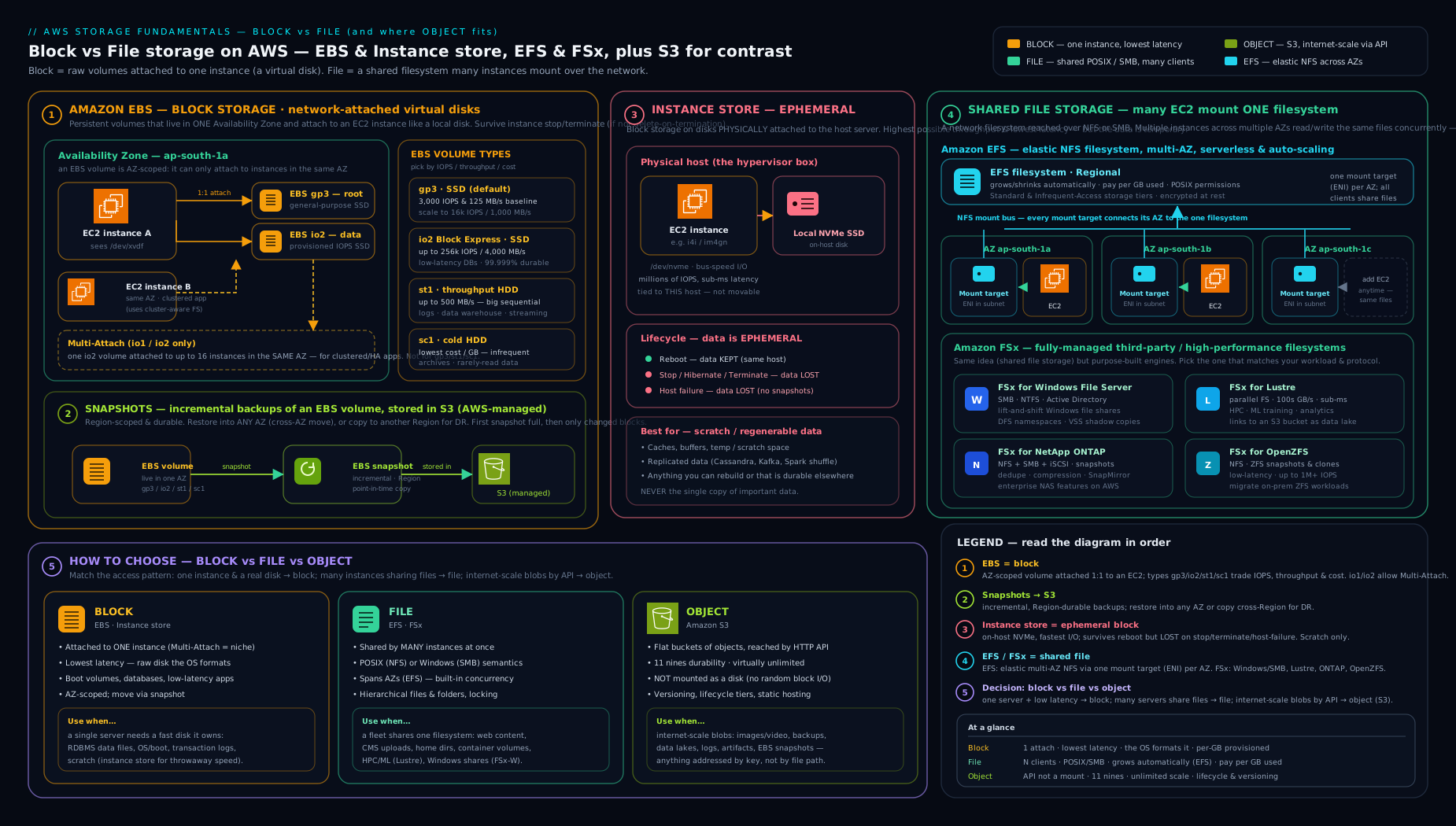
The diagram above maps the landscape: a single EC2 instance with its EBS root and data volumes and local instance store on the left (block, single-host); a multi-AZ fleet mounting one EFS or FSx file system in the middle (file, shared); and S3 as the object store on the right — the same three shapes the decision framework walks through.
Going deeper
Everything above is enough to choose and size storage correctly. This section is for the reader who operates it at scale — the internals, the ceilings, and the failure modes that only bite in production.
The instance-level EBS bandwidth ceiling — the cap nobody provisions for
The single most common “my fast volume is slow” bug has nothing to do with the volume. EBS is network-attached: every read and write crosses the network between your instance and the EBS service. Each EC2 instance type has its own EBS bandwidth and IOPS limits, and your volume can never exceed the instance’s lane, no matter how much you provisioned on the volume. A 64,000-IOPS io2 attached to an instance whose EBS lane tops out at 4,750 IOPS delivers 4,750 IOPS — the rest is money burned.
Two refinements matter. First, EBS-optimized means the instance has a dedicated bandwidth lane for EBS separate from general network traffic; on Nitro instances this is on by default and cannot be turned off. Second, smaller instances publish a burst and a baseline EBS number (for example a general-purpose large might burst high for a while, then settle to a lower baseline) — so a benchmark that looks great for five minutes can fall off a cliff under a sustained load. And remember all attached volumes share the one instance lane: three busy volumes on a small instance contend for the same ceiling. Before provisioning IOPS, look up the instance type’s documented EBS throughput/IOPS and size the volume to the instance, not to a wishlist. (For where these limits come from and how to read an instance type’s spec sheet, see the EC2 deep-dive: Amazon EC2, In Depth.)
How an encrypted EBS volume actually protects data
“EBS encryption” is envelope encryption on Nitro hardware, and understanding the flow explains every one of its rules. When you create an encrypted volume, EBS calls KMS GenerateDataKey against the chosen key (the AWS-managed aws/ebs key or your customer-managed key, CMK). KMS returns a data key in two forms: plaintext (used immediately) and an encrypted copy (stored with the volume metadata). The Nitro card holds the plaintext data key in the hardware, never in the guest OS, and uses it to transparently encrypt/decrypt every block — including data in transit between the instance and the EBS service — with AES-256. Because the crypto runs on Nitro, there is no measurable performance penalty and nothing to configure inside the instance.
The consequences fall out of that design:
- You cannot encrypt an existing unencrypted volume in place, because the volume was created without a data key. The path is snapshot → copy the snapshot with
--encrypted --kms-key-id …→ create a new volume from the encrypted copy → swap it in. - Sharing an encrypted snapshot cross-account requires a CMK plus a grant, never the default
aws/ebskey — only a CMK’s key policy can authorise another account to use it. - At fleet scale, KMS becomes a dependency. Every encrypted volume attach performs KMS calls;
kms:GenerateDataKey/Decryptare subject to per-Region request-rate quotas, and a mass launch (an Auto Scaling storm, a fleet reboot) can throttle. High-volume shops raise the quota and watch the KMSThrottlingExceptionmetric. And the hard rule: delete or disable the KMS key and the data is gone — an encrypted volume whose CMK is scheduled for deletion is unrecoverable, which is exactly why KMS key deletion has a mandatory waiting period. For the key-policy, grant, and rotation mechanics behind all of this, see AWS KMS, In Depth.
gp3 ratios and io2 Block Express internals
The volume table’s ceilings are gated by ratios worth memorising. gp3 allows up to 500 IOPS per GiB and up to 0.25 MiB/s of throughput per provisioned IOPS; hitting the 16,000-IOPS max needs at least a 32 GiB volume, and the 1,000 MiB/s max needs at least 4,000 provisioned IOPS. io2 raises the IOPS-to-GiB ratio to 1,000:1 (versus io1’s 50:1), which is why io2 can pack far more IOPS onto a small volume. io2 Block Express is the next-generation storage backend that unlocks io2’s headline numbers — up to 256,000 IOPS, 4,000 MiB/s, 64 TiB, and sub-millisecond latency — by running the volume on a re-architected substrate. On supported Nitro instances, io2 volumes run on Block Express automatically. The 99.999% durability tier (io1/io2) is a full order of magnitude better than the 99.8–99.9% of gp2/gp3/st1/sc1, which — alongside latency — is the real reason to pay for io2 under a mission-critical database.
Snapshot internals: lazy loading, FSR quotas, and the direct APIs
A volume restored from a snapshot is lazily loaded — blocks are pulled from S3 on first access, so the first read of each block pays an “initialisation” penalty while everything else is full speed. Three levers address this: Fast Snapshot Restore (FSR) pre-warms a snapshot in specific AZs (billed per snapshot-AZ-hour, and subject to a per-Region FSR quota, so reserve it for golden images and fleet launches, not everything); a dd/fio full-volume read after restore forces initialisation cheaply; and for programmatic access, the EBS direct APIs (ListSnapshotBlocks, GetSnapshotBlock, PutSnapshotBlock) let backup vendors and custom tools read and write snapshot blocks directly over HTTPS without ever creating a volume — the foundation of modern incremental-backup products. Two retention notes complete the picture: EBS Snapshots Archive drops a full (de-referenced) copy into a cold tier at roughly a quarter of standard snapshot cost for long compliance holds, with a 90-day minimum and a 24–72 hour restore; and the Recycle Bin holds deleted snapshots and AMIs under tag-based retention rules so a fat-fingered or malicious delete is recoverable.
EFS internals: consistency, the small-file penalty, Archive, and the Max I/O sunset
EFS speaks NFS v4.1 with close-to-open consistency: a client sees another client’s writes reliably only after the writer closes the file and the reader opens it — fine for shared web content, a real constraint for a shared database file (don’t put one there). The performance characteristic beginners miss is that throughput on EFS scales with parallelism: one thread streaming one large file is limited, but hundreds of threads across many instances aggregate to enormous throughput. The flip side is the small-file penalty — millions of tiny files mean millions of metadata round-trips, and metadata operations are the bottleneck, not bytes. This is why tar-ing many small files onto EFS is slow while copying a few large ones is fast, and why highly parallel clients matter.
Three modern facts update the tables above. First, EFS added an Archive storage class for data not accessed for 90+ days — cheaper than Standard-IA, with lifecycle policies that can tier Standard → IA → Archive and (optionally) back to Standard on access. Second, Max I/O performance mode is being phased out: it added per-operation latency and never paired with Elastic throughput, and AWS now steers essentially everyone to General Purpose performance + Elastic throughput, which scales to very high aggregate throughput without the latency tax. Third, Elastic throughput has its own per-Region read/write ceilings (tens of GiB/s read, single-digit GiB/s write, Region-dependent) — high, but a real limit for extreme HPC, which is precisely the workload that belongs on FSx for Lustre instead.
FSx depth: the features that decide which flavour you pick
The four FSx flavours differ in more than protocol; the deciding features live one layer down.
- FSx for Lustre ships in two deployment types: scratch (no replication — cheap, fast, and transient; a hardware failure loses data, so it’s for reproducible HPC scratch) and persistent (replicated within an AZ, durable, higher throughput tiers). Its superpower is the S3 data repository association: a Lustre file system can be linked to an S3 prefix, lazily loading objects on first access and (with auto-export) writing results back to S3 — so you keep the durable data lake in S3 and spin Lustre up only for the compute burst. Throughput is provisioned per TiB of storage (e.g. 125/250/500/1000 MB/s per TiB).
- FSx for NetApp ONTAP is the multi-protocol and feature powerhouse: the same data over NFS, SMB, and iSCSI; FlexClone for instant, writable, space-efficient clones (clone a 10 TiB dataset for a test in seconds, paying only for divergence); SnapMirror for block-level cross-Region replication; and automatic tiering of cold blocks from the SSD performance tier to a cheap capacity pool, so you keep a small hot tier and let ONTAP move the rest. Data is organised under SVMs (storage virtual machines) and volumes.
- FSx for OpenZFS brings ZFS’s instant snapshots and clones, inline compression (LZ4/Zstd), and a large in-memory ARC read cache that delivers very high IOPS and sub-millisecond latency on cached data — an easy, low-latency migration target for on-prem ZFS/NFS estates.
- FSx for Windows File Server offers single-AZ vs multi-AZ (multi-AZ keeps a synchronous standby and fails over automatically — choose it for production Windows shares), throughput capacity provisioned independently of storage, DFS namespaces/replication, VSS shadow copies for user self-service restore, and integration with either AWS Managed Microsoft AD or your self-managed AD.
Cost and failure-mode roundup
The silent money-losers, in order of how often they bite: orphaned volumes (a detached gp3 still bills for provisioned capacity, IOPS, and throughput), stale snapshot chains (they only grow), cross-AZ NFS traffic (mount EFS through a target in the client’s own AZ to avoid per-GB inter-AZ charges), Provisioned EFS/FSx throughput billed 24×7 whether used or not, and over-provisioned io2 IOPS the instance can’t reach. On durability, keep the blast radii straight: EBS and instance store are single-AZ; EFS Standard and FSx multi-AZ survive an AZ loss, while EFS One Zone, FSx single-AZ, and Lustre scratch do not; and the ultimate single point of failure for any encrypted data is the KMS key — guard its deletion. The discipline that catches most of these is boring and effective: tag every volume, snapshot, and file system with an owner, and run a scheduled report for untagged and unattached resources. For the deeper “when does data belong in object storage instead of a file system?” question — data lakes, backups, static assets — see the object-storage companion, Amazon S3, In Depth.
Hands-on lab: create, attach, snapshot, and share storage
This lab uses the AWS CLI and stays within or near the AWS Free Tier (EBS includes 30 GiB of gp3/gp2 per month free for 12 months; EFS has a small free allowance). You will create and attach an encrypted EBS data volume, write to it, snapshot it, grow it live, then create an EFS file system and mount target. Replace the placeholder IDs with your own.
Prerequisites: the CLI configured (aws configure), a running EC2 Linux instance you can SSH into, and its instance ID, AZ, subnet ID, and security group ID to hand.
Part A — an encrypted EBS data volume
# 0. (Recommended) turn on encrypt-by-default for this Region
aws ec2 enable-ebs-encryption-by-default

# 1. Find your instance's AZ (volume must be in the SAME AZ)
aws ec2 describe-instances --instance-ids i-0123456789abcdef0 \
  --query 'Reservations[].Instances[].Placement.AvailabilityZone' --output text
# -> e.g. us-east-1a

# 2. Create a 10 GiB gp3 encrypted volume in that AZ
aws ec2 create-volume \
  --availability-zone us-east-1a \
  --size 10 --volume-type gp3 --encrypted \
  --tag-specifications 'ResourceType=volume,Tags=[{Key=Name,Value=lab-data}]'
# note the returned VolumeId, e.g. vol-0aaa...

# 3. Attach it to the instance as /dev/sdf
aws ec2 attach-volume --volume-id vol-0aaa... \
  --instance-id i-0123456789abcdef0 --device /dev/sdf
On the instance, format and mount it (the device often appears as /dev/nvme1n1 on Nitro):
lsblk                                  # find the new device
sudo mkfs -t xfs /dev/nvme1n1          # format (data only — destroys contents)
sudo mkdir -p /data && sudo mount /dev/nvme1n1 /data
echo "hello block storage" | sudo tee /data/test.txt
df -h /data                            # validation: shows ~10G mounted on /data
Part B — snapshot it
aws ec2 create-snapshot --volume-id vol-0aaa... \
  --description "lab snapshot" \
  --tag-specifications 'ResourceType=snapshot,Tags=[{Key=Name,Value=lab-snap}]'
# note the SnapshotId; wait for it to complete:
aws ec2 wait snapshot-completed --snapshot-ids snap-0bbb...
echo "snapshot ready (incremental, stored in S3, Region-wide)"
You could now create a volume from this snapshot in any AZ — that is the cross-AZ migration path.
Part C — grow the volume live (Elastic Volumes)
# Increase 10 GiB -> 20 GiB with no downtime
aws ec2 modify-volume --volume-id vol-0aaa... --size 20
aws ec2 describe-volumes-modifications --volume-id vol-0aaa... \
  --query 'VolumesModifications[].[ModificationState,Progress]' --output text
On the instance, extend the file system into the new space:
sudo xfs_growfs /data        # XFS grows online; df -h now shows ~20G
df -h /data                  # validation
Part D — an EFS file system and mount target
# 1. Create the file system (encrypted, Elastic throughput, General Purpose)
aws efs create-file-system --encrypted \
  --performance-mode generalPurpose --throughput-mode elastic \
  --tags Key=Name,Value=lab-efs
# note the FileSystemId, e.g. fs-0ccc...

# 2. Create a mount target in your subnet (SG must allow NFS 2049 from your instance)
aws efs create-mount-target --file-system-id fs-0ccc... \
  --subnet-id subnet-0ddd... --security-groups sg-0eee...
On the instance (install the helper first):
sudo yum install -y amazon-efs-utils      # or: apt-get install -y amazon-efs-utils
sudo mkdir -p /efs
sudo mount -t efs -o tls fs-0ccc...:/ /efs    # TLS = encrypted in transit
echo "hello shared file storage" | sudo tee /efs/shared.txt
df -h /efs                                    # validation: EFS mounted
Mount the same fs-0ccc... on a second instance and you will see shared.txt — that is the shared, multi-instance nature of file storage.
Cleanup (avoid charges)
# EFS
sudo umount /efs
aws efs delete-mount-target --mount-target-id fsmt-0fff...
aws efs delete-file-system --file-system-id fs-0ccc...

# EBS
sudo umount /data
aws ec2 detach-volume --volume-id vol-0aaa...
aws ec2 wait volume-available --volume-ids vol-0aaa...
aws ec2 delete-volume --volume-id vol-0aaa...
aws ec2 delete-snapshot --snapshot-id snap-0bbb...
Cost note: within the Free Tier the gp3 volume and snapshot are effectively free at this size; the EFS allowance covers the few KB you wrote. The biggest real-world cost mistakes here are leaving detached EBS volumes around (you pay for provisioned capacity whether or not it is attached) and unused snapshots (they accumulate). Always run the cleanup. Outside the lab, cross-AZ NFS traffic and provisioned IOPS/throughput are the levers that move the bill.
Common mistakes & troubleshooting
| Symptom | Likely cause | Fix |
|---|---|---|
| “Volume is in a different Availability Zone” when attaching | EBS volumes are AZ-locked; the instance is in another AZ | Snapshot the volume, create a new volume from it in the instance’s AZ |
| Grew the volume but the OS still shows the old size | File system not extended after the volume modification | Run growpart + resize2fs (ext4) or xfs_growfs (XFS); Disk Management on Windows |
| Database is slow despite a high-IOPS volume | The instance’s EBS bandwidth caps below the volume’s IOPS | Pick an instance with a higher EBS lane, or right-size IOPS to the instance (see tuning lesson) |
| Data gone after stopping the instance | Data was on instance store (ephemeral), not EBS | Move persistent data to EBS; use instance store only for scratch |
| Two instances mounted the same EBS Multi-Attach volume and data corrupted | Used a single-writer file system (XFS/ext4) on Multi-Attach | Use a cluster-aware FS (GFS2) or, far simpler, use EFS/FSx for sharing |
mount.nfs: Connection timed out mounting EFS |
Mount-target security group doesn’t allow NFS 2049 from the instance, or no mount target in that AZ | Open TCP 2049 from the instance SG; create a mount target in each AZ |
| Small EFS file system feels very slow | Bursting throughput mode — throughput scales with stored data | Switch to Elastic (or Provisioned) throughput mode |
| Snapshot restore is slow on first read | Lazy loading (blocks fetched from S3 on first access) | Enable Fast Snapshot Restore in the target AZ, or pre-read the blocks |
Common beginner mistakes
These are misconceptions rather than symptoms — the wrong mental model that leads a beginner astray, and the right one to replace it with. (For symptom → cause → fix, see the troubleshooting table above.)
-
“EBS is regional like S3.” No — an EBS volume lives in one Availability Zone and can only attach to instances in that AZ. What’s Region-wide is the snapshot (stored in S3). Right model: volume = single AZ; snapshot = whole Region; the snapshot is your bridge across AZs.
-
“Instance store is just a cheaper disk.” It’s an ephemeral disk on the host. It survives a reboot but is wiped on stop/start, hibernate, terminate, or host failure. Right model: instance store is scratch space; if you can’t rebuild the data, it doesn’t belong there — use EBS.
-
“Multi-Attach gives me a shared file system.” It gives a shared block device, and mounting a normal single-writer file system (XFS/ext4) on two instances corrupts the data. Right model: to share files, use EFS or FSx; Multi-Attach is only for cluster-aware software that arbitrates writes itself.
-
“gp2 vs gp3 is a minor detail.” gp3 gives a free 3,000 IOPS + 125 MiB/s baseline and lets you buy IOPS/throughput independently of capacity, usually ~20% cheaper; gp2 chains IOPS to size. Right model: default to gp3, and migrate gp2 → gp3 (an online
modify-volume). -
“My small EFS is slow because it’s small — nothing I can do.” It’s slow because it’s on Bursting throughput, where throughput scales with stored data. Right model: the fix is the throughput mode, not the size — switch to Elastic (or Provisioned); making the file system bigger just to go faster is the wrong lever.
-
“Encryption will slow my volume down, and I’ll turn it on later in place.” EBS encryption runs on Nitro hardware with no measurable performance penalty, and you cannot enable it on an existing volume in place. Right model: turn on encrypt-by-default up front; retrofitting means snapshot → copy-with-encryption → new volume.
-
“A high-IOPS volume guarantees high performance.” The instance’s EBS bandwidth caps everything; a 64,000-IOPS volume on a small instance delivers only what the instance lane allows. Right model: size IOPS/throughput to the instance’s EBS limits, not to a number you picked.
-
“Deleting old snapshots frees their full size each.” Snapshots are incremental and share blocks; deleting a middle snapshot frees only its unique blocks and never breaks later ones. Right model: reclaim space by pruning oldest-first or via a retention policy, and expect modest savings.
-
“EFS/FSx is just a bigger, shared EBS.” They use different protocols (NFS/SMB, not raw block) and different concurrency (many machines at once). Right model: pick by the “do many machines share this data?” question first, then by protocol — EBS and file storage aren’t substitutes.
-
“One Zone EFS / scratch Lustre is fine for my only copy.” Those tiers are single-AZ / non-replicated and can be lost with the AZ. Right model: use single-AZ tiers only for reproducible or backed-up data; keep the authoritative copy on a multi-AZ tier or in S3.
Best practices
- Default to gp3, and migrate gp2 → gp3 — it is non-disruptive and usually cheaper.
- Turn on EBS encrypt-by-default in every Region; you almost never want an unencrypted volume.
- Keep data on separate volumes from the OS, set their
DeleteOnTermination = false, and snapshot on a schedule with DLM or AWS Backup (not cron). - Right-size IOPS/throughput to the instance, not to a wishlist — over-provisioned IOPS the instance can’t reach is pure waste.
- Delete unattached volumes and stale snapshots — they cost money silently; tag everything so you can find owners.
- For sharing, reach for EFS/FSx before Multi-Attach — Multi-Attach is only for specific cluster-aware software.
- On EFS, start with Elastic throughput + General Purpose, and enable Lifecycle Management to IA to cut storage cost on cold files.
- Test your restores. A snapshot you have never restored is a hope, not a backup.
Security notes
- Encrypt at rest (EBS and EFS via KMS) and in transit (EFS with
-o tls; EBS in-transit encryption is automatic for encrypted volumes). Use encrypt-by-default to make it non-optional. - Prefer customer managed KMS keys (CMKs) where you need cross-account sharing, key separation, or auditable key policies; the AWS-managed
aws/ebskey can’t be shared. - Lock down NFS/SMB access with security groups (least privilege on 2049/445) and EFS access points + file system policies to enforce per-application identity and require encryption.
- Restrict snapshot sharing — public or broadly-shared snapshots can leak whole disks; audit with IAM Access Analyzer and never make snapshots public.
- Protect deletions with the Recycle Bin for snapshots/AMIs and AWS Backup Vault Lock for immutable, ransomware-resistant backups.
- Remember instance store is not encryptable via KMS in the same way and is wiped on stop — don’t rely on it for sensitive persistent data.
Practice challenges
Work these in order — they climb from “read the concept” to “design it under a real constraint.” Try each before opening the solution. Commands are illustrative (no live AWS account is assumed); replace placeholder IDs with your own.
Challenge 1 (beginner) — the default and its baseline. You launch a t3.medium with a default root volume. What EBS volume type is it, what free IOPS and throughput does it get, and could you instead boot this instance from an st1 volume?
<details> <summary>Solution</summary>
The default root is gp3, with a free baseline of 3,000 IOPS and 125 MiB/s regardless of size. You cannot boot from st1 (or sc1): HDD types are data-only; boot/root volumes must be SSD (gp3/gp2/io2/io1).
Why: gp3 is the general-purpose default, and HDD volumes lack the random-access profile a boot volume needs, so AWS forbids them as root. </details>
Challenge 2 (beginner) — cross-AZ move. A volume vol-0aaa... lives in us-east-1a; your new instance is in us-east-1b and won’t attach it (“Volume is in a different Availability Zone”). Give the CLI sequence to get the data onto the new instance.
<details> <summary>Solution</summary>
aws ec2 create-snapshot --volume-id vol-0aaa... --description "az move"
aws ec2 wait snapshot-completed --snapshot-ids snap-0bbb...
aws ec2 create-volume --snapshot-id snap-0bbb... \
  --availability-zone us-east-1b --volume-type gp3
# then attach the NEW volume to the us-east-1b instance
Why: EBS volumes are AZ-locked, but a snapshot is Region-wide (stored in S3), so a snapshot is the only bridge between AZs. </details>
Challenge 3 (intermediate) — price two options. A workload needs 300 GiB and 6,000 sustained IOPS at ordinary latency. Using the representative rates from this lesson (gp3: $0.08/GiB, $0.005/extra-IOPS; gp2: $0.10/GiB), compute each monthly cost and pick one.
<details> <summary>Solution</summary>
gp3: storage 300 × $0.08 = $24; extra IOPS (6,000 − 3,000 free) × $0.005 = $15 → $39/mo. gp2: 6,000 IOPS needs 6,000 ÷ 3 = 2,000 GiB provisioned → 2,000 × $0.10 = $200/mo (paying for 1,700 GiB you don’t need). Choose gp3 — same performance, ~5× cheaper.
Why: gp3 buys IOPS independently of capacity; gp2 chains 3 IOPS to every GiB, forcing capacity over-provisioning. </details>
Challenge 4 (intermediate) — the slow share. A 20 GiB EFS file system backing a build farm is fast when idle but crawls during busy builds. Diagnose it and give a one-line fix.
<details> <summary>Solution</summary>
It’s on Bursting throughput: baseline = 20 GiB × 50 KiB/s ≈ 1 MiB/s, and busy builds exhaust the burst credits. Switch to Elastic:
aws efs update-file-system --file-system-id fs-0ccc... --throughput-mode elastic
Why: Bursting throughput scales with stored data, so a tiny file system is throttled no matter how little data it holds; Elastic scales to demand. </details>
Challenge 5 (advanced) — the corruption. Two instances attach the same io2 Multi-Attach volume, each mounts it with XFS, and within minutes the file system is corrupt. Explain the cause and give two correct designs.
<details> <summary>Solution</summary>
Multi-Attach shares a block device, not a file system. XFS (like ext4) assumes it is the sole writer and caches metadata independently on each host, so two XFS mounts overwrite each other’s structures → corruption. Correct designs: (a) run a cluster-aware file system (e.g. GFS2) that coordinates access, or (b) far simpler — drop Multi-Attach and use EFS or FSx, which are true shared file systems.
Why: Multi-Attach exists only for specific cluster-aware software that arbitrates writes; for ordinary sharing, EFS/FSx is the right tool ~95% of the time. </details>
Challenge 6 (advanced) — encrypt and share. You have an unencrypted volume and must hand a copy to account 210987654321 as an encrypted snapshot using a customer-managed key. Give the sequence and say why the default aws/ebs key won’t work.
<details> <summary>Solution</summary>
# 1. snapshot the unencrypted volume
aws ec2 create-snapshot --volume-id vol-0aaa... --description "to-encrypt"
# 2. copy the snapshot, encrypting with YOUR CMK
aws ec2 copy-snapshot --source-region us-east-1 --source-snapshot-id snap-0bbb... \
  --encrypted --kms-key-id arn:aws:kms:us-east-1:123456789012:key/abcd-...
# 3. grant the target account use of the CMK (key policy / grant), then share:
aws ec2 modify-snapshot-attribute --snapshot-id snap-0ccc... \
  --attribute createVolumePermission --operation-type add --user-ids 210987654321
Why: you can’t encrypt in place, and only a CMK (not the AWS-managed aws/ebs key) can be shared cross-account — the target account must be granted use of the key, or it can’t decrypt the snapshot.
</details>
Interview & exam questions
-
What is the difference between block, file, and object storage, and which AWS services provide each? Block = raw disk on one machine (EBS, instance store); file = shared, mountable file system for many machines (EFS for NFS/Linux, FSx for SMB/HPC); object = HTTP key-addressed store (S3). Choose by whether multiple machines share the data and how you access it.
-
gp3 vs gp2 — why migrate? gp2 ties IOPS to size (3 IOPS/GiB) so you over-provision capacity to get IOPS; gp3 gives a free 3,000 IOPS + 125 MiB/s baseline and lets you buy IOPS/throughput independently of capacity, typically ~20% cheaper. Migration is an online
modify-volumewith no downtime. -
When do you choose io2 Block Express over gp3? Sustained IOPS above 16,000, single-digit-ms p99 latency, the 99.999% durability tier, volumes >16 TiB (up to 64 TiB), or Multi-Attach. Otherwise gp3 is the cheaper default.
-
How do EBS snapshots work, and how do you move a volume to another AZ? Snapshots are incremental point-in-time backups stored in S3 (Region-wide). To move across AZs, snapshot the volume and create a new volume from it in the target AZ (volumes themselves are AZ-locked). Deleting an intermediate snapshot doesn’t break later ones.
-
What is Fast Snapshot Restore and when do you use it? Normally restored volumes lazy-load blocks from S3, so first reads are slow. FSR pre-warms a snapshot in chosen AZs so restored volumes hit full performance immediately. Billed per snapshot/AZ/hour — use it for frequently restored snapshots (golden images, fleet launches).
-
Explain EBS Multi-Attach and its biggest danger. A single io1/io2 volume attaches to up to 16 Nitro instances in the same AZ. The danger: it shares a block device, not a file system — mounting a single-writer FS (XFS/ext4) on multiple instances corrupts data. You need a cluster-aware FS, or (better) use EFS/FSx for sharing.
-
Instance store vs EBS — when is data lost? Instance store is local, ephemeral, very fast: it survives reboot but is lost on stop/start, hibernate, terminate, or host failure. EBS is network-attached and persists across stop/start. Use instance store only for scratch/cache/replicated data.
-
EFS performance mode vs throughput mode? Performance mode (General Purpose = low latency, default; Max I/O = higher parallel throughput, higher latency) is set at creation. Throughput mode (Elastic = auto-scaling, recommended; Bursting = scales with stored data; Provisioned = fixed) controls how much throughput you get and is changeable. Confusing the two is the classic mistake.
-
A 10 GiB EFS file system is unexpectedly slow — why? It is almost certainly on Bursting throughput, where throughput scales with the (tiny) amount of stored data. Switch to Elastic or Provisioned throughput.
-
You need a shared file system for Windows servers with Active Directory and NTFS permissions. What do you use? FSx for Windows File Server (SMB + AD). EFS is Linux/NFS only and won’t serve SMB.
-
You need extreme parallel throughput for ML training over data in S3. What do you use? FSx for Lustre, which can present an S3 bucket as a high-performance parallel file system and write results back to S3.
-
How do you encrypt an existing unencrypted EBS volume? You can’t encrypt it in place. Snapshot it, copy the snapshot with encryption enabled, create a new (encrypted) volume from the encrypted copy, and swap it in. Turn on encrypt-by-default to prevent the situation recurring.
Quick check
- Which EBS volume type is the recommended default, and what free baseline does it include?
- True or false: an EBS volume can be attached to an instance in any Availability Zone in its Region.
- Name two events that destroy instance-store data and one that does not.
- Which EFS throughput mode should you use for a small file system that needs steady high throughput?
- Which FSx variant supports both NFS and SMB on the same data?
Answers
- gp3, with a free baseline of 3,000 IOPS and 125 MiB/s, and IOPS/throughput purchasable independently of capacity.
- False. An EBS volume is locked to a single AZ; to move it you snapshot and create a new volume from the snapshot in the target AZ.
- Destroy: stop/start, hibernate, terminate, or host failure (any two). Does not destroy: a reboot.
- Provisioned throughput (fixed throughput independent of size). Elastic is the general recommendation for spiky/unpredictable workloads.
- FSx for NetApp ONTAP (multi-protocol: NFS, SMB, and iSCSI).
Exercise
Take an application you know that currently writes everything to a single instance’s local disk. Produce a one-page storage design that: (a) puts the OS on a gp3 root volume and application data on a separate encrypted gp3 data volume with DeleteOnTermination = false; (b) defines a snapshot schedule (frequency, retention, cross-Region copy) using DLM or AWS Backup; © decides whether any part of the workload needs shared storage and, if so, picks EFS or the right FSx variant with a one-sentence justification; (d) identifies anything that belongs in S3 instead; and (e) lists the IOPS/throughput you would provision and how you would confirm the instance can actually deliver it. Keep it to choices and one-line justifications — the goal is to practise the decision framework.
Certification mapping
This lesson maps to storage domains across the AWS certification path. For AWS Certified Solutions Architect – Associate (SAA-C03), expect questions on choosing EBS volume types, EBS vs instance store persistence, snapshots and cross-Region copy, EFS for shared Linux storage, and selecting the right FSx variant (especially Windows File Server for SMB and Lustre for HPC/S3-integrated workloads). For AWS Certified Developer – Associate (DVA-C02), the emphasis is on attaching EFS to Lambda via access points and understanding ephemeral vs durable storage for application data. For SysOps Administrator (SOA-C02), expect operational items: Elastic Volumes modifications, Data Lifecycle Manager, encrypt-by-default, and troubleshooting mount/permission issues. The “EBS is AZ-scoped, snapshots are Region-scoped” distinction and the “instance store is lost on stop” fact are near-guaranteed.
Glossary
- Block storage — storage presented as raw fixed-size blocks (a disk) that you format and mount; one volume per instance (EBS, instance store).
- File storage — a shared file system mounted over a network protocol (NFS/SMB) by many machines at once (EFS, FSx).
- Object storage — key-addressed objects reached over HTTP, web-scale (S3).
- EBS (Elastic Block Store) — network-attached, persistent block volumes for EC2, scoped to one Availability Zone.
- IOPS — input/output operations per second; matters for small random reads/writes (databases).
- Throughput — megabytes per second the volume can move; matters for sequential workloads.
- Snapshot — incremental point-in-time backup of an EBS volume stored in S3 (Region-wide).
- Fast Snapshot Restore (FSR) — pre-warms a snapshot in chosen AZs so restored volumes deliver full performance immediately.
- Multi-Attach — attaching one io1/io2 volume to up to 16 Nitro instances in the same AZ; requires a cluster-aware file system.
- Elastic Volumes — modifying size/type/IOPS/throughput on a live volume with no downtime (grow-only).
- Instance store — ephemeral block storage on the host disk; fast, free, and lost on stop/terminate/host failure.
- EFS (Elastic File System) — managed, elastic NFS file system for Linux, multi-AZ and serverless.
- Mount target — the IP endpoint EFS places in a VPC subnet so instances can mount it (NFS 2049).
- Performance mode (EFS) — General Purpose (low latency, default) vs Max I/O (higher parallel throughput).
- Throughput mode (EFS) — Elastic (auto-scaling, recommended), Bursting (scales with stored data), Provisioned (fixed).
- Access point (EFS) — an application-specific entry point enforcing a POSIX identity and root directory.
- FSx — managed family of third-party/high-performance file systems: Windows File Server, Lustre, NetApp ONTAP, OpenZFS.
- CMK (customer managed key) — a KMS key you own and control, required for cross-account encrypted sharing.
- EBS-optimized — an instance feature giving EBS its own dedicated bandwidth lane separate from general network traffic; on by default on Nitro instances.
- Nitro — AWS’s hardware offload cards and lightweight hypervisor that run EBS encryption, networking, and storage I/O off the main CPU.
- Envelope encryption — encrypting data with a data key, then encrypting that data key with a KMS key (the CMK); the pattern behind EBS/EFS at-rest encryption.
- Burst credits — a bucket that lets a volume or file system briefly exceed its baseline (gp2, st1/sc1, and EFS Bursting mode); earned while idle, spent while busy.
- DeleteOnTermination — a per-volume flag deciding whether an EBS volume is deleted when its instance terminates (default true for the root volume; set false for data volumes).
- Data Lifecycle Manager (DLM) — the AWS service that schedules EBS snapshot/AMI creation, retention, and cross-Region copy by tag, so you don’t script it in cron.
- EBS direct APIs —
ListSnapshotBlocks/GetSnapshotBlock/PutSnapshotBlock, which read and write snapshot blocks over HTTPS without creating a volume; the basis of third-party incremental backup tools. - EFS Archive — an EFS storage class for data not accessed for 90+ days; the cheapest EFS tier, reached via lifecycle policies.
- Data repository association (FSx for Lustre) — a link between a Lustre file system and an S3 prefix that lazily imports objects on access and can auto-export results back to S3.
- FlexClone (FSx for NetApp ONTAP) — an instant, writable, space-efficient clone of an ONTAP volume or snapshot; you pay only for blocks that diverge.
- SnapMirror (FSx for NetApp ONTAP) — NetApp’s efficient block-level replication between ONTAP file systems, used for cross-Region DR.
- Scratch vs persistent (FSx for Lustre) — the two deployment types: scratch is cheap, fast, and non-replicated (transient HPC data); persistent is replicated and durable.
Next steps
You now know every block and file storage option AWS offers and how to choose between them. The natural next move is performance: read Tuning Block and File Storage on AWS: EBS gp3/io2, EFS Throughput Modes, and Workload-Driven Sizing to decouple IOPS from throughput, match EFS throughput modes to real workloads, and find the instance-level bandwidth ceiling that quietly caps everything. After that, the course continues with databases in Amazon RDS & Aurora, In Depth: Engines, Multi-AZ, Read Replicas, Backups & Every Option, where much of what you learned about EBS volume types and snapshots reappears beneath managed database storage.