In a nutshell
Git is a time machine for your code. Every time you commit, Git takes a complete photograph of your project, files it away with a timestamp and a note about why, and links it to the photo that came before. You can flip back to any old photograph, compare any two of them, or spin off a parallel timeline to try something risky — and if it goes wrong, step back to a photo where everything still worked. That “undo for everything, forever” is why Git sits underneath every other DevOps tool: your pipelines, your infrastructure-as-code, and your deployments all start from a commit.
One idea unlocks the whole tool: Git stores snapshots, and branches are just movable labels pointing at them. A commit is a snapshot of your entire project plus a pointer back to its parent; follow the parent pointers and you have your history. A branch such as main is not a copy of your files — it is a sticky note reading “the newest snapshot on this line of work”, and it slides forward each time you commit. Once you picture branches as cheap little labels on a graph of snapshots rather than heavyweight folders of code, merging, rebasing, and undoing all turn into the same simple game: move the labels around.
The last piece is the “three desks” a change passes through. The working directory is the messy desk where you edit files; the staging area is a tray where you gather exactly the changes that belong in the next photograph; and the repository is the permanent album. git add moves a change from desk to tray; git commit files the tray into the album. That deliberate middle step — the tray — is the thing every beginner trips over, and it is the first thing this lesson makes click. Everything that follows is built on these three ideas: snapshots, movable labels, and the three desks.
Level: Junior · Time: ~40 min · You need: a terminal and Git 2.23 or newer (git --version), plus a free GitHub account for the remotes part of the lab only.
Every pipeline you will ever build, every deployment you will ever automate, every code review you will ever do, and every rollback you will ever perform at three in the morning starts from one thing: a commit in Git. Git is not “the thing you push to GitHub” — GitHub is a hosting company, Git is the version-control system underneath it, and the two are not the same. Git is the single most important tool in the DevOps toolchain because it is the source of truth: it is where code lives, where infrastructure-as-code lives, where pipeline definitions live, and increasingly where the desired state of your whole system lives (that is what GitOps means). If you understand Git only as a memorised list of commands — git add, git commit, git push, panic — you will be helpless the first time something goes sideways. If you understand the model underneath those commands, almost nothing in Git can scare you, because every command becomes an obvious manipulation of a small, elegant data structure.
That is the promise of this lesson. We are going to build Git from the model up. You will learn the three areas a file moves through (working directory, the staging index, the repository) and why there is a middle step that confuses every beginner. You will learn the object model — that a Git repository is, at heart, four kinds of objects (blob, tree, commit, tag) arranged into a directed acyclic graph, and that branches and HEAD are just movable labels pointing into that graph. From there everything else is mechanics: the everyday commands, branching, the great merge-versus-rebase question (and the one golden rule that keeps rebase from ruining your day), the complete undo toolkit (reset, revert, restore, and reflog — the safety net that means you almost never truly lose work), the supporting cast (stash, tag, cherry-pick, bisect), remotes and how local and server repositories stay in sync, methodical conflict resolution, the housekeeping files (.gitignore, .gitattributes, hooks), and finally the team workflows — GitFlow, GitHub Flow, trunk-based development — that turn one person’s commands into a team’s release process. British spelling throughout, senior-architect framing, but assuming you have only ever cloned a repo and made a commit.
Learning objectives
After working through this lesson you will be able to:
- Explain Git’s three areas — working directory, staging index, and repository — and articulate exactly what
git addandgit commitmove between them and why the staging step exists. - Describe Git’s object model (blob, tree, commit, annotated tag), how content-addressing by SHA-1/SHA-256 gives integrity and deduplication, and how commits form a directed acyclic graph (DAG) that branches, tags and
HEADmerely point into. - Use the everyday commands (
init,clone,status,add,commit,diff,log,show) fluently and read their output correctly. - Branch confidently with
branch,switch,checkout, andrestore, and choose between fast-forward merge, three-way merge and rebase — stating the golden rule of rebase without hesitation. - Undo anything safely using the right tool:
reset(soft/mixed/hard),revert,restore, andreflogas the recovery net. - Operate remotes —
fetch,pull,push, tracking branches, and the safe--force-with-lease— and resolve merge conflicts methodically. - Choose and explain a branching strategy (GitFlow vs GitHub Flow vs trunk-based) and write conventional commits.
Prerequisites & where this fits
You need a terminal, Git installed (git --version should print 2.40 or newer; anything from 2.23 onward has the switch/restore commands this lesson leans on), and a free GitHub account for the remotes portion of the lab. No prior Git theory is assumed — if you can edit a text file and run a command, you are ready. A passing familiarity with the shell (cd, ls, mkdir) helps but is not essential. This is the first lesson in the DevOps Fundamentals module and the prerequisite for almost everything that follows: you cannot meaningfully learn CI/CD, GitHub Actions, containers-in-pipelines, or GitOps until Git itself is second nature, because all of those tools are triggered by, and operate on, the commits and branches you are about to master. It is also where two certifications begin — the version-control foundations probed by Microsoft AZ-400 (DevOps Engineer Expert) and AWS DOP-C02 (DevOps Engineer Professional) assume exactly this material as a given.
Core concepts: the three areas and the object model
Almost every Git misconception traces back to two ideas that no one explains on day one. Get these and the rest is downstream.
The three areas (and the file lifecycle)
A file under Git lives in three places at once, and a change has to be promoted through them deliberately. This is the famous “staging” model that trips up newcomers who expect commit to just save whatever they typed.
| Area | Also called | What it holds | How content gets in | Mental model |
|---|---|---|---|---|
| Working directory | Working tree, workspace | The actual files on disk you edit | You edit them in your editor | “The sketch on my desk” |
| Staging area | Index, cache | A snapshot you are proposing as the next commit | git add <file> |
“The photo I’m framing to keep” |
| Repository | Object store, history, .git/ |
Every committed snapshot, permanently | git commit |
“The album — permanent” |
The flow is edit → stage → commit. You change files in the working directory; git add copies the current content of those files into the index (a proposed next snapshot); git commit freezes the index into a permanent commit object in the repository. The reverse motions matter just as much: git restore --staged <file> unstages (index → working dir is unaffected, the staging is undone), and git restore <file> discards working-directory edits by overwriting them from the index/last commit.
Why does the middle layer exist? Because a commit is a decision, not an autosave. Staging lets you compose a commit out of some of your changes — you might have edited five files but only two belong in this logical change. git add the two, commit them with a clear message, then deal with the rest separately. This is the difference between a history that reads like a story and one that reads like a series of “wip” and “stuff”. Junior engineers stage everything reflexively with git add .; senior engineers stage intentionally, and git add -p (patch mode) even lets you stage part of a file, hunk by hunk.
A file therefore has a status at any moment, and git status is the command that tells you. The states:
| State | Meaning | Typical next step |
|---|---|---|
| Untracked | New file Git has never seen | git add to start tracking |
| Unmodified | Tracked, matches last commit | Nothing to do |
| Modified | Tracked, changed since last commit, not staged | git add to stage |
| Staged | Change is in the index, ready to commit | git commit |
| Ignored | Matches a .gitignore rule; Git pretends it isn’t there |
Leave it |
The object model: what a repository actually is
Here is the part that turns Git from magic into machinery. A Git repository is a small key–value object store plus some pointers. There are exactly four object types, and every object is named by the cryptographic hash of its own content — which is why Git is described as content-addressable.
| Object | What it stores | Points to | Created by |
|---|---|---|---|
| Blob | The contents of a file (no name, no path, no permissions) | nothing | staging/committing a file |
| Tree | A directory listing: names + modes + the blob/tree each entry points to | blobs and other trees | commit (snapshots the index) |
| Commit | A snapshot: one tree (the root), parent commit(s), author, committer, message, timestamps | one tree + zero-or-more parent commits | git commit |
| Annotated tag | A named, signed/dated pointer to (usually) a commit, with its own message | one object (usually a commit) | git tag -a |
A few consequences fall straight out of this design, and interviewers love every one of them:
- Content-addressing gives integrity and deduplication for free. The name of a blob is the hash of its bytes (historically SHA-1, with SHA-256 repositories now supported). Change one character and the hash changes, so corruption or tampering is detectable. Identical content anywhere in history is stored once — two files with the same bytes share one blob; an unchanged file across a thousand commits is one blob referenced a thousand times. Git stores snapshots, but because of dedup it is as space-efficient as if it stored diffs.
- A commit is a snapshot, not a diff. Each commit points to a complete tree describing the whole project at that instant. The “diffs” you see in
git diffandgit log -pare computed on demand by comparing two trees — they are not what is stored. This is why Git can show you the difference between any two commits, however far apart, instantly. - History is a graph, not a list. Each commit records its parent(s). A normal commit has one parent; a merge commit has two (or more); the very first commit has none (a “root” commit). Follow the parent links and you get a directed acyclic graph (DAG) — directed (parent links point backwards in time), acyclic (you can never reach a commit from itself). The DAG is your history.
Refs and HEAD: branches are just labels
If commits form the graph, what is a branch? Almost nothing — and that is the beautiful part. A branch is a 41-byte file containing the SHA of one commit: a movable label that points at the tip of a line of work. Creating a branch creates one tiny file; it does not copy any code. This is why Git branching is instant and cheap, where older tools (Subversion, CVS) made branching a heavyweight, dreaded operation.
| Ref | What it is | Where it lives | Moves when |
|---|---|---|---|
Branch (e.g. main) |
A pointer to a commit that advances as you commit | .git/refs/heads/<name> |
you commit on it, or merge/reset/rebase it |
| HEAD | A pointer to where you are now — normally “the current branch” | .git/HEAD (usually ref: refs/heads/main) |
you switch branches |
| Tag | A pointer to a commit that does not move | .git/refs/tags/<name> |
never (that’s the point) |
Remote-tracking branch (e.g. origin/main) |
A local read-only snapshot of where a branch was on the server as of your last fetch | .git/refs/remotes/origin/<name> |
you fetch/pull |
HEAD is the cursor. Normally HEAD points at a branch (this is “attached”), so committing moves both HEAD and that branch forward together. When HEAD points straight at a commit instead of a branch you are in detached HEAD state — useful for looking around (git switch --detach <sha>), dangerous if you commit there, because new commits aren’t on any branch and can be garbage-collected once you leave. The fix is simply to make a branch: git switch -c new-branch. Committing in Git, then, is mechanically just: write a new commit object whose parent is the current HEAD commit, then move the current branch (and HEAD with it) to point at the new commit. Everything else — merge, rebase, reset — is variations on moving these labels around the DAG.
The everyday commands
These are the commands you will run dozens of times a day. The point here is not just what they do but how to read them.
| Command | What it does | Key flags worth knowing |
|---|---|---|
git init |
Turns the current directory into a repo (creates .git/) |
-b main to name the initial branch |
git clone <url> |
Copies a remote repo locally, sets up origin, checks out the default branch |
--depth 1 (shallow, fast CI clone); --branch <b> |
git status |
Shows working-dir vs index vs HEAD: what’s staged, modified, untracked | -s (short format); -b (with branch info) |
git add <path> |
Stages changes (working dir → index) | -p (interactive, hunk by hunk); -A (everything, incl. deletions) |
git commit |
Freezes the index into a new commit | -m "msg"; -a (auto-stage tracked changes); --amend (rewrite last commit) |
git diff |
Shows changes working dir vs index (unstaged) | --staged (index vs HEAD, i.e. what will commit); <a>..<b> (between commits) |
git log |
Walks the commit DAG backwards from HEAD | --oneline; --graph; --all; -p (with diffs); --stat |
git show <obj> |
Inspects a single object (commit, tag, blob) and its diff | git show HEAD~2; git show <sha>:path/file |
Two of these deserve a closer look because beginners misread them constantly.
git diff has two faces. Plain git diff shows what you have changed but not yet staged. git diff --staged (synonym --cached) shows what you have staged and will commit. If you run git diff after staging everything and see nothing, that is correct, not a bug — your changes are in the index, so use --staged to see them. The full picture: git diff = working dir vs index; git diff --staged = index vs HEAD; git diff HEAD = working dir + index vs HEAD (everything uncommitted).
git log --oneline --graph --all is the command that makes the DAG visible. It draws the commit graph as ASCII art with one line per commit, showing branches diverging and merging. Make it an alias; you will use it constantly to orient yourself before any merge, rebase, or reset. Referring to commits, you can use the full SHA, a unique prefix (usually 7 characters), a branch/tag name, or relative notation: HEAD~1 is HEAD’s parent, HEAD~2 its grandparent, and HEAD^2 is the second parent of a merge commit (the branch that was merged in) — the ~ walks the first-parent line, the ^ selects which parent.
Branching: create, switch, restore
Because a branch is just a label, the branching commands are cheap and quick. Modern Git (2.23+) split the old overloaded git checkout into two clearer verbs — switch for moving between branches and restore for restoring file contents — and you should prefer them, though checkout still works and you will see it everywhere in older docs.
| Task | Modern command | Legacy equivalent |
|---|---|---|
| List branches | git branch |
(same) |
| Create a branch (don’t move to it) | git branch feature-x |
(same) |
| Create and switch to it | git switch -c feature-x |
git checkout -b feature-x |
| Switch to an existing branch | git switch main |
git checkout main |
| Switch to a new branch tracking a remote one | git switch feature-x (auto-detect) |
git checkout --track origin/feature-x |
| Discard working-dir edits to a file | git restore file.txt |
git checkout -- file.txt |
| Unstage a file (keep edits) | git restore --staged file.txt |
git reset HEAD file.txt |
| Delete a merged branch | git branch -d feature-x |
(same) |
| Force-delete an unmerged branch | git branch -D feature-x |
(same) |
| Rename the current branch | git branch -m new-name |
(same) |
The reason checkout was split is that it did two unrelated jobs — moving HEAD between branches and clobbering files in your working directory — and the second one bit people badly (git checkout file.txt silently throws away your edits with no undo). switch only moves between branches and refuses to discard uncommitted changes without --force; restore only touches file contents and makes the destructive intent explicit. Use them.
A typical feature-branch loop: git switch -c add-login (branch off main), make commits, git push -u origin add-login (publish and set up tracking), open a pull request, get it reviewed, merge it, then git switch main && git pull && git branch -d add-login. We will see shortly how the merge step has more than one flavour.
Merge vs rebase: the central decision
You have two branches that diverged — main moved on while you worked on feature — and you want feature’s work combined with main. There are two fundamentally different ways to do it, and choosing between them (and knowing the one rule that constrains the choice) is the most important judgement call in everyday Git.
Fast-forward merge
If the branch you are merging into has not moved since the other branch forked from it, there is no actual merging to do — Git can simply slide the label forward to the tip of the feature branch. This is a fast-forward: no new commit is created, history stays perfectly linear, as if you had committed straight onto the target.
git switch main
git merge feature        # if main hasn't moved, this fast-forwards
Fast-forward is only possible when the target is an ancestor of the source. It is clean but it erases the fact that a branch ever existed — the commits look like they were always on main. Some teams like that (linear history); others want every feature to leave a visible merge commit for traceability, and force one with git merge --no-ff feature, which always creates a merge commit even when a fast-forward was possible.
Three-way merge
When both branches have new commits since they diverged, a fast-forward is impossible — neither tip is an ancestor of the other. Git performs a three-way merge: it finds the merge base (the most recent common ancestor of the two branches), compares each branch against that base, combines the non-conflicting changes automatically, and records the result in a brand-new merge commit with two parents (one on each branch). That two-parent commit is the permanent record that two lines of history rejoined here.
git switch main
git merge feature        # both moved → a merge commit is created
If the same lines were changed differently on both sides, Git cannot decide and you get a merge conflict, which you resolve by hand (covered below) and then git commit to complete the merge. The defining feature of merge is that it is non-destructive and truthful: it never rewrites existing commits, and the resulting graph faithfully shows that work happened in parallel and was joined.
Rebase
Rebase answers the same question — “combine feature with the latest main” — but instead of joining the branches with a merge commit, it re-writes your feature commits so they appear to have been built on top of the current main. Literally: Git takes each of your commits, sets them aside, fast-forwards your branch to main’s tip, then re-applies your changes one at a time as brand-new commits (new SHAs, same content). The result is a perfectly linear history with no merge commit, as though you had started your work after the latest main rather than before it.
git switch feature
git rebase main          # replay feature's commits on top of main's tip
The output is cleaner — a straight line is easier to read and to bisect than a tangle of merges — but rebase is destructive: the original commits are discarded and replaced by copies with different SHAs. That is harmless for commits only you have, and dangerous for commits anyone else has based work on, which leads directly to the one rule everyone must memorise.
The Golden Rule of Rebase: never rebase commits that exist outside your own machine. If you have pushed a branch and a colleague may have pulled it, rebasing rewrites history they already have, and when you force-push the result their branch and yours have diverged copies of the same work — a genuinely nasty mess to untangle. Rebase freely on your own private, unpushed branches to tidy them before sharing; never rebase shared branches like
main,develop, or a feature branch a teammate is also committing to.
Merge vs rebase, side by side
| Aspect | Merge | Rebase |
|---|---|---|
| History shape | Branched / non-linear (shows parallel work) | Linear (as if work was sequential) |
| Rewrites commits? | No — preserves originals exactly | Yes — replaces with new-SHA copies |
| Creates a merge commit? | Yes (three-way; or --no-ff) |
No |
| Truthful about parallel work? | Yes — the record is what happened | No — presents an idealised straight line |
| Safe on shared/pushed branches? | Yes | No (violates the golden rule) |
| Conflicts resolved | Once, in the single merge commit | Potentially once per replayed commit |
| Easy to revert the whole integration? | Yes — revert the one merge commit | Harder — many individual commits |
| Best for | Integrating into shared branches; honest long-term history | Tidying your own branch before it’s shared; keeping a linear main |
A pragmatic, widely used combination: rebase your private feature branch onto the latest main to keep it current and tidy before you open or update a pull request, then merge the reviewed branch into main (often a squash- or no-ff merge enforced by your host). You get a clean branch and an honest, easily revertible integration point.
Interactive rebase and squashing
git rebase -i <base> (interactive) is rebase’s power tool: it opens an editor listing the commits about to be replayed and lets you rewrite the branch’s history before sharing it. You can reorder commits, squash several into one, reword messages, edit a commit’s content, or drop it entirely.
rebase -i action |
Effect |
|---|---|
pick |
Keep the commit as-is (the default) |
reword |
Keep the commit, but edit its message |
edit |
Pause at this commit so you can amend its contents |
squash |
Merge into the previous commit, combining both messages |
fixup |
Like squash but discard this commit’s message |
drop |
Delete the commit entirely |
The classic use is cleaning a messy feature branch: ten “wip”, “fix”, “typo”, “actually fix it” commits become one coherent commit with a proper message before review — git rebase -i main, mark the first pick and the rest fixup. (Same golden rule applies: only do this to commits you have not shared, or that only live in your own PR branch.)
Undoing things: the complete toolkit
“How do I undo this?” has a different answer depending on what you want to undo and whether the work is shared. Reaching for the wrong tool — usually reset --hard when you wanted revert — is how people actually lose work. Here is the decision framework.
| You want to… | Use | Touches history? | Safe on shared branches? |
|---|---|---|---|
| Undo a pushed commit by adding an inverse commit | git revert <sha> |
No (adds a new commit) | Yes — the only safe public undo |
| Move the current branch to an earlier commit, keep changes staged | git reset --soft <sha> |
Rewrites local history | No |
| Same, but keep changes unstaged (the default) | git reset --mixed <sha> |
Rewrites local history | No |
| Same, and throw away all changes | git reset --hard <sha> |
Rewrites local history | No — destructive |
| Discard uncommitted edits to a file | git restore <file> |
No | (local working dir only) |
| Unstage a file (keep the edits) | git restore --staged <file> |
No | (local index only) |
| Fix the last commit’s message or contents | git commit --amend |
Rewrites the last commit | No |
| Recover a commit you think you destroyed | git reflog then git reset/switch |
No (recovery) | (local safety net) |
reset — soft, mixed, hard
git reset moves the current branch label to a different commit. Its three modes differ only in what they do to the staging area and working directory afterwards:
--softmoves the branch pointer back but leaves the index and working directory exactly as they are. The changes from the “undone” commits are now staged, ready to recommit. This is the standard way to squash the last few commits into one:git reset --soft HEAD~3thengit commit.--mixed(the default) moves the pointer and unstages the changes, but keeps them in your working directory. The undone work is now modified-but-unstaged — you can re-stage selectively.git reset HEAD~1is the everyday “uncommit but keep my work” move.--hardmoves the pointer and wipes the index and working directory to match the target commit. The undone changes are gone from your working tree. This is the dangerous one: there is no undo for the working-directory part (though committed snapshots can still be recovered via reflog — see below). Use it only when you are certain.
reset rewrites local history, which is exactly why it is forbidden on shared branches — on your own unpushed work it is invaluable, on main it is sabotage.
revert — the safe public undo
git revert <sha> does not rewrite history. It computes the inverse of the target commit’s changes and records that as a brand-new commit on top. The history still shows the original commit and the revert — nothing is rewritten, so it is completely safe on shared branches. This is the only correct way to undo something already pushed to a branch others use: to back out a bad deploy on main, you git revert the offending commit (or git revert -m 1 <merge-sha> to revert an entire merged feature), which produces a clean, reviewable, pushable commit that simply undoes the damage.
The rule of thumb: reset for private history, revert for public history. If in any doubt about whether work is shared, use revert.
reflog — the safety net that means you rarely lose anything
Here is the reassurance every Git beginner needs: Git almost never actually deletes your commits. Even after a bad reset --hard, a botched rebase, or deleting a branch, the commit objects sit in the repository, unreferenced, for weeks (default 90 days) before garbage collection. The reflog is a local journal of everywhere HEAD (and each branch) has pointed — every commit, checkout, reset, merge and rebase. It is your time machine.
git reflog                       # list recent HEAD positions, each with HEAD@{n}
git reset --hard HEAD@{1}        # jump back to where HEAD was before the last move
So the recovery story for “I just reset --hard and lost three commits” is: git reflog, find the SHA the branch was at before the reset, and git reset --hard <that-sha> (or git switch -c rescue <that-sha>) to get it all back. The reflog is local and per-clone — it is not pushed and does not help with someone else’s machine — but for your own “oh no” moments it is the single most reassuring feature in Git. Knowing it exists is what lets you experiment with reset and rebase without fear.
The supporting cast: stash, tag, cherry-pick, bisect
Stash — set work aside, cleanly
git stash takes your uncommitted changes (working dir + index), saves them on a stack, and reverts your working directory to a clean state — perfect for “I need to switch branches right now to fix something but I’m mid-change and not ready to commit.” Bring it back with git stash pop.
| Command | Effect |
|---|---|
git stash (or git stash push) |
Stash tracked, modified changes; clean the working dir |
git stash -u |
Also stash untracked files |
git stash list |
Show the stash stack (stash@{0} is newest) |
git stash pop |
Re-apply the newest stash and remove it from the stack |
git stash apply |
Re-apply but keep it on the stack |
git stash drop |
Delete a stash entry |
git stash branch <name> |
Create a branch from a stash (best when the base has moved) |
Stash is a convenience, not a versioning mechanism — it is not pushed and is easy to forget. For anything you want to keep more than a few minutes, make a proper (even throwaway) commit instead.
Tag — marking releases
A tag is a fixed pointer to a commit, used to mark releases (v2.4.0). There are two kinds, and the difference is genuinely worth knowing:
| Tag type | What it is | Stores message/author/date? | Command | Use for |
|---|---|---|---|---|
| Lightweight | A bare pointer — like a branch that never moves | No | git tag v1.0.0 |
Private/temporary bookmarks |
| Annotated | A full tag object in the database | Yes (tagger, date, message, can be GPG-signed) | git tag -a v1.0.0 -m "Release 1.0.0" |
All real releases |
Always use annotated tags for releases — they carry who/when/why and can be cryptographically signed (git tag -s), which matters for supply-chain integrity. Tags are not pushed by default; you must git push origin v1.0.0 (or git push --tags). They are how CI systems trigger release builds and how git describe derives human-readable version strings.
Cherry-pick — copy one commit elsewhere
git cherry-pick <sha> re-applies the changes from a single commit onto your current branch as a new commit. The textbook case is a hotfix: a critical fix landed on main, and you need that exact change on an older release branch without dragging along everything else on main. Cherry-pick the one commit across. Use it sparingly — habitually cherry-picking the same fixes between long-lived branches is a smell that your branching strategy is too complex.
Bisect — binary-search for the commit that broke something
git bisect finds the commit that introduced a bug by binary search through history — invaluable when “it worked last week, it’s broken now, and there are 400 commits in between.”
git bisect start
git bisect bad                 # current commit is broken
git bisect good v1.2.0         # this old tag was fine
# Git checks out a commit halfway between; you test and tell it:
git bisect good                # ...or 'git bisect bad'
# repeat ~log2(N) times; Git names the first bad commit
git bisect reset               # return to where you were
For a thousand commits that is about ten tests instead of a thousand. With a script that exits non-zero on failure you can fully automate it: git bisect run ./test.sh. This is one of Git’s most powerful and least-known features.
Remotes: working with a server
So far everything has been local. A remote is a named reference to another copy of the repository — almost always a shared server like GitHub, GitLab, Bitbucket or Azure Repos. The default remote, created when you clone, is called origin. Crucially, Git is distributed: every clone is a complete repository with full history, and you sync with the remote by explicit commands. There is no constant live connection — your local view of the server is only as fresh as your last fetch.
| Command | What it does | The subtlety |
|---|---|---|
git remote -v |
List configured remotes and their URLs | — |
git fetch |
Download new commits/branches from the remote into origin/* |
Updates origin/main; does not touch your main |
git pull |
fetch then integrate into your current branch |
= fetch + merge (or + rebase with --rebase) |
git push |
Upload your branch’s commits to the remote | Rejected if the remote has commits you don’t have |
git push -u origin <b> |
Push and set the upstream/tracking link | Do this the first time you publish a branch |
git push --force-with-lease |
Force-push safely | Refuses if the remote moved since you last fetched |
Tracking branches and remote-tracking branches
Two similar-sounding things, often confused:
- A remote-tracking branch (e.g.
origin/main) is a read-only local snapshot of where a branch was on the server as of your last fetch. You never commit to it directly;fetch/pullupdate it. It is how Git knows whether you are “ahead” or “behind.” - A tracking branch (or “upstream”) is the link between your local branch and a remote-tracking branch — set with
git push -uorgit branch --set-upstream-to. Once set, baregit pullandgit pushknow where to go, andgit statuscan tell you “your branch is ahead oforigin/mainby 2 commits.”
The “ahead/behind” report is just Git comparing your local branch to its remote-tracking counterpart in the DAG: ahead = you have local commits not yet pushed; behind = the remote has commits you have not pulled; diverged = both, which means a plain push is rejected and you must integrate (pull/merge or rebase) first.
fetch vs pull, and why fetch-first is safer
git pull is convenient but it does two things at once — downloads and merges into your current branch — which can surprise you with an unexpected merge or conflict. The cautious habit is git fetch then look (git log --oneline --graph HEAD..origin/main shows exactly what came in), then git merge or git rebase deliberately. By default pull merges; many teams set git config --global pull.rebase true so pull rebases your local commits on top of incoming ones, keeping history linear (subject, always, to the golden rule — only rebases your own unpushed commits).
The safe force-push: --force-with-lease
Sometimes you must rewrite a branch you have already pushed — most legitimately, after rebasing or amending your own PR branch. A plain git push --force is dangerous: it overwrites whatever is on the server, so if a teammate pushed to that branch in the meantime, you silently destroy their commits. git push --force-with-lease is the safe version: it force-pushes only if the remote branch is still where you last saw it (i.e. nobody else has pushed since your last fetch); if someone has, it refuses and tells you. Always prefer --force-with-lease over --force. And of course, only force-push branches that are yours — never main or a shared branch.
Conflict resolution: a calm, repeatable process
A merge conflict happens when two branches changed the same lines of the same file (or one edited a file the other deleted) — Git can combine non-overlapping changes automatically but will not guess which version of an overlapping change you want. Conflicts are normal, not a failure; the only skill is resolving them methodically rather than in a panic.
When a merge, rebase, pull or cherry-pick hits a conflict, Git pauses and marks the disputed regions inside the affected files with conflict markers:
<<<<<<< HEAD
the version on your current branch
=======
the version coming from the other branch
>>>>>>> feature-x
The repeatable process:
git status— it lists exactly which files are “unmerged”. Don’t guess.- Open each file and find the
<<<<<<</=======/>>>>>>>blocks. Decide what the correct final code is — that may be one side, the other, or a hand-written combination of both. Delete all three marker lines. git add <file>each resolved file to mark it settled.- Finish the operation: for a merge,
git commit(the merge commit completes); for a rebase,git rebase --continue; for a cherry-pick,git cherry-pick --continue. - Build and test before committing the resolution. A syntactically merged file can still be logically broken.
If it goes wrong, you can always retreat: git merge --abort, git rebase --abort, or git cherry-pick --abort return you to the pre-operation state with no harm done. To reduce conflicts in the first place: integrate often (small, frequent merges conflict less than rare giant ones — the core argument for trunk-based development), keep branches short-lived, and pull before you start a chunk of work. A merge tool (git mergetool, or your editor’s three-way merge view showing ours, theirs and the base) makes complex resolutions far easier than editing markers by hand.
Housekeeping: .gitignore, .gitattributes, and hooks
.gitignore lists patterns for files Git should not track — build output, dependencies (node_modules/), logs, local secrets (.env), editor cruft (.DS_Store), compiled artefacts. It keeps the repository clean and, critically, helps prevent committing secrets. Patterns are glob-style: *.log (all log files), build/ (a directory), !keep.log (an exception that un-ignores), a leading / anchors to the repo root. Commit .gitignore itself so the whole team shares it. The one trap: .gitignore only affects untracked files — if a file is already tracked, adding it to .gitignore does nothing until you git rm --cached <file> to stop tracking it. (And if a secret was already committed, ignoring it is useless — the secret lives in history forever; you must rotate the credential and scrub the history. Treat any committed secret as compromised.)
.gitattributes controls per-path Git behaviours: line-ending normalisation (* text=auto so Windows/Unix collaborators don’t churn the whole file over CRLF/LF), marking generated files so they collapse in diffs (*.lock linguist-generated), declaring binary files (*.png binary to skip useless line diffs), and configuring Git LFS (Large File Storage) for big assets (*.psd filter=lfs diff=lfs merge=lfs).
Hooks are scripts in .git/hooks/ that Git runs automatically at lifecycle events — a client-side pre-commit hook can lint, format, or block a commit that contains a secret or fails a check; a commit-msg hook can enforce the conventional-commits format; server-side pre-receive hooks (on the host) can reject non-compliant pushes centrally. Native hooks live inside .git/ and are therefore not version-controlled or shared, which is why teams use a manager like pre-commit or Husky to define hooks in a committed config file that every clone installs — the practical foundation for “shift-left” quality gates that catch problems before they reach CI.
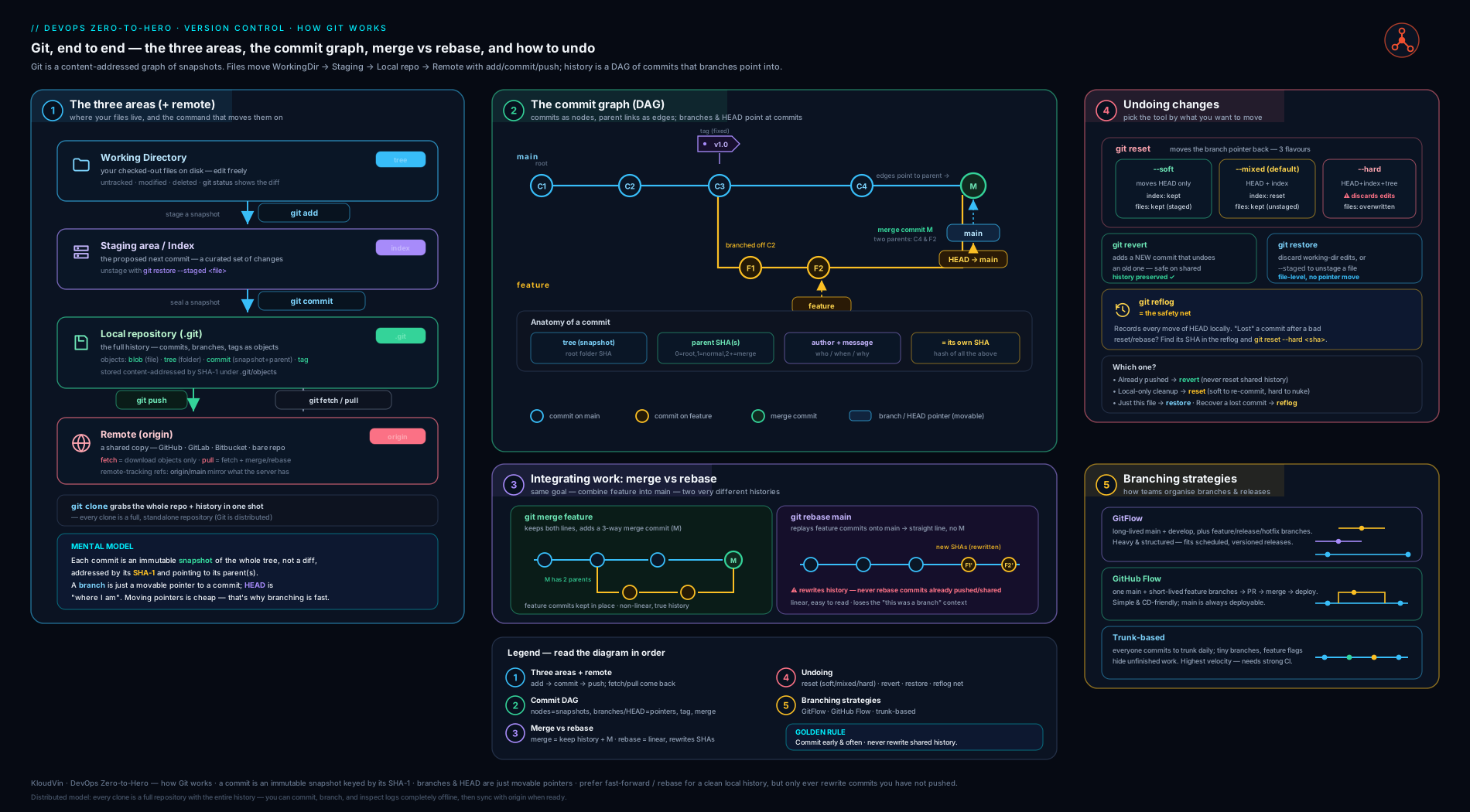
The diagram traces a change from the working directory through the index into a commit object, shows how branches and HEAD are mere labels on the resulting DAG, and contrasts how fast-forward, three-way merge and rebase each reshape that graph — the mental picture to hold whenever you reach for any Git command.
Hands-on lab: build a repo, branch, merge, rebase, break it, recover it
This lab is entirely free — local Git plus one free GitHub repo for the remotes section. It walks the whole lifecycle: create, commit, branch, both kinds of integration, a deliberate disaster, and a reflog rescue. Run it in a throwaway directory.
1. Identity and a fresh repo.
git config --global user.name "Your Name"
git config --global user.email "you@example.com"
git config --global init.defaultBranch main

mkdir git-lab && cd git-lab
git init
echo "# Git Lab" > README.md
git add README.md
git commit -m "chore: initial commit"
git log --oneline            # expect: one commit on main
2. See the three areas in action.
echo "line one" > notes.txt
git status                   # notes.txt is 'Untracked'
git add notes.txt
git status                   # now 'Changes to be committed' (staged)
echo "line two" >> notes.txt
git status                   # BOTH staged (line one) AND modified (line two)!
git diff                     # shows only the unstaged change (line two)
git diff --staged            # shows only the staged change (line one)
git add notes.txt
git commit -m "docs: add notes"
That dual state — the same file simultaneously staged and modified — is the single best demonstration of why the index exists.
3. Branch and a fast-forward merge.
git switch -c feature-greeting
echo "console.log('hello')" > app.js
git add app.js
git commit -m "feat: add greeting"
git switch main
git merge feature-greeting       # main hadn't moved → "Fast-forward"
git log --oneline --graph        # linear; no merge commit
4. Force a three-way merge (divergence).
git switch -c feature-colour
echo "const colour = 'blue'" > colour.js
git add colour.js && git commit -m "feat: add colour"

git switch main
echo "Project docs." >> README.md   # main moves independently
git add README.md && git commit -m "docs: expand README"

git merge feature-colour            # both moved → a merge commit
git log --oneline --graph --all     # see the branch diverge and rejoin
5. Create and resolve a conflict.
git switch -c feature-title
echo "TITLE: Lab" > title.txt
git add title.txt && git commit -m "feat: add title (feature)"

git switch main
echo "TITLE: Production" > title.txt
git add title.txt && git commit -m "feat: add title (main)"

git merge feature-title             # CONFLICT in title.txt
cat title.txt                       # observe <<<<<<< ======= >>>>>>> markers
printf 'TITLE: Lab (Production)\n' > title.txt   # resolve by hand
git add title.txt
git commit --no-edit                # completes the merge
6. Rebase a private branch for a linear history.
git switch -c feature-footer
echo "footer" > footer.txt
git add footer.txt && git commit -m "feat: add footer"

git switch main
echo "more docs" >> README.md
git add README.md && git commit -m "docs: more"

git switch feature-footer
git rebase main                     # footer replayed on top of main's tip
git log --oneline --graph           # linear — no merge commit
7. Break it, then recover with reflog (the reassuring bit).
git switch main
git log --oneline | head -3         # note the top SHA
git reset --hard HEAD~2             # "disaster" — drop 2 commits
git log --oneline | head -3         # they're gone from main...
git reflog                          # ...but the reflog still lists them
git reset --hard HEAD@{1}           # jump back to before the reset
git log --oneline | head -3         # fully recovered
8. Remotes (free GitHub repo). Create an empty repo on GitHub (no README), then:
git remote add origin https://github.com/<you>/git-lab.git
git push -u origin main             # publish; sets up tracking
git fetch                           # later, see remote changes land in origin/main
git status                          # ahead/behind report uses the tracking link
Validation. git log --oneline --graph --all shows a linear early history, one three-way merge commit, a resolved conflict commit, and a rebased linear tail. git reflog lists every step including the reset you recovered from. git remote -v shows origin, and git status reports the branch as tracking origin/main.
Cleanup. Locally: cd .. && rm -rf git-lab. On GitHub: Settings → Danger Zone → Delete repository.
Cost note. Zero. Local Git is free; a public (or private) GitHub repository on the Free plan costs nothing. Nothing here provisions any paid cloud resource.
Common mistakes & troubleshooting
| Symptom | Likely cause | Fix |
|---|---|---|
git push rejected: “Updates were rejected… fetch first” |
Remote has commits you don’t have (you’re behind/diverged) | git pull (or fetch + merge/rebase), resolve, push again — never --force here |
Edits vanished after git checkout file.txt |
checkout/restore <file> discards uncommitted edits with no undo |
Prefer committing/stashing first; if just lost, check git reflog / your editor’s local history |
| “detached HEAD” warning; commits seem to disappear when switching | Committed while HEAD pointed at a SHA, not a branch |
Before leaving, git switch -c keep-this; to recover, find the SHA via git reflog |
Conflicts re-appear on every rebase/pull |
Rebasing or repeatedly resolving the same shared history | Stop rebasing the shared branch (golden rule); enable git rerere; integrate via merge |
.gitignore ignores a file but Git still tracks it |
The file was committed before being ignored — ignore only affects untracked files | git rm --cached <file>, commit; the ignore now takes effect |
| Force-pushed and a teammate lost their commits | Used git push --force on a shared branch |
Recover via their/your reflog; switch to --force-with-lease and never force shared branches |
| Huge repo / slow clones | Large binaries committed into history | Use Git LFS going forward; rewrite history (git filter-repo) to excise the blobs |
| Wrong author on commits | user.name/user.email unset or set per-machine wrongly |
git config user.email …; fix the last with git commit --amend --reset-author |
Common beginner mistakes
The troubleshooting table above is symptom-to-fix. This list is different: it is the handful of mental-model errors that make Git feel arbitrary. Each is a belief that is quietly wrong, followed by the model that replaces it.
- “
git commitsaves all my changes.” It saves only what you havegit added into the index. Edits you never staged are simply left behind in the working directory. Right model: staging is a deliberate tray, not an autosave — rungit status(orgit diff --staged) to see exactly what the next commit will contain before you make it. - “GitHub is Git.” Git is the version-control engine that runs entirely on your machine; GitHub, GitLab, Bitbucket and Azure Repos are hosting companies that store a copy of a Git repo. Right model: you can use Git with no server at all —
originis just one remote clone you choose to sync with, not the source of truth. - “A branch is a copy of my project.” A branch is a 41-byte file holding one commit’s SHA — a label, not a folder. Switching branches copies nothing; it re-points
HEADand updates your working tree to match. Right model: branches are cheap labels on one shared graph, which is why creating and deleting them is instant. - “
git fetchandgit pulldo the same thing.”fetchonly downloads (it updatesorigin/*and touches nothing of yours);pulldownloads and integrates into your current branch. Right model: fetch is “look”, pull is “look and merge in one step” — fetch first when you want to inspect incoming work before it lands. - “
git reset --harddeletes my commits forever.” Two half-truths tangled together.reset --harddoes irreversibly discard uncommitted working-directory edits — but committed snapshots survive, unreferenced, in the reflog for about 90 days. Right model: reset --hard is recoverable for anything you had committed (viagit reflog) and unforgiving for anything you had not — and it must never be run on a shared branch. - “Rebase is just a neater merge, so I’ll rebase everything.” Rebase rewrites your commits into brand-new copies with different SHAs. Lovely for tidying a private branch; a genuine mess when done to history other people already have. Right model: rebase private, merge shared — the golden rule is not a style preference, it is what stops two people ending up with divergent copies of the same work.
- “Adding a file to
.gitignorewill make Git stop tracking it.”.gitignoreonly affects files Git is not already tracking. A file that was committed before you ignored it keeps being tracked until yougit rm --cachedit — and a secret already committed lives in history forever regardless. Right model: ignore prevents new tracking; it never un-tracks a file or scrubs the past. Treat any committed secret as compromised and rotate it. - “
git checkout file.txtis a safe way to look at a file.” It silently overwrites your uncommitted edits to that file with the committed version, and there is no undo. Right model: prefer the explicitgit restore file.txt(which at least names the destructive intent), and commit orstashbefore you experiment.
Best practices
- Commit small and often, with a clear message. A commit should be one logical change. Use the staging area (especially
git add -p) to compose commits deliberately rather than dumping everything withgit add .. - Write good commit messages. A concise imperative subject under ~50 characters (“Add retry to the upload client”), a blank line, then a body explaining why (not what — the diff shows what). Adopt Conventional Commits (below) for consistency and automation.
- Keep branches short-lived. A branch open for hours, not weeks, conflicts trivially and integrates safely. Long-lived branches are the root cause of merge pain.
- Pull before you push, and fetch-then-look before you merge. Stay close to the remote so divergence is small and surprises are few.
- Rebase your own branch, merge into shared ones. Tidy your private branch with rebase before review; integrate via merge so the shared history stays truthful and revertible. Never violate the golden rule.
- Use
--force-with-lease, never--force. And only ever force-push branches that are exclusively yours. - Protect shared branches. Require pull requests, passing CI, and review on
main; forbid direct pushes and force-pushes server-side. - Tag releases with annotated, signed tags, and commit a thorough
.gitignorefrom day one.
Security notes
Git is a security surface, not just a productivity tool. Never commit secrets — API keys, passwords, tokens, private keys, connection strings. Because history is permanent and content-addressed, a secret committed once lives forever in every clone; deleting it in a later commit does not remove it from history. If a secret is committed, treat it as compromised: rotate the credential immediately, then scrub history (git filter-repo or BFG) and force-push. Prevent it up front with a pre-commit secret scanner (gitleaks, trufflehog) and a comprehensive .gitignore covering .env and key files. Sign your work where integrity matters: GPG/SSH-signed commits and annotated signed tags (git config commit.gpgsign true) let consumers verify authorship — the foundation of software-supply-chain security and increasingly required for releases. On the server, enforce branch protection and least-privilege access so only authorised principals can push to protected branches, and prefer short-lived, OIDC-based credentials over long-lived tokens for any automation (CI) that talks to Git or to clouds on Git’s behalf.
Interview & exam questions
1. What are Git’s three areas, and what does git add actually do?
The working directory (files you edit), the staging area/index (a proposed next snapshot), and the repository (committed history). git add copies the current content of a file from the working directory into the index, where it sits until git commit freezes the index into a permanent commit object. The index exists so you can compose a commit from a deliberate subset of your changes.
2. Is a Git commit a snapshot or a diff? Why does it matter? A snapshot: each commit points to a tree describing the entire project at that instant. Diffs are computed on demand by comparing two trees. It matters because it explains Git’s speed (any-two-commit diff is instant), its integrity (content-addressed hashes), and its storage efficiency (identical content is deduplicated to a single blob).
3. What is a branch, really?
A lightweight, movable pointer (a 41-byte file) to a single commit — not a copy of the code. That is why branching is instant and cheap. HEAD is a pointer to the current branch (or, when detached, directly to a commit), and committing advances both the branch and HEAD.
4. Explain the difference between merge and rebase. Merge joins two branches with a new merge commit (two parents), preserving the original commits and the true, branched shape of history — non-destructive and safe on shared branches. Rebase replays your commits as new-SHA copies on top of another branch, producing a linear history with no merge commit — destructive (it rewrites commits), so it must only be used on private, unshared work.
5. State the golden rule of rebase and why it exists.
Never rebase commits that exist outside your own machine (anything pushed/shared). Rebase replaces commits with new-SHA copies; if others have the originals, their history and yours diverge into duplicate work that is painful to reconcile. Rebase private branches freely; never rebase main/develop/shared branches.
6. When do you use reset versus revert?
reset moves a branch pointer (optionally altering index/working dir) and rewrites local history — use it on private, unpushed commits. revert adds a new commit that inverts a previous one, rewriting nothing — it is the only safe way to undo something already pushed to a shared branch.
7. Differentiate reset --soft, --mixed, and --hard.
All move the branch pointer to the target commit. --soft leaves the undone changes staged; --mixed (default) leaves them unstaged in the working directory; --hard discards them from the working directory entirely. --soft is how you squash recent commits; --hard is the destructive one (recoverable only via reflog for the committed parts).
8. You ran git reset --hard and lost commits. How do you recover them?
git reflog lists everywhere HEAD has been, including before the reset; find the prior SHA and git reset --hard <sha> (or git switch -c rescue <sha>). Unreferenced commits persist for ~90 days before garbage collection, so recovery is almost always possible — locally.
9. Fast-forward vs three-way merge — what triggers each?
Fast-forward when the target branch is an ancestor of the source (the target hasn’t moved): Git just slides the pointer forward, no merge commit. Three-way merge when both branches have new commits since they diverged: Git uses the common ancestor (merge base) to combine changes and records a two-parent merge commit. --no-ff forces a merge commit even when a fast-forward was possible.
10. What is the difference between git fetch and git pull?
fetch downloads remote changes into remote-tracking branches (origin/*) but does not alter your working branch. pull is fetch plus an integration (merge by default, or rebase with --rebase) into your current branch. Fetch-then-inspect is safer because pull can spring an unexpected merge or conflict on you.
11. Why prefer --force-with-lease over --force?
--force overwrites the remote unconditionally, silently destroying any commits a teammate pushed since you forked. --force-with-lease only succeeds if the remote branch is still where you last fetched it — if someone else pushed, it refuses, protecting their work. Even so, only force-push branches that are exclusively yours.
12. Lightweight vs annotated tags — which for a release, and why?
Annotated (git tag -a/-s) — it is a real tag object storing tagger, date, message, and an optional GPG signature, giving traceability and integrity for releases. Lightweight (git tag <name>) is just a bare pointer, fine for private bookmarks. Either way, tags are not pushed unless you push them explicitly.
Quick check
- Name the three areas and the command that moves content from the first into the second.
- True or false: a Git commit stores the diff from its parent.
- Your feature branch is private and you want to drop it onto the latest
mainwith no merge commit. Merge or rebase — and does the golden rule allow it? - You pushed a bad commit to shared
main. Which command undoes it safely? - After
git reset --hardyou realise you needed those commits. What is the recovery command?
Answers
- Working directory → staging area (index) → repository;
git addmoves working-directory content into the index. - False. A commit stores a snapshot (a pointer to a complete tree). Diffs are computed on the fly by comparing trees.
- Rebase (it gives the linear, no-merge-commit history you want), and the golden rule allows it because the branch is private/unshared.
git revert <sha>— it adds an inverse commit, rewriting nothing, so it is safe on a shared branch (unlikereset).git reflogto find the pre-reset SHA, thengit reset --hard <sha>(orgit switch -c rescue <sha>).
Practice challenges
Six graded exercises, easiest first. Run each in a throwaway repo (mkdir play && cd play && git init); nothing here touches a real project or costs anything. Try each before opening its solution.
1. (Beginner) Catch the index red-handed. Create notes.txt with one line and stage it. Add a second line but do not stage it. Now predict what git diff shows versus git diff --staged, then check.
<details> <summary>Solution</summary>
echo "line one" > notes.txt
git add notes.txt
echo "line two" >> notes.txt
git diff            # shows ONLY "line two" (working dir vs index)
git diff --staged   # shows ONLY "line one" (index vs HEAD)
The same file is simultaneously staged (line one) and modified (line two). Why: git diff compares working-dir-to-index and --staged compares index-to-HEAD — direct proof the index is a real, separate layer.
</details>
2. (Beginner) Uncommit, but keep your work. Make a commit, then move it back so the changes are sitting in your working directory again — without losing a character.
<details> <summary>Solution</summary>
git reset HEAD~1          # --mixed is the default: pointer back, changes unstaged
# ...or keep them staged, ready to recommit immediately:
git reset --soft HEAD~1
Why: reset moves the branch label to the parent commit; --mixed leaves the undone changes unstaged in the working tree, --soft leaves them staged. Neither touches the file contents, so nothing is lost.
</details>
3. (Intermediate) Turn a messy branch into one clean commit. On a new branch make three throwaway commits (wip, wip, wip), then collapse them into a single well-worded commit — twice, once with reset --soft and once with interactive rebase.
<details> <summary>Solution</summary>
git switch -c tidy
echo 1 > a; git add a; git commit -m "wip"
echo 2 >> a; git add a; git commit -m "wip"
echo 3 >> a; git add a; git commit -m "wip"

# Option A — soft reset, then one fresh commit:
git reset --soft HEAD~3
git commit -m "feat: add a with all three lines"

# Option B — interactive rebase; in the editor keep the first 'pick'
# and change the other two to 'fixup':
git rebase -i HEAD~3
To fix an earlier commit instead of the latest, tag the fix and let Git fold it automatically: git commit --fixup=<sha> then git rebase -i --autosquash <sha>~1. Why: soft-reset re-stages every change for one new commit; interactive rebase (and --autosquash) fold commits together in place — both hand reviewers one coherent change instead of noise. (Golden rule: only on commits you have not shared.)
</details>
4. (Intermediate) Send one hotfix to an old release. With a release branch and main, commit a fix on main, then copy just that one commit onto release without dragging along anything else.
<details> <summary>Solution</summary>
git switch main
echo "patch" > fix.txt; git add fix.txt; git commit -m "fix: critical bug"
FIX=$(git rev-parse HEAD)
git switch release
git cherry-pick "$FIX"     # release now has fix.txt, and nothing else from main
Why: cherry-pick re-applies a single commit’s diff as a new commit on your current branch — the standard way to back-port a critical fix to a maintenance branch without merging everything else.
</details>
5. (Advanced) Recover from a “catastrophe”. Make four commits, then git reset --hard HEAD~3 so three vanish from the log. Get all three back.
<details> <summary>Solution</summary>
git log --oneline           # note the current tip SHA first
git reset --hard HEAD~3     # three commits "gone" from this branch
git reflog                  # ...but every prior HEAD position is still listed
git reset --hard HEAD@{1}   # jump back to exactly before the reset
Why: reset --hard only moved the branch label — the commits stayed in the object store, unreferenced, and the reflog remembers where HEAD was. Unreferenced commits linger ~90 days before garbage collection, so local recovery is almost always possible.
</details>
6. (Advanced) Let Git find the bug for you. Build a history where an early commit is fine and a later one introduces a failure, then have Git binary-search for the culprit automatically — and separately, prove a rebase changed nothing but the base.
<details> <summary>Solution</summary>
# Automated bisect: test.sh must exit non-zero when the code is broken.
git bisect start
git bisect bad                    # current commit is broken
git bisect good <old-good-sha>    # a known-good older commit or tag
git bisect run ./test.sh          # Git tests ~log2(N) commits and names the first bad one
git bisect reset                  # return to where you started

# Prove a rebase preserved content:
OLD=$(git rev-parse HEAD)         # capture the tip BEFORE rebasing
git rebase main
git range-diff "$OLD"...HEAD      # each replayed commit shows '=' (identical content, new SHA)
Why: git bisect run turns “which of 400 commits broke it?” into about ten scripted tests; git range-diff compares two commit ranges commit-by-commit, so an = confirms the rebase only changed each commit’s base, not its diff.
</details>
Exercise
In a fresh throwaway repository, reproduce the full feature-branch lifecycle from memory and then deliberately rewrite history before “sharing”: (1) make three commits on a branch named feature-x with messages in Conventional Commits style (feat:, fix:, docs:); (2) use interactive rebase (git rebase -i main) to squash them into a single, well-worded commit; (3) make main move independently with one commit, then rebase feature-x onto main to keep history linear; (4) switch to main and do a --no-ff merge so the integration leaves a visible merge commit; (5) git revert that merge commit to back the feature out cleanly; (6) finally, git reset --hard HEAD~5, confirm with git log that work is “gone”, and recover it via git reflog. Write down, in one sentence each, why rebase was legitimate in step 3 and why revert (not reset) was the right tool in step 5.
Certification mapping
| Cert | Where this lesson applies |
|---|---|
| Microsoft AZ-400 (DevOps Engineer Expert) | “Develop an instrumentation strategy” and “Design and implement source control” domains — branching strategies (GitFlow/GitHub Flow/trunk-based), pull-request flow, merge vs rebase, repository structure, and Git fundamentals underpin the whole exam. |
| AWS DOP-C02 (DevOps Engineer – Professional) | “SDLC Automation” domain — source control with CodeCommit/GitHub, branch/merge strategy, and Git as the trigger for CodePipeline/CI all assume this material. |
| GitHub Foundations / GitHub Actions | Direct prerequisite — every workflow is triggered by Git events (push, PR, tag); branching, merging and conflict resolution are tested explicitly. |
| Foundational for all DevOps roles | Git fluency is assumed in any DevOps, SRE, or platform-engineering interview regardless of the specific certification track. |
Glossary
- Working directory / working tree — the actual files on disk that you edit.
- Staging area / index — the proposed next commit;
git addputs content here. - Repository / object store — the
.git/database of all committed objects and refs. - Blob / tree / commit / tag — Git’s four object types: file contents, directory listings, snapshots, and named pointers.
- DAG (directed acyclic graph) — the shape of Git history; commits linked by parent pointers.
- HEAD — a pointer to where you currently are (normally the current branch).
- Branch — a movable pointer to a commit; the tip of a line of work.
- Detached HEAD — HEAD pointing directly at a commit rather than a branch.
- Fast-forward — advancing a branch pointer when no real merge is needed.
- Three-way merge — combining two diverged branches via their common ancestor, producing a merge commit.
- Merge base — the most recent common ancestor of two branches.
- Rebase — replaying commits onto a new base as new-SHA copies (linear history).
- Golden rule of rebase — never rebase commits that exist outside your own machine.
reset(soft/mixed/hard) — move a branch pointer, varying what happens to index/working dir.revert— add a new commit that inverts a previous one (safe public undo).reflog— local journal of HEAD/branch positions; the recovery safety net.- Remote /
origin— a named reference to another copy of the repo; the default isorigin. - Remote-tracking branch — a read-only local snapshot (
origin/main) of a server branch. - Tracking branch / upstream — the link between a local branch and its remote counterpart.
--force-with-lease— a force-push that refuses if the remote moved since your last fetch.- Conventional Commits — a commit-message convention (
type(scope): subject) enabling automation. git add -p(patch / interactive staging) — stage selected hunks of a file rather than the whole file, so one commit holds exactly one logical change.- Merge commit — a commit with two (or more) parents, recording that two lines of history were joined.
- Squash / fixup — interactive-rebase actions that fold a commit into the previous one;
squashcombines both messages,fixupdiscards the folded commit’s message. --autosquash— auto-arranges thefixup!/squash!commits made withgit commit --fixupinto place duringgit rebase -i.--no-ffmerge — forces a merge commit even when a fast-forward was possible, so the branch’s existence stays visible in history.- Squash merge — collapses all of a branch’s commits into a single commit on the target branch (common on hosted pull requests).
- Cherry-pick — re-apply the changes of one specific commit onto the current branch as a new commit.
- Bisect — binary-search through history (
git bisect, or automated withgit bisect run) to find the commit that introduced a bug. - Stash — a stack that holds uncommitted changes so you can switch context with a clean working directory.
.gitignore/.gitattributes— patterns for files Git should not track / per-path behaviour rules (line endings, LFS, diff handling).- Hook — a script Git runs automatically at a lifecycle event (
pre-commit,commit-msg, server-sidepre-receive); shared across a team via managers like pre-commit or Husky. rerere— “reuse recorded resolution”; when enabled, Git records how you resolved a conflict and replays that resolution if the same conflict recurs.range-diff— compares two commit ranges commit-by-commit to show how a rebase or amend changed them (=means identical).- Packfile / garbage collection (
gc) — Git periodically compresses many loose objects into a packfile and prunes objects that stay unreferenced past the reflog-expiry window. - Content-addressable / SHA — every object is named by the cryptographic hash of its own content, giving integrity and free deduplication.
- GitFlow / GitHub Flow / trunk-based development — the three dominant branching strategies (see the appendix): many long-lived branches; one
mainwith short-lived PR branches; and a single trunk with tiny, frequent commits. - Feature flag — a runtime toggle that hides unfinished work in production, letting trunk-based teams merge continuously without long-lived branches.
Next steps
You now own the foundational DevOps skill: Git’s model and its everyday and recovery commands. Carry it forward two ways. First, deepen the team-workflow dimension with Migrating to Trunk-Based Development, which takes the branching-strategy table at the end of this lesson and turns it into a concrete migration from long-lived GitFlow branches to short-lived, feature-flagged trunk-based delivery — the strategy most high-performing teams converge on. Second, see how these commits and branches trigger automation: continue to CI/CD Anatomy, In Depth, where the push, pull-request, and tag events you have just mastered become the triggers that drive pipelines, stages, jobs and deployments — the next lesson in the DevOps Fundamentals module.
Appendix: branching strategies & conventional commits
The commands above are personal mechanics; a branching strategy is the team agreement about which branches exist, what they mean, and how code flows to production. The three dominant models, compared:
| Dimension | GitFlow | GitHub Flow | Trunk-Based Development |
|---|---|---|---|
| Long-lived branches | Many: main, develop, release/*, hotfix/* |
One: main |
One: main (trunk) |
| Feature branches | Long-lived, off develop |
Short-lived, off main |
Very short-lived (hours) or none |
| Release mechanism | Dedicated release/* branches |
Deploy main per merged PR |
Deploy from trunk continuously; tag/cut on demand |
| Integration frequency | Infrequent (batched) | Per pull request | Many times per day |
| Complexity | High | Low | Low (but needs discipline + flags) |
| Conflict / merge pain | High (old, divergent branches) | Low | Lowest (tiny, frequent merges) |
| Hides unfinished work via | Branch isolation | Branch isolation | Feature flags |
| Best fit | Versioned products with scheduled releases, multiple supported versions | Web apps / SaaS with continuous deployment | High-performing CD teams; what DORA correlates with elite delivery |
| DORA verdict | Tends to depress delivery performance | Good | Strongly correlated with elite performance |
GitFlow is structured and explicit but its long-lived develop and release branches defer integration, which is exactly what raises conflict cost and lead time — appropriate when you genuinely ship discrete, versioned releases and must support several in parallel, overkill for a continuously deployed web service. GitHub Flow is the simple middle ground: branch off main, open a PR, merge and deploy — ideal for SaaS. Trunk-based development pushes furthest toward continuous integration: everyone commits to one trunk many times a day and hides incomplete work behind feature flags rather than branches, which is why DORA research links it to the highest delivery performance. (The dedicated trunk-based lesson linked above is the migration guide.)
Whichever strategy you pick, Conventional Commits standardises messages so humans and tools can parse them. The format is type(optional scope): description, with an optional body and footer:
| Type | Used for | Example |
|---|---|---|
feat |
A new feature (bumps the minor version) | feat(auth): add OAuth login |
fix |
A bug fix (bumps the patch version) | fix(api): handle null user id |
docs |
Documentation only | docs: clarify setup steps |
style |
Formatting, no code-behaviour change | style: run prettier |
refactor |
Code change that is neither feature nor fix | refactor: extract validator |
perf |
A performance improvement | perf: cache the lookup |
test |
Adding or fixing tests | test: cover edge cases |
build / ci |
Build system or CI config | ci: pin actions to SHA |
chore |
Maintenance, no production code change | chore: bump dependencies |
A ! after the type/scope (or a BREAKING CHANGE: footer) marks a breaking change (bumps the major version). The payoff is automation: tools can derive the next semantic version, generate a changelog, and gate releases directly from your commit history — which is precisely how the release-engineering lessons later in this course turn a stream of well-formed commits into automated, versioned releases.