In a nutshell
A Compute Engine instance is a rented computer that lives in one of Google’s datacentres. You choose how big it is (how many CPUs and how much memory), what disks it has, and which operating system it boots — and then it is yours from the operating system upward. Google keeps the building, the power, the cooling, and the physical machine running; you install and run whatever you like on top. That’s it. If you have ever set up a laptop or a home PC, you already understand ninety percent of a virtual machine.
A useful mental picture: it’s like ordering a build-to-order PC from a giant, well-run rental counter. You pick the CPU-and-RAM shape off a menu (the machine type), bolt on one or more drives (the disks), ask for it to arrive with an OS already installed (the image), and plug it into the building’s network (a VPC subnet). The landlord — Google — handles the electricity, the security guards, and even quietly carries your still-running machine to a new rack when a server needs maintenance, without ever switching it off (that trick is called live migration). You never touch the hardware; you just use the computer.
The reason this lesson is long is not that a VM is complicated — it’s that Google gives you dozens of dials, and picking the right ones is exactly what interviews and the ACE and PCA exams test. Which machine family? Which disk? Do you need it cheap-but-interruptible or steady-and-guaranteed? How do people log in safely? We turn every dial, one at a time, and for each one tell you what it is, what to pick, and the trap to avoid.
Level: Intermediate · Time: ~42 min read
A Google Compute Engine (GCE) instance is the most fundamental piece of compute you can rent on Google Cloud: a virtual machine — vCPUs, memory, disks, a network interface — running on Google’s infrastructure, that you control from the operating system upward. It is pure Infrastructure as a Service (IaaS). Google runs the physical host, the hypervisor, the datacentre, the power and the network fabric; you own the OS, the patches, the software you install, and your data. If you have ever installed Ubuntu or Windows Server on a laptop, you already understand most of what a VM is. The remaining part — the part interviewers and the ACE and Professional Cloud Architect exams probe relentlessly — is the dozens of choices GCE asks you to make when you create an instance, and the operations you can (and cannot) perform afterwards.
This lesson is deliberately exhaustive. We go family by family through every machine type, then through images, disks (from Balanced Persistent Disk all the way to Hyperdisk), every provisioning and discount model (on-demand, Spot/preemptible, sole-tenant, committed and sustained use), networking, the metadata server with startup and shutdown scripts, OS Login vs SSH keys, service accounts and access scopes, and the security shells Shielded VM and Confidential VM. Every option gets the same treatment: what it is · the choices · the default · when to pick which · the trade-off · the limit · the cost impact · the gotcha. Each core operation comes with a real gcloud command so you can do this by hand or wire it into Terraform later. By the end you will know the Compute Engine instance end to end — enough to ace an ACE or PCA question, sail through an interview, and run VMs safely in production.
Learning objectives
By the end of this lesson you can:
- Choose the right machine family and type (E2, N2, N2D, N4, C3, C3D, C4, T2D, M3, A3, plus custom machine types) for a workload and justify the vCPU-to-memory ratio.
- Select the correct disk type — Balanced, SSD, Extreme, or Hyperdisk (including Storage Pools) — and explain boot vs data disks, snapshots, and regional Persistent Disk.
- Pick a provisioning model — on-demand, Spot, sole-tenant, or reservations — and apply committed use discounts (CUDs) and sustained use discounts (SUDs) correctly.
- Configure networking (VPC/subnet, internal vs external IP, network tags, gVNIC/Tier_1) and read the metadata server, including startup and shutdown scripts.
- Explain OS Login vs metadata SSH keys, attach a service account with the right scopes, and turn on Shielded and Confidential VM.
- Reproduce the core create and configure operations in real
gcloud, and know the path from an instance template to a managed instance group.
Prerequisites & where this fits
You should already understand Google Cloud’s resource hierarchy — organisation → folder → project → resource — what a region and a zone are, and how to run gcloud from Cloud Shell or a local SDK install (covered in the Fundamentals module and the gcloud CLI, Console & Cloud Shell first steps lesson). No prior VM experience is assumed; we define every term. This is the anchor lesson of the Compute module in the GCP Zero-to-Hero course: it introduces the machine types, disks, images, metadata, and identity model that the rest of the compute track — managed instance groups, Cloud Run, GKE — builds on. Once you can drive a single instance fluently, the leap to a self-healing fleet in Regional Managed Instance Groups: Autohealing, Canary Rollouts, and Stateful MIGs is small.
Core concepts
Before the options, fix five mental models. They explain why the settings are shaped the way they are.
An instance is an assembly, not a single resource. When you “create a VM” you actually create and wire several objects: the instance itself, one or more disks (a boot disk, optional data disks), a network interface attached to a subnet, optionally an external IP, and an attached service account. The console hides this behind one form; gcloud and Terraform make it explicit. It matters for deletion too: by default the boot disk is deleted with the instance, but additional disks are not unless you set auto-delete — a classic source of orphaned-disk cost.
Compute and storage are decoupled. The instance is the CPU and RAM; Persistent Disk (PD) and Hyperdisk are independent network-attached block devices. This is the single most important architectural idea: you can stop an instance (largely stop paying for compute) while keeping its disks, change the machine type without touching the disks, or detach a disk and attach it to another instance for recovery. The exceptions are Local SSD (physically attached to the host, blisteringly fast but ephemeral) and the small in-host scratch — data there is lost on stop or host migration.
Zonal vs regional resources. An instance is a zonal resource — it lives in exactly one zone (e.g. europe-west2-a). A standard Persistent Disk is also zonal and must be in the same zone as the instance it attaches to. Regional Persistent Disk synchronously replicates across two zones in a region for high availability. Images, snapshots, instance templates, and firewall rules are global; subnets are regional. Knowing the scope of each resource explains where you can move things and what survives a zone outage.
Live migration keeps you running through maintenance. Unlike many clouds, GCE can live-migrate a running instance to another host during planned host maintenance with no reboot — controlled by the instance’s availability policy (onHostMaintenance = MIGRATE by default for standard VMs). Spot VMs and some accelerator/Confidential configurations cannot migrate and are instead terminated on maintenance. This is why GCE rarely forces a reboot for host patching.
Projects carry quota, defaults, and billing. vCPU counts, IP addresses, and disk capacity are all governed by per-region quotas on the project. Every instance also runs as a service account identity and bills to the project’s billing account. Key terms used throughout: vCPU (one hyperthread on most families), machine type (a named shape such as n2-standard-4 = 4 vCPU, 16 GiB), image (the OS template you boot from), metadata (key/value config the instance can read about itself), and access scope (a legacy ceiling on what the attached service account’s token may do).
Choosing a machine type: every family
A machine type defines the instance’s vCPU count, memory, and the underlying CPU platform. Google groups machine types into families by purpose, and within a family into series (a hardware generation) and types (standard, highmem, highcpu, sometimes highgpu/ultramem). The four broad categories are general-purpose, compute-optimised, memory-optimised, and accelerator-optimised.
| Family | Series | Category | CPU platform | vCPU:memory feel | Live migration | Typical use cases |
|---|---|---|---|---|---|---|
| E2 | e2 |
General-purpose (cost) | Intel/AMD (abstracted) | Balanced (standard 1:4) |
Yes | Dev/test, small/medium web and app servers, microservices on a budget |
| N2 | n2 |
General-purpose (balanced) | Intel Cascade/Ice Lake | standard 1:4, highmem 1:8, highcpu 1:1 |
Yes | Most production workloads needing predictable Intel performance |
| N2D | n2d |
General-purpose (balanced) | AMD EPYC (Rome/Milan) | Same ratios as N2 | Yes | Same as N2 but cheaper per vCPU on AMD; scale-out web/app |
| N4 | n4 |
General-purpose (latest, Titanium) | Intel Emerald Rapids | standard 1:4, highmem 1:8, highcpu 1:2; custom supported |
Yes | Newest cost-efficient general workloads; Hyperdisk-only storage |
| T2D / T2A | t2d (AMD), t2a (Arm) |
General-purpose (scale-out) | AMD Milan / Ampere Altra Arm | 1:4, no SMT (vCPU = physical core) | T2D yes; T2A no | High throughput-per-cost scale-out; T2A for Arm-native workloads |
| C3 / C3D | c3 (Intel), c3d (AMD) |
Compute-optimised (latest) | Intel Sapphire Rapids / AMD Genoa | standard 1:4, highcpu 1:2, highmem 1:8 |
Yes (with newer support) | CPU-bound, latency-sensitive: gaming, HPC front-ends, ad serving, high-traffic web |
| C4 / C4A / C4D | c4 (Intel), c4a (Arm Axion), c4d (AMD Turin) |
Compute-optimised (latest, Titanium) | Intel Emerald/Granite Rapids · Google Axion Arm · AMD Turin | 1:2 (highcpu) to 1:8 (highmem) |
Yes | Highest per-core performance and low latency; C4A for Arm price/performance; Hyperdisk-only |
| C2 / C2D | c2, c2d |
Compute-optimised (prior gen) | Intel Cascade Lake / AMD Milan | High clock, 1:4 | Yes | Single-thread-sensitive, HPC, electronic design |
| H3 | h3 |
HPC-optimised | Intel Sapphire Rapids | 88 vCPU fixed, 1:4, no SMT | No (terminated) | Tightly-coupled HPC/MPI; whole-node, no Local SSD, needs gVNIC + Tier_1 |
| M3 / M2 / M1 | m3, m2, m1 |
Memory-optimised | Intel | megamem/ultramem up to ~1:28+ |
Limited | SAP HANA, large in-memory databases, big analytics |
| X4 | x4 |
Memory-optimised (largest) | Intel Sapphire Rapids | Multi-TB, up to ~32 TiB | Limited | The very largest in-memory databases (big SAP HANA scale-up) |
| A3 / A2 / G2 | a3, a2 (NVIDIA), g2 |
Accelerator-optimised | Intel + NVIDIA H100/A100 / L4 | GPU-attached | No (terminated) | AI/ML training and inference, rendering, GPU compute |
A few rules make sense of the table:
- Series names encode the generation and vendor. A leading number is the generation; a trailing
dmeans AMD (e.g.n2d,c3d,c4d), a trailingameans Arm (t2a,c4a), no suffix is usually Intel. Soc3d-highcpu-8= compute-optimised, AMD Genoa, 8 vCPU, high-CPU ratio. - Types set the vCPU:memory ratio.
standard≈ 4 GiB per vCPU,highmem≈ 8 GiB,highcpu≈ 1–2 GiB,ultramem/megamempush far higher for the M-family. Pick the type by your workload’s memory hunger, not by guesswork. - SMT (hyperthreading). On E2/N2/N2D/N4/C3/C4 a vCPU is one hyperthread (two vCPUs share a physical core). On T2D/T2A and H3 a vCPU is a full physical core — relevant for licensing and for CPU-bound throughput. You can also disable SMT (
--threads-per-core=1) on supported families for licence-bound or security-sensitive workloads. - E2 is the default cost choice; C3/C4 is the performance edge. Start at E2 for dev/test and modest services, move to N2/N2D/N4 for steady production, and reach for C3/C3D/C4 when you are genuinely CPU-bound and latency-sensitive.
- The newest families are Hyperdisk-only and run on Titanium. N4, C4, C4A, C4D (and, increasingly, C3) run on Google’s Titanium hardware-offload platform and use Hyperdisk — not legacy Persistent Disk — for block storage. If you standardise on these families, standardise on Hyperdisk too (covered under Disks and Going deeper).
- Accelerator families move fastest. A3 (NVIDIA H100) now spans A3 High/Mega/Edge, with A3 Ultra (H200), A4 (Blackwell B200) and A4X (GB200) as the newest GPU shapes, plus G2 (NVIDIA L4) for inference and graphics. All are accelerator-optimised and none live-migrate — they are terminated (and, in MIGs, recreated) on host maintenance.
Two threads run through the newest generations. Titanium is Google’s custom infrastructure (dedicated offload hardware) that moves network and storage processing off the guest CPU, so N4/C4-class VMs get more usable vCPUs, much higher network bandwidth, and consistent performance. Hyperdisk is the block storage those families pair with, letting you provision IOPS and throughput independently of capacity. You do not need the internals to pick a family — but they explain why a pd-ssd you asked for on an N4 gets quietly declined.
Custom machine types
The predefined types may not fit your ratio — perhaps you need 6 vCPU with 40 GiB rather than the 24 GiB a standard gives. Custom machine types (E2, N2, N2D, N4, and others) let you choose vCPU and memory independently within the family’s limits, with extended memory available above the normal per-vCPU ceiling at a small premium.
| Aspect | Predefined | Custom |
|---|---|---|
| vCPU/memory | Fixed combinations | You pick both (within family rules) |
| When to use | Standard ratios, simplest billing | Right-sizing to avoid paying for unused RAM or CPU |
| Constraints | n/a | vCPU even numbers above 1; memory between 0.5–8 GiB per vCPU (more with extended memory) |
| Cost | List price per shape | Per-vCPU + per-GiB pricing; extended memory billed higher |
| Gotcha | May force you up a size | Slightly higher unit price than the closest predefined; not every family supports custom |
Create a custom shape with --custom-cpu and --custom-memory, or with the machine-type string form --machine-type=n2-custom-6-40960 (6 vCPU, 40 GiB). Above the per-vCPU memory ceiling, append -ext for extended memory (e.g. n2-custom-4-40960-ext). Right-sizing with custom types is one of the cheapest wins on a GCE bill, and Google’s rightsizing recommendations in the console (from the Recommender) will suggest moves based on observed utilisation.
Choosing an image
An image is the OS template the boot disk is created from. GCE offers three categories.
| Image kind | What it is | When to use | Gotcha |
|---|---|---|---|
| Public images | Google- and partner-maintained OS images: Debian, Ubuntu, RHEL, Rocky, SLES, Windows Server, Container-Optimized OS (COS) | The default starting point; COS for running containers directly on a VM | Some (RHEL, SLES, Windows) carry a per-second premium licence charge on top of the VM |
| Custom images | Your own image baked from a configured disk (a “golden image”) | Bake dependencies and hardening once, boot identical VMs fast | You own patching and lifecycle; store in a dedicated image project |
| Image families | A named pointer (e.g. debian-12, or your my-app-prod) that always resolves to the latest non-deprecated image |
Templates and MIGs — get patches without editing the template | Pin a specific image instead when you need fully reproducible builds |
Reference a public image by --image-family + --image-project (e.g. --image-family=debian-12 --image-project=debian-cloud). Image families are the right default for instance templates because they let a rebuild pick up the latest patched image automatically; pin an exact image (--image=...) when you need byte-for-byte reproducibility. Images are global resources and can be shared across projects via IAM. Machine images (a related but distinct object) capture the whole instance — config plus all disks — and are handy for cloning or backup.
Disks: every type
Storage is decoupled from compute, so the disk choice is its own decision. The boot disk holds the OS; data disks hold everything you want to survive a machine-type change or a rebuild. The modern, recommended block-storage line is Hyperdisk; the long-standing line is Persistent Disk (PD); Local SSD is ephemeral host-attached storage.
| Disk type | Media | Performance model | Boot disk? | Best for | Cost feel | Gotcha |
|---|---|---|---|---|---|---|
Standard PD (pd-standard) |
HDD | Throughput scales with size; low IOPS | Yes | Cold/sequential, logs, cheap bulk | Lowest | Poor random-IOPS; avoid for databases |
Balanced PD (pd-balanced) |
SSD | Good IOPS/throughput per GB; the sensible default | Yes | Most boot disks and general workloads | Mid | n/a — this is the default pick |
SSD PD (pd-ssd) |
SSD | Higher IOPS/throughput per GB than Balanced | Yes | Latency-sensitive databases, high-IOPS apps | Higher | More expensive; size still gates performance |
Extreme PD (pd-extreme) |
SSD | Provisioned IOPS independent of size | Yes (limited) | Highest-performance PD workloads (large DBs) | High | Only on larger machine types; you pay for provisioned IOPS |
| Hyperdisk Balanced | SSD (next-gen) | Independently provisioned IOPS and throughput | Yes | New general workloads wanting tuned performance | Mid–high | Family/region support varies; the strategic default going forward |
| Hyperdisk Extreme | SSD (next-gen) | Very high provisioned IOPS | Data | Mission-critical DBs (SAP HANA, large SQL) | High | Larger machine types only |
| Hyperdisk Throughput | SSD (next-gen) | Provisioned throughput, cost-efficient | Data | Throughput-oriented analytics, Kafka, Hadoop | Mid | Optimised for MB/s, not IOPS |
| Hyperdisk ML | SSD (next-gen) | Very high read throughput, multi-attach read-only | Data | Loading large ML datasets/models to many VMs | Varies | Read-optimised; specialised use |
| Local SSD | Physically attached NVMe | Highest IOPS/lowest latency; ephemeral | No | Scratch, caches, temp, shuffle space | Per-device | Data lost on stop/terminate/migration; back it up if it matters |
Three properties cut across all disk types:
- Performance often scales with provisioned size (PD families) — a tiny
pd-ssdis slow; the same type at 500 GB is fast. Hyperdisk and Extreme PD break this link by letting you provision IOPS and throughput directly, so you can buy performance without buying capacity you do not need. - Boot vs data. The boot disk is created from an image and (by default) deleted with the instance. Data disks are created or attached separately and should set
--device-namefor stable in-OS paths; setauto-delete=noif they must outlive the VM. - Snapshots are incremental and global. A snapshot is a point-in-time, differential backup of a disk stored regionally/multi-regionally; after the first full snapshot, later ones only store changed blocks. Use a resource policy to schedule snapshots automatically. Machine images snapshot the whole instance. For zone-failure resilience on a single VM, use Regional Persistent Disk, which keeps a synchronous replica in a second zone so you can
force-attachit elsewhere after a zone outage. - Hyperdisk Storage Pools buy capacity and performance in bulk for a pool, then thin-provision many disks from it. Instead of over-provisioning every disk to its peak, you aggregate — the pool absorbs the peaks while total provisioned capacity/IOPS stays lower — which can cut fleet storage cost materially (see Going deeper).
Provisioning and discount models
How you acquire the instance changes both its resilience and its price. There are several provisioning models and two automatic/committed discount programmes.
| Model | Discount | Eviction/termination | SLA | When to use | Gotcha |
|---|---|---|---|---|---|
| On-demand (standard) | None (list price) | None | Standard VM SLA | Steady production you cannot interrupt | Most expensive per hour |
| Spot VMs | ~60–91% off | Google can preempt any time (30-second notice); cannot live-migrate | No SLA | Fault-tolerant, stateless, batch, CI, rendering, MIG burst capacity | Can vanish mid-run; never for stateful primaries |
| Preemptible VMs (legacy) | Similar discount | Preempted, hard 24-hour cap | No SLA | Legacy; prefer Spot | Spot is the modern replacement with no 24h cap |
| Sole-tenant nodes | n/a (premium) | None | Standard | Licensing (BYOL per-core), compliance/isolation requirements | You pay for the whole physical host; more expensive |
| Reservations | None (holds capacity) | None | Standard | Guaranteeing capacity in a zone; stackable with CUDs | You pay for reserved capacity whether or not a VM consumes it |
And the two discount programmes that apply on top:
| Programme | What it is | Commitment | Typical saving | Applies to | Gotcha |
|---|---|---|---|---|---|
| Sustained Use Discounts (SUDs) | Automatic discount the longer an instance runs in a month | None — applied automatically | Up to ~20–30% (general-purpose/memory-optimised) | E2 is excluded; N2/N2D/C2 etc. qualify | Nothing to do; not stackable with CUDs on the same vCPUs |
| Committed Use Discounts (CUDs) | A 1- or 3-year commitment to spend/usage | 1 or 3 years | Up to ~57% (resource-based) / flexible (spend-based) | Resource-based (per family/region) or spend-based (flexible) | Pay even if unused; plan to baseline, not peak |
The mental model: Spot for anything interruptible (huge savings), CUDs for your steady baseline (commit to what you always run), and let SUDs apply automatically to the rest. Reserve on-demand for the spiky top of the curve, and use reservations when you must guarantee capacity exists (a scale-out event, scarce GPUs). Create a Spot instance with --provisioning-model=SPOT --instance-termination-action=STOP (or DELETE); set --max-run-duration if you want a self-terminating box.
Networking
Every instance attaches to a VPC network and a subnet through a network interface, and that placement governs its IP addressing and reachability.
- VPC and subnet. GCP VPCs are global; subnets are regional with an IP range. The instance takes a primary internal IP from the subnet’s range (static or ephemeral). Choose the subnet in the same region as the instance.
- Internal vs external IP. The internal IP is private (RFC 1918) and used for VPC-internal traffic. An external IP (ephemeral or reserved/static) makes the instance reachable from the internet — but you can omit it entirely and reach the VM via Cloud NAT for egress, IAP TCP forwarding for admin access, or an internal load balancer. Best practice: no external IP on private workloads.
- Network tags. Free-form labels on the instance (e.g.
web,allow-ssh) that firewall rules target. Tags are the primary way firewall policy attaches to instances; keep a small, intentional vocabulary. - Multiple NICs and alias IP ranges. An instance can have several network interfaces (one per VPC) and alias IP ranges (extra IPs from the subnet’s secondary range, used heavily by GKE Pods).
- NIC type and bandwidth. The default virtio driver caps around 32 Gbps; gVNIC (
--nic-type=GVNIC) is required for higher-bandwidth families and, with Tier_1 networking, unlocks up to 100–200 Gbps on supported machine types (and is mandatory on some, like H3). - IP forwarding. Off by default; enable
--can-ip-forwardonly for NAT gateways, VPN/router VMs, or appliances that route traffic not addressed to themselves.
You will go far deeper on subnets, routes, firewall rules, and Cloud NAT in the Networking module; here, just place the instance in the right subnet and tag it for the firewall rules it needs.
The metadata server, startup and shutdown scripts
Every instance can query a metadata server at the link-local address http://metadata.google.internal/ (i.e. 169.254.169.254) to learn about itself and its project, and to fetch credentials for its service account. Requests must send the header Metadata-Flavor: Google — a deliberate guard against confused-deputy SSRF attacks.
| Metadata kind | Scope | Examples | Set/changed by |
|---|---|---|---|
| Project metadata | All instances in the project | Project-wide SSH keys, enable-oslogin, custom keys |
Project editors |
| Instance metadata | A single instance | startup-script, shutdown-script, custom app config, per-instance SSH keys |
Instance owner |
| Default/derived | Per instance | Hostname, zone, machine type, network, service-account token, maintenance-event | Google (read-only) |
Two metadata keys are workhorses:
startup-scriptruns as root on every boot (first boot and every restart) — install packages, pull config, register with a load balancer. Supply it inline (--metadata startup-script=...), from a file (--metadata-from-file startup-script=...), or from a Cloud Storage object (--metadata startup-script-url=gs://...).shutdown-scriptruns on graceful stop/delete and on Spot preemption (best-effort, ~30-second window) — flush buffers, deregister, drain connections. Keep it short and idempotent; the window is small.
Fetch the service-account token or any attribute from inside the VM:
# Read this instance's zone and the active service-account access token
curl -s -H "Metadata-Flavor: Google" \
  http://metadata.google.internal/computeMetadata/v1/instance/zone

curl -s -H "Metadata-Flavor: Google" \
  http://metadata.google.internal/computeMetadata/v1/instance/service-accounts/default/token
This token is how Application Default Credentials authenticate on a VM with no key file — the recommended pattern. Gotcha: never expose the metadata endpoint through a proxy or SSRF-prone app; the Metadata-Flavor header requirement and firewalling exist precisely because the token is sensitive.
OS Login vs SSH keys
There are two ways to grant Linux SSH access, and choosing correctly is a recurring exam and security topic.
| Aspect | OS Login (recommended) | Metadata SSH keys (legacy) |
|---|---|---|
| Where identity lives | Tied to Google/Cloud Identity users via IAM | Public keys stored in project or instance metadata |
| Access control | IAM roles: roles/compute.osLogin, roles/compute.osAdminLogin |
Whoever’s public key is in metadata can log in |
| Provisioning | POSIX accounts created automatically from the directory | You manually add/rotate keys in metadata |
| 2FA / centralisation | Supports 2-step verification; central audit | None; sprawls across instances |
| Audit | Logins tied to a Google identity in Cloud Audit Logs | Hard to attribute; keys outlive people |
| Enable | enable-oslogin=TRUE in project or instance metadata |
Default if OS Login is off |
| Gotcha | IAM role needed in addition to network access; org policy can enforce it | Stale keys are a real breach vector; avoid at scale |
Use OS Login. Set enable-oslogin=TRUE at the project level, grant users roles/compute.osLogin (or osAdminLogin for sudo), and you get IAM-governed, auditable, centrally revocable SSH with optional 2FA — and you can enforce it org-wide with an org policy. Metadata keys remain useful only for break-glass or automation that cannot use a Google identity. For day-to-day admin without an external IP, combine OS Login with IAP TCP forwarding (gcloud compute ssh --tunnel-through-iap) so you never open port 22 to the internet.
Service account & access scopes
Every instance runs as a service account identity. By default that is the Compute Engine default service account, but you should attach a dedicated, least-privilege service account per workload. What the instance can actually do is the intersection of two controls:
- IAM roles granted to the service account — the real, modern permission model (e.g.
roles/storage.objectViewer). - Access scopes — a legacy coarse ceiling set on the instance that caps which APIs the attached token may touch, regardless of IAM. The old default (
https://www.googleapis.com/auth/devstorage.read_onlyplus a few) is narrow; the broadcloud-platformscope lets IAM be the sole gate.
Best practice: set the scope to cloud-platform (--scopes=cloud-platform) and control everything precisely with IAM roles on a dedicated service account (--service-account=...). Scopes are an artefact from before fine-grained IAM existed; treating IAM as the single source of truth avoids the confusing “I granted the role but it still says permission denied” trap caused by a too-narrow scope.
Shielded VM & Confidential VM
Two security shells harden the instance itself.
- Shielded VM defends the boot integrity of the guest. It bundles Secure Boot (only signed bootloaders/kernels run), a virtual TPM (vTPM) (a hardware root of trust for keys and measured boot), and integrity monitoring (baselines the boot measurements and alerts on drift — a rootkit/bootkit signal). It is on by default for Shielded-image OSes and adds no cost; enable with
--shielded-secure-boot --shielded-vtpm --shielded-integrity-monitoring. Gotcha: unsigned third-party kernel modules can fail Secure Boot — test before enforcing. - Confidential VM encrypts memory in use using AMD SEV/SEV-SNP (or Intel TDX on supported types), so even Google’s hypervisor cannot read the VM’s RAM. Use it for regulated, “data-in-use” workloads; enable with
--confidential-compute(which requires a supported machine type such as N2D and a compatible image). Gotcha: limited to specific families/regions, a small performance overhead, and Confidential VMs cannot live-migrate (they are terminated on maintenance).
From an instance to a fleet: templates & MIGs
A single instance is fine for a pet server, but production runs fleets. An instance template is an immutable, global definition of an instance — machine type, image, disks, network, metadata, service account, every option above frozen into one object. A Managed Instance Group (MIG) stamps out identical instances from a template and then autoheals (recreates failed instances against a health check), autoscales (adds/removes instances on a signal), and performs rolling and canary updates (shift the fleet to a new template gradually). Build the template once with gcloud compute instance-templates create, then drive the fleet — zonal or, for production, regional across zones — exactly as covered in Regional Managed Instance Groups: Autohealing, Canary Rollouts, and Stateful MIGs. Everything you have learned about machine types, disks, provisioning (including Spot for cheap burst capacity), metadata, and identity flows straight into the template.
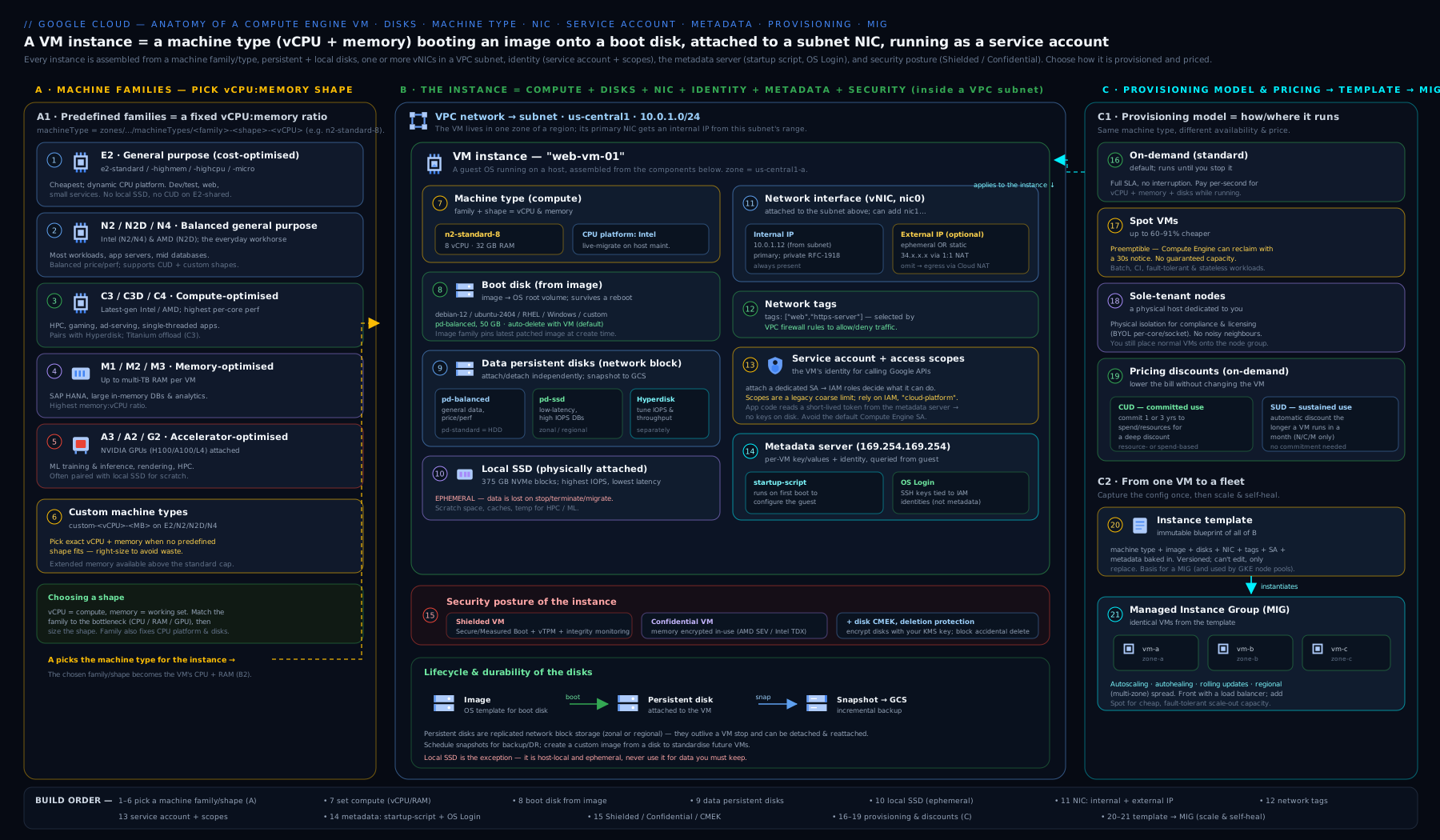
The diagram above traces one instance from the inside out: the machine type and CPU platform at the core, the boot and data disks (plus ephemeral Local SSD) attaching from the storage plane, the network interface landing in a regional subnet with an optional external IP and network tags, the metadata server feeding startup/shutdown scripts and the service-account token, and the OS Login, Shielded, and Confidential security shells wrapping the whole — then shows how an instance template projects every one of those choices onto a self-healing managed instance group.
Going deeper
The sections above are enough to run VMs well. This one is for the reader who wants the internals, the edge cases, and the levers that separate a passable design from a production-grade one.
Titanium, and why newer families are Hyperdisk-only. Google’s Titanium is dedicated offload hardware (network and storage processing on custom silicon, not the guest CPU). On Titanium families — N4, C4, C4A, C4D, and increasingly C3 — the host CPU is freed for your workload, network bandwidth climbs, and I/O is uniform. The trade-off is that these families pair with Hyperdisk only: request a pd-ssd boot disk on an N4 and the API rejects it. Practical rule: choose the family and the storage line together. If you standardise on N4/C4, standardise on Hyperdisk Balanced for boot and Hyperdisk Balanced/Extreme/Throughput for data.
Live migration, maintenance events, and how to rehearse them. A standard VM’s availability policy has two knobs: automaticRestart and onHostMaintenance. The default MIGRATE triggers live migration — Google pre-copies the VM’s memory to a new host while it keeps running, then cuts over with a sub-second “brownout.” The guest can see a planned event coming: the metadata path .../instance/maintenance-event (and the scheduled-events feed) flips before maintenance, so latency-sensitive apps can react. Not everything migrates:
| Instance config | onHostMaintenance |
Behaviour on host maintenance |
|---|---|---|
| Standard VM (default) | MIGRATE |
Live-migrated, no reboot |
| Spot / Preemptible VM | TERMINATE |
Preempted / terminated (may recreate in a MIG) |
| GPU / accelerator VM (A-series, G2) | TERMINATE |
Terminated (stopped), then restarted |
| Confidential VM | TERMINATE |
Terminated on maintenance (no migration) |
| H3 / HPC | TERMINATE |
Terminated/restarted (no migration) |
Rehearse the path safely with gcloud compute instances simulate-maintenance-event INSTANCE --zone=... — it fires a real (simulated) maintenance event so you can watch a standard VM migrate and a Spot/GPU VM terminate.
Placement policies: compact and spread. For latency-coupled workloads (HPC, distributed training), a compact placement policy asks Google to put instances physically close for low inter-node latency; for anti-affinity, a spread placement policy forces instances onto distinct hardware so one failure domain cannot take several down. Create with gcloud compute resource-policies create group-placement (--collocation=COLLOCATED for compact, --availability-domain-count=N for spread) and attach at instance or MIG creation.
Reservations and capacity. A reservation holds zonal capacity for a given machine type so a scale-out (or a scarce GPU shape) is guaranteed to land. Reservations are specific (a VM must target it by name) or any (auto-consumed by matching VMs), can be shared across projects in a billing account, and stack with CUDs — you commit for the discount and reserve for the capacity. For hard-to-get accelerators, future reservations let you request capacity for a window ahead of time. Create with gcloud compute reservations create.
Sole-tenant nodes in depth. Sole-tenancy dedicates a whole physical server to your project. A node template defines the node type (e.g. n2-node-80-640 = 80 vCPU, 640 GB), optional affinity labels, CPU overcommit, and any Local SSD/GPU; a node group is the actual dedicated host(s), with its own autoscaling and a maintenance policy (default, restart-in-place, or migrate-within-node-group). VMs land on your nodes via node affinity labels. This is the tool for BYOL per-core licensing (Windows/SQL/Oracle brought from on-prem), physical isolation for compliance, and predictable per-host performance.
High-bandwidth networking. The default network path tops out near 32 Gbps. gVNIC (--nic-type=GVNIC) is the modern virtual NIC and a prerequisite for higher tiers; Tier_1 networking (--network-performance-configs=total-egress-bandwidth-tier=TIER_1) unlocks up to 100–200 Gbps on supported large machine types. HPC (H3) and the biggest accelerator shapes require gVNIC and benefit from Tier_1.
CPU platform, SMT, and nested virtualisation. --min-cpu-platform guarantees a floor CPU generation (useful when your code needs AVX-512 or you want consistent performance across a zone’s mixed hardware). --threads-per-core=1 disables SMT — halving vCPUs but giving full physical cores, which matters for per-core licensing and some security postures. --enable-nested-virtualization lets a VM run its own hypervisor (Intel VT-x based; not on all families/Confidential VMs).
Cost internals worth knowing. SUDs are computed per family + region over “inferred instances” (Google aggregates fractional usage so partial-month VMs still ramp the discount) — and E2 is excluded. Resource-based CUDs bind to a specific family+region; flexible (spend-based) CUDs are portable across families and are the safer commitment when your mix changes. CUDs and reservations can be shared across projects under one billing account, so a central commitment covers many teams. Spot prices float and can change month to month with no SLA — model your break-even before betting a pipeline on them, and lean on Recommender rightsizing to trim idle vCPU/RAM.
Quotas and API caveats. Capacity is gated by per-region quotas — total vCPUs, per-family vCPUs, GPUs, IN_USE_ADDRESSES, and disk capacity — raised via quota requests, not by retrying. Images move through lifecycle states (ACTIVE → DEPRECATED → OBSOLETE → DELETED); pin or track families accordingly. Older families reach end-of-life and stop accepting new instances, and the strategic direction is PD → Hyperdisk and prior-gen → Titanium families — factor that into anything you expect to run for years. Preview features (some newest accelerator and Hyperdisk options) may need gcloud beta/alpha and carry no GA guarantees.
Hands-on lab
We will create a small instance on the Free Tier, inspect it, read its metadata, attach a data disk, then clean everything up. The e2-micro in an eligible US region is part of the GCE Always Free allowance, so this lab is effectively free; a $300 free-trial credit covers it comfortably regardless.
1. Set your project and a default zone.
gcloud config set project YOUR_PROJECT_ID
gcloud config set compute/zone us-central1-a
2. Create the instance — an e2-micro, Debian 12, Balanced boot disk, no external IP, with a startup script and the broad scope so IAM governs permissions.
gcloud compute instances create gce-lab-01 \
  --machine-type=e2-micro \
  --image-family=debian-12 --image-project=debian-cloud \
  --boot-disk-type=pd-balanced --boot-disk-size=10GB \
  --no-address \
  --shielded-secure-boot --shielded-vtpm --shielded-integrity-monitoring \
  --scopes=cloud-platform \
  --metadata=enable-oslogin=TRUE \
  --metadata-from-file=startup-script=<(echo '#!/bin/bash
echo "hello from $(hostname) in $(curl -s -H "Metadata-Flavor: Google" http://metadata.google.internal/computeMetadata/v1/instance/zone | cut -d/ -f4)" > /var/tmp/lab.txt')
Expected output: a table showing gce-lab-01, its zone, machine type e2-micro, an internal IP, and STATUS: RUNNING.
3. Validate. Confirm it is running and read back the metadata and machine type.
gcloud compute instances describe gce-lab-01 \
  --format="value(status, machineType.basename(), networkInterfaces[0].networkIP)"
You should see RUNNING e2-micro 10.x.x.x. Because there is no external IP, SSH in over IAP (OS Login is enabled, so use your Google identity):
gcloud compute ssh gce-lab-01 --tunnel-through-iap --command="cat /var/tmp/lab.txt"
It should print hello from gce-lab-01 in us-central1-a, proving the startup script and metadata server both worked.
4. Attach a data disk — create a 10 GB Balanced PD and attach it, surviving the instance if needed.
gcloud compute disks create gce-lab-data --size=10GB --type=pd-balanced
gcloud compute instances attach-disk gce-lab-01 \
  --disk=gce-lab-data --device-name=data1
Confirm the OS sees a new block device (lsblk over the IAP SSH session will show /dev/disk/by-id/google-data1).
5. Cleanup. Delete the instance (and its boot disk), then the data disk, to stop all charges.
gcloud compute instances delete gce-lab-01 --quiet
gcloud compute disks delete gce-lab-data --quiet
Cost note. An e2-micro in us-central1/us-west1/us-east1 falls under the Always Free tier (one per month) with a 30 GB-month standard PD allowance; this lab’s 10 GB Balanced boot disk plus a short-lived 10 GB data disk costs only a few pennies even outside the free allowance, and nothing once deleted. The number-one source of surprise GCE cost is leftover disks and external IPs after the instance is gone — the explicit disk delete above is why we clean up by hand.
Practice challenges
Six graded exercises, beginner → advanced. Try each before opening the solution. They build on one another; a cleanup block at the end removes everything. All commands assume gcloud config set compute/zone us-central1-a.
Challenge 1 — Launch and confirm (Beginner)
Create an e2-micro Debian 12 instance called ch1-vm and prove it is RUNNING.
<details> <summary>Solution</summary>
gcloud compute instances create ch1-vm \
  --machine-type=e2-micro \
  --image-family=debian-12 --image-project=debian-cloud

gcloud compute instances describe ch1-vm \
  --format="value(status, machineType.basename())"
Why: e2-micro on Debian 12 is the Always-Free baseline, and describe with a value(...) format prints exactly RUNNING e2-micro so you confirm state without scrolling a full table.
</details>
Challenge 2 — Ask the instance about itself (Beginner)
From inside ch1-vm, read its machine type and zone from the metadata server (not from gcloud).
<details> <summary>Solution</summary>
gcloud compute ssh ch1-vm --tunnel-through-iap --command='
  curl -s -H "Metadata-Flavor: Google" \
    http://metadata.google.internal/computeMetadata/v1/instance/machine-type; echo
  curl -s -H "Metadata-Flavor: Google" \
    http://metadata.google.internal/computeMetadata/v1/instance/zone'
Why: the metadata server only answers when the Metadata-Flavor: Google header is present — that header requirement is the SSRF guard, and these two paths return the fully-qualified machine-type and zone the VM is actually running as.
</details>
Challenge 3 — Right-size with a custom machine type (Intermediate)
You need 4 vCPU and 40 GiB — above N2’s normal 8 GiB/vCPU ceiling (4 × 8 = 32 GiB). Create ch3-vm with a custom shape using extended memory.
<details> <summary>Solution</summary>
# 40 GiB = 40960 MiB; 40 > 32 GiB normal max, so -ext is required
gcloud compute instances create ch3-vm \
  --machine-type=n2-custom-4-40960-ext \
  --image-family=debian-12 --image-project=debian-cloud
Why: the -ext suffix unlocks memory beyond 8 GiB/vCPU, and right-sizing to the exact 4:40 ratio avoids being forced up to a larger, pricier predefined shape you would only half-use.
</details>
Challenge 4 — Tune performance with Hyperdisk (Intermediate)
Attach a 100 GB Hyperdisk Balanced data disk to ch3-vm that serves 6,000 IOPS and 200 MB/s, even though it is only 100 GB.
<details> <summary>Solution</summary>
gcloud compute disks create ch4-data \
  --type=hyperdisk-balanced --size=100GB \
  --provisioned-iops=6000 --provisioned-throughput=200

gcloud compute instances attach-disk ch3-vm \
  --disk=ch4-data --device-name=data1
Why: Hyperdisk decouples IOPS/throughput from capacity, so a small 100 GB disk still delivers 6,000 IOPS — impossible with size-gated PD; N2 is a Hyperdisk-Balanced-capable family, so the attach succeeds. </details>
Challenge 5 — Dedicate a physical host (Advanced)
A licensing rule needs BYOL on dedicated hardware. Create a sole-tenant node group and place a VM on it.
<details> <summary>Solution</summary>
# 1) Node template — the physical server shape
gcloud compute sole-tenancy node-templates create ch5-tmpl \
  --node-type=n2-node-80-640 --region=us-central1

# 2) Node group — the actual dedicated host(s)
gcloud compute sole-tenancy node-groups create ch5-group \
  --node-template=ch5-tmpl --target-size=1

# 3) Land a VM only on your node group
gcloud compute instances create ch5-vm \
  --machine-type=n2-standard-8 --node-group=ch5-group \
  --image-family=debian-12 --image-project=debian-cloud
Why: sole-tenancy dedicates a whole n2-node-80-640 physical server to your project (isolation + per-core BYOL), and --node-group guarantees the VM lands on your hardware rather than shared hosts.
</details>
Challenge 6 — Cheap, interruptible, and drain-safe (Advanced)
Create a Spot VM that stops (not deletes) on preemption, runs a drain shutdown script, then rehearse a maintenance event on it.
<details> <summary>Solution</summary>
gcloud compute instances create ch6-spot \
  --machine-type=e2-medium \
  --provisioning-model=SPOT \
  --instance-termination-action=STOP \
  --image-family=debian-12 --image-project=debian-cloud \
  --metadata-from-file=shutdown-script=<(echo '#!/bin/bash
echo "draining at $(date -u)" >> /var/tmp/drain.log')

# Rehearse the eviction/maintenance path safely
gcloud compute instances simulate-maintenance-event ch6-spot
Why: Spot has no SLA and cannot live-migrate, so the shutdown script gets a best-effort ~30-second drain window; simulate-maintenance-event fires a real (simulated) event so you can watch the termination path before it happens for real in production.
</details>
Clean up (do this to stop charges):
gcloud compute instances delete ch1-vm ch3-vm ch5-vm ch6-spot --quiet
gcloud compute disks delete ch4-data --quiet
gcloud compute sole-tenancy node-groups delete ch5-group --quiet
gcloud compute sole-tenancy node-templates delete ch5-tmpl --region=us-central1 --quiet
Common beginner mistakes
These are conceptual traps — wrong mental models, not just wrong commands. Each pairs the misconception with the model that replaces it.
- “Stopping a VM stops all my charges.” Stopping halts the compute bill (vCPU + RAM), but disks, static IPs, and reserved capacity keep billing. Right model: compute and storage are decoupled — a stopped VM still owns its disks. To stop all charges you must delete the instance and its leftover disks/IPs.
- “Smaller disks are always cheaper, so I’ll pick the smallest.” On Persistent Disk, performance scales with size — a tiny
pd-ssdis genuinely slow. Right model: for PD, size buys IOPS; if you want performance without capacity, use Hyperdisk and provision IOPS/throughput directly. - “I granted the IAM role, so the VM can call that API.” The effective permission is IAM ∩ access scope, and a legacy narrow scope silently caps the token below IAM. Right model: set
--scopes=cloud-platformand let IAM be the single gate. - “Local SSD is just a really fast persistent disk.” Local SSD is ephemeral host-attached storage — its data is lost on stop, terminate, or host migration. Right model: use it for scratch/cache only; anything durable goes on PD/Hyperdisk.
- “Spot VMs are just cheaper on-demand VMs.” Spot can be preempted at any time with ~30 seconds’ notice and has no SLA. Right model: Spot is for interruptible work (batch, CI, stateless MIG capacity) — never a stateful primary.
- “I’ll add each teammate’s SSH key to instance metadata.” Metadata keys sprawl, outlive people, and are hard to audit. Right model: OS Login ties SSH to Google identities and IAM, so access is central, auditable, and revocable — enforce it org-wide.
- “E2 gets Sustained Use Discounts like the other families.” E2 is excluded from SUDs. Right model: SUDs apply automatically to N2/N2D/C2/M-series and friends; for E2, savings come from CUDs or right-sizing, not SUDs.
- “A custom machine type is cheaper than a predefined one.” Custom shapes carry a slightly higher unit price. Right model: the saving comes from right-sizing (not paying for RAM/CPU you never use), not from the “custom” label itself.
- “The Compute Engine default service account is fine to leave attached.” It is broadly privileged and shared across VMs. Right model: attach a dedicated, least-privilege service account per workload so a compromised VM can’t do more than its job.
Common mistakes & troubleshooting
| Symptom | Likely cause | Fix |
|---|---|---|
Permission denied calling an API from the VM despite the right IAM role |
Access scope on the instance is too narrow (legacy default) | Recreate/stop-edit with --scopes=cloud-platform; let IAM gate access |
Cannot SSH; gcloud compute ssh times out |
No external IP and no IAP, or firewall blocks 22/IAP range | Use --tunnel-through-iap and allow IAP source range 35.235.240.0/20 to port 22 |
| Data lost after stopping a VM | Data was on Local SSD (ephemeral) | Move persistent data to PD/Hyperdisk; back up Local SSD before stop |
| Orphaned disks/IPs still billing after deleting VMs | Additional disks default to auto-delete=no; reserved IPs persist |
Delete leftover disks and release static IPs explicitly |
| Database disk feels slow | pd-standard or a tiny pd-ssd (perf scales with size) |
Use Balanced/SSD/Hyperdisk; size up or provision IOPS (Extreme/Hyperdisk) |
pd-ssd boot disk rejected on an N4/C4 instance |
Titanium families are Hyperdisk-only | Use hyperdisk-balanced for the boot disk (and data disks) on N4/C4 |
| Instance unexpectedly terminated | It is a Spot VM and was preempted | Expected — handle with a shutdown script and MIG recreate; use on-demand for stateful |
| OS Login user cannot log in | Missing roles/compute.osLogin even with network access |
Grant the OS Login (or osAdminLogin) IAM role to the user |
| Secure Boot blocks a custom kernel module | Module is unsigned; Shielded Secure Boot rejects it | Sign the module or temporarily disable Secure Boot to validate |
Best practices
- Right-size with custom machine types and act on Google’s rightsizing recommendations; do not pay for RAM or vCPU you never use.
- Default to Balanced PD / Hyperdisk Balanced, step up to SSD/Extreme/Hyperdisk Extreme only where measured IOPS demand it, and schedule snapshots with a resource policy.
- No external IP on private workloads — egress via Cloud NAT, admin via IAP, traffic via internal load balancers.
- Use OS Login with IAM and IAP tunnelling; treat metadata SSH keys as break-glass only.
- Attach a dedicated, least-privilege service account with scope
cloud-platform, and never bake key files onto disks — rely on the metadata token and ADC. - Spot for interruptible work, CUDs for the steady baseline, and let SUDs apply automatically; reserve on-demand for the spiky peak and reservations where capacity must be guaranteed.
- Template everything and run production behind a regional MIG for autohealing, autoscaling, and safe rollouts.
Security notes
- Enable Shielded VM (Secure Boot + vTPM + integrity monitoring) by default; use Confidential VM for data-in-use sensitivity.
- Enforce OS Login org-wide and disable project-wide SSH keys to kill the stale-key attack surface.
- Lock down the metadata server: never proxy
169.254.169.254, keep theMetadata-Flavor: Googleguard, and watch for SSRF in apps that take URLs. - Apply least privilege with per-workload service accounts and IAM; use
cloud-platformscope so IAM is the single gate rather than fighting legacy scopes. - Keep firewall exposure minimal with tight network tags; allow the IAP range to port 22 instead of
0.0.0.0/0. - Encrypt with CMEK where policy requires it (boot disks, data disks, and images all support customer-managed keys), and use Regional PD or scheduled snapshots so a zone failure is recoverable.
Interview & exam questions
- What is the difference between E2, N2, and N2D, and when would you choose each? E2 is the cost-optimised general-purpose family (Intel/AMD abstracted, no SUDs); N2 is balanced Intel; N2D is the same balance on AMD EPYC at a lower per-vCPU price. Use E2 for dev/test and budget services, N2 for predictable Intel production, N2D when AMD price/performance wins.
- Explain Spot VMs vs preemptible VMs. Both are deeply discounted surplus capacity with no SLA that Google can reclaim. Preemptible (legacy) has a hard 24-hour lifetime; Spot is the modern replacement with no 24-hour cap and configurable termination action. Use either only for interruptible, stateless, or checkpointed work.
- CUDs vs SUDs? Sustained Use Discounts are automatic, applied as an instance runs longer in a month (E2 excluded). Committed Use Discounts require a 1- or 3-year commitment for a larger, predictable saving. Commit CUDs to your baseline; SUDs need no action.
- Why might an API call from a VM fail even though the service account has the IAM role? The instance’s legacy access scope is too narrow and caps the token below what IAM allows. Set the scope to
cloud-platformand govern with IAM. - OS Login vs metadata SSH keys — which and why? OS Login ties SSH to Google identities and IAM (auditable, centrally revocable, 2FA-capable); metadata keys are static public keys that sprawl and go stale. Prefer OS Login, enforced by org policy.
- What does the metadata server do, and how do you query it safely? It serves instance/project metadata and the service-account token at
169.254.169.254; requests require the headerMetadata-Flavor: Google, which (with firewalling) guards against SSRF. It powers Application Default Credentials. - Difference between a startup script and a shutdown script? A startup script runs as root on every boot; a shutdown script runs best-effort on graceful stop/delete and on Spot preemption (~30 s) — keep it short and idempotent.
- Standard PD vs Balanced vs SSD vs Extreme vs Hyperdisk? Standard is HDD (cheap, low IOPS); Balanced is the SSD default; SSD is higher IOPS per GB; Extreme and Hyperdisk let you provision IOPS/throughput independently of size for the most demanding databases.
- Persistent Disk vs Local SSD? PD/Hyperdisk are network-attached, durable, and survive a stop; Local SSD is host-attached, fastest, but ephemeral — data is lost on stop, terminate, or host migration.
- What is live migration and when does it not happen? GCE can move a running standard VM to a new host during maintenance with no reboot (
onHostMaintenance=MIGRATE). Spot, GPU/accelerator, H3, and Confidential VMs cannot migrate and are terminated on maintenance instead. - Shielded VM vs Confidential VM? Shielded protects boot integrity (Secure Boot, vTPM, integrity monitoring); Confidential encrypts memory in use (AMD SEV-SNP / Intel TDX) so the hypervisor cannot read RAM.
- When do you reach for a custom machine type? When no predefined shape matches your vCPU:memory ratio — right-size to avoid paying for unused RAM or CPU, using extended memory for very RAM-heavy needs.
- What is Titanium and why are N4/C4 “Hyperdisk-only”? Titanium is Google’s hardware-offload platform that frees the guest CPU and raises network/I/O performance; those Titanium-based families pair with Hyperdisk rather than legacy Persistent Disk, so plan storage on Hyperdisk when you choose them.
- When would you use a reservation vs a CUD? A CUD is a billing commitment for a discount; a reservation holds actual zonal capacity so a scale-out (or scarce GPU) is guaranteed. They stack — commit for price, reserve for certainty.
Quick check
- Which machine family gives a vCPU as a full physical core (no SMT) and offers an Arm variant?
- Which discount applies automatically the longer an instance runs in a month, and which family is excluded from it?
- What header must a request to the metadata server include?
- Which disk types let you provision IOPS independently of disk size?
- What single instance setting should you set to
cloud-platformso that IAM becomes the sole permission gate? - Why does a
pd-ssdboot disk fail to attach on an N4 instance, and what do you use instead?
Answers
- T2D (AMD Milan; one vCPU = one physical core) and its Arm sibling T2A — T2A is the Arm variant. T2D does not use SMT. (H3 is also SMT-free, but has no Arm variant.)
- Sustained Use Discounts (SUDs) apply automatically; the E2 family is excluded.
Metadata-Flavor: Google.- Extreme Persistent Disk and the Hyperdisk family (Hyperdisk Balanced/Extreme), which decouple performance from capacity.
- The instance access scope (
--scopes=cloud-platform); permissions are then governed entirely by the attached service account’s IAM roles. - N4 is a Titanium, Hyperdisk-only family — it does not support legacy Persistent Disk. Use Hyperdisk Balanced (
--boot-disk-type=hyperdisk-balanced) instead.
Exercise
Provision a small production-shaped web instance and harden it. Using gcloud: (a) create a dedicated service account with only roles/logging.logWriter and roles/monitoring.metricWriter; (b) launch an e2-small Debian 12 instance with no external IP, Balanced boot disk, --scopes=cloud-platform, enable-oslogin=TRUE, Shielded VM on, the dedicated service account attached, and a startup script that installs nginx; © add the network tag web and confirm a firewall rule allowing the IAP range to port 22; (d) SSH in through IAP, verify nginx is running, and read the instance’s zone from the metadata server; (e) take a snapshot of the boot disk; then (f) delete the instance, the disk, and the snapshot. Note in a sentence why you set the scope to cloud-platform rather than relying on legacy narrow scopes.
Certification mapping
- Associate Cloud Engineer (ACE): “Deploying and implementing Compute Engine resources” — machine types, images, disks, metadata, startup scripts, SSH/OS Login, and instance lifecycle map directly to exam objectives; expect questions on Spot vs on-demand and on scopes vs IAM.
- Professional Cloud Architect (PCA): designing compute that meets cost, performance, and resilience requirements — choosing families (E2/N2/N2D/N4/C3/C4/M3/A3), provisioning models (Spot/CUDs/reservations/sole-tenant), Regional PD, live-migration behaviour, and Shielded/Confidential VM are recurring design-scenario themes.
- Both exams probe the stop-vs-billing, OS Login vs keys, scope vs IAM, and live-migration distinctions covered above.
Glossary
- vCPU — a virtual CPU; on most families one hyperthread of a physical core (a full core on T2D/T2A and H3).
- Machine type — a named shape of vCPU + memory, e.g.
n2-standard-4; predefined or custom. - Series / family — a hardware generation and purpose grouping (E2, N2, N4, C3, C4, M3, A3…).
- Extended memory — custom-machine-type memory above the normal per-vCPU ceiling (the
-extsuffix), billed at a premium. - Titanium — Google’s custom hardware-offload platform (network/storage off the guest CPU) behind the newest families (N4, C4, C4A/C4D); pairs with Hyperdisk.
- Persistent Disk (PD) — network-attached, durable block storage (Standard/Balanced/SSD/Extreme).
- Hyperdisk — next-generation block storage with independently provisioned IOPS and throughput.
- Hyperdisk Storage Pool — a pool of pre-bought capacity/performance that many thin-provisioned disks draw from, aggregating peaks to cut cost.
- Local SSD — host-attached, very fast, ephemeral NVMe storage.
- Snapshot — incremental, point-in-time backup of a disk; machine image captures a whole instance.
- Spot VM — deeply discounted preemptible capacity with no SLA (successor to preemptible VMs).
- CUD / SUD — Committed (1/3-year) and Sustained (automatic) Use Discounts.
- Reservation — held zonal capacity for a machine type; stacks with CUDs, guarantees a scale-out lands.
- Sole-tenant node — a dedicated physical host for your project (BYOL, isolation); defined by a node template and run as a node group with node-affinity labels.
- Placement policy — compact (collocate for low latency) or spread (anti-affinity across hardware) instance placement.
- gVNIC / Tier_1 networking — the modern virtual NIC and the high-bandwidth tier (up to 100–200 Gbps on supported families).
- Min CPU platform — a guaranteed floor CPU generation (
--min-cpu-platform), e.g. for AVX-512 or consistent performance. - Metadata server —
169.254.169.254; serves instance/project metadata and the service-account token (requiresMetadata-Flavor: Google). - Startup/shutdown script — root scripts run on every boot / on graceful stop and preemption.
- OS Login — IAM-governed SSH access tied to Google identities.
- Access scope — legacy per-instance ceiling on the service-account token’s API reach; use
cloud-platformand rely on IAM. - Shielded VM — Secure Boot + vTPM + integrity monitoring for boot integrity.
- Confidential VM — memory encrypted in use (AMD SEV-SNP / Intel TDX).
- Instance template / MIG — an immutable instance definition / a self-healing, autoscaling, rolling-update fleet built from it.
- Live migration — moving a running VM to a new host during maintenance without reboot.
Next steps
You can now drive a single Compute Engine instance end to end. The natural next step is to turn one instance into a resilient, self-managing fleet: read Regional Managed Instance Groups: Autohealing, Canary Rollouts, and Stateful MIGs to learn instance templates, autohealing health checks, autoscaling signals, and canary rollouts across zones. From there, continue into the deep dive on Cloud Run for serverless containers when you want to stop managing VMs altogether, and the VPC networking module to master the subnets, firewall rules, and Cloud NAT that the instances in this lesson depend on.