You already know how to run a single command. You can ls a directory, cat a file, grep for a word. That is genuinely useful — but it is not yet power. Power in Linux comes from the moment you realise that commands are not islands. They are small tools that each read a stream of text in and write a stream of text out, and the shell is the glue that lets you snap them together into something no single command could do.
This lesson is that turning point. By the end you’ll be able to take a 40-million-line web log and answer “which ten IP addresses hit me hardest today?” in one line — no script, no programming language, no database. You’ll do it by connecting five tiny commands with pipes, and it will run in seconds.
Why this matters
Every confusing thing about the shell — “why did my output vanish?”, “why is the error still on my screen when I sent output to a file?”, “why doesn’t * work inside quotes?”, “why did my alias disappear when I opened a new terminal?” — comes from not yet having the mental model of streams, expansion, and the environment. Once you have it, all of those questions answer themselves.
Here’s the model in one sentence: you type a line, the shell expands and rewires it, then hands the finished command a set of input/output streams to read and write. Almost everything in this lesson is a detail of that sentence — what “expand” means (globs, quotes, variables), what “rewire” means (redirection and pipes), and what “streams” and “environment” the command inherits.
A note on scope. The default shell on almost every Linux system is bash (the “Bourne Again SHell”), and that’s what we’ll use. You’ll also meet sh (a minimal POSIX shell — on Debian/Ubuntu it’s actually dash) and zsh (the macOS default, largely bash-compatible); everything here works in all of them, and where bash adds a convenience the others lack we’ll say so. This lesson teaches interactive shell fluency — driving the prompt like a pro. It is not a scripting lesson: writing robust .sh files with functions, loops and error handling is a craft of its own, covered end-to-end in the separate Shell Scripting Zero-to-Hero course.
If you haven’t yet met the terminal itself, read the sibling lesson Getting Started: The Terminal, First Login & Getting Help first — it covers opening a shell, running your first commands, and using man. This lesson assumes you can type a command and read its output.
The three standard streams: stdin, stdout, stderr
Every process Linux runs — every ls, every grep, every program you’ll ever launch — is born with three open streams. A stream is just a channel that bytes flow through. They are numbered with small integers called file descriptors (fds), and the first three numbers are always reserved for the same three jobs:
| fd | Name | Direction | Default target | What flows through it |
|---|---|---|---|---|
| 0 | stdin (standard input) | in | your keyboard | what the command reads |
| 1 | stdout (standard output) | out | your terminal | the command’s normal results |
| 2 | stderr (standard error) | out | your terminal | error and diagnostic messages |
The single most important idea here: stdout and stderr are two separate channels, even though both land on your screen by default and look identical. stdout is for the answer; stderr is for complaints. Keeping them separate is what lets you save the results to a file while still seeing the errors — or the reverse.
You can watch the split happen. ls writes real filenames to stdout and “no such file” to stderr:
# One dir exists, one doesn't. Both messages hit the screen — but via different streams.
ls /etc /nope
ls: cannot access '/nope': No such file or directory   <- this is stderr (fd 2)
/etc:                                                   <- everything below is stdout (fd 1)
hostname
hosts
passwd
...
Right now you can’t tell which line came from which stream — they’re mixed on the terminal. Redirection is how you pull them apart, and it’s next. A command reads stdin only if it’s designed to (e.g. sort, grep, wc); many commands, like ls, ignore stdin entirely and get their input from arguments instead. That’s fine — the stream still exists, the command just doesn’t read it.
Redirection: sending streams to files
Redirection rewires a stream to point at a file instead of the terminal. It’s done with a handful of operators that go on the command line, and the shell — not the command — sets it up before the command ever runs.
Start with the workhorse, >, which points stdout at a file:
# Redirect stdout to a file. The file is CREATED, or TRUNCATED (emptied) if it exists.
echo "hello" > greeting.txt
cat greeting.txt          # -> hello

# Run it again with different text: the file is truncated first, so the old line is GONE.
echo "world" > greeting.txt
cat greeting.txt          # -> world  (NOT "hello\nworld")
That truncation surprises everyone once. If you want to append instead of overwrite, double the arrow:
# >> appends; the file is created if missing but never truncated.
echo "line 1" >> log.txt
echo "line 2" >> log.txt
cat log.txt               # -> line 1 / line 2
Everything so far touched stdout (fd 1). To redirect stderr, name its number explicitly with 2>:
# Send only the ERRORS to a file; real results still print to the terminal.
ls /etc /nope 2> errors.txt
cat errors.txt            # -> ls: cannot access '/nope': No such file or directory
Notice 2> has no space between the 2 and the > — 2 > would mean something else. The number is the fd you’re redirecting.
Here is the full operator set. This is the table to bookmark:
| Operator | Rewires | Behaviour | Example |
|---|---|---|---|
> file |
stdout (1) | truncate then write | date > now.txt |
>> file |
stdout (1) | append | date >> log.txt |
2> file |
stderr (2) | truncate then write errors | make 2> build-errors.txt |
2>> file |
stderr (2) | append errors | job 2>> job.err |
< file |
stdin (0) | read input from a file | sort < names.txt |
2>&1 |
stderr → stdout | make fd 2 go wherever fd 1 currently goes | cmd > all.txt 2>&1 |
&> file |
both 1 and 2 | send both to one file (bash) | cmd &> all.txt |
&>> file |
both 1 and 2 | append both (bash) | cmd &>> all.txt |
1>&2 |
stdout → stderr | send normal output to the error stream | echo oops 1>&2 |
<<EOF |
stdin (0) | here-document (inline block) | see below |
<<<"str" |
stdin (0) | here-string (one line) | grep foo <<< "$line" |
Merging streams: 2>&1 and why order matters
2>&1 reads as “make file descriptor 2 a copy of 1” — point stderr wherever stdout currently points. It’s how you capture everything a command emits into a single place. But it is positional: the shell applies redirections left to right, and 2>&1 copies wherever fd 1 points at that moment.
# CORRECT: send stdout to the file, THEN point stderr at the same place.
cmd > all.log 2>&1        # both stdout and stderr end up in all.log

# WRONG (a classic trap): stderr is copied to the terminal FIRST, then stdout is moved to the file.
cmd 2>&1 > all.log        # stderr still goes to the TERMINAL; only stdout reaches all.log
Read the wrong version slowly: at the point 2>&1 runs, fd 1 still points at the terminal, so stderr is bound to the terminal — and the later > all.log only moves fd 1. This is the number-one redirection bug on the planet. The bash shorthand &> all.log sidesteps it by binding both at once, and reads more clearly. Use &> when you’re on bash and want everything in one file; use > file 2>&1 when you need POSIX portability (in /bin/sh scripts, &> may not exist).
Reading input: <, here-docs, and here-strings
< is the mirror of >: it points stdin at a file, so the command reads the file as though you’d typed its contents:
# These two are equivalent for commands that read stdin:
sort < names.txt
sort names.txt            # most tools also accept a filename argument directly
A here-document (<<) feeds an inline block of text to a command’s stdin — no separate file needed. You choose a delimiter word (EOF by convention) and the block runs until a line containing only that word:
# Feed three lines straight into sort via a here-doc.
sort <<EOF
banana
apple
cherry
EOF
apple
banana
cherry
The quoting of the delimiter controls variable expansion inside the block — a distinction that bites people constantly:
| Form | Expands $var, $(...), backticks? |
Use when |
|---|---|---|
<<EOF (unquoted) |
Yes — the block is expanded | you want variables filled in |
<<'EOF' (quoted) |
No — the block is 100% literal | you’re writing config/code with literal $ |
<<-EOF |
Yes; also strips leading tabs (not spaces) | indenting a here-doc inside a block |
name="Ada"
cat <<EOF                 # unquoted -> $name is filled in
Hello, $name
EOF
# -> Hello, Ada

cat <<'EOF'               # quoted   -> everything is literal
Hello, $name and $(whoami)
EOF
# -> Hello, $name and $(whoami)
A here-string (<<<) is the one-line version — it hands a single string to stdin, which is perfect for piping a variable into a filter without an echo:
line="alice:x:1000:1000::/home/alice:/bin/bash"
cut -d: -f1 <<< "$line"   # -> alice   (split on ':' , take field 1)
/dev/null and friends: the special files
Linux exposes several magic files under /dev/ that act like streams. The most important is /dev/null, the “bit bucket” — anything written to it is discarded, and reading from it returns nothing (instant end-of-file). You use it to throw output away.
| Special file | Behaviour | Typical use |
|---|---|---|
/dev/null |
discards all writes; reads give EOF | silence a command: cmd > /dev/null |
/dev/stdin |
the process’s fd 0 as a filename | pass stdin where a filename is expected |
/dev/stdout |
the process’s fd 1 as a filename | force a tool to “write to a file” that’s really the screen |
/dev/stderr |
the process’s fd 2 as a filename | write to the error stream by filename |
/dev/zero |
reads give endless zero bytes | generate blank data (dd, test files) |
/dev/tty |
your controlling terminal | force output to the screen even when redirected |
# Silence stderr only (hide "permission denied" noise from a wide find):
find / -name '*.conf' 2> /dev/null

# Silence EVERYTHING — I only care whether the command SUCCEEDS, not what it says:
ping -c1 example.com > /dev/null 2>&1 && echo "network up"
That last idiom — > /dev/null 2>&1 — means “discard stdout, then send stderr to the same place (the void).” It’s how you run a command purely for its exit code (success/failure), which we’ll use next.
Pipes: composing commands into pipelines
Redirection connects a command to a file. A pipe (|) connects one command’s stdout directly to the next command’s stdin — no file in between. This is the beating heart of the Unix philosophy: many small tools, each doing one thing well, joined into a pipeline.
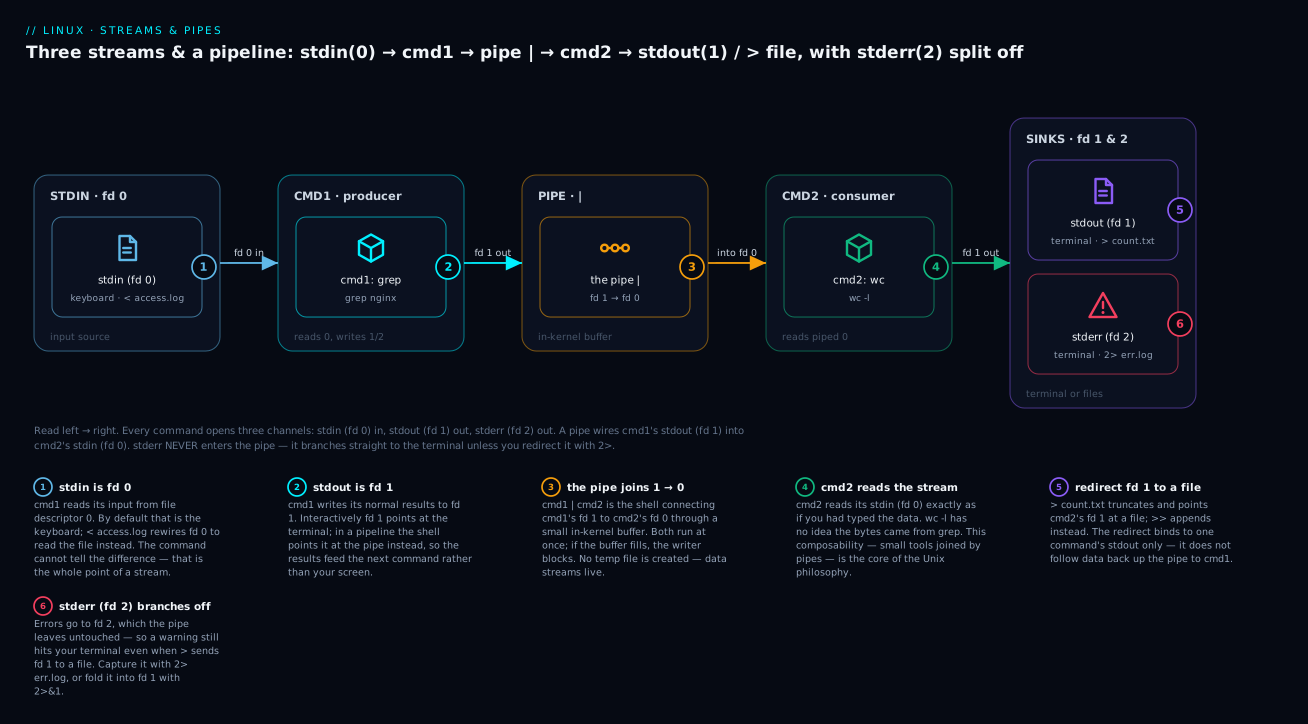
Here’s the whole picture — the three streams and how a pipe wires two commands together, with stderr deliberately branching off to the side:
The pipe takes cmd1’s stdout (fd 1) and feeds it into cmd2’s stdin (fd 0) through a small in-kernel buffer; both commands run at the same time, streaming live with no temporary file. Meanwhile stderr (fd 2) is left untouched by the pipe — so an error message from either command still lands on your terminal even while the results flow down the pipeline.
Start simple. wc -l counts lines on its stdin; feed it ls -l:
# How many entries does ls report? Pipe its output into a line counter.
ls -l /etc | wc -l        # -> 247   (careful: ls -l prints a "total" header line too)
Now the classic “is nginx running?” pipeline — filter a process list:
# ps lists processes; grep keeps matching lines; grep -v drops the grep process itself.
ps aux | grep nginx | grep -v grep
root      812  0.0  0.1  55180  1876 ?  Ss  09:14  0:00 nginx: master process
www-data  813  0.0  0.3  55620  3204 ?  S   09:14  0:00 nginx: worker process
Why grep -v grep? Because your own grep nginx command contains the word “nginx”, so it would match itself in the process list. grep -v grep removes any line containing “grep”. (The modern one-tool answer is pgrep -a nginx, but the pipeline teaches the mechanic.)
Now the showpiece — top talkers in a web log, five tools deep:
# For each request line: take field 1 (the client IP), tally duplicates, sort by count, show the top 10.
cat access.log | cut -d' ' -f1 | sort | uniq -c | sort -rn | head
   4213 10.0.0.7
   1876 192.168.1.44
    902 203.0.113.9
    511 198.51.100.2
    ...
Walk it left to right — the way you should read every pipeline: cat access.log emits each log line; cut -d' ' -f1 splits on spaces and keeps field 1 (the client IP); sort brings identical IPs together; uniq -c collapses each run of duplicates into one count IP line; sort -rn orders those counts reverse and numerically so the busiest is first; and head keeps the top 10.
One habit to build early: uniq only collapses adjacent duplicates, which is why you sort before uniq. And a gentle note — cat access.log | cut ... is a mild “useless use of cat”; cut -d' ' -f1 access.log | ... skips a process. Both work; the second is marginally leaner. These filter tools are your pipeline vocabulary:
| Filter | One-line job | Handy flags |
|---|---|---|
grep |
keep/drop matching lines | -v invert, -i ignore case, -c count, -E regex |
cut |
slice columns out of each line | -d' ' delimiter, -f1,3 fields |
sort |
order lines | -n numeric, -r reverse, -u unique, -k2 by field 2 |
uniq |
collapse adjacent duplicates | -c count, -d dups only |
wc |
count lines/words/bytes | -l lines, -w words, -c bytes |
head / tail |
first / last N lines | -n20, and tail -f to follow a live file |
tr |
translate/delete characters | tr a-z A-Z, tr -d ' ' |
awk |
field-aware mini-language | awk '{print $1}', awk '$3>100' |
A bash convenience worth knowing: |& pipes both stdout and stderr into the next command (shorthand for 2>&1 |). Useful when the thing you want to grep is an error message:
# Compile and grep the ERRORS (which go to stderr) for the word "warning":
make |& grep -i warning
For the deeper theory of pipelines — exit codes of a pipeline, pipefail, and the SIGPIPE signal — the Shell Scripting course goes further; for interactive use, the mechanics above are all you need.
Command lists: ;, &&, ||, and &
Pipes join commands by data. Command lists join them by sequence and outcome. Four operators, each with a distinct rule based on the previous command’s exit code (0 means success, any non-zero means failure — you can read the last one with echo $?):
| Operator | Name | Runs the next command… | Example |
|---|---|---|---|
; |
sequence | always, regardless of outcome | cd /tmp ; ls |
&& |
and-then | only if the previous succeeded (exit 0) | mkdir build && cd build |
|| |
or-else | only if the previous failed (non-zero) | ping -c1 host || echo DOWN |
& |
background | starts it in the background, returns the prompt at once | sleep 60 & |
# ; -> both run no matter what
false ; echo "this still runs"        # -> this still runs

# && -> stop the chain on the first failure. Great for "do X only if Y worked".
mkdir -p /tmp/demo && cd /tmp/demo && echo "in $(pwd)"
# -> in /tmp/demo

# || -> a cheap fallback / alarm
grep -q "^ok$" status.txt || echo "status is NOT ok"

# Combine them: try-then-else in one line
ping -c1 -W1 example.com > /dev/null 2>&1 && echo "UP" || echo "DOWN"
The & sends a job to the background so you get your prompt back immediately — the command keeps running. This connects to job control (jobs, fg, bg, Ctrl-Z), which is covered properly in Processes & Jobs: ps, top, signals & kill. For now, know that long-task & frees your terminal and prints the background job’s PID.
⚠️ A subtle trap in the last example: A && B || C is not a clean if/then/else. If A succeeds but B fails, C still runs. For simple “notify” cases it’s fine; for real logic, use a proper if statement (a scripting topic). Keep &&/|| chains short at the interactive prompt.
Globbing: how the shell expands *, ?, and […]
Here is a fact that reorganises how you think about the shell: when you type ls *.txt, the ls command never sees the *. The shell expands *.txt into the list of matching filenames first, then runs ls a.txt b.txt notes.txt. This is globbing (a.k.a. pathname expansion), and the shell does it before launching any command.
# Prove it: echo just prints its arguments, so it shows you what the shell expanded to.
echo *.txt            # -> a.txt b.txt notes.txt   (the shell replaced the glob)
echo *                # -> every non-hidden name in the current directory
| Pattern | Matches | Example | Expands to (say the dir has a.txt, b.log, cc.txt) |
|---|---|---|---|
* |
any run of characters (incl. none) | *.txt |
a.txt cc.txt |
? |
exactly one character | ?.txt |
a.txt (not cc.txt — two chars) |
[abc] |
one character from the set | [ac]* |
a.txt cc.txt |
[a-z] |
one character in the range | [a-b]* |
a.txt b.log |
[!abc] |
one character not in the set | [!a]* |
b.log cc.txt |
{a,b} |
brace expansion (see below) | {a,cc}.txt |
a.txt cc.txt |
Two gotchas beginners hit:
Hidden files are excluded. A leading dot (.bashrc, .config) is not matched by * — by design, so rm * doesn’t nuke your dotfiles. Match them explicitly with .* if you really mean to.
No match = literal pattern (in default bash). If nothing matches *.md, bash passes the literal string *.md to the command, which usually then errors with “No such file: *.md”. That confuses newcomers who expected an empty list. (The option shopt -s nullglob makes non-matches expand to nothing instead — a scripting refinement.)
One thing that looks like globbing but isn’t: brace expansion {...}. It’s pure text generation, done before globbing, and it doesn’t care whether files exist:
# Generate strings — no files needed:
echo file{1,2,3}.txt          # -> file1.txt file2.txt file3.txt
echo {1..5}                   # -> 1 2 3 4 5   (a numeric range)
mkdir -p project/{src,test,docs}   # make three dirs in one go
cp report.txt{,.bak}          # a slick copy-to-backup: expands to: cp report.txt report.txt.bak
Quoting: single, double, backslash — and why it matters
Globbing and variable expansion are powerful, which means sometimes you need to switch them off. That’s what quoting is for. Get this wrong and you’ll delete the wrong files or watch commands mangle spaces. Three tools:
| Quoting | $var / $(...) |
* glob |
whitespace splitting | \ escapes |
Use it for |
|---|---|---|---|---|---|
'single' |
off (literal $) |
off | off | off (literal \) |
fixed literal text, $, *, code |
"double" |
on | off | off | on (before $ ` " \) |
text that should keep spaces but fill in variables |
\ (backslash) |
escapes the one next char | — | — | — | protecting a single special character |
| (no quotes) | on | on | on | on | when you want splitting and globbing |
The rule of thumb that saves you: quote your variables in double quotes almost always, because an unquoted variable gets word-split and glob-expanded, which breaks on spaces:
file="my report.txt"          # a filename WITH A SPACE

rm $file                      # BROKEN: shell splits -> tries to remove "my" AND "report.txt"
rm "$file"                    # CORRECT: one argument, "my report.txt"
More illustrations of the difference:
name="Ada"
echo "Hello $name"            # -> Hello Ada        (double quotes: variable expands)
echo 'Hello $name'            # -> Hello $name      (single quotes: literal, no expansion)
echo "Cost is \$5"            # -> Cost is $5       (backslash escapes the $)
echo "5 * 3"                  # -> 5 * 3            (quotes stop * from globbing)
echo 5 * 3                    # -> 5 <all filenames> 3   (unquoted * globs the directory!)
That last line is the whole lesson in one example: unquoted * is expanded by the shell into filenames. Quote it, and it stays a literal asterisk. When in doubt, quote it.
History: recall and reuse what you’ve typed
Bash remembers the commands you type. Mastering history turns “retype that long command” into two keystrokes. Two mechanisms: the history list, and interactive search.
history                       # numbered list of recent commands
history 10                    # just the last 10
history -c                    # clear the in-memory history (this session)
History expansion (the ! bang syntax) rebuilds a command from the past. The most useful ones:
| Syntax | Means | Example use |
|---|---|---|
!! |
the entire previous command | sudo !! — rerun the last command with sudo |
!$ |
the last argument of the previous command | mkdir /a/b/c then cd !$ |
!* |
all arguments of the previous command | ls *.log then rm !* |
!n |
command number n from history |
!512 |
!-2 |
the command 2 back | !-2 |
!ssh |
most recent command starting with ssh |
!ssh |
^old^new |
rerun previous command, substituting old→new (first match) |
^prod^staging |
sudo !! alone justifies learning this — you run a command, hit “permission denied”, and just type sudo !! to rerun it with privileges. And !$ is a daily workhorse: you mkdir some/deep/path then cd !$ to jump into it.
The fastest recall of all is Ctrl-R — reverse incremental search. Press Ctrl-R, start typing any fragment of a past command, and bash surfaces the most recent match; press Ctrl-R again to step further back, Enter to run it, → or Ctrl-E to edit it first, or Ctrl-G to cancel. Two more keys earn their place: ↑/↓ walk the previous/next command, and Alt-. inserts the last argument of the previous command (like !$, but editable — tap it repeatedly to cycle through earlier commands’ last arguments).
History is tuned by a few environment variables — set these in ~/.bashrc (we’ll cover where shortly):
| Variable | Controls | Sensible value |
|---|---|---|
HISTSIZE |
commands kept in memory this session | 10000 |
HISTFILESIZE |
commands kept on disk in ~/.bash_history |
20000 |
HISTCONTROL |
dedup / privacy rules | ignoreboth (skip dups and space-prefixed) |
HISTIGNORE |
patterns never to record | ls:cd:pwd:history |
HISTFILE |
where history is saved | ~/.bash_history |
HISTCONTROL=ignoreboth is the quality-of-life win: ignoredups stops consecutive duplicates cluttering history, and ignorespace means any command you type with a leading space is never recorded — handy for a one-off that includes a password or token.
Aliases and functions: shortcuts for the prompt
An alias is a text shortcut: type a short word, the shell substitutes a longer command. Perfect for flags you always want.
alias ll='ls -alF'            # long listing, all files, type indicators
alias la='ls -A'              # almost-all (skip . and ..)
alias ..='cd ..'              # go up a directory
alias gs='git status'         # save keystrokes on frequent commands
alias grep='grep --color=auto'  # always colourise matches

alias                         # list all defined aliases
type ll                       # -> ll is aliased to `ls -alF'
unalias ll                    # remove it (this session)
Aliases have one hard limit: they can’t take arguments in the middle. When you need to use an argument, write a function instead:
# An alias can't do this, but a function can — $1 is the first argument.
mkcd() { mkdir -p "$1" && cd "$1"; }
mkcd /tmp/newproject          # makes the dir AND cd's into it

# Extract the Nth field from a colon file, reusably:
field() { cut -d: -f"$1"; }
getent passwd | field 1       # list all usernames
| Alias | Function | |
|---|---|---|
| Takes arguments | only appended at the end | yes, anywhere ($1, $2, $@) |
| Multiple commands / logic | no | yes (;, &&, if, loops) |
| Best for | fixed flag shortcuts | anything parameterised |
| Inspect with | type name, alias |
type name, declare -f name |
Where do these live? Typed at the prompt, an alias or function lasts only until you close the terminal. To make them persist, put them in ~/.bashrc (for bash) — the file the shell reads every time it starts an interactive session. After editing it, either open a new terminal or reload it in the current one:
# Edit ~/.bashrc, add your aliases, then reload WITHOUT closing the terminal:
source ~/.bashrc              # re-reads the file into the current shell
# '. ~/.bashrc' is the same thing (. is a synonym for source)
Why ~/.bashrc and not somewhere else, and why does it sometimes still not persist? That’s the last and most-misunderstood piece — the environment and dotfiles.
The environment and PATH
Every process runs inside an environment — a set of NAME=value pairs it inherits from its parent. There are two related but distinct kinds of variable, and telling them apart clears up a lot of confusion:
- A shell variable exists only inside this shell. You set it with
name=value(⚠️ no spaces around=). - An environment variable is a shell variable that’s been exported, so it’s inherited by every child process this shell launches.
greeting=hello               # a SHELL variable — this shell only
echo "$greeting"             # -> hello
bash -c 'echo "$greeting"'   # -> (empty!) the child shell did NOT inherit it

export greeting              # promote it to the ENVIRONMENT
bash -c 'echo "$greeting"'   # -> hello   now the child sees it

export EDITOR=vim            # set and export in one line
This is the reason a variable “disappears” when you run a script: the script is a child process, and it only inherits exported variables. Inspect the two spaces with different tools:
| Command | Shows | Scope |
|---|---|---|
env or printenv |
only exported (environment) variables | what children inherit |
printenv PATH |
one variable’s value | quick lookup |
set |
all shell variables and functions | everything in this shell |
declare -p NAME |
one variable with its attributes | precise inspection |
export (no args) |
all exported variables | the environment |
unset NAME |
removes a variable entirely | this shell + its future children |
Some environment variables you’ll meet constantly:
| Variable | Holds | Example |
|---|---|---|
HOME |
your home directory | /home/ada |
USER |
your login name | ada |
PWD |
current working directory | /etc |
SHELL |
your login shell’s path | /bin/bash |
LANG |
locale / encoding | en_US.UTF-8 |
EDITOR |
default editor for tools | vim |
TERM |
terminal type | xterm-256color |
PATH |
where to find commands | see below |
PATH: how the shell finds a command
When you type ls, how does the shell know to run /usr/bin/ls? It searches PATH — a colon-separated list of directories — from left to right, and runs the first executable file named ls it finds.
echo "$PATH"
# -> /usr/local/sbin:/usr/local/bin:/usr/sbin:/usr/bin:/sbin:/bin
Read that as an ordered search list: look in /usr/local/sbin first, then /usr/local/bin, and so on. The order matters — if two directories both contain a python, the leftmost wins. To see which file a name resolves to, use which or (better) type:
which ls                      # -> /usr/bin/ls        (just the path)
type ls                       # -> ls is /usr/bin/ls  (and reveals aliases/builtins/functions)
type cd                       # -> cd is a shell builtin   (not a file at all!)
type -a python3               # -> ALL matches in PATH order, first one wins
command -v ls                 # -> script-friendly "where is it / does it exist"
type is the one to reach for, because it knows the shell’s full lookup order — and command lookup is richer than just PATH:
| Order | The shell checks… | Beats PATH? |
|---|---|---|
| 1 | alias | yes — an alias shadows everything |
| 2 | function | yes |
| 3 | builtin (cd, echo, type, export) |
yes — no file involved |
| 4 | hash table (cached paths of recently-run commands) | — |
| 5 | PATH search, left to right |
the fallback |
That hash table (item 4) causes a famous head-scratcher: you install a newer foo into an earlier PATH directory, but the shell keeps running the old one because it cached the old path. Fix: hash -r clears the cache and forces a fresh PATH search.
Adding your own commands to PATH. A common goal is a personal ~/bin for your scripts. Put the directory at the front of PATH and export it:
mkdir -p ~/bin
export PATH="$HOME/bin:$PATH"   # prepend ~/bin so your versions win
# now any executable script in ~/bin runs by name from anywhere
⚠️ Never put . (the current directory) in PATH, especially at the front. If an attacker drops a malicious file named ls in a directory you cd into, you’d run their ls instead of the real one. Always call the real path or ./script explicitly for local files.
Login vs non-login, interactive vs non-interactive — and why your alias didn’t persist
You added an alias to a dotfile, opened a new terminal, and it wasn’t there. Or you set PATH and cron still can’t find your tool. The cause is always the same: which startup file a shell reads depends on how it was started. Bash classifies every shell along two independent axes:
- Login vs non-login. A login shell is the first shell of a session — what you get over SSH, from
su -, or from a macOS Terminal window. A non-login shell is a sub-shell started later — a new tab in most Linux terminal emulators, atmuxpane, or typingbashagain. - Interactive vs non-interactive. Interactive = connected to a keyboard (a prompt you type into). Non-interactive = a script run by
bash script.sh, cron, or CI — no prompt.
The two axes decide which files bash reads at startup:
| Shell type | How you get it | Bash reads (in order) |
|---|---|---|
| Login (interactive) | SSH, su -, console login, macOS Terminal |
/etc/profile → first of ~/.bash_profile, ~/.bash_login, ~/.profile |
| Non-login interactive | new terminal tab on most Linux, tmux, running bash |
/etc/bash.bashrc (Debian/Ubuntu) → ~/.bashrc |
| Non-interactive (script) | bash file.sh, cron, systemd, CI |
none of the above (only $BASH_ENV if set) |
Now the dotfiles themselves — what each is for:
| File | Scope | Read by | Put here |
|---|---|---|---|
/etc/profile |
all users | login shells | system-wide env for everyone (admin-managed) |
/etc/bash.bashrc |
all users | non-login interactive (Debian/Ubuntu) | system-wide interactive settings |
~/.bash_profile |
you | login shells only | env vars, PATH; usually sources ~/.bashrc |
~/.profile |
you | login shells (if no ~/.bash_profile), and sh |
POSIX-portable env vars |
~/.bashrc |
you | non-login interactive shells | aliases, functions, prompt, history settings |
~/.bash_logout |
you | login shells, at exit | cleanup on logout |
Here is the trap, spelled out. Aliases go in ~/.bashrc. Environment/PATH go in ~/.bash_profile (or ~/.profile). But a login shell reads ~/.bash_profile and not ~/.bashrc — so if your aliases are only in ~/.bashrc, a fresh SSH login (a login shell) won’t have them. The universal fix, present in nearly every well-configured account, is to make ~/.bash_profile source ~/.bashrc:
# ~/.bash_profile — ensures login shells also get the interactive niceties.
[ -f ~/.bashrc ] && . ~/.bashrc
With that one line, both shell types end up loading ~/.bashrc, and the “my alias vanished on SSH” problem disappears. The simple mental rules:
- On most Linux desktops, each new terminal is non-login interactive → it reads
~/.bashrc. So put day-to-day aliases and functions there. - Over SSH / on macOS, you get a login shell → it reads
~/.bash_profile. Make that file source~/.bashrcso nothing is missed. - Scripts and cron read neither — that’s why a cron job can’t see an alias or a
PATHyou only exported interactively. In scripts, set what you need explicitly. (This non-interactive behaviour is explored in depth in the Shell Scripting course.)
Note that zsh uses different files (~/.zshenv, ~/.zprofile, ~/.zshrc, ~/.zlogin) but the same principle: an “always” file for env, an “interactive” file for aliases/prompt, a “login” file for session setup. If your default shell is zsh (as on modern macOS), put aliases in ~/.zshrc. For the origins of these shells and how Linux boots into one, see Linux Fundamentals: The Kernel, Distributions & the Shell.
Hands-on lab
Run this on any Linux box, WSL, or a container (docker run -it --rm debian bash). Each step says what to type, what you’ll see, and what just happened. It’s self-contained and cleans up after itself.
1. Make a sandbox and some data.
mkdir -p ~/shell-lab && cd ~/shell-lab
printf '%s\n' apple banana apple cherry banana apple > fruits.txt
cat fruits.txt
You’ll see six fruit lines. What happened: printf wrote your test data; you’re now in a clean directory.
2. Redirect stdout, then append.
date > run.log            # truncate-write
date >> run.log           # append a second line
wc -l run.log             # -> 2 run.log
What happened: > created the file; >> added to it without erasing. Two timestamps prove append vs truncate.
3. See stdout and stderr split.
ls fruits.txt nope.txt > out.txt 2> err.txt
cat out.txt               # -> fruits.txt        (stdout: the real result)
cat err.txt               # -> ls: cannot access 'nope.txt': ...   (stderr: the error)
What happened: the good result and the error went to different files because they travel on different streams (fd 1 vs fd 2).
4. Discard noise with /dev/null.
ls fruits.txt nope.txt 2> /dev/null # -> fruits.txt (error silently dropped)
What happened: stderr was thrown into the bit bucket, so only the successful result printed.
5. Build a real pipeline.
sort fruits.txt | uniq -c | sort -rn
      3 apple
      2 banana
      1 cherry
What happened: sort grouped identical lines, uniq -c counted each group, and sort -rn ranked them — a frequency count in three tools.
6. Globbing and quoting.
touch report.txt notes.txt data.csv
echo *.txt                 # -> notes.txt report.txt   (shell expanded the glob)
echo '*.txt'               # -> *.txt                  (single quotes killed the glob)
cp report.txt{,.bak}       # brace expansion -> cp report.txt report.txt.bak
ls report*                 # -> report.txt report.txt.bak
What happened: unquoted * expanded to filenames; quoting it kept it literal; brace expansion made a backup in one move.
7. History shortcuts.
mkdir -p deep/nested/dir
cd !$                      # -> cd deep/nested/dir   (!$ = last arg of previous command)
pwd
cd ~/shell-lab
What happened: !$ reused the previous command’s final argument, saving you retyping the path.
8. Environment and PATH.
myvar=local
bash -c 'echo "child sees: [$myvar]"'   # -> child sees: []   (not exported)
export myvar
bash -c 'echo "child sees: [$myvar]"'   # -> child sees: [local]

mkdir -p ~/shell-lab/bin
cat > ~/shell-lab/bin/hi <<'EOF'
#!/bin/bash
echo "hello from ~/shell-lab/bin/hi"
EOF
chmod +x ~/shell-lab/bin/hi
export PATH="$HOME/shell-lab/bin:$PATH"
hi                          # -> hello from ~/shell-lab/bin/hi
type hi                     # -> hi is /home/you/shell-lab/bin/hi
What happened: exporting made the variable cross into a child; prepending your bin to PATH let you run hi by name from anywhere.
9. An alias that persists (this session).
alias ll='ls -alF'
ll                          # long, detailed listing
type ll                     # -> ll is aliased to `ls -alF'
What happened: the alias works now; to keep it forever you’d add that alias line to ~/.bashrc.
10. Clean up.
cd ~ && rm -rf ~/shell-lab
⚠️ rm -rf deletes recursively with no prompt — double-check the path before you press Enter. Here it targets only the lab directory you created.
Common mistakes and troubleshooting
| Symptom | Cause | Fix |
|---|---|---|
| Output file is empty / old content gone | > truncates before the command runs |
use >> to append; keep backups |
Errors still on screen after > file |
errors go to stderr (fd 2), > only redirects stdout |
add 2>&1 (after the >), or use &> |
cmd 2>&1 > file still shows errors |
redirection order — 2>&1 bound stderr to the terminal before > moved stdout |
write > file 2>&1 (redirect stdout first) |
bash: *.md: No such file or directory |
glob matched nothing; bash passed the literal *.md |
the pattern is wrong, or use shopt -s nullglob |
rm deletes the wrong things with a spaced filename |
unquoted $var was word-split and/or globbed |
quote it: rm "$file" |
| Alias/function gone in a new terminal | defined only in this session, or put in the wrong dotfile | add to ~/.bashrc; source ~/.bashrc from ~/.bash_profile |
command not found for a tool you installed |
its directory isn’t in PATH, or PATH set in a non-sourced file |
export PATH=… in the right dotfile; check with type -a |
| Cron/script can’t find a command or alias | non-interactive shells read no rc files | set PATH explicitly in the script; scripts don’t inherit aliases |
| Shell runs an old binary after upgrade | the resolved path is hashed (cached) | hash -r to clear, then retry |
name = value gives “command not found” |
spaces around = in an assignment |
write name=value with no spaces |
Three gotchas deserve extra words, because they burn everyone at least once.
Redirection order is not commutative. >file 2>&1 and 2>&1 >file look almost identical and behave completely differently. Say it out loud: “redirect stdout to the file, then make stderr follow stdout” (correct) versus “make stderr follow stdout — which is still the terminal — then move stdout to the file” (leaves stderr on screen). When you want both in a file, the safe, readable forms are cmd > file 2>&1 or bash’s cmd &> file.
The shell expands before the command runs. Globs, braces, and unquoted variables are rewritten by the shell into the final argument list before your command starts. This is why echo * shows filenames and why an unquoted filename with spaces becomes multiple arguments. If a command is misbehaving with special characters, run echo in front of it first to see exactly what the shell is about to pass — the single best debugging trick in this whole lesson.
“It works in my terminal but not in cron/scripts.” Your interactive shell sourced ~/.bashrc, giving it your PATH, aliases and functions. A cron job or a bash script.sh invocation is non-interactive and sources none of that. It gets a bare, minimal PATH and zero aliases. The fix is never “make cron source my bashrc” — it’s to make the script self-sufficient: set PATH explicitly and call things by full path or plain command (not alias). Editing and inspecting these dotfiles is easiest with an editor you’re comfortable in — see Viewing & Editing Text: cat, less, nano & vim.
Cheat-sheet
| Task | Command / syntax |
|---|---|
| Redirect stdout (truncate / append) | cmd > f / cmd >> f |
| Redirect stderr (truncate / append) | cmd 2> f / cmd 2>> f |
| Merge stderr into stdout | cmd > f 2>&1 (order!) or cmd &> f |
| Discard output entirely | cmd > /dev/null 2>&1 |
| Read stdin from a file | cmd < f |
| Here-doc (expanded / literal) | <<EOF … EOF / <<'EOF' … EOF |
| Here-string | cmd <<< "text" |
| Pipe stdout → next stdin | cmd1 | cmd2 |
| Pipe stdout and stderr | cmd1 |& cmd2 |
| Run always / on success / on failure | a ; b / a && b / a || b |
| Run in background | cmd & |
| Match any / one / set | * / ? / [abc] [a-z] [!x] |
| Generate text (no files) | {a,b,c} , {1..9} |
| Quote literally / with variables | '…' / "…" |
| Rerun last command (as root) | !! (sudo !!) |
| Last argument of previous command | !$ (or Alt-.) |
| Reverse-search history | Ctrl-R |
| Define / list / remove alias | alias x='…' / alias / unalias x |
| Show/set an env var | printenv VAR / export VAR=val |
| Show PATH; find a command | echo "$PATH" ; type -a cmd |
| Add a personal bin to PATH | export PATH="$HOME/bin:$PATH" |
| Reload your shell config | source ~/.bashrc |
| Clear the command hash cache | hash -r |
Interview and exam questions
Q: What are the three standard streams and their file descriptor numbers? A: stdin (fd 0) for input, stdout (fd 1) for normal output, and stderr (fd 2) for errors and diagnostics. By default all three connect to the terminal, but stdout and stderr are separate channels so you can redirect them independently.
Q: What’s the difference between > and >>?
A: > truncates (empties) the target file before writing, so any existing content is lost. >> appends to the end, creating the file if it doesn’t exist but never erasing what’s there.
Q: cmd > out.txt 2>&1 versus cmd 2>&1 > out.txt — do they differ?
A: Yes. Redirections apply left to right. The first sends stdout to the file then points stderr at the same place — both land in out.txt. The second makes stderr a copy of stdout while stdout still points at the terminal, then moves stdout to the file — so errors stay on the terminal. Only the first captures both.
Q: What does a pipe | actually connect?
A: The stdout (fd 1) of the command on the left to the stdin (fd 0) of the command on the right, through an in-kernel buffer. Both commands run concurrently and stream data live — no temporary file is created. stderr is not affected by the pipe.
Q: Why do you usually sort before uniq?
A: uniq only collapses adjacent duplicate lines. Sorting first brings all identical lines together so uniq (often uniq -c) can count or dedupe them correctly.
Q: Who expands *.txt — the command or the shell? Prove it.
A: The shell, before the command runs (globbing / pathname expansion). Prove it with echo *.txt: echo just prints its arguments, and you’ll see the actual filenames the shell substituted, not a literal *.txt.
Q: What’s the difference between single and double quotes?
A: Single quotes are fully literal — no variable, command, or glob expansion at all. Double quotes suppress globbing and word-splitting but still expand $variables and $(command) substitutions. Use double quotes around variables to survive spaces; use single quotes for text that must stay literal.
Q: A variable set in your shell isn’t visible to a script you run. Why?
A: It wasn’t exported. A plain name=value is a shell variable, local to that shell. Only export name promotes it to an environment variable that child processes (like the script) inherit.
Q: Explain how the shell locates the program for a typed command.
A: It checks in order: aliases, then functions, then builtins, then its hash cache of previously found paths, and finally a left-to-right search of the PATH directories, running the first matching executable. type -a cmd reveals the full resolution.
Q: (RHCSA-style) Make a directory ~/bin, put a script in it, and run the script by name from any directory. What must you do?
A: mkdir -p ~/bin, create the script and chmod +x it, then add ~/bin to PATH with export PATH="$HOME/bin:$PATH" (persist it in ~/.bash_profile or ~/.bashrc). Now the script runs by name because its directory is searched during PATH lookup.
Q: (LFCS-style) Save both the stdout and stderr of long-job to job.log, and run it in the background so your prompt returns immediately.
A: long-job > job.log 2>&1 & (or long-job &> job.log & on bash). The > … 2>&1 captures both streams into the file, and the trailing & backgrounds the job.
Q: Your alias works in a local terminal but not after SSH. Why, and what’s the fix?
A: A local terminal is typically a non-login interactive shell that reads ~/.bashrc, where the alias lives. SSH gives a login shell that reads ~/.bash_profile instead, which doesn’t source ~/.bashrc by default. Fix: add [ -f ~/.bashrc ] && . ~/.bashrc to ~/.bash_profile so login shells also load your aliases.
Key takeaways
- Every command speaks three streams — stdin (0), stdout (1), stderr (2) — and stdout/stderr are separate, which is why you can save results while still seeing errors.
- Redirection rewires a stream to a file:
>truncates,>>appends,2>catches errors,&>(or> f 2>&1, order matters) captures both,< / <<EOF / <<<feed input. - Pipes connect stdout→stdin so small tools compose into pipelines; read them left to right, and remember
sortbeforeuniq. - The shell expands before the command runs — globs (
*,?,[…]), brace expansion ({a,b}), and unquoted variables all become the final arguments. When unsure, prefixechoto preview it. - Quote your variables in double quotes to survive spaces and stop unwanted globbing; single quotes are fully literal.
- History (
!!,!$,Ctrl-R) and aliases/functions turn repetitive typing into a keystroke — persist them in~/.bashrc. exportturns a shell variable into an environment variable children inherit; PATH is the ordered search list the shell walks to find a command (type -ashows the resolution).- Which dotfile runs depends on login vs non-login / interactive vs non-interactive — put aliases in
~/.bashrc, env/PATH in~/.bash_profile, and source~/.bashrcfrom it so nothing goes missing.