Nothing else in this course works until this lesson works. Setup is where most people quit programming — not because it’s hard, but because the failures are illegible. You type python and Windows opens a shop. You type pip install requests, it says “Successfully installed”, and the next line says ModuleNotFoundError: No module named 'requests'. Your code runs in the terminal and fails when you press Run.
None of those messages tells you what’s wrong, and not one of them is a Python problem. Every one is an interpreter selection problem. So this lesson does two things: it gets a genuine Python 3.12 or newer onto your machine the right way for your OS, and it teaches you the one model that makes all of those errors obvious in about five seconds. Read it with a terminal open, and type everything.
Why this matters
Python is not one program on your computer. It is a file — an executable binary — and there can be several, of different versions, in different folders, installed by different things (your OS vendor, Homebrew, an installer you downloaded, a virtual environment, Anaconda, an IDE). Every one is called “python”. Only one runs when you type python3.
That is the whole story. Beginner Python problems are almost never about Python. They are about which Python. Once you know that python3 is just a name that gets looked up, and you know the four things that decide that lookup, the confusing errors become a question you can answer with one command.
There’s a second reason to slow down. Your OS uses Python itself: on Linux, chunks of your desktop and admin tooling are Python scripts; on macOS, Apple ships one for Xcode’s benefit. Install packages into those interpreters — or upgrade or remove them — and you can break your OS. Hence the first professional habit in Python: the system’s Python belongs to the system; you get your own. Virtual environments do that per project and have their own lesson later in this phase; this one stops at the doorstep. Here you just need a Python of your own whose location you know.
The model to carry out of this lesson: you write a file, something decides which interpreter to hand it to, that interpreter runs it in one of three modes, and you see output. Every box in that sentence is a place things go wrong, and every one is inspectable.
Installing Python 3.12+ on your OS
Any version 3.12 or newer is fine for this whole course. By the time you read this, python.org’s big green button will offer something newer still (3.13 and 3.14 are out; 3.12 gets security fixes into 2028) — take it. The outputs below show Python 3.12.4 purely as a concrete example; your patch number will differ, and that’s correct, not a mistake. Find your row, do that, then come back.
| Your OS | Install this | Command / where | Gives you |
|---|---|---|---|
| Windows 10 / 11 | The python.org installer (64-bit) | Download from python.org → tick “Add python.exe to PATH” | py, python, pip |
| macOS (Apple Silicon or Intel) | The python.org installer | The “macOS 64-bit universal2 installer” | python3, pip3 |
| macOS, if you already use Homebrew | Homebrew | brew install python@3.12 |
python3.12, pip3.12 |
| Ubuntu / Debian | The distro package, if it’s new enough | sudo apt install python3 python3-venv python3-pip |
python3 |
| Ubuntu, but you need a newer 3.x | The deadsnakes PPA | sudo add-apt-repository ppa:deadsnakes/ppa |
python3.12 |
| Fedora / RHEL / Rocky | The distro package | sudo dnf install python3 python3-pip |
python3 |
| Any OS, many versions side by side | pyenv | pyenv install 3.12.4 |
every version you want |
Windows: the installer, and the box that matters
Download the 64-bit installer from python.org and run it. The first screen has a checkbox at the bottom that is the most consequential click in this lesson: ☑ Add python.exe to PATH. Tick it. Without it, python is not recognised in any terminal.
Then choose Customize installation rather than “Install Now”, so you can see what you’re getting:
| Installer screen | Option | Tick it? | Why |
|---|---|---|---|
| First screen | Add python.exe to PATH | YES | Without it, python is “not recognized” everywhere |
| First screen | Use admin privileges when installing py.exe | Yes | Puts the py launcher in C:\Windows for all users |
| Optional Features | pip | Yes | The package installer — you need it |
| Optional Features | py launcher | YES | The single best thing about Python on Windows |
| Optional Features | tcl/tk and IDLE | Optional | Only if you want the bundled IDLE editor |
| Optional Features | Python test suite | No | ~50 MB you’ll never open |
| Advanced Options | Install Python 3.12 for all users | Optional | Installs to C:\Program Files\Python312 instead of your user folder |
| Advanced Options | Disable path length limit | Yes | Lifts Windows’ 260-character MAX_PATH limit. Free. Saves real pain later |
Forgot the PATH box? Don’t hunt through System Properties — re-run the installer, choose Modify, and tick it. Or skip PATH entirely and use py, which works regardless. That’s the launcher’s whole point.
⚠️ Don’t install Python from the Microsoft Store as your first move. It works, but it leaves “app execution aliases” — fake
python.exeandpython3.exestubs in%LOCALAPPDATA%\Microsoft\WindowsApps— that sit early in PATH and shadow the real installation. This is the “typing python opens the Microsoft Store” bug, the most-reported Windows Python problem in existence. Fix is in the troubleshooting table.
macOS: three Pythons, and why the built-in one isn’t yours
macOS hasn’t shipped a usable Python for you in years — Apple removed Python 2 entirely in macOS 12.3 Monterey. What’s left at /usr/bin/python3 is Apple’s own, installed with the Xcode Command Line Tools to support Apple’s tooling, not your projects.
| The Python | Where it lives | Version | Should you use it? |
|---|---|---|---|
Apple’s /usr/bin/python3 |
Ships with Xcode Command Line Tools | Old — typically 3.9.x | No. It’s there for macOS’s own tooling, Apple can move or change it in any OS update, and it’s too old for this course |
| python.org’s | /Library/Frameworks/Python.framework/Versions/3.12/, symlinked into /usr/local/bin |
Exactly what you downloaded | Yes — the most predictable option, and the one this lesson assumes |
| Homebrew’s | /opt/homebrew/bin (Apple Silicon) or /usr/local/bin (Intel) |
Current | Yes, if Homebrew is already part of your life. brew install python@3.12 gives you python3.12 |
| pyenv’s | ~/.pyenv/versions/3.12.4/ |
Any you like, switchable per project | Yes, once you genuinely need several versions at once |
Two macOS specifics, before they bite you:
Run the certificate script. The python.org build doesn’t use the system keychain for TLS. After installing, open /Applications/Python 3.12/ and double-click Install Certificates.command. Skip it and your first download dies with ssl.SSLCertVerificationError: [SSL: CERTIFICATE_VERIFY_FAILED] certificate verify failed: unable to get local issuer certificate — an error that looks like a network problem and isn’t.
Homebrew’s Python refuses to be polluted. pip3.12 install requests outside a virtual environment returns error: externally-managed-environment. Not a bug — that’s PEP 668 working as designed, Homebrew protecting its package graph from you. The answer is always a venv. Debian 12+ and Ubuntu 23.04+ do the same.
Linux: distro package vs deadsnakes vs pyenv
Linux already has python3; the only question is whether it’s new enough. Ubuntu 24.04 LTS ships 3.12, Ubuntu 22.04 LTS ships 3.10, Debian 12 ships 3.11, Fedora tracks a recent 3.x closely. Run python3 --version — if it’s 3.12 or better you’re done, skip ahead.
| Route | Command | You get | Trade-off |
|---|---|---|---|
| Distro package | sudo apt install python3 python3-venv python3-pip |
Whatever your release ships | Easiest and safest. But apt will not give you a newer Python than your release has |
| deadsnakes PPA (Ubuntu only) | sudo add-apt-repository ppa:deadsnakes/ppa then sudo apt install python3.12 python3.12-venv |
python3.12 alongside the system one |
A third-party PPA, Ubuntu-only. Crucially it does not touch python3 — which is why it’s safe |
| pyenv (any distro, also macOS) | pyenv install 3.12.4 then pyenv local 3.12.4 |
Any version, switchable per directory | Builds from source, so you need build dependencies first. One more tool to learn |
| uv | uv python install 3.12 |
A managed 3.12, downloaded in seconds | Excellent and increasingly standard — but learn plain python3 and venv first, or you’ll never understand what it’s automating |
On Debian/Ubuntu, python3-venv is a separate package. Without it, python3 -m venv .venv fails with ensurepip is not available. Install it now and save yourself the confusion next lesson.
⚠️ Never
sudo apt remove python3, and neversudo pip installinto the system Python on Linux. Your desktop environment and dozens of admin tools are Python scripts bound to that exact interpreter and its distro-packaged libraries. Removing it can uninstall your desktop;sudo pipinto it can break your package manager in genuinely tedious ways. Leave/usr/bin/python3alone and add your own alongside it.
Verify it
Whatever you did, prove it. Nothing after this matters if these don’t work.
| OS / shell | Type this | You should see | Meaning |
|---|---|---|---|
| macOS / Linux | python3 --version |
Python 3.12.4 |
A Python exists on PATH |
| macOS / Linux | which -a python3 |
/usr/local/bin/python3 (possibly several lines) |
Every candidate, in PATH order — line one wins |
| Windows | py --version |
Python 3.12.4 |
The launcher found a Python — works even if PATH is broken |
| Windows | where python |
one or more paths | First line wins. If line one is under WindowsApps, that’s the Store stub |
| Windows | py --list |
-V:3.12 * … |
Every Python the launcher knows; * marks the default |
| Any | python3 -c "import sys; print(sys.executable)" |
/usr/local/bin/python3 |
The ground truth. The interpreter’s own answer to “who am I?” |
That last one deserves emphasis. sys.executable is the absolute path of the interpreter currently running that code — never stale, never ambiguous, and identical in the REPL, a script, VS Code’s Run button and a Jupyter cell. When something is mysterious, print it.
python vs python3 vs py: the confusion, solved
Python 3 (2008) was deliberately not backwards-compatible with Python 2. For over a decade both existed, and Unix systems had a problem: millions of scripts said python and meant Python 2, so repointing it would have broken them overnight. The community added an unambiguous new name — python3 — and left python alone. Python 2 reached end of life on 1 January 2020, but the naming split outlived it.
The result is a genuine cross-platform mess, and this table is the map out:
| Command | Windows | macOS | Linux | What it actually is |
|---|---|---|---|---|
python |
✅ Works — the installer creates it (or, if PATH is unlucky, the Store stub) | ❌ Usually absent. Homebrew/pyenv can provide it | ❌ Usually absent, unless you install python-is-python3 |
Just a name looked up on PATH |
python3 |
✅ Usually works too — same binary | ✅ The one to use | ✅ The one to use | Just a name looked up on PATH |
py |
✅ The one to use | ❌ Does not exist | ❌ Does not exist | A launcher — not an interpreter. It finds and starts one |
python2 |
❌ Long gone | ❌ Removed in macOS 12.3 | Only if you deliberately installed it | Dead since 1 Jan 2020 |
pip / pip3 |
Same story, same trap | Same story | Same story | Prefer python3 -m pip — see below |
So what do you type? On macOS and Linux: python3. On Windows: py. This course writes python3 because that’s what most Python documentation uses; Windows readers should mentally substitute py.
The py launcher deserves a paragraph, because Windows users are handed the best tool and rarely told. py.exe lives in C:\Windows — always on PATH, always found — and locates your Pythons via the registry rather than PATH. py runs your default, py -3.12 runs exactly 3.12, py --list shows what you have, py -0p shows their full paths. If python is broken on a Windows box, py almost certainly still works.
The pip trap is the same logic. pip install requests uses whatever pip PATH finds first — which may belong to a different interpreter than the python3 you’re about to run. That mismatch produces the most confusing beginner error in Python: pip says “Successfully installed requests”, your script says ModuleNotFoundError. Spell it out instead — python3 -m pip install requests (Windows: py -m pip install requests) — which means “the pip belonging to this interpreter”, and is always right.
Four things decide which interpreter you get
This is the heart of the lesson. When you “run Python”, exactly one of these made the choice:
| Decider | Where it applies | How to see it | How to change it |
|---|---|---|---|
| PATH order | Any bare python3 in a terminal |
which -a python3 · where python |
Reorder PATH, or call the full path directly |
The py launcher |
Windows only | py --list · py -0p |
py -3.12 script.py, or a #! line at the top of the file |
| An activated venv | Any terminal where you ran activate |
Prompt shows (.venv); which python |
activate / deactivate — its own lesson |
| Your IDE’s setting | VS Code’s Run button, PyCharm’s run config | VS Code status bar, bottom-right | Command Palette → Python: Select Interpreter |
| The notebook kernel | Jupyter / VS Code notebooks | The kernel picker, top right | Pick a kernel; the venv needs ipykernel installed |
A shebang #!/usr/bin/env python3 |
Only when you run ./script.py directly on macOS/Linux |
head -1 script.py |
Edit the line; the file also needs chmod +x |
Note what is not on that list: “the newest version”, “the one I installed last”, “the obvious one”. PATH does not sort by version. It takes the first match, left to right, and stops — silently.
Here’s the whole path in one picture. Follow it left to right: your file and the folder you’re standing in, the way you asked to run it, the resolution step where one of those deciders picks a binary, the interpreter that actually gets exec’d, and the run mode that determines what you see.
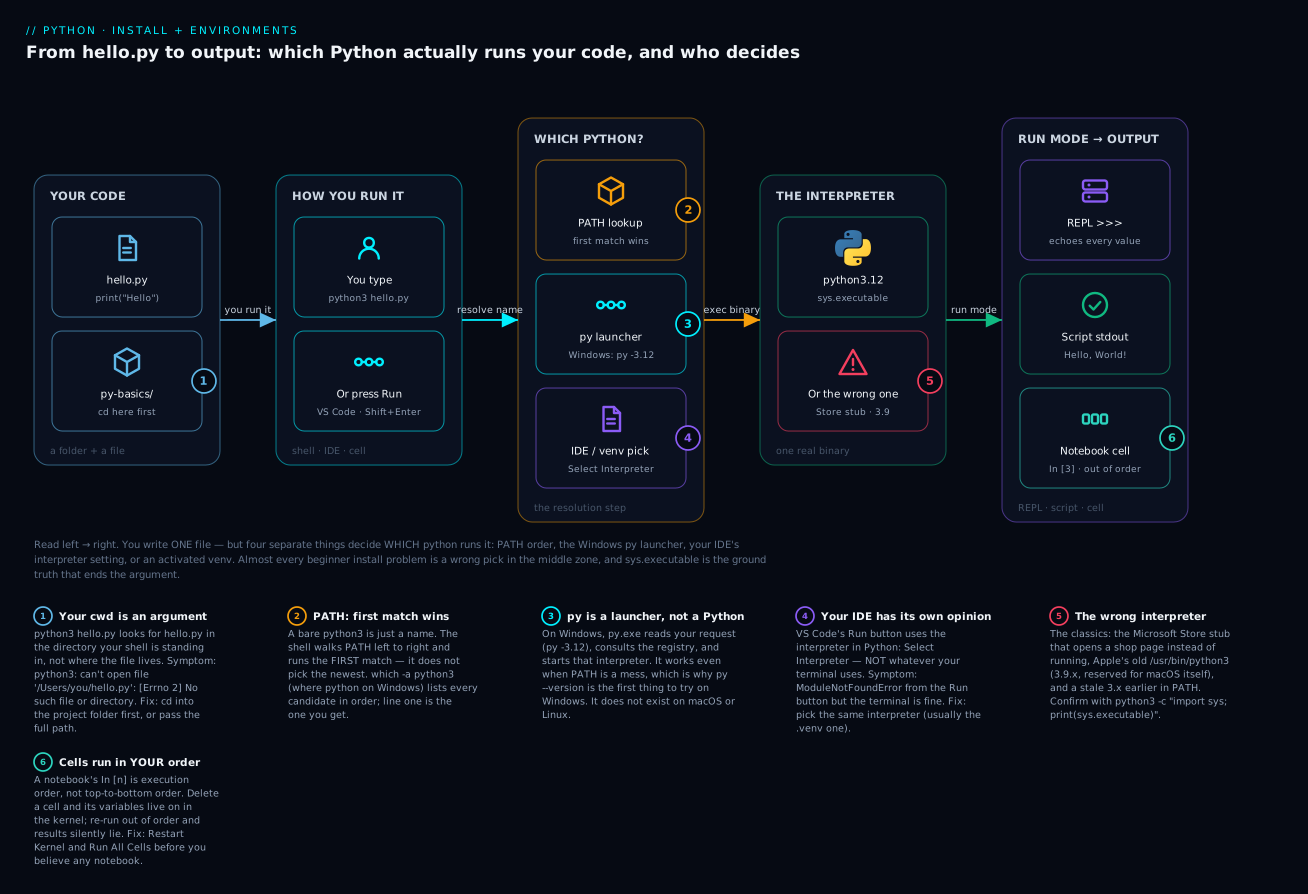
Read the middle zone as the villain of the piece: badge 2 (PATH takes the first match, not the best one), badge 3 (py sidesteps PATH entirely, the Windows escape hatch), badge 4 (your IDE keeps its own setting, and nothing syncs it with your terminal). Badge 5 is what a wrong pick looks like — a Store stub, or Apple’s 3.9. Badges 1 and 6 are the two failures that aren’t about the interpreter at all: the wrong working directory, and a notebook whose cells ran in an order you’ve forgotten.
Three ways to run Python: the REPL, a script, and -c
You have an interpreter. There are three ways to feed code to it, and mixing them up produces its own family of errors.
| Mode | Command | Echoes values? | Use it for |
|---|---|---|---|
| REPL (interactive) | python3 |
Yes — every expression’s value prints automatically | Trying an idea, exploring an object, help() |
| Script | python3 hello.py |
No — only print() produces output |
Everything real. This is programming |
| One-liner | python3 -c "print(2**10)" |
No | Quick checks, shell pipelines, CI |
| Module as a tool | python3 -m venv .venv |
n/a | Running a library as a command |
| Script, then REPL | python3 -i hello.py |
Yes, after the script ends | Debugging — poke at the variables the script left behind |
The REPL
Type python3 with no arguments:
Python 3.12.4 (main, Jun  6 2024, 18:26:44) [Clang 15.0.0] on darwin
Type "help", "copyright", "credits" or "license" for more information.
>>>
The bracketed compiler and the platform name (darwin on macOS, win32 on Windows, linux on Linux) vary by machine — don’t try to match them. REPL stands for Read–Eval–Print Loop, and the Print is the part that matters:
>>> 2 + 2
4
>>> "hello".upper()
'HELLO'
>>> x = 10        # an assignment is a statement, not an expression — nothing prints
>>> x
10
>>> x * 3
30
>>> _ + 1         # _ is the last result, 30
31
You never typed print(). The REPL automatically shows the value of every expression you type. A script does not — and that difference is behind a very common “my code doesn’t work” report, where the code is fine and simply produces no output because nobody asked it to print anything.
Notice the quotes too: 'HELLO' came back with them, because the REPL shows the repr() — the developer-facing representation — whereas print("HELLO") shows a bare HELLO. The strings lesson treats this properly.
| You want to | Type this | Notes |
|---|---|---|
| Exit | exit() or quit() |
Parentheses required on 3.12. Python 3.13+'s new REPL accepts a bare exit |
| Exit from the keyboard | Ctrl-D (macOS/Linux) · Ctrl-Z then Enter (Windows) | Sends end-of-file |
| Cancel the line you’re typing | Ctrl-C | Raises KeyboardInterrupt, gives you a fresh >>> |
| Reuse the last result | _ |
REPL only — _ is not special in a script |
| Read the docs for anything | help(str) · help() |
Press q to leave the pager |
| See what an object can do | dir(str) |
Lists its attributes and methods |
| Finish a multi-line block | Press Enter on the empty ... line |
... means “I’m still reading your block” |
| Recall a previous line | ↑ / ↓ | 3.13’s REPL adds colour, block editing and paste mode |
The ... prompt confuses everyone once. Type something that can’t be complete yet and the REPL switches from >>> to ... and waits:
>>> for i in range(3):
...     print(i)
...
0
1
2
That third ... is you pressing Enter on an empty line to say “block’s done, run it”. Stuck at ...? Press Enter on an empty line, or Ctrl-C to bail out.
The REPL is a scratchpad — it forgets everything when you close it. That’s exactly why we write files.
A script
A Python script is not special. It is a plain text file whose name ends in .py — no compilation step, no project file, no ceremony:
# hello.py
print("Hello, World!")
print("Running Python from a real file.")
python3 hello.py
Hello, World!
Running Python from a real file.
The interpreter reads the file top to bottom and does what it says. That’s the whole deal.
-c and -m
-c runs code straight from the command line, no file:
python3 -c "print(2**10)"
1024
Use double quotes outside, single quotes inside. That works identically in bash, zsh, PowerShell and cmd — Windows cmd.exe doesn’t treat single quotes as quotes at all, so python -c 'print("hi")' fails there while the other way round works everywhere.
-m runs an installed module as if it were a command. You’ll use it constantly, and it’s the syntax that guarantees the right interpreter’s tools:
python3 -m pip install requests    # THE way to install packages
python3 -m venv .venv              # create a virtual environment (own lesson)
python3 -m http.server 8000        # a real web server, for testing, in one line
python3 -m this                    # the Zen of Python
And -i runs a script, then hands you a REPL with the script’s state still loaded — a genuinely great debugging trick most people never learn:
python3 -i hello.py
Choosing an editor: VS Code, PyCharm, and the lightweights
You can write Python in Notepad. You shouldn’t, but you can — nothing about Python requires an IDE, which is worth knowing so you never feel trapped by a tool. An editor earns its place with four things: syntax highlighting, autocomplete and inline docs, a debugger, and honest error squiggles before you run.
| Tool | Cost | Best for | Startup cost | Watch out for |
|---|---|---|---|---|
| VS Code + Python extension | Free | Almost everyone. This course assumes it | Minutes | You must pick the interpreter — it has its own idea, independent of your terminal |
| PyCharm | Free tier; paid Professional | Large projects, Django, serious refactoring, the best debugger in Python | Big download, heavier RAM | Manages interpreters per-project in its own settings, which surprises VS Code migrants |
| Vim / Neovim / Emacs | Free | People who already live there | Hours | You wire up the language server yourself. Not a beginner’s first move |
| Sublime Text / Notepad++ | Free-ish | Quick edits, one-file scripts | Seconds | Just an editor — no interpreter integration, no debugger |
| IDLE (bundled with Python) | Free | Your literal first hour, zero extra install | Zero | Genuinely fine to start. You’ll outgrow it in a week |
| Thonny | Free | Real beginners — it visualises variables and steps through expressions | Minutes | A superb teaching tool; not a professional workflow |
| Jupyter / JupyterLab | Free | Data exploration, plots, teaching | A pip install |
Not an editor for applications — see the next section |
| An online playground | Free | Trying a snippet on someone else’s laptop | Zero | No files, no packages, no real project |
The honest recommendation: VS Code. Free, runs everywhere, excellent Python extension, and its notebook support means you don’t need a separate Jupyter install. PyCharm is genuinely better at large-codebase refactoring and debugging — if you already know it, stay. Neither choice will hold you back.
VS Code, set up properly
Step 2 fixes the most bugs.
| Do this | How | Why it matters |
|---|---|---|
| Install the Python extension | Extensions sidebar → search “Python” → Microsoft’s (ms-python.python) |
Brings Pylance, the Run button, debugging and notebooks in one go |
| Select the interpreter | Ctrl+Shift+P / Cmd+Shift+P → Python: Select Interpreter |
The #1 fix. VS Code’s Run button uses this, not your terminal’s python3 |
| Confirm which one is selected | Bottom-right status bar: 3.12.4 ('.venv') |
Your at-a-glance ground truth, always visible |
| Open a folder, not a file | File → Open Folder → your project directory | Nearly every extension feature keys off the workspace folder |
| Open the integrated terminal | Ctrl+` |
Same shell, already cd’d into your project — kills the wrong-directory error |
| Run the file | ▷ (top right) or Ctrl+F5 |
Watch the command it echoes — it names the exact interpreter |
| Format on save | Install Black Formatter, set as default formatter, enable Format On Save | Ends every argument about spacing. Style gets its own PEP 8 lesson |
Learn F5 |
F5 → “Python File” | The debugger. Not today — but soon, and it will change your life |
Press the Run button and look at what appears in the terminal:
/Users/vinod/py-basics/.venv/bin/python3 /Users/vinod/py-basics/hello.py
VS Code is telling you, in plain text, exactly which interpreter it chose and which file it ran. When the Run button and your terminal disagree, that echoed line is the evidence.
Jupyter notebooks: what they’re for — and the trap
A Jupyter notebook (.ipynb) is a document made of cells. Code cells run and show output right underneath them; Markdown cells hold prose. Behind the notebook sits a long-lived kernel — a Python process that stays alive between cells and remembers everything.
That persistent kernel is both the magic and the trap. The magic: load a 2 GB dataset once in cell 1, then experiment in cells 2–40 without ever reloading it, every chart inline and every intermediate result visible. For data work this is transformative, and it’s why notebooks conquered data science.
# Option A — classic, in the browser
python3 -m pip install jupyterlab
jupyter lab

# Option B — inside VS Code (usually easier): create scratch.ipynb, open it,
# and VS Code prompts to install the kernel package
python3 -m pip install ipykernel
(Both belong inside a virtual environment — next lesson. Installing them globally on your own machine won’t hurt anything today.)
| Reach for a notebook when | Do not use a notebook for |
|---|---|
| Exploring an unfamiliar dataset | Anything another file will import |
| Iterating on a plot until it looks right | Applications, APIs, CLIs, libraries |
| Teaching or demonstrating, prose beside code | Code that must run unattended (cron, CI, production) |
| Trying an API and keeping the responses visible | Anything needing real tests |
| A one-off analysis you’ll show someone | Anything long-lived in Git — .ipynb is JSON with outputs baked in, so diffs are unreadable and merges are painful |
Prototyping before you move it into .py |
Anything where execution order must be guaranteed |
The execution-order trap
This is the classic, and every data scientist has been burned by it. Cells run in the order you run them, not top to bottom. The number in In [n] counts executions, not lines. The kernel remembers every variable from every cell you ever ran — including cells you’ve since edited or deleted.
| You see | It means |
|---|---|
In [ ]: |
Never run in this kernel session |
In [*]: |
Running right now — or hung |
In [3]: |
Ran third — which is not necessarily third from the top |
Out[3]: |
The value of the cell’s last expression, echoed exactly like the REPL |
(no Out) |
The last line wasn’t an expression — an assignment, a print(), a loop |
Here’s how it ruins your day. You define df in cell 5, experiment, tidy up, delete cell 5. Your notebook still works — because df is alive in the kernel’s memory. You commit it, a colleague runs it from the top, and it dies on cell 6:
Traceback (most recent call last):
  File "<stdin>", line 1, in <module>
NameError: name 'df' is not defined
Your notebook was never reproducible. It only appeared to work because of invisible state living in your kernel and nowhere else. The discipline is one menu item: Restart Kernel and Run All Cells. Do it before you trust a result, share a notebook, or commit one. If it doesn’t survive a restart, it doesn’t work — you just hadn’t found out yet.
Your first project structure (and the shell you need)
Start with a folder. Not a file on the Desktop — a folder. It’s a habit, and it costs nothing to build now.
py-basics/
├── hello.py            <- your code
├── README.md           <- one line: what this is
├── .venv/              <- later: a private Python + packages (its own lesson)
└── __pycache__/        <- appears by itself; ignore it
| Path | What it is | When it shows up |
|---|---|---|
py-basics/ |
Your project. The folder is the project | Now — you create it |
py-basics/hello.py |
A module: plain text, .py extension, nothing more |
Now |
py-basics/README.md |
What this is and how to run it. One line is enough | Now — build the habit early |
py-basics/.venv/ |
A private copy of Python plus this project’s packages | Next lesson. Never commit it |
py-basics/requirements.txt |
The list of packages this project needs | The moment you install your first package |
py-basics/.gitignore |
Lists .venv/, __pycache__/ so Git ignores them |
When you git init |
py-basics/__pycache__/ |
Compiled bytecode Python caches for imports | Automatically. Never edit it, never commit it |
py-basics/.vscode/settings.json |
VS Code’s settings for this project, e.g. the interpreter path | When you pick an interpreter with a folder open |
The shell commands you actually need
python3 hello.py means “run the file hello.py in the directory I am currently standing in.” That directory is the current working directory (cwd), and getting it wrong is the most common first-day error. There’s no magic: the shell has a location, your file has a location, and they must match.
| I want to | macOS / Linux (zsh, bash) | Windows PowerShell | Windows cmd.exe |
|---|---|---|---|
| Where am I? | pwd |
pwd |
cd (with no argument) |
| What’s in here? | ls -l |
ls |
dir |
| Go into a folder | cd py-basics |
cd py-basics |
cd py-basics |
| Go up one level | cd .. |
cd .. |
cd .. |
| Go home | cd ~ or just cd |
cd ~ |
cd %USERPROFILE% |
| Change drive | n/a | cd D:\ |
D: first, then cd \path |
| Complete a name | Tab | Tab | Tab |
| Handle a space in the name | cd "My Code" |
cd "My Code" |
cd "My Code" |
Two shortcuts worth stealing: drag a folder from Finder/Explorer onto a terminal window and it pastes the full path; and in VS Code, Ctrl+` opens a terminal already sitting in your project folder, sidestepping the problem entirely.
Hands-on lab
Ten minutes, start to finish. Nothing here is destructive — you create one folder and one file. Throughout: macOS/Linux users type python3; Windows users type py. Everything else is identical.
Step 1 — Prove Python exists.
python3 --version
Python 3.12.4
Windows:
C:\Users\vinod> py --version
Python 3.12.4
What just happened: You confirmed a Python 3.12+ is installed and reachable by name. If this failed, stop and go to the troubleshooting table — the rest of the lab depends on it.
Step 2 — Find out exactly which one.
which -a python3
/usr/local/bin/python3
/usr/bin/python3
Windows:
C:\Users\vinod> where python
C:\Users\vinod\AppData\Local\Programs\Python\Python312\python.exe
What just happened: You listed every python3 on your PATH, in search order — the first line is the one you get. On macOS you’ll typically see two: yours at /usr/local/bin/python3, and Apple’s 3.9 at /usr/bin/python3. Yours is first, so yours wins. That ordering is the entire mechanism.
Step 3 — Ask the interpreter itself.
python3 -c "import sys; print(sys.executable); print(sys.version)"
/usr/local/bin/python3
3.12.4 (main, Jun  6 2024, 18:26:44) [Clang 15.0.0]
What just happened: You skipped the guessing and asked Python where it lives. Memorise this line — it answers almost every “which Python is this?” question you’ll ever have.
Step 4 — Live in the REPL for two minutes.
python3
>>> 2 + 2
4
>>> name = "Vinod"
>>> f"Hello, {name}!"
'Hello, Vinod!'
>>> len("Python")
6
>>> _ * 2
12
>>> import sys; sys.platform
'darwin'
>>> exit()
What just happened: You ran code with no file at all, and every expression echoed its value automatically — note f"Hello, {name}!" printed with quotes, because the REPL shows repr(). _ gave back the last result (6), doubled to 12. On Windows sys.platform says 'win32'; on Linux, 'linux'.
Step 5 — Make a real project.
mkdir py-basics
cd py-basics
pwd
/Users/vinod/py-basics
What just happened: Your shell now stands in py-basics. Everything from here is relative to that. (PowerShell is identical; cmd.exe uses md py-basics, then cd py-basics, then bare cd to check.)
Step 6 — Write hello.py.
Create the file in your editor (or code hello.py if VS Code’s code command is installed):
# hello.py — your first Python program
import sys

print("Hello, World!")
print(f"You are running Python {sys.version_info.major}.{sys.version_info.minor}")
print(f"The interpreter is: {sys.executable}")
Step 7 — Run it.
python3 hello.py
Hello, World!
You are running Python 3.12
The interpreter is: /usr/local/bin/python3
Windows:
C:\Users\vinod\py-basics> py hello.py
Hello, World!
You are running Python 3.12
The interpreter is: C:\Users\vinod\AppData\Local\Programs\Python\Python312\python.exe
What just happened: You’re a programmer now. More usefully: your program printed its own interpreter path, so every script you write can tell you which Python is running it. Only the print() lines produced output — no automatic echo. That’s the script/REPL difference, live.
Step 8 — Run it from VS Code.
Open VS Code → File → Open Folder → py-basics. Open hello.py. Then:
Ctrl+Shift+P/Cmd+Shift+P→ Python: Select Interpreter → pick your 3.12.- Check the bottom-right status bar — it should read
3.12.4. - Press the ▷ Run button.
/usr/local/bin/python3 /Users/vinod/py-basics/hello.py
Hello, World!
You are running Python 3.12
The interpreter is: /usr/local/bin/python3
What just happened: Same file, same output — but this time VS Code’s setting chose the interpreter, not your PATH. Compare the echoed path with Step 3’s. If they match, your environment is consistent. If they don’t, you’ve just found a bug you hadn’t hit yet.
Step 9 (optional) — One Jupyter cell.
In VS Code create scratch.ipynb, accept the ipykernel install prompt, pick the same 3.12 kernel, and run:
import sys
print("Hello from a notebook cell!")
sys.executable
Hello from a notebook cell!
'/usr/local/bin/python3'
What just happened: Two outputs from one cell, and the difference is the whole lesson in miniature. print() wrote to stdout. Then sys.executable — a bare expression on the last line — was echoed with quotes, exactly like the REPL, as Out[1]. A cell behaves like the REPL, not like a script. And that path is the fourth place you’ve confirmed the same interpreter: shell, script, VS Code, kernel. Four environments, one Python. That’s a working setup.
Common mistakes and troubleshooting
Every row here will happen to you, or to someone you’re helping.
| Symptom / error | Cause | Fix |
|---|---|---|
zsh: command not found: python (or bash: python: command not found) |
On macOS/Linux there is no python, only python3 |
Type python3. Don’t “fix” it by aliasing python — the split is intentional |
'python' is not recognized as an internal or external command (cmd) — or The term 'python' is not recognized as the name of a cmdlet (PowerShell) |
Windows: PATH wasn’t set — you missed the installer checkbox | Type py (works without PATH). To fix properly: re-run the installer → Modify → tick Add python.exe to PATH → restart the terminal |
Typing python opens the Microsoft Store |
The Store’s app-execution-alias stub in %LOCALAPPDATA%\Microsoft\WindowsApps\python.exe sits earlier in PATH than the real one |
Settings → Apps → Advanced app settings → App execution aliases → switch off python.exe and python3.exe. Confirm with where python — the WindowsApps line should be gone |
| PATH edited, still “not recognized” | The terminal read PATH when it opened; your edit came after | Close and reopen the terminal. (In VS Code, reload the window.) A reboot always works if you’re unsure |
python3: can't open file '/Users/vinod/hello.py': [Errno 2] No such file or directory (exit code 2). On Windows the same error shows doubled backslashes — 'C:\\Users\\vinod\\hello.py' — which is just Python printing the path’s repr(), not a quoting bug |
Wrong working directory — the file isn’t where the shell is standing | pwd (Windows cmd: cd) to see where you are, ls/dir to see what’s there, then cd into the project. Or pass the full path |
SyntaxError: Missing parentheses in call to 'print'. Did you mean print(...)? |
Python 2 code: print "x". In Python 3, print is a function |
Add parentheses: print("x"). Then distrust the tutorial you copied from — if it’s Python 2, everything else in it is suspect too |
NameError: name 'ls' is not defined, or a SyntaxError, when you type a shell command |
You’re inside the REPL (prompt is >>>), typing shell commands at Python |
exit() (or Ctrl-D / Ctrl-Z+Enter) to get back to your shell. Read the prompt: >>> is Python, $/PS>/C:\> is your shell |
| Nothing at all happens when you run a script | The REPL echoes expressions; a script does not | Wrap what you want to see in print() |
ModuleNotFoundError: No module named 'requests' right after pip said “Successfully installed” |
pip and python3 belong to different interpreters |
Always python3 -m pip install requests (Windows: py -m pip install ...). Verify with python3 -m pip --version — it names its interpreter |
| VS Code’s Run button fails but the terminal works (or vice versa) | Two different interpreters. VS Code uses its Select Interpreter setting; the terminal uses PATH | Cmd/Ctrl+Shift+P → Python: Select Interpreter → pick the same one. Compare the path VS Code echoes against which python3 |
error: externally-managed-environment on pip install |
PEP 668. Homebrew, Debian 12+ and Ubuntu 23.04+ protect their Python from you | Use a virtual environment (next lesson). Don’t reach for --break-system-packages — the name is a warning, not a suggestion |
ensurepip is not available from python3 -m venv .venv |
Debian/Ubuntu ship venv as a separate package |
sudo apt install python3-venv (or python3.12-venv for a deadsnakes install) |
macOS: ssl.SSLCertVerificationError: [SSL: CERTIFICATE_VERIFY_FAILED] on any download |
The python.org build doesn’t use the system keychain, and you skipped the certificate step | Run /Applications/Python 3.12/Install Certificates.command |
Notebook: NameError: name 'df' is not defined — but it worked five minutes ago |
You deleted or edited the cell that defined it; the kernel held the variable until it didn’t | Restart Kernel and Run All Cells. If it can’t survive that, it was never working |
Three of these cost beginners more time than all the rest combined:
1. “It’s on PATH, so why is it the wrong version?” Because PATH is a list: the shell takes the first match and stops — it never compares version numbers. If you installed 3.12 and your terminal still reports 3.9, you don’t have a broken install; you have an older Python earlier in PATH. which -a python3 (or where python) prints the whole list in order, and the answer is always line one. On Windows this is exactly why the Store stub wins — WindowsApps sits ahead of your real installation — and exactly why py is such a relief, since it asks the registry instead.
2. “The tutorial says python, my Mac says command not found.” The tutorial is either Windows-flavoured or ancient. On macOS and Linux the command is python3. Resist alias python=python3 — you’ll build a reflex that breaks on every other machine you touch and every server you log into.
3. “It works in my terminal but not when I press Run.” Your terminal resolves python3 via PATH; VS Code’s Run button uses the interpreter from Python: Select Interpreter, stored per-workspace. Two independent settings, nothing keeping them in sync. Check both — which python3 in the terminal, and the path VS Code echoes — and make them match. Once venvs arrive next lesson, this becomes the thing to check first, every time.
Cheat-sheet
Bookmark this. It answers “what have I got, which one is it, and how do I run this?”
| Command | What it does |
|---|---|
python3 --version · py --version |
Print the version. Your first sanity check |
python3 · py |
Start the REPL. Exit with exit(), Ctrl-D (Unix), or Ctrl-Z+Enter (Windows) |
python3 hello.py |
Run a script — from the directory the file is in |
python3 -c "print(2**10)" |
Run a one-liner. Double quotes outside, single inside — portable everywhere |
python3 -m venv .venv |
Run a module as a command (this one creates a venv — own lesson) |
python3 -m pip install X |
The only correct way to pip install. Guarantees the pip matching this interpreter |
python3 -i hello.py |
Run the script, then drop into a REPL holding its state. Great for debugging |
python3 -m http.server 8000 |
A real static web server, one line, no dependencies |
python3 -m this |
The Zen of Python |
python3 -h |
Every flag there is |
which -a python3 (macOS/Linux) |
Every python3 on PATH, in search order. Line one wins |
where python (Windows) |
Same idea. If line one is under WindowsApps, that’s the Store stub |
py --list · py -0p |
Every Python the Windows launcher knows · with full paths |
py -3.12 script.py |
Run a specific version on Windows |
python3 -c "import sys; print(sys.executable)" |
The ground truth. The interpreter’s own path, from itself |
import sys; sys.version_info |
sys.version_info(major=3, minor=12, micro=4, ...) — testable version info |
import sys; sys.platform |
'darwin' (macOS) · 'win32' (Windows) · 'linux' |
import sys; sys.path |
Where Python looks for imports — the answer to future ModuleNotFoundErrors |
help(str) · dir(str) |
Docs for an object · everything it can do. q quits the pager |
_ |
The last result (REPL only, not in scripts) |
Ctrl+Shift+P → “Python: Select Interpreter” |
The VS Code fix for half the bugs in this lesson |
Ctrl+` |
VS Code’s integrated terminal, already in your project folder |
pwd (Unix/PowerShell) · cd (cmd) |
Where am I? The answer to can't open file |
| Restart Kernel and Run All Cells | The only way to know a notebook actually works |
Interview and exam questions
Q: What’s the difference between python and python3, and why do both exist?
A: They’re two names looked up on PATH; either can point at any interpreter. The split is historical — Python 3 (2008) wasn’t backwards-compatible, and Unix systems had countless scripts saying python and meaning Python 2, so repointing it would have broken them. python3 was introduced as the unambiguous name. Python 2 died on 1 January 2020, but the convention stuck. Use python3 on macOS/Linux; on Windows, prefer py.
Q: What is the py launcher and why use it over python?
A: py.exe is a Windows-only launcher, not an interpreter. It lives in C:\Windows — always on PATH — and finds your Pythons via the registry rather than PATH, so it works even when PATH is broken or shadowed by the Store stub. py --list shows what’s installed, py -3.12 script.py runs a specific version, py -m pip install X installs into the right one.
Q: You type python --version and get 3.9, but you definitely installed 3.12. What happened, and how do you diagnose it?
A: PATH is searched left to right and the shell takes the first match — it doesn’t compare versions. An older Python sits earlier in PATH. Diagnose with which -a python3 (macOS/Linux) or where python (Windows): they print every candidate in search order, and line one is what you get. Fix by reordering PATH, calling the full path, using py -3.12, or activating a venv.
Q: pip install requests says “Successfully installed”, but your script raises ModuleNotFoundError: No module named 'requests'. Why?
A: pip and python3 resolved to different interpreters, so the package landed in a Python you’re not running. Fix and prevent it with python3 -m pip install requests, which uses the pip belonging to this interpreter. python3 -m pip --version prints which interpreter its pip serves.
Q: Why shouldn’t you use the Python that came with macOS or Linux?
A: It belongs to the OS. On macOS, /usr/bin/python3 is Apple’s (typically 3.9.x), exists for Xcode’s tooling, and can move in any OS update. On Linux, system tools and parts of the desktop are Python scripts bound to that exact interpreter and its packaged libraries — sudo pip install into it can break your package manager, and removing it can uninstall your desktop. Install your own alongside. Modern distros enforce this with PEP 668 (error: externally-managed-environment).
Q: What’s the difference between running code in the REPL and running a script?
A: The REPL is a Read–Eval–Print Loop: it automatically prints the value of every expression, keeps state between lines, offers _ for the last result, and forgets everything on exit. A script is a .py file read top to bottom, producing output only where you call print(). That echo difference is why REPL-tested code can look “broken” when pasted into a file — nothing changed except that nobody’s printing.
Q: What do -c, -m and -i do?
A: -c "code" runs a string directly (python3 -c "print(2**10)" → 1024). -m module runs an installed module as a command (python3 -m venv .venv, python3 -m pip install X). -i script.py runs the script then drops into a REPL with its state intact — a useful debugging tool.
Q: A colleague’s notebook “works on their machine” but fails on cell 6 with NameError. What’s your diagnosis?
A: Hidden kernel state. Cells run in execution order (In [n] is a counter, not a line number), and the kernel keeps every variable ever defined — including from cells since edited or deleted. Their df lived in memory, not in the notebook. It was never reproducible; they just hadn’t checked. The test and the fix are the same: Restart Kernel and Run All Cells.
Q (practical): Write a one-liner that prints the exact interpreter path and version, and explain why it beats python3 --version.
A: python3 -c "import sys; print(sys.executable, sys.version)". --version gives the version of whichever binary the name resolved to, but not which file that was. sys.executable is the interpreter reporting its own absolute path from inside itself — never stale, never ambiguous, and identical in a terminal, a script, VS Code’s Run button and a Jupyter kernel. It’s the fastest way to prove two environments are (or aren’t) the same Python.
Key takeaways
- Python is a file, not a concept, and you can have several. Every setup error in this lesson is one question wearing different hats: which interpreter actually ran?
python3 -c "import sys; print(sys.executable)"is the ground truth — the interpreter’s own absolute path, identical in a shell, a script, an IDE and a notebook kernel.- Four things decide which Python you get: PATH order (first match wins — it does not pick the newest), the Windows
pylauncher (registry, not PATH), your IDE’s interpreter setting (nothing syncs it with your terminal), and an activated venv. - Use the right name for your OS —
python3on macOS/Linux,pyon Windows — and alwayspython3 -m pip install Xrather than barepip. - The system’s Python belongs to the system. Install your own alongside; never
sudo pipinto theirs. PEP 668’sexternally-managed-environmentis your OS enforcing exactly that. - The REPL echoes every expression; a script only prints what you tell it to. A Jupyter cell behaves like the REPL, not like a script.
- Notebooks run in your execution order, not top to bottom.
In [3]means “ran third”, not “line 3”. Restart Kernel and Run All Cells is the only proof one works. - Start with a folder, not a Desktop file, and
cdinto it before you run anything —can't open fileis a cwd problem, never a Python problem.