You have written scripts. Soon you’ll want a library — requests to fetch a URL, pandas to chew a CSV, rich to make your terminal pretty. So you type pip install requests, it works, and you feel great.
Then you start a second project. It needs the same library, but a different version. And the moment you install that version, the first project breaks.
Nothing about that is your fault, and no amount of clever Python fixes it, because it isn’t a Python-the-language problem — it’s a where do packages live problem. This lesson is about the answer: give every project its own private Python. It’s the least glamorous skill in this course and quite possibly the one that saves you the most hours.
Everything below was run on Python 3.12, on a Mac with a system Python 3.9 sitting in the way — which turns out to be the perfect teaching accident, because “which Python am I even talking to?” is the whole lesson.
Why this matters
Here is the problem in three commands. You have two projects. report-tool is older and pinned to requests 2.28.2. scraper is new and needs 2.31.0. You install one, then the other:
pip install requests==2.28.2      # report-tool is happy
pip install requests==2.31.0      # scraper is happy
Installing collected packages: requests
  Attempting uninstall: requests
    Found existing installation: requests 2.28.2
    Uninstalling requests-2.28.2:
      Successfully uninstalled requests-2.28.2
Successfully installed requests-2.31.0
Read the middle of that output. Nobody asked pip to uninstall anything. But to install 2.31.0 it had to remove 2.28.2 first, because a Python environment can hold exactly one version of a package at a time. There is no shelf with both on it. Your scraper now works and your report-tool is broken — and it broke silently, with a success message on screen.
That is dependency hell, and it is not an edge case. It’s what happens by default, on day one, to everyone. The instinct is to fix it by uninstalling and reinstalling whenever you switch projects. That instinct is how people lose entire afternoons.
The real fix is to stop thinking of “Python on my machine” as one thing. A virtual environment — a venv — is a private, disposable copy of Python that belongs to one project. Two projects, two venvs, two versions of requests, zero conflict. The library folder stops being a shared resource everyone fights over and becomes a per-project detail, like the project’s own source files.
| Without a venv | With a venv |
|---|---|
One global site-packages for every project |
One site-packages per project |
| Two projects needing different versions = impossible | Both work, simultaneously, forever |
| “It works on my machine” and nowhere else | pip freeze → anyone rebuilds it exactly |
| Installing for project B silently breaks project A | Projects cannot see or touch each other |
| Uninstalling a package might break your OS | Delete the whole .venv folder, nothing else notices |
| No record of what your project actually needs | requirements.txt is the record |
And there’s a second, nastier reason, which is about the machine rather than your project. The Python at /usr/bin/python3 is not there for you — it’s there because the operating system uses it. On Linux, apt, dnf and a pile of system utilities are Python programs importing from that exact site-packages. Install a package there, or worse upgrade one, and you can break your package manager — the tool you’d need to fix the mess. This is why the single most-repeated rule in Python packaging is: never sudo pip install. We’ll come back to it with the actual error message, because modern Python now physically stops you.
The mental model for the whole lesson, and it’s simpler than people make it: python is not a program. It’s a PATH lookup. Whichever interpreter your shell finds first is the one that runs, and that interpreter decides which site-packages gets imported and which one pip install writes into. A venv doesn’t change Python. It changes which Python you find first.
One Python, one site-packages: the problem in detail
When you import requests, Python doesn’t search your whole disk. It walks a specific list, sys.path, and the interesting entry is site-packages — the folder where third-party libraries land. Every interpreter has exactly one:
python3 -c "import site; print(site.getsitepackages()[0])"
/Library/Developer/CommandLineTools/Library/Frameworks/Python3.framework/Versions/3.9/lib/python3.9/site-packages
Note the 3.9 in that path. site-packages belongs to an interpreter, not to a machine and not to a project. Install into 3.9’s folder, run your code with 3.12, and it will not be found — same computer, same user, same pip install you watched succeed. That single fact is behind a huge share of beginner ModuleNotFoundErrors.
So a machine with three Pythons has three separate library folders that know nothing about each other:
| Interpreter | Version | Its site-packages |
Who owns it |
|---|---|---|---|
/usr/bin/python3 |
3.9.6 | .../Versions/3.9/lib/python3.9/site-packages |
macOS — do not touch |
/usr/local/bin/python3.12 |
3.12.3 | .../Versions/3.12/lib/python3.12/site-packages |
python.org installer |
/opt/homebrew/bin/python3.13 |
3.13.9 | /opt/homebrew/lib/python3.13/site-packages |
Homebrew — do not touch |
.venv/bin/python |
3.12.3 | .venv/lib/python3.12/site-packages |
You — touch freely |
Only the last row is yours. The other three are owned by something that will fight you for them.
There are three distinct ways this bites, and they’re worth separating because they feel identical and aren’t. A version conflict is project A breaking the moment you set up project B — one site-packages, one version per package. A wrong interpreter is pip install succeeding while import fails, because pip fed a different Python than the one you ran. And system damage is apt or brew misbehaving after a sudo pip install, because you overwrote a library the OS was quietly depending on.
A venv fixes the first two outright and makes the third impossible to do by accident. One folder, three problems gone.
venv: a Python that belongs to your project
venv ships with Python — nothing to install. One command:
python3 -m venv .venv
That’s it. .venv is just a conventional folder name (the leading dot keeps it out of ls; venv and env are also common). Let’s open it up, because the mystique disappears the moment you see it’s an ordinary directory:
ls .venv
bin
include
lib
pyvenv.cfg
ls .venv/bin
Activate.ps1
activate
activate.csh
activate.fish
pip
pip3
pip3.12
python
python3
python3.12
A bin/ with its own python and its own pip, plus an activate script for every shell you might use. And the library folder:
ls .venv/lib/python3.12/site-packages
pip
pip-24.0.dist-info
Empty except pip. That is the entire point — a clean room. Whatever your system Python has accumulated over the years is not here.
| Path | What it is |
|---|---|
.venv/bin/python |
Symlink → python3 → python3.12 → the real interpreter |
.venv/bin/pip |
A script whose shebang hardcodes .venv/bin/python3.12 |
.venv/bin/activate |
A shell script you source — it only edits environment variables |
.venv/lib/python3.12/site-packages/ |
Where pip install puts things. Starts nearly empty |
.venv/pyvenv.cfg |
The marker file that makes this a venv at all |
.venv/include/ |
C headers, for packages that compile extensions |
The interpreter itself is not copied — it’s a symlink chain ending at the real binary:
ls -l .venv/bin/python .venv/bin/python3 .venv/bin/python3.12
.venv/bin/python     -> python3.12
.venv/bin/python3    -> python3.12
.venv/bin/python3.12 -> /Library/Frameworks/Python.framework/Versions/3.12/bin/python3.12
So a venv is cheap — roughly 6 MB, mostly pip. You are not copying Python; you’re creating a new namespace for packages with a pointer to an interpreter you already have. This is exactly why the right response to a broken venv is to delete it and make a new one. It costs seconds.
The magic — such as it is — lives in one small text file:
cat .venv/pyvenv.cfg
home = /Library/Frameworks/Python.framework/Versions/3.12/bin
include-system-site-packages = false
version = 3.12.3
executable = /Library/Frameworks/Python.framework/Versions/3.12/bin/python3.12
command = /usr/local/bin/python3.12 -m venv /Users/you/pipdemo/report-tool/.venv
When any Python starts, it looks next to its own executable for a pyvenv.cfg. If it finds one, it points site-packages at the neighbouring lib/ instead of the system one, and sets include-system-site-packages = false so the system’s libraries stay invisible. That’s the whole mechanism. No containers, no virtualisation, no path rewriting sorcery — one config file next to a symlink.
A few flags are worth knowing, though the bare command is right ~95% of the time:
| Flag | What it does | When you’d use it |
|---|---|---|
| (none) | Isolated env with a fresh pip | The default. Use this |
--upgrade-deps |
Bootstraps the latest pip, not the bundled one | Skips the “new release of pip is available” nag |
--system-site-packages |
Lets the env see system packages too | Rare. Breaks isolation — that’s the point of the venv |
--prompt NAME |
Custom prompt label instead of the folder name | When every project’s venv shows as (.venv) |
--clear |
Wipe and recreate an existing env | Rebuilding from scratch |
--without-pip |
No pip at all | Tools like uv that install packages themselves |
--copies |
Copy the interpreter instead of symlinking | Niche; some packaging/CI setups |
Version note: on Python 3.12+ a new venv contains only pip. Older versions also pre-installed
setuptoolsandwheel. If you follow a pre-3.12 tutorial and hitModuleNotFoundError: No module named 'setuptools', that’s why —pip install setuptoolsinto the venv, or better, use a modern build backend that doesn’t need it.
Activation: what it actually does
“Activating” a venv sounds like starting a service. It isn’t. It’s a shell script that edits three environment variables. Look at the machine before and after.
Before:
which python3
python3 --version
echo "VIRTUAL_ENV=${VIRTUAL_ENV:-<unset>}"
/usr/bin/python3
Python 3.9.6
VIRTUAL_ENV=<unset>
After:
source .venv/bin/activate
which python
python --version
echo "VIRTUAL_ENV=$VIRTUAL_ENV"
/Users/you/pipdemo/report-tool/.venv/bin/python
Python 3.12.3
VIRTUAL_ENV=/Users/you/pipdemo/report-tool/.venv
Two things changed. python now resolves inside your project, and the version jumped from 3.9 to 3.12 — because activate put .venv/bin at the front of PATH, and PATH lookups stop at the first match.
What activate does |
Detail |
|---|---|
Prepends .venv/bin to PATH |
The only thing that actually matters — first match wins |
Sets VIRTUAL_ENV |
The env’s absolute path. Tools and prompts read this to detect a venv |
Changes your prompt to (.venv) |
Cosmetic, but it’s your at-a-glance safety check |
Saves the old PATH in _OLD_VIRTUAL_PATH |
So deactivate can put it back |
Defines deactivate as a shell function |
Which is why it’s not a file — type deactivate proves it |
Unsets PYTHONHOME if set |
Prevents a classic interpreter-confusion bug |
Note the third row from the bottom. deactivate isn’t a program:
type deactivate
deactivate is a shell function from .venv/bin/activate
That is also why you must source the activate script rather than run it. Running ./.venv/bin/activate starts a child shell, changes that child’s PATH, and exits — your shell is untouched. source (or its synonym .) runs it inside your current shell, which is the only way one process can modify another’s environment: it can’t, so it has to be the same process.
Activation differs per shell and OS, and this table is worth bookmarking:
| Shell / OS | Command |
|---|---|
| macOS / Linux — bash, zsh | source .venv/bin/activate |
| macOS / Linux — the short form | . .venv/bin/activate |
| fish | source .venv/bin/activate.fish |
| csh / tcsh | source .venv/bin/activate.csh |
| Windows PowerShell | .venv\Scripts\Activate.ps1 |
| Windows cmd.exe | .venv\Scripts\activate.bat |
| Git Bash on Windows | source .venv/Scripts/activate |
| Any of them — undo | deactivate |
Windows differs in more than the slash. There’s no bin/ — it’s Scripts\. There’s no version subfolder — it’s Lib\site-packages. The interpreter is copied, not symlinked. And the command is python, not python3.
| macOS / Linux | Windows | |
|---|---|---|
| Interpreter | .venv/bin/python |
.venv\Scripts\python.exe |
| Scripts folder | bin/ |
Scripts\ |
| Library folder | lib/python3.12/site-packages/ |
Lib\site-packages\ |
| Interpreter is a… | symlink | copy |
| Create with | python3 -m venv .venv |
py -3.12 -m venv .venv |
The PowerShell gotcha. First activation on Windows very often fails like this:
.venv\Scripts\Activate.ps1 : File C:\Users\you\proj\.venv\Scripts\Activate.ps1 cannot be
loaded because running scripts is disabled on this system. For more information, see
about_Execution_Policies at https:/go.microsoft.com/fwlink/?LinkID=135170.
    + CategoryInfo          : SecurityError: (:) [], PSSecurityException
    + FullyQualifiedErrorId : UnauthorizedAccess
Nothing is wrong with your venv. PowerShell ships with script execution disabled. Fix it once, for your user only:
Set-ExecutionPolicy -ExecutionPolicy RemoteSigned -Scope CurrentUser
RemoteSigned means “local scripts run; downloaded ones need a signature” — a sensible setting, and -Scope CurrentUser means no admin prompt and no machine-wide change. Don’t reach for Unrestricted, and don’t let a forum talk you into Bypass machine-wide. If your workplace locks the policy down, use .venv\Scripts\python.exe directly instead — which brings us to the best-kept secret here.
You can skip activation entirely
Activation is a convenience for humans typing in a terminal. The venv’s interpreter works perfectly well when called by path, with no activation at all:
.venv/bin/python app.py                  # runs in the venv. No activation.
.venv/bin/python -m pip install requests # installs into the venv. No activation.
This is not a hack — it’s the more reliable form, and it’s what you should reach for in scripts, cron jobs, Makefiles, systemd units and CI. Those contexts have no interactive shell to activate into, and a forgotten source there fails at 3 a.m. rather than in front of you. An explicit path can’t be wrong; a PATH can.
So pick by context, not by habit: activate for interactive work, where you’ll type a lot of commands and want the prompt to remind you where you are; use the explicit path in anything automated; and let your IDE handle it when you’re in VS Code or PyCharm, which activate the interpreter you select in their own terminals.
Now the whole model in one picture. Read it left to right: you type a command, your PATH decides which interpreter answers, and that interpreter decides which site-packages gets written to. With no venv active you land in the red zone — the system Python your OS depends on. With a venv active you land in that project’s own isolated folder.
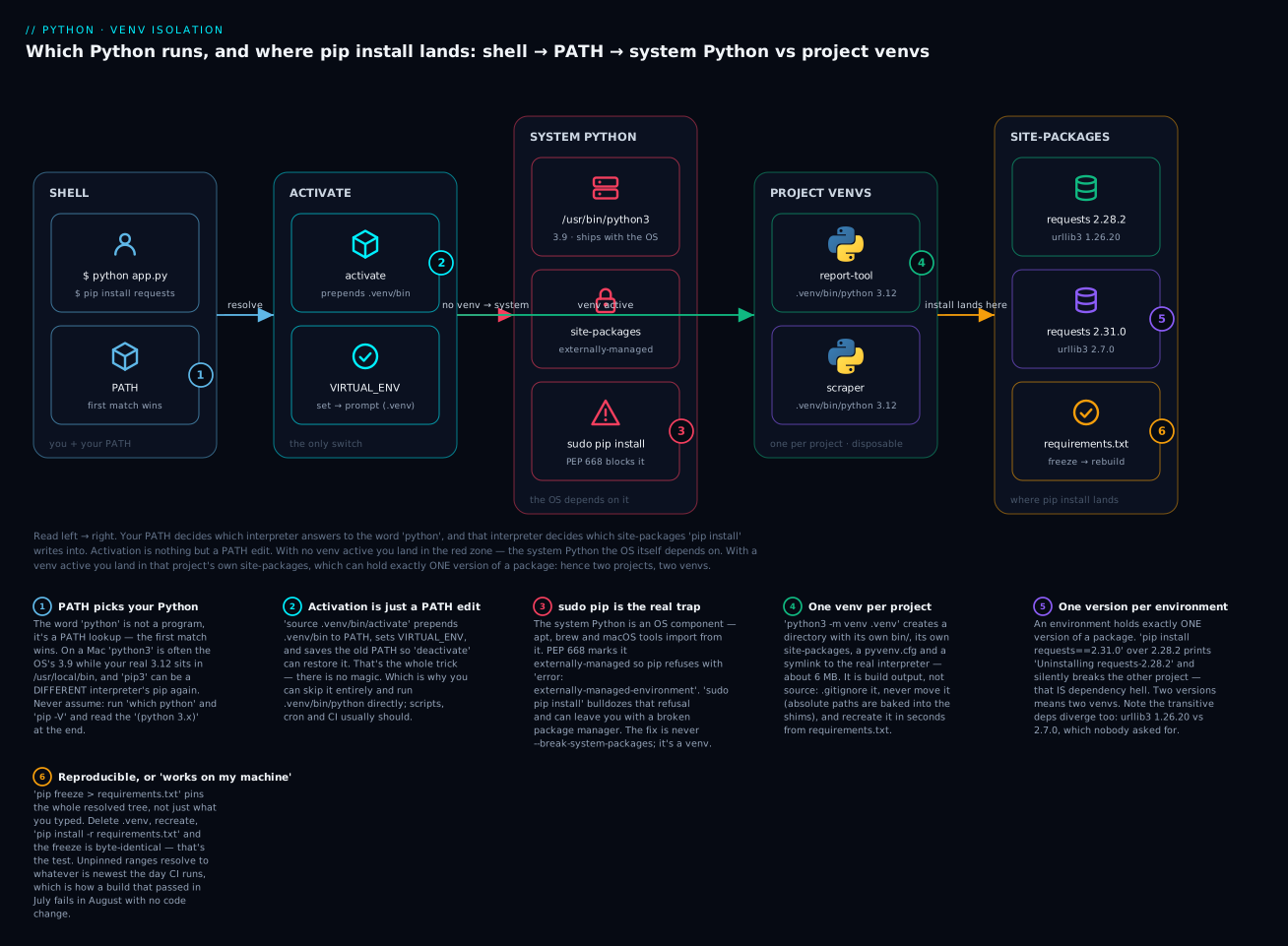
The six badges are the six things that actually go wrong: PATH decides everything and you should check it rather than assume (1); activation is just a PATH edit, so it’s skippable and also forgettable (2); sudo pip is the one unforgivable move (3); a venv is disposable build output, not source (4); an environment holds exactly one version of a package, which is the conflict we started with (5); and only a pinned requirements.txt makes any of it reproducible (6).
pip: install, inspect, remove
With a venv active, pip is safe to use freely — the worst you can do is break the .venv folder, and you can delete that.
python -m pip install requests==2.28.2
Installing collected packages: urllib3, idna, charset-normalizer, certifi, requests
Successfully installed certifi-2026.6.17 charset-normalizer-3.4.9 idna-3.18 requests-2.28.2 urllib3-1.26.20
You asked for one package and got five. requests depends on urllib3, idna, charset-normalizer and certifi, and pip installed those transitive dependencies for you. Remember those four names — they’re about to matter.
| Command | What it does |
|---|---|
pip install X |
Install the newest compatible version of X plus its dependencies |
pip install X==1.2.3 |
Install exactly 1.2.3 |
pip install -r requirements.txt |
Install everything listed in a file |
pip install -e . |
Install the current project in editable mode |
pip install -U X |
Upgrade X to the newest (--upgrade) |
pip uninstall X |
Remove X — but not its dependencies |
pip list |
Everything installed here, with versions |
pip list --outdated |
What has a newer release available |
pip show X |
Version, location, what it needs, what needs it |
pip freeze |
pip list in requirements.txt format |
pip check |
Verify no dependency is missing or conflicting |
pip install --dry-run X |
Resolve and report — install nothing |
pip download X |
Fetch the wheel without installing |
pip cache purge |
Empty the local wheel cache |
pip show is the one beginners skip and shouldn’t. It answers “where did this actually go?” — the question at the heart of every packaging bug:
pip show requests
Name: requests
Version: 2.28.2
Summary: Python HTTP for Humans.
Home-page: https://requests.readthedocs.io
Author: Kenneth Reitz
License: Apache 2.0
Location: /Users/you/pipdemo/report-tool/.venv/lib/python3.12/site-packages
Requires: certifi, charset-normalizer, idna, urllib3
Required-by:
Location proves the isolation is real. Requires and Required-by map the dependency graph in both directions — Required-by is how you find out who’s holding a package hostage at an old version.
Version specifiers
Getting these right is most of dependency management. Every row below was resolved against the real package index, so these are actual answers, not theory:
| Specifier | Means | Resolved to |
|---|---|---|
requests |
Newest available | 2.34.2 |
requests==2.28.2 |
Exactly 2.28.2 | 2.28.2 |
requests>=2.28 |
2.28 or anything newer | 2.34.2 |
requests~=2.28.0 |
“Compatible”: >=2.28.0, <2.29 — patches only |
2.28.2 |
requests~=2.28 |
“Compatible”: >=2.28, <3.0 — minor bumps too |
2.34.2 |
requests>=2.28,<3 |
Explicit range | 2.34.2 |
requests!=2.30.0 |
Anything but that release | 2.34.2 |
requests==2.28.* |
Any 2.28 patch | 2.28.2 |
The ~= operator is the one people get wrong, and the table shows why: where you put the last dot changes the meaning entirely. ~=2.28.0 pins the minor version and allows patches. ~=2.28 allows the whole 2.x line. Same operator, wildly different blast radius. If you’re unsure, write the range out explicitly — >=2.28,<2.29 is longer and never ambiguous.
Uninstalling doesn’t do what you think
pip uninstall -y certifi
python -c "import requests"
Found existing installation: certifi 2026.6.17
Uninstalling certifi-2026.6.17:
  Successfully uninstalled certifi-2026.6.17
    from certifi import where
ModuleNotFoundError: No module named 'certifi'
pip uninstall removes only what you named. It didn’t warn that requests needed certifi; it just removed it and left the environment broken. And symmetrically, uninstalling requests would leave those four dependencies behind as orphans forever. pip has no autoremove.
pip check is the tool that catches this:
pip check
requests 2.28.2 requires certifi, which is not installed.
This is a real argument for the venv-as-disposable mindset: rather than surgically repairing a tangled environment, delete .venv and rebuild from requirements.txt in ten seconds. Environments are cattle, not pets.
Editable installs
When the thing you’re working on is itself a package, pip install -e . (“editable”, or “development mode”) installs it as a link to your source rather than a copy:
pip install -e .
python -c "import greeter; print(greeter.hello('Vinod'))"
Hello, Vinod!
Now edit the source — change the greeting — and re-run without reinstalling anything:
Namaste, Vinod!
Your change is live. That’s the whole feature: import greeter works from any directory (so your tests can import it like a real user would) while still reading the files you’re editing right now. Without -e, you’d pip install . a frozen copy and have to reinstall after every edit. pip list marks it:
Package    Version   Editable project location
---------- --------- ---------------------------
greeter    0.1.0     /Users/you/pipdemo/pkgdemo
requests   2.34.2
requirements.txt, pyproject.toml, and the art of pinning
Your venv is disposable, which raises the obvious question: how do you get it back? You write down what’s in it.
pip freeze > requirements.txt
cat requirements.txt
certifi==2026.6.17
charset-normalizer==3.4.9
idna==3.18
requests==2.31.0
urllib3==2.7.0
pip freeze lists the entire resolved tree, exactly pinned — not just the one package you asked for. That’s the feature. Anyone (including future-you, including CI) runs pip install -r requirements.txt and gets these five versions, not “whatever’s newest today”.
Here’s how much that matters. Those two projects from the opening, frozen side by side:
--- report-tool ---          --- scraper ---
certifi==2026.6.17           certifi==2026.6.17
charset-normalizer==3.4.9    charset-normalizer==3.4.9
idna==3.18                   idna==3.18
requests==2.28.2             requests==2.31.0
urllib3==1.26.20             urllib3==2.7.0
Look at the last line. You asked for two versions of requests — you also got two major versions of urllib3, a package you never mentioned. requests 2.28.2 caps it below 2.0; 2.31.0 allows 2.x. Two environments diverged in a dependency nobody chose, which is exactly why a single shared site-packages was never going to work.
The two files, and what each is for
requirements.txt |
pyproject.toml |
|
|---|---|---|
| Answers | “What is installed in this env?” | “What does this project need?” |
| Standard | Convention (a pip input file) | PEP 621 — the official standard |
| Written by | pip freeze (generated) |
You (by hand) |
| Typical contents | Exact pins of the whole tree | Loose ranges of direct deps only |
| Also holds | Nothing else | Name, version, build config, tool settings |
| Install with | pip install -r requirements.txt |
pip install -e . |
| Best for | Apps, deploys, CI | Anything you package or publish |
A minimal modern pyproject.toml is smaller than most people expect:
[project]
name = "greeter"
version = "0.1.0"
requires-python = ">=3.12"
dependencies = ["requests>=2.31,<3"]

[build-system]
requires = ["hatchling"]
build-backend = "hatchling.build"
It declares intent — “any requests in the 2.x line from 2.31” — where requirements.txt records outcome: “requests 2.31.0, urllib3 2.7.0”. They’re not rivals; they answer different questions, and mature projects have both.
Pin or range? Depends what you’re building
This is the decision people get backwards, and it flips entirely on one question: is your code the final word, or will it live alongside someone else’s?
| Application (a service, a CLI, a script) | Library (something others pip install) |
|
|---|---|---|
| Style | Pin exactly — requests==2.31.0 |
Range — requests>=2.31,<3 |
| Why | You control deployment. Identical everywhere = debuggable | Your users have other deps. A hard pin makes you unusable |
| Lives in | requirements.txt (from pip freeze) |
pyproject.toml dependencies |
| Upgrades | Deliberately, as a reviewed commit | Whatever your user’s resolver picks |
| Failure if wrong | Builds drift; “works on my machine” | ResolutionImpossible for your users |
A library that pins requests==2.31.0 is antisocial: the moment a user’s other dependency needs 2.32, they can’t have both, and your package is the reason. An application that doesn’t pin is unreliable: your July build and your August build install different code from the same commit, and you find out in production.
That failure is worth seeing, because pip states it plainly:
pip install "requests==2.28.2" "urllib3==2.7.0"
ERROR: Cannot install requests==2.28.2 and urllib3==2.7.0 because these package
versions have conflicting dependencies.

The conflict is caused by:
    The user requested urllib3==2.7.0
    requests 2.28.2 depends on urllib3<1.27 and >=1.21.1

To fix this you could try to:
1. loosen the range of package versions you've specified
2. remove package versions to allow pip attempt to solve the dependency conflict

ERROR: ResolutionImpossible: for help visit https://pip.pypa.io/...
ResolutionImpossible is dependency hell announcing itself by name. pip is telling you the truth: you asked for two things that cannot coexist. And notice it’s readable — “requests 2.28.2 depends on urllib3<1.27” is the entire story. When you meet this error, read the “conflict is caused by” block; it names the culprit every time.
A note on lockfiles
pip freeze is a poor man’s lockfile. It captures versions, but not hashes (so it can’t prove you got the same bytes), and it flattens the tree (so you can no longer tell what you asked for versus what came along for the ride). Real lockfiles fix both:
| Tool | Lockfile | Hashes? | Keeps intent separate? |
|---|---|---|---|
pip freeze |
requirements.txt |
❌ | ❌ — direct and transitive deps look identical |
pip-tools |
requirements.txt from requirements.in |
✅ | ✅ — .in is intent, .txt is the lock |
uv |
uv.lock |
✅ | ✅ — pyproject.toml is intent |
poetry |
poetry.lock |
✅ | ✅ — pyproject.toml is intent |
For your first projects pip freeze is genuinely fine — it’s reproducible enough to unblock every problem in this lesson. When you ship something that matters, graduate to a real lock.
python -m pip: the “which pip?” problem
Throughout this lesson I’ve written python -m pip install rather than pip install. That’s deliberate, and this machine shows why better than any explanation:
which -a pip pip3
pip not found
/usr/bin/pip3
/usr/local/bin/pip3
Two problems in three lines. pip doesn’t exist at all — common on macOS, and the source of endless command not found: pip. And there are two pip3s. Which Python does each one feed?
| Command | Feeds which interpreter |
|---|---|
pip |
(doesn’t exist on this machine) |
/usr/bin/pip3 |
pip 21.2.4 → python 3.9 |
/usr/local/bin/pip3 |
pip 24.3.1 → python 3.12 |
python3 -m pip |
python 3.9 — because python3 resolves to /usr/bin/python3 |
python3.12 -m pip |
python 3.12 — guaranteed |
.venv/bin/python -m pip |
the venv — guaranteed |
Both are called pip3. Both are on PATH. They install into different interpreters, and whichever comes first in PATH silently wins. Type pip3 install requests, then run your code with python3.12, and you get ModuleNotFoundError while staring at a terminal that clearly says Successfully installed requests. That combination — a success message and a missing module — is the single most confusing beginner experience in Python, and it is entirely this.
The reason is that pip is not a special program. It’s a script with a hardcoded shebang:
head -1 /usr/local/bin/pip3
#!/Library/Frameworks/Python.framework/Versions/3.12/bin/python3.12
The name pip3 tells you nothing about which Python it targets. The first line of the file does. Nobody reads the first line of the file.
python -m pip dissolves the whole problem. It means “hey this specific interpreter, run your own pip module.” The interpreter and its pip can’t disagree, because you named the interpreter and it found its own pip:
python3.12 -m pip install requests # cannot possibly install into 3.9
pip install X |
python -m pip install X |
|
|---|---|---|
| Which Python? | Whatever PATH finds first — unknown |
The one you just named — certain |
| If two pips exist | Coin flip | No ambiguity |
If pip isn’t on PATH |
command not found |
Works — pip is a module, not a command |
| On Windows | pip can’t upgrade itself (file in use) | python -m pip install -U pip works |
| Inside a venv | Fine, once you’ve verified activation | Fine, and self-verifying |
Inside an activated venv, pip is genuinely safe — activation is what makes it unambiguous. But python -m pip is safe everywhere, including the moments you think you’re activated and aren’t. It’s five extra characters for a guarantee. Take the trade.
And whichever you type, verify before you trust:
which python && python -V && python -m pip -V
/Users/you/pipdemo/report-tool/.venv/bin/python
Python 3.12.3
pip 24.0 from /Users/you/pipdemo/report-tool/.venv/lib/python3.12/site-packages/pip (python 3.12)
Read the (python 3.12) at the end of the pip line, and read the path. If either surprises you, stop — every minute spent debugging before that check is wasted.
.gitignore the .venv
One rule, no exceptions:
# .gitignore
.venv/
__pycache__/
*.pyc
Never commit .venv/. It’s thousands of files, it can be hundreds of megabytes, it contains compiled binaries built for your CPU and OS, and every path inside it is absolute and specific to your machine. A colleague who checks it out gets a venv that cannot possibly work on their laptop. It is build output, not source.
| Commit this | Never commit this |
|---|---|
requirements.txt |
.venv/, venv/, env/ |
pyproject.toml |
__pycache__/, *.pyc |
uv.lock / poetry.lock |
*.egg-info/, build/, dist/ |
.python-version |
.env — secrets |
The requirements.txt is the venv, compressed to five lines of text that work on any machine. That’s the trade: commit the recipe, never the cake.
The modern ecosystem: uv, poetry, pipx, conda
Python packaging has a reputation for churn, and it’s partly earned. Here’s the honest landscape, including which one to actually learn first:
| Tool | What it is | Speed | Learn it when |
|---|---|---|---|
venv + pip |
Built in. Zero install | Baseline | Now. It’s everywhere, it’s assumed knowledge, and every other tool is explained in its terms |
uv |
A pip/venv replacement in Rust. Resolver + installer + lockfile + Python installer | 10-100× faster | Once venv+pip is second nature. Currently the best answer for new projects |
poetry |
All-in-one project manager: deps, lock, build, publish | Moderate | You’re on a team that already uses it, or publishing to PyPI |
pipx |
Installs CLI tools in their own private venvs | pip-speed | The day you want black/ruff/httpie as commands, not imports |
conda |
Env + package manager for non-Python binaries too | Slow | Data science with heavy native deps (CUDA, MKL, GDAL) |
Learn venv + pip first, properly. Not because it’s best — because it’s universal. It’s on every machine, in every tutorial, in every CI image, and every alternative describes itself by reference to it (“uv is a drop-in pip replacement”). You cannot understand the alternatives without it, and you’ll meet it on someone else’s project regardless of what you’d have chosen.
uv is the one to watch and, for greenfield work, probably to use. Same concepts, dramatically faster, with a real lockfile:
uv venv                        # create a venv (instant)
uv pip install requests        # pip-compatible: same flags you already know
uv pip compile pyproject.toml -o requirements.txt   # real lock, with hashes
uv add requests                # project-style: updates pyproject.toml + uv.lock
uv run python app.py           # run in the project env, no activation needed
Note uv pip install — deliberately the same interface. Everything you learned here transfers. That’s exactly why learning the fundamentals first isn’t wasted effort.
pipx solves a problem you’ll feel soon. When you want black as a command rather than a library, installing it in each project’s venv is silly, and installing it globally is the thing we’ve spent this lesson forbidding. pipx gives each tool its own hidden venv and puts just the command on your PATH:
pipx install black       # its own private venv; `black` on PATH
pipx run black .         # run once without installing at all
conda exists because pip historically couldn’t install non-Python things — CUDA libraries, compilers, GDAL. If you’re in scientific computing and pip install keeps dying on a compiler error, conda solves that. Otherwise it’s a heavier, slower parallel universe with its own channels and its own conflicts. Don’t reach for it as a beginner unless your field hands it to you.
The good news: the concepts don’t change. Every one of these tools does the same four things, and once you can name them you can read any of them. Creating an environment is python3 -m venv .venv, uv venv, or conda create -n x python=3.12. Adding a package is pip install requests, uv add requests, poetry add requests. Recording what you have is pip freeze > requirements.txt, uv lock, poetry lock, conda env export. Rebuilding from that record is pip install -r requirements.txt, uv sync, poetry install.
An isolated environment, a resolver, a manifest of intent, a lockfile of outcome. Learn those four with the boring built-in tools and every alternative reads as a dialect rather than a new language — which is exactly why this lesson spent its time on venv and pip instead of chasing the fashionable one.
Hands-on lab
You’ll reproduce the conflict from the opening, prove it’s real, fix it with two venvs, then throw an environment away and rebuild it exactly. Requires an internet connection (pip downloads from PyPI).
Step 0 — find out which Python you actually have. This is not a formality; on macOS it’s usually a surprise:
which python3
python3 --version
/usr/bin/python3
Python 3.9.6
What just happened: macOS’s bundled Python 3.9 answered — not the 3.12 you may have installed. If your version is 3.12+, use python3 for the rest of the lab. If not, find your real one and use it explicitly:
ls /usr/local/bin/python3.* /opt/homebrew/bin/python3.* 2>/dev/null
/usr/local/bin/python3.12 --version
Python 3.12.3
I’ll write python3.12 below. Substitute whatever your 3.12+ interpreter is.
Step 1 — two projects.
mkdir -p ~/pipdemo/report-tool ~/pipdemo/scraper
cd ~/pipdemo/report-tool
Step 2 — a script that asserts what it needs. Create ~/pipdemo/report-tool/check.py:
"""report-tool — pinned to the old requests on purpose."""
import requests

REQUIRED = "2.28.2"
print(f"report-tool  wants requests {REQUIRED}, found {requests.__version__}")
assert requests.__version__ == REQUIRED, "wrong requests for report-tool!"
print("report-tool  OK")
And ~/pipdemo/scraper/check.py:
"""scraper — needs the newer requests."""
import requests

REQUIRED = "2.31.0"
print(f"scraper      wants requests {REQUIRED}, found {requests.__version__}")
assert requests.__version__ == REQUIRED, "wrong requests for scraper!"
print("scraper      OK")
What just happened: the assert makes the version dependency visible. In a real project the break would be an API change — a removed parameter, a renamed attribute — and you’d get a confusing TypeError instead. This is the same failure with the mystery removed.
Step 3 — before/after activation. Create the venv and watch the interpreter change:
cd ~/pipdemo/report-tool
echo "--- BEFORE ---"
which python3 ; python3 --version ; echo "VIRTUAL_ENV=${VIRTUAL_ENV:-<unset>}"

python3.12 -m venv .venv
source .venv/bin/activate

echo "--- AFTER ---"
which python ; python --version ; python -m pip -V ; echo "VIRTUAL_ENV=$VIRTUAL_ENV"
--- BEFORE ---
/usr/bin/python3
Python 3.9.6
VIRTUAL_ENV=<unset>
--- AFTER ---
/Users/you/pipdemo/report-tool/.venv/bin/python
Python 3.12.3
pip 24.0 from /Users/you/pipdemo/report-tool/.venv/lib/python3.12/site-packages/pip (python 3.12)
VIRTUAL_ENV=/Users/you/pipdemo/report-tool/.venv
What just happened: your prompt now shows (.venv), python moved from /usr/bin into your project, the version jumped 3.9 → 3.12, and pip reports (python 3.12) from inside .venv. All of that from one PATH edit.
Step 4 — install the old version and prove it works.
python -m pip install requests==2.28.2
python check.py
report-tool  wants requests 2.28.2, found 2.28.2
report-tool  OK
What just happened: pip installed requests and four dependencies you didn’t ask for. report-tool is green.
Step 5 — cause the conflict on purpose. ⚠️ This deliberately breaks report-tool. That’s the point — and it’s why we’re doing it in a throwaway venv.
python -m pip install requests==2.31.0
python check.py
Installing collected packages: requests
  Attempting uninstall: requests
    Found existing installation: requests 2.28.2
    Uninstalling requests-2.28.2:
      Successfully uninstalled requests-2.28.2
Successfully installed requests-2.31.0
report-tool  wants requests 2.28.2, found 2.31.0
Traceback (most recent call last):
  File "/Users/you/pipdemo/report-tool/check.py", line 6, in <module>
    assert requests.__version__ == REQUIRED, "wrong requests for report-tool!"
           ^^^^^^^^^^^^^^^^^^^^^^^^^^^^^^^^
AssertionError: wrong requests for report-tool!
What just happened: there it is. To install 2.31.0, pip had to uninstall 2.28.2 — one env, one version. If this were the shared system Python, you’d have just broken report-tool from inside a completely different project, with a “Successfully installed” message on screen.
Step 6 — the fix: one venv per project. Restore report-tool, then give scraper its own:
python -m pip install requests==2.28.2     # restore report-tool's pin
deactivate

cd ~/pipdemo/scraper
python3.12 -m venv .venv
.venv/bin/python -m pip install requests==2.31.0
What just happened: note we skipped activation this time and used .venv/bin/python directly. Same result, no source, nothing to forget.
Step 7 — both work, simultaneously.
~/pipdemo/report-tool/.venv/bin/python ~/pipdemo/report-tool/check.py
~/pipdemo/scraper/.venv/bin/python     ~/pipdemo/scraper/check.py
report-tool  wants requests 2.28.2, found 2.28.2
report-tool  OK
scraper      wants requests 2.31.0, found 2.31.0
scraper      OK
What just happened: two versions of the same library, on one machine, at the same moment. No conflict, no uninstalling, no switching. This is the entire payoff of the lesson in four lines of output.
Step 8 — freeze, and see the hidden divergence.
cd ~/pipdemo/scraper
.venv/bin/python -m pip freeze > requirements.txt
cat requirements.txt
~/pipdemo/report-tool/.venv/bin/python -m pip freeze
certifi==2026.6.17
charset-normalizer==3.4.9
idna==3.18
requests==2.31.0
urllib3==2.7.0
certifi==2026.6.17
charset-normalizer==3.4.9
idna==3.18
requests==2.28.2
urllib3==1.26.20
What just happened: compare the last lines. urllib3 2.7.0 vs 1.26.20 — a major version apart, in a package you never mentioned. requests 2.28.2 requires urllib3<1.27; 2.31.0 doesn’t. One shared folder could never have satisfied both.
Step 9 — destroy the environment. ⚠️ rm -rf deletes permanently. Check you’re in ~/pipdemo/scraper first.
cd ~/pipdemo/scraper
rm -rf .venv
/usr/bin/python3 check.py
Traceback (most recent call last):
  File "/Users/you/pipdemo/scraper/check.py", line 2, in <module>
    import requests
ModuleNotFoundError: No module named 'requests'
What just happened: the venv is gone, so the system Python answered — and it has no requests. This is the #1 beginner traceback, and you just caused it on purpose. Now you know its meaning: you’re talking to the wrong interpreter.
Step 10 — rebuild from the recipe, and verify.
python3.12 -m venv .venv
.venv/bin/python -m pip install -r requirements.txt
.venv/bin/python check.py
Installing collected packages: urllib3, idna, charset-normalizer, certifi, requests
Successfully installed certifi-2026.6.17 charset-normalizer-3.4.9 idna-3.18 requests-2.31.0 urllib3-2.7.0
scraper      wants requests 2.31.0, found 2.31.0
scraper      OK
What just happened: five lines of text rebuilt the entire environment. Now prove it’s exactly the same, which is the part people skip:
.venv/bin/python -m pip freeze | diff requirements.txt - && echo "IDENTICAL — reproducible"
IDENTICAL — reproducible
What just happened: the rebuilt freeze is byte-identical to the original. That diff is the actual definition of reproducible, and it’s the check worth running in CI.
Now try these:
- Run
pip checkinreport-tool, thenpip uninstall -y certifi, thenpip checkagain. What does it say? Doespython check.pystill work? - In
report-tool, runpip install "urllib3==2.7.0". Read theResolutionImpossibleblock. Which line names the culprit? mv ~/pipdemo/scraper/.venv ~/pipdemo/scraper/.venv-moved, then run.venv-moved/bin/pip --version. Then try.venv-moved/bin/python -m pip --version. Why does one break and the other survive?- Compare
pip install "requests~=2.28.0"withpip install "requests~=2.28"using--dry-run. Predict the versions before you run it. - Delete both
.venvfolders. Note how little you care — that’s the mindset.
Common mistakes and troubleshooting
| Symptom / traceback | Cause | Fix |
|---|---|---|
ModuleNotFoundError: No module named 'requests' — but pip said it installed! |
You installed with one interpreter and ran with another, or the venv isn’t active | which python && python -m pip -V — read the (python 3.x). Install with python -m pip, not pip |
command not found: pip |
Bare pip often doesn’t exist (macOS/Linux) |
python3 -m pip … — pip is a module, always reachable |
error: externally-managed-environment |
PEP 668: modern Linux/Homebrew mark the system Python off-limits | Make a venv. Not --break-system-packages |
Attempting uninstall: requests when you install a version |
One env holds one version — pip is removing the old one | Expected. If you needed both, you needed two venvs |
ERROR: ResolutionImpossible |
Two requirements genuinely can’t coexist | Read the “conflict is caused by” block; loosen a pin or split the projects |
.venv\Scripts\Activate.ps1 cannot be loaded because running scripts is disabled |
PowerShell’s default ExecutionPolicy | Set-ExecutionPolicy -ExecutionPolicy RemoteSigned -Scope CurrentUser |
Permission denied / Consider using the --user option on pip install |
Installing into a system folder you don’t own | Don’t sudo. Make a venv |
bad interpreter: .../old-path/.venv/bin/: no such file |
You moved or renamed the venv folder | venvs aren’t relocatable. Delete, recreate, pip install -r requirements.txt |
pip check → X requires Y, which is not installed |
pip uninstall removed a dependency of something else |
Reinstall it, or rebuild the venv from requirements.txt |
ImportError after uninstalling something unrelated |
Same thing — pip removes only what you name | pip check to find it; there is no pip autoremove |
| Colleague clones your repo and nothing works | You committed .venv/, or requirements.txt is unpinned |
.gitignore the venv; commit a pinned requirements.txt |
| Works locally, fails in CI, no code changed | Unpinned ranges resolved to a newer release | Pin exactly for apps: pip freeze > requirements.txt |
(.venv) in prompt but pip installs elsewhere |
Stale shell, or activated then changed PATH | deactivate, re-source, re-check with pip -V |
ModuleNotFoundError: No module named 'setuptools' |
Python 3.12+ venvs no longer preinstall it | python -m pip install setuptools, or use a modern build backend |
Four of these deserve more than a table row.
1. sudo pip install — the one unforgivable move. When pip install says permission denied, sudo is right there and it makes the error go away. Do not. You are writing into a folder the operating system depends on, and you can overwrite a library that apt or brew needs, at which point the tool you’d use to repair the damage is itself broken. Modern Python takes the decision out of your hands via PEP 668:
error: externally-managed-environment

× This environment is externally managed
╰─> To install Python packages system-wide, try brew install
    xyz, where xyz is the package you are trying to install.

    If you wish to install a Python library that isn't in Homebrew,
    use a virtual environment:

    python3 -m venv path/to/venv
    source path/to/venv/bin/activate
    python3 -m pip install xyz

note: If you believe this is a mistake, please contact your Python installation or OS
distribution provider. You can override this, at the risk of breaking your Python
installation or OS, by passing --break-system-packages.
That’s not pip malfunctioning — that’s pip protecting you, and helpfully printing the fix. Note the escape hatch it mentions: --break-system-packages. It is named that way on purpose. The flag does what it says. The answer to this error is always, without exception, a venv.
2. “pip installed it but Python can’t find it.” The most disorienting bug in Python, and it has one cause: pip and python were different interpreters. They’re separate programs found separately on your PATH, and nothing makes them agree. pip3 might be 3.9’s pip while python3.12 runs your code — one folder gets the package, the other looks for it. Two habits make it impossible: type python -m pip install so the interpreter picks its own pip, and run python -m pip -V to read the (python 3.x) before you trust any install.
3. Moving a venv breaks it — but not the way folklore says. Absolute paths are baked in at creation. Move the folder and you’ll see:
bad interpreter: /Users/you/pipdemo/movedemo/.venv/bin/: no such file or directory
The precise truth is more interesting than “it breaks”: the interpreter survives a move (it finds pyvenv.cfg relative to itself, so .venv/bin/python -m pip still works), but every console script — pip, black, anything with an entry point — has the old absolute path in its shebang, and activate hardcodes VIRTUAL_ENV. There’s a nastier variant: if you copied rather than moved, the shim happily runs the original venv’s pip and installs into the wrong environment, silently. Don’t fix any of this. Delete, recreate, pip install -r requirements.txt. Ten seconds.
4. Unpinned requirements are a time bomb. requests in a requirements.txt means “newest, whenever anyone runs this”. Your machine got 2.31.0 in July. CI gets 2.34.2 in August. Same commit, different code, and the failure looks like a mystery because nothing in your diff changed. pip freeze > requirements.txt and the bomb is defused. For an application, an unpinned dependency isn’t flexibility — it’s a variable you left uncontrolled.
Cheat-sheet
| Command | What it does |
|---|---|
python3 -m venv .venv |
Create a virtual environment in .venv |
python3.12 -m venv .venv |
Create it with a specific Python version |
python3 -m venv --upgrade-deps .venv |
Create it with the latest pip, not the bundled one |
source .venv/bin/activate |
Activate (macOS/Linux, bash/zsh) |
.venv\Scripts\Activate.ps1 |
Activate (Windows PowerShell) |
.venv\Scripts\activate.bat |
Activate (Windows cmd) |
deactivate |
Leave the venv (a shell function, not a program) |
.venv/bin/python app.py |
Run in the venv without activating — best for scripts/CI |
rm -rf .venv |
⚠️ Delete the venv. It’s disposable — that’s the point |
which python · python -V |
Which interpreter am I talking to? Check before you trust |
python -m pip -V |
Which pip, and which Python it feeds — read the (python 3.x) |
python -m pip install X |
Install — the safe form, always |
pip install X==1.2.3 |
Exact version |
pip install "X>=1.2,<2" |
A range |
pip install "X~=1.2.0" |
>=1.2.0,<1.3 — patches only |
pip install "X~=1.2" |
>=1.2,<2.0 — minor bumps too |
pip install -U X |
Upgrade to newest |
pip install -r requirements.txt |
Install everything from a file |
pip install -e . |
Editable install of the current project |
pip install --dry-run X |
Resolve and report; install nothing |
pip uninstall X |
Remove X — not its dependencies |
pip list |
What’s installed here |
pip list --outdated |
What has a newer release |
pip show X |
Version, Location, Requires, Required-by |
pip freeze |
Installed packages, exactly pinned |
pip freeze > requirements.txt |
Record the environment |
pip check |
Any missing or conflicting dependencies? |
pip freeze | diff requirements.txt - |
Prove the rebuild is identical |
.gitignore → .venv/ |
Never commit the venv |
Interview and exam questions
Q: What problem does a virtual environment solve?
A: A Python interpreter has exactly one site-packages, and it can hold only one version of any package. So two projects needing different versions of the same library are in direct conflict — installing for one silently uninstalls the other’s version. A venv gives each project its own site-packages, so both versions coexist. It also keeps you out of the system Python, which the OS itself depends on.
Q: What does python3 -m venv .venv actually create?
A: A directory with bin/ (its own python — a symlink to the real interpreter — plus pip and the activate scripts), lib/python3.12/site-packages/ (empty except pip), include/, and pyvenv.cfg. That last file is the mechanism: when Python starts, it looks beside its executable for pyvenv.cfg, and if it finds one it points site-packages at the neighbouring lib/ instead of the system one. About 6 MB, because the interpreter is symlinked, not copied.
Q: What does activation actually do?
A: It prepends .venv/bin to PATH, sets VIRTUAL_ENV, saves the old PATH in _OLD_VIRTUAL_PATH, defines deactivate as a shell function, and changes the prompt. That’s all — it’s a PATH edit, not a service. Which is why you must source it (a subprocess can’t change your shell’s environment) and why you can skip it entirely by running .venv/bin/python directly.
Q: Why source .venv/bin/activate rather than ./.venv/bin/activate?
A: Executing it starts a child shell, edits that shell’s PATH, and exits — your shell is unchanged. Environment variables aren’t inheritable upward. source runs the script in your current shell, which is the only way it can modify your current shell.
Q: Why should you never run sudo pip install?
A: The system Python is an OS component — apt, dnf, brew and system tools import from its site-packages. Installing or upgrading there can overwrite a library the OS needs and break your package manager, i.e. break the tool you’d use to fix it. Modern distros and Homebrew enforce this via PEP 668: pip refuses with error: externally-managed-environment. The correct response is a venv, never --break-system-packages.
Q: What’s the difference between pip and python -m pip?
A: pip is a script found on PATH whose shebang hardcodes some interpreter — the name tells you nothing about which. python -m pip tells a specific, named interpreter to run its own pip module, so the two can’t disagree. On a machine with several Pythons, pip3 install X followed by python3.12 app.py gives ModuleNotFoundError while the terminal says “Successfully installed”. python -m pip makes that impossible.
Q: pip install says it succeeded but import raises ModuleNotFoundError. What’s your first move?
A: Run which python and python -m pip -V and compare. Almost always they’re different interpreters — pip fed one site-packages, your code read another. Either the venv isn’t active, or you used a pip/pip3 belonging to a different Python. Fix by activating (or using .venv/bin/python) and installing with python -m pip.
Q: requirements.txt or pyproject.toml?
A: Different jobs. pyproject.toml (PEP 621) declares intent — the direct dependencies with loose ranges — and is what you publish. requirements.txt, usually generated by pip freeze, records the outcome: every package in the resolved tree at an exact version, for reproducing an environment. Applications use both; libraries mostly just need pyproject.toml.
Q: When do you pin exactly and when do you use ranges?
A: Applications pin (requests==2.31.0): you control deployment, and identical versions everywhere make failures reproducible. Libraries range (requests>=2.31,<3): your users have other dependencies, and a hard pin makes your package impossible to co-install — they’d hit ResolutionImpossible because of you. Rule of thumb: pin what you deploy, range what you publish.
Q: What does ~= mean, and what’s the trap?
A: “Compatible release.” The trap is where the last dot goes: ~=2.28.0 means >=2.28.0,<2.29 (patches only), while ~=2.28 means >=2.28,<3.0 (the whole 2.x line). Same operator, very different blast radius. If in doubt, write the range explicitly.
Q: Does pip uninstall X remove X’s dependencies?
A: No. It removes only what you name, leaving orphans behind — and it will happily remove a package that something else still needs, breaking it silently. There’s no pip autoremove. pip check reports the damage (requests 2.28.2 requires certifi, which is not installed). In practice you don’t repair environments, you delete .venv and rebuild from requirements.txt.
Q: What is pip install -e . for?
A: An editable (development) install: instead of copying your package into site-packages, pip links to your source tree. import mypkg works from anywhere — so tests import it exactly as a user would — while still reading the files you’re editing right now. Without it you’d reinstall after every change.
Q (practical): A colleague clones your repo and gets ModuleNotFoundError. Walk through the fix.
A: They need an environment. python3 -m venv .venv, source .venv/bin/activate, python -m pip install -r requirements.txt. If there’s no requirements.txt, that’s the actual bug — generate one with pip freeze > requirements.txt and commit it. If they say “but you committed .venv/”, that’s a second bug: it’s full of absolute paths and binaries for your machine. .gitignore it and commit the recipe, not the cake.
Q (practical): Two projects need requests 2.28.2 and 2.31.0. Show the commands.
A:
cd ~/report-tool && python3 -m venv .venv
.venv/bin/python -m pip install requests==2.28.2

cd ~/scraper && python3 -m venv .venv
.venv/bin/python -m pip install requests==2.31.0
Two venvs, two site-packages, both versions live at once. The point being tested is that you cannot solve this in one environment — and that .venv/bin/python -m pip needs no activation at all.
Key takeaways
- An environment holds exactly one version of a package. Installing 2.31.0 over 2.28.2 prints
Uninstalling requests-2.28.2and silently breaks the other project. That’s dependency hell, and the only fix is more environments — one per project. pythonis a PATH lookup, not a program. Whichever interpreter is found first runs, and that interpreter decides whichsite-packagesis imported and wherepip installlands.which pythonandpython -m pip -Vbefore you trust anything.python3 -m venv .venvmakes a directory, not a miracle — its ownbin/andsite-packages, a symlinked interpreter, and apyvenv.cfgthat redirects imports. ~6 MB, disposable,rm -rfit without a second thought.- Activation is just a PATH edit — prepend
.venv/bin, setVIRTUAL_ENV, definedeactivate.sourceit (a child process can’t change your shell), or skip it entirely with.venv/bin/python, which is what scripts, cron and CI should do. - Never
sudo pip install. The system Python belongs to the OS; overwrite its packages and you can breakapt/brew. PEP 668 now blocks it witherror: externally-managed-environment— that’s a guardrail, not a bug.--break-system-packagesis named honestly. - Prefer
python -m pipover barepip. The namepip3tells you nothing about which interpreter it feeds; a machine can easily have two.python -m pipmakes the interpreter choose its own pip, so they can never disagree. pip freeze > requirements.txtis how a disposable venv stays reproducible. It pins the whole resolved tree — delete.venv, recreate,pip install -r, anddiffthe freeze to prove it. Pin exactly for apps, use ranges for libraries..gitignorethe.venv. It’s build output — thousands of files, absolute paths, binaries for your CPU. Commitrequirements.txtandpyproject.toml: the recipe, not the cake.- Learn
venv+ pip first, then reach foruv. Not because it’s the best tool, but because it’s universal and every alternative is explained in its terms.uvis dramatically faster with a real lockfile;pipxis for CLI tools;poetryif your team already uses it;condaonly for heavy native/scientific deps.
Next, the ideas here get put to work: if you haven’t yet set up your interpreter and editor, Install Python: Environments, IDEs, Jupyter & Your First Script covers the ground beneath this one. Once packages are installing cleanly, Modules, Packages, Imports & the Standard Library explains what import actually does with that site-packages folder — the other half of this story. And when your code starts reading real data, File I/O: Text, Binary & Error Handling is where requirements.txt stops being a special case and becomes just another file you can read and write.