You already know that Microsoft Entra ID answers the question “who are you?” and that Azure RBAC answers “are you allowed to do this here?”. This lesson opens up that first door and looks at the machinery behind it. When a user types their name into a sign-in page, a surprising amount happens in the next two seconds: a redirect to Entra ID, a credential check, possibly a second factor, a stack of policy evaluations, and finally the issuing of a small signed pass called a token. Understanding that flow is the difference between an administrator who configures authentication and one who merely enables checkboxes and hopes.
We will build the picture from the protocol up — OAuth 2.0 and OpenID Connect (OIDC) at a level you can actually reason about — then layer on the things organisations care about in practice: single sign-on (SSO), federation, multi-factor authentication (MFA) with number matching, passwordless sign-in (Windows Hello, FIDO2 security keys, the Authenticator app), self-service password reset (SSPR), and the policy engine that ties it all together, Conditional Access. By the end you will be able to read a sign-in log, design an MFA roll-out, and write a Conditional Access policy that grants, challenges, or blocks based on real-world signals.
Learning objectives
By the end of this lesson you can:
- Trace a modern sign-in end to end and name the OAuth2/OIDC pieces involved: identity vs access vs refresh tokens, scopes, and consent.
- Explain single sign-on, and distinguish federation, password hash sync, pass-through authentication, and seamless SSO.
- Choose appropriate MFA methods, and explain why number matching defeats MFA-fatigue attacks.
- Describe passwordless options — Windows Hello for Business, FIDO2 keys, and Authenticator passwordless / passkeys — and why they are phishing-resistant.
- Enable self-service password reset safely and connect it to on-prem password writeback.
- Read Conditional Access as a policy engine: signals → conditions → access controls (grant, require MFA, block, session).
Prerequisites & where this fits
You should already understand tenants, users, groups, and the split between authentication and authorization. If those are new, read Microsoft Entra ID Fundamentals: Tenants, Users, Groups & RBAC first, and make sure you are comfortable in the portal and Azure Cloud Shell. You need an Entra tenant where you hold the Global Administrator or Security Administrator role to follow the lab; a free Entra tenant or an Microsoft 365 developer tenant is perfect. This is the authentication lesson of the Identity module in the Azure Zero-to-Hero course — it sits between the identity fundamentals and the deeper RBAC & governance deep dive, and everything in the security track later assumes you understand it.
Core concepts: tokens, not passwords
The single most important mental shift is this: modern apps never see your password. Your password is a secret shared only between you and Entra ID. Apps receive tokens instead — short-lived, signed JSON documents that prove an authentication happened and describe what the bearer may do. This is why a leaked app database does not leak your credential, and why signing out of one place can be made to sign you out everywhere.
Three token types do almost all the work, and conflating them is the classic beginner mistake:
| Token | Standard | Audience (who consumes it) | Answers the question | Typical lifetime |
|---|---|---|---|---|
| ID token | OpenID Connect | The client app | Who signed in? (name, object ID, tenant) | Minutes (session) |
| Access token | OAuth 2.0 | An API / resource | What may the bearer do at this API? | ~60–90 min (variable) |
| Refresh token | OAuth 2.0 | The token endpoint (Entra) | Get me new access/ID tokens silently | Hours to days (sliding) |
The distinction is worth saying plainly. The ID token is for the app to learn who the user is — it is an identity assertion, never sent to an API. The access token is the one the app attaches (as a Bearer header) when it calls a downstream API such as Microsoft Graph or your own web API; the API validates it and reads its scopes and roles to decide what to allow. The refresh token never goes to an API at all — it is redeemed back at Entra ID to mint fresh access tokens without re-prompting the user, which is what makes a session feel continuous even though access tokens expire quickly.
A few supporting terms you will meet constantly:
- Scope (or delegated permission) — a string like
Files.Readthat names a slice of an API the user consents to let the app use on their behalf. App roles / application permissions are the equivalent for an app acting as itself (no user). - Consent — the one-time (or admin-granted) agreement that an app may request given scopes. Admin consent grants on behalf of the whole tenant; user consent is per user and can be restricted.
- Claims — the key/value facts inside a token (object ID
oid, tenanttid, name, group membership, authentication methods, and so on). RBAC, Conditional Access, and your app all read claims. - Authority / issuer — the Entra endpoint that signs tokens for your tenant, e.g.
https://login.microsoftonline.com/<tenant-id>/v2.0. Apps validate a token’s signature (against Entra’s published keys), issuer, audience, and expiry.
How a sign-in actually works (OAuth2/OIDC at a teachable level)
Let us walk a real browser sign-in to a web app using the OIDC authorization-code flow with PKCE — the flow Microsoft recommends for almost everything today. Keep the token table above in mind; this is simply how those tokens get issued.
- Unauthenticated request. You open
app.contoso.com. The app has no valid session, so instead of showing content it redirects your browser to Entra ID’s/authorizeendpoint, passing its client ID, the scopes it wants, a redirect URI, and a one-time code challenge (PKCE). - Authentication at Entra. Entra now owns the interaction. It collects your username, then your credential (password, or a passwordless gesture), and — if policy requires — a second factor. Crucially, the app is not involved in any of this; your secret stays between you and Entra.
- Policy evaluation. Before issuing anything, Entra runs Conditional Access: it looks at signals (user, device, location, app, risk) and decides whether to allow, demand MFA, or block. We cover this engine in detail below.
- Authorization code returned. On success Entra redirects your browser back to the app’s redirect URI with a short-lived, single-use authorization code — not a token. Codes can be safely passed through the browser because they are useless without the next step.
- Token exchange (back channel). The app’s server calls Entra’s
/tokenendpoint, presenting the code plus the PKCE code verifier (proving it is the same client that started the flow). Entra responds with an ID token, an access token, and usually a refresh token. - Session established. The app validates the ID token, learns who you are, and creates its own session. When it needs to call an API, it sends the access token. When that expires, it silently redeems the refresh token for a new one.
That is the whole dance. Two design choices make it secure: tokens that do grant access (access/refresh) travel on the back channel between servers, never exposed to the browser, while the thing that travels on the front channel (the code) is useless on its own. PKCE binds the two halves so a stolen code cannot be redeemed by anyone else.
It is worth naming the legacy alternative you should avoid: ROPC (resource-owner password credentials), where an app collects the password itself and sends it to Entra. It breaks MFA, breaks passwordless, breaks Conditional Access, and trains users to type their password into non-Microsoft screens. Treat it as deprecated. For device-bound and headless scenarios, prefer the device code flow or client credentials (app-only) instead.
Single sign-on (SSO) and federation
Single sign-on means a user authenticates once and then reaches many applications without re-entering credentials. In the Entra world this works because Entra ID issues a primary session (a cookie/token in the browser, or a Primary Refresh Token on a registered device). When the next app redirects to /authorize, Entra sees that valid session and issues fresh app tokens silently — no second prompt. The user experiences “I logged in to my laptop this morning and everything just works.”
How SSO is delivered depends on the app’s protocol and where the password is checked. The key distinction for interviews is managed authentication (Entra checks the credential) versus federated authentication (a different identity provider checks it and Entra trusts the result).
| Method | Where the password is verified | Network dependency | Notes |
|---|---|---|---|
| Password hash sync (PHS) | In the cloud (Entra), against a synced hash of a hash of the on-prem password | None at sign-in (resilient) | Simplest; Microsoft’s recommended default for hybrid |
| Pass-through authentication (PTA) | On-premises AD, via a lightweight agent | Requires the agent/DC reachable | Passwords never stored in cloud; agent validates live |
| Federation (AD FS / 3rd-party IdP) | An external IdP (AD FS, Ping, Okta) using SAML/WS-Fed | Requires the IdP reachable | Most complex; use only for specific needs (e.g. smart-card-only, certain compliance) |
| Seamless SSO (Entra Connect) | n/a (rides on PHS or PTA) | Kerberos to a DC for the silent step | Auto-signs-in domain-joined machines on the corporate network without a prompt |
A few clarifications that trip people up:
- Federation specifically means delegating the credential check to another identity provider. Entra does not see the password; the IdP authenticates the user and returns a signed SAML assertion (or token) that Entra trusts because of a configured trust relationship. Historically this was AD FS; Microsoft now steers most customers away from AD FS toward cloud authentication (PHS/PTA) because AD FS is extra infrastructure to secure and patch, and it sits squarely in the attack path.
- Seamless SSO is not a credential method — it is a convenience that sits on top of PHS or PTA. On a domain-joined machine on the corporate network, the browser obtains a Kerberos ticket and Entra accepts it, so the user is signed in with no prompt at all. On modern Entra-joined or hybrid-joined Windows, the Primary Refresh Token (PRT) does the same job more robustly and is the preferred path.
- App-side SSO protocols. Modern apps use OIDC/OAuth; older enterprise apps use SAML 2.0 or WS-Federation. Entra speaks all of them, which is how one identity can front a SaaS estate with mixed protocols. You configure these per app in Enterprise applications.
The practical upshot: for almost all new hybrid deployments, choose Password Hash Sync + Seamless SSO (or rely on PRT for Entra-joined devices). Reach for PTA only when a hard policy says passwords may never be evaluated in the cloud, and reach for federation only when you have a concrete requirement an IdP uniquely satisfies.
Multi-factor authentication (MFA)
A password is something you know; on its own it is a single point of failure that phishing, reuse, and breaches defeat daily. MFA demands a second, independent factor — something you have (a phone, a key) or something you are (a fingerprint or face) — so a stolen password alone is not enough. In Entra ID, MFA is no longer a standalone toggle: you choose which methods are allowed in the Authentication methods policy, and you decide when MFA is required using Conditional Access (modern) rather than the legacy per-user MFA switch.
The available methods differ enormously in strength. Treat this table as a ranking, strongest at the top:
| Method | Factor type | Phishing-resistant? | Notes / when to use |
|---|---|---|---|
| FIDO2 security key | Have (hardware) + gesture | Yes | Strongest; hardware key, works on shared devices |
| Windows Hello for Business | Have (device-bound key) + biometric/PIN | Yes | Best on a user’s own Windows PC |
| Passkeys in Authenticator | Have (phone) + biometric | Yes | Phishing-resistant and convenient; the modern default |
| Authenticator push + number matching | Have (phone app) | No (but strong) | Good baseline; number matching blocks MFA fatigue |
| Authenticator TOTP / hardware OATH token | Have (code generator) | No | Works offline; useful where push is unavailable |
| Certificate-based auth (CBA) | Have (smart card/cert) | Yes | Government/regulated; PIV/CAC cards |
| SMS / voice call | Have (phone number) | No (weak) | SIM-swap and interception risk; phase out for anything privileged |
Number matching — why it matters
The original Authenticator “Approve/Deny” push had a fatal weakness: an attacker who had the user’s password could spam approval prompts until a tired or distracted user tapped Approve — an MFA-fatigue (or “push bombing”) attack. Number matching closes this. Now the sign-in screen shows a two-digit number that the user must type into the Authenticator app to approve. Because the number lives on the screen the attacker triggered — not on the user’s phone — the user cannot approve a sign-in they did not start. Entra layers on additional context (app name and geographic location of the request) so the user sees what they are approving. Number matching is now enforced by default for Authenticator push, and you should never disable it.
Configuring MFA the modern way
The recommended architecture is: enable strong methods in the Authentication methods policy, then require MFA via Conditional Access for the right users and conditions. Avoid the deprecated per-user MFA (the old “enabled/enforced” state on each account) and the legacy Security Defaults once you are large enough to need targeted policy — Security Defaults is a fine free baseline for small tenants, but it is all-or-nothing.
Passwordless authentication
MFA still typically involves a password. Passwordless removes the password entirely — the user proves possession of a device plus a biometric or PIN, and there is no shared secret to phish, reuse, or breach. This is the strategic direction Microsoft (and the industry, via the FIDO Alliance) is pushing, and it is the single highest-impact security improvement most organisations can make. Three Entra-native options:
- Windows Hello for Business. On a Windows PC, the user enrols a biometric (face/fingerprint) or PIN that unlocks a private key held in the device’s TPM (a tamper-resistant chip). The private key never leaves the hardware; sign-in is a cryptographic challenge bound to that device. The PIN feels like a password but is not — it is local to the device and useless anywhere else, which is why a “PIN” here is far stronger than a password.
- FIDO2 security keys. A small hardware key (USB/NFC) holds the private key. The user touches the key and provides a gesture (PIN/biometric on the key). Because authentication is bound to the origin (the real Entra domain) by the WebAuthn protocol, a FIDO2 key cannot be used against a look-alike phishing site — this is what “phishing-resistant” means concretely. Ideal for shared workstations and high-value admins.
- Microsoft Authenticator passwordless / passkeys. The user’s phone becomes the credential: they enter their username, the app prompts for a biometric, and number matching confirms the request. Modern Authenticator supports device-bound passkeys, giving phishing resistance with the convenience of the phone people already carry.
Why phishing-resistant beats “MFA”. A push-approval or one-time code can still be relayed by an attacker-in-the-middle proxy (the user is tricked into approving the attacker’s session). FIDO2, Windows Hello, and passkeys defeat this because the credential is cryptographically bound to the legitimate website’s origin — there is nothing for the user to hand over and nothing the proxy can replay. When a security baseline says “require phishing-resistant MFA for admins,” it means these methods, not SMS or basic push.
Self-service password reset (SSPR)
People forget passwords, and a forgotten password should not mean a help-desk ticket and an hour of lost work. SSPR lets users reset or unlock their own account after proving identity through registered methods (Authenticator, phone, email, security questions). It reduces help-desk load, removes a social-engineering vector (attackers calling the help desk to reset accounts), and improves user experience.
Key things to get right:
- Scope and method count. Enable SSPR for a pilot group first, then all users. Require two methods to reset (one is too weak), and prefer app/phone over security questions, which are guessable.
- Combined registration. Turn on the combined security-information registration experience so users register their MFA and SSPR methods once, in one place — far less confusing than two separate enrolments.
- Password writeback. In a hybrid environment, enable password writeback in Entra Connect so a cloud reset flows back to on-prem Active Directory. Without it, a user who resets in the cloud would still have the old password on the corporate network — a recipe for lockouts.
- Admin accounts. Microsoft enforces SSPR-style strong reset for administrator roles automatically; do not rely on it as your only protection for privileged accounts — pair it with phishing-resistant MFA and PIM.
Conditional Access: the policy engine
If MFA and passwordless are the capabilities, Conditional Access (CA) is the brain that decides when to use them. It is best understood as a simple sentence Entra evaluates on every sign-in:
WHEN these assignments (signals) are true, THEN apply these access controls.
The model has two halves — what the policy matches on, and what it does.
Assignments (the signals / conditions it matches on):
| Signal | Examples of values you can match |
|---|---|
| Users / groups | Specific users, groups, roles, guests; with exclusions (e.g. break-glass accounts) |
| Target resources | Cloud apps (e.g. Azure Management, Exchange), user actions (register security info), auth context |
| Network / location | Named locations, trusted IPs, countries; any location |
| Device platform | Windows, macOS, iOS, Android, Linux |
| Client app | Browser, mobile/desktop apps, legacy authentication (POP/IMAP/SMTP) |
| Device state / filter | Compliant (via Intune), Entra-hybrid-joined; or a device filter rule |
| Sign-in / user risk | Risk level from Entra ID Protection (low/medium/high) — requires premium licensing |
Access controls (what it does when matched):
- Grant controls — Block access outright, or Grant access only if one or more requirements are met: require MFA, require phishing-resistant MFA / authentication strength, require compliant device, require Entra-hybrid-joined device, require approved client app, require app protection policy, require password change. You combine these with require all or require one.
- Session controls — shape how long and how the session behaves: sign-in frequency (force re-auth every N hours), persistent browser session (allow/never), app-enforced restrictions, and routing through Defender for Cloud Apps for in-session monitoring.
Reading a policy
A real “baseline” policy reads naturally once you know the shape. For example: WHEN any user (excluding the two break-glass accounts) signs in to any cloud app from any location, THEN grant access only if they complete MFA. That single policy is the backbone of most tenants. A second classic: WHEN a user accesses the Microsoft Azure Management app, THEN require a compliant device AND phishing-resistant MFA — locking the control plane down hard while leaving everyday apps a touch more relaxed.
Three operational rules will save you grief:
- Policies are additive and the most restrictive wins. If any applicable policy says block, the user is blocked, regardless of other grants. Plan for the combination, not each policy in isolation.
- Always exclude break-glass accounts. Keep two emergency-access accounts (no MFA dependency, long random passwords in a vault, heavily monitored) excluded from your CA policies so a misconfigured policy cannot lock everyone, including admins, out of the tenant.
- Use Report-only mode first. Every new policy supports Report-only, which evaluates and logs the outcome without enforcing it. Run a policy in report-only for a few days, inspect the sign-in logs to see who would have been affected, then flip it to On. This is the single best habit for avoiding self-inflicted outages.
Putting the whole picture together: a sign-in arrives, Entra authenticates the credential (ideally passwordless), Conditional Access weighs the signals and may demand a step-up (phishing-resistant MFA) or block, and only then are tokens issued. The diagram below shows that pipeline end to end.
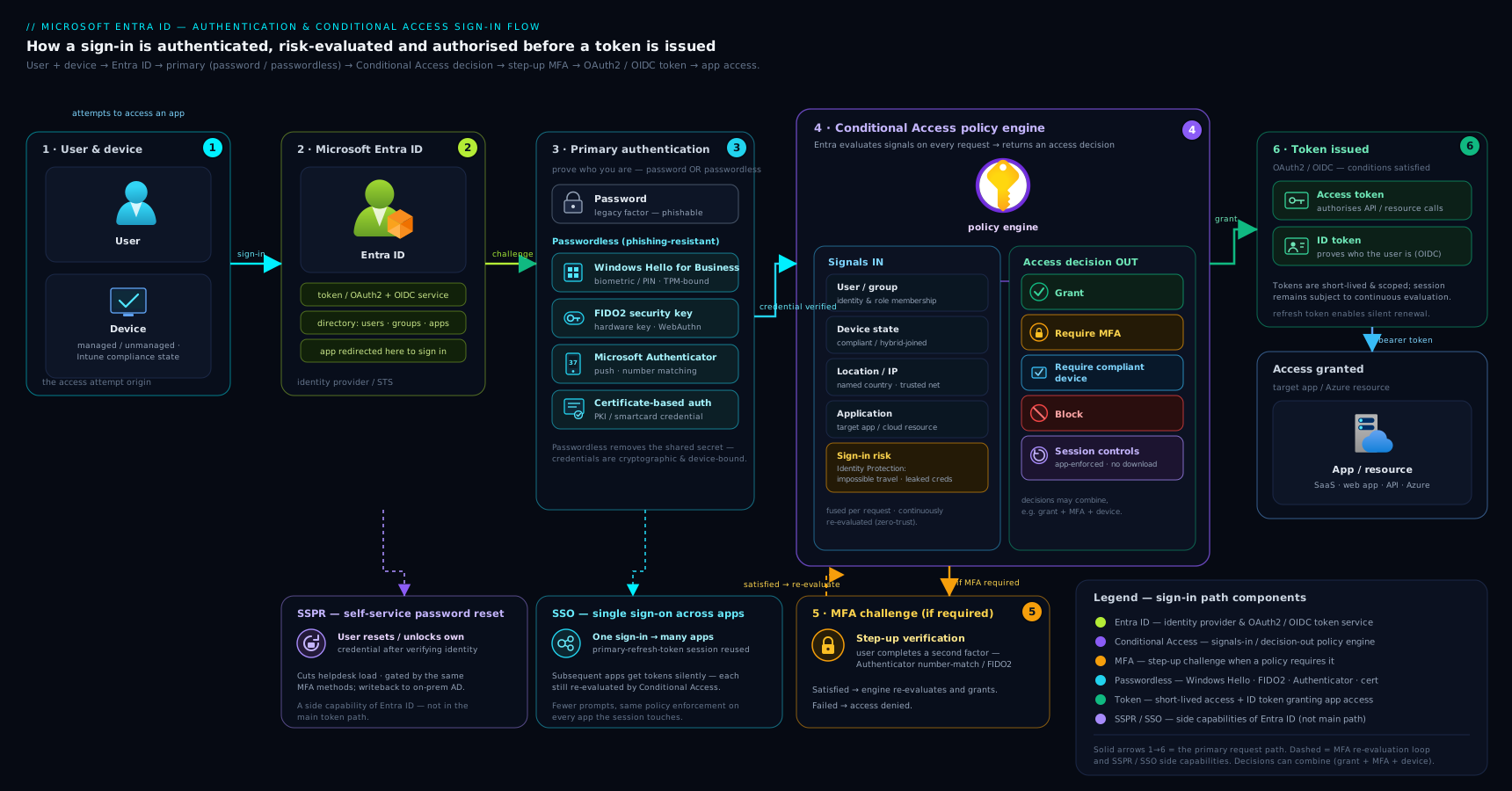
The flow makes the layering explicit: the OIDC redirect, the credential and second-factor check, the Conditional Access decision point fed by user/device/location/risk signals, and the final token issuance with its three token types.
Hands-on lab: enable phishing-resistant MFA with a Conditional Access policy
In this lab you will allow strong authentication methods and then require MFA for a pilot group with a Conditional Access policy — created safely in Report-only mode first. Most of this is portal-driven because Conditional Access is best learnt in the UI, but we use the CLI to set up a test group and inspect results.
You need: a tenant where you are Global Administrator (or Security Administrator + Authentication Policy Administrator), and at least one non-admin test user. A free or developer tenant is fine. Conditional Access requires Entra ID P1; developer/M365 E5 trial tenants include it.
1. Create a pilot group and add a test user
In Cloud Shell:
# Create a security group for the pilot
az ad group create \
  --display-name "ca-mfa-pilot" \
  --mail-nickname "ca-mfa-pilot"

# Find your test user's object id (replace the UPN)
az ad user show --id "testuser@yourtenant.onmicrosoft.com" --query id -o tsv

# Add the user to the group (use the id from above)
az ad group member add \
  --group "ca-mfa-pilot" \
  --member-id "<user-object-id>"
Expected: the group is created and az ad group member list --group ca-mfa-pilot -o table shows your test user.
2. Allow strong authentication methods
In the Entra admin centre → Protection → Authentication methods → Policies:
- Enable Microsoft Authenticator and set it to All users; confirm number matching and additional context are enabled (they are on by default).
- Enable FIDO2 security key (and Passkeys) for the pilot group if you have a key to test.
- Leave SMS disabled (or restrict it) so the pilot uses strong methods only.
3. Create the Conditional Access policy in Report-only
In Entra admin centre → Protection → Conditional Access → + New policy:
- Name:
CA001 – Pilot: require MFA. - Users: Include the ca-mfa-pilot group. Under Exclude, add your break-glass accounts (create two if you have none).
- Target resources: All cloud apps (or pick one test app).
- Grant: Grant access → tick Require multifactor authentication → Require one of the selected controls.
- Enable policy: set to Report-only.
- Create.
4. Test and read the result
Sign in as the test user in a private browser window. Because the policy is report-only, the user is not challenged, but the evaluation is recorded. Now inspect it:
- Entra admin centre → Monitoring → Sign-in logs → open the test user’s sign-in → the Conditional Access tab. You will see
CA001with a result of Report-only: would have required MFA (or success if the user is already MFA-registered).
This confirms the policy targets the right user and would take the right action — without having risked locking anyone out.
5. Promote to enforcement (optional)
Once the report-only results look correct, edit the policy and set Enable policy to On. Sign in again as the test user — this time you are prompted to register/complete MFA. Confirm the sign-in log now shows Success – MFA requirement satisfied.
Cleanup
# Remove the test user from the group, then delete the group
az ad group member remove --group "ca-mfa-pilot" --member-id "<user-object-id>"
az ad group delete --group "ca-mfa-pilot"
In the portal, delete (or return to Report-only/Off) the CA001 policy so it does not affect real users. Leave the Authentication methods policy as-is if you want to keep strong methods enabled.
Cost note
There is no charge for the objects you created. Conditional Access, risk-based policies, and passwordless at scale require Entra ID P1/P2 licences, which are included in the free developer/E5 trial used here; in production they are part of P1 (CA, SSPR for cloud users) and P2 (risk-based CA, Identity Protection, PIM). Basic MFA via Security Defaults is free for all tenants.
Common mistakes & troubleshooting
| Symptom | Likely cause | Fix |
|---|---|---|
| New CA policy locks admins out of the tenant | No break-glass exclusion; policy required something admins lacked | Use a recovered break-glass account; always exclude two emergency accounts from every policy |
| MFA-fatigue: users approve attacker prompts | Number matching disabled or legacy approve/deny in use | Enforce number matching + additional context; move to passwordless/passkeys |
| Hybrid user resets password in cloud but can’t log on to the domain | Password writeback not enabled in Entra Connect | Enable password writeback so cloud resets flow to on-prem AD |
| Conditional Access seems ignored for some sign-ins | Request used legacy authentication (POP/IMAP/basic), which bypasses modern controls | Block legacy auth with a dedicated CA policy; move clients to modern auth |
| Confusion over “which token does the API check?” | Mixing up ID vs access tokens | API validates the access token (audience + scopes); the ID token is for the client app only |
| Federated users can’t sign in during an on-prem outage | AD FS / PTA agent unreachable; no cloud fallback | Prefer PHS (cloud-resilient); if federated, enable PHS as backup authentication |
| Tokens valid far longer than expected after a change | Access/refresh tokens are cached; revocation isn’t instant | Use sign-in frequency / Continuous Access Evaluation; revoke sessions explicitly when needed |
| Users prompted for MFA too often | No persistent session / overly aggressive sign-in frequency | Tune sign-in frequency and persistent browser session; register devices so PRT enables silent SSO |
Best practices
- Make passwordless the default, not the exception. Roll out Windows Hello for Business and passkeys/FIDO2; reserve passwords for break-glass only over time.
- Drive MFA through Conditional Access, not per-user toggles, so requirements are targeted, auditable, and consistent — and always start new policies in Report-only.
- Block legacy authentication. It is the most common bypass of every modern control; a single CA policy closes it.
- Eliminate weak factors. Phase out SMS and voice for anything privileged; require phishing-resistant methods (authentication strengths) for admins and the Azure Management app.
- Use combined registration and roll SSPR + MFA enrolment into one user journey.
- Keep two break-glass accounts, excluded from CA, with long random secrets in a vault, alerted on every use.
- Prefer cloud authentication (PHS). It is resilient to on-prem outages and removes AD FS as an attack surface; keep PHS enabled even alongside federation as a fallback.
Security notes
Identity is the real perimeter, and authentication is its front door. Three points deserve emphasis. First, phishing-resistant MFA is categorically stronger than “MFA” — only origin-bound credentials (FIDO2, Windows Hello, passkeys, CBA) defeat real-time relay/AiTM phishing; treat SMS and basic push as legacy. Second, tokens are bearer credentials — anyone holding a valid access or refresh token is the user until it expires, so protect them: enable token protection, shorten sign-in frequency for sensitive apps, and use Continuous Access Evaluation so events like a disabled account or risky sign-in revoke access in near-real-time rather than waiting for token expiry. Third, privileged accounts need the most, not the least, friction — require phishing-resistant MFA, gate them behind Conditional Access, and grant their roles just-in-time with PIM rather than standing access. For the deeper hardening playbook see Conditional Access Token Protection and Just-in-Time Access with PIM.
Interview & exam questions
-
What is the difference between an ID token and an access token? The ID token (OIDC) is for the client application to learn who signed in — an identity assertion with claims like name and object ID; it is never sent to an API. The access token (OAuth2) is sent to a resource/API as a
Bearercredential and carries the scopes/roles that authorise specific operations. The API validates the access token; the app reads the ID token. -
What does a refresh token do, and why is it kept separate? A refresh token is redeemed at Entra’s token endpoint to obtain new access (and ID) tokens silently, so a session continues past the short life of an access token. It is kept on the back channel and never sent to APIs, limiting exposure; access tokens are deliberately short-lived precisely because refresh tokens can renew them.
-
Explain the OIDC authorization-code flow with PKCE in one breath. The app redirects the browser to Entra’s
/authorizewith a code challenge; the user authenticates and Conditional Access is evaluated; Entra returns a single-use authorization code to the redirect URI; the app’s server exchanges the code plus the PKCE verifier at/tokenfor ID, access, and refresh tokens. Codes travel the front channel (useless alone); tokens travel the back channel; PKCE binds the two halves. -
What is federation, and how does it differ from password hash sync? Federation delegates the credential check to an external IdP (e.g. AD FS) that returns a signed assertion Entra trusts — Entra never sees the password. Password hash sync synchronises a hash of the password hash to the cloud and lets Entra verify sign-ins directly. PHS is simpler and resilient to on-prem outages; federation adds infrastructure and an attack surface, so Microsoft recommends cloud authentication for most cases.
-
What is seamless SSO and what does it depend on? Seamless SSO silently signs in users on domain-joined machines on the corporate network, using Kerberos to obtain a ticket Entra accepts. It is not a credential method — it rides on PHS or PTA. On modern Entra-joined/hybrid-joined Windows, the Primary Refresh Token (PRT) provides equivalent silent SSO more robustly.
-
Why does number matching matter? It defeats MFA-fatigue / push-bombing: instead of a simple Approve/Deny, the user must type a number shown on the sign-in screen into Authenticator. Because that number lives on the screen the attacker triggered, a user cannot approve a sign-in they did not initiate. It is enforced by default and should never be disabled.
-
What makes an authentication method “phishing-resistant”? The credential is cryptographically bound to the legitimate site’s origin (WebAuthn/FIDO2), so it cannot be entered into, or relayed through, a look-alike phishing site or an attacker-in-the-middle proxy. FIDO2 keys, Windows Hello for Business, passkeys, and certificate-based auth qualify; SMS, voice, and basic push do not.
-
Describe the Conditional Access model. CA evaluates assignments (signals: users/groups, target resources, location, device platform/state, client app, sign-in risk) and applies access controls (grant with requirements like MFA / compliant device / phishing-resistant strength, block, or session controls like sign-in frequency). Policies are additive and the most restrictive wins; always exclude break-glass accounts and pilot in Report-only.
-
A new CA policy must not lock anyone out. What two safeguards do you use? Report-only mode to evaluate and log impact before enforcing, and break-glass account exclusions so emergency admins can always sign in even if a policy is misconfigured.
-
When would you choose pass-through authentication over password hash sync? When organisational policy mandates that passwords are never evaluated or stored (even as a hash) in the cloud, and live validation against on-prem AD is required. The trade-off is a dependency on the PTA agent/DC being reachable; Microsoft still recommends enabling PHS as a fallback for resilience.
-
What is the risk of leaving legacy authentication enabled? Legacy protocols (POP, IMAP, SMTP, older Office clients) cannot perform MFA or honour most Conditional Access controls, so they are the prime path for password-spray and credential-stuffing attacks. Block them with a dedicated CA policy.
-
How can access be revoked faster than token expiry? Use Continuous Access Evaluation (CAE), which lets resources react to critical events (account disabled, password reset, risky sign-in, location change) by rejecting tokens in near-real-time, and use sign-in frequency plus explicit session revocation rather than waiting up to an hour for an access token to lapse.
Quick check
- Which token does an API validate to authorise a call — ID, access, or refresh?
- Is seamless SSO a way of checking credentials? What does it depend on?
- Name two phishing-resistant authentication methods.
- In Conditional Access, what does Report-only mode do?
- Why must break-glass accounts be excluded from Conditional Access policies?
Answers
- The access token — the API checks its audience and scopes/roles. The ID token is for the client app; the refresh token is only ever sent back to Entra.
- No. Seamless SSO is a silent sign-in convenience that rides on PHS or PTA; it uses Kerberos on the corporate network (or, on modern devices, the PRT) and does not itself verify the password.
- Any two of: FIDO2 security key, Windows Hello for Business, passkeys in Authenticator, certificate-based authentication.
- It evaluates the policy and logs what would have happened, without enforcing it — so you can verify impact in the sign-in logs before turning it on.
- So a misconfigured or overly strict policy cannot lock everyone, including all administrators, out of the tenant; the excluded emergency accounts provide a guaranteed recovery path.
Exercise
Design (on paper, then build in Report-only) a two-policy baseline for a small company. Policy A: require MFA for all users, excluding two break-glass accounts, for all cloud apps. Policy B: require a compliant device and phishing-resistant MFA when accessing the Microsoft Azure Management app. Create both in Report-only, sign in as a test user touching the Azure portal, then open the sign-in logs → Conditional Access tab and write one sentence for each policy explaining whether it matched and what it would have enforced. Explain in two sentences why Policy B is stricter than Policy A and why that asymmetry is correct.
Certification mapping
| Exam | Objective area this supports |
|---|---|
| AZ-900 (Azure Fundamentals) | Describe Azure identity, access, and security — authentication vs authorization, SSO, MFA, passwordless, and Conditional Access concepts. |
| AZ-104 (Azure Administrator) | Manage identities and governance — configure authentication methods, SSPR, and Conditional Access / MFA for users. |
| SC-300 (Identity & Access Administrator) | Implement authentication and access management — authentication methods and policies, MFA & number matching, passwordless, SSPR with writeback, and Conditional Access design (assignments, grant/session controls, report-only). |
Glossary
- OAuth 2.0 — the authorization framework that issues access and refresh tokens so apps can call APIs on a user’s behalf.
- OpenID Connect (OIDC) — an identity layer on top of OAuth 2.0 that adds the ID token proving who signed in.
- ID / access / refresh token — identity assertion for the app; API authorisation credential; silent-renewal credential redeemed at Entra.
- PKCE — Proof Key for Code Exchange; binds the authorization code to the client that started the flow, blocking code interception.
- Scope / app role — a delegated permission a user consents to; an application permission an app holds acting as itself.
- Single sign-on (SSO) — authenticate once, reach many apps without re-prompting.
- Federation — delegating the credential check to an external identity provider (e.g. AD FS) that Entra trusts.
- PHS / PTA — Password Hash Sync (Entra verifies in the cloud) / Pass-Through Authentication (on-prem agent verifies).
- Seamless SSO / PRT — silent corporate-network sign-in via Kerberos; the device-bound Primary Refresh Token that enables modern silent SSO.
- MFA — multi-factor authentication: requiring a second, independent factor beyond the password.
- Number matching — typing a screen-shown number into Authenticator to approve, defeating MFA-fatigue attacks.
- Passwordless — sign-in with no password at all (Windows Hello, FIDO2, passkeys), removing the secret to phish.
- Phishing-resistant — a credential cryptographically bound to the real site’s origin, immune to relay/AiTM phishing.
- SSPR — self-service password reset; password writeback flows a cloud reset back to on-prem AD.
- Conditional Access — Entra’s policy engine: assignments (signals) → access controls (grant / block / session).
- Break-glass account — an emergency-access admin account excluded from Conditional Access for guaranteed recovery.
- Continuous Access Evaluation (CAE) — near-real-time revocation of access in response to critical security events.
Next steps
Now that you understand the authentication door, learn how Azure decides what an identity may do once inside. Continue with Microsoft Entra & Azure RBAC: Governance Deep Dive — roles, scopes, custom roles, PIM, and governance at enterprise scale. Then deepen your security:
- Conditional Access Token Protection — stop token theft and AiTM relay with authentication context and protected actions.
- Just-in-Time Access: PIM for Azure Roles & Groups — replace standing admin privilege with time-bound, audited elevation.
- Eliminating Secrets: Key Vault & Workload Identity Federation — remove long-lived credentials so workloads authenticate without stored secrets.