The previous lesson taught you a troubleshooting method — reproduce, isolate the layer, compare config against desired state, inspect the evidence, fix, verify, prevent. That method is only as good as the evidence you can gather. This lesson is the toolbox: the specific Azure tools that answer “is this packet allowed?”, “where is the traffic actually going?”, “why won’t this VM boot?”, “is Microsoft having a problem with this resource?”, and “what changed at 02:14 last night?”.
The skill that separates a confident operator from someone guessing is knowing which tool answers which question and reaching for it in seconds. A junior engineer reflexively opens a support ticket; a senior runs IP flow verify, reads the answer in five seconds, and then either fixes it or files a ticket with the evidence attached. Everything here maps to the Monitor and maintain Azure resources domain of AZ-104.
Learning objectives
By the end of this lesson you can:
- Use each Network Watcher capability — IP flow verify, next hop, NSG diagnostics, effective security rules, connection troubleshoot, packet capture, and VNet flow logs — and say which question each answers.
- Set up Connection Monitor for continuous, synthetic reachability and latency testing between endpoints.
- Read Resource Health to tell an Azure-platform problem apart from a self-inflicted one, and distinguish it from Service Health.
- Diagnose a VM that will not boot using boot diagnostics, the serial console, and run-command.
- Use the Activity Log to answer “who changed what, when?” and turn that into an alert.
- Write a small set of KQL queries in Log Analytics that find failures, errors, and signal in metrics and logs.
Prerequisites & where this fits
You should already be comfortable with the troubleshooting mindset from the previous lesson, and with the building blocks those playbooks reference — VNets, subnets, NSGs and route tables; what a VM is; and what Azure Monitor, Log Analytics, and the Activity Log are at a high level. If any feel shaky, revisit the networking and monitoring lessons first. This is Lesson 8 of the Troubleshooting & Operations module in the Azure Zero-to-Hero course, and the practical companion to the methodology lesson: that one taught you how to think; this one hands you the instruments. It is the last stop before the capstone, where these tools become daily reflexes.
Core concepts: the diagnostics toolkit by layer
Azure does not have one “diagnostics” product. It has a toolbox, and the most valuable mental model is mapping each tool to the layer and the question it answers. Almost every incident lives in one of these layers, and reaching for the wrong tool wastes the minutes that matter most.
| Layer | The question | Reach for | What it tells you |
|---|---|---|---|
| Network — control plane | “Is this traffic allowed by my config?” | IP flow verify, NSG diagnostics, effective security rules | Allow/deny verdict and the exact rule responsible |
| Network — routing | “Where will this packet actually go?” | Next hop, effective routes | The next-hop type and IP the platform will use |
| Network — live | “Is the path actually working right now?” | Connection troubleshoot, Connection Monitor | Real reachability, latency, and where a hop fails |
| Network — forensic | “What was on the wire?” | Packet capture, VNet flow logs | The actual packets / a record of allowed & denied flows |
| Platform | “Is this Azure’s fault?” | Resource Health, Service Health | Whether the platform degraded this specific resource |
| Compute | “Why won’t this VM boot / why can’t I get in?” | Boot diagnostics, serial console, run-command | The console screen, kernel-level access, in-guest command execution |
| Change | “Who changed what, when?” | Activity Log | The control-plane audit trail of every write operation |
| Everything | “Show me the failures across all of this” | KQL in Log Analytics | Queryable logs and metrics across the whole estate |
Two distinctions trip people up constantly:
- Control plane vs. data plane. The control plane (Azure Resource Manager) is operations on a resource — creating a VM, changing an NSG rule, attaching a disk; the Activity Log records these. The data plane is operations inside a resource — the packets a VM sends, the blobs read from a storage account. Network Watcher’s verify tools reason about the control-plane configuration; packet capture and flow logs observe the data plane.
- Configuration vs. reality. IP flow verify and next hop answer “what should happen, given your config” — evaluations of NSG rules and route tables computed instantly, without sending a packet. Connection troubleshoot, packet capture, and Connection Monitor answer “what is happening” — they put real traffic on the wire. When config says “allowed” but reality says “broken”, the gap is usually DNS, the guest OS firewall, or the application itself — not Azure networking.
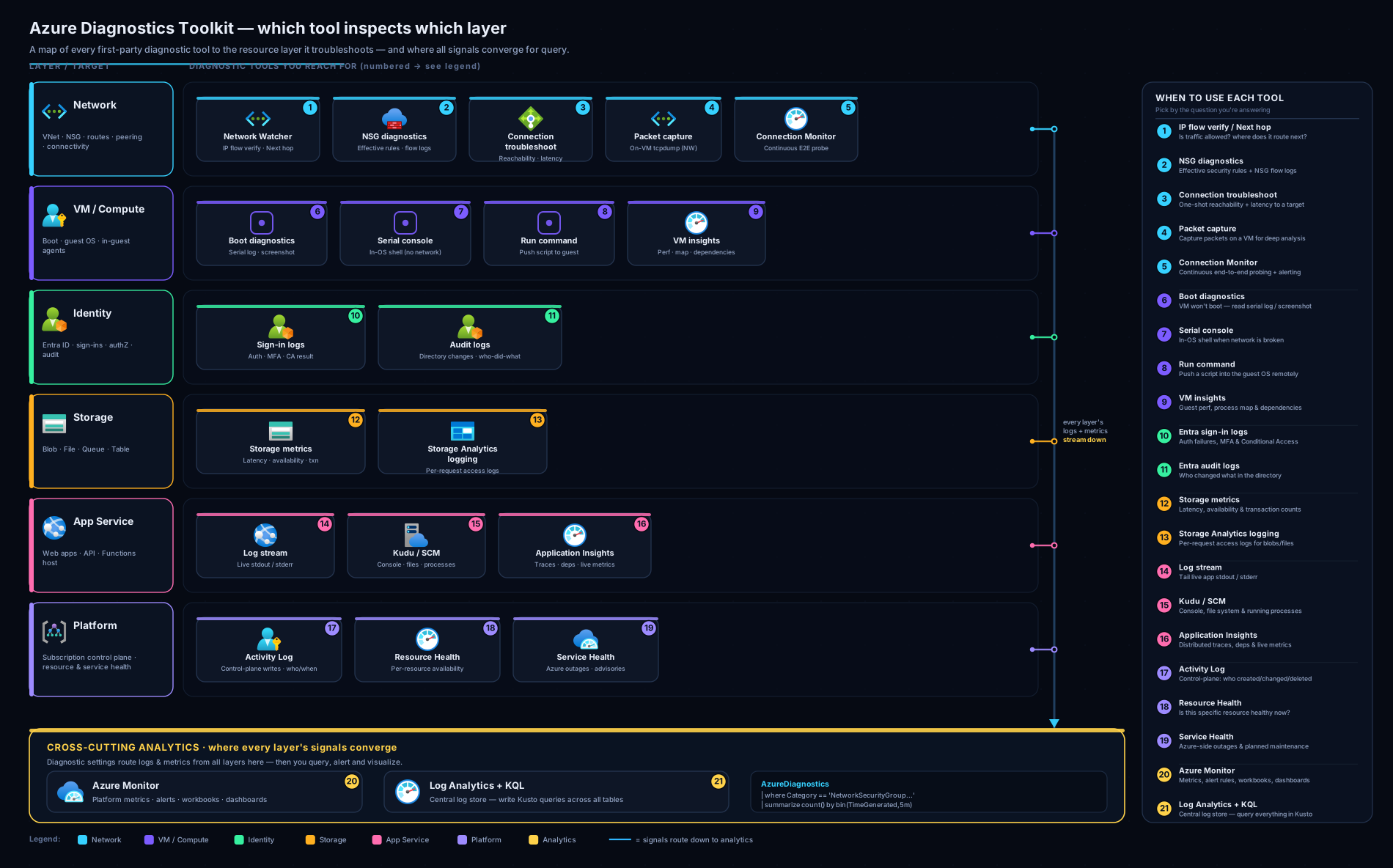
The diagram lays the toolkit out by layer so you can see, at a glance, which instrument to grab for a given symptom — network reachability at the top, compute and platform in the middle, and the queryable log estate underneath everything.
Network Watcher: the network diagnostics suite
Network Watcher is a regional service bundling Azure’s network diagnostics tools. It is enabled per region (automatically, in most subscriptions, the first time you create a VNet), and free to have — you only pay for things that store or process data: packet captures (storage) and flow logs (processing plus storage).
IP flow verify — “is this allowed?”
IP flow verify is the tool you reach for most. Give it a NIC, a direction (inbound/outbound), a protocol (TCP/UDP), and a local and remote IP:port; it evaluates the effective NSG rules on that NIC and its subnet and returns Allow or Deny — and the name of the exact rule that decided it. No packet is sent, so it is instant and safe in production. It is the five-second answer to “why can’t my app reach the database?”: run it outbound to the DB IP on 1433, and Deny plus a rule name is your culprit while Allow sends you to routing, DNS, or the guest firewall. That single yes/no collapses a huge branch of the search tree immediately.
Next hop — “where does this packet go?”
Next hop answers the routing question. Give it a source VM and a destination IP, and it returns the next-hop type the platform will use and the next-hop IP. The type is one of:
| Next-hop type | Meaning |
|---|---|
| Internet | Routed out to the public internet via the default system route |
| VirtualNetwork | Stays inside the VNet (or a peered VNet) — local delivery |
| VirtualNetworkGateway | Sent to a VPN or ExpressRoute gateway (on-prem or cross-region) |
| VirtualAppliance | Forwarded to an NVA / Azure Firewall via a user-defined route |
| None | Dropped — no route exists, traffic is black-holed |
This catches the classic forced-tunnelling and hub-spoke mistakes. If you expect traffic to hit your firewall (VirtualAppliance) but next hop says Internet, your UDR is missing or wrong. None means a routing black hole — usually a UDR that sent 0.0.0.0/0 to an appliance that no longer exists.
NSG diagnostics & effective security rules
The portal’s NSG diagnostics is a richer cousin of IP flow verify: it shows the full evaluation across all applicable NSGs (NIC-level and subnet-level) for a flow, so when a deny is the cumulative result of multiple NSGs you see exactly where it lands. The related effective security rules view flattens every rule applying to a NIC — your custom rules plus Azure’s default rules (AllowVnetInBound, AllowAzureLoadBalancerInBound, the final DenyAllInBound) and any service tags — into one priority-ordered list. When two NSGs seem to disagree, this flattened view is where the truth is.
Connection troubleshoot — “is the path actually working?”
Where IP flow verify reasons about config, connection troubleshoot sends real traffic. Pick a source (a VM with the Network Watcher agent extension) and a destination (another VM, an FQDN, or an IP:port); it reports reachability, round-trip latency, hop count, and — crucially — where a failure occurs and why (an NSG rule, a missing route, a DNS failure, or the destination not listening). This is your tool when config says “allowed” but the connection still fails: it puts the packet on the wire and tells you which hop ate it.
Packet capture — “what was on the wire?”
When you need ground truth — a failing TLS handshake, an intermittent reset, a protocol-level oddity — packet capture records the actual packets on a VM’s NIC (same agent extension) to a .cap file in storage or on local disk that you open in Wireshark. Scope it with filters (protocol, local/remote IP and port) and bound it with a time or size limit so it stops itself. It is heavier than the verify tools and produces data you pay to store, so it is the tool you escalate to, not start with — but for the genuinely mysterious incidents, nothing else shows the truth on the wire.
VNet flow logs — “what is being allowed and denied, continuously?”
The verify tools are point-in-time; VNet flow logs are continuous. When enabled, the platform records metadata for every flow evaluated against your network — source/destination IP and port, protocol, and the allow/deny decision — to a storage account, from where Traffic Analytics aggregates it in Log Analytics into who-talked-to-whom maps, top talkers, and blocked-traffic trends. (They are the successor to the retiring NSG flow logs — attach flow logs to the VNet, not the NSG.) This is how you answer “is anything being silently denied that I do not expect?” across a whole network. The trade-off is cost (storage + processing), so enable them where the visibility is worth it rather than everywhere by default.
Connection Monitor: continuous reachability and latency
IP flow verify and connection troubleshoot are things you run; Connection Monitor is something you leave running. It continuously probes reachability, latency, and packet loss between endpoints — Azure VMs, scale-set instances, Arc-enabled on-prem machines, or external URLs/IPs — on a schedule, and stores results in Log Analytics where you can alert on them. A test group pairs sources and destinations over a protocol (TCP/ICMP/HTTP) and port, and a topology view pinpoints the hop where degradation begins.
Use it for the connections that matter: app-tier to database, on-prem to Azure over VPN/ExpressRoute, region to region. Because it is synthetic and constant, it catches a creeping latency or packet-loss problem before users report it — and gives you a baseline, so you can say “latency was 4 ms last week and it is 40 ms now”, which is the difference between a hunch and a finding.
Resource Health vs. Service Health: is it Azure’s fault?
Before you spend an hour debugging your own config, ask the cheapest question: is this Microsoft’s problem? Two tools answer it, and they operate at different scopes.
| Resource Health | Service Health | |
|---|---|---|
| Scope | One specific resource (this VM, this database) | A whole Azure service in a region (e.g. Storage in West Europe) |
| Answers | “Is my resource healthy right now?” | “Is Azure having a broad incident / planned maintenance?” |
| Status values | Available · Degraded · Unavailable · Unknown | Service issues · Planned maintenance · Health advisories · Security advisories |
| Cause attribution | Platform-initiated vs. user-initiated vs. unknown | Region- and service-wide events |
| Use it when | A single resource misbehaves | Many resources misbehave, or you want maintenance notice |
Resource Health tells you whether this resource is Available, Degraded, or Unavailable, and — the useful part — why: it attributes the state to platform-initiated events (Azure rebooted the host for maintenance, hardware failed), user-initiated events (you stopped the VM), or unknown. “Unavailable — platform-initiated” means stop debugging your config and check Service Health for the regional incident; “Available” means the platform believes your resource is fine and the problem is yours to find. Service Health zooms out to the whole service in a region, and is where you find — and should create alerts for — broad outages, planned maintenance, and security advisories. (Service Health and its siblings Advisor and Resource Graph get their own lesson; here we use Resource Health as the first gate in a diagnostic flow.)
VM compute diagnostics: boot diagnostics, serial console, run-command
When a VM is unreachable, the question is which layer failed — the network in front of it, or the machine itself. The network tools above clear the network. These three clear the machine.
Boot diagnostics — the console screenshot
Boot diagnostics captures the VM’s serial/console output and a screenshot of the screen as it boots, stored in a managed account or one you provide. This is your first move for “the VM is running but I can’t reach it”: the screenshot shows whether Linux reached the login prompt, whether Windows is stuck spinning, whether the disk failed to mount and dropped to an emergency shell, or whether it sits at a recovery screen — exactly as a physical console would, with no network dependency. Enable it on every VM; it is nearly free and it is the difference between seeing the failure and guessing.
Serial console — keyboard access with no network
The serial console goes further: an interactive text console — a real keyboard at the GRUB menu or the Windows SAC prompt — over the serial port, independent of the network, NSGs, and SSH/RDP. This is how you rescue a machine you have locked yourself out of: a bad NSG rule, a broken in-guest firewall, an /etc/fstab typo that fails the boot. It requires boot diagnostics enabled (with a managed or custom storage account) and a guest configured to allow it, but when you need it, nothing else gets you in.
Run-command — execute without logging in
Run-command executes a script inside the guest OS through the Azure control plane — no SSH, no RDP, no open inbound port. Invoke it from the portal or CLI; Azure runs your shell or PowerShell on the VM and returns stdout/stderr. It is perfect for the targeted fix you have already diagnosed: reset a misconfigured firewall rule, restart a hung service, re-enable an SSH daemon, or pull a quick diagnostic (ip a, systemctl status, ipconfig). Because it runs as a high-privilege agent, keep its use auditable — every invocation shows up in the Activity Log.
The Activity Log: who changed what, when?
A startling share of incidents are self-inflicted by change — someone edited an NSG, deleted a route, rotated a key, scaled something down. The Activity Log is the subscription-level audit trail of every control-plane write operation: who (the identity), what (e.g. Microsoft.Network/networkSecurityGroups/write), when, against which resource, and the result. It retains 90 days by default; route it to Log Analytics, a storage account, or Event Hubs for longer retention and querying.
In a fresh “it was working yesterday” incident, the Activity Log is often the fastest path to root cause: filter to the affected resource (or its resource group) over the last day, and the offending change usually jumps out. Better still, turn the dangerous changes into Activity Log alerts — fire when anyone writes an NSG rule, deletes a resource, or a Resource Health event flips to Unavailable — so you learn about the change as it happens, not during the post-mortem.
KQL in Log Analytics: querying the evidence at scale
All the tools above feed, ultimately, into Log Analytics — the queryable store behind Azure Monitor — and the language to interrogate it is KQL (Kusto Query Language). KQL is the highest-leverage skill in Azure operations: once your VMs, NSGs, Activity Log, and platform metrics flow into a workspace, it turns “somewhere in millions of log lines” into a precise answer in seconds. The mental model is a pipeline: start with a table, then pipe (|) it through operators that filter, shape, and summarise.
A handful of operators cover the vast majority of diagnostic queries:
| Operator | What it does |
|---|---|
where |
Filters rows by a condition (the workhorse) |
project / extend |
Selects/renames columns / adds a computed column |
summarize |
Aggregates — count(), avg(), percentile() — optionally by a field |
bin() |
Buckets a timestamp into intervals (for time series) |
order by / top |
Sorts; top N by returns the largest N |
join |
Correlates two tables on a key |
A teachable diagnostic query set — read each as “table, then filtered, then shaped”.
Failed sign-ins in the last day, newest first:
SigninLogs
| where TimeGenerated > ago(1d)
| where ResultType != 0          // 0 = success
| project TimeGenerated, UserPrincipalName, ResultType, ResultDescription, IPAddress
| order by TimeGenerated desc
VMs that went silent (no heartbeat in 5+ minutes — a strong “is it down?” signal):
Heartbeat
| where TimeGenerated > ago(30m)
| summarize LastSeen = max(TimeGenerated) by Computer
| where LastSeen < ago(5m)
Who changed an NSG in the last day (the Activity Log lives in AzureActivity):
AzureActivity
| where TimeGenerated > ago(1d)
| where OperationNameValue has "networkSecurityGroups/write"
| project TimeGenerated, Caller, ResourceGroup, ActivityStatusValue, _ResourceId
| order by TimeGenerated desc
Average and p95 CPU per VM over the last hour (metrics in Perf):
Perf
| where TimeGenerated > ago(1h)
| where ObjectName == "Processor" and CounterName == "% Processor Time"
| summarize avg(CounterValue), p95 = percentile(CounterValue, 95) by Computer
| order by p95 desc
Top application errors, bucketed every 15 minutes to spot a spike (Application Insights):
AppExceptions
| where TimeGenerated > ago(6h)
| summarize Count = count() by bin(TimeGenerated, 15m), ProblemId
| order by TimeGenerated asc
The pattern never changes — table → where to narrow time and condition → summarize/project to shape → order/top to rank. Learn these five and you can adapt them to almost any diagnostic question.
Hands-on lab: IP flow verify + a KQL query
This lab is free. You will create a tiny VM, prove a security rule with IP flow verify (no packets, no cost), and run a KQL query against platform logs. Run it in Cloud Shell (bash).
1) Set up variables and a resource group.
RG=rg-diag-lab
LOC=eastus
az group create -n $RG -l $LOC -o table
2) Create a small Linux VM (this also creates a NIC, NSG, and VNet).
az vm create -g $RG -n vm-diag \
  --image Ubuntu2204 --size Standard_B1s \
  --admin-username azureuser --generate-ssh-keys \
  --public-ip-sku Standard -o table
3) Add an NSG rule that explicitly denies outbound SQL (port 1433), so we have something decisive to verify.
NSG=$(az network nsg list -g $RG --query "[0].name" -o tsv)
az network nsg rule create -g $RG --nsg-name $NSG -n Deny-SQL-Out \
  --priority 200 --direction Outbound --access Deny \
  --protocol Tcp --destination-port-ranges 1433 \
  --destination-address-prefixes '*' -o table
4) Run IP flow verify outbound to a SQL endpoint. Get the VM’s NIC and private IP, then ask the verdict:
NIC=$(az vm show -g $RG -n vm-diag --query "networkProfile.networkInterfaces[0].id" -o tsv)
PRIV=$(az vm list-ip-addresses -g $RG -n vm-diag \
  --query "[0].virtualMachine.network.privateIpAddresses[0]" -o tsv)

az network watcher test-ip-flow \
  --nic $NIC --direction Outbound --protocol TCP \
  --local "$PRIV:50000" --remote "10.1.0.5:1433" -o table
Expected: access: Deny and ruleName: Deny-SQL-Out — you have proven, with zero packets, that the NSG blocks SQL and which rule did it. Now flip the test to port 443:
az network watcher test-ip-flow \
  --nic $NIC --direction Outbound --protocol TCP \
  --local "$PRIV:50000" --remote "1.1.1.1:443" -o table
Expected: access: Allow with a default outbound allow rule named — HTTPS out is fine, SQL out is blocked. That allow/deny pair is the diagnostic.
5) Run a KQL query. Open Monitor → Logs and run a query that needs no agent — the platform’s own write log:
AzureActivity
| where TimeGenerated > ago(1h)
| where ResourceGroup =~ "rg-diag-lab"
| project TimeGenerated, Caller, OperationNameValue, ActivityStatusValue
| order by TimeGenerated desc
Expected: rows for the operations you just ran — the VM create, the NSG rule write — each with your identity as Caller: the audit trail of your own session. (If your subscription does not route the Activity Log to a workspace yet, view the same events under Monitor → Activity log.)
Validation. You ran a verify (config-level Deny/Allow with the deciding rule) and a log query (the change history) — the two ends of the diagnostics spectrum.
Cleanup. Delete everything in one shot:
az group delete -n $RG --yes --no-wait
Cost note. IP flow verify and the Activity Log query are free. The Standard_B1s VM and its Standard public IP cost a few rupees per hour while they exist; deleting the resource group immediately afterwards keeps the lab to well under ₹20. Nothing here writes a packet capture or enables flow logs, so there are no storage charges.
Common mistakes & troubleshooting
| Symptom | Likely cause | Fix |
|---|---|---|
| IP flow verify says Allow but the connection still fails | The block is not in Azure networking — it is DNS, the guest OS firewall, or the app not listening | Use connection troubleshoot to find the failing hop; check in-guest firewall and that the service is listening |
| Next hop returns None | A UDR points a prefix at an appliance that no longer exists, black-holing traffic | Fix or remove the UDR; confirm the NVA/firewall is running |
| Connection troubleshoot / packet capture fails to start | The Network Watcher agent extension isn’t installed on the source VM | Install the agent extension; ensure the VM is running |
| Can’t reach the VM at all to debug it | Lost in the network or broken in the guest — you don’t yet know which | Open boot diagnostics (is it even booting?), then serial console (get in without the network) |
| You enabled NSG flow logs and they’re being deprecated | NSG flow logs are retiring in favour of VNet flow logs | Migrate to VNet flow logs (attach to the VNet) |
| “It broke last night” and you’re guessing | Not checking the change history first | Filter the Activity Log to the resource for the last day — the change usually jumps out |
| KQL returns nothing | Wrong table, time range too narrow, or data not flowing to the workspace | Check the data is being collected (DCR/diagnostic settings), widen ago(), and confirm the table name |
| You assume an outage is your fault and burn an hour | You skipped the cheapest check | Read Resource Health first; if platform-initiated, check Service Health |
Best practices
- Match the tool to the layer. Allowed-or-not → IP flow verify. Where-does-it-go → next hop. Actually-working → connection troubleshoot / Connection Monitor. On-the-wire → packet capture / flow logs. Platform’s fault → Resource Health. Won’t boot → boot diagnostics → serial console. Who-changed-it → Activity Log. Internalising this table is the whole skill.
- Check the cheap gates first. Resource Health and the Activity Log are free and instant — check them before you spend an hour debugging configuration. Many “outages” are a maintenance event or a change someone made an hour ago.
- Enable boot diagnostics on every VM. It costs almost nothing and turns an opaque “unreachable VM” into a console screenshot you can read.
- Leave Connection Monitor running on the connections that matter. A baseline turns “feels slow” into “latency tripled at 14:05”.
- Route the Activity Log and diagnostics to a workspace. Verify tools are point-in-time; a workspace gives you history, cross-resource correlation, and KQL. Learn the five core queries and adapt them.
- Enable flow logs where the visibility is worth the cost, not everywhere — they add storage and processing charges.
- Verify your fix with the same tool that found the problem. If IP flow verify found the deny, re-run it after the change and confirm it now says Allow.
Security notes
Several of these tools carry real security weight. Run-command and the serial console execute code and grant interactive access inside a VM with no open inbound port — gate them behind RBAC (the relevant VM action permissions), and note that every invocation is recorded in the Activity Log, which makes that log a security artefact to retain and monitor. Packet captures can contain sensitive payloads in transit; store them in a locked-down, encrypted account and delete them when the investigation closes. Flow logs and Traffic Analytics are double-edged — invaluable for spotting unexpected denies, exfiltration patterns, or anomalous talkers, but they also catalogue your network, so protect the storage account and workspace. Finally, treat Activity Log alerts as a security control: alerting on NSG changes, resource deletions, and role assignments catches both honest mistakes and malicious tampering early. The least-privilege principle applies directly — diagnostics access is administrative access.
Interview & exam questions
- A VM can’t reach its database on port 1433. Walk me through your first three steps. (1) IP flow verify outbound from the VM NIC to the DB IP on 1433 — Allow/Deny and which rule. (2) If Deny, fix the NSG; if Allow, next hop to confirm routing. (3) If both are fine, connection troubleshoot to find the failing hop — then suspect DNS, the guest firewall, or the DB not listening.
- IP flow verify vs. connection troubleshoot? IP flow verify is a configuration evaluation — it computes the NSG Allow/Deny verdict and deciding rule without sending a packet, so it is instant and safe in production. Connection troubleshoot sends real traffic and reports reachability, latency, hop count, and where/why a hop fails. Config vs. reality.
- Resource Health vs. Service Health — when do you use each? Resource Health is scoped to one resource: “is my VM healthy, platform- or user-caused?”. Service Health is scoped to a whole service in a region: broad incidents, planned maintenance, advisories. Resource Health for one misbehaving resource; Service Health when many are affected or you want maintenance notice.
- A VM is running but unreachable over SSH/RDP. How do you get in? Open boot diagnostics for the console screenshot — is it booting, or stuck/in an emergency shell? Then the serial console for keyboard access independent of the network, NSGs, and SSH/RDP. For a targeted fix without logging in, run-command.
- It was working yesterday and broke overnight. Where first? The Activity Log, filtered to the affected resource (or its resource group) over the last day. Most “it just broke” incidents are an unintended control-plane change, and the audit trail usually names it immediately.
- Next hop returns
None— meaning and cause? No route exists for that destination, so traffic is black-holed. The usual cause is a UDR sending a prefix (often0.0.0.0/0) to a virtual appliance that no longer exists or was never reachable. Fix or remove the UDR. - KQL query for all failed sign-ins in the last 24 hours?
SigninLogs | where TimeGenerated > ago(1d) | where ResultType != 0 | project TimeGenerated, UserPrincipalName, ResultType, ResultDescription, IPAddress | order by TimeGenerated desc.ResultType == 0is success, so!= 0isolates failures. - VNet flow logs vs. the verify tools? Flow logs continuously record metadata for every flow — 5-tuple plus allow/deny decision — to storage, where Traffic Analytics aggregates them. The verify tools are point-in-time; flow logs are an ongoing record. (They supersede the retiring NSG flow logs and attach to the VNet.)
- Packet capture rather than connection troubleshoot — when? When you need protocol-level ground truth — a failing TLS handshake, intermittent resets, an app-layer oddity — that a reachability report can’t show. It records actual packets to a
.capfor Wireshark, is heavier, and incurs storage cost, so it is the tool you escalate to. - How does run-command differ from SSH/RDP? It executes a script inside the guest through the control plane — no open inbound port, no network path, no in-guest credentials — and returns output. Ideal for a VM you have locked yourself out of, and because it runs through ARM, every use is audited.
- What is KQL and a query’s basic shape? Kusto Query Language, for Log Analytics. A query is a pipeline: a table, then operators —
whereto filter,summarize/projectto shape,order/topto rank — e.g.Perf | where ... | summarize avg(CounterValue) by Computer. - Connection Monitor vs. connection troubleshoot? Connection troubleshoot is a one-off on-demand test. Connection Monitor is continuous synthetic monitoring you leave running between endpoints, storing reachability/latency/loss over time for alerting and a baseline — it catches degradation before users do.
Quick check
- Which tool gives you an instant Allow/Deny verdict for a flow without sending any packets, and tells you the deciding rule?
- Next hop returns
None. What has happened to the traffic, and what’s the usual cause? - You need to get a keyboard into a VM that’s unreachable over SSH because of a bad in-guest firewall rule. Which tool, and what must be enabled for it to work?
- In KQL, what is the basic structure of a query, and what does the
|symbol do? - A single database shows “Unavailable”. What’s the cheapest first check before you start debugging your own configuration?
Answers
- IP flow verify. It evaluates the effective NSG rules and returns Allow or Deny plus the name of the rule that decided it — a pure configuration evaluation, so it’s instant and safe in production.
- The traffic is dropped / black-holed — there is no route for that destination. The usual cause is a user-defined route pointing a prefix (often
0.0.0.0/0) at a virtual appliance that no longer exists or was never reachable. - The serial console, which gives interactive keyboard access over the serial port independent of the network and SSH/RDP. It requires boot diagnostics to be enabled (with a managed or custom storage account) and the guest configured to allow it.
- A KQL query is a pipeline: it starts with a table and the
|pipes the results through successive operators (where,summarize,project,order,top), each transforming the rows from the previous stage. - Resource Health for that database. If it reports “Unavailable — platform-initiated”, the problem is Azure’s, not yours — check Service Health for the regional incident instead of debugging your configuration.
Exercise
Pick a VM (or create a Standard_B1s one as in the lab). Then: (1) Run IP flow verify outbound to a public IP on 443 and confirm it’s allowed, then add a Deny rule for 443, re-run to watch the verdict and rule name change — then remove the rule. (2) Run next hop to 8.8.8.8 and confirm the type is Internet. (3) Confirm boot diagnostics is on and open the console screenshot. (4) In Log Analytics (or Monitor → Activity log), write a KQL query against AzureActivity listing every operation you performed in the last hour, projecting TimeGenerated, OperationNameValue, ActivityStatusValue. Bonus: enable VNet flow logs, generate a little traffic, find your flows in Traffic Analytics — then disable the logs. Clean up anything you created.
Certification mapping
- AZ-104 (Azure Administrator Associate) — Monitor and maintain Azure resources: configure and interpret Network Watcher (IP flow verify, next hop, connection troubleshoot, packet capture, flow logs); use Connection Monitor; read Resource Health; configure and query Log Analytics with KQL; query and alert on the Activity Log.
- AZ-104 — Implement and manage virtual networking and Deploy and manage Azure compute: diagnosing NSG/route issues with the verify tools, and recovering VMs with boot diagnostics, serial console, and run-command.
- AZ-700 (Azure Network Engineer Associate) — deeper Network Watcher, Connection Monitor, and flow-log work for designing and monitoring network connectivity.
- AZ-305 (Solutions Architect Expert) — designing an observability and diagnostics strategy: where flow logs, Connection Monitor, Resource Health alerts, and a Log Analytics workspace fit into a well-architected operations design.
Glossary
- Network Watcher — Azure’s regional suite of network diagnostics tools (IP flow verify, next hop, connection troubleshoot, packet capture, flow logs).
- IP flow verify — evaluates effective NSG rules for a flow and returns Allow/Deny plus the deciding rule, without sending a packet.
- Next hop — reports the next-hop type and IP the platform will use to route a packet to a destination.
- Effective security rules — the flattened, priority-ordered list of all NSG rules (custom + default + service tags) applying to a NIC.
- Connection troubleshoot — an on-demand test that sends real traffic and reports reachability, latency, hops, and the failing hop.
- Packet capture — records actual packets on a VM’s NIC to a
.capfile for Wireshark. - VNet flow logs — continuous logging of flow metadata (5-tuple + allow/deny decision) to storage; successor to NSG flow logs; aggregated by Traffic Analytics.
- Connection Monitor — continuous synthetic monitoring of reachability, latency, and loss between endpoints, stored in Log Analytics.
- Resource Health — the health status (Available/Degraded/Unavailable) of one resource, with platform- vs. user-initiated attribution.
- Service Health — the status of whole Azure services in a region: incidents, planned maintenance, advisories.
- Boot diagnostics — captures a VM’s serial/console output and a boot-time screenshot.
- Serial console — interactive text console to a VM over the serial port, independent of the network and SSH/RDP.
- Run-command — executes a script inside a VM’s guest via the control plane, without an open inbound port.
- Activity Log — the subscription-level audit trail of every control-plane write (who/what/when/result).
- KQL (Kusto Query Language) — the pipeline-based language for querying logs and metrics in Log Analytics.
- Control plane vs. data plane — operations on a resource (via ARM, audited in the Activity Log) vs. inside it (the actual traffic/work).
Next steps
You now have the full diagnostics toolbox to pair with the troubleshooting method — you can find the evidence, not just theorise about it. The course’s final lesson brings everything together: you design and operate a complete landing zone, where every tool from this lesson becomes a daily reflex.