The hardest questions in an operations review are rarely about a single broken resource. They are about the estate: “Is that timeout our bug or an Azure incident?” “Which of our three hundred subscriptions still has a public IP on a database?” “Where is the easy money — what is Advisor telling us we are wasting?” Answering those at speed needs three tools that beginners skip and seniors live in. Service Health tells you when the problem is Microsoft’s, not yours. Azure Advisor turns Microsoft’s telemetry about your resources into a ranked to-do list across cost, security, reliability, performance, and operational excellence. And Azure Resource Graph lets you query every resource across every subscription with a fast query language, in under a second, instead of clicking through blades.
This lesson is the operational-awareness layer of the Azure Zero-to-Hero course. We will separate the two “health” experiences learners constantly confuse — Service Health (the platform) versus Resource Health (your specific resource) — work through Advisor’s five recommendation categories and the Advisor Score, and get hands-on with Resource Graph and its KQL dialect, the single most useful skill for managing Azure at scale. By the end you can tell at a glance whether an outage is yours or Azure’s, hand your manager a prioritised list of fixes, and answer “show me every X across the whole tenant” in one query.
Learning objectives
- Distinguish Service Health (service issues, planned maintenance, health advisories, security advisories) from Resource Health, and know which one answers “is it me or Azure?”
- Create a Service Health alert that pages the right team when Azure declares an incident or schedules maintenance in your regions and services.
- Read and act on Azure Advisor recommendations across all five categories — Cost, Security, Reliability, Operational Excellence, Performance — and interpret the Advisor Score.
- Write Azure Resource Graph queries in KQL to inventory, filter, group, and join across resources spanning many subscriptions, and understand the engine’s scope and limits.
- Combine all three into a lightweight operational routine you can run weekly without a SIEM.
Prerequisites & where this fits
You need an Azure subscription with a handful of resources to look at, the Azure portal, and the az CLI (Cloud Shell works). A first pass over Azure Monitor Deep Dive helps, because Service Health alerts ride the same action group plumbing as metric alerts, and a working knowledge of the management-group and subscription hierarchy makes the multi-subscription scope of Resource Graph click into place. This sits in the Monitoring module alongside Azure Monitor: where Monitor answers “how is my workload performing and is it up?”, this lesson answers “is the platform healthy, what should I fix next, and what exists across my whole estate?” No paid tier or agent is required — everything here is free.
Core concepts
Three planes of awareness, three different questions. Keep them straight and most of Azure operations falls into place.
| Tool | The question it answers | Scope | Cost |
|---|---|---|---|
| Service Health | “Is Azure having a problem (or planned maintenance) that affects me?” | Your subscriptions, regions, services | Free |
| Resource Health | “Is this specific resource healthy right now, and why not?” | One resource at a time | Free |
| Azure Advisor | “What should I fix or improve across cost, security, reliability, performance, and operations?” | All resources you can read | Free |
| Resource Graph | “What exists across my estate, and which ones match this condition?” | All subscriptions in scope, at speed | Free |
A useful mental model: Service Health and Resource Health look down at health you do not (or only partly) control; Advisor looks sideways at improvements you should make; Resource Graph looks across everything you own. The first two are reactive (something is wrong), Advisor is proactive (something could be better), and Resource Graph is investigative (tell me the truth about my inventory).
One distinction that trips people up: the Azure Status page (status.azure.com) is the public, global health page for everyone — useful, but not personalised. Service Health in the portal is the authenticated, tenant-scoped view, filtered to the services and regions you actually use, and it is the only one you can alert on.
Service Health: is it me or Azure?
Service Health is the platform-health experience scoped to your tenant. It lives under Monitor → Service Health (or its own portal blade) and breaks into four event types you must be able to name:
| Event type | What it is | Typical action |
|---|---|---|
| Service issues | A live Azure incident (outage/degradation) affecting your services/regions right now | Stop debugging your code; track the incident, communicate, wait or fail over |
| Planned maintenance | Upcoming Azure maintenance that may reboot or briefly affect resources | Schedule around it; for VMs, self-trigger maintenance in a window you choose |
| Health advisories | Changes that require your action — deprecations, feature retirements, quota/config notices | Plan the migration before the deadline |
| Security advisories | Security-related notifications for services you run | Assess and remediate |
The single most important habit Service Health enables is the Service Health alert — a control-plane alert that fires the moment Azure posts an event matching your subscriptions, regions, services, and event types, routing it to an action group (email, SMS, webhook, Logic App, ITSM/PagerDuty). Without it you are refreshing a status page during an incident; with it the right team is paged automatically and your post-incident review can prove exactly when Azure declared the problem.
Service Health events are surfaced through the Activity Log under the ServiceHealth category, which is why the alert is a control-plane (Activity Log) alert, not a metric alert — you match on event properties (incident type, impacted region, impacted service), not on a numeric threshold.
Resource Health: the single-resource view
Where Service Health is the platform-wide view, Resource Health drills into one resource and reports its current and recent availability, with a plain-language reason. Open any VM, database, or App Service and there is a Resource Health blade in the left menu. The state is one of:
| State | Meaning |
|---|---|
| Available | The resource is healthy and operating normally |
| Unavailable | The platform has detected the resource is not healthy |
| Degraded | Reduced performance or partial functionality |
| Unknown | The platform has not had a signal recently (e.g. resource stopped/deallocated) |
Resource Health also attributes cause where it can: platform-initiated (Azure did it — maintenance, host fault), user-initiated (you deallocated it), or unknown. That attribution is the fast answer to “did we break this or did Azure?” for a single resource — and, like Service Health, you can raise a Resource Health alert so a specific critical resource going Unavailable pages you directly.
The exam-and-interview line to remember: Service Health is the platform-wide, tenant-scoped view of Azure’s health that you alert on; Resource Health is the per-resource availability view with cause attribution. One tells you “Azure has an incident in your region”; the other tells you “this VM is Unavailable, and Azure caused it.”
Azure Advisor: your ranked improvement backlog
Advisor is a free, always-on recommendation engine. It continuously analyses your resource configuration and usage telemetry and produces personalised, actionable recommendations grouped into five categories. Think of it as a free architecture-and-FinOps reviewer that never sleeps. Every recommendation states the issue, the impact (High/Medium/Low), the affected resources, and a remediation — many with a one-click or Quick Fix action and a deferral/dismiss option.
| Category | What it optimises | Representative recommendations |
|---|---|---|
| Cost | Spend efficiency | Buy reservations/savings plans, right-size or shut down underutilised VMs, delete unattached public IPs / idle disks / orphaned resources |
| Security | Posture (powered by Defender for Cloud) | Enable MFA, encrypt disks, restrict network exposure, apply system updates — surfaced as Advisor’s Security tab |
| Reliability | Resilience & continuity (formerly “High Availability”) | Enable backup, use Availability Zones/Availability Sets, add soft delete, configure redundancy |
| Operational Excellence | Process, governance, manageability | Apply Azure Policy, add resource tags, adopt service best practices, fix deprecated API usage |
| Performance | Speed & responsiveness | Upgrade to Premium/faster disk or SKU tiers, tune SQL/Cosmos, improve App Service plan sizing |
Memory hook for the five categories: “Cost, Security, Reliability, Operational excellence, Performance” — the same pillars as the Microsoft Azure Well-Architected Framework. Advisor is essentially the Well-Architected review, automated and pointed at your live estate.
A subtlety worth knowing: Advisor’s Security recommendations are sourced from Microsoft Defender for Cloud — Advisor presents them, but Defender for Cloud is the engine and the place to manage them at depth. The other four categories are native to Advisor.
The Advisor Score
The Advisor Score is a single percentage (0–100%) for how closely your estate follows Advisor’s recommendations, with an overall score plus a per-category sub-score. It is consumption-/impact-weighted — recommendations on costlier or higher-impact resources move the needle more, so it is not a naive count — and it tracks a trend over time, which makes it a clean executive metric (“we moved reliability from 64% to 81% this quarter”). Dismissing or postponing a recommendation affects the score, so use those actions honestly. Treat it as a direction and a prioritiser, not a vanity number to game.
Azure Resource Graph: query your whole estate
If you learn one thing from this lesson for day-to-day work, make it Resource Graph. It is a fast, read-only query service over the Azure Resource Manager (ARM) metadata of every resource you can see — across all subscriptions and management groups in scope — using KQL (Kusto Query Language), the same language as Azure Monitor Logs. The portal blade is Resource Graph Explorer. Its point is scale and speed: per-resource blades are fine for one resource but fall apart at “show me every public IP across 200 subscriptions.” Resource Graph answers that in well under a second.
Why it is fast: it queries a pre-indexed snapshot of ARM metadata, not the live control plane resource-by-resource. The trade-offs that follow are the gotchas:
- Read-only metadata — properties, tags, SKUs, locations, config — not live runtime state (a VM’s CPU is Monitor metrics; container contents are not visible).
- A brief propagation delay (seconds to a couple of minutes) after a change before the index reflects it.
- Scope-bound to your RBAC — you see only resources you can read; widen by being granted Reader at a management group.
- Paging/row limits apply (use
--first/skip-token or the SDK for very large result sets).
The core tables you will use almost every day:
| Table | Contains |
|---|---|
| resources | All Azure resources (the default; VMs, disks, storage, NICs, public IPs, etc.) |
| resourcecontainers | Subscriptions and resource groups (and management groups) |
| advisorresources | Advisor recommendations as queryable rows |
| securityresources | Defender for Cloud assessments/alerts |
| healthresources | Resource Health states across the estate |
| patchassessmentresources | Update/patch assessment data |
KQL reads top-to-bottom as a pipeline: a table, then a series of | operators that filter and shape rows. The handful you need:
| Operator | Does |
|---|---|
where |
Filter rows by a condition |
project |
Choose/rename the columns to return |
extend |
Add a computed column |
summarize |
Aggregate (count, sum) grouped by columns |
order by |
Sort |
join |
Combine rows from two queries (e.g. resources to their subscription) |
mv-expand |
Expand an array/property bag into rows (great for tags) |
A first query — count every resource by type, biggest first (the fastest way to learn the exact type strings you’ll filter on, e.g. microsoft.compute/virtualmachines):
resources
| summarize count() by type
| order by count_ desc
A governance/security query — every storage account that still allows public blob access. The same shape covers most inventory questions: filter by type, where on a property, project the columns you want (use tostring(properties...) to pull values out of the nested property bag, as in the VM-size query in Q&A 8):
resources
| where type == "microsoft.storage/storageaccounts"
| where properties.allowBlobPublicAccess == true
| project name, resourceGroup, location, subscriptionId
A cost-hygiene query — public IPs not associated to anything (idle addresses you pay for); a tagging-compliance variant uses where isnull(tags['costcenter']), and you can join kind=leftouter to resourcecontainers to add the human-readable subscription name:
resources
| where type == "microsoft.network/publicipaddresses"
| where isempty(properties.ipConfiguration) and isempty(properties.natGateway)
| project name, sku.name, resourceGroup, location, subscriptionId
And Advisor itself is queryable — surface every High-impact Cost recommendation across the estate in one shot:
advisorresources
| where type == "microsoft.advisor/recommendations"
| where properties.category == "Cost"
| where properties.impact == "High"
| project recommendation = tostring(properties.shortDescription.problem),
          impactedResource = tostring(properties.resourceMetadata.resourceId),
          subscriptionId
That last query is the bridge between the three tools: advisorresources pulls Advisor’s backlog into the same query plane you inventory with — a one-screen operational view, no SIEM required.
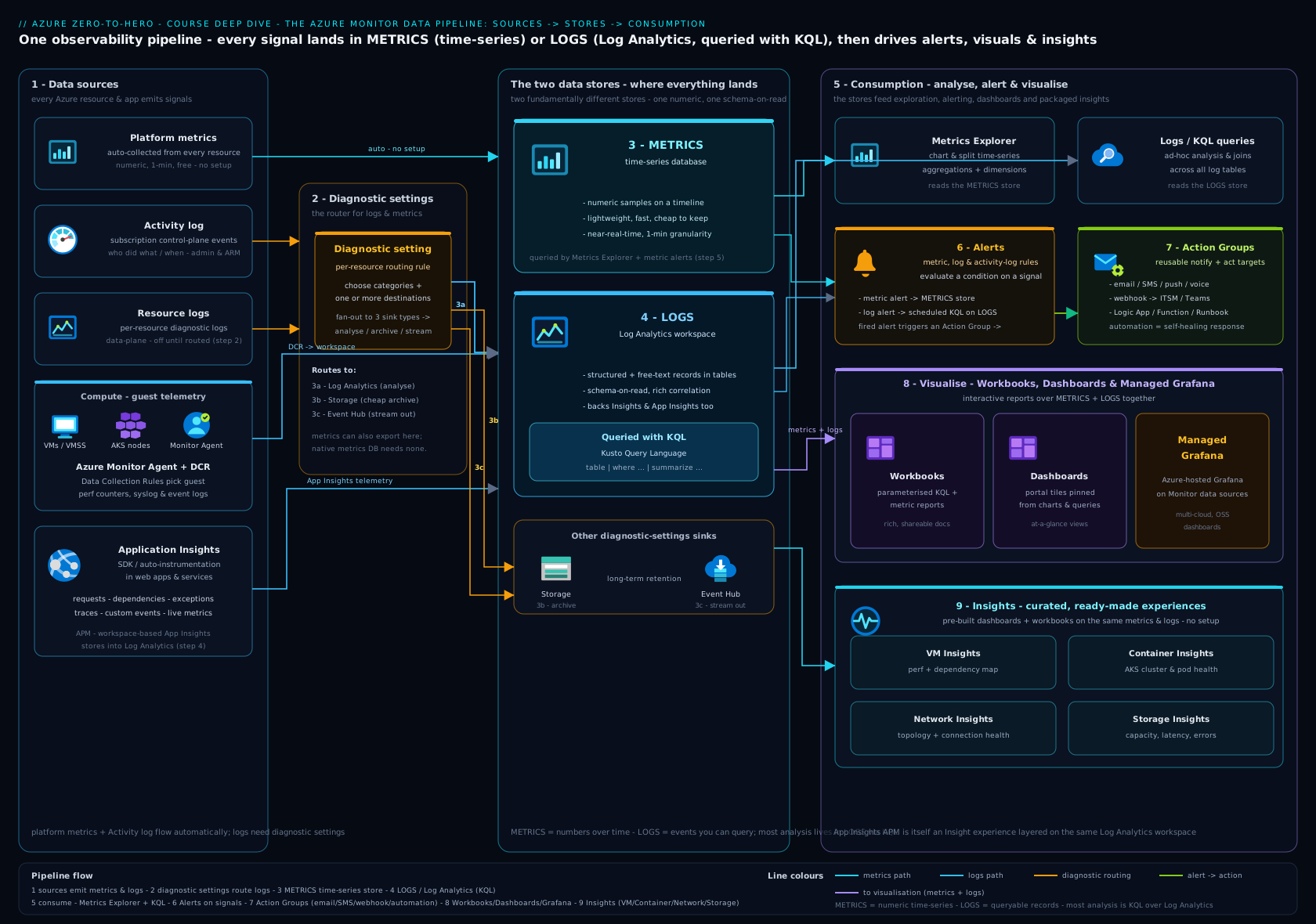
The diagram shows where these three services sit in the management plane: Service Health and Resource Health draw from platform telemetry and the Activity Log, Advisor and Defender for Cloud produce recommendations, and Resource Graph indexes ARM metadata across every subscription — all feeding the same alerting and dashboard surfaces as Azure Monitor.
Hands-on lab
Free, no resources created beyond an alert and an action group you delete at the end. You will run a Resource Graph query from the CLI and wire up a Service Health alert. Use Cloud Shell or a local az login.
1 — Add the Resource Graph CLI extension and run your first query. The extension installs on first use; confirm it works with a count by type:
az extension add --name resource-graph 2>/dev/null

az graph query -q "
resources
| summarize count() by type
| order by count_ desc
| limit 10
" --output table
Expected output: a two-column table of resource types and counts, highest first — your estate inventory in one call.
2 — Run a real governance query across every subscription you can read. Find unattached public IPs (idle spend) tenant-wide:
az graph query -q "
resources
| where type == 'microsoft.network/publicipaddresses'
| where isempty(properties.ipConfiguration) and isempty(properties.natGateway)
| project name, resourceGroup, location, subscriptionId
" --output table
Expected output: a table (possibly empty — that is a good result) of public IPs that are wasting money. To query a specific scope, add --subscriptions <id1> <id2> or --management-groups <mgId>.
3 — Create an action group so the alert has somewhere to send to. Replace the email:
RG=rg-svchealth-lab
az group create -n $RG -l australiaeast

az monitor action-group create \
  --resource-group $RG \
  --name ag-svchealth \
  --short-name svchealth \
  --action email oncall you@example.com
4 — Create a Service Health alert that fires on service issues (live incidents). Service Health alerts are Activity Log alerts scoped to the subscription; in the portal you would use Monitor → Service Health → Health alerts → Add, choosing event types, regions, and services. The CLI equivalent:
SUB=$(az account show --query id -o tsv)
AG_ID=$(az monitor action-group show -g $RG -n ag-svchealth --query id -o tsv)

az monitor activity-log alert create \
  --resource-group $RG \
  --name "alert-azure-service-issues" \
  --scope "/subscriptions/$SUB" \
  --condition category=ServiceHealth \
  --action-group "$AG_ID" \
  --description "Page on-call when Azure declares a service issue affecting this subscription"
In the portal you can narrow further to specific services and regions and to specific event types (Service issue / Planned maintenance / Health advisory / Security advisory). The CLI condition above matches the whole
ServiceHealthcategory; refine event-type/region filtering in the portal blade for production.
5 — Validate. Confirm the alert exists and is enabled:
az monitor activity-log alert show \
  -g $RG -n "alert-azure-service-issues" \
  --query "{name:name, enabled:enabled, scopes:scopes}" -o jsonc
You should see enabled: true. (You cannot safely force a real Azure incident, so validation here is confirming the rule is armed and pointed at your action group; the action group’s own test feature can send a sample notification.)
Cleanup:
az group delete --name rg-svchealth-lab --yes --no-wait
Cost note: Service Health alerts, Activity Log alerts, action groups, Advisor, Resource Health, and Resource Graph are all free. Action groups include a generous free tier of emails/notifications per month; SMS/voice and ITSM connectors can incur small charges. This lab costs effectively ₹0.
Common mistakes & troubleshooting
| Symptom | Likely cause | Fix |
|---|---|---|
| “We found out about the outage from Twitter” | No Service Health alert configured | Create a Service Health Activity Log alert → action group for the on-call rota |
| Resource Graph returns far fewer resources than expected | Query is scoped to one subscription or you lack reader on others | Add --management-groups/--subscriptions, or get granted Reader at the management group |
KQL where type == "..." returns nothing |
Resource type string is wrong/cased oddly | Type comparisons in Resource Graph are case-insensitive for the value, but get the exact type from a summarize count() by type first |
| A just-created resource is missing from query results | Index propagation delay (seconds–minutes) | Wait briefly and re-run; Resource Graph is a near-real-time snapshot, not the live control plane |
| Advisor shows no Cost recommendations | Subscription too new / too little usage telemetry | Advisor needs days of utilisation data; cost right-sizing appears after enough signal accumulates |
| Resource Health says Unknown for a stopped VM | Resource is deallocated — no recent platform signal | Expected; Unknown ≠ broken. Start the resource to restore a signal |
| Service Health alert never fires though there was an incident | The incident did not affect your subscriptions/regions/services | Service Health is personalised; broaden region/service filters if you want wider awareness |
az graph query errors with “extension not installed” |
resource-graph extension missing |
az extension add --name resource-graph |
Best practices
- Always configure a Service Health alert as part of every subscription’s baseline — it is free and it is the difference between proactive and embarrassed.
- Scope Resource Graph at a management group, not subscription-by-subscription, so a single query truly covers the estate.
- Save and version your Resource Graph queries — keep a library of governance/inventory/cost queries in source control and run them on a schedule.
- Triage Advisor weekly, top-down by impact, and treat Security items (from Defender for Cloud) with priority; track the Advisor Score trend as your improvement KPI.
- Pin key Resource Graph results and the Advisor Score to a shared dashboard so the whole team sees inventory drift and posture at a glance.
- Use Resource Health alerts for your few genuinely critical resources, and Service Health alerts for the platform — do not try to make one cover the other.
Security notes
Resource Graph is read-only and RBAC-scoped — it never mutates resources and never exposes anything you cannot already read, so it is safe to grant broadly via Reader. That same property makes it a superb security-audit tool: use securityresources and resources queries to find public exposure, missing encryption, or non-compliant configuration across the whole tenant in one pass, and feed the results to your remediation pipeline. Advisor’s Security category is your continuous, free posture check sourced from Defender for Cloud; act on its High-impact items first. And lock down who can edit Service Health alerts and action groups — an attacker who silences your alerting blinds your operations — so keep Monitor/alert-rule write permissions least-privileged.
Interview & exam questions
1. What is the difference between Service Health and Resource Health? Service Health is the tenant-scoped, platform-wide view of Azure’s own health — service issues, planned maintenance, health advisories, security advisories — filtered to your subscriptions, regions, and services, and you can alert on it. Resource Health reports the current availability of a single resource (Available/Unavailable/Degraded/Unknown) with cause attribution (platform- vs user-initiated). Service Health = “is Azure broken for me?”; Resource Health = “is this resource healthy and who caused it?”
2. How do you get paged when Azure has an incident affecting your workloads?
Create a Service Health alert — an Activity Log alert on the ServiceHealth category — scoped to your subscription/regions/services and event types, routed to an action group (email, SMS, webhook, PagerDuty/ITSM). It fires automatically when Azure posts a matching event.
3. Name the four Service Health event types. Service issues (live incidents), planned maintenance, health advisories (actions you must take, e.g. deprecations), and security advisories.
4. What are the five Azure Advisor categories? Cost, Security, Reliability, Operational Excellence, Performance — the same pillars as the Well-Architected Framework. (Security recommendations are surfaced from Defender for Cloud.)
5. What is the Advisor Score and what makes it more than a count? A 0–100% measure (overall plus per-category) of how well your estate follows Advisor’s best practices. It is consumption-/impact-weighted — recommendations on costlier or higher-impact resources count more — and it has a trend over time, which makes it a useful executive KPI rather than a raw tally.
6. What is Azure Resource Graph and what language does it use? A fast, read-only query service over ARM resource metadata across all subscriptions/management groups in your RBAC scope, queried with KQL (Kusto). It is built for estate-wide inventory and governance questions at sub-second speed.
7. Why is Resource Graph so fast, and what is the trade-off? It queries a pre-indexed snapshot of ARM metadata rather than walking the live control plane resource-by-resource. The trade-off: it returns metadata only (no live runtime state) and there is a short propagation delay after changes before the index updates.
8. Write a Resource Graph query to find all VMs and their sizes across the tenant.
resources | where type == "microsoft.compute/virtualmachines" | project name, vmSize = tostring(properties.hardwareProfile.vmSize), location, resourceGroup, subscriptionId — filter on the type, then project the size out of the properties bag with tostring.
9. A user reports a single VM is unreachable. Which tool tells you whether Azure caused it, and how? Resource Health on that VM — it shows the current state and cause attribution (platform-initiated such as host fault/maintenance, vs user-initiated such as a deallocate). Cross-check Service Health to see whether a broader regional incident is in play.
10. Resource Graph returns only resources in one subscription. Why, and how do you widen it?
Results are RBAC-scoped and default to your accessible subscriptions; if you can only read one, you see one. Fix by passing --management-groups/--subscriptions and obtaining Reader at the management group so a single query covers the estate.
11. Where does the Advisor Security tab get its recommendations? From Microsoft Defender for Cloud — Advisor presents them, Defender for Cloud is the engine and the place to manage them in depth.
12. How would you build a free, single-screen “what should we fix?” view across many subscriptions?
Query the advisorresources table in Resource Graph (filter by category/impact) and pin the result plus the Advisor Score and key resources inventory queries to a shared dashboard — no SIEM, all free.
Quick check
- Which tool do you alert on to know about Azure incidents in your regions — Service Health or Resource Health?
- Name all five Azure Advisor categories.
- What language does Azure Resource Graph use, and over what data?
- Why might a resource you created 30 seconds ago not appear in a Resource Graph query yet?
- The Advisor Score is weighted by what (so it is not a naive count)?
Answers
- Service Health — it is the tenant-scoped platform view you can raise Activity Log alerts on. (Resource Health alerts exist too, but only for a single resource.)
- Cost, Security, Reliability, Operational Excellence, Performance.
- KQL (Kusto Query Language), over a pre-indexed snapshot of Azure Resource Manager metadata for every resource in your RBAC scope.
- Index propagation delay — Resource Graph queries a near-real-time snapshot, so a brand-new change takes seconds to a couple of minutes to appear.
- Consumption/impact — recommendations on costlier or higher-impact resources move the score more than trivial ones.
Exercise
Build your own free, estate-wide operational view. (1) Create a Service Health alert on the ServiceHealth category routed to an action group with your email, and confirm with az monitor activity-log alert show that it is enabled. (2) Write and run three Resource Graph queries from the CLI: an inventory query (count resources by type), a governance query (find storage accounts with allowBlobPublicAccess == true or untagged resources missing a costcenter tag), and an Advisor query against advisorresources filtered to impact == "High". (3) Open Advisor in the portal, read your Advisor Score and its per-category breakdown, and write one short paragraph: which category is your weakest, the single highest-impact recommendation it lists, and the order in which you would action your top three findings. Clean up with az group delete on the lab resource group. The goal is a repeatable weekly routine: is Azure healthy → what should we fix → what do we even have.
Certification mapping
| Exam | Skills this lesson covers |
|---|---|
| AZ-104 (Azure Administrator) | Monitor and maintain Azure resources: configure and interpret Service Health and Resource Health, create Service Health / Activity Log alerts with action groups; use Azure Advisor recommendations across all five categories and the Advisor Score; query the estate with Azure Resource Graph and KQL for inventory, governance, and cost hygiene. The az graph query and alert-creation steps mirror the exam’s task-based items. |
| AZ-305 (Solutions Architect) | Design monitoring and governance: incorporate Advisor (Well-Architected-aligned) into a continuous-improvement loop, design tenant-wide Resource Graph-based inventory/compliance reporting at management-group scope, and design Service Health alerting into incident-response and operational-readiness processes. |
Glossary
- Service Health — Tenant-scoped view of Azure platform health (service issues, planned maintenance, health/security advisories), alertable via the Activity Log.
- Resource Health — Per-resource availability view (Available/Unavailable/Degraded/Unknown) with platform- vs user-initiated cause attribution.
- Azure Status — The public, global, unauthenticated Azure health page (status.azure.com); not personalised and not alertable.
- Service issue — A live Azure incident (outage/degradation) currently affecting your services/regions.
- Planned maintenance — Scheduled Azure maintenance that may reboot or briefly affect resources.
- Health advisory — A notice requiring your action (deprecations, retirements, configuration/quota changes).
- Azure Advisor — Free recommendation engine producing personalised, ranked best-practice guidance across five categories.
- Advisor Score — A 0–100% consumption-/impact-weighted measure (overall and per-category) of adherence to Advisor’s recommendations, tracked over time.
- Well-Architected Framework — Microsoft’s five-pillar design framework (Cost, Security, Reliability, Operational Excellence, Performance) that Advisor’s categories mirror.
- Azure Resource Graph — Fast, read-only KQL query service over ARM resource metadata across all subscriptions/management groups in scope.
- KQL (Kusto Query Language) — The pipeline-style query language used by Resource Graph and Azure Monitor Logs.
- resources / resourcecontainers / advisorresources — Key Resource Graph tables: all resources; subscriptions/RGs/MGs; Advisor recommendations as rows.
- Action group — A reusable set of notification/automation targets (email, SMS, webhook, ITSM/PagerDuty) that alerts route to.
- Activity Log alert — A control-plane alert that matches on event properties (e.g. the
ServiceHealthcategory) rather than a numeric threshold. - Defender for Cloud — The engine behind Advisor’s Security recommendations and the place to manage posture at depth.
Next steps
- Azure Backup & Site Recovery Deep Dive — the natural sequel: once you can see incidents and estate state, protect against them with point-in-time backup and region/zone failover, and wire backup/DR alerts into the same action groups you built here.
- Azure Monitor Deep Dive — go deeper on the metrics, logs, KQL, workbooks, and alerting pipeline that complement this operational-awareness layer.
- Microsoft Entra ID & Governance Admin Deep Dive — lock down who can read across the estate and edit alerts, and understand the management-group scope that Resource Graph queries span.