You have a Windows server and a Linux box, and you want them both to see the same drive — a shared folder in the cloud that survives a VM rebuild, that you can map as Z: on Windows and /mnt/share on Linux at the same time. That is exactly what Azure Files gives you: a fully managed file share in the cloud that speaks SMB (Server Message Block), the same protocol Windows has used for network drives for decades, so any machine that can mount a network share can mount this one. No file server to patch, no disk to grow, no NFS-vs-SMB religious war — you create a share, you mount it, both worlds see the same bytes.
The catch that trips up nearly everyone on the first attempt is not the mount command — it is TCP port 445. SMB rides on port 445, and most corporate networks (and many home ISPs) block outbound 445 to stop old SMB worms. So the share mounts perfectly from an Azure VM in the same region yet refuses to mount from your laptop, with a misleading “network path not found” error that sends people hunting for typos that aren’t there. We mount it the easy way first (storage account key, the fastest path to a working drive), confirm 445 is open, then point you at the production-grade options.
By the end you will have created a storage account and an SMB file share, mounted it on Windows (portal script and net use) and on Linux (mount -t cifs), done the same in the az CLI, captured it as a repeatable Bicep template, validated that writes from one machine appear on the other, and torn it all down so you are not billed for an experiment. You will also know exactly which error means “445 is blocked,” which means “wrong credentials,” and which means “you forgot vers=3.0.”
What problem this solves
Teams reach for a shared file system constantly: a lift-and-shift application that expects a UNC path like \\fileserver\app\config, a set of web servers that must all serve the same uploaded images, a shared scripts or tools folder for a fleet of VMs, a place for two different operating systems to exchange files, or simply a cloud home for the on-prem file server you are retiring. Running your own file server VM to do this means you patch it, you back it up, you size its disk and grow it at 2 a.m. when it fills, and you build high availability yourself. That is a lot of undifferentiated work for “a folder everyone can reach.”
Azure Files removes that operational tax. The share is serverless from your point of view — Microsoft runs the storage, the redundancy and the availability; you get an endpoint (mystorageacct.file.core.windows.net) and a share name, and you mount it. Because it speaks standard SMB 3.x, it works from Windows, Linux and macOS, from Azure VMs, from on-prem machines (over VPN/ExpressRoute, where 445 is permitted), and from containers — no client-side agent.
What breaks without it: people keep babysitting a file-server VM, or fake shared storage by copying files around with scripts (which drift out of sync), or wrongly attach a single managed disk to one VM and discover a disk is read-write on only one VM at a time — so it isn’t actually shared. Who hits this: anyone migrating a legacy app that wants a file path, anyone running a multi-instance app needing shared state on disk, and anyone who wants one folder visible to both a Windows and a Linux machine. This quickstart is the direct, working answer.
Learning objectives
By the end of this article you can:
- Explain what Azure Files is, how an SMB file share differs from a managed disk and from Blob storage, and when to choose it.
- Create a storage account (the right kind) and an SMB file share in both the portal and the
azCLI. - Mount the share on Windows using the portal-generated script and using
net use/New-PSDrive, and make it persist across reboots. - Mount the share on Linux using
mount -t cifs, installcifs-utils, store the key safely in a credentials file, and persist it via/etc/fstab. - Deploy the storage account and share as code with a Bicep template, and retrieve the access key for the mount.
- Diagnose the three failure modes that account for almost every first-time mount problem: port 445 blocked, wrong credentials, and an unsupported SMB version.
- Validate a working mount end to end (write on Windows, read on Linux) and tear down everything cleanly.
Prerequisites & where this fits
You need an Azure subscription with permission to create a storage account in a resource group, and the Azure CLI (az) installed or access to Azure Cloud Shell (which has it pre-loaded). For the Windows mount you need a Windows 10/11 or Windows Server machine; for the Linux mount, any modern distribution with sudo. To follow the parts that mount from your own laptop rather than from an Azure VM, you need outbound TCP 445 open on your network — if it is not (common on home and corporate networks), do the mount from an Azure VM in the same region, where 445 is allowed by default.
This sits at the storage fundamentals layer. An Azure Files share lives inside a storage account, so the broader mechanics — redundancy, networking, keys and SAS — are the same ones covered in Azure Storage Account Fundamentals. The durability choice you make here (LRS vs ZRS vs GRS) is explained in Azure Storage Redundancy: LRS, ZRS, GRS and RA-GRS Explained. If you later lock the share down to a private network — the recommended production posture — that path goes through Azure Private Endpoint vs Service Endpoint and Azure Private Link and Private DNS for PaaS. When access is denied, Troubleshooting Azure Storage: 403, Firewall, Private Endpoint, RBAC and SAS is the companion playbook.
Where it does not go: identity-based (Active Directory / Entra Kerberos) authentication to the share, NFS shares, and Azure File Sync. Those are deliberately out of scope for a quickstart — this article gets you a working, key-mounted SMB share on both operating systems, fast, and points you to the next steps at the end.
Core concepts
A handful of plain definitions make every later step obvious.
Azure Files is a managed file share, not a disk and not a blob. It exposes a real file system you mount over the network, addressed by a hostname and share name. Contrast it with the two things people confuse it for: a managed disk is a block device attached to exactly one VM at a time (not shared); Blob storage holds objects you reach over a REST/HTTP API (not a mounted file system, no folders in the POSIX sense). Azure Files is the one you mount and cd into from multiple machines at once.
SMB is the protocol; 445 is the port. SMB (Server Message Block) is the file-sharing protocol Windows has used forever; Azure Files supports SMB 2.1 and 3.x, and you should use SMB 3.0 or higher because only 3.x supports encryption in transit. SMB runs over TCP port 445. Every mount opens a 445 connection from the client to <account>.file.core.windows.net. If 445 is blocked anywhere on the path, the mount fails — this is the single most common problem, so we treat it as a first-class step.
The share lives in a storage account. You create a storage account (a globally unique namespace like stfilesquick001), and inside it a file share (a named container for directories and files, like appdata) with a quota (a size limit; for standard shares this is a soft cap up to 100 TiB). The account’s access key (one of two 512-bit keys Azure generates) is the password the mount uses. Treat that key like a root password — it grants full access to everything in the account.
Standard vs Premium is a performance and account-kind choice. A standard file share lives in a general-purpose v2 (StorageV2) account on HDD-backed storage and bills on used capacity. A premium file share lives in a dedicated FileStorage account on SSD, is provisioned to a fixed size, and bills on that provisioned size — you pick it for low latency and high IOPS. For this quickstart we use a standard share (cheapest, simplest); the table later shows when to step up.
The mount needs three things: host, share, and key. Whether you are on Windows or Linux, every mount boils down to the same triple — the UNC/host path (\\stfilesquick001.file.core.windows.net\appdata), the username (the storage account name), and the password (an access key). Get those three right with 445 open and the mount succeeds; the rest is OS-specific syntax.
Here is the whole vocabulary side by side before we build anything:
| Term | One-line meaning | Where it lives | Why it matters to the mount |
|---|---|---|---|
| Storage account | The globally unique namespace that holds the share | Subscription / resource group | Its name is the SMB username |
| File share | A named file system inside the account | On the account | The thing you mount; has a quota |
| Access key | A 512-bit master key (two per account) | Account → Access keys | The SMB password; full account access |
| SMB | The file-sharing protocol | Client ↔ Azure | Must be 3.x for encryption in transit |
| TCP 445 | The port SMB uses | Network path | Blocked → mount fails (the #1 issue) |
| UNC path | \\host\share address |
Constructed from account + share | What Windows mounts |
| Endpoint | <account>.file.core.windows.net |
Account → File service | The host both OSes connect to |
| Quota | The share’s size limit | On the share | Soft cap; standard up to 100 TiB |
cifs-utils |
Linux package providing the CIFS/SMB client | On the Linux client | Required for mount -t cifs |
How a mount actually flows
When you run the mount command, the client resolves <account>.file.core.windows.net via DNS to a public IP (or, if you have set up a private endpoint, a private one), opens a TCP 445 connection, performs the SMB negotiate/session-setup handshake — presenting the storage account name as the username and an access key as the password — and if the account’s firewall permits the source IP, the share appears as a mounted file system. From then on, reads and writes are SMB operations over that single encrypted connection. Nothing is installed on the server side; you are talking to Microsoft’s managed SMB endpoint.
The reason the same command works from an Azure VM and fails from a laptop is entirely about that 445 connection: Azure’s own networks permit outbound 445 to the storage service, while many ISPs and corporate firewalls drop it. Keep that mental model — “is 445 reaching the endpoint?” — and most mount mysteries solve themselves.
Choosing the share type and redundancy
Before the lab, two decisions: which share/account type, and which redundancy. Both are cheap to get right up front and annoying to change later, so spend thirty seconds here.
The account-and-tier matrix — for a quickstart you want the first row:
| Share type | Account kind | Media | Billing model | Pick it when |
|---|---|---|---|---|
| Standard (transaction optimized) | StorageV2 (GPv2) |
HDD | Per used GiB + per transaction | Default; general file shares, dev/test, lift-and-shift |
| Standard (hot) | StorageV2 (GPv2) |
HDD | Higher storage, lower transaction | Read/write-heavy general shares |
| Standard (cool) | StorageV2 (GPv2) |
HDD | Lower storage, higher transaction | Archive-ish, rarely accessed shares |
| Premium | FileStorage |
SSD | Per provisioned GiB (min 100 GiB) | Low latency / high IOPS: databases, heavy app I/O |
The redundancy choice controls how many copies exist and where — full detail is in the redundancy article, but the short version for a file share:
| Redundancy | Copies / placement | Survives | Notes for Files |
|---|---|---|---|
| LRS (Locally redundant) | 3 copies, one datacenter | Disk/rack failure | Cheapest; default for this quickstart |
| ZRS (Zone redundant) | 3 copies across 3 zones | A whole zone failing | Recommended for prod where supported |
| GRS (Geo redundant) | LRS + async copy to paired region | Regional outage | Standard shares only; not on premium |
| GZRS (Geo-zone redundant) | ZRS + async copy to paired region | Zone and region | Highest standard durability |
For the lab we use Standard + LRS in a single region: it is the cheapest, mounts identically to any other tier, and you delete it at the end. In production, prefer ZRS for a share that matters, and remember premium does not support GRS/GZRS — if you need geo-redundancy on a file share, that is a reason to stay on standard.
The mount triple: host, username, password
Every mount on every OS is the same three values. Pin them down once and the OS-specific syntax is trivial.
| Value | What it is | Example | Where to get it |
|---|---|---|---|
| Host / UNC | \\<account>.file.core.windows.net\<share> |
\\stfilesquick001.file.core.windows.net\appdata |
Account name + share name |
| Username | The storage account name (optionally Azure\<account> on Windows) |
stfilesquick001 |
The account you created |
| Password | One of the two account access keys | Eby8v...long-base64...== |
Account → Access keys (key1) |
Two notes that save grief. First, on Windows the username is sometimes written localhost\<account> or Azure\<account>; the bare account name works in net use and the portal script uses the Azure\ form — both are fine. Second, the access key is a secret: never paste it into a script you commit to git, never echo it into your shell history in a shared session. We will store it in a protected credentials file on Linux and let the portal script prompt for it on Windows.
Architecture at a glance
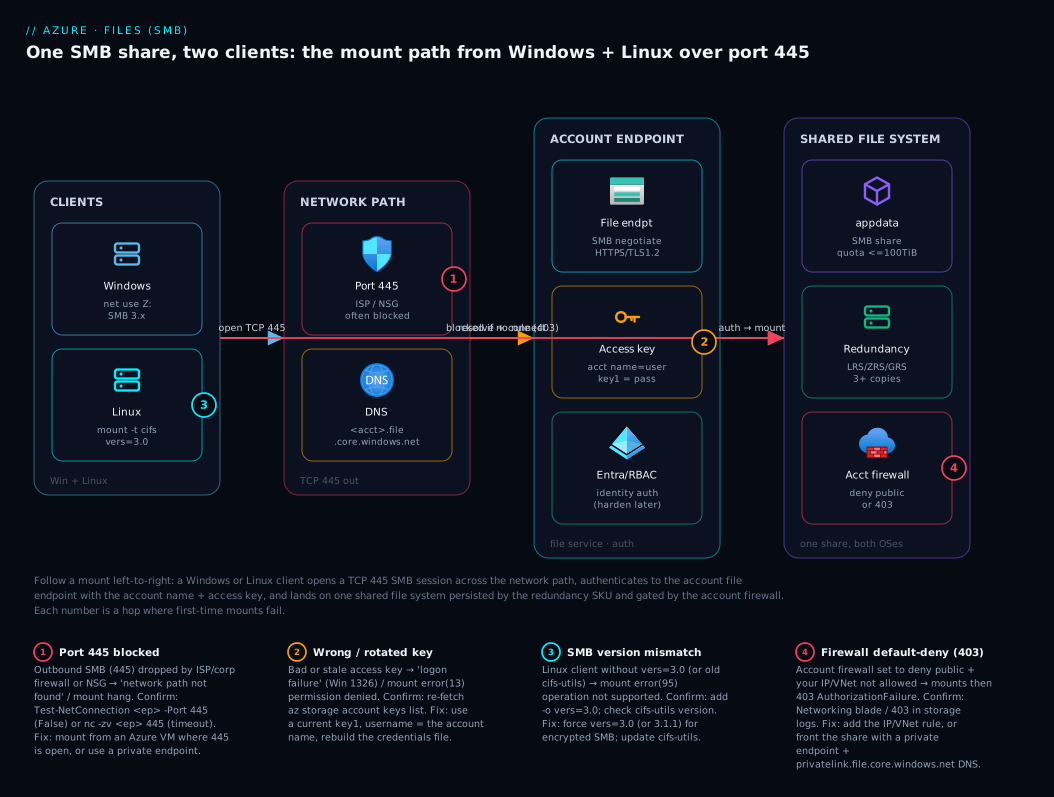
Read this left to right. On the left are your two clients — a Windows machine and a Linux machine — each of which will open its own TCP 445 connection. That connection crosses the network path in the middle, where the single most common failure lives: a firewall (your ISP, your corporate edge, an NSG, or the storage account’s own firewall) that drops outbound 445. If 445 survives, the client reaches the storage account’s file endpoint (<account>.file.core.windows.net), authenticates with the account name as username and an access key as password, and lands on the SMB file share inside the account — a single file system both clients now see. The share’s bytes are persisted by the account’s redundancy SKU (LRS/ZRS/GRS), and the account’s firewall and Entra/RBAC controls decide whether the connection is even allowed.
The numbered badges mark the exact spots first-timers get stuck: the 445 hop (blocked outbound), the endpoint auth (wrong key or stale key after rotation), the SMB version negotiation (Linux needing vers=3.0), and the account firewall (default-deny blocking your IP). Follow any mount failure to one of these four hops and the fix is in the legend.
Real-world scenario
Northwind Logistics is retiring an on-prem Windows file server that hosted \\NW-FS01\dispatch — a 400 GiB folder of route sheets, scanned proof-of-delivery PDFs, and a shared config directory read by both a legacy Windows .NET dispatch app and a newer Linux-based label-printing service. The two apps must see the same files: when dispatch drops a route sheet, the Linux service prints labels from it seconds later. On-prem this “just worked” because both servers mounted the same SMB share. The team’s brief for the cloud move was blunt: keep the UNC path working, don’t rewrite either app, and stop owning a file-server VM.
They created a single standard, ZRS file share named dispatch in a StorageV2 account in the same region as their VMs, set a 2 TiB quota (room to grow from 400 GiB), and mounted it two ways. The Windows dispatch VM mapped it with net use Z: \\stnwlogprod.file.core.windows.net\dispatch and a persisted credential, so the app’s hard-coded Z:\routes path kept working unchanged. The Linux label service mounted it at /mnt/dispatch via /etc/fstab with a root-only credentials file. Both used the account key for the cut-over to get running fast.
The first attempt failed from an engineer’s laptop during testing — net use returned System error 53, the network path was not found. Twenty minutes vanished before someone checked: the corporate firewall blocked outbound 445. The fix was to test from the Azure VMs, where 445 is open, not from the office laptop — confirmed with Test-NetConnection stnwlogprod.file.core.windows.net -Port 445 on the VM (TcpTestSucceeded : True) versus the laptop (False). That check became step one of their runbook.
The second issue was subtler: the Linux mount worked interactively but didn’t survive a reboot. The /etc/fstab entry was missing the _netdev option, so the system tried to mount before networking was up, and boot stalled. Adding _netdev (and nofail) fixed it. Weeks later, with everything stable, they hardened it: locked the account firewall to their VNet via a private endpoint, switched the Windows app to Entra Kerberos identity-based auth so it dropped the account key, and put the key-based Linux mount on a rotation schedule. The quickstart pattern got them live in an afternoon; the hardening came after, deliberately.
Advantages and disadvantages
The honest trade-off of a key-mounted SMB Azure Files share:
| Advantages | Disadvantages |
|---|---|
| Fully managed — no file-server VM to patch, back up or grow | Requires TCP 445 open end to end; blocked on many networks |
| Standard SMB 3.x — mounts on Windows, Linux, macOS, containers unchanged | Account access key is god-mode; a leak exposes the whole account |
| Multiple machines, multiple OSes mount the same share concurrently | Higher latency than a local/managed disk (network file system) |
| Keeps existing UNC paths working for lift-and-shift apps | Key-based auth has no per-user identity or per-file ACLs |
| Scales to 100 TiB (standard) without re-provisioning | SMB-specific limits (file size, handle counts) differ from a real NAS |
| Bills on used capacity (standard) — cheap for modest shares | Cross-region mounts are slow; share is single-region (geo is async copy) |
When the advantages dominate: lift-and-shift apps that need a file path, shared state across web instances, cross-OS file exchange, and any case where you’d otherwise run a file server. When the disadvantages dominate: latency-critical local I/O (use a managed disk — see Azure VM Disk Types Explained: Standard, Premium, Ultra), object/HTTP access patterns (use Blob — see Azure Blob Access Tiers: Hot, Cool, Cold, Archive Cost Model), or anywhere outbound 445 simply cannot be opened and you can’t sit in front of a private endpoint.
Hands-on lab
This is the centerpiece. You will create everything, mount it on both operating systems three ways (portal script, raw command, and Bicep), validate it, and tear it down. Steps are copy-pasteable. Replace the placeholder names with your own; storage account names are globally unique, 3–24 chars, lowercase letters and digits only.
The variables we’ll reuse:
| Placeholder | Example value | Rule |
|---|---|---|
| Resource group | rg-files-quick |
Any name |
| Location | eastus |
Any region |
| Storage account | stfilesquick001 |
Globally unique, 3–24, lowercase+digits |
| Share name | appdata |
3–63, lowercase letters/digits/hyphens |
| Quota (GiB) | 100 |
Standard soft cap up to 102400 (100 TiB) |
Part A — Create the account and share (az CLI)
Step 1 — Sign in and set variables. In Cloud Shell or a local terminal:
az login                       # skip if already signed in / in Cloud Shell
az account set --subscription "<your-subscription-id>"

RG=rg-files-quick
LOC=eastus
ACCT=stfilesquick001           # CHANGE THIS — must be globally unique
SHARE=appdata
Step 2 — Create the resource group.
az group create --name $RG --location $LOC
Expected output (trimmed): a JSON object with "provisioningState": "Succeeded".
Step 3 — Create the storage account. Standard, GPv2, LRS — the cheapest mountable combination. --https-only true is the default and we keep it.
az storage account create \
  --name $ACCT --resource-group $RG --location $LOC \
  --sku Standard_LRS --kind StorageV2 \
  --min-tls-version TLS1_2
Expected: JSON with "provisioningState": "Succeeded" and "primaryEndpoints" that includes a "file" URL like https://stfilesquick001.file.core.windows.net/. That file endpoint is your mount host.
Step 4 — Create the file share with a quota.
az storage share-rm create \
  --resource-group $RG --storage-account $ACCT \
  --name $SHARE --quota 100 --enabled-protocols SMB
Expected: JSON describing the share, including "shareQuota": 100 and "name": "appdata". (We use share-rm, the control-plane command — it works with Entra/RBAC and doesn’t need the key. The older az storage share create works too but uses the key.)
Step 5 — Get the access key (the SMB password). Capture key1 into a variable; do not print it in a shared session.
KEY=$(az storage account keys list \
  --resource-group $RG --account-name $ACCT \
  --query "[0].value" -o tsv)
echo "Key length: ${#KEY} chars"      # ~88 chars of base64; don't echo the key itself
Expected: Key length: 88 chars (or similar). You now have all three parts of the mount triple: host ($ACCT.file.core.windows.net), username ($ACCT), password ($KEY).
Part B — Verify port 445 BEFORE you mount
This step prevents 80% of “it won’t mount” tickets. Check that the client can actually open 445 to the endpoint.
Step 6 (Windows client) — test 445 with PowerShell:
Test-NetConnection -ComputerName stfilesquick001.file.core.windows.net -Port 445
Expected on a working network: TcpTestSucceeded : True. If it says False, 445 is blocked — mount from an Azure VM instead, or set up a private endpoint. Do not proceed to the mount until this is True.
Step 6 (Linux client) — test 445 with nc or /dev/tcp:
nc -zvw3 stfilesquick001.file.core.windows.net 445
# or, without netcat installed:
timeout 3 bash -c 'cat < /dev/null > /dev/tcp/stfilesquick001.file.core.windows.net/445' \
  && echo "445 OPEN" || echo "445 BLOCKED"
Expected: ... succeeded! (nc) or 445 OPEN. A timeout/445 BLOCKED means the same thing — fix the path before mounting.
Part C — Mount on Windows
Two ways: the portal’s generated script (easiest), and the raw net use (so you understand it).
Step 7 (portal script). In the portal: Storage account → File shares → appdata → Connect. Choose drive letter Z:, choose Storage account key as the auth method, and copy the generated PowerShell. It looks like this (the portal fills in your values):
$connectTestResult = Test-NetConnection -ComputerName stfilesquick001.file.core.windows.net -Port 445
if ($connectTestResult.TcpTestSucceeded) {
    cmd.exe /C "cmdkey /add:`"stfilesquick001.file.core.windows.net`" /user:`"localhost\stfilesquick001`" /pass:`"<key>`""
    New-PSDrive -Name Z -PSProvider FileSystem `
      -Root "\\stfilesquick001.file.core.windows.net\appdata" -Persist
} else {
    Write-Error "Port 445 is unreachable. Check organization/ISP firewall."
}
cmdkey stores the credential so the mount survives reboots; -Persist reconnects Z: at logon. Expected: Z: appears in File Explorer.
Step 7 (raw net use, equivalent). From an elevated prompt:
net use Z: \\stfilesquick001.file.core.windows.net\appdata /user:Azure\stfilesquick001 <key> /persistent:yes
Expected: The command completed successfully. Now dir Z:\ works.
Step 8 — validate on Windows. Write a marker file:
echo hello-from-windows > Z:\from-windows.txt
type Z:\from-windows.txt
Expected: hello-from-windows. Keep this file — Linux will read it next.
Part D — Mount on Linux
Step 9 — install the SMB client. Azure Files SMB needs cifs-utils.
# Debian/Ubuntu
sudo apt-get update && sudo apt-get install -y cifs-utils
# RHEL/CentOS/Alma/Rocky
sudo dnf install -y cifs-utils
Step 10 — create the mount point and a protected credentials file. Never put the key on the command line (it leaks into ps and shell history). Store it root-only:
sudo mkdir -p /mnt/appdata
sudo mkdir -p /etc/smbcredentials
sudo bash -c 'cat > /etc/smbcredentials/stfilesquick001.cred' <<EOF
username=stfilesquick001
password=<paste-key1-here>
EOF
sudo chmod 600 /etc/smbcredentials/stfilesquick001.cred
The chmod 600 is mandatory — it makes the file readable only by root, the whole point of not putting the key on the CLI.
Step 11 — mount it. Use SMB 3.x (vers=3.0) so the connection is encrypted:
sudo mount -t cifs \
  //stfilesquick001.file.core.windows.net/appdata /mnt/appdata \
  -o credentials=/etc/smbcredentials/stfilesquick001.cred,vers=3.0,serverino,nosharesock,actimeo=30,uid=$(id -u),gid=$(id -g),file_mode=0660,dir_mode=0770
Expected: the command returns silently (success). The mount options decoded:
| Option | What it does | Why use it |
|---|---|---|
credentials=<file> |
Reads username/password from the root-only file | Keeps the key off the CLI |
vers=3.0 |
Forces SMB 3.x | Encryption in transit; required by Azure |
serverino |
Uses server-provided inode numbers | Correct stat/inode behavior |
nosharesock |
One socket per mount | Stability under load |
actimeo=30 |
Caches attributes 30 s | Cuts round-trips for ls-heavy workloads |
uid / gid |
Owns files as your user/group | Non-root processes can read/write |
file_mode / dir_mode |
POSIX permissions presented to the client | Sensible default perms |
Step 12 — validate cross-OS. Confirm the mount and read the file Windows wrote:
df -h /mnt/appdata                       # shows the //...file.core.windows.net/appdata mount
cat /mnt/appdata/from-windows.txt        # -> hello-from-windows
echo hello-from-linux | sudo tee /mnt/appdata/from-linux.txt
Expected: df lists the CIFS mount; cat prints hello-from-windows (proving both OSes see the same share); the new file appears. Back on Windows, type Z:\from-linux.txt now prints hello-from-linux. That round-trip is the whole point — one share, two operating systems, same bytes.
Step 13 — persist across reboot via /etc/fstab. Add a line so the mount returns automatically:
echo "//stfilesquick001.file.core.windows.net/appdata /mnt/appdata cifs _netdev,nofail,credentials=/etc/smbcredentials/stfilesquick001.cred,vers=3.0,serverino,uid=1000,gid=1000,file_mode=0660,dir_mode=0770 0 0" | sudo tee -a /etc/fstab
sudo mount -a                            # test the fstab entry without rebooting
_netdev tells the system this mount needs the network (so it waits for networking and unmounts cleanly on shutdown); nofail ensures a transient mount failure won’t stall boot. Both are mandatory for Azure Files — omitting _netdev is the classic “boot hangs after I added it to fstab” bug from the scenario above. Expected: mount -a returns silently and df -h /mnt/appdata still shows the mount.
Part E — The same thing as Bicep (infrastructure as code)
Capture the account + share as a template so it’s repeatable. Save as files-quickstart.bicep:
@description('Globally unique storage account name (3-24, lowercase + digits).')
param storageAccountName string

@description('SMB file share name.')
param shareName string = 'appdata'

@description('Share quota in GiB (standard soft cap up to 102400).')
param shareQuotaGiB int = 100

param location string = resourceGroup().location

resource storage 'Microsoft.Storage/storageAccounts@2023-05-01' = {
  name: storageAccountName
  location: location
  sku: { name: 'Standard_LRS' }
  kind: 'StorageV2'
  properties: {
    minimumTlsVersion: 'TLS1_2'
    supportsHttpsTrafficOnly: true
    allowBlobPublicAccess: false
  }
}

// The file service is a child of the account; the share is a child of the file service.
resource fileService 'Microsoft.Storage/storageAccounts/fileServices@2023-05-01' = {
  parent: storage
  name: 'default'
}

resource share 'Microsoft.Storage/storageAccounts/fileServices/shares@2023-05-01' = {
  parent: fileService
  name: shareName
  properties: {
    shareQuota: shareQuotaGiB
    enabledProtocols: 'SMB'
  }
}

output fileEndpoint string = storage.properties.primaryEndpoints.file
output uncPath string = '\\\\${storageAccountName}.file.core.windows.net\\${shareName}'
Step 14 — deploy the Bicep.
az deployment group create \
  --resource-group $RG \
  --template-file files-quickstart.bicep \
  --parameters storageAccountName=$ACCT shareName=$SHARE shareQuotaGiB=100
Expected: "provisioningState": "Succeeded", with outputs showing fileEndpoint and uncPath. The template is idempotent — re-running it against the same names is a no-op. (New to Bicep? See Deploy Your First Bicep File From Scratch.) The key is deliberately not an output — fetch it at mount time with az storage account keys list, never bake a secret into template outputs.
Part F — Teardown
So you are not billed for an experiment, delete everything. The cleanest move is to delete the whole resource group:
# On Linux, unmount first
sudo umount /mnt/appdata
sudo sed -i '\#stfilesquick001.file.core.windows.net/appdata#d' /etc/fstab   # remove fstab line

# On Windows
# net use Z: /delete
# cmdkey /delete:stfilesquick001.file.core.windows.net

# Delete the whole resource group (account + share + everything)
az group delete --name $RG --yes --no-wait
Expected: the command returns immediately (--no-wait); the group and all resources delete in the background. Confirm with az group exists --name $RG returning false after a minute or two.
Common mistakes & troubleshooting
Almost every first-time failure is one of these. Match the symptom, run the confirm step, apply the fix.
| # | Symptom (exact-ish) | Root cause | How to confirm | Fix |
|---|---|---|---|---|
| 1 | System error 53 / “network path not found” (Win); mount error(115): Operation now in progress or hang (Linux) |
TCP 445 blocked on the path (ISP/corp/NSG) | Test-NetConnection <ep> -Port 445 → False; nc -zv <ep> 445 times out |
Mount from an Azure VM (445 open) or use a private endpoint; never mount over public 445 from a blocked network |
| 2 | System error 1326 / “logon failure” (Win); mount error(13): Permission denied (Linux) |
Wrong key, key rotated, or wrong username | Re-fetch az storage account keys list; check username is the account name |
Use a current key; username = account name; recreate the .cred file |
| 3 | mount error(95): Operation not supported / “Protocol not supported” |
SMB version mismatch — old client or missing vers=3.0 |
Add -o vers=3.0; check kernel/cifs-utils version |
Force vers=3.0 (or 3.1.1); update cifs-utils; on very old clients use a supported distro |
| 4 | Boot hangs / mount -a stalls after editing /etc/fstab |
Missing _netdev — system mounts before network is up |
systemctl status shows the mount unit waiting |
Add _netdev,nofail to the fstab options; mount -a to retest |
| 5 | mount error(2): No such file or directory |
Wrong share path / share doesn’t exist / typo in host | az storage share-rm list -g $RG --storage-account $ACCT -o table |
Fix the //host/share path; create the share if missing |
| 6 | Mount works, then 403/AuthorizationFailure later |
Account firewall set to deny + your IP/VNet not allowed | Check Networking blade; 403 in storage logs |
Add your IP/VNet rule, or front it with a private endpoint |
| 7 | Windows mount vanishes after reboot | No /persistent:yes and no stored credential |
net use shows it absent after reboot |
Re-mount with /persistent:yes + cmdkey /add (or New-PSDrive -Persist) |
| 8 | cifs_mount failed w/return code = -22 / mount: bad usage |
Malformed mount options (stray space, wrong comma) | Re-read the -o string carefully |
Rebuild the options string exactly; no spaces inside -o |
| 9 | Linux files owned by root, app can’t write | No uid/gid/file_mode options |
ls -l /mnt/appdata shows root:root |
Add uid=,gid=,file_mode=0660,dir_mode=0770 to mount options |
| 10 | Very slow ls / metadata operations |
No attribute caching; chatty workload | Compare with actimeo=30 set |
Add actimeo=30 (or higher) and serverino; consider premium for heavy I/O |
The decision shortcut for the big three:
| If the mount… | It’s probably… | Do this first |
|---|---|---|
| times out / “path not found” from a laptop but works from an Azure VM | 445 blocked on your network | Mount from the VM or add a private endpoint |
| fails instantly with “permission denied”/“logon failure” | wrong/rotated key | Re-fetch key1; rebuild credentials |
| fails with “operation not supported”/“protocol not supported” | SMB version | Force vers=3.0 and update cifs-utils |
Best practices
- Always test port 445 first (
Test-NetConnection/nc -zv) before debugging anything else — it is the number-one cause and a 5-second check. - Never put the access key on the command line. On Linux use a
chmod 600credentials file; on Windows letcmdkey/the portal script handle it. Keys leak throughps, shell history and logs. - Force SMB 3.x (
vers=3.0/3.1.1) so traffic is encrypted in transit; requireminimumTlsVersion: TLS1_2and HTTPS-only on the account. - Use
_netdev,nofailin/etc/fstabfor every Azure Files mount so boot waits for the network and never hangs on a transient failure. - Set
uid/gid/file_mode/dir_modeon Linux so non-root processes can use the share with sane permissions. - Persist Windows mounts with
/persistent:yespluscmdkey, orNew-PSDrive -Persist, or they vanish on reboot. - Pick ZRS for shares that matter; remember premium has no GRS/GZRS, so geo-redundancy means staying on standard.
- Lock the account firewall down for anything beyond a quickstart — default to deny and reach the share over a private endpoint from your VNet.
- Plan to move off the account key to Entra/AD identity-based auth for real workloads; the key is a single god-mode secret with no per-user identity.
- Right-size the quota generously (it’s a soft cap on standard, you pay for used GiB) so you don’t hit it unexpectedly, and monitor used capacity.
- Capture it as Bicep/IaC so the account, share and quota are reproducible — and never output the key from a template.
Security notes
The access key is the whole security story for a key-mounted share, and it is a blunt instrument: each of the two account keys grants full read/write to every service in the account (files, blobs, queues, tables), with no per-user identity and no per-file ACLs — whoever holds it is effectively root on the account. So store it only in protected places (a chmod 600 file, cmdkey’s credential store, or a secret manager), rotate it with the two-key dance (regenerate key2, switch mounts to it, then regenerate key1), and never commit it to source control. Rotation and the firewall/RBAC angles live in Troubleshooting Azure Storage: 403, Firewall, Private Endpoint, RBAC and SAS.
For anything beyond a quickstart, the production posture is threefold. Network isolation: set the account firewall to deny public access and mount over a private endpoint so the share is reachable only from your VNet (this also sidesteps the public-445 problem entirely) — see Azure Private Endpoint vs Service Endpoint. Encryption: data is encrypted at rest by default, and SMB 3.x with vers=3.0+ gives encryption in transit — keep both on. Identity: replace the account key with identity-based authentication (on-prem AD DS or Entra Kerberos) so access is per-user, auditable, and governed by NTFS-style ACLs; that removes the god-mode-key risk and is the single biggest hardening step. Tighten the surrounding network controls with NSG rules — see Azure Network Security Groups: Rules and Priorities Explained.
Cost & sizing
For a standard share, the bill has three drivers and is modest for typical use:
| Cost driver | What you pay for | Rough figure (varies by region) | How to control it |
|---|---|---|---|
| Used capacity | GiB actually stored (standard bills on used, not quota) | ~₹5–8 / GiB / month (~$0.06–0.10) | Delete stale data; standard only charges for what you use |
| Transactions | Per-operation (read/write/list) units | Fractions of a paisa per 10k ops | Cache attributes (actimeo), avoid chatty ls loops |
| Egress | Data leaving the region | Per-GiB outbound | Keep clients in the same region as the account |
| Redundancy multiplier | LRS < ZRS < GRS < GZRS | ZRS/GRS cost more than LRS | Match durability to need; don’t over-buy |
| Premium (if used) | Provisioned GiB on SSD (min 100 GiB) | Bills on provisioned size 24×7 | Only for low-latency/high-IOPS; size it tightly |
Sizing guidance: a standard share’s quota is a soft cap, so set it comfortably high (you pay for used GiB, not the quota) — running out of quota mid-write is far more painful than an oversized cap. Premium is the opposite: you pay for provisioned size around the clock whether you use it or not, with a 100 GiB minimum, so size premium tightly and only reach for it when standard latency genuinely hurts. There is no Always-Free tier for Azure Files, but a small standard LRS share for this lab costs only pennies for the hour it exists — which is exactly why the teardown step matters. For ongoing spend control, put a budget on the resource group (see Azure Cost Management: Budgets and Alerts in the First 30 Days).
Interview & exam questions
Q1. What protocol and port does an Azure Files SMB share use, and why does that matter for mounting? SMB (Server Message Block) over TCP port 445. It matters because many ISPs and corporate firewalls block outbound 445 to stop old SMB worms, so a share that mounts fine from an Azure VM may refuse from a laptop — port 445 reachability is the first thing to check. (AZ-104.)
Q2. How does an Azure Files share differ from a managed disk and from Blob storage? A managed disk is a block device attached to one VM at a time (not shared). Blob storage holds objects accessed over a REST/HTTP API (not a mounted file system). Azure Files is a mounted file system that multiple machines and OSes can attach concurrently over SMB or NFS.
Q3. What three values does any SMB mount need?
The host/UNC path (\\<account>.file.core.windows.net\<share>), the username (the storage account name), and the password (an account access key). Get those right with 445 open and the mount succeeds.
Q4. Why must you use SMB 3.0+ (vers=3.0) on Linux?
SMB 3.x supports encryption in transit; Azure Files requires it for secure connections, and older SMB versions either fail or transmit unencrypted. On Linux you specify vers=3.0 (or 3.1.1) in the mount options.
Q5. What is the purpose of _netdev (and nofail) in an Azure Files /etc/fstab entry?
_netdev marks the mount as network-dependent so the system waits for networking before mounting and unmounts cleanly on shutdown; without it, boot can hang trying to mount before the network is up. nofail ensures a transient mount failure doesn’t block boot.
Q6. Which redundancy options are NOT available on premium file shares? GRS and GZRS (geo-redundancy) are standard-only. Premium supports LRS and ZRS but not geo-redundancy — if you need a geo-redundant file share, you stay on standard.
Q7. How do you mount a share without exposing the access key on the command line (Linux)?
Store username= and password= in a credentials file, chmod 600 it (root-only), and pass credentials=/path/to/file in the mount options. This keeps the key out of ps, shell history and logs.
Q8. A user reports the Windows-mapped drive disappears after reboot. Why, and how do you fix it?
The mount wasn’t persisted. Use net use ... /persistent:yes together with cmdkey /add to store the credential, or New-PSDrive -Persist, so the drive and its credential reconnect at logon.
Q9. Standard vs premium Azure Files — what’s the billing and account-kind difference?
Standard lives in a StorageV2 (GPv2) account on HDD and bills on used capacity plus transactions. Premium lives in a dedicated FileStorage account on SSD and bills on provisioned capacity (100 GiB minimum) regardless of use, in exchange for low latency and high IOPS.
Q10. The mount works but later starts returning 403 / AuthorizationFailure. What changed and what do you check? The account firewall is likely set to deny public access and your client’s IP or VNet isn’t allowed (or DNS still resolves the public IP). Check the Networking blade, add the IP/VNet rule, or mount over a private endpoint so the share is reachable privately.
Q11. What is the most secure way to authenticate to an Azure Files SMB share, versus the quickstart approach? The quickstart uses the account access key — a single god-mode secret with no per-user identity. The production approach is identity-based authentication (on-prem AD DS or Entra Kerberos), giving per-user identity, auditing, and NTFS-style ACLs on directories and files.
Q12. Why might the exact same mount command succeed from an Azure VM and fail from your laptop? Outbound TCP 445 is permitted on Azure’s networks to the storage service but is commonly blocked by ISPs and corporate firewalls. The VM can open the SMB connection; the laptop’s 445 is dropped, producing “network path not found”/timeout.
Quick check
- What protocol and TCP port does an Azure Files SMB share use?
- Name the three values every SMB mount requires.
- What does the
_netdevoption do in an/etc/fstabAzure Files entry? - Which two redundancy options are unavailable on premium file shares?
- Why should you store the access key in a
chmod 600credentials file on Linux instead of on the mount command?
Answers
- SMB (Server Message Block) over TCP port 445. Every mount opens a 445 connection to
<account>.file.core.windows.net; if 445 is blocked, the mount fails. - Host/UNC path (
\\<account>.file.core.windows.net\<share>), username (the storage account name), and password (an account access key). - It marks the mount as network-dependent, so the system waits for networking before mounting and unmounts cleanly at shutdown — preventing the boot hang you get if the mount runs before the network is up. (
nofailfurther prevents a transient failure from blocking boot.) - GRS and GZRS (geo-redundancy) — they are standard-only; premium supports LRS and ZRS only.
- Because anything on the command line leaks into
psoutput, shell history and logs. Achmod 600file is readable only by root, keeping the god-mode account key out of those exposure paths.
Glossary
- Azure Files — A fully managed file share in Azure, mountable over SMB or NFS, that multiple machines and OSes can attach to concurrently.
- SMB (Server Message Block) — The file-sharing protocol used to mount Azure Files on Windows/Linux/macOS; use version 3.x for encryption in transit.
- TCP port 445 — The network port SMB runs on; commonly blocked outbound by ISPs and corporate firewalls, the #1 mount failure.
- Storage account — The globally unique namespace (
<name>.file.core.windows.net) that holds the file share; its name is the SMB username. - File share — A named file system inside a storage account, with a size quota, that you mount.
- Access key — One of two 512-bit master keys per storage account; used as the SMB password and granting full account access.
- UNC path — A
\\host\sharenetwork address; for Azure Files,\\<account>.file.core.windows.net\<share>. - Quota — A file share’s configured size limit; for standard shares a soft cap (you pay for used GiB) up to 100 TiB.
cifs-utils— The Linux package providing the CIFS/SMB client and themount -t cifscommand.vers=3.0— The Linux mount option forcing SMB 3.x, required by Azure Files for encrypted, supported connections._netdev— An/etc/fstaboption marking a mount as network-dependent so it waits for networking.- Standard vs premium — Standard =
StorageV2/HDD, billed on used capacity; premium =FileStorage/SSD, billed on provisioned size (100 GiB min) for low latency. - LRS / ZRS / GRS / GZRS — Redundancy SKUs (local / zone / geo / geo-zone) controlling how many copies of the share exist and where.
- Private endpoint — A private IP in your VNet for the storage account, so the share is reachable privately without exposing public 445.
Next steps
- Lock the share down to your network with Azure Private Endpoint vs Service Endpoint and resolve it privately via Azure Private Link and Private DNS for PaaS.
- Understand the account that holds your share end to end in Azure Storage Account Fundamentals.
- Choose durability deliberately with Azure Storage Redundancy: LRS, ZRS, GRS and RA-GRS Explained.
- Keep this share’s troubleshooting playbook handy: Troubleshooting Azure Storage: 403, Firewall, Private Endpoint, RBAC and SAS.
- Make the deployment repeatable by going deeper on IaC in Deploy Your First Bicep File From Scratch.