You have a small, annoying job that nobody wants to own: every morning a file should be copied, a Teams message posted, a record checked, an email sent. It is too small to justify a service, a container or a cron VM you have to patch — but it still has to happen, reliably, with retries and an audit trail. This is exactly the gap Azure Logic Apps fills. Logic Apps is a managed, low-code workflow service: you wire together a trigger (the event that starts the workflow) and a sequence of actions (the steps it runs), using pre-built connectors to talk to hundreds of services — Office 365, Storage, SQL, Service Bus, Salesforce, ServiceNow, and any REST API — without writing or hosting plumbing code. You design it visually, it runs serverless, and you pay per execution.
This article is a build guide, not a survey. By the end you will have created, run, validated and deleted a real Logic App with your own hands — three ways: in the Azure portal designer, with the az CLI, and as a Bicep template you can commit to source control. We start from the smallest workflow that actually does something (a timer that sends you an email) and layer in the four concepts you need for anything else: triggers, actions, connectors and expressions (inline functions like utcNow() and triggerBody() that move and shape data between steps). Every step tells you what to click or type and what output to expect, so you know at a glance whether it worked.
We focus on the Consumption plan throughout, because it is the right place to learn: pay-per-action, deploys in seconds, no App Service plan or VNet needed. Everything here — the trigger/action/connector/expression model, run history, the designer — carries straight over to the Standard plan when you later need VNet integration or stateless workflows, a choice covered in Logic Apps Consumption vs Standard: Pricing, Networking and Stateful Workflows Compared. Here we just build.
What problem this solves
Integration work is full of tasks that are individually trivial and collectively a swamp. “When a file lands in blob storage, validate it and notify the team.” “Every hour, pull open tickets from ServiceNow and post a summary to Teams.” None of these justify standing up a service — you would spend more time on the host, secrets, retries, logging and on-call than on the actual five lines of logic. So they get done as a fragile shell script on a laptop, a cron job on an unpatched VM, or a manual runbook step that gets skipped at 5 PM on a Friday.
What breaks without a managed workflow engine: no retry when the downstream API blips, so a transient failure becomes a missed task; no audit trail, so “did the nightly sync run?” has no answer; no isolation, so the script dies with the laptop; and no easy way to add a step without redeploying an app. Logic Apps gives you all of that for free — built-in retry policies, a per-run history you can inspect step by step, managed hosting with nothing to patch, and a designer where adding a step is a click.
Who hits this: integration developers, platform and DevOps teams, and anyone repeatedly handed “can you just make X happen when Y.” If your task is event-driven or scheduled, talks to services that already have connectors, and is more glue than compute, Logic Apps is almost always the cheapest, most maintainable answer.
Learning objectives
By the end of this article you can:
- Explain the four core building blocks — trigger, action, connector, expression — and how data flows between steps through Dynamic content.
- Create a Consumption Logic App and build a working Recurrence → action workflow three ways: in the portal designer, with
az logic workflow create, and with a Bicep template. - Read and write basic Workflow Definition Language expressions such as
utcNow(),triggerBody(),@{...}interpolation andconcat()to move and format data. - Add and authorize a managed connector (and understand the API connection resource it creates behind the scenes), and tell built-in from managed connectors.
- Open the run history, read a run trigger-by-action, and resubmit a failed run.
- Diagnose the most common first-workflow failures (trigger never fires, connection unauthorized, expression returns null, action 429-throttled) using the exact portal path and
azcommand. - Estimate a workflow’s cost from its action count and pick sensible retry and concurrency settings.
Prerequisites & where this fits
You need an Azure subscription with rights to create resources in a resource group (the Contributor role is enough), and either the Azure portal or the az CLI (run az login first; Azure Cloud Shell has it pre-installed and is the easiest way to follow along). For the email step you need any mailbox the Office 365 Outlook or Outlook.com connector can sign into — a personal Outlook.com account works fine. No coding environment is required; the whole build happens in the browser or the shell.
This sits at the integration / serverless layer. It is a sibling to Azure Functions Triggers and Bindings for Beginners: Connecting Code to Events Without Boilerplate — Functions is code-first, Logic Apps is workflow-first, so reach for Functions when the logic is real code and Logic Apps when it is orchestration and connectors. Workflows often consume from or publish to a Service Bus queue and react to platform events via Event Grid system topics. In production you store secrets in Azure Key Vault, authenticate with a managed identity instead of a connection string, and ship it all with Bicep from source control.
Pick the right tool before you build the wrong thing:
| You need to… | Best fit | Why |
|---|---|---|
| Orchestrate calls across SaaS/Azure services, low-code | Logic Apps | Hundreds of connectors, visual designer, per-action billing |
| Run real custom code on an event, sub-second | Azure Functions | Code-first, fastest cold path, language SDKs |
| Route/filter platform & custom events at scale | Event Grid | Pub/sub eventing backbone; Logic Apps can subscribe |
| Reliable decoupled messaging with ordering/sessions | Service Bus | Queues/topics, dead-lettering, sessions |
| A long, human-in-the-loop business process | Logic Apps | Approvals, delays, durable run state out of the box |
Core concepts
Four words explain almost everything in Logic Apps; learn them once and the designer becomes obvious.
A trigger is the single event that starts a workflow — every workflow has exactly one. Nothing runs until it fires. It comes in three styles — schedule (Recurrence), polling and push/webhook (detailed below) — and produces the workflow’s first piece of data, its output, which later steps read.
An action is a step the workflow runs after the trigger — you chain as many as you like, in order. “Send an email”, “Create a row”, “Call HTTP”. Actions also include control actions that shape flow rather than call a service: Condition, Switch, For each, Scope, Until and Delay. Each runs only after the previous one succeeds (by default) and produces its own output downstream actions can read. The whole workflow is just “one trigger, then a tree of actions.”
A connector is the pre-built adapter that lets a trigger or action talk to a specific service. “Send an email (V2)” uses the Office 365 Outlook connector; “When a blob is added” uses Azure Blob Storage. The two families — built-in (in-runtime, fast, mostly free) and managed (Microsoft-hosted, billed, creating an API connection resource) — are detailed below; which family a step uses tells you its cost and whether it needs a connection.
An expression is a small inline function that computes or moves data between steps. Written in Workflow Definition Language (WDL), expressions cover the current time (utcNow()), a field from the trigger (triggerBody()?['subject']), a previous action’s output (body('Get_row')) or a built string (concat('Run at ', utcNow())). In the designer you usually pick fields from Dynamic content and only handcraft expressions for transforms.
How data flows between steps
The single idea that confuses beginners: a step can only read the output of steps that ran before it. The trigger’s output is available to every action; Action 3 can read the trigger plus Actions 1 and 2. You expose those outputs through Dynamic content — with your cursor in a field, the designer offers tokens for everything upstream, each backed by an expression like @triggerBody() or @body('Compose'). If a token you expected is missing, that step is not upstream of your cursor (e.g. in a different branch). Get this one rule and the designer stops being mysterious.
Triggers in depth
Your first real decision is the trigger: it determines how and how often the workflow wakes up — and on Consumption every trigger evaluation (even an empty poll) is a metered action. Pick the cheapest trigger that meets the latency you need.
The three trigger styles and when each is right:
| Trigger style | How it works | Typical examples | Latency | Cost note (Consumption) |
|---|---|---|---|---|
| Recurrence (schedule) | Fires on a fixed interval/clock | Every 5 min; daily 08:00; weekdays only | As scheduled | One trigger execution per fire |
| Polling | Checks a source every interval; fires on new data | When a blob is added; When a new email arrives | = polling interval | Every poll is a metered trigger check |
| Push / webhook | External system calls the workflow URL | When an HTTP request is received | Near-instant | Billed only when actually called |
For a Recurrence trigger you set Frequency (Second/Minute/Hour/Day/Week/Month) and Interval (a positive integer — “every 3 hours” is interval 3, frequency Hour), with optional At these hours / At these minutes (Day/Week only) to pin a clock time. Two gotchas: Time zone defaults to UTC, so set it to pin business hours; and sub-minute frequencies burn executions fast — the schema allows a 1 second floor but stay above a few seconds, and polling triggers realistically floor at about 1 minute. A Start time (ISO 8601) anchors the cycle rather than starting “now.”
A webhook (Request) trigger is special: on save, Logic Apps mints a callback URL containing a SAS signature (sig=) that is its authentication (see Security notes). Retrieve it with az rest against the workflow’s listCallbackUrl action, or copy it from the trigger card.
Actions and control flow
Once the trigger fires, actions do the work. Two kinds combine into real logic: connector actions that call a service (send email, write a row, POST to an API) and control actions that direct flow without calling anything external.
The control actions you will use constantly:
| Control action | What it does | Use it for | Note |
|---|---|---|---|
| Condition | If/else branch on an expression | “If amount > 1000, escalate” | Two branches: If true / If false |
| Switch | Multi-way branch on a value | Route by status/region | Cleaner than nested Conditions |
| For each | Loop over an array | Process every item in a list | Runs in parallel by default (up to 20) |
| Until | Loop until a condition is true | Poll a job till complete | Set a count + timeout to avoid runaway |
| Scope | Group actions as a unit | Wrap steps + catch failures | Enables run-after error handling |
| Compose | Build a value/object inline | Shape JSON, store a constant | Cheap, free built-in action |
| Delay / Delay until | Pause the run | Wait 10 min; wait until a timestamp | The run is durable across the wait |
Two behaviours separate “it worked in the demo” from “it works in production.” First, run-after / error handling: by default an action runs only if the previous one succeeded; change its configure run after setting to also run on failed, skipped or timedout to build a catch block (“if the HTTP call failed, send an alert”). Second, retry policy: most connector actions auto-retry transient failures, defaulting to exponential backoff with 4 retries (detailed below) — knowing that default saves you from “why did this take 90 seconds to fail” surprises.
Retry policy options on a connector action:
| Policy type | Behaviour | Default count | When to use |
|---|---|---|---|
| Exponential (default) | Backs off increasingly between tries | 4 | General transient errors (network, 503) |
| Fixed | Same interval each retry | configurable | Predictable downstream rate limits |
| None | No retry; fail immediately | 0 | Non-idempotent calls; fail-fast paths |
Connectors and the API connection
This is the part beginners trip over. When you add a managed connector action and authorize it, Logic Apps creates a separate Azure resource of type Microsoft.Web/connections — the API connection — that holds the authorization (an OAuth token reference, API key or connection string) and is referenced by the workflow’s parameters.$connections. Two resources, both visible in the resource group. This matters three ways: the connection is what you re-authorize when a token expires, it must be deployed in Bicep too, and deleting the workflow does not delete its connections.
Built-in vs managed at a glance — this decides cost, speed and whether a connection resource appears:
| Aspect | Built-in connector | Managed connector |
|---|---|---|
| Runs where | Inside the Logic Apps runtime | Microsoft-hosted, over the internet |
| Examples | Recurrence, HTTP, Request, Compose, Control | Office 365, SQL, Blob, Service Bus, Salesforce |
| Per-action charge (Consumption) | Generally free (built-in) | Billed per execution (Standard/Enterprise tiers) |
| Creates an API connection resource | No | Yes (Microsoft.Web/connections) |
| Authorization | None / inline | OAuth, API key, or connection string |
| Latency | Lowest | Network round-trip to the hosted connector |
Connector tiers also affect price: managed connectors split into Standard and Enterprise bands (Enterprise covers SAP, IBM MQ, IBM 3270 and similar), with Enterprise actions costing materially more per execution. The lab uses only built-in actions plus the Office 365 Outlook Standard connector, so the bill is a rounding error.
Expressions you actually need
Expressions look intimidating and are not — ninety percent of real workflows use a dozen functions. The ones to memorise, with what they return:
| Expression | Returns | Example use |
|---|---|---|
utcNow() |
Current UTC timestamp (ISO 8601) | Timestamp an email body |
utcNow('yyyy-MM-dd') |
Formatted current date | Build a filename / subject |
triggerBody() |
The trigger’s output body | Read the incoming payload |
triggerBody()?['name'] |
A field from the trigger, null-safe | Pull name from a webhook JSON |
body('Action_Name') |
The output of a named action | Use a previous step’s result |
concat(a, b, ...) |
Strings joined together | concat('Hi ', name) |
coalesce(a, b) |
First non-null value | Default a missing field |
if(cond, x, y) |
Conditional value | Inline ternary |
length(coll) |
Count of items | Loop guards, “how many rows” |
json(string) |
Parse a JSON string | Turn text into an object |
Two syntax facts to internalise. The @ prefix marks an expression in raw definition JSON ("@utcNow()"); inside a string you interpolate with @{...} ("Run at @{utcNow()}"). And the ? operator (?['field']) is null-safe access — it returns null instead of throwing when the field is absent, the single most common fix for “my expression turned the run red.” The designer’s Expression tab adds the @ for you.
Architecture at a glance
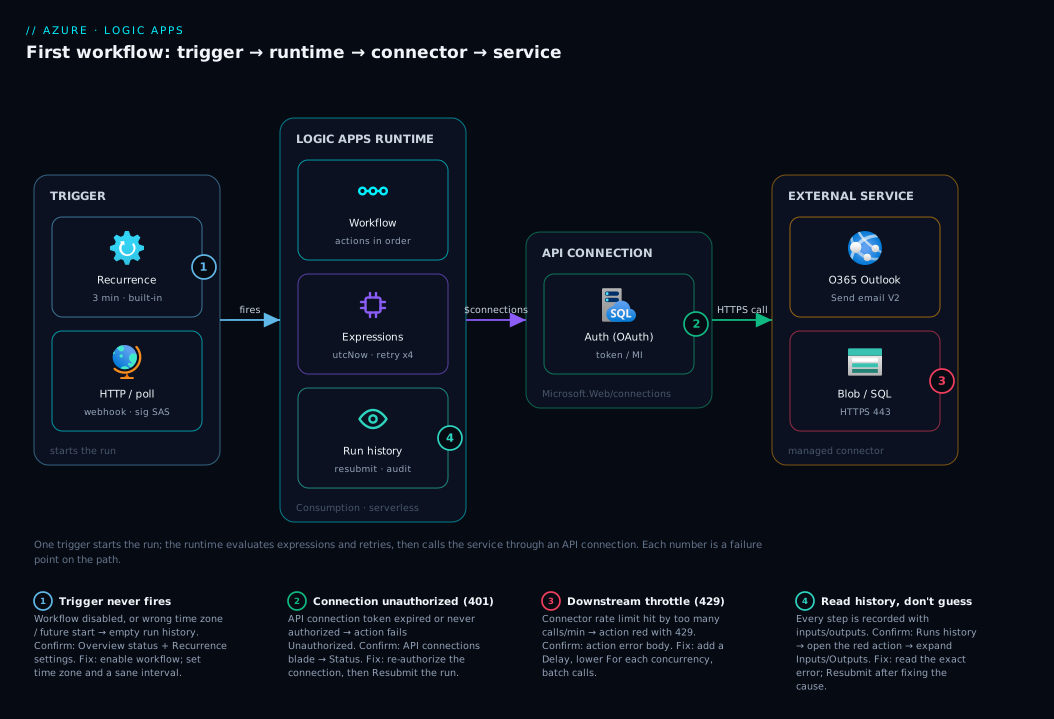
Walk the workflow left to right. A trigger wakes it — in our lab a built-in Recurrence timer, in production often a polling or webhook trigger — and emits its output into the Logic Apps runtime, the managed engine that orchestrates the run, evaluates expressions, applies retry and concurrency policies and writes every step to run history. The runtime then runs the actions in order: built-in actions like Compose stay inside the runtime and cost nothing extra, while a managed connector action — here Send an email via Office 365 Outlook — calls out through its API connection (carrying the OAuth authorization) to the external service over HTTPS.
Two hops fail most. The trigger-to-runtime hop: a misconfigured schedule (wrong time zone, disabled workflow) means the run never starts — no entry in run history at all. The connector-to-service hop: an expired/unauthorized API connection or a downstream 429 throttle fails the action even though the workflow logic is perfect. The diagram maps these and the other common stalls onto the exact node where each bites.
Real-world scenario
Northwind Logistics, a mid-sized freight forwarder, had a nightly pain point. Their warehouse system dropped a CSV of the next day’s outbound shipments into an Azure Blob container at roughly 22:00, and the dispatch team needed it summarised and emailed to three shift leads before the 06:00 handover. For two years this was a PowerShell script on an aging on-prem server that read the blob, counted rows and sent SMTP mail. It failed silently about once a fortnight — sometimes the blob landed late and the fixed 23:00 run found nothing, sometimes the SMTP relay rejected the mail — and nobody knew until a shift lead phoned in. No retry, no record.
The platform team rebuilt it as a single Consumption Logic App in an afternoon. The trigger became “When a blob is added or modified” on the manifest container, polling every 5 minutes — so instead of a fixed 23:00 guess the workflow fired whenever the file actually arrived, late or not. The actions were Get blob content, a Compose to build the summary, then Send an email (V2) to the three shift leads with the row count and arrival time in the subject via concat('Manifest ready: ', length(rows), ' shipments @ ', utcNow()). They wrapped the connector actions in a Scope with a parallel run-after-failed branch that posts to the on-call Teams channel, so a failure now pages a human instead of vanishing.
The results were exactly what a workflow engine buys you. The fortnightly silent failures stopped: the polling trigger removed the timing race, and built-in exponential retry absorbed transient email blips unnoticed. When a real failure did occur — the Office 365 connection’s OAuth token expired after an admin reset — run history showed the precise red action, the team re-authorized the API connection in two clicks and resubmitted the failed run to send the missing email; resolution took under ten minutes versus “discover it the next morning.” The lesson: the value was not the email — it was the run history, retry and resubmit they got for free, which their script never had.
Advantages and disadvantages
Logic Apps is a sharp tool with a real edge and real limits. Know both before you commit a workload.
| Advantages | Disadvantages |
|---|---|
| Low-code visual designer; build in minutes, not days | Heavy data transforms and complex logic get awkward fast |
| Hundreds of pre-built connectors — no API plumbing | Per-action billing can surprise you in high-volume loops |
| Built-in retry, run history, resubmit, durable waits | Designer diffs are noisy; source control is JSON, not code |
| Serverless on Consumption — no servers to patch or scale | Connector throttling (429s) is a real operational concern |
| Per-action billing is cheap for low/medium volume | Cold-ish start and connector latency vs in-process code |
| Standard plan adds VNet, stateless workflows, local dev | Vendor-specific definition language; not portable off Azure |
The advantages win for event-driven and scheduled glue, SaaS-to-Azure integration, approval/human-in-the-loop processes, and any automation where the operational features (audit, retry, resubmit) matter more than raw compute. The disadvantages bite on tight-loop, high-throughput data processing (a For each over 100,000 items both costs and crawls), millisecond-latency needs, or logic so branchy the designer is harder to read than code. The honest rule: if it is glue and orchestration, Logic Apps; if it is real computation, Functions or a service.
Hands-on lab
This is the centerpiece. You will build the same working Logic App three ways — portal, az CLI and Bicep — run it, validate each run, then tear everything down. The workflow is deliberately the smallest one that exercises a trigger, a built-in action and an expression: a Recurrence timer that every few minutes Composes a timestamped message and (in the email variants) emails it to you. Running it for an hour costs effectively zero.
Lab prerequisites. An Azure subscription where you can create resources; the Azure portal or Cloud Shell with az (az login done); and, for the email step, an Outlook.com or Office 365 mailbox you can sign into. Pick one region and reuse it; the lab uses eastus. Set these shell variables first so every command is copy-pasteable:
RG=rg-logicapps-lab
LOC=eastus
LA=la-firstworkflow
az group create --name $RG --location $LOC
Expected output: JSON with "provisioningState": "Succeeded". If you get an authorization error, your account lacks Contributor on the subscription — switch directories or ask an admin.
Part A — Build it in the Azure portal (the designer)
The portal path teaches you the mental model fastest because you see triggers, actions and Dynamic content. Steps:
- In the portal, search Logic apps → + Add → Consumption.
- Set Subscription, Resource group =
rg-logicapps-lab, Logic App name =la-firstworkflow-portal, Region = East US, Enable log analytics = No. Click Review + create → Create. Wait for “Your deployment is complete” (about 10–20 seconds). - Click Go to resource, then open Logic app designer (it may open automatically with templates). Choose Blank Logic App.
- Add the trigger. In the search box type Recurrence, pick the Schedule → Recurrence built-in trigger. Set Interval =
3, Frequency =Minute. (Expected: a green trigger card titled “Recurrence.”) - Add an action. Click + New step → search Compose → pick Data Operations → Compose. In the Inputs box, click into the field, open the Expression tab of the Dynamic content panel, and enter
concat('Hello from Logic Apps at ', utcNow()), then OK. (Expected: the Inputs field shows a token chip for your expression.) - (Optional email step) Click + New step → search Outlook → choose Office 365 Outlook → Send an email (V2) (or Outlook.com for a personal account). Click Sign in and authorize — this creates the API connection. In To enter your address; in Subject type
First workflow run; click into Body, open Dynamic content, and insert the Outputs of the Compose step. - Click Save (top toolbar). Saving validates the definition; a red banner here means a field is empty or an expression is malformed — fix and re-save.
- Run it now. Click Run → Run (do not wait three minutes). The designer switches to the run view and shows each step turning green as it executes.
- Validate. Each card shows a green check. Click the Compose card to expand Inputs/Outputs and confirm the timestamped string. If you added email, check your inbox for “First workflow run.”
- Read run history. Go to the Logic App Overview → Runs history. Each row is one execution with Status, Start time and Duration. Click a row to replay it step by step.
You have now built, run and inspected a real workflow — the same three concepts (trigger, action, expression) are everything.
Portal validation checkpoints:
| After step | What you should see | If you don’t |
|---|---|---|
| Deploy (3) | “Deployment is complete” + Go to resource | Check name uniqueness/region quota |
| Save (7) | Toolbar shows “Saved”; no red banner | A field is empty or expression is invalid |
| Run (8–9) | All cards green; Compose output is a timestamp | Open the red card; read its error detail |
| Email (6) | Mail in inbox; Send email card green | Re-check connection auth + To address |
| History (10) | At least one Succeeded run row | Trigger disabled or never fired |
Part B — Build it with the az CLI
The CLI path is what you script and put in CI. The Logic Apps commands live in an extension; install it once, then create the workflow from a definition file.
- Install the extension (idempotent):
az extension add --name logic --upgrade
Expected: no error (or “already installed”). The command group is az logic workflow.
- Write the workflow definition to a file. This is the same JSON the designer produces — a Recurrence trigger and a Compose action, no email so it needs no connection:
cat > workflow.json <<'JSON'
{
  "definition": {
    "$schema": "https://schema.management.azure.com/providers/Microsoft.Logic/schemas/2016-06-01/workflowdefinition.json#",
    "contentVersion": "1.0.0.0",
    "triggers": {
      "Recurrence": {
        "type": "Recurrence",
        "recurrence": { "frequency": "Minute", "interval": 3 }
      }
    },
    "actions": {
      "Compose": {
        "type": "Compose",
        "inputs": "@concat('Hello from Logic Apps at ', utcNow())",
        "runAfter": {}
      }
    }
  },
  "parameters": {}
}
JSON
- Create the Logic App from that definition:
az logic workflow create \
  --resource-group $RG \
  --name la-firstworkflow-cli \
  --location $LOC \
  --definition @workflow.json
Expected output: JSON describing the workflow with "state": "Enabled" and "provisioningState": "Succeeded".
- Confirm it exists and is enabled:
az logic workflow show --resource-group $RG --name la-firstworkflow-cli \
  --query "{name:name, state:state, provisioning:provisioningState}" -o table
Expected: a one-row table showing state = Enabled.
- Trigger a run on demand (instead of waiting for the 3-minute schedule). The Recurrence trigger is named
Recurrence:
az logic workflow trigger run \
  --resource-group $RG --name la-firstworkflow-cli \
  --trigger-name Recurrence
Expected: the command returns without error; a run is queued.
- Check the run. CLI run-history support varies by extension version, so the quickest confirmation is the portal’s Runs history blade (Part A, step 10); from the CLI, re-run
showand confirm"provisioningState": "Succeeded". (Other handy commands:az logic workflow list -g $RG -o tableto enumerate,az logic workflow delete --yesto remove.)
Part C — Build it as Bicep (deploy from source control)
Bicep is how this lives in a repo and ships through a pipeline. The Microsoft.Logic/workflows resource carries the same definition inline. Save this as main.bicep:
@description('Location for the Logic App')
param location string = resourceGroup().location

@description('Name of the Logic App workflow')
param workflowName string = 'la-firstworkflow-bicep'

resource workflow 'Microsoft.Logic/workflows@2019-05-01' = {
  name: workflowName
  location: location
  properties: {
    state: 'Enabled'
    definition: {
      '$schema': 'https://schema.management.azure.com/providers/Microsoft.Logic/schemas/2016-06-01/workflowdefinition.json#'
      contentVersion: '1.0.0.0'
      triggers: {
        Recurrence: {
          type: 'Recurrence'
          recurrence: {
            frequency: 'Minute'
            interval: 3
          }
        }
      }
      actions: {
        Compose: {
          type: 'Compose'
          inputs: '@concat(\'Hello from Logic Apps at \', utcNow())'
          runAfter: {}
        }
      }
    }
  }
}

output workflowId string = workflow.id
Deploy and validate:
- Preview the change with a what-if (shows what will be created without doing it):
az deployment group what-if --resource-group $RG --template-file main.bicep
Expected: a + Create entry for the Microsoft.Logic/workflows resource.
- Deploy it:
az deployment group create --resource-group $RG --template-file main.bicep
Expected: "provisioningState": "Succeeded" and an outputs.workflowId value.
- Validate the same way as Part B step 4 (
az logic workflow show ... -o table) or open the portal designer forla-firstworkflow-bicepand confirm the Recurrence + Compose shape. Run it on demand to see green steps.
The Bicep version is the one you keep. To add the email step in IaC you would also declare a Microsoft.Web/connections resource for Office 365 and reference it via parameters.$connections — beyond this first lab, but exactly why the connection resource from the Connectors section exists.
Teardown
Always clean up a lab. Deleting the resource group removes the workflows and any API connections they created in one shot:
az group delete --name $RG --yes --no-wait
Expected: the command returns immediately (--no-wait); deletion completes in the background. Confirm with az group exists --name $RG (returns false once gone). If you built the portal app in a different resource group, delete that too so nothing keeps polling.
Common mistakes & troubleshooting
These are the failures every first-timer hits. Each row gives the symptom, the real cause, the exact place to confirm it, and the fix.
| # | Symptom | Root cause | Confirm (portal / az) |
Fix |
|---|---|---|---|---|
| 1 | Workflow never runs; empty run history | Workflow Disabled, or trigger schedule in the future | Overview → status; az logic workflow show --query state |
Enable it; check Recurrence time zone & start time |
| 2 | “Run” works but the schedule never fires | Time zone/start-time mismatch; interval too long to have fired yet | Trigger card → Recurrence settings | Set Time zone + sane interval; wait one interval |
| 3 | Send email action red, Unauthorized/401 |
API connection token expired or never authorized | Open the action’s error; API connections blade → Status | Re-authorize the connection; re-run/resubmit |
| 4 | Expression turns the run red, “property cannot be selected” | Non-null-safe field access on a missing field | Click the red action → Inputs/Outputs; read the message | Use the null-safe ?['field'] operator; coalesce() a default |
| 5 | Action fails with 429 Too Many Requests | Connector throttling limit hit (too many calls/min) | Action error body shows 429; connector’s throttling limits |
Add a Delay, lower For each concurrency, batch calls |
| 6 | For each is slow or out of order |
Parallel loop (default ≤20) when you needed sequence | For each → Settings → Concurrency Control | Set Concurrency = 1 for ordered processing |
| 7 | Webhook (Request) trigger returns 401 to callers | Caller missing the sig= SAS in the callback URL |
Compare the URL used vs listCallbackUrl output |
Use the full callback URL with its signature |
| 8 | az logic workflow “command not found” |
Logic extension not installed | az extension list -o table |
az extension add --name logic --upgrade |
| 9 | Bill higher than expected | A polling trigger at a tiny interval bills every check | Cost Management; trigger interval | Increase polling interval; prefer webhook triggers |
| 10 | Designer shows a token you need is missing | The step is not upstream of your cursor (other branch) | Note which Condition/For each branch you’re in | Move the action, or reference via body('Name') |
Two habits resolve most incidents fast. First, open the red action and expand Inputs/Outputs — the exact failing input and error message are right there. Second, use Resubmit, not re-run, once an upstream cause is fixed: in Runs history, open the failed run and click Resubmit to replay it with the same trigger inputs (re-run starts a fresh trigger). That is how Northwind sent their missing manifest after re-authorizing the connection.
Best practices
- Name every action meaningfully in the designer.
body('Get_manifest_blob')is readable in expressions;body('Get_blob_content_2')is not. - Use built-in actions where you can (Compose, Control, HTTP) — they are faster and avoid per-action connector charges on Consumption.
- Wrap risky steps in a Scope and add a parallel run-after-failed branch to alert or compensate; never let a failure vanish.
- Keep the trigger as cheap as the latency allows. Prefer webhook (push) over polling; if you must poll, widen the interval to the largest your SLA tolerates.
- Set explicit retry policies on non-idempotent calls (often
none) so you do not silently double-charge a customer on a retry. - Bound your loops. Set
For eachconcurrency deliberately and giveUntilloops a count and timeout so a stuck condition cannot run forever. - Deploy connections as code too. Declare
Microsoft.Web/connectionsin Bicep alongside the workflow so environments are reproducible. - Turn on diagnostic settings to send run telemetry to Log Analytics from day one — you cannot debug what you did not capture.
- Tag and group lab and throwaway workflows in their own resource group so teardown is a single delete.
Security notes
A Logic App is an identity that calls services, so treat it like one. The most important early habit: prefer managed identity over connection strings wherever a connector supports it — assign the workflow a system-assigned managed identity and grant it the least-privilege role on the target (e.g. Storage Blob Data Reader on just the one container), so there is no secret to leak or rotate. Where a connector still needs a key, put it in Azure Key Vault and reference it — never inline it in a parameter or HTTP header that shows up in run history.
The webhook callback URL is the classic foot-gun: its sig= SAS query parameter is the authentication, so anyone with the full URL can invoke the workflow. Never paste it into a ticket, chat or log; store it in Key Vault and rotate the signing key if it leaks. For stronger inbound auth, front the workflow with Azure API Management or require Entra (Azure AD) OAuth instead of the SAS alone, and on Standard plans use VNet integration and private endpoints for private resources. Finally, scope API connection authorizations to the minimum — an Office 365 connection authorized as an admin can do far more than send one email; use a dedicated, least-privileged service mailbox.
Cost & sizing
Consumption Logic Apps bill primarily on executions: every trigger evaluation and every action run is metered, there is no hourly charge, and an idle workflow costs nothing. Built-in actions cost fractions of a paisa each, Standard managed-connector actions more, Enterprise connectors (SAP, IBM MQ) more again (see the table). The trap is volume hidden in two places — polling triggers (a 1-minute poll is 43,200 checks a month whether or not it finds anything) and For each loops (10,000 items = 10,000 billed actions). Right-sizing is mostly “widen the poll interval and don’t loop over huge collections here.”
Cost drivers and how to control them:
| Cost driver | What it bills | How to reduce | Rough scale |
|---|---|---|---|
| Built-in actions/triggers | Per execution, very cheap | Few enough to ignore at low volume | Fractions of a paisa each |
| Standard connector actions | Per execution, higher | Batch calls; cache; prefer built-in | Higher than built-in |
| Enterprise connectors | Per execution, highest | Use only when truly needed | Materially higher |
| Polling trigger checks | Every poll, even empty | Widen interval; switch to webhook | Interval × runs/month |
For each iterations |
Each iteration = an action | Move bulk processing to Functions | Items × action price |
| Storage (run history) | Run/trigger state retention | Lower retention if not needed | Small |
For the lab: a 3-minute Recurrence run for an hour is ~20 trigger checks plus a Compose each — effectively free; the only real charge would be the email actions, still a rounding error. A small production workflow (a few hundred runs a day, one managed connector, a couple of built-in actions) typically lands in the low hundreds of rupees per month. To estimate before you build, multiply runs/month × actions per run by the per-execution rates from the pricing page — and remember the biggest lever is the trigger.
Interview & exam questions
Q: What is the difference between a trigger and an action in Logic Apps? A trigger is the single event that starts a workflow run — every workflow has exactly one (Recurrence, HTTP request, “when a blob is added”). Actions are the ordered steps that run after the trigger; you can have zero to many, and each can read the outputs of the trigger and any earlier action.
Q: What is a connector, and how do built-in and managed connectors differ? The pre-built adapter that lets a trigger or action talk to a specific service. Built-in connectors run inside the runtime (Recurrence, HTTP, Compose), are low-latency and generally free of the per-action charge; managed connectors are Microsoft-hosted (Office 365, SQL, Salesforce), billed per execution, and create an API connection resource for authorization.
Q: What Azure resource is created when you authorize a managed connector, and why does it matter?
A Microsoft.Web/connections resource — the API connection — which stores the OAuth token, key or connection string and is referenced by the workflow’s parameters.$connections. It matters because you re-authorize it when tokens expire, you must deploy it in IaC, and deleting the workflow does not delete it.
Q: How do you pass data from one step to another?
Through outputs and Dynamic content: any step can reference the output of steps that ran before it, via tokens that compile to expressions like @triggerBody() or @body('ActionName'). A step cannot read a step that is not upstream of it (e.g. in a different branch).
Q: What does the null-safe ? operator do in an expression?
triggerBody()?['field'] returns null instead of throwing when field is absent. It is the standard fix for “property cannot be selected” run failures caused by optional or missing fields.
Q: What is the default retry policy on a connector action?
Exponential backoff with 4 retries. You can change it to fixed interval, set a custom count/interval, or set none to fail fast — important for non-idempotent calls you do not want retried.
Q: When would you choose Logic Apps over Azure Functions? When the task is orchestration and glue across services with existing connectors, and you value built-in retry, run history, resubmit and durable waits over writing code. Choose Functions when the logic is real code or needs the lowest latency.
Q: How do you handle a step that might fail and need a fallback? Use configure run after: set a downstream action to run when the previous one is failed/skipped/timedout, typically inside a Scope, to build a catch/alert branch — the workflow equivalent of try/catch.
Q: Why might a polling-triggered workflow cost more than expected? Because every poll is a metered trigger execution even when it finds nothing — a 1-minute poll is ~43,200 checks a month. Widen the interval or switch to a push/webhook trigger to cut cost.
Q: Where do these map on certifications? Logic Apps appears in AZ-204 under integration/messaging, in AZ-305 for choosing integration patterns, and lightly in AZ-900 as part of the serverless story. Knowing trigger/action/connector and Consumption vs Standard covers the common questions.
Quick check
- How many triggers can a single Logic App workflow have?
- Which connector family creates a
Microsoft.Web/connectionsresource — built-in or managed? - Write the expression that returns the current UTC time.
- What operator makes field access in an expression null-safe?
- On Consumption, name one thing that can quietly drive up your bill.
Answers
- Exactly one — a workflow always starts from a single trigger, followed by any number of actions.
- Managed connectors create the API connection resource; built-in connectors (Recurrence, HTTP, Compose) do not.
utcNow()(useutcNow('yyyy-MM-dd')for a formatted date).- The
?operator, as intriggerBody()?['field'], which returnsnullinstead of failing on a missing field. - A polling trigger at a short interval (every poll is billed even when empty) or a
For eachover a large collection (each iteration is a billed action).
Glossary
- Logic App — A managed, low-code workflow that automates tasks by chaining a trigger and actions.
- Trigger — The single event that starts a workflow run (schedule, polling or webhook).
- Action — A step that runs after the trigger; connector actions call services, control actions direct flow.
- Connector — A pre-built adapter to a specific service; built-in (in-runtime) or managed (Microsoft-hosted).
- API connection — The
Microsoft.Web/connectionsresource that stores a managed connector’s authorization. - Expression — An inline Workflow Definition Language function (
utcNow(),triggerBody(),concat()) that computes or moves data. - Workflow Definition Language (WDL) — The JSON-based language describing a Logic App’s triggers, actions and expressions.
- Dynamic content — The designer’s token picker exposing upstream step outputs for use in a field.
- Recurrence — The built-in trigger that fires a workflow on a schedule.
- Consumption plan — The serverless, pay-per-execution hosting tier for Logic Apps.
- Standard plan — The single-tenant tier adding VNet integration, stateless workflows and local development.
- Run history — The per-execution record of every step, used to inspect, debug and resubmit runs.
- Resubmit — Replaying a past run with its original trigger inputs to recover from a fixed failure.
- Retry policy — The automatic re-attempt behaviour on a failed action (default: exponential, 4 retries).
- Configure run after — The setting that controls whether an action runs on the previous step’s success, failure, skip or timeout.
Next steps
- Decide where your workload belongs before scaling up: Logic Apps Consumption vs Standard: Pricing, Networking and Stateful Workflows Compared.
- Compare the code-first sibling for logic that is real code: Azure Functions Triggers and Bindings for Beginners: Connecting Code to Events Without Boilerplate.
- Wire your workflow into reliable messaging: How to Create Your First Service Bus Namespace and Queue: Sender, Receiver and Peek-Lock in .NET.
- React to platform events that can trigger workflows: Event Grid System Topics Explained: Reacting to Storage, Resource and Subscription Events.
- Take secrets out of your connections the right way: Managed Identities Demystified: System vs User-Assigned and When to Use Each.