You created an Azure SQL Database, opened SQL Server Management Studio or sqlcmd, pasted the connection string, hit connect — and got a red error. Maybe it was “Cannot open server ‘…’ requested by the login”, maybe “Login failed for user”, maybe a wall of text about a firewall and your client IP address. This is the single most common first-day experience with Azure SQL, and it is almost never a bug in your code or a broken database. It is one of three things lined up like a gate with three locks: the network path (the server’s firewall has to let your IP in), the authentication (the login and password, or your Microsoft Entra identity, has to be valid), and the authorization (that identity has to actually have access to this database). The error message tells you which lock is shut — once you can read it.
Azure SQL Database is the fully managed, platform-as-a-service version of SQL Server: Microsoft runs the server, patches it, backs it up, and exposes it to you over the public internet at an address like myserver.database.windows.net on TCP port 1433. Because that endpoint is reachable from anywhere, Azure puts a firewall in front of it that blocks every IP by default — including yours — until you add a rule. Then, even with the network open, you still have to prove who you are (authentication) and be allowed in (authorization). Three independent checks, three different error messages, three different fixes. Mix them up and you will spend an hour adding firewall rules to fix a wrong-password problem.
This is the playbook. We will treat “I can’t connect to Azure SQL” not as one problem but as a small family of failures, each with a tell-tale error string, an exact place to confirm it (a portal blade or an az command), and a precise fix. By the end you will read the error, name the locked gate in seconds, and fix it without guessing — whether it is a missing firewall rule, a wrong password, the classic SQL auth vs Microsoft Entra auth mismatch, or a login that exists on the server but was never granted access to the database you are trying to open.
What problem this solves
The pain is concrete and universal: you have a database that is up and healthy, and you cannot get a connection to it. Nothing is “down.” The Azure portal shows the server Online. Your application throws SqlException at startup; your colleague connects fine from their laptop but you can’t from yours; the same app that worked in dev fails the moment it runs from an Azure VM or App Service. Every one of these is a gate problem, not a database problem, and the fix is a two-minute configuration change — if you know which gate.
What breaks without this knowledge: people disable the firewall entirely (a real security hole), or they recreate the database thinking it is corrupt, or they grant their login db_owner on the master database trying to fix a “login failed” that was really a missing firewall rule. The worst outcome is the “allow my IP” reflex that papers over a deeper routing problem — your IP changes tomorrow (home broadband, VPN, a new coffee shop) and you are locked out again, never having learned that the IP you needed to allow was not the one you thought.
Who hits this: literally everyone who creates their first Azure SQL Database, plus experienced engineers the day they switch a connection from SQL authentication to Microsoft Entra ID (the identity service formerly called Azure Active Directory), plus anyone whose app connects from a new place — a different region, a container, a private network. The good news is the surface is small and the error messages are honest. This article maps every common message to its cause and its one-line fix.
To frame the whole problem before the detail, here are the three gates every connection must pass, the error you see when each is shut, and the first place to look:
| Gate | What it checks | Error when it’s shut | First place to look |
|---|---|---|---|
| 1. Network / firewall | Can your client IP reach the server on 1433? | “Cannot open server” / “Client with IP address … is not allowed” (error 40615) | Server Networking blade → firewall rules |
| 2. Authentication | Is the login + password (or Entra identity) valid? | “Login failed for user ‘…’” (error 18456) | Connection string: username, password, auth mode |
| 3. Authorization | Does that identity have access to this database? | “Cannot open database … requested by the login” / “Login failed” | The database’s users (sys.database_principals) |
Learning objectives
By the end of this article you can:
- Read any Azure SQL connection error and decide instantly whether it is a firewall, authentication, or authorization problem.
- Add the correct server-level firewall rule for your client IP using the portal and
az, and explain why the IP you need to allow is sometimes not the one your laptop shows. - Distinguish the server-level firewall from a database-level firewall rule and know when each applies.
- Diagnose “Login failed for user” (error 18456) as a wrong password, a wrong auth mode, a disabled login, or a login that lacks access to the requested database — and confirm which.
- Connect with both SQL authentication and Microsoft Entra authentication, and fix the most common cause of failure: an
Authentication=keyword that does not match how the user was created. - Create a contained database user mapped to a Microsoft Entra identity so an app or person can actually open the database.
- Use the diagnostic tools — the Networking blade,
az sql server firewall-rule,sqlcmd, and the exact error numbers — to confirm root cause before changing anything.
Prerequisites & where this fits
You should already have an Azure SQL Database created (the Your First Azure SQL Database: Create, Configure Firewall Rules and Connect Securely walkthrough covers this end to end), and a tool to connect with: SQL Server Management Studio (SSMS), Azure Data Studio, or sqlcmd in Cloud Shell. You should know what a connection string is (the Server=...;Database=...;User ID=...;Password=... line your app or tool uses) and be comfortable running an az command in Cloud Shell. No deep SQL knowledge is required — this is a connectivity article, not a query-tuning one.
This sits at the very start of the Observability & Troubleshooting track for data services. It assumes the create-and-connect basics above, and it pairs with the purchasing-model decision in Azure SQL Database Purchasing Models: DTU vs vCore and How to Pick Without Overpaying (which is about cost, not connectivity, but is the next thing you tune). Once you are connecting reliably and want to harden the path — private networking, throttling, timeouts, blocking — graduate to Troubleshooting Azure SQL Database: Connectivity, Timeouts, Throttling & Blocking, the advanced companion to this article. If you decide to take the database off the public internet entirely, Azure Private Endpoint vs Service Endpoint: Secure PaaS Access is the next layer.
A quick map of who owns each gate, so you ask the right person during an incident:
| Layer | What lives here | Who usually owns it | Failure it causes |
|---|---|---|---|
| Client / network | Your IP, VPN, corporate NAT | You / your network team | Firewall block (40615), timeout |
| Logical server firewall | Server + database firewall rules | DBA / platform team | “Cannot open server”, IP not allowed |
| Server authentication | SQL logins, Entra admin, auth mode | DBA / identity team | Login failed (18456) |
| Database authorization | Users, roles, grants in this DB | DBA / app owner | “Cannot open database”, access denied |
Core concepts
Five ideas make every error in this article obvious.
There are two servers in your head but one in Azure — sort of. When you create “an Azure SQL Database” you actually create a logical server (a container with a name like myserver.database.windows.net) and one or more databases inside it. The logical server is not a VM you can log into; it is an endpoint and a security boundary. It holds the firewall rules, the server admin login, and the Microsoft Entra admin assignment. The databases inside it hold their own users and permissions. This split — server-level versus database-level — is the source of half the confusion, because a firewall rule and an admin live at the server, but the user that grants you access to a specific database lives in the database.
The endpoint is public and firewalled-shut by default. Your server answers on *.database.windows.net at TCP 1433 from the public internet, but a built-in firewall denies every IP until you add a rule. A brand-new server with no rules rejects everyone, including you. This is safe-by-default and it is the number-one first-connection failure: the database is fine, the network gate is just closed.
Authentication is “who are you?”, authorization is “what may you open?”. These are two separate checks and they fail with different errors. Authentication validates the credential — a SQL username and password, or your Microsoft Entra token. Pass it and the server knows who you are. Authorization then checks whether that identity has a user in the specific database you asked for. You can pass authentication (valid login) and still fail authorization (no user in that database) — and confusingly, Azure SQL often reports both as a generic “Login failed,” so you have to look closer.
There are two ways to prove who you are: SQL auth and Entra auth. SQL authentication uses a username and password stored in the server itself (the admin login you set at creation, or other SQL logins). Microsoft Entra authentication uses your Azure identity — your work account, a managed identity, or a service principal — and no password travels in the connection string. They are not interchangeable at connect time: a user created for SQL auth cannot be logged into with Entra auth and vice versa, and your connection string’s Authentication= keyword must match how the user was set up. The single most common “it worked yesterday” failure is someone switching one without the other.
A “contained database user” is the key that opens one specific door. In Azure SQL you usually do not create server-wide logins for everyone; you create a contained database user — a user that lives inside one database and is mapped either to a SQL credential or (more commonly) to a Microsoft Entra identity with CREATE USER [name] FROM EXTERNAL PROVIDER. This user is the authorization grant. Without it, even a perfectly valid Entra identity that passes the firewall and authenticates will get “Cannot open database” — because it has no user in that database.
The vocabulary in one table
Pin down every moving part before the deep sections. The glossary at the end repeats these for lookup; this is the mental model side by side:
| Concept | One-line definition | Where it lives | Why it matters to “can’t connect” |
|---|---|---|---|
| Logical server | The *.database.windows.net endpoint + security boundary |
Subscription / resource group | Holds firewall + admin; not a VM |
| Database | One database inside the server | On the logical server | Holds users; the thing you “open” |
| Server firewall rule | Allowed IP range at the server | Server Networking | Closed by default → blocks everyone |
| Database firewall rule | Allowed IP range for one database | In the database (sp_set_database_firewall_rule) |
Rarely needed; overrides per-DB |
| Server admin login | The SQL admin set at creation | Logical server | SQL-auth super-user; easy to mistype |
| Microsoft Entra admin | The Entra identity that can manage the server | Logical server | Required before any Entra login works |
| SQL authentication | Username + password in the server | Connection string | User ID= / Password= |
| Entra authentication | Your Azure identity, no password | Token from Entra | Authentication=Active Directory ... |
| Login | A server-level identity (mostly SQL admin) | master / server |
Authenticates; may not authorize a DB |
| Contained DB user | A user inside one database | The database | The actual access grant |
| Connection string | The line that tells the client how to connect | Your app / tool | One typo here = a “broken database” |
The error-message reference: read this first
Before any deep dive, here is the lookup table you scan the instant a connection fails. Every common Azure SQL connection error, what it really means, the likely cause, how to confirm it, and the first fix. The non-obvious traps are 40615 (firewall) masquerading as a server problem and 18456 (login failed) hiding four different root causes behind one number.
| Error | Message (abbreviated) | What it really means | Likely cause | First fix |
|---|---|---|---|---|
| 40615 | “Cannot open server ‘…’. Client with IP address ‘…’ is not allowed to access the server.” | The firewall blocked your IP | No server firewall rule for your current IP | Add a firewall rule for the IP in the message |
| 18456 | “Login failed for user ‘…’.” | Authentication or DB-access check failed | Wrong password, wrong auth mode, disabled login, or no user in the requested DB | See the 18456 breakdown below |
| 40532 | “Cannot open server ‘…’ requested by the login. The login failed.” | Server name not found / wrong server in string | Typo in server name, or missing Database= when only a contained user exists |
Fix Server= / add Database= |
| 4060 / 40508 | “Cannot open database ‘…’ requested by the login. The login failed.” | Authenticated, but no access to this database | No contained user for your identity in that DB | CREATE USER in the target database |
| 18452 | “Login failed. The login is from an untrusted domain / cannot be used with Windows authentication.” | Wrong authentication type for this user | Using Integrated/Windows auth, or Entra user with SQL-auth string | Set the correct Authentication= keyword |
| Timeout | “Connection Timeout Expired” / “A network-related error” | Never reached the server | Firewall, wrong port (must be 1433), corporate proxy, server paused (serverless) | Check 1433 reachability; resume if paused |
| 40613 | “Database ‘…’ on server ‘…’ is not currently available.” | DB transiently unavailable / failing over | Transient platform event or serverless resume | Retry with backoff; usually self-clears |
| 40914 | “Cannot open server … requested by the login. Access to the server is denied.” | Blocked by a virtual network rule, not IP firewall | Connecting from outside an allowed VNet/subnet | Add a VNet rule or connect from allowed subnet |
Two reading notes that save the most time:
| Distinction | The trap | How to tell them apart |
|---|---|---|
| Firewall block (40615) vs login failed (18456) | Both feel like “it won’t let me in” | 40615 says IP address and “access the server”; 18456 says user and “Login failed.” Network vs identity. |
| Login failed (18456) vs database-not-open (4060) | Both can surface as “Login failed for user” | 4060/40508 name a database (“Cannot open database”); pure 18456 names only the user. DB-access vs credential. |
Breaking down error 18456 — the four causes behind one number
Error 18456 “Login failed for user” is the most over-loaded message in Azure SQL. It does not mean one thing; it means the login attempt was rejected, and there are four distinct reasons. Match yours:
| # | 18456 sub-cause | Tell-tale | Confirm with | Fix |
|---|---|---|---|---|
| 1 | Wrong password (or wrong username) | Fails immediately, even for the admin | Re-type carefully; reset admin password | Correct the credential; reset password if forgotten |
| 2 | Wrong auth mode in the connection string | Works in one tool, fails in another with same creds | Compare Authentication= keyword to how the user was created |
Match the keyword to SQL vs Entra (see deep section) |
| 3 | Login/identity valid but no user in the target database | Connecting to master works; connecting to appdb fails |
SELECT name FROM sys.database_principals in the target DB |
CREATE USER ... in that database |
| 4 | Microsoft Entra admin not set, or the Entra user isn’t recognised | Every Entra login fails; SQL admin works | Server → Microsoft Entra admin blade is empty | Set an Entra admin on the server first |
The mental shortcut: if the message names an IP address, it’s the firewall. If it names a user and nothing else, it’s authentication (cause 1, 2, or 4). If it names a database, it’s authorization (cause 3). Read the noun in the error and you have already localised the failure.
Gate 1 — The firewall: why the database rejects your IP
A new Azure SQL logical server denies every inbound IP. The firewall is the first thing every connection hits, and the most common first-day failure. When it blocks you, the message is unambiguous and — crucially — it tells you the exact IP it saw:
Cannot open server 'myserver' requested by the login.
Client with IP address '203.0.113.45' is not allowed to access the server.
To enable access, use the Azure Management Portal or run sp_set_firewall_rule...
(Error 40615)
That 203.0.113.45 is the IP as Azure sees it — which is your public (NAT/egress) IP, not the 192.168.x.x your laptop shows in its network settings. Allowing the wrong one is the classic mistake. Always allow the IP printed in the error.
Server-level firewall rules
A server-level firewall rule allows a single IP or a range to reach every database on the logical server. This is what you create 95% of the time. In the portal: server → Networking → under Firewall rules, add a rule (or click Add your client IPv4 address, which reads your egress IP for you). Via az:
# Allow a single client IP to reach the whole logical server
az sql server firewall-rule create \
  --resource-group rg-sql-prod \
  --server myserver \
  --name allow-my-laptop \
  --start-ip-address 203.0.113.45 \
  --end-ip-address 203.0.113.45
To allow a range (e.g. an office egress block), set different start/end addresses. The Bicep equivalent, so firewall rules live in source control with the rest of your infra:
resource fwRule 'Microsoft.Sql/servers/firewallRules@2023-08-01-preview' = {
  parent: sqlServer
  name: 'allow-office-range'
  properties: {
    startIpAddress: '203.0.113.0'
    endIpAddress: '203.0.113.255'
  }
}
There is one special rule you will see and must understand: a rule named AllowAllAzureIps with the range 0.0.0.0 – 0.0.0.0. This does not mean “no firewall”; it means “allow connections from any Azure service” (App Service, VMs, Functions in any tenant). It is the toggle the portal calls “Allow Azure services and resources to access this server.” It is convenient for getting an App Service connected fast, but it is broad — it permits other Azure customers’ resources to attempt a connection (they still need valid credentials). Prefer scoping to your own resources where you can.
# The special "allow any Azure service" rule (0.0.0.0–0.0.0.0). Convenient but broad.
az sql server firewall-rule create -g rg-sql-prod -s myserver \
  --name AllowAllAzureIps --start-ip-address 0.0.0.0 --end-ip-address 0.0.0.0
Always list what is actually configured before adding more — you may already have a rule that should match:
az sql server firewall-rule list -g rg-sql-prod -s myserver -o table
Here is the firewall-rule decision in one table — what each option does, its scope, and when to reach for it:
| Rule type | Scope | How to set | When to use | Gotcha |
|---|---|---|---|---|
| Single client IP | One IP, all DBs on server | Portal “Add client IP” / az ... firewall-rule create |
Your laptop, a jump box | Your IP changes → re-add |
| IP range | A CIDR-like start–end, all DBs | az with different start/end |
Office / VPN egress block | Keep ranges tight |
AllowAllAzureIps (0.0.0.0–0.0.0.0) |
Any Azure service, all DBs | Portal toggle / named rule | Quick App Service/VM access | Broad; not “off” — allows any Azure tenant |
| Database-level rule | One IP range, one database | T-SQL sp_set_database_firewall_rule |
Per-DB isolation (rare) | Only checked if no server rule matches |
| Virtual network rule | A VNet subnet | az sql server vnet-rule create |
Private/corporate network access | Different error (40914) when it blocks |
Server-level vs database-level firewall rules
There are two firewall layers and Azure evaluates them in order. A server-level rule is checked first; if your IP matches one, you are in (for any database). If no server rule matches, Azure falls back to database-level rules — rules stored inside a specific database via sp_set_database_firewall_rule. Database-level rules are niche: they let one database owner allow an IP that the server admin hasn’t, useful in multi-tenant setups where each database is managed separately. For almost everyone, server-level rules are the answer and database-level rules are a thing you’ll see mentioned and rarely create.
-- Database-level firewall rule (run while connected TO the target database).
-- Only consulted if NO server-level rule already allows the IP.
EXEC sp_set_database_firewall_rule
  @name = N'allow-reporting-box',
  @start_ip_address = '203.0.113.50',
  @end_ip_address = '203.0.113.50';
The evaluation order is the whole point: server rule matches → allowed; else database rule matches → allowed; else blocked (40615). If you added a server rule and still can’t connect, the firewall is no longer your problem — move to Gate 2.
Gate 2 — Authentication: SQL auth vs Microsoft Entra auth
You’re past the firewall (no more IP-address error). Now the server has to validate who you are. Azure SQL supports two authentication methods, and choosing the wrong one in your connection string is the second-most-common failure — and the most confusing, because the credentials are correct, they’re just being presented the wrong way.
SQL authentication — username and password
SQL authentication uses a login and password stored in the logical server. The one you always have is the server admin login you set when you created the server (e.g. sqladmin). The connection string carries the username and password directly:
Server=tcp:myserver.database.windows.net,1433;Database=appdb;
User ID=sqladmin;Password=<your-password>;Encrypt=True;
In sqlcmd:
# SQL auth: -U username, -P password. -N encrypts, -C trusts the server cert.
sqlcmd -S myserver.database.windows.net -d appdb -U sqladmin -P '<password>' -N -C -Q "SELECT SUSER_SNAME();"
If this fails with 18456, it is almost always a wrong password (cause 1) — re-type it, watch for trailing spaces, and if you’ve genuinely lost the admin password, reset it (you don’t need the old one):
# Reset the server admin password (you keep the same admin username)
az sql server update -g rg-sql-prod -n myserver --admin-password '<NewStr0ng!Pass>'
Microsoft Entra authentication — your Azure identity
Microsoft Entra authentication (formerly Azure AD auth) lets you connect as your Azure work account, a managed identity, or a service principal — no password in the connection string. Two things must be true first, and missing either is the usual cause of “every Entra login fails”:
- The server must have a Microsoft Entra admin assigned (an identity that can manage Entra logins). Without it, no Entra authentication works at all.
- Your connection string must use the right
Authentication=keyword for how you’re signing in.
Set the Entra admin on the server (do this once per server):
# Make a user (or group — groups are better) the Entra admin on the logical server
az sql server ad-admin create -g rg-sql-prod -s myserver \
  --display-name "sql-admins-group" \
  --object-id <entra-object-id-of-user-or-group>
resource entraAdmin 'Microsoft.Sql/servers/administrators@2023-08-01-preview' = {
  parent: sqlServer
  name: 'ActiveDirectory'
  properties: {
    administratorType: 'ActiveDirectory'
    login: 'sql-admins-group'
    sid: '<entra-object-id>'    // the Entra object (principal) ID
    tenantId: tenant().tenantId
  }
}
Now the Authentication= keyword. This is the field people get wrong. Each value is a different sign-in flow, and it must match your situation:
Authentication= value |
Who it’s for | Needs a password? | Typical use |
|---|---|---|---|
SQL Server (or omit + use User ID/Password) |
SQL logins | Yes | Server admin, SQL-only users |
Active Directory Password |
An Entra user with username + password | Yes (Entra creds) | Simple Entra user sign-in |
Active Directory Integrated |
Domain-joined machine, single sign-on | No (uses Windows session) | Corporate domain-joined PCs |
Active Directory Interactive |
A human, with MFA pop-up | No (browser prompt) | Admins connecting from SSMS/ADS with MFA |
Active Directory Managed Identity |
An app using a managed identity | No (token from Azure) | App Service / VM / Functions to SQL |
Active Directory Service Principal |
An app using a registered app + secret/cert | Yes (client secret/cert) | CI/CD, non-Azure-hosted apps |
Active Directory Default |
SDK tries a chain (MI → CLI → VS …) | No | Modern apps; “just works” locally and in Azure |
Connecting interactively as your own Entra account (the MFA-friendly choice in SSMS or sqlcmd):
# Entra interactive: pops a browser sign-in (handles MFA). -G selects Entra auth in sqlcmd.
sqlcmd -S myserver.database.windows.net -d appdb -G -U you@contoso.com -N -C -Q "SELECT SUSER_SNAME();"
An app on App Service connecting with its managed identity uses a connection string like:
Server=tcp:myserver.database.windows.net,1433;Database=appdb;
Authentication=Active Directory Managed Identity;Encrypt=True;
Notice: no User ID, no Password. The token comes from Azure. If you put a User ID/Password and an Authentication=Active Directory ... keyword in the same string, you’ll usually get a confusing failure — pick the model and use only its fields.
The mismatch that causes most “it worked yesterday” failures
The trap: a user is created one way but the connection string authenticates the other way. Two flavours:
- You created a SQL login but your string says
Authentication=Active Directory Password→ Entra can’t find that identity → 18456/18452. - You created a contained user from an Entra identity (
FROM EXTERNAL PROVIDER) but your string sendsUser ID/Passwordas SQL auth → the server looks for a SQL login that doesn’t exist → 18456.
The fix is always to align the connection string’s auth mode with how the user was created. This decision table is the cure:
| You see 18456/18452 and… | The user was created as… | Your string should use… |
|---|---|---|
You’re using User ID/Password, it fails |
An Entra identity (FROM EXTERNAL PROVIDER) |
Authentication=Active Directory ... (no password for MI) |
You set Authentication=Active Directory Password, it fails |
A plain SQL login | User ID + Password, no Authentication keyword |
| App on Azure fails with no creds | A managed identity user | Authentication=Active Directory Managed Identity |
| Every Entra login fails for everyone | (irrelevant) — no Entra admin on server | Set the Entra admin first, then retry |
Gate 3 — Authorization: you authenticated, but can’t open the database
The subtle one. You passed the firewall, the credential is valid, and you still get a “Login failed” or “Cannot open database ‘appdb’ requested by the login” (error 4060/40508). This means authentication succeeded but the identity has no user inside the database you asked to open. Authentication is server-level; authorization is per-database. A brand-new Entra identity, or a SQL login other than the admin, has access to nothing until you create a user for it in each database.
The fix is to connect to the target database as an admin and create a contained database user. For a Microsoft Entra identity (a person, group, or managed identity), use FROM EXTERNAL PROVIDER:
-- Run this CONNECTED TO the target database (e.g. appdb), as the Entra admin.
-- Map an Entra user/group/managed-identity into THIS database, then grant a role.
CREATE USER [app-web-prod] FROM EXTERNAL PROVIDER;   -- the MI/app/user display name
ALTER ROLE db_datareader ADD MEMBER [app-web-prod];
ALTER ROLE db_datawriter ADD MEMBER [app-web-prod];
For a managed identity, [app-web-prod] is the name of the managed identity (the App Service/VM name for a system-assigned identity, or the user-assigned identity’s name). For a SQL-auth contained user (no server login), create it with a password:
-- A contained SQL user that lives only in this database (no server login needed)
CREATE USER reporting_user WITH PASSWORD = 'Str0ng!ReportPass';
ALTER ROLE db_datareader ADD MEMBER reporting_user;
Confirm who actually has a user in the database — the single query that proves an authorization problem:
-- Connected to the target database: list every user/principal that exists here
SELECT name, type_desc, authentication_type_desc
FROM sys.database_principals
WHERE type NOT IN ('R')   -- exclude roles
ORDER BY name;
If your identity is not in that list, that’s your “Login failed” — you authenticated to the server but have no user in this database. The built-in database roles you’ll assign most:
| Role | Grants | Use for |
|---|---|---|
db_datareader |
SELECT on all tables/views | Read-only apps, reporting |
db_datawriter |
INSERT/UPDATE/DELETE on all tables | Apps that write data |
db_ddladmin |
Create/alter/drop objects | Migration tools, schema owners |
db_owner |
Full control of the database | Owners only; avoid for app identities |
| (custom) | Exactly the GRANTs you specify |
Least-privilege production access |
The least-privilege rule: an application identity should almost never be db_owner. Give it db_datareader + db_datawriter (or tighter, table-specific GRANTs) and nothing more. The admin you use to create these users is the Entra admin or the SQL server admin; the app uses its scoped user.
Architecture at a glance
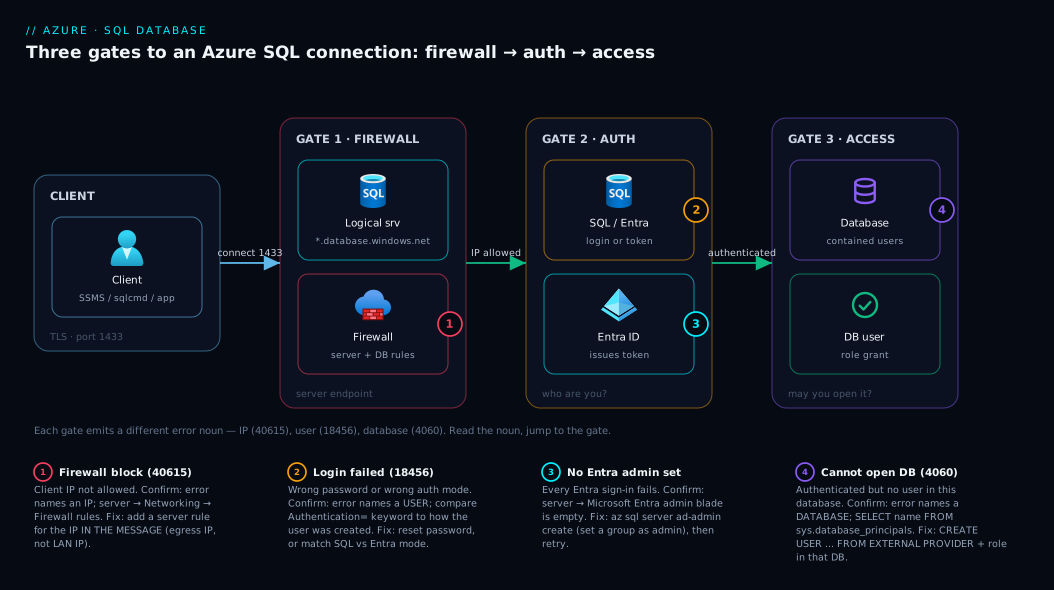
The diagram traces a single connection from your client to a row in the database, drawn left to right as three gates in a row — exactly the order Azure checks them. Read it that way: your client (SSMS, an app, sqlcmd) sends a TLS connection to the logical server endpoint myserver.database.windows.net on TCP 1433. The first thing it meets is Gate 1, the firewall — the server compares your egress IP against its server-level (and, if needed, database-level) rules. No match and you’re stopped here with error 40615 naming the IP it saw; the fix is a firewall rule for that exact address. Pass it and you reach Gate 2, authentication, where the server validates either a SQL login + password or a Microsoft Entra token — and where the Authentication= keyword in your string must match how the identity was created, or you get 18456/18452. Finally, Gate 3, authorization, checks whether that now-authenticated identity has a contained user inside the specific database you asked to open; if not, you get “Cannot open database” (4060) even though everything else was right.
Notice the through-line: each gate emits a different error noun — an IP address at the firewall, a user at authentication, a database at authorization — so the message itself tells you which gate is shut. The numbered badges mark exactly where each failure bites, and the legend maps every number to its symptom, the one place to confirm it, and the fix. The whole method is: read the noun in the error, jump to that gate, run the named check, apply the one-line fix.
Real-world scenario
Finhaven Labs is a six-person fintech startup. They run a small Node.js API on Azure App Service in Central India talking to a single Azure SQL Database (appdb) on a General Purpose vCore server, costing about ₹14,000/month. For the first three months everything used SQL authentication: the app’s connection string carried User ID=sqladmin;Password=..., the same admin account a developer also used from SSMS at home. It worked, so nobody touched it.
The trouble started on a Tuesday when a new security policy landed: “no shared SQL admin passwords in app config; apps must use managed identity.” A developer flipped the App Service connection string to Authentication=Active Directory Managed Identity; and deployed. The app immediately threw “Login failed for user ‘<token-identified principal>’” on every request. The reflex hypothesis — “the firewall must be blocking the new managed identity” — sent them adding firewall rules for an hour. It changed nothing, because the firewall had never been the problem: App Service traffic was already allowed via the AllowAllAzureIps rule.
The breakthrough was reading the error noun. The message named a user (the managed identity), not an IP address — so this was Gate 2/3, not Gate 1. They checked the server’s Microsoft Entra admin blade and found it empty. No Entra admin had ever been set, so no Entra authentication could work at all — the very first prerequisite was missing. They created a Microsoft Entra admin (an sql-admins security group), and now the admin could sign in with Entra. But the app still failed — with a slightly different error, “Cannot open database ‘appdb’” (4060). That was Gate 3: the managed identity now authenticated, but it had no user inside appdb.
The fix was two T-SQL statements run against appdb as the Entra admin: CREATE USER [app-web-prod] FROM EXTERNAL PROVIDER; (where app-web-prod was the App Service’s system-assigned managed identity name), then ALTER ROLE db_datareader ADD MEMBER [app-web-prod]; and the same for db_datawriter. The app connected on the next request — no password anywhere in config, scoped to exactly read+write on appdb. They then removed the sqladmin password from app settings entirely and rotated it.
The post-incident lesson, written on the wall: “Read the noun. The firewall error names an IP. The auth error names a user. The access error names a database. We spent an hour on the firewall because we never read which one it was.” They also documented the Entra-auth checklist — admin set on server, identity has a contained user in each database, connection string uses Active Directory Managed Identity — so the next service migration took ten minutes instead of an afternoon.
The incident as a timeline, because the order of the mistakes is the teaching:
| Time | Symptom | Action taken | Effect | What it should have been |
|---|---|---|---|---|
| 10:00 | App throws “Login failed for user” after MI switch | (alert fires) | — | Read the noun: it’s a user, not an IP |
| 10:10 | Same error | Add firewall rules for the MI | No change | Skip — firewall names an IP, this didn’t |
| 11:05 | Still failing | Check Entra admin blade | It’s empty | This was prerequisite #1 |
| 11:15 | Admin can sign in, app can’t | Set Entra admin group | Entra auth now possible | Correct |
| 11:25 | “Cannot open database ‘appdb’” | Recognise Gate 3 | Different error = authorization | — |
| 11:30 | Fixed | CREATE USER ... FROM EXTERNAL PROVIDER + roles |
App connects, no password | The actual fix |
Advantages and disadvantages
The three-gate model (public endpoint + firewall + two auth modes + per-database users) is what makes Azure SQL both safe-by-default and occasionally maddening. Weigh it honestly:
| Advantages (why this model helps you) | Disadvantages (why it bites) |
|---|---|
| Firewall is deny-by-default — a new server is not exposed to the world until you choose to allow an IP | A new server rejects you too; the first connection always needs a firewall rule before anything works |
| Error messages are specific — they name the IP, the user, or the database, so the gate is identifiable | The same generic “Login failed” can mean four different things; you must read the detail to disambiguate |
| Microsoft Entra auth removes passwords from connection strings (managed identity = no secret) | Entra auth has prerequisites (admin set, contained user created) that, if missed, fail with the same opaque 18456 |
| Per-database users give true least-privilege — an identity can be read-only on one DB and absent from another | You must create a user in every database; “it authenticated” doesn’t mean “it can open this one” |
| Server-level firewall rules apply to all databases at once — one rule, many DBs | Your client IP changes (home/VPN/coffee shop) and you’re locked out again until you re-add it |
| SQL auth is dead simple for getting started — username + password and you’re in | SQL auth shares a password that’s easy to leak/forget; rotating it is a manual chore |
The model is right for almost everyone: deny-by-default networking plus identity-based auth is exactly what you want for a database holding real data. It bites hardest on first-day users (firewall surprise), teams migrating from SQL auth to Entra auth (the prerequisites), and anyone on dynamic IPs. Every disadvantage is manageable once you know it exists — which is the entire point of reading the error noun and knowing your three gates.
Hands-on lab
Reproduce all three gate failures against a real database and fix each — free-tier-friendly using the smallest serverless tier; delete at the end. Run in Cloud Shell (Bash).
Step 1 — Variables and resource group.
RG=rg-sql-lab
LOC=centralindia
SQLSERVER=sqllab$RANDOM      # must be globally unique
ADMINUSER=sqladmin
ADMINPASS='L@bP@ss-'$RANDOM   # meets complexity; note it down
DB=labdb
az group create -n $RG -l $LOC -o table
Step 2 — Create a logical server and a small database (no firewall rules yet).
az sql server create -n $SQLSERVER -g $RG -l $LOC \
  --admin-user $ADMINUSER --admin-password "$ADMINPASS" -o table

# Smallest serverless General Purpose database, keeps cost minimal
az sql db create -g $RG -s $SQLSERVER -n $DB \
  --edition GeneralPurpose --compute-model Serverless \
  --family Gen5 --capacity 1 -o table
Step 3 — Reproduce Gate 1 (firewall block). Try to connect from Cloud Shell with no firewall rule:
sqlcmd -S $SQLSERVER.database.windows.net -d $DB -U $ADMINUSER -P "$ADMINPASS" -N -C \
  -Q "SELECT 1" 2>&1 | head -5
# Expected: error 40615 — "Client with IP address '...' is not allowed to access the server."
That’s Gate 1. Note the IP in the message — it’s Cloud Shell’s egress IP.
Step 4 — Fix Gate 1. Allow Azure services (Cloud Shell counts), or add the specific IP from the error:
az sql server firewall-rule create -g $RG -s $SQLSERVER \
  --name AllowAllAzureIps --start-ip-address 0.0.0.0 --end-ip-address 0.0.0.0 -o table
# Re-run the connect — it should now reach authentication
sqlcmd -S $SQLSERVER.database.windows.net -d $DB -U $ADMINUSER -P "$ADMINPASS" -N -C -Q "SELECT SUSER_SNAME();"
Expected: it returns sqladmin. Firewall passed, authentication passed.
Step 5 — Reproduce Gate 2 (wrong password → 18456).
sqlcmd -S $SQLSERVER.database.windows.net -d $DB -U $ADMINUSER -P "WRONGpassword" -N -C \
  -Q "SELECT 1" 2>&1 | head -3
# Expected: error 18456 — "Login failed for user 'sqladmin'." (names a USER, not an IP)
The noun is a user → authentication, not firewall. Re-run with the correct password to confirm.
Step 6 — Reproduce Gate 3 (authenticated, no DB user → “Cannot open database”). Create a contained SQL user that exists only in labdb, then try to connect to a different database (master) with it:
# Create a contained user in labdb
sqlcmd -S $SQLSERVER.database.windows.net -d $DB -U $ADMINUSER -P "$ADMINPASS" -N -C \
  -Q "CREATE USER appuser WITH PASSWORD = 'Us3r!Pass-lab'; ALTER ROLE db_datareader ADD MEMBER appuser;"

# This user exists in labdb but NOT in master → connecting to master fails
sqlcmd -S $SQLSERVER.database.windows.net -d master -U appuser -P 'Us3r!Pass-lab' -N -C \
  -Q "SELECT 1" 2>&1 | head -3
# Expected: 'Cannot open database "master" requested by the login' (names a DATABASE = Gate 3)

# But connecting to labdb (where the user DOES exist) works:
sqlcmd -S $SQLSERVER.database.windows.net -d $DB -U appuser -P 'Us3r!Pass-lab' -N -C -Q "SELECT SUSER_SNAME();"
You’ve now seen all three gates emit their three distinct errors and fixed each. The last command returns appuser — full path open.
Step 7 — Teardown (avoid charges).
az group delete -n $RG --yes --no-wait
Common mistakes & troubleshooting
This is the playbook — the part to keep open at connect-time. Scan the symptom column, read across to the confirm command and the fix. It spans the everyday beginner failures and the few advanced ones (VNet rules, serverless pause, redirect-policy ports) you’ll eventually meet.
| # | Symptom | Root cause | Confirm (exact cmd / portal path) | Fix |
|---|---|---|---|---|
| 1 | “Client with IP address ‘…’ is not allowed” (40615) | No server firewall rule for your egress IP | Portal: server → Networking → Firewall rules; az sql server firewall-rule list |
Add a rule for the IP in the error message (not your LAN IP) |
| 2 | Added a firewall rule, still blocked | You allowed your LAN IP, not your egress/NAT IP | Read the IP printed in the 40615 error | Allow the exact IP from the message; or use portal “Add client IP” |
| 3 | “Login failed for user ‘sqladmin’” (18456) | Wrong password (typo / trailing space / forgotten) | Re-type slowly; az sql server show to confirm admin name |
Reset: az sql server update --admin-password ... |
| 4 | 18456 only when an app uses managed identity | No Microsoft Entra admin set on the server | Portal: server → Microsoft Entra admin (blade is empty) | az sql server ad-admin create ... to set an Entra admin |
| 5 | “Cannot open database ‘appdb’” (4060) | Identity authenticated but has no user in that DB | Connect to the DB: SELECT name FROM sys.database_principals |
CREATE USER [name] FROM EXTERNAL PROVIDER (or WITH PASSWORD) in that DB; grant a role |
| 6 | App fails with Entra creds, SSMS works with SQL admin | Connection string auth mode doesn’t match the user | Check Authentication= keyword vs how user was created |
Align the keyword: SQL → User ID/Password; MI → Active Directory Managed Identity |
| 7 | 18452 “login is from an untrusted domain” | Using Windows/Integrated auth against Azure SQL | Inspect the connection string’s auth keyword | Use Active Directory Interactive/Password/Managed Identity as appropriate |
| 8 | “Cannot open server ‘…’ requested by the login” (40532) | Wrong server name, or Database= missing for a contained-only user |
Verify Server= host; check the user has a default DB |
Fix Server=tcp:<name>.database.windows.net,1433; add Database= |
| 9 | Connection timeout, no SQL error at all | Port 1433 blocked by corporate/home firewall or proxy | Test-NetConnection <server> -Port 1433 (PowerShell) / nc -vz <server> 1433 |
Open outbound 1433; or use Redirect-aware ports (see #14) |
| 10 | Intermittent “database is not currently available” (40613) | Transient platform event / failover | Retry; check Service Health | Add retry with backoff in the app; usually self-clears |
| 11 | First connection after idle is very slow or times out | Serverless database auto-paused | az sql db show ... --query "status" shows Paused |
It auto-resumes on connect (~30–60s); raise auto-pause delay or use Provisioned |
| 12 | “Access to the server is denied” (40914) | Blocked by a virtual network rule, not IP firewall | Portal: server → Networking → Virtual networks | Add a VNet rule for your subnet, or connect from an allowed subnet/private endpoint |
| 13 | Works from one network, fails from another | The new network’s egress IP isn’t allowed | Compare 40615 IP across networks | Add the new IP/range, or move to Private Endpoint for stable private access |
| 14 | Connects from Azure but not from on-prem (or vice-versa) | Connection policy (Redirect vs Proxy) needs different ports | az sql server conn-policy show -g <rg> -s <server> |
Proxy uses 1433 only; Redirect needs outbound 11000–11999 too — open them on-prem |
| 15 | “Login failed” right after creating the Entra user | User created but string still uses SQL auth | Diff the connection string vs the CREATE USER you ran |
Switch the string to the matching Active Directory ... mode |
| 16 | App works locally, fails in CI/CD pipeline | Pipeline runs as a service principal with no DB user | Check which identity the pipeline authenticates as | CREATE USER [<sp-name>] FROM EXTERNAL PROVIDER + role in the DB; use Active Directory Service Principal |
Per-symptom detail on the three you’ll hit most
Firewall block (40615) — allow the IP in the message, not your LAN IP. The mistake is reading your laptop’s local IP (192.168.x.x or 10.x.x.x) from your OS network settings and allowing that. Azure never sees it — it sees your router’s public egress IP after NAT. The 40615 error prints the IP Azure actually saw; allow that one. From Cloud Shell or the portal, the “Add client IP” button reads the correct egress IP automatically, sidestepping the whole mistake.
Login failed (18456) — read whether it names a user or a database. Pure 18456 (“Login failed for user ‘X’”) with no database mentioned is a credential or auth-mode problem: wrong password, or the connection string’s auth mode doesn’t match how the user exists. If instead you see “Cannot open database ‘Y’” (4060), the credential was fine — it’s authorization, and you need a CREATE USER in database Y. One number, two very different fixes; the noun decides.
Entra auth fails for everyone (18456) — the server has no Entra admin. Microsoft Entra authentication simply does not function until a Microsoft Entra admin is assigned on the logical server. If every Entra sign-in fails while the SQL admin works fine, check the Microsoft Entra admin blade first — an empty blade is the cause. Set it (ideally to a group, not a single user, so admin access survives people leaving), then individual Entra users still each need a contained user in the databases they use.
Best practices
- Read the error noun first. IP address → firewall (Gate 1). User → authentication (Gate 2). Database → authorization (Gate 3). This one habit short-circuits 90% of wasted time.
- Allow the IP from the error, not your LAN IP. Use the portal’s “Add client IP” or read the egress IP printed in the 40615 message.
- Keep firewall rules tight and named. One narrow rule per known source (laptop, office range, jump box) with a meaningful name beats one wide
0.0.0.0–255.255.255.255rule you’ll forget to remove. - Treat
AllowAllAzureIpsas a convenience, not security. It allows any Azure tenant’s resources to attempt a connection. Scope to your own resources, or move to Private Endpoint, for production. - Prefer Microsoft Entra authentication over SQL auth for apps — managed identity means no password in config, nothing to leak or rotate.
- Set the Entra admin to a group, not a person. A single-user admin breaks when that person leaves; a group survives.
- Give app identities least privilege.
db_datareader+db_datawriter(or tighterGRANTs), neverdb_owner. - Create a contained user in every database the identity needs. Authentication is server-wide; authorization is per-database — don’t assume one
CREATE USERcovers all DBs. - Put firewall rules and users in source control (Bicep + a post-deploy SQL script), so a rebuilt environment connects without manual clicking.
- Add retry-with-backoff in the app to ride transient 40613/40501 events and serverless resumes gracefully.
- For production, take the database off the public internet with a Private Endpoint so firewall-IP churn stops mattering entirely.
- Rotate the SQL admin password if it ever lived in app config, and remove it once apps use managed identity.
Security notes
The three gates are the security model, so connecting well and securing well are the same task. Network: deny-by-default is your friend — keep the firewall closed to all but known IPs, and for anything sensitive use a Private Endpoint (covered in Azure Private Endpoint vs Service Endpoint: Secure PaaS Access) so the database has no public exposure at all. Avoid the 0.0.0.0–255.255.255.255 “allow the world” rule that people add in frustration; it is a genuine exposure.
Identity: prefer Microsoft Entra authentication with managed identities for applications — no password exists to be leaked, committed to git, or rotated. (KloudVin has a standing rule about leaked database credentials in source control; managed identity is the structural fix.) Where SQL auth is unavoidable, store the credential in Azure Key Vault (see Azure Key Vault: Secrets, Keys and Certificates Done Right) and reference it, never inline it. Set the Entra admin to a group for survivable, auditable admin access. Authorization: least privilege per database — scoped users and the minimum role, never db_owner for app identities. Encryption: Azure SQL forces TLS in transit (keep Encrypt=True); avoid TrustServerCertificate=True outside of throwaway labs, as it disables certificate validation. Connections are encrypted on the wire by default, and data at rest is encrypted with Transparent Data Encryption (TDE) automatically.
Cost & sizing
Connectivity itself is free — firewall rules, Entra admin, and users cost nothing; you pay for the database compute and storage, not for connecting. The relevant cost lever in this article is the choice between Serverless and Provisioned compute, because it interacts with the “first connection is slow/times out” symptom (#11 in the playbook).
| Choice | What it costs | Connectivity impact | When to pick |
|---|---|---|---|
| Serverless (auto-pause on) | Pay per-second vCore when active; storage only while paused | First connect after idle pays a resume delay (~30–60s) — can look like a timeout | Dev/test, spiky or intermittent workloads; cheapest at rest |
| Serverless (auto-pause off) | Per-second compute, never pauses | No resume delay | Light but always-on workloads |
| Provisioned (vCore/DTU) | Fixed hourly rate, always on | No resume delay; steady connections | Production with predictable, continuous load |
| Private Endpoint (optional) | ~₹0.60/hr per endpoint + data | Removes public firewall churn; private DNS needed | Production security posture |
Rough figures (Central India, indicative): a Serverless Gen5 1-vCore database costs only storage (~₹8–10/GB/month) while paused, and per-second compute when active — ideal for a dev database that sleeps overnight. The smallest Provisioned options (a Basic DTU database, or vCore General Purpose) run from roughly ₹400/month (Basic, 5 DTU) upward. The cost-and-connectivity rule: if a paused-serverless resume delay is causing “timeouts,” either raise the auto-pause delay (so it stays warm longer) or move to Provisioned for a workload that connects continuously — don’t fix a resume delay by widening the firewall. For choosing the purchasing model in depth, see Azure SQL Database Purchasing Models: DTU vs vCore and How to Pick Without Overpaying.
Interview & exam questions
Useful for AZ-900, DP-900, and AZ-204/AZ-305 data-platform topics.
-
You connect to Azure SQL and get “Client with IP address ‘203.0.113.45’ is not allowed.” What’s wrong and how do you fix it? The server firewall has no rule allowing that IP. Add a server-level firewall rule for the IP printed in the error (your public egress IP), via the portal Networking blade or
az sql server firewall-rule create. Note the IP to allow is the egress IP, not your LAN IP. -
What’s the difference between a server-level and a database-level firewall rule, and which is evaluated first? Server-level rules allow an IP for all databases on the logical server and are evaluated first. If no server rule matches, Azure falls back to database-level rules stored inside a specific database (
sp_set_database_firewall_rule). Server-level is what you use almost always. -
Error 18456 “Login failed for user.” Name three distinct causes. Wrong password/username; a connection-string auth mode that doesn’t match how the user was created (SQL vs Entra); or — when using Entra — no Microsoft Entra admin set on the server. A fourth, the missing-DB-user case, often surfaces as 4060 instead.
-
What does the special firewall rule
0.0.0.0–0.0.0.0(AllowAllAzureIps) actually allow? It allows connections from any Azure service in any tenant (App Service, VMs, Functions), not “no firewall.” Callers still need valid credentials, but it is broad — prefer scoping to your own resources or a Private Endpoint in production. -
An app switched from SQL auth to managed identity and now gets “Login failed.” Walk through the fix. First ensure a Microsoft Entra admin is set on the server (Entra auth needs it). Then create a contained user for the managed identity in the target database:
CREATE USER [<mi-name>] FROM EXTERNAL PROVIDER;and grant roles. Finally set the connection string toAuthentication=Active Directory Managed Identitywith no User ID/Password. -
You authenticated successfully but get “Cannot open database ‘appdb’.” What’s the gate and the fix? That’s authorization (Gate 3): the identity has no user inside
appdb. Connect toappdbas an admin and runCREATE USER(from external provider for Entra, or with password for SQL) and add it to a role likedb_datareader. -
Why is the IP you need to allow sometimes different from the one your laptop shows? Your laptop shows its private/LAN address; Azure sees your public egress IP after NAT. Always allow the IP printed in the 40615 error or use the portal’s “Add client IP,” which reads the egress IP.
-
What does the
Authentication=keyword in a connection string control, and give two values. It selects the authentication method/flow. Examples:Active Directory Managed Identity(app using a managed identity, no password),Active Directory Interactive(human with MFA browser prompt),Active Directory Password(Entra user + password), or omit it and useUser ID/Passwordfor SQL auth. -
A connection times out with no SQL error at all. What do you check first? Network reachability to TCP 1433 (corporate/home firewall or proxy may block it). Test with
Test-NetConnection <server> -Port 1433ornc -vz <server> 1433. Also check whether a Redirect connection policy needs ports 11000–11999 open, or whether a serverless database is paused. -
Why prefer Microsoft Entra authentication over SQL authentication for applications? No password exists in the connection string or config (a managed identity gets a token from Azure), removing the biggest leak/rotation risk. It also centralises identity in Entra for auditing, conditional access, and group-based admin.
-
What’s the least-privilege way to grant an app read/write access to one database? Create a contained user for the app’s identity in that database and add it to
db_datareaderanddb_datawriter(or tighter table-levelGRANTs) — neverdb_owner. Repeat per database the app needs. -
You set a Microsoft Entra admin as a single user and they left the company. What broke and what’s the better practice? Entra-admin access to manage the server’s Entra logins is lost with that user. Best practice is to set the Entra admin to a security group so membership (and thus admin access) survives individuals joining or leaving.
Quick check
- You get error 40615 naming an IP address. Which of the three gates is shut, and what’s the fix?
- True or false: setting the
0.0.0.0–0.0.0.0“AllowAllAzureIps” rule turns the firewall off. - Your app authenticates fine but gets “Cannot open database ‘appdb’.” What do you create, and where?
- An app moved to managed identity and every connection fails with 18456. What’s the first server-level thing to check?
- Why might the IP you allowed in the firewall not be the IP Azure actually sees from your laptop?
Answers
- Gate 1, the firewall. Add a server-level firewall rule for the IP printed in the error (your egress IP) via the Networking blade or
az sql server firewall-rule create. - False. It allows connections from any Azure service in any tenant (they still need valid credentials) — it is not “off,” and it is broad. Scope to your own resources or use a Private Endpoint in production.
- A contained database user for your identity, created inside
appdb(CREATE USER [name] FROM EXTERNAL PROVIDERfor Entra, orWITH PASSWORDfor SQL), then add it to a role. - Whether a Microsoft Entra admin is set on the logical server — Entra authentication does not work at all until one is assigned.
- Your laptop shows its private/LAN IP; Azure sees your public egress IP after NAT. Allow the IP from the error message, or use “Add client IP.”
Glossary
- Logical server — the
*.database.windows.netendpoint and security boundary that holds firewall rules, the SQL admin, and the Entra admin; not a VM you log into. - Azure SQL Database — the fully managed PaaS database that runs inside a logical server; the thing you “open.”
- Server-level firewall rule — an allowed IP or range that applies to every database on the logical server; the rule you create most.
- Database-level firewall rule — an allowed IP stored inside one database (
sp_set_database_firewall_rule), consulted only if no server rule matches. AllowAllAzureIps— the special0.0.0.0–0.0.0.0rule / portal toggle that permits connections from any Azure service (not “no firewall”).- Server admin login — the SQL-authentication super-user set at server creation; can be reset without the old password.
- Microsoft Entra admin — the Entra identity (ideally a group) assigned to the server; required before any Entra authentication works.
- SQL authentication — sign-in with a username and password stored in the server (
User ID/Password). - Microsoft Entra authentication — sign-in with an Azure identity (user, group, managed identity, or service principal); no password in the string.
- Managed identity — an Azure-managed identity for a resource (e.g. App Service) that gets tokens automatically, so apps connect with no stored password.
- Contained database user — a user that lives inside one database, mapped to a SQL credential or an Entra identity; the per-database authorization grant.
FROM EXTERNAL PROVIDER— theCREATE USERclause that maps a Microsoft Entra identity into a database.- Authentication — proving who you are (credential/token valid); fails with 18456/18452.
- Authorization — proving what you may open (a user exists in this database); fails with 4060/40508.
- Connection string — the line (
Server=...;Database=...;Authentication=...) that tells a client how and as whom to connect. - Error 40615 — firewall block; names the offending IP address.
- Error 18456 — login failed; names a user; four possible causes.
- Error 4060 — cannot open the requested database; an authorization (missing-user) failure.
Next steps
- Take the database off the public internet with a Azure Private Endpoint vs Service Endpoint: Secure PaaS Access so firewall-IP churn stops mattering.
- Move beyond first-connection issues into timeouts, throttling and blocking with Troubleshooting Azure SQL Database: Connectivity, Timeouts, Throttling & Blocking.
- Store any SQL credentials you still use in Azure Key Vault: Secrets, Keys and Certificates Done Right instead of app config.
- Right-size the database you can now connect to with Azure SQL Database Purchasing Models: DTU vs vCore and How to Pick Without Overpaying.
- Revisit the end-to-end basics any time with Your First Azure SQL Database: Create, Configure Firewall Rules and Connect Securely.