Everything you do on Linux eventually comes down to moving bytes around a filesystem: you create a file, copy it, rename it, link it, hunt for it a week later, and eventually delete it. The commands are small — cp, mv, rm, mkdir, touch, ln, find, locate — and you will type them thousands of times. That very familiarity is the trap: they are also the commands with the sharpest edges. A misplaced space turns rm -rf ./ tmp into a disaster, a trailing slash quietly changes what cp does, and “why does deleting one file change the other?” has a precise answer that most people never learn.
This lesson gives you the correct mental model for each one, then the flags that matter, then a lab you run yourself. By the end you will create and copy files without surprises, understand exactly what a hard link and a symbolic link are (via the inode — the single most clarifying idea in this whole lesson), and be able to find any file on a running system by name, size, age, owner or permission.
Why this matters
A file on Linux is not what beginners think it is. You picture a file as “a name with some contents inside it.” The kernel does not see it that way at all, and almost every confusing thing in this lesson — hard links, why mv is instant but sometimes slow, why deleting a file that a program still has open doesn’t free the disk — dissolves the moment you learn the real model. So we will spend real time on the inode, and it will pay for itself immediately.
The commands themselves are deceptively gentle. cp and mv will happily overwrite a file with no warning by default. rm has no undo, no Trash, no “are you sure” — when it returns, the file is gone. There is no recycle bin on the command line. The difference between a calm afternoon and a resume-updating one is often a single flag (-i, -n) or a single character (a trailing /, a stray space). Beginners who learn why these commands behave the way they do stop making the scary mistakes.
And you cannot manage files you cannot find. On a server with a million files you did not create, find and locate are how you answer “where is the config?”, “which logs are older than a week?”, “who owns these files?”, “what is eating my disk?”. These are daily questions, and the tools to answer them are precise and fast once you know their grammar.
Assume a mainstream Linux distribution with GNU coreutils and GNU findutils (Debian/Ubuntu or RHEL/Fedora/Rocky) throughout. macOS and the BSDs ship slightly different versions of some of these tools; where it matters, it is called out. If you want the map of where on the filesystem these files live, that is the companion Linux filesystem hierarchy (FHS) & navigation lesson.
Creating files and directories: touch, mkdir, install
The simplest way to bring a file into existence is touch. Its actual job is to update a file’s timestamps, but if the file does not exist, it creates an empty one — which is how everyone uses it.
# Create an empty file (or bump the timestamp if it already exists)
touch notes.txt

# Create several at once — the shell expands the brace list first
touch report-{jan,feb,mar}.txt
ls
# notes.txt  report-feb.txt  report-jan.txt  report-mar.txt
touch never truncates or damages an existing file — running it on a file with content just updates its modification and access times to now. That is a genuinely useful trick: touch a file to make it “newer” so a find -mtime or a make rebuild picks it up.
For directories you use mkdir. On its own it makes one directory and fails if a parent is missing. The flag you will use constantly is -p (“parents”): it creates every missing directory in the path and, crucially, does not error if the directory already exists.
# Fails if ./project doesn't already exist:
mkdir project/src/api
# mkdir: cannot create directory 'project/src/api': No such file or directory

# -p builds the whole chain and is happy if parts already exist:
mkdir -p project/src/api
mkdir -p project/src/api   # run again — no error, exit code 0
| Command / flag | What it does | Example |
|---|---|---|
touch FILE |
Create empty file, or update timestamps if it exists | touch app.log |
touch -c FILE |
Update times but do not create if missing | touch -c app.log |
touch -t 202607091200 FILE |
Set a specific timestamp (CCYYMMDDhhmm) |
back-date a file |
touch -r REF FILE |
Copy timestamps from a reference file | touch -r a.txt b.txt |
mkdir DIR |
Make one directory; error if parent missing | mkdir logs |
mkdir -p A/B/C |
Make the whole path; no error if it exists | mkdir -p logs/2026/07 |
mkdir -m 0700 DIR |
Make a directory with an explicit mode | mkdir -m 0700 .secrets |
mkdir -v ... |
Print each directory as it is created | scripting/logging |
There is a third, underused creator worth knowing because it saves three commands: install. Despite the name it has nothing to do with package management — it copies a file and sets its permissions, ownership and destination directory in one step, which is why Makefiles use it everywhere.
# Make a directory with a specific mode (like mkdir -m, but idempotent-friendly)
install -d -m 0755 /opt/app/bin

# Copy a file AND set its mode in one atomic-ish step
install -m 0644 app.conf /etc/app/app.conf

# -D creates any missing parent directories of the destination, then copies
install -D -m 0755 build/myapp /opt/app/bin/myapp
The mental contrast: cp copies bytes and leaves the mode to the umask; install copies bytes and stamps the exact mode/owner you specify, creating parent directories with -D. Note that install sets the modification time to now by default (use -p to preserve the source’s timestamps) — the opposite default from cp -p.
Copying with cp (and the trailing-slash trap)
cp SOURCE DEST copies a file. That much is obvious. What bites people is everything around it: it silently overwrites, it needs -r for directories, and its behaviour depends on whether the destination already exists. Learn the flags first.
| Flag | Long form | What it does |
|---|---|---|
-r / -R |
--recursive |
Copy directories and everything inside them (required for dirs) |
-a |
--archive |
The “make an exact clone” flag: -dR --preserve=all (recursive, keep all attributes, don’t follow symlinks) |
-p |
--preserve |
Preserve mode, ownership and timestamps (a subset of -a) |
-i |
--interactive |
Prompt before overwriting an existing file |
-n |
--no-clobber |
Never overwrite an existing file (and don’t prompt) |
-u |
--update |
Copy only if source is newer than dest, or dest is missing |
-v |
--verbose |
Print each file as it is copied |
-f |
--force |
Remove a destination that can’t be opened, then retry the copy |
-l |
--link |
Hard-link files instead of copying the data |
-s |
--symbolic-link |
Make symlinks instead of copying |
-t DIR |
--target-directory |
Put all sources into DIR (great with xargs/find) |
-T |
--no-target-directory |
Treat DEST as a normal file, never as a directory |
The single most important habit: cp overwrites without asking. cp new.conf app.conf destroys the old app.conf instantly. On a shared or production box, alias or reflexively type cp -i so you get a prompt, or cp -n if you want “copy only what isn’t there yet.”
# Clone a directory tree exactly — permissions, timestamps, symlinks and all:
cp -av /etc/nginx /backup/nginx
# '/etc/nginx' -> '/backup/nginx'
# '/etc/nginx/nginx.conf' -> '/backup/nginx/nginx.conf'
# ...

# Copy only files that changed, verbosely (a poor-man's sync):
cp -auv ~/src/. ~/dst/
Now the trailing-slash confusion. People arrive from rsync, where src/ (with slash) means “the contents of src” and src (no slash) means “the src directory itself.” cp does not work that way. What actually decides cp’s behaviour is whether the destination already exists:
| You run | dest exists (as dir)? |
Result |
|---|---|---|
cp -r src dest |
No | dest is created as a copy of src (a renamed clone) |
cp -r src dest |
Yes | src is copied into it → dest/src/... |
cp -r src/ dest |
either | Same as above — the source slash does not mean “contents of” |
cp -rT src dest |
Yes | -T forces “treat dest as the thing itself”, so contents merge into dest |
The one real effect a trailing slash does have in cp: if the source is a symlink to a directory, cp -r symlink/ dest (with the slash) makes cp follow the link and copy the directory it points at, whereas cp -r symlink dest (no slash) copies the symlink itself. That is the entire trailing-slash story for cp — and it is why the reliable way to say “put the contents of A into B” is cp -rT A B, not a slash you will forget.
# Gotcha in action: dest already exists, so src lands *inside* it.
mkdir dst
cp -r src dst
ls dst
# src        <-- you got dst/src, probably not what you meant

# What you usually wanted — merge contents of src into dst:
cp -rT src dst
Moving and renaming: mv is rename
Here is a fact that surprises every beginner: Linux has no rename command in the way you expect — you rename a file by moving it. mv oldname newname and mv file /other/dir/ are the same command doing the same thing. “Rename” and “move” are one operation because, as you will see in the inode section, both just rewrite a directory entry.
# Rename (same directory):
mv draft.txt final.txt

# Move (different directory, same name):
mv final.txt ~/Documents/

# Move AND rename in one go:
mv final.txt ~/Documents/report-2026.txt
mv shares the dangerous default with cp: it overwrites the destination silently. mv a.txt b.txt clobbers an existing b.txt without a word.
| Flag | What it does |
|---|---|
-i |
Prompt before overwriting an existing destination |
-n |
Never overwrite (no-clobber); silently skip |
-f |
Force: overwrite without prompting (the default, but explicit) |
-u |
Move only if source is newer than dest, or dest missing |
-v |
Verbose: print each move |
-b |
Back up the destination before overwriting (makes b.txt~) |
-t DIR |
Target directory first — mv -t /dest a b c (pairs with xargs) |
-T |
Treat dest as a file, never move into it if it’s a directory |
There is a deep reason to care about mv beyond convenience. When the source and destination are on the same filesystem, mv performs a single rename(2) system call: it rewrites one directory entry and is done. The file’s data never moves, its inode never changes — this is why moving a 40 GB file across your home directory is instant. But when source and destination are on different filesystems (say from /home to a mounted USB drive at /mnt), rename(2) fails with EXDEV, and mv silently falls back to copy-then-delete: it copies every byte to the new location and only then removes the original. That is why the “same” mv is instant in one case and takes two minutes in another — and why a cross-filesystem mv interrupted halfway can leave a partial copy.
# Instant — same filesystem, just relinks the directory entry:
mv ~/bigfile.iso ~/isos/

# Slow — crosses to another filesystem, so it's really cp + rm under the hood:
mv ~/bigfile.iso /mnt/usb/
Deleting safely: rm, rmdir, unlink
rm removes files. There is no undo, no Trash, no confirmation by default. When rm returns to the prompt, the data is gone (and unless you immediately unmount the disk and run forensic tools, it stays gone). Respect this command.
| Command / flag | What it does |
|---|---|
rm FILE |
Remove a file (no prompt, no recovery) |
rm -i FILE |
Prompt before each removal |
rm -I |
Prompt once before removing 3+ files or recursing (less naggy than -i) |
rm -r DIR |
Recursively remove a directory and all its contents |
rm -f |
Force: ignore nonexistent files, never prompt, suppress errors |
rm -rf DIR |
The famous one: recursive + force. Deletes a whole tree, no questions |
rm -v |
Print each file as it is removed |
rm -d DIR |
Remove an empty directory (like rmdir) |
rmdir DIR |
Remove a directory only if it is empty; else error |
rmdir -p A/B/C |
Remove nested directories if each is empty |
unlink FILE |
Remove exactly one file (single link); no options, no globbing |
rmdir is the safe way to remove a directory you believe is empty — it refuses if it isn’t, which catches mistakes. unlink removes a single file and nothing else; its value is precision (it can’t be handed a glob that matches more than you meant) and that its name states exactly what deletion is at the filesystem level: removing one link to an inode.
⚠️ rm -rf / deletes everything on the system. Modern GNU rm refuses this specific command thanks to a built-in --preserve-root guard, but the guard is narrow. The genuinely dangerous, un-guarded versions are the ones you type by accident:
rm -rf "$DIR/"when$DIRis empty or unset expands torm -rf /. This has wiped real production servers. Always guard variables:rm -rf "${DIR:?DIR is unset}/"aborts loudly instead. See shell variables, quoting & environment for why the quoting and the:?matter.- A stray space:
rm -rf ./build /is not “delete./build/” — it is “delete./buildand/”. One space, catastrophe. rm -rf *in the wrong directory: always runpwd(orls) before anrm -rf *. The shell expands*to every non-hidden name in the current directory beforermever sees it.
Then the classic puzzle: how do you delete a file literally named -rf (or --help, or -i)? rm sees the leading dash and tries to parse it as options. Two robust fixes, both worth memorising:
# Make a hostile filename to practise on:
touch ./-rf

# WRONG — rm treats -rf as flags and finds no files to delete:
rm -rf
# rm: missing operand

# Fix 1: -- ends option parsing; everything after is a filename:
rm -- -rf

# Fix 2: give it a path that doesn't start with a dash:
rm ./-rf
The -- trick is universal across GNU tools: it means “no more options follow.” To delete a file whose name is literally --, that is rm -- -- (the first -- ends options, the second is the filename) or rm ./--. The same ./ and -- techniques rescue you from filenames with spaces, leading dashes, or names like -i.
Inodes, hard links, and symbolic links
This is the section that makes the rest of Linux click, so read it slowly. The idea is small but everything hangs off it.
A filename is not the file. When you save data to disk, the kernel allocates an inode — a small record that holds everything about the file except its name: the file type, the permission bits (mode), the owner’s user and group IDs, the size, the timestamps, a link count, and the pointers to the actual data blocks where your bytes live. The inode has a number, unique within its filesystem. What you think of as “the name” is just a directory entry: a single line inside a directory that maps a human name to an inode number. A directory, at bottom, is nothing but a table of name → inode-number pairs.
You can see the inode number with ls -i, and the full inode with stat:
echo "hello" > app.log
ls -i app.log
# 8419 app.log

stat app.log
#   File: app.log
#   Size: 6           Blocks: 8          IO Block: 4096   regular file
# Device: 254,1       Inode: 8419        Links: 1
# Access: (0644/-rw-r--r--)  Uid: (1000/vinod)  Gid: (1000/vinod)
That Links: 1 is the link count — the number of directory entries (names) pointing at this inode. Watch what happens when we add a second name.
A hard link is a second directory entry pointing at the same inode. You make one with ln target newname (no -s). There is no “original” and “copy” — both names are equal, first-class references to one inode and one set of data blocks.
ln app.log app.bak          # add a second name for the same inode
ls -i app.log app.bak
# 8419 app.bak   8419 app.log      <-- identical inode number!

stat app.log | grep Links
# Device: 254,1  Inode: 8419  Links: 2      <-- link count is now 2

echo "world" >> app.bak      # edit via one name...
cat app.log                  # ...and see it through the other
# hello
# world
app.log and app.bak are the same file with two names. rm app.bak does not delete any data — it removes one directory entry and drops the link count back to 1. The data blocks are freed only when the link count reaches zero (and no process still has the file open). This is exactly what deletion is on Linux: unlink removes one name; the bytes disappear when the last name (and last open handle) is gone.
A symbolic link (symlink, or “soft link”) is a completely different animal. It is its own tiny file — with its own inode — whose entire content is a text path pointing at another location. When you open a symlink, the kernel reads that stored path and restarts the lookup at the target. You make one with ln -s.
ln -s app.log latest.log
ls -l latest.log
# lrwxrwxrwx 1 vinod vinod 7 Jul  9 10:01 latest.log -> app.log

ls -i app.log latest.log
# 8419 app.log   9002 latest.log     <-- DIFFERENT inodes; the symlink is its own file

readlink latest.log        # print the stored path
# app.log
readlink -f latest.log     # resolve the whole chain to an absolute real path
# /home/vinod/app.log
Because a symlink just stores text, two things follow that hard links can never do. First, it can dangle: if you delete or rename the target, the symlink still holds the old path and now points at nothing.
mv app.log renamed.log     # the symlink still says "app.log"
cat latest.log
# cat: latest.log: No such file or directory   <-- dangling / broken symlink
ls -l latest.log
# lrwxrwxrwx ... latest.log -> app.log          <-- ls shows it, following it fails
Second, a symlink can cross filesystems — its text can name a path on any mounted device — whereas a hard link cannot, because inode 8419 exists only in this filesystem’s inode table. Try to hard-link across a mount and you get a specific error:
ln app.bak /mnt/usb/app.bak
# ln: failed to create hard link '/mnt/usb/app.bak' => 'app.bak':
#     Invalid cross-device link
That Invalid cross-device link is EXDEV, the same error that makes mv fall back to copy-then-delete across filesystems. When you need to reference a file on another disk, reach for a symlink.
Here is the whole model in one picture — a filename resolving down to bytes, a hard link joining at the inode, and a symlink looping back in through a stored path:
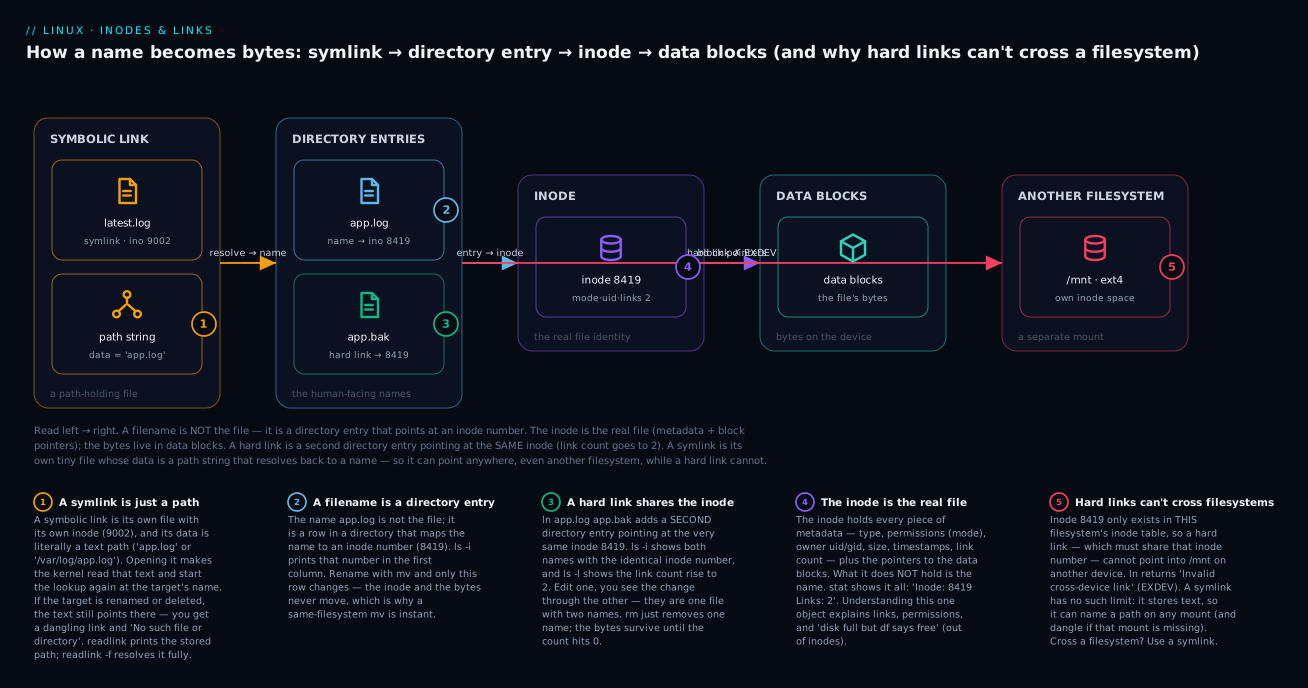
Walk it left to right: the symlink latest.log stores the text app.log and resolves to a name; that directory entry (and its hard-link sibling app.bak) points at inode 8419; the inode’s block pointers reach the data blocks; and the red arrow is the forbidden move — a hard link into another filesystem, which fails with EXDEV.
The commands for making and inspecting links:
| Command | What it does |
|---|---|
ln target name |
Create a hard link name to target (same inode, same filesystem only) |
ln -s target name |
Create a symbolic link name pointing at the path target |
ln -sf target name |
Replace an existing symlink name to point at a new target (force) |
ln -sr target name |
Make the symlink’s stored path relative (GNU --relative) |
readlink name |
Print the path a symlink stores (one hop) |
readlink -f name |
Resolve the entire chain to a canonical absolute path |
ls -l name |
Show a symlink as name -> target; type letter l at the front |
ls -i name |
Show the inode number — identical for hard links, different for symlinks |
stat name |
Show the full inode: type, mode, uid/gid, size, Links count |
And the two comparison tables you will come back to. First, the two link types side by side:
| Aspect | Hard link (ln) |
Symbolic link (ln -s) |
|---|---|---|
| What it is | A second name for the same inode | A tiny file holding a text path |
| Own inode? | No — shares the target’s inode | Yes — its own inode and (tiny) data |
ls -i shows |
Same inode number as target | A different inode number |
| Affects link count | Yes — raises the target’s count | No — target’s count is unchanged |
| Can cross filesystems | No (EXDEV) |
Yes |
| Can point to a directory | No (not for ordinary users) | Yes |
| Survives target rename/delete | Yes — it is the data, count just drops | No — becomes a dangling link |
| Relative or absolute | N/A (it’s an inode, not a path) | Can store either; -r makes it relative |
| Delete the target, then read | Still readable via the other name | Broken: “No such file or directory” |
Second, when to reach for cp vs mv vs ln, since all three take a “source” and a “destination”:
cp |
mv |
ln (hard) |
ln -s (symbolic) |
|
|---|---|---|---|---|
| Data duplicated? | Yes — new bytes, new inode | No — same bytes | No — same inode | No — just a path |
| Extra disk used | Full size of the file | ~none | ~none (one dir entry) | tiny (a path string) |
| Original remains? | Yes | No (removed) | Yes | Yes |
| Independent copies? | Yes — edits don’t propagate | N/A | No — one file, edits shared | No — reads pass through |
| Crosses filesystems? | Yes | Yes (as copy+delete) | No (EXDEV) |
Yes |
| Typical use | Backups, clones | Rename, relocate | Dedup within one FS | Shortcuts, “current” pointers |
Finding files with find
find walks a directory tree and tests every file against conditions you give it. Its grammar reads oddly at first — find WHERE TESTS ACTIONS — but it is relentlessly logical: start at WHERE, keep everything matching the TESTS, do ACTIONS (default action: print the path).
# Find every .conf file under /etc, by name:
find /etc -name '*.conf'

# Case-insensitive, and only regular files (not directories or links):
find . -iname '*.log' -type f
Quote the pattern. find . -name '*.log' must be quoted (or escaped) so the shell doesn’t expand *.log against the current directory before find runs — you want find itself to do the matching against every directory it visits. Forget the quotes and you get baffling “paths must precede expression” errors.
The tests (“primaries”) you will use most:
| Test | Matches files where… | Example |
|---|---|---|
-name PAT |
Name matches shell glob PAT (case-sensitive) |
-name '*.sh' |
-iname PAT |
Name matches, case-insensitive | -iname 'readme*' |
-type f/d/l |
It’s a regular file / directory / symlink | -type d |
-size N[cwkMG] |
Size matches (see units below) | -size +100M |
-mtime N |
Data modified N×24h ago | -mtime -7 |
-mmin N |
Data modified N minutes ago | -mmin -15 |
-newer FILE |
Modified more recently than FILE |
-newer /tmp/mark |
-perm MODE |
Permission bits match | -perm -u+x |
-user NAME |
Owned by user NAME |
-user vinod |
-group NAME |
Owned by group NAME |
-group www-data |
-empty |
It’s an empty file or empty directory | -type f -empty |
-maxdepth N |
Don’t descend deeper than N levels (put it first) | -maxdepth 1 |
Two of these have semantics that trip everyone up, so they get their own tables. Sizes: the suffix letter matters, and a bare number means 512-byte blocks, rounded up — a source of “why did -size 1 match nothing?” confusion.
-size value |
Means |
|---|---|
-size 100c |
Exactly 100 bytes (c = bytes) |
-size +1M |
More than 1 MiB (the + = greater than) |
-size -1k |
Less than 1 KiB (the - = less than) |
-size 0 / -empty |
Zero bytes |
-size 5 |
5 × 512-byte blocks, rounded up (rarely what you want — use a suffix) |
Times work the same way, with +/- meaning older/newer, and the units matter:
| Value | Means |
|---|---|
-mtime -7 |
Modified in the last 7 days (- = less than 7×24h ago) |
-mtime +30 |
Modified more than 30 days ago (old files — cleanup candidates) |
-mtime 0 |
Modified in the last 24 hours |
-mmin -60 |
Modified in the last hour (minutes) |
-mmin +5 |
Modified more than 5 minutes ago |
-perm is worth a beat because it has three modes: exact, “all of these bits” (-), and “any of these bits” (/).
find . -perm 644       # EXACTLY mode 644, nothing else set
find . -perm -0644     # AT LEAST these bits (owner rw, group/other r) — AND
find . -perm /022      # ANY group- or other-WRITE bit set — OR (find world-writable)
find . -type f -perm /111   # any file with an execute bit set anywhere
Doing something to what you found: -exec, +, and xargs
Printing paths is nice; the power is in acting on them. There are three ways, and the differences matter for both speed and correctness.
# 1) -exec ... {} \;  — run the command ONCE PER FILE. {} is the filename.
#    The \; (escaped semicolon) ends the command. Safe, but slow on many files.
find . -name '*.tmp' -exec rm -v {} \;

# 2) -exec ... {} +   — BATCH as many files as fit onto one command line.
#    Far fewer processes; like xargs but built in. Prefer this.
find . -name '*.o' -exec rm {} +

# 3) -print0 | xargs -0 — the classic pairing. -print0 separates paths with a
#    NUL byte, xargs -0 splits on NUL. This is the ONLY safe way with weird names.
find . -name '*.log' -print0 | xargs -0 rm -v
| Form | Processes spawned | Handles spaces/newlines in names? | When to use |
|---|---|---|---|
-exec cmd {} \; |
One per file | Yes (each name passed as one arg) | Small counts, or when the command takes exactly one file |
-exec cmd {} + |
One per batch of files | Yes | Default choice — fast and safe |
... -print0 | xargs -0 cmd |
One per batch | Yes (NUL-separated — bulletproof) | Piping into tools without -exec; complex pipelines |
... | xargs cmd (no -0) |
One per batch | No — breaks on spaces/newlines | Avoid on untrusted names |
The reason -print0 | xargs -0 exists at all is filenames containing spaces or newlines. A plain find ... | xargs rm splits my report.txt into two “files” my and report.txt and deletes the wrong things (or errors). The NUL byte is the one character that cannot appear in a filename, so separating on it is the only fully safe method. This is a great example of why quoting and word-splitting — covered in shell basics: pipes, redirection & environment — matter beyond theory.
⚠️ Always run a find ... -exec rm (or | xargs rm) as a read-only -print first. Swap the action for -print (or just drop it), eyeball the list, then add the rm. A bad -name pattern that matches more than you expected is a lot less painful when the action is “print” than “delete.”
locate: the fast index (when it isn’t stale)
find searches the live filesystem every time — accurate but slow on huge trees. locate answers “where is a file named X?” instantly by consulting a prebuilt database instead of walking directories. The trade-off: that database is a snapshot, refreshed periodically (typically once a day by a systemd timer or cron job running updatedb).
# Instant name search across the whole system, from an index:
locate sshd_config
# /etc/ssh/sshd_config
# /usr/share/man/man5/sshd_config.5.gz

# The database is a snapshot. A brand-new file won't be found until updatedb runs:
touch ~/just-created-now.txt
locate just-created-now.txt          # → no results (DB is stale)
sudo updatedb                         # rebuild the index now
locate just-created-now.txt          # → /home/vinod/just-created-now.txt
The staleness cuts both ways: a file you just made won’t appear, and a file you just deleted may still be listed until the next updatedb. Use locate -e to make it verify each hit still exists, or just fall back to find when you need real-time truth. locate often isn’t installed by default; the package differs by distro:
| Distro family | Install | Common binary | Database |
|---|---|---|---|
| Debian / Ubuntu | sudo apt install plocate |
plocate (modern) or mlocate |
/var/lib/plocate/plocate.db |
| RHEL / Fedora / Rocky | sudo dnf install mlocate |
mlocate |
/var/lib/mlocate/mlocate.db |
| Tool | Speed | Freshness | Search by |
|---|---|---|---|
find |
Slower (walks the tree) | Always live/accurate | name, size, time, owner, perms, type, … |
locate |
Instant (reads an index) | As old as the last updatedb |
name / path substring only |
Globbing and wildcards (and why brace expansion is different)
Before find or cp even runs, the shell expands wildcards in your command against existing filenames. This is globbing, and it is done by the shell, not the command — ls *.txt hands ls the already-expanded list of matching files.
| Pattern | Matches | Example |
|---|---|---|
* |
Any string, including empty (but not a leading .) |
*.log → app.log err.log |
? |
Exactly one character | file?.txt → file1.txt not file10.txt |
[abc] |
One character from the set | [abc]*.sh → names starting a, b or c |
[a-z] |
One character in the range | img[0-9].png |
[!abc] / [^abc] |
One character not in the set | [!._]* → names not starting with . or _ |
{a,b,c} |
Brace expansion — see below | file.{jpg,png} |
Two glob gotchas beginners hit. First, * does not match hidden files (names starting with .) by default — rm * leaves .env and .git untouched, which is usually a mercy. (Turn it on per-shell with shopt -s dotglob in bash.) Second, if a glob matches nothing, bash by default passes the literal pattern through unchanged, so ls *.xyz with no matches runs ls '*.xyz' and errors with “No such file” — surprising until you know it. (shopt -s nullglob makes it expand to nothing instead.)
Brace expansion is not globbing, and the distinction is important. Braces are pure text generation — the shell produces the strings whether or not any matching file exists. Globs only ever expand to files that are on disk.
# Brace expansion generates text — these files need NOT exist yet:
echo file.{jpg,png,gif}
# file.jpg file.png file.gif

mkdir -p project/{src,test,docs}/{unit,e2e}   # 6 dirs created from nothing
echo {1..5}          # 1 2 3 4 5   (a numeric sequence)
echo {a..e}          # a b c d e   (a letter sequence)

# The famous backup idiom — expands to: cp app.conf app.conf.bak
cp app.conf{,.bak}
So: use a glob (*.conf) to act on files that already exist, and a brace ({a,b,c}) to generate a set of names regardless of the filesystem. cp report.{txt,md} only copies the ones that exist? No — the shell expands it to cp report.txt report.md unconditionally, and cp errors on any that are missing. That surprise is the whole reason to keep the two ideas separate in your head.
Sizing and counting: wc, du, df
Managing files means knowing how big they are and whether you are about to run out of room. Three tools answer that at three scales: a file’s contents (wc), a directory tree’s footprint (du), and a whole filesystem’s free space (df).
wc (“word count”) counts lines, words and bytes in a file or stream:
wc -l access.log        # count lines
# 20431 access.log

wc access.log           # lines, words, bytes
#  20431  183877 4210233 access.log

find . -type f | wc -l  # a very common idiom: how many files are here?
# 87
wc flag |
Counts |
|---|---|
-l |
Lines |
-w |
Words |
-c |
Bytes |
-m |
Characters (differs from bytes for multi-byte UTF-8) |
-L |
Length of the longest line |
du (“disk usage”) reports how much space files and directories occupy. The combination you will type forever is du -sh: summarize (one total, don’t list every file) and human-readable (K/M/G instead of raw blocks).
du -sh ~/Downloads               # one human-readable total for the folder
# 3.7G  /home/vinod/Downloads

du -sh * | sort -rh | head        # biggest items in the current dir, largest first
# 2.1G  videos
# 900M  vm-images
# 120M  logs

du -h --max-depth=1 /var          # one level deep — where is /var's space going?
df (“disk free”) reports free/used space per mounted filesystem — the whole-disk view. df -h is the everyday form; df -i is the one that saves you when a disk claims to be full but isn’t.
df -h                    # human-readable free space per filesystem
# Filesystem      Size  Used Avail Use% Mounted on
# /dev/nvme0n1p2  468G  201G  244G  46% /
# /dev/nvme0n1p1  511M  6.1M  505M   2% /boot/efi

df -h /var/log           # which filesystem is a given path on, and how full?

df -i                    # INODES, not bytes — the "can't create files" rescue
# Filesystem      Inodes  IUsed   IFree IUse% Mounted on
# /dev/nvme0n1p2  29.1M   612k    28.5M   3%  /
The df -i trick is pure inode payoff: a filesystem can have gigabytes free yet refuse to create a new file with “No space left on device” because it has run out of inodes — every inode is used by the millions of tiny files someone left in a cache directory. df -h shows space; df -i shows the inode budget. When “disk full” makes no sense, check df -i.
The du vs df distinction confuses people, so hold it clearly: du measures files (bottom-up, “how big is this stuff”); df measures filesystems (top-down, “how full is this disk”). They can legitimately disagree — a deleted-but-still-open file (a log a running process holds) counts in df’s “used” but not in du’s file walk, which is a classic “df says full, du says empty” mystery. To read the files you have sized and found, see viewing & editing text: cat, less, nano, vim.
Hands-on lab
Run this end to end on any Linux VM, WSL, or container. It is self-contained and cleans up after itself. Type each command, check the output, and read the one-line “what happened.”
1. Build a scratch workspace.
mkdir -p ~/ffm-lab/project/{src,test,docs} && cd ~/ffm-lab
ls -R project
You should see project with src, test, docs. What happened: mkdir -p plus brace expansion created four directories in one command.
2. Create files fast.
touch project/src/{app,util,config}.py
echo "log line one" > project/docs/app.log
ls -l project/src
Three .py files and a non-empty app.log. What happened: touch made empty files from a brace list; > created a file with content.
3. Copy a tree exactly, and watch the destination-exists trap.
cp -av project project-backup
mkdir dst && cp -r project dst && ls dst
# → dst/project   (it went INSIDE dst because dst already existed)
cp -rT project dst && ls dst
# → src test docs (now the CONTENTS merged in, thanks to -T)
What happened: -a cloned attributes and all; the plain cp -r copied into the existing dst, while -T merged contents — the trailing-slash trap made concrete.
4. Rename and move (they’re the same command).
mv project/docs/app.log project/docs/application.log   # rename
mv project/docs/application.log project/               # move up one level
ls project
What happened: the first mv rewrote a directory entry (rename); the second moved the file — one command, one concept.
5. Hard link vs symlink, seen through the inode.
cd project
ln application.log app.hardlink          # hard link — same inode
ln -s application.log app.symlink        # symlink — a path
ls -li application.log app.hardlink app.symlink
Note the inode column: application.log and app.hardlink share one inode number and show link count 2; app.symlink has a different inode and shows -> application.log. What happened: you saw the core model — a hard link is a second name for one inode; a symlink is a separate little file holding a path.
6. Break the symlink on purpose.
mv application.log renamed.log
cat app.symlink          # → error: No such file or directory (dangling)
cat app.hardlink         # → still prints the content (it IS the data)
readlink app.symlink     # → application.log  (the stale stored path)
What happened: renaming the target broke the symlink but not the hard link — proof of the difference between “a path to a name” and “a name for an inode.”
7. Find things by name, type and age.
cd ~/ffm-lab
find . -name '*.py' -type f            # every Python file
find . -type l                         # every symlink
find . -type f -mmin -10               # files changed in the last 10 minutes
find . -type d -empty                  # empty directories
What happened: four precise questions answered against the live tree; -type and the time/emptiness tests narrowed each one.
8. Act on results safely — preview, then execute.
find . -name '*.py' -print                 # PREVIEW first — read the list
find . -name '*.py' -exec wc -l {} +       # then act: line-count them in one batch
find . -name '*.pyc' -print0 | xargs -0 -r rm -v   # NUL-safe delete (with -r = skip if empty)
What happened: you previewed with -print, then used the batching {} + form, then the bulletproof -print0 | xargs -0 pattern — the safe deletion habit.
9. Size it up.
du -sh ~/ffm-lab                       # total footprint
du -sh ~/ffm-lab/* | sort -rh          # biggest items first
find ~/ffm-lab -type f | wc -l         # how many files total
df -h ~/ffm-lab                        # which filesystem, how full
What happened: du -sh summarized the tree, wc -l counted files, df -h showed the underlying disk.
10. Delete an awkwardly-named file, then clean up.
touch ./-rf                            # a hostile filename
rm -- -rf                              # the -- fix (or: rm ./-rf)
cd ~ && rm -rf ~/ffm-lab               # remove the whole lab tree
⚠️ Before that final rm -rf, run pwd and confirm you are deleting your lab, not something else. What happened: you defused the -rf filename with --, then removed the workspace.
Common mistakes and troubleshooting
| Symptom | Cause | Fix |
|---|---|---|
cp: omitting directory 'X' |
Copying a directory without -r |
cp -r X dest (or -a to preserve everything) |
Copied dir ended up inside the target (dst/src) |
Destination directory already existed | Use cp -rT src dst to merge contents instead |
mv/cp silently destroyed a file |
Both overwrite without prompting by default | Use -i (prompt) or -n (never clobber); alias them |
rm: cannot remove 'dir': Is a directory |
rm needs -r for directories |
rm -r dir, or rmdir dir if it’s empty |
rm: missing operand after rm -rf |
Filename starts with -, parsed as flags |
rm -- -rf or rm ./-rf |
find: paths must precede expression |
Unquoted glob expanded by the shell first | Quote it: find . -name '*.log' |
Deleted files reappear / new files missing in locate |
locate reads a stale prebuilt database |
sudo updatedb, or use find for live truth |
ln: Invalid cross-device link |
Hard-linking across filesystems (EXDEV) |
Use a symlink (ln -s) across mounts |
Symlink shows in ls but cat says “No such file” |
Dangling symlink — target moved/deleted | Re-point it (ln -sf newtarget link) or remove it |
“No space left on device” but df -h shows free space |
Out of inodes, not bytes | df -i; delete the millions of tiny files eating inodes |
du and df disagree on used space |
A deleted file is still held open by a process | lsof +L1 to find it; restart the process to release it |
xargs split my file.txt into two names |
Space-separated xargs without NUL |
find ... -print0 | xargs -0 ... |
Three gotchas deserve extra words because they cause real damage.
The empty-variable rm disaster. A script does rm -rf "$BUILD_DIR/build", but a bug leaves BUILD_DIR empty. The command becomes rm -rf "/build" — or if the code is rm -rf "$BUILD_DIR/", it becomes rm -rf "/". Servers have been erased this way. The defense is to never let an unset variable expand silently: write rm -rf "${BUILD_DIR:?BUILD_DIR is unset — aborting}/build", and the shell refuses to run with a clear error if the variable is empty.
The stray space. rm -rf ./old * looks like it deletes ./old*, but the space makes it two arguments: it removes ./old and everything the * matches. Read rm -rf command lines the way the shell does — as a list of separate words — before you press Enter. When in real doubt, replace rm with ls first to preview exactly what will be hit.
cp -r without -a quietly loses things. A plain cp -r copies file contents but resets timestamps to now, may not preserve ownership, and (depending on version and flags) can dereference symlinks — turning a symlink into a full copy of its target. When you mean “make an exact replica,” use cp -a. When you are backing up /etc or a home directory, cp -a (or better, rsync -a) is the correct tool; cp -r is for casual copies where attributes don’t matter.
Cheat-sheet
| Task | Command |
|---|---|
| Create empty file / bump timestamp | touch FILE |
| Create nested directories | mkdir -p A/B/C |
| Copy a file (prompt before overwrite) | cp -i SRC DEST |
| Clone a directory tree exactly | cp -a SRC DEST |
| Merge contents of one dir into another | cp -rT SRC DEST |
| Copy only newer files | cp -au SRC/ DEST/ |
| Rename a file | mv OLD NEW |
| Move without overwriting | mv -n SRC DEST/ |
| Delete a file | rm FILE |
| Delete a tree (careful!) | rm -rf DIR |
| Remove an empty directory | rmdir DIR |
Delete a file named -rf |
rm -- -rf |
| Hard link | ln TARGET NAME |
| Symbolic link | ln -s TARGET NAME |
| Show a symlink’s target | readlink -f NAME |
| Show inode + link count | ls -li FILE / stat FILE |
| Find by name (case-insensitive) | find . -iname '*.log' |
| Find by size over 100 MB | find . -size +100M |
| Find modified in last 7 days | find . -mtime -7 |
| Find & delete (safe/batched) | find . -name '*.tmp' -exec rm {} + |
| Find & act, NUL-safe | find . -print0 | xargs -0 CMD |
| Fast name search (indexed) | locate NAME (then sudo updatedb if stale) |
| Count lines | wc -l FILE |
| Directory size (human, summary) | du -sh DIR |
| Biggest items here | du -sh * | sort -rh | head |
| Free space per filesystem | df -h |
| Free inodes per filesystem | df -i |
Interview and exam questions
Q: What is an inode, and what is it not? A: An inode is the on-disk record holding all of a file’s metadata — type, permissions (mode), owner uid/gid, size, timestamps, link count, and pointers to the data blocks — identified by a number unique within its filesystem. What it does not hold is the filename. The name lives in a directory entry that maps a name to an inode number.
Q: What is the difference between a hard link and a symbolic link? A: A hard link is a second directory entry pointing at the same inode — an equal name for the same file, sharing the data and raising the link count. A symlink is a separate small file whose content is a path string to another location. Hard links can’t cross filesystems and can’t point to directories; symlinks can do both but dangle if the target moves or is deleted.
Q: You have a 40 GB file. Why is mv of it instant within your home directory but slow to a USB drive?
A: Within one filesystem, mv is a single rename(2) — it only rewrites a directory entry; the inode and data blocks never move. Across filesystems, rename(2) fails with EXDEV, so mv falls back to copying every byte and then deleting the original.
Q: How do you delete a file literally named -i?
A: rm -- -i (the -- ends option parsing, so -i is treated as a filename) or rm ./-i (a path that doesn’t start with a dash).
Q: When you rm a file that another process still has open, is the disk space freed?
A: No. rm removes the directory entry and drops the link count, but the data blocks are freed only when the link count is zero and no process holds the file open. This is the classic “df says full but du says empty” situation; find the culprit with lsof +L1.
Q: Explain find . -name '*.log' -exec rm {} \; versus -exec rm {} +.
A: With \;, find runs rm once per matching file (one process each) — safe but slow at scale. With +, find batches many filenames into as few rm invocations as possible — much faster, same safety. Prefer +.
Q: Why prefer find ... -print0 | xargs -0 over find ... | xargs?
A: Plain xargs splits on whitespace, so filenames with spaces or newlines break into multiple arguments. -print0 separates paths with the NUL byte — the one character that can’t appear in a filename — and xargs -0 splits on NUL, making it correct for any filename.
Q: What is the difference between globbing and brace expansion?
A: Globbing (*, ?, [...]) matches names that exist on disk; if nothing matches, bash passes the literal pattern through by default. Brace expansion ({a,b,c}, {1..5}) is pure text generation done before globbing — it produces the strings whether or not any file exists. cp file{,.bak} becomes cp file file.bak regardless of the filesystem.
Q: df -h shows 200 GB free, but writing a file fails with “No space left on device.” What’s wrong and how do you confirm it?
A: The filesystem is out of inodes, not bytes — usually millions of tiny files. Confirm with df -i, which shows inode usage per filesystem; free up inodes by deleting the many small files (often a runaway cache or maildir).
Q (LFCS/RHCSA-style task): Find every regular file under /var/log larger than 50 MB and not modified in the last 30 days, then list them long-format.
A: find /var/log -type f -size +50M -mtime +30 -exec ls -lh {} + — combine the type, size and time tests, then batch them into ls -lh.
Q (task): Create the directory tree /opt/app/{bin,etc,log} and make /opt/app/etc/current.conf a symlink to /opt/app/etc/v2.conf.
A: sudo mkdir -p /opt/app/{bin,etc,log} then sudo ln -s v2.conf /opt/app/etc/current.conf (a relative symlink so it survives the tree being moved).
Q: How do you safely test a destructive find -exec rm before running it?
A: Replace the action with -print (or drop -exec entirely) to list exactly what would match; read the list; only then re-run with the rm action. Preview beats undo, because there is no undo.
Key takeaways
- A filename is a directory entry, not the file. The real file is the inode (metadata + block pointers). Internalise this and hard links, symlinks, permissions, and deletion all stop being mysterious. Inspect with
ls -iandstat. - A hard link is a second name for the same inode (same filesystem, raises the link count); a symlink is a tiny file holding a path (crosses filesystems, can dangle).
lnvsln -s. cp,mv, andrmoverwrite or delete with no confirmation by default. Reach for-i/-nwhen it matters, and remember there is no Trash — preview withlsor-printbefore anything destructive.cpis notrsync: a trailing slash on the source doesn’t mean “contents”; whether the destination exists decides the result. Usecp -rTto merge,cp -ato clone exactly.mvis rename — one operation. Within a filesystem it’s an instantrename(2); across one it’s copy-then-delete, and hard links can’t cross at all (EXDEV).- Guard
rm -rfagainst empty variables and stray spaces.rm -rf "${VAR:?unset}/path"aborts safely;rm -- -rfdeletes dash-named files. findsearches live and precisely (name, type, size, time, owner, perms);locateis instant but only as fresh as the lastupdatedb. Batch actions with-exec {} +or the NUL-safe-print0 | xargs -0.- Size and space are different questions:
wccounts contents,du -shmeasures a tree’s footprint,df -hshows a disk’s free space — anddf -irescues you when you’re out of inodes, not bytes.