Here is the fact that makes this lesson matter more than almost any other in the Foundation tier: on Linux, almost everything you configure and everything you diagnose is a plain text file. Your web server’s behaviour lives in /etc/nginx/nginx.conf. Who can log in is decided by /etc/ssh/sshd_config. The list of users is /etc/passwd. Scheduled jobs are text in a crontab. And when something breaks, the answer is in a text log under /var/log/. There is no hidden binary registry, no proprietary console you must click through. If you can read and edit text files fluently from the terminal, you can operate a Linux system. If you can’t, you are locked out of your own machine.
So this lesson is really two skills braided together. The first is viewing — getting the contents of a file onto your screen the right way. “The right way” is not always cat; dumping a 2 GB log with cat will flood your terminal and teach you nothing, and cat-ing a binary can scramble your terminal so badly you have to reset it. The second is editing — changing a file in place. Here you will meet the two editors you will actually use for the rest of your career: nano, the friendly one that tells you every shortcut at the bottom of the screen, and vim, the powerful, modal, initially-baffling one that is installed on every server you will ever SSH into — which is exactly why “how do I quit vim?” is the most-searched Linux question on the planet.
We will answer that question directly, and more importantly we will give you the mental model that makes it obvious. By the end you will read files like a professional and edit them without fear. This lesson assumes you can already open a terminal and get help when stuck — if not, start with Getting Started: the terminal, your first login & getting help. Type every example. Text editing is a motor skill — reading about it is not enough.
Why viewing is its own skill: pick the right tool for the size
The instinct of every beginner is to reach for cat for everything. cat (short for concatenate) reads one or more files and writes them, unchanged, to standard output. For a short file that is perfect:
# Show a small config file — 20-ish lines, fits on screen
cat /etc/hostname
web-prod-01
But cat has no memory of the screen and no way to scroll. It writes the whole file and returns to the prompt. For a 5-line file that’s ideal; for a 50,000-line log it’s a disaster — the first 49,950 lines scroll off the top faster than you can read, and you are left staring at the tail with no way back. The rule is simple and worth memorising:
| File is… | Use | Why |
|---|---|---|
| Short (fits on one screen) | cat |
One shot, no interaction needed |
| Long (a log, a big config) | less |
Scroll, search, jump — loads lazily, doesn’t buffer the whole file |
| You only want the top | head |
Reads just the first N lines and stops |
| You only want the bottom | tail |
Reads just the last N lines |
| It’s growing right now (a live log) | tail -f |
Streams new lines as they’re written |
| It might be binary | file, then strings / xxd |
Never cat a binary — it will scramble your terminal |
Keep that table in your head and 90% of “how do I look at this file” is already answered. Now let’s go through each tool properly.
cat, tac and nl — the whole-file tools
cat has a handful of flags worth knowing, and two close cousins:
| Command / flag | What it does | Example |
|---|---|---|
cat FILE |
Print the file to stdout | cat /etc/os-release |
cat -n FILE |
Number every line | cat -n script.sh |
cat -b FILE |
Number only non-blank lines | cat -b notes.txt |
cat -A FILE |
Show invisible chars: $ for line-ends, ^I for tabs |
cat -A Makefile |
cat -s FILE |
Squeeze runs of blank lines into one | cat -s spaced.txt |
cat a b c |
Concatenate several files in order | cat part1 part2 > whole |
tac FILE |
Print lines in reverse order (last line first) | tac /var/log/syslog |
nl FILE |
Number lines (non-blank by default), more formatting control than cat -n |
nl -ba file |
Two of these earn their keep constantly. cat -A is how you see the whitespace that is silently breaking a config file — a stray tab where spaces are required, or Windows carriage returns showing up as ^M$ at the end of every line (the classic “the script works on my machine but not on the server” bug). And tac is genuinely useful on logs: because logs append at the bottom, tac error.log | head shows you the most recent entries first.
# Reveal hidden tabs and line endings that a plain view hides
cat -A config.ini
[server]$
port^I8080$          # ^I is a TAB; some parsers reject tabs here
host = 10.0.0.5^M$   # ^M is a Windows CR — file came from Notepad
That ^M$ at the end of lines is a dead giveaway that a file was saved on Windows. Half of all “invalid config” mysteries are solved the moment you run cat -A.
⚠️ Never
cata binary. Runningcat /bin/lsdumps raw bytes — including control characters that reprogram your terminal’s character set — and you can end up staring at garbage where letters used to be. If it happens, typereset(blind, then Enter) to restore the terminal. We cover the safe way to peek at binaries below.
less — the pager you will live in
less is a pager: it shows one screenful at a time and lets you move around, search, and jump — without loading the whole file into memory. (Its name is a joke on the older more pager: “less is more,” and less can scroll backwards, which more historically could not.) less is what runs behind the scenes when you read a man page, so learning its keys makes you faster everywhere.
# Open a big log in the pager — nothing scrolls off, you drive it
less /var/log/syslog
Once inside, you don’t type commands with Enter — you press single keys. These are the ones that matter:
| Key | Action |
|---|---|
Space or f |
Forward one screen |
b |
Back one screen |
d / u |
Down / up half a screen |
Enter / j |
Down one line |
k |
Up one line |
g |
Jump to the top of the file |
G |
Jump to the bottom (end) of the file |
NG |
Jump to line N (e.g. 250G) |
/word |
Search forward for “word” (then Enter) |
?word |
Search backward |
n |
Repeat the search in the same direction |
N |
Repeat the search in the opposite direction |
F |
Follow mode — behaves like tail -f; Ctrl-C to stop and resume paging |
-N then Enter |
Toggle line numbers on/off |
q |
Quit the pager, back to the shell |
h |
Built-in help (lists every key) |
The muscle-memory core is tiny: Space to page down, / to search, n to hop to the next match, G to leap to the end, q to leave. Notice those overlap deliberately with vim (/, n, G, g) — learn them once, use them in two tools.
Why does less beat opening the file in an editor just to read it? Three reasons. It is read-only, so you cannot accidentally change a production config while looking at it. It is lazy — it does not slurp a 10 GB file into RAM; it reads only what it shows. And it has live-follow built in (F), so it doubles as a log viewer. When someone hands you a machine and says “check the logs,” less /var/log/syslog followed by /error and n, n, n is the fluent move.
# Read a log, jump straight to the errors
less /var/log/nginx/error.log
# then, inside less:  /timeout   Enter   n   n   G   q
head and tail — the ends of a file (and the mighty tail -f)
Often you don’t want the whole file — you want the top (the header of a CSV, the start of a config) or the bottom (the newest log lines). That’s head and tail.
| Command | Shows | Notes |
|---|---|---|
head FILE |
First 10 lines | Default count is 10 |
head -n 25 FILE |
First 25 lines | -n sets the count |
head -n -5 FILE |
All but the last 5 lines | Negative N (GNU coreutils) |
head -c 100 FILE |
First 100 bytes | -c counts bytes, not lines |
tail FILE |
Last 10 lines | Default count is 10 |
tail -n 50 FILE |
Last 50 lines | The everyday “what just happened” |
tail -n +10 FILE |
From line 10 to the end | +N means “start at line N” |
tail -f FILE |
Last lines then stream new ones live | The single most useful log command |
tail -F FILE |
Same, but re-open by name if the file is rotated | Survives logrotate; use this on real servers |
tail -f a.log b.log |
Follow several files, with ==> name <== headers |
Watch two logs at once |
tail -f deserves its own paragraph because it is, without exaggeration, the command you will run more than any other when operating a service. It prints the last few lines and then keeps the file open, printing each new line the instant it is written. You start it, then you trigger the thing you’re testing (reload the web page, restart the service, run the failing job), and you watch the log react in real time. Press Ctrl-C to stop following.
# Watch a web server's log react as you hit the site
tail -f /var/log/nginx/access.log
10.0.0.9 - - [09/Jul/2026:14:22:01 +0000] "GET / HTTP/1.1" 200 1240
10.0.0.9 - - [09/Jul/2026:14:22:03 +0000] "GET /api HTTP/1.1" 500 73
# ...new lines appear here live as requests arrive. Ctrl-C to stop.
The -f vs -F distinction bites people on real systems. -f follows the open file descriptor. When a log rotation tool (logrotate) renames app.log to app.log.1 and creates a fresh app.log, your tail -f is still glued to the old, now-renamed file and goes silent — it looks like logging stopped, but you’re just watching the wrong file. tail -F follows the name: when the file is recreated, it re-opens it and keeps streaming. On production, use tail -F. (less +F gives you the same live-follow with the bonus that Ctrl-C drops you into full pager navigation so you can scroll back through what just streamed.)
For a deeper look at pipes and redirection — feeding these tools into grep, chaining them together — see the shell basics lesson linked in the Cheat-sheet wrap-up.
Peeking into non-text files safely: file, strings, xxd
Sometimes you’re not sure whether a file is text at all. Ask first, don’t cat:
| Tool | What it tells you | Example |
|---|---|---|
file FILE |
Guesses the type from the content, not the extension | file /bin/ls → ELF 64-bit executable… |
strings FILE |
Prints runs of printable text embedded in a binary (default ≥4 chars) | strings /bin/ls | grep -i version |
xxd FILE |
Hex + ASCII dump — see the raw bytes side by side | xxd -l 64 /bin/ls |
xxd -l N FILE |
Only the first N bytes | xxd -l 32 photo.jpg |
hexdump -C FILE |
Canonical hex dump (alternative to xxd) |
hexdump -C data.bin | head |
od -c FILE |
Octal/character dump — shows control chars by name | od -c weird.txt | head |
# "What is this file?" — ask before you open it
file mystery.dat
mystery.dat: gzip compressed data, from Unix, original size 40960
Now you know it’s gzip, not text — you’d zcat mystery.dat | less, not cat it. strings is a lovely trick for extracting the human-readable bits (URLs, error messages, version numbers) from a compiled program or a memory dump, and xxd is how you inspect file signatures (a JPEG starts with ff d8 ff, a PNG with 89 50 4e 47). None of these will scramble your terminal, because they translate the bytes into safe printable output.
Creating files fast without an editor: redirection and here-docs
You don’t always need to open an editor to create a file. The shell’s redirection operators write output straight to disk, which is the fastest way to drop a quick file or a small config. This is a preview — Shell Basics: pipes, redirection & environment covers redirection in full — but it belongs in your text-handling toolkit from day one.
| Operator | Effect | Example |
|---|---|---|
> file |
Write stdout to file, overwriting it (truncates first!) |
echo "hello" > note.txt |
>> file |
Append to file, creating it if needed |
echo "world" >> note.txt |
cat > file |
Type lines, then Ctrl-D to save |
interactive one-off |
cat <<'EOF' > file |
Here-document: write a whole block verbatim | multi-line files |
tee file |
Write to a file and to the screen | echo hi | tee note.txt |
⚠️
>truncates the target the instant the command starts —command > important.confwill emptyimportant.confeven if the command then fails. When in doubt, use>>(append) or write to a temp file first.
The here-document (<<) is the elegant one. It feeds a block of literal text to a command until it sees the end marker you chose (EOF by convention). Quoting the marker — <<'EOF' — tells the shell to leave the text completely alone; unquoted <<EOF lets $variables expand inside the block.
# Create a multi-line config in one shot — quotes on 'EOF' mean "literal, no $expansion"
cat <<'EOF' > /tmp/app.conf
[service]
name = billing
port = 8080
path = $HOME/data     # stays literal because EOF was quoted
EOF

cat /tmp/app.conf      # verify it landed exactly as typed
This is how setup scripts and container entrypoints write config files without shipping a separate editor. It’s fast, it’s scriptable, and it’s completely reproducible.
The editor landscape: which one, and how to set your default
For anything beyond a couple of lines, you’ll open an editor. Here’s the honest field guide:
| Editor | Modal? | Where it lives | Use it when |
|---|---|---|---|
| nano | No | Preinstalled on most desktops/Ubuntu; a package elsewhere | You want to just type; quick edits; you’re new. Start here. |
| vim | Yes | On virtually every server and container (or vi, its lighter cousin) |
You’re on a remote box; you want speed once fluent. Learn to survive it. |
| vi | Yes | The POSIX-standard editor; often vim in disguise, or vim-tiny |
Minimal systems where full vim isn’t installed |
| emacs | No (chords) | A separate install; beloved by a devoted minority | You’ve chosen the emacs path deliberately |
| GUI (VS Code, gedit) | No | Your laptop, or VS Code over SSH (Remote-SSH) | Big edits with a mouse and syntax highlighting |
The two that matter for a Linux beginner are nano and vim, and the reason you must know both is practical: nano is friendlier, but it is not guaranteed to be installed on a stripped-down server or a container image — vi/vim almost always is. So you edit with nano when you can and you survive vim when nano isn’t there.
Many programs launch an editor for you — git commit, crontab -e, sudoedit, visudo. They decide which editor by reading two environment variables:
| Variable | Meaning | Consulted by |
|---|---|---|
$VISUAL |
Your preferred full-screen editor | Tried first by most tools |
$EDITOR |
A fallback editor (historically a line editor) | Used if $VISUAL is unset |
Set them in your shell startup file so every tool obeys you:
# Put these in ~/.bashrc (bash) or ~/.zshrc (zsh) so they persist
export VISUAL=nano
export EDITOR=nano
# reload the file so the change takes effect now
source ~/.bashrc

# prove it — git will now open nano for commit messages
git config --global core.editor nano   # git can also be told directly
crontab -e                              # opens in nano now; :q-panic avoided
On Debian/Ubuntu there’s also a system-wide switch, sudo update-alternatives --config editor, which sets the generic /usr/bin/editor that some tools use. But the portable, per-user answer is $EDITOR/$VISUAL. Set them once and you will never again be dumped into vim by surprise when you only meant to write a commit message.
nano: the friendly default
nano’s genius is that it never hides anything. The bottom two lines of the screen always show the common shortcuts, so you can learn it while using it. Open a file — creating it if it doesn’t exist — like this:
nano /tmp/hello.txt     # opens the editor; just start typing
nano +25 script.sh      # open with the cursor on line 25
nano -l main.py         # open with line numbers shown
You type normally — letters are letters, arrows move the cursor, Backspace deletes. The commands are Ctrl-key combinations, which nano writes as ^ (so ^O means hold Ctrl and press O). A few use the Meta key, written M-, which is Alt (or Esc tapped once) on most keyboards.
| Shortcut | nano’s label | What it does |
|---|---|---|
^O |
Write Out | Save. Prompts for the filename — press Enter to confirm |
^X |
Exit | Quit. If unsaved, it asks Y/N to save first |
^W |
Where Is | Search. Type the text, Enter. Repeat with ^W Enter |
^\ |
Replace | Search and replace |
^K |
Cut Text | Cut the current line into the buffer |
^U |
Paste Text | Paste (uncut) the buffer |
^G |
Help | Full list of commands |
^C |
Cur Pos | Show current line/column |
^_ (or M-G) |
Go To Line | Jump to a line number |
^R |
Read File | Insert another file at the cursor |
M-U / M-E |
Undo / Redo | Alt-U undoes, Alt-E redoes |
^Y / ^V |
Prev / Next page | Page up / page down |
The everyday loop is almost nothing: open, type, ^O Enter to save, ^X to leave. Search is ^W, cut a line is ^K, paste is ^U. That’s a working editor in six keystrokes’ worth of knowledge, which is exactly why nano is where beginners should start. The one habit to build: save with ^O before you exit with ^X, so exiting is never a scary “do I lose my work?” moment.
Surviving vim: the modal model, explained properly
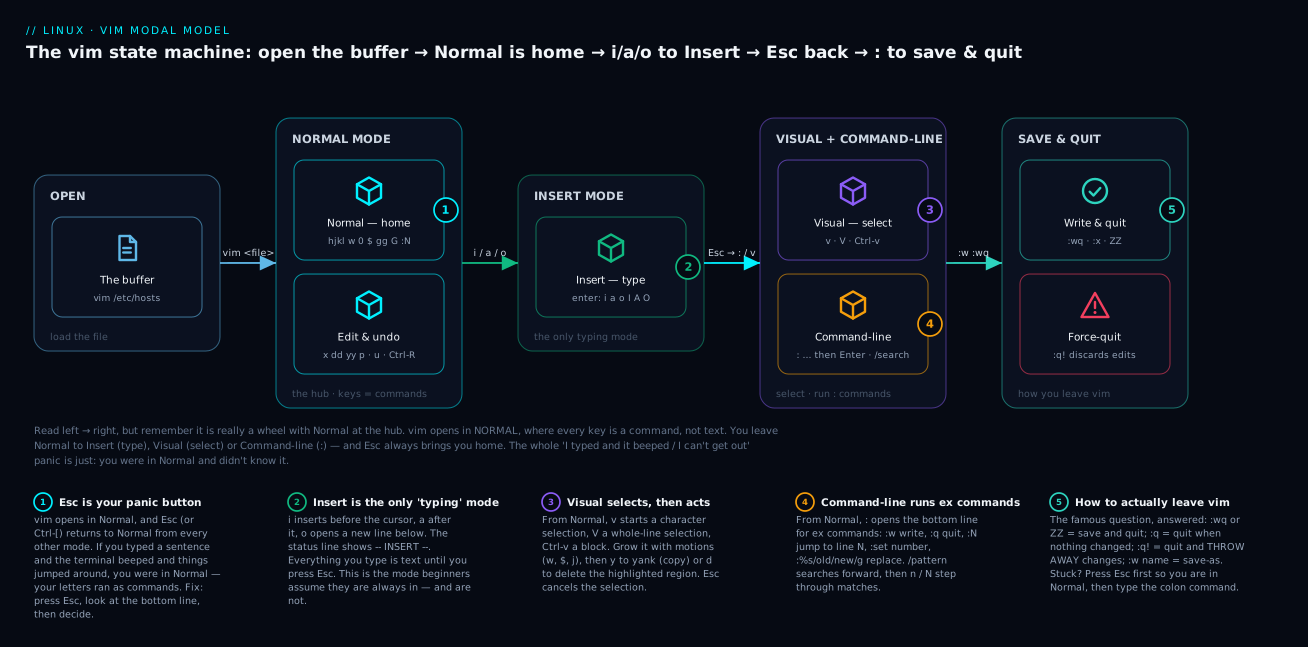
Now the big one. vim terrifies newcomers for a single reason: it is modal, and nothing tells you which mode you’re in until you know where to look. In a normal editor, pressing i types the letter “i”. In vim, pressing i might type “i” — or it might switch you into Insert mode — depending on the mode you’re already in. Get this one idea and vim stops being scary.
Here is the whole model. vim has a few modes, and each mode makes your keyboard mean something different:
| Mode | You’re in it when… | Keys mean | Get here by |
|---|---|---|---|
| Normal | vim just opened; after you press Esc |
Commands (move, delete, copy) — not text! | Esc from any mode |
| Insert | The status line shows -- INSERT -- |
Text — what you type is inserted | i, a, o (and friends) from Normal |
| Command-line | You pressed : and see a : prompt at the bottom |
An ex command (:w, :q, :set) |
: (or /, ?) from Normal |
| Visual | Status shows -- VISUAL -- |
A selection you then act on | v, V, Ctrl-v from Normal |
| Replace | Status shows -- REPLACE -- |
Overtype existing text | R from Normal |
The centre of everything is Normal mode. vim opens in Normal. Every other mode is reached from Normal, and Esc always brings you back to Normal. That single fact — “when in doubt, press Esc” — resolves 90% of beginner panic. The famous “I typed a whole sentence and it beeped and text jumped around and deleted itself” happens because you were in Normal mode the whole time, and your sentence’s letters were being interpreted as commands (d deleted, w jumped a word, and so on). You weren’t broken; you were just in the wrong mode and didn’t know it.
Here’s that state machine drawn out. Read it left-to-right as the journey you take — open the file, land in Normal, dip into Insert to type, Esc back home, then : to save and quit — but hold in your mind that Normal is really the hub every arrow returns to.
Getting in, getting out
You open vim on a file (creating it if needed), and you land in Normal mode:
vim /tmp/notes.txt # opens in NORMAL mode — do not start typing yet!
To actually type text, switch to Insert mode. There are several doors in, and picking the right one saves a motion:
| Key | Enters Insert and… | Mnemonic |
|---|---|---|
i |
inserts before the cursor | insert |
a |
inserts after the cursor | append |
o |
opens a new line below and inserts | open |
O |
opens a new line above | open above |
I |
inserts at the start of the line | big Insert |
A |
inserts at the end of the line | big Append |
Press one of those, type your text (the status line now reads -- INSERT --), and when you’re done, press Esc to go back to Normal. That in-out rhythm — i, type, Esc — is the heartbeat of vim.
Now, to save and quit, you go to Command-line mode by pressing : (from Normal). This is the moment everyone gets stuck, so here is the complete answer, including the question:
| Command | Effect |
|---|---|
:w |
Write (save), stay in the file |
:w name |
Save as name |
:q |
Quit — only works if there are no unsaved changes |
:q! |
Quit and discard all unsaved changes (the escape hatch) |
:wq |
Write and quit (save, then leave) |
:x or ZZ |
Write and quit (ZZ needs no colon, and only writes if changed) |
ZQ |
Quit and discard (the ZZ-style form of :q!) |
:wa / :qa |
Write all / quit all open buffers |
“How do I quit vim?” — the honest, complete answer: press Esc (to be sure you’re in Normal mode), then type :wq and Enter to save and quit, or :q! and Enter to quit without saving. If :q complains E37: No write since last change, that’s vim protecting you — you have unsaved edits; choose :wq to keep them or :q! to throw them away. That’s it. That’s the whole mystery.
Moving and editing in Normal mode
The payoff for vim’s strangeness is that Normal mode turns your whole keyboard into a precision editing tool — no arrow-key reaching, no mouse. The essential motions (how you move the cursor):
| Motion | Moves to | Motion | Moves to |
|---|---|---|---|
h j k l |
left, down, up, right | 0 |
start of line |
w |
start of next word | $ |
end of line |
b |
back a word | ^ |
first non-blank char |
e |
end of word | gg |
top of file |
Ctrl-f / Ctrl-b |
page down / up | G |
bottom of file |
{ / } |
previous / next paragraph | :N or NG |
jump to line N |
And the essential edits (each can take a count, e.g. 3dd deletes three lines):
| Key | Does | Key | Does |
|---|---|---|---|
x |
delete the character under the cursor | p |
paste after the cursor |
dd |
delete (cut) the current line | P |
paste before the cursor |
dw |
delete to the next word | u |
undo |
D |
delete to end of line | Ctrl-R |
redo |
yy |
yank (copy) the current line | . |
repeat the last change |
cw |
change (replace) a word | r |
replace a single character |
Two more things a beginner should carry: searching and line numbers. From Normal, /pattern searches forward and ?pattern searches backward; press n to jump to the next match and N for the previous. To turn on line numbers (invaluable when someone says “the error is on line 340”), go to Command-line mode and type :set number (:set nonumber turns them off). And the single most powerful editing command, worth memorising early, is search-and-replace across the whole file: :%s/old/new/g replaces every “old” with “new”.
If you have ten minutes, run vimtutor at the shell — it’s an interactive tutorial that ships with vim and drills exactly these keys inside a real buffer. It is the fastest way from “terrified” to “competent.”
Hands-on lab
Run this on any Linux VM, WSL, or container. It’s self-contained and safe — everything happens under /tmp. Do each step and watch what happens.
1. Make a working directory and a sample file with a here-doc.
mkdir -p /tmp/textlab && cd /tmp/textlab
cat <<'EOF' > servers.txt
web-01   10.0.0.11   nginx
web-02   10.0.0.12   nginx
db-01    10.0.0.21   postgres
cache-01 10.0.0.31   redis
EOF
cat servers.txt
What just happened: the here-doc wrote four literal lines to servers.txt, and cat printed them back. You created a file without opening an editor.
2. View it three ways and see the difference.
cat -n servers.txt          # numbered, whole file at once
tac servers.txt             # reversed — last line first
nl servers.txt              # numbered non-blank lines
What just happened: same data, three lenses. cat -n numbers everything, tac flips the order (as it would show newest-first on a log), nl numbers content lines.
3. Drive the pager. Make a big file first, then explore it.
seq 1 100000 > big.txt      # 100,000 numbered lines
less big.txt
Inside less, try: Space (page down), G (jump to the end — line 100000), g (back to the top), /500 then Enter (search), n (next match), q (quit).
What just happened: you navigated a 100k-line file instantly, without it scrolling away, because less reads lazily and lets you move around.
4. Look at just the ends.
head -n 3 big.txt           # 1, 2, 3
tail -n 3 big.txt           # 99998, 99999, 100000
tail -n +99998 big.txt      # from line 99998 to the end
What just happened: head/tail grabbed only the top/bottom you asked for; +N started at a specific line.
5. Watch a live log with tail -f. Start a background writer, then follow it.
# background job: append a timestamp every second
( while true; do date >> app.log; sleep 1; done ) &
tail -f app.log             # watch new lines appear live; Ctrl-C to stop
After a few seconds of watching, press Ctrl-C, then stop the writer:
kill %1 # stop the background while-loop
What just happened: tail -f streamed each new line the instant it was written — exactly how you watch a service log while testing it.
6. Peek at a binary safely.
file /bin/ls                # identify it
xxd -l 16 /bin/ls           # first 16 bytes — note the ELF magic
strings /bin/ls | head -5   # readable text inside the binary
What just happened: you inspected a real binary with no terminal damage. xxd shows the 7f 45 4c 46 (.ELF) signature that marks a Linux executable.
7. Edit with nano.
nano servers.txt
Move to the end, press Enter for a new line, type lb-01 10.0.0.41 haproxy. Save with ^O then Enter. Exit with ^X. Verify:
cat servers.txt # your new line is there
What just happened: a full edit cycle in the friendly editor — type, ^O to save, ^X to leave.
8. Edit with vim — and quit it on purpose.
vim servers.txt
Now, deliberately: press i (you’re in Insert — see -- INSERT -- at the bottom), type # inventory, press Esc. Turn on line numbers: type :set number and Enter. Search: type /db and Enter, then n. Undo your edit: press u. Now quit without saving: type :q! and Enter.
What just happened: you entered Insert, escaped back to Normal, ran Command-line commands, searched, undid, and force-quit — the entire survival kit in one pass. Reopen with vim servers.txt, this time make a real change, and leave with :wq to save it.
9. Set your default editor so nothing ambushes you.
echo 'export VISUAL=nano' >> ~/.bashrc
echo 'export EDITOR=nano' >> ~/.bashrc
source ~/.bashrc
echo "$VISUAL"              # nano
What just happened: from now on git commit, crontab -e, and friends open nano, not vim — unless you want vim, in which case you now know how to leave it.
Clean up when done: cd ~ && rm -rf /tmp/textlab.
Common mistakes and troubleshooting
| Symptom | Cause | Fix |
|---|---|---|
| Typed text in vim, it beeped and characters vanished/jumped | You were in Normal mode; letters ran as commands | Press Esc, then u (undo) repeatedly, then i to actually type |
:q refuses with E37: No write since last change |
Unsaved edits; vim won’t lose them silently | :wq to save & quit, or :q! to discard & quit |
| Terminal shows garbage after viewing a file | You cat-ed a binary; control bytes reprogrammed the terminal |
Type reset (blind) and Enter; use file/strings/xxd next time |
tail -f on a log goes silent after a while |
Log was rotated; -f is stuck on the old renamed file |
Use tail -F (follow by name), which re-opens the new file |
In less you reach (END) and keys do nothing |
You’re at the bottom of the file | g to jump to the top, or q to quit |
Edited /etc/hosts in vim but :w says E212: Can't open file for writing |
You opened it as a normal user; it’s root-owned | :w !sudo tee % >/dev/null to save via sudo, or reopen with sudoedit /etc/hosts |
vim opens with E325: ATTENTION … .swp warning |
A previous session crashed or the file is open elsewhere | (R) to recover, or (D) to delete the stale swap file and continue |
| Pasting into vim mangles indentation into a staircase | Auto-indent re-indented already-indented text | :set paste before pasting, :set nopaste after (or use "+p) |
cat -A shows ^M$ at every line-end |
File has Windows CRLF line endings | Convert with dos2unix file (or sed -i 's/\r$//' file) |
Three gotchas deserve extra words because they cost beginners real time.
“I can’t get out of vim.” You now know the fix cold, but internalise the sequence: Esc first (guarantees Normal mode, cancels any half-typed command), then :q! and Enter if you don’t care about changes, or :wq and Enter if you do. If even that seems stuck, you might have a : command half-typed — Esc clears it. The reason Esc-first always works is that it collapses every mode back to the one place where : commands are accepted.
The truncating >. Writing sort file > file to sort a file in place destroys it: the shell opens (and empties) the redirect target file before sort reads it, so sort reads an empty file. Always redirect to a different name (sort file > file.sorted && mv file.sorted file) or use a tool’s in-place flag. This surprises people who assume the command runs first.
Editing the wrong copy. tail -f app.log following a rotated log, or editing /etc/nginx/nginx.conf when the running config is actually /etc/nginx/conf.d/default.conf, both come from the same root error: not confirming which file is live. file, ls -l, readlink -f, and reading the top of the config for include lines save you here. When a change “has no effect,” suspect you edited the wrong file before you suspect the software.
Cheat-sheet
| Task | Command |
|---|---|
| Print a short file | cat file |
| Number lines | cat -n file / nl file |
| Reverse line order (newest-first log) | tac file |
| Reveal tabs & CRLF | cat -A file |
| Page through a long file | less file |
Search in less |
/pattern → n (next), N (prev) |
Jump to end / top in less |
G / g |
Quit less |
q |
| First / last 10 lines | head file / tail file |
| First / last N lines | head -n N file / tail -n N file |
| Everything from line N | tail -n +N file |
| Follow a live log | tail -f file (use tail -F on servers) |
| Identify a file’s type | file file |
| Readable text in a binary | strings file |
| Hex dump (first 64 bytes) | xxd -l 64 file |
| Create a file fast | echo text > file / here-doc cat <<'EOF' > file |
| Append to a file | echo more >> file |
| Open the friendly editor | nano file |
| nano: save / exit / search | ^O / ^X / ^W |
| Open the universal editor | vim file |
| vim: type text / stop typing | i (insert) / Esc |
| vim: save & quit | :wq (or ZZ) |
| vim: quit, discard changes | :q! |
| vim: line numbers | :set number |
| vim: find & replace all | :%s/old/new/g |
| vim: delete / copy / paste / undo | dd / yy / p / u |
| Set your default editor | export EDITOR=nano; export VISUAL=nano |
| Learn vim interactively | vimtutor |
Interview and exam questions
Q: How do you quit vim?
A: Press Esc to ensure you’re in Normal mode, then :wq (Enter) to save and quit, or :q! (Enter) to quit without saving. ZZ is a colon-free shortcut for “save and quit.”
Q: When would you use less instead of cat?
A: For any file too big for one screen. cat dumps the whole file and it scrolls away; less pages through it, searches (/), jumps (g/G), loads lazily (doesn’t buffer the whole file), and is read-only so you can’t accidentally edit it.
Q: What does tail -f do, and how is -F different?
A: tail -f prints the last lines then streams new ones as they’re written — the standard way to watch a live log. -F also follows but re-opens the file by name if it’s rotated/recreated, so it survives logrotate; use -F on real servers.
Q: How do you see the first 20 lines of a file? The lines from line 50 to the end?
A: head -n 20 file for the first 20. tail -n +50 file for line 50 onward (+N means “start at line N”).
Q: What’s the difference between cat -n and nl?
A: cat -n numbers every line including blanks. nl numbers only non-blank lines by default and offers richer formatting (nl -ba numbers all lines, -nrz zero-pads, etc.).
Q: Why should you never cat a binary, and how do you inspect one safely?
A: A binary contains control bytes that can reprogram your terminal, leaving it showing garbage (fix with reset). Inspect safely with file (identify type), strings (readable text inside), and xxd/hexdump -C (hex view).
Q: What do $EDITOR and $VISUAL control, and how do you set them?
A: They tell programs like git, crontab -e, and sudoedit which editor to launch. Tools try $VISUAL (full-screen) first, then $EDITOR. Set them in ~/.bashrc/~/.zshrc: export VISUAL=nano; export EDITOR=nano.
Q: In vim, how do you delete a line, undo it, and redo it?
A: dd deletes (cuts) the current line, u undoes the last change, Ctrl-R redoes it. yy copies a line and p pastes it.
Q: (RHCSA-style) Open /etc/motd, add a line of text, and save. Walk through the vim keys.
A: sudo vim /etc/motd → G to go to the end → o to open a new line (now in Insert) → type the text → Esc → :wq and Enter.
Q: (LFCS-style) In vim, replace every occurrence of 8080 with 9090 in the open file.
A: From Normal mode: :%s/8080/9090/g and Enter. The % means all lines, g means all matches per line. Add c (:%s/8080/9090/gc) to confirm each.
Q: You edited a root-owned config in vim as a normal user and :w fails with a permission error. What now?
A: Save through sudo without closing: :w !sudo tee % >/dev/null (% is the current filename), or quit and reopen with sudoedit /etc/…, which handles privileges and a safe temp copy for you.
Q: You ran sort data.txt > data.txt and the file is now empty. Why?
A: The shell creates/truncates the redirect target before sort runs, so sort read an already-emptied file. Redirect to a different name and rename: sort data.txt > data.sorted && mv data.sorted data.txt.
Key takeaways
- On Linux, config and logs are text files — reading and editing text is the core skill that lets you operate the system at all.
- Match the tool to the size:
catfor short files,lessfor long ones,head/tailfor the ends, andtail -f(or-Fon servers) for live logs — the most-run operations command there is. - Never
cata binary. Askfilefirst; peek withstringsandxxd. If your terminal scrambles,resetfixes it. - You can create files without an editor using redirection (
>,>>) and here-docs (cat <<'EOF') — remember>truncates the target immediately. - nano is the friendly editor: type normally,
^Oto save,^Xto exit,^Wto search. Start here; the shortcuts are on-screen. - vim is modal, and that’s the whole story. It opens in Normal (keys are commands); press
i/a/oto type in Insert; pressEscto come home; press:for Command-line to save/quit. - How to quit vim, memorised for life:
Esc, then:wqto save-and-quit or:q!to quit-and-discard. Runvimtutoronce and it all clicks. - Set
$EDITORand$VISUALsogit,crontab -eand friends open the editor you chose — no more accidental vim ambushes.
Next, deepen the pieces this lesson only previewed: how redirection and pipes feed these viewers into grep, sort and awk in Shell Basics: pipes, redirection & environment, and how to find, copy and move the files you’re now reading and editing in Files & Directories: cp, mv, rm & find.