Open a terminal on a fresh Linux box and the first feeling is usually “where is everything?” On Windows you have C:\Users\you\Documents and a Start menu; here you have a blinking cursor and a slash. This lesson replaces that lost feeling with a map. By the end you will be able to land on any Linux machine you have never seen — a cloud VM, a container, a Raspberry Pi, your work laptop’s WSL — and know within seconds where the config lives, where the logs are, where your files go, and how to walk there without fumbling.
Why this matters
Almost every early Linux frustration is really a navigation problem in disguise. “My command says file not found, but I can see the file.” “I edited the config and nothing changed.” “I saved something in /tmp and it vanished after a reboot.” “The tutorial says edit /etc/… but I don’t know if I’m allowed to.” Every one of these dissolves the moment you hold two ideas in your head: there is exactly one tree, and each branch of that tree has a well-known job.
The single tree is the big mental shift coming from Windows. There are no drive letters. There is no C:\. There is one root, written /, and everything hangs off it — your files, the programs, the kernel’s own view of itself, and every disk and USB stick you plug in. A second hard drive doesn’t become D:; it gets mounted onto an empty directory somewhere in the one tree, and from then on it just looks like a folder. This is not a cosmetic difference. It means you can always reason about a Linux system as a single hierarchy you walk up and down, and you never have to guess which letter a thing lives behind.
The second idea is that the layout is a standard, not a per-distro accident. It is written down in the Filesystem Hierarchy Standard (FHS), which is why /etc means “configuration” on Ubuntu, Rocky, Alpine, Amazon Linux and a NAS appliance alike. Learn the map once and it transfers everywhere for the rest of your career. That is a rare thing in tech — knowledge that does not expire — so it is worth an hour now.
This lesson is pure navigation: we look, we don’t yet change. Actually creating, copying, moving and deleting files is the next lesson, on managing files and directories with cp, mv, rm and find. If you have only just met the shell, the getting started, first login and getting help lesson sits directly before this one.
One tree, no drive letters: “everything is a file”
Two slogans capture the Unix filesystem philosophy, and both are worth taking literally.
Slogan one: there is one unified tree rooted at /. Read a path left to right and each / is a step deeper into the tree. /home/vinod/notes.txt means: start at the root /, go into home, then into vinod, then the file notes.txt. The very first / is the root; the later slashes are just separators between directory names. There is no equivalent of C: or D: — a disk becomes visible by being mounted onto a directory, so /mnt/backup might be a whole separate SSD while /home is on your main disk, and nothing in the path tells you (nor should you have to care).
Here is the contrast that unlocks it for anyone coming from Windows:
| Idea | Windows | Linux |
|---|---|---|
| Top of the filesystem | One root per volume (C:\, D:\, E:\) |
One root, /, for the whole system |
| A second disk / USB | New drive letter (D:) |
Mounted onto a directory (e.g. /mnt/data, /media/usb) |
| Path separator | Backslash \ |
Forward slash / |
| Absolute path example | C:\Users\you\file.txt |
/home/you/file.txt |
| Case sensitivity | Case-insensitive (File = file) |
Case-sensitive (File ≠ file) |
| “Program Files” | C:\Program Files\ |
mostly /usr, plus /opt and /usr/local |
| User profiles | C:\Users\ |
/home/ (and /root for the admin) |
| Config store | Registry (opaque, binary) | Plain-text files under /etc (readable, diff-able) |
Slogan two: everything is a file. In Unix, the “file” is the universal interface. A regular document is a file, obviously — but so is a directory (a special file that lists other files), a disk (/dev/sda), your terminal (/dev/tty), a source of randomness (/dev/urandom), a running process’s memory map (/proc/1234/maps), and a network socket. Because they all present as files, the same handful of tools (ls, cat, stat, redirection with > and <) work on all of them. That uniformity is why Linux composes so well.
You can already see the different kinds. The first character of an ls -l line names the file’s type:
| Type char | Kind of file | You’ll meet it as | Editable by hand? |
|---|---|---|---|
- |
Regular file | text, config, a program, a photo | Yes, if it’s text you own |
d |
Directory | any folder | Via cd/ls, not a text editor |
l |
Symbolic link (symlink) | /bin -> usr/bin, shortcuts |
Edit the target, not the link |
c |
Character device | /dev/null, /dev/tty, /dev/urandom |
No — the kernel owns it |
b |
Block device | /dev/sda, /dev/nvme0n1 (whole disks) |
No — the kernel owns it |
s |
Socket | /run/docker.sock (local IPC) |
No — a program owns it |
p |
Named pipe (FIFO) | created by mkfifo |
No — it’s a conduit, not storage |
Keep that first column in mind — we decode a full ls -l line later, and it starts with exactly this character.
The FHS tour: every top-level directory, and whether you touch it
This is the reference you will come back to. Every mainstream distro puts the same things in the same places because they all follow the FHS. Read the table once now, skim it forever after. The third column — do you edit it? — is the part beginners most need: some directories are yours to change, others belong to the package manager or the kernel and editing them by hand is either pointless (it gets overwritten on the next update) or dangerous.
| Path | What lives there | Do you edit it? |
|---|---|---|
/ |
The root of the single tree. Everything hangs off it. | No — never dump files directly in /. |
/bin |
Essential user commands (ls, cp, cat, bash). On modern distros a symlink to /usr/bin. |
No — package manager owns it. |
/sbin |
Essential system commands (ip, mount, fsck). Symlink to /usr/sbin now. |
No — package manager owns it. |
/usr |
The bulk of the OS: installed programs, libraries, docs. Think “read-only system software.” | No — package manager territory. |
/usr/bin |
Almost every command you run lives here. | No. |
/usr/sbin |
System/admin binaries. | No. |
/usr/local |
Software you install by hand (not via the package manager). /usr/local/bin is yours. |
Yes — this is your place for custom binaries. |
/usr/lib, /lib, /lib64 |
Shared libraries (.so files). /lib is a symlink to /usr/lib. |
No — managed by packages. |
/etc |
System-wide configuration, all plain text (sshd_config, fstab, hosts, passwd). |
Yes, carefully — this is where you configure the box. |
/var |
Variable data that changes at runtime — it grows. | Rarely by hand; apps write here. |
/var/log |
System and service logs (syslog, auth.log, dmesg). |
Read, don’t hand-edit (rotated automatically). |
/var/lib |
Persistent state for services: package DB, container images, databases. | No — the service owns it. |
/var/tmp |
Temp files that survive a reboot. | Yes — scratch space that persists. |
/var/spool |
Queues waiting to be processed: mail, print jobs, cron. |
No — the daemon owns it. |
/home |
Ordinary users’ home directories: /home/vinod, /home/asha. |
Yes — your files and dotfiles. |
/root |
The root account’s home (not the same as /). |
Only as root. |
/tmp |
Short-lived scratch. Cleared on reboot (often in RAM). | Yes — but assume it vanishes. |
/opt |
Self-contained third-party apps that ship their own tree (/opt/google/chrome). |
Yes — vendor drop zone. |
/srv |
Data served by this host (web roots, FTP, /srv/www). |
Yes — if you serve data. |
/proc |
Virtual filesystem: a live window into the kernel and every process. Not on disk. | No — read it; a few tunables under /proc/sys are writable as root. |
/sys |
Virtual view of devices and kernel objects (sysfs). Not on disk. |
No — some knobs writable as root. |
/dev |
Every device as a file (sda, null, random, tty). Managed by udev. |
No — the kernel/udev owns it. |
/boot |
The bootloader, the kernel (vmlinuz-*) and initramfs. |
Careful — rarely by hand. |
/run |
Volatile runtime data (PID files, sockets). A tmpfs, wiped every boot. |
No — daemons own it. |
/mnt |
Empty mount point for manual, temporary mounts by the admin. | Yes — mount things here yourself. |
/media |
Where removable media (USB, DVD) is auto-mounted by the desktop. | Auto — usually don’t touch. |
⚠️ Two of these deserve a warning. Never run rm -rf / or anything that deletes at the root — it will try to erase the entire system. And do not “tidy up” /proc, /sys, /dev or /run: those are not real files on disk, and deleting entries there is meaningless at best and destabilising at worst.
The modern /usr merge (why /bin and /usr/bin are the same)
Historically /bin, /sbin and /lib held the bare-minimum tools needed to boot and repair a system before /usr (which might be a separate disk) was mounted, and /usr/bin held everything else. That split stopped making sense once every root filesystem could reach /usr at boot. So modern distros — Fedora/RHEL since RHEL 7, Debian since 12 (bookworm), Ubuntu since 19.10, Arch, and most others — did the usr-merge: /bin, /sbin and /lib became symlinks into /usr. Prove it on your own box:
# On any modern distro, /bin is just a symlink to usr/bin:
ls -ld /bin /sbin /lib
lrwxrwxrwx 1 root root 7 Apr 22  2024 /bin -> usr/bin
lrwxrwxrwx 1 root root 8 Apr 22  2024 /sbin -> usr/sbin
lrwxrwxrwx 1 root root 7 Apr 22  2024 /lib -> usr/lib
The l at the start and the -> confirm they are links. Practically: /bin/ls and /usr/bin/ls are the same file, and when you install a custom tool by hand you still put it in /usr/local/bin, not /bin.
A few pairs beginners confuse
Some directories look similar and trip people up. These two tables settle the two most common mix-ups.
/tmp |
/var/tmp |
|
|---|---|---|
| Purpose | Short-lived scratch | Longer-lived temp |
| Survives a reboot? | No — cleared on boot | Yes — persists |
| Often backed by | RAM (tmpfs) |
Real disk |
| Good for | a throwaway file for one command | an editor’s recovery file, a long build’s intermediates |
| Gotcha | anything here can vanish any time | fills the disk if you forget it |
/mnt |
/media |
|
|---|---|---|
| Who mounts here | You, the admin, manually | The desktop/automounter, automatically |
| Typical use | mount /dev/sdb1 /mnt to inspect a disk |
plugging in a USB stick → /media/vinod/USB |
| Lifetime | until you umount |
while the device is plugged in |
The FHS also classifies every directory along two axes that explain the layout’s logic: static vs variable (does the content change at runtime?) and shareable vs local (could it be shared read-only over a network to many hosts?). It’s why config that you change (/etc) is kept apart from programs that don’t change (/usr), which are kept apart from data that grows (/var).
| Static (doesn’t change) | Variable (changes at runtime) | |
|---|---|---|
| Shareable across hosts | /usr, /opt |
/var/mail, /srv |
| Local to this host | /etc, /boot |
/var/log, /var/run (/run), /tmp |
Here is the whole map as one picture. Read from the root / on the left; each branch is a direct child of the one tree, and the numbered points are the five places a beginner reaches for most.
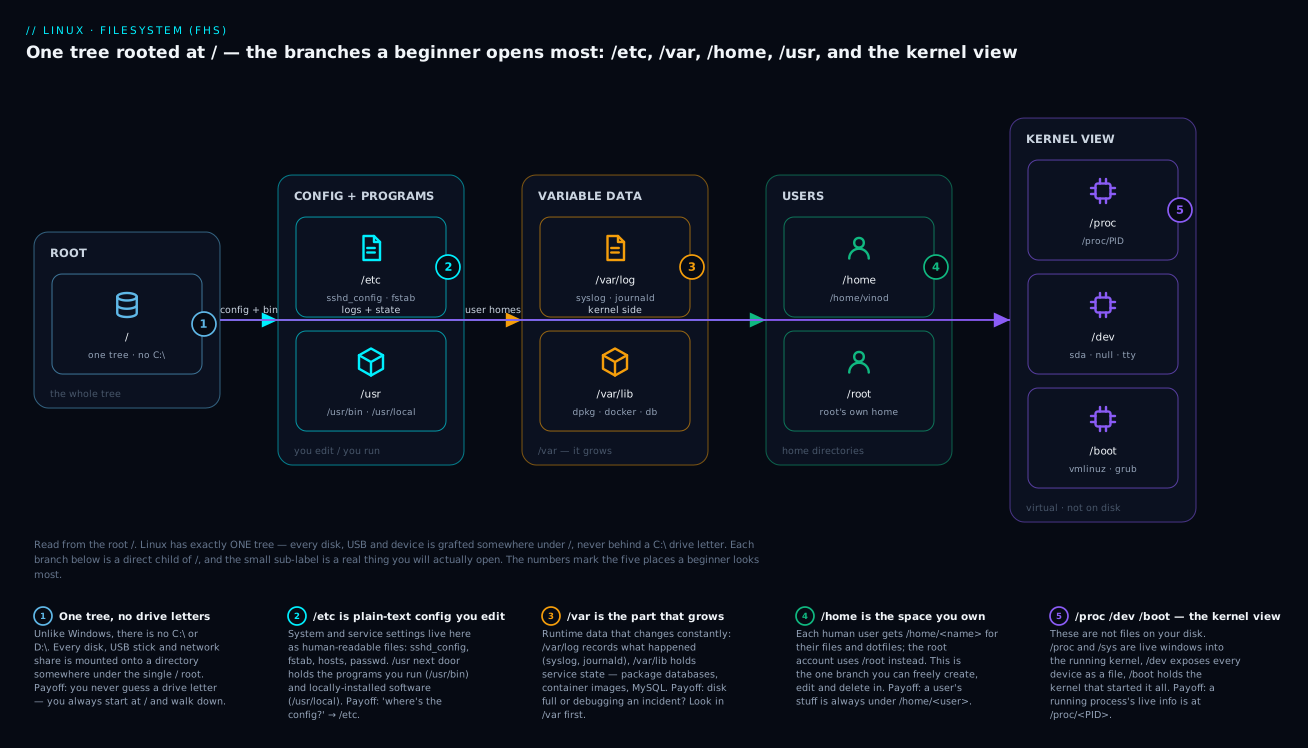
The one-line summary of the whole tour: /etc is what you configure, /usr is what you run, /var is what grows, /home is what you own, and /proc+/dev are the kernel showing you itself.
Absolute vs relative paths, and the five special tokens
A path is just a route through the tree. There are two ways to write one, and confusing them is the single most common beginner mistake.
An absolute path starts with /. It is measured from the root, so it means the same thing no matter where you currently are. /var/log/syslog is /var/log/syslog whether you type it from your home directory, from /tmp, or inside a script run by cron at 3am.
A relative path does not start with /. It is measured from your current working directory (the directory you are “in”, shown by pwd). If you are in /var and type log/syslog, the shell resolves it against your location to /var/log/syslog. Stand somewhere else and the same text points somewhere else — or nowhere.
| Absolute path | Relative path | |
|---|---|---|
| Starts with | / |
anything but / (often ., .., or a name) |
| Measured from | the root / |
your current directory (pwd) |
| Same meaning everywhere? | Yes | No — depends where you stand |
| Example | /etc/ssh/sshd_config |
ssh/sshd_config, ../log, ./run.sh |
| Best for | scripts, cron, documentation, anything unambiguous | quick typing when you know where you are |
Woven into paths are five short tokens that mean special places. Memorise these — they appear constantly:
| Token | Means | Example | Result |
|---|---|---|---|
/ |
the root and the separator between names | cd / |
go to the top of the tree |
. |
this directory (where you are now) | ./script.sh, cp file . |
run/copy here |
.. |
the parent directory (one level up) | cd .., ls ../etc |
go up / look up-and-over |
~ |
your home directory ($HOME) |
cd ~, ls ~/projects |
jump home from anywhere |
~user |
that user’s home | cd ~asha |
go to /home/asha |
- |
your previous directory (with cd) |
cd - |
toggle back to where you just were |
Two quick clarifications. The . prefix on ./script.sh is not decoration — you need it to run a program in the current directory, because for safety the shell does not search your current directory for commands (more on that in the getting-started lesson). And ~ is expanded by the shell into your home path before the command even runs, which is why echo ~ prints /home/vinod.
Navigating: pwd, cd, ls and their friends
Three commands do 90% of moving around: pwd (where am I?), cd (go there), ls (what’s here?). The rest of this section adds the inspection tools that tell you about a path without opening it.
pwd — print working directory
pwd
/home/vinod
That’s it — pwd answers “where am I standing in the tree?” It has one flag worth knowing: pwd -P prints the physical path with all symlinks resolved, while plain pwd (-L, logical) may show the symlinked name you cd’d through.
cd — change directory
cd takes you somewhere. Its no-argument and shortcut forms are what make an expert look fast:
| Command | Where it takes you |
|---|---|
cd /var/log |
to an absolute path |
cd log |
to a relative path (a child named log) |
cd .. |
up one level (to the parent) |
cd ../.. |
up two levels |
cd (no argument) |
home — same as cd ~ |
cd ~ |
home |
cd ~asha |
another user’s home |
cd - |
back to your previous directory (and it prints where) |
cd / |
to the root of the tree |
Watch cd - toggle you between two directories — it’s how you bounce between a config dir and a log dir without retyping:
cd /etc/ssh          # go dig in the config
cd -                 # bounce back to where you were
/home/vinod
ls — list directory contents
ls on its own gives a bare, columnated list. Its flags turn it into a precision instrument. These are the ones you’ll actually use:
| Flag | Effect |
|---|---|
-l |
long format: type, permissions, owner, group, size, date, name (one per line) |
-a |
all entries, including hidden dotfiles (.bashrc) and ./.. |
-A |
almost all — dotfiles but not . and .. |
-h |
human sizes (4.0K, 12M) — use with -l |
-R |
recursive — descend into every subdirectory |
-t |
sort by modification time, newest first |
-S |
sort by size, largest first |
-r |
reverse the current sort |
-i |
show each file’s inode number |
-d |
list the directory itself, not its contents (great with wildcards) |
-1 |
one entry per line (scripts love this) |
-F |
append a type marker: / dir, * executable, @ symlink |
--color=auto |
colourise by type (usually already aliased on) |
Combine them freely. The two combos you’ll type most: ls -lah (everything, long, human sizes) and ls -ltr (long, oldest-to-newest, so the newest files land at the bottom by your prompt).
ls -lah ~
total 40K
drwxr-xr-x  5 vinod vinod 4.0K Jul  9 09:14 .
drwxr-xr-x 48 root  root  4.0K Jul  9 08:02 ..
-rw-------  1 vinod vinod  820 Jul  9 09:10 .bash_history
-rw-r--r--  1 vinod vinod  220 Jan  1  2024 .bashrc
drwxr-xr-x  3 vinod vinod 4.0K Jul  9 09:12 projects
-rw-r--r--  1 vinod vinod 1420 Jul  9 09:14 notes.txt
Notice the first two entries: . is this directory and .. is its parent — the same tokens from the previous section, now showing up as real entries you can see. Notice too that .bashrc and .bash_history only appeared because of -a; a plain ls would hide them.
The inspection tools: tree, stat, file, realpath, basename, dirname
These answer questions about a path without opening the file. Learn them and you stop guessing.
| Command | Answers | Example |
|---|---|---|
tree |
“show me the sub-tree as a picture” | tree -L 2 /etc/ssh |
stat |
“everything the filesystem knows about this file” | stat notes.txt |
file |
“what kind of thing is this, really?” | file /bin/ls |
realpath |
“what’s the full, canonical absolute path?” | realpath ../log |
readlink -f |
“where does this symlink ultimately point?” | readlink -f /bin |
basename |
“just the filename, drop the directory” | basename /var/log/syslog → syslog |
dirname |
“just the directory, drop the filename” | dirname /var/log/syslog → /var/log |
tree is not installed by default, so on a fresh box you’ll add it. This is one of the few places the two big distro families differ, so here are both:
# Debian / Ubuntu (apt family)
sudo apt update && sudo apt install -y tree

# RHEL / Fedora / Rocky / Alma (dnf family)
sudo dnf install -y tree
tree -L 2 /etc/ssh
/etc/ssh
├── ssh_config
├── ssh_config.d
│   └── 50-redhat.conf
├── sshd_config
└── sshd_config.d
stat is the deepest look. It shows size, the inode, link count, permissions in both octal and symbolic form, owner/group, and the three timestamps (access, modify, change):
stat notes.txt
  File: notes.txt
  Size: 1420       Blocks: 8      IO Block: 4096   regular file
Device: 8,2  Inode: 1315874    Links: 1
Access: (0644/-rw-r--r--)  Uid: ( 1000/ vinod)   Gid: ( 1000/ vinod)
Access: 2026-07-09 09:14:02 +0530
Modify: 2026-07-09 09:14:02 +0530
Change: 2026-07-09 09:14:02 +0530
realpath and readlink -f are your friends whenever symlinks confuse you — they collapse ., .. and links into one true absolute path:
realpath ../log/../log/syslog   # from /var/anything
realpath /bin                   # follow the usr-merge symlink
/var/log/syslog
/usr/bin
Decoding an ls -l line, field by field
ls -l is the single most-read line in Linux, and every field is worth naming. This also sets up the next-next lesson on permissions, because the left-hand block is exactly what chmod and chown operate on. Take this one line:
-rw-r--r-- 1 vinod vinod 1420 Jul 9 09:14 notes.txt
Reading left to right, it is seven fields:
| # | Example value | Field | What it tells you |
|---|---|---|---|
| 1 | -rw-r--r-- |
type + permission bits | first char = file type; next nine = permissions in three triads (owner, group, other) |
| 2 | 1 |
hard-link count | how many directory entries point at this file’s data (directories start at 2) |
| 3 | vinod |
owner (user) | the account that owns the file |
| 4 | vinod |
group | the group that owns the file |
| 5 | 1420 |
size | size in bytes (add -h for 1.4K) |
| 6 | Jul 9 09:14 |
modification time | when the contents last changed (a recent year shows a clock; an old file shows the year instead) |
| 7 | notes.txt |
name | the filename (for symlinks: link -> target) |
Now zoom into field 1, the ten characters. The first character is the file type from that earlier table:
| First char | Means | So the line describes… |
|---|---|---|
- |
regular file | -rw-r--r-- → an ordinary file |
d |
directory | drwxr-xr-x → a folder |
l |
symlink | lrwxrwxrwx → a link (see the ->) |
c / b |
character / block device | something under /dev |
s / p |
socket / named pipe | an IPC endpoint |
The remaining nine characters are three groups of rwx — owner, then group, then other (everyone else). In -rw-r--r--: the owner has rw- (read + write), the group has r-- (read only), and other has r-- (read only). A - means “that permission is off.” Occasionally you’ll see a trailing eleventh character after the nine: a . means an SELinux context is present, and a + means the file has extended ACLs. We fully unpack rwx, octal 644/755, and how the kernel actually checks them in the users, groups and permissions lesson (chmod, chown, sudo). For now, just be able to read the line: type, who-can-do-what, links, owner, group, size, when, name.
Where do I find X? — the reverse lookup
The FHS table above answers “what is in this directory?” This one answers the question you actually have at 2am: “I need X — where do I go?” Bookmark it.
| I need… | Go to | Concretely |
|---|---|---|
| A service’s config | /etc/<service>/ |
/etc/ssh/sshd_config, /etc/nginx/nginx.conf |
| System-wide environment / login setup | /etc/ |
/etc/environment, /etc/profile, /etc/profile.d/ |
| Which distro/version this is | /etc/os-release |
cat /etc/os-release |
| Text logs | /var/log/ |
syslog+auth.log (Debian) or messages+secure (RHEL) |
| The systemd journal (structured logs) | journalctl |
binary store under /var/log/journal/ |
| A user’s files & dotfiles | /home/<user>/ |
/home/vinod/ (the admin: /root/) |
| A running process’s live info | /proc/<PID>/ |
cmdline, environ, status, cwd, fd/ |
| Kernel tunables | /proc/sys/, /sys/ |
/proc/sys/net/ipv4/ip_forward |
| Devices (disks, null, random) | /dev/ |
sda, nvme0n1, null, urandom, tty |
| What’s mounted where | /proc/mounts, findmnt, df -h |
findmnt for a tree view |
| A command’s binary | which <cmd> → usually /usr/bin |
which ls → /usr/bin/ls |
| Hand-installed software | /usr/local/, /opt/<vendor>/ |
/usr/local/bin/, /opt/google/chrome/ |
| The kernel and boot files | /boot/ |
vmlinuz-*, initramfs-*, grub/ |
| Scratch space | /tmp (volatile), /var/tmp (persists) |
assume /tmp disappears on reboot |
| Scheduled jobs | /etc/crontab, /etc/cron.d/, /var/spool/cron/ |
plus systemctl list-timers |
| A service’s persistent state | /var/lib/<service>/ |
/var/lib/docker/, /var/lib/mysql/ |
The single most useful entry there is /proc/<PID>/. Every running process gets a live directory named after its PID, and it exposes the process’s command line, environment, working directory and open files — as files you can read. That is the “everything is a file” slogan paying off: you debug a live process with cat.
Hands-on lab
Run this on any Linux you have — a cloud VM, WSL, or a throwaway container (docker run -it --rm ubuntu bash or docker run -it --rm rockylinux:9 bash). Nothing here is destructive; we only look. Do every step in order and you’ll build the map in your hands, not just your head.
Step 1 — Establish where you are.
pwd            # where am I in the tree?
whoami         # who am I?
echo "$HOME"   # what does ~ expand to?
You should see a path like /home/vinod (or /root in a root container), your username, and your home path. What just happened: you confirmed your starting point and proved ~ and $HOME are the same place.
Step 2 — Look at the root of the whole tree.
ls -l /
You’ll see the top-level directories from the FHS tour — etc, var, home, usr, proc, dev, boot and friends. What just happened: you looked at the trunk that everything else hangs off. There is only this one.
Step 3 — See the usr-merge for yourself.
ls -ld /bin /sbin /lib
On a modern distro each line starts with l and shows -> usr/.... What just happened: you confirmed /bin is a symlink into /usr, so /bin/ls and /usr/bin/ls are one file.
Step 4 — Absolute vs relative, felt directly.
cd /var                # absolute: works from anywhere
pwd
ls log | head -3       # relative: 'log' means /var/log because we're in /var
cd log                 # relative move down
pwd
cd -                   # bounce back to /var
What just happened: the same text log meant /var/log only because you were standing in /var. That’s the whole absolute-vs-relative idea in four lines.
Step 5 — Practise the special tokens.
cd ~          # home, from anywhere
cd ..         # up to /home
cd /          # to the very top
cd -          # back to /home
What just happened: you drove the tree with ~, .., / and - — no full paths typed.
Step 6 — Read a long listing and decode a line.
cd ~
ls -lah
Pick any line and name its seven fields out loud: type+perms, links, owner, group, size, date, name. What just happened: you turned a wall of text into structured information.
Step 7 — Inspect a single file two ways.
stat /etc/hostname
file /etc/hostname /usr/bin/ls /home
stat shows size, inode, permissions and timestamps; file reports ASCII text, an ELF executable, and a directory respectively. What just happened: you learned about files without opening them, and saw that file inspects content, not the name.
Step 8 — Visit the three “kinds” of directory.
cat /etc/os-release          # /etc = config (plain text)
ls -lt /var/log | head       # /var/log = logs, newest first
cat /proc/cpuinfo | head     # /proc = the kernel describing itself
What just happened: you touched config, logs and the kernel’s virtual view — three of the five branches from the diagram.
Step 9 — Debug a live process through /proc.
echo "my shell PID is $$"          # $$ = this shell's PID
ls /proc/$$/                        # the live directory for THIS process
readlink /proc/$$/cwd               # its current working directory
tr '\0' ' ' < /proc/$$/cmdline; echo # the exact command that started it
What just happened: you read a running process’s working directory and command line straight out of the filesystem — proof that “everything is a file.”
Step 10 — Canonicalise a messy path.
realpath /var/log/../lib/../log     # collapses the .. hops
basename /etc/ssh/sshd_config       # -> sshd_config
dirname  /etc/ssh/sshd_config       # -> /etc/ssh
What just happened: realpath turned a tangled relative path into one true absolute path; basename/dirname split a path into its two useful halves (the exact trick scripts use to find their own location).
Step 11 — Draw the tree (after installing tree).
# install first (pick your family):
#   sudo apt install -y tree      # Debian/Ubuntu
#   sudo dnf install -y tree      # RHEL/Fedora/Rocky
tree -L 1 /
tree -L 2 /etc | head -30
What just happened: you saw the hierarchy as an actual tree, which is the picture the diagram above is describing.
Common mistakes and troubleshooting
| Symptom | Cause | Fix |
|---|---|---|
No such file or directory for a file you can clearly see |
You used a relative path from the wrong directory | Run pwd first; then use an absolute path, or cd to the right place |
You edited a file under /usr or /bin and it reverted after an update |
Those are package-manager territory and get overwritten | Put custom binaries in /usr/local/bin, custom config in /etc, vendor apps in /opt |
A file you saved in /tmp is gone after a reboot |
/tmp is cleared on boot (often RAM-backed) |
Use /var/tmp or your $HOME for anything that must persist |
cd: notes.txt: Not a directory |
cd only accepts directories; that’s a file |
Use ls, cat, less or stat on files; cd only on dirs |
cd Documents fails but ls shows documents |
Linux paths are case-sensitive | Match the exact case: cd documents |
| Your home looks empty even though config exists | The files are hidden dotfiles | ls -a (or ls -A) to reveal them |
cd: too many arguments |
An unquoted path containing spaces | Quote it: cd "My Folder" (or escape: cd My\ Folder) |
A name shows red/broken in ls --color |
A dangling symlink — its target moved or was deleted | readlink -f name to see the intended target; recreate or remove the link |
df -h says the disk is full but your home is small |
Something under /var filled up (runaway logs, images) |
sudo du -xhd1 /var | sort -h to find the culprit |
A script works in your terminal but fails from cron |
cron runs with a different working directory and PATH |
Use absolute paths in scripts; never rely on relative paths in automation |
Three gotchas bite hardest, so they get extra words.
The relative-path footgun. This is the number-one beginner error and it is dangerous precisely because it is silent. cp report.txt ../backup/ copies to a different place depending on where you’re standing. When the command is rm, that ambiguity gets expensive. ⚠️ Before any rm, and always before rm -rf, run pwd and ls so you know exactly what’s around you — a relative rm -rf * in the wrong directory has ended careers. The habit that saves you: in scripts and anything you’ll run twice, use absolute paths. Deleting and moving safely is the whole subject of the files and directories management lesson.
Editing the wrong copy because of the usr-merge. Since /bin is a symlink to /usr/bin, editing /bin/somescript and /usr/bin/somescript touch the same file — which surprises people who think they’re separate. More importantly, neither is where your custom tools belong: the package manager can overwrite them at any update. Your tools go in /usr/local/bin, which no package owns.
Assuming /tmp is durable storage. /tmp is a scratchpad the system is free to wipe on every reboot, and on many systems it lives in RAM (tmpfs), so it also competes with your memory. It’s perfect for a throwaway file within one command or session, and wrong for anything you expect to find tomorrow. Reach for /var/tmp (survives reboot) or your home directory instead.
Cheat-sheet
| Command / token | Does |
|---|---|
pwd |
print current directory (-P resolves symlinks) |
cd DIR |
go to DIR (absolute or relative) |
cd / cd ~ |
go home |
cd .. / cd ../.. |
up one / two levels |
cd - |
back to previous directory |
cd / |
go to the root |
ls |
list; -l long, -a all, -h human, -R recursive |
ls -lt / ls -ltr |
sort by time (newest first / newest last) |
ls -lS |
sort by size, largest first |
ls -ld DIR |
the directory itself, not its contents |
ls -i |
show inode numbers |
tree -L N |
draw the tree, N levels deep |
stat FILE |
full metadata: size, inode, perms, timestamps |
file FILE |
identify the file’s real type by content |
realpath P |
canonical absolute path (collapses ./../links) |
readlink -f L |
final target of a symlink |
basename P |
the filename part of a path |
dirname P |
the directory part of a path |
/ |
root and separator |
. / .. |
this dir / parent dir |
~ / ~user |
your home / a user’s home |
- (with cd) |
previous directory |
/etc /var/log /home /proc/PID |
config · logs · your files · a live process |
Interview and exam questions
Q: Windows has C:\, D:\, E:\. How does Linux expose a second hard disk?
A: There are no drive letters. Linux has one tree rooted at /, and a second disk is mounted onto an (empty) directory — say /mnt/data or /data — after which it just looks like a folder in the one tree. findmnt or df -h shows which device is mounted where.
Q: What’s the difference between an absolute and a relative path?
A: An absolute path starts with / and is measured from the root, so it means the same thing everywhere. A relative path does not start with / and is measured from your current directory (pwd), so its meaning depends on where you are standing.
Q: Today, what’s the relationship between /bin and /usr/bin?
A: On modern distros they are the same directory — /bin is a symlink to /usr/bin (the “usr-merge”). The historical reason for splitting them (a minimal boot set before /usr was mounted) no longer applies.
Q: You wrote a helper script and want it on every user’s PATH, installed by hand. Where do you put it, and why not /usr/bin?
A: /usr/local/bin. /usr/bin is owned by the package manager and your file could be overwritten or flagged on the next update; /usr/local is the FHS location reserved for locally-installed software.
Q: For a service like SSH, where do its configuration, its logs, and its persistent state live?
A: Config in /etc/ssh/ (e.g. sshd_config), logs in /var/log/ (auth.log on Debian, secure on RHEL) or via journalctl, and any persistent state under /var/lib/.
Q: In drwxr-xr-x, what does each part mean?
A: The leading d says it’s a directory. The next nine characters are three rwx triads — owner (rwx), group (r-x), other (r-x) — where a letter means the permission is granted and - means it’s off.
Q: /tmp vs /var/tmp — when do you use each?
A: /tmp for short-lived scratch that you don’t mind losing (it’s cleared on reboot, often RAM-backed). /var/tmp for temporary data that must survive a reboot (it’s on disk).
Q: A process with PID 4021 is misbehaving. How do you find its current working directory and the exact command that launched it, without any special tool?
A: Read its /proc directory: readlink /proc/4021/cwd for the working directory and tr '\0' ' ' < /proc/4021/cmdline for the command line. /proc/4021/environ shows its environment and /proc/4021/fd/ its open files.
Q: What do cd - and ~ do?
A: cd - returns you to the previous directory you were in (and prints it), letting you toggle between two places. ~ expands to your home directory, so cd ~ or just cd takes you home from anywhere.
Q (RHCSA-style): You are in /home/vinod. Using a single relative path, list the contents of /etc.
A: From /home/vinod, go up two levels to reach /, then into etc: ls ../../etc. (.. is /home, ../.. is /, so ../../etc is /etc.)
Q (LFCS-style): Print the canonical absolute path that the symlink /bin ultimately points to.
A: realpath /bin (or readlink -f /bin) → /usr/bin.
Q: A script runs fine when you launch it in your shell but fails under cron. Give one filesystem-related reason.
A: cron starts the job with a different current working directory (usually the user’s home) and a minimal PATH, so any relative path in the script resolves against the wrong location. Fix: use absolute paths (and set PATH explicitly) in anything automated.
Key takeaways
- One tree, no drive letters. Everything hangs off
/; a new disk or USB is mounted onto a directory, never given a letter. Always start at/and walk down. - The layout is a standard (FHS), so it transfers everywhere.
/etcis config you edit,/usris programs you run,/varis data that grows (logs in/var/log, state in/var/lib),/homeis your files, and/proc+/dev+/sysare the kernel showing you itself. - Absolute paths start with
/and mean the same everywhere; relative paths depend onpwd. Use absolute paths in scripts and automation to avoid the classic “works in my terminal, breaks in cron” bug. - Learn the five tokens cold:
/(root/separator),.(here),..(up),~(home),-(previous). They make navigation fast. ls -lis seven fields: type+permissions, link count, owner, group, size, mtime, name — and the first character names the file type. This is the foundation the permissions lesson builds on.- Put your things in the right place: custom binaries in
/usr/local/bin, config in/etc, vendor apps in/opt; never hand-edit/usr,/bin,/procor/dev. /tmpis disposable,/var/tmppersists. Don’t trust/tmpwith anything you want tomorrow./proc/<PID>/is a live debugger for free — a running process’s cwd, command line, environment and open files are all readable as files.