If you take one idea away from this lesson, take this: on Linux, everything that runs is a process, and every process has a parent, a state, and a mailbox for signals. Once that model is in your head, the rest — ps, top, kill, job control, nice — stops being a grab-bag of commands you half-remember and becomes one small, coherent system you can reason about.
Why this matters
You will hit processes on your very first day on a real server, usually in a panic. A web app stops responding and top shows one process pinned at 100% CPU. A deploy script “finished” but something it started is still holding a port. You press Ctrl-C and the program won’t die. You SSH in, run a long job, your laptop sleeps, and the job dies with your session. You run ps and see a line that says <defunct> and nobody can tell you what it is.
Every one of these is a process problem, and every one has a clean, correct answer — but only if you understand what a process is underneath the tools. Beginners reach for kill -9 on everything (wrong, and sometimes actively harmful), leave jobs that die on logout (fixable in one word), and misread top’s load average as “CPU percent” (it isn’t). This lesson fixes all of that from first principles.
Here’s the mental model in one breath: the kernel keeps a table of processes; each has a numeric PID (process ID) and a PPID (its parent’s PID); a process is born when a parent copies itself (fork) and swaps in a new program (exec); it moves through states (running, sleeping, stopped, dead); you influence it by sending signals (small numbered messages); and your shell gives you job control to move work between the foreground and background. That’s the whole territory. Let’s walk it.
What a process is: PID, PPID, and the family tree
A process is a running instance of a program: the program’s code, its memory, its open files, its environment variables, its current directory, and its identity (which user and group it runs as). The same program (/bin/bash) can be running as fifty separate processes at once — fifty independent instances, fifty different PIDs.
Every process carries a set of numeric identities the kernel uses to track it and group it:
| Attribute | Meaning | See it with |
|---|---|---|
| PID | Process ID — a unique number for this one process | echo $$ (your shell), ps -o pid |
| PPID | Parent PID — the PID of the process that created it | echo $PPID, ps -o ppid |
| PGID | Process Group ID — a group of related processes (a pipeline) so signals can hit them together | ps -o pgid |
| SID | Session ID — a group of process groups tied to one login/terminal | ps -o sid |
| TTY | Controlling terminal (pts/0, tty1) or ? for none (a daemon) |
tty, ps -o tty |
| UID / GID | The user and group the process runs as — decides what it may touch | ps -o uid,user |
The PID is the handle you’ll use constantly — kill, renice, and /proc all take a PID. Your own shell’s PID lives in the special variable $$, and its parent’s in $PPID:
# Who am I, and who launched me?
echo "my shell PID is $$, my parent is $PPID"
# my shell PID is 4812, my parent is 4790
fork() and exec(): how every process is born
Linux has exactly one way to create a new process, and it is worth understanding because it explains a dozen later mysteries. A running process calls three kernel operations in sequence:
fork()— clone. The kernel makes a near-identical copy of the calling process. Now there are two — parent and child, same code, same open files — and the child gets a brand-new PID.fork()returns the child’s PID to the parent and0to the child, so each knows who it is.exec()(execve) — replace. The child immediately callsexecto replace its own program with a new one (say/bin/ls). The PID stays the same; the program running inside it changes completely.wait()/waitpid()— collect. The parent pauses until the child finishes, then reads the child’s exit code (0 = success, non-zero = failure).
This fork + exec + wait cycle is exactly what your shell does every time you type a command. The shell forks a copy of itself, the copy execs the program you asked for, and the shell waits for it to finish before showing you the prompt again. When you put & on the end, you’re telling the shell “don’t wait” — more on that under job control. The same fork/exec model underpins the shell’s process behaviour, covered from the shell’s angle in Shell basics, pipes, redirection & environment.
PID 1 and the process tree
Processes form a tree. Every process (except one) has a parent, and you can trace any process’s ancestry all the way up to a single root: PID 1, the init process — on any modern distro that’s systemd (older systems used SysV init). PID 1 is the first thing the kernel starts at boot, and every other process descends from it.
# Confirm PID 1 is systemd (or init)
ps -p 1 -o pid,comm
#   PID COMMAND
#     1 systemd
See the tree itself with pstree:
# Show the whole family tree, with PIDs
pstree -p | head -20
# systemd(1)─┬─sshd(890)───sshd(1204)───bash(1210)───pstree(1450)
#            ├─cron(712)
#            ├─systemd-journal(410)
#            └─NetworkManager(760)
Read that first line as a lineage: systemd (1) started sshd, which forked a child sshd for your session, which started your bash, which started pstree. PID 1 has two special jobs beyond starting things: it never dies (if it did, the kernel panics), and it adopts orphans — which is the key to understanding zombies and orphans, next.
Process states: R, S, D, T, Z — and how zombies and orphans happen
A process is not always “running”. At any instant it’s in one state, and the kernel schedules it accordingly. Reading the state column is the single most useful diagnostic skill in this lesson — it tells you why something is stuck.
| Code | State | What it actually means | Uses CPU? |
|---|---|---|---|
| R | Running / Runnable | Either running on a CPU right now, or ready and waiting for a free CPU (on the run queue) | Yes |
| S | Interruptible sleep | Waiting for an event (a key press, a network packet, a timer). Can be woken by a signal. Most processes are here most of the time. | No |
| D | Uninterruptible sleep | Blocked inside a kernel call, usually disk or NFS I/O. Cannot be woken or killed — not even by kill -9 — until the I/O returns |
No |
| T | Stopped | Frozen by a signal (SIGSTOP/SIGTSTP) or by a debugger. Sits still until told to continue | No |
| Z | Zombie (<defunct>) |
Has exited but its parent hasn’t collected its exit code yet. A corpse in the process table | No |
| I | Idle | An idle kernel thread (newer kernels). Harmless; not counted in load | No |
In ps output the state often has suffix flags appended — frequently misread, so learn the common five: < = high priority (negative nice), N = low priority (niced), s = session leader (led a login session), l = multi-threaded, and + = in the foreground process group of its terminal. So Ss means “interruptible sleep, session leader” (a login shell), and R+ means “running, in the foreground” (the command you just launched).
Here’s the lifecycle as a state machine — the same fork→exec→run→sleep→stop→exit path drawn out, with the signals that move a process between states:
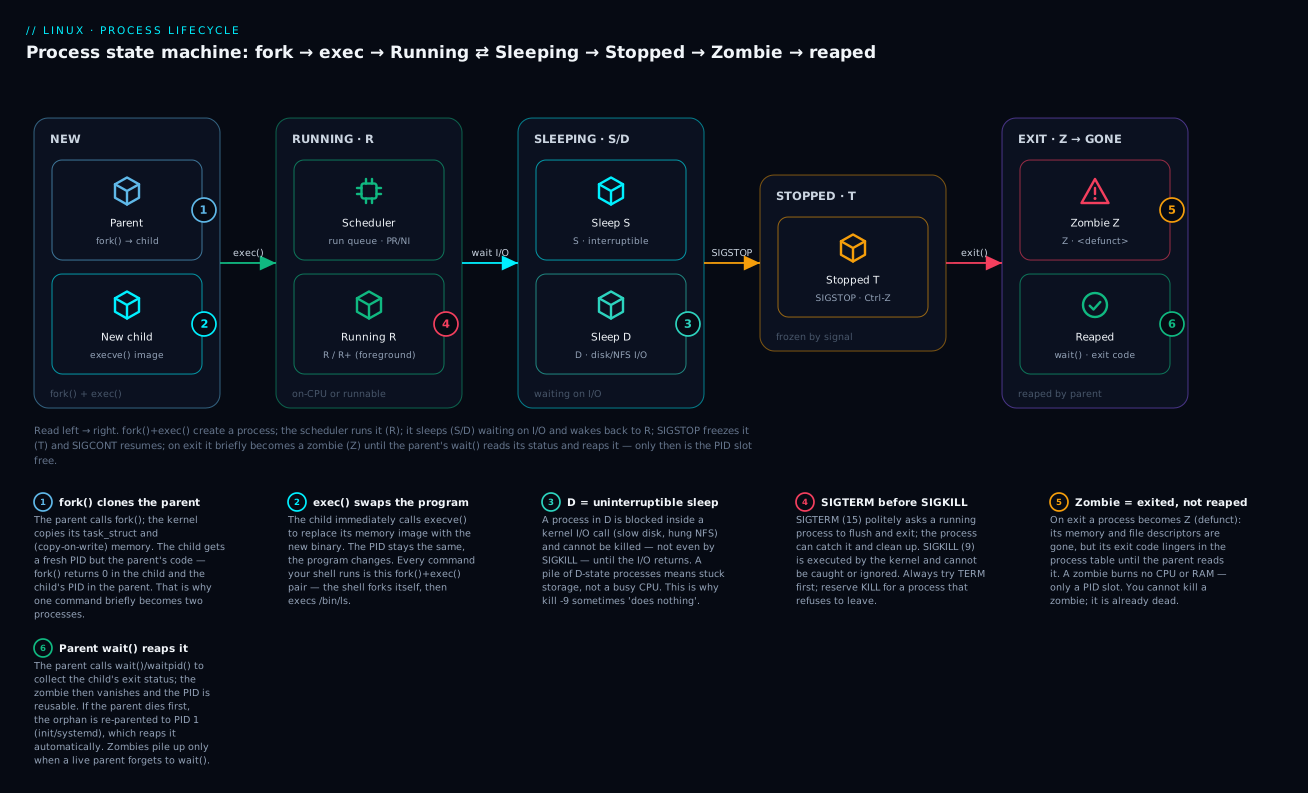
Walk it left to right: fork() clones the parent and exec() swaps in the new program (New); the scheduler dispatches it (Running, R); when it needs data from disk or the network it drops into Sleeping (S if interruptible, D if not) and wakes back to R when the data arrives; a SIGSTOP or Ctrl-Z freezes it into Stopped (T) and SIGCONT thaws it; when it finally exits it becomes a Zombie (Z) until its parent calls wait() to read its exit code — only then does the PID slot become free.
Zombies: dead but not buried
A zombie (shown as <defunct> in ps) is a process that has finished running — its memory, files, and everything else are already gone — but its parent hasn’t called wait() to read its exit code yet. The kernel must keep the exit code somewhere until the parent asks for it, so it keeps a tiny stub in the process table. That stub is the zombie.
Two things beginners get wrong about zombies:
- You cannot kill a zombie. It’s already dead.
kill -9on a zombie does nothing, because there’s no running process to signal. The zombie disappears only when its parent reaps it. - A zombie is not eating resources. It uses no CPU and no RAM — only a PID slot. A handful of zombies is cosmetic. Thousands of them mean a buggy parent that keeps forking and never calling
wait(), and you’ll eventually exhaust the PID space.
The fix for a zombie storm is to fix or restart the parent (find it via the zombie’s PPID). Kill the parent and the zombie is re-parented to PID 1, which reaps it instantly.
Orphans: adopted by PID 1
An orphan is the opposite: a live child whose parent died first. Orphans are not a problem — the kernel immediately re-parents them to PID 1 (systemd), which becomes their new parent and will wait() on them when they exit. This is exactly the mechanism that makes zombies self-cleaning: a zombie whose buggy parent dies gets adopted by PID 1 and reaped. You can watch an orphan’s PPID snap to 1 in the lab below.
Seeing what’s running: ps, pgrep, pidof, pstree
ps (process status) is the workhorse. Confusingly, it accepts two different, historical flag styles that produce different columns: BSD style (ps aux, no dash) and UNIX/System V style (ps -ef, with dash). You’ll meet both in the wild; learn to read each.
# BSD style — the classic "what's running and what is it using"
ps aux | head -4
# USER   PID %CPU %MEM    VSZ   RSS TTY   STAT START   TIME COMMAND
# root     1  0.0  0.1 168940 11876 ?     Ss   09:14   0:02 /sbin/init
# root   712  0.0  0.0  25320  6120 ?     Ss   09:14   0:00 /usr/sbin/cron -f
# vinod 1210  0.1  0.2  22140  9320 pts/0 Ss   10:02   0:00 -bash
Decode every ps aux column — this table is worth memorising:
| Column | Meaning |
|---|---|
| USER | The user the process runs as (its effective UID, resolved to a name) |
| PID | Process ID |
| %CPU | CPU used, as a percent of one core, averaged over the process’s life (can exceed 100% for multi-threaded procs) |
| %MEM | Resident memory as a percent of physical RAM |
| VSZ | Virtual memory size (KiB) — total address space reserved, mostly not real RAM |
| RSS | Resident Set Size (KiB) — actual physical RAM in use (the number you usually care about) |
| TTY | Controlling terminal; ? = none (a daemon), pts/0 = an SSH/terminal session |
| STAT | Process state + suffix flags (the R/S/D/T/Z table above) |
| START | When the process started |
| TIME | Cumulative CPU time consumed (not wall-clock elapsed time) |
| COMMAND | The command and its arguments |
Now the UNIX style, which surfaces PPID (parentage) by default — invaluable for tracing who started what:
# UNIX style — note PPID is shown
ps -ef | head -4
# UID    PID  PPID  C STIME TTY     TIME CMD
# root     1     0  0 09:14 ?   00:00:02 /sbin/init
# root   712     1  0 09:14 ?   00:00:00 /usr/sbin/cron -f
# vinod 1210   890  0 10:02 pts/0 00:00:00 -bash
| Column | Meaning |
|---|---|
| UID | Owning user |
| PID | Process ID |
| PPID | Parent PID — trace the tree upward |
| C | Short-term CPU-utilisation integer used by the scheduler (decays over time) |
| STIME | Start time |
| TTY | Controlling terminal |
| TIME | Cumulative CPU time |
| CMD | Command (by default not the full args unless you use -f) |
A few invocations you’ll type constantly: ps auxf draws the whole thing as an ASCII tree; ps -eo pid,ppid,ni,stat,comm --sort=-%cpu picks exactly the columns you want and sorts them (here, greediest first); ps -p 1210 shows just one PID; and ps auxww (two ws) stops ps truncating long command lines.
ps is a snapshot — it prints once and exits. To find a process by name rather than eyeball a list, use the purpose-built tools:
| Tool | Does | Example |
|---|---|---|
pgrep |
Print PIDs matching a name/pattern | pgrep -u vinod sshd → 1204 |
pgrep -a |
…with the full command line | pgrep -a nginx |
pidof |
PIDs of an exact program name | pidof sshd → 1204 890 |
pstree -p |
The tree, with PIDs | pstree -p 1210 |
pstree -s |
Show ancestors of a PID (upward) | pstree -s -p 1450 |
# Find every nginx worker without scrolling ps output
pgrep -a nginx
# 2201 nginx: master process /usr/sbin/nginx
# 2202 nginx: worker process
# 2203 nginx: worker process
Live views: top, htop, and load average
ps is a photo; top is a live video. Run top and it refreshes every few seconds, sorted by CPU by default — this is what you open first when “the server is slow”.
top - 10:41:07 up 1:27,  2 users,  load average: 0.42, 0.55, 0.61
Tasks: 142 total,   1 running, 141 sleeping,   0 stopped,   0 zombie
%Cpu(s):  6.3 us,  1.2 sy,  0.0 ni, 92.1 id,  0.3 wa,  0.0 hi,  0.1 si,  0.0 st
MiB Mem :   3936.5 total,    412.8 free,   1204.6 used,   2319.1 buff/cache
MiB Swap:   1024.0 total,   1024.0 free,      0.0 used.   2456.3 avail Mem

  PID USER      PR  NI    VIRT    RES    SHR S  %CPU  %MEM     TIME+ COMMAND
 2201 www-data  20   0  148500  22140   6120 S   4.7   0.5   0:12.44 nginx
 1450 vinod     20   0   12440   3980   3320 R   0.7   0.1   0:00.03 top
Read the header top to bottom:
| Line / field | What it tells you |
|---|---|
load average: 0.42, 0.55, 0.61 |
Run-queue length over the last 1, 5, 15 minutes (explained below) |
Tasks: … 1 running … 0 zombie |
State census — a non-zero zombie count is your cue to hunt a parent |
%Cpu(s): us / sy / id / wa |
User %, system(kernel) %, idle %, and I/O-wait %. High wa = disk is the bottleneck, not CPU |
ni |
% CPU spent on niced (lowered-priority) tasks |
st |
“Steal” — CPU the hypervisor took from your VM. High st on a cloud VM = a noisy neighbour |
MiB Mem … buff/cache |
Cache/buffers count as “used” but are reclaimable — don’t panic at low “free” |
And the per-process columns (a superset of ps), with the priority columns you’ll tune later:
| Column | Meaning |
|---|---|
| PR | Kernel priority. For normal tasks PR = 20 + NI; rt means real-time |
| NI | Nice value, −20 (greedy) to +19 (generous). Default 0 |
| VIRT | Virtual memory (like ps VSZ) |
| RES | Resident RAM (like ps RSS) — the number that matters |
| SHR | Shared memory portion of RES |
| S | State (R/S/D/T/Z) |
| %CPU / %MEM | Live CPU (per core) and memory percent |
| TIME+ | Cumulative CPU time, to 1/100 s |
top is interactive, and a handful of keys earn their keep: P sorts by CPU (the default), M by memory, T by cumulative time; k kills (prompts for a PID then a signal) and r renices; u filters to one user, 1 toggles per-core CPU lines, H shows individual threads, and q quits.
htop: the one you’ll actually use
htop is top with a colour UI, mouse support, scrolling, and per-core meters. It usually isn’t preinstalled — grab it with your package manager (see Package management: apt, dnf, rpm, dpkg):
# Debian / Ubuntu
sudo apt install htop
# RHEL / Fedora / Rocky
sudo dnf install htop
| Feature | top |
htop |
|---|---|---|
| Per-core CPU meters | With 1 key, text only |
Colour bars, always visible |
| Scroll the list | No | Yes (arrows / mouse) |
| Kill without typing PID | Type PID after k |
Select row, press F9, pick signal |
| Renice | r, then PID |
Select row, F7/F8 to change nice |
| Search / filter | o (filter) |
F3 search, F4 filter |
| Tree view | V (limited) |
F5 (full, toggleable) |
| Preinstalled | Almost always | Rarely |
In htop: click or arrow to a process, F9 opens a signal menu (SIGTERM and SIGKILL are right there), F7/F8 lower/raise nice, F5 toggles the tree, F4 filters by name, F6 changes the sort column. Everything in this lesson — states, signals, nice — is visible and clickable in htop, which is why it’s the tool most engineers live in.
Load average, decoded
The three load-average numbers confuse more beginners than anything else in top. Load average is not a CPU percentage. On Linux it is the average number of processes that are either running ® or waiting on uninterruptible I/O (D) over the last 1, 5, and 15 minutes.
The only way to interpret it is relative to your core count, which you get from nproc:
nproc
# 4
| Load on a 4-core box | Reading |
|---|---|
0.00 – 4.00 |
Under capacity — there’s headroom |
~4.00 |
Fully utilised, no queue — the sweet spot |
> 4.00 (e.g. 8.0) |
Over-subscribed — work is queuing, things feel slow |
| 1-min ≫ 15-min | A spike just started (e.g. 8.0, 2.0, 1.0) |
| 1-min ≪ 15-min | A spike is ending (e.g. 1.0, 4.0, 8.0) |
Comparing the three numbers tells you the trend: rising (short > long) means a problem is building; falling means it’s clearing. And because D-state processes count toward load, a machine can show a load of 20 with the CPUs almost idle — that’s a storage or NFS stall, not a CPU shortage. Confirm by checking the wa (I/O-wait) figure in the top header.
Signals: the language of process control
A signal is a small, numbered, asynchronous message the kernel delivers to a process — “please terminate”, “reload your config”, “you’ve been suspended”. Signals are how you, the shell, and the kernel talk to running processes. When you press Ctrl-C, you’re sending a signal. When systemd stops a service, it sends a signal. Learning the common ones turns process management from guesswork into precision.
Each signal has a default action (what happens if the process doesn’t handle it) and most can be caught (the program installs a handler) or ignored. Two cannot: SIGKILL and SIGSTOP are always enforced by the kernel.
| Signal | Num | Default | Catchable? | What it’s for |
|---|---|---|---|---|
| SIGHUP | 1 | Terminate | Yes | Terminal hangup. Daemons repurpose it to reload config without restarting |
| SIGINT | 2 | Terminate | Yes | Ctrl-C — interrupt the foreground program |
| SIGQUIT | 3 | Core dump | Yes | Ctrl-\ — quit and dump core (for debugging) |
| SIGKILL | 9 | Terminate | No | The nuclear option — kernel kills the process immediately. Last resort |
| SIGUSR1 | 10 | Terminate | Yes | App-defined. e.g. nginx reopens log files; many daemons trigger a rotate |
| SIGSEGV | 11 | Core dump | Yes | Invalid memory access (a crash) |
| SIGUSR2 | 12 | Terminate | Yes | App-defined (second user signal) |
| SIGPIPE | 13 | Terminate | Yes | Wrote to a pipe with no reader — why cmd | head ends cleanly |
| SIGTERM | 15 | Terminate | Yes | Polite termination — the default for kill. Lets the app clean up |
| SIGCHLD | 17 | Ignore | Yes | “A child stopped or exited” — how a parent knows to wait()/reap |
| SIGCONT | 18 | Continue | Yes | Resume a stopped process |
| SIGSTOP | 19 | Stop | No | Pause a process (kernel-enforced) |
| SIGTSTP | 20 | Stop | Yes | Ctrl-Z — terminal stop (catchable, unlike SIGSTOP) |
⚠️ Signal numbers differ between CPU architectures (SIGUSR1 is 10 on x86/ARM but 16 on MIPS, for example). The names are portable — always prefer kill -TERM over kill -15 in scripts you share. Run kill -l to print the list on the machine in front of you.
Sending signals: kill, killall, pkill
The command is called kill, but it’s really “send a signal” — with SIGTERM as the default. The mental discipline that separates professionals from beginners: try SIGTERM first, escalate to SIGKILL only if it won’t die. SIGTERM lets a database flush to disk, a web server drain connections, a program remove its lock file. SIGKILL yanks the power cord — no cleanup, possible corruption.
# Polite: ask process 4812 to terminate and clean up (SIGTERM is the default)
kill 4812
kill -TERM 4812         # identical, explicit
kill -15 4812           # identical, by number

# It's still there after a few seconds? THEN escalate:
kill -9 4812            # SIGKILL — forced, no cleanup
kill -KILL 4812         # identical

# Pause and resume a running process (great for throttling a runaway job)
kill -STOP 4812         # freeze it (state → T)
kill -CONT 4812         # thaw it (state → R/S)

# Tell a daemon to reload its config without dropping connections
kill -HUP $(pidof nginx)
Signalling processes obeys permissions: you can only signal processes you own, unless you’re root. A regular user’s kill against a root process fails with “Operation not permitted” — the same ownership model covered in Users, groups, permissions, chmod, chown, sudo. Prefix with sudo when you legitimately need to signal another user’s process.
When you don’t have the PID handy, signal by name:
| Command | What it does | Watch out for |
|---|---|---|
killall firefox |
Signal all processes named exactly firefox (SIGTERM by default) |
On some UNIXes killall means something far scarier — Linux’s is name-based |
killall -9 firefox |
Force-kill them all | Same escalate-only rule |
pkill -f "python app.py" |
Match against the full command line (-f), not just the name |
-f can match too much — dry-run with pgrep -f first |
pkill -u vinod |
Signal every process owned by a user | Powerful; think before adding sudo |
pkill -HUP nginx |
Send a specific signal by pattern | Name match is a substring by default |
⚠️ Always dry-run a pattern kill. pkill -f foo and pgrep -f foo take the same matching, so run the pgrep first to see the list before you signal it. pkill -f python will cheerfully kill every Python process on the box, including ones you didn’t mean.
Job control: foreground, background, and surviving logout
Everything above works on any process by PID. Job control is the shell’s convenience layer for the processes you start interactively — moving them between the foreground (attached to your keyboard) and the background (running while you keep typing).
A foreground job owns the terminal: your keystrokes go to it, and the shell waits for it. A background job runs detached; you get your prompt back immediately. Here’s the full vocabulary:
| Action | Keys / command | Effect |
|---|---|---|
| Start in background | command & |
Runs detached; shell prints [1] 4820 (job number, PID) and returns the prompt |
| Interrupt foreground | Ctrl-C | Sends SIGINT — usually terminates it |
| Suspend foreground | Ctrl-Z | Sends SIGTSTP — pauses it (state → T), returns the prompt |
| List jobs | jobs |
Shows this shell’s jobs with [n] numbers and states |
| Resume in foreground | fg %1 |
Brings job 1 back to the foreground |
| Resume in background | bg %1 |
Continues job 1 in the background (SIGCONT) |
| Kill a job | kill %1 |
Signal by job number (note the %) |
| Last backgrounded PID | $! |
The PID of the most recent & job |
A complete session showing the whole dance:
sleep 500 &                 # start in background
# [1] 4820
jobs                        # what's running?
# [1]+  Running                 sleep 500 &

sleep 999                   # start something in the FOREGROUND
# ...now press Ctrl-Z to suspend it...
# [2]+  Stopped                 sleep 999

jobs
# [1]-  Running                 sleep 500 &
# [2]+  Stopped                 sleep 999

bg %2                       # resume job 2 in the background
# [2]+ sleep 999 &
fg %1                       # pull job 1 back to the foreground (Ctrl-C to stop it)
kill %2                     # or kill job 2 by its job number
The % matters: kill 1 signals PID 1 (systemd — don’t!), while kill %1 signals job 1. Job numbers only mean something inside the shell that started them.
Surviving logout: nohup, disown, setsid
Here’s a classic trap. You SSH into a server, start a long job in the background with &, close your laptop — and the job dies. Why? When your terminal disconnects, the kernel sends SIGHUP (“hangup”) to the session’s processes, and the default action of SIGHUP is to terminate. To survive, the job must be shielded from that SIGHUP.
| Tool | How it protects the job | Output goes to | When to reach for it |
|---|---|---|---|
nohup cmd & |
Makes the job ignore SIGHUP | nohup.out (or redirect) |
Quick “just don’t die on logout” |
disown %1 |
Removes the job from the shell’s table, so no SIGHUP is sent | Wherever it already went | You forgot nohup and already started it |
disown -h %1 |
Keeps the job listed but marks it no-SIGHUP | — | Same, but keep jobs visibility |
setsid cmd |
Starts the job in a new session with no controlling terminal | Redirect yourself | Full detach from the terminal entirely |
# Belt-and-braces: ignore hangups, detach, capture output
nohup ./long-job.sh > job.log 2>&1 &
echo "started as PID $!"          # note the PID so you can find it later

# Forgot nohup and it's already running as job 1? Rescue it:
disown -h %1
⚠️ These are the wrong tool for anything important. nohup/disown/setsid are fine for a one-off long-running command, but a nohup job has no supervision: if it crashes, nothing restarts it; if the box reboots, it’s gone; you can’t easily check its status. For anything that must stay running, the real answer is a systemd service (auto-restart, logging via journalctl, starts at boot) or, for an interactive session you want to reattach to, a terminal multiplexer like tmux or screen. Reach for those the moment “keep it running” becomes a requirement rather than a convenience.
Priority: nice, renice, and ionice
Every process has a nice value (NI) from −20 (least nice = highest priority, grabs the most CPU) to +19 (most nice = lowest priority, yields to others). Default is 0. The name captures the idea: a “nicer” process is more willing to step aside for others. Nice affects CPU scheduling — a compile at nice 19 still runs, but only with CPU nobody else wants, so it won’t make your interactive shell lag.
The top/ps PR (priority) column is derived: for a normal process PR = 20 + NI, so NI 0 → PR 20, NI −20 → PR 0, NI +19 → PR 39. Lower PR = scheduled sooner.
# Start a job with a lowered priority (nice, background-friendly)
nice -n 19 tar czf backup.tar.gz /data &      # generous: won't hog CPU

# Change an already-running process's priority
renice -n 5 -p 4820                            # nudge PID 4820 down
# 4820 (process ID) old priority 0, new priority 5

renice -n 10 -u vinod                          # renice all of a user's procs
| Command | Meaning | Who may run it |
|---|---|---|
nice -n 19 cmd |
Launch cmd with nice +19 (low priority) |
Anyone (raising nice = being generous) |
nice -n -5 cmd |
Launch with nice −5 (higher priority) | root only — a negative nice steals CPU |
renice -n 5 -p PID |
Set an existing process to nice +5 | Owner can only raise nice; root can lower |
renice -n -5 -p PID |
Raise priority (lower nice) | root only |
The asymmetry catches everyone once: an ordinary user can make their process nicer (yield more) but cannot make it greedier — only root can set a negative nice or decrease an existing nice value. This stops users from starving each other’s work.
CPU isn’t the only contended resource; disk I/O has its own knob, ionice, useful when a backup or updatedb is thrashing the disk. It has three classes: idle (-c3 — only gets I/O when nothing else wants it, ideal for backups), best-effort (-c2 -n0..7 — the default, with a priority level), and real-time (-c1, root only). Combine both knobs for a job that stays out of everyone’s way:
# A backup that yields on BOTH CPU (nice) and disk (ionice)
nice -n 19 ionice -c3 tar czf /backup/data.tar.gz /data &
A peek inside /proc/<pid>/
Everything ps and top show comes from a virtual filesystem: /proc. It isn’t files on disk — it’s a live window into the kernel, exposed as files so ordinary tools (cat, ls) can read process internals. Each running process has a directory /proc/<pid>/. Knowing three or four of its entries lets you answer questions the standard tools don’t.
| Path | Contains | Read it with |
|---|---|---|
/proc/<pid>/cmdline |
The exact command line, arguments NUL-separated | tr '\0' ' ' < /proc/<pid>/cmdline |
/proc/<pid>/status |
Human-readable state, PPID, UIDs, memory, threads | cat /proc/<pid>/status |
/proc/<pid>/fd/ |
Symlinks to every open file/socket the process holds | ls -l /proc/<pid>/fd |
/proc/<pid>/cwd |
Symlink to the process’s current directory | ls -l /proc/<pid>/cwd |
/proc/<pid>/exe |
Symlink to the actual binary on disk | ls -l /proc/<pid>/exe |
/proc/<pid>/environ |
The environment it was started with (NUL-separated) | tr '\0' '\n' < /proc/<pid>/environ |
/proc/<pid>/limits |
Its resource limits (open files, memory, …) | cat /proc/<pid>/limits |
# What is PID 2201, really, and what files does it have open?
tr '\0' ' ' < /proc/2201/cmdline; echo
# /usr/sbin/nginx -g daemon off;

grep -E 'State|PPid|Threads' /proc/2201/status
# State:  S (sleeping)
# PPid:   1
# Threads: 2

ls -l /proc/2201/fd | head -4
# lrwx------ 1 root root 64 Jul  9 10:40 0 -> /dev/null
# l-wx------ 1 root root 64 Jul  9 10:40 2 -> /var/log/nginx/error.log
This is how you answer “which process has this file open?” or “what directory is that daemon actually running in?” — and it’s the raw material every monitoring tool is built on.
Hands-on lab
Run this on any Linux VM, WSL, or container. Nothing here is destructive to your system — every process you create, you also clean up. Open a terminal and go step by step.
1. Meet your own shell.
echo "shell PID=$$  parent PPID=$PPID"
ps -p $$ -o pid,ppid,stat,comm
What just happened: $$ is your shell’s PID, $PPID its parent (usually your terminal or sshd). The STAT will read Ss — interruptible sleep (waiting for you to type), session leader.
2. Start a background job and inspect it.
sleep 600 &
echo "backgrounded PID is $!"
jobs
ps -o pid,ppid,stat,comm -p $!
What just happened: & ran sleep in the background; $! captured its PID; jobs shows it as job [1]; its STAT is S (sleeping on a timer). Note its PPID equals your shell’s PID — you are its parent.
3. Suspend and resume with job control.
# Run something in the foreground, then press Ctrl-Z
sleep 300
# (press Ctrl-Z)  →  [2]+  Stopped   sleep 300
jobs                 # job 2 shows "Stopped"
ps -o pid,stat,comm -p $(pgrep -n sleep)   # STAT now shows T
bg %2                # resume it in the background  → state returns to S
jobs
What just happened: Ctrl-Z sent SIGTSTP, freezing the job into state T (Stopped). bg sent SIGCONT, moving it back to S. You just drove the state machine by hand.
4. Signal a process the right way, then the hard way.
SLEEP_PID=$(pgrep -n sleep)        # newest sleep
kill -STOP "$SLEEP_PID"            # freeze it
ps -o pid,stat,comm -p "$SLEEP_PID"   # → T (stopped)
kill -CONT "$SLEEP_PID"           # thaw it
ps -o pid,stat,comm -p "$SLEEP_PID"   # → S (sleeping)
kill "$SLEEP_PID"                 # polite SIGTERM — sleep obeys and exits
jobs                              # gone (may show "Terminated")
What just happened: You paused, resumed, and cleanly terminated a process with named signals — no kill -9 needed, because sleep responds to SIGTERM.
5. Watch CPU with a (short-lived) hog.
timeout 20 yes > /dev/null &      # burn one core for 20 seconds, then auto-stop
top -b -n1 | head -12             # one batch snapshot of top
What just happened: yes spews output as fast as it can, pinning a core; timeout 20 guarantees it dies on its own. In the top snapshot you’ll see yes near 100% %CPU in state R. (Try htop here if installed — the core meter lights up.)
6. Renice a running job.
timeout 30 yes > /dev/null &
HOG=$!
ps -o pid,ni,comm -p $HOG          # NI 0
renice -n 15 -p $HOG               # be generous
ps -o pid,ni,comm -p $HOG          # NI 15
What just happened: You lowered the hog’s priority to +15, so it now yields CPU to everything else. Notice you could raise the nice value without root, but trying renice -n -5 would fail unless you’re root.
7. Create a real zombie, then reap it.
# A parent that forks a child, the child exits, the parent sleeps WITHOUT wait()
python3 -c 'import os,time
if os.fork() == 0:      # child
    os._exit(0)         # child dies immediately → becomes a zombie
time.sleep(60)          # parent sleeps, never calls wait()
' &
PARENT=$!
sleep 1
ps -el | grep -E ' Z |defunct'     # a Z / <defunct> line appears
ps -o pid,ppid,stat,comm --ppid $PARENT   # the zombie, parented to $PARENT
kill "$PARENT"                     # kill the parent → zombie is re-parented to PID 1 and reaped
sleep 1
ps -el | grep -E ' Z |defunct' || echo "zombie reaped — gone"
What just happened: The child exited but its parent never called wait(), so it lingered as a Z (<defunct>). You could not kill the zombie directly — it was already dead. Killing the parent let PID 1 adopt and reap it. (Requires python3, present on most systems.)
8. Watch an orphan get adopted by PID 1.
# A parent that starts a long child and then exits immediately
bash -c 'sleep 120 & echo "child PID $!"; exit'
# note the printed child PID, then:
ps -o pid,ppid,comm -p <that-child-PID>
# PPID is now 1 — the orphan was re-parented to systemd
What just happened: The parent bash exited while its sleep child lived on. The kernel instantly re-parented the orphan to PID 1, which will wait() on it later. Orphans are harmless — this adoption is exactly what keeps the system tidy.
9. Peek inside /proc.
sleep 300 &
P=$!
tr '\0' ' ' < /proc/$P/cmdline; echo         # the exact command line
grep -E 'State|PPid' /proc/$P/status         # state + parent
ls -l /proc/$P/cwd                           # its working directory
kill $P                                       # clean up
What just happened: You read a live process’s command line, state, and working directory straight from the kernel — the same source ps uses.
10. Clean up.
jobs                          # anything still listed?
kill $(jobs -p) 2>/dev/null   # signal every remaining job of this shell
pkill -u "$USER" sleep 2>/dev/null   # mop up stray sleeps you own
jobs
What just happened: jobs -p prints just the PIDs of this shell’s jobs; you SIGTERM’d them all. You’ve now created, inspected, signalled, reniced, and reaped processes across every state in the lifecycle diagram.
Common mistakes and troubleshooting
| Symptom | Cause | Fix |
|---|---|---|
kill -9 PID “does nothing” — process stays |
It’s in D (uninterruptible sleep), stuck in kernel I/O; signals are queued until the I/O returns | Find the stuck I/O (ps aux | awk '$8 ~ /D/', check dmesg, storage/NFS health). You cannot kill it; fix or wait out the I/O, or reboot as a last resort |
<defunct> / Z processes piling up |
A parent keeps forking children and never calls wait() |
Find the parent via the zombie’s PPID (ps -o ppid= -p <zombiePID>) and restart/fix it. Killing the zombie itself is futile |
| Background job dies the moment you log out | Terminal disconnect sends SIGHUP and the job’s default action is to terminate | Start it under nohup … &, or disown -h %n after the fact; for anything real, use a systemd service or tmux |
| Ctrl-C won’t stop a program | The program catches SIGINT (installs a handler) or ignores it | Try Ctrl-\ (SIGQUIT), then in another shell kill -TERM, then kill -9 as last resort |
| One core pinned at 100%, machine feels fine otherwise | A single-threaded runaway; %CPU per-core can read ~100 on a multi-core box while overall load is low |
Identify with top (P to sort by CPU) or pidstat 1; renice it to +19 or fix/kill it |
| Load average is high but CPUs look idle | Load counts D-state (I/O-wait) processes, not just CPU | Check wa in top’s %Cpu line and iostat -x 1; the bottleneck is disk/network, not CPU |
kill %1 killed the wrong thing / “no such job” |
Mixed up job numbers (%1) with PIDs (1), or used % in a non-interactive script where jobs don’t exist |
Use PIDs for anything outside interactive use; %n only inside the shell that owns the job |
pkill -f python killed unrelated processes |
-f matches the whole command line as a substring — too broad |
Always pgrep -f <pattern> first to preview the hit list, then pkill |
| “Operation not permitted” when killing a process | You don’t own it (it runs as another user/root) | sudo kill …; process signalling follows file-style ownership rules |
The three that bite hardest, in prose:
The D-state trap. New admins learn “kill -9 always works” and then meet a process that ignores it. kill -9 sends SIGKILL, which is uncatchable — but only delivered when the process is scheduled. A process wedged in uninterruptible sleep (D) — typically waiting on a dead NFS mount or a failing disk — isn’t scheduled, so the signal sits in its pending queue and nothing happens. The process isn’t defying you; it’s frozen below the level where signals act. The real fix is upstream (repair or force-unmount the storage), and sometimes only a reboot clears it. Recognise it by the D in STAT and high wa in top.
The kill -9 reflex. Because SIGKILL “always” works, beginners use it first. Don’t. SIGKILL gives the process zero chance to clean up: a database may leave a corrupt file and a stale lock, a web server drops in-flight requests, a text editor loses your buffer and leaves a swap file. Always send SIGTERM first, wait a few seconds, and escalate to SIGKILL only for the genuinely unresponsive. systemd does exactly this when it stops a service — TERM, a timeout, then KILL — and you should too.
Confusing job numbers with PIDs. %1 is job 1 in this shell; 1 is PID 1, systemd. kill 1 as root is a request to signal the init system — on a good day nothing happens, on a bad day the box misbehaves. The % prefix is not optional decoration. And remember job numbers evaporate outside the interactive shell that created them: scripts should track PIDs (via $!), never %n.
Cheat-sheet
| Command | What it does |
|---|---|
ps aux |
All processes, CPU/MEM (BSD style) |
ps -ef |
All processes, with PPID (UNIX style) |
ps auxf |
All processes as an ASCII tree |
ps -eo pid,ppid,ni,stat,comm --sort=-%cpu |
Custom columns, sorted by CPU |
ps -p $$ |
Just your current shell |
pgrep -a nginx |
PIDs + command lines matching a name |
pidof sshd |
PIDs of an exact program |
pstree -p |
Process tree with PIDs |
top / htop |
Live process view (P/M sort; k/F9 kill; r/F7,F8 renice) |
nproc |
Core count (for reading load average) |
uptime |
Load average without opening top |
kill PID |
Send SIGTERM (polite) — the default |
kill -9 PID |
Send SIGKILL (force) — last resort |
kill -STOP/-CONT PID |
Pause / resume a process |
kill -HUP PID |
Reload a daemon’s config |
killall NAME / pkill NAME |
Signal by name |
pkill -f "pattern" |
Signal by full command line (preview with pgrep -f) |
kill -l |
List signal names/numbers on this machine |
cmd & |
Run in background |
Ctrl-Z / Ctrl-C |
Suspend (SIGTSTP) / interrupt (SIGINT) foreground |
jobs / fg %1 / bg %1 |
List / foreground / background jobs |
kill %1 |
Kill by job number |
nohup cmd & |
Survive logout (ignore SIGHUP) |
disown -h %1 |
Detach an already-running job from SIGHUP |
setsid cmd |
Start in a new session, no terminal |
nice -n 19 cmd |
Launch with low priority |
renice -n 5 -p PID |
Change a running process’s priority |
ionice -c3 cmd |
Run with idle disk-I/O priority |
cat /proc/PID/status |
Kernel-level detail on a process |
ls -l /proc/PID/fd |
Files a process has open |
Interview and exam questions
Q: What’s the difference between a process’s PID and PPID? A: The PID is the process’s own unique identifier; the PPID is the PID of the process that created it (its parent). Every process except PID 1 has a parent, and tracing PPIDs upward always ends at PID 1 (init/systemd).
Q: Explain fork() and exec() and why a shell needs both.
A: fork() clones the current process, producing a child with a new PID that’s otherwise a copy of the parent. exec() replaces a process’s program image with a new one, keeping the same PID. The shell forks a copy of itself, and the copy execs the command you typed — that’s why every command runs as a separate process without disturbing the shell.
Q: What is a zombie process, and how do you get rid of one?
A: A zombie (<defunct>, state Z) is a process that has exited but whose parent hasn’t yet called wait() to read its exit code, so the kernel keeps a stub in the process table. You can’t kill a zombie — it’s already dead. It clears when the parent reaps it; to force the issue, kill or restart the parent, and PID 1 will adopt and reap the zombie.
Q: A process is stuck and kill -9 won’t remove it. What’s going on?
A: It’s almost certainly in uninterruptible sleep (D) — blocked inside a kernel I/O operation (often a hung disk or NFS mount). SIGKILL is only delivered when the process is scheduled, and a D-state process isn’t scheduled until the I/O completes. Fix the underlying I/O; a reboot may be the only way to clear a truly wedged mount.
Q: Why should you send SIGTERM before SIGKILL? A: SIGTERM (15) is catchable, so the program can flush buffers, close files, release locks, and exit cleanly. SIGKILL (9) is uncatchable and immediate, giving no chance to clean up — risking corruption and stale locks. Best practice is TERM, wait, then KILL only if unresponsive.
Q: What does the load average actually measure, and how do you interpret 4.0 on it?
A: On Linux it’s the average number of processes running or in uninterruptible (D) sleep over 1/5/15 minutes. Interpret it against core count: 4.0 on a 4-core box is full utilisation with no queue; on a 2-core box it means work is queued and the system is oversubscribed. Comparing the three numbers shows whether load is rising or falling.
Q: Difference between SIGSTOP and SIGTSTP? A: Both stop a process (state T). SIGSTOP (19) is sent programmatically and cannot be caught or ignored. SIGTSTP (20) is what Ctrl-Z sends from the terminal and can be caught, so programs like editors can handle it gracefully. SIGCONT (18) resumes either.
Q: How do you keep a long-running command alive after you log out — and what’s the right way?
A: Quick fix: nohup cmd & (ignores SIGHUP) or disown -h %n after the fact. The right way for anything that matters is a systemd service (supervision, auto-restart, boot persistence, journald logging), or tmux/screen for an interactive session you want to reattach to.
Q: What’s the range of nice values, what’s the default, and who can lower a process’s nice? A: −20 (highest priority) to +19 (lowest), default 0. Any user can raise their own process’s nice value (be more generous); only root can set a negative nice or lower an existing one.
Q (LFCS/RHCSA-style): Find the top CPU consumer, then lower its priority to +10.
A: ps -eo pid,ni,%cpu,comm --sort=-%cpu | head (or top, press P) to identify the PID, then renice -n 10 -p <PID>. Verify with ps -o pid,ni,comm -p <PID>.
Q (RHCSA-style): Send the reload signal to every nginx process without killing them.
A: pkill -HUP nginx or kill -HUP $(pidof nginx) — SIGHUP tells nginx to reload its config gracefully. Preview the targets first with pgrep -a nginx.
Q: What information can /proc/<pid>/ give you that ps doesn’t easily?
A: The exact NUL-separated command line (cmdline), the full environment (environ), every open file/socket (fd/), the working directory (cwd) and binary (exe) as symlinks, and resource limits (limits) — the live kernel data that ps and top summarise.
Key takeaways
- A process = PID + PPID + state + owner. Every process descends from PID 1 (systemd) via
fork()(clone) +exec()(replace program); trace parentage withps -eforpstree. - State tells you why something’s stuck. R = running, S = normal sleep, D = uninterruptible I/O (can’t be killed), T = stopped, Z = zombie (already dead, reaped by the parent). Orphans are harmless — PID 1 adopts them.
psis a snapshot,top/htopare live. Learnps auxandps -efcolumns; live-sort withP(CPU) /M(memory);htopis worth installing.- Load average is queue length, not CPU % — read it against
nproc, and remember D-state processes inflate it. - Signals are how you talk to processes. Try SIGTERM (15) first and escalate to SIGKILL (9) only when unresponsive; SIGKILL and SIGSTOP are the only uncatchable ones;
SIGHUPreloads daemons. - Job control is shell-local:
&, Ctrl-Z,jobs,fg/bg, andkill %n.%1is a job,1is PID 1 — never confuse them. - For “keep it running”, graduate from
nohup/disownto systemd or tmux.nohupis a convenience, not supervision. nice/renicetune CPU share (−20 greedy … +19 generous; only root goes negative);ionicetunes disk share./proc/<pid>/is the raw kernel truth behind every tool here.