In a nutshell
Everything you’ve done in shell so far treats data as a ribbon of characters — a long strip of bytes you cut with grep, cut, and sed. That works beautifully until the data has shape: a JSON object from an API, a YAML manifest from Kubernetes, a CSV where one cell contains a comma inside quotes, a table of columns from ps or df. The moment structure appears, a regex is the wrong instrument — you end up writing a fragile parser by hand and it breaks on the first edge case.
Here’s the mental model. grep/sed are a photocopier: they see every page as a flat image and can only match shapes of ink. The four tools in this lesson are a person who can actually read the form — they know “this is line 7, box 3,” “this is the .spec.replicas field,” “this cell is quoted so the comma inside it is data, not a separator.” awk reads tables (records and fields), jq reads JSON trees, yq reads YAML, and csvkit/xsv/mlr read real spreadsheets. Give shell the right pair of eyes and it stops being primitive — it becomes a genuine data-processing language you can drive from one line.
The last piece is the one every senior engineer gets bitten by exactly once: the locale. Underneath every tool, a locale decides how raw bytes turn into characters and what order they sort in. Set it on purpose and your pipelines are fast and correct; leave it to chance and the same script sorts German names differently on CI than on your laptop, or drops the accented letters from [a-z] without a word of warning.
Level: Intermediate · Time: ~42 min
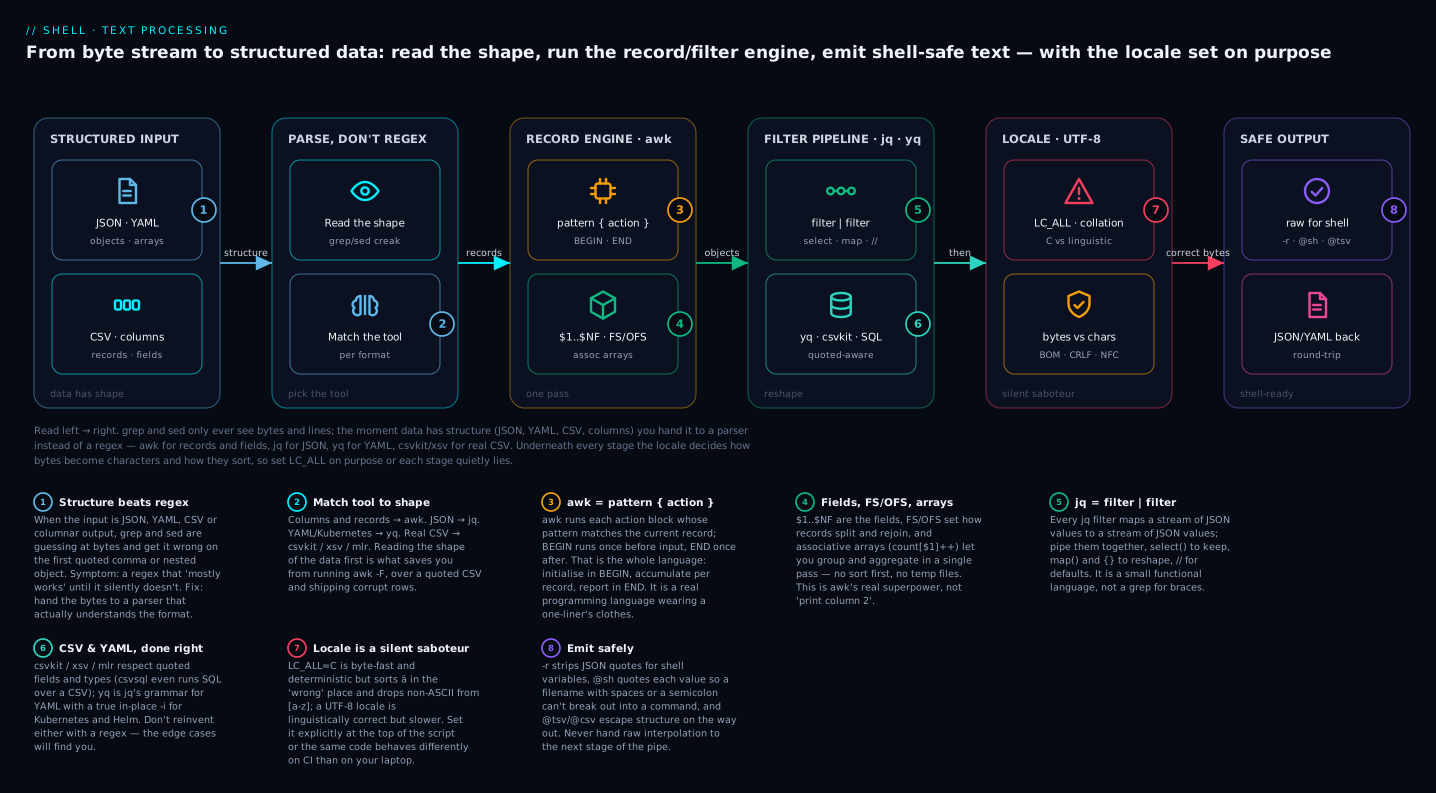
Read left → right: structured input (JSON/YAML/CSV/columns) is handed to a parser rather than a regex — awk for records, jq for JSON, yq for YAML, csvkit for real CSV — and the locale/UTF-8 layer under every stage decides how bytes become characters and how they sort, so you set LC_ALL deliberately before emitting shell-safe output.
Prerequisites & what you’ll be able to do
You’ll get the most from this lesson if you’re already comfortable with the earlier Tier-2 material: pipes, redirection, and the byte/line/word model from Globbing, regex, find, grep, sed & awk essentials, plus quoting and IFS. Process substitution (<(…)) shows up in a couple of examples — if it’s new, skim I/O redirection, heredocs & process substitution. awk and jq are on this machine and every example using them was run for real; yq, csvkit, xsv, and mlr aren’t installed on every host (this build host is macOS with the BSD “one true awk” and no yq), so their commands are shown format-correct and representative — the syntax is right, but confirm the tool is present with --version before you rely on the output.
After this lesson you will be able to:
- Write
awkprograms — not just “print column 2” — withBEGIN/END, custom field separators, and associative arrays that group and aggregate in a single pass. - Slice, filter, reshape, and safely emit JSON with
jq, including injection-safe interpolation (--arg,@sh) and the big-integer precision trap. - Do the same for YAML with
yq(Mike Farah’s Go version) — edit manifests in place and detect config drift. - Handle real-world CSV (quoted fields, embedded commas, type inference, SQL-on-CSV) with
csvkit/xsv/mlrinstead of a doomedawk -F,. - Diagnose and fix the locale and UTF-8 traps —
LC_ALL=Cvs a UTF-8 locale, collation,[a-z]ranges, bytes-vs-characters, BOM, CRLF, and NFC/NFD normalization.
We’ve climbed from echo to find … -print0 | xargs -0. So far the mental model has been “stream of bytes, lines, words.” That’s enough for 70% of shell tasks. The remaining 30% have structure: JSON from APIs, YAML from Kubernetes, CSV from finance teams, columnar output from ps/df/docker. For these, grep and sed are the wrong tool. You don’t want to regex JSON; you want a parser.
This final Tier 2 lesson covers four tools that fill that gap. By the end you will be able to:
- Use
awknot just for “print column 2” but as a real programming language with associative arrays and multi-file processing. - Use
jqto slice, transform, and rewrite JSON in pipelines and scripts. - Use
yq(the Go version, by Mike Farah) to do the same for YAML — essential for Kubernetes manifests and Helm charts. - Use
csvkitto handle CSV files the way they actually exist in the wild (quoted fields, embedded commas, type inference, SQL queries). - Avoid the locale and UTF-8 pitfalls that cause sort to “fail” on German names and grep to be 10x slower than it should be.
This is the closer of Wave 1. After this, you have a complete shell-fundamentals foundation. Wave 2 builds advanced patterns — error frameworks, package managers, CLI design, secrets — on top of this.
1. awk — the data-processing language hidden inside awk
awk is named after its three creators — Aho, Weinberger, Kernighan — and is one of the original Unix-era programming languages. It looks like a one-liner tool, but it’s actually a small, complete programming language: variables, control flow, functions, associative arrays, regex.
The data model
Every awk program follows the same structure:
awk 'BEGIN { ... } /PATTERN/ { ACTION } END { ... }' FILE
awk reads input one record at a time (default = one line). For each record, it splits into fields (default separator = whitespace). Then it runs each pattern { action } block where the pattern matches.
$0— the entire current record$1, $2, …— fields 1, 2, etc.NF— number of fields in current recordNR— record number (1-indexed, across all input)FNR— record number in current file (resets per file)FS— input field separator (default: whitespace)OFS— output field separator (default: space)RS— input record separator (default: newline)ORS— output record separator (default: newline)FILENAME— name of current input file
“Print column N” — the boilerplate
ps -ef | awk '{ print $2 }'                # print 2nd column (PID)
ls -l | awk '{ print $5, $9 }'             # size and name
df -h | awk 'NR > 1 { print $5, $6 }'      # skip header (NR==1)
But that’s awk’s boring 5%. Where it shines:
BEGIN and END blocks
# Sum a column
ls -l *.log | awk 'BEGIN { total = 0 } { total += $5 } END { print "Total:", total }'

# Average response time from a log
awk 'BEGIN { sum = 0; n = 0 } /response_ms=/ { sum += $NF; n++ } END { print sum/n }' app.log
BEGIN runs before any input. END runs after all input. Use them for initialization and summarization.
Arithmetic and conditions
# Print files larger than 1MB (column 5 from ls -l is size in bytes)
ls -l | awk '$5 > 1024 * 1024 { print $9 }'

# Format payroll: fields are NAME HOURS RATE
awk '{ printf "%-10s $%.2f\n", $1, $2 * $3 }' payroll.txt
Note printf (lowercase, awk-builtin, separate from shell printf) — same C-style format string.
Field separators (-F and OFS)
# Print user, shell from /etc/passwd (colon-separated)
awk -F: '{ print $1, $7 }' /etc/passwd

# Convert CSV-like input to TSV output (DOES NOT handle quoted commas — see csvkit later)
awk -F, 'BEGIN{OFS="\t"} { $1=$1; print }' input.csv > output.tsv
The $1=$1 trick is a classic awk idiom — it forces awk to “rebuild” the record using the new OFS, even if no field actually changed.
Associative arrays — counting and grouping
This is awk’s killer feature. Arrays in awk are associative (string keys), not indexed.
# Count distinct user IDs in /etc/passwd
awk -F: '{ count[$3]++ } END { for (uid in count) print uid, count[uid] }' /etc/passwd

# Count log lines per HTTP status code from nginx access log
awk '{ status[$9]++ } END { for (s in status) print s, status[s] }' access.log

# Sum bytes by IP address (nginx log columns: 1=IP, 10=bytes)
awk '{ bytes[$1] += $10 } END { for (ip in bytes) print bytes[ip], ip }' access.log | sort -rn | head
This is enormously powerful. You’re aggregating in a single pass without sorting first.
Multi-file processing
# Compare line counts of two files
awk 'NR==FNR { count++; next } END { print FILENAME, count, NR-count }' file1 file2

# Merge two files by key (a kind of join)
awk 'NR==FNR { map[$1] = $2; next } { if ($1 in map) print $1, $2, map[$1] }' lookup.tsv data.tsv
The NR==FNR trick: while we’re on the first file, NR (overall record number) equals FNR (current file record number). Once we move to the second file, they diverge. So NR==FNR { … ; next } means “process only the first file, and skip to the next record.”
Regex and patterns
# Print only lines that match a regex
awk '/ERROR|WARN/ { print }' app.log

# Print lines where field 3 starts with "foo"
awk '$3 ~ /^foo/' data.tsv

# Negation
awk '!/DEBUG/' app.log              # everything except DEBUG lines

# Print lines from PATTERN to PATTERN (range, like sed)
awk '/^START/,/^END/' file.txt
printf for formatting
awk '{ printf "%-30s %10d\n", $1, $2 }' data.tsv

# Common formats:
# %s    string
# %d    integer
# %f    float
# %e    scientific
# %x    hex
# %o    octal
# %-10s left-align in width 10
# %5.2f float, width 5, 2 decimals
awk functions
# Built-ins: length, substr, index, split, gsub, sub, tolower, toupper, sprintf, ...

awk '{ print length($0), $0 }' file       # length of each line
awk '{ print toupper($1) }' file          # uppercase first field
awk '{ gsub(/foo/, "bar"); print }' file  # global substitute (like sed)

# Custom functions
awk 'function abs(x) { return x < 0 ? -x : x } { print abs($1) }' data
A complete real-world awk script
# Parse nginx access log, compute requests/sec and bytes/sec by 5-min bucket
awk '
  BEGIN { FS="[ \\[\\]]+" }
  {
    # field 4 looks like: 22/Jun/2026:14:35:12
    split($4, t, "[:/]")
    bucket = t[1] "/" t[2] "/" t[3] " " t[4] ":" sprintf("%02d", int(t[5]/5)*5)
    requests[bucket]++
    bytes[bucket] += $NF
  }
  END {
    for (b in requests)
      printf "%-22s %6d req  %12d bytes\n", b, requests[b], bytes[b]
  }
' access.log | sort
This kind of pipeline used to be a Python script. In awk, it’s 10 lines.
2. jq — JSON Swiss army knife
JSON is everywhere in modern shell work — Kubernetes API, AWS CLI, GitHub API, every web service. jq is to JSON what awk is to columnar text.
Basics: pretty-print and select
# Pretty-print
echo '{"name":"alice","age":30}' | jq .

# Get a field
echo '{"name":"alice","age":30}' | jq .name           # "alice"
echo '{"name":"alice","age":30}' | jq '.name'         # same; quote when shell would interpret

# Get a nested field
echo '{"user":{"name":"alice"}}' | jq .user.name

# Array access
echo '[1,2,3]' | jq '.[0]'                            # 1
echo '[1,2,3]' | jq '.[-1]'                           # 3 (negative = from end)
echo '[1,2,3]' | jq '.[]'                             # iterate: 1\n2\n3
echo '[1,2,3]' | jq '.[1:3]'                          # slice: [2,3]
Always wrap jq filters in single quotes — they contain $, [, . that the shell would otherwise interpret.
Pipes (inside jq)
jq has its own internal pipe |, which feeds output of one filter into another:
# From a list of users, get names
echo '[{"name":"alice"},{"name":"bob"}]' | jq '.[] | .name'
# "alice"
# "bob"

# Even more compact:
echo '[{"name":"alice"},{"name":"bob"}]' | jq '.[].name'
Selectors and filters
# select: keep only items matching a predicate
jq '.[] | select(.age > 30)' users.json

# Multiple predicates
jq '.[] | select(.age > 30 and .role == "admin")' users.json

# Pattern match
jq '.[] | select(.name | test("^A"))' users.json    # name starts with A
Construct new objects
# Pick specific fields
jq '.[] | {name, age}' users.json

# Rename / compute
jq '.[] | {full_name: .name, is_adult: (.age >= 18)}' users.json

# As an array
jq '[.[] | .name]' users.json
map — transform an array
# Double every age
jq 'map(.age *= 2)' users.json

# Map to just names
jq 'map(.name)' users.json   # equivalent to [.[] | .name]
length, keys, to_entries, from_entries
jq 'length' users.json                    # number of array items
jq 'keys' my_obj.json                     # all keys of an object
jq '.users | keys'                        # nested

# Convert object to array of {key, value} pairs
jq 'to_entries' obj.json
# [ {"key":"name","value":"alice"}, {"key":"age","value":30} ]

# And back
jq 'to_entries | from_entries' obj.json   # round-trip
Aggregations: add, min, max, unique, group_by
# Sum all ages
jq '[.[].age] | add' users.json

# Max age
jq '[.[].age] | max' users.json

# Unique roles
jq '[.[].role] | unique' users.json

# Group by role, count each
jq 'group_by(.role) | map({role: .[0].role, count: length})' users.json
Output modes
jq -r '.name' file              # raw — no JSON quotes; useful for shell strings
jq -c .                         # compact — one item per line; for streaming
jq -s '.'                       # slurp — read all input as single array
-r is essential when feeding jq output into shell variables:
NAME=$(curl -s api.example.com/user | jq -r '.name') # without -r, NAME would have quotes
Real-world examples
# Get all running pod names from kubectl
kubectl get pods -o json | jq -r '.items[] | select(.status.phase == "Running") | .metadata.name'

# Format AWS instances as tab-separated
aws ec2 describe-instances --output json \
  | jq -r '.Reservations[].Instances[] | [.InstanceId, .InstanceType, .State.Name] | @tsv'

# From a GitHub commits API response, get hash and message
curl -s api.github.com/repos/torvalds/linux/commits \
  | jq -r '.[] | "\(.sha[0:7]) \(.commit.message | split("\n")[0])"'
Editing JSON
# Update a field
echo '{"name":"alice","age":30}' | jq '.age = 31'

# Add a field
echo '{"name":"alice"}' | jq '. + {age: 30}'

# Delete a field
echo '{"name":"alice","age":30}' | jq 'del(.age)'

# In-place edit a JSON file (atomic with mv-temp)
TMP=$(mktemp)
jq '.version = "2.0"' package.json > "$TMP" && mv "$TMP" package.json
There’s no jq -i (yet); the mktemp + mv pattern is canonical.
3. yq — jq for YAML
There are two yq tools confusingly named the same:
- Mike Farah’s
yq(Go, written 2017+) — what most cloud engineers use. Syntax mirrorsjq. Works on YAML, JSON, XML. - kislyuk’s
yq(Python wrapper around jq) — the older one. Less common now.
We’ll cover Mike Farah’s. Install with brew install yq or download the binary.
Basic usage
yq '.metadata.name' deployment.yaml         # get a field — same as jq syntax
yq '.spec.replicas = 5' deployment.yaml     # mutate (prints to stdout)
yq -i '.spec.replicas = 5' deployment.yaml  # in-place (yq has -i, jq doesn't)
Multiple documents in one YAML file
Kubernetes manifests often have multiple documents separated by ---. yq handles them:
yq '.kind' multi.yaml          # prints all "kind" values, one per document
yq 'select(.kind == "Service")' multi.yaml   # extract only Service docs
Convert between formats
yq -o json '.' file.yaml > file.json     # YAML to JSON
yq -p json -o yaml '.' file.json         # JSON to YAML
yq -p xml '.' file.xml                   # parse XML
Real-world examples
# Get all images used in a Helm template'd deployment
helm template mychart | yq '..|.image? | select(.)'

# Bulk-update image tag in a Kustomize patch
yq -i '.spec.template.spec.containers[0].image = "myimage:v2"' deploy.yaml

# Get all containers across all pods in a namespace
kubectl get pods -o yaml | yq '.items[].spec.containers[].name'
Caveats
- YAML is more complex than JSON — comments, anchors, multi-line strings — and
yqpreserves them when possible, but anyyq -iround-trip can subtly reformat the file. For Helm/Kustomize source files where exact formatting matters, prefer using YAML-aware tools (Helm, Kustomize, OPA Rego) or be very deliberate withyq -i. - The two
yqs are not interchangeable. If a colleague’s snippet doesn’t work, check whichyqthey have (yq --version).
4. CSV: when awk -F, isn’t enough
The naive approach to CSV is awk -F,. It works until the first quoted field with an embedded comma, then it explodes.
# This file:
"Smith, John",30,Engineer
"Doe, Jane",25,Manager

# awk -F, treats the comma INSIDE the quotes as a separator. Wrong.
For real-world CSV (especially anything from spreadsheets or business systems), use a real CSV parser.
csvkit — Python-based CSV toolkit
pip install csvkit
Provides:
csvlook— pretty-print as a tablecsvcut— extract columns by name or indexcsvgrep— filter rows by column valuecsvstat— column statistics (min/max/mean/distinct values)csvsort— sort by columncsvjoin— SQL-style join of two CSVscsvjson— convert to JSONcsvsql— run SQL queries against a CSV (!)in2csv— convert XLS/XLSX/JSON to CSVcsvformat— change delimiters, quoting
Examples
# Pretty-print the first 10 rows
head -n 10 data.csv | csvlook

# Get a specific column by name
csvcut -c first_name,last_name people.csv

# Filter rows where state is CA
csvgrep -c state -m CA people.csv

# Statistics on each column
csvstat sales.csv

# Sort by sale amount, descending
csvsort -c amount -r sales.csv | head

# Join orders with customers on customer_id
csvjoin -c customer_id orders.csv customers.csv > joined.csv

# Run SQL against a CSV
csvsql --query "SELECT state, COUNT(*) FROM people GROUP BY state ORDER BY 2 DESC" people.csv

# Convert Excel to CSV
in2csv sales.xlsx > sales.csv
csvsql is genuinely magical: it loads the CSV into an in-memory SQLite, runs the query, prints the result. For small to medium CSVs (up to a few hundred MB), it beats writing pandas or a real database.
xsv — fast CSV (Rust)
For very large CSVs, csvkit (Python) is slow. xsv is a Rust-based alternative:
brew install xsv

xsv stats data.csv | xsv table        # statistics, table-formatted
xsv select first_name,last_name data.csv
xsv search -s state CA data.csv       # filter by column
xsv join customer_id orders.csv customer_id customers.csv
Same operations as csvkit, much faster on big files.
miller (mlr)
Yet another option, designed for “TSV/CSV/JSON/etc as named-field records”:
brew install miller

mlr --csv stats1 -a mean,stddev -f age people.csv
mlr --c2t cat people.csv > people.tsv      # CSV to TSV
mlr --c2j cat people.csv > people.json     # CSV to JSON
mlr is genuinely clever and very capable, but has its own syntax to learn. Pick one (csvkit, xsv, or mlr) and stick with it.
5. Locale and UTF-8 — the silent saboteurs
This is the section that most “shell scripting” tutorials skip, and it’s where almost every senior engineer gets bitten at least once.
Locale categories
A locale tells programs how to interpret text:
LC_CTYPE— what counts as a letter, digit, lowercaseLC_COLLATE— sort orderLC_NUMERIC— decimal separator (,in Germany,.in the US)LC_TIME— date and time formatLC_MESSAGES— language of program messagesLC_MONETARY— currency formattingLC_ALL— overrides all of the aboveLANG— fallback if a specificLC_*isn’t set
On a typical Mac/Linux system:
locale          # show current settings

# Common values:
LANG=en_US.UTF-8
LC_ALL=
LC_CTYPE="en_US.UTF-8"
LC_COLLATE="en_US.UTF-8"
LC_TIME="en_US.UTF-8"
...
The LC_ALL=C trick
Setting LC_ALL=C (or the equivalent LC_ALL=POSIX) tells programs to use the most basic, byte-comparison-only locale. It’s:
- Faster — no Unicode collation tables, no locale lookups.
sort | uniqof a 100MB file can be 10x faster. - More predictable — alphabetical sort means “byte order,” not “linguistic order.”
b < Bistruein C locale (capital letters come first); in en_US.UTF-8 it depends. - Wrong for international data — German
äwill sort wherever its UTF-8 byte sequence sorts, not “near a.” Polishłwill sort like a totally different letter.
So the rule:
# For pipelines that don't need linguistic correctness:
LC_ALL=C sort -u file.txt

# For pipelines that DO need it:
LC_ALL=en_US.UTF-8 sort -u file.txt
Always set LC_ALL explicitly inside scripts to avoid being at the mercy of the user’s environment:
#!/usr/bin/env bash
set -Eeuo pipefail
export LC_ALL=C        # if you want fast, byte-deterministic processing
# ... your pipeline ...
UTF-8 in grep, sed, awk
Modern GNU grep/sed/awk handle UTF-8 correctly when the locale is set to a UTF-8 locale:
echo 'café' | grep -oE '\w+'           # in en_US.UTF-8: "café"
echo 'café' | LC_ALL=C grep -oE '\w+'  # in C: "caf" (é is not a word char in C locale)
If you want to count grapheme clusters (what users perceive as “characters”), neither shell nor awk is the right tool — that’s python3 with unicodedata or specialised libraries.
wc -c vs wc -m
echo 'café' | wc -c        # 6 (bytes; é is 2 bytes in UTF-8) — plus newline
echo 'café' | wc -m        # 5 (characters) — plus newline; in UTF-8 locale
wc -c counts bytes; wc -m counts characters but only respects the locale.
File names with weird characters
Always quote variables that might contain filenames:
for f in *.txt; do
  cp "$f" "/backup/$f"        # quotes essential — filename might have spaces/UTF-8
done

find . -type f -print0 | xargs -0 cp -t /backup/   # NUL-safe
If a filename contains an invalid UTF-8 sequence (rare but happens), some tools will refuse it. find and cp are byte-faithful — they don’t care about UTF-8 validity. bash is also byte-faithful. So shell handles them; just don’t try to convert filenames to a string in another encoding.
BOM (Byte Order Mark) gotcha
Files saved by Windows tools sometimes have a UTF-8 BOM (EF BB BF) at the start. This is invisible but breaks scripts:
file weird.csv         # "UTF-8 Unicode (with BOM) text"

# This BOM appears as a "character" in the first cell:
head -c 3 weird.csv | xxd       # 00000000: efbb bf

# Strip BOM:
sed -i '1s/^\xef\xbb\xbf//' weird.csv
# or use dos2unix (which also handles CRLF)
dos2unix weird.csv
If your CSV “first column header” mysteriously doesn’t match what you expect, suspect a BOM.
CRLF vs LF
Windows line endings (\r\n) trip up shell scripts. The carriage return is invisible but breaks read, awk, etc.:
file script.sh                     # "ASCII text, with CRLF line terminators"

dos2unix script.sh                 # convert in place
# or:
sed -i 's/\r$//' script.sh
# or:
tr -d '\r' < script.sh > tmp && mv tmp script.sh
Numeric locale
LC_NUMERIC=de_DE.UTF-8 makes printf '%.2f' 3.14 output 3,14 (comma as decimal separator). This breaks tools that re-read the output:
# Inside scripts, force C numeric locale for safety
export LC_NUMERIC=C
6. Combining the toolkit
The real power is composing these. A few full workflows:
Workflow 1: Top 10 noisiest containers (Kubernetes)
kubectl top pods --all-namespaces --no-headers \
  | awk '{ print $3, $1 "/" $2 }' \
  | sort -k1 -h -r \
  | head -n 10 \
  | awk '{ printf "%-10s %s\n", $1, $2 }'
awk selects and reorders columns; sort -h does human-readable sort (M, G); the second awk formats. No regex, no jq.
Workflow 2: From CSV to per-region summary
csvgrep -c country -m USA sales.csv \
  | csvcut -c region,amount \
  | csvsql --query "SELECT region, SUM(CAST(amount AS REAL)) AS total
                    FROM stdin GROUP BY region ORDER BY total DESC"
Workflow 3: Container image audit across a Kubernetes cluster
# All container images in the cluster, deduped, with usage count
kubectl get pods --all-namespaces -o json \
  | jq -r '.items[].spec.containers[].image' \
  | sort | uniq -c | sort -rn
Workflow 4: Dynamic Helm values from a YAML file
# Pull pre-defined image map from values.yaml, inject into a kubectl set image
yq -r '.images | to_entries | .[] | "\(.key)=\(.value)"' values.yaml \
  | while IFS=$'\n' read -r line; do
      kubectl set image deployment/$DEPLOY "$line"
    done
Workflow 5: Streaming JSON logs filter
# Tail a structured-log-as-JSON file, filter ERROR-level, format human-readable
tail -F /var/log/app.log \
  | jq --unbuffered -r 'select(.level == "ERROR") | "\(.ts) \(.msg)"'
--unbuffered is essential for tail -F | jq pipelines so jq flushes after each input line.
Workflow 6: Detect drift in a Kubernetes manifest
# Compare in-cluster vs source-of-truth YAML, ignoring runtime fields
diff \
  <(kubectl get deploy myapp -o yaml | yq 'del(.metadata.resourceVersion, .metadata.generation, .status)') \
  <(yq 'del(.metadata.resourceVersion, .metadata.generation, .status)' deployment.yaml)
This kind of one-liner replaces a Python script. It’s the daily life of a platform engineer.
7. Pitfalls and conventions
Don’t pipe sort | uniq when you need order-preservation
uniq only deduplicates adjacent duplicates; that’s why it’s almost always used after sort. But sort reorders. If you need first-occurrence-preserving uniq:
awk '!seen[$0]++' # canonical "uniq, preserving order"
Don’t sort -u when you need stable ordering
sort -u is a fast alternative to sort | uniq, but it doesn’t guarantee a particular dedup-winner among equal lines.
Don’t write CSV by hand
If your output is for downstream consumption as CSV, escape correctly. The naive printf '%s,%s\n' "$a" "$b" breaks the moment $a contains a comma or newline. Use a real tool (csvkit, miller, Python).
Don’t jq -r on JSON arrays of complex objects
If you do jq -r '.[]' on [{...},{...}], you’ll get malformed shell tokens. Either iterate one field at a time, or use jq -c '.[]' and parse each line again with jq.
# Wrong — produces ambiguous/multi-line output
jq -r '.[]' file.json | while read -r item; do … done

# Right — compact JSON per line
jq -c '.[]' file.json | while IFS= read -r item; do
  NAME=$(jq -r '.name' <<< "$item")
  AGE=$(jq -r '.age' <<< "$item")
  …
done
Don’t trust awk -F, for real CSV
We covered this. Use csvkit/xsv/miller.
Locale in CI
CI runners often have LANG=C or LANG=POSIX by default. If your script does locale-sensitive sort or printf, it will behave differently than on your laptop. Either explicitly set the locale in the script, or test with LC_ALL=C once.
Streaming vs slurp
jq defaults to streaming (one input record at a time). jq -s slurps everything into one array. If your script does tail -F | jq …, never use -s — it would buffer forever waiting for EOF.
8. Twelve idioms for daily use
# 1. Sum a numeric column
awk '{ s += $1 } END { print s }' data.tsv

# 2. Count distinct values in a column
awk '{ count[$1]++ } END { for (k in count) print count[k], k }' data | sort -rn

# 3. Print column 2 from a colon-separated file
awk -F: '{ print $2 }' file

# 4. Skip the header row
awk 'NR > 1' file.csv

# 5. Get all running pod names from kubectl
kubectl get pods -o json | jq -r '.items[] | select(.status.phase=="Running") | .metadata.name'

# 6. JSON to TSV
jq -r '.[] | [.id, .name, .email] | @tsv' users.json

# 7. Update a JSON field in place (atomic)
TMP=$(mktemp); jq '.version = "2.0"' package.json > "$TMP" && mv "$TMP" package.json

# 8. Update YAML in place
yq -i '.spec.replicas = 5' deploy.yaml

# 9. Convert YAML to JSON
yq -o json '.' file.yaml

# 10. Extract a column from real CSV (handling quotes)
csvcut -c name people.csv

# 11. Run SQL on a CSV
csvsql --query "SELECT state, COUNT(*) FROM stdin GROUP BY state" people.csv

# 12. Strip BOM and CRLF from a file
dos2unix file.csv && sed -i '1s/^\xef\xbb\xbf//' file.csv
9. What you must internalise before Wave 2
- What does
awkuse for record/field separators by default? (Newline / whitespace.) - What does
BEGIN { … }do in awk? (Runs before any input.ENDruns after.) - What’s the
NR==FNR { … ; next }idiom? (Process only the first of multiple input files.) - What’s the difference between
jq .andjq -r .? (-routputs raw strings without JSON quotes — use when feeding into shell variables.) - What’s
jq -c? (Compact output, one record per line — for streaming.) - Which
yqare we using? (Mike Farah’s Go version. Not the Python wrapper.) - Why is
awk -F,wrong for real CSV? (Doesn’t handle quoted fields with embedded commas.) - Which CSV tool is fastest for big files? (
xsv. csvkit is convenient but Python-slow.) - What does
LC_ALL=Cdo? (Forces byte-only comparisons — fast and predictable, but breaks non-ASCII linguistic correctness.) - What’s a UTF-8 BOM and how do you remove it? (
EF BB BFat file start;sed -i '1s/^\xef\xbb\xbf//' fileordos2unix.)
If anything felt fuzzy, re-read the section. These tools repay study many times over.
Going deeper
Everything above is enough to be productive today. This section is for the reader who wants to know why these tools behave the way they do — the internals, the dialect differences, and the sharp edges that only reveal themselves in production. Every awk and jq snippet here was run on the build host (BSD “one true awk” 20200816 and jq-1.7.1); yq/csvkit output is representative because those tools aren’t installed here.
awk internals: dual-typed values, field rebuilding, dialects
Values in awk are simultaneously a number and a string. An uninitialized variable is 0 and "" at the same time — awk decides which meaning to use based on context:
echo | awk '{ print "num:" (x+5) " str:[" y "]" }'
# → num:5 str:[]        (x used as 0, y used as "")
This is why sum += $NF never needs sum=0 first (though writing it in BEGIN is good manners), and why a missing field is silently 0 in arithmetic. It’s also the source of the classic strnum gotcha: a field that looks numeric compares numerically, but a string literal compares as text.
printf '10\n9\n' | awk '$1 > 9  { print $1, "numeric" }'   # 10 — numeric comparison
printf '10\n9\n' | awk '$1 == "10" { print $1, "string"  }'  # 10 — string comparison
Force the type you want: ($1 + 0) makes it a number, ($1 "") makes it a string. This matters when you sort version-like fields or leading-zero IDs.
Assigning to a field rebuilds $0 using OFS. Touch any field — even $1 = $1 — and awk re-joins the whole record with the output separator. Changing NF truncates or extends:
echo "a b c d" | awk 'BEGIN{OFS="|"} { NF = 2; print }' # → a|b (dropped c d, rejoined with |)
Associative arrays are the whole game, and they’re multi-dimensional via SUBSEP. arr[$1,$2] is sugar for arr[$1 SUBSEP $2] (SUBSEP defaults to a control byte, \034):
printf 'a x\na y\nb x\na x\n' \
  | awk '{ c[$1,$2]++ } END { for (k in c) { split(k, p, SUBSEP); print p[1], p[2], c[k] } }' | sort
# a x 2
# a y 1
# b x 1
Use delete arr[key] to free one entry and delete arr to clear the lot. Because the arrays live in memory, a group-by over a column with millions of distinct keys costs real RAM — that’s the one place awk’s single-pass model bites back, and where you’d reach for sort | uniq -c (bounded memory) instead.
Pass shell values in with -v, never by string-splicing. -v name="$user" binds the variable before BEGIN, and it’s injection-safe — the shell value can’t become awk code:
awk -v name="a b; rm -rf" 'BEGIN { print "got:", name }' # → got: a b; rm -rf (harmless data)
Also useful: ENVIRON["HOME"] reads the environment, and ARGV/ARGC hold the file arguments.
Dialects matter more than people expect. There are three awks in the wild:
| awk | What it is | Notes |
|---|---|---|
one true awk (nawk, BWK awk) |
Brian Kernighan’s reference impl | Ships on macOS/BSD (this host: version 20200816). Small, fast-enough, POSIX-plus. |
| gawk | GNU awk | The Linux default. The most features: gensub(), asort(), FIELDWIDTHS, PROCINFO, --csv (5.3+), true multibyte, length(array). |
| mawk | Mike Brennan’s awk | The Debian /usr/bin/awk for years. Fastest for big streams; fewer extensions. |
Write POSIX-safe awk when your script must run anywhere: stick to $n, NF/NR/FNR/FS/OFS, split, gsub/sub, printf, custom functions, and associative arrays. Reach for a gawk-only feature knowingly — the big one is CSV: modern gawk finally does quoted CSV natively:
# gawk 5.3+ only — real quoted-CSV parsing (representative; this host has nawk, not gawk)
gawk --csv '{ print $1 }' quoted.csv

# Or, in any gawk, FPAT describes what a FIELD looks like instead of what a separator looks like:
gawk 'BEGIN { FPAT = "([^,]+)|(\"[^\"]+\")" } { print $1 }' quoted.csv
If you find yourself needing length(myarray) or gensub(), you’ve left POSIX — document the gawk dependency or switch to a proper CSV tool.
jq internals: streams, backtracking, and the number-precision trap
jq is a functional, streaming, backtracking language. A filter is a function from a stream of JSON values to a stream of JSON values; | composes them; , concatenates their outputs; and generators like .[] produce many values that the rest of the pipeline runs once per value. That’s why .[] | select(...) reads like a loop — it is one.
The number-precision trap is the jq gotcha that ruins your afternoon. jq’s numbers are IEEE-754 doubles, which can’t represent integers beyond 2^53 exactly. Since jq 1.7, a large integer passed straight through is preserved verbatim — but the moment you do arithmetic on it, it collapses to a double:
echo '{"id":12345678901234567890}' | jq '.id'       # 12345678901234567890   (preserved, jq ≥1.7)
echo '{"id":12345678901234567890}' | jq '.id + 0'   # 12345678901234567000   (precision LOST)
Pre-1.7 jq mangled it even on pass-through. The rule: treat big IDs (snowflake IDs, account numbers, Kubernetes resourceVersion) as strings — never do math on them, and if you must, keep them quoted end to end.
Interpolate safely, the same way as awk -v. Building a filter by shell-concatenation is an injection bug; use --arg (string) and --argjson (raw JSON):
jq -n --arg u "o'brien" --argjson n 42 '{user:$u, num:$n}'
# { "user": "o'brien", "num": 42 }
And when jq output becomes a shell command, @sh quotes every value so a malicious path can’t break out:
echo '{"path":"a b; rm -rf /"}' | jq -r '@sh "cp \(.path) /tmp"'
# cp 'a b; rm -rf /' /tmp        (the whole path is one safely-quoted argument)
Null-safety and errors. // supplies a default when the left side is null/false/empty; ? suppresses a type error rather than aborting the run:
echo '{"name":"alice"}'  | jq -r '.role // "none"'   # none
echo '[1,{"a":5}]'       | jq -c '.[] | .a?'         # 5   (the error on indexing the number 1 is swallowed)
Exit status for scripts. jq -e returns non-zero when the last output is null/false/empty — perfect for if:
if kubectl get pod web -o json | jq -e '.status.phase == "Running"' >/dev/null; then echo up; fi
Consuming a stream of documents. -n with inputs reads every input value; combine with -c to reassemble:
printf '{"n":1}\n{"n":2}\n' | jq -c -n '[inputs | .n]' # [1,2]
For genuinely huge JSON, --stream emits [path, value] events with constant memory instead of loading the whole tree. And @base64, @uri, @csv, @tsv, @json are the other safe encoders.
Version drift is real. jq 1.7 renamed and removed things — leaf_paths is gone (use paths(scalars)), and it added SQL-style builtins (INDEX, GROUP_BY), abs, pick, and getpath/setpath:
echo '{"a":{"b":1},"c":[10]}' | jq -c '[paths(scalars)]' # [["a","b"],["c",0]]
If a snippet from a blog errors, check jq --version before assuming your filter is wrong.
yq: two tools, two major versions, and lossy round-trips
Mike Farah’s yq v4 is a from-scratch rewrite with a jq-like expression language; v3 used a completely different yq r/yq w command style. A v3 snippet like yq w file.yaml a.b 5 becomes v4 yq -i '.a.b = 5' file.yaml. Between that and the entirely separate Python yq (a jq wrapper), a copy-pasted command that “doesn’t work” is almost always a version mismatch — always confirm with yq --version.
A few v4 operators worth knowing (representative — yq isn’t installed on this host):
yq '.spec.replicas = 5' deploy.yaml           # print mutated
yq -i '.spec.replicas = 5' deploy.yaml         # true in-place (jq has no equivalent)
yq 'select(.kind == "Service")' multi.yaml      # only matching documents
yq '.image = strenv(TAG)' deploy.yaml           # inject an env var
yq 'del(.metadata.creationTimestamp) | ... comments=""' deploy.yaml   # drop a field and all comments
yq ea '. as $item ireduce ({}; . * $item)' a.yaml b.yaml              # merge documents across files
The round-trip caveat from Section 3 deserves emphasis for GitOps: yq -i can renormalize your file — re-quoting strings, rewriting 010 as 10, reflowing anchors, and occasionally dropping comments depending on the operation. On a repo that CI diffs, a “no-op” yq -i can produce a noisy commit. For source-of-truth manifests, prefer the format-preserving tool that owns the file (kustomize edit, helm), and always review the git diff after a yq -i.
CSV tooling: correctness vs speed, and what’s current in 2026
csvkit is Python (built on agate): correct, RFC-4180-aware, and pleasant, but it loads data into memory and is slow on large files. Its sharpest edge is type inference — csvsql and friends sniff types and will happily strip the leading zeros off a ZIP code or a numeric-looking account ID. Pass --no-inference (or csvsql --no-inference) when a “number” is really an identifier.
For speed, xsv (Rust) streams and can build an index for random access — but be aware of currency: upstream xsv has been effectively unmaintained since ~2018, and the active community has moved to the qsv fork (a superset). Two other 2026-current options often beat all of them: DuckDB (duckdb -c "SELECT ... FROM read_csv_auto('big.csv')") for SQL over huge CSV/Parquet with real types, and mlr (miller) for a streaming record DSL. The honest guidance: use csvkit for correctness on small files, qsv/DuckDB for scale, and never regress to awk -F, on quoted data.
Locale, collation, and Unicode normalization — the deep cut
The locale isn’t one setting; it’s several categories, and each governs a different tool behavior. Two matter most in text pipelines.
LC_COLLATE controls sort order — including regex ranges. Under C it’s pure byte order (all uppercase before all lowercase); under a UTF-8 locale it’s linguistic (case-grouped):
printf 'b\nA\na\nB\n' | LC_ALL=C          sort   # A B a b   (byte order)
printf 'b\nA\na\nB\n' | LC_ALL=en_US.UTF-8 sort   # a A b B   (locale collation)
The subtle trap: character ranges like [a-z] follow collation too. Under some glibc locales [a-z] folds case or spans accented letters, so a “lowercase filter” quietly matches the wrong set:
printf 'A\nb\n' | LC_ALL=C grep '[a-z]' # b (only true lowercase ASCII)
For any regex range you want to be byte-exact, run it under LC_ALL=C.
LC_CTYPE controls byte→character decoding — so “length” depends on it. The same 4-letter word café is 5 bytes but 4 characters, and both wc and bash string length change with the locale:
printf 'café' | wc -c                            # 5   (bytes; é is 2 bytes)
printf 'café' | LC_ALL=en_US.UTF-8 wc -m         # 4   (characters)
LC_ALL=C           bash -c 's=café; echo ${#s}'  # 5   (bytes)
LC_ALL=en_US.UTF-8 bash -c 's=café; echo ${#s}'  # 4   (characters)
That’s why ${var:0:3} can slice mid-character under LC_ALL=C and corrupt UTF-8.
Normalization: the cross-platform bug nobody warns you about. Unicode lets the same visible text be encoded two ways — NFC (composed: é as one code point) and NFD (decomposed: e + a combining accent). macOS historically stores filenames in NFD; Linux uses NFC. So “café” created on a Mac and “café” typed on Linux are byte-different and compare unequal, even though they’re pixel-identical:
python3 - <<'PY'
import unicodedata as u
nfc, nfd = u.normalize('NFC','café'), u.normalize('NFD','café')
print(nfc.encode(), len(nfc))   # b'caf\xc3\xa9' 4
print(nfd.encode(), len(nfd))   # b'cafe\xcc\x81' 5
print('equal?', nfc == nfd)     # equal? False
PY
This silently breaks sort -u, comm, diff, dedup, and Git checkouts that cross macOS/Linux. Fix by normalizing before comparing — python3 -c 'import sys,unicodedata; ...' or uconv -x nfc. And note the deepest layer: a grapheme cluster (what a human calls “one character” — an emoji with a skin-tone modifier, a flag, a base letter plus mark) is neither one byte nor one code point; counting those needs ICU or Python’s regex module (\X), not shell.
The determinism rule: any script that sorts, compares, ranges, or slices text should pin the locale at the top — export LC_ALL=C for fast byte-deterministic work, or a specific LC_ALL=en_US.UTF-8 when human ordering matters. CI runners default differently from laptops, and “works on my machine” locale bugs are miserable to chase.
Practice challenges
Six exercises, escalating from beginner to advanced. Try each before opening the solution. The awk, jq, and locale challenges run on any host; the last two are format-correct and marked representative if the tool isn’t installed.
1. (Beginner — awk fields + printf) Print every account’s username and login shell from /etc/passwd (colon-separated), with the username left-aligned in a 16-character column.
<details> <summary>Solution</summary>
awk -F: '{ printf "%-16s %s\n", $1, $7 }' /etc/passwd
-F: sets the field separator to colon so $1 is the name and $7 the shell; printf "%-16s" left-aligns the first column. Why: print can’t align — printf with a width is the tool for tabular output.
</details>
2. (Beginner → intermediate — awk associative array) Given an nginx access log where field 9 is the HTTP status code, print a count of requests per status, sorted most-frequent first.
<details> <summary>Solution</summary>
awk '{ c[$9]++ } END { for (s in c) print c[s], s }' access.log | sort -rn
c[$9]++ groups and counts in a single pass; END walks the map; sort -rn orders by count. Why: this is the “GROUP BY” of shell — one pass, no pre-sort, no temp files.
</details>
3. (Intermediate — awk two-file join with NR==FNR) You have users.tsv (id<TAB>name) and events.tsv (id<TAB>action). Print name action for every event whose id exists in users.
<details> <summary>Solution</summary>
awk -F'\t' 'NR==FNR { name[$1] = $2; next } $1 in name { print name[$1], $2 }' users.tsv events.tsv
NR==FNR is true only while reading the first file, so the first block builds a lookup then next skips the rest; on the second file it joins. Why: NR==FNR is the canonical “load a lookup table, then process” idiom.
</details>
4. (Intermediate — jq select + interpolation + -r) From kubectl get pods -A -o json, print namespace/name for every pod that is not in the Running phase, one per line, with no JSON quotes.
<details> <summary>Solution</summary>
kubectl get pods -A -o json \
  | jq -r '.items[] | select(.status.phase != "Running") | "\(.metadata.namespace)/\(.metadata.name)"'
.items[] streams each pod, select() keeps the non-Running ones, "\(...)" interpolates two fields, -r drops the quotes so the output is clean shell text. Why: -r + string interpolation is how you turn JSON into a plain list you can pipe onward.
</details>
5. (Intermediate → advanced — the locale trap) You need to dedupe a 200 MB list of names as fast as possible for a cache key. Give the fast command — then explain what it does to German names like Müller and Zöller, and when you must not use it.
<details> <summary>Solution</summary>
LC_ALL=C sort -u names.txt # fast: byte-order dedup, no collation tables (can be ~10x quicker)
Under LC_ALL=C, ä/ö/ü sort by their UTF-8 byte values — after all ASCII letters — so Zöller may land before Zeller and the list is not in human alphabetical order. Use LC_ALL=en_US.UTF-8 sort -u (or a German locale) whenever the order is shown to people. Why: C buys speed and determinism at the cost of linguistic correctness — fine for a dedup/cache key, wrong for a user-facing sorted list.
</details>
6. (Advanced — jq @sh to generate injection-safe commands) You have moves.json = [{"src":"a b.txt","dst":"/tmp/x"}, …] where paths may contain spaces or shell metacharacters. Emit one safe cp command per entry that can be piped to sh without any path breaking out.
<details> <summary>Solution</summary>
jq -r '.[] | @sh "cp \(.src) \(.dst)"' moves.json
# e.g. for {"src":"a b; rm -rf /","dst":"/tmp"}  →  cp 'a b; rm -rf /' /tmp
@sh shell-quotes every interpolated value, so a path containing spaces or ; becomes a single quoted argument instead of extra commands. Why: never build shell strings from untrusted data by hand — @sh (jq) and -v (awk) are the injection-safe equivalents. Prefer running the moves directly (while read) over piping generated text to sh when you can.
</details>
Common beginner mistakes
-
“I’ll just
awk -F,the CSV.” The misconception is that a comma always separates fields. Real CSV quotes fields that contain commas ("Smith, John"), and-F,splits inside the quotes and corrupts the row. Right model: CSV is a format with escaping rules, not “text with commas” — usecsvkit/xsv/mlr/qsvorgawk --csv. -
“jq numbers are safe for my IDs.” Doing arithmetic — even
+ 0or asort_bythat touches the value — on a 19-digit ID silently rounds it, because jq numbers are IEEE-754 doubles. Right model: large identifiers are strings; keep them quoted and never compute on them. -
“I’ll drop the shell variable straight into the awk/jq program.”
awk "/$user/{...}"andjq ".[] | select(.n==\"$x\")"are quoting nightmares and injection holes. Right model: pass data as data —awk -v u="$user",jq --arg x "$x"— so a value can never become code. -
“
sort | uniqkeeps my original order.”sortreorders, anduniqonly collapses adjacent duplicates. Right model: if first-occurrence order matters, useawk '!seen[$0]++'; only pipe throughsortwhen you actually want sorted output. -
“
jq -r '.[]'then read the objects in a loop.” Raw-printing whole objects produces multi-line, ambiguous tokens thatreadmangles. Right model: emit one compact JSON per line withjq -c '.[]'and re-parse each line (jq -r '.field' <<< "$line"), or extract fields with@tsv. -
“It works on my laptop, so it’ll work in CI.” CI runners often set
LANG=C/POSIX, so locale-sensitivesort,printf '%.2f', and[a-z]ranges behave differently. Right model: pinexport LC_ALL=…at the top of any script that sorts, formats numbers, or uses character ranges. -
“Both
yqs (and both versions) are the same.” There’s Mike Farah’s Goyqand kislyuk’s Pythonyq, and Farah’s own v3→v4 changed the entire syntax. Right model: checkyq --versionfirst; a “broken” command is usually the wrong tool or the wrong major version. -
“My CSV’s first header just won’t match.” An invisible UTF-8 BOM (
EF BB BF) is glued to the front of the first field, or the file has CRLF line endings that leave a stray\r. Right model:file weird.csvto detect, then strip — portably withawk 'NR==1{ sub(/^\xef\xbb\xbf/,"") } { sub(/\r$/,""); print }', ordos2unixwhere installed. (Note:sed -idiffers between GNU and BSD — the awk form runs the same everywhere.) -
“
length/wc -cgives me the number of characters.” UnderLC_ALL=Cthey count bytes, socaféis 5, not 4, and${var:0:3}can slice mid-character. Right model: use a UTF-8 locale withwc -m/${#s}for characters, and Python’sregex(\X) or ICU when you need true grapheme clusters.
Glossary
- Record — one unit of input awk reads at a time; by default a line (governed by
RS). - Field — a piece of a record after splitting;
$1,$2, …$NF, split onFS. FS/OFS— input field separator (how a record splits) and output field separator (how fields rejoin when you print or rebuild$0).RS/ORS— input and output record separators (default newline).NR/FNR/NF— total record number across all input / record number within the current file / number of fields in the current record.$0— the entire current record; assigning to any field rebuilds it usingOFS.BEGIN/END— awk blocks that run once before any input and once after all input; used for setup and summary.- Pattern–action — awk’s core structure:
pattern { action }runs the action for each record matching the pattern. - Associative array — awk’s only array type: string-keyed hash map (
count["x"]++); the basis of counting, grouping, and joins. SUBSEP— the byte awk uses to join multi-dimensional keys, soa[x,y]meansa[x SUBSEP y].- strnum — awk’s rule that a value which looks numeric compares as a number, otherwise as a string; force with
($x+0)or($x ""). - one true awk / gawk / mawk — the three common awk implementations: Kernighan’s reference (macOS/BSD), GNU (feature-rich, Linux default), and Mike Brennan’s (fast); their extensions differ.
- Filter (jq) — a jq expression that maps a stream of JSON values to a stream of JSON values; the unit everything composes from.
select()/map()— jq builtins to keep values matching a predicate / apply a filter to every element of an array.//(alternative) — jq operator that yields a default when the left side isnull,false, or empty (.role // "none").?(optional) — jq postfix that suppresses a type error instead of aborting the whole program.-r/-c/-s/-e— jq flags: raw output (no quotes) / compact (one value per line) / slurp (read all input into one array) / set exit status from the result.@sh/@tsv/@csv— jq encoders that shell-quote, tab-join, or CSV-escape output so it’s safe for the next stage.--arg/--argjson— jq flags that bind a shell value as a string / as raw JSON, injection-safely (awk’s-vequivalent).- yq (Mike Farah) — the Go, jq-syntax YAML/JSON/XML processor with true in-place
-i; distinct from the older Pythonyq, and v3/v4 syntax differs. - csvkit / xsv / qsv / mlr — real CSV toolkits that respect quoted fields and types: csvkit (Python, correct, slow), xsv (Rust, fast, now largely superseded by the qsv fork), miller/
mlr(streaming record DSL). - Locale — the environment settings that tell tools how to decode and order text; split into categories like
LC_CTYPEandLC_COLLATE. LC_ALL/LANG/LC_COLLATE/LC_CTYPE/LC_NUMERIC— the master override / the fallback / sort-order category / character-classification category / decimal-separator category.LC_ALL=C— the byte-only POSIX locale: fastest and most deterministic, but wrong for non-ASCII linguistic order.- Collation — locale-defined ordering used by
sort,[[ < ]], and regex ranges like[a-z]. - UTF-8 — the variable-width Unicode encoding where ASCII is 1 byte and accented/other characters are 2–4 bytes.
- BOM (Byte Order Mark) — an invisible
EF BB BFprefix some tools add to UTF-8 files; breaks the first field/line until stripped. - CRLF vs LF — Windows (
\r\n) vs Unix (\n) line endings; a stray\rsilently breaksread,awk, and comparisons. - NFC / NFD (normalization) — two Unicode encodings of the same visible text (composed vs decomposed); byte-unequal, which breaks cross-platform sort/dedup/diff (notably macOS filenames).
- Grapheme cluster — what a human perceives as one character (emoji-with-modifier, base + combining mark); not the same as a byte or a code point, and not countable by shell alone.
What’s next: Wave 1 complete!
You’ve now completed the foundation of the course:
Tier 1 (foundation) — anatomy, variables, conditionals, loops, functions, arrays. Tier 2 (intermediate) — I/O, pipes, processes, signals, glob/regex/find/grep/sed, structured-data toolkit.
You can now write a robust shell script: it sets set -Eeuo pipefail and IFS=$'\n\t', defines main "$@", has trap cleanup for safe interrupts, uses arrays for structured data, processes JSON with jq and YAML with yq, handles UTF-8 and locales correctly, and uses find -print0 | xargs -0 for filename-safe pipelines.
Wave 2 — Tier 3 Advanced — covers the next layer: error handling frameworks, debug/trace techniques, secrets management (1Password, vault, sops, age), package management cross-platform, idempotent installers, CLI design for your own scripts (option parsing with getopts and argparse-like patterns), bash testing (bats), and the canonical patterns for writing scripts that ship in production. We bring everything from Wave 1 and start building real systems with it. When you want to push these exact tools further, Streaming & distributed log analysis with awk and Migration & ETL data transformations apply the whole toolkit at scale.
See you in Tier 3.