In a nutshell
Picture a running program as a person at a desk with three labelled trays. Tray 0 (stdin) is the in-tray — work to be done arrives here. Tray 1 (stdout) is the out-tray — finished results go here. Tray 2 (stderr) is the complaints tray — “I couldn’t find that file” notes go here, kept deliberately separate so a complaint never gets stapled into the middle of the results. By default all three trays are wired to your terminal: you type into tray 0, and both tray 1 and tray 2 come back to your screen.
Redirection is nothing more than re-labelling where a tray’s contents go, and it happens before the program starts working. > file says “send the out-tray into this file.” 2> errors.log says “send the complaints tray into this file.” < input.txt says “fill the in-tray from this file.” You are not modifying the program at all — the shell quietly re-points the tray on the program’s behalf, which is why the same trick works on every command ever written, even ones that have no idea what a file is.
Once you hold that picture, the whole zoo of redirection symbols — >>, 2>&1, &>, <<EOF, <<<, tee, <(…), >(…) — stops being hieroglyphics and becomes a plain question: which tray, pointed where, in what order? The one rule that trips up absolutely everybody is order: the shell reads redirections strictly left to right, so 2>&1 > file and > file 2>&1 genuinely do different things. This lesson builds that model brick by brick, then hands you the production patterns you will actually reach for.
Level: Intermediate · Time: ~40 min
Before this lesson you should be comfortable running commands and with basic quoting and variables — see Variables, quoting & IFS. After this lesson you will be able to:
- Explain what fd 0, 1, and 2 are, and predict exactly where any redirection sends output.
- Silence, capture, split, and merge stdout and stderr correctly — and know why
2>&1 > filedoes not do what it looks like. - Feed multi-line input to commands with here-docs and single strings with here-strings, choosing variable expansion on or off deliberately.
- Replace temporary files with process substitution (
<()/>()) and stream output to two places at once withtee. - Open, use, and close your own file descriptors with
exec, and log an entire script’s output from a single line at the top.
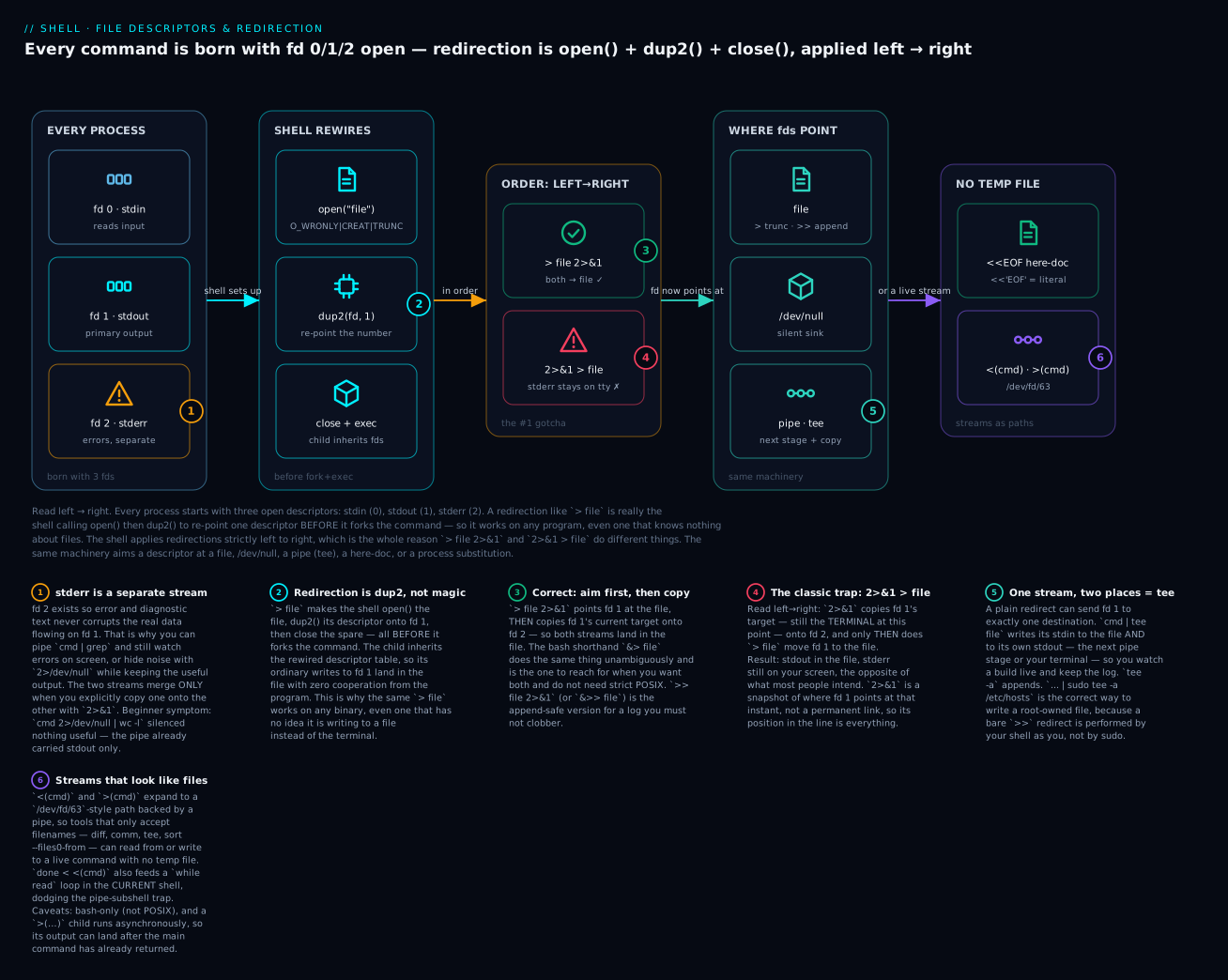
Read left → right: a process is born with stdin/stdout/stderr already open; a redirection is the shell calling open() then dup2() to re-point one of those numbers before it forks the command; applied in order, that same machinery can aim a descriptor at a file, /dev/null, a pipe, a here-doc, or a live process substitution.
Every command you’ve ever run on a Unix system started life with three file descriptors already open: standard input (fd 0), standard output (fd 1), and standard error (fd 2). Almost every interesting thing the shell does — silencing noisy commands, capturing output, tee-ing logs to two places, feeding a heredoc to cat, swapping stdout and stderr — is a manipulation of those three numbers, plus optionally a few you open yourself.
The good news: once you know the file-descriptor model, every redirection idiom in shell collapses into one mental picture. The bad news: shell’s redirection syntax is terse, order-sensitive, and full of subtle gotchas that catch every beginner. The classic one is cmd 2>&1 > file — which looks like “redirect stderr to stdout and stdout to file” but actually does the opposite of what most people expect.
This lesson walks the model end-to-end. Read it slowly. Type the examples. The payoff is that every redirection you ever encounter — in someone else’s script, in a man page, in a log-rotation cron job — will read like English instead of like hieroglyphics.
1. The file-descriptor model in 90 seconds
A file descriptor is a small non-negative integer that the kernel uses to track an open file (or pipe, socket, terminal, etc.) for a particular process. When a process starts, the kernel typically gives it three pre-opened FDs:
- fd 0 — stdin — where the process reads input from. Connected to your terminal keyboard by default.
- fd 1 — stdout — where the process writes its primary output. Connected to your terminal screen.
- fd 2 — stderr — where the process writes errors and diagnostic messages. Also connected to your terminal screen — but separately from stdout.
You can open more FDs by open()-ing files (or pipes, etc.); these get the next free non-negative integer (typically starting at 3). The shell exposes exec for opening custom FDs in your script (section 6).
When you run cmd > file, the shell does this:
open("file", O_WRONLY | O_CREAT | O_TRUNC, 0644)— gets back a new FD, say 3.dup2(3, 1)— make fd 1 point to whatever fd 3 points to (the file).close(3)— close the temporary fd 3.fork()andexec()the command.
Now cmd’s fd 1 (stdout) is wired to the file, not the terminal. When cmd calls printf or write(1, ...), the bytes go to the file.
This is the entire mental model. Every redirection operator in shell is one of these open + dup2 + close sequences. Once you see them this way, the order-sensitivity of 2>&1 becomes obvious.
2. The basic redirection operators
cmd > file        # redirect stdout to file (truncate file first)
cmd >> file       # redirect stdout to file (append)
cmd < file        # redirect stdin to read from file
cmd 2> file       # redirect stderr to file (truncate)
cmd 2>> file      # redirect stderr to file (append)
cmd > file 2>&1   # redirect both stdout and stderr to file (more on this in section 4)
cmd &> file       # bash shorthand for "both stdout and stderr to file"
cmd >& file       # same as &> (older syntax)
cmd >> file 2>&1  # both, appending
cmd &>> file      # bash 4+ shorthand for "both, appending"
The number before > is the file descriptor being redirected. > alone means 1>. The default redirection target is fd 1 (stdout); to redirect stderr you must say 2>.
The truncate-vs-append distinction
> truncates the destination file before writing. >> appends. This is the most catastrophic mistake beginners make. If you have a precious file and you accidentally write > instead of >>, your file is wiped before the command even runs:
cmd > /var/log/important.log   # WIPES the log first, then writes cmd's output
cmd >> /var/log/important.log  # Appends — preserves existing content
Real production disasters happen here. Memorise the difference and prefer >> for any file you might care about. To prevent accidental clobbering globally, set:
set -o noclobber # equivalent to set -C
After this, > will refuse to overwrite an existing file. To force overwrite when you really mean it, use >|:
cmd >| file # force-overwrite even with noclobber
noclobber is a great safety net for interactive shells; less common in scripts.
Discarding output: /dev/null
/dev/null is a “sink” device. Anything written to it is silently discarded. To silence a command:
cmd > /dev/null              # discard stdout, keep stderr visible
cmd 2> /dev/null             # discard stderr, keep stdout visible
cmd > /dev/null 2>&1         # discard both
cmd &> /dev/null             # bash shorthand for "discard both"
To use /dev/null as input (i.e. give the command an empty stdin):
cmd < /dev/null # cmd's stdin is empty; useful for non-interactive runs
This last form is critical for scripts that get run by cron or systemd — without it, some commands hang waiting for stdin. We’ll come back to this in lesson 9 (process management) and lesson 25 (cron).
3. Here-documents (<<EOF) and here-strings (<<<)
Sometimes you want to feed a multi-line block of text to a command’s stdin without creating a temporary file. That’s what here-docs do.
cat <<EOF
Hello, $USER.
The current date is $(date).
This is line 3.
EOF
The <<EOF says: “stdin for this command comes from a here-document. Read everything until a line containing exactly EOF, and feed it to the command’s stdin.”
EOF is just a delimiter — you can use any string, but EOF and END are conventional. Choose a delimiter that won’t appear in your content.
Variable expansion in here-docs
By default, here-docs expand variables and command substitution, just like double-quoted strings:
NAME="Alice"
cat <<EOF
Hello, $NAME!
Today is $(date +%A).
EOF
# Output:
# Hello, Alice!
# Today is Monday.
To disable expansion (treat the heredoc as literal), quote the delimiter:
cat <<'EOF'
This $VAR is literal.
$(date) is also literal.
EOF
# Output:
# This $VAR is literal.
# $(date) is also literal.
The single quotes around 'EOF' mean “treat the body as if it were single-quoted.” This is essential when you’re emitting code (shell scripts, SQL, JSON) and don’t want the shell parsing it. Use <<'EOF' for any embedded code that contains $ or `.
Indented here-docs (<<-)
The <<- form (with a dash) strips leading tabs from each line of the body. This lets you indent the body to match surrounding code:
process() {
	cat <<-EOF
		Line 1
		Line 2
		Line 3
	EOF
}
Critical: only literal tabs are stripped, not spaces. If your editor is set to use spaces for indentation, <<- won’t strip them. Either configure your editor to use tabs for here-docs or don’t indent the body. (This is a common cause of “the heredoc has weird leading whitespace” bugs.)
Here-strings (<<<)
A here-string is a single-line variant: pass a string as stdin without quoting:
grep "alice" <<< "name: alice
name: bob
name: carol"

# More commonly:
read -r line <<< "this is the input line"
The here-string <<< "$LINE" is the canonical way to feed a single string to read (or any command that wants stdin). It’s equivalent to printf '%s\n' "$LINE" | cmd, but doesn’t fork a subshell — cmd runs in the current shell.
Use cases:
# Parse CSV in current shell (no subshell trap from L4)
IFS=',' read -ra FIELDS <<< "$LINE"

# Feed JSON to jq
jq '.user.name' <<< "$JSON_RESPONSE"

# Feed a single value to a tool
md5sum <<< "Hello, world"
Note: bash’s <<< adds a trailing newline to the string before piping it. printf '%s' "$LINE" does not. For read and most tools this is exactly what you want.
4. The order-of-evaluation gotcha: 2>&1 > file vs > file 2>&1
This is the single most-misunderstood piece of redirection syntax. Read carefully.
cmd > file 2>&1     # CORRECT — both stdout and stderr go to file
cmd 2>&1 > file     # WRONG — stderr still goes to terminal, stdout goes to file
What’s going on? The shell processes redirections left to right. Each redirection takes effect as it’s encountered, in order.
Let’s walk through cmd 2>&1 > file:
- Initial state: stdout (fd 1) → terminal. stderr (fd 2) → terminal.
2>&1— make fd 2 point to wherever fd 1 currently points. Currently fd 1 points to the terminal. So fd 2 is now also pointing to the terminal. (No change in effect.)> file— make fd 1 point tofile. Now fd 1 → file. But fd 2 is still pointing to the terminal (we copied it earlier when fd 1 was the terminal).- Result: stdout in file, stderr on terminal.
Now cmd > file 2>&1:
- Initial state: stdout → terminal. stderr → terminal.
> file— make fd 1 point tofile. Now fd 1 → file.2>&1— make fd 2 point to wherever fd 1 currently points. fd 1 currently points tofile. So fd 2 is now also pointing tofile.- Result: both stdout and stderr in file.
The mental model: 2>&1 is “copy the current target of fd 1 to fd 2,” not “redirect stderr to stdout.” It’s a snapshot, not a link. So you must do the redirections in the right order.
The bash shorthand
Bash provides &> and &>> as a less-error-prone shorthand:
cmd &> file          # equivalent to cmd > file 2>&1
cmd &>> file         # equivalent to cmd >> file 2>&1
These are unambiguous — they always redirect both streams. Use them when you want both, unless you need POSIX portability (in which case write > file 2>&1 explicitly).
Swapping stdout and stderr
To send stdout to where stderr was going and vice versa (e.g., to filter on stderr in a pipe), use a temporary FD:
cmd 3>&2 2>&1 1>&3 3>&-
Decompose:
3>&2— fd 3 = stderr’s destination2>&1— fd 2 = stdout’s destination1>&3— fd 1 = (saved) stderr’s destination3>&-— close fd 3
After this, stdout and stderr are swapped. You’ll see this rarely, but it shows up in scripts that need to pipe stderr through grep or awk while leaving stdout alone.
5. tee — write to both a file and stdout
Sometimes you want output to go to both a log file and the terminal:
cmd | tee log.txt
tee reads stdin and writes it to both stdout (the next stage of the pipeline) and to the named file(s). Useful for live-tailing a long-running command:
make build 2>&1 | tee build.log
tee -a appends instead of truncating:
cmd | tee -a log.txt
You can tee to multiple files:
cmd | tee log1.txt log2.txt log3.txt
To tee with stderr also captured:
cmd 2>&1 | tee log.txt # both streams interleaved into the log
To tee stdout to one file and stderr to another (using process substitution from section 7):
cmd > >(tee out.log) 2> >(tee err.log >&2)
This is the canonical “log everything, but keep stderr visible” pattern. Unpacked: > >(tee out.log) redirects stdout to a process running tee out.log. 2> >(tee err.log >&2) redirects stderr to a process running tee err.log >&2 (which writes back to stderr after teeing).
6. exec for FD manipulation in a script
The exec builtin (already covered briefly in lesson 1 for replacing the shell with another binary) has a second form: with no command, it modifies the current shell’s file descriptors permanently.
# Redirect all of THIS SCRIPT's stdout to a log file from now on
exec > /var/log/myscript.log

# Redirect all stderr to a log file
exec 2> /var/log/myscript.err.log

# Both
exec > /var/log/myscript.log 2>&1

# Open fd 3 for reading from a config file
exec 3< /etc/myapp.conf
read -r LINE <&3            # read one line from fd 3
exec 3<&-                   # close fd 3

# Open fd 4 for writing to a custom log
exec 4> /var/log/audit.log
echo "Important event" >&4
exec 4>&-
The pattern of opening custom FDs is essential when you want to:
- Process two files in parallel (read fd 3, fd 4 alternately).
- Keep a long-running file open across many writes (avoid open/close overhead).
- Build complex pipelines without temporary files.
Lesson 14 (concurrency, FIFOs, flock) uses these patterns extensively.
Common idiom: redirect script’s logs once, at startup
#!/usr/bin/env bash
set -euo pipefail

# Redirect everything to a log file, with timestamps via tee+ts
LOG_FILE="/var/log/$(basename "$0").log"
exec > >(ts '%Y-%m-%dT%H:%M:%S' >> "$LOG_FILE") 2>&1

echo "Starting..."   # goes to LOG_FILE
do_work              # all of its output also goes to LOG_FILE
ts (from moreutils) prefixes each line with a timestamp. The combination is a tiny one-line “structured logger” for shell scripts.
7. Process substitution: the elegant alternative to temp files
Process substitution gives you a filename (or fd path) that, when read or written, runs a command. Bash creates a FIFO or /dev/fd/N device behind the scenes.
diff <(ls /var/log) <(ls /backup/var/log)
Each <(cmd) expands to a path like /dev/fd/63. diff opens each path as a file. Bash arranges for the corresponding command to write to that path. The result: diff thinks it’s diffing two files, but it’s diffing the live output of two commands.
Reading from process substitution
mapfile -t LINES < <(grep ERROR /var/log/app.log)

while IFS= read -r line; do
  process "$line"
done < <(some-stream-generator)
The < <(cmd) form is one of the most useful idioms in modern bash: it’s like cmd | while read but the loop runs in the current shell (no subshell trap from L4).
Writing to process substitution
some-cmd > >(gzip > out.log.gz)
>(gzip > out.log.gz) expands to a path that, when written to, feeds bytes to gzip. gzip writes its compressed output to out.log.gz. Result: some-cmd’s stdout is compressed in real time, no temporary file.
# Tee into two simultaneous compressors
some-cmd > >(gzip > out.log.gz) 2> >(gzip > err.log.gz)
The portability caveat
Process substitution is a bash extension. Not POSIX. Doesn’t work in dash or ash or busybox sh. If you need pure POSIX, use a temporary file or a named pipe. Lesson 31 (POSIX portability) discusses workarounds.
8. Named pipes (FIFOs)
A named pipe (FIFO) is a special file on the filesystem that behaves like a pipe. One process writes to it, another reads from it, and the kernel buffers the data. Created with mkfifo:
mkfifo /tmp/myfifo

# In one terminal:
echo "Hello" > /tmp/myfifo

# In another terminal:
cat < /tmp/myfifo            # prints "Hello"

rm /tmp/myfifo               # clean up
Useful for coordinating between separate processes that you don’t want to chain directly with a pipe. We’ll use FIFOs for concurrency control in lesson 14.
The right pattern is to wrap the FIFO in a tempdir and clean it up with a trap:
TMPDIR=$(mktemp -d)
trap 'rm -rf -- "$TMPDIR"' EXIT
mkfifo "${TMPDIR}/myfifo"
# ...
We’ll cover trap thoroughly in lesson 10.
9. Reading from and writing to network sockets (/dev/tcp)
Bash has a built-in network feature that’s wildly useful and almost nobody knows about. The pseudo-files /dev/tcp/HOST/PORT and /dev/udp/HOST/PORT open a socket when redirected:
exec 3<>/dev/tcp/example.com/80           # bidirectional TCP socket on fd 3
echo -e "GET / HTTP/1.0\r\nHost: example.com\r\n\r\n" >&3
cat <&3                                    # read response
exec 3<&-                                  # close
Or as a one-liner:
echo > /dev/tcp/database.example.com/5432 && echo "DB port reachable"
This is the cleanest way to do TCP port-checking from a shell script — no nc/netcat/telnet dependency. We cover /dev/tcp in depth in lesson 21 (network operations).
10. Common redirection patterns
Quiet mode
cmd > /dev/null 2>&1            # silence everything
cmd &> /dev/null                # bash shorthand
cmd 2>/dev/null                 # silence errors only (keep stdout)
cmd >/dev/null                  # silence stdout only (keep stderr — diagnostic-friendly)
Logging
# Append to log file, both streams
cmd >> /var/log/app.log 2>&1

# Tee to log AND show on terminal
cmd 2>&1 | tee -a /var/log/app.log

# Timestamped log
cmd 2>&1 | ts '%Y-%m-%dT%H:%M:%S' >> /var/log/app.log

# Separate stdout and stderr logs, but capture both
cmd > >(tee -a /var/log/app.out >&1) 2> >(tee -a /var/log/app.err >&2)
Capture into a variable
RESULT=$(cmd)                   # stdout only
RESULT=$(cmd 2>&1)              # stdout + stderr (interleaved)
RESULT=$(cmd 2>/dev/null)       # stdout, suppress errors
Heredoc to a command
ssh user@host <<EOF
sudo systemctl restart myservice
sudo systemctl status myservice
EOF
Or with disabled expansion:
ssh user@host <<'EOF'
echo "Hostname: \$(hostname)"     # \$ stays literal — runs hostname on the REMOTE
EOF
Hereformat for SQL / JSON / config files
psql "$DB_URL" <<'SQL'
CREATE TABLE users (
  id SERIAL PRIMARY KEY,
  name TEXT NOT NULL
);
INSERT INTO users (name) VALUES ('alice'), ('bob');
SQL
Append a single line to a file
echo "127.0.0.1 myhost" | sudo tee -a /etc/hosts > /dev/null
Why sudo tee -a instead of sudo echo ... >> /etc/hosts? Because the >> redirection is performed by the current shell (running as you), not by sudo. To run the redirection as root, you need to invoke a privileged process (tee) that writes to the file itself.
Capture both stdout and stderr separately
RESULT_OUT=$(cmd 2>err.log)
RESULT_ERR=$(< err.log)
Or, all in one without a temp file (advanced):
{ RESULT_OUT=$(cmd 2>&1 >&3); } 3>&1
# (... and capture stderr separately — see bash-faq for details)
This is one of the genuinely awkward things about shell. For complex stdout/stderr capture, prefer dropping into a real temp file or a Python script.
Run a script’s all output through a transformer
exec > >(grep -v 'DEBUG') 2>&1 # filter out DEBUG lines from this script onward
Discard but keep the exit code
cmd >/dev/null 2>&1
echo "Exit code: $?"             # cmd's exit code, output discarded
Or inline:
if cmd >/dev/null 2>&1; then
  echo "succeeded"
fi
11. The noclobber / >| safety net
For interactive use, set -o noclobber (or set -C) is a classic guard against accidental > overwrites:
set -o noclobber
echo hi > /etc/passwd            # bash: /etc/passwd: cannot overwrite existing file
echo hi >| /etc/passwd           # force; OK
Add set -o noclobber to your ~/.bashrc if you frequently work with precious files. It’s noisy in scripts though — you’d have to use >| everywhere — so most production scripts don’t enable it.
12. The redirection cheat-sheet
Memorise this. Print it. Tape it to your monitor.
> file        stdout to file (truncate)
>> file       stdout to file (append)
< file        stdin from file
2> file       stderr to file (truncate)
2>> file      stderr to file (append)
2>&1          duplicate fd 1 to fd 2 (snapshot, order-sensitive)
1>&2          duplicate fd 2 to fd 1 (e.g. echo "err" >&2 to write to stderr)
&> file       both stdout and stderr to file (bash shorthand)
&>> file      both, append (bash 4+)
> /dev/null   discard stdout
2> /dev/null  discard stderr
< /dev/null   empty stdin (essential for non-interactive runs)

<<EOF         here-doc, expansions ON
<<'EOF'       here-doc, expansions OFF (literal)
<<-EOF        here-doc, strip leading TABS only
<<<           here-string (single line)

>(cmd)        process substitution: a path that writes to cmd's stdin
<(cmd)        process substitution: a path that reads from cmd's stdout

n> file       redirect fd n to file
n< file       open file for reading on fd n
exec n> file  open fd n permanently in current shell (for writes)
exec n< file  open fd n permanently in current shell (for reads)
exec n>&-     close fd n
exec n<&-     close fd n (alternate close form)

| cmd         pipe stdout to cmd's stdin
|& cmd        pipe both stdout and stderr to cmd's stdin (bash 4+)
13. Real example: a script that logs everything with structure
#!/usr/bin/env bash
# robust-runner.sh — runs a command, captures all output, with correct error handling
set -euo pipefail
IFS=$'\n\t'

CMD=("$@")
[[ ${#CMD[@]} -gt 0 ]] || { echo "Usage: $0 COMMAND [ARGS...]" >&2; exit 2; }

LOG_DIR="${LOG_DIR:-/tmp}"
TIMESTAMP=$(date -u +%Y%m%dT%H%M%SZ)
NAME=$(basename "${CMD[0]}")
LOG_OUT="${LOG_DIR}/${NAME}.${TIMESTAMP}.out"
LOG_ERR="${LOG_DIR}/${NAME}.${TIMESTAMP}.err"

# Run the command, capturing stdout and stderr to separate files
# while ALSO showing them live on the terminal
"${CMD[@]}" \
  > >(tee "$LOG_OUT") \
  2> >(tee "$LOG_ERR" >&2)

EXIT_CODE=$?

echo
echo "Command finished with exit code $EXIT_CODE"
echo "stdout: $LOG_OUT ($(wc -l < "$LOG_OUT") lines)"
echo "stderr: $LOG_ERR ($(wc -l < "$LOG_ERR") lines)"

exit "$EXIT_CODE"
Things to notice:
- Strict-mode preamble.
- Arguments collected as an array (
CMD=("$@")) so they’re properly quoted on re-invocation. - Process substitution to tee both streams independently.
- The line
2> >(tee "$LOG_ERR" >&2)is worth dissecting:2>redirects stderr;>(tee ... >&2)runsteewith the file as a destination and pipes its stdout back to the original stderr. Result: stderr is shown live AND captured. - Exit code preserved — the script exits with the wrapped command’s status.
This is the production-grade pattern for “run anything, log everything, don’t lose the exit code.” Save it as a snippet.
14. What you must internalise before lesson 8
- What are fd 0, 1, 2? (stdin, stdout, stderr.)
- What does
>vs>>do? (Truncate vs append.) - Why is
cmd 2>&1 > filewrong? (Order matters;2>&1is a snapshot of fd 1’s current target.) - What’s the shorthand for “both stdout and stderr to a file”? (
&> filein bash.) - What’s a here-doc, and how do you disable variable expansion in one? (
<<EOFfor body; quote the delimiter —<<'EOF'— to disable expansion.) - What’s a here-string and when do you use it? (
<<<for single-line input to a command, e.g.read <<< "$VAR".) - What does
< <(cmd)do? (Process substitution feeding cmd’s output as stdin to the current command.) - Why use
teewithsudoinstead ofsudo cmd >> file? (Redirection is performed by the calling shell as the calling user;sudo teeruns as root and writes the file as root.) - What’s the difference between
$(cmd)and<(cmd)? ($(cmd)is command substitution — captures stdout as a string.<(cmd)is process substitution — gives you a filename that streams stdout.) - What does
exec > log 2>&1do at the top of a script? (Redirects all of the current script’s subsequent stdout and stderr tolog.)
If any felt fuzzy, re-read. Lesson 8 (pipes and pipefail) is where redirection meets multi-stage pipelines and set -o pipefail becomes critical.
Going deeper
This is the section for the reader who already knows > file 2>&1 cold and wants the internals, the edge cases, and the production nuances.
2>&1 copies an open file description, not just a number
There is a distinction the man pages gloss over. A file descriptor (the number, per-process) points at an open file description (a kernel object, shared) which in turn points at the file. dup2(1, 2) — what 2>&1 does — makes fd 2 and fd 1 point at the same open file description. They therefore share one file offset and one set of status flags.
Why you care: with >> file 2>&1, stdout and stderr share the append offset, so their writes interleave cleanly and neither clobbers the other. If instead you open the same file twice independently — > out.log on fd 1 and 2> out.log on fd 2 — you get two open descriptions with two offsets, and (without O_APPEND) the second stream’s writes can overwrite the first’s from byte zero. Rule of thumb: to send both streams to one file, always duplicate with 2>&1; never redirect both to the same path separately.
Why interleaved logs look scrambled: stdio buffering
A frequent “my log is out of order” mystery has nothing to do with redirection order and everything to do with C’s stdio buffering. When fd 1 is a terminal, most programs line-buffer stdout (flush on every \n) and leave stderr unbuffered, so the two streams stay roughly in order. When fd 1 is a file or a pipe, stdout flips to fully buffered (a 4–64 KB buffer), while stderr stays unbuffered — so a burst of stdout lines can appear in one clump after stderr lines that were logically printed earlier.
# Force line-buffering on stdout+stderr so interleaving matches program order (GNU coreutils)
stdbuf -oL -eL cmd 2>&1 | tee run.log
stdbuf is GNU coreutils (Linux). On macOS/BSD it may be absent — reach for unbuffer (from expect) there, or the program’s own --line-buffered flag (e.g. grep --line-buffered). This is not a redirection bug; the redirection is fine, the buffer is the culprit.
Pipes and redirections: precedence and a classic trap
For a | b, the shell first builds the pipe (a’s fd 1 → b’s fd 0), then applies each command’s own redirections left to right. So:
a > file | b        # a's stdout goes to file; b's stdin gets EOF immediately (b sees nothing)
a 2>&1 | b          # both of a's streams go into the pipe to b
a | b > file        # a → b's stdin; b's stdout → file (the usual case)
cmd > file | grep x almost never does what a beginner wants — grep gets an empty input. To both save and pipe, use tee: cmd | tee file | grep x.
Closing descriptors, EBADF, and fd leaks into children
exec 3>&- closes fd 3. Writing to a closed descriptor fails with write error: Bad file descriptor (EBADF). More subtly, children inherit every open descriptor you do not close. If you exec 3> pipe and later launch a long-running background job, that job inherits fd 3 and holds the pipe open — a reader blocked on EOF will hang until both your shell and the child close it. Hygiene: close descriptors you opened before spawning long-lived children, and prefer the auto-allocating form so you never collide with an fd someone else is using:
exec {logfd}>/var/log/audit.log   # bash 4.1+: bash picks a free fd, stores it in $logfd
echo "event" >&"$logfd"
exec {logfd}>&-                    # close it by variable
The {var}> named-descriptor form is a bashism (bash 4.1+); portable scripts hard-code 3/4 and just have to be careful.
Process substitution: what /dev/fd/63 really is, and the async race
<(cmd) expands to /dev/fd/N where the kernel exposes the read end of a pipe (on Linux via /proc/self/fd); on systems without /dev/fd, bash falls back to a real FIFO in /tmp. Because it is a pipe, not a regular file, you cannot lseek() it — any tool that seeks or rewinds its input (some archivers, random-access parsers) will fail on a process substitution. Use a temp file for those.
The sharper gotcha is that a >(cmd) child runs asynchronously and is not waited for. In main > >(slow-consumer), main can finish and your script can move on before slow-consumer has drained and written its output — giving you a truncated file. (You can watch this happen: route a program’s stderr through 2> >(grep …) and the grepped lines sometimes print after the next command’s output.) For output you must not lose, don’t rely on the async child — use an explicit FIFO you wait on, or capture to a temp file. Reading side (< <(cmd)) is safe because the main command blocks on the pipe until EOF.
Capturing stdout and stderr into separate variables, honestly
There is no clean, portable one-liner for “stdout into $out, stderr into $err, no temp file.” The fd-swap incantations that claim to do it are fragile and hard to read. In real scripts, be honest and use a temp file:
err=$(mktemp)
out=$(cmd 2>"$err")     # stdout captured; stderr diverted to the temp file
err=$(<"$err")          # slurp stderr; then rm -f the temp
Remember the simplest case needs nothing special: out=$(cmd) already captures only stdout and lets stderr flow past to the terminal untouched, because command substitution redirects fd 1 alone.
Portability map (bash vs POSIX sh / dash / busybox)
| Feature | bash | Portable POSIX equivalent |
|---|---|---|
&> file, &>> file |
yes | > file 2>&1, >> file 2>&1 |
|& (pipe both streams) |
bash 4+ | 2>&1 | |
<<< here-string |
yes | printf '%s\n' "$x" | cmd, or a here-doc |
<(cmd) / >(cmd) process sub |
yes | temp file, or mkfifo + background job |
{var}> named descriptor |
bash 4.1+ | hard-code fd 3/4 |
/dev/tcp/host/port |
bash only | nc / a real client |
The here-doc (<<EOF), the basic operators (>, >>, <, 2>, 2>&1), and <<- are all POSIX and safe everywhere. See POSIX portability vs bashisms for detection tactics.
Security and safety nuances
- Redirection runs with your privileges, not the command’s.
sudo cmd > /root/outopens/root/outas you →Permission deniedbeforesudoruns. Write privileged files with... | sudo tee /root/out >/dev/null. >truncation is immediate and unconditional. The file is emptied at redirection-setup time — even if the command name is a typo, even if the command later exits non-zero. That is whyset -o noclobber(set -C) plus>|for deliberate overwrites is a good interactive habit for precious files.- Predictable names in world-writable
/tmpinvite TOCTOU and symlink attacks. A FIFO or temp file at a fixed/tmp/mypipecan be pre-created by an attacker as a symlink to a file you then clobber as root. Alwaysmktemp/mktemp -dfor a random,0600/0700path, andtrap 'rm -rf -- "$TMPDIR"' EXITto clean up. Avoid writing secrets to on-disk temp files at all — prefer process substitution or an in-memory fd.
Performance notes
- Redirect once, not per-command.
exec >log 2>&1at the top of a script beats appending>> log 2>&1to every line — oneopen, not hundreds. < <(cmd)beatscmd | while read. The process-substitution form runs the loop in the current shell (variables you set survive) and skips the subshell fork the pipe would pay. See Subshells, jobs & wait for why the pipe form loses your variables.- Skip the useless
cat.cmd < filereads the file directly;cat file | cmdspawns an extra process and a pipe for nothing (the famous “UUOC”).
Common beginner mistakes
“cmd 2>&1 > file sends both streams to the file.” It does not. Read left→right: 2>&1 copies fd 1’s current target — still the terminal — onto fd 2, and only then does > file move fd 1. Result: stdout in the file, stderr on your screen. Right model: 2>&1 is a snapshot of where fd 1 points at that instant, not a permanent link to stdout. Write > file 2>&1 (aim first, then copy) or the unambiguous &> file.
“> and >> are basically the same, one just adds a newline.” No. > truncates the file to zero bytes before the command even starts — so a typo’d command name, or a command that exits non-zero, still leaves you with an empty file. >> appends and never destroys existing content. Right model: > means “open with O_TRUNC”; use >> for anything you’d be sad to lose, and set -o noclobber as a guard.
“2>1 redirects stderr to stdout.” It creates (or truncates) a file literally named 1 and sends stderr there. The & in 2>&1 is what means “descriptor,” not “a file called 1.” Right model: >&N / 2>&1 targets a descriptor; >N / 2>1 targets a file. Always include the ampersand when you mean a descriptor.
“sudo cmd > /etc/thing writes the file as root.” The > is performed by your shell, as you, before sudo ever runs — so you get Permission denied on the redirect, not a root-owned file. Right model: redirection is always the calling shell’s job. Use cmd | sudo tee /etc/thing >/dev/null (or sudo tee -a to append).
“A pipe carries a command’s errors too.” cmd | less shows only stdout; the error messages still go straight to your terminal, bypassing less. Right model: | connects fd 1 only. To send errors through the pipe as well, merge first: cmd 2>&1 | less, or the bash shorthand cmd |& less.
“<<-EOF lets me indent the body with spaces.” It strips leading tabs only — spaces are left untouched, so a space-indented body arrives with its leading spaces intact (and your closing EOF won’t be recognised if it’s space-indented). Right model: <<- is tabs-only; indent with real tab characters, or don’t indent the here-doc body at all.
“sort file > file sorts the file in place.” It empties file. The shell opens file with O_TRUNC (setting up the >) before sort starts reading, so sort reads an empty file and writes nothing. Right model: you cannot read and truncate the same file in one command. Write to a temp and move it (sort file > tmp && mv tmp file), or use sponge (from moreutils): sort file | sponge file.
Practice challenges
Set up a tiny generator that writes to both streams, then work the challenges. Try each yourself before opening the solution.
noisy() { echo "line to stdout"; echo "a warning happened" >&2; }
1. (Beginner) Silence everything, keep the exit code. Run noisy so that nothing it prints reaches your terminal, then print its exit status.
<details> <summary>Solution</summary>
noisy >/dev/null 2>&1; echo "exit=$?"
Why: >/dev/null discards stdout and 2>&1 sends stderr to the same sink; redirection never alters exit codes, so $? still holds noisy’s status.
</details>
2. (Beginner) Append both streams, correct order. Append both of noisy’s streams to run.log on two separate runs without ever clobbering earlier content, then confirm the file has 4 lines.
<details> <summary>Solution</summary>
noisy >> run.log 2>&1
noisy >> run.log 2>&1
wc -l < run.log        # 4
Why: >> opens the file in append mode; placing 2>&1 after the file redirect copies the file target onto stderr too. The reversed noisy 2>&1 >> run.log would leak the warnings to your terminal.
</details>
3. (Intermediate) Write a root-owned config from a here-doc, no temp file, $HOME kept literal. Create /tmp/demo.conf (pretend it needs root) with two lines, and make sure the text $HOME is stored verbatim, not expanded.
<details> <summary>Solution</summary>
sudo tee /tmp/demo.conf >/dev/null <<'EOF'
home = $HOME
role = worker
EOF
Why: sudo tee performs the write as root, because a bare > redirect would run as you; quoting the delimiter (<<'EOF') disables expansion so $HOME is written literally. >/dev/null hushes tee’s echo of the content.
</details>
4. (Intermediate) Diff two live pipelines without temp files. Show the differences between the sorted, de-duplicated contents of a.txt and b.txt using a single command and no intermediate files.
<details> <summary>Solution</summary>
diff <(sort -u a.txt) <(sort -u b.txt)
Why: each <(…) becomes a /dev/fd/63-style path streaming that command’s stdout, so diff compares the two live pipelines as if they were files — no temp files, no cleanup.
</details>
5. (Advanced) Filter only the error stream, leave stdout untouched. Run noisy so its stdout still appears normally, but its stderr passes through grep -i warn (still emerging on stderr).
<details> <summary>Solution</summary>
noisy 2> >(grep -i warn >&2)
Why: 2> feeds stderr into a process running grep; >&2 sends grep’s own matches back onto fd 2, so filtered errors stay on the error stream while stdout is never touched. Caveat: the >(…) child is asynchronous, so for output you must not lose, prefer an explicit pipe.
</details>
6. (Advanced) Log an entire script to a file and the screen from one line. At the top of a script, make all subsequent stdout and stderr go to both job.log (append) and the terminal, so the rest of the script can just use plain echo.
<details> <summary>Solution</summary>
exec > >(tee -a job.log) 2>&1
echo "starting"        # appears on terminal AND in job.log
ls /nonexistent        # its error is captured too
# bonus: timestamp each line
# exec > >(ts '%Y-%m-%dT%H:%M:%S' | tee -a job.log) 2>&1   # ts from moreutils
Why: exec with no command rewires the current shell’s fd 1 and fd 2 for the remainder of the script; tee -a duplicates the merged stream to the file and to the terminal. One line, and every later echo is logged.
</details>
Glossary
- File descriptor (fd) — a small non-negative integer a process uses to refer to an open file, pipe, socket, or terminal. Redirection is the art of re-pointing these numbers.
- Open file description — the kernel object an fd points at; it holds the file offset and status flags.
2>&1makes two fds share one description (and therefore one offset). - stdin / fd 0 — standard input; where a program reads. Terminal keyboard by default.
- stdout / fd 1 — standard output; where a program writes its primary results. Terminal screen by default.
- stderr / fd 2 — standard error; where a program writes errors and diagnostics, kept separate from stdout on purpose.
- Redirection — telling the shell to point an fd at something other than the terminal (a file,
/dev/null, a pipe, a stream) before the command runs. >(truncate) — send stdout to a file, emptying it first. Destroys existing content immediately.>>(append) — send stdout to a file, adding to the end. Safe for logs.<(input redirect) — read a command’s stdin from a file.2>&1— duplicate: make fd 2 point wherever fd 1 currently points. A snapshot, order-sensitive.&>/&>>— bash shorthand for “both stdout and stderr to a file” (truncate / append). Not POSIX.dup2()— the syscall behind2>&1and>&; copies one descriptor onto another so both share an open file description.- Here-document (
<<EOF) — feed a multi-line block as a command’s stdin, terminated by a delimiter line. Expands variables by default. - Quoted delimiter (
<<'EOF') — a here-doc with expansion turned off; the body is treated literally. Use for embedded code/JSON/SQL. <<-— a here-doc that strips leading tabs (never spaces) from each line, so the body can be indented.- Here-string (
<<<) — feed a single string as stdin, e.g.read -r x <<< "$LINE". A bashism. - Delimiter / sentinel — the word (e.g.
EOF,END) that marks the end of a here-doc body. /dev/null— the “bit bucket”; everything written to it is discarded, and reading from it gives instant EOF./dev/fd/N— a path exposing descriptor N as a file; how process substitution presents a pipe as a filename./dev/tty— the controlling terminal, addressable even when fd 1/2 are redirected (echo hi >/dev/tty).tee— read stdin and write it to both stdout and one or more files;-aappends. The way to log and watch at once.- Process substitution (
<()/>()) — expands a command into a/dev/fdpath so tools that want filenames can read from or write to a live command. Bash-only. - Command substitution (
$()) — captures a command’s stdout into a string; contrast with process substitution, which yields a filename. - Named pipe / FIFO — a filesystem object that behaves like a pipe; created with
mkfifo. Lets unrelated processes stream to each other. exec(fd form) — with no command,execpermanently rewires the current shell’s descriptors (exec >log 2>&1,exec 3<file,exec 3>&-).noclobber/>|—set -o noclobbermakes>refuse to overwrite existing files;>|forces an overwrite anyway./dev/tcp/host/port— a bash-only pseudo-path that opens a TCP socket when redirected; handy for dependency-free port checks.- Buffering (line vs full) — stdio buffers stdout by line to a terminal but fully (4–64 KB) to a file/pipe, which is why redirected logs can look out of order.
stdbuf -oLforces line buffering. - Subshell — a forked child shell;
cmd | while readruns the loop in one, so variable changes are lost.while read; done < <(cmd)avoids it. mktemp— creates a uniquely-named temp file (mktemp) or directory (mktemp -d) with safe permissions; pair with atrap … EXITcleanup.
What’s next
Lesson 8 covers pipes in depth: the | operator, the PIPESTATUS array, why set -o pipefail is essential for any pipeline you actually care about, the SIGPIPE signal and why head | grep sometimes “works” with weird exit codes, multi-stage pipelines, and |& for piping both streams. Bring everything from lessons 1–7 — see Pipes, pipelines, pipefail & SIGPIPE.