The shell is not just a calculator that runs one command at a time. It is a process supervisor: it can run commands in the background, group them into subshells, wait for them to finish, send them signals, and let them outlive the controlling terminal. This is what makes “shell as orchestration language” possible — bash drives multi-step deployments, parallel data pipelines, daemon supervisors, and CI runners every minute of every day.
But process management in shell is also the most foot-cannon-rich part of the language. Mistakes here lead to zombie processes, orphaned children, scripts that hang on wait, jobs that mysteriously die when the SSH session drops, log lines from stages that never finished. Once you understand the process model — the same model from lesson 1, applied to the parallel and concurrent cases — these all make sense and stop biting you.
Read this lesson with top or htop open in another window. Run the examples. Watch the process tree change.
In a nutshell
Level: Intermediate · Time: ~41 min
Think of your terminal as a workshop with one bench. Normally you do one job at a time on the bench: you start it, you watch it finish, you start the next. That is a foreground command. But a real workshop can also hand jobs to assistants who work at side tables while you keep using the bench — that is a background job (cmd &). The moment you do that, three questions appear that a beginner never had to ask before: which assistant is doing which job (that is the PID, and $! hands it to you), how do I know when an assistant is done and whether they succeeded (that is wait), and what happens to my assistants when I lock up the workshop and go home (that is SIGHUP, and nohup / disown / setsid are the ways to say “keep working after I leave”).
Two more tools round it out. A subshell ( ... ) is like sending an assistant into a sealed side room with a photocopy of your notes: they can scribble all over their copy — change directory, reset a variable, export a secret — and none of it comes back out to you. A command group { ...; } is the opposite: the commands run right there on your own bench (so changes do stick), grouped only so you can, say, funnel all their output into one file with a single >.
Get these five ideas straight — subshell vs group, & and $!, wait, job control, and surviving logout — and “concurrent shell” stops being scary. It is not threads and mutexes; it is a parent process forking children, handing you a numbered ticket for each, and a wait that redeems the ticket for an exit code. Everything hard in this lesson is a consequence of that one picture.
This lesson assumes you are comfortable with the process model from lesson 1 (what a PID is, fork/exec, exit codes) and with redirection and file descriptors. After this lesson you will be able to:
- Choose correctly between a subshell
( )and a command group{ }— and explain what each one does to your variables and working directory. - Launch background jobs, capture the right PID with
$!, and usewaitto collect each job’s real exit code. - Build a bounded worker pool that runs N tasks in parallel with
wait -n, instead of fork-bombing the machine. - Keep a long job alive across an SSH disconnect with the right combination of redirection,
nohup/disown/setsid, and know why each one exists. - Reason about zombies, orphans, controlling terminals, and process groups well enough to debug the weird cases.
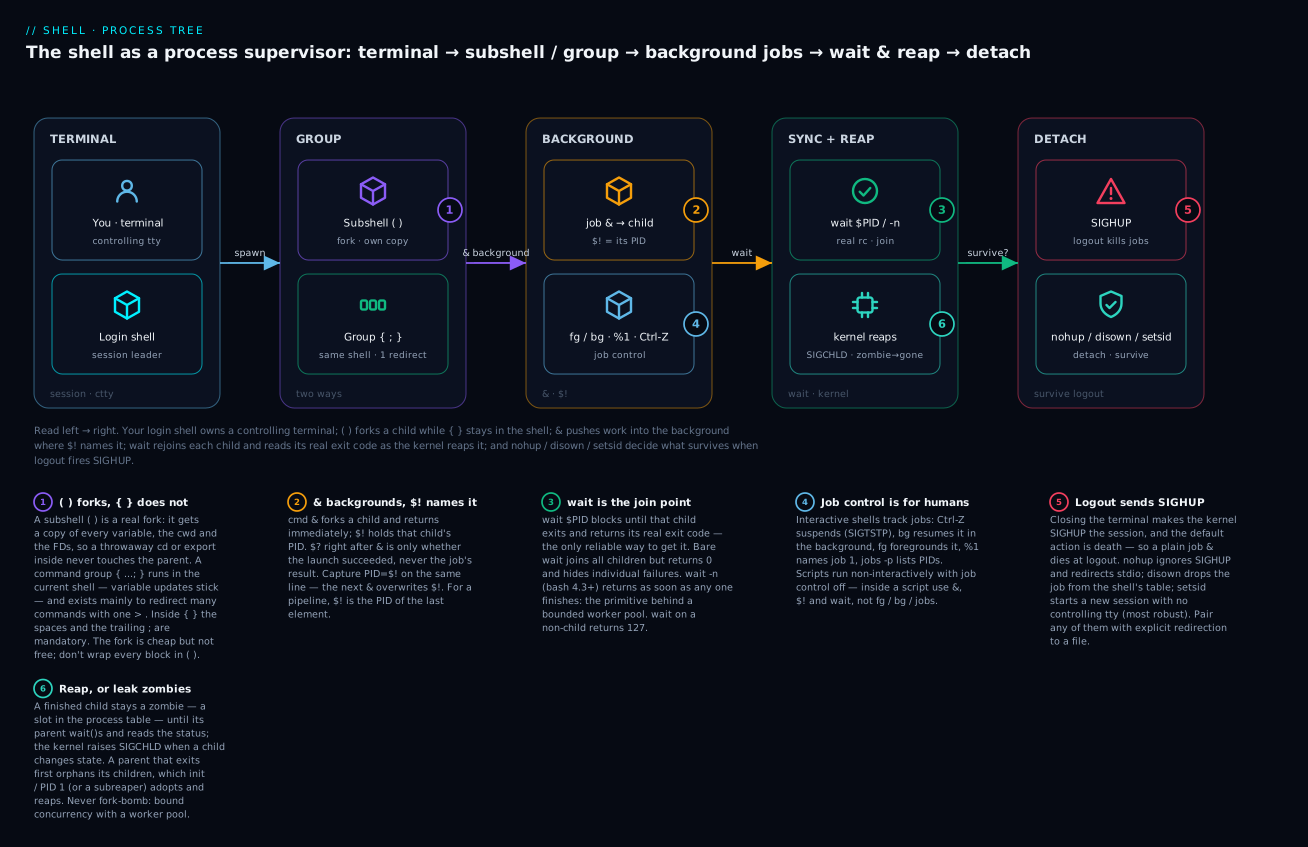
The diagram traces the whole model left to right: your login shell owns a controlling terminal, spawns work as either a forked subshell ( ) or an in-shell group { }, pushes it into the background with & (where $! names the PID and fg/bg/%1 steer it), rejoins each child with wait while the kernel reaps zombies via SIGCHLD, and finally uses nohup / disown / setsid to decide what survives when logout fires SIGHUP.
1. Subshells (...) vs command groups {...; }
Two ways to group commands. They look similar; they behave very differently.
Subshell: (commands)
Parentheses run the commands in a subshell — a forked child process with its own copy of all variables, working directory, FDs, and shell options. Anything you change inside the subshell is invisible to the parent.
NAME="Alice"
(
  NAME="Bob"
  cd /tmp
  echo "Inside: $NAME, $PWD"
)
echo "Outside: $NAME, $PWD"
# Inside: Bob, /tmp
# Outside: Alice, /your/original/dir
Subshells are excellent when you want temporary state changes that don’t pollute the parent:
# Run a command in a different directory without leaving cd's effect behind
( cd /etc && tar -czf /tmp/etc.tgz . )
# After this, $PWD is unchanged in the parent

# Set environment for a tool without permanently exporting
( export AWS_PROFILE=prod; aws s3 ls )
# AWS_PROFILE is gone after the subshell exits
The cost: a fork(). Cheap (typically <1ms) but not free. Avoid wrapping every block in a subshell; use them deliberately when you need scope isolation.
What a subshell really is (and what it costs)
The mental model that makes every subshell rule obvious: ( ... ) performs a fork() — the kernel makes a near-identical copy of the whole shell process (variables, functions, cwd, open FDs, traps, options) and runs your commands there. Copy-on-write means the copy is cheap until something is written, but it is still a new process with a new PID. Because the child is a copy that then exits, its changes have nowhere to flow back to. That is the entire reason variable and cd changes don’t escape.
You can see the fork. $$ is deliberately the parent shell’s PID even inside a subshell (POSIX guarantees this), while $BASHPID (bash 4+) is the subshell’s real PID, and $BASH_SUBSHELL counts how deep you are:
echo "top:     \$\$=$$  BASHPID=$BASHPID  depth=$BASH_SUBSHELL"
(
  echo "sub:     \$\$=$$  BASHPID=$BASHPID  depth=$BASH_SUBSHELL"
  ( echo "nested:  depth=$BASH_SUBSHELL" )
)
# top:     $$=41000  BASHPID=41000  depth=0
# sub:     $$=41000  BASHPID=41111  depth=1   <-- different real PID, same $$
# nested:  depth=2
(Representative output — $BASHPID is a bash 4+ variable and is empty on the macOS system bash 3.2; on Linux bash it is populated.)
Subshells are not something you only opt into with ( ). Bash implicitly forks a subshell for: every element of a pipeline (a | b | c runs a, b, and c in three subshells unless shopt -s lastpipe is set and the shell is non-interactive), every command substitution $( ... ), every process substitution <( ... ), and every backgrounded group. This is why echo x | read v leaves $v empty in the parent — read ran in a pipeline subshell and its variable died with it. Keep the fork picture in mind and those “why didn’t my variable update?” mysteries dissolve.
Command group: { commands; }
Curly braces run commands as a group in the current shell. No fork, no scope isolation, but you can redirect them as a unit:
{
  echo "Header"
  date
  echo "Footer"
} > combined.log
All three commands’ stdout goes to combined.log in one redirection. Without the braces you’d need three separate redirections.
Critical syntactic gotchas with {}:
- Spaces matter:
{ ls }is wrong (no space after{). It must be{ ls; }. - The trailing
;or newline before}is required.{ ls }won’t parse;{ ls; }will. - The braces are reserved words, not operators. They must be followed by whitespace and the contents must be a complete command.
{ ls; cat /etc/hostname; date; }    # CORRECT
{ ls cat /etc/hostname date }       # WRONG (missing semicolons)
A handy use of {}: redirect a multi-command sequence to a single file:
{
  echo "## System info"
  echo
  echo "Date: $(date)"
  echo "Host: $(hostname)"
  echo "Uptime: $(uptime)"
  echo
  echo "## Disk"
  df -h
  echo
  echo "## Memory"
  free -h
} > status.txt
Or pipe it:
{ echo "header"; cat data.txt; echo "footer"; } | wc -l
Because a command group runs in the current shell, variable updates survive — which is exactly what you want when a loop needs to accumulate a counter or build a string:
COUNT=0
{ COUNT=5; }        # runs in this shell
echo "$COUNT"        # 5  — the update stuck

COUNT=0
( COUNT=9 )          # runs in a subshell (a copy)
echo "$COUNT"        # 0  — the update was thrown away with the child
One subtlety worth knowing: { ...; } | something still forks, because the whole group becomes one element of a pipeline. Grouping avoids a fork only when the group is not piped and not backgrounded.
When to choose which
| Need | Use |
|---|---|
| Scope isolation (variables, cwd) | ( ... ) subshell |
| Bulk redirection of many commands | { ...; } command group |
| Need to keep variable updates in parent | { ...; } always |
| Run a block as a background job | ( ... ) & (forks anyway) |
| Time a block | time { ...; } or time ( ... ) |
Throwaway cd / export / set for one block |
( ... ) subshell |
| A counter or accumulator that must persist | { ...; } command group |
Rule of thumb: reach for { } by default (it is free and keeps your state), and switch to ( ) only when you specifically want the isolation of a copy that throws its changes away.
2. Background jobs: & and $!
Append & to a command and bash forks the command into a background process and returns immediately:
sleep 10 &
echo "Sleep is running in the background"
The shell prints something like [1] 12345 — [1] is the job number (a shell-local handle) and 12345 is the PID (kernel-wide).
After running a command in the background, $! holds the PID of the most recently backgrounded job:
long-running-task &
PID=$!
echo "Started with PID $PID"
You can run multiple background jobs:
task1 & PID1=$!
task2 & PID2=$!
task3 & PID3=$!
Each $! is the most recent background PID, so capture it immediately after & and before the next &.
$? after & is the launch status, not the result
This trips up nearly everyone once. When you background a command, $? on the very next line reports whether launching the job succeeded (essentially always 0), not what the job eventually exits with:
false &            # this job will exit 1 — eventually
echo "$?"           # prints 0  (the fork succeeded; the job hasn't finished)
The only reliable way to learn a background job’s real exit code is to wait for its PID (next). For a pipeline, $! is the PID of the last element — a | b | c & gives you c’s PID in $!; if you need the earlier stages’ fates, use set -o pipefail and wait, or capture PIPESTATUS.
wait — synchronise with background jobs
wait PID blocks until that process exits, then returns its exit status. wait with no argument waits for all background jobs:
task1 & PID1=$!
task2 & PID2=$!
task3 & PID3=$!

wait        # block until all three finish
echo "All done"
To wait for a specific PID and get its exit status:
slow-task &
PID=$!
# ... do other work ...
wait "$PID"
RC=$?
echo "slow-task exited with $RC"
wait $PID is the only reliable way to get the exit status of a specific backgrounded job. The shell’s $? after a &-suffixed command is just the success of launching the job, not its eventual exit code.
There is a sharp difference between the two forms that costs people hours: bare wait returns 0 as long as it successfully waited, even if a background job failed. It does not surface individual failures. To detect which jobs failed you must wait for each PID and check its status:
| Form | Blocks until | Returns |
|---|---|---|
wait |
all known background jobs finish | 0 (hides individual job failures) |
wait "$PID" |
that one PID finishes | that job’s real exit code |
wait "$PID1" "$PID2" |
all listed PIDs finish | exit status of the last PID listed |
wait -n |
any one job finishes (bash 4.3+) | that job’s exit code |
wait on a non-child PID |
immediately | 127 (with a “not a child” message) |
Parallel execution with explicit wait
#!/usr/bin/env bash
set -euo pipefail

PIDS=()

for host in web1 web2 web3 web4; do
  ssh "$host" 'sudo systemctl restart myapp' &
  PIDS+=($!)
done

# Wait for all and collect exit codes
FAILED=0
for pid in "${PIDS[@]}"; do
  if ! wait "$pid"; then
    echo "Job $pid failed" >&2
    (( FAILED++ ))
  fi
done

(( FAILED == 0 )) || exit 1
This is the canonical fan-out-and-wait pattern. Four SSH commands run in parallel; the script waits for all of them; any failure makes the script exit non-zero. Note why it loops over PIDs instead of a single bare wait: only the per-PID wait gives you each job’s exit code so you can count failures.
wait -n — wait for any one job (bash 4.3+)
task1 & task2 & task3 &

wait -n              # blocks until ANY one of them finishes
Useful for “first one done” patterns or for limited-concurrency loops.
On bash 5.1+, wait -n -p VAR also tells you which PID finished by storing it in VAR, so you can map the result back to what it was doing:
declare -A WHAT           # PID -> description
build_thing &  WHAT[$!]="build"
run_tests   &  WHAT[$!]="tests"
lint_code   &  WHAT[$!]="lint"

for _ in 1 2 3; do
  wait -n -p done_pid     # bash 5.1+: done_pid = the PID that just finished
  echo "${WHAT[$done_pid]} finished with rc=$?"
done
(-p is bash 5.1+. On bash 4.3–5.0 you get “any finished” with wait -n but not which one; the pre-4.3 workaround is to poll jobs or restructure with a FIFO — see lesson 14.)
3. Jobs, fg, bg
Interactive shells track jobs — pipelines and command groups that are running. You can list them:
sleep 100 &
sleep 200 &
jobs
# [1]-  Running                 sleep 100 &
# [2]+  Running                 sleep 200 &
The + marks the current job (default for fg and bg). The - marks the previous.
You can suspend a foreground job with Ctrl+Z:
$ vim                    # opens vim
# (press Ctrl+Z)
[1]+  Stopped                  vim
$ jobs
[1]+  Stopped                  vim
$ bg                     # resume the stopped job in background — useless for vim
$ fg                     # bring it back to foreground
Refer to jobs by %N (job number):
fg %1            # bring job 1 to foreground
bg %2            # send job 2 to background
kill %3          # send SIGTERM to job 3
kill -9 %3       # SIGKILL (lesson 10)
disown %1        # remove job 1 from the shell's job table (more in section 5)
Ctrl+Z sends SIGTSTP (signal 20, “terminal stop”) to the foreground process group — that is what “suspends” the job. bg then continues it (SIGCONT) but detached from the keyboard. This is the same signal machinery lesson 10 covers in depth.
There are more ways to name a job than %N, and a few useful jobs flags:
| Jobspec / flag | Means |
|---|---|
%1 |
job number 1 |
%+ or %% |
the current job (the one with +) |
%- |
the previous job (the one with -) |
%sleep |
the job whose command begins with sleep |
%?log |
the job whose command contains log |
jobs -p |
print only PIDs (great for kill $(jobs -p)) |
jobs -r |
only running jobs; jobs -s only stopped |
jobs -l |
long form, includes PIDs alongside job numbers |
Job control is a feature of interactive shells. Inside a script, jobs, fg, and bg are typically not what you want — you want explicit & and wait. Job control is mostly for human-driven workflow at the prompt.
4. nohup, controlling terminal, and SIGHUP
When you log out of a terminal session — close the SSH connection, close the terminal window, log out — every process in your session receives SIGHUP (signal 1, “hangup”). The default action for SIGHUP is to terminate.
This is why naive backgrounding doesn’t survive logout:
ssh user@server 'long-running-job &'   # job dies when ssh exits
ssh user@server
$ long-running-job &
$ exit                                  # job dies as ssh terminates the session
Three solutions:
Solution A: nohup
nohup long-running-job &
nohup does three things:
- Sets the SIGHUP signal handler to “ignore” (so the job keeps running when the terminal goes away).
- Redirects stdout to
nohup.out(or whatever file is writable) so the job has somewhere to write after the terminal is gone. - Redirects stderr to stdout so both go to that file.
Standard usage:
nohup my-task > my-task.log 2>&1 &
Now the job:
- Won’t die from SIGHUP.
- Has a defined log file.
- Survives logout.
Solution B: disown
disown is bash-specific. It removes a job from the shell’s job table without affecting the running process:
my-task &
disown            # the job continues but is no longer "owned" by the shell
exit              # the shell exits; my-task continues
disown -h keeps the job in the table but tells the shell not to send SIGHUP at exit. Subtle difference, rarely matters.
disown doesn’t redirect output — if the job was writing to your terminal, after the terminal goes away, those writes will fail. So disown is best paired with explicit redirection:
my-task > my-task.log 2>&1 &
disown
Solution C: setsid or nohup setsid
setsid runs the command in a new session with no controlling terminal. This is the most robust: not just SIGHUP-immune, but completely detached from the terminal.
setsid my-task > my-task.log 2>&1 < /dev/null
Note the explicit < /dev/null for stdin — without a controlling terminal, reading from stdin would fail.
Solution D: tmux or screen
The “right” answer in 2026 is to run long-running interactive work inside tmux or screen:
tmux new -s mywork
# inside tmux: run your job
# detach with Ctrl+B, then D
exit                  # ssh exit; tmux session keeps running
# next time:
ssh user@host
tmux attach -t mywork
tmux keeps your processes alive across sessions, lets you reattach, and gives you scrollback. For interactive long work, this is unbeatable.
Choosing between them
They are not interchangeable — each removes a different link in the chain that kills your job:
| Tool | SIGHUP-proof? | Redirects output? | New session (no ctty)? | Reattachable? | Notes |
|---|---|---|---|---|---|
& alone |
No | No | No | No | Dies at logout — the trap everyone hits |
nohup cmd & |
Yes (ignores SIGHUP) | Yes (nohup.out by default) |
No | No | Simplest “just keep running” |
cmd & disown |
Yes (shell won’t send it) | No — you must redirect | No | No | bash-only; pair with >log 2>&1 |
setsid cmd |
Yes (nothing to send to) | No — you must redirect | Yes | No | Most robust detach; add < /dev/null |
tmux / screen |
Yes | Keeps a live terminal | Yes | Yes | Best for interactive/long human work |
Portability note: nohup is POSIX and everywhere. disown is a bash builtin (also in zsh) — not in POSIX sh/dash. setsid is from util-linux — present on Linux, absent on stock macOS (install via brew install util-linux, or use a double-fork; see Going deeper). When in doubt on an unknown host, nohup ... & plus redirection is the most portable combination.
5. The controlling terminal in detail
When bash starts in a terminal, the kernel records the terminal as the bash session’s controlling terminal. All processes spawned by bash inherit this association. The terminal sends signals (SIGINT on Ctrl+C, SIGTSTP on Ctrl+Z, SIGHUP on hangup) to the foreground process group.
When you close the terminal:
- The kernel sends SIGHUP to the session leader (your bash).
- Bash sends SIGHUP to every job it’s tracking (unless they were
disowned or hadnohupapplied). - Each job, by default, terminates on SIGHUP.
setsid breaks this chain by creating a new session — a process in a new session has no controlling terminal, so the close-terminal-sends-SIGHUP chain doesn’t reach it.
systemd-run --user --scope and similar tools wrap your command in a systemd cgroup, which is yet another layer of isolation. Lesson 25 covers systemd and shell scripts.
To make this concrete, you can watch the process-group and session IDs directly. Every process has a PID (itself), a PPID (its parent), a PGID (its process group — a set of processes signalled together), and a SID (its session). The terminal delivers keyboard signals to whichever process group is the foreground group; everything else runs in the background of that session:
ps -o pid,ppid,pgid,sid,tpgid,stat,comm
#   PID  PPID  PGID   SID  TPGID STAT COMMAND
#  4100  4090  4100  4100   4207 Ss   bash      <- session leader (SID==PID)
#  4207  4100  4207  4100   4207 S+   sleep     <- foreground group (STAT has +)
#  4210  4100  4210  4100   4207 S    sleep     <- backgrounded (no +)
Read the STAT column: a trailing + means “in the foreground process group”, s means “session leader”. TPGID is the process group that currently owns the terminal. This is the plumbing behind everything in sections 3 and 4 — job control, Ctrl+C, and SIGHUP are all “signal the right process group” operations.
6. Concurrency primitives: limiting parallelism
Spawning 1,000 background jobs at once will melt your system. You usually want to limit concurrency.
The xargs -P approach
find /var/log -name '*.log' -print0 | xargs -0 -P 4 -I {} gzip {}
xargs -P 4 runs up to 4 instances in parallel. Distributes work via stdin lines or NUL-separated tokens. Fast, simple, well-tested.
The GNU parallel approach
find /var/log -name '*.log' | parallel -j 4 gzip {}
parallel is more flexible: progress reporting, retry on failure, fancier substitution patterns, output ordering. Lesson 14 covers it in depth.
Hand-rolled with wait -n
For full control:
MAX_PARALLEL=4
RUNNING=0

for item in "${ITEMS[@]}"; do
  process_one "$item" &
  (( RUNNING++ ))

  if (( RUNNING >= MAX_PARALLEL )); then
    wait -n     # wait for any one to finish
    (( RUNNING-- ))
  fi
done

wait            # wait for the rest
This is the worker-pool pattern. Each new job replaces a finished one, keeping concurrency at exactly MAX_PARALLEL. Bash 4.3+ for wait -n.
FIFO-based semaphore (advanced)
For more elaborate orchestration, you can use a FIFO (named pipe from L7) as a counting semaphore. Lesson 14 details this.
7. Process inspection from shell
You’ll often need to look at what’s running.
# Most useful flags
ps -ef                   # all processes, full format
ps -ef --forest          # tree view (Linux)
ps -eo pid,ppid,pgid,sid,stat,cmd | head    # custom columns
ps -p $$                 # this shell's own info
ps --pid 12345           # specific PID
ps --ppid $$             # all children of this shell

# Top-like
top -b -n 1 | head        # batch mode, one snapshot, head for brevity
htop                      # interactive (if installed)

# pgrep / pkill
pgrep -f myapp            # PIDs whose command line contains "myapp"
pgrep -u alice            # PIDs owned by alice
pkill -f -SIGTERM myapp   # send SIGTERM to all matching processes

# Process tree
pstree -p $$              # tree from this shell (Linux only)

# Check if a process is alive (cheap, no fork)
kill -0 $PID 2>/dev/null && echo "$PID is running"
kill -0 PID doesn’t actually send a signal; it just checks “could I send a signal.” Returns 0 if the PID exists and you have permission, non-zero otherwise. The classic “is this PID alive?” probe.
Portability note: several of these are GNU/Linux-specific. ps -ef --forest, pstree, and long options like ps --ppid are GNU; BSD/macOS ps uses different flags (ps -ax, ps -o pid,ppid,command, and no --forest). pgrep/pkill exist on both but flag order differs (pkill -TERM -f myapp is the portable spelling). When you write scripts meant to run on both, prefer the columns form ps -o pid,ppid,comm and parse it yourself rather than relying on --forest.
8. Eight process-management idioms
# 1. Run a command in a different directory without changing cwd
( cd /tmp && tar -czf /backup/etc.tgz etc )

# 2. Bulk redirect a group of commands
{
  echo "## Report"
  date
  uptime
  df -h
} > report.txt

# 3. Fan-out, wait-all, propagate failures
PIDS=()
for h in "${HOSTS[@]}"; do
  ssh "$h" 'restart-service' & PIDS+=($!)
done
FAIL=0
for pid in "${PIDS[@]}"; do
  wait "$pid" || (( FAIL++ ))
done
(( FAIL == 0 ))

# 4. Run-and-detach for long-lived work
nohup my-task > my-task.log 2>&1 < /dev/null &
disown

# 5. Worker pool with bounded concurrency
MAX=4
RUNNING=0
for item in "${ITEMS[@]}"; do
  process_one "$item" &
  (( RUNNING++ ))
  if (( RUNNING >= MAX )); then
    wait -n
    (( RUNNING-- ))
  fi
done
wait

# 6. Time-out a command
timeout 30 my-flaky-tool

# 7. Check if a PID is alive
if kill -0 "$PID" 2>/dev/null; then
  echo "still running"
fi

# 8. Run with logging, watch progress
( my-build-task 2>&1 | tee build.log ) &
BUILD_PID=$!
# ... while build runs, you can read build.log live ...
wait "$BUILD_PID"
echo "Build exit code: $?"
9. The timeout command
timeout DURATION command runs command and kills it if it’s still running after DURATION:
timeout 30 curl https://slow-api.example.com/users
echo $?
# 0    — succeeded within 30s
# 124  — was killed by timeout (the standard "I timed out" exit code)
# X    — anything else: the command's natural exit code
timeout first sends SIGTERM. If the command doesn’t die within a grace period (default 10s), it sends SIGKILL. Tunable:
timeout --kill-after=5s 30s my-task # SIGTERM at 30s, SIGKILL at 35s
timeout -s SIGINT 30 my-task sends SIGINT instead of SIGTERM (useful for tools that handle Ctrl+C cleanly).
A bash-only equivalent (no timeout binary needed):
my-task &
PID=$!
( sleep 30; kill -TERM "$PID" 2>/dev/null ) &
KILLER=$!

wait "$PID"
RC=$?
kill "$KILLER" 2>/dev/null
exit "$RC"
Crude but works. timeout(1) from coreutils is the right tool when available.
Portability + gotcha: timeout is GNU coreutils — on Linux it’s everywhere, on macOS it’s gtimeout after brew install coreutils (or absent). Also, timeout signals only the command it launched; if that command spawned its own children, they can be left behind. Use timeout --foreground when driving an interactive command, and if the target forks a tree, run it under setsid and kill the whole process group (see Going deeper) so the grandchildren die too.
10. Common pitfalls
Backgrounding without redirection
my-task & # WRONG if you'll close the terminal — output goes to terminal which dies
Always redirect when backgrounding for survival:
my-task > my-task.log 2>&1 < /dev/null &
disown
&& and & — what actually gets backgrounded
task1 && task2 & # what does the & apply to — task2 only, or the whole chain?
& is a list terminator, not a per-command modifier: it ends the entire and-or list to its left and runs that whole list asynchronously. So task1 && task2 & backgrounds both commands as a single unit — bash forks once, and inside that background child it runs task1 and then task2 only if task1 succeeded. The foreground shell moves on immediately; it does not run task1 in the foreground first.
You can prove it to yourself — this prints now before one, because the whole chain went to the background:
{ sleep 1; echo one; } && echo two &   # backgrounds the entire chain
echo now                               # prints first
That behaviour is usually what you want. Grouping makes the intent explicit and lets you capture a single $! for the whole chain:
{ task1 && task2; } &
CHAIN_PID=$!
wait "$CHAIN_PID"
The two forms background the same thing; the braces just document the boundary and give the group one job/PID. What you must not believe is the old myth that & attaches to task2 alone — it never does.
Forgetting to capture $!
task1 &
task2 &       # NOW $! refers to task2
wait $!       # waits only for task2
Capture immediately:
task1 & PID1=$!
task2 & PID2=$!
wait $PID1
wait $PID2
Subshells and set -e
set -e does not propagate from a subshell to the parent. If you run (failing-cmd) & and the subshell fails, the parent script still keeps running. The parent only sees the exit code via $? or wait. Always check.
Job control disabled in non-interactive shells
In a script (non-interactive bash), fg, bg, and jobs may not work as expected. The default in scripts is “no job control.” Almost always you want explicit &, $!, and wait instead.
11. Real example: parallel host probe with timeouts
#!/usr/bin/env bash
# probe-hosts.sh — probe a list of hosts in parallel and report status
set -euo pipefail
IFS=$'\n\t'

HOSTS=("$@")
[[ ${#HOSTS[@]} -gt 0 ]] || { echo "Usage: $0 host1 host2 ..." >&2; exit 2; }

MAX_PARALLEL=10
TIMEOUT=5

probe_one() {
  local host="$1"
  if timeout "$TIMEOUT" curl -fsS --max-time "$TIMEOUT" "http://$host/healthz" >/dev/null 2>&1; then
    printf '%s\tOK\n' "$host"
    return 0
  else
    printf '%s\tFAIL\n' "$host"
    return 1
  fi
}

export -f probe_one
export TIMEOUT

OUTPUT_TMP=$(mktemp)
trap 'rm -f -- "$OUTPUT_TMP"' EXIT

# Fan out with bounded concurrency
RUNNING=0
PIDS=()

for host in "${HOSTS[@]}"; do
  probe_one "$host" >> "$OUTPUT_TMP" &
  PIDS+=($!)
  (( RUNNING++ ))
  if (( RUNNING >= MAX_PARALLEL )); then
    wait -n
    (( RUNNING-- ))
  fi
done

# Wait for the rest
for pid in "${PIDS[@]}"; do
  wait "$pid" 2>/dev/null || true
done

# Report
sort "$OUTPUT_TMP"
echo
OK_COUNT=$(grep -c $'\tOK$' "$OUTPUT_TMP" || true)
FAIL_COUNT=$(grep -c $'\tFAIL$' "$OUTPUT_TMP" || true)
echo "OK: $OK_COUNT, FAIL: $FAIL_COUNT, TOTAL: ${#HOSTS[@]}"

(( FAIL_COUNT == 0 )) || exit 1
Things to notice:
- Strict-mode preamble.
probe_oneis exported (lesson 5) so subshells can call it.timeoutper-call to prevent any single host from hanging the script.MAX_PARALLELworker pool withwait -n.- Output collected into a tempfile (managed with
trap-cleanup, lesson 10). - Sorted output by hostname for easy reading.
- Final exit code reflects whether anything failed.
This is real concurrent shell. You’d run it as:
./probe-hosts.sh web1 web2 web3 web4 web5 ... web100
100 probes, 10 at a time, 5-second timeout per call, sorted output, propagated exit code. About 20 lines of real logic.
12. What you must internalise before lesson 10
- What’s the difference between
(...)and{...; }? (Subshell forks; command group runs in current shell.) - What’s
$!? (PID of the most recently backgrounded job.) - What does
waitdo with no argument? (Waits for ALL background jobs.) - What does
wait $PIDdo? (Waits for that specific job and returns its exit status.) - What signal does the kernel send when you close a terminal? (SIGHUP.)
- What does
nohupactually do? (Sets SIGHUP to ignore; redirects stdio to nohup.out by default.) - What does
disowndo? (Removes a job from the shell’s job table so the shell won’t SIGHUP it on exit.) - What’s
timeout? (coreutils tool: kill a command if it runs longer than N seconds.) - What’s the worker-pool pattern with
wait -n? (Spawn N background jobs, then on each new task,wait -nto let one finish before starting the next.) - What’s
kill -0 PID? (Probe whether a PID is alive without sending a real signal.)
If any felt fuzzy, re-read. Lesson 10 (signals and trap) is the natural sequel — once you’re managing processes, you need to respond to signals, clean up gracefully, and handle Ctrl+C correctly.
Going deeper
This is the section for when the basics feel comfortable and you want to know why the weird cases happen — the material that separates “I can background a job” from “I can debug a stuck deployment script at 2 a.m.”
Zombies, orphans, and reaping — the lifecycle of a dead child
A process that has exited is not gone. The kernel keeps a tiny record — its PID and exit status — in a state called zombie (Z in ps), waiting for the parent to collect it. The parent collects it by calling wait() (which is exactly what the shell’s wait builtin does under the hood). Until then the exit code has nowhere to go, so the kernel holds the slot.
- If the parent never waits, zombies accumulate. Each one is cheap (just a PID slot), but a script that launches thousands of background jobs and never reaps them can exhaust the PID table. In practice the shell reaps automatically when you call
wait, or when it notices via SIGCHLD (the signal the kernel sends a parent whenever a child changes state). - If the parent exits before the child, the child becomes an orphan and is re-parented — historically to
init(PID 1), on modern Linux possibly to a nearer “subreaper”. PID 1 reaps orphans automatically, which is why adisowned orsetsidjob doesn’t turn into a permanent zombie after your shell exits.
The practical rule: for every & you own, there should eventually be a wait. Fire-and-forget is fine when the process is meant to outlive you (setsid, a daemon), but inside a script that stays running, un-waited children are a leak.
Process groups, sessions, and why Ctrl+C hits everything
The three-level hierarchy — session ⊃ process group ⊃ process — is the key to job control:
- A process group is a set of processes that receive terminal signals together. A shell pipeline (
a | b | c) is put into one process group so that Ctrl+C interrupts all three at once. - A session groups process groups and has at most one controlling terminal. The shell is the session leader.
- The terminal delivers keyboard-generated signals (SIGINT, SIGQUIT, SIGTSTP) to the foreground process group only. Background groups keep running; if they try to read from the terminal they get SIGTTIN and stop.
This is why kill %1 can signal a whole pipeline: job control kills the process group, sent as kill -- -PGID (a negative PID means “the whole group”). It’s a tool you’ll reach for when a timeout leaves grandchildren behind:
setsid my-tree-spawner &      # new process group; PGID == the child's PID here
PGID=$!
sleep 30
kill -TERM -- "-$PGID"        # negative PID: signal the ENTIRE group, grandchildren included
set -m — turning job control on inside a script
Scripts run with job control off by default (set +m), which is why fg/bg misbehave there. set -m (set -o monitor) turns it on, and it changes behaviour in a way that occasionally matters: each background job is placed in its own process group, and the script becomes able to fg/bg them. You rarely want this — it’s mostly used by supervisor-style scripts that need to forward signals to a single foreground child in its own group. For ordinary parallelism, leave job control off and use &/$!/wait.
Reliable timeouts that kill the whole tree
The single most common “why is this still running?” bug is a timeout (or a hand-rolled killer) that signals only the direct child while its forked grandchildren keep going. Two robust patterns:
# A) coreutils timeout, but ensure children die with the parent
timeout --signal=TERM --kill-after=5s 30s ./spawns-a-tree.sh
# If the tree ignores TERM on its children, put it in its own group and group-kill:

# B) own process group + group kill
setsid --wait ./spawns-a-tree.sh &   # --wait: setsid waits and forwards exit status (util-linux)
GPID=$!
( sleep 30; kill -TERM -- "-$GPID" 2>/dev/null; sleep 5; kill -KILL -- "-$GPID" 2>/dev/null ) &
WATCH=$!
wait "$GPID"; RC=$?
kill "$WATCH" 2>/dev/null
Double-fork daemonisation (and why you probably shouldn’t)
The classic way to create a true daemon by hand is the double fork: fork, setsid (become a session leader with no controlling terminal), fork again (so the daemon is not a session leader and can never reacquire a terminal), chdir /, reset umask, and redirect stdin/stdout/stderr to /dev/null or a log. In shell:
daemonize() {
  ( setsid bash -c '
      exec 0</dev/null 1>>/var/log/mydaemon.log 2>&1
      exec my-long-service --flag
    ' & )
}
It works, but in 2026 the honest advice is: don’t hand-roll daemons. Let systemd (lesson 25), a container runtime, or a supervisor own the process lifecycle — you get restart-on-crash, log integration, resource limits, and clean shutdown for free. Reach for the double-fork only on a host with no service manager at all.
Performance: fork is cheap, but not zero
Every ( ), every $( ), every pipeline stage, and every external command is a fork() (and usually an exec()). At a few hundred microseconds each they’re invisible one at a time, but inside a tight loop over 100k items they dominate — a loop that shells out per line can be 100× slower than the same work done in a single awk or with bash builtins. The process-management lesson’s discipline (bounded pools, batching, staying in the shell where you can) is also a performance discipline. Lesson on profiling covers strace -f -e trace=clone,execve to count your forks when a script is mysteriously slow.
Portability matrix (bash version + userland)
| Feature | Needs | On macOS system bash 3.2 / BSD | Portable alternative |
|---|---|---|---|
wait -n |
bash 4.3+ | Absent (3.2) | Poll jobs, or a FIFO semaphore (L14) |
wait -n -p VAR |
bash 5.1+ | Absent | Track PIDs in an assoc array + wait -n |
$BASHPID |
bash 4+ | Empty | Read /proc/self (Linux) or accept $$ |
| associative arrays | bash 4+ | Absent (3.2) | Parallel indexed arrays |
setsid |
util-linux | Absent | brew install util-linux, or double-fork |
timeout |
coreutils | gtimeout after brew install coreutils |
Hand-rolled killer (section 9) |
ps --forest, pstree |
GNU/Linux | Different flags | ps -o pid,ppid,comm + build tree yourself |
The course targets Linux + bash 4+/5 + GNU coreutils, so teach and prefer the GNU forms — just know which ones will bite you on a Mac laptop or a busybox container, and reach for the portable alternative when the target host is unknown.
Practice challenges
Work these top to bottom; they escalate from “predict the output” to “kill a whole process tree”. Each solution is one click away — try first, then check. Shell is runnable, so actually run them where you can and watch the process tree.
Challenge 1 (Beginner) — Predict the scope. Without running it, say what each echo prints:
X=1; DIR=$PWD
( X=2; cd /tmp )
echo "A: X=$X pwd=$PWD"
{ X=3; }
echo "B: X=$X"
<details> <summary>Solution</summary>
A: X=1 pwd=<original dir> and B: X=3. The ( ... ) runs in a subshell — a forked copy — so its X=2 and cd /tmp are thrown away when the child exits; the parent’s X and $PWD are untouched. The { ... } runs in the current shell, so X=3 sticks. Why: ( ) isolates (a copy), { } does not.
</details>
Challenge 2 (Beginner) — Wait for the right job. This script means to wait for both jobs but only waits for one. Fix it so it prints both exit codes:
sleep 1; false &
sleep 1; true &
wait $!
echo "rc=$?"
<details> <summary>Solution</summary>
( sleep 1; false ) & p1=$!
( sleep 1; true )  & p2=$!
wait "$p1"; echo "job1 rc=$?"   # 1
wait "$p2"; echo "job2 rc=$?"   # 0
Two bugs in the original: $! after the second & refers only to the second job, and the un-parenthesised sleep 1; false & backgrounds only false (the ; ends the first command). Why: capture each PID on the same line as its &, and group multi-command jobs with ( ) or { } so the & backgrounds the whole thing.
</details>
Challenge 3 (Intermediate) — Fan out and fail loudly. Write a loop that pings host1 host2 host3 in parallel and makes the script exit non-zero if any ping fails, printing which host failed. Do not use bare wait.
<details> <summary>Solution</summary>
hosts=(host1 host2 host3); pids=(); fail=0
for h in "${hosts[@]}"; do
  ping -c1 -W2 "$h" >/dev/null 2>&1 & pids+=("$!:$h")
done
for entry in "${pids[@]}"; do
  pid=${entry%%:*}; host=${entry#*:}
  wait "$pid" || { echo "FAILED: $host" >&2; (( fail++ )); }
done
(( fail == 0 )) || exit 1
Why: bare wait returns 0 and hides failures; you must wait "$pid" per job to read each real exit code. Stashing pid:host lets you name the culprit.
</details>
Challenge 4 (Intermediate) — Bounded worker pool. Compress every *.log under ./logs with at most 3 running at once, using only bash (no xargs/parallel). Then note what changes if the host only has bash 3.2.
<details> <summary>Solution</summary>
max=3; running=0
for f in ./logs/*.log; do
  gzip "$f" &
  (( ++running >= max )) && { wait -n; (( running-- )); }
done
wait
Why: wait -n (bash 4.3+) unblocks as soon as any one job finishes, so a new one starts immediately and concurrency stays pinned at 3. On bash 3.2 there is no wait -n — fall back to xargs -P 3 (printf '%s\0' ./logs/*.log | xargs -0 -P3 -I{} gzip {}) or a FIFO semaphore (lesson 14).
</details>
Challenge 5 (Advanced) — Survive the disconnect. You must start ./nightly-sync.sh on a remote host over SSH so it keeps running after you disconnect, writes to sync.log, and does not block the SSH session from closing. Give the command, and explain why each piece is needed.
<details> <summary>Solution</summary>
ssh user@host 'nohup ./nightly-sync.sh > sync.log 2>&1 < /dev/null &'
nohup makes it ignore SIGHUP so it survives logout; > sync.log 2>&1 gives its output a home once the terminal is gone (otherwise writes fail); < /dev/null detaches stdin so it can’t block on terminal input; & backgrounds it so the SSH command returns and the session can close. Why: each of the four fixes a different reason the job would otherwise die or hang — signal, output, input, blocking. (For interactive/reattachable work, tmux new -d -s sync './nightly-sync.sh' is even better.)
</details>
Challenge 6 (Advanced) — Kill the whole tree. A tool ./slow-tree.sh forks child workers. timeout 10 ./slow-tree.sh returns after 10s but the workers keep running. Explain why, and write a version that guarantees the entire tree dies.
<details> <summary>Solution</summary>
timeout signals only the direct child (./slow-tree.sh); when it exits, its already-forked workers are orphaned to PID 1 and keep going. Put the tree in its own process group and signal the group:
setsid ./slow-tree.sh & gpid=$!            # new process group; PGID == gpid
( sleep 10
  kill -TERM -- "-$gpid" 2>/dev/null
  sleep 5
  kill -KILL -- "-$gpid" 2>/dev/null ) & watcher=$!
wait "$gpid"; rc=$?
kill "$watcher" 2>/dev/null
exit "$rc"
Why: a negative PID (-$gpid) means “signal every process in this group”, so the grandchildren die too — with a TERM-then-KILL escalation for anything that ignores TERM.
</details>
Common beginner mistakes
These are conceptual traps — wrong mental models — distinct from the code-recipe pitfalls in section 10. Fix the model and the bugs stop.
-
“Background (
&) means it’s running in parallel and I’m safe.” No —&only detaches it from your prompt. You still own its lifecycle: capturing its PID, reaping it withwait, checking whether it failed, and deciding whether it survives logout. Backgrounding starts the concurrency; it does not manage it. Right model: every&creates a child you are responsible for. -
“
$?tells me whether my background job worked.” Right aftercmd &,$?is only whether the launch succeeded (basically always 0). The job’s real exit code is only available viawait "$PID". Right model:&gives you a ticket ($!);waitredeems it for the exit code. -
“A subshell can update my script’s variables if I’m careful.” It cannot — ever.
( ... )is a forked copy; its variable andcdchanges die with the child. This includes the implicit subshells in pipelines and$( ). Right model: if you need a change to persist, run it in the current shell ({ ...; }, or restructure to avoid the pipe), not in a subshell. -
“
nohupand&do the same thing.”&backgrounds;nohupprotects from SIGHUP and gives output a home. They solve different problems and you usually need both (plus redirection) to truly survive logout. Right model:&= “not in the foreground”;nohup/disown/setsid= “not killed when I leave”. -
“
disownkills or pauses the job.”disownonly removes the job from the shell’s bookkeeping — the process keeps running exactly as before; the shell just stops tracking it and won’t SIGHUP it at exit. Right model:disownedits a list, it doesn’t touch the process. -
“Job control (
jobs,fg,bg) works inside my script.” Those are interactive-shell features; scripts run with job control off. Inside a script use&,$!, andwait. Right model:fg/bgare for a human at a prompt; scripts orchestrate with PIDs. -
“Bare
waitwill tell me if something failed.” Barewaitreturns 0 if it waited successfully, regardless of any job’s failure. To detect failures you mustwait "$PID"per job and inspect each status. Right model: barewaitis a barrier (“everyone finished”), not a status check. -
“If I close the terminal, only the foreground job is affected.” Closing the terminal fires SIGHUP at the whole session, so every tracked job dies by default — background ones included — unless it was
nohuped,disowned, orsetsid. Right model: logout is a session-wide event, not a per-command one.
Glossary
- Process / PID — a running program instance and its kernel-wide numeric ID. PPID is the parent’s PID.
- fork() — the syscall that duplicates the current process into a near-identical child; the basis of every subshell, pipeline stage, and external command.
- exec() — replaces the current process image with a new program (usually right after a fork). “fork then exec” is how the shell runs an external command.
- Subshell
( ... )— commands run in a forked child with a copy of variables, cwd, FDs, and options; changes don’t reach the parent. - Command group
{ ...; }— commands run in the current shell (state changes persist), grouped so they can be redirected or backgrounded as one unit. Needs spaces and a trailing;/newline. - Background job — a command started with
&; it runs while the shell returns to the prompt. - Job vs process — a job is the shell’s handle for a pipeline/group (
%1); a process is the kernel’s unit (a PID). One job can be several processes. - Job number / jobspec —
%1,%+(current),%-(previous),%name,%?substr— ways to name a job tofg/bg/kill. $!— the PID of the most recently backgrounded job (the last element, for a pipeline).$?— the exit status of the last foreground command; right aftercmd &it is only the launch status.$$— the shell’s PID; stays the parent’s PID even inside a subshell.$BASHPID(bash 4+) is the current process’s real PID.$BASH_SUBSHELL— how many subshell levels deep the current code is (0 at top level).wait— block until background jobs finish;wait "$PID"returns that job’s real exit code, barewaitwaits for all and returns 0.wait -n— return as soon as any one job finishes (bash 4.3+);-p VARalso reports which PID (bash 5.1+).- Reap — the parent calling
wait()to collect a finished child’s exit status and free its process-table slot. - Zombie — a process that has exited but not yet been reaped; shows
Zinps. Holds only an exit-status slot. - Orphan — a process whose parent exited; it is re-parented to
init/PID 1 (or a subreaper), which reaps it. - PGID / process group — a set of processes signalled together (e.g. a pipeline); a negative PID in
killtargets the whole group. - SID / session — a group of process groups with at most one controlling terminal; the shell is the session leader.
- Controlling terminal (ctty) — the tty that delivers keyboard signals (SIGINT, SIGTSTP, SIGHUP) to the session’s foreground process group.
- SIGHUP — “hangup”, sent when the terminal/session goes away; default action is terminate. SIGTSTP — sent by Ctrl+Z to suspend. SIGCHLD — sent to a parent when a child changes state. SIGTERM/SIGKILL — polite/forceful termination (lesson 10).
nohup— run a command with SIGHUP ignored and stdout/stderr redirected (defaultnohup.out), so it survives logout.disown— bash builtin that removes a job from the shell’s job table so the shell won’t SIGHUP it at exit; the process keeps running.setsid— start a command in a new session with no controlling terminal (util-linux); the most complete detach.- Job control — the interactive-shell feature (
jobs/fg/bg/Ctrl+Z/%N) for moving jobs between foreground and background; off by default in scripts. timeout— coreutils tool that kills a command after a duration (exit 124 on timeout); sends SIGTERM then SIGKILL.- Worker pool / bounded concurrency — running at most N jobs at once (via
wait -n,xargs -P, or a FIFO semaphore) instead of forking all of them. - Fan-out / fan-in — launching many jobs in parallel (fan-out) and then joining/collecting their results (fan-in, via
wait). kill -0 PID— send no signal, just test whether the PID exists and you may signal it; the cheap “is it alive?” probe.- Daemon — a long-lived background service with no controlling terminal; created historically by a double-fork, better managed by
systemd(lesson 25) today.
What’s next
Lesson 10 covers signals and trap: the SIGINT/SIGTERM/SIGKILL/SIGUSR1 model, the trap builtin for handler registration, the EXIT pseudo-signal for cleanup, the ERR pseudo-signal for fail-fast diagnostics, idempotent cleanup with tempfiles and lock files, and the canonical “structured cleanup” pattern. Bring everything from lessons 1–9.
Continue with Signal handling & trap, and when you’re ready to scale the parallelism ideas here into full pipelines, jump to Concurrency: parallel, xargs, FIFOs & flock.