In a nutshell
Handing a secret to a shell command is like passing a note in a room where every wall is glass and everyone is holding a camera. The room is not hostile — it is just transparent by default. ps is a window anyone can look through. /proc is the building’s public directory. Your shell history is a diary that never forgets. set -x is a narrator reading your every move aloud. And the log files are a permanent transcript that gets couriered to head office and filed forever. Write the secret on a note and hold it up, and it is not “probably fine” — it is on record, in several places, searchable, for years.
So the skill is not hiding the note better. It is never writing it on a note in the first place. Whisper it mouth-to-ear instead (pass it on stdin). Or seal it in an envelope only you can open (a file with 0600 permissions). Or — best of all — do not carry a house key at all: pick up a day-pass at the front desk that stops working in an hour (a short-lived, ephemeral credential fetched at runtime). Every good pattern in this lesson is a version of one of those three moves.
Here is the mental model to hold onto: secrets in shell leak through mundane, everyday channels — not clever attacks. Nobody breaks your cryptography; someone runs ps, or greps a CI log, or finds a token in git history. The six channels below (argv, environ, history, xtrace, logs, core dumps) are exactly the ones you reach for while debugging, which is why the leak feels so innocent. The discipline is mechanical: treat all six as public billboards, route every secret around them, fetch secrets at runtime instead of storing them, give them the shortest life you can, and scrub on the way out with a trap. Get that right and the entire common class of shell-secret leaks — accidental exposure — simply disappears.
Level: Expert · Time: ~40 min
Prerequisites: You should be comfortable with the strict-mode preamble and unset/${VAR:-} from Defensive scripting: set -Eeuo pipefail, the trap … EXIT cleanup funnel from Signal handling & idempotent cleanup, and how quoting and untrusted input bite from Security: injection, quoting & IFS attacks. If those feel shaky, skim them first — secrets handling is where all three come together.
After this lesson you will be able to:
- Name the six channels a secret leaks through and close each one with a specific, mechanical fix.
- Choose the right transport — env var,
0600file, or stdin/read -s— for a given secret, and know why an argument (ps) is always wrong. - Fetch secrets at runtime from Vault, AWS/GCP/Azure secrets managers, and mint short-lived credentials with STS assume-role or OIDC.
- Scope a secret to the smallest possible lifetime (subshell,
VAR=val cmd) and scrub it on every exit path with atrap. - Apply the
no_logdiscipline — suppress trace and output around sensitive operations without hardcoding anything. - Audit an existing codebase for leaked secrets with
grep,gitleaks, andtrufflehog, and know that rotation — not history-rewriting — is the real fix.
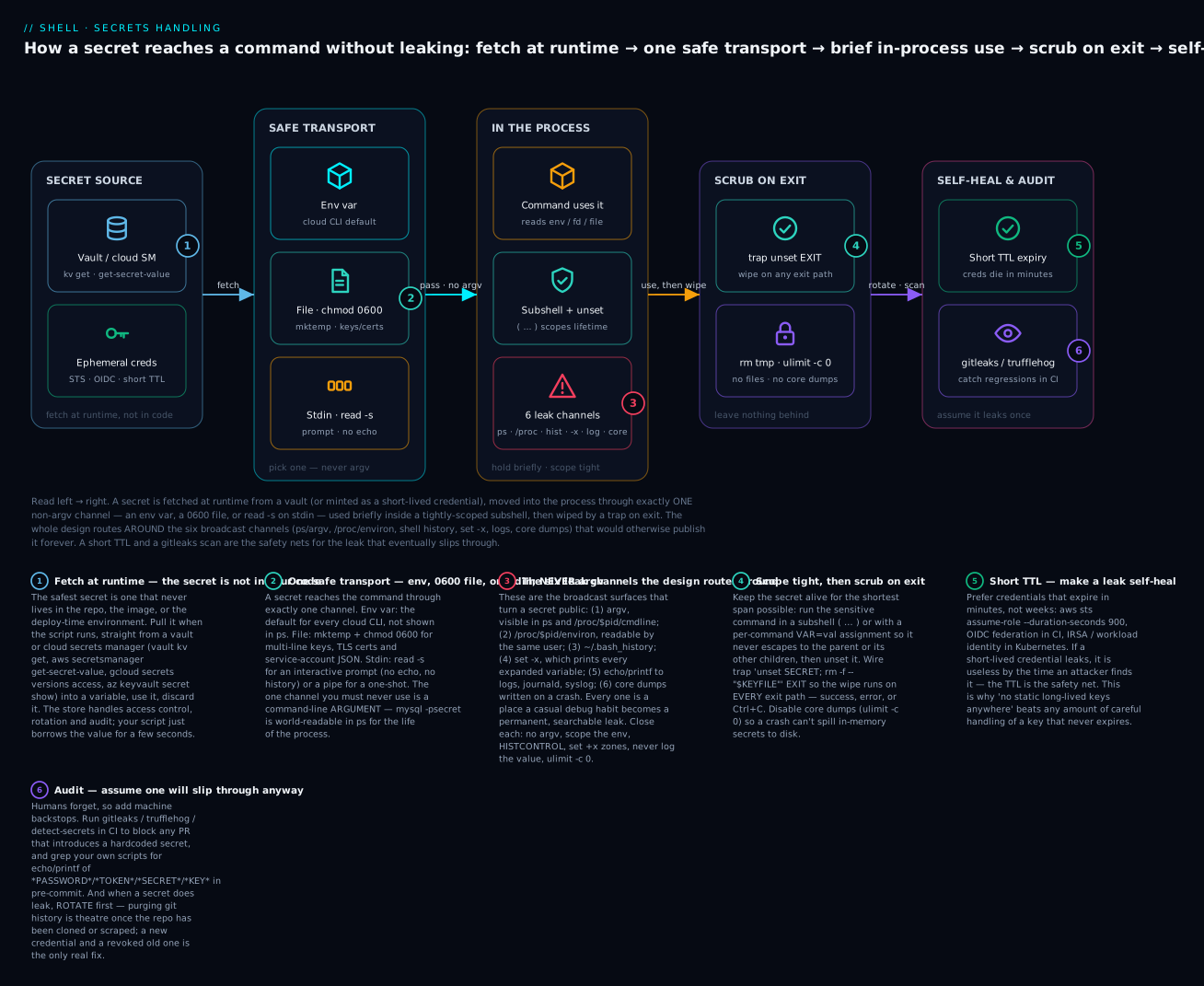
Read the diagram left → right: a secret is fetched at runtime from a vault (or minted as a short-lived credential), moved into the process through exactly one non-argv channel (an env var, a 0600 file, or read -s on stdin), used briefly inside a tightly-scoped subshell, then wiped by a trap on exit — all while the design deliberately routes around the six broadcast channels (ps/argv, /proc/environ, shell history, set -x, logs, core dumps) that would otherwise publish it forever. The red node is the thing every other node exists to avoid; a short TTL and a gitleaks scan are the safety nets for the leak that eventually slips through anyway.
Secrets — API keys, passwords, tokens, certificates — are uniquely hostile to shell. Unlike a high-level language where you can keep a secret string in memory and explicitly pass it to a function, every shell command is a process invocation, and secrets pass through:
- Command-line arguments: visible in
ps,/proc/$pid/cmdline, system audit logs. - Environment variables: visible in
/proc/$pid/environto anyone with read permission. - Shell history:
~/.bash_historykeeps every command for years. - Tracing:
set -xprints every command, including secret arguments. - Logging: anything you
echofor “debug” goes to journal, syslog, or stderr files. - Core dumps: if a process crashes, secrets in memory are written to disk.
This is the common cause of secret leaks in DevOps. A senior engineer adds aws s3 cp --secret-key $KEY ... to a script, the script runs in CI, the CI uploads logs to S3, and the secret is now searchable forever. CIs regularly publish this pattern to public artifact buckets.
This lesson covers:
- The six leak channels in detail and how to close each.
- When to use environment variables, when to use files, when to use stdin.
- Integration patterns with Vault, AWS Secrets Manager, GCP, Azure Key Vault.
- Ephemeral credentials via OIDC and short-lived role assumption.
- A reusable
lib/secrets.shthat wraps the common patterns. - How to scan existing codebases for leaked secrets.
By the end, your scripts will handle secrets without leaking them, even when something goes wrong.
1. The six leak channels
1.1 Command-line arguments — visible in ps
$ aws --secret-access-key AKIAIOSFODNN7EXAMPLE s3 ls
While that command runs, anyone on the system can see it:
$ ps -ef | grep aws
ubuntu  1234  ... aws --secret-access-key AKIAIOSFODNN7EXAMPLE s3 ls
ps reads /proc/$pid/cmdline, which is world-readable on Linux (mode 444 by default). Even unprivileged users on the same host can see it. On shared CI runners, multi-tenant containers, jump hosts — this is a leak.
Fix: never pass secrets as command-line arguments. Use environment variables, files, or stdin (next sections).
1.2 Environment variables — visible in /proc/$pid/environ
Environment variables are less leaky than argv but still readable:
$ AWS_SECRET_ACCESS_KEY=foo aws s3 ls

# In another terminal:
$ cat /proc/$pid/environ | tr '\0' '\n' | grep AWS_SECRET
AWS_SECRET_ACCESS_KEY=foo
By default, /proc/$pid/environ is mode 400 — only the process owner can read it. So same-user processes can read each other’s env, but cross-user reads require root.
This is “good enough” for most cases, but be aware:
- If your script runs as root and forks to other users, those children inherit env.
- If you’re in a multi-user container, separate users still see other users’ env via
/proconly if they have CAP_DAC_READ_SEARCH or are root. - Setuid binaries clear most env vars at exec time anyway.
For most production: env vars are the standard secret transport for CLI tools (AWS, GCP, Azure all use them).
1.3 Shell history — ~/.bash_history
$ MY_TOKEN=secret ./deploy.sh
$ history | grep TOKEN
1234  MY_TOKEN=secret ./deploy.sh
Bash records every command. Years later, a colleague greps your history, finds the token. Or a backup of ~/.bash_history ends up somewhere it shouldn’t.
Fixes:
- Prefix command with a space: bash with
HISTCONTROL=ignorespaceskips space-prefixed lines from history.$ ` MY_TOKEN=secret ./deploy.sh` # leading space! - Set
HISTCONTROL=ignorebothandHISTIGNORE=*KEY*:*TOKEN*:*PASSWORD*:*SECRET*in your~/.bashrcto ignore lines matching those substrings. - Use a secret-injection wrapper so the secret never appears at the command line literally.
1.4 Tracing — set -x
#!/usr/bin/env bash
set -Eeuxo pipefail   # ← `x` is the killer

KEY="$AWS_SECRET_ACCESS_KEY"
aws --secret-access-key "$KEY" s3 ls
set -x prints every command before execution, with all variables expanded:
+ KEY=AKIAIOSFODNN7EXAMPLE
+ aws --secret-access-key AKIAIOSFODNN7EXAMPLE s3 ls
If your CI captures stderr (which it always does), the secret is now in your build log. Permanent.
Fixes:
- Don’t use
-xin production scripts. It’s a debug feature, not a logging feature. - Mask secret variables explicitly in tracing: bash 5.1+ supports
BASH_XTRACEFDfor redirecting trace output, plus${variables_to_mask[*]}inPS4for selective output. - Disable -x temporarily for sensitive operations:
set +x                                # Disable trace
aws --secret-access-key "$KEY" ...    # Sensitive call
set -x                                # Re-enable
1.5 Logging and echo
echo "DEBUG: using token=$MY_TOKEN" >&2
That goes to stderr. In production, stderr goes to journald, syslog, or a log file. Now your secret is in /var/log/syslog and shipped to your central logging system. Indexed. Searchable.
Rule: never log secrets. Even in debug mode. Even temporarily. The “I’ll remove the debug line later” pattern fails 100% of the time.
If you must log that an operation happened, log it without the secret value:
echo "Authenticating with token (length=${#MY_TOKEN})" >&2
${#var} is the length — useful for debugging “is the token even set?” without revealing its value.
1.6 Core dumps
If your script forks a binary (e.g. python, node) that crashes, the kernel writes a core dump containing memory contents — including secrets that were in the address space. Core dumps land in /var/lib/systemd/coredump/ or wherever core_pattern points.
Fix:
- Disable core dumps for security-sensitive processes:
ulimit -c 0 - System-wide: set
RLIMIT_CORE = 0viaLimitCore=0in systemd units.
For most scripts this is overkill. For privileged or secret-handling daemons, set it as a defensive baseline.
2. The four ways to pass secrets — pick one
2.1 Environment variable (most common)
# Caller:
export AWS_SECRET_ACCESS_KEY=$(get_secret aws/s3-key)

# Script:
[[ -n "${AWS_SECRET_ACCESS_KEY:-}" ]] || die "AWS_SECRET_ACCESS_KEY required"
aws s3 ls    # aws CLI reads from env automatically
Pros:
- Standard for all major cloud CLIs.
- Not visible in
ps. - Can be set by parent process (CI, systemd) without ever appearing in script source.
Cons:
- Visible in
/proc/$pid/environto same-user processes. - Inherited by all child processes unless explicitly cleared.
- Lifetime is “until process exits.”
2.2 File (best for keys, certs, multi-line secrets)
# Caller writes the secret to a file with mode 600:
get_secret aws/s3-key > /tmp/aws-key.tmp.$$
chmod 600 /tmp/aws-key.tmp.$$

# Script reads:
KEY=$(< /tmp/aws-key.tmp.$$)

# Always clean up:
trap 'rm -f /tmp/aws-key.tmp.$$' EXIT
Pros:
- Not visible in
psor environ. - Permissions can restrict to owner.
- Suitable for multi-line secrets (PEM keys, JSON service account credentials).
- Persistent enough that multiple processes can read the same file (e.g. a daemon).
Cons:
- Requires careful permissions management.
- File could be backed up by accident.
- Race conditions on creation if not done with
mktemp.
For SSH keys, TLS certs, GCP service account JSON, always use file mode.
Harden the file creation with mktemp + umask. The /tmp/aws-key.tmp.$$ form above has two flaws the “Cons” list hints at. First, there is a window between > (which creates the file with your default umask, often world-readable 0644) and chmod 600 where another user can read it. Second, $$ (the PID) is predictable — an attacker can pre-create a symlink at /tmp/aws-key.tmp.<pid> pointing at a file they want you to overwrite, or at one they can read (a classic TOCTOU / symlink attack). mktemp closes both holes: it creates the file atomically, at an unguessable name, refusing to follow a symlink, and umask 077 guarantees it is born 0600:
umask 077                                 # new files 0600, dirs 0700 — belt and braces
KEYFILE=$(mktemp -t aws-key.XXXXXX)        # atomic, unguessable, never follows a symlink
trap 'rm -f -- "$KEYFILE"' EXIT            # scrub on ANY exit path (see the trap lesson)
get_secret aws/s3-key > "$KEYFILE"         # write AFTER the perms are already safe
KEY=$(< "$KEYFILE")
There is now no instant where the file exists world-readable, and no path an attacker can pre-stage. On this build host (mktemp -t aws-key.XXXXXX with umask 077) the resulting file is mode 600 — verified. For a directory of secrets (several files), use mktemp -d, which is atomically 0700. (Portability: GNU and BSD mktemp both accept a template.XXXXXX argument; GNU additionally has --tmpdir. Always include at least six Xs.)
2.3 Stdin (best for one-shot operations)
# Pass secret via stdin to a tool that supports reading it:
echo "$PASSWORD" | sudo -S cmd
get_secret db/admin | psql --no-password -h "$DB_HOST" -U admin -d mydb -f schema.sql
Pros:
- Not visible in
ps, environ, or files (transient). - No cleanup needed.
- Tool-specific (must support stdin reading).
Cons:
- Only works for tools that read secrets from stdin (
sudo -S,gpg,mysql --password=, etc. — many don’t). - Can’t be used if the tool also reads other input from stdin.
Prefer
printf '%s'overechowhen piping a secret.echobehaviour varies (some shells interpret\n, some add options), andecho -nis not portable.printf '%s' "$PASSWORD" | sudo -S cmdpipes the exact bytes with no trailing newline and no surprises — verified here:printf '%s' "pw-placeholder"emits exactly 14 bytes. The value still never touchesps, environ, or disk.
2.4 Argument (the worst — avoid)
# DON'T:
mysql -u admin -psupersecret mydb
The password is in ps for the duration of the connection. Never do this. Most CLIs that accept -p PASSWORD also accept -p (no value, prompts) or have a --password-file=FILE form. Use those.
2.5 Decision matrix
| Use case | Best transport |
|---|---|
| Cloud CLI (aws, gcloud, az) | Env var (their default) |
| TLS cert / private key | File with 0600 |
| Multi-line JSON service account | File with 0600 |
| Database connection string with password | .pgpass file or env var |
| One-off admin command via sudo | Stdin |
| Container orchestration (Docker/K8s) | Mounted secret file (volume) |
| systemd-managed service | EnvironmentFile= (dropped after read) or LoadCredential= |
| A human must type it at runtime | read -s prompt (§2.6) |
2.6 Interactive prompts — read -s (no echo, no history)
When a human must supply a secret at runtime — unlocking a private key, entering a one-off admin password, typing a vault passphrase — read it with read -s so it never echoes to the terminal, never lands in argv, and never enters shell history:
read -rs -p "Vault password: " VAULT_PW; echo   # -s silent, -r raw, -p prompt
# ... use "$VAULT_PW" ...
unset VAULT_PW
What each flag buys you:
-s(silent) — suppresses echo, so nothing appears on screen as they type. Critical during a screen-share, a pairing session, or a recorded terminal.-r(raw) — treats backslashes literally instead of as escapes. Always use it; a passphrase containing\should arrive intact.-p PROMPT— prints the prompt (to stderr) with no trailing newline. The; echoafterwards emits the newline the user’s silent Enter never showed, so the next output isn’t glued to the prompt.
The value lands in a shell variable — not argv, not history — which sidesteps the two worst channels for free. From there, feed it to a tool the safe way (stdin, not an argument):
# Confirm a NEW secret by reading twice and comparing:
read -rs -p "New password: " p1; echo
read -rs -p "Confirm:      " p2; echo
[[ "$p1" == "$p2" ]] || { echo "passwords differ" >&2; exit 1; }

# Pipe it into a tool that reads stdin — never as -p"$p1":
printf '%s' "$p1" | some-tool --password-stdin
unset p1 p2

# Guard an unattended prompt with a timeout so a stuck script doesn't hang forever:
read -rs -t 30 -p "Passphrase: " PW || { echo "no passphrase entered" >&2; exit 1; }; echo
read -rs reads correctly even when stdin is a pipe (verified here: a 19-character piped value read back as length=19), so the same idiom works interactively and when fed programmatically. Portability: -s is a bash/zsh extension, not POSIX — dash/POSIX sh has no read -s. The portable fallback is to toggle the terminal yourself around a plain read:
stty -echo 2>/dev/null; read -r PW; stty echo 2>/dev/null; echo # POSIX-portable no-echo read
Wrap that toggle in a trap ... EXIT that runs stty echo too, so a Ctrl+C mid-prompt doesn’t leave the user’s terminal stuck with echo off.
3. Vault, Secrets Manager, Key Vault — fetching secrets at runtime
The principle: secrets are not in code, not in env at deploy time. They’re fetched at runtime from a vault, used briefly, and discarded.
3.1 HashiCorp Vault
# Authenticate (assuming approle):
VAULT_TOKEN=$(vault write -field=token auth/approle/login \
  role_id="$ROLE_ID" secret_id="$SECRET_ID")
export VAULT_TOKEN

# Fetch a secret:
SECRET=$(vault kv get -field=password secret/myapp/db)

# Use it briefly:
PGPASSWORD="$SECRET" psql -h db.example.com -U myapp -c "SELECT 1"

# Clear it:
unset SECRET PGPASSWORD VAULT_TOKEN
vault reads VAULT_ADDR and VAULT_TOKEN from env. The -field=password flag makes it print just the value, not formatted output — easy to capture into a variable.
For service identity, you bootstrap with AppRole (role_id + secret_id, similar to OIDC client credentials) or with Kubernetes auth method (the pod’s service account token authenticates to Vault). The secret_id can be short-lived and machine-specific, dramatically limiting blast radius.
3.2 AWS Secrets Manager
# Fetch with awscli:
SECRET=$(aws secretsmanager get-secret-value \
  --secret-id myapp/db/password \
  --query SecretString \
  --output text)

# Or with jq if it's structured JSON:
RAW=$(aws secretsmanager get-secret-value --secret-id myapp/db --query SecretString --output text)
USER=$(echo "$RAW" | jq -r .username)
PASS=$(echo "$RAW" | jq -r .password)
For credentials to call AWS itself, use IAM roles attached to the EC2 instance / Lambda / ECS task — never embed AWS credentials in scripts. Secrets Manager is for secrets your app needs (database passwords, third-party API keys), not AWS credentials.
3.3 GCP Secret Manager
SECRET=$(gcloud secrets versions access latest \
  --secret=myapp-db-password \
  --project=my-project)
gcloud authenticates from the metadata server (when running on GCE/GKE/Cloud Run) or from ~/.config/gcloud (when on a developer machine). No secrets in scripts.
3.4 Azure Key Vault
SECRET=$(az keyvault secret show \
  --vault-name my-vault \
  --name myapp-db-password \
  --query value \
  --output tsv)
Same pattern: managed identity authenticates az, no secrets in scripts.
3.5 The reusable lib/secrets.sh
# lib/secrets.sh — drop-in secret helpers
# Source from any script. Usage: secret=$(get_secret aws|gcp|az|vault PATH)

get_secret_aws() {
  aws secretsmanager get-secret-value \
    --secret-id "$1" \
    --query SecretString --output text
}

get_secret_gcp() {
  gcloud secrets versions access latest --secret="$1"
}

get_secret_az() {
  local vault=${VAULT_NAME:?VAULT_NAME required}
  az keyvault secret show --vault-name "$vault" --name "$1" --query value --output tsv
}

get_secret_vault() {
  local field=${SECRET_FIELD:-value}
  vault kv get -field="$field" "$1"
}

# Generic dispatch — picks backend from SECRET_BACKEND env var:
get_secret() {
  local path=$1
  case ${SECRET_BACKEND:-aws} in
    aws)   get_secret_aws   "$path" ;;
    gcp)   get_secret_gcp   "$path" ;;
    az)    get_secret_az    "$path" ;;
    vault) get_secret_vault "$path" ;;
    *) echo "Unknown SECRET_BACKEND: ${SECRET_BACKEND}" >&2; return 1 ;;
  esac
}
Usage:
source /usr/local/lib/myapp/secrets.sh

DB_PASSWORD=$(get_secret myapp/db/password)
PGPASSWORD="$DB_PASSWORD" psql ...
unset DB_PASSWORD PGPASSWORD
Same script works on AWS, GCP, Azure, or Vault — pick by setting SECRET_BACKEND in the environment.
4. Ephemeral credentials — short-lived is safer than long-lived
The pattern: credentials live for minutes, not weeks. If they leak, blast radius is naturally limited by their TTL.
4.1 AWS STS — assume-role for short-lived credentials
# Get 15-minute credentials by assuming a role:
CREDS=$(aws sts assume-role \
  --role-arn arn:aws:iam::123456789012:role/MyAppRole \
  --role-session-name "deploy-$(date +%s)" \
  --duration-seconds 900)

export AWS_ACCESS_KEY_ID=$(echo "$CREDS" | jq -r .Credentials.AccessKeyId)
export AWS_SECRET_ACCESS_KEY=$(echo "$CREDS" | jq -r .Credentials.SecretAccessKey)
export AWS_SESSION_TOKEN=$(echo "$CREDS" | jq -r .Credentials.SessionToken)

# Use them. After 15 minutes they expire automatically.
aws s3 ls
If those credentials leak, they’re useless after 15 minutes. The TTL is the safety net.
4.2 OIDC federation — no static credentials anywhere
GitHub Actions and most modern CI systems support OIDC: the CI runner gets a short-lived JWT token from the IDP, exchanges it for cloud credentials with no static secrets stored anywhere.
# .github/workflows/deploy.yml
permissions:
  id-token: write          # Required for OIDC
  contents: read

jobs:
  deploy:
    runs-on: ubuntu-latest
    steps:
      - uses: aws-actions/configure-aws-credentials@v4
        with:
          role-to-assume: arn:aws:iam::123456789012:role/GitHubActions
          aws-region: us-east-1
      # Now `aws` is configured with short-lived creds, no AWS_SECRET_ACCESS_KEY needed.
      - run: aws s3 ls
The OIDC trust policy on the IAM role specifies which GitHub repo and branch can assume it. No static credentials anywhere in the repo, in GitHub, or in CI. Compromise of the GitHub repo gives an attacker code-edit access but no cloud credentials.
This is the modern best practice. If you’re still using long-lived AWS access keys in GitHub secrets, migrate to OIDC.
4.3 Kubernetes service accounts
In Kubernetes, pods carry their service account’s token via a mounted file (/var/run/secrets/kubernetes.io/serviceaccount/token). With the IRSA pattern (AWS) or workload identity (GCP/Azure), these tokens federate to cloud credentials — same OIDC mechanism, automatic.
# In a pod with IRSA configured:
aws s3 ls         # Just works. AWS SDK reads the K8s token, exchanges for IAM creds.
No secrets in the script, no secrets in the pod spec. The CSI driver provides the token; AWS SDK does the federation.
5. The “no_log” discipline
Borrowed from Ansible: mark sensitive operations as no-log, suppress all output, and audit the script for accidental exposure.
5.1 The pattern
# A wrapper that ensures the inner command's output and trace are silenced:
no_log() {
  local saved_xtrace=""
  case $- in *x*) saved_xtrace=on; set +x ;; esac
  "$@"
  local rc=$?
  [[ $saved_xtrace == on ]] && set -x
  return $rc
}

# Use it for sensitive operations:
no_log mysql -u admin -p"$PASSWORD" -e "SELECT 1"
It saves whether set -x is currently on, disables it during the command, restores afterwards. The command’s stderr/stdout is unchanged; only the trace is suppressed. (The case $- test is how a script asks “am I being traced right now?” — verified: it prints xtrace is ON only under set -x.)
5.2 Suppressing output entirely
For commands whose output might leak secrets:
# Run this command and discard all output:
no_log_quiet() {
  no_log "$@" >/dev/null 2>&1
}

no_log_quiet mysql -u admin -p"$PASSWORD" -e "DROP DATABASE temp_data"
Drops both the trace and the output. Only the exit code is observable.
5.3 Audit the script for leaks
# In CI:
grep -nE '(echo|printf).*\$.*(PASSWORD|TOKEN|SECRET|KEY)' bin/* lib/*.sh
Catches lines like echo "Using token: $TOKEN" that would leak. Add to your pre-commit hook or CI lint. (Expect a few false positives — a legitimate printf '%s' "$PASSWORD" | tool stdin pipe matches too; the grep flags candidates for a human to eyeball, it doesn’t decide.)
5.4 The set +x zone discipline
For long sections that touch secrets:
set +x                                  # Disable trace
{
  PASSWORD=$(get_secret db/admin)
  PGPASSWORD="$PASSWORD" psql ...
  unset PASSWORD PGPASSWORD
} >/dev/null 2>&1                       # And suppress stdout/stderr
set -x                                  # Re-enable

# Continue with normal operations.
Wrapping in braces creates a logical zone; the > /dev/null 2>&1 is for the output of the commands, not just the trace.
6. Container secrets — the right way
6.1 Docker build-time vs run-time
The biggest mistake: baking secrets into images.
# DON'T:
FROM ubuntu:22.04
ENV DB_PASSWORD=supersecret
RUN apt-get install -y mypackage
That DB_PASSWORD is now in the image forever, in a layer, recoverable by anyone who has the image. Every push to a public registry is a leak.
The fix: secrets are runtime-only, never image-time.
# OK — image is generic, accepts secrets at run time:
FROM ubuntu:22.04
RUN apt-get install -y mypackage
COPY entrypoint.sh /
ENTRYPOINT ["/entrypoint.sh"]
# Run with secret via env (one-time):
docker run --env-file <(get_secret myapp/env) myimage
6.2 Docker BuildKit secrets
If you genuinely need a secret during build (to download a private artifact), use BuildKit secret mounts:
# syntax=docker/dockerfile:1.4
FROM ubuntu:22.04
RUN --mount=type=secret,id=npmtoken \
    NPM_TOKEN=$(cat /run/secrets/npmtoken) && \
    npm install --registry=https://my-private-npm
DOCKER_BUILDKIT=1 docker build --secret id=npmtoken,src=$HOME/.npmrc -t myimage .
The secret is mounted as a tmpfs file during the RUN, never written to a layer. After the build, it’s gone.
6.3 Kubernetes secrets
Mount as files (preferred over env):
volumes:
  - name: db-credentials
    secret:
      secretName: db-credentials
containers:
  - name: app
    volumeMounts:
      - name: db-credentials
        mountPath: /var/run/secrets/db
        readOnly: true
Then in your container script:
DB_PASSWORD=$(< /var/run/secrets/db/password)
Files are visible only inside the pod, only to the container’s user, with proper mode. Env-var secrets in K8s are visible in pod spec (often readable), so prefer file mounts.
6.4 Sealed secrets / SOPS for git-stored secrets
If you must put encrypted secrets in git (gitops pattern), use SOPS:
# Encrypt:
sops -e --aws-kms arn:aws:kms:... secrets.yaml > secrets.enc.yaml
# Decrypt at runtime (in a script that already has KMS access):
sops -d secrets.enc.yaml > secrets.yaml
The encryption key (KMS, age, gpg) is the real secret; SOPS handles the encrypted content. With KMS, only your IAM principal can decrypt — even with the encrypted file, an attacker can’t read the secret without your IAM credentials.
7. Auditing existing scripts for leaked secrets
7.1 The grep-able patterns
For any codebase, these regexes catch the common leaks:
# AWS access key:
grep -rnE 'AKIA[0-9A-Z]{16}' .

# AWS secret key (40 chars base64-ish):
grep -rnE '[A-Za-z0-9/+=]{40}' . | head     # Lots of false positives; review.

# GitHub PAT:
grep -rnE '(ghp|gho|ghu|ghs|ghr)_[A-Za-z0-9]{36}' .

# Generic API tokens:
grep -rinE '(api[_-]?key|secret|password|token)\s*=\s*["'\'']?[A-Za-z0-9_-]{16,}' .

# Private keys:
grep -rln 'BEGIN .* PRIVATE KEY' .

# .env files:
find . -name '.env' -o -name '.env.*' | grep -v .gitignore
7.2 Tools
- gitleaks — scans repo history for secrets.
gitleaks detect --source .runs in seconds. - trufflehog — scans git history, files, and S3. Extensive ruleset.
- detect-secrets — Yelp’s tool, lower false-positive rate.
In CI:
- uses: gitleaks/gitleaks-action@v2
  with:
    config-path: .gitleaks.toml
This blocks any PR that introduces a secret.
7.3 If a secret leaked — what to do
- Rotate immediately. Generate a new credential, update consumers, revoke the old one. Speed matters.
- Audit usage logs for the leaked credential. AWS CloudTrail, GitHub audit log, etc. — when was it used, by whom, from where?
- Purge from history, but accept that anyone with prior
git clonestill has it. Rotation is the only real fix. - Postmortem: how did it get committed? Was the pre-commit hook missing? Was a
.envfile not in.gitignore?
The git filter-branch / git filter-repo route is for “I want this gone from history” — but if the repo has been pushed and seen, it’s already cached, scraped by bots, in CI artifacts. Rotate, don’t try to redact.
8. The reusable patterns
8.1 The strict-mode preamble for secret-handling scripts
#!/usr/bin/env bash
set -Eeuo pipefail -f
IFS=$'\n\t'

# Pin environment:
PATH=/usr/local/sbin:/usr/local/bin:/usr/sbin:/usr/bin:/sbin:/bin
export PATH
TZ=UTC LC_ALL=C
export TZ LC_ALL

# Disable core dumps for safety:
ulimit -c 0

# Disable shell history:
export HISTFILE=/dev/null
unset HISTSIZE
unset HISTFILESIZE

# Source the secret helpers:
source /usr/local/lib/myapp/secrets.sh

# At the END of the script (or via trap), make sure secrets are unset:
cleanup() {
  unset DB_PASSWORD AWS_SECRET_ACCESS_KEY API_TOKEN
}
trap cleanup EXIT
8.2 The “credential lifetime” pattern
Always scope secrets to the smallest block possible:
do_db_thing() (
  # Subshell: secret only exists in this subshell, no leak to caller.
  PGPASSWORD=$(get_secret db/admin)
  export PGPASSWORD
  psql -h db.example.com -U admin "$@"
)

# Caller doesn't see PGPASSWORD:
do_db_thing -c "SELECT 1"
do_db_thing -f /path/to/migration.sql
The subshell ( … ) makes the variable local. After the function returns, the secret is garbage-collected.
8.3 The “no static credentials” pattern
# Top of script — assert that we're using ephemeral creds:
require_ephemeral_credentials() {
  # AWS-specific:
  if [[ -n "${AWS_SESSION_TOKEN:-}" ]]; then
    return 0  # Has session token = ephemeral.
  fi
  if [[ -f ~/.aws/credentials ]]; then
    if grep -q 'aws_session_token' ~/.aws/credentials; then
      return 0
    fi
  fi
  if [[ -n "${AWS_WEB_IDENTITY_TOKEN_FILE:-}" ]]; then
    return 0  # OIDC.
  fi
  echo "ERROR: this script requires ephemeral AWS credentials." >&2
  echo "Use OIDC (gh-actions), assume-role (sts), or instance profile." >&2
  exit 1
}
require_ephemeral_credentials
This refuses to run with long-lived static credentials. Forces the operator to use the safer mode.
8.4 The “secret was used, prove it works” pattern
After fetching, verify before using:
DB_PASSWORD=$(get_secret myapp/db)

# Verify the password actually authenticates before doing anything destructive:
if ! PGPASSWORD="$DB_PASSWORD" psql -h "$DB_HOST" -U myapp -c '\q' >/dev/null 2>&1; then
  echo "Authentication failed. Aborting." >&2
  exit 1
fi

# Now safe to do the real work:
PGPASSWORD="$DB_PASSWORD" psql -h "$DB_HOST" -U myapp -f migration.sql
This catches “secret was rotated, my cache is stale” before you’ve already deleted half the database.
9. The full secrets-aware script template
#!/usr/bin/env bash
# myscript - description
# Handles secrets safely. See SECRETS.md for the discipline.

set -Eeuo pipefail -f
IFS=$'\n\t'

# Hardening:
PATH=/usr/local/sbin:/usr/local/bin:/usr/sbin:/usr/bin:/sbin:/bin
export PATH
TZ=UTC LC_ALL=C
export TZ LC_ALL
ulimit -c 0
export HISTFILE=/dev/null

unset BASH_ENV ENV CDPATH GLOBIGNORE LD_PRELOAD LD_LIBRARY_PATH

# Helpers:
source /usr/local/lib/myapp/secrets.sh

# Cleanup on exit:
cleanup() {
  # Unset all secret variables:
  unset -v DB_PASSWORD API_TOKEN PGPASSWORD AWS_SECRET_ACCESS_KEY
  # Remove temp files:
  [[ -n "${TMPDIR:-}" ]] && rm -rf -- "$TMPDIR"
}
trap cleanup EXIT INT TERM

TMPDIR=$(mktemp -d -t myscript.XXXXXX)
chmod 700 "$TMPDIR"

# Main logic:
DB_PASSWORD=$(get_secret myapp/db/password)
[[ -n "$DB_PASSWORD" ]] || { echo "Failed to fetch DB password" >&2; exit 1; }

# Verify before destructive use:
if ! PGPASSWORD="$DB_PASSWORD" psql -h "$DB_HOST" -U myapp -c '\q' >/dev/null 2>&1; then
  echo "Authentication failed. Aborting." >&2
  exit 1
fi

# Use briefly, in a subshell so the secret doesn't escape:
(
  export PGPASSWORD="$DB_PASSWORD"
  psql -h "$DB_HOST" -U myapp -f /usr/share/myapp/migration.sql
)

# Cleanup runs automatically via trap.
This is the pattern for any script that touches secrets. Copy it as a starting point.
Going deeper
You now have the working patterns. This section is the internals and honest limits that separate “no secret is on the command line” from “I understand exactly where this value lives and who can read it at each instant.”
Where the secret actually lives — and why unset is not erasure
A bash variable is a heap-allocated C string. When you unset SECRET, bash frees that slot back to the allocator — but freeing memory does not zero the bytes. The plaintext lingers in freed heap until something else happens to overwrite it, which means it can still surface in a core dump taken moments later, or be read by a same-user (or root) process via /proc/$pid/mem. Bash has no mlock for variables (to keep them out of swap) and no secure-zeroing primitive. So be honest about what unset actually achieves:
unsetlimits scope and inheritance — the value is no longer exported to children you launch afterwards, no longer in the environment, no longer reachable by name. That closes the everyday leak channels, which is most of the battle.unsetdoes not guarantee forensic erasure — a process that can dump your memory can still recover a recently-unset secret.
The practical implications: (1) disable core dumps (ulimit -c 0) so the most common “memory to disk” path is closed; (2) keep secret lifetimes short so the window is small; (3) for the rare threat model where memory forensics matters, don’t hold the secret in a shell variable at all — delegate to an agent built for it (ssh-agent, gpg-agent) or to systemd LoadCredential=, which drops the secret onto a per-service tmpfs the shell only reads on demand. Shell is a fine conduit for secrets; it is a poor vault.
Exported vs shell variable — the inheritance boundary
The single most important distinction for the environ leak is export. A plain assignment X=secret creates a shell variable: it is not in /proc/$pid/environ and is not inherited by child processes. export X=secret (or declare -x) promotes it to an environment variable: now it is in environ and every child gets a copy. That copy is the real leak — a secret exported at the top of a script is visible to every subprocess you spawn, including ones you didn’t write: a curl, a python, a package post-install hook, a plugin. The narrower you keep the export, the smaller the blast radius:
# WIDE: every child for the rest of the script inherits the secret
export PGPASSWORD=$(get_secret db/admin)
psql ...            # sees it (good) ...
some_plugin_hook    # ... and so does this, which you don't control (bad)

# NARROW: temporary assignment — in psql's environ, for this ONE command only
PGPASSWORD=$(get_secret db/admin) psql -h "$DB_HOST" -U admin -c "SELECT 1"
# $PGPASSWORD is NOT set in the parent shell afterwards, and was never exported to anything else
The VAR=val cmd form is often the single best transport: the value is placed in that command’s environment only, it is not an argv element (so not in ps), it is not exported to the parent shell, and it evaporates when the command returns. Verified here: Y=bye-placeholder bash -c 'echo "$Y"' prints the value inside the child, while the parent shell sees Y unset. The one caveat: while the command runs, the value is in /proc/<that-pid>/environ, readable by the same user — which is the trade-off against stdin, where it never lands in environ at all.
For a child that must start with a clean environment (no inherited secrets at all), use env -i:
env -i PATH=/usr/bin HOME="$HOME" ./child.sh # child sees ONLY these vars, nothing you exported
Redacting set -x properly — you cannot mask one variable
A common wish is “trace everything except this one secret.” Bash cannot do that: xtrace prints each command after the shell has already expanded every variable, so by the time the trace line is built, the secret is a literal string in it. There is no per-variable mask. Your real controls are three:
set +xzones (§5.4) — the reliable one. Turn tracing off around the secret-touching block, back on after.BASH_XTRACEFD(bash 4.1+) — redirect all xtrace output to a protected file descriptor instead of the shared stderr, so it never reaches the CI log:exec {xfd}>/root/trace.$$.log # a file only root can read BASH_XTRACEFD=$xfd set -x # trace now goes to the protected fd, not stderr- Never run
-xin CI at all. Xtrace is a local debugging tool. Treat “isset -xin a committed script?” as a review smell.
Relatedly, a PS4 that runs a command substitution (e.g. PS4='+ $(date) ') executes that on every traced line — fine for timestamps, dangerous if it ever touches a secret. Keep PS4 boring.
CI log-masking is a safety net, not a boundary
GitHub Actions add-mask, GitLab masked variables, Jenkins credential binding — these do post-hoc redaction: the runner scans rendered log output for known secret values and replaces them with ***. Useful, but they fail in predictable ways, so never treat masking as the control:
- Transformed secrets slip through. If your script base64-encodes, URL-encodes, or JSON-embeds the secret before it hits the log, the masker is looking for the original bytes and doesn’t match.
- Sub-values slip through. A secret that appears only as a field inside a tool’s structured output the runner didn’t know to register won’t be masked.
- Short or common values are refused. Most maskers won’t mask a 3-character value (it would redact half the log), so short tokens aren’t protected.
The boundary is always the same: don’t emit the value. Masking cleans up after a mistake; it does not make emitting a secret safe.
Process substitution: no temp file, but the fd is briefly visible
The container example used docker run --env-file <(get_secret myapp/env). Process substitution <(cmd) runs cmd and hands its output to the reader as a /dev/fd/NN pipe, so the secret never touches disk — a real win over writing a temp file. Be precise about the residual exposure, though: while the reader is open, that fd is listed under /proc/<reader-pid>/fd, and its contents are readable by the same user. So process substitution trades “on disk, needs cleanup” for “in a transient same-user-readable pipe” — usually the better trade, and it composes with the redirection patterns from I/O redirection, fds & process substitution. Note it is a bashism (<() is not POSIX sh).
Portability and platform gotchas
Secrets handling is full of Linux-isms. The course targets Linux + bash 4+/5 + GNU coreutils; several things differ elsewhere, and this build host is macOS (bash 3.2 + BSD userland), so treat these as caveats, not live claims:
| Thing | Linux / GNU | macOS / BSD | Note |
|---|---|---|---|
| Read another process’s env | /proc/$pid/environ |
no /proc — use ps eww $pid |
ps -e/ps eww printing env is itself a leak surface on BSD |
read -s (no-echo) |
bash builtin | bash builtin | Not POSIX — dash needs stty -echo |
mktemp template |
mktemp -t tpl.XXXXXX, --tmpdir |
mktemp -t tpl.XXXXXX (no --tmpdir) |
Both make mode 0600; verified 600 here |
BASH_XTRACEFD |
bash 4.1+ | absent in bash 3.2 | macOS ships bash 3.2 unless you install newer |
${var@Q} safe-quote in logs |
bash 4.4+ | absent in bash 3.2 | handy for logging structure without values |
| Core-dump limit | ulimit -c 0 + systemd LimitCore=0 |
ulimit -c 0 |
/proc/sys/kernel/core_pattern is Linux-only |
The rule that travels everywhere: use names not numbers, prefer POSIX transports (env/file/stdin), and verify the no-echo path on your actual target shell.
Defense in depth, quantified
No single control is sufficient; the point is layers, each of which turns a catastrophe into an inconvenience:
- Fetch at runtime → a stolen repo/image yields no secret.
- One safe transport →
ps/history/log scraping finds nothing. - Short TTL → a captured credential is dead before it’s used.
unset+trapscrub → a later subprocess orenvdump is clean.ulimit -c 0→ a crash can’t spill memory to disk.gitleaksin CI → the one that slips past a human is caught by a machine.
Notice that the cheapest controls (runtime fetch, short TTL) give the biggest blast-radius reduction, and the expensive/fiddly ones (memory zeroing) give the least. Spend your effort accordingly: get “never static, never argv, short-lived, scrubbed” right before you worry about /proc/$pid/mem.
Practice challenges
Work these in order — they climb from “watch a secret leak, then stop it” to “assemble a leak-proof wrapper from memory.” Everything below uses placeholder secrets and a mock get_secret; never paste a real credential into an exercise. Try each before opening the solution.
Challenge 1 — Watch the argv leak, then close it (beginner)
Start a command with a fake secret as an argument (sleep 30 --token PLACEHOLDER-SECRET &), then from the same shell prove you can read it back with ps. Then re-run it with the secret in the environment instead and show ps no longer reveals it.
<details> <summary>Solution</summary>
# Leak: the secret is an ARGUMENT
sleep 30 PLACEHOLDER-SECRET &          # (sleep ignores the extra arg; we just want it in argv)
ps -o args= -p $!                      # → sleep 30 PLACEHOLDER-SECRET   ← visible!
kill $!

# Fixed: the secret is in the ENVIRONMENT, not argv
MY_TOKEN=PLACEHOLDER-SECRET sleep 30 &
ps -o args= -p $!                      # → sleep 30                      ← nothing sensitive
kill $!
Why: ps reads /proc/$pid/cmdline (argv), which is world-readable on Linux — an argument is a public broadcast. An environment variable is not shown by ps (you’d need ps eww / /proc/$pid/environ, which is owner-only), so moving the value from argv to env closes the most exposed channel.
</details>
Challenge 2 — Log a secret’s presence without its value (beginner)
Write a log_token function that, given a token in $API_TOKEN, prints whether it is set and how long it is — but never the value itself. It should say “unset” when empty.
<details> <summary>Solution</summary>
log_token() {
  if [[ -z "${API_TOKEN:-}" ]]; then
    echo "API_TOKEN: unset" >&2
  else
    echo "API_TOKEN: set (length=${#API_TOKEN})" >&2   # length only, never the value
  fi
}

API_TOKEN="s3cr3t-placeholder-value"; log_token   # → API_TOKEN: set (length=24)
unset API_TOKEN;                       log_token   # → API_TOKEN: unset
Why: ${#var} yields the string length, which answers the only debug question you legitimately have (“is the token even set / roughly the right size?”) without ever emitting the secret to stderr, journald, or the CI log. Verified: the placeholder is 24 characters.
</details>
Challenge 3 — Create a secret file the safe way (intermediate)
Create a temp file containing a placeholder secret such that (a) it is 0600 from the instant it exists, (b) it has an unguessable name, and © it is removed no matter how the script exits. Prove the mode is 600.
<details> <summary>Solution</summary>
#!/usr/bin/env bash
set -Eeuo pipefail
umask 077                                   # anything created is 0600 / 0700
KEYFILE=$(mktemp -t secret.XXXXXX)          # atomic, unguessable, won't follow a symlink
trap 'rm -f -- "$KEYFILE"' EXIT             # scrub on success, error, or Ctrl+C

printf '%s\n' "PLACEHOLDER-PRIVATE-KEY" > "$KEYFILE"

# Prove the perms (GNU: stat -c '%a'; BSD/macOS: stat -f '%Lp'):
stat -c '%a' "$KEYFILE" 2>/dev/null || stat -f '%Lp' "$KEYFILE"   # → 600
Why: umask 077 + mktemp means the file is born 0600 with no world-readable window and no predictable path an attacker can pre-stage as a symlink (a TOCTOU attack). The trap … EXIT guarantees cleanup on every exit path — the file never outlives the run. Verified 600 on this host.
</details>
Challenge 4 — No-echo prompt, piped safely, then scrubbed (intermediate)
Prompt a human for a passphrase without echoing it, guard the prompt with a 30-second timeout, feed the value to a tool on stdin (simulate the tool with wc -c), and unset it afterwards. Do not let the value reach argv or history.
<details> <summary>Solution</summary>
#!/usr/bin/env bash
set -Eeuo pipefail

read -rs -t 30 -p "Passphrase: " PW || { echo "no passphrase entered" >&2; exit 1; }
echo                                     # newline the silent Enter didn't print

printf '%s' "$PW" | wc -c                # stand-in for `| some-tool --password-stdin`
unset PW                                 # scrub the variable
Why: read -rs reads silently (-s), raw (-r), with a prompt (-p) and a timeout (-t), leaving the value in a shell variable — never in argv, never in history. Piping with printf '%s' hands the tool exactly the bytes (no trailing newline, unlike echo), and unset drops the name binding. The two worst channels (argv, history) are untouched throughout.
</details>
Challenge 5 — Scope a secret to a subshell so the caller can’t see it (advanced)
Write a function that fetches a (mock) secret, uses it, and guarantees the calling shell cannot read the value after the function returns. Contrast it with the wrong version that exports at the top level. Prove the parent shell sees nothing.
<details> <summary>Solution</summary>
#!/usr/bin/env bash
set -Eeuo pipefail
get_secret() { printf '%s' "PLACEHOLDER-DB-PASSWORD"; }   # mock backend

# RIGHT: subshell body — the secret lives only inside ( … )
db_task() (
  PGPASSWORD=$(get_secret db/admin)      # local to this subshell
  export PGPASSWORD                      # exported only to children of THIS subshell
  printf 'inside: len=%s\n' "${#PGPASSWORD}"
  # pretend: psql -h "$DB_HOST" -U admin "$@"
)

db_task
printf 'parent: PGPASSWORD=%s\n' "${PGPASSWORD:-<unset>}"   # → <unset>
Why: defining the function body with ( … ) instead of { … } runs it in a subshell, so every variable it sets — including the exported PGPASSWORD — dies when the subshell exits and never reaches the parent. Verified: the parent prints <unset>. The wrong version, export PGPASSWORD=... at top level, would leave the secret set in the parent and inherited by every later child. Prefer the narrower PGPASSWORD=$(get_secret …) psql … per-command form when it’s a single command.
</details>
Challenge 6 — Assemble a leak-proof wrapper (advanced)
From memory, write a script that: enables strict mode and disables core dumps + history; fetches a mock secret; runs the sensitive command with xtrace suppressed only around it (restoring the previous trace state); scrubs the secret and any temp file via a trap on exit; and includes a self-audit grep that fails if any echo/printf of a *SECRET*/*TOKEN* variable exists in the file. Prove the secret is gone from the environment after it runs.
<details> <summary>Solution</summary>
#!/usr/bin/env bash
set -Eeuo pipefail
IFS=$'\n\t'
ulimit -c 0                                        # no core dumps
export HISTFILE=/dev/null                          # no history

get_secret() { printf '%s' "PLACEHOLDER-SECRET-VALUE"; }   # mock backend

SECRET=""; KEYFILE=""
cleanup() { unset -v SECRET; [[ -n "$KEYFILE" ]] && rm -f -- "$KEYFILE"; }
trap cleanup EXIT INT TERM                         # scrub on any exit

# no_log: suppress xtrace ONLY around the sensitive call, restore prior state
no_log() {
  local was_x=""; case $- in *x*) was_x=on; set +x ;; esac
  "$@"; local rc=$?
  [[ $was_x == on ]] && set -x
  return $rc
}

main() {
  umask 077
  KEYFILE=$(mktemp -t wrap.XXXXXX)
  SECRET=$(get_secret app/token)
  printf '%s' "$SECRET" > "$KEYFILE"               # 0600 by umask

  no_log true "$SECRET"                             # stand-in for the real sensitive command
  echo "used secret (length=${#SECRET}); env is clean after exit" >&2
}

# Self-audit: fail if the file ever echoes/prints a secret var
if grep -nE '(echo|printf).*\$.*(SECRET|TOKEN|PASSWORD|KEY)' "$0" \
     | grep -v 'length=' | grep -q .; then
  echo "AUDIT FAIL: a secret may be printed" >&2; exit 2
fi

main "$@"
# After exit: `printenv SECRET` prints nothing — cleanup + never-exported.
Why: this is the whole lesson in one block — strict mode + ulimit -c 0 + HISTFILE=/dev/null close the ambient channels; no_log suppresses xtrace only where it matters and restores the caller’s trace state (verified case $- correctly detects xtrace); umask 077 makes the temp file 0600; the trap scrubs on every exit path; and the grep self-audit is the machine backstop for the human mistake (the grep -v 'length=' step whitelists the safe ${#SECRET} logging so it isn’t a false positive). SECRET is never exported and is unset on exit, so the environment is clean afterward.
</details>
Common beginner mistakes
These are conceptual traps — wrong mental models — distinct from the code-level fixes in the numbered sections.
“Environment variables are secure because they’re not on the command line.” They’re less exposed than argv, not secure. /proc/$pid/environ is readable by the same user, and — the bigger issue — every child process inherits a copy of every exported variable, including tools you didn’t write. The right model: env is a transport, not a vault — scope it narrowly (VAR=val cmd, or a subshell), and unset it when done.
“I’ll add a quick echo $TOKEN to debug, then remove it before I commit.” This is the single most common real-world leak. The debug line runs in CI once, the CI ships stderr to a log store, and the token is now permanent and searchable — the “I’ll remove it later” never happens in time. The right model: never emit the value, ever; if you must debug, print ${#TOKEN} (the length) or “set/unset”, nothing more.
“set -x is just for debugging, it’s harmless to leave on.” Xtrace prints every command with all variables already expanded, so a single traced line drops your secret straight into stderr — and CI captures stderr forever. The right model: -x is a local tool, never a logging or CI feature; wrap secret zones in set +x … set -x, or send trace to a protected fd with BASH_XTRACEFD.
“The secret’s in a variable and I called unset, so it’s erased.” unset removes the name, but freeing heap memory doesn’t zero the bytes — a core dump or /proc/$pid/mem read can still recover a just-unset value. The right model: unset limits scope and inheritance (which handles the everyday channels); for the rest, disable core dumps (ulimit -c 0) and keep lifetimes short — shell is a conduit, not a secure enclave.
“Passing -p$PASSWORD to mysql is fine — it’s my own machine.” Argv is world-readable via ps//proc/$pid/cmdline on Linux regardless of whose machine it is; on a shared runner, jump host, or multi-tenant container it’s a cross-user leak, and it’s captured in audit logs. The right model: never argv — use a defaults file (~/.my.cnf, .pgpass), an env var, or stdin.
“I removed the secret and force-pushed, so it’s gone from git.” Once a commit has been pushed, it’s been cloned, cached by the forge, and scraped by bots within minutes; rewriting history doesn’t recall those copies. The right model: rotate first — issue a new credential and revoke the old one — and treat any committed secret as compromised the instant it lands. History-scrubbing is cleanup, not remediation.
“Baking the secret into the Docker image with ENV is convenient and fine.” ENV DB_PASSWORD=… (and --build-arg) is written into an image layer forever, recoverable by anyone who pulls the image. The right model: secrets are runtime-only (a mounted file or --env at docker run), never image-time; if you truly need one during build, use BuildKit --mount=type=secret, which never persists to a layer.
Glossary
- Secret — any value whose disclosure is harmful: a password, API key, token, private key, certificate, connection string. The highest-stakes data a script handles.
- Credential — a secret (or secret + identity) used to authenticate: an AWS access key, a database password, an OAuth token. “Ephemeral credential” = one that expires quickly.
- argv / command-line arguments — the words after the command name. Stored in
/proc/$pid/cmdline, world-readable on Linux, so a secret passed as an argument is visible to any user viaps. ps— lists running processes and their argv; the first place a leaked secret-in-an-argument shows up.ps ewwalso prints a process’s environment./proc/$pid/environ— a pseudo-file exposing a process’s environment variables; mode0400, so same-user (or root) readable. Why env vars are “less leaky than argv” but not private.- Environment variable vs shell variable —
export X=v(ordeclare -x) makesXan environment variable: inenvironand inherited by children. PlainX=vis a shell variable: neither. Theexportis the inheritance/leak boundary. VAR=val cmd(temporary assignment) — putsVARin that one command’s environment only; not in argv, not exported to the parent, gone when the command returns. Often the best single-command transport.env -i— start a command with an empty environment (then re-add only what’s needed), so a child inherits none of your exported secrets.- xtrace (
set -x) — trace mode: prints each command after expanding all variables. Expands secrets into stderr; catastrophic in CI. Toggle off withset +x. PS4/BASH_XTRACEFD—PS4is the xtrace line prefix (keep it side-effect-free);BASH_XTRACEFD(bash 4.1+) redirects all trace output to a chosen file descriptor, e.g. a protected file instead of the shared log.${#var}— the length of a variable’s value. The safe way to log “is it set / roughly right size?” without emitting the secret.read -s— read a line from stdin without echoing it; with-r(raw) and-p(prompt) it’s the idiom for interactive secret entry. Bash/zsh only; POSIX fallback isstty -echo.- stdin transport — handing a secret to a tool on standard input (
printf '%s' "$PW" | tool) instead of via an argument or file; transient, not inps/environ/disk. mktemp/mktemp -d— atomically create a fresh, unguessably-named temp file (or0700directory) that won’t follow a pre-staged symlink. The safe way to make a secret file.umask— the mask subtracted from default permissions on file creation.umask 077makes new files0600and directories0700— no world-readable window.0600/ octal mode — owner read+write, nobody else. The permission every secret file should have (chmod 600, or born that way viaumask 077).- TOCTOU / symlink attack — “time-of-check to time-of-use”: an attacker pre-creates a symlink at a predictable temp path (like
/tmp/x.$$) so your write lands somewhere they choose. Defeated bymktemp. - Core dump — a file the kernel writes on a crash containing process memory, including any in-memory secrets. Suppress with
ulimit -c 0(or systemdLimitCore=0). unset— remove a variable binding. Limits scope and inheritance; does not zero the bytes in freed memory (so it’s not forensic erasure).- Subshell
( … )— a child shell; variables set inside it (even exported ones) die when it exits and never reach the parent. Used to scope a secret’s lifetime. - Process substitution
<(cmd)— exposes a command’s output as a/dev/fd/NNpipe, so a secret can be passed without a temp file on disk (e.g.--env-file <(get_secret …)). Bashism. - Secrets manager / vault — a service that stores, access-controls, audits, and rotates secrets: HashiCorp Vault, AWS Secrets Manager, GCP Secret Manager, Azure Key Vault. Scripts fetch at runtime from it.
- AppRole — a Vault auth method where a service authenticates with a
role_id+ a short-lived, machine-specificsecret_id(analogous to OIDC client credentials). - STS assume-role — AWS Security Token Service call that returns temporary credentials (access key + secret + session token) with a chosen TTL (
--duration-seconds). The basis of ephemeral AWS access. - Ephemeral / short-lived credential — one that expires in minutes to an hour, so a leaked copy is useless by the time it’s found. TTL is the safety net.
- OIDC federation — exchanging a short-lived identity token (from CI, e.g. GitHub Actions) for cloud credentials, with no static secret stored anywhere. The modern best practice.
- IRSA / workload identity — Kubernetes patterns that federate a pod’s service-account token to cloud credentials (AWS IRSA; GCP/Azure workload identity) — same OIDC mechanism, automatic, no secrets in the pod spec.
no_log— a discipline (borrowed from Ansible) of suppressing trace and output around a sensitive operation so it can’t be accidentally captured.- Redaction / masking — post-hoc replacement of known secret values in log output (GitHub
add-mask, GitLab masked vars). A safety net, not a boundary — it misses transformed or short values. - SOPS — a tool for storing encrypted secrets in git; the real secret is the encryption key (KMS/age/gpg), and only an authorized principal can decrypt.
gitleaks/trufflehog/detect-secrets— scanners that find hardcoded secrets in code and git history; run in CI to block PRs that introduce one.- Rotation — issuing a new credential and revoking the old one. The only real remediation after a leak (history-rewriting doesn’t recall clones/caches).
- Blast radius — the scope of damage if a secret leaks. Shrunk by short TTLs, narrow scoping (
VAR=val cmd), least-privilege roles, and per-machinesecret_ids. LoadCredential=(systemd) — a unit directive that drops a secret onto a per-servicetmpfsfor the process to read, keeping it out of the environment and out of the image.
10. Quick reference card
The six leak channels
1. argv         — visible in ps. NEVER pass secrets as args.
2. environ      — visible in /proc/$pid/environ to same user.
3. history      — ~/.bash_history. Use HISTCONTROL=ignorespace.
4. xtrace       — set -x prints expanded vars. Wrap secrets in set +x ... set +x.
5. logging      — echo/printf to stderr. NEVER log a secret value.
6. core dumps   — ulimit -c 0. Or LimitCore=0 in systemd.
Pick the transport
Cloud CLI       → env var (their default)
TLS / SSH key   → file with 0600
Multi-line JSON → file with 0600
SQL connection  → .pgpass / env var
sudo password   → stdin (sudo -S)
Human types it  → read -s prompt (no echo, no history)
Container       → mounted secret file
systemd service → LoadCredential= or EnvironmentFile=
Vault dispatch
SECRET=$(get_secret myapp/db/password)        # generic
# Set SECRET_BACKEND=aws|gcp|az|vault to choose.
Ephemeral creds
# AWS STS:
aws sts assume-role --role-arn ... --duration-seconds 900

# OIDC in CI: configure-aws-credentials@v4 with role-to-assume
# K8s: IRSA / workload identity — automatic
no_log wrapper
no_log() {
  case $- in *x*) set +x; "$@"; rc=$?; set -x; return $rc ;; esac
  "$@"
}
no_log psql -p "$PASSWORD" -e "..."
The 7 commandments of secrets
- Never in argv. Use env, file, or stdin.
- Never logged. Even in debug. Even temporarily.
- Never in source/git. Fetch at runtime from a vault.
- Ephemeral lifetime. STS assume-role, OIDC, ≤ 1 hour TTL.
unseton exit. Trap-based cleanup.- Permissions 0600 on secret files.
chmodimmediately after creation. - Audit with gitleaks/trufflehog in CI on every push.
11. Wrap-up
Secrets are the highest-stakes data your script ever handles. A leaked password, key, or token can cost millions, take down a service, or end careers. The good news: the discipline is mechanical:
- Don’t pass secrets as args (
psleak). - Don’t echo secrets (log leak).
- Don’t
set -xover secret-touching code (trace leak). - Don’t leave secrets in env after use (
unset). - Don’t bake secrets into images (build-time leak).
- Don’t store secrets in git (history leak).
Layer on:
- Vault-fetched, runtime-only, ephemeral credentials.
- File transports for multi-line secrets, with 0600 perms.
- Subshells / functions to scope variable lifetime.
- CI scanners (gitleaks, trufflehog) to catch regressions.
Get those right and the most common shell-secret leak class — accidental exposure — disappears. The rare hard cases (memory dumps, side-channel attacks) are real, but most leaks are these mundane ones, and most are avoidable with mechanical discipline.
Next: L27 — idempotency. We’ll cover state files, reconciliation loops, and dry-run flags — the patterns that turn “run once or break” scripts into “run any time, end up in the right state.”